Category: Windows

Windows – Here you can find Computer-related updates Windows 10, Windows 8, Windows 7, Linux, technology information, and more.

  • 5 Ways to Fix You Need Permission To Perform This Action 2024

    5 Ways to Fix You Need Permission To Perform This Action 2024

    5 Ways to Fix You Need Permission To Perform This Action – You must have encountered the “You Need Permission To Perform This Action” error. Why does Windows enforce this limitation?
    5 Ways to Fix You Need Permission To Perform This Action
    5 Ways to Fix You Need Permission To Perform This Action

    5 Ways to Fix You Need Permission To Perform This Action

    Windows requires permission to perform certain actions on your computer. But that’s your computer. So why do you guys need permission to access certain files and folders?

    Read more:

    Windows want to protect you from accessing certain files because editing those files can damage the operating system. So, if your Windows user account does not have the correct privileges, you cannot access certain files or folders.

    You will get a “You Need Permission To Perform This Action” error message if that happens. That must have pissed you off. But calm down admin has a solution to solve that problem.

    #1. Check Windows User Account Type

    One of the most common fixes for the “You Need Permission To Perform This Action” error is to check your Windows user account type. There are three main types of Windows user accounts:  Administrator,  Standard, and  Guest.

    Your Windows user account type determines the various activities you can access on the Windows operating system:

    • Administrator:  The Administrator account controls the entire computer, including other Windows user accounts.
    • Standard:  The Standard Account can use the computer and have access to programs, media, and so on, but usually cannot install new programs or remove existing programs. Standard accounts come with other restrictions (or privileges), depending on the administrator’s decision.
    • Guest: Guest accounts are used primarily for outsiders who very rarely need access to a computer. The Guest account will have the fewest access rights.

    If you are using a Standard or Guest account, you will need permission for certain files and folders that have access restrictions. In some cases, the permission restriction error screen will include the option to enter the Administrator user account password. If you know the admin, you can ask them to enter their password to remove the restriction, thus fixing the error.

    However, this is a temporary fix that does not provide continuous access to the rest of the computer.

    How to Check Windows User Account Type

    To check which type of Windows user account you are using, go to Control Panel > User Accounts > User Accounts. The user account type will be displayed along with your username.
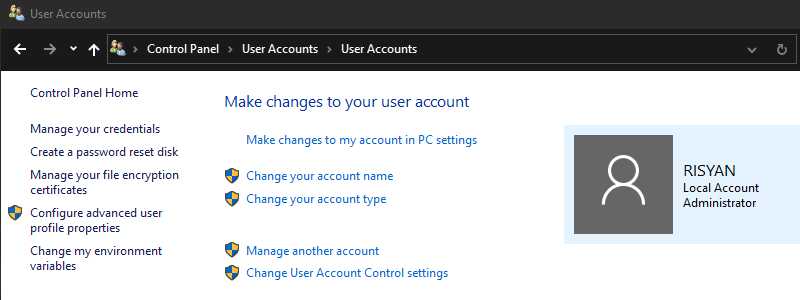
    How to Check Windows User Account Type
    How to Check Windows User Account Type

    #2. Take Full Control Over Files Or Folders

    The Windows Administrator user account can control files or folders from other user groups on the system. Sometimes file permissions exit or other users change file access permissions, denying your Windows user account access.

    Right-click the file or folder that you want to have full control over and select  Properties. Select the Security tab, followed by the Advanced option.
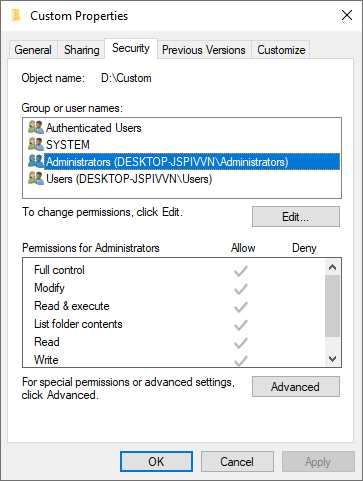
    Take Full Control Over Files Or Folders
    Take Full Control Over Files Or Folders

    When the Advanced Security Settings window opens, select  Change and then select Advanced to open the Select User or Group option. Now, select  Find Now to open a list of users on your system. Browse to your Windows user account name, then  OK.
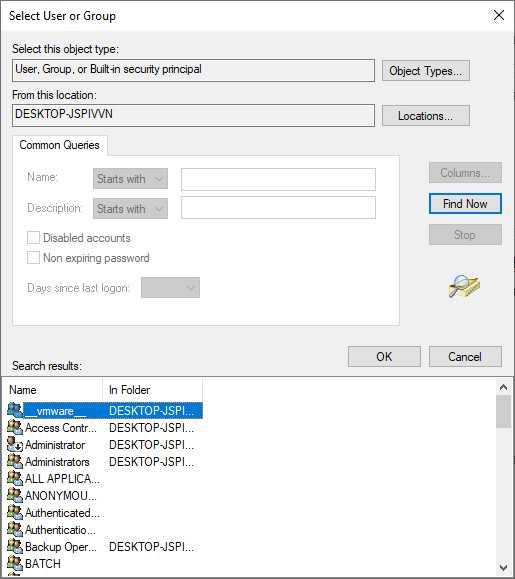
    Take Full Control Over Files Or Folders
    Take Full Control Over Files Or Folders

    Return to the Advanced Security Settings window, check the Replace owner on sub containers and objects box, then select  Apply.

    After taking full control of the file or folder, you will not see permission errors again.

    #3. Add Account To Administrators Group

    Under certain circumstances, you can add your own account to the Administrators Group on the system. However, this will not work if you are using a Standard Windows user account that is restricted from the Administrator user account.
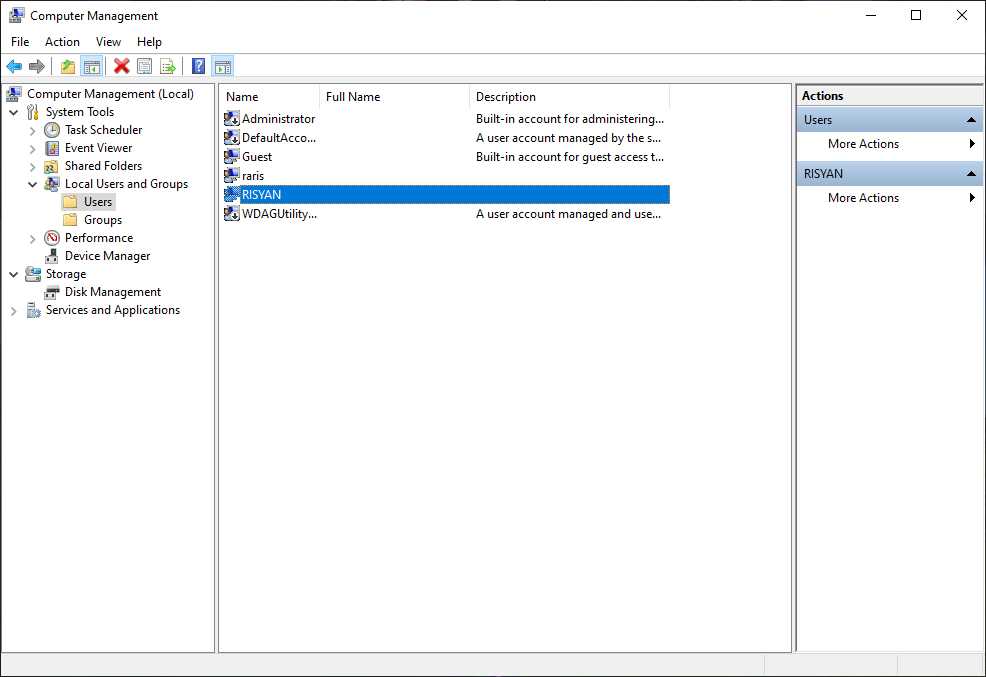
    Add Account To Administrators Group
    Add Account To Administrators Group

    Follow these steps to add your account as a member to the Administrator account:

    1. Press  Windows Key + X  then select  Computer Management.
    2. Go to  Local Users and Groups > Users, where you will see a list of user accounts.
    3. Right-click your username and select  Properties, then go to the Member Of tab.
    4. Press  Add, then in the Enter the object names to select box, enter “  Administrator  .”
    5. Select  Check Names, then  OK.

    You will have to restart the PC for these changes to take place.

    #4. Boot Into Safe Mode

    Sometimes Windows issues might stop you from accessing certain files or folders. To see if this is a bug, you can boot into safe mode, and then try to access the restricted files.

    There are several ways to enter Windows safe mode. The easiest way is to press  Windows Key + R, enter msconfig,  and press Enter. Go to the Boot tab. Under  Boot options, select  Safe boot.

    Now, hit  Apply and restart your system.
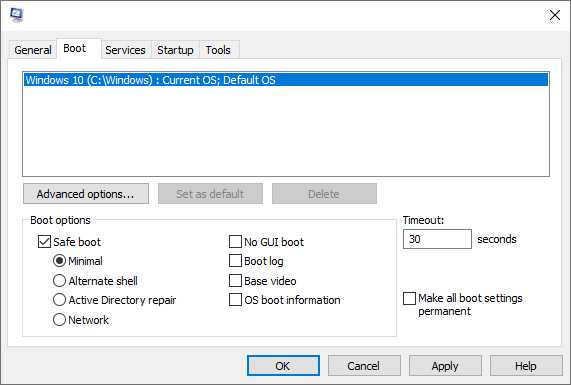
    Boot Into Safe Mode
    Boot Into Safe Mode

    Once your system boots up, try to access the restricted files. Before rebooting back into Windows, open MSConfig and uncheck the Safe boot option, then hit  Apply. If you don’t uncheck this option, Windows will boot again into safe mode.

    #5. Run SFC And CHKDSK

    Another method to fix the “You Need Permission To Perform This Action” error is to check for corrupted files. Windows System File Check (SFC) is an integrated Windows system tool that you can use to check for errors.

    Before running the SFC command, you need to check if it is working properly. To do this, you can use the Deployment Image Servicing and Management tool, or DISM.

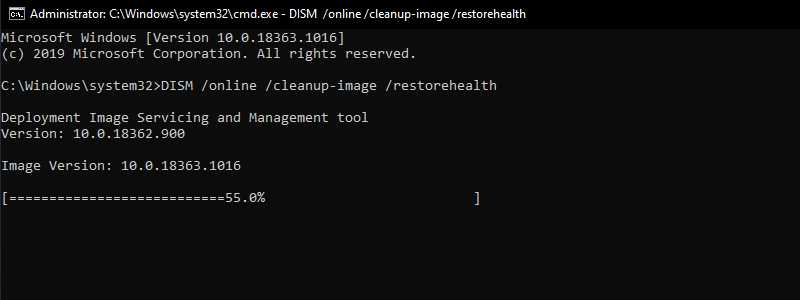
    Like SFC, DISM is an integrated Windows utility with multiple functions. In this case, the DISM Restorehealth command ensures that your next repair will work properly. Here’s how you can use DISM and SFC:

    1. Type  Command Prompt (Admin)  in the Start menu search bar, then right-click and select  Run as administrator to open a Command Prompt with admin privileges.
    2. Type the following command and press Enter:  DISM /online /cleanup-image /restorehealth
    3. Wait for the command to finish. The process can take up to 20 minutes, depending on the health of your system. The process seems to crash at times, but wait for it to finish.
    4. When the process is complete, type sfc /scannow and press Enter.
    Run SFC And CHKDSK
    Run SFC And CHKDSK

    CHKDSK is another Windows system tool that checks your file structure. Unlike SFC, CHKDSK scans your entire drive for errors, whereas SFC scans your Windows system files specifically. Like SFC, run a CHKDSK scan from the Command Prompt to repair your machine.

    1. Type the command prompt in the Start menu search bar, then right-click the most suitable one and select  Run as administrator. (Alternatively, press the Windows key + X, then select  Command Prompt (Admin)  from the menu.)
    2. Next, type chkdsk /r  and press Enter. The command will scan your system for errors and fix any issues.

    After SFC and CHKDSK are done, repair the corrupted files, and restart your system. Then, try accessing restricted files.

    Read more:

    Conclusion:

    These on 5 ways to solve the You Need Permission To Perform This Action error in Windows, an Administrator account is very important in Windows if you want to change your system settings. If you don’t have an Administrator account, you’ll need to contact your system admin for help or at the very least, their password.
  • 10 Ways To Install Windows 10 on MacBook and iMac 2024

    10 Ways To Install Windows 10 on MacBook and iMac 2024

    10 Ways To Install Windows 10 on MacBook and iMac – Windows 10 and macOS can be installed on the MacBook and iMac with a dual boot method so that we can use them interchangeably.

    How to Install Windows 10 on MacBook and iMac
    How to Install Windows 10 on MacBook and iMac

    How To Install Windows 10 on MacBook and iMac

    Both of these operating systems have their advantages and disadvantages. macOS wins in terms of stability, graphical display, and color accuracy, while Windows excels in terms of compatibility and availability of a full suite of applications.

    Read more:

    Finding free apps for Windows is easy, unlike macOS, whose apps are mostly paid. For gaming activities, Windows is also superior. But when it comes to photography and video editing, macOS with its high color accuracy is of course the winner.

    To get the maximum benefit from the Apple and Microsoft operating systems, we just use them alternately.

    Install Windows 10 on MacBook and iMac

    #1. Preparation

    Before starting the installation process, there are several things that you need to prepare, namely:

    Internet connection

    First, make sure you are using a fast and stable internet connection, because later we will download ISO files, and drivers, and perform Windows updates. This will eat up a lot of internet quota.

    Enough free space

    Second, your MacBook and iMac should have more than 100GB of free space.

    Some of this free space will later be used for the Windows 10 partition, and the rest for storage space on macOS.

    If it’s less than that, I suggest doing the cleaning first or backing up rarely used data to other storage media such as flash drives or external hard disks.

    Power source

    When installing Windows 10, your MacBook Pro should be connected to a charger, because it is feared that the battery is not enough and will interfere with the installation process.

    After making sure all the above preparations have been fulfilled, continue to the next step.

    #2. Download the Windows 10 ISO

    You can get a Windows 10 ISO file directly from the official Microsoft website. It is highly recommended to use the ISO obtained directly from the official site to make sure you download the original version, not from other sites.

    Here’s how to download a Windows 10 ISO file from the Microsoft site, skip this step if you already have the file.

    First, open the following link using the Google Chrome browser:

    https://www.microsoft.com/en-us/software-download/windows10

    After entering the web page, you still cannot find the ISO download link due to Microsoft’s new policy which requires installation via the Media creation tool.

    To bring up the ISO download link, all you need to do is:

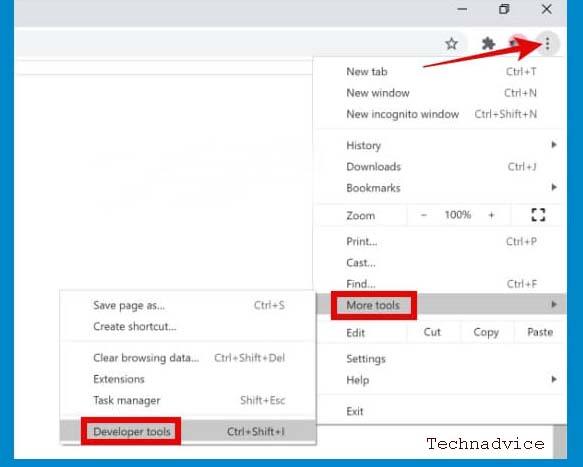
    Click on the Settings button on Google Chrome> More tools > select Developer Tools.

    select Developer Tools

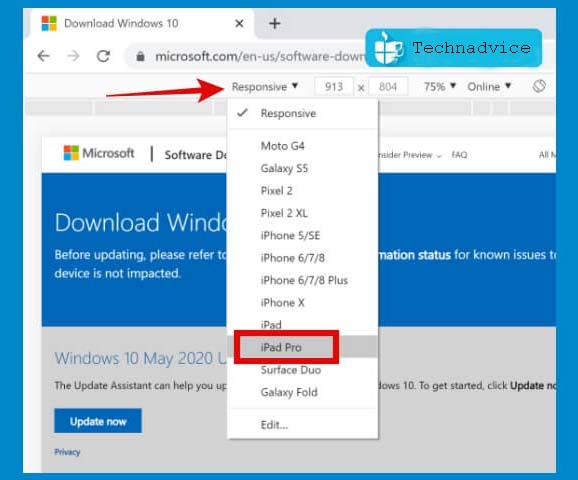
    On the device, change to iPad Pro > then reload the web page by pressing the F5 key.

    iPad Pro

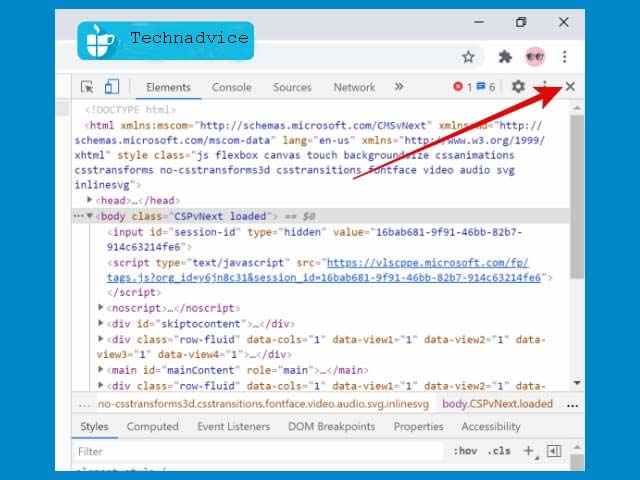
    The web page will change, and there you can find a button to download the Windows 10 ISO. Close the Developer Tools view by pressing the cross button in the right corner to make the site look bigger.

    Close the Developer Tools view by pressing the cross button

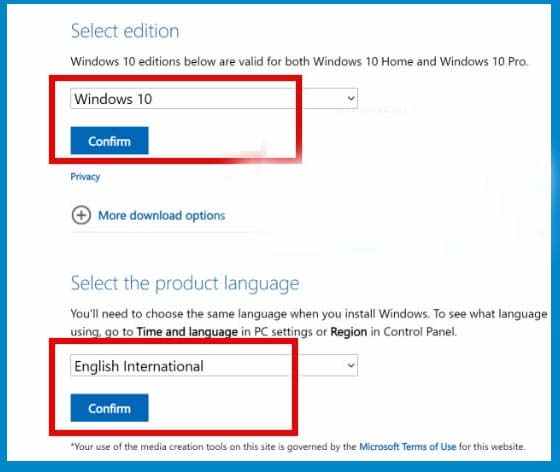
    Then click on the Select edition button > choose Windows 10 > then click the Confirm button.

    In the Select, the product language section, select the language you want to use in Windows. Can Hindi or English International > then click the Confirm button.

    Confirm button

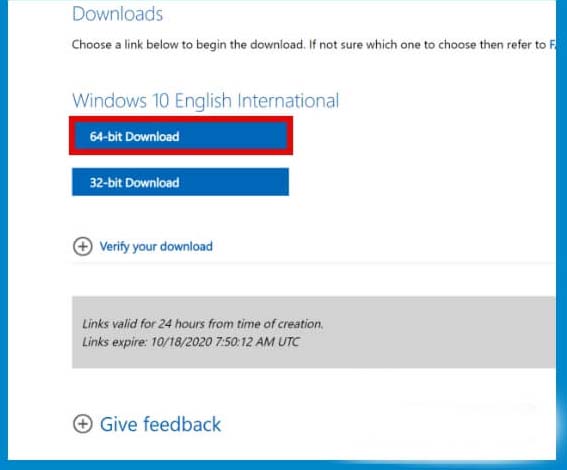
    Next, select the Windows architecture version to download> click on 64-bit Download.

    64-bit Download

    The ISO download process will start, wait for it to finish.

    Regarding which version of the architecture to use whether 32bit or 64bit, you can adjust it yourself as needed.

    It is highly recommended to use the 64-bit version because currently, the 64-bit version is the most compatible, considering that almost all the latest applications are now focused on being developed for 64-bit architectures.

    But if you have special needs that require a 32-bit operating system then please choose the 32-bit version.

    After the ISO file has finished downloading, proceed to the next step.

    #3. Start the installation process

    Make sure your MacBook or iMac is connected to a stable internet connection and connected to the charger.

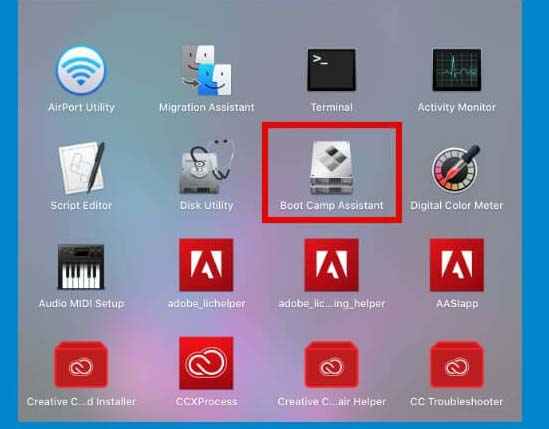
    After that open the Boot Camp Assistant application on the Mac. You do this by going to Launchpad using a three-finger gesture> select Others > select Boot Camp Assistant.

    Start the installation process

    After the Boot Camp Assistant application opens click on the Continue button.

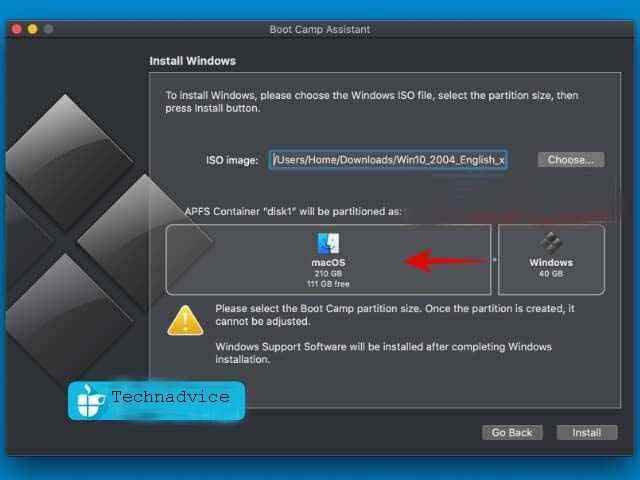
    Next, decide how many partitions you want to allocate for the Windows 10 operating system. Drag the scaling points left and right to resize.

    What is the ideal size for Windows 10

    What is the ideal size for Windows 10?

    If you are still not sure what size is the right size then let me give you a little idea.

    Windows 10 is an operating system that is quite large once installed.

    In a fresh install condition without an application, the size can reach 15GB, not to mention later after updating, installing drivers, and the necessary applications.

    Based on my experience when using Windows 10 on a PC, the 100GB storage allocation is enough to run Windows 10 quietly.

    With that much storage space, I can install all the applications needed for work, multimedia, and light games, and there is still free space left to store files.

    If you still have enough storage space on your MacBook and iMac to allocate the 100GB partition for Windows 10, then this is the best choice. However, if it is not possible then 60-80GB is sufficient.

    This partition size determination can only be done at the beginning of the installation process. After Windows 10 is installed, the partition cannot be added. So consider carefully according to your needs.

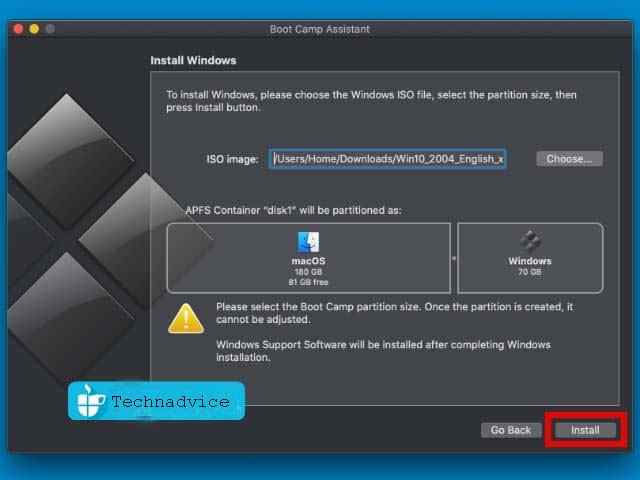
    After determining the size of the partition, then click on the Install button.

    then click on the Install button

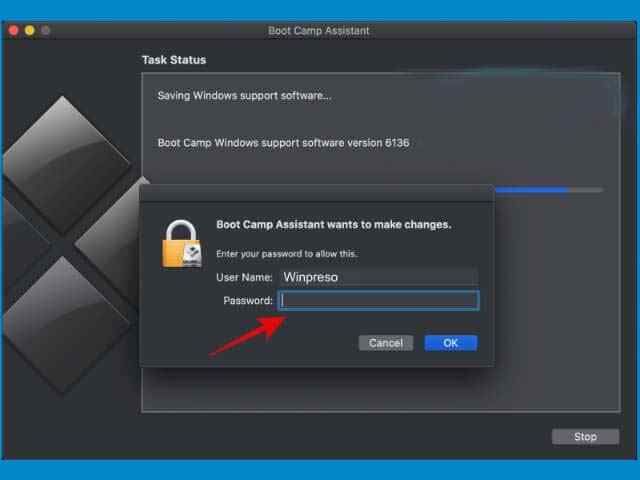
    The installation will start, you only need to wait until the Windows support software download process is complete.

    When finished you will be asked to enter the Mac password, type your password then click the OK button.

    What is the ideal size for Windows 10

    The Mac will restart and automatically enter the Windows Installation Wizard page.

    The next install process is the same as installing Windows 10 on another PC or laptop. For you to feel at ease, I will explain the process step by step.

    In the first window select Language (Hindi / English)Time and currency format (English United States), and Keyboard input method (US) > then click the Next button.

    In the Activate Windows window, click on I don’t have a product key. If you already have a valid license, you can enter it directly in the column provided. After that click the Next button.

    Then choose the version of Windows you want, which can be the Home or Pro version (recommended)> click the Next button.

    Check I accept the license term > then click the Next button.

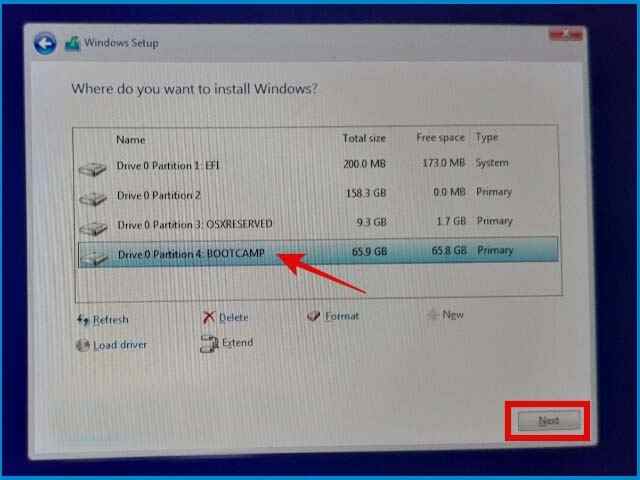
    Then select the partition labeled BOOTCAMP. Don’t get this wrong. After that click the Next button.

    Check I accept the license term

    The Windows 10 install process will start, wait for it to finish.

    Sip your coffee first to relax, don’t forget the, don’t worry, if the steps are done correctly, God willing, it will work.

    After the installation process is complete, the Mac will automatically restart and enter the finishing stage.

    Then you just have to continue the Windows installation process by filling in the account name, password, region, keyboard layout, and basic preferences. Just follow the process, and skip the unnecessary ones. These settings can still be changed later.

    When finished you will enter the Windows desktop.

    #4. Install the driver

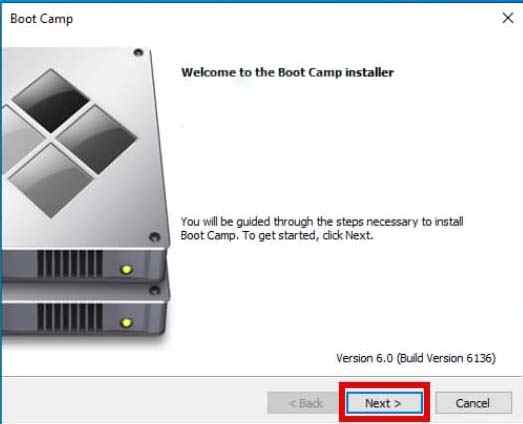
    Shortly after entering the desktop, the Boot Camp application window will appear.

    Click the Next button > click Install.

    Install the driver

    At this stage, we will install the required drivers via the Boot Camp Installer.

    The installation process takes place automatically, Boot Camp will install all the drivers needed so we no longer need to look for them one by one.

    Wait until the install process is complete then click the Finish button > Restart.

    #5. Update Windows

    After entering the desktop you will see a better Windows appearance because the graphics driver has been successfully installed. WiFi signal can also be detected.

    The next step is to update Windows.

    Connect your Mac to the internet, either via WiFi or LAN.

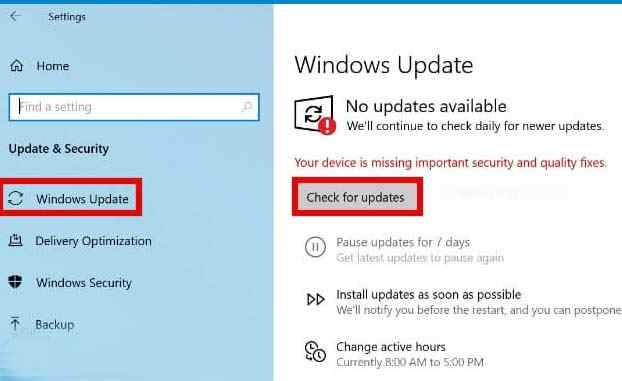
    After that, click the Start button > Settings > Update & Security > Windows Update > click the Check for updates button.

    The next step is to update Windows

    Wait for the update process to complete. This will take a while.

    After the update has been downloaded and installed, restart your computer.

    #6. Font size adjustment

    After the driver has been installed and Windows has been updated, you can use it at this point. But the font size might look too small, especially if you’re using a 15-inch screen or on an iMac.

    To overcome this, we can adjust the display scale through the settings provided by Windows 10.

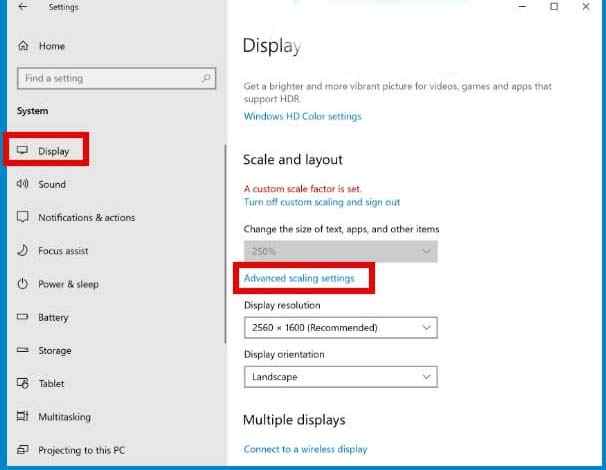
    Click the Start button > Settings > System > Display.

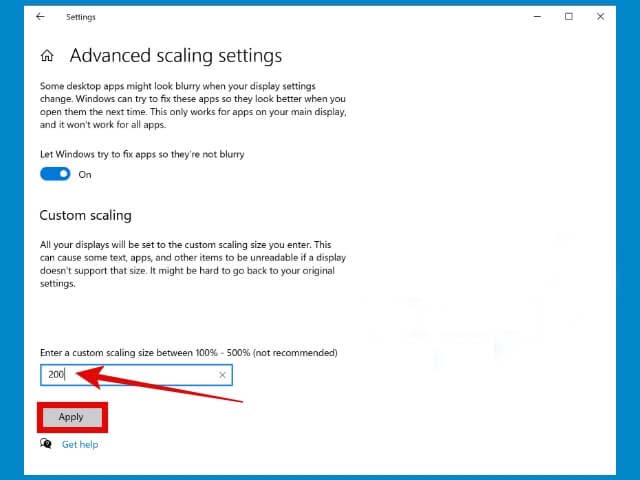
    In the Scale and Layout section > click Advanced scaling settings.

    Font size adjustment

    In the Custom Scaling > change the value to 200.

    Font size adjustment

    To see the changes, sign out first from Windows by clicking the Start button > clicking Accountclicking Sign out.

    You can vary the scaling values ​​until you find the font size and other components that you think are the most ideal. The recommended value is 100-500.

    #7. Trackpad settings

    The important part that must be set next is the trackpad. When using macOS you might experience a very smooth trackpad, the right sensitivity, crunchy movements, and accurate clicks.

    But when using Windows on a Mac, it’s a different story, if it’s not set, the difference will be very pronounced.

    Even though we can’t make a trackpad while using Windows as slick as macOS, at least we can still adjust it so it’s comfortable to use.

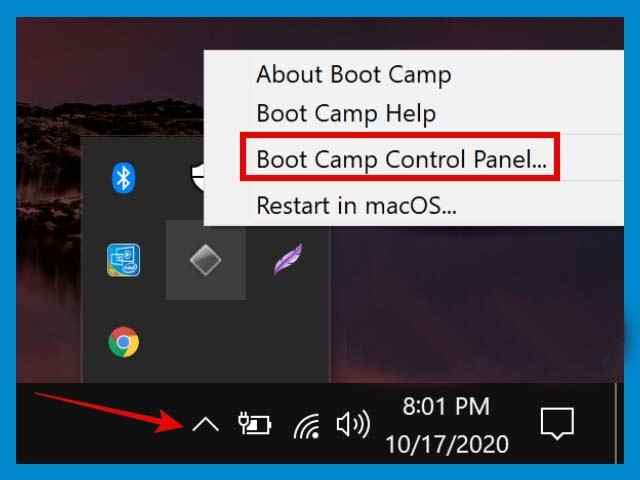
    First, click on the System Tray icon > right-click on the Boot Camp icon > select Boot Camp Control Panel.

    Trackpad settings

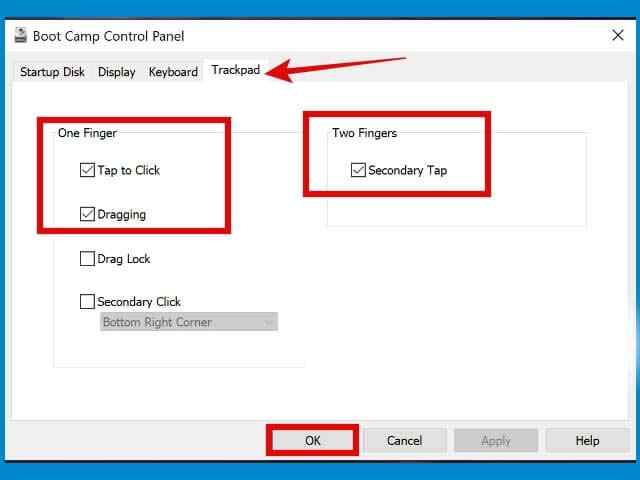
    After the Boot Camp Control Panel window opens> click on the Trackpad tab.

    Check on Tap to ClickDraggingSecondary Tap > click OK.

    Dragging, Secondary Tap

    Close the Boot Camp Control Panel window.

    Next, click on the Start button > Settings > Devices > Mouse.

    Set the cursor speed and scrolling as desired.

    Then click on the Touchpad tab > adjust the sensitivity.

    #8. Remapping the keyboard

    The next adjustment that needs to be made is the keyboard.
    When using Windows, the Command key functions as the Windows key, while on macOS, it functions like the CTRL key on Windows.

    This can be a bit confusing, especially when doing shortcuts to frequently used tasks such as copy-paste (Command + C / V) and Select All (Command + A).

    Therefore we need to do a remapping to swap the functions of the Command and control keys.

    #9. Install the required applications

    After all the steps above have been carried out, the final step is to install the necessary applications.

    You can start with basic applications such as Office, a Multimedia player, a Photo editor, and others.

    #10. Windows 10 is ready to use

    Done, until here we have successfully installed dual boot Windows 10 with macOS.

    This installation method using Boot Camp can be done on the following Apple devices:

    1. MacBook Pro (Early 2012 and later)
    2. MacBook Air (Early 2012 and later)
    3. MacBook (Early 2015 and later)
    4. iMac Pro (2017)
    5. iMac (Early 2012 and later) *
    6. Mac Mini (Early 2012 and later)
    7. Mac mini Server (Late 2012)
    8. Mac Pro (Late 2013)

    Read more:

    Conclusion:

    So, friends, that’s how to install Windows 10 on a MacBook or iMac. If you find difficulties, don’t hesitate to comment.

  • How to Remove IDM Completely From Windows 10 PC 2024

    How to Remove IDM Completely From Windows 10 PC 2024

    how to Remove IDM Completely From Windows 10 PC – Who doesn’t know IDM? For those of you who like downloading, you must be familiar with this application, please. Yup, IDM is known for the advantages it offers, such as:

    how to Remove IDM Completely From Windows 10
    how to Remove IDM Completely From Windows 10

    How to Remove or Uninstall IDM Completely From Windows 10 PC Laptop

    • Speed ​​up file downloads.
    • Make the download process stable.
    • Prevent file corruption.
    • And others.

    IDM itself has been released for a long time, and the number of users cannot be counted anymore at this time.

    Read more:

    How to use IDM is also very easy. Starting from the install process, until when we want to delete it.

    Departing from this, here I want to discuss a little how to properly uninstall IDM until it is clean. Because, apparently there are still many people who don’t know it, you know.

    Let us discuss: how to Remove IDM Completely From Windows 10.

    How to Uninstall Internet Download Manager (IDM) on Windows 10 PC

    In short, how to delete IDM from the computer, the steps are as follows:

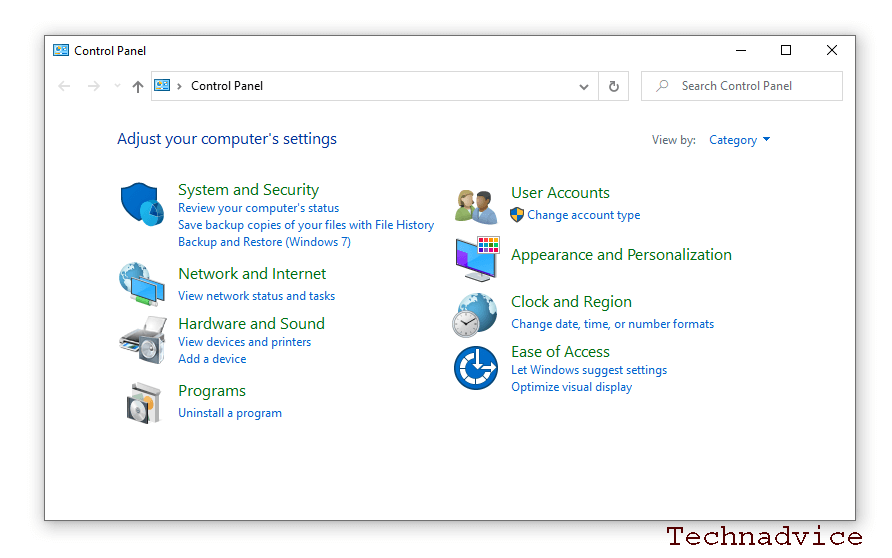
    1. Open the Control Panel.
    2. Enter the Program and Features menu.
    3. Look for IDM > Right click> Then Uninstall.
    4. Select the Default or Full option.
    5. Wait for the uninstall process to complete.

    For a more complete guide, please continue reading the following discussion: on how to Remove IDM Completely From Windows 10.

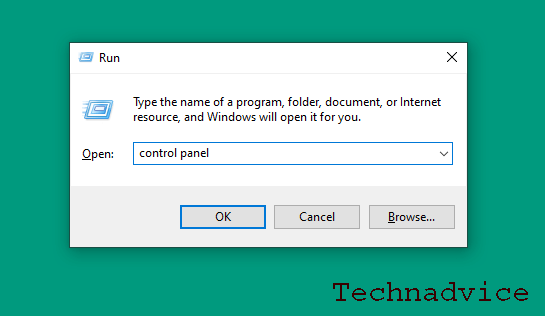
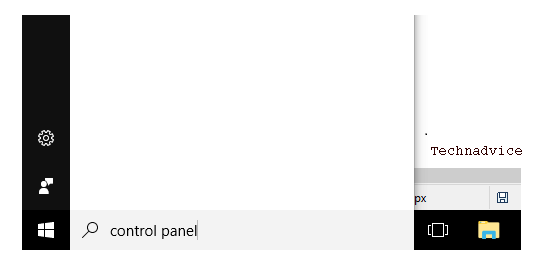
    • For the first step, please open the Control Panel first. You can via the search column, type ” control panel “. You can also click the Windows key + R, then type ” control panel ” and click OK.
    How to Uninstall Internet Download Manager (IDM) on Windows
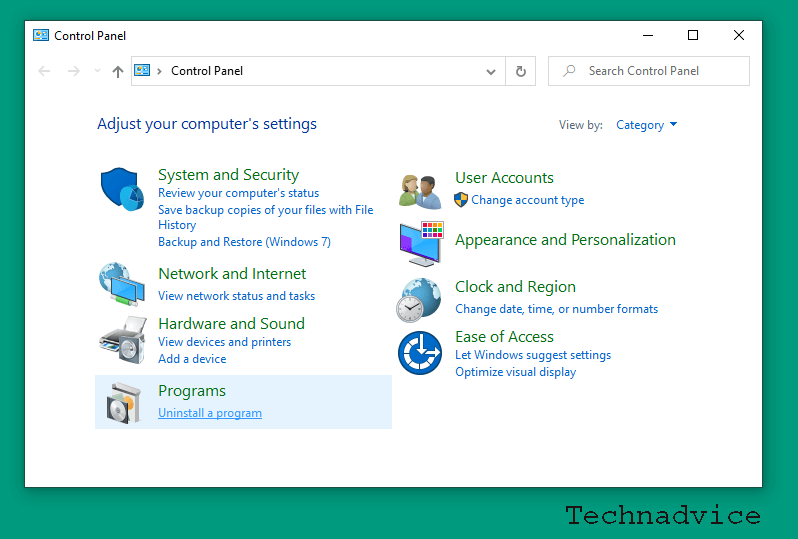
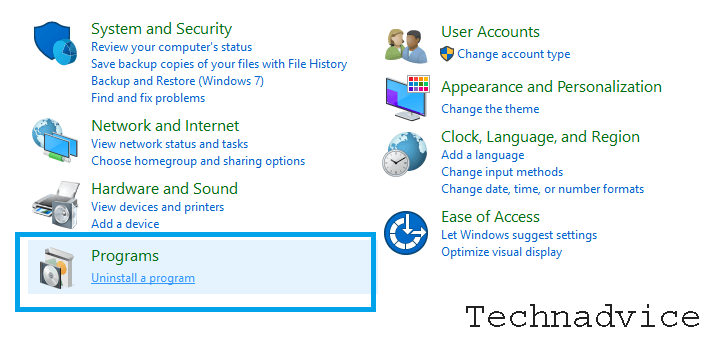
    • Now, if you are already on the Control Panel page, please click the Uninstall a Program button.
    How to Uninstall Internet Download Manager (IDM) on Windows
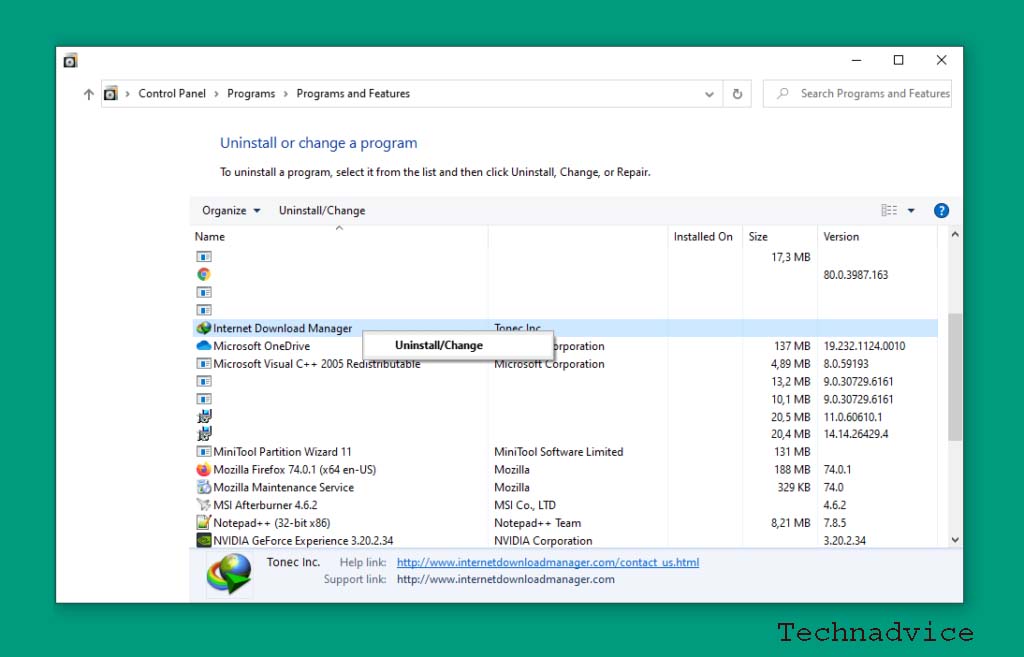
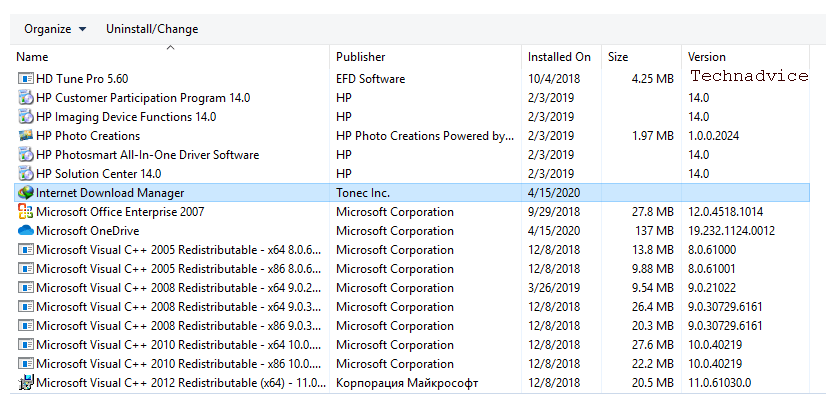
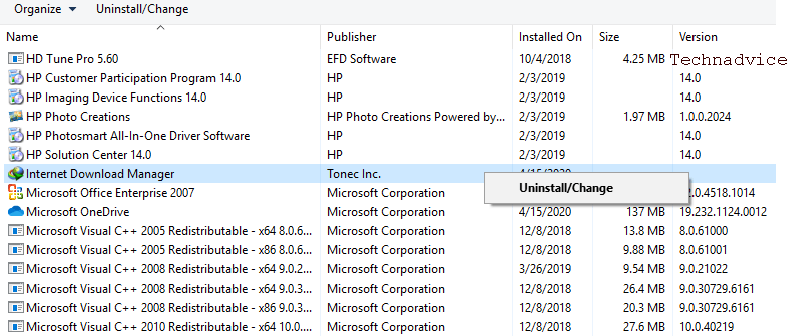
    • Now, we are on the Program and Features page. Here, please look for the Internet Download Manager application. If you have found it, right-click the application, then please click Uninstall.How to Uninstall Internet Download Manager (IDM) on Windows
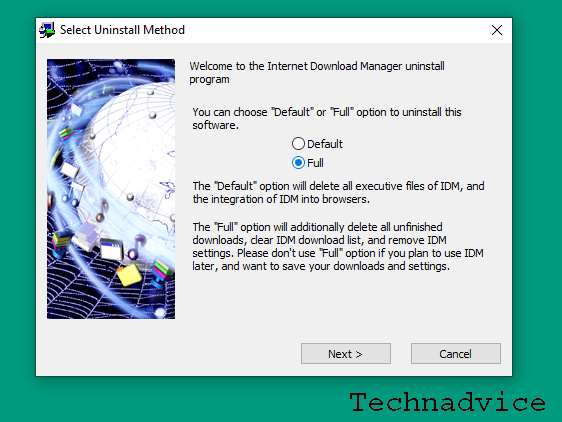
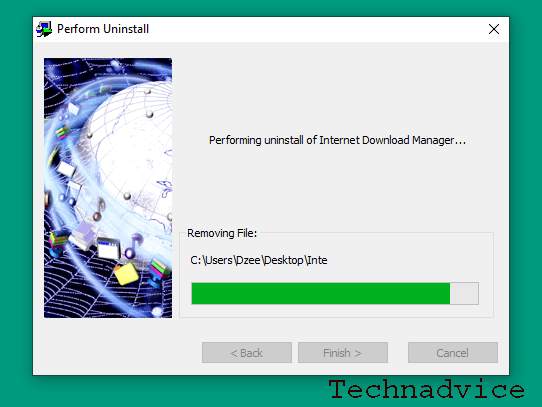
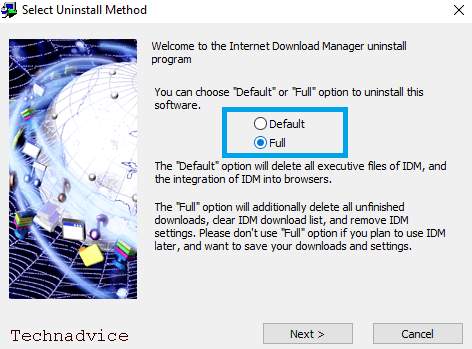
    • An uninstall window will appear. There are two options here, namely Full and Default. For this option, I select the Full option.

    How to Uninstall Internet Download Manager (IDM) on Windows

    What’s the difference between the Default option and the Full option? Try checking in the following table:

    Full Default
    Deletes all IDM data contained in Windows. Delete the IDM application only, not with data.
    • Wait for the uninstall process for a few moments. Usually fast, really. Less than 1 minute is also done.
    How to Uninstall Internet Download Manager (IDM) on Windows
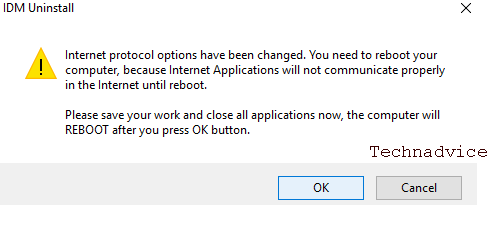
    • If so, a notification will appear. Click OK, then the computer will restart.

    Uninstall Internet Download Manager (IDM) on Windows

    Now, after restarting, IDM has been deleted from your computer.

    Yes! It’s just that easy. Really easy right?

    But wait, it’s not over here yet, you know. To be completely clean, we must also delete the registry.

    How to Delete the Registry from IDM

    After removing IDM, the registry data will still be stored on the system. We must also remove this registry data. The method is as follows:

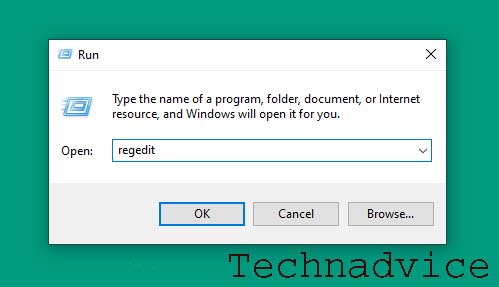
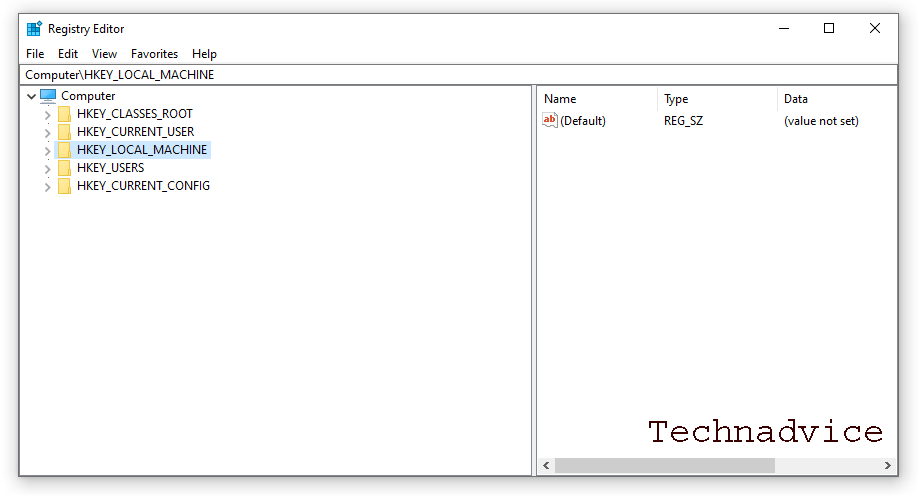
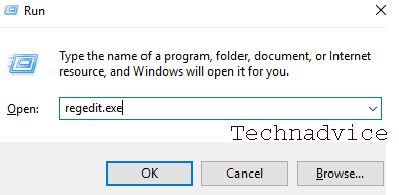
    First of all, please click the Windows key + R on the keyboard. Type ” Regedit “, then click OK. If a notification appears, just click OK again.
    How to Delete the Registry from IDM

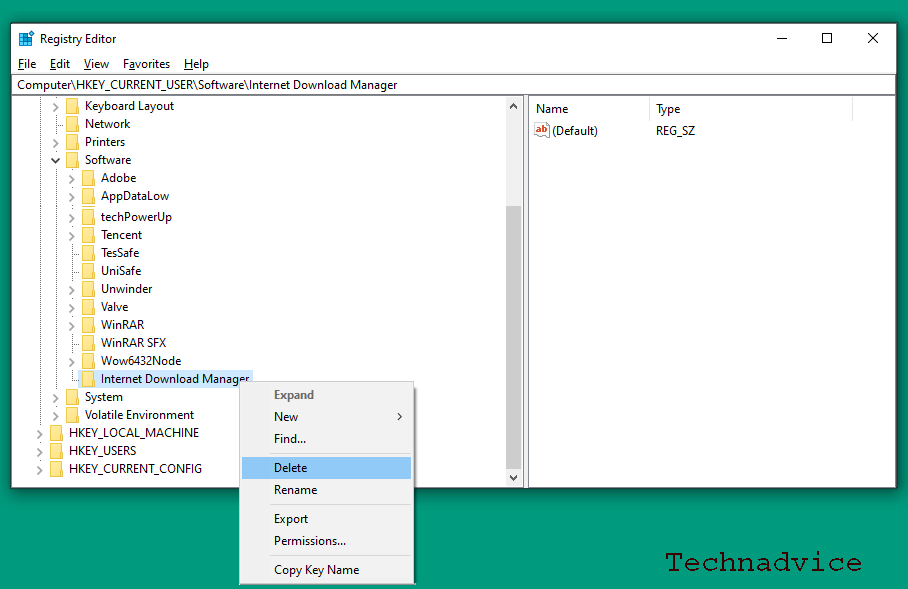
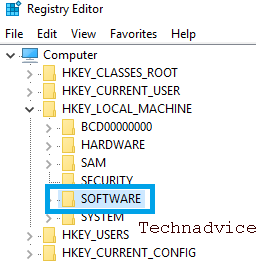
    Next, on the Regedit page, please enter the location of these two folders:

    • HKEY_CURRENT_USER> SOFTWARE> Internet Download Manager.
    • HKEY_LOCAL_MACHINE> SOFTWARE> Internet Download Manager.

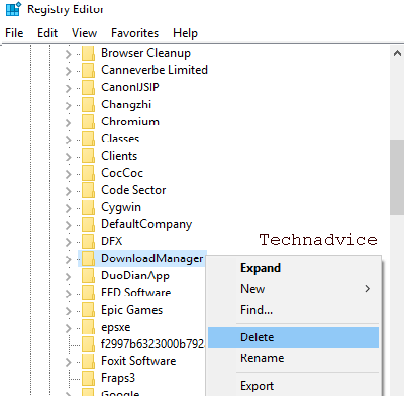
    Please delete the Internet Download Manager folder to remove the registry. If so, restart the computer.

    An example can be checked in the following image:

    How to Delete the Registry from IDM

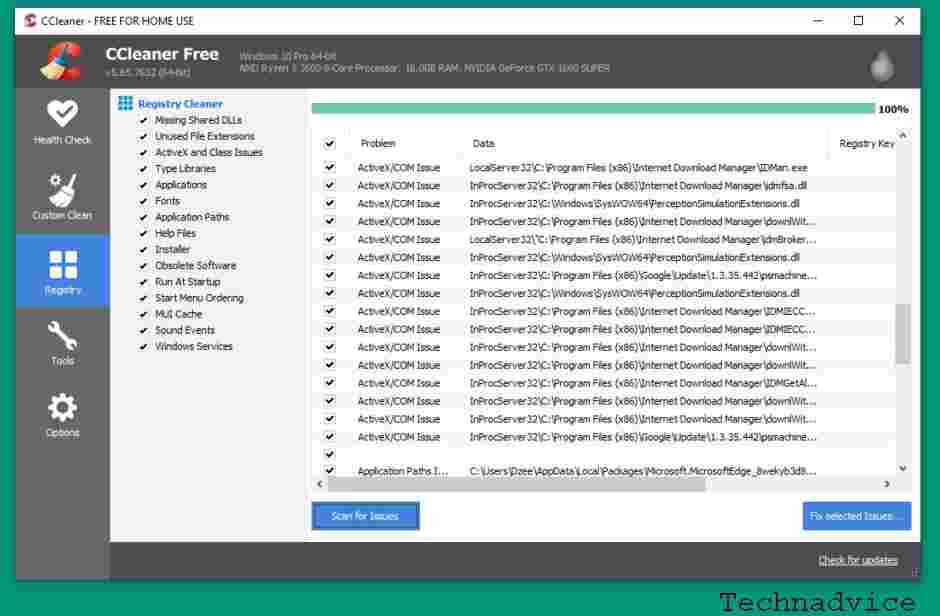
    This is just the first step, huh. In the second step to clean the IDM registry, we use the CCleaner application. The method is like this:

    1. Please install the CCleaner application first. Free.
    2. If so, continue to open the application. Then please select the Registry menu.
    3. On the Registry menu, please click Scan, then wait a few moments for the process to finish.
    4. If so, click the Fix Selected Issues button to delete all existing registries.
    How to Delete the Registry from IDM

    CCleaner is intended to delete other IDM registry data that is still left behind. The goal is to maximize manual registry removal as was done in Regedit earlier.

    Guaranteed to be cleaner, anyway.

    Other Ways If You Want More Simple

    The steps I described above are all manual.

    Well, if you want it to be simpler, you can do it. You can use additional applications. For example:

    • Revo Uninstaller.
    • IObit Uninstaller.
    • Wise Program Uninstaller.

    As well as similar applications.

    These applications have a feature to remove programs installed on the system, as well as delete the registry at the same time.

    You can try it if you want. The method is simple. More or less like this:

    1. Install the uninstaller application. Can be any, as needed.
    2. Open the application.
    3. Enter the program removal menu.
    4. Look for the IDM application, then select the Uninstall option.
    5. Wait for the process to complete.

    If so, restart the system as usual.

    2. How to Uninstall IDM Until Clean

    In general, there are 2 ways to delete IDM that you can do. Here is a description of the three ways un install l IDM them.

    #1. Delete IDM Through the Control Panel

    Delete IDM Through Control Panel

    The first way you can use to delete IDM is to uninstall it through the Control Panel.

    This method is quite easy because you only need a few steps to delete this application to its roots on a PC device.

    1. The first step is to open the Control Panel via Windows search
    Delete IDM Through Control Panel
    1. To remove the software, you can click the Uninstall a program option
    Delete IDM Through Control Panel
    1. On the Programs and Features page, look for the Internet Download Manager software
    Delete IDM Through Control Panel
    1. Right-click on the “ Internet Download Manager ” section and select the option “ Uninstall / Change. 
    Delete IDM Through Control Panel
    1. The next step follows the instructions that will be directed by IDM to make the process of uninstalling the l program.
    2. Later you will be given the option to select ” Default ” or ” Full ” to uninstall l the program.
    Delete IDM Through Control Panel

    It is recommended that you prefer the “Full” option to delete all data stored in the browser system.

    1. After selecting ” Next “, wait a moment to complete the process of uninstalling l IDM.
    2. After the IDM program is successfully removed, a notification will appear that you need to restart the computer you are using.
    3. Click ” OK ” then wait for the computer to restart successfully.
    Delete IDM Through Control Panel

    After all processes have been completed, IDM has been successfully erased completely on your computer device.

    #2. How to Delete the IDM Registry

    How to Delete the IDM Registry

    Deleting the IDM registry on the computer or laptop device you use is another important step.

    Here are some steps to delete the IDM registry in Windows.

    1. First, open the Windows Run menu by pressing the Windows key + R on the keyboard.
    2. After the Windows Run window appears, you can write “regedit.exe” in the available column.
    How to Delete the IDM Registry
    1. After that, you can click the ” OK ” button at the bottom of the window and if the UAC Window appears, you can click ” Yes ” to enter the Registry Editor page.
    2. After successfully entering the Registry Editor page, enter the HKEY_CURRENT_USER and HKEY_LOCAL_MACHINE folders then select ” SOFTWARE ” in the folder.
    How to Delete the IDM Registry
    1. Look for the ” DownloadManager ” folder then right-click and select the delete option.
    How to Delete the IDM Registry
    1. After success, all IDM files and data on your computer device will be deleted until they are cleaned.

    Read more:

    Conclusion:

    So, friends, those are the steps to Remove IDM Completely From Windows 10 or delete the IDM application from a computer or laptop. For those who want to install it again, just install it as usual. You still can.

    I have tested the guide here myself and can be applied to all versions of Windows (I use Windows 10).

    For those of you who may encounter problems – for example, there is a certain error message – please ask via the comments column below. It’ll help later.

  • Best 3 Ways To Check PC Laptop Power Usage 2024

    Best 3 Ways To Check PC Laptop Power Usage 2024

    Best 3 Ways To Check PC Laptop Power Usage – Ever wondered how to check the power consumption of your computer’s PSU for how many watts? Well, this is pretty much what people are looking for. Whether you already have a PC or a new plan to assemble.

    Best 3 Ways To Check PC Laptop Power Usage
    Best 3 Ways To Check PC Laptop Power Usage

    How To Check PC Laptop Power Usage

    To find out how much electrical power is used on a computer or laptop, you can use three ways.

    Read more:

    That is using a wattmeter, through certain sites or applications. The point is later you can choose for yourself the appropriate way to apply.

    Here are the ways:

    #1. Using a Wattmeter

    Using a Wattmeter
    Using a Wattmeter

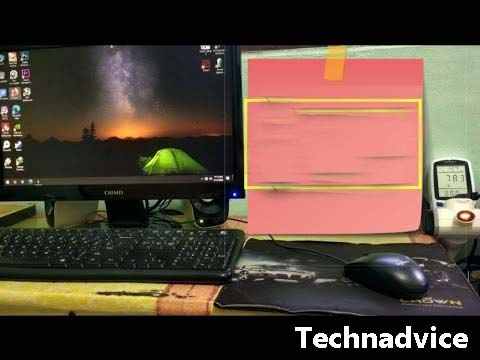
    First, you can use a Wattmeter to find out the power consumption (watts) of the PC power supply.

    The power displayed using this method is arguably the most accurate. The electrical power displayed is almost real.

    Well, to use this device is quite easy, you just need to connect the wattmeter to the socket. After that, connect the PC to the wattmeter.

    Later the wattmeter will display the amount of electrical power in digital form directly when the PC is active.

    Then regarding the price, this Wattmeter device is quite cheap too.

    Name Price
    Wattmeter Rp. 125,000 – Rp. 250,000

    #2. Via PSU Calculator Site

    If you don’t have a PC and are just planning to assemble it, you can try this PSU Calculator site.

    This site has a function to find out the power consumption of a computer specification, by calculating the power required for each component.

    To do so, you can follow these steps:

    • In the first step, you can open the browser.
    • After that, please visit the Power Supply Calculator site.
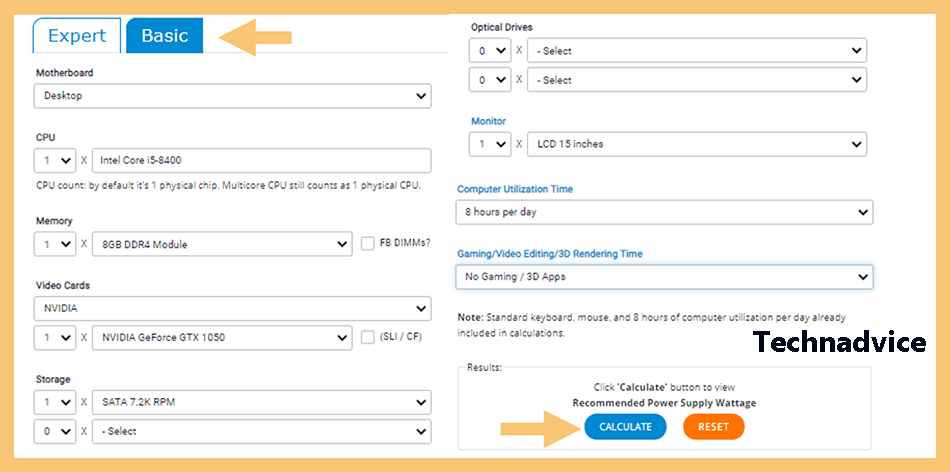
    • After the site page is open, you can click the Basic tab.

    Tips:

    If you are familiar with all the components of the PC or laptop used, then you can choose the Expert tab. But if not, then you can use the Basic tab.

    • Then fill all the components into each column provided.
    Via PSU Calculator Site

    Notes:

    Here you must enter the type of motherboard, CPU, RAM, VGA, hard drive, and other components.

    • If so, you can click the Calculate button.
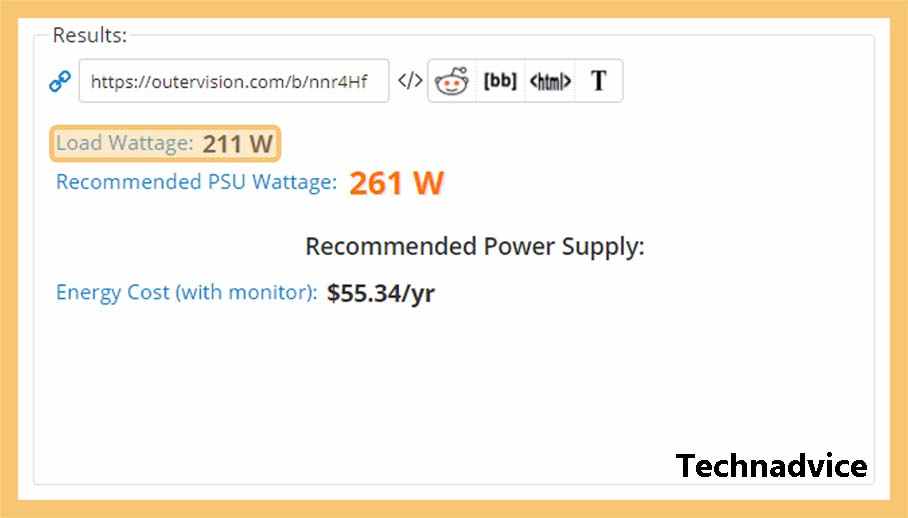
    • Then the amount of electrical power will be seen in the Load Wattage column.
    Via PSU Calculator Site
    • Finished.

    #3. Using the App

    This method is similar to the previous one, but here we do not use the browser but directly with the application.

    Well, this power counter application, in addition, to supporting computers, can also be used on laptops.

    How to use it, please follow these steps:

    • First, you need to download the Local Cooling application.
    • Then please install it on the PC or laptop that you want to check the electrical power.
    • You can now open the Local Cooling application if it has been successfully installed.
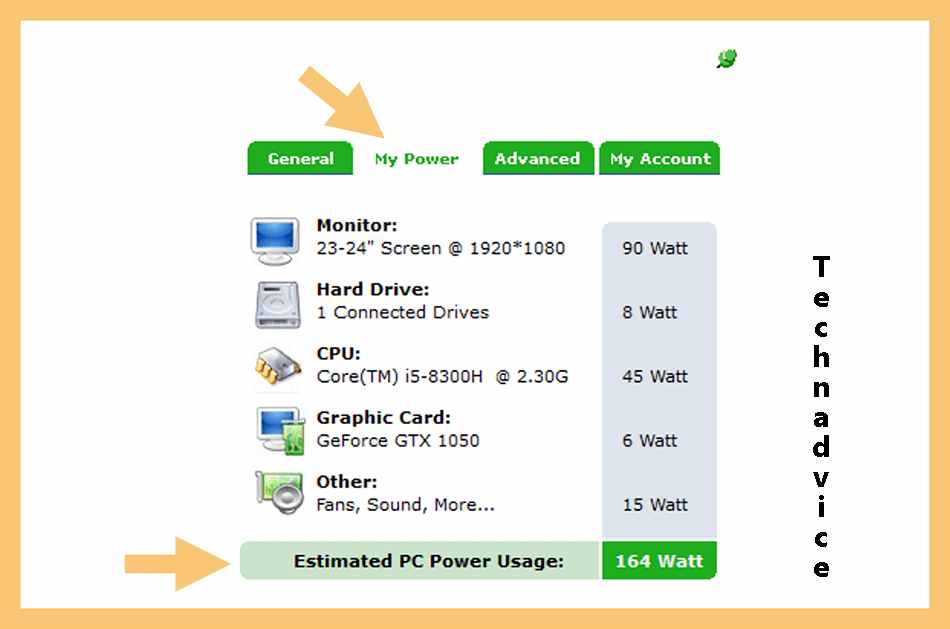
    • Next, please click the Settings menu.
    Using the App
    • After that, please click the My Power tab, and then the estimated electrical power used on your PC will appear.
    Using the App
    • Finished.

    Notes Regarding Computer Power Usage

    The use of power in the computer is divided into two—namely the idle position and full load position.

    The difference:

    Iddle When the computer is not running many applications
    Full Load When the computer is running a lot of heavy applications

    Of course, the use of a full load will consume more power than the idle position. If you use a wattmeter, the detection will run automatically.

    But if you use the method via a site or application, please use the desired scenario. For example, when gaming, the power consumption at full load can be seen.

    Read more:

    Conclusion:

    That’s a discussion about how to see the number of watts of electrical power used by a PC (or laptop).

    If you have questions about computer power usage, you can try sending them in the comments. I happen to have experience with this myself.

  • 4 Ways To Activate Windows 7 Permanently Offline 2024

    4 Ways To Activate Windows 7 Permanently Offline 2024

    4 Ways To Activate Windows 7 Permanently Offline For Free – Did you just install Windows 7 or are you having problems because the expired not genuine warning appears? So, you need to know how to activate Windows 7 so that the performance of your laptop or PC becomes normal.

    How To Activate Windows 7 Permanently Offline
    How To Activate Windows 7 Permanently Offline

    How to Activate Windows 7 Permanently Offline For Free 100% Working

    Even though on January 14, 2020, Microsoft announced that it had stopped providing Windows 7 updates, there are still many Windows users who are still comfortable using it. The reason is that Windows 7 has several advantages when compared to the version above it.

    Read more:

    In addition, Windows 7 is often considered to be more stable, easier to understand, lighter so that it can be used for low computer specifications, and supports almost all existing software.

    If you have just used Windows 7 or reinstalled Windows 7, then you must do the activation. If not, Windows 7 will expire and you will experience problems more often.

    To do the activation of Windows 7, including a very easy job. You can activate Windows 7 Ultimate, Professional, and other versions in 32-bit and 64-bit offline.

    So easy, there are several ways to activate Windows 7 starting from using a genuine activator, without a product key, and even just using CMD.

    Note: If you fail when downloading the activator file or when opening it. This means you have to deactivate the antivirus, firewall, and internet connection first to avoid these obstacles.

    #1. Windows Loader

    Windows Loader

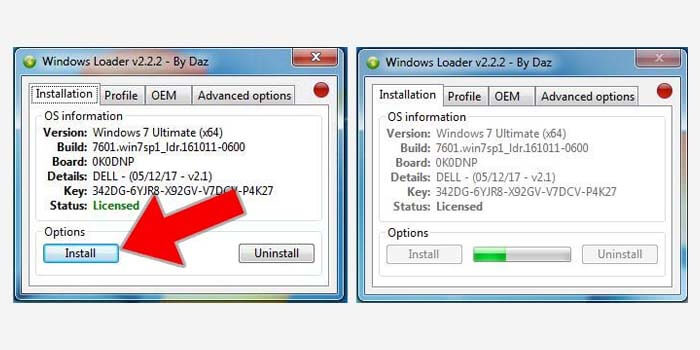
    Windows Loader is a Windows 7 activator that is quite popular nowadays. By using this software, you can activate Windows 7 without having to have a product key to activate it.

    How to activate Windows 7 with Windows Loader:

    1. First, deactivate the antivirus that is on the laptop or PC.
    2. After that, download the activator file here
    1. Then extract the file and turn off the internet connection.
    2. Run the application by right-clicking> Run As Administrators.
    3. The loader will open and display Windows specifications.
    4. Click the Install button to start the Windows 7 activation.
    5. You must wait until the process is complete.
    6. The last step is restarting your laptop or PC.

    Very easy right? After your PC or laptop has restarted and reactivated, Windows 7 has been successfully activated without having to enter the product key.

    #2. KMSPico

    KMSPico

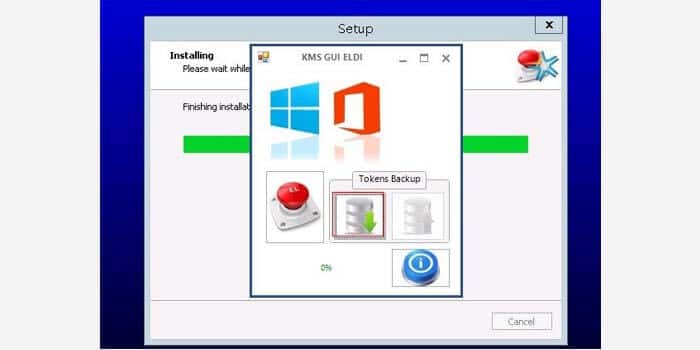
    The next software is called KMSPico which is also very popular as an application that can provide full access to Windows 7 without the need for a product key. This application is free and can be used to permanently activate Windows 7.

    Windows 7 permanent activation without product key:

    1. Download the application first here.
    2. Then extract the RAR file that has been downloaded.
    3. Double-click the .exe file to run it.
    4. In the installation window, click the Next button.
    5. Check the Accept Agreement column then click Next.
    6. The kmspico installation stage will run.
    7. Wait for the process to finish.

    If you experience problems when doing the steps above, then make sure to turn off the antivirus or firewall on Windows 7 first.

    Now, after you successfully follow the guidelines above, don’t forget to restart your laptop or PC so that the Windows 7 activation process is successfully applied.

    #3. Windows 7 Activation with CMD

    Windows 7 Activation with CMD

    If you don’t want to use an activator software for Windows 7 activation, then CMD might be the solution. As we know, CMD is an innate feature of Windows so you don’t need to install any additional software, and can be done offline.

    Here’s how to activate Windows 7 with CMD:

    1. Click the windows icon in the corner.
    2. Type CMD in the search field to look for it.
    3. Right-click CMD then select the Run As Administrator option.
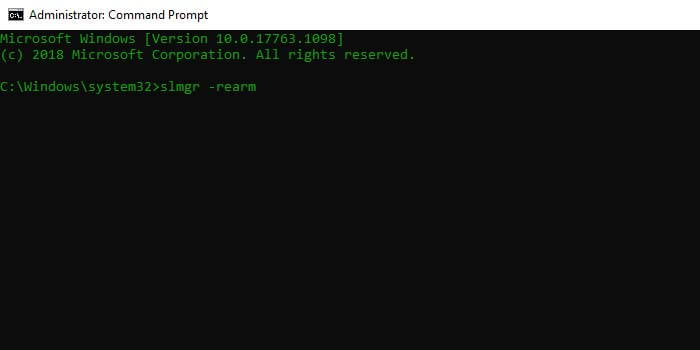
    4. Once open, type slmgr -rearm in the CMD window.
    5. Then press the Enter key to send the command.
    6. Finally, restart your PC or laptop.
    7. Done.

    Note: Commands sent to CMD are basically to increase the activation of Windows 7. The addition of this activation has a limit that is only 3x with a total of 120 days.

    How To Activate Windows 7 Without Software

    The last way is that you must have a valid product key so that it can be used to activate Windows 7 on your PC or laptop. To do this, you only need an internet connection to go online and validate the product key.

    Although the Windows product key can only be obtained by buying it legally. But not to worry, you can get the product key that matches your Windows 7 edition on the link here.

    The following are the steps to enter the Windows 7 product key:

    1. Go to the Start menu> Control Panel> Windows Activation.
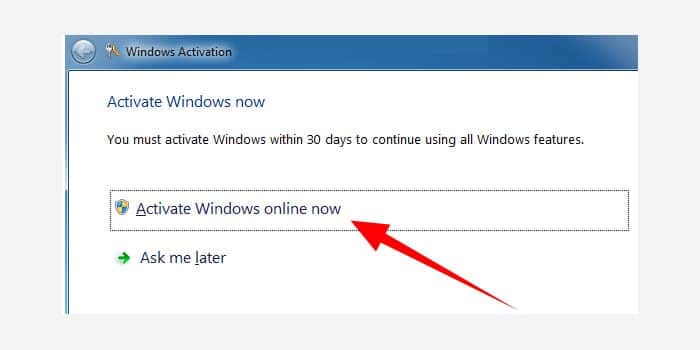
    2. Click the Activation Windows Online Now option.Activation Windows
    3. Then enter the product key that you have.
    4. After that, wait for the process to finish.
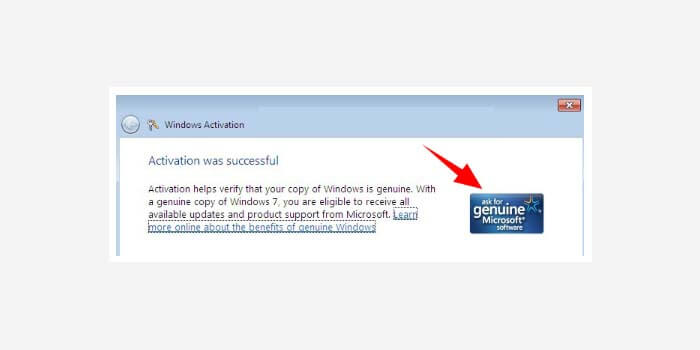
    5. If successful, the Activation was successful message will appear.the Activation was successful message will appear
    6. Done.

    Now features in Windows 7 can be used smoothly without worrying about the error message or other obstacles.

    Disclaimer: All forms of download files on the Technadvice.com site are just for educational purposes only.

    DMCA: Technadvice.com complies with 17 U.S.C. * 512 and the Digital Millennium Copyright Act (DMCA). It is our policy to respond to any infringement notices and take appropriate action. If your copyrighted material has been posted on the site and you want this material removed, Contact us.

    Read more:

    Conclusion:

    Those are some ways of activating Windows 7 permanently which can be done. Which method is effective for you? Do you use the software? Without a product key with cmd? Or validate the product key you have?