Category: Windows

Windows – Here you can find Computer-related updates Windows 10, Windows 8, Windows 7, Linux, technology information, and more.

  • 6 Ways To Enable Hibernate In Windows 10 Laptop PC 2025

    6 Ways To Enable Hibernate In Windows 10 Laptop PC 2025

    6 Ways To Enable Hibernate In Windows 10 Laptop PC – Since when did you use Windows OS? Well, for those of you who have been using this operating system for a long time, surely you have seen the hibernate feature, right?
    How to Enable Hibernate In Windows 10 PC Computer
    How to Enable Hibernate In Windows 10 PC Computer

    How to Enable Hibernate In Windows 10 Laptop PC

    In Windows, this hibernate feature has always been used a lot. Especially to turn off the computer when we have a lot of work.

    Read more:

    As far as I know, this hibernate feature has been around since the Windows 95 version first. But it only became popular after Windows XP was released.

    Incidentally, at that time hibernate was an option to temporarily disable the computer.

    So properly follow this guide: enable hibernate in windows 10.

    What is Hibernate Mode?

    Hibernate is a mode found in the Windows operating system.

    Well, in short, this hibernate is a useful feature for shutting down the system and deactivating active power, but all activities that were running before will remain stored (for example in RAM or hard disk).

    A computer that was turned off using this model can be restarted as before, where all previously saved activity will be loaded back onto the computer.

    How to Add Hibernate Mode on Windows 10 Laptop PC

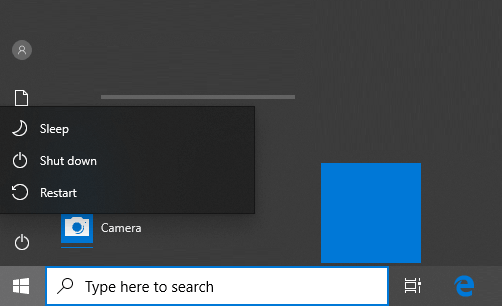
    Well, a little note for Windows 10 users, this hibernate mode has been removed. If you don’t believe it, try checking the Start menu. There are only 3 options available, namely:

    • Shutdown.
    • Sleep.
    • Restart.
    Best Trick to Add Hibernate Mode on Windows 10

    But you don’t have to worry. That doesn’t mean the feature is completely removed, really. It’s just that, by default, the position of the hibernate mode setting is still disabled.

    If we want to use it, then we have to activate it first.

    How to hibernate on Windows 10:

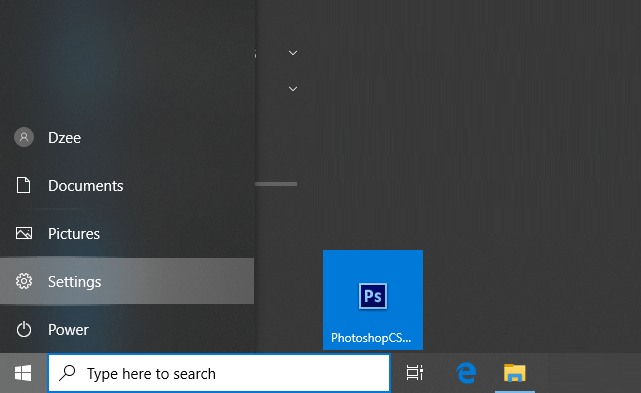
    1. Please click Settings in the Start Menu.
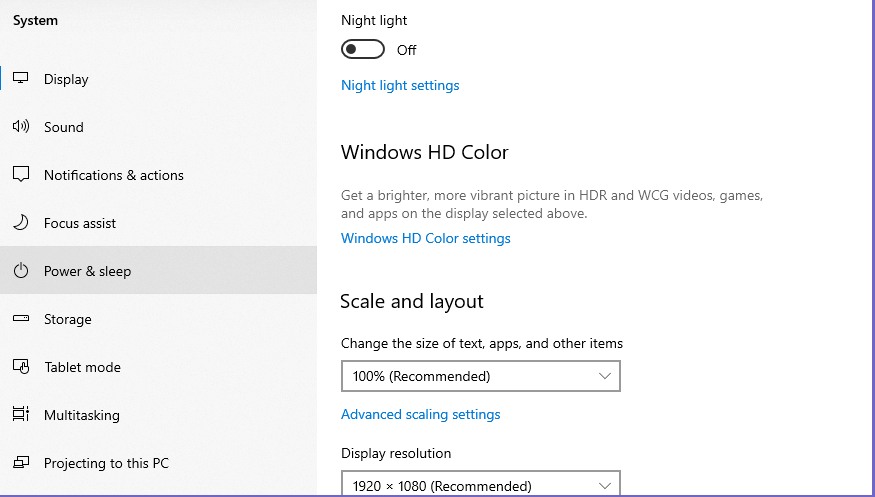
    2. Enter System settings and select the Power & Sleep menu.
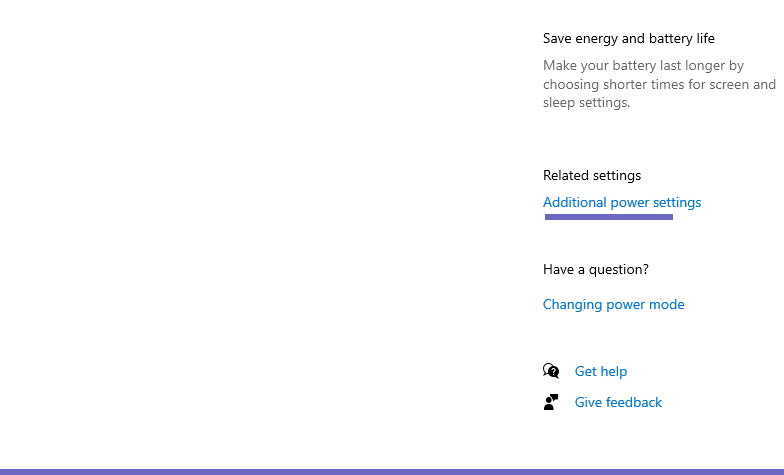
    3. Then click Additional power settings (on the right).
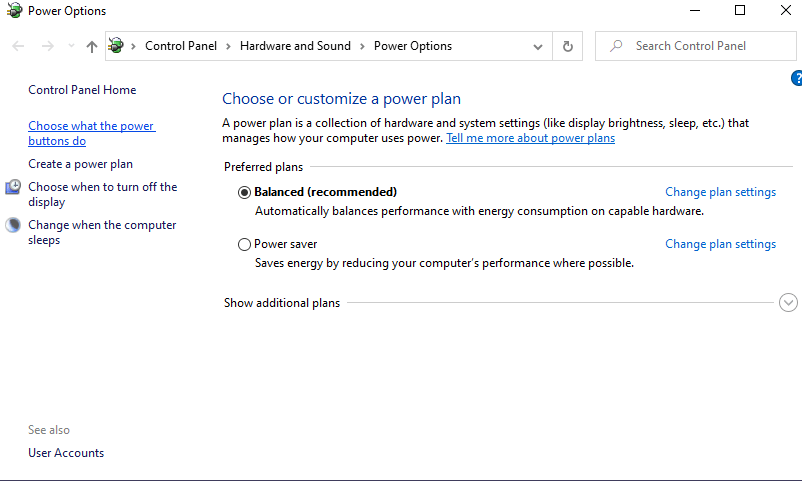
    4. Click Choose what the power buttons do.
    5. Click Change settings that are currently unavailable.
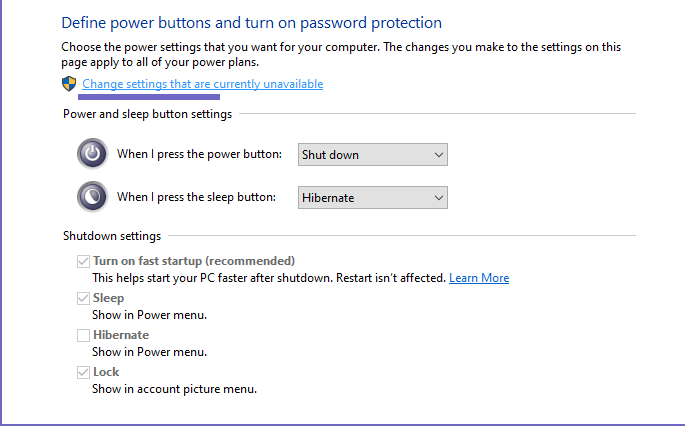
    6. Check Hibernate, then click Save changes.

    So, for more complete steps, you can follow the following guidelines:

    • Step 1. First, please click Start, then click the Settings logo.click the Settings logo
    • Step 2. On the Settings page, please click System. Then on the left, enter the Power & sleep settings.click System
    • Step 3. Check on the right, there is a column Related settings. Click the Additional power settings menu.Related settings. Click the Additional power settings menu
    • Step 4. Continue again. In the menus on the left, please click Choose what the power buttons do.Choose what the power buttons do
    • Step 5. Then, in the top column, click Change settings that are currently unavailable.Change settings that are currently unavailable
    • Step 6. Please tick the Hibernate option there. If so, click the Save Changes button.
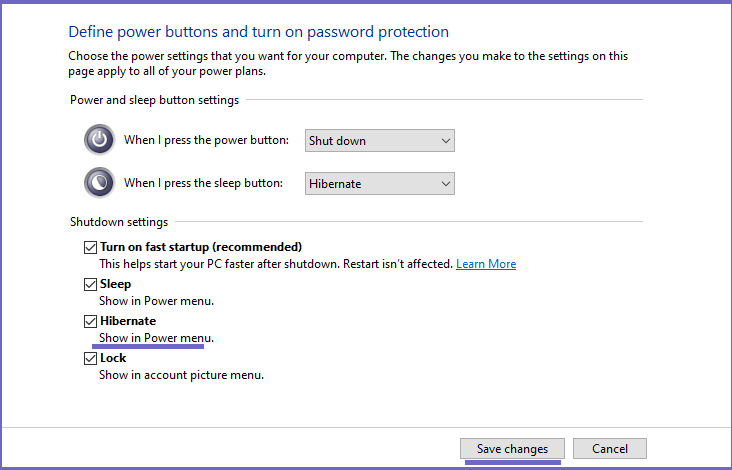
    click the Save changes button

    Thus, the hibernate feature on your computer will be active, or rather, there is already a button in the Start menu.

    Read more: How to Reduce Brightness in Windows 7/8/10

    To test it, just try clicking.

    Oh yes, we can also change the mode from sleep to hibernate.

    This method is simpler. Just change the When I press the sleep button setting to Hibernate (as I did in the example above), then save the setting.

    If it hasn’t appeared

    There are other ways, here. If the settings have been changed, but the button still doesn’t appear, try following these steps: Enable Hibernate.

    1. In the Windows search field, type “CMD”.
    2. Please open CMD by right-clicking, and then selecting Run as Administrator.
    3. Then type “powercfg / hibernate on” and press Enter.
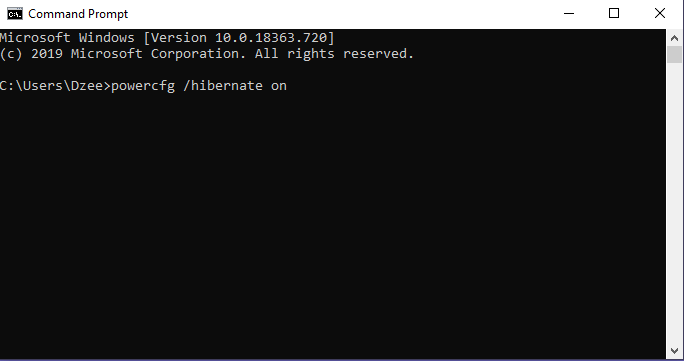
    If it hasn't appeared

    Finally, please check the power button.

    Differences in Hibernate and Sleep Features

    Both hibernate and sleep, and they both have a similar way of working. Both save computer data that can be run again when the computer is active.

    Then what’s the difference?

    Sleep: In sleep mode, the computer uses very little power. Even so, all running data is still in an active position. When the computer is turned on, all of the data will return to the way it was before the computer died.

    Hibernate The computer stores all data on the hard drive. This data only returns when the computer is turned on again (to be precise when booting ). Enable Hibernate.
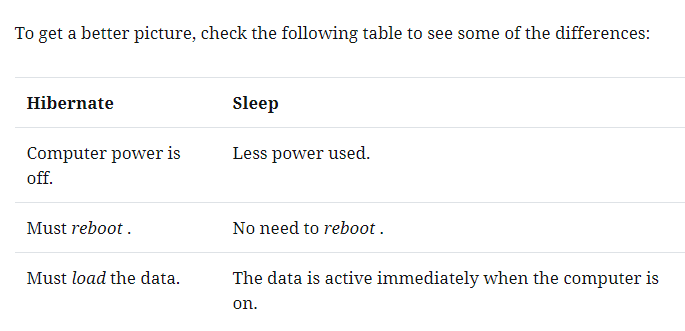
    Differences in Hibernate and Sleep Features

    The benefit of the Hibernate Feature

    From the start, we have discussed at length the hibernate feature. But, do you know what are the benefits of this feature?

    For its own benefits, are many. In addition, most of the benefits are not far from the sleep feature.

    Here are the benefits of hibernating enable hibernate in Windows 10:

    • Can save power when the computer is not in use.
    • No need to bother turning off the computer when you want to be left behind.
    • Can shorten the time.
    • Suitable when you want to leave the computer for a long time.

    Read more:

    Conclusion:

    So, friends, These above how to enable hibernate in Windows 10, there are still many who want to use it.

  • 6 Ways to Fix Blur and Small Text in Windows 10 PC 2024

    6 Ways to Fix Blur and Small Text in Windows 10 PC 2024

    6 Ways to Fix Blur and Small Text in Windows 10 PC – Text in Windows 10 that is used on a large screen will usually look blurry, broken, too small, and not sharp enough to make it difficult to read. Especially when reading text in Google Chrome, the letters look so thin that they make the eyes uncomfortable.

    How to Fix Blur and Small Text in Windows 10
    How to Fix Blur and Small Text in Windows 10

    How to Fix Blur and Small Text in Windows 10 PC

    This is because the display settings and text scale are not yet right. To fix this, Fix Blur and Small Text in Windows 10, you can make adjustments so that the text becomes clearer, sharper, and easier to read.

    Read more:

    This kind of problem is often experienced by users with monitor screens with a resolution of 1920 × 1080 and above. Likewise, laptop users use an extended monitor which is much larger than a laptop monitor.

    How to Solve Blur and Small Text on Windows 10 PC

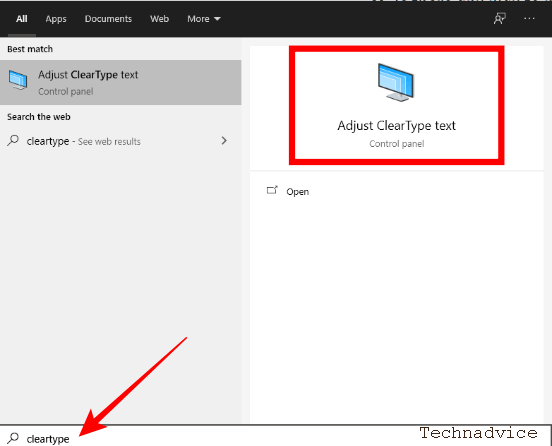
    #1. Open the Adjust ClearType text setting

    In the first step, enter the Adjust ClearType text settings in Windows 10.

    The trick is to click on the Windows button> type ClearType > select the Adjust ClearType text menu that appears.

    Open the Adjust ClearType text setting

    #2. Enable Turn on ClearType

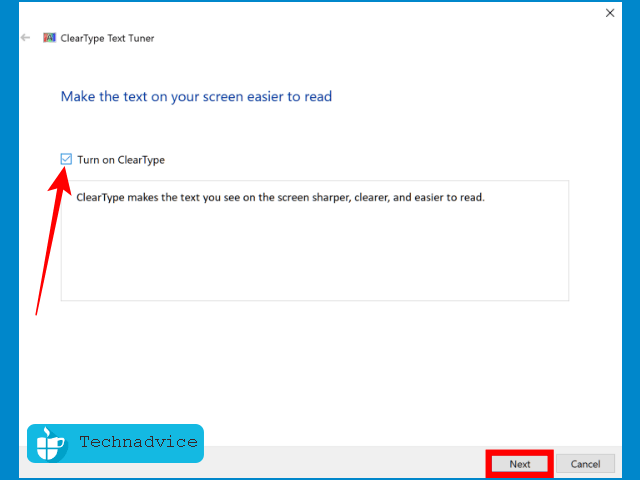
    The ClearType window will appear, check the Turn on ClearType option then click the Next button.

    Enable Turn on ClearType

    #3. Enable ClearType on all monitors

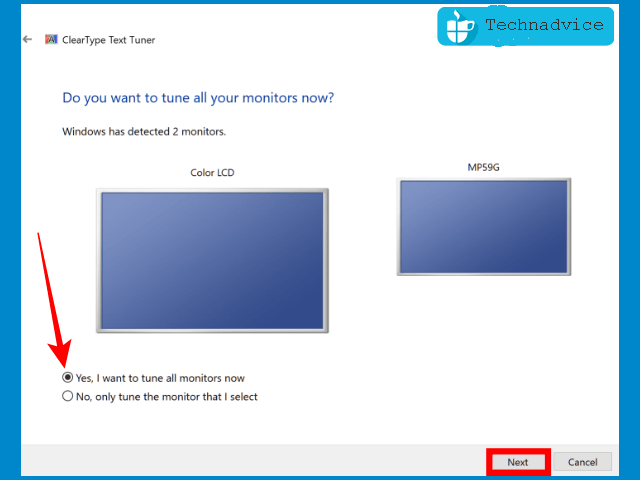
    In the next window, there will be an option to activate ClearType on the desired monitor. If you are using two monitors then enable them on both.

    Check the option, Yes, I want to tune all monitors now > then click the Next button.

    Enable ClearType on all monitors

    #4. Set the monitor resolution to the default resolution

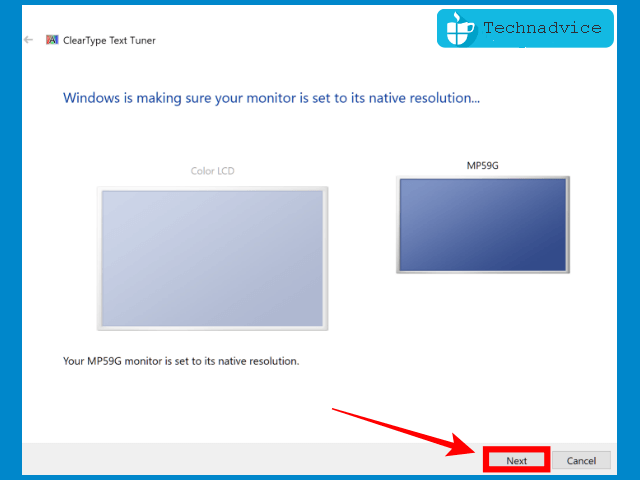
    In the next step, ClearType will ensure that your monitor is using the proper resolution (native resolution).

    The detection process will run automatically, when finished you will see a description of “Your Color LCD monitor is set to its native resolution”.

    Then click on the Next button.

    Set the monitor resolution to the default resolution

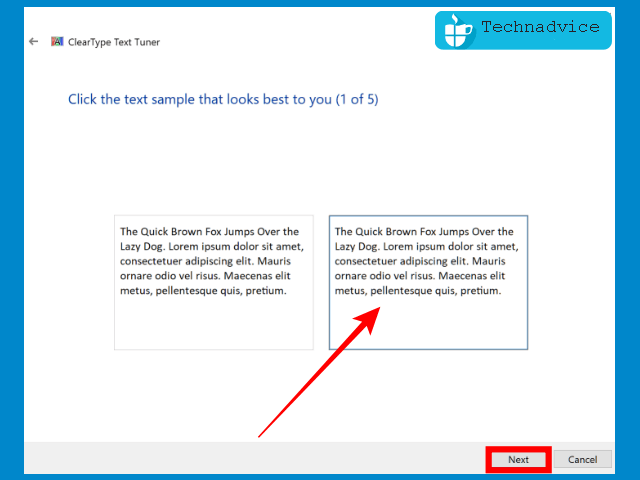
    #5. Select the Sample text that is clearest to your eyes

    Next ClearType will present writing samples for you to choose from, the goal is to determine what type of writing is easiest for your eyes to read.

    Choose the clearest writing, the difference is very subtle, but if you look closely you will see which writing is the easiest to read. Choose the text that has the darkest and thickest black color to make it look sharper on a large monitor.

    After selecting the next text, click on the Next button.

    Select the Sample text that is clearest to your eyes

    Follow the steps to completion, usually, there are 4-5 stages. Make sure you choose the most legible text.

    #6. Continue to the second monitor

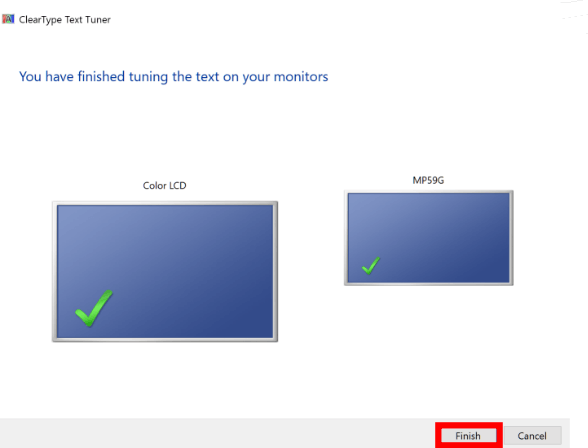
    If you are using a single monitor the process will be completed once you have selected all the clearest texts, the final step is simply pressing the Finish button.

    However, for those who use dual monitors, ClearType will make the same adjustments to the second monitor. Follow the same steps by choosing which text is easiest for your eyes to read.

    After all, stages are completed, click on the Finish button.

    Continue to the second monitor

    Done, after adjusting the text with the steps above you should now be able to see the difference. Posts in Windows 10 are no longer blurry, choppy, and unclear.

    Make a scaling adjustment to solve the blur and small text on the big monitor

    If the text still looks too small and light, this means you have to make a scaling on the monitor. Usually, this happens on large monitors (20 inches and above).

    Follow these steps:

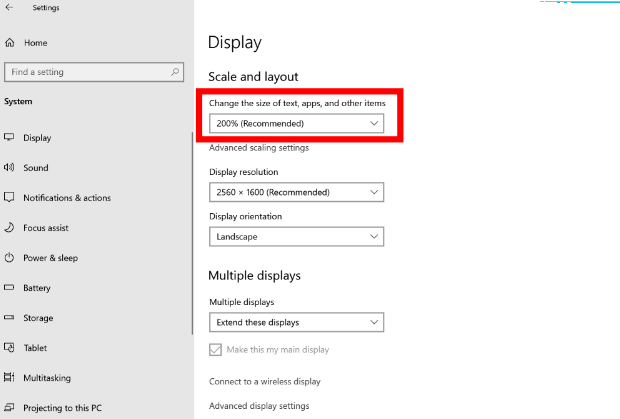
    First, go to Settings > select System > click on the Display tab.

    Pay attention to the Scale and Layout> section in the Change the size of text, apps, and other items option, and select a larger scale percentage.

    Make a scaling adjustment to solve the blur and small text on the big monitor

    You can try several magnification scales until you find the one that best fits your monitor size.

    A monitor with a resolution of 2560 × 1600 using 200% magnification will give the best results. Feel free to try for yourself which scale fits your monitor best.

    After zooming in, the writing will appear clearer and less thin.

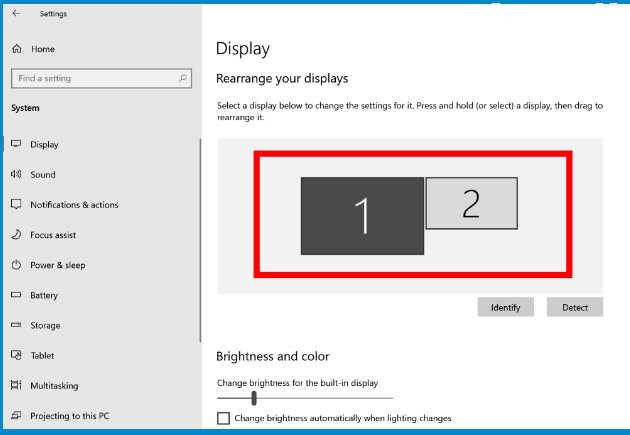
    This scale adjustment must be made on both for those who use dual monitors.

    You do this by selecting a one-by-one monitor in the Display section.

    First, select monitor 1> adjust the scale.

    Then select monitor 2> adjust the scale.

    monitor 2 adjust the scale

    Resolves thin and hard-to-read text on Google Chrome

    The settings we did earlier will only change the writing on Windows systems. When you open Google Chrome, the writing will still look thin, especially on large monitors.

    To fix this, you can use the Zoom feature.

    First, open the Google Chrome application.

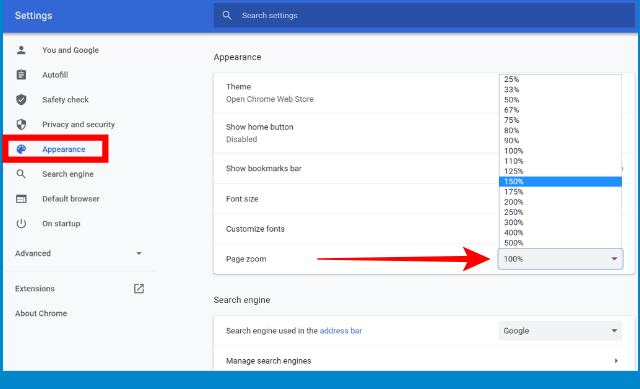
    Then click on the Menu button > select Settings.

    Next, click on the Appearance tab.

    On the Page, the zoom section selects a larger scale to find the most comfortable text size.

    To fix this, you can use the Zoom feature.

    After changing the zoom scale, the writing on Google Chrome will appear thicker and bigger, making it easier to read.

    Solve blurry text because the display driver (VGA) is not installed

    A graphics card that doesn’t work because the driver hasn’t been installed can also cause Windows 10 to look ugly, such as large icons, the display looks wider, and the writing looks unclear.

    Adjust Windows 10 Performance settings

    The last tip you can do is adjust the Windows configuration for the best appearance.

    You do this by entering the system settings.

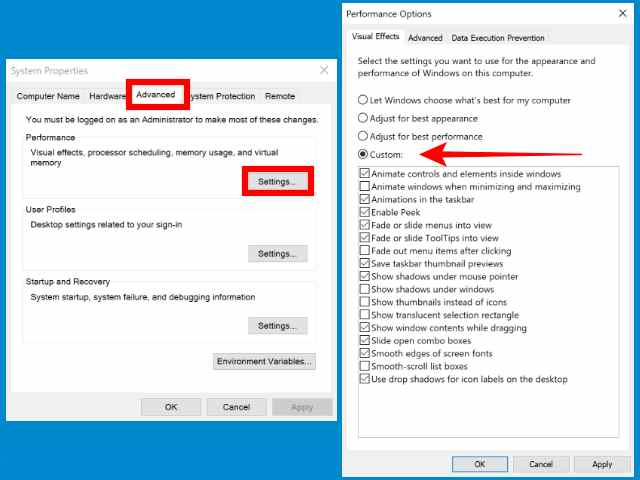
    First press the Windows key + R on the keyboard> then type system.CPL > click OK.

    Then click the Advanced tab > in the Performance section and click the Settings button.

    You can select the Adjust for the best appearance option to activate all graphic features. This will make Windows look nicer, but the consequence will consume more resources. On high-spec computers, this should not be a problem.

    The second Option You can choose the Custom option and then choose one by one which features you want to activate.

    Adjust Windows 10 Performance settings

    When finished, click the OK button. Then restart your computer.

    Read more:

    Conclusion:

    So, friends, That’s on above is how to fix blur and small text in Windows 10, these tips to deal with text that is blurry and hard to read in Windows 10. Please comment below if it still doesn’t work, and we’ll try to help you.

  • How to Remove and Clean Virus on Windows 10 Laptop 2024

    How to Remove and Clean Virus on Windows 10 Laptop 2024

    How to Remove and Clean Virus on Windows 10 Laptop – Computing devices, including laptops, are devices that are quite vulnerable to the dangers of viruses. For this reason, Microsoft complements its operating system with a security protection system.

    How to Remove and Clean Virus on Windows 10 Laptop
    How to Remove and Clean Virus on Windows 10 Laptop

    How to Remove and Clean Virus on Windows 10 Laptop PC

    A computer virus is a program that contains a series of instructions that can duplicate and insert itself into other programs or documents to spread and attack computer devices.

    Viruses are usually made for various kinds of purposes, such as to damage, lock, or steal data, disrupt computer users, and mining cryptocurrency.

    Read more:

    Some are tasked with loading programs that force over the process on certain devices, aggravating device performance, which can indirectly damage the hardware.

    Therefore, Microsoft also anticipated it by providing its operating system, especially Windows 10, with an embedded security protection system, such as Windows Firewall and Windows Defender, which can ward off viruses.

    How to Remove or Clean Virus on Windows 10 PC

    1. Open Settings, then Update & Security, and Windows Security ( Windows Defender Security Center )

    2. Next, choose Virus & Threat Protection, then Virus & Threat Protection Updates, and click Check for updates

    3. Make sure Windows Security has the most recent virus database

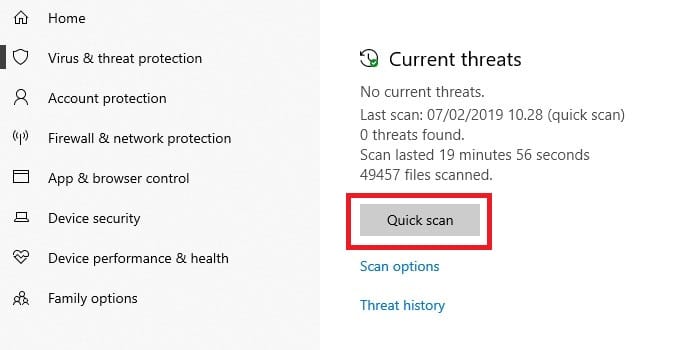
    4. If so, go to the Virus tab & protection threat, then click the Quick scan button ( Scan now )

    Wait for the results

    How to Remove or Clean a Virus in Windows 10
    How to Remove or Clean a Virus in Windows 10

    Automatically, all attacks will usually be handled by Microsoft in this case so that we do not need to take additional actions such as quarantine or delete them.

    Special Case

    In some cases, Windows Security can sometimes find an attack but cannot take actions such as deleting or quarantining. In this case, Microsoft advises users to contact him.

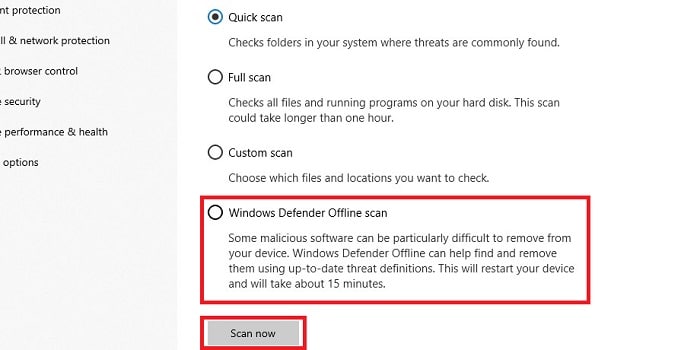
    In addition, if Windows Security cannot work normally, such as being unable to update the database or unable to complete a virus scan, users can use the offline version of Windows Defender.

    Special Case
    Special Case

    To use Windows Defender Offline, users can access it through the Virus tab & protection threat, select Scan options ( Run a newly advanced scan ) then select Windows Defender Offline scan and Scan now.

    Read more:

    Conclusion:

    Or for some viruses, Windows Security is sometimes also not able to overcome them. For that, you can use one of the following additional antivirus recommendations.

  • How To Fix Windows 10 License Will Expire Soon 2024

    How To Fix Windows 10 License Will Expire Soon 2024

    How To Fix Windows 10 License Will Expire Soon – The Windows License Will Expire Soon warning message that always appears will certainly be very annoying, and if you experience it then you should immediately find a solution as a way to overcome and eliminate it from the PC or laptop you are using.

    How To Fix Windows 10 License Will Expire Soon
    How To Fix Windows 10 License Will Expire Soon

    How To Fix Windows 10 License Will Expire Soon

    In the English language, the warning message means that the Windows license on your laptop or PC will expire or expire soon.

    Read more:

    Usually, the message Your Windows License Will Expire Soon appears on Windows 8 and Windows 10 on a laptop or PC whose license will expire a few days later.

    Fix Windows 10 License Will Expire Soon

    Although Your Windows License Will Expire Soon a warning that appears on a laptop or PC, not many people know about it. But in fact, this warning message is caused by three reasons, along with his review:

    • Using Windows in trial or trial mode.
    • The Windows you are using has expired.
    • Use a Windows activator that gives a few months of the active period.

    After you already know the reason why the warning message with the words Your Windows License Will Expire Soon often appears on your laptop or computer.

    Now you will find it easier to find a solution to the emergence of Your Windows License Will Expire warning message soon. You can try one of the solutions from the following two methods below.

    #1. Through the Task Manager

    Through the Task Manager
    Through the Task Manager

    The first way to overcome Your Windows License Will Expire Soon that often appears is to use the task manager. Task manager is a feature that is already available by default in Windows, so you don’t need to install any additional applications.

    How to get rid of Your Windows License Will Expire Soon that appears:

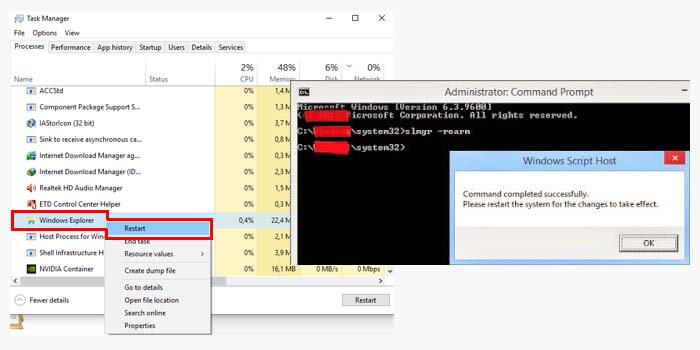
    1. Open the task manager by pressing Ctrl + Shift + Esc.
    2. On the Processes tab, look for Windows Explorer.
    3. If you have found it, right-click> and Restart or End Task.
    4. Then click File> Run new tasks> type explorer.exe> ​​OK.
    5. Open the Command Prompt run as Administrator.
    6. Type slmgr -rearm in CMD then Enter.
    7. If the message Command is completed successfully and the command restart appears, click OK.

    After the PC or laptop has been restarted, if the status is Windows is not activated then you must activate using the activator. However, if the situation changes to Windows is Activated, you don’t need to activate it.

    Now, Your Windows License Will Expire Soon warning message that always appears has been successfully removed from your PC or laptop.

    #2. Remove Windows License

    Remove Windows License
    Remove Windows License

    The second solution for how to get rid of the Your Windows License Will Expire soon message is to use Command Prompt / CMD. The way this method works is that you will delete the license from your Windows product key.

    Here’s how to resolve Your Windows License Will Expire Soon:

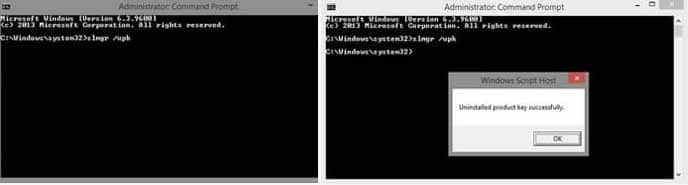
    1. Run the command prompt with Administrator access.
    2. In CMD, type slmgr / upk then press Enter on the keyboard.
    3. Then the message Uninstalled product key successfully appears.
    4. Click the OK option on the message.
    5. Finally, you must restart your PC or laptop.

    After your laptop or PC is active again, your Windows license will be deleted so that the message Your Windows License Will Expire soon will not reappear.

    But because your Windows license key has been removed from the laptop and PC, it means you have to reactivate Windows using your mainstay activator.

    #3. Using the Activator

    An activator is software that can provide an extension of the active windows that have expired for free. In addition, some activators can permanently activate Windows so that the message “Your Windows License Will Expire soon” will no longer appear.

    Read more:

    Conclusion:

    So, friends, that’s how to fix the Windows 10 license that will expire soon, This method can be a solution for those of you who feel disturbed by the appearance of the warning message on Windows 10.

  • Easy Ways to Change Windows 10 Lock Screen Background 2024

    Easy Ways to Change Windows 10 Lock Screen Background 2024

    Easy Ways to Change Windows 10 Lock Screen Background – Tired of seeing the background provided by Microsoft on your Windows 10 lock screen, By opening Settings, you can select a custom image background or set a custom slideshow of multiple images. Here’s how to quickly change the Windows 10 lock screen background.

    How to Change Windows 10 Lock Screen Background
    How to Change Windows 10 Lock Screen Background

    How to Change Windows 10 Lock Screen Background

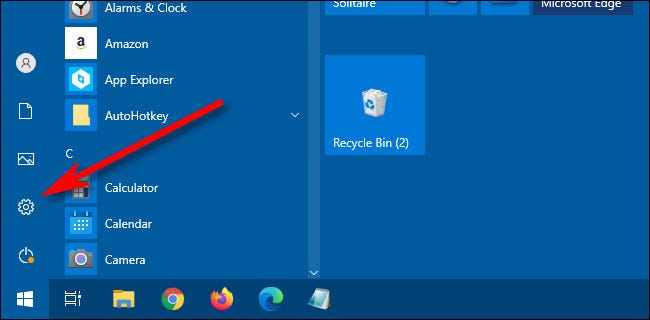
    First, open ” Settings ” by clicking on the ” Start ” button and selecting the little gear. Or you can press Windows + I on the keyboard.

    How to Change Windows 10 Lock Screen Background

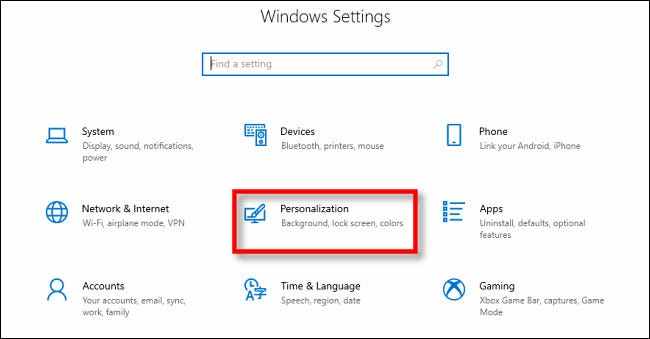
    In ” Settings “, select ” Personalization “.

    How to Change Windows 10 Lock Screen Background

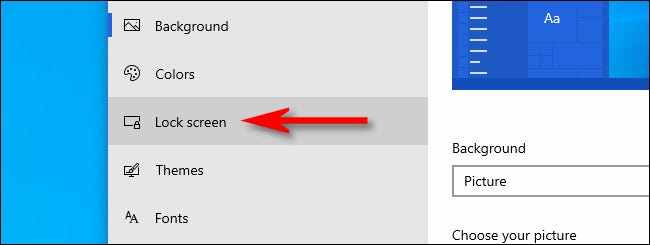
    Under ” Personalization,” select ” Lock screen ” from the sidebar.

    How to Change Windows 10 Lock Screen Background

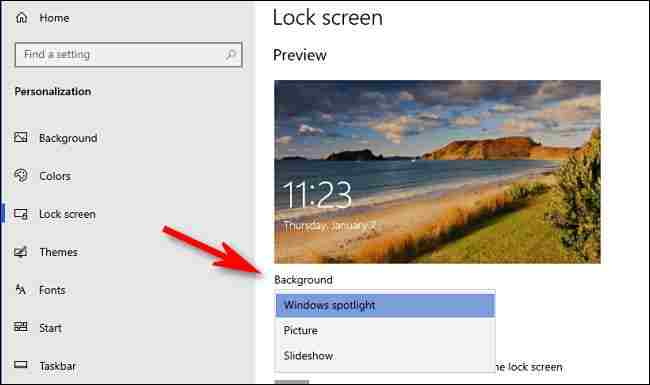
    In the Lock screen settings, look for the drop-down menu labeled ” Background “, which is directly below the lock screen preview image. Click the menu, and you will see three options.

    • Windows spotlight:  Displays images provided by Microsoft over the Internet. You will see new pictures every day.
    • Picture: Choose your background image for the lock screen.
    • Slideshow:  Provide your picture folder which is used as a slideshow on the lock screen.

    How to Change Windows 10 Lock Screen Background

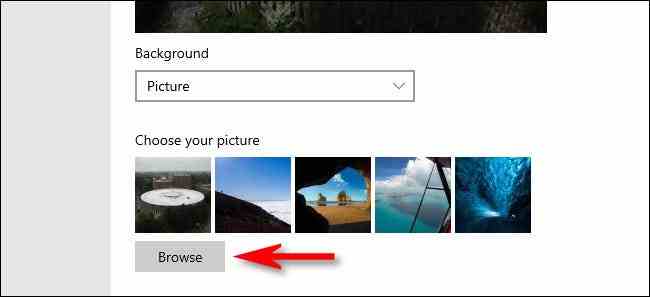
    The default option is ” Windows Spotlight “, which pulls new Microsoft-provided images from the Internet. If you want to use your own image, select ” Picture ” from the menu, then click ” Browse ” to select the image you want to use.

    Tip: If you want to use a “blank” screen as the lock screen background, create a solid-color image and browse when “Picture” is selected from the menu.

    How to Change Windows 10 Lock Screen Background

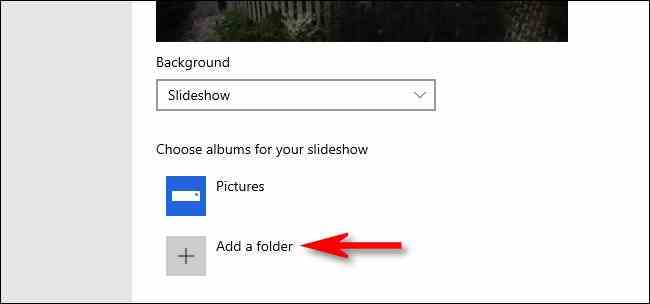
    If you prefer to have a customized slideshow, select “Slideshow” from the drop-down menu. Next, select a photo album to use as the image source. Windows will cycle through the lock screen, changing it every few seconds. You can select the “ Pictures ” folder or click “ Add a folder ” to add a group containing specific pictures to use.

    How to Change Windows 10 Lock Screen Background

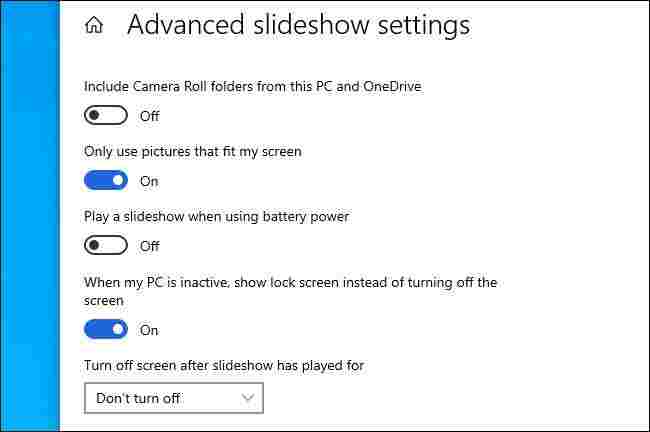
    When “Slideshow” is selected, you can also change the slideshow options by clicking ” Advanced slideshow settings ” just below the ” Choose albums ” area. Once you’ve selected it, you can change options like “Only use pictures that fit my screen” where the slideshow uses the Camera Roll folder of your OneDrive.

    How to Change Windows 10 Lock Screen Background

    Read more:

    If you have configured it, exit ” Settings “, and the changes will take effect immediately. You can press Windows + L on the keyboard to open the lock screen and check it.