5 Steps To Disable Smartscreen Filters in Windows 10 PC – Smartscreen, if interpreted in the Hindi language, might become “Smart Screen” and it is a feature of Windows that is used to detect strange things that will occur on the system. Usually, it will show itself when there are malicious programs that users will run.
How To Disable SmartScreen Filters in Windows 10 PC
How To Disable SmartScreen Filters in Windows 10 PC
Despite having good elements, the Smartscreen feature is considered a feature that makes privacy a little open to all files that have just entered the PC. And they chose to deactivate it.
So, every time a new file is created, whether it’s the result of a browser download or another, the tool will immediately share and analyze the file information with the Microsoft system in the blink of an eye.
Disabling SmartScreen Filter in Windows 10
This method will not make the computer vulnerable as long as the user continues to enable Firewall and antivirus protection. Because this only prevents the system from analyzing the important files that we have. Here are the procedures.
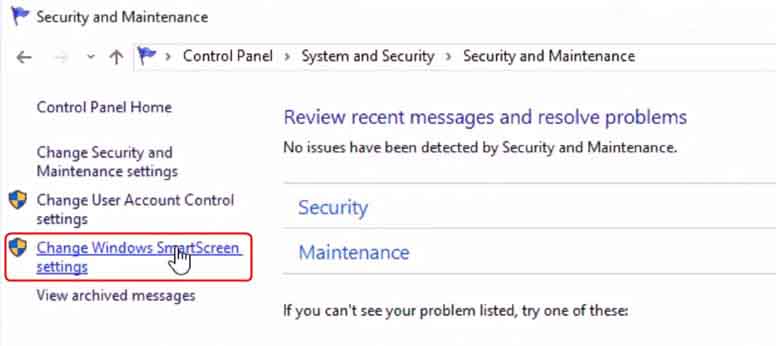
Please go to Control Panel => System and Security => Security and Maintenance.
Click on the menu called Change Windows SmartScreen Settings in the left area.
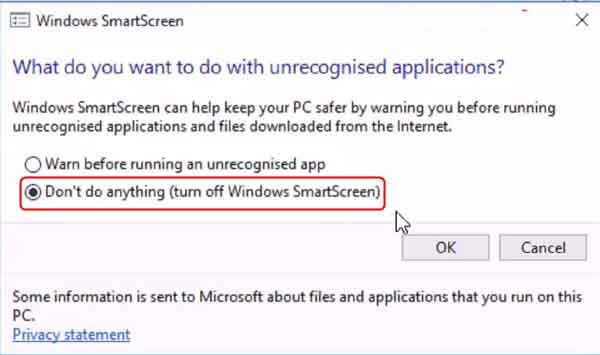
To deactivate it, select the Don’t do anything option (turn off Windows SmartScreen) then continue pressing the OK button.
After trying the method above, try to reopen the file if it is considered potentially malicious to the computer, surely the notification from SmartScreen is gone and will not appear again.
Don’t Forget to Disable It Also in Internet Explorer
Both Internet Explorer and Microsoft Edge also have a SmartScreen Filter feature that is used to prevent malicious sites that may interfere with the computer system.
But in fact, it is too excessive because today’s sophisticated antivirus can prevent it from happening. And one of the best solutions is to deactivate it. Check out the way below again.
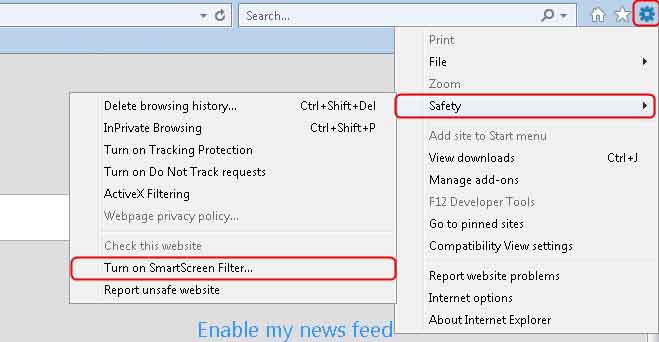
Open Internet Explorer and go to Tools => Safety => Turn off / on SmartScreen Filter.
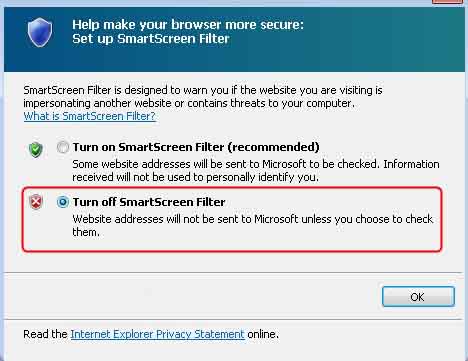
Then a dialogue will appear and press once again Turn off SmartScreen Filter and continue by pressing the OK button.
If the user still doesn’t know more about the SmartScreen Filter in Internet Explorer. Please read on the Microsoft website. There is already been explained what will happen when this feature is activated.
I understand that privacy is very important to protect, but activating SmartScreen actually will not disturb anything except if the file that the user opens is always unable or notifications appear from this feature, and very clearly it is very disturbing.
I choose to deactivate it because I feel I don’t need the feature while there is an antivirus that can eradicate all kinds of new potentially dangerous files that are present on the computer.
3 Best Ways to Install Windows Fonts on Ubuntu – Do you want to know how to install Windows fonts on Ubuntu and other Linux operating systems? You will find all the answers in this article. In this article, I will share with you how to install Windows fonts for Linux that don’t have fonts in Windows like Times New Roman fonts and others.
How to Install Windows Fonts on Ubuntu
Linux is an open-source operating system, which means you can use it for free and is free to modify. That is the reason why there are so many variants of Linux distributions that are spread on the Internet that can be used free of charge and are very free.
But even though it is open-source, Linux distributions cannot carelessly include files including fonts in the operating system. Fonts have a license to use freely and for free. Maybe there are some of the Linux distributions that have fonts in Windows, but usually not much and as complete in Windows.
Therefore, this article will discuss how to install Windows fonts on Linux. If you are an Ubuntu user, the guide is no different. Because this tutorial applies to all Linux distributions including Ubuntu.
To be able to install Windows fonts on Ubuntu, you must be online / connected to the internet to download the fonts you want. The font size is not too large, so you only consume a little of your internet data.
Here below is how:
Open your terminal by pressing the F4 key on the keyboard.
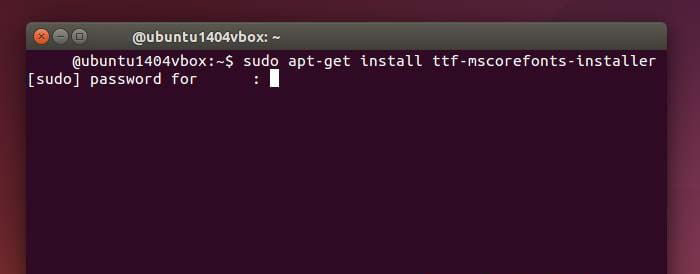
Type the command Sudo apt-get install TTF-mscorefonts-installer in the terminal then Enter.
Enter your password if requested.
Windows font download process will run, wait until the process is complete.
Type the FC-cache -fv command to clear the cache so that the font can be detected.
After you have followed the steps above, close your terminal, and then you can try whether the Windows font has been successfully installed on your Ubuntu or not using the Libre or WPS Office application.
If you already display fonts like Arial, Arial Black, Comics Sans Ms, and other fonts in Windows, it means that you have successfully followed the guide on how to install Windows fonts in Ubuntu successfully.
#2. How to Install Fonts on Ubuntu
After you have successfully installed the Windows font in Ubuntu use the guide above. How do I install fonts on Ubuntu using fonts that are spread on the internet? Can it? The answer is of course possible.
There are tons of websites that provide cool and unique fonts to install on your Linux operation. If you are not too interested in Windows fonts, you must try a cooler font on several sites on the internet.
The following guide on how to install fonts on Ubuntu:
Make sure you already have the font file you want to install. (how to find the font you can read below)
Extract the .zip file that contains the font file.
Right-click one of the OTF or TTF files then select Copy to …
A file manager window will appear, enter Home then right-click the Show Hidden Files checkbox.
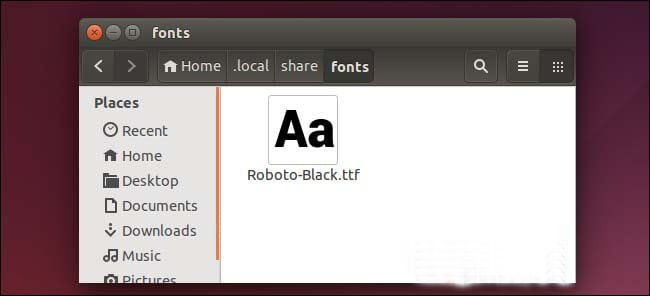
Enter the .local > share > Font folder then click the Select button.
Well, after that make sure whether the font has been successfully installed or not. Open the Libre Office or WPS Office application and check if the font already exists.
And what you need to know is that in the Font folder, you can manage all fonts in Ubuntu. You can delete fonts, add fonts, and manage fonts on your Ubuntu.
#3. How to Search for Fonts on the Internet
After you know how to install Windows fonts on Ubuntu, and how to install fonts on Ubuntu. Then how do I find fonts on the internet to be installed on Linux? Here below are some websites that provide a variety of fonts that you can use for free.
So, friends, these were three websites on how to install Windows fonts on Ubuntu above will give you a variety of unique fonts, to download fonts it is also quite easy, you just need to register first if asked to register. For other font provider websites, you can search through Google by typing the keyword Free Font in the search field.
11 Ways To Fix This App Can’t Run on Your PC Windows 10 – One of the error messages that often appear when the application can’t be opened in Windows 10, ” This app can’t run on your PC, to find a version for your PC check with the publisher software “. This kind of problem is quite common and experienced by many people, especially when running applications that are not from Microsoft.
How to Fix This App Can’t Run on Your PC Windows 10
How to Fix This App Can’t Run on Your PC Windows 10 PC Laptop
The main cause of this problem is compatibility issues between the application and the version of Windows that the system considers incompatible. It could also be because the application or game that is going to run is filtered by Windows so the process is blocked.
Windows 10 has a feature to block unknown applications from unverified developers, this feature will be active by default to prevent the entry of applications that contain malware and viruses.
Other causes could also be due to corrupted application files, corrupt system files, or problems caused by malware and viruses. On this occasion, I will try to provide several solutions that you can try to solve.
How to Fix This App Can’t Run on Your PC Windows 10 PC Laptop
To properly follow this guide: How to fix this app can’t run on your PC windows.
1. Enter the Settings Menu
The first step is to enter the Settings menu by clicking on the Start button> then clicking the Settings button (gear icon).
2. Select the Accounts menu
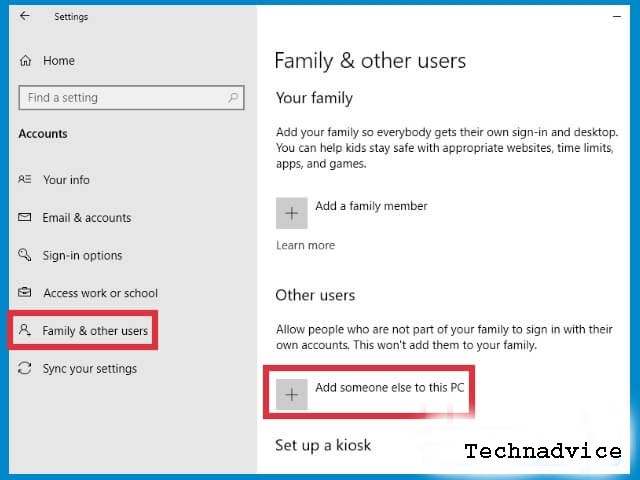
In the Settings window find and click on the Accounts menu.
3. Select the Family & Other Users tab
On the left panel, click on the Family & Other Users tab.
4. Click Add someone else to this PC
Pull down a little bit until you find the Other users> section then click on the Add someone else to this PC button.
5. Select I don’t have this person’s sign-in information
A window for adding a Microsoft account will open, at the bottom of the column there is an option I don’t have this person’s sign-in information> Click on this option.
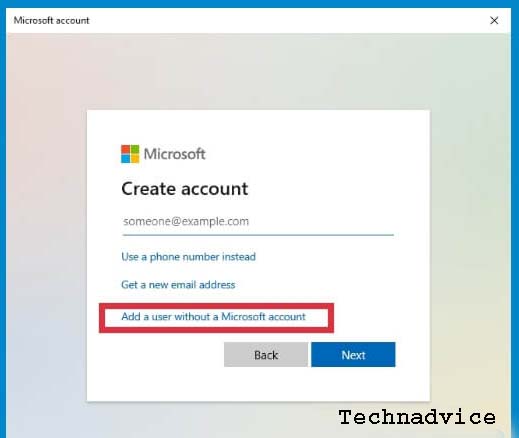
6. Click on the option Add a user without a Microsoft account
Since we are going to create a local account, there is no need to create a new Microsoft account. Therefore, what you need to do next is click again on the option Add a user without a Microsoft account.
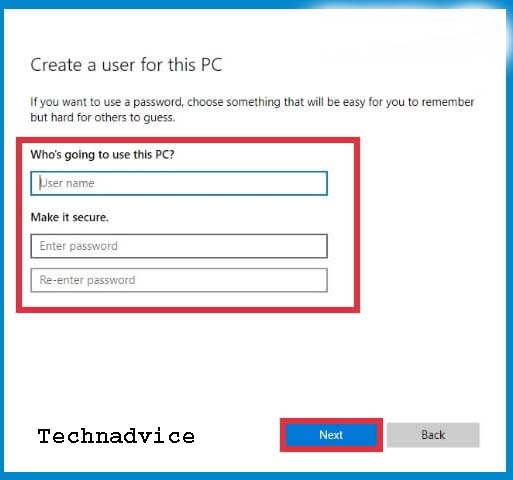
7. Fill in the name and password for the new account
A window for creating a new Administrator account will open, fill in the name and password of the account as desired. When finished click on the Next button> follow the process to completion.
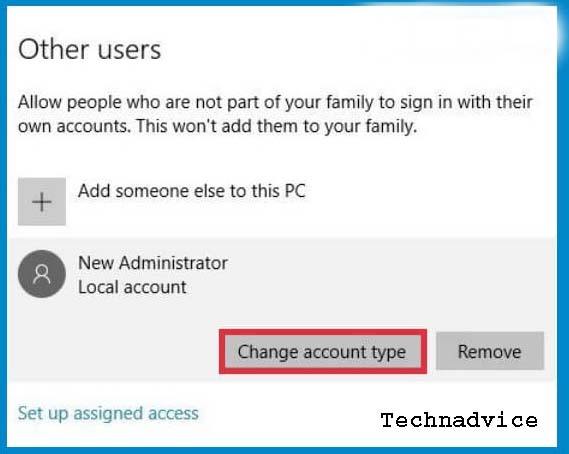
8. Click on Change account type in the new account
Back to the home page of Accounts settings> in the Other user section you will see the account you just created. Click on the Change account type button below it.
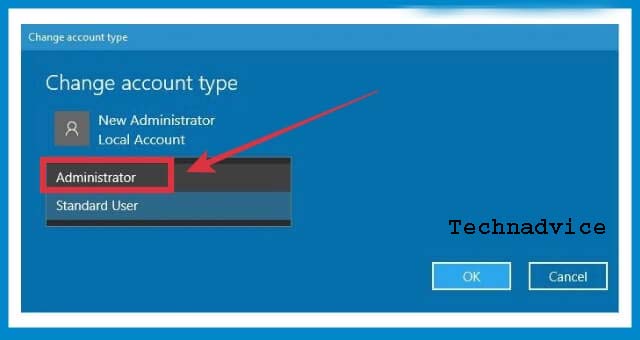
9. Select Administrator
Click on the Administrator option to change the local account that was just created to the administrator.
10. Login with the new Administrator account
The last step is to log out of your current account by clicking on the Start button> clicking on the icon/account photo> selecting Sign out> and then logging in with the new Administrator account.
After logging back into Windows using the new Administrator account, try running the problematic application again. Can it be done?
If it doesn’t work, then please try some of the other alternative solutions below.
Use an application compatible with Windows architecture (32bit or 64bit)
As mentioned earlier, applications that cannot be opened with the error This app can’t run on your PC are generally caused by compatibility issues. When you try to run an application with 64-bit architecture for Windows with 32-bit architecture, an error like this will of course occur.
64-bit applications can only run on 64-bit operating systems as well. If you are using the Windows version with a 32-bit architecture then you must use an application with a 32-bit architecture as well.
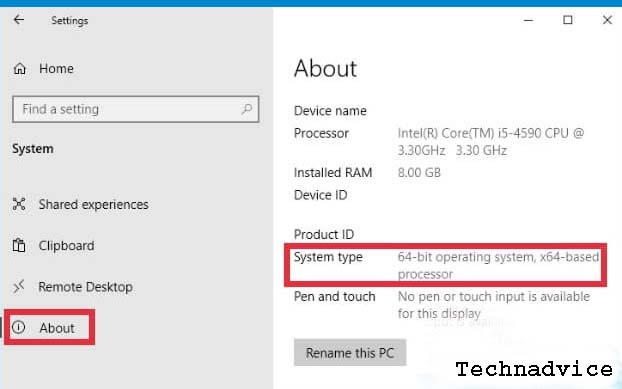
To check whether Windows on your laptop is 32bit or 64bit you can click on the Start button> select Settings> About> pay attention to the System type description. There you will see whether Windows you are using 32bit or 64bit.
#1. Try using an older or newer version of the app
Compatibility problems can also occur when the application is upgraded (update/upgrade). A bug in the program code might cause it not to work properly as before.
If This app can’t run on your PC error occurs after you update the application, you may suspect that the latest version of the application has a bug. Try reinstalling an older version of the app and see if this error still appears or not.
You can experiment with yourself by trying an older or newer version of the program. There may be a working version of the program.
#2. Run as administrator
Some programs require administrator privileges to run. If your application cannot be opened by double-clicking, try using the right-click method on the application> then select Run as administrator.
In this way, the application will run with administrator access permissions. You can also set the application to run as an administrator each time you open it. The trick is to right-click on the application shortcut> select Properties> click on the Shortcut tab> click the Advanced button> check the Run as Administrator option> OK.
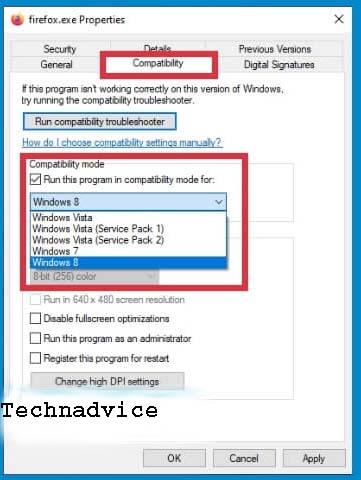
#3. Run the program in Compatibility mode
Some programs are specifically designed to run on certain versions of Windows only. For example, there are programs specifically made for Windows 7, Windows Vista, Windows 8, or even Windows XP.
When trying to run it on Windows 10, compatibility issues can arise. This will prevent the application from being opened. The solution is to try to run the application in compatibility mode according to the Windows version.
First, find the location of the executable (.exe) file from the program, right-click on the application shortcut> select Open file location.
After the .exe file is found, right-click on the file> then select Properties.
In the Properties window click on the Compatibility tab> in the Compatibility mode section, check the Run this program in compatibility mode for> option then select the appropriate Windows version> click Apply> OK.
Now the application is set to run in compatibility mode according to the required version of Windows. Try opening the app and see if this method works.
#4. Run the file system checker
In Windows 10, there is a feature called System File Checker (SFC). This feature is used to scan system files and repair them automatically if any damage is found.
Applications that cannot be opened with the This app can’t run on your PC error message may appear due to corrupted system files, so running SFC is a step worth trying.
First, open the Command Prompt with administrator access, how to click on the Start button> type cmd> the recommended Command Prompt program will appear> click on Run as an administrator in the right panel.
At the Command Prompt type the following command:
sfc / scannow
Then press enter.
Wait for the process to finish.
If any damage is found in the system files, SFC will try to repair them automatically, you can see the description on the screen. There’s nothing you need to do, just wait for the process to complete.
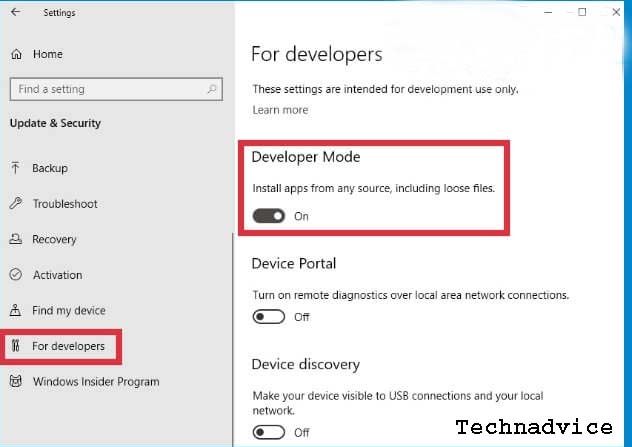
#5. Enable the Developer mode (side-loading) feature
If the application you are trying to install is not from the Windows Store then the side-loading feature must be activated. Try to check whether this feature is active in your Windows or not.
The trick is to click the Start button> click the Settings button> select the Update & Security menu> select the For developers menu> check the Developer mode option> Yes
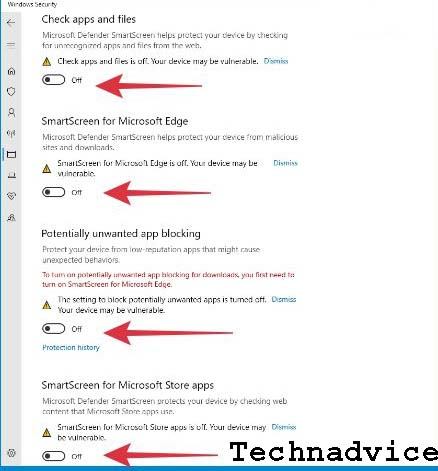
#6. Turn off the smart screen feature
A SmartScreen is a built-in security feature in Windows 10 that functions as a filter against programs that are considered dangerous and contain malware.
When this feature is active, the possibility of false positives (wrong detection) can be experienced, especially in applications that come from developers who have not been verified by Microsoft.
When you experience this error that the app can’t run on your PC, turning off the SmartScreen is one step worth trying.
The trick is to click on the Start button> select Settings> select Update & Security> click on the Windows Security tab> then click the open Windows Security button.
After the Windows Security window opens select the App & browser control menu> click on the Reputation-based protection option> turn off all available features.
#7. Clear cache and temporary files
By cleaning junk files in Windows 10 you can also try to solve this problem. Stacking and overlapping cache files and temporary files might cause the application to not run properly. Cleaning it is the best solution that can be done.
You can use one of the best PC cleaner applications to make your work easier. The application will clean all existing junk files automatically.
#8. Full scan the computer with Windows Security / another antivirus
Viruses and malware can also cause damage to an application so that it can’t be opened, including causing the error This app can’t run on your PC. To ensure that your laptop is clean from viruses you can do a thorough scan using an antivirus.
You can use the default antivirus Windows 10, namely Windows Security, or one of the best antivirus recommendations we have given in a previous post.
I prefer to use Windows Security because it is lighter and powerful enough to keep the computer free of viruses without being bothered by the offers or advertisements that usually exist in third-party antivirus applications.
To perform a full scan using Windows Security, follow the steps below.
First, go to the Settings menu > select Update & Security> select Windows Security> click on the Open Windows Security button.
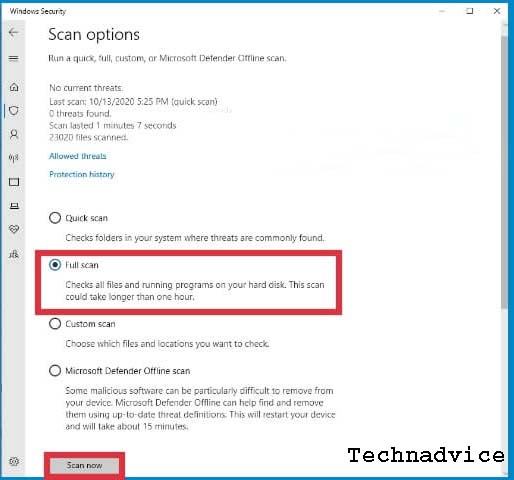
After the Windows Security window opens, select the Virus & Threat Protection menu.
Click on the Scan options menu> check the Full scan option> click the Scan now button.
Wait until the scan is complete. If viruses and malware are detected, Windows Security will clean them automatically.
Making sure your laptop is clean of viruses is one very effective way to speed up Windows 10, so make sure you always do it regularly.
#9. Turn off VPN and Proxy (if any)
If your laptop or PC is connected to the internet via VPN and Proxy then you can turn it off first. Each application has a different policy regarding which countries can run the application. It could be that a country is blocked for some reason.
Another reason is security issues. When you use an application with different IP addresses from different countries, this can be considered suspicious and will cause your account to be blocked.
Certain VPN and Proxy settings can also cause connection failures to Microsoft servers, which can prevent Microsoft applications from running, especially those that require an internet connection.
#10. Windows Update
Updating is one effective step to keep Windows in the best condition. Updates not only contain feature updates, but also virus database updates, bug fixes, and updates for Microsoft applications. For original Windows 10 users, it’s a loss if you don’t update regularly.
When you experience an error either on the system or in the application, then updating might be one of the solutions that you can try. How to update Windows 10 is very easy.
First, click on the Start button> select Settings> select the Update & Security menu> select Windows Update> click the Check for updates button> wait for the process to finish.
#11. Reset the PC
This is the final solution if all the methods above have been tried and nothing works. You need to consider this carefully before doing a PC reset because existing applications will be deleted and Windows will return to a state of reinstallation.
After resetting the PC, try installing and running the problematic application, and see if this last solution works.
You also need to reinstall the required applications one by one. It’s even better if before the reset you have listed what applications should be installed to make the process easier.
These are some of the solutions how to fix this app that can’t run on your PC Windows, you can solve the problem of applications that cannot be opened on Windows 10 with the error message This app can’t run on your PC.
Regarding how to disable Windows 10 update, you can do it permanently by stopping active services to the Windows network.
There are advantages and disadvantages if you want to follow how to turn off Windows 10 updates. The following is the explanation below.
#1. Advantages of Not Update Windows
You don’t need to worry if your cellphone internet package is sucked in.
The laptop isn’t slow because the update process is usually in background action.
There is no notification to update the Windows operating system.
#2. Disadvantages of Not Updating Windows
Does not have the look and new features provided at the time of the automatic update.
There is no official support from the windows itself.
Has several obstacles including the driver.
Several components are damaged because the OS doesn’t update.
Not only damage but the software that has access to official windows can no longer be used.
Maybe that’s the only advantage and disadvantage if you don’t update Windows. There are many more, but it’s your right to decide which one to choose, update or not.
If you want to update, you can just come to the free wifi then just update.
But in my opinion, not just yet, if the current operating system can still be used and the problem is only the waste of quota.
You can overcome the Windows update that is running permanently below.
#3. How to Deactivate Windows Update Forever
You will feel irritated if there are continuous notifications about being asked to update Windows 10.
So that Windows doesn’t update automatically, you can immediately do the following tutorial.
#3. Disable Using Delivery Optimization Service
The service menu in Windows is often used to manage all kinds of opportunities.
One of them is to stop Windows from updating continuously.
Therefore you can see the shutdown steps below.
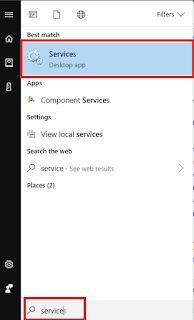
First, you must enter the Windows default service. The trick is to just press the Windows key / Start Menu -> Type Services -> Enter.
Second, you will enter the program. Here you just need to open two programs to shut down.
The first program is called delivery optimization and the second is called Windows update.
Read more: Top cool tech gadgets
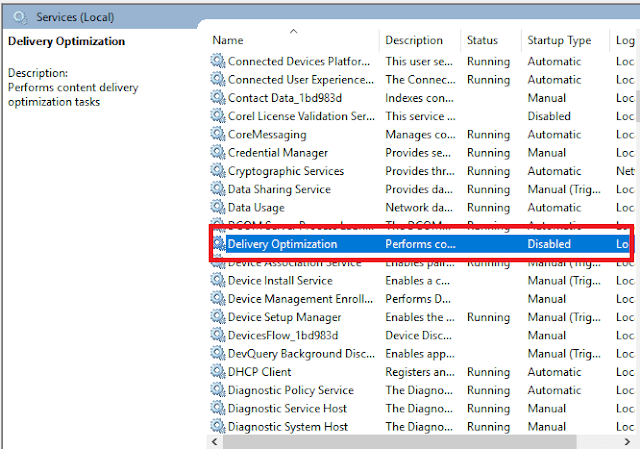
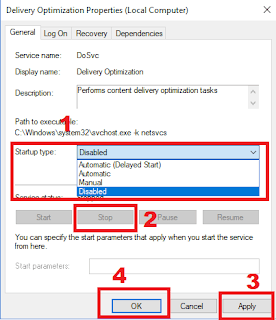
Third, for the Windows auto-update process to stop perfectly, turn off the first program by looking for a program whose name is Delivery Optimization.
Fourth, double-click the program, and a new popup will appear.
Then click on Startup type changed to disable then click on service status changed to stop -> Then click Apply then OK.
If the previous deactivating step was to stop the Delivery Optimization process, then in this second step directly on the Windows Update menu.
This can be useful for overcoming the internet quota on wasteful laptops.
First, the steps you have to do first to stop Windows updates are as follows.
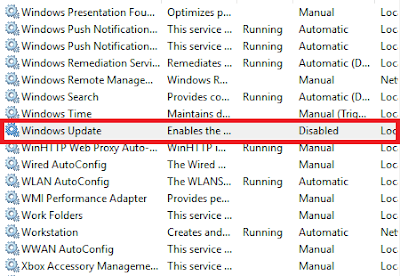
Still in the service menu, scroll down then look for an option called Windows Update.
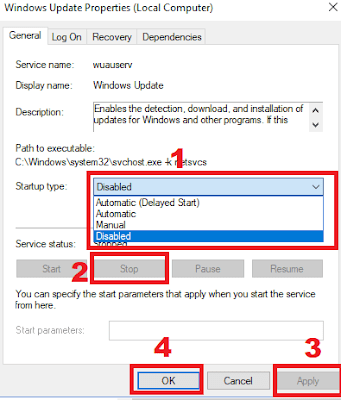
Second, just double-click on the service, and a popup window will appear.
Next, click on the Startup type to be Disable, click Stop then click Apply and OK.
Third, try restarting your laptop now and then entering service again to ensure that the Windows update has been successfully stopped.
If the two services above are still running again, it means that they must be followed up using method number 3.
#5 Disable Using the WUB Application
The third way not to update automatically is that you can use application help. You don’t need to mess around with Windows services to disable it.
The reason is, when using this application you only need to install then press the button in the application, of course, automatic updates have been removed, the tutorial is below:
First, please download the WUB application or Windows Update Blocker via the link here: Download WUB.
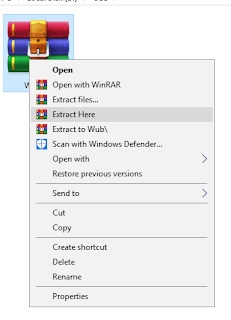
Second, if it’s still in rar form, you must first extract it using WinRAR.
Go to Download Location -> Right Click -> Extract Here -> Done
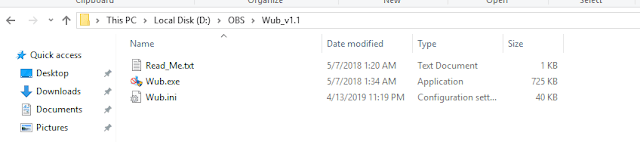
Third, please enter the WUB v1.1 folder. There is already an application there, take it easy, it’s safe because I’ve used it on my laptop.
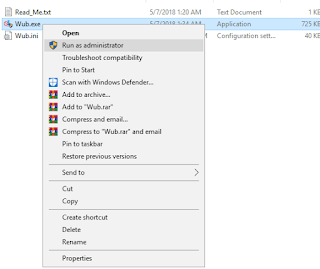
Fourth, right-click on wub.exe, then right-click – Run As Administrator, there will be a prompt, select Yes.
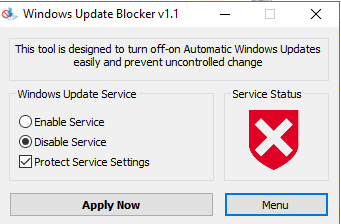
Fifth, select the bullet next to the words Enable service. Don’t forget to check the Protect Service Settings section.
Sixth, the last step is quite easy, point your cursor to the Apply Now menu.
Congratulations Windows, you won’t have any more update notifications and you will save more on your internet quota.
#6 Terminating with PowerShell Command
The PowerShell command itself is a CMD application. Often called CMD instead of the PowerShell command.
How to use CMD to stop Windows 10 updates:
1. Open the start menu.
2. Type CMD.
3. Right-click then Run As Administrator.
4. Enter the following command:
The Regedit menu is a collection of pending files that Windows builders can work with.
So that Windows doesn’t update, you can edit a file in the Regedit program.
Generally, it will be like this:
1. Press the Windows icon + R then type Regedit and then Enter.
2. Then find the folder by going to HKEY_LOCAL_MACHINE \ SOFTWARE \ Policies \ Microsoft \ Windows.
3. Then on a blank page on the right, Right-click then New, and finally select Key.
4. Then name the file WindowsUpdate.
5. In the WindowsUpdate folder, right-click -> New -> Key _ gives the name AU.
6. Right-click Key AU to create a DWORD value given the name NoAutoUpdate.
7. Then double-click on NoAutoUpdate set it to 1 and hit OK.
Now it’s turned off and you can check it in Settings> Update & security> Windows Update then check for updates.
FAQ
Is it better to update it or not?
If your storage space and PC hardware components support it.
Better to update it, because the Windows OS will increase stability and security patches.
What versions of Windows 10 can apply this?
You can apply the above method on Windows Pro, Home, Enterprise, and others.
Because, the entire appearance of the Windows 10 all series is the same, as in this guide.
If you still experience the same thing, you can use the application to permanently disable the Windows 10 Update Assistant. You can say that permanently there will be no update notification, you are already free from it all.
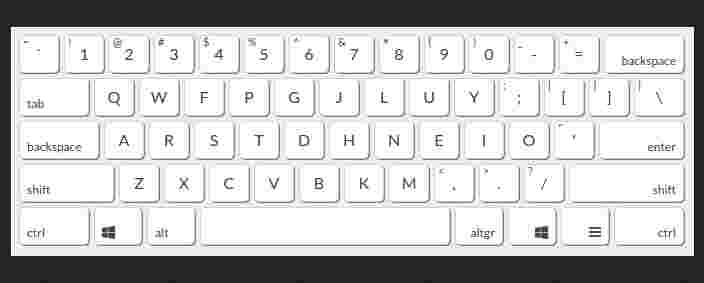
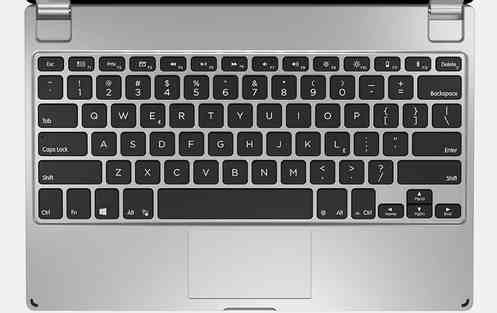
Shortcut Functions of Keys on a Computer Keyboard – Know the Keyboard Functions on a Computer / Laptop / PC. Make use of the CTRL + key to summarize and speed up work.
Functions of Keys on a Computer Keyboard
Shortcut Functions of Keys on a Computer Keyboard
For those of you who are computer users for daily work, you should understand the functions of external keyboards along with keyboard shortcuts on Windows.
This can help you work more efficiently and quickly when using your computer.
Keyboard shortcuts are a combination of two or more keys and if they are pressed together, they can be a shortcut to access application programs.
With keyboard shortcuts, you don’t need to use the mouse to control the computer.
For you to become more proficient at using a computer, make sure you memorize these keyboard shortcuts and make it a habit to use them in your daily work.
By the way, at this point, we haven’t included images in every guide. Maybe in the future, we will add it soon.
Here are some quick tricks using the keyboard keys on a computer.
#1. Keyboard Function CTRL + Key
Undo
If you want to cancel an order that has been given on the computer, then you can give the Undo command by pressing Ctrl + Z.
Select All
Press the CTRL + A keys on the keyboard, to select or block all the text or files you want.
Copy
The keyboard function with the Ctrl + C keys is used to copy or copy text or files on your computer.
Paste (Paste)
To display or paste the text that you have copied or copied, please press Ctrl + V simultaneously on the keyboard.
Cut (Cut)
If you want to cut the text by blocking it first, use the Ctrl + X keys at the same time.
Switch Screen
Press Alt + Tab on the keyboard to give the move forward command or switch to open items.
Access the Task Manager
The trick to using the next keyboard function is to access the task manager on a computer device.
This can be easily used by pressing the Ctrl + Alt + Del keys.
The task manager usually functions to check when your computer is unresponsive or slow.
Close the Application
To close an application or document window, you can take advantage of the keyboard function by pressing Alt + F4.
Find it
To find files more quickly and easily and open the Find and Replace menu, please press Ctrl + F from the keyboard.
Find and Replace
If you want to open Find and Replace or the menu, use the Ctrl + H keys at the same time.
Selecting the Search Box
Press Ctrl + E to display the navigation from the search or select the search box.
Opens a New Window
You can open a new window or file via the keyboard function command by pressing Ctrl + N keys.
However, the command also depends on your work medium, whether offline or via browser.
Zoom Out and Zoom In
If you want to zoom in or out on a folder or file, then you can press Ctrl + Mouse Scroll simultaneously.
#2. The Win + Key Functions
Screen Lock
Press the Win + L keys to shut down or put the computer into sleep mode. The keyboard function makes it easy for you to quickly lock the screen.
Nothing can open the computer, except using the password that you have set on that computer.
Displays the Desktop
You can press Win + D keys to bring up the desktop and minimize everything.
This command is a fast keyboard function option, no matter how many windows or tabs are open.
Toggle on Task View
Press the Win + Tab + Shift keys to find frequently used programs and see the screen of all open programs.
Open Cortana
The Win + C keys can help you perform a variety of tasks including taking notes, searching for applications, searching for content, and more. However, Cortana is usually used on Windows 10.
Save Screenshot
The keyboard function with the PrtScr key helps you to screenshot the screen quickly and automatically without the help of an application.
The win + I button is a button to open settings on your Windows device.
Search for Windows
The Win + S key is a button to search for applications or files that you cannot find on a PC.
Through these keys, windows help you when searching fast and easily.
Change Name
You can press Fn + F2 keys to quickly rename the selected folder or file.
Usually, the F2 key is used to turn off WiFi or change the computer volume, but when combined with the Fn key, it will have a different keyboard function.
Refresh the Computer
If your computer crashes and the processor is not running, then immediately press Fn + F5 to refresh Windows.
Even though it is an old way, this keyboard function is very good for running your computer programs again.
Hidden Menu
Windows has a hidden menu, which you can see in a pop-up by pressing Win + X. With this command, you can access all important areas of the system.
Opening Application with Notification
When you are working on a computer, a notification appears that you need to open it, you should use the Win + Ctrl + B keys. After that, the explorer switches to the application that has sent you notifications.
Navigation Through Notifications
Press the Win + V keys to help you switch from configuring notifications and alerts to the system. This keyboard function is very helpful for computer users who are full of notifications.
You should apply the keyboard function along with the tricks above, to make it easier to operate the computer.
These on about the Functions of Keys on a Computer Keyboard, This is so that you are getting used to it and faster when giving commands via keyboard keys.
Now you don’t need to be bothered with using the mouse anymore, because the tricks above are a shortcut to giving commands to the computer.
![11 Ways To Fix This App Can’t Run on Your PC Windows 10 [2024]](https://technadvice.com/wp-content/uploads/2021/01/How-to-Fix-This-App-Cant-Run-on-Your-PC-Windows-10.jpg "11 Ways To Fix This App Can't Run on Your PC Windows 10 [2024] 3")
 Sixth, the last step is quite easy, point your cursor to the Apply Now menu.