Category: Windows

Windows – Here you can find Computer-related updates Windows 10, Windows 8, Windows 7, Linux, technology information, and more.

  • How to Install Windows Fonts on Ubuntu 2024

    How to Install Windows Fonts on Ubuntu 2024

    How to Install Windows Fonts on Ubuntu – Do you want to know how to install Windows fonts on Ubuntu and other Linux operating systems? You will find all the answers in this article. In this article, you will find out how to install Windows fonts for Linux that do not have existing fonts in Windows such as Times New Roman and others.
    How to Install Windows Fonts on Ubuntu
    Image Source: omgubuntu.co.uk

    How to Install Windows Fonts on Ubuntu

    Linux is an open-source operating system, which means you can use it for free and freely modify it. That is the reason why there are so many variants of Linux distributions scattered on the Internet that can be used for free and very freely.

    Read more:

    But even though it is open-source, Linux distributions cannot just enter files including fonts into the operating system. Basically, fonts have a license to be used freely and for free. There may be some of the Linux distributions that have existing fonts in Windows, but usually not as many and complete as in Windows.

    Therefore, in this article, we will discuss how to install Windows fonts on Linux. If you are an Ubuntu user, the guide is no different. Because this tutorial applies to all Linux distros including Ubuntu.

    You can freely add Windows fonts in Ubuntu like Arial, Arial Black, Comic Sans, Impact, Trebuchet, Calibri, and many others. Here’s how to install Windows fonts on Ubuntu easily and quickly.

    #1. How to Install Windows Fonts on Ubuntu
    How to Install Windows Fonts on Ubuntu

    To be able to install Windows fonts on Ubuntu, you must be online / connected to the internet in order to download the fonts you want. The font size is not too big, so you only eat a little of your internet data.

    Here’s how to install Windows fonts on Linux:

    1. Open your terminal by pressing the F4 key on the keyboard.
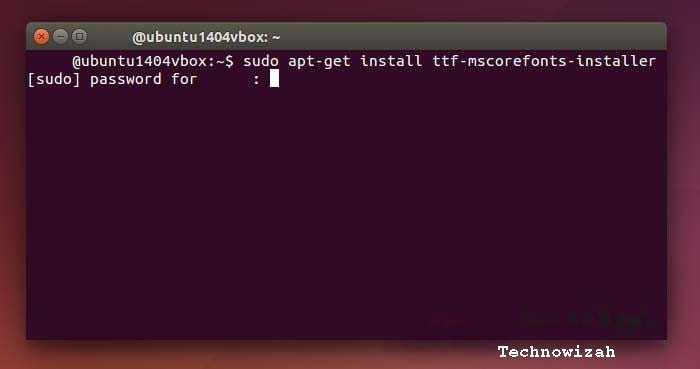
    2. Type the command Sudo apt-get install ttf-mscorefonts-installer in the terminal and then press the Enter key on the keyboard.
    3. Enter the password if you are prompted.
    4. The Windows font download process will run.
    5. You just have to wait for the process to finish.
    6. Type the command fc-cache -fv to clear the cache for fonts to be applied.
    7. Done.

    After you have followed the steps above, close your terminal, and then you can try whether the Windows font has been successfully installed on your Ubuntu or not using Libre or WPS Office applications.

    If you have displayed fonts such as Arial, Arial Black, Comics Sans Ms, and other fonts in Windows, it means that you have successfully followed the guide on how to install Windows fonts on Ubuntu successfully.

    #2. How to Install Fonts on Ubuntu
    How to Install Fonts on Ubuntu

    After you have successfully installed Windows fonts on Ubuntu use the guide above. How do I install fonts on Ubuntu using fonts that are scattered on the internet? Can it? The answer is, of course, you can.

    There are tons of websites that provide cool and unique fonts to install on your Linux operation. If you are not really into Windows fonts, you should try the cooler fonts on several sites on the internet.

    Here’s a guide on how to install fonts on Ubuntu:

    1. Make sure you have the font file you want to install. (you can read how to search for fonts below)
    2. Extract the .zip file containing the font file.
    3. Right-click one of the OTF or TTF files then select Copy to…
    4. Then the file manager window will appear.
    5. Go to Home then right-click and check Show hidden files.
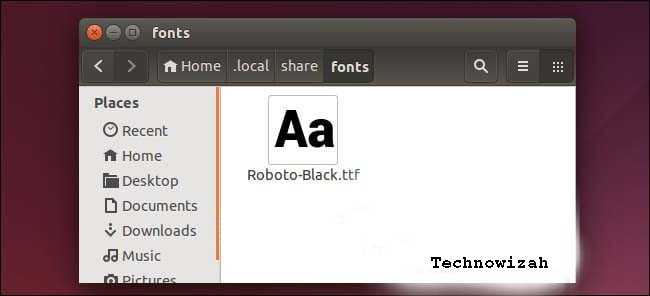
    6. Go to the folder. Local > share > Font then click the Select button.
    7. Done.

    Now, after that, make sure whether the font has been successfully installed or not. Open the Libre Office application or WPS Office and check if the font is there.

    And what you need to know is that in the Fonts folder, you can manage all the fonts in Ubuntu. You can delete fonts, add fonts, and manage fonts in your Ubuntu.

    How to Search for Fonts on the Internet

    After you already know how to install Windows fonts on Ubuntu, and how to install fonts on Ubuntu. Then how do you find fonts on the internet to install on Linux? Below are some websites that provide a variety of fonts that you can use for free.

    1. dafont.com
    2. urbanfonts.com
    3. fontspace.com

    Read more:

    Conclusion:

    The three websites above will provide you with a variety of unique fonts. How to download fonts there is also quite easy, you just need to register first if you are asked to register.

    You can search for other font provider websites through Google by typing the keyword Free Fonts in the search field.

  • Solve: Product Activation Failed Error in Office [Word Excel] 2024

    Solve: Product Activation Failed Error in Office [Word Excel] 2024

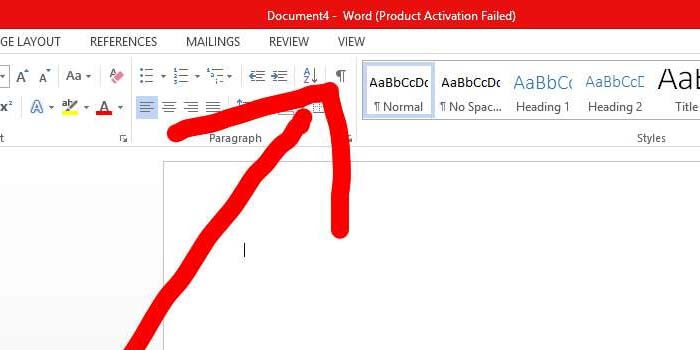
    Solve: Product Activation Failed Error in Office [Word Excel] – Resolving the Word Product Activation Failed notification in the title bar is one of the problems that Microsoft Office users often encounter because many don’t know about it.

    Solve Product Activation Failed Error in Office [Word Excel]How to Product Activation Failed Error in Office [Word Excel]

    Therefore, you need to know how to deal with Word Product Activation Failed so that your comfort in using Microsoft Office is not disturbed.

    Read more:

    This Microsoft Office software is the software most widely used by the public for various needs, especially at work.

    There are problems causing daily activity and productivity at work to be hampered, what actually causes Word Product Activation to fail to appear?

    Causes of Product Activation Failed Error in Office Word Excel Notification

    Causes of Product Activation Failed Error in Office Word Excel Notification

    Before getting to the heart of the discussion, namely how to deal with Word Product Activation Failure, it’s a good idea to first know the cause of the notification about product activation failure in your Microsoft Office.

    #1. Pirated Software

    The first cause is that you are not using the official Microsoft Office software. Meanwhile, there are lots of risks in using pirated Microsoft Office software such as getting a virus, force close, not responding and word product failed activation.

    #2. The software’s Active Period Has Expired

    Microsoft Office and Microsoft 365 software have different active periods. You can subscribe monthly or annually, if the active period or software subscription period has expired, what will usually happen is an unlicensed product or a product activation fails.

    #3. Installing the Trial Version of Microsoft Office

    Another cause that can cause a product activation failed notification is that the Microsoft Office that you installed on your PC or laptop is the trial version. Trial or trial versions generally have an active period of up to 30 days.

    This means, if within 30 days or one month, you don’t install the paid version, then suddenly the word product activation failed notification will appear.

    #4. There is a problem with Microsoft Office

    Finally, most likely the word product activation failed notification appears due to errors or bugs contained in the Microsoft Office program itself.

    How to Solve Product Activation Failed Error in Office Word Excel

    Below, you can find various ways to deal with Word Product Activation Failure so you can get back to working with Microsoft Office without a hitch.

    #1. Check the Microsoft Office Software License

    The first way is to ensure that you have a Microsoft Office software license. The following steps must be taken to find out which Microsoft Office product license you have:

    1. Open one of the Ms. applications. Office for example Ms. Word.
    2. Enter the “File ” menu, and select the “Account” option.
    3. Look in the “Product Activation” section.
    4. Pay attention to the description “Product Activated”.
    5. If there is an “Activation Required” statement, it means that Microsoft Office needs to be activated

    #2. Re-enter Product Key

    Several conditions may allow Microsoft Office to ask its users to re-enter the product key or official license code to activate the software. This can happen if the software you are using is pirated or still in a trial version.

    Here are the ways to enter the product key:

    1. Open one of the Ms. applications. Office for example Ms. Word.
    2. Enter the “File” menu, and select the “Account” option.
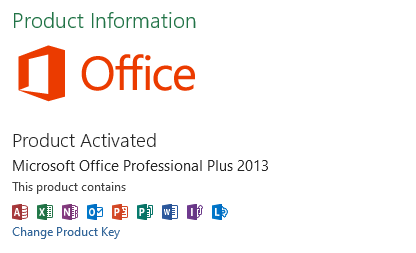
    3. Look in the “Product Information” section.
    4. Select the “Change Product Key” option.
    5. Input the official license code that you have.
    6. Follow the directions given and wait for the process to complete.

    #3. Update Microsoft Office Software

    If the two ways to deal with Word Product Activation Failed don’t work, you can try updating the Microsoft Office software that you have.

    1. Open one of the Ms. applications. Office for example Ms. Word.
    2. Enter the “File ” menu, and select the “Account” option.
    3. Look in the ” Product Information “.
    4. Select the “Update Options” option.
    5. Select the “Update Now” option.

    Conclusion:

    So, friends, This is the explanation of the three ways to Solve the Product Activation Failed Error in the Office, above to get rid of the notification.

  • 7 Ways to Fix Windows File Explorer Not Responding 2024

    7 Ways to Fix Windows File Explorer Not Responding 2024

    7 Ways to Fix Windows File Explorer Not Responding – File Explorer error or not responding? Don’t worry, there are here the 7 ways to deal with File Explorer not responding.

    7 Ways to Fix Windows File Explorer Not Responding
    7 Ways to Fix Windows File Explorer Not Responding

    7 Ways to Fix Windows File Explorer Not Responding

    File Explorer or Windows Explorer is the main navigation system that allows us to view, access, and manage all files on your PC or laptop.

    Read more:

    If the file explorer doesn’t respond, freezes, or won’t open, there will be a lot of frustrating problems accessing important data on your computer.

    Fortunately, here ApkVenue has prepared 7 ways to deal with file explorer not responding that are easy to follow and an explanation. Check out the details below!

    What Causes File Explorer Error?

    Unfortunately, there is no definite cause that could be the source of this somewhat annoying problem.

    Based on user reports from the Windows 10 community, there are several reasons that could cause Windows Explorer to not respond, freeze, or not open at all.

    #1. File Explorer history needs to be deleted

    It is possible that your File Explorer history is stuck and is causing Windows Explorer to run improperly.

    The solution is to delete the file explorer history which ApkVenue will explain more fully in this article.

    #2. The display settings have been changed

    Users reported that changes to display settings such as font size could cause Windows Explorer to crash.

    If you recently changed a setting or allowed the app to change it, returning it is the best option.

    #3. The version of Windows 10 that you are using is old

    If you are still using Windows 7, there’s nothing wrong with upgrading from Windows 7 to Windows 10 for better performance.

    Updating Windows is very important, gang. Even though sometimes there are annoying bugs that make us want to turn off Windows updates, the latest versions usually fix a lot of problems.

    #4. No space is available on the system drive

    If the system drive is full, Windows Explorer may not function properly.

    If so, then you need to provide more space on the system drive to deal with file explorer errors and speed up laptop performance.

    #5. Something is wrong with the system

    Sometimes system files can cause Windows Explorer to stop responding or open.

    Fortunately, there are various options for how to deal with file explorer not responding that are easy and fast to do.

    How to Solve File Explorer Not Responding Through the Task Manager

    One of the fastest ways to deal with file explorer not responding is through the task manager.

    Check out the following steps to solve Windows 10 file explorer not responding error.

    1. Right-click the taskbar and select task manager.
    How to Overcome File Explorer Not Responding Through the Task Manager
    1. Select the file explorer, then click end task.

    2. Restart the file explorer. In this step, you will make Windows start the file explorer process again by clicking on the file, then clicking run new task.

    How to Overcome File Explorer Not Responding Through the Task Manager
    1. Type explorer.exe, then OK. Done! Windows will reload the file explorer via the task manager steps.
    How to Overcome File Explorer Not Responding Through the Task Manager

    How to Solve File Explorer Not Responding Through CMD

    Another method to restart Windows Explorer / File Explorer is using commands in the Command Prompt.

    Here’s how to restart Windows Explorer / File Explorer using only the Command Prompt:

    1. Press Windows + R keys at the same time.
    2. Type “cmd” and press Ctrl + Shift + Enter to launch Command Prompt with administrative permissions.
    How to Overcome File Explorer Not Responding Through CMD
    1. Enter the following command to quit Windows Explorer, then press Enter to run the command:

    taskkill / f / im explorer.exe

    How to Overcome File Explorer Not Responding Through CMD
    1. Next, enter the following command to restart Windows Explorer. Don’t forget to hit enter after you type the command!

      start explorer.exe

    How to Overcome File Explorer Not Responding Through CMD
    1. Close the Command Prompt and check if you can use Windows Explorer now.

    How to Fix File Explorer Not Responding Through Batch File

    If the method for overcoming the file explorer not responding above still doesn’t work, then you can use the batch file method as an alternative.

    Basically, you just need to create a batch file (.bat) and run it with administrator permission to terminate and restart Windows Explorer / File Explorer.

    1. Right-click on an empty space on the Desktop, then click New, and select Text document.
    How to Overcome File Explorer Not Responding Through Batch File
    1. Name the file Restart Explorer and open it with any notepad application.
    How to Overcome File Explorer Not Responding Through Batch File
    1. Paste the following text into the file.
    How to Overcome File Explorer Not Responding Through Batch File

    taskkill / f / IM explorer.exe

    start explorer.exe

    exit

    1. Select “All Files” as the file type, then rename the text document to “Restart Explorer.bat” and click Save.
    How to Overcome File Explorer Not Responding Through Batch File
    1. Open Desktop and right-click on Restart Explorer.bat file, then select Run as administrator.

    2. Check if you can use Windows Explorer now.

    How to Fix File Explorer Not Responding By Deleting History

    As mentioned above, your Windows Explorer / File Explorer history might get stuck causing all kinds of problems.

    You can easily fix this by deleting File Explorer’s history.

    1. Press the Windows key + R to launch Run. Type “control” and press the OK button.
    2. Make sure the display mode is set to a large icon.

      How to Overcome File Explorer Not Responding By Deleting History
    3. Click File Explorer Options.

      How to Overcome File Explorer Not Responding By Deleting History
    4. Click the Remove button in the Privacy section.

      How to Overcome File Explorer Not Responding By Deleting History
    5. Check if Windows Explorer is working now.

    How to Fix File Explorer Not Responding Through Display Settings

    In certain cases, users reported that returning their display settings to default allowed them to use Windows Explorer / File Explorer without any problems.

    1. Click the Windows logo at the bottom left of the screen, then select Settings. You can also press the Windows + I keyboard at the same time to open it.
    How to Overcome File Explorer Not Responding Through Display Settings
    1. Click system.

    2. Click display.

    3. Scale the size to 100%.

    How to Overcome File Explorer Not Responding Through Display Settings
    1. Check if Windows Explorer is working now.

    How to Fix File Explorer Not Responding Through System File Checker

    Another way of dealing with File Explorer involves System File Checker or SFC for short.

    SFC allows you to fix several problems on Windows systems automatically.

    By running it, you can fix Windows Explorer / File Explorer errors.

    1. Press the Windows key + R on your keyboard to launch the Run utility.

    2. Type “cmd” and press Ctrl + Shift + Enter. This will open a Command Prompt with administrative permissions.

    How to Overcome File Explorer Not Responding Through System File Checker
    1. Type the following command and press Enter: sfc / scannow
    How to Overcome File Explorer Not Responding Through System File Checker
    1. Wait for the SFC to finish scanning your computer. If there are any errors, you can fix them automatically via the SFC command.

    How to Fix File Explorer Not Responding to Windows 10 Update

    If none of the above methods for overcoming file explorer’s not responding have worked, then the only way is to update to the latest version of Windows 10.

    This method is also used as a powerful way to deal with the Windows 7 explorer.exe error. You can listen to how to upgrade Windows 7 to 10 first.

    1. Open the Settings app using the Start menu or the Windows + I keyboard shortcut.

    2. Click update and security.

    How to Fix File Explorer Not Responding to Windows 10 Update
    1. Click check for updates.
    How to Fix File Explorer Not Responding to Windows 10 Update
    1. If new updates are found, click the Install button.

    Read more:

    Conclusion:

    So, there are 7 ways to Fix the Windows 10 file explorer not responding error that you can easily follow.

    It is important to fix this problem because if the file explorer cannot be accessed, then you cannot open the documents on the laptop.

    If the file explorer not responding problem has been resolved, it’s a good idea to also use a file backup site as an alternative so that your important files are not lost.

  • How to Activate Windows 10 Pro Without Product Key Free 2024

    How to Activate Windows 10 Pro Without Product Key Free 2024

    How to Activate Windows 10 Pro Without Product Key Free – For those of you who have just bought the latest laptop or PC, of ​​course, you will find out how to activate Windows 10 Pro either using a product key or without using a product key.

    How to Activate Windows 10 Pro Without Product Key Free
    How to Activate Windows 10 Pro Without Product Key Free

    Best and Easy Ways to Activate Windows 10 Pro Without Product Key Free

    Reportedly, the Microsoft operating system is the final version of the Windows operating system. So do not be surprised if, in terms of appearance, all the supporting features are very proportional if used for work.

    Read more:

    You also need to know that the installation and activation processes are different. When you buy a new laptop, Windows 10 is usually already installed.

    But you can’t use all of its features completely, because you haven’t done the activation process yet. This is what we will discuss in detail below.

    But before that, let’s look at some of the reasons why you should use the original Windows 10.

    Why Should You Use Original Windows 10?

    Why Should You Use Original Windows 10
    Why Should You Use Original Windows 10

    Currently, there are still many people who prefer to stick to using Windows 7 or 8 because the price of the original Windows 10 DVD can now be said to be very expensive. It ranges from 1.5 to 2 million.

    Even so, that doesn’t mean you have to continue using Windows 7 and 8 or look for shortcuts to install fake versions so that the costs are cheaper.

    Here are 3 reasons that might change your mind about switching to using Windows 10.

    1. You will get full support from the original Windows 10. Starting in terms of how to activate Windows 10 pro, update features, and also security. Then you will automatically feel calm because you have installed the original windows, and it is unlikely that a system error will occur.
    2. You need to know that it turns out that currently there have been many raids carried out, for anyone who is still using a fake version of Windows. So many companies and business owners have been arrested for circulating or installing fake windows.
    3. Because Windows 10 is the latest operating system released by Microsoft, automatically in terms of speed, Windows 10 will also be more advanced than Windows 7 or 8. So how? Still, want to stick to using Windows 7 and 8? Or do you still want to use a fake version of Windows 10?

    #1. Windows 10 Activation Preparation

    Before doing how to activate Windows 10 Pro, there are several things that you must do.

    Because the activation process can be done either with a product key or without a product key, the things you have to prepare are, to look for a third-party tool or application to help with the installation process.

    This method is used if you choose to activate without a product key. Among them are using KMS Pico and KMS Auto, here are the steps:

    #2. Turn off Windows Defender and Other Antivirus

    Just before you do how to activate Windows 10 Pro, make sure you have turned off all other antivirus and defenders installed on your laptop or PC.

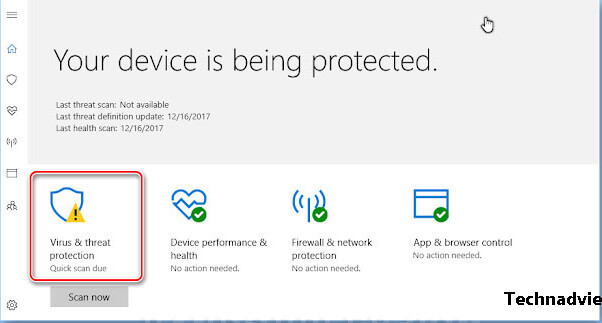
    • First, please open the Windows Defender program. You can do this by typing Windows Defender in the lower-left search of the taskbar.
    • After that click the Virus & Threat Protection menu.
    Turn off Windows Defender and Other Antivirus
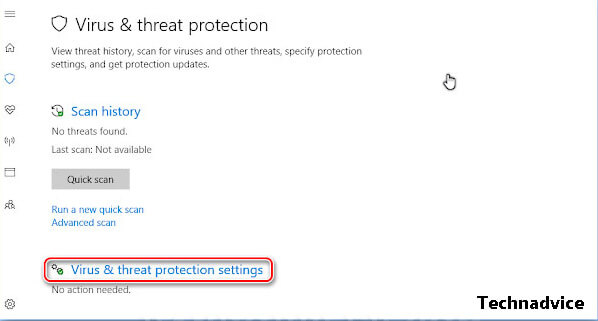
    • Then select Virus & Threat Protection settings.
    Turn off Windows Defender and Other Antivirus
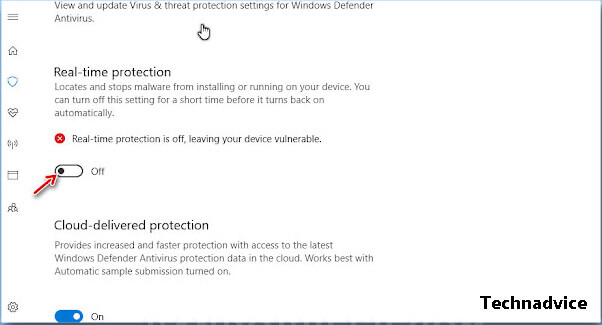
    • Slide to the off position on the Real-time protection button.
    Turn off Windows Defender and Other Antivirus
    • Done

    This is done because when you run the tool activator program, it will be detected as a virus by Windows Defender or other types of antivirus. Then as a result the activation program cannot be run, aka a system error.

    #3. Granting Windows Script Host Permissions

    If you use the Smadav antivirus, usually a Windows script host will appear when using the activator tool.

    At that time, your task must accept the host script, so that the activation process can run smoothly.

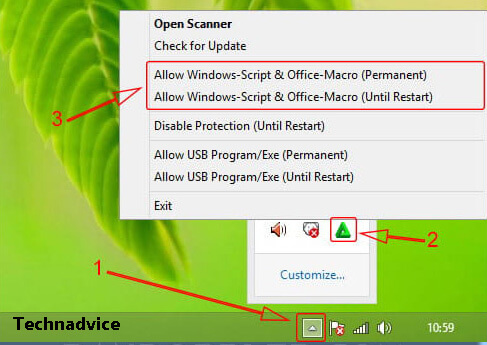
    This will only happen for those of you who use Smadav antivirus only. How to allow it, you just right-click on the smadav icon.

    Granting Windows Script Host Permissions

    Then click Allow Windows Scripts & Office-macro for Permanent or until restart and you just have to choose it.

    Activation Windows 10 Pro (Permanent) Without Product Key

    Enter the step of how to activate Windows 10 Pro. Then what will be discussed first are those who do not use the product key.

    As explained earlier, you must use a third-party tool or application to assist the activation process.

    Here we provide 2 applications that can help expedite the activation process without having to use a product key.

    #1 Using KMS Auto Lite

    The first tool or application that you can use is KMS Auto-Lite. Where this application program offers software that can activate Windows as well as its office.

    Then the next is the process of how to activate Windows 10 pro without a product key using KMS Auto-Lite.

    1. Download KMS Auto-Lite.
    2. Perform the extract process on KMS Auto-Lite. There you will find 2 files, namely KMSAuto and KMSAuto X64.
    3. Then just run it according to the Windows architecture used. If you are using Windows 32 bit then run the KMSAuto version. However, if you use 64-bit, then use KMSAuto X64. Make sure you run it with Administrator privileges (Run as Administrator).
    4. Look in the KMS Auto Lite window, and click the install GVLK option.
    5. Then check forcibly and click the Windows key to install the product key from Windows 10 KMS Auto-Lite.
    6. If it is successful, it will display the words “Key Installed Successful”
    7. Then click the Activated Windows button on the screen.
    8. If all the activation processes have been completed, the words “Activation Successful” will appear again on the screen.
    9. Then that means, you can use Windows 10 Pro fully.

    #2 Using KMS Pico

    Then the second way to activate Windows 10 pro without a product key is to use KMS Pico. Where all the functions offered are not much different from KMS Auto-Lite.

    The only difference is that the use of KMS Pico is considered easier. Here are the steps.

    1. Download KMS Pico.
    2. Extract the downloaded file, then right-click the KMS Pico and select Run As Administrator.
    3. Just wait until the activation process is complete, later when it’s finished there will be a notification sound that says “Complete”.
    4. Then that means, you have successfully activated Windows 10 Pro without a product key using KMS Pico. So that Windows 10 is ready to run with all the advanced features in it. How? Very simple isn’t it?

    How to Activate Windows 10 Pro with Product Key

    The method is almost the same as without using a product key.

    But the difference is, that you don’t have to bother installing additional applications as a third party. However, instead, you have to enter the product key during the activation process. Here’s how.

    1. Go to the settings section.
    2. Click the Update and Security section.
    3. Select activation and click on the Change Product Key menu.
    4. Enter the product key. Here are some special product keys for Windows 10 pro. “VK7G-NPHTM-C97JM-9MPGT-3V66T”
    5. Wait until the verification process is complete, then click the next button.
    6. Wait until the activation process is complete. Later will appear the words “Windows is activated”.
    7. Windows 10 pro is ready to use.

    Here is another collection of Windows 10 Keys that you can try

    Windows 10 Home Single Language
    
    7HNRX-D7KGG-3K4RQ-4WPJ4-YTDFH
    
    Windows 10 Home Country Specific (CN)
    
    PVMJN-6DFY6-9CCP6-7BKTT-D3WVR
    
    Windows 10 Home N
    
    3KHY7-WNT83-DGQKR-F7HPR-844BM
    
    Windows 10 Education
    
    NW6C2-QMPVW-D7KKK-3GKT6-VCFB2
    
    YNMGQ-8RYV3-4PGQ3-C8XTP-7CFBY
    
    Windows 10 Education N
    
    2WH4N-8QGBV-H22JP-CT43Q-MDWWJ
    
    84NGF-MHBT6-FXBX8-QWJK7-DRR8H
    
    Windows 10 Enterprise
    
    NPPR9-FWDCX-D2C8J-H872K-2YT43
    
    XGVPP-NMH47-7TTHJ-W3FW7-8HV2C
    
    CKFK9-QNGF2-D34FM-99QX3-8XC4K
    
    Windows 10 Enterprise N
    
    DPH2V-TTNVB-4X9Q3-TJR4H-KHJW4
    
    WGGHN-J84D6-QYCPR-T7PJ7-X766F
    
    Windows 10 Enterprise S
    
    FWN7H-PF93Q-4GGP8-M8RF3-MDWWW
    
    Windows 10 Professional
    
    W269N-WFGWX-YVC9B-4J6C9-T83GX
    
    VK7JG-NPHTM-C97JM-9MPGT-3V66T
    
    8N67H-M3CY9-QT7C4-2TR7M-TXYCV
    
    Windows 10 Professional N
    
    MH37W-N47XK-V7XM9-C7227-GCQG9
    
    2B87N-8KFHP-DKV6R-Y2C8J-PKCKT
    
    Windows 10 Home Single Language
    
    7HNRX-D7KGG-3K4RQ-4WPJ4-YTDFH
    
    Windows 10 Home Country Specific (CN)
    
    PVMJN-6DFY6-9CCP6-7BKTT-D3WVR
    
    Windows 10 Home N
    
    3KHY7-WNT83-DGQKR-F7HPR-844BM
    
    Windows 10 Education
    
    NW6C2-QMPVW-D7KKK-3GKT6-VCFB2
    
    YNMGQ-8RYV3-4PGQ3-C8XTP-7CFBY
    
    Windows 10 Education N
    
    2WH4N-8QGBV-H22JP-CT43Q-MDWWJ
    
    84NGF-MHBT6-FXBX8-QWJK7-DRR8H
    
    Windows 10 Enterprise
    
    NPPR9-FWDCX-D2C8J-H872K-2YT43
    
    XGVPP-NMH47-7TTHJ-W3FW7-8HV2C
    
    CKFK9-QNGF2-D34FM-99QX3-8XC4K
    
    Windows 10 Enterprise N
    
    DPH2V-TTNVB-4X9Q3-TJR4H-KHJW4
    
    WGGHN-J84D6-QYCPR-T7PJ7-X766F
    
    Windows 10 Enterprise S
    
    FWN7H-PF93Q-4GGP8-M8RF3-MDWWW
    
    Windows 10 Professional
    
    W269N-WFGWX-YVC9B-4J6C9-T83GX
    
    VK7JG-NPHTM-C97JM-9MPGT-3V66T
    
    8N67H-M3CY9-QT7C4-2TR7M-TXYCV
    
    Windows 10 Professional N
    
    MH37W-N47XK-V7XM9-C7227-GCQG9
    
    2B87N-8KFHP-DKV6R-Y2C8J-PKCKT

    Those are some steps to activate Windows 10 Pro on your PC easily.

    You can use the Windows 10 pro activation method with a product key or without a product key using 2 third-party applications. May be useful.

    #2 Here’s How to Activate Windows 10 on a Laptop PC

    The digital license will be connected via a Microsoft account to the hardware, so you can do a tutorial on how to activate Windows 10.
    • First, download the installation media from the Microsoft Store and reinstall it by going to system boot.
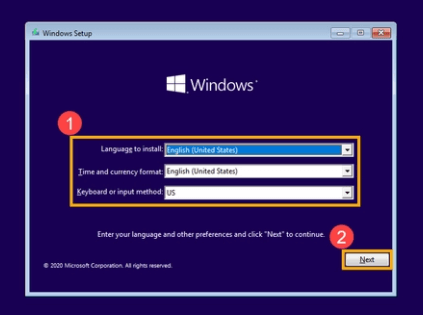
    • Enter Windows Setup to reinstall as shown below. Select the language, time, and currency format, and the method to be used. Then, click ‘Next.
    Here's How to Activate Windows 10 on Laptop PC
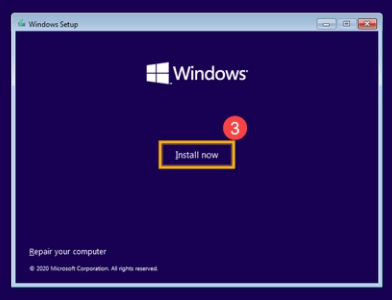
    • Click ‘Install Now.
    Here's How to Activate Windows 10 on Laptop PC
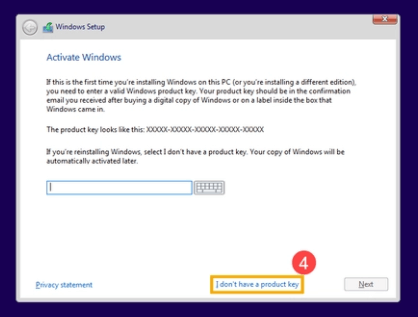
    • Next, you will be asked to enter the product key. Enter the product key only for the first user. If you want to reinstall, then you don’t need to enter the Windows 10 Pro product key and select ‘I don’t have a product key’.
    Here's How to Activate Windows 10 on Laptop PC
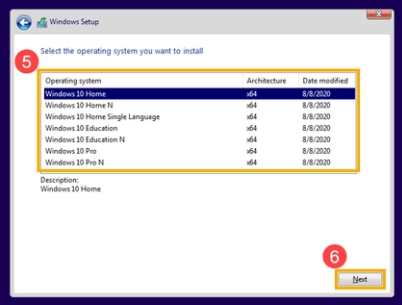
    • You will be asked to select the operating system you want to install. We recommend that you choose according to the initial version of the PC. If so, click ‘Next’.
    Here's How to Activate Windows 10 on Laptop PC
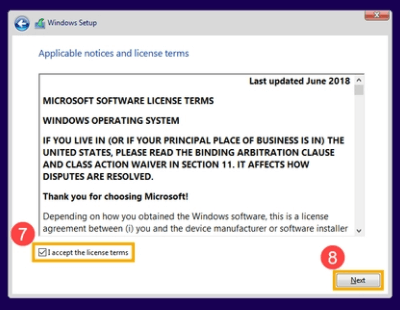
    • In the next step, check next to the words ‘I accept the license terms, then click ‘Next’.
    Here's How to Activate Windows 10 on Laptop PC
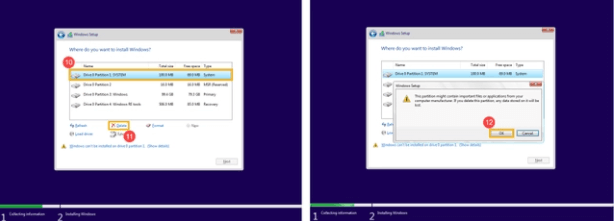
    • Select ‘Custom: Install Windows only (advanced)’ and click ‘OK’ when the Windows Setup notification appears as shown below (right).
    Here's How to Activate Windows 10 on Laptop PC
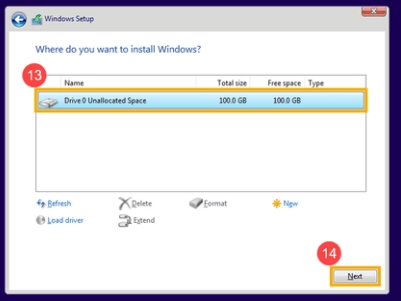
    • If there is only one Drive left, select ‘Drive 0 Unallocated Space’ and click ‘Next. Your laptop is now reinstalling.
    Here's How to Activate Windows 10 on Laptop PC
    During the reinstallation process, make sure the laptop is connected to the adapter to avoid the laptop suddenly turning off due to running out of battery.
    The reinstallation process is completely marked by the computer entering the Windows basic page.

    Disclaimer: All forms of download files on the Technadvice.com site are just for educational purposes only.

    DMCA: Technadvice.com complies with 17 U.S.C. * 512 and the Digital Millennium Copyright Act (DMCA). It is our policy to respond to any infringement notices and take appropriate action. If your copyrighted material has been posted on the site and you want this material removed, Contact us.

    You don’t need to do the Windows 10 product key activation method if you use the default Windows or have installed it before.
    How to activate Windows 10 Pro without a product key will activate automatically after the reinstallation process is complete.
  • 7 Easy Steps Activate Office 2013 Without Product Key 2024

    7 Easy Steps Activate Office 2013 Without Product Key 2024

    7 Easy Steps Activate Office 2013 Without Product Key – On a Windows computer you have installed Microsoft Office 2013 or Microsoft Office 2016 but the problem is that the software has not been activated so you can use not all the features of Office 2016, you can only create documents but cannot edit documents. which exists.

    Activate Office 2013 Without Product KeyHow to activate Office 2013 with KMS Auto Net on Laptop PC

    Read more:

    1. First of all download KMS Auto Net to your computer.
    2. Then extract the zip file.
    3. You will find a folder called KMSAuto Net 2015 v1.4.0 Portable then click it to enter that folder.
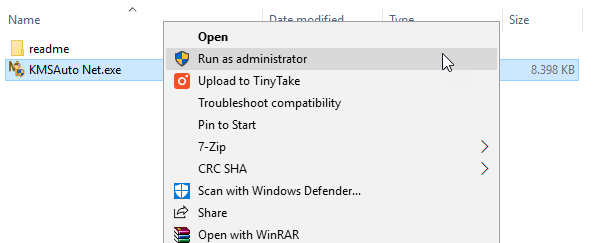
    4. In the folder, right-click on the exe file named KMSAuto Net.exe and select Run As Administrator.

      Run As Administrator
      Run As Administrator
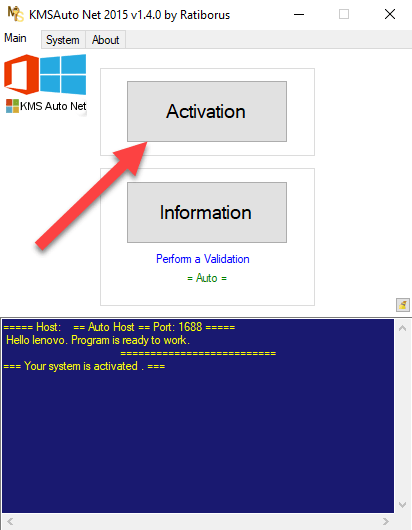
    1. After the box appears, click Activation.
    Activation
    Activation
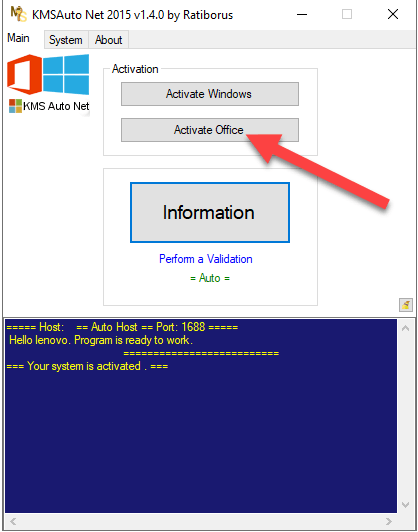
    1. Then select the Activate Office button.
    Activate Office
    Activate Office
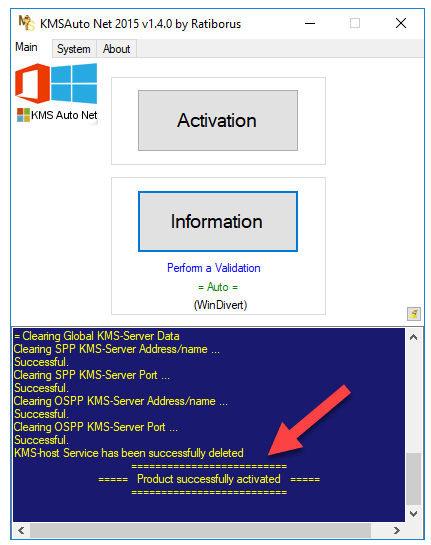
    1. Successful activation of Office.
    activation of Office
    activation of Office

    How to activate Microsoft Office 2013 with KMS Auto Lite

    1. Download KMS Auto-Lite (3.2 MB) onto your computer.
    2. Then extract the RAR file.
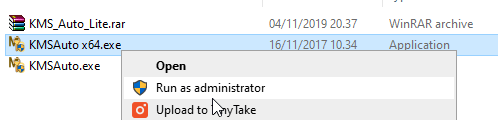
    3. Next, you will find two files, namely: KMSAuto x64.exe and KMSAuto.exe. KMSAuto x64 is for Windows 64-bit while KMSAuto.exe is for 32-bit. Select according to your version, then right-click and select Run As Administrator. To open this tool.
    How to activate Microsoft Office 2013 with KMS Auto Lite
    How to activate Microsoft Office 2013 with KMS Auto Lite
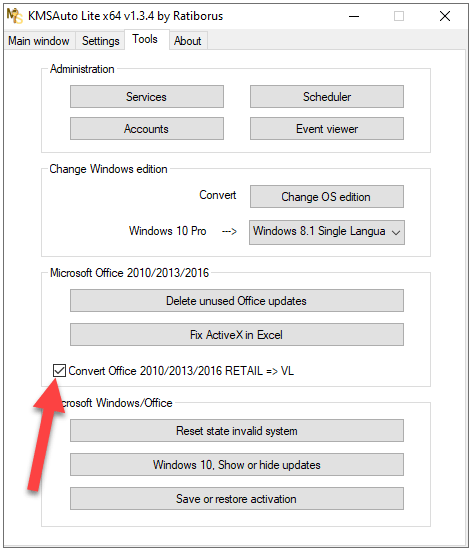
    1. After the software opens, click on Tools, then select Convert Office 2010/2013/2016 RETAIL => VL as shown.
    Convert Office 201020132016 RETAIL = VL
    Convert Office 201020132016 RETAIL = VL
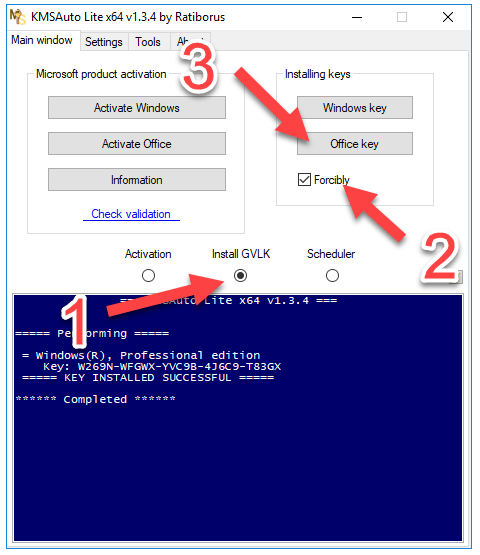
    1. Then click on Install GVLK then click Forcibly and click on Office Key.
    Install GVLK then click Forcibly and click on Office Key
    Install GVLK then click Forcibly and click on Office Key
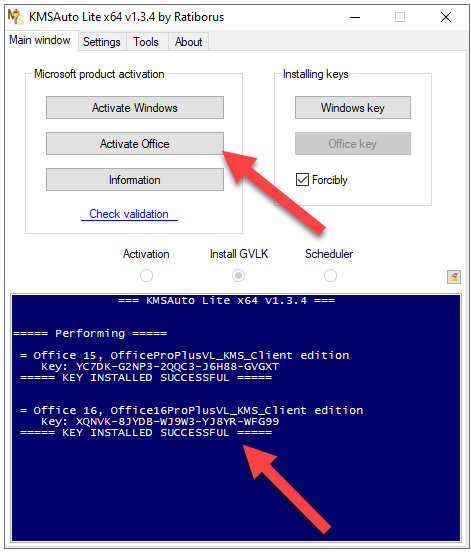
    1. If the Key Installed Successfully notification appears, then click the Activate Office button.
    Activate Office button
    Activate Office button
    Activate Office button
    Activate Office button

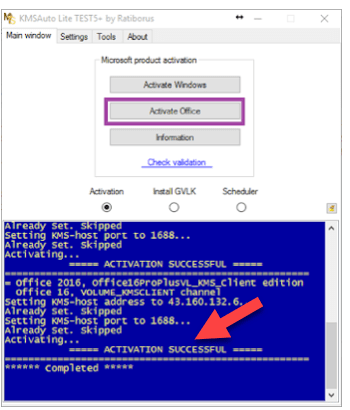
    And Now Office 2013 is activated successfully.

    Disclaimer: All forms of download files on the Technowizah.com site are just for educational purposes only.

    DMCA: Technowizah.com complies with 17 U.S.C. * 512 and the Digital Millennium Copyright Act (DMCA). It is our policy to respond to any infringement notices and take appropriate action. If your copyrighted material has been posted on the site and you want this material removed, Contact us.

    Read more:

    Conclusion:

    This is the explanation of 7 easy steps to activate Office 2013 Without a Product Key and without a product key, and permanently. This method can be used to activate Office 2013 on a PC or laptop with Windows 10, Windows 8/8.1, or even older versions of Windows.

    And the results are as follows
    And the results are as follows

    I managed to activate Microsoft Office 2013 on my computer using KMS Auto-Lite and KMS Auto Net, oh yes, I tried both.

    I use two of my computers, one laptop, and the other a desktop, both of which have Microsoft Office 2013 that has not been activated, on my laptop I use KMS Auto-Lite and it works, while on the desktop I use KMS Auto Net and also successfully activate Office 2013.

    Therefore I do not hesitate to recommend this two software, you can choose one of them or even try both, but for me, both are good and good.

    FAQ.

    1. Question: I always fail to download KMS Auto Lite or Net, or during installation, an error message appears: CScript Error: Loading script “C: \ WINDOWS \ Temp \ KMSAuto \ bin \ KMSactivator.vbs” failed (Operation did not complete successfully because the file contains a virus or potentially unwanted software).
      • The solution: Is to turn off Windows Defender on your Windows computer.
    2. Question: Does my computer need a framework?
      • The solution: Yes, you have to install Net Framework 4 on your Windows.
    3. Question: What about Office 2016, can it also be activated?
      • The solution: For that, please immediately follow the tutorial on how to permanently activate Office 2016

    Read more:

    Conclusion:

    That is the patent and solid way to activate Microsoft Office 2013 which I have tested and the results have succeeded in activating Office 2013 on my Windows computer. If you have questions then feel free to raise them in the comments area.

    Don’t forget to bookmark and always visit every day Technowizah.com because you can find here the latest Tech Computer Android games How-to Guide Tips&Tricks Software Review etc, Which we update every day.