Category: Windows

Windows – Here you can find Computer-related updates Windows 10, Windows 8, Windows 7, Linux, technology information, and more.

  • 10 Best Screenshot Applications for Windows 10 PC 2025

    10 Best Screenshot Applications for Windows 10 PC 2025

    10 Best Screenshot Applications for Windows 10 PC – There are many ways you can take screenshots in Windows. The most classic way is to use the PrtScn key to take a full-screen screenshot and then paste it into an editor like Paint, but this method has many limitations.
    10 Best Screenshot Applications for Windows 10 PC
    10 Best Screenshot Applications for Windows 10 PC

    How To Download Screenshot Applications for Windows 10, 8, 7, PC Laptop

    If what you need is to take a screenshot of a certain area on the screen, and give it arrows, circles, text or quotes, and other attributes, then this can only be done with the help of an application.

    Read more:

    There are many PC screenshot applications that you can use, some are free, and some are paid. For non-commercial purposes, you can simply use a free application.

    Here are some recommendations for the best screenshot applications in 2024:

    #1. Lightshot
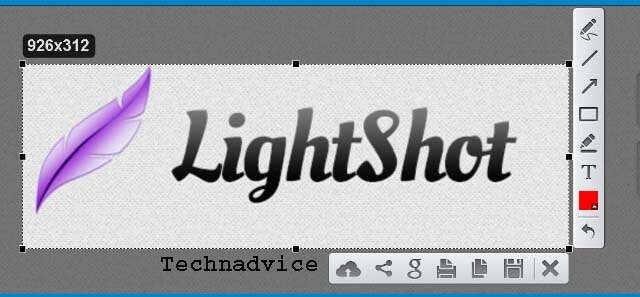
    Lightshot
    Lightshot

    The first screenshot application is Lightshot, which in our previous post was included as one of the must-have applications on Windows 10.

    Lightshot can be used to take screenshots of any area you want. One of the advantages is that we can directly edit the screenshot before saving it to the computer. We can give arrows, handwriting, text, and lines.

    Apart from being stored on a computer, the screenshots taken can also be directly shared on social media or uploaded to the server. This feature will make it easier for us to share it with friends or colleagues.

    Lightshot is a freeware application that can be used for free. Currently, Lightshot can be used on Windows 10, 8, 7, macOS, Linux, and Google Chrome.

    Download Lightshot

    Features:

    • Taking screenshots quickly with hotkeys
    • Upload the image to the server
    • Screenshot editor
    • Google image search
    • Share screenshots to social media
    • Support for Windows & macOS

    Advantages:

    • Freeware, free without restrictions
    • Very light
    • Can take screenshots of any area on your laptop screen
    • Hotkeys can be modified according to user wishes
    • Screenshots can be uploaded directly to the server then the user will get the link
    • Screenshots can be edited immediately
    • The screenshot results can be used to perform a direct Google image search without uploading manual images
    • You can directly share the screenshot results to social media without manual upload

    Deficiency:

    • There is no mode to screenshot the active window and full screen, the area must be selected manually

    How to take a screenshot with Lightshot:

    #2. Greenshot
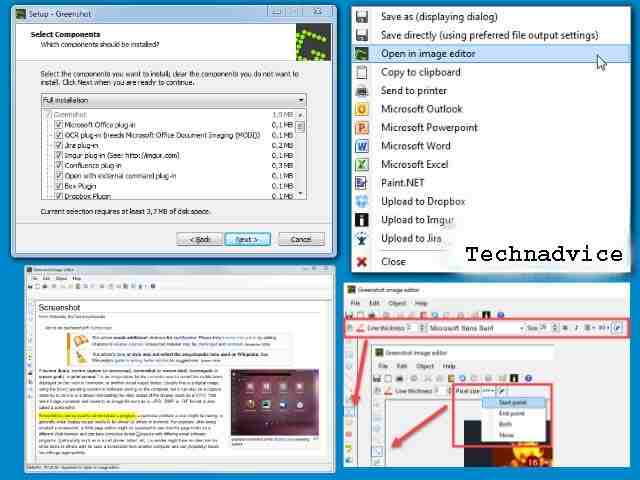
    Greenshot
    Greenshot

    The best screenshot application for PCs and laptops which is next is Greenshot. This application can also be used for free on Windows and at a low price for Mac users.

    Greenshot allows users to take screenshots at any desired space on the screen, in the active window, or take full-screen screenshots.

    One of the unique features of this application is its ability to capture web pages in full even if the length is down. This feature is useful for ss long article pages without getting chopped up.

    The resulting image can be saved to a computer, copied to the clipboard, uploaded to a server, sent directly to an email, or opened in a photo editor. Overall the features of this application are arguably very complete for a free application size.

    Download Greenshot

    Features:

    • Take a screenshot of a specific area on the screen, the active window, and the full-screen
    • Upload the screenshot to the server, send it to the printer, and attach it to the email
    • Photo Editor
    • Screenshot editor

    Advantages:

    • Freeware can be used for free
    • Can take screenshots with free selection mode, active screen, and fullscreen
    • Can edit screenshots such as annotating, highlights, lines, circles, arrows, and text
    • The screenshot results can be uploaded directly to the server or attached to an email
    • Overall features are more complete

    Deficiency:

    • You cannot directly edit screenshots like in Lightshot, the image must be opened in the editor first
    • Not available in a portable version

    #3. FastStone Capture
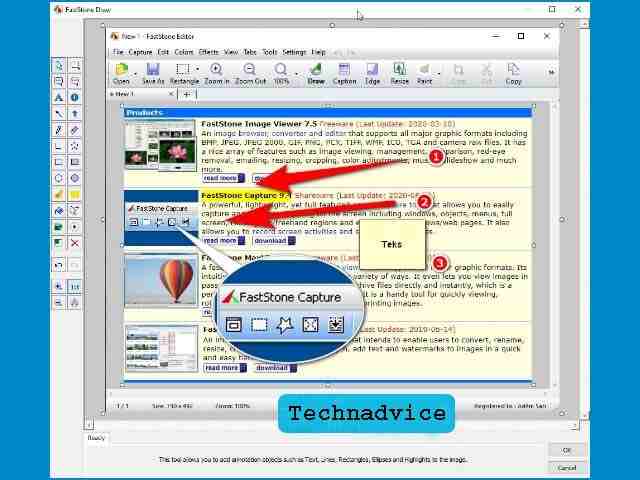
    FastStone Capture
    FastStone Capture

    The next best screenshot application for Windows is FastStone Capture. This application is quite light but has very complete features, exceeding expectations for the size of an application that can be used for free.

    FastStone Capture can be used to take screenshots with free selection mode, active window, and full screen. The screenshot results will automatically enter the editor, from here we can edit the image by providing attributes such as lines, arrows, circles, text, annotations, magnifying glass, and highlights.

    Screenshot images can be saved directly to a computer or opened in other applications such as word, excel, PowerPoint, and photo editors on the computer. To upload images to the server, users must set up their own FTP server.

    Currently, FastStone can be used on Windows 10, 8, and 7 operating systems. For personal and non-commercial use, this application can be used for free, but for business purposes, you have to buy a license.

    Download FastStone Capture

    Features:

    • Capture panel to select screenshot mode and other settings
    • Modifiable hotkeys
    • Powerful screenshot editor to give attributes toss resulting images
    • Auto capture
    • Timer

    Advantages:

    • Can take screenshots in free selection mode, square, active window, and fullscreen
    • Screenshot editor with complete features
    • Integrated with Word, Excel, PowerPoint, and email applications
    • Hotkey feature that can be modified to take a screenshot with keyboard keys
    • Light
    • Available in a portable version (without installing the application)

    Deficiency:

    • Not integrated with the server
    • To be able to upload to the server, you have to set your FTP

    #4. ShareX
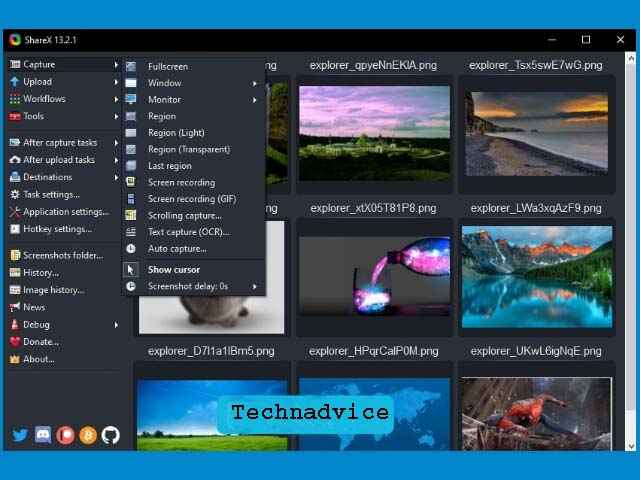
    ShareX
    ShareX

    ShareX is a screenshot application with a more modern look and features. This application can be used to take screenshots on PCs and laptops, edit them in photos, and then upload them to the server.

    ShareX is integrated with Imgur, one of the largest and most popular image-hosting services. The captured file can be uploaded directly to Imgur and the user will get the link.

    As soon as the screenshot is taken, the user can set the next task that will be carried out automatically by the application, whether to open it in the editor, upload it to Imgur, save the file to the computer, send it to print, and other commands that the user can customize.

    The very special feature of the ShareX application is the photo editor which is very up-to-date. You can edit screenshots by providing attributes such as lines, arrows, circles, annotations, bubbles, watermarks, and stickers. Adding a sticker to the screenshot will make it look more attractive and contemporary.

    All screenshots that have been taken with ShareX will be displayed on the main page of the application with a gallery-like appearance, this will make it easier for us to manage the resulting images from time to time.

    Apart from taking screenshots, this application can also be used to record the screen into videos and GIFs, making it suitable for those who work as content creators.

    Download ShareX

    Features:

    • Screenshot in free mode, square area, active window, and fullscreen
    • Upload images to the Imgur server
    • Photo Editor
    • Gallery
    • GIF maker
    • Screen recording

    Advantages:

    • Free, open-source, no ads
    • The appearance of the application is more modern
    • Photo editor with contemporary features
    • Integrated with the Imgur server
    • Can also be used for screen recording
    • Can convert screen recording to GIF

    Deficiency:

    • Because of too many features, it may take time to master all of them
    • Not suitable for those of you who want to find a simple screenshot application

    #5. ScreenTake
    ScreenTake
    ScreenTake

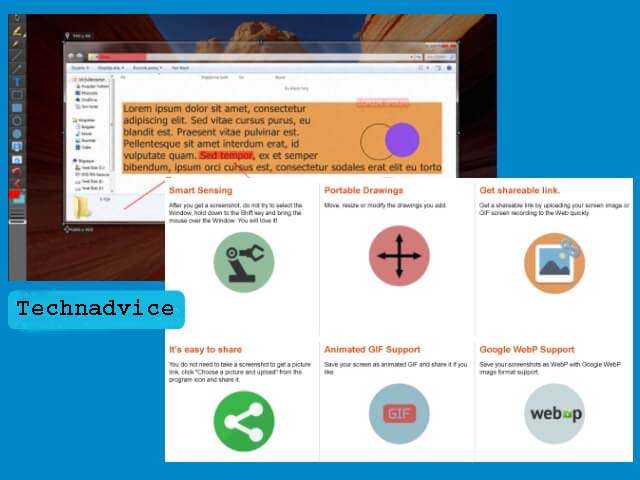
    The next best PC screenshot application for Windows is ScreenTake. This application allows us to capture any area on the laptop screen by pressing a button on the keyboard.

    The resulting image can be edited directly using the built-in editor, you can provide attributes such as arrows, lines, circles, blur on areas that need to be censored, and much more.

    The advantage of this application lies in a feature called smart sensing and multi-monitors to take screenshots of several active windows at once. This feature is useful for those of you who often work with many applications at once and want to document them without screenshots of them one by one.

    Screentake is a freeware application that can be used for free. This application can be used on Windows 10, 8, and 7 operating systems. To use it on Linux you can use the WineHQ application.

    Download ScreenTake

    Features:

    • Screenshot in free, windows, and full-screen mode
    • Smart sensing
    • Multi Monitoring
    • GIF maker
    • Screen Recorder
    • Screenshot editor
    • Upload images to the server

    Advantages:

    • Free Opensource Software, free to use for various purposes
    • Supports Webp format
    • Can upload it to the server and get a shareable link
    • The editor is quite complete and lightweight
    • Can edit screenshots directly without entering the editor

    Deficiency:

    • It does not integrate with email
    • Not integrated with other image editors

    #6. Snipaste
    Snipaste
    Snipaste

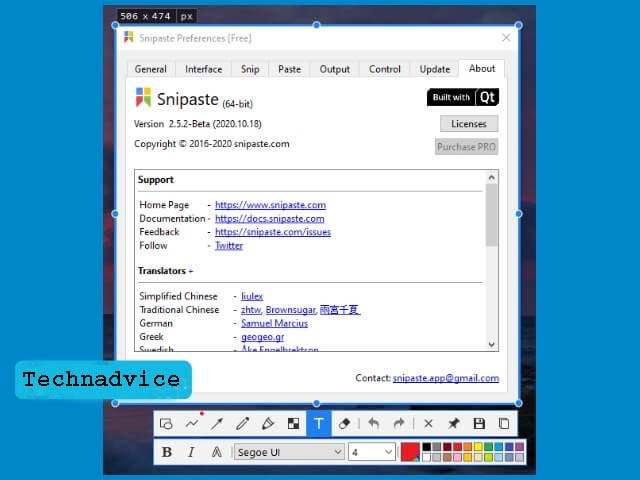
    One more application that can be your choice for taking screenshots on a Windows laptop is Snipaste. This application is freeware that can be used for free, Windows 10 users can also get it through the Microsoft Store.

    The way Snipaste works is almost the same as other screenshot applications, we just have to set the hotkey as desired and every time we want to take a screenshot, we just have to press it.

    The capture mode that can be used is quite complete, you can select any area on the screen that you want to capture, use the currently active window mode, or take a full-screen screenshot.

    Snipaste is designed with a minimalist appearance, so it is light enough to run on a low-spec laptop without disturbing other applications. Snipaste can be used on Windows 10, 8, 7, and XP, and there is also a portable version that can be used directly without installation.

    Download Snipaste

    Features:

    • Fast screenshot
    • Custom hotkeys
    • Photo Editor
    • Color picker
    • Auto backup & restore
    • Image annotation

    Advantages:

    • Light
    • Free
    • Available in a portable version
    • Suitable for low-spec laptops

    Deficiency:

    • Incomplete features
    • It does not integrate with other editor applications
    • There is no uploader feature
    • Less modern UI appearance

    #7. Awesome Screenshot (Chrome)
    Awesome Screenshot
    Awesome Screenshot

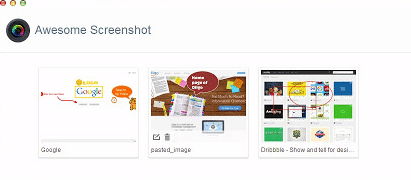
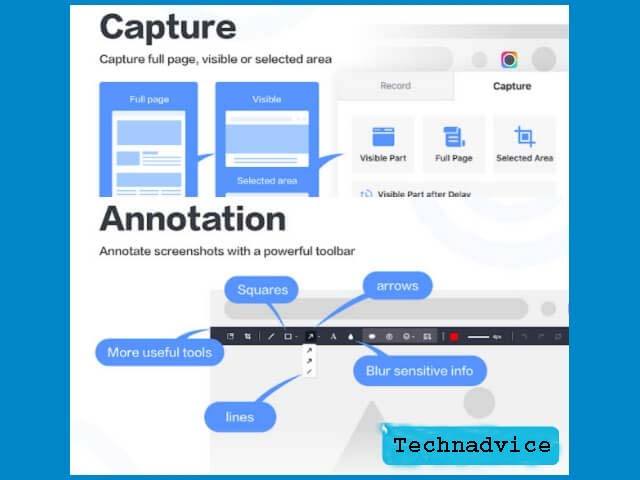
    For those who work with the Google Chrome browser every day and often take screenshots of websites, videos, or social media, this Chrome extension called Awesome Screenshot is what you need.

    By using it we no longer need to install desktop applications because this extension is already integrated directly with Chrome.

    Awesome Screenshots can be used to take screenshots of any area of ​​the browser, record the screen with camera and microphone input, and share it directly on sites like GitHub, Jira, Slack, and Trello.

    Not only that, even though this program is only an extension to the browser, it includes an editor feature to provide attributes to screenshots such as circles, arrows, to text.

    Currently, Awesome Screenshot has been used by more than 1 million users worldwide, which is proof that this application is very useful. You can install it on Google Chrome via the link below.

    Download

    Features:

    • Screenshots of various web pages in Chrome
    • Screen recorder with camera and mic inputs
    • Screenshot editor
    • Instant sharing

    Advantages:

    • Quite a complete feature
    • Can be used for free
    • Can be used for screen recorders with cameras and mic
    • Has a basic editor to provide annotations, circles, arrows, and other attributes
    • The screenshot results can be shared directly using the link

    Deficiency:

    • Can only be used to take screenshots in the browser
    • Does not integrate with other photo editors

    #8. Snipping Tool
    Snipping Tool
    Snipping Tool

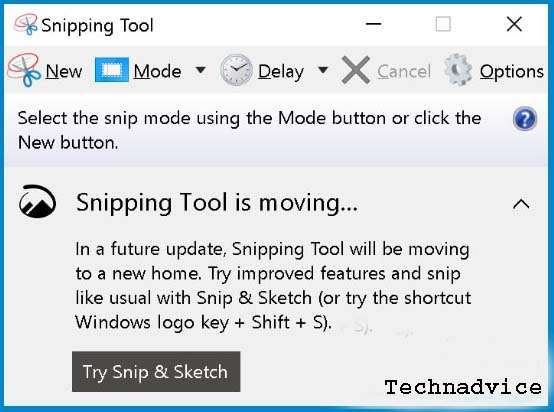
    All the applications on the previous list are applications that come from third parties, even though Windows itself already has a built-in ready-to-use screenshot application called the Snipping Tool.

    This application has been around since the Windows Vista version, but in fact, there are still many who don’t know the existence of this application. The Snipping Tool can be used to take a screenshot in a free area, on the active window, or a full-screen screenshot.

    This application can work just as well as the applications previously described if your need is only to document the laptop screen occasionally if you find something interesting then this application is more than enough, no need to install additional applications.

    The Snipping Tool in Windows Vista and Windows 7 can be found on the Start menu> Programs> Accessories> Snipping Tool.

    Windows 10 and Windows 8 users can find this program by typing a snip in Windows search, and the application will immediately appear in the Start menu.

    Features:

    • Take screenshots on Windows
    • Basic photo editor

    Advantages:

    • Free, light
    • No need to install additional applications again

    Deficiency:

    • Very minimal features
    • The photo editor doesn’t have a great annotation feature
    • Not integrated with servers or uploaders

    #9. Snip & Sketch
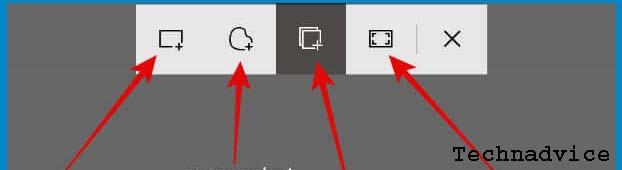
    Snip & Sketch
    Snip & Sketch

    Especially for Windows 10 users, there is also a new feature called Snip & Sketch that can be used to take screenshots. This feature will replace the Snipping Tool in the future, although the functions and features are not too different.

    To use this feature is very easy, you simply press the Windows key combination + Shift + S on the keyboard, then the bar to take your screenshot will appear. Just select the desired capture mode whether square, windows, or full screen.

    After the screenshot is captured, it will automatically enter the editor, from there you can edit the image and then save it on your computer. This application is suitable for those of you who occasionally take screenshots and are lazy to install additional applications.

    Features:

    • Take screenshots with hotkeys
    • Basic photo editor

    Advantages:

    • Light and free
    • No need to install additional applications
    • A more modern look than the Snipping Tool

    Deficiency:

    • The photo editor is still very standard
    • Not integrated with the uploader
    • Incomplete features

    #10. Xbox Game Bar
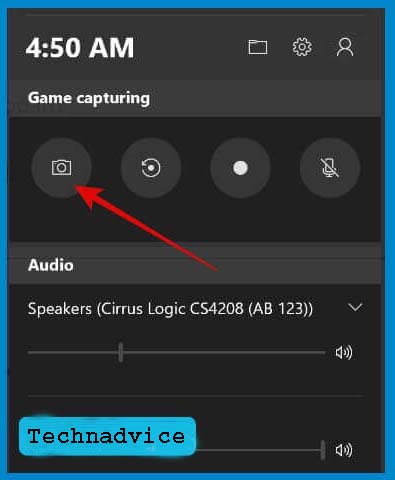
    Xbox Game Bar
    Xbox Game Bar

    Still, about Windows 10, there is one more application that can be used for screenshots and their screens. The application is called the Xbox Game Bar which is the default application in Windows 10.

    The Xbox Game Bar was made specifically for the purpose of creating game content. You can use it to record games and save them in video format. There is also a capture feature that can be used to take screenshots.

    Even though it was made for gaming purposes, this feature can also be used on any existing screen. But the screen display that can be taken is only in full-screen mode.

    To open the Xbox Game Bar menu, press the Windows key + G on the keyboard, then you can choose to record the screen or take a screenshot.

    Features:

    • Take a full-screen screenshot
    • Record screen

    Advantages:

    • Free
    • No need to install additional applications
    • It is very light because it is the default application for Windows 10

    Deficiency:

    • Can only take full-screen screenshots
    • Not equipped with a photo editor
    • Very minimal features
    • Not integrated with the uploader
    • Cannot provide annotations, circles, arrows, text, and other attributes on screenshots.

    Read more:

    Conclusion:

    Those are the recommendations for the best screenshot applications for PCs and laptops that we can give this opportunity to. This list will stay updated if you find a good application.
  • 150+ Complete Windows 10 Keyboard Shortcuts 2025

    150+ Complete Windows 10 Keyboard Shortcuts 2025

    150+ Complete Windows 10 Keyboard Shortcuts The Ultimate Guide – Windows is an operating system designed by Microsoft Corporation, as a system to run computers (PCs) and laptops. Windows allows users to complete all kinds of daily tasks on the computer.

    150+ Complete Windows 10 Keyboard Shortcuts150+ Complete Windows 10 Keyboard Shortcuts The Ultimate Guide

    For example, to surf the internet, send an email, play games, listen to music, edit photos or videos, create and edit documents, and much more. One of the new versions of the Windows OS is Windows 10. Windows 10 comes with a variety of new features and applications that are superior to the previous version.

    Read more:

    Windows 10 is becoming a new operating system that is very popular among computer users, this is because of its ease of use and the many features available. In addition to features, Windows 10 also provides many keyboard shortcuts that you can use easily and effectively.

    Well, this time we will discuss thoroughly the complete and latest Windows 10 shortcuts. To find out more about Windows keyboard shortcuts and their uses, please refer to the following explanation.

    Know Complete Windows 10 Keyboard Shortcuts

    What are keyboard shortcuts? Keyboard shortcuts are shortcuts in the form of key combinations that are used to perform various tasks without having to use the mouse to click on several menus.

    Choosing to use shortcuts, of course, is a practical way for you rather than doing it manually. Some of the uses of shortcuts include: speeding up the execution of tasks from existing features or menus, saving time, training computer operating skills, and of course more practical for various activities on the computer.

    There are lots of keyboard shortcuts in Windows 10, ranging from the common ones to the ones you don’t use. Shortcuts in Windows you can use such as to open files, copy or paste files, save documents, open settings, and much more.

    Even though memorizing keyboard shortcuts is not easy, you can just choose certain shortcuts that you usually use and start memorizing them. Here is a list of keyboard shortcuts in Windows 10 that you can read and learn about!

    #1. General Shortcuts

    Shortcuts Command
    Ctrl + X To cut the selected item.
    Ctrl + C (or Ctrl + Insert) To copy the selected item to the clipboard.
    Ctrl + V (or Shift + Insert) Pastes the selected item.
    Ctrl + Z Undo the last command or Undo.
    Alt + Tab Switch from one running application to another.
    Alt + F4 Close the active window, or exit the active application.
    Windows key + L Lock your PC.
    Windows key + D Show and hide the desktop.
    F2 Rename or rename the selected item.
    F3 Search for a file or folder in File Explorer.
    F4 Displays a list of address bars in File Explorer.
    F5 Refresh the active window in File Explorer.
    F6 Replace screen elements in a window or on the desktop.
    F10 Activate the Menu bar on the active application.
    Alt + F8 Displays your password on the sign-in screen.
    Alt + Esc Skips items in the window in which they were opened.
    Alt + underlined letter Run the command for that letter.
    Alt + Enter Displays the properties for the selected item.
    Alt + Spacebar Opens the shortcut menu for the active window.
    Alt + Left arrow (left arrow) Action back.
    Alt + Right arrow (right arrow) Forward action.
    Alt + Page Up Go up one screen.
    Alt + Page Down Drop down one screen.
    Ctrl + F4 Closes the active window.
    Ctrl + A Selects all items in the document or window.
    Ctrl + D (or Delete) Delete the selected item and move it to the Recycle Bin.
    Ctrl + R (or F5) Refreshes the active window.
    Ctrl + Y Repeats or returns an action.
    Ctrl + Right arrow (right arrow) Moves the cursor to the beginning of the next word.
    Ctrl + Left arrow (left arrow) Moves the cursor to the beginning of the previous word.
    Ctrl + Down arrow (down arrow) Moves the cursor to the beginning of the next paragraph.
    Ctrl + Up arrow (up arrow) Moves the cursor to the beginning of the previous paragraph.
    Ctrl + Alt + Tab Use arrow keys to toggle on all open applications.
    Alt + Shift + arrow keys When the application shortcut (tiles) is in focus on the Start menu, move it in the specified direction.
    Ctrl + Shift + arrow keys When the selected application shortcut group focuses on the Start menu, move it to another section group to create a folder.
    Ctrl + arrow keys Change the size of the Start menu when it opens.
    Ctrl + arrow key (to move to an item) + Spacebar Select multiple individual items in a window or on the desktop.
    Ctrl + Shift with an arrow key Selects a block of text.
    Ctrl + Esc Opens the Start Menu.
    Ctrl + Shift + Esc Open Task Manager.
    Ctrl + Shift Switch keyboard layouts when multiple keyboard layouts are available.
    Ctrl + Spacebar Enable or disable the Chinese input method editor (IME).
    Shift + F10 Displays the shortcut menu for the selected item.
    Shift with any arrow key Select more than one item in a window or on the desktop, or select text in a document.
    Shift + Delete Delete the selected item without moving it to the Recycle Bin first.
    Right arrow Go to the next menu on the right, or open a submenu.
    Left arrow Opens the next menu on the left, or closes a submenu.
    Esc Stop or leave the current task.
    PrtScn Screenshot or capture the entire computer screen and copy it to the clipboard.

    #2. Windows Key Shortcuts

    Shortcuts Command
    Windows key Open or close the Start Menu.
    Windows key + A Opens Action Center.
    Windows key + B Sets the focus in the notification area.
    Windows key + C Open Cortana in listening mode.
    Note This shortcut is turned off by default. To enable it, select Start > Settings > Cortana, and turn on the switch under Let Cortana listen to my commands when I press the Windows logo key + C. Cortana is only available in certain countries/regions, and some features of Cortana may not be available everywhere. If Cortana is unavailable or turned off, you can still use search.
    Windows key + D Show and hide the desktop.
    Windows key + Alt + D Show and hide the date and time on the desktop.
    Windows key + E It Opens File Explorer.
    Windows key + F Open the Feedback or Feedback Hub.
    Windows key + G Opens the Game bar when the game is open.
    Windows key + Alt + B Enable or disable HDR. Note: This applies to the Xbox Game Bar app version 5.721.7292.0 or later. To update your Xbox Game Bar, open the Microsoft Store app and check for updates.
    Windows key + H Start dictation.
    Windows key + I Open Settings.
    Windows key + J Set the focus to Windows Tips when available.

    When Windows tips appear, focus on Tips. Next press the keyboard shortcut again to bring focus to the element on the screen where the Windows edge is anchored.

    Windows key + K Open a quick action or connection.
    Windows key + L Lock your PC or switch accounts.
    Windows key + M Minimize all windows.
    Windows key + O Lock device orientation.
    Windows key + P Selects the presentation view mode.
    Windows key + Ctrl + Q Open Quick Help.
    Windows key + R Opens the Run dialog box.
    Windows key + S Open search.
    Windows key + Shift + S Take a screenshot of the part of the screen you selected.
    Windows key + T Browse apps on the taskbar.
    Windows key + U Open the Ease of Access Center (Open Ease of Access Center).
    Windows key + V Open the clipboard. Note To enable this shortcut, select Start > Settings > System > Clipboard, and turn on the switch under Clipboard history.
    Windows key + Shift + V Cycle through notifications.
    Windows key + X Opens the Quick Links menu.
    Windows key + Y Switch input between Windows Mixed Reality and your desktop.
    Windows key + Z Displays the commands available in the application in full-screen mode.
    Windows key + period (.) or semicolon (;) Opens the emoji panel.
    Windows key + comma (,) Take a peek at the desktop for a while.
    Windows key + Pause Displays the System Properties dialog box.
    Windows key + Ctrl + F Search for the PC (if you are on a network).
    Windows key + Shift + M Restore minimized windows on the desktop.
    Windows key + number Opens the desktop and starts the application pinned to the Taskbar at the position indicated by the number. If the application is already running, switch to it.
    Windows key + Shift + number Opens the desktop and starts a new application pinned to the Taskbar at the position indicated by the number.
    Windows key + Ctrl + number Opens the desktop and switches to the last active window of the application pinned to the Taskbar in the position indicated by the number.
    Windows key + Alt + number Open the desktop and open the Jump List for apps pinned to the Taskbar at the positions indicated by numbers.
    Windows key + Ctrl + Shift + number Open the desktop and open a new instance of the application located in the given position in the taskbar as administrator.
    Windows key + Tab Opens the Tasks view.
    Windows key + Up arrow Maximize windows.
    Windows key + Down arrow Removes the current application from the screen or minimizes the desktop window.
    Windows key + Left arrow Maximizes the application window or desktop to the left side of the screen.
    Windows key + Right arrow Maximizes an application or desktop window to the right side of the screen.
    Windows key + Home Minimizes all windows, except the active desktop window (restores all windows on the second stroke).
    Windows key + Shift + Up arrow Stretches the desktop window to the top and bottom of the screen.
    Windows key + Shift + Down arrow Restore/minimize the active desktop window vertically, to maintain its width.
    Windows key + Shift + Left arrow or Right arrow Move an application or window on the desktop from one monitor to another.
    Windows key + Spacebar Switch input language and keyboard layout.
    Windows key + Ctrl + Spacebar Changes to the previously selected input.
    Windows key + Ctrl + Enter Activate Narrator.
    Windows key + Plus (+) Opening the Magnifying Glass.
    Windows key + forward slash (/) Start IME conversion.
    Windows key + Ctrl + V Open the tap shoulder
    Windows key + Ctrl + Shift + B Wake the PC from a blank screen (blank screen) or black screen (black screen).

    #3. Command Prompt Shortcuts

    Shortcuts Command
    Ctrl + C (or Ctrl + Insert) Copy the selected text.
    Ctrl + V (or Shift + Insert) Pastes the selected text.
    Ctrl + M Enter Alert mode.
    Alt + selection key Starts the selection in block mode.
    Arrow keys Moves the cursor in the specified direction.
    Page up Moves the cursor one page up.
    Page down Moves the cursor one page down.
    Ctrl + Home (Mark mode) Moves the cursor to the beginning of the buffer.
    Ctrl + End (Mark mode) Moves the cursor to the end of the buffer.
    Ctrl + Up arrow Moves one line up in the output history.
    Ctrl + Down arrow Moves one line down in the output history.
    Ctrl + Home (History navigation) When the command line is empty, move the viewport to the top of the buffer. Otherwise, delete all characters to the left of the cursor in the command line.
    Ctrl + End (History navigation) When the command line is empty, move the viewport to the command line. Otherwise, delete all characters to the right of the cursor in the command line.

    #4. File Explorer Shortcuts

    Shortcuts Command
    Alt + D Select the address bar.
    Ctrl + E Select the search box.
    Ctrl + F Select the search box.
    Ctrl + N Opens a new window.
    Ctrl + W Closes the active window.
    Ctrl + mouse scroll wheel Change the size and appearance of file and folder icons.
    Ctrl + Shift + E Displays all folders above the selected folder.
    Ctrl + Shift + N Create a new folder.
    Num Lock + asterisk (*) Displays all subfolders under the selected folder.
    Num Lock + plus (+) Displays the contents of the selected folder.
    Num Lock + minus (-) Minimizes the selected folder.
    Alt + P Show preview pane.
    Alt + Enter Opens the Properties dialog box for the selected item.
    Alt + Right arrow Displays the next folder.
    Alt + Up arrow Displays the folder in which it is located.
    Alt + Left arrow Shows the previous folder.
    Backspace Shows the previous folder.
    Right arrow Displays the current selection (if collapsed), or selects the first subfolder.
    Left arrow Collapses the current selection (if expanded), or selects the folder in which it is located.
    End Displays the bottom of the active window.
    Home Displays the top of the active window.
    F11 Maximize or minimize the active window.

    #5. Virtual Desktop Shortcuts

    Shortcuts Command
    Windows key + Tab Opens the Tasks view.
    Windows key + Ctrl + D Added virtual desktops.
    Windows key + Ctrl + Right arrow Switch between the virtual desktops you have created on the right side.
    Windows key + Ctrl + Left arrow Switch between the virtual desktops you have created on the left.
    Windows key + Ctrl + F4 Close the virtual desktop that you are using.

    #6. Keyboard Settings Shortcuts

    Shortcuts Command
    Windows key + I Open settings.
    Backspace Retuthe rn to the settings page.
    Type on any page with the search box Search settings

    #7. Dialog Box Shortcuts

    Shortcuts Command
    F4 Displays the items in the active list.
    Ctrl + Tab Advance through tabs.
    Ctrl + Shift + Tab Back across tabs.
    Ctrl + number (numbers 1–9) Switch to the nth tab.
    Tab Move forward across options.
    Shift + Tab Back across options.
    Alt + underlined letter Executes the command (or selects an option) used with the letter.
    Spacebar Select or clear the check box if the active option is a check box.
    Backspace Opens a folder one level up if the folder is selected in the Save As or Open dialog box.
    Arrow keys Select a button if the active option is a group of option buttons.

    #8. Taskbar Shortcuts

    Shortcuts Command
    Shift + click a taskbar button Open an application or quickly open another application.
    Ctrl + Shift + click a taskbar button Open the application as administrator.
    Shift + right-click a taskbar button Displays the window menu for the application.
    Shift + right-click a grouped taskbar button Displays the window menu for the group.
    Ctrl + click a grouped taskbar button Plays through the group window.

    Conclusion:

    So, friends, These are the 150+ complete Windows 10 keyboard shortcuts, which include Windows General Shortcuts, Windows Key Shortcuts, Command Prompt Shortcuts, File Explorer Shortcuts, Virtual Desktop Shortcuts, Keyboard Settings Shortcuts, Dialog Box Shortcuts, and Windows Taskbar Shortcuts.

    Some of the shortcuts above consist of the shortcut keys that are used most often to those that you don’t use. By learning shortcuts in Windows, you will be more enthusiastic about doing any task.

    If you have any questions or opinions that you would like to share, please write them in the comments column below. Thank you and good luck!

    What are Windows shortcuts?

    Windows shortcuts are shortcuts that point to computer programs, and allow you to create links to any program, from the Start menu, Taskbar, desktop, and more.

    What is Windows?

    Windows is an operating system for computers (PCs) and laptops and is also a graphical operating system (GUI) developed by Microsoft.

    What is the use of the Windows system?

    Windows is used for computer access activities such as running software, saving files, playing games, watching videos and music, browsing the internet, and much more.

    How is Microsoft Office different from Windows?

    Microsoft Office is a program that is run to work with word processing programs, presentation processors, spreadsheets or number processors, and so on. Windows is the operating system or master program that controls the basic functions of the computer.

    What are the main features of Windows?

    Some of the key features of Windows include a start menu for access to various features and applications, integration with Cortana, Microsoft Edge web browser, Virtual Desktop, and Universal Apps connected to the OS including Photos, Videos, Music, Maps, Messages, Mail and Calendar. also connected via the Microsoft OneDrive cloud service.

  • 7 Ways to Fix Err_Connection_Reset Chrome on Windows 2025

    7 Ways to Fix Err_Connection_Reset Chrome on Windows 2025

    7 Ways to Fix Err_Connection_Reset Chrome on Windows – If you are using a Chrome web browser or keep showing the “Err connection reset” message, try solving the problem with this method.

    7 Ways to Fix Err_Connection_Reset Chrome on Windows PC
    7 Ways to Fix Err_Connection_Reset Chrome on Windows PC

    How to Fix Err_Connection_Reset Chrome on Windows 10 PC Laptop

    Does Chrome display an “Err Connection Reset” message when you try to open a website? If so, it’s because Chrome is having problems establishing a connection to the website you want to go to.

    Read more:

    Fortunately, there are several methods that you can follow to fix this problem in Chrome.

    #1. Reboot Router

    Since this issue is related to your network, you should try rebooting your router and see if that fixes the problem. You can do this by pressing the power button on the router.

    If that doesn’t help and Chrome continues to have this problem, reset your router to its default settings and see if that fixes the problem. Keep in mind that resetting the router will erase all of your custom settings and configurations on the router.

    #2. Make sure the Internet is working

    When the error message “Site can’t be reached because the connection was reset” appears, try to check if your internet connection is working. Maybe your router is working fine, but you may not be connected to the internet.

    You can check the status of your internet connection by PING using CMD or opening the site in a different browser on your computer. If the site loads, all is well with your connection.

    If there is no reply message in CMD or the site fails to load in another browser, you may be able to contact your Internet Service Provider (ISP) and ask for help.

    #3. Disable Proxy Server

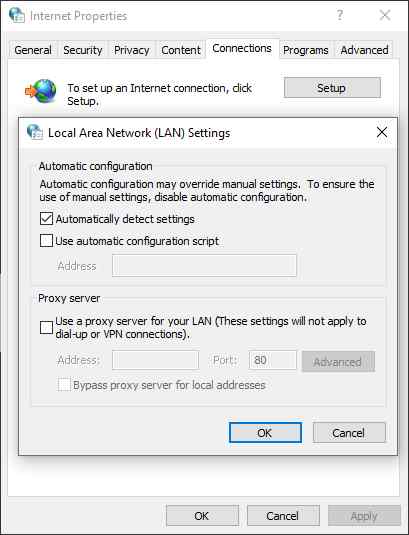
    While proxy servers usually don’t cause any issues with your browser, it’s a good idea to disable the proxy server, if it’s on your computer and see if this fixes Chrome’s err_connection_reset. Follow these steps to turn off the proxy server in Windows 10:

    Disable Proxy Server
    Disable Proxy Server
    1. Open the  Start menu, search for “ Control Panel ”, and click on the first result.
    2. Select  Large icons from the View by menu in the Control Panel.
    3. Click  Internet Options.
    4. Go to the Connections tab in the box that opens.
    5. Click the LAN settings button at the bottom.
    6. Uncheck the option that says  Use a proxy server for your LAN, and then click  OK.
    7. Click  Apply followed by  OK  to save your changes.

    #4. Reset Winsock Catalog

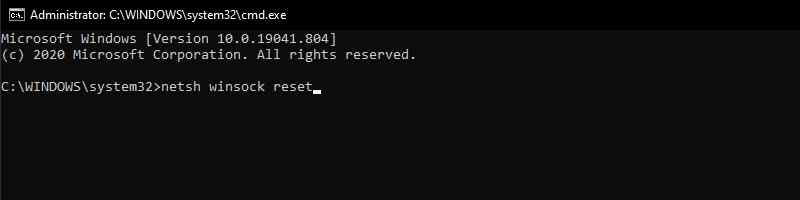
    The Winsock catalog stores entries for connections made on your computer. We recommend resetting this catalog to see if your issue is resolved. To reset the Winsock catalog, you only need to run a command from the Command Prompt. Here’s how to do it:

    Reset Winsock Catalog
    Reset Winsock Catalog
    1. Open the  Start menu, and search for ” Command Prompt “. Click  Run as administrator and then press  Yes at the prompt.
    2. Type the command netsh Winsock reset in Command Prompt and press  Enter. This will reset the Winsock catalog.
    3. Reset the TCP/IP stack by entering the command netsh int IP reset and pressing Enter.
    4. Release your current IP address using the command ipconfig /release
    5. Use the ipconfig /renew command to update your IP address.
    6. Finally, run the command ipconfig /flushdns to clear your DNS cache.
    7. Open Chrome and hope it goes well.

    #5. Clear Browser Cache

    The possible reason the Chrome err_connection_reset occurs is that you have some wrong cache files in Chrome. Cache files are supposed to speed up your browser session, but sometimes, these files are the reason your browser is running slow.

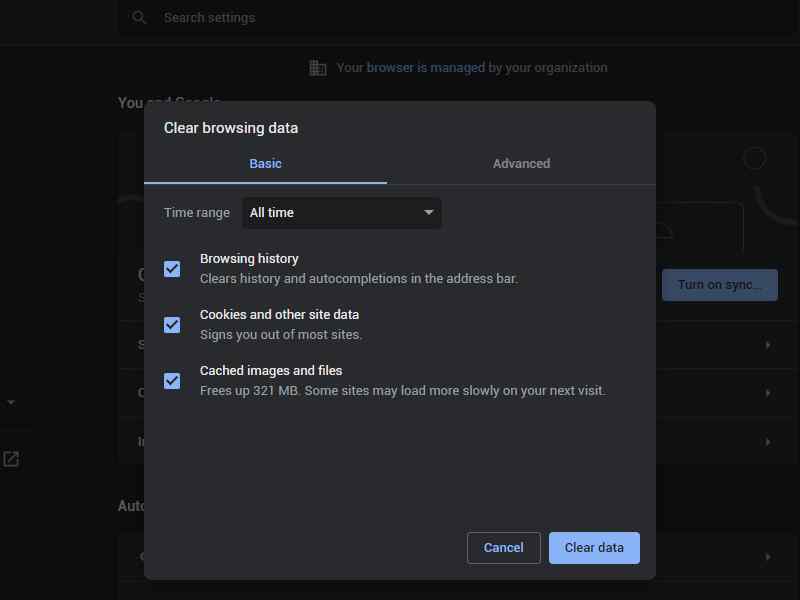
    Thankfully, Chrome allows you to easily clear cache files, potentially fixing your connection issues. Here’s how to clear Chrome cache:

    Clear Browser Cache
    Clear Browser Cache
    1. Open Google Chrome on your computer.
    2. Click the three dots icon in the top right corner, and select  More Tools > Clear Browsing Data.
    3. Click the Basic tab at the top.
    4. Check the Cached images and files option.
    5. Press  Clear data  at the bottom

    #6. Disable Antivirus Programs

    Antivirus programs should help you block malicious files on your computer. However, sometimes the antivirus indicates a harmless file as a malicious file. This can cause problems with Chrome and may result in an error connection request to the site.

    In this case, the best thing you can try is to temporarily turn off your antivirus and see if Chrome works. If so, you need to add Chrome to the exclusion list in your antivirus.

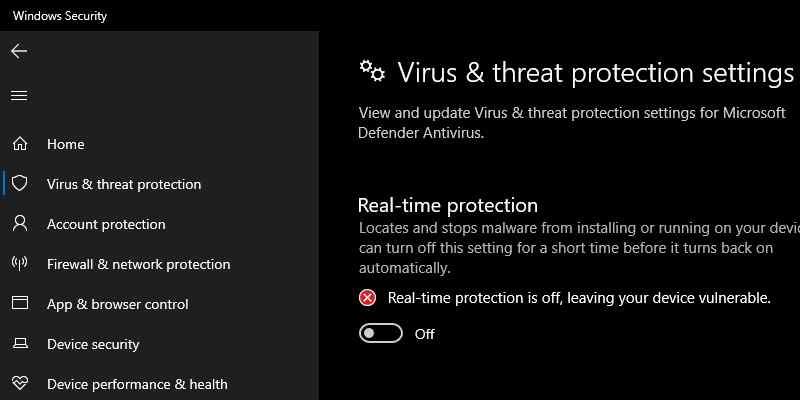
    You can turn off Microsoft Defender, the default antivirus in Windows 10, by following these steps:

    Disable Antivirus Programs
    Disable Antivirus Programs
    1. Open the Settings app on your PC.
    2. Then click  Update & Security.
    3. Select  Windows Security on the left.
    4. Click  Virus & Threat Protection in the right pane.
    5. Select  Manage Settings from the Virus & Threat Protection Settings section.
    6. Turn the dial for  Real-time protection to the Off position.

    #7. Disable Firewall

    The firewall may be blocking suspicious network connections on your computer. Maybe your Chrome connection is considered suspicious by the firewall, so Chrome is disabled from making any connection requests.

    This can cause Chrome to display an error message such as “Err connection reset.” You can check if the firewall is indeed doing this by temporarily disabling the firewall on your computer. To do this, follow the steps below:

    Disable Firewall
    Disable Firewall
    1. Open Control Panel.
    2. Select Large icons from the View by menu, and click the Windows Defender Firewall option.
    3. Click  Turn Windows Defender Firewall on or off on the left.
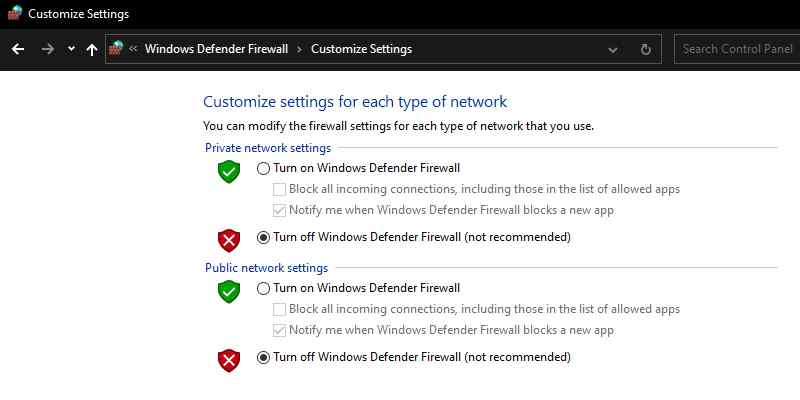
    4. Select  Turn off Windows Defender Firewall in both sections and click  OK  at the bottom.

    Read more:

    Conclusion:

    So those were some ways to solve Chrome’s err_connection_reset. Chrome resets your connection for various reasons. If you ever encounter a reset error in this browser, any of the methods above will help you fix the problem.

  • How To Take Screenshot on Chromebook on Windows PC 2025

    How To Take Screenshot on Chromebook on Windows PC 2025

    How To Take Screenshots on Chromebook on Windows PC – With Chromebook getting better every time, more people use it to get the job done. I will consider you one of them, and you have reached the point where you need to take a screenshot. Fortunately for you, Google has built this feature into Chrome OS.

    How To Take Screenshot on Chromebook
    How To Take Screenshot on Chromebook on Windows PC

    How To Take Screenshots on Chromebook on Windows 10 PC Laptop

    Here’s how to take screenshots of the Chromebook, find it, and share it. We will also discuss some great applications that allow you to take pictures on your Chromebook and edit them with annotations in the browser.

    Read more:

    If you are familiar with Microsoft Windows, you can search for your Chromebook keyboard by looking for the Print Screen button. Chromebook doesn’t have a special screenshot key, but you still start the screenshot in the same way.

    To get a screenshot of your entire screen or part of your screen (even your login screen), you need to use the Show Windows button.

    This is a button that has a rectangular stack on top, representing many windows. Usually, this is the 5th or 6th button in the top row, between the Fullscreen and the Brightness button.

    • For full-screen capture, press Ctrl + Show Windows.
    • For a partial screenshot, press Ctrl + Shift + Show Windows and drag the selection to the size you want.

    How To Take Screenshots on a Convertible Chromebook Tablet

    Many newer Chromebooks have screens that you can fold backward, turning your laptop into a tablet. This is one of the more interesting features of the new Chromebook.

    Because the keyboard is no longer active in tablet mode, and the virtual keyboard does not offer the same buttons, Google has provided an alternative way to take screenshots. Simply hold down Power + Volume Down.

    Where to find your screenshot 

    Chrome OS will automatically save your screenshot to your Downloads folder. The image will be in PNG format, and the name will include the date and time. For example Screenshot 201-02-15 at 1.22.47 PM.png.
    Take Screenshot on Convertible Chromebook Tablet 
    Take Screenshot on Convertible Chromebook Tablet

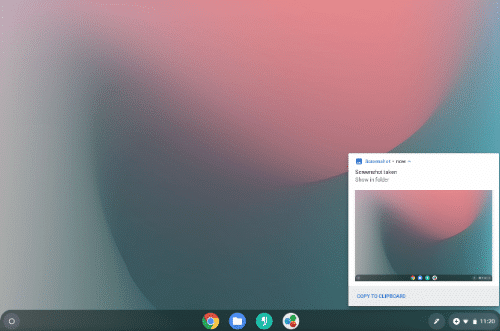
    A notification will appear as soon as you take a screenshot. Clicking on this notification is the easiest way to find your file. Chrome OS will open the Files application and highlight the image.

    If you accidentally miss or delete a notification, you can find it again by clicking the System icon near the clock and browsing the notification list.

    Or, you can navigate to the file yourself. Open the File application and click on the Downloads section.

    How to Share Your Screenshot 

    Chromebook allows you to access files as you do on any other computer. You can attach this screenshot to an email, share it on social media, upload it to cloud storage, or copy it to a USB stick or SD card.

    When you plug in a removable drive, such as a USB stick or SD card, a notification will appear. Click to open the storage available in the File application.

    Or you can find a flash drive or SD card in the application’s sidebar.

    Read more:  15 Ways To Take Screenshots on Laptops Mac and PC

    Another quick way to access this screenshot on another device is to drag and release it to the Google Drive section of the Files application.

    If you prefer Dropbox, OneDrive, or other cloud storage providers, you must upload a screenshot to your account by visiting their website.

    Note: If you use a guest account, make sure you copy the file to an SD card or Google Drive before you exit.

    The guest account download folder is left blank when a guest exits so that all screenshots will be deleted.

    Useful Google Chrome Extensions and Web Apps

    While Chrome OS has grown beyond being a web browser on a computer, most of the experience is still centered around Google Chrome. You can improve what your computer can do by installing the Chrome extension.
    Useful Google Chrome Extensions and Web Apps 
    Useful Google Chrome Extensions and Web Apps
    There are also many extensions to take screenshots of the Chrome browser. You can find it in the Chrome Web Store.

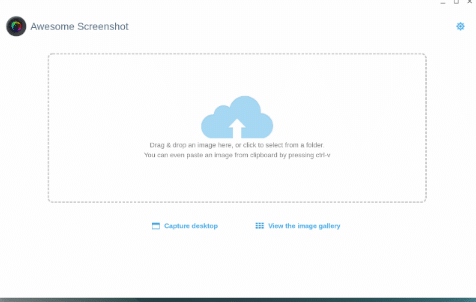
    Some Chrome extensions or web applications, such as Awesome Screenshot, allow you to edit or annotate your screens immediately, providing functionality that isn’t built into Chrome OS by default.

    Useful Google Chrome Extensions and Web Apps 1
    Useful Google Chrome Extensions and Web Apps 1
    Useful Google Chrome Extensions and Web Apps  2
    Useful Google Chrome Extensions and Web Apps 2

    Even though Google no longer offers official Chrome screenshot extensions, Save to Google Drive is one that might be useful for you.

    This extension gives you the option to save images directly to your Google Drive using the right-click context menu.

    Download: Awesome Screenshot (Free)

    Try Android Applications that are Compatible with Chromebook

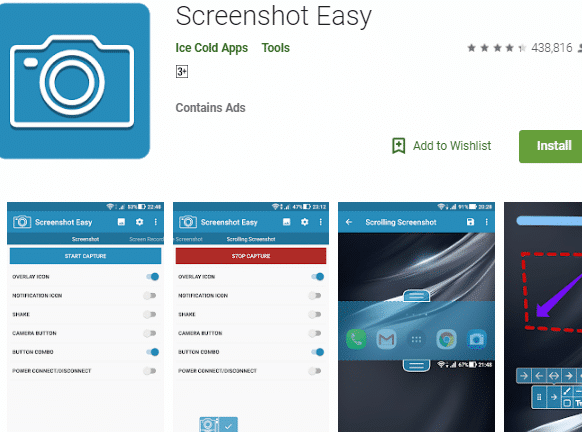
    As you might notice, the screenshot shortcut for a Chromebook in tablet mode is the same as for an Android device. The similarity does not stop there.
    Now that Chromebook comes with Google Play, you can capture screens on your Chromebook in the same way you take screenshots of an Android device.
    Try Android Applications that are Compatible with Chromebook 
    Try Android Applications that are Compatible with Chromebook
    Read more:

    Conclusion:

    So, friends, that’s above how To take screenshots on Chromebook, for example, doesn’t only work on Chromebook but also has an interface that increases scale to a larger screen.
    The folder view makes screenshots easy to navigate, and the application comes with its editing tools.
  • 5 Ways to Open Device Manager in Windows 10 and 11 (2025)

    5 Ways to Open Device Manager in Windows 10 and 11 (2025)

    5 Ways to Open Device Manager in Windows 10 and 11 – Windows Device Manager is a program that functions to manage and manage the hardware installed on the computer system, both internal and external hardware.

    5 Ways to Open Device Manager in Windows 10 and 11

    How to open Device Manager in Windows 10 and Windows 11

    The main function of the Device Manager is to manage and manage the hardware on the computer system. Device Manager allows users to install, update, shut down, or remove drivers.

    Device Manager can also be used to detect driver and device errors. If your device is having problems due to corrupted drivers, you can quickly reinstall or update those drivers via Device Manager.

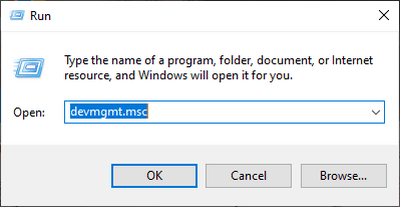
    1. Press the Windows key +R
    2. Type the command: devmgmt.msc
    3. Click the OK button or press Enter
    4. The Device Manager program will open

    How to open Device Manager in Windows 10 and Windows 11#2. Through the Quick Access Menu

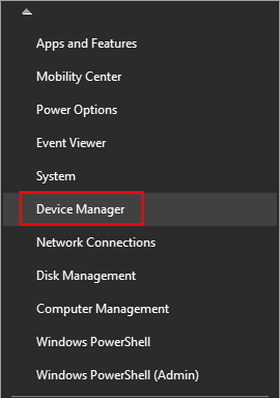
    The second way to quickly open Device Manager is to use the Quick Access Menu. This is the menu that appears when we right-click the Start button.

    The method is very easy, first, please right-click on the Start button (Windows button), or you can also press the Windows key + X on the keyboard > then select the Device Manager program on the menu that appears.

    How to open Device Manager in Windows 10 and Windows 11#3. Using the Start Menu

    The third way to open the Device Manager program is to use the Start menu. This you can use as an alternative to quickly open Device Manager.

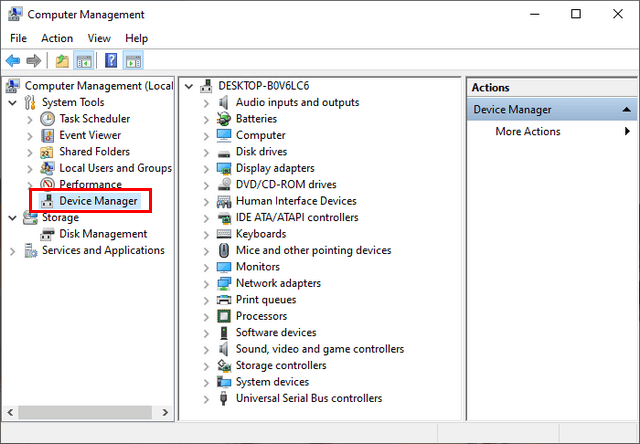
    You do this by clicking on the Start button > pull down until you find the Windows Administrative Tools folder then click once > select it and click on the Computer Management program > click on the Device Manager program.

    Using the Start Menu#4. Using the Search Bar

    The next way to open Device Manager is to use the search feature in Windows 10 and 11. This search feature is very useful for opening various programs and files on your computer quickly without having to navigate manually.

    The Search Bar in question is the search field on the Task Bar which is located next to the Start / Windows button.

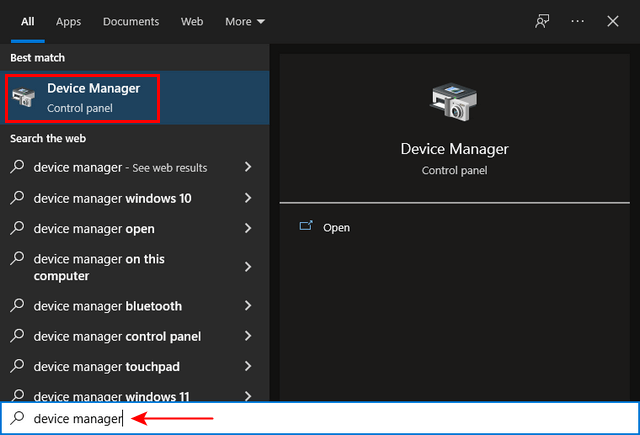
    You do this by clicking on the Search Bar column and then typing Device Manager, the Device Manager program will appear in the recommendations that appear, click once to open it.

    Using the Search Bar

    #5. Via File Explorer

    Opening the Device Manager program can also be done from File Explorer, namely from the context menu (right-click menu) on the This PC icon.

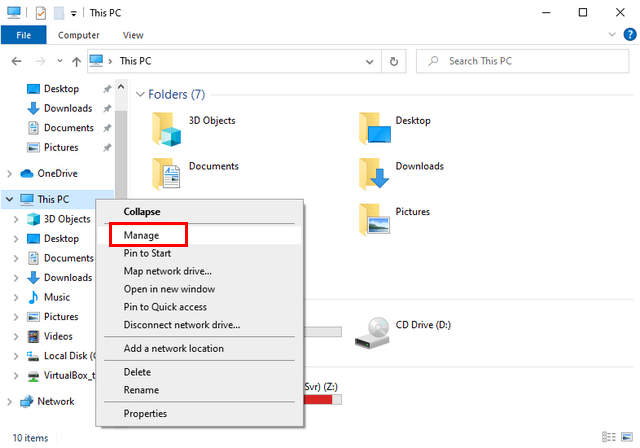
    The method is quite easy, first, open File Explorer > in the directory panel on the left, find and right-click the This PC icon > select the Manage menu > click on the Device Manager program.

    Via File Explorer

    Device Manager is an important part of a computer because its function is to manage all the existing hardware on computer devices.

    Hardware referred to here includes internal devices such as processors, motherboards, hard disks, CD/DVD drives, and video, and audio adapters, as well as external devices such as mice, keyboards, printers, and others.

    Device Manager is widely used by Windows users or users to find out whether the hardware is functioning properly or not. This is done by checking the driver status and the color of the device icon once detected.

    Read more:

    Conclusion:

    By knowing how to open Device Manager in Windows 10 and Windows 11 you will be able to manage hardware and drivers on your computer more freely. Hopefully, the information we provide can be useful.