Category: Windows

Windows – Here you can find Computer-related updates Windows 10, Windows 8, Windows 7, Linux, technology information, and more.

  • 15 Ways to Fix Computer Turns on But No Display 2025

    15 Ways to Fix Computer Turns on But No Display 2025

    15 Ways To Fix Computer Turns on But No Display – The most common problem with computers is when the PC turns on but displays nothing on the monitor. You see the LEDs on the computer case come on and hear the fan spinning from inside the PC but nothing appears on your monitor screen.
    15 Solutions To Fix Computer Turns on But No Display
    15 Solutions To Fix Computer Turns on But No Display

    How to Fix Computer Turns on But No Display

    Since there are several reasons why your PC is not displaying anything on the monitor, you must read the troubleshooting below.

    Read more:

    Notes

    If you assembled the computer yourself, double-check your configuration! There is a high chance that this problem occurs due to a configuration error, not due to faulty hardware.

    #1: Testing the Monitor

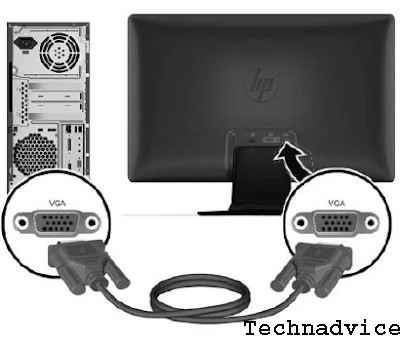
    Before you start troubleshooting complex and time-consuming problems, check all PC-to-monitor connection cables, making sure your monitor has no problems. Also check if your VGA/HDMI cable is loose, causing the monitor to not accept input from the computer.
    Testing the Monitor
    Testing the Monitor

    Very likely if your computer is fine, but the monitor is the problem. You can try another monitor that looks like it’s still working.

    Important

    If your computer has VGA and HDMI ports, try to test each one on the monitor. If that doesn’t work, try using another similar cable, which is known to work.

    #2: Restart Computer

    Sometimes just by restarting the computer, some problems can be solved. Try pressing the reset button, or make sure everything starts from scratch by turning on the computer.

    Restart Computer
    Restart Computer

    Often times the computer will appear as “not turning on” when in fact it is only having problems waking up from Standby/Sleep or Hibernate mode in Windows.

    Notes

    Especially for laptops/tablets/PCs without a reset button, you can turn off your computer when the computer is in Standby/Sleep mode by holding down the power button for 3 to 5 seconds. After the computer is completely turned off, restart it and check if it can turn on normally again.

    #3: Check Beep Code ( if any )

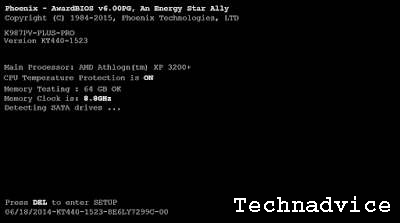
    Assuming, you are lucky enough to hear a beep code from your computer, it will be easier to pinpoint the location of the computer problem. A beep code will tell you exactly what is causing your computer problem. Click here for a guide to the beep code if you hear a beep.
    Check Beep Code ( if any )
    Check Beep Code ( if any )

    Listen carefully for the beep code that sounds when the computer starts up. If missed, simply restart/restart your computer, and listen again. At least restarting or restarting the computer a few times won’t make the problem worse.

    #4: Clean the RAM Connector
    Clean the RAM Connector
    Clean the RAM Connector

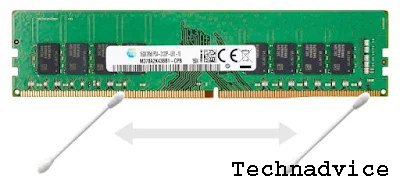
    Remove the RAM from the motherboard, then clean the RAM connector using a cotton bud that has been dripped with a little rubbing alcohol (IPA / isopropyl alcohol). When it’s clean, wait for the RAM to dry, then plug it back into the motherboard, then restart the computer.

    Cleaning the legs or RAM connectors can also be done using a rubber eraser, but is not recommended by some professional technicians.

    #5: Reset CMOS Kembali

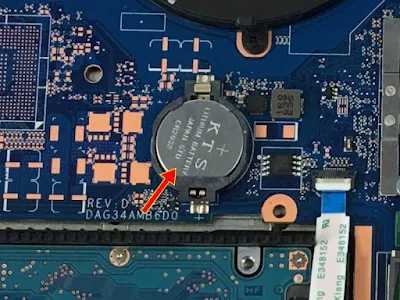
    Do a reset on the CMOS. Clearing the BIOS memory on your motherboard will restore its original BIOS settings. A misconfiguration in the BIOS could be the cause of your PC not turning on for a long time.
    Reset CMOS Kembali
    Reset CMOS Kembali

    For PCs, you can remove the round battery on the motherboard and then put it back in after a while.

    Also, if you’ve ever used jumpers to reset CMOS, then use those skills now.

    Important

    If resetting the CMOS solves your problem, make sure you test again every time you change a setting in the BIOS. So if the problem comes back, you will know which change caused your problem.

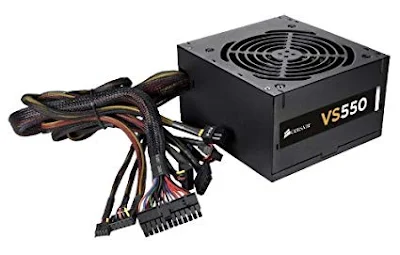
    #6: Check Switch Power Supply

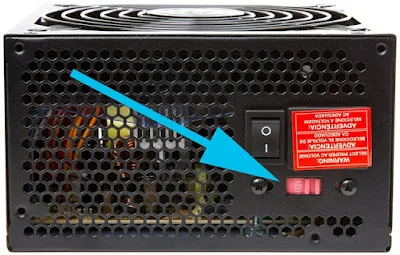
    If so, make sure that the power supply voltage switch is set correctly. If the input voltage for the power supply does not match the settings in your country, your computer may not turn on properly.
    Check Switch Power Supply
    Check Switch Power Supply

    Your computer shouldn’t turn on at all if this switch is faulty, but inappropriate voltages can also cause computer problems like this. This small switch is used to adjust the input voltage to the power supply either 110v/115v or 220v/230v. In India, it should be set to 220v/230v.

    #7: Reinstall All Computer Components

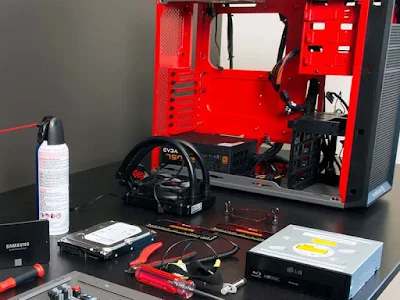
    Unplug all cables and hardware in your PC and then plug it back in. One or more cables or hardware may have been loose. Unplug and reinstall things like power cables, data cables, memory, expansion cards (VGA, sound cards, etc.), and so on.
    Reinstall All Computer Components
    Reinstall All Computer Components

    Important

    Make sure all cables are reconnected properly. If the additional VGA Card has been disabled, then using it will not display anything on the monitor even though the computer is turned on. For that, try to connect to the appropriate VGA port.

    Also, remove and reconnect the keyboard and mouse cables as well. This is unlikely to be the cause of the problem, but we should not ignore it when reinstalling all computer components.

    #8: Reinstall CPU

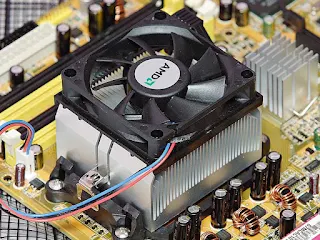
    If the above solutions still don’t work, remove and then reinstall the CPU if there is any suspicion that it may have been loose or may not have been installed properly.
    Reinstall CPU
    Reinstall CPU

    Notes

    The chances of installing the CPU incorrectly or loosely are very small and therefore installation is a sensitive task. This is not a big problem if you stay careful!

    #9: Check For Short Circuit

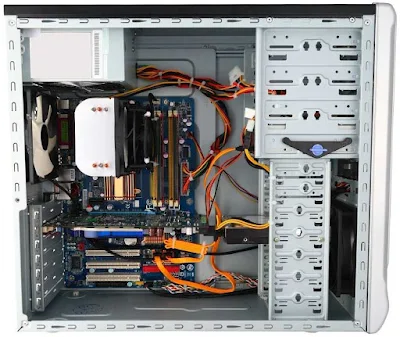
    Check if there is an electrical short inside your computer. This is very often the cause of common computer problems.
    Check For Short Circuit
    Check For Short Circuit

    Important

    It is very, very important that you take the time to inspect the inside of your computer for anything that could be causing a short circuit. If you don’t take the time to troubleshoot these issues, you may end up with expensive hardware replacements for no good reason.

    Electrical short circuits inside computers are often caused by screws, in which case there may be physical contact with metal on the motherboard or other internal components.

    Screws are used to secure almost every component inside the case including video cards, sound cards, hard drives, optical drives, etc. Shake your PC, if there is a rattling sound it may be a loose screw, use a small, long screwdriver to help remove it.

    Electrical short circuits inside computers are sometimes also caused by cables that have lost their protective coating and made physical contact with internal components.

    #10: Test Power Supply


    Test Power Supply
    Test Power Supply

    Just because your computer is on does not mean that the power supply in your computer is working properly. Power supplies tend to cause more problems than any other hardware device and are very often the cause of computers not working properly. Try to check by replacing it using a power supply from another computer.

    Important

    Don’t skip this stage! Don’t think that your power supply isn’t a problem just because the computer can ” turn on “. Power supplies can work in a variety of conditions, and those that are not fully functional need to be replaced immediately.

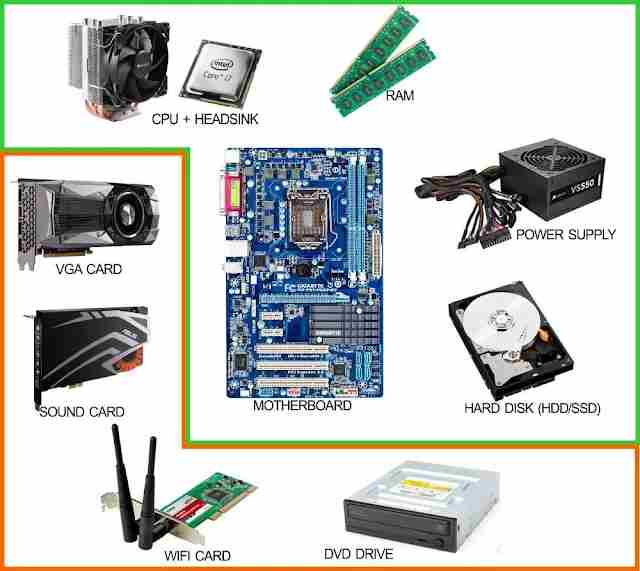
    #11: Use Minimum Hardware

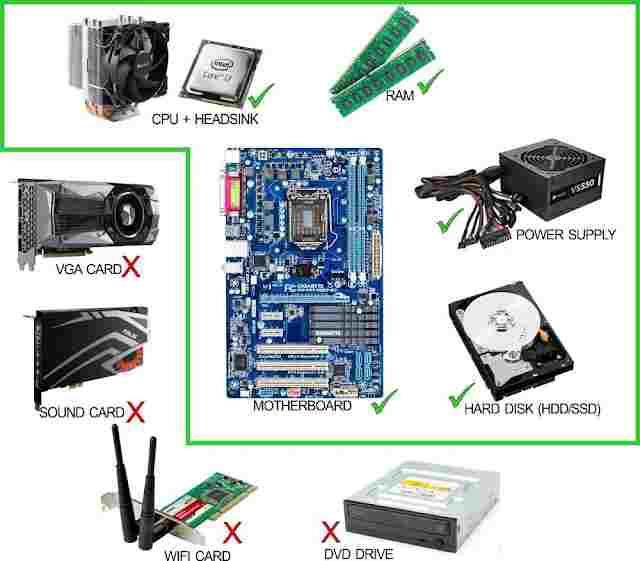
    Start your PC with only the most important hardware. The goal here is to temporarily remove as much hardware as possible while still keeping the computer running properly.

    • If your computer starts up and can continue to run, with only critical hardware, go to Step 12.
    • If the computer does not start up properly, continue to Step 13.
    Use Minimum Hardware
    Use Minimum Hardware


    Important

    This step is easy enough for anyone who requires no special tools and can provide a lot of very valuable information. This step should not be skipped if after trying all the previous steps, the computer still does not turn on properly.

    #12: Check Additional Hardware

    When the most important hardware is installed and there are no problems. Proceed with reinstalling any additional hardware. Re-test your computer (restart) in every installation of one piece of hardware, to check whether every piece of hardware installed is problematic or not.
    Check Additional Hardware
    Check Additional Hardware

    Since your PC is powered by only the most important hardware, the components work properly. This means that one of the additional hardware removed is causing the computer problem. By installing that hardware into your computer and testing after every single hardware install, you’ll find the hardware that’s causing your problem. Once you find it, replace the problematic hardware with a new one or one that is still working.

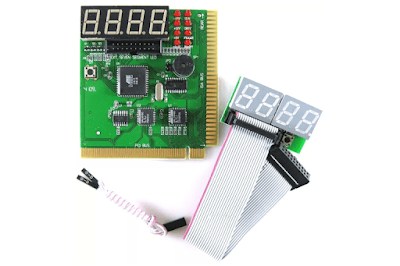
    #13: Use PC Analyzer / Power On Self-Test card

    Test PC using PC Analyzer / Power On Self Test card. If your computer is still not displaying anything on the monitor, even with only the essential hardware, a POST card will help identify which hardware is the problem.
    Use PC Analyzer Power On Self Test card
    Use PC Analyzer Power On Self Test card

    The price of a POST card is very affordable. However, if you don’t have one and don’t want to buy a POST card, go to Step 14.

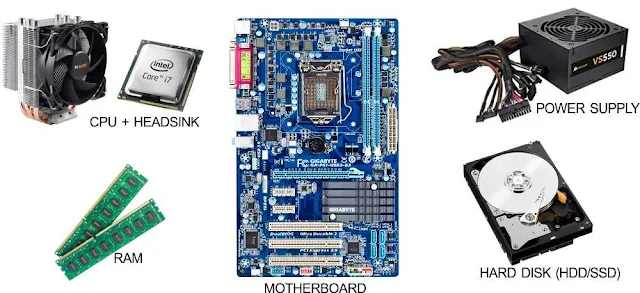
    #14: Check the Minimum Hardware

    Replace each hardware in your computer one by one with the same or equivalent hardware which has been ” known to be in good condition “. Do a test every time you replace a component, to find out which hardware is the problem.
    Check the Minimum Hardware
    Check the Minimum Hardware

    Notes

    Most computer users do not have a collection of computer parts. My suggestion is to go back to Step 13. The PC Analyzer / POST card is inexpensive and is the most reasonable approach to buying all the computer spare parts.

    #15: Professional Help

    Finally, if all else fails, you may need to seek professional help at a computer service center or from an authorized service provider for your computer.

    Read more:

    Conclusion:

    This is the explanation of 15 ways to fix a computer that turns on but has no display, Unfortunately, without a postcard and also without replacement parts, you won’t know which hardware is the problem. In these cases, you have little choice but to rely on the individual or company that owns the resource.

  • 9 Common Reasons Cause Windows Crash Full Explain 2025

    9 Common Reasons Cause Windows Crash Full Explain 2025

    9 Common Reasons Cause Windows Crash Full Explain – Windows crashes often happen whether it’s the blue screen of death or the system is completely locked and it annoys us.

    9 Common Reasons Cause Windows Crash Full Explain
    9 Common Reasons Cause Windows Crash Full Explain

    Why Do Windows Crash? 9 Common Reasons Cause Windows Crash Full Explain

    When a crash occurs, you may wonder how to prevent this problem in the future. Let’s take a look at the most common reasons Windows crashes, and what to do when Windows keeps crashing.

    Read more:

    #1. RAM problem

    Since your computer stores important data in RAM, problems with your memory can cause Windows to crash. Errors like Fatal Exception Error usually appear when Windows tries to retrieve data from memory but is unable to do so properly. If this keeps happening, your RAM may be failing.

    You can use a free tool like MemTest86  to see if there is a problem with your RAM. You also need to make sure that your RAM stick is properly placed in its slot. Insufficient RAM can cause your system to crash, usually won’t cause Windows to crash.

    But if you believe that RAM is not the cause, sometimes motherboard problems can cause something similar.

    #2. Driver Problem

    Drivers are special software that allows Windows to interact with various hardware connected to your computer. Drivers often install and update automatically when you connect a new device or run Windows Update.

    However, when drivers go bad, they can cause serious problems. Manually installing faulty drivers, or updating to a buggy version provided by the manufacturer, are common ways that cause this to happen.

    When troubleshooting blue screen errors, pay attention to checking for specific hardware, as that might be the cause. It’s also a good idea to open the Device Manager (accessible by right-clicking the Start button) and check for warning symbols, which represent hardware conflicts.

    #3. Hard Drive Failed

    If the storage drive on your computer is damaged, you may experience a Windows crash. This may be seen through a crash that only occurs when you try to open a certain file, indicating that a certain part of the drive is corrupted.

    For older HDDs, a clicking sound is another sign of a failing drive. Since Windows needs to access the files on your storage disk to run properly, Windows can crash if the disk can’t read the files.

    #4. Overheated Computer

    Too much heat causes big problems for sensitive components inside your computer. A system that runs too hot for a long period may become permanently damaged. To overcome this, your computer will often turn itself off when it overheats, usually causing Windows to crash.

    Overheating problems can have many sources. If you have a PC, make sure your case has adequate ventilation. You should also check to make sure that all the fans inside are working properly and that the heatsink is not loose. Make sure to clean your computer regularly to remove excess dust as well.

    If you are using a laptop, try not to place it on your lap or on a surface such as a blanket, which can block the system’s cooling source.

    #5. Malware Infection

    Malicious software, including viruses, Trojans, and other unwanted junk, can wreak havoc on your system. When troubleshooting Windows 10 crashes, it’s time for you to run an anti-malware scan.

    Scanning with the built-in Windows Defender is a great first option. For a second opinion, I recommend installing the free version of Malwarebytes and running a scan. If you find malware, hopefully, the crash will go away after removing the virus.

    #6. Registry Damage

    The Windows Registry is a large database of information where Windows and programs store data. Due to regular additions, deletions, and changes to Registry entries, there is the potential for their content to become garbled.

    Some Registry configuration errors are minor, but others can completely crash Windows. This is why we recommend avoiding Registry cleaners, as they most often cause more harm than good. And if you’ve ever read a guide that recommends changing Registry values, be careful that you don’t change anything while inside.

    If you suspect that a corrupted Registry is the source of Windows crashes, unfortunately, there’s not much you can do other than reset Windows 10.

    #7. Software Conflict

    Most software errors don’t crash Windows, they only affect the application in question. However, sometimes a very bad software crash can lock down the entire system. If Windows crashes when you open certain applications, you should try reinstalling the software to see if that fixes the problem.

    #8. Power Problem

    The possibility of Windows crashing may occur because of the power that goes to your PC. Usually, this is caused by a faulty power supply. If your computer’s power supply is faulty, the power supply may fluctuate or become too weak. This of course can cause your computer to crash. Replacing the power supply is the best way to solve this problem.

    #9. Running an Unsupported Version of Windows

    We assume that you have solved the Windows 10 crash problem above. However, if you are running an older version of Windows, it can be another cause of Windows crashes. Windows 7 and earlier are no longer officially supported by Microsoft, meaning they don’t receive updates for security and stability anymore.

    Because of this, you may find that older versions of Windows crash more frequently. You should update to Windows 10 as soon as possible so that you are on a supported platform.

    Speaking of this, for best results on Windows 10, you should make sure to install Windows updates, which can often fix the stability issues that are causing the crash. However, sometimes installing the latest major update for Windows 10 right away can cause instability on its own.

    If you recently updated Windows 10 and it’s starting to crash, go to Settings > Update & Security > Recovery. There, you can revert to the previous version of Windows 10.

    Read more:

    Conclusion:

    Now we have seen what causes Windows 10 to crash. As you can see, a lot of them are hardware-related, whether it’s incompatible drivers, failed components, or overheating. It is often difficult to diagnose this problem, but by examining the cause, you should hopefully be able to solve your problem.

  • 10 Ways to Fix This app Can’t Open in Windows 10 PC 2025

    10 Ways to Fix This app Can’t Open in Windows 10 PC 2025

    10 Ways to Fix This App Can’t Open in Windows 10 PC – Windows is the most popular operating system among computer users. This is not surprising, considering that Windows has provided a variety of interesting services in it.

    10 Ways to Fix This app can't open in Windows 10
    10 Ways to Fix This app can’t open in Windows 10

    How to Fix This App Can’t Open in Windows 10 PC

    So that users do not find it difficult at all when operating. For example, with the availability of default software that has been installed automatically when using the Windows operating system.

    Read more:

    Examples such as Windows Explorer, Microsoft Edge, Antivirus Applications, Photos, Mail, Movies & TV, and many more can be used to support daily activities. Although it has many benefits, Windows’ built-in software also has its drawbacks. One of them is having limited features. Even some users also often experience problems with errors when opening the application.

    This condition is usually indicated by the message “ This app can’t open ” appearing when you want to use it. Sometimes this problem is not only limited to Windows default software but there is third-party software that also experiences it. So what is the solution to overcome the application error that cannot be opened? Check out the reviews below.

    The Cause of the Appearing Description “This app can’t open Windows”

    There are many reasons why the error description appears when you want to open a Windows program, especially Windows default programs. Generally, this condition is caused by a malfunction in the application in question or it may also arise because of a problematic Microsoft Store. For more information, please refer to the following points.

    • System problem. One of the reasons why the message “ This app can’t open ” appears, may be due to a system problem. Given that if your system is having problems, some of the programs in it may be also affected. Moreover, the role of the system greatly affects the performance of the program or application.
    • There is an error or bug in the application. Another cause is that it could be caused by the application itself that has an error or bug. Therefore, try to always update the application to the latest version. The malfunction can also be caused by the developer.
    • Microsoft Store problem. When the error only occurs in Windows default applications, then there is a possibility that the Microsoft Store is having problems. Because of the default Windows application itself, you can download and install it through the Windows Store.
    • Having trouble doing Windows updates. Failure to perform Windows Update can also cause several problems afterward, including applications that cannot be opened. This condition may cause some services to become unstable.
    • Got a virus. Viruses or malware can also be the reason why some apps on the device won’t open or the message “ This app can’t open ” appears. The existence of the virus can modify to damage the core system files on your computer/laptop.
    • And so forth…

    Fix This app can’t open Windows 10 PC Laptop

    In overcoming the problem of the appearance of the error message ” This app can’t open ” on Windows, there are several solutions you can. For example, by making changes to UAC settings, performing an SFC scan, to using the Windows Troubleshooter. But I need to make sure again, that through this article I use Windows 10 as an intermediary to fix it. If you are using a lower Windows operating system, then feel free to make some adjustments. Check out some of the tips below.

    #1. Create a New Administrator Account

    The first method you need to do is to create a new administrator account. If you listen to the error message conveyed, there is a solution to fix it. One of them is logging in with a different account. For those of you who don’t know how to create a new administrator account, read more below.

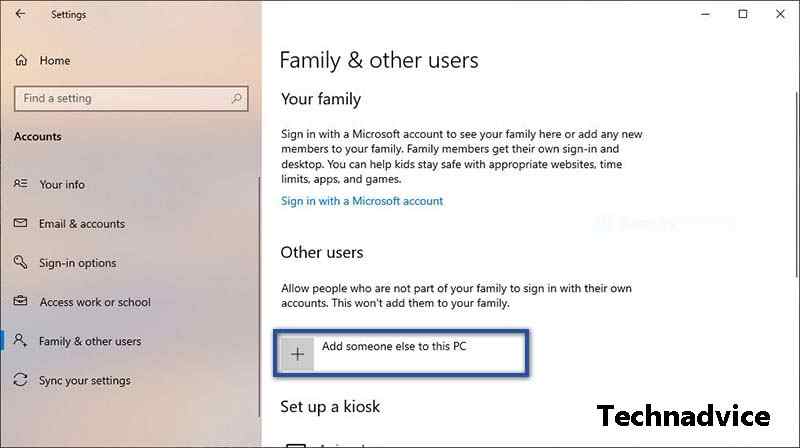
    STEP 1: In the first step, please open the Settings menu on your computer/laptop. Then click the Account menu » and select Family & other users. In the “ Other users ” section, click the Add someone else to this PC menu.

    Create a New Administrator Account
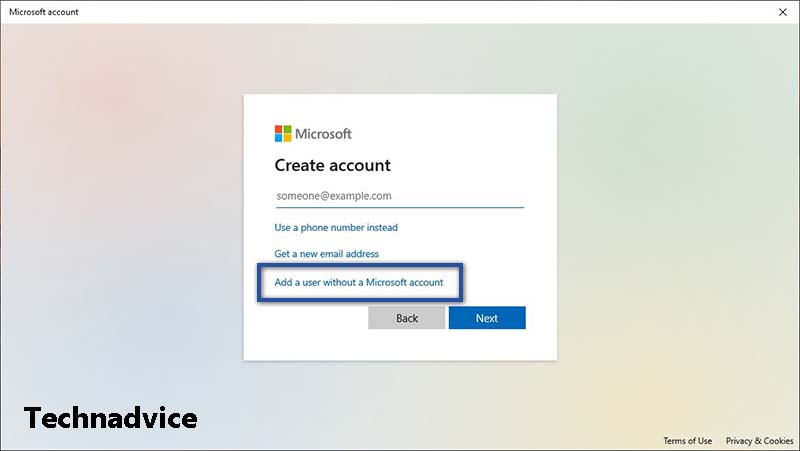
    STEP 2: After the Microsoft account window appears, click I don’t have this person’s sign-in information » and select Add a user without a Microsoft account.

    Create a New Administrator AccountSTEP 3: Then enter the username and password for the account. If so, also add some security questions with answers, then click Next.
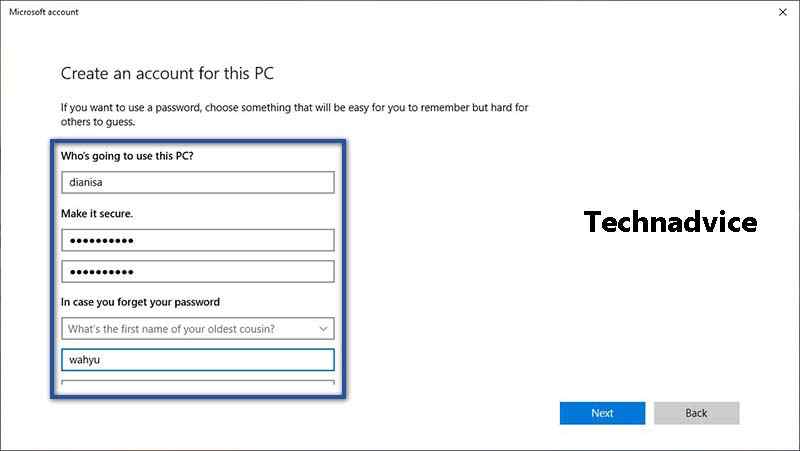
    Create a New Administrator AccountSTEP 4: If the account has been created, please change the account type by clicking Change account type. Then change to Administrator » and click OK. If so, please restart your computer/laptop. Then login with the new user you have created.
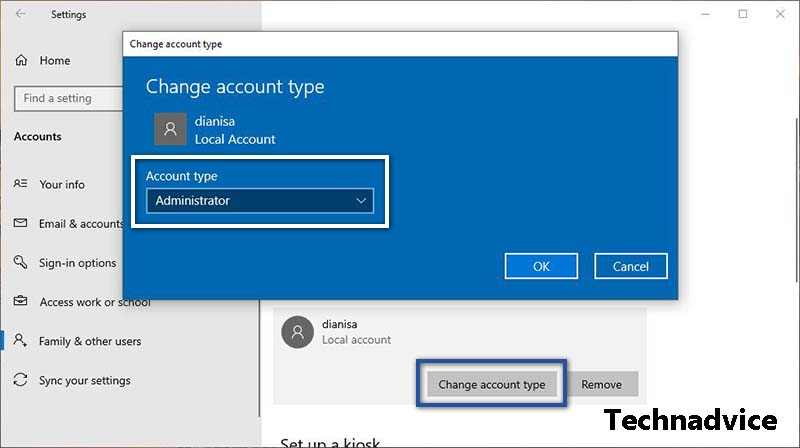
    Create a New Administrator AccountUnder certain circumstances, the error message “ This app can’t open ” may disappear when you create a new administrator account. However, if this method does not give any results, please continue to the next method.
    #2. Change the Security Policy Rules

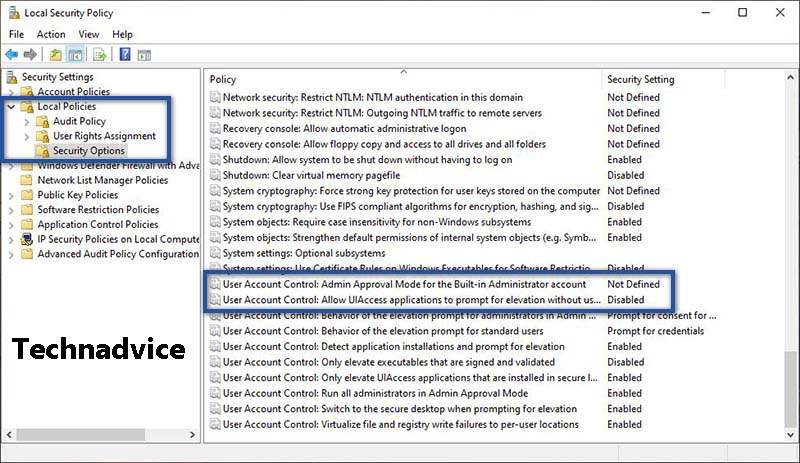
    Change the Security Policy RulesNext is to set the Security Policy on Windows. This is done because, in certain conditions, there are settings that must be activated. So that the error message can disappear by itself. For the steps, you can see below.
    1. First, press Windows + R on the Keyboard.
    2. Then type secpol.msc » press Enter/OK.
    3. Once the new window opens, click on Local Policies » and select Security Options.
    4. Then, scroll down until you find the User Account Control description.
    5. Right-click User Account Control: Admin Approval Mode for the Built-in …. » click Properties » select Enabled » Apply » OK.
    6. Then right-click User Account Control: Allow UIAccess applications to prompt…. » click Properties » select Enabled » Apply » OK.
    7. If both options have been changed, please restart the computer/laptop.
    8. Finished.

    #3. Running SFC Scan Via CMDRunning SFC Scan Via CMD

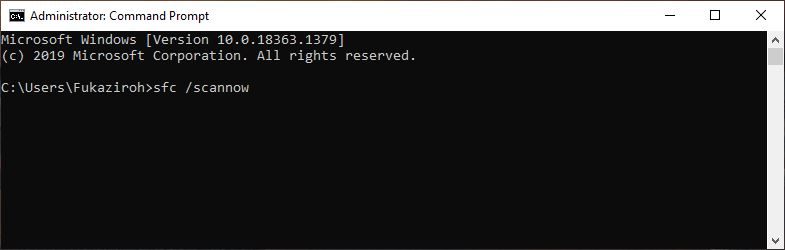
    sfc /scannow

    If with the previous method, there is still an error message when using the application. Then what you need to do next is perform a scan of the entire system file with the System File Checker command, to repair corrupted files. This needs to be done, considering that there is a possibility that this problem is caused by an error or a corrupt system file. For more details, you can do it in the following way.

    1. First, click the Windows icon on the Taskbar.
    2. Then type “ command prompt ” in Windows Search.
    3. If so, right-click Command Prompt » More » and Run as administrator.
    4. Next type the command: sfc /scannow » and press Enter.
    5. Wait for the process for a while.
    6. After that please restart your device to see the result.
    7. Finished.

    #4. Repairing Microsoft Windows Store

    As I described above, this error message that appears often occurs in Windows default applications. However, this does not mean the application is the problem. The cause of this problem may be caused by the Microsoft Store experiencing an error. To fix it, you can do the following solutions.

    Make sure the application has been updated to the latest versionMake sure the application has been updated to the latest version

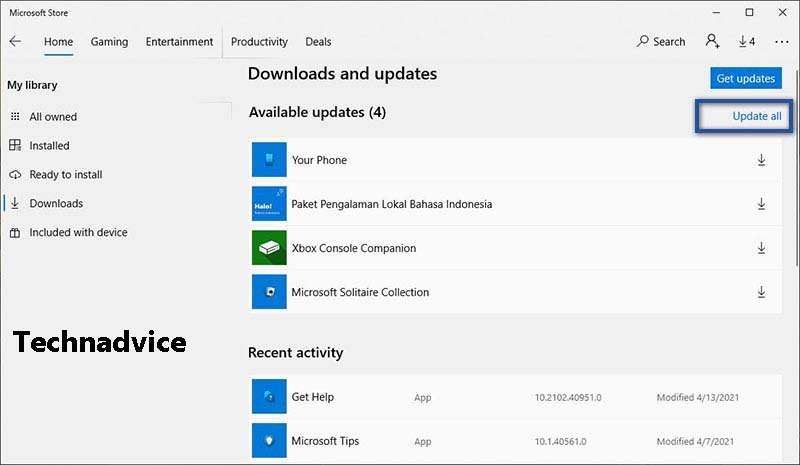
    1. First, open the Microsoft Store.
    2. Then click the three-dot icon in the upper right corner » and select Download and Updates.
    3. If there is an update to a new version, please click Update all.
    4. Wait a few minutes for the update process.
    5. If it is already installed, restart the computer/laptop » and try opening the application again.
    6. Finished.

    Run TroubleshootRun Troubleshoot

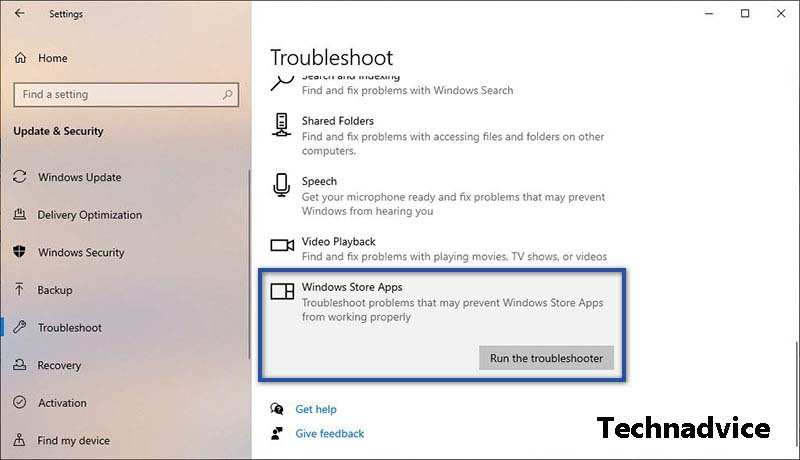
    1. First, click the Windows icon on the Taskbar » select Settings » and click the Update & Security menu.
    2. In the “ Update & Security ” section, select the Troubleshoot menu.
    3. Then find and select Windows Store Apps » and click Run the troubleshooter.
    4. If a notification appears, click Enable User Account Control (UAC).
    5. Wait a while for the scan for problems » Follow the instructions given.
    6. Finished.

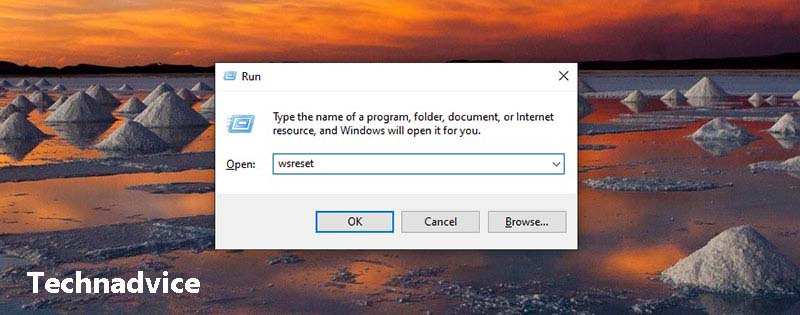
    Reset Window Store CacheReset Window Store Cache

    1. First, press Windows + R on the Keyboard.
    2. Then type was set in the search field » press Enter/OK.
    3. Wait for the process for a while » then restart the computer/laptop.
    4. Finished.

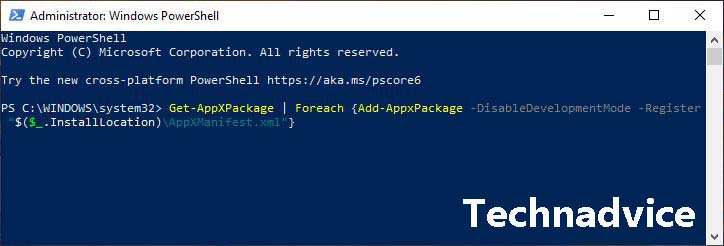
    Re-register Windows StoreRe-register Windows Store

    Get-AppXPackage | Foreach {Add-AppxPackage -DisableDevelopmentMode -Register “$($_.InstallLocation)\AppXManifest.xml”}
    1. First, click the Windows icon on the Taskbar.
    2. Type “ PowerShell ” in the search field » if so, right-click Windows PowerShell from the search results » select Run as administrator » and click Yes to run.
    3. Next copy and paste the command above » press Enter.
    4. Wait a few moments » then restart your computer/laptop.
    5. Finished.

    #5. Perform Windows Update

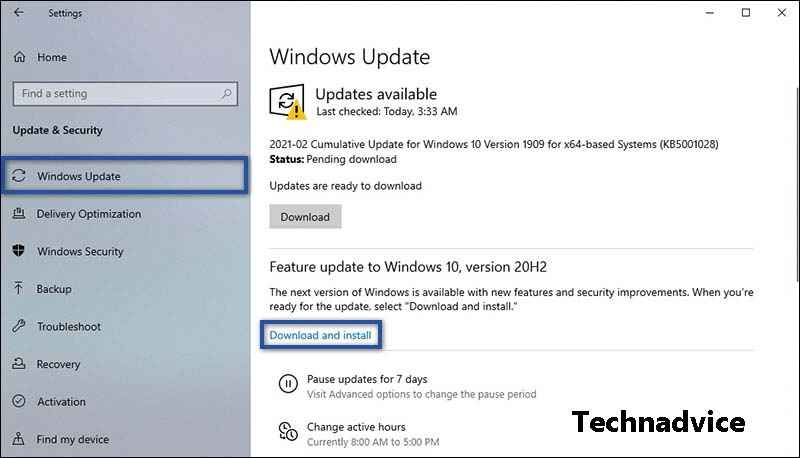
    When you experience a failure while updating Windows, it is not surprising that you will later find several errors that are displayed. One of them includes the error message “ This app can’t open ”. To fix an error like this, you just need to do a re-update. So that the device can run smoothly, stable, and optimally.Perform Windows Update

    1. First, click on the Windows Start menu.
    2. Then click Settings » and select Update & Security.
    3. Then click the Windows Update menu » and select Download and Install.
    4. Wait for the download process for a few moments.
    5. If so, please restart the device to install the update.
    6. Finished.

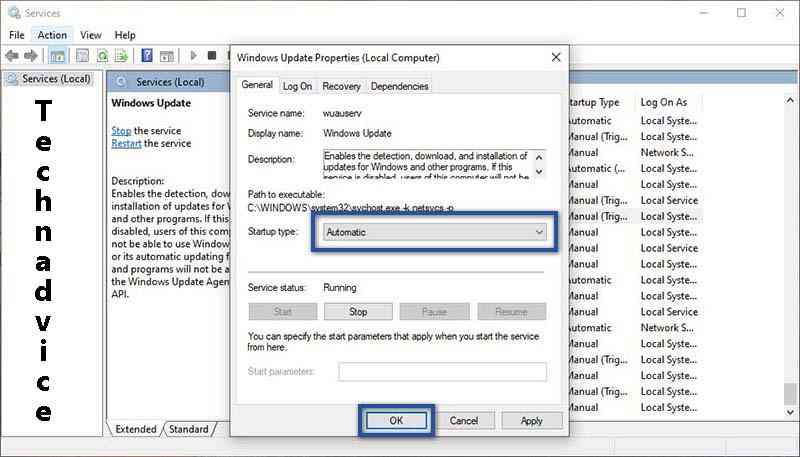
    To make sure your device always gets Windows updates, then change the setting in Service to automatic. To do this you can follow the steps below.Perform Windows Update

    1. First, press Windows + R on the Keyboard.
    2. Then type services.msc , in the Run » search field, press Enter/OK.
    3. If so, find the Windows Update service » right-click, and select Properties.
    4. After the new window opens, change the “Startup Type” section to Automatic » Click Apply » OK.
    5. Finished.

    #6. Scan Using an AntivirusScan Using Antivirus

    The last method you can do to solve the “ This app can’t open ” error message that appears on Windows is to do a scan with an Antivirus application. Of course, the purpose of this scan is because there is a possibility that the error description is caused by a virus or malware. And to make sure, do a full system scan.

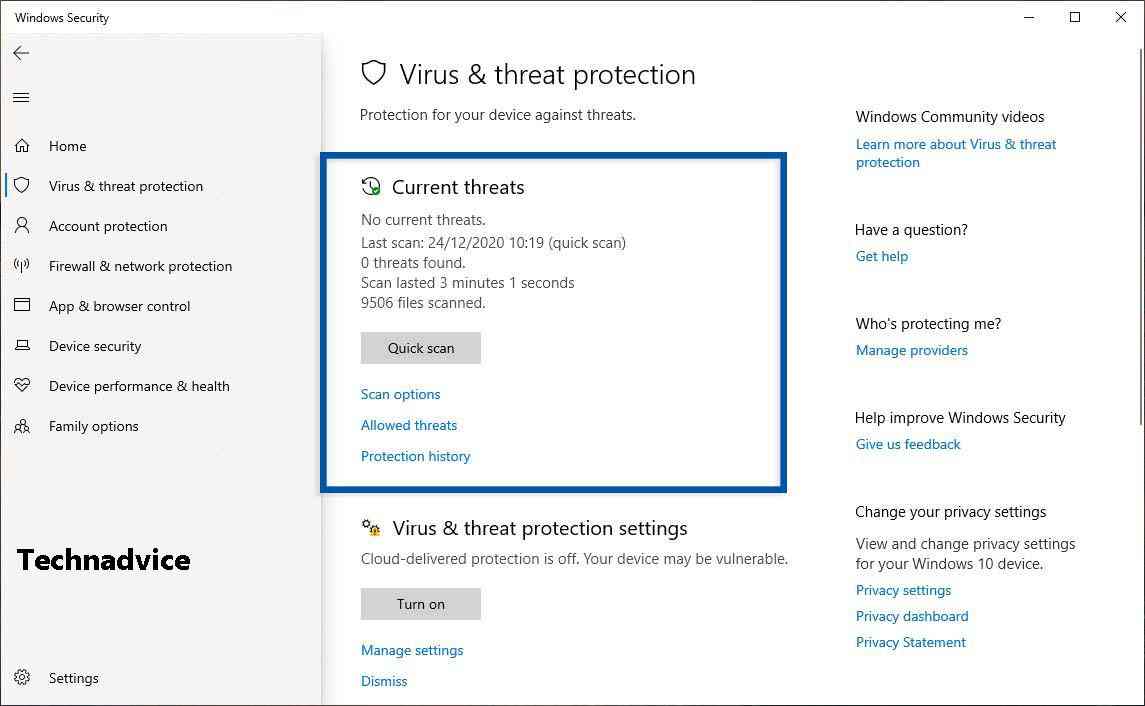
    1. First, go to Settings » Update & Security » Windows Security menu.
    2. Then click Open Windows Security » Virus & threat protection.
    3. Click Quick Scan to perform the scanning process.
    4. Wait until the scanning process is complete.
    5. Finished.

    We know that Windows default applications play a very important role in supporting daily activities. Starting from opening photos, taking notes of important things, to accessing the internet. But what happens when the application experiences several problems?

    Call it the appearance of the error message ” This app can’t open ” and so on. You can do this by using one of the methods above. Indeed, the solution I provide is only simple. But that doesn’t mean some of these solutions can’t fix it.

    What causes the application to not open?

    The cause can be due to system problems, corrupt applications, bugs, or viruses.

    Why does the message “This app can’t open” appear when I use it?

    This error message usually occurs in Windows default applications. The cause of this problem can be caused by several factors, one of which is the problematic Microsoft Store.

    Why when running the application often does not respond?

    Generally, this problem is caused by a crash between the program and the hardware on the computer/laptop, and a lack of system resources until there is a bug in the application that causes the program to stop responding.

    Read more:

    Conclusion:

    This is an explanation of 10 ways to fix this app can’t open in a Windows 10 PC, that you can solve This app can’t open in Windows, hopefully, this article will be helpful and useful. If you have any questions or opinions regarding the above article, please write them in the comments column below.

  • 9 Ways to Fix Windows 7 This Copy of Windows Is Not Genuine 2025

    9 Ways to Fix Windows 7 This Copy of Windows Is Not Genuine 2025

    9 Ways to Fix Windows 7 This Copy of Windows Is Not Genuine – Windows is one of the most popular OS for PCs and computers today. I’m sure you guys are also using this one operating system.

    Fix Windows 7 This Copy of Windows Is Not Genuine
    Fix Windows 7 This Copy of Windows Is Not Genuine

    How To Fix Windows 7 This Copy of Windows Is Not Genuine

    Besides having complete features, Windows is also a user-friendly type of OS. But have you ever suddenly experienced an error when using a Windows OS device?

    Read more:

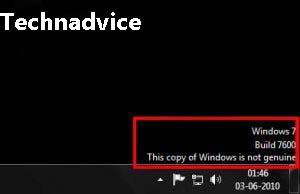
    The error referred to here is when the display screen turns black and blank without displaying any image. Usually, on the taskbar, there is also a notification that reads ‘This Copy of Windows Is Not Genuine.

    What happens to devices that experience this? Lots of users, especially newbies, are confused about it.

    Causes of Black Screen Laptop Computer PC

    So what causes the laptop screen to turn black? That’s because the operating system you are using is in the trial period. Or another possibility is that you have been detected using pirated Windows.

    Well, it’s common knowledge that there are lots of pirated Windows users out there. And maybe you are one of them too. There are many reasons why people choose pirated products.

    One of the most common is that it is cheaper than having to buy the original. Who would refuse if offered an alternative that has a cheaper price? But of course, such a product has a risk like Windows 7 which is not genuine.

    Then is there a solution or a way to get rid of Windows 7, not genuine notifications? Of course, there are, I always have tips that can provide the best solution for you.

    Surely many are worried if they have to do a reinstall. Don’t panic, in this tip, we won’t be re-installing.

    How to Remove This Copy of Windows Is Not Genuine from Windows 7

    There are still other tricks that can be used to make Windows 7 genuine again. So you don’t have to worry about important data because it will remain intact in its place.

    How to Remove This Copy of Windows Is Not Genuine from Windows 7
    How to Remove This Copy of Windows Is Not Genuine

    How to fix an error like this can be said to be difficult and easy. It’s hard if you don’t find out but easy if you pay close attention to the instructions.

    No need to linger anymore, here is a tutorial that can be a solution for pirated windows that can’t be used and ask to be reactivated.

    #1. Open CMD

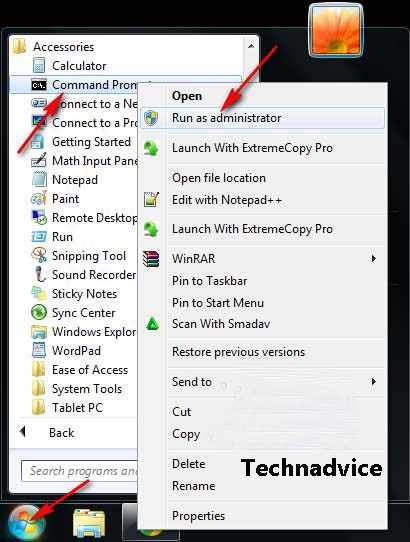
    First, click the start menu then select All Programs then Accessories, find Command Prompt then right-click and select Run as administrator.

    Open CMD
    Open CMD

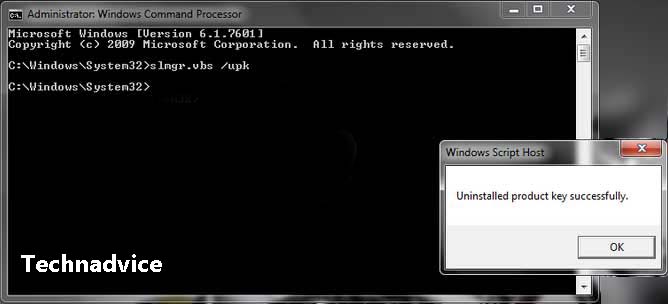
    #2. Type slmgr.vps /upk

    After the CMD window exits please type slmgr.vbs /upk and press enter.

    Type slmgr.vps upk
    Type slmgr.vps upk

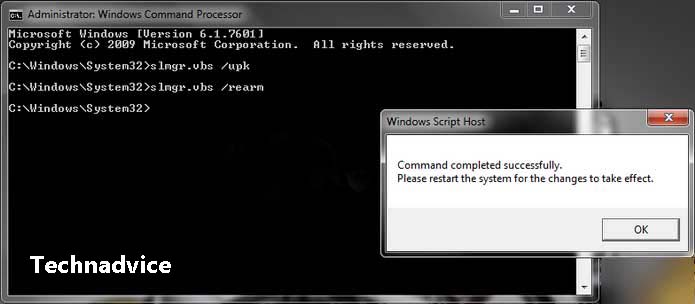
    #3. Type slmgr.vbs /rearn

    Then type again slmgr.vbs /rearm and enter again.

    Type slmgr.vbs rearn
    Type slmgr.vbs rearn

    #4. Restart Laptop/PC

    Finally, restart your computer or laptop.

    #5. Download Windows Loader

    For further after your computer has finished booting and displaying windows, follow the next guide:

    Download the Windows Loader Activator application from the internet. Or more easily click the following link.

    Password: www.yasir252.com

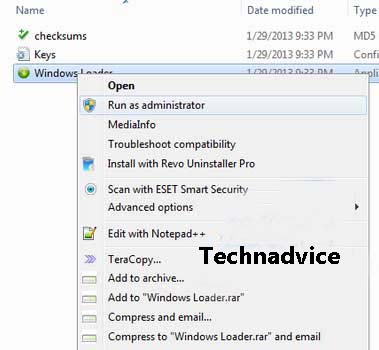
    #6. Run Admin Windows Loader

    Run Admin Windows Loader
    Run Admin Windows Loader

    Next, right-click on the Windows Loader Activator that was downloaded earlier and Run as administrator.

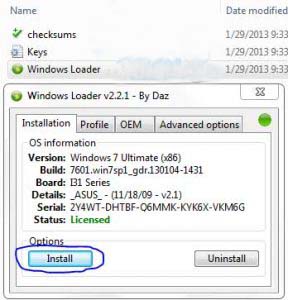
    ##7. Install Windows Loader

    A new window will appear, just click Install.

    Install Windows Loader
    Install Windows Loader

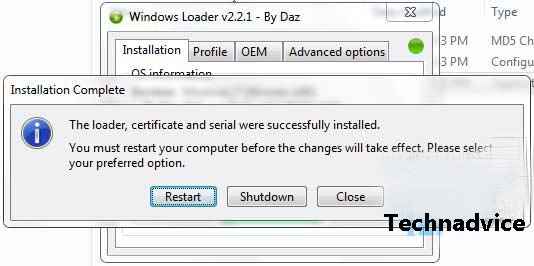
    #8. Click Restart

    Wait for the process to complete, then click Restart to boot once again.

    Click Restart
    Click Restart

    #9. Done

    Well congratulations, after that your windows will return to normal and not black blank again.

    The simple way to make This Copy of Windows Is Not Genuine writing disappear is to activate Windows that has not been activated previously. There are many ways that you can use it.

    How to activate Windows that I described above is to use Windows Loader. You can also use other ways to activate Windows.

    Read more:

    Conclusion:

    This is the explanation of on to fix Windows 7 this copy of Windows is not genuine, And, How to solve Windows that becomes a black blank screen on the laptop.

    The tips and tutorials above can be used to remove the notification ‘This copy of Windows is not genuine without having to reinstall.

  • 8 Ways To Update Drivers in Windows 10 Laptop PC 2025

    8 Ways To Update Drivers in Windows 10 Laptop PC 2025

    8 Ways To Update Drivers in Windows 10 Laptop PC – After reinstalling Windows 10, all we need to do is make sure all the drivers are up to date. Updating this driver can be done automatically and manually.

    How to Update Drivers in Windows 10 Laptop PC
    How to Update Drivers in Windows 10 Laptop PC

    How To Update Drivers in Windows 10 Laptop PC

    Every time we update Windows 10, driver updates will also be automatically downloaded. But sometimes some drivers are not directly supported by Microsoft, so we have to update them manually.

    Read more:

    In this post, I will show you how to easily update drivers on Windows 10. If you are having problems such as a certain device that has stopped working, then updating the driver can be one of the solutions that must be tried.

    What is a driver?

    A driver is a program that connects the operating system with the hardware on a computer. In other words, the driver serves to bridge communication between the operating system and existing devices, this allows users to control various devices such as keyboards, mice, touchpads, VGA, Wi-Fi, Bluetooth, and various other devices.

    Why do we need to update drivers?

    Updates function to adjust changes that occur in applications and to the Windows 10 operating system itself. When updating, we will get feature updates, patches, bug fixes, and guarantee that the drivers are still compatible.

    Outdated drivers (haven’t been updated for a long time) can cause problems. If a driver has a problem, the hardware that is driven will also have a problem and even make it stop working. Therefore, updating drivers is quite important.

    Updating drivers is also an effort to speed up Windows 10 so that it is used smoothly while working.

    How to Update Drivers in Windows 10 Laptop PC

    #1. Connect the computer to the internet

    First, you have to make sure if the computer is connected to the internet. It is recommended to use Wi-Fi or other stable connection, also make sure the internet quota is sufficient when using the internet from a USB modem or tethering from a smartphone.

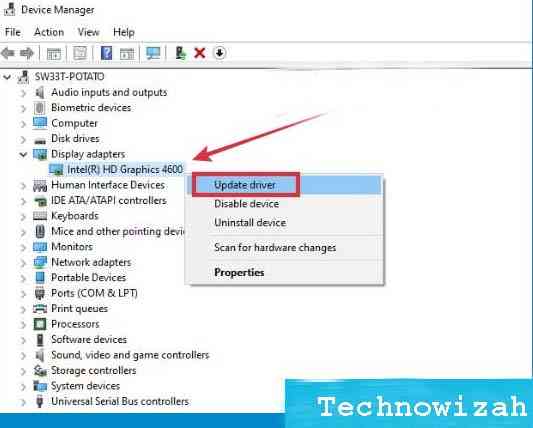
    #2. Open the Device Manager

    The next step is to enter the Device Manager by right-clicking on the Start button> selecting Device Manager.

    #3. Find the driver you want to update

    After entering the Device Manager application you will see a whole list of drivers on the computer. Find which driver you want to update.

    You may need to expand the menu on the device to find the driver you want, for example, if you want to update the VGA driver then you have to expand the Display menu.

    #4. Right-click on the driver

    After finding the desired driver, right-click on it.

    #5. Select Update Driver

    How to Update Drivers in Windows 10

    Once a contextual right-click menu will appear, all you need to do is click on the Update Driver menu.

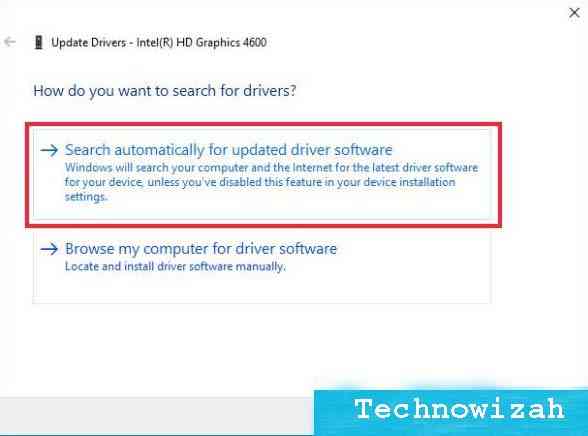
    #6. Select Automatic update

    Then the update wizard window will appear. To update automatically, select Search automatically for updated driver software.

    How to Update Drivers in Windows 10

    #7. Wait until the update process is complete

    Windows will automatically search for updates on their servers. You just have to wait for the process to finish.

    #8. Perform the same steps for the other drivers

    To update other drivers you can repeat the same steps as above.

    How to update all drivers automatically

    In the first method, we updated the specific driver that we chose. If you want to update all drivers automatically without having to select them one by one, you can do this by updating Windows.

    When we update Windows 10, all drivers will also get updates when available. This way we don’t have to bother doing it manually anymore.

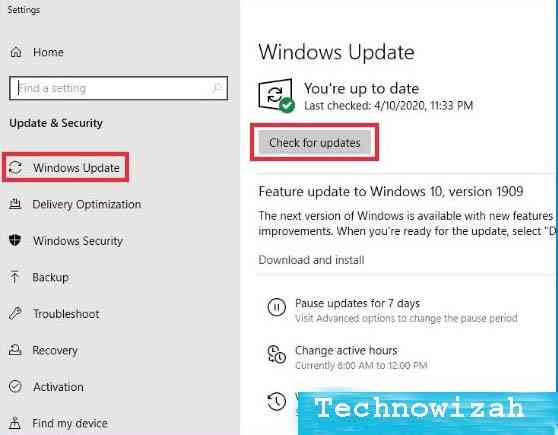
    To update Windows, the method is very easy, namely:

    1. Click the Start button
    2. Click the Settings button (gear icon)
    3. Select Update & Security
    4. Select Update
    5. Click on the Check for Updates buttonHow to update all drivers automatically
    6. Wait for it to finish
    7. Restart your computer

    You need to know if the automatic update process is not always 100% successful, sometimes some drivers cannot be found by Windows. If this happens, then another solution that you can try is to manually update.

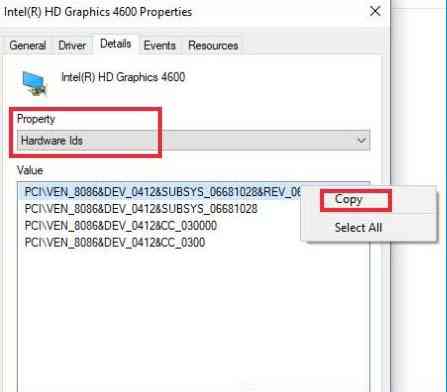
    How to manually update drivers in Windows 10

    1. Open the Device Manager
    2. Find the driver you want to update
    3. Right-click the driver
    4. Select Properties
    5. Click on the Details tab
    6. In the Property section select Hardware ids
    7. Right-click Hardware IDsCopyHow to manually update drivers in Windows 10
    8. Open the site https://drp.su/en/catalog
    9. Paste the hardware ID in the search field on the site
    10. Download the driver in zip format and install it on your computer

    Read more:

    Conclusion:

    This is the explanation of 8 ways to update drivers in Windows 10 laptop PCs, You can use the manual update method above for devices whose drivers are not supported by Microsoft. If you are using a device from a well-known brand such as NVIDIA or AMD VGA then you can find the driver on their official site.