How To Hide IP Addresses on Windows 10 (3 Easy Tips) – Make your web browsing activity private by hiding your IP address (IP Address). The internet is here to bring many advantages and facilitate many activities in our life and we all admit that the internet is good in many ways. However, protecting your online privacy on the internet is a must.
How To Hide IP Addresses on Windows 10 (3 Easy Method)
How To Hide IP Addresses on Windows 10 Laptop PC
Did you know that the websites you visit the things you buy online, search engines, websites, and advertisements track your every click and move? Avoid these attempts to monitor your activity by hiding your IP address. Here are three popular ways to hide your IP address and cover your tracks on the web.
An IP address is a number that uniquely identifies your computer or mobile device when connected to the internet network. Think of it as a mailbox or home address for your computer. Every web request you make is sent from your IP address, and data sent to you is routed to your IP address.
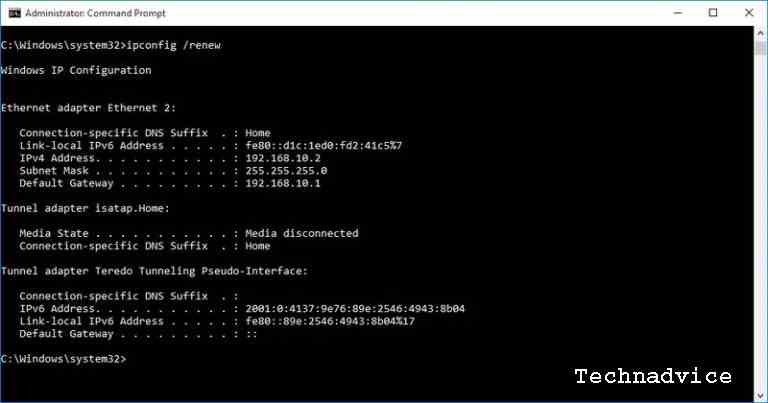
The various categories of IP addresses include private, public, static, and dynamic. Most IP addresses assigned by internet service providers (ISPs) are dynamic, which means that a new IP address is assigned to your device every time you log on to the web. However, dynamic does not mean personal. Because your online activities can be tracked using a dynamic IP address.
Why Should You Hide Your IP Address?
Your IP address is linked to all your online activities. Your online activity can reveal your internet searches, the websites you visit, the products you buy, and much more. One of the ways to hide your online activities is to use IP masking.
IP masking is responsible for hiding your real IP address and location. This makes your activity more difficult to track or trace for you. IP masking is accomplished using encrypted VPN services, proxy servers, or Tor.
Note: Hiding IP addresses is not the same as encryption. Unlike VPNs, proxies and Tor don’t offer encryption. So choose the right technology for your needs.
#1. Hide IP Address Using VPN Tunnel
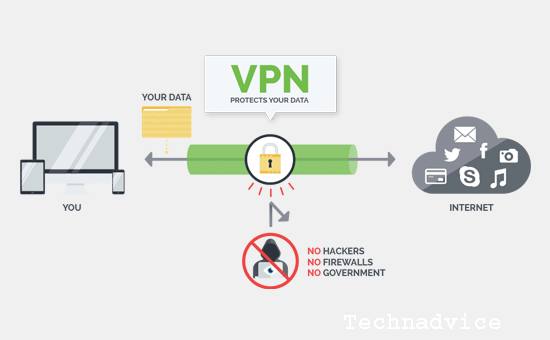
Using a VPN (Virtual Private Network) is one of the best ways to block outside entities from tracking your IP address or IP Address and spying on your online activities. This includes spying carried out by ISPs, search engines, websites, governments, hackers, and ad marketers.
The VPN masks the IP address and sends internet traffic through an encrypted VPN Tunnel. If anyone tries to view or hack that data, they’ll only see the VPN Tunnel, not what’s inside. Also, a VPN can connect to servers from different countries, so you can access geographically restricted websites and content.
To take advantage of a VPN, you need a VPN client or service. Many VPN service providers offer a variety of VPNs, service plans, and advanced features for different operating systems and mobile devices.
#2. Hide IP Address With Proxy
The web proxy acts as an intermediary between you and the internet. With proxies, internet requests are sent from the proxy server, and information is sent back to you from the proxy. In other words, it adds an extra leap to internet requests so they appear to be coming from the proxy, not from your IP address.
Like a VPN, an anonymous proxy masks the real IP address and prevents devices from knowing where the traffic is coming from. Unlike VPNs, proxies do not encrypt internet traffic.
Also, proxies only secure browser traffic, while VPNs replace your local ISP routing for all services. Proxies are fast and convenient to use, but if you want encryption, consider using a VPN. Proxies also don’t provide encryption and may not be as secure as other types of technology.
#3. Block Your IP Address Using Tor
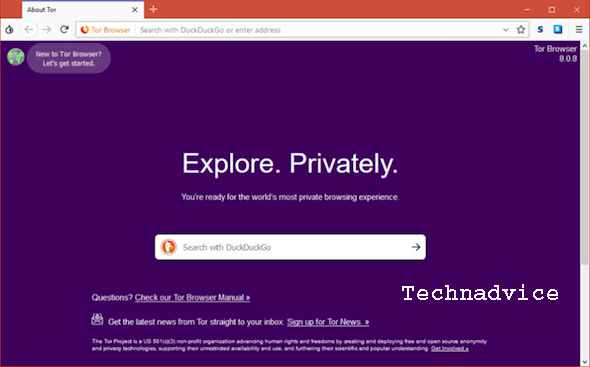
If your goal is to be completely anonymous and avoid being tracked online, then Tor (The Onion Router) can be another tool you can use to protect your online privacy.
Tor bounces web traffic on various servers so that your IP address cannot be traced back to you. Anyone trying to trace your data request sees only the nodes on the Tor network, not you.
To use Tor, download the Tor Browser Bundle from torproject.org, the official Tor site. As free and open-source software, Tor costs nothing to use and is easy to set up. Like proxies, Tor doesn’t offer encryption. If you want encryption, it’s better to use a VPN service.
Tor doesn’t provide encryption and may not be as secure as other types of technology. Don’t use Tor for torrenting and don’t use third-party plug-ins with Tor, as this can also intrude on your privacy.
So, friends, this is the explanation of how to hide IP addresses on Windows 10 (3 easy tips), and protect your privacy online so it’s safe from tracking and other harmful actions. Hopefully, this article is useful for you.
15+ best apps for Windows 10 laptop free download – When buying a new laptop or after reinstalling, the first thing we have to do is update and install applications for various future needs. There are many free and paid Windows application choices, so many that sometimes it makes you confused about which one to install.
15+ Best Apps for Windows 10 Laptop Free Download
Best Apps for Windows 10 Laptop Free Download
Starting from video player applications, photo editors, and text processing, to chat client applications to stay connected with people while we are working on a laptop. This post will save you time in choosing which of the best applications that Windows 10 users must have.
The first must-have application for Windows 10 users is Google Chrome. After reinstalling the first thing you have to do is connect your computer to the internet and then update Windows 10. This is so that we get the latest versions and features, then we need to install a browser application to download other applications.
Windows 10 comes with two built-in browsers, namely Internet Explorer and Microsoft Edge, both of which can be used for browsing, streaming videos, or downloading files from the internet. Unfortunately, this default browser application has lots of limitations, such as very few extensions available.
That’s why we need a browser that has full features, and abundant extensions available but is light enough to be used on Windows PCs and laptops. Until now, Google Chrome is a browser capable of meeting these criteria.
Google Chrome is a browser application made by Google that has the most users worldwide. The application is the first application that you must have on Windows 10. Google Chrome has a fairly good speed performance, and more importantly, there are lots of extensions that you can install as needed.
In addition, this browser is also integrated with all Google applications such as Gmail, Google Drive, Google Search, Google Docs, and all other applications, making it the perfect browser for both productivity and entertainment needs.
Download Google Chrome
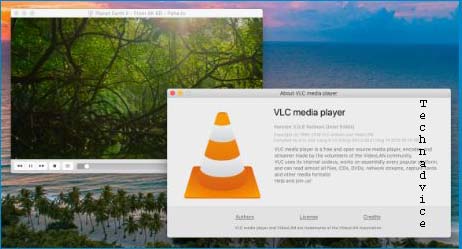
#2. Video Player: VLC and Media Player Classic
Video Player VLC and Media Player Classic
The second essential application for Windows 10 is a video player or video player. Currently, the multimedia content that we consume through computers and gadgets is no longer limited to just text and images, but video content has also become increasingly popular and popular.
Starting from watching instructional videos from teachers, video tutorials downloaded from YouTube, or watching movies, we must do it with a video player application. There are lots of video player applications that you can install for free, but the best for Windows 10 so far are two, namely VLC and Media Player Classic.
Both applications can play almost all video formats that exist today. For those of you who like to watch films in foreign languages, this video player application also has lots of very helpful features, such as modification and subtitle synchronization features which are not available on the default Windows media player.
Working accompanied by music will make the atmosphere even more fun. Music can also magically lift the mood and enthusiasm at work.
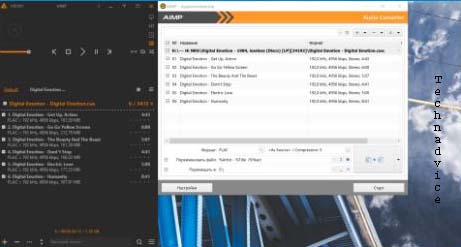
For those of you who like to listen to music, you will need an application that can play MP3 files, now the best MP3 player application on Windows 10 that we recommend is AIMP.
AIMP is a very lightweight and stable music player application that lets you play music on your computer for hours on end. This application still maintains its classic design which is very familiar to users.
Almost all the features needed to play music offline are in AIMP. You can easily create multiple playlists of selected favorite songs. The file formats supported are also quite wide-ranging from MP3, M4a, AAC, AC3, APE, and many more.
A must-have application for Windows 10 users, is PhotoScape X for editing photos and images. For those of you who are not proficient in Photoshop or other advanced editors then this application is the right choice.
PhotoScape X has all the basic photo editing features you will need, from cropping, resizing, manipulating color and brightness, watermarking and writing, and much more. The multi-layer feature in this application also greatly facilitates the editing process.
The advantage of PhotoScape X lies in its simple UI appearance and is very easy to understand even for beginners. PhotoScape X is also much lighter when compared to PhotoScape X and other multilayer photo editors. Especially for Windows 10, this application is officially available on the Microsoft Store and you can download it for free.
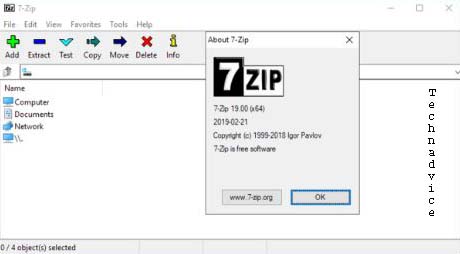
To compress and extract files in archive formats such as rar, zip, 7z, tar, gz, we need an archive manager application. Our recommended file archiving application for Windows 10 is 7zip.
7zip is a free, open-source archiving application. This application is well integrated in the Windows 10 operating system, you can archive files or remove files from the archive easily because of the contextual menu when right-clicking on files.
The 7zip application also has a high compression level, you can archive files in large numbers and reduce their capacity so that they can save storage space. You can also add a password to the archive file to make it more secure.
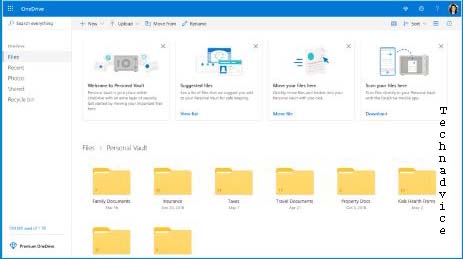
Want to save work files so they can be accessed from anywhere? You can do this with Cloud Storage.
In today’s digital age, working on mobile is a common thing. You may be able to work from home while hanging out in cafes, or traveling to tourist attractions. No need to worry about leftover work files because you can store them in online storage called Cloud Storage.
Especially for Windows 10, the best Cloud Storage service is One Drive because it was developed by Microsoft itself so that it can be perfectly integrated into the Windows operating system.
One Drive provides 5 GB of free storage space, this is big enough to store your work files so they can be accessed from anywhere. By using One Drive we also don’t have to worry about lost files due to a damaged laptop or viruses because Cloud Storage is safe from such things.
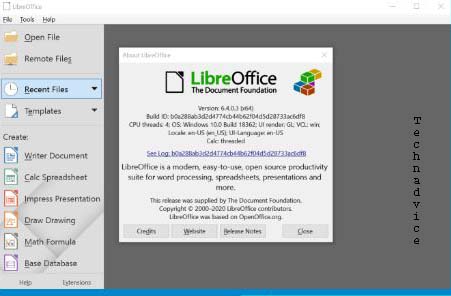
The next must-have application for Windows 10 users is office applications. So far, you’ve probably always used Microsoft Office, which is a paid Office Suite from Microsoft. Yes, this application is not a free application, to use it you have to buy a license.
To avoid piracy, you can try the Office Suite application which is provided free of charge to all users. One of the best free office applications is LibreOffice.
If you are familiar with Microsoft Office then using LibreOffice will not be a problem at all. Almost all the features that are in MS Office are also in LibreOffice. You can create documents, process data, and create presentations with this application.
LibreOffice consists of several applications, Writer is a document processing application that is equivalent to Microsoft Word, Calc is equivalent to Microsoft Excel, Impress is equivalent to Microsoft PowerPoint, and Base is equivalent to Microsoft Access.
What are the advantages of using LibreOffice?
First, LibreOffice is an Open Source application that is free to use by anyone.
You can install it on laptops and PCs that you have without any restrictions. Unlike paid applications, which are usually limited to a few devices depending on the license you buy.
Even now, many companies have switched to LibreOffice to save budget, after all this application is also powerful enough to handle all the work that is usually done by Microsoft Office.
Second, you will avoid piracy. As mentioned earlier, the Microsoft Office application is not free.
So far, maybe there are still many who think the application is free so they don’t know that what is installed on their computer is a pirated version. To avoid this, using LibreOffice is the right solution.
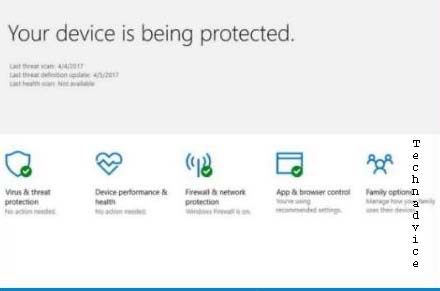
To protect computers from viruses and malware infections we need an antivirus application. There are lots of antivirus applications out there that can be used, but don’t rush to install them because Windows 10 already provides a very powerful new antivirus called Windows Security.
Windows Security is undoubtedly the best antivirus for Windows 10 which can protect your computer from viruses, malware, and other malicious programs.
Windows Security is a default program that has been installed automatically from the start, all you need to do is update it regularly so that Windows Security can work optimally.
The security features in this application are also very complete, the real-time protection feature will always actively protect your computer when downloading files from the internet or copying them from other storage media. By making sure all security features are active and always updated, you don’t have to worry about viruses and malware anymore.
Windows Security can be accessed via the Settings menu> Update & Security> Windows Security.
#9. Screenshot: LightShot
Screenshot LightShot
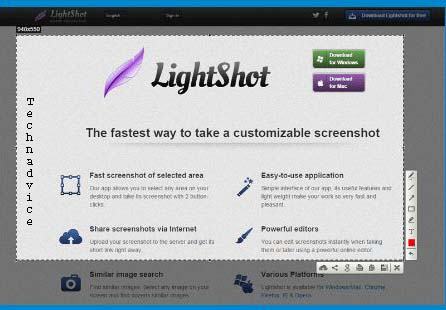
A must-have application for Windows 10 users, is LighShot. If you frequently take screenshots for work, content creation, or other purposes then LighShot is the best choice.
LightShot is a free screenshot application that can be used on Windows and Mac operating systems.This application can take full-screen screenshots, currently active windows, or certain areas that we choose ourselves.
One of the coolest features of this application is the online storage feature which allows us to upload the screenshot that was just taken and then share the link with other people.So we don’t need to save the image first and then send it, but just provide the uploaded link from this application.Later, anyone who has the link will be able to see our screenshot via a browser.
LightShot can also be used to take screen captures quickly thanks to the short key feature that we can modify as desired. You can set any keyboard key to activate the screen capture instantly.
The feature that makes this application perfect is that it has a basic editor that can be used to add text, arrows, circles, and scribbles directly to the screen when we take screenshots. This application is a must-have.
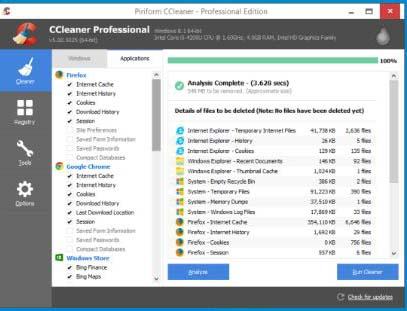
To speed up Windows 10 so that its performance remains stable and lightweight, we need to keep the computer clean of junk files. To make it easier to do this cleaning, we can use the help of a cleaner application.
In the previous post, we recommended several cleaner applications for Windows 10 that you can use to clean temporary files, cache, leftover, and various other types of junk files. Among all these applications CCleaner is one of the best.
You can use CCleaner to clean various types of files such as system cache, thumbnail cache, and junk files from browsers, to delete tracker cache installed on our computers.
To use it is also very easy, you just need to use the one-click cleaner feature to do all cleaning tasks and let this software work automatically. This application is available in two versions, free and pro versions. For use on personal laptops, simply using the free version is sufficient. But if you want to enjoy all its features then you can buy the pro version.
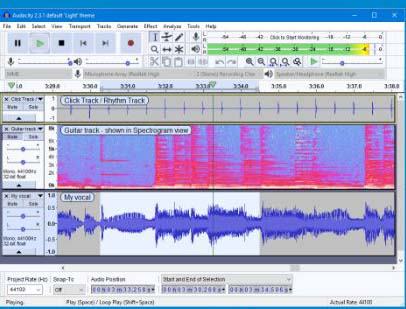
The next best application for Windows 10 is Audacity which functions to perform audio editing. If you are a content creator, of course, you are very familiar with the process of editing audio files, currently, Audacity is the best application that you can get for free.
Audacity can be used to record sound using input devices such as a mic, headset, or built-in mic on a laptop. You can process the recorded sound into various file formats as needed.
This application can also be used to cut and combine multiple audio files and perform pitching and noise correction so that the results are better. If you are a content creator, Audacity is on the must-have application list.
Active on social media like Instagram or YouTube? Surely you are no stranger to video editors for creating video content. In Windows 10 you can use Shotcut which is a free open-source video editor application.
This application does not have features as complete as Adobe Premiere or Sony Vegas, but with creativity, the results obtained are no less cool. As you know, video editor applications like Premiere and Sony Vegas are quite expensive, if you still don’t have a budget then there’s nothing wrong with using Shotcut.
Shotcut supports a very wide file format, you can edit almost all video formats using Shotcut. Its simple and clean UI appearance makes the editing process much easier, even beginners in the world of editing will have no trouble using this application.
Shotcut can be used to edit travel videos, culinary videos to cinematics. The features are quite curvy for the size of a free application. You can also work in a multilayer like other professional video editor applications.
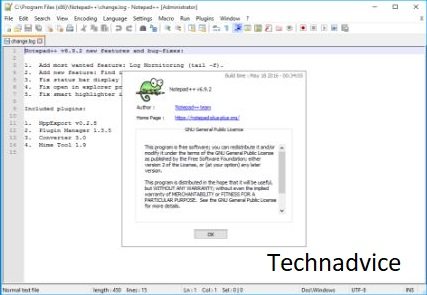
A must-have application for Windows 10 users, is Notepad ++. This application can be used to edit text and code that can run on the Windows operating system.
Notepad ++ has all the functions of the default Windows Notepad with many additional features such as multitab, line, text encoding, and code editing in various programming languages.
If you work a lot with code or you are a beginner programmer learning then this app is a must-have. Notepad ++ is an open-source application so it can be used for free.
To make a video from a screen recording, you need a screen recorder application. There are lots of applications that can be used, if you want to get complete features then you can use paid applications like Camtasia.
What if you want a full-featured but free screen recorder application, that’s something like that? Of course, there is. An application that we highly recommend is Streamlabs. This application is one of the best screen recorder applications that you can use for free.
Streamlabs is more focused on online streaming, but you can also use it to create video content from screen recordings on your monitor. Streamlab has customizations and settings that can be adjusted according to your needs.
You can record the screen and produce it into video, add layers from the camera, add frames, backgrounds, and many other features that you can use.
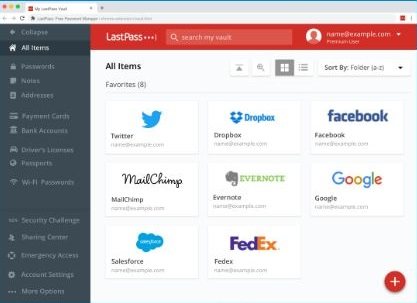
The next must-have application for Windows 10 users is LastPass. For those of you who have never heard what this application is and what it does then this is the moment for you to get to know this very useful application.
LastPass is a password manager application that will help you remember all the passwords on your accounts, be it social media accounts, bank accounts, membership accounts on a site, or all your other accounts.
In Windows 10, LastPass can be used as a Google Chrome browser extension. The first time you use it you have to create a LastPass account with email and set a master password, this password will be used to log in to LastPass.
After LastPass is installed, then you no longer need to bother remembering passwords every time you log in to any site because LastPass will fill them in automatically. The password generator feature in this application also allows you to create super secure passwords without bothering to compose them yourself.
Forget about the old way you created the same password for each account because you are worried that you will forget it, this is very insecure because if your password data is stolen then all your accounts will be threatened. Using LastPass you can create a unique and secure password for each account without worrying about forgetting it.
Every day we will be exposed to English, especially when accessing international reading sources. English has become like a second language for us, we must learn it inevitably.
Dictionary 2.04 is one of the best PC dictionary applications that you can use. This application will make it easier for you to translate English words into Indonesian quickly and easily.
You can use it for free because this application was developed as freeware that anyone can use for non-commercial purposes. Dictionary 2.04 is very lightweight so it is not a bother when running with other applications and is left open all the time.
It contains more than 41,000 English-Indonesian words, 35,000 Indonesian English translation words, and more than 64,000 phrases. If you are very interested in English, you must install this application.
So, friends, That’s the list of the 15+ Best Apps for Windows 10 Laptop Free Download, that must be owned by every Windows 10 user. We will always update this list, if you have a favorite application that is not yet included in this list please comment below.
5 Ways to Fix UEFI Firmware Settings Not In Windows 10 – If you go into BIOS and find UEFI Firmware Settings missing or missing, here’s how to get them back.
5 Ways to Fix UEFI Firmware Settings Not In Windows 10
How to Fix UEFI Firmware Settings Not In Windows 10
UEFI BIOS is a special software program that connects your computer’s firmware to its operating system (OS). This is the first program that runs when you turn on your PC. It checks to see what hardware components your PC has, turns the components on, and hands them over to the OS.
When opening the UEFI BIOS menu, you may find that you cannot access the UEFI Firmware Settings. This may prevent you from fixing some system problems. If these settings are missing from your PC, we will show you how you can restore them.
Why are UEFI Firmware Settings Missing?
Depending on your PC manufacturer, you can access the UEFI BIOS settings in various ways. If you can’t find UEFI Firmware Settings in the BIOS menu, here are some common reasons for this problem:
Your PC motherboard does not support UEFI.
The Fast Startup function disables access to the UEFI Firmware Settings menu.
Windows 10 is installed in Legacy Mode.
How to Fix Missing UEFI Firmware Settings
#1. Make sure your PC is equipped with UEFI
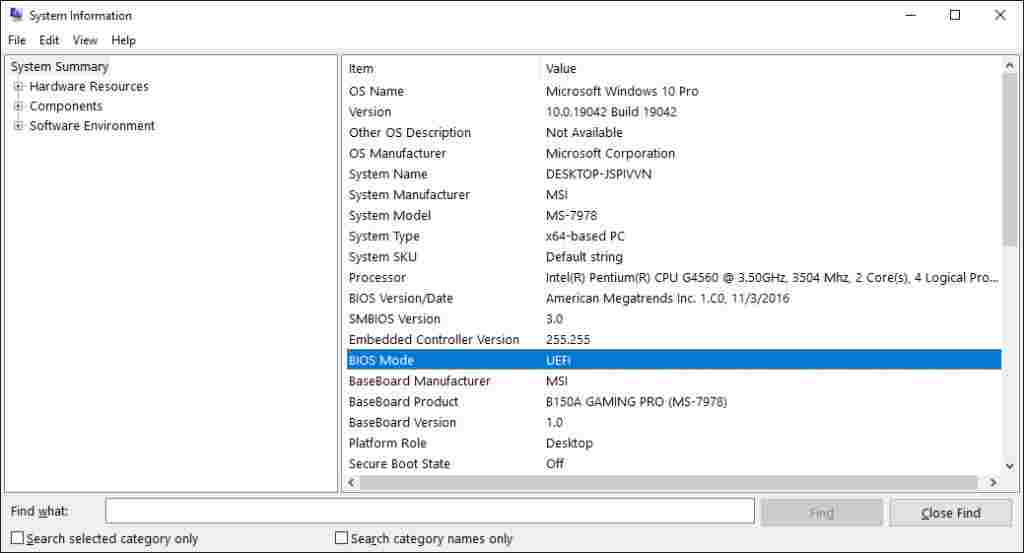
Before trying other potential fixes, you need to verify that your PC’s motherboard does support UEFI. If your PC is an older model, most likely UEFI Firmware Settings are not available. Here’s how you can check your PC’s BIOS Mode:
Make sure your PC is equipped with UEFI
Press Windows key + R to open the Run command dialog box.
Type msinfo32 and press Enter to open the System Information screen.
Select System Summary in the left side pane.
Scroll down on the right-side panel and look for the BIOS Mode option.
In the Value section, it must be UEFI or Legacy. If it’s Legacy, then your PC can’t access UEFI Firmware Settings.
#2. Bypass Fast Startup Function
The Fast Startup function allows you to boot your PC quickly. When enabled, the feature can stop delays in loading some UEFI BIOS menu options. For this reason, it can prevent you from accessing UEFI Firmware Settings. Bypassing this function can help solve your problem. To do this, follow these steps:
Open the Windows Start Menu and select the Power icon.
Hold down the Shift key then select Shut down from the power options. This will bypass Windows 10 fast startup and shut down your PC completely.
Restart your computer and enter the BIOS setup by pressing some special keys.
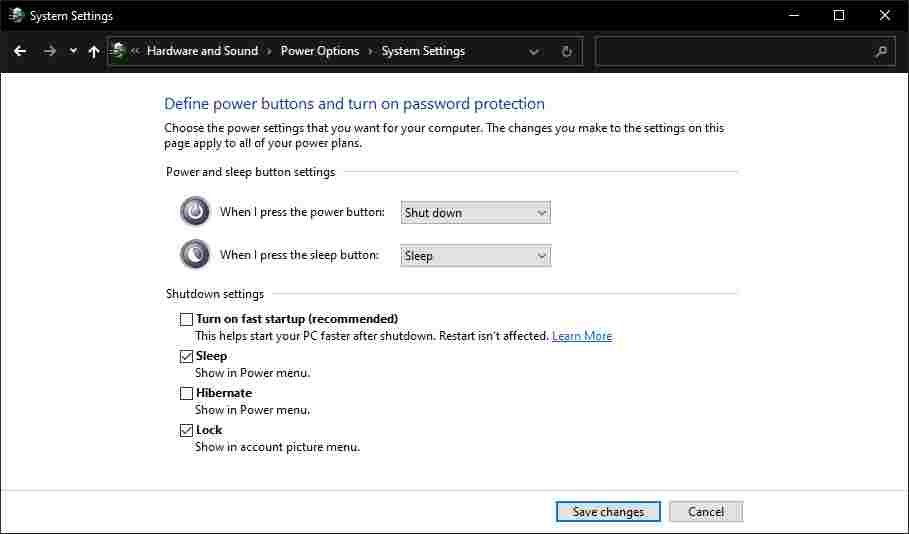
If this solves the problem, you can disable the Fast Startup feature so that the UEFI Firmware Settings can be accessed at any time. However, keep in mind that this will make your boot-up time a little longer. To permanently disable fast startup, you can follow these steps:
Bypass Fast Startup Function
Press the Windows key + R to open the Run command dialog box. Type powercfg.cpl and press Enter to open the Power Options menu.
In the Power Options window, click Choose what the power buttons do.
On the System Settings menu, click Change settings that are currently unavailable.
Then under Shutdown settings, uncheck the box next to the Turn on fast startup (recommended) option.
#3. Create Desktop Boot Shortcut To UEFI Firmware Settings
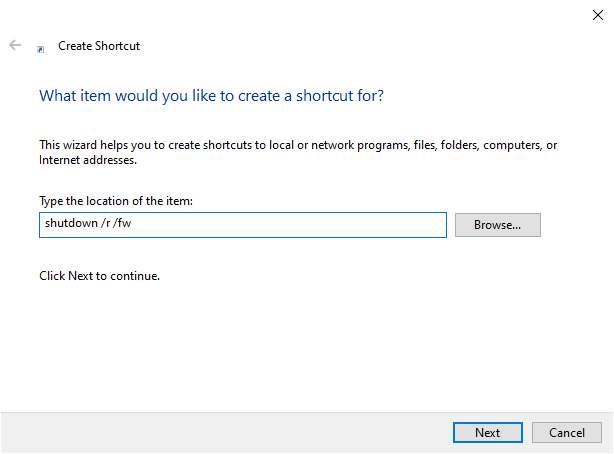
Another way to solve this problem is to create a desktop shortcut that forces your PC to boot directly into the UEFI Firmware Settings menu. Here’s how you do it:
Create Desktop Boot Shortcut To UEFI Firmware Settings
Right-click on a space on your Desktop, select New, then select Shortcut.
On the next screen, type shutdown /r /fw and click the Next button.
Choose a suitable name for the shortcut then click Finish.
Right-click the shortcut, select the Properties option, then select the Advanced button.
On the next screen, check the Run as administrator box and hit OK.
Select Apply > OK to apply these changes.
To use the shortcut, double-click on it. Your PC must restart directly into the UEFI Firmware Settings menu.
#4. Change BIOS From Legacy To UEFI By Converting MBR Disk To GPT
Depending on the age and specifications of your PC, it will use a Master Boot Record (MBR) or GUID Partition Table (GPT) disk. Even if your motherboard is equipped with UEFI capabilities, the UEFI Firmware Settings will not be accessible if your drive is equipped with an MBR disk. In this case, you have to switch BIOS from Legacy to UEFI by converting MBR disk to the GPT disk.
Given that you are converting a system disk, it is best to create a system image to back up your system. So it is highly recommended to take a system backup as there is potential for data loss during this process.
If you already know that your partition is MBR type and your system is capable of booting from UEFI. You can proceed with converting your drive to GPT format. If not, here’s how to check if your PC is equipped with an MBR or GPT disk.
Change BIOS From Legacy To UEFI By Converting MBR Disk To GPT
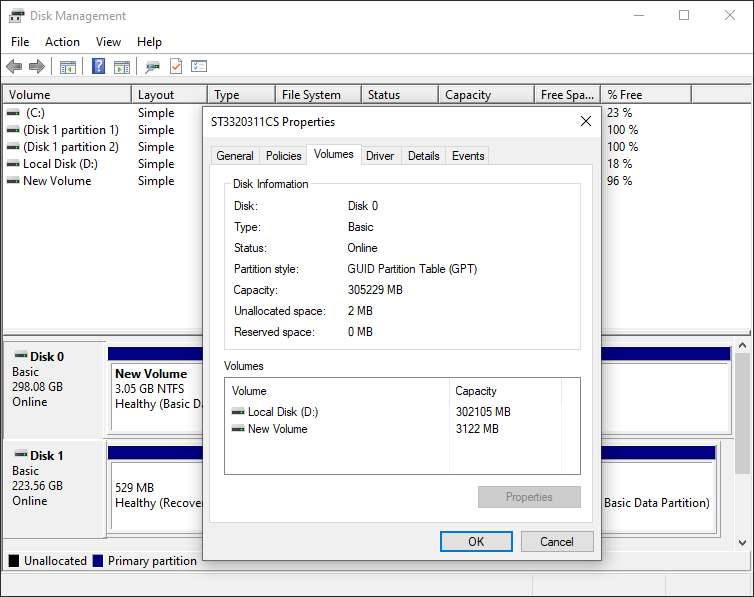
Press the Windows key + R to open the Run command dialog box.
Type diskmgmt.msc and click Enter to open the Disk Management window.
Right-click on Disk 0 (or the disk containing the Windows installation) and select Properties.
In the Properties screen, click the Volume tab. Look for the Partition style option under Disk Information.
If the partition style is GUID Partition Table (GPT), then there is no need to continue with the conversion.
#5. Clear CMOS Settings To Restore Default BIOS Settings
Clear CMOS Settings To Restore Default BIOS Settings
As a last resort, you can reset the CMOS settings of your PC’s motherboard. This will help restore your computer to the default BIOS settings. This is how you do it.
Turn off your computer and unplug it from the power source.
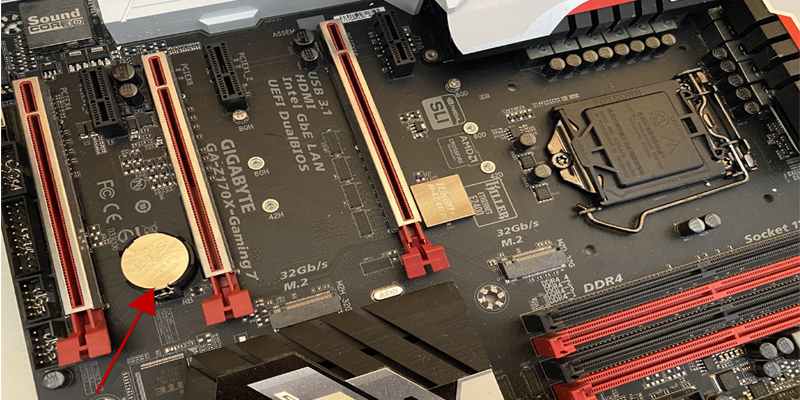
Remove the bottom cover of your PC. From here, look for the CMOS battery and jumpers on the motherboard.
To easily find the CMOS jumper, look for “ CLR CMOS ” on the motherboard.
Usually, you will find three pins where the CMOS jumper is. Jumpers will only be placed on two of those pins. If they are on the first and second pins, move them to the second and third pins. If your motherboard only has two pins, the jumper will most likely be attached to one pin. In this case, plugin both pins.
Next, remove the CMOS battery from its slot. Wait about 15 seconds, then plug it back in.
Move the CMOS jumper back to its original pin.
Put the cover back on the computer, plug in your computer, and turn it on.
On the advanced motherboard, you will find a special button to reset the CMOS settings. It will be labeled “ CMOS “, “ CMOS_SW “, or something similar. You can reset the CMOS settings by pressing this button and holding it for a few seconds. If you’re having trouble finding any hardware components on your PC, check your motherboard manual for help. Alternatively, you can check your motherboard type and find out more online.
Now you know how to fix missing or missing UEFI Firmware Settings in Windows 10. You will find these settings useful when troubleshooting various Windows 10 system problems. If your motherboard does not support these settings, then it is time to consider upgrading the motherboard.
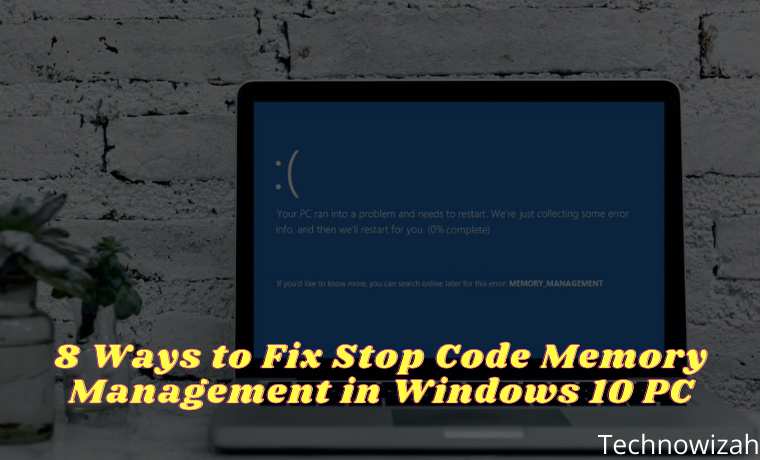
8 Ways to Fix Stop Code Memory Management in Windows – Windows 10 often pops up error messages and stops the code when something goes wrong. When a blue screen of death ( BSOD ) error occurs, you can use the Windows stop code to determine and fix the problem.
8 Ways to Fix Stop Code Memory Management in Windows 10 PC
How to Fix Stop Code Memory Management in Windows 10 PC Laptop
But sometimes, the stop code matters for more specific errors. On the other hand, you may have to work through various Windows 10 fixes. The Windows 10 “Memory Management” stop code involves the latter. In this article, the admin will help you overcome your memory management errors.
Memory management is very important to keep your operating system running properly. Memory management is a function that manages your system memory. Properly functioning memory management is essential to the health of your system. When a memory management error occurs, your system will start displaying a BSOD periodically.
The reason is that memory management keeps track of every memory location on your system, regardless of its state. It manages memory and processes transitions between your RAM and physical memory during execution, deciding how much memory to allocate (and how much is available for allocation). When you close a program, it will either allocate that memory to another processor or mark it as available for use.
Unfortunately, memory management is not free from system errors, just like other systems. And when it crashes, it takes your system with it.
Memory Management Blue Screen Error in Windows
Simply put, a memory management BSOD means there is a critical memory management error. There are several causes of memory management errors that often occur:
Wrong RAM
Problems with new hardware, such as graphics cards
Incompatible drivers
Software problems, including corrupt system and operating system files
Disk error
At times, your system might recover with a simple reset. If you encounter a Memory Management BSOD, restart your system and see if the error returns. If not, there’s a chance it was only once. So how do you guys fix it? Here are some things you can try.
#1. Update Windows 10
The first thing to do is to check if Windows 10 is using the latest version. Outdated system files can cause unexpected errors. Checking for pending updates is a quick and easy way to find out if that’s what’s causing the problem on your computer.
Press the Windows key + I to open the Settings panel. Now, go to Update & Security, then check under Windows Update for any pending updates. If there is an update, save any important files, then hit Restart now. Your system will reboot during the process.
#2. Run Windows 10 Memory Diagnostic Tool
You can use the integrated Windows Memory Diagnostic utility to check if your system RAM is working properly. Memory diagnostic tool runs after system restart. It checks your system memory for errors and records the scan to a text file for analysis.
Type Windows Memory Diagnostic in your Start menu search bar and select the most suitable one. You have two options: reboot immediately and run the utility, or set the utility to run after the next reboot. When you try to fix your memory management BSOD, save all important documents and reboot your system immediately. Windows Memory Diagnostic runs immediately after reboot.
The log files, however, are not visible once you boot back into Windows 10. Press the Windows key + X and select Event Viewer from the power menu. Then select Event Viewer (Local) > Windows Logs > System. Then, in the right column select Find and type MemoryDiagnostic into the box. Hit Find Next. Your diagnostic results will be displayed at the bottom of the window. From there, you need to investigate any specific errors that Windows Memory Diagnostic reports.
#3. Run MemTest86
When Windows Memory Diagnostic shows no error. But you are sure the problem is related to your system RAM. If so, you can use MemTest86 to perform an in-depth memory test. MemTest86 is a free memory testing tool for x86 machines.
You can boot MemTest86 from a USB flash drive (or bootable disk) and leave it to check your system RAM. Now, the MemTest86 RAM check takes a long time to complete, a single test can take hours depending on the amount of RAM you have installed.
#4. Update Your Drivers
Another quick and practical potential fix is to update your system drivers. New software or hardware may come with new drivers, and your system may not receive the message.
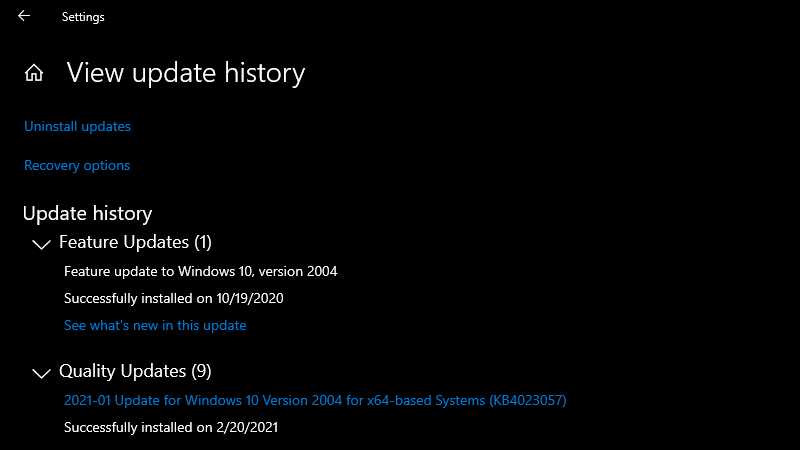
Press Windows Key + I to open the Settings panel, then select Update & Security > View update history. You can find driver updates here. Now, type the device manager in the Start menu search bar and select the most suitable one. Go to the bottom of the list and check the error symbol. If it’s not there, your driver status is probably not the source of the problem.
Note: To make it faster and more practical you can use a third-party tool to update all your system drivers at the same time.
But the common thing that causes Memory Management BSOD problems is that sometimes, outdated or new GPU drivers can cause a BSOD. Check your GPU drivers again and provide the latest updates.
#5. Run CHKDSK
Run CHKDSK
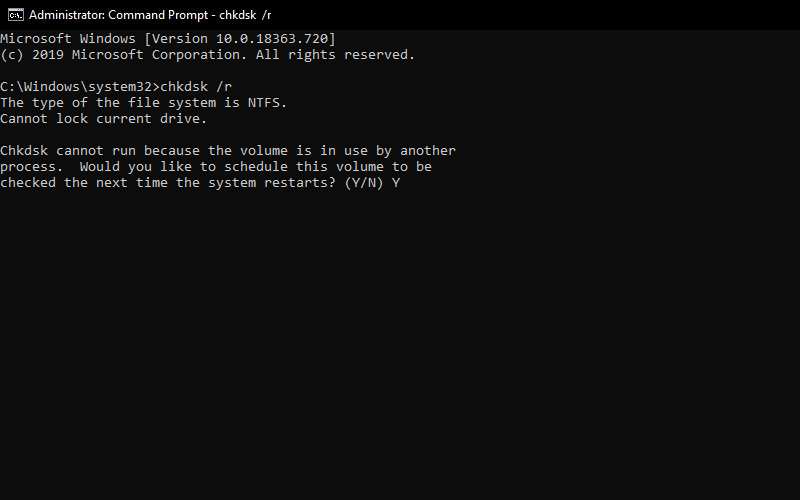
CHKDSK is a Windows system tool that verifies the file system with certain settings has a lot of good features and fixes problems while running. You can run CHKDSK from the Command Prompt.
Type in the command prompt in your Start menu search bar, then right-click the most suitable one and select Run as administrator. (Alternatively, press the Windows key + X, then select Command Prompt (Admin) from the menu).
Next, type chkdsk /r and press Enter. This command will scan your system for errors and fix any issues along the way.
#6. Run SFC
Run SFC
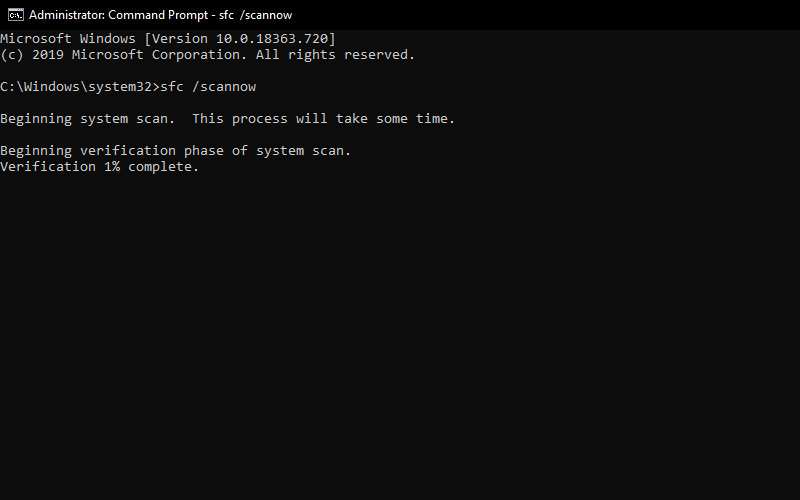
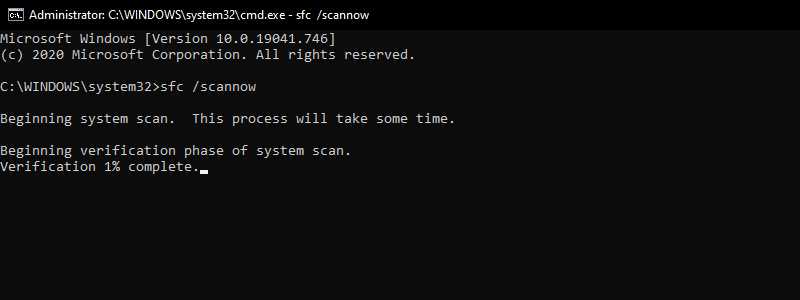
If the Memory Management error still occur? System File Check is another Windows system tool that checks for missing and corrupted Windows system files. It sounds like CHKDSK but SFC checks Windows system files specifically, while CHKDSK scans your entire drive for errors.
But before running the SFC command, it is best to double-check if it works. DISM stands for Deployment Image Service and Management. DISM is an integrated Windows utility with multiple functions. In this case, the DISM Restorehealth command ensures that your next repair will work fine. Perform the following steps.
Type Command Prompt (Admin) in the Start menu search bar, then right-click and select Run as administrator to open a Command Prompt with higher privileges.
Type the following command and press Enter: DISM /Online /Cleanup-Image /restorehealth
Wait for the command to complete. The process can take up to 20 minutes depending on the health of your system. The process seems to crash at times, but wait for it to finish.
When the process is complete, type sfc /scannow and press Enter.
#7. Check Physical Hardware
This is no less important than physically checking your system hardware. Have you moved your system recently? There is a small chance that your hardware was not installed during the process. Maybe it’s just a small chance, but it’s worth a try!
#8. Reset Windows 10 (Last Choice)
Reset Windows 10 (Last Choice)
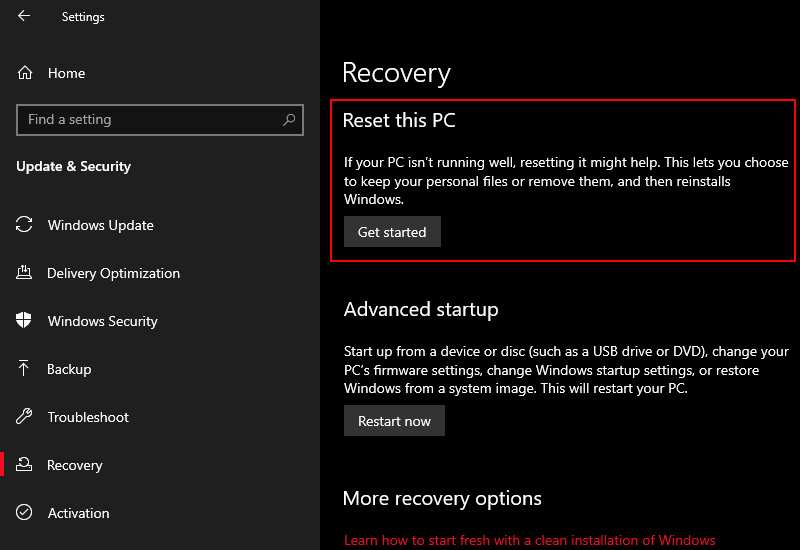
Sometimes no other way than resetting Windows 10 will fix your problem. Reset Windows 10 replaces your system files with a completely new set of files and will instantly remove any problems related to Memory Management errors while keeping most of your important files intact.
Go to Settings > Update & Security > Recovery, then under Reset, this PC select Get Started. Your system will restart as soon as you press the button, so make sure you back up important files beforehand. Your system will restart, then you can choose to Keep my files or Remove everything.
If the Memory Management BSOD error is difficult to resolve. Many things can cause Memory Management errors. However, any of the above fixes will bring your system back to normal so you can continue your work and be free of any BSOD for now.
7 Ways to Fix Error Code 0x80070005 In Windows PC – Does error code 0x80070005 appear when Windows access is denied? If so, here’s how to fix it.
7 Ways to Fix Error Code 0x80070005 In Windows PC
How To Fix Error Code 0x80070005 In Windows PC
Error 0x80070005 is related to access permissions in Windows, sometimes users encounter when they try to update their Windows or install new programs, and they don’t have full access permissions for certain files. So, here’s how to fix error 0x80070005 in Windows 10.
As mentioned above, error code 0x80070005 is the inability to access Windows programs, the first method to solve it is to give full administrative permissions to your Windows account via Settings.
Give Full Permission to the Account
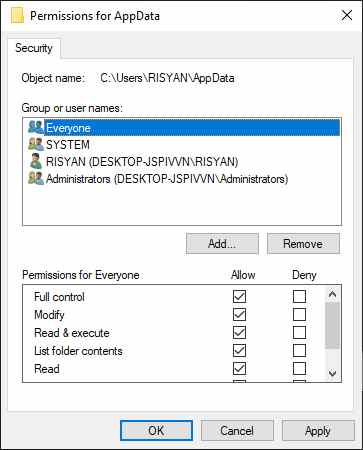
Run Windows Run by pressing the Windows key + R typing C:\Users\USERNAME\AppData in it and clicking OK. Enter the drive where your Windows is installed in the C: place and the username in the USERNAME place.
Now, right-click on App Data and open Properties.
In the next window, go to the security tab and click on Edit.
Click Add.
Now, type Everyone, click Check Names, and hit OK.
Click Everyone and allow Full Control under Permissions for Everyone then click OK.
Now, reboot your system for the changes to take effect. After that, check if the error code 0x80070005 still exists.
#2. Scan for Malware And Virus
This issue is also reported to be caused by malware or viruses that can delete or modify your important system files, such as Windows Registry.
To ensure that your PC is not affected by malware, run the Microsoft Defender application, a free antivirus tool created by Windows to fight malware and viruses.
After scanning, restart your PC and try to install the Windows update. If you still find error code 0x80070005. Then follow the next method.
#3. Perform a Clean Boot
Clean boot is a way to identify the application that is causing problems in your Windows. It works by allowing your PC to start with minimal programs and drivers and helps you figure out which program is causing the problem.
It differs from Windows safe mode in that it gives you a greater level of control in choosing which programs to turn off. Follow the steps below to do this:
Perform a Clean Boot
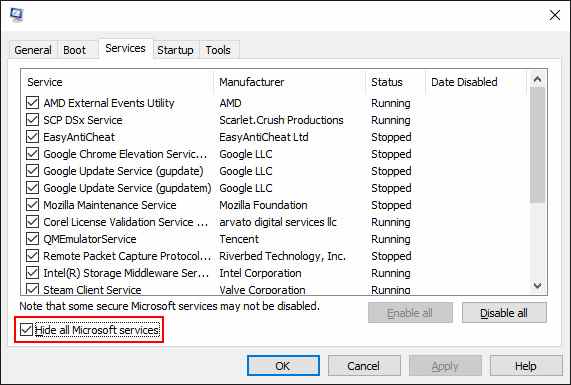
First open the Start menu search bar, type MSConfig, and click on the System Configuration app.
In the next dialog box, go to the Services tab, and check the Hide All Microsoft Services radio box, and click Disable All. After that, navigate to the Start-up tab, and click Open Task Manager.
From there, select any program that you believe is causing the problem and click Disable.
Click OK and close the dialog box. Next, restart your PC to start a clean boot.
When the PC restarts, run the problematic application. If the problem persists, you will now know that it is not because of the program you disabled.
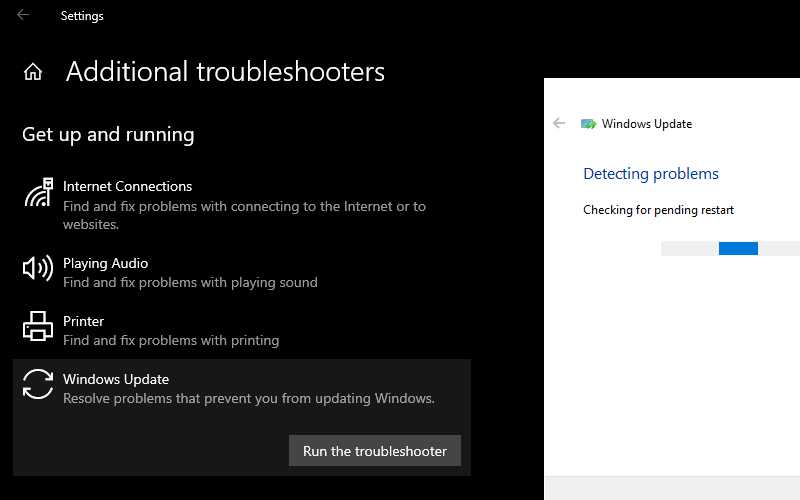
#4. Run Windows Troubleshooter
Windows troubleshooter is a set of integrated tools provided by Microsoft to troubleshoot minor problems in Windows, such as update errors, Bluetooth or audio problems, and so on.
An error in Windows Update may have led you to error code 0x80070005. Follow the steps below and fix the problem.
Run Windows Troubleshooter
Press the Windows key + X and click Settings.
Go to the Update & Security section and click Troubleshoot.
Now, click Additional Troubleshooters, then click Windows Updates.
Grant the necessary permissions and use the tool to fix this error.
If the tool cannot fix the ‘Access is Denied’ error, skip to the next method.
#5. Run SFC (System File Checker)
Windows System File Checker (SFC) is an application that helps users scan and repair their corrupted files, stopping the installation of Windows updates. Follow the steps below to operate this utility tool.
Run SFC (System File Checker)
Type the command prompt in the Start menu search bar, then select Run as administrator.
Type SFC /scannow in the command prompt and press Enter.
If the process runs successfully, you will no longer see the Windows Access Denied error code message.
#6. Reset Permissions with SubInACL
SubInACL is a free command-line application that can help you change permissions for files, folders, registries, and other objects.
Follow the steps listed below to get rid of error code 0x80070005 forever.
Download and install SubInACL. Then, open a new Notepad file and type the following text in it:
Set OSBIT=32
 IF exist "%ProgramFiles(x86)%" set OSBIT=64
 set RUNNINGDIR=%ProgramFiles%
 IF %OSBIT% == 64 set RUNNINGDIR=%ProgramFiles(x86)%
 subinacl /subkeyreg "HKEY_LOCAL_MACHINE\SOFTWARE\Microsoft\Windows\CurrentVersion\Component Based Servicing" /grant="nt service\trustedinstaller"=f
Save the file in All Files and name it to reset.cmd. After that, run the file as administrator by right-clicking and selecting Run as Administrator. Then update the program, and delete the .cmd file.
#7. Update Windows 10 Manually
If you encounter error code 0x80070005 during the Windows update, then a manual update might be the solution for you. To update your Windows manually, you can use the Windows Update Catalog.
Even though Windows updates are downloaded and installed automatically, sometimes glitches arise. And this is where the Windows Update Catalog comes in handy. This is a free website created by Microsoft that offers updates for all Windows Operating Systems.
You can download cumulative updates manually from there even if your Windows automatic updates are not working. Follow the steps below to do this:
Update Windows 10 Manually
Go to Settings > Update & Security > Windows Update.
Select View Update History and note down or copy the Windows update version code. It should look something like KB1234567.
Then, visit the Windows Updates Catalog and paste the Windows update version code in the search bar. Then, click on the Download button, which will display a popup on your screen.
From the pop-up, click the .msu file link to download it. Once the download is complete, click on the .msu file to manually install Windows updates.
After that, restart your system. Your Windows should work fine now. This will resolve the possibility of error code 0x80070005.
So that’s how to solve error code 0x80070005. Admin hopes that one of the methods above can solve the problem. However, if none of the methods have worked, you can use Windows Reset.
 The various categories of IP addresses include private, public, static, and dynamic. Most IP addresses assigned by internet service providers (ISPs) are dynamic, which means that a new IP address is assigned to your device every time you log on to the web. However, dynamic does not mean personal. Because your online activities can be tracked using a dynamic IP address.
 Using a VPN (Virtual Private Network) is one of the best ways to block outside entities from tracking your IP address or IP Address and spying on your online activities. This includes spying carried out by ISPs, search engines, websites, governments, hackers, and ad marketers.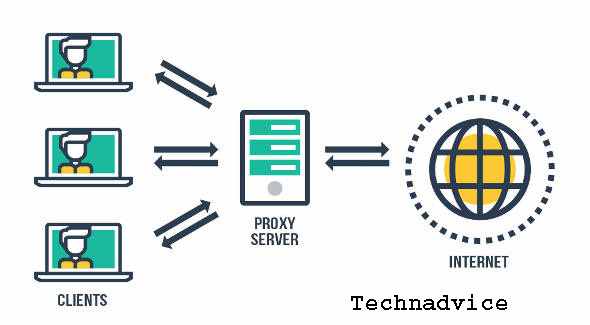





![5 Ways to Fix UEFI Firmware Settings Not In Windows 10 [2025]](https://technadvice.com/wp-content/uploads/2021/07/5-Ways-to-Fix-UEFI-Firmware-Settings-Not-In-Windows-10.jpg "5 Ways to Fix UEFI Firmware Settings Not In Windows 10 [2025] 3")