17 Best Photo Editors Applications Free For Linux – In this article, we will share with you some of the best photo editing apps available on various Linux distributions. These seventeen software lists are not the only photo editors available but include the best and most commonly used by Linux users.
17 Best Photo Editors Applications Free For Linux
Best Photo Editors Applications Free For Linux
#1. GIMP
The GNU image manipulation program (GIMP) is an open-source photo editing tool that has features such as:
image composition
photo retouch
image writing
GIMP is highly customizable and can be installed via third-party plugins and its users are graphic designers, photographers, and graphic illustrators.
#2. Photoshop WINE
Many users who have migrated from Windows to Linux may have used this software. Photoshop is one of the most popular photo editing tools available. Although you can’t install it directly on Linux, you can use WINE to install it and use it on many Linux distributions.
WINE helps Linux users to use some of their favorite Windows programs on Linux and Photoshop is just one of them.
#3. Inkscape
Is an illustration editor that has everything you need to create professional-quality computer art. You can use it to create diagrams and illustrations, technical drawings, web graphics, clip art, icons, and logos. There is excellent support for gradients, layers, alpha transparencies, and text flow control.
The software also has an extensive filter library that allows you to apply realistic effects and extensions with bitmaps and barcodes among other things.
Most common vector formats are supported, including PDF, Adobe Illustrator, and AutoCAD files, and have to support the SVG web graphics standard.
#4. Krita
A creative Linux photo editing application for raster images. Unlike other graphic design programs. It has a pluggable engine, some support resources like Gimp files, others offer an advanced simulation of real, color mixing, and image deformation.
In addition, Krita has full support for graphics tablets, including features such as pressure, tilt, and speed, making it a great choice for artists.
There are easy-to-use tools for drawing lines, ellipses, rectangles, and hand tools supported by a useable “drawing assistant” that help you draw shapes that still have a hands-free feel to them.
#5. ShowFOTO
ShowFOTO is a standalone image editor under the digiKam project. It’s free and comes with all the standard photo editing functionalities like transformations, adding effects, filtering, metadata editing, and much more.
This app is light and not feature-rich though, a good image editing app does not require any other software to run.
Do you want to remove the background of any images without any skill, well, then just try the free image background remover.
#6. RawTherapee
RawTherapee is a free, open-source photo editor for optimizing digital images. It’s feature-rich and powerful when you need quality digital images from RAW image files. RAW files can be modified and then saved in a compressed format as well.
It has many features as listed on the project homepage including:
various cameras supported
exposure control
parallel editing
color adjustment
option of using the secondary screen
metadata editing and more
#7. Fotoxx
Fotoxx is also a free and open-source photo editing and collection management tool. It is aimed at dedicated photographers who need simple, fast, and easy tools for photo editing.
It offers photo collection management and an easy way to navigate the collection directory and its subdirectories using the thumbnail browser.
It has the following features:
use a simple click to change the photo
the ability to improve photos in many ways
artistic photo transformation like animation
access to work with meta-data and more
#8. AfterShot Pro
AfterShot Pro is a powerful, fast, highly flexible, and pluggable photo workflow and management software. It offers RAW processing functionality and advanced non-destructive photo editing.
You can save images in folders and use the meta-data tool to search for images by keywords, tags, even camera settings, and more. It’s up to 30% faster under the new 64-bit performance.
#9. Darktable
Darktable is a free and open-source photography workflow software and RAW file, developer. It is a virtual light and darkroom table for photographers that helps them manage digital negatives in a database.
#10. Pinta
Pinta is also an excellent photo-editing application that functions similarly to Windows Paint.NET. Think of it as a Linux version of Windows Paint. This app is simple and easy to use which allows users to do quick photo editing.
#11. F-spot
It is a free and open-source photo editing and management software, featured for the Gnome desktop environment. F-spot allows users to easily edit, modify, save, organize, find, and share images.
It has the following user features:
Photo editor with rich color adjustment function
Tag icon editor
export image to the web
make a photo CD CD
#12. UFRaw
UFRaw which stands for “Unidentified Flying Raw” is software that reads and manipulates RAW image files from various types of digital cameras. You can use it standalone as standalone software or as a GIMP plug-in.
UFRaw uses Dave Coffin’s raw conversion utility, DCRaw to read raw images, and its color management workflow is based on Little CMS. This allows the user to apply an ICC color profile to the image being edited.
#13. Gallery GTKRaw
GTKRawGallery is a free and open-source workflow-oriented photo editing and retouching software. It also works with raw color 16-bit depth camera images using tools like Exiftool, Dcraw, and Imagemagick.
This allows the user to do the following:
image browser and photo album manager
image modification tool for 16-bit/channel post-processing
Batch Processor to speed up workflow and batch conversion with different styles available
quick image tagging
Color management
print support
Advanced Metadata Editor
dropbox uploader
Facebook, Flickr, and Picasa Web Album Publishers
#14. LightZone
LightZone is also a free and open-source photo editing software for photographers that offers processing and editing of RAW files.
It offers powerful, highly flexible, and customizable tools that users can build in a stack. The tool stack can be turned on or off, re-adjusted, and rearranged to suit the needs of users in different sessions.
#15. Pixeluvo
Pixeluvo is also a powerful layer-based image editing software that offers its users RAW image processing, color correction tools, different image enhancement filters, and much more.
It has the following features:
fix perspective distortion
Add a sketch to your photo
change the impression of an image with Quick Color filters
add text or captions to your images
removes JPEG compression noise and artifacts
improve image details
add tilt-shift effect to pictures
clone tool
text tool
warp tool
filter brushes and more
#16. Photivo
It is also an open-source free photo-editing application for Linux users. Its feature-rich can also offer processing of RAW files and bitmaps under 16-bit processing in a non-destructive manner. It is known to have some of the most powerful and flexible photo editing algorithms available.
It has the following features:
Internal 16-bit processing with LCMS2 Warna color management
work with RAW and bitmap files
Gimp workflow integration for import and export
adaptive saturation.
film grain simulation
cross processing
black and white conversion.
#17. DigiKam
It is a great open-source software and photo editor for dedicated photographers on KDE, it offers easy-to-use functions to enhance usability.
It has the following features:
directory for tutorials on how to use it
facial recognition support
easy import and export of photos to various formats
Conclusion:
This is the explanation of the 17 best photo editor applications free For Linux, Thank you for finding and reading this useful article. If you are interested in articles about other technologies, please read them only on the Technowizah.com website.
How to Install and Setup Kodi Properly – This Kodi installs and setup guide is for Kodi version 17 users. If you are using an older version, most of the menu options in Kodi 17 look very similar. So, you can also apply this guide to older versions of Kodi.
How to Install and Setup Kodi Properly – Complete Guide
How to Install and Setup Kodi Properly – Complete Guide
The best thing about Kodi is that some so many options and customizations can be done.
So that Kodi can be truly ours, starting with skin settings, backgrounds, and of course third-party add-ons/add-ons.
However, that doesn’t mean you can easily install and configure everything, it can be said to be quite complicated, especially for those of you who are new to Kodi.
Complete Guide Kodi Installation & Settings
Kodi has a huge community of users, developers, and of course a great collection of Kodi Wikis.
This will be a tremendous resource once you start using it, even to the point of updating your own Kodi setup.
Currently, there are not many websites or blogs in Hindi that discuss Kodi.
Discussing the installation and settings, to discussing third-party add-ons that further enrich Kodi itself.
However, English-language websites or forums can be found, and for those of you who don’t understand English, installing and setting up Kodi can be a bit challenging.
While there are still many Kodi guide Wikis that provide a good overview, sometimes those Wiki guides don’t provide a clear enough way to do it.
Guide How to Setup Kodi
If you are new to what Kodi is and are just about to start from scratch, then you can read this Kodi installation and setup guide from start to finish to the complete installation.
Or, you can use the table of contents below to skip to the section you want and ignore the rest.
Kodi works on a lot of different hardware and has so many options and settings, that we think explaining them one by one, is almost impossible.
However, if you follow this guide, we believe you are on the right track, you can easily know and understand the basics according to Kodi itself.
So, whatever the device, and the OS, we believe you can install & set it up with ease.
One thing you should know is don’t be afraid to make mistakes when trying the Kodi installation and setup process.
Because you can always reset (reset) Kodi and start over again if you mess up the settings & settings.
Especially for setting up third-party Kodi Add-ons.
What is Kodi?
Kodi, formerly known as XBMC, is a thriving open-source entertainment media hub that started as an amateur project to play content on the original Xbox.
Versions of Kodi, generally named after popular sci-fi movies, comic books, or other general certificates, include:
XBMC v8.10 Atlantis (2008) – (Stargate)
XBMC v9.04 Babylon (2009) – (Babylon 5)
XBMC v9.11 Camelot (2009) – (King Arthur Mythos)
XBMC v10.0 Dharma (2010) – (Lost)
XBMC v11.0 Eden (2012) – (Garden of…)
XBMC v12.0 Frodo (2013) – (Lord of the Rings)
XBMC v13.0 Gotham (2014) – (Batman)
Kodi v14.0 Helix (2014) – (Helix TV Show)
Kodi v15.0 Isengard (2015) – (Tolkien)
Kodi v16.0 Jarvis (2016) – (Tony Stark – AI)
Kodi v17.0 Krypton (2017) – (Superman)
Kodi v18.0 Leia Beta version (2018) – (Star Wars)
Latest Kodi Features – Kodi v17 Krypton
Most of the previous Kodi features were in Kodi v17 Krypton, the latest update was added and one of the main things we noticed right away was the new Basic Appearance/Theme (default skin).
Kodi v17 modern base theme comes with two new default skins (new themes), Estuary for most devices & Estouchy for mobile devices using touch screens.
This skin replaces the primary Kodi interface based on the familiar central screen ribbon with the generic left-hand menu interface for some other streaming services.
That was, a glimpse of what Kodi is, and some versions of Kodi that you should know, as well as modern features of Kodi v17 Krypton.
Meanwhile, for Kodi v18 Leia is still in the Beta term, namely the development & testing phase.
Now, it’s time for us to install & set up Kodi.
How to Download & Install Kodi
As we said earlier, Kodi runs on a lot of hardware and on all the OSs that are popular today.
So, before you download & install Kodi, you must first make sure the device and OS you are using to install Kodi.
Kodi download & installation depends on what device and OS you are using, as there are several different options on how to install Kodi.
Whereas for Android users you can install Kodi directly from the Google Play Store.
Once you find the correct implementation of the latest version of Kodi, go through the download and installation process as usual.
Next is how to set up Kodi, so that it can be used easily as an entertainment medium for your home.
How to Use Kodi
We assume that this is your first time setting up and installing Kodi, we will give you a brief way of navigating the Kodi interface (view).
Older versions of Kodi had primary controls placed on a ‘ribbon’ along the center of the screen and were configurable to an exclusive extent.
Kodi 17 introduces a new skin (theme) that aligns everything along the left side of the screen to suit Netflix and Plex.
This main menu by default includes categories such as:
videos,
Film,
TV shows,
Music,
Music Videos,
TV,
Radio,
Picture,
Add-ons, and
Weather.
Depending on the theme, you can sometimes add additional categories or hide the ones you don’t use.
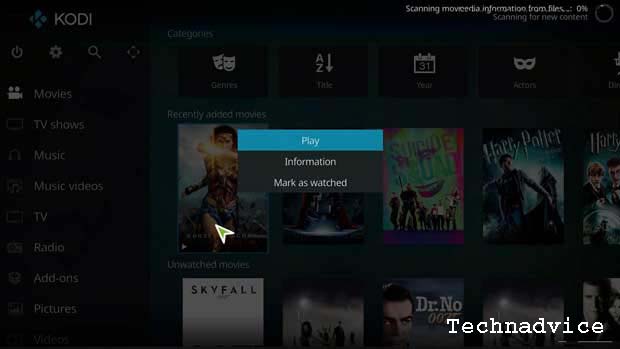
Context menu
The Context Menu will provide additional functionality depending on which screen you are on when you click on it.
As a model, in the image above, I open the contextual menu for the movie – Wonder Woman.
Here, the context menu gives us the option to play the video, mark it as watched, or view additional coverage of the film.
On other screens, the options you see may differ depending on the type of media itself.
To view the Context menu, depending on the type of device you are using, i.e. Kodi made:
Android: Press / Click the Menu and Hold for a while
Mouse: right-click
Keyboard: ‘C’
Amazon Fire TV: Menu button
NVIDIA Shield Controller: ‘X’ Button
Kodi Setup for Offline (non-streaming) Media Files
In this post, we will show you how to set up Kodi for offline media files.
So, media files such as music, movies, or TV series, are files that have been downloaded or rip by DVD or Blu-ray.
Which is then copied into the storage space that will be used by Kodi later.
Kodi Setup Guide: Video Library
One of the most important steps in setting up Kodi is creating your media library.
Let’s start with adding videos to your Kodi library.
If you haven’t copied (rip) your DVD or Blu-ray movie collection to your hard disk, you’ll need to do that first.
Or if you have a collection of videos or movies that you downloaded earlier, just add them to your external hard disk or flash or memory card that is connected to your device with Kodi installed.
Before you start adding any archives on your hard drive (HDD, flash, memory card), there are a few things you must do first.
Kodi runs media archives using proprietary formats, and each format differs between movie or TV show files.
If the file name is not registered correctly, then Kodi may not be able to run it.
Kodi uses a process called scrap to pull data from the archive.
If Kodi can’t read the file properly then it can do error one based on these two things:
Kodi may ignore files and skip them while creating a movie/video library for you, or
Worse still, Kodi thinks it’s the wrong movie/video file.
How to Set Up a Kodi Media Library
There are two common ways to organize Kodi media folders:
Folder containing all media files
Every movie, Music, and TV Series is in its folder
It all depends on how you want to set it up.
But we recommend that you manage your media files in separate category folders.
This makes it easier if your media files are large, and will likely continue to grow larger over time.
How to Add Movies to the Kodi Library
Kodi uses generally the same process to add Movies, Music, or Images to your Kodi media library.
Of course, there are differences, but the three processes will all start in the same way.
If you skip this section & plan to ignore the Add Music or Add Images sections, then you will see the same poly captions repeated.
However, it is a good idea to read each topic, because there will be some specific information for each section that will not be included in the other 2 sections.
Start by scrolling down to Movies on the menu.
Once you are there, click on the button that says Enter Files Section.
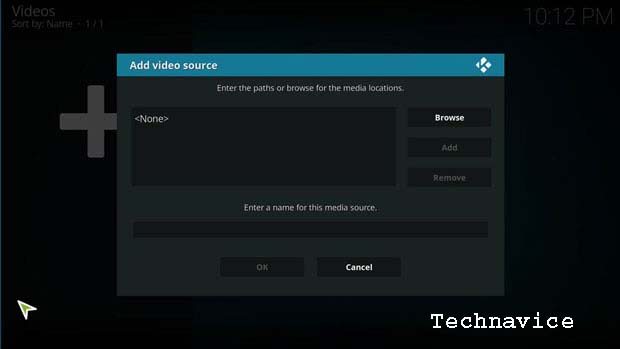
If you don’t have anything in your Kodi library, it will take you directly to the screen below.
You can directly type the path or address of the drive and folder where you store your media locally (HDD, Flashdisk, Memory Card).
Or you can click the browse button and browse & navigate yourself to the drive & folder where the media files are stored.
You can even add media files that have been shared within your local network.
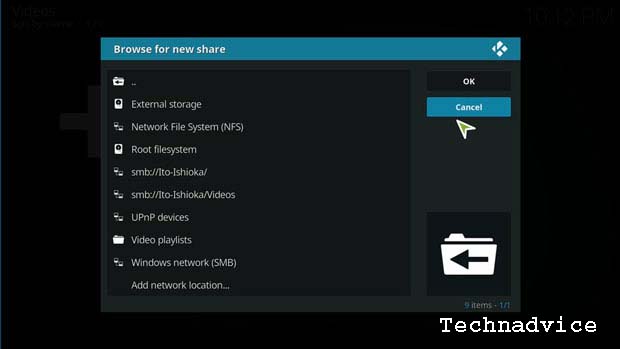
In this case, we will put a model of how to retrieve the media archive from the local network.
You’ll see the multiple media archives listed in the screenshot above, along with multiple subfolders.
If your storage device is not on the list, you can click “Add Network Location” at the bottom of the list.
Or if you save it on an external storage device, you can specify the “External Storage” menu, and if it’s in the internal storage you can specify “root filesystem”.
Then you can browse or search for the drives and folders where your media files are stored.
Kodi Setup for Online (Streaming) Media Files
When running entertainment media files such as videos, music, and images offline, this means that Kodi acts as an Offline Media Player, like other video, and music player applications.
The advantage of Kodi compared to other media players is that it can run media files stored on other online storage media such as Open Cloud, Google Drive, and other media storage servers.
That is, we can run or play videos, music, and pictures online or in other terms do exclusive streaming based on online storage servers.
Just like when we stream movies directly from lk21.
What sets it apart is that you won’t get a lot of pop-up screens that occur in the browser when we try to stream directly from an internet browser like Google Chrome or Mozilla.
This means that you won’t find a lot of ads on Kodi when you’re streaming privately.
Because Kodi fetches media archives exclusively according to the server where the media files were stored.
To do this, you are required to install a Kodi Add-on or add-on. Especially Add-ons or add-ons according to third parties.
In addition, you are also required to make special settings so that then you can just stream & enjoy home entertainment easily, without having to download.
How to Install and Setup Kodi Add-ons
Add-ons are the heart of Kodi.
Many people will argue that without third-party developers creating add-ons and adding additional functionality, Kodi would never be as popular as it is today.
Kodi includes the Official Kodi Repository filled with hundreds of add-ons provided and supported by either the members of the Kodi Team or the developers they trust.
You can find add-ons for anything you want, for example:
Theme,
streaming,
Sport,
Live TV, and much more.
There are many unofficial repositories on the Internet that you can download add-ons from.
How to Install & Setting the Official Kodi Add-on
In this section, we will show you how to install the Kodi Add-on officially.
Namely:
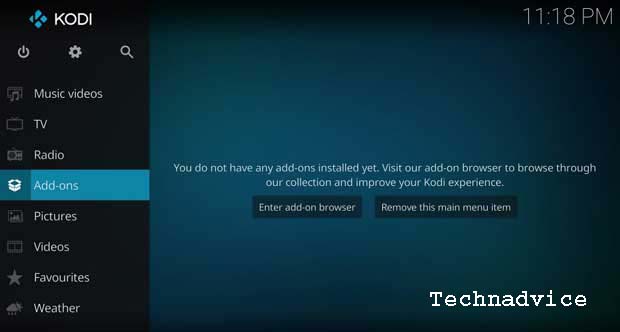
The easiest way to install Kodi add-ons is to scroll down to the Add-ons menu and then Enter Add-on Browser.
Browser Add-ons/ Kodi Add-ons
Once you open the Add-on browser, you will find several different options.
My Add-Ons: This will bring up a list of all add-ons, grouped by category, and whether they are enabled or disabled on this Kodi installation.
Install from Repository: These are all the add-ons available for installation in the official Kodi repository.
Install from Zip File: This is how to install Add-ons that are not in the official Add-ons list. In other words, this is how you install unofficial Add-ons and explore them. To do this, it gets a little more complicated, and we’ll cover that below (keep reading this article).
Search: If you know what add-on you are looking for, or just have an overview of the topic, you can enter it here and see the results.
Recently Updated: This will show the add-ons that have been updated.
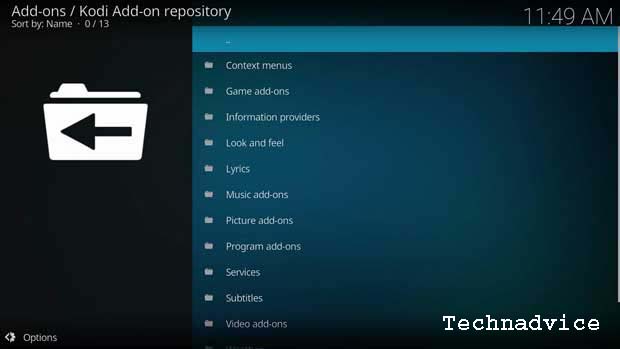
For our purposes, we will be installing error one of the official video add-ons, so click Install from Repository.
Add-ons are broken down into asynchronous categories such as the Context menu, Program Add-ons, & Look and Feel Add-ons.
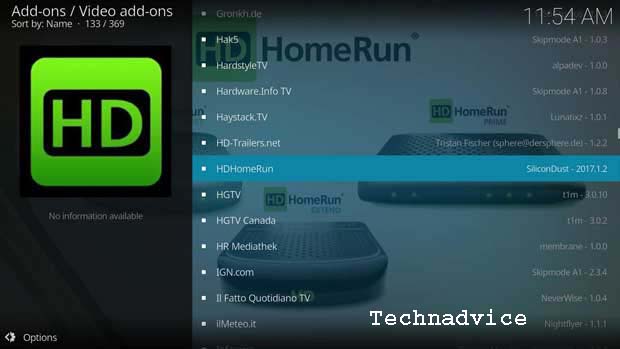
As a model, we will install the official Kodi Video Add-on.
In this model, we will install the HomeRun HD tuner addon.
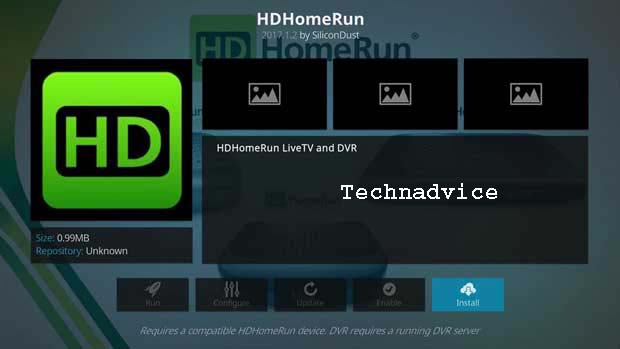
Once you’ve selected the addon you want to install, you’ll be taken to a screen with a brief description and some additional options.
Since we haven’t installed the add-on, most of these options are not available to us.
Click Install to continue.
Once you have decided to install the add-on, you will be taken back to the Add-on Browser and the installation will begin.
You will receive a notification when the add-on installation is complete.
Once that happens, click return to addon and all clicked options on the drawing page will now be available.
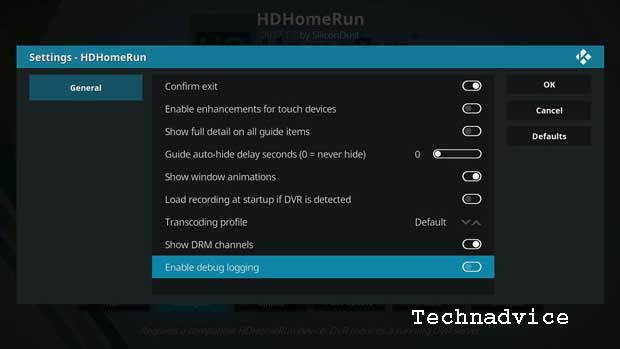
The one you probably use the most is the Configure button.
This is where you’ll find whatever options the addon programmer has enabled.
Many add-ons have nothing on this screen, so don’t be surprised if it’s empty.
Kodi now gives you the option to configure each add-on to automatically update itself, or never update.
Generally, I set add-ons to update Kodi automatically because I want to make sure that I have a modern version with new features or bug fixes.
But, sometimes, updating an add-on will cause it to crash, so this allows you to find a working version & keep it indefinitely.
How to Install and Set Up Unofficial Kodi Add-ons
The advantage that Kodi has is that many independent Kodi add-on developers leave the freedom for us to use them.
But this is still a controversy because most people think that this is illegal.
Just as you stream directly from streaming sites such as LK21, that is also actually illegal, so don’t be surprised if today these sites can still be opened, but tomorrow they will be blocked & as “positive internet”.
So, we provide this method to you for general knowledge only, if you intend to continue and use it, at your own risk.
We are not responsible if something happens to privacy or lawsuits regarding intellectual property.
Before we install and set up unofficial Kodi add-ons, it’s a good idea to know first, trusted (unofficial) third-party add-ons.
Even if you use an unofficial Kodi add-on from a third party, you must make sure that the add-on is bona fide.
For that, here we provide a list of the 10 best and most trusted third-party add-ons in 2024:
Covenant
Exodus (Version 8)
The Magic Dragon
Nemesis
Incursion
Exodus Redux
Yoda
Maverick TV
Gen-X
Movie Theater Butter
From the list of 10 add-ons above, in this article, we only provide 1 example of installing and setting up the Kodi add-on.
And as a model, we will install the Kodi Exodus Add-on.
This guide will show you how to install Exodus Kodi Addon on Kodi 18.0 Leia and Kodi 17.6 Krypton.
The steps given in this tutorial work for Kodi on PC, Amazon Fire TV Stick/ FireStick 4K, Nvidia Shield, Android, and other Android TV Boxes.
Exodus is one of the best third-party Kodi Addons for users who love to watch movies, TV Shows, Anime, Documentaries, and Sports.
How to Install and Setup the Kodi Exodus Add-on
You need to know, if this is your first time installing a third-party Kodi Addon, I’m sure the “Unknown Sources” option is still disabled in your Kodi program.
Therefore you need to enable it to be able to download and install the Kodi Add-on that arrives from an unofficial Kodi developer.
Next, follow these steps to install the Exodus Add-on on Kodi.
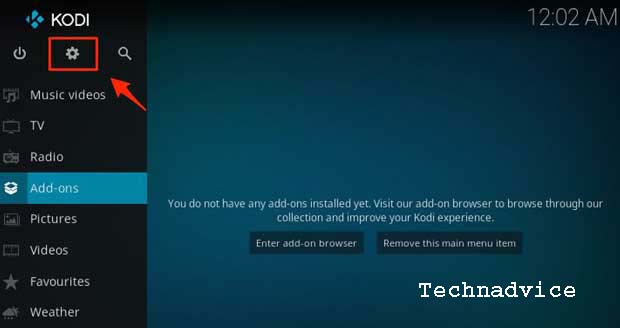
Step 1: Run your Kodi App, according to the device and OS you are using.
Step 2: Click the Gear (Settings on the left of the screen)
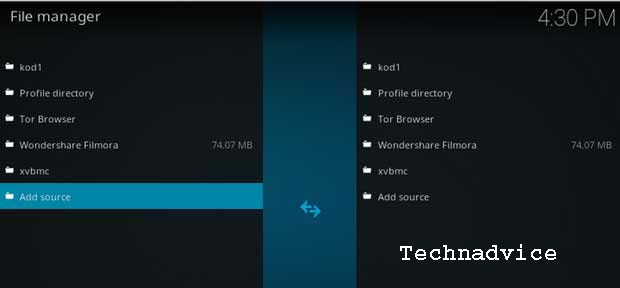
Step 3: Open “File Manager” then click “Add Source”
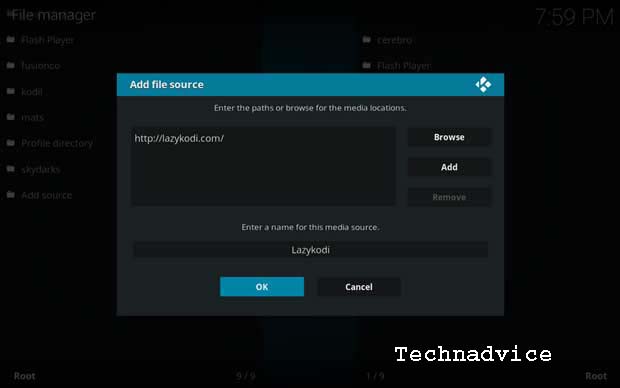
Step 4: Replace “None” with this URL – http://lazykodi.com/ then name it “Lazykodi” in the name field. Then click OK.
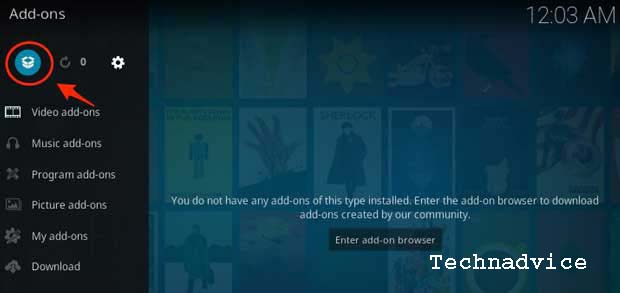
Step 5: Go back to the Kodi home screen. Click “Add-ons” on the left side of the screen, and then open “Package Installer” at the top left of your Kodi screen.
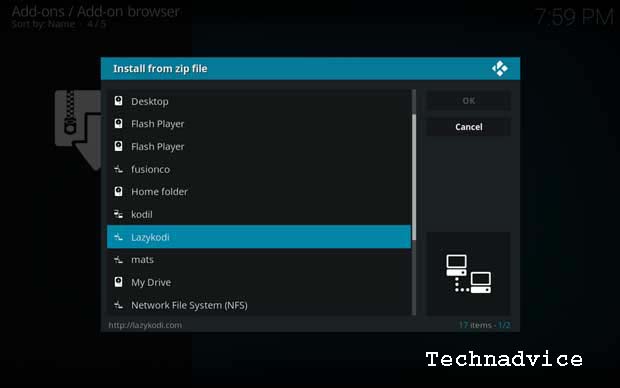
Step 6: Open “Install from Zip File” and Click on “Lazykodi”
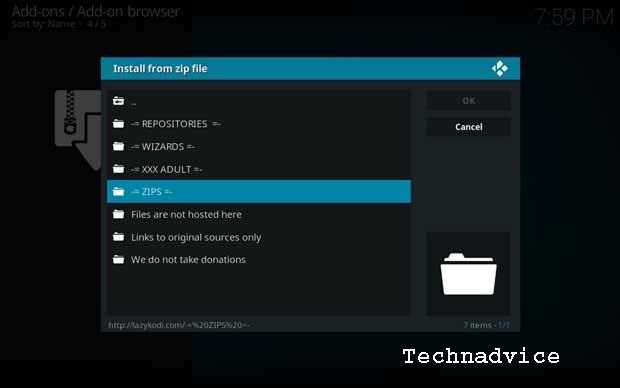
Step 7: Click “ZIPS” to install the “KodiBae repository” for Exodus.
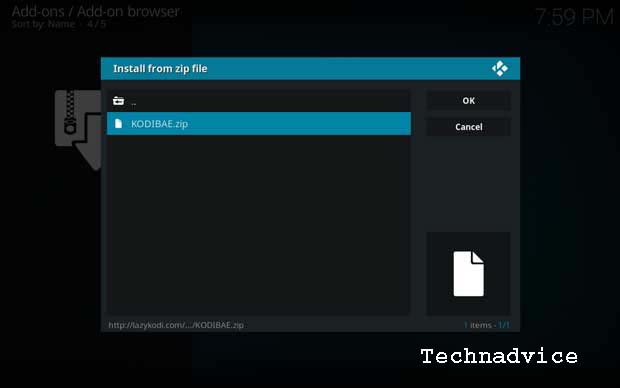
Step 8: Click “KODIBAE.Zip
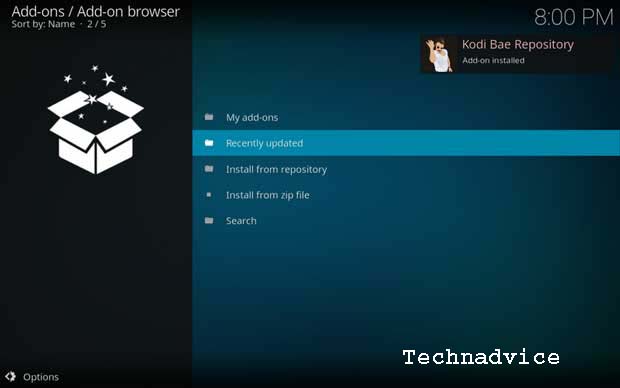
Step 9: Wait for the successful notification to appear on the top right of the screen. After the “Kodi Bae Repository Add-on is installed” notification, you are ready to proceed with the next step.
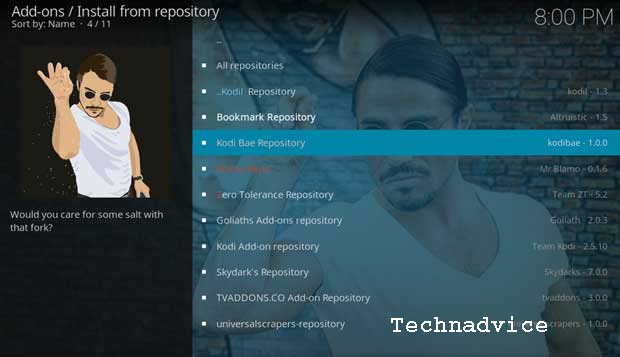
Step 10: Click “Install from Repository” and select “Kodi Bae Repository”
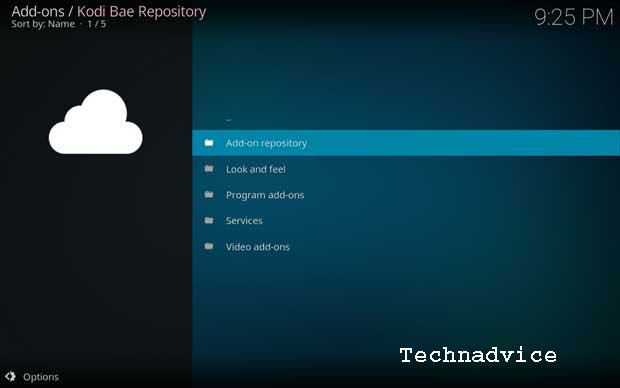
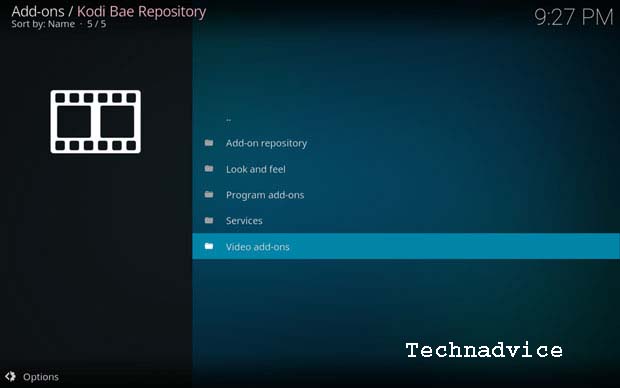
Step 11: Open “Add-on repository”
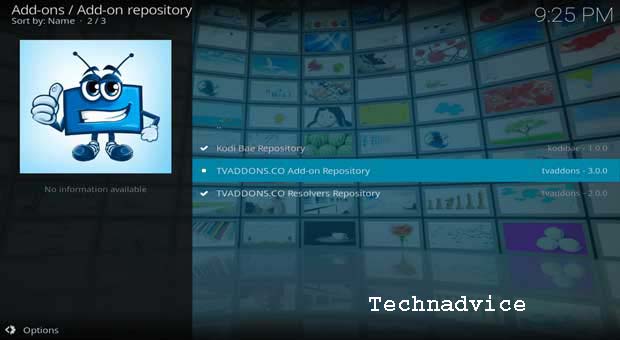
Step 12: Click “TV ADDONS.CO Add-on repository”
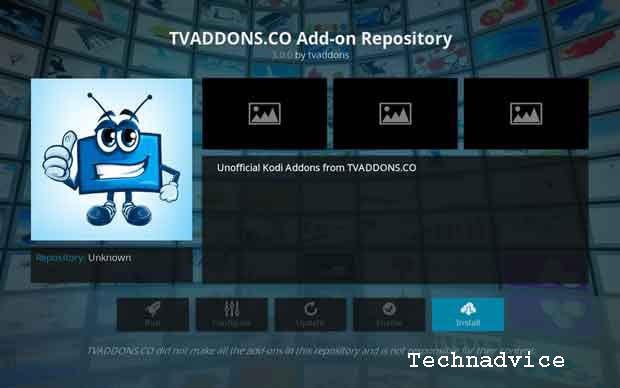
Step 13: Click “Install”
Step 14: Now go back to the Kodi Bae Repository and Open the “Video Add-ons” folder.
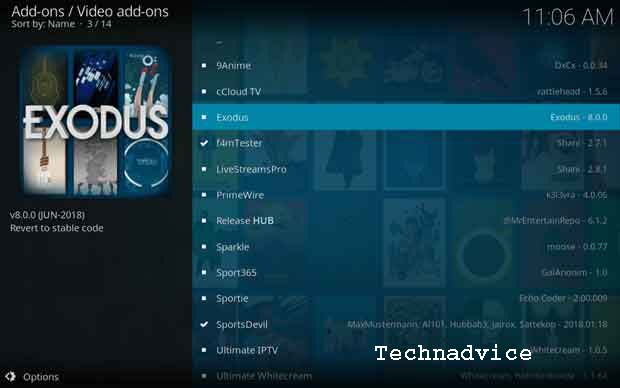
Step 15: You will see a list of Kodi Add-ons on your screen. Find and open “Exodus.”
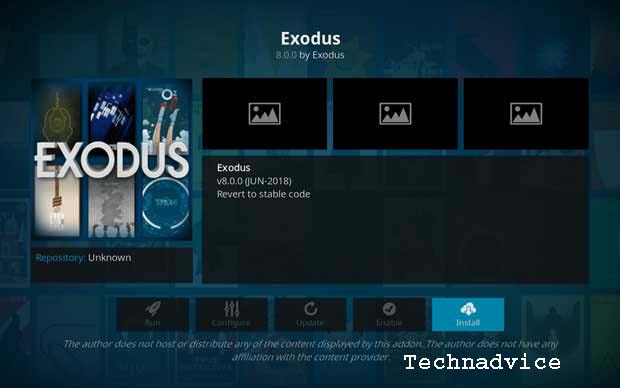
Step 16: Now click “Install” to complete the installation process.
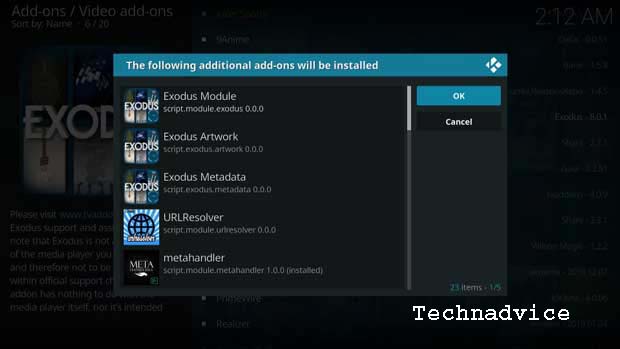
Note: If you installed Exodus in Kodi 18.0, you will see the following prompt after clicking Install above. This prompt lists all additional addons that will be installed using the Exodus addon. Click ‘OK to continue
Step 17: Wait for Exodus Kodi Addon to download and install from the Kodi Bae Repository. Once you get the success notification on the top right of your screen, you are done with the installation process.
Conclusion:
This is the explanation of how to install and set up Kodi properly. Furthermore, we will continue to update, legitimate third-party add-ons, to enrich your Kodi usage.
How to Force Close an Application on Windows 10 PC – It’s frustrating when you have an application that doesn’t respond to use. But turning off the computer manually by pressing the power button can result in damage to your computer. Instead of waiting for the app to respond, here’s how to force close an app on a Windows 10 PC in three ways.
How to Force Close an Application on Windows 10 PC
How to Force Close an Application on a Windows 10 PC Using a Keyboard Shortcut
Click on the frozen application. You have to select an application so that your computer knows that it is the one to close.
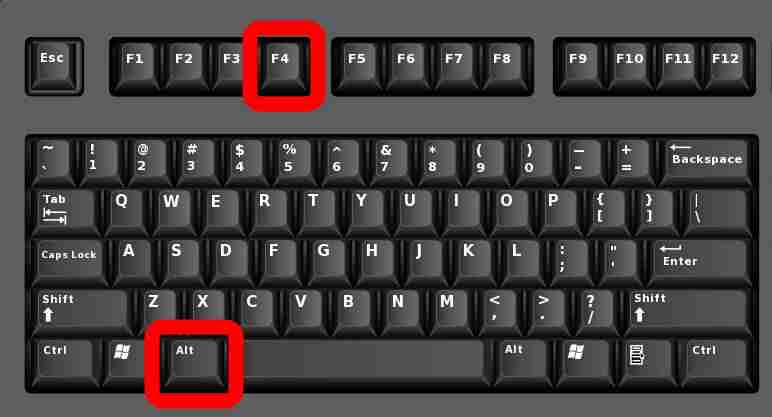
Next, press the Alt + F4 keys simultaneously. The F4 key is on the top of your keyboard, while the Alt key is on the left of most keyboards.
If you don’t select a window or application, this shortcut can cause your computer to shut down. If these keyboard shortcuts don’t work on your Windows 10 PC, or your laptop doesn’t have an F (function) key, you can use Task Manager.
How to Force Close an Application on a Windows 10 PC Using the Windows Task Manager
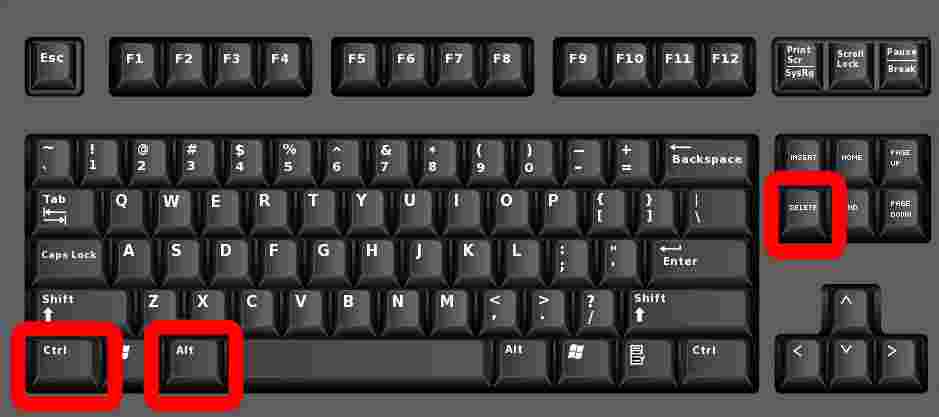
1. Press the Ctrl + Alt + Delete keys simultaneously. Will display a screen that says, ” Preparing security settings ” before you see a short task list.
Note: The “delete” key is not the same as the “backspace” key. If you don’t have the delete key, try pressing Ctrl + Shift + Esc to open the Task Manager window.
2. Then select Task Manager. This is the last option on the list.
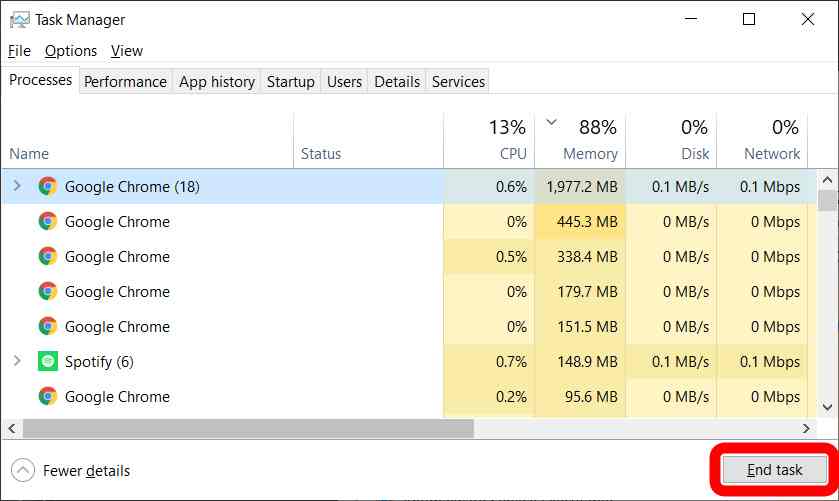
3. Click the application that you want to force quit. If you don’t see the app in the list, make sure to hit the More details button in the lower-left corner of the window.
4. Click the End task to close the program.
How to Force Close an Application on a Windows 10 PC using Command Prompt
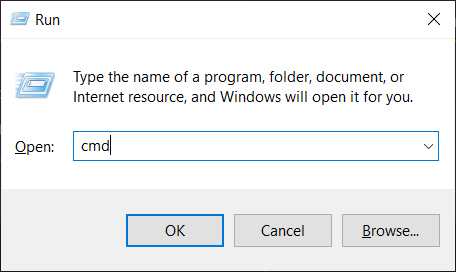
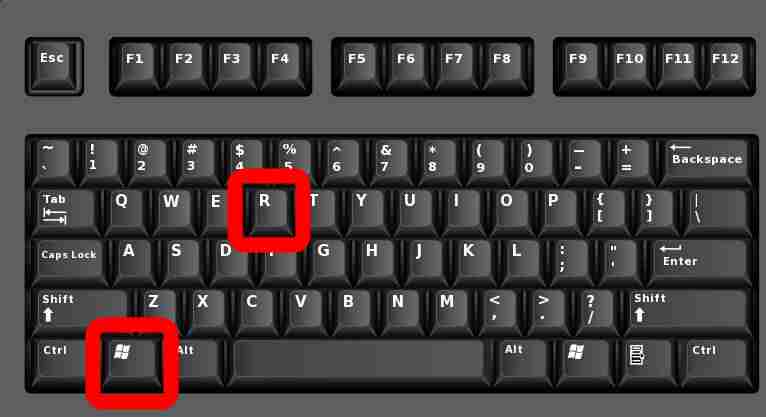
1. Click the Windows key + R on your keyboard simultaneously. The Windows key is the button with the Windows logo to the left of your spacebar.
2. Then type “cmd” in the search box and hit enter on your keyboard
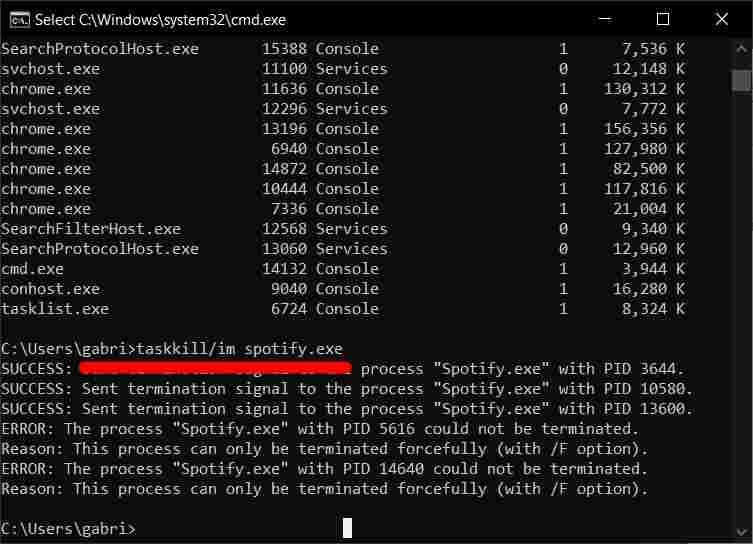
3. Type “tasklist” into the Command Prompt. It displays all tasks and programs running on the machine, including those with problems.
4. Finally, type “taskkill / im {name_of_program} .exe” Replace {name_of_program} with the name of the program you want to force quit. Remember to put a space between “taskkill im” and the program name.
5. Finally, hit enter on your keyboard.
For example, if you wanted to force quit Microsoft Word, you would type “taskkill / im word.exe” and press enter. The Command Prompt will send a confirmation message that the task kill was successful.
This is the explanation of how to force close an application on a Windows 10 PC, If you are using this shortcut to force quit apps frequently, it may be time for you to run a check of your PC.
4 Ways To Disable Laptop Keyboard in Windows 10 PC – Some laptop users are less comfortable using the default keyboard and prefer to use an external keyboard.
4 Ways To Disable Laptop Keyboard in Windows 10 PC
How To Disable Laptop Keyboard in Windows 10 PC 2024
For example, I prefer to use a mechanical keyboard that has a better sound and feel compared to the laptop’s default keyboard.
This is the explanation of 4 ways to disable a laptop keyboard in Windows 10 PC, After that, you can bring up a virtual keyboard (On-Screen Keyboard) on the laptop screen as a substitute for the keyboard that has been disabled.
Microsoft Office 2016 Product Key Free {100 % Working} – If you are searching on the internet for a fully functional Microsoft Office 2016 product key and the latest free method to activate Office 2016 for a lifetime, then, you come to the right place now, in this post, I will share with you a tested product key for MS Office 2016 Professional. or many more versions of office 2016 updated all keys daily basis.
Microsoft Office 2016 Product Key Free {100 % Working}
you can find a perfectly working product. A lot of people facing problems on the internet can find the perfect way to activate their Office 2016 for all versions of Office 2016 Professional Special Product Keys, most of the searches are because it is not a free Microsoft product.
So please don’t worry about this, I share with you the 2016 full working keys every week new product keys are added to the list for more people to enjoy, and no more trouble searching for activation keys.
Microsoft Office 2016 is the latest version of Microsoft Office that succeeds Microsoft Office 2013. The Microsoft Office 2016 product key is the key that will allow you to work with Office 2016 Professional Plus.
If you use Office 365, you can easily upgrade to Office 2016 with MS Office 2016 product key. These serial keys are the best and most popular software released by Microsoft which has also added many programs such as Word, PowerPoint, Excel, Outlook, Access, and Microsoft One.
Microsoft Office is one of the most popular packages of other software utilities for processing files. texts, tablets, and presentations. It’s still quite expensive for the average consumer, as popular as it is. Therefore, consumers have turned to key generators, which sometimes lack efficiency and free download of the key products for Office 2016.
This article gives you some on a silver platter to solve this problem, you just need to choose it and copy it. if requested by the Office. The second is to describe a guide on how to use Microsoft Office Professional 2016 Product Key license keys. Third, a detailed guide on how a third-party application can recover lost keys.
MS Office 2016 Product Key [Updated]
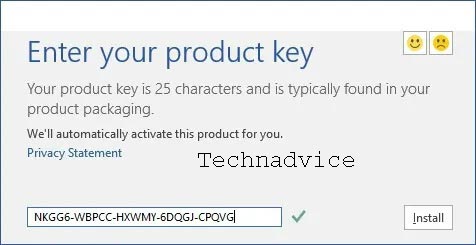
NKGG6-WBPCC-HXWMY-6DQGJ-CPQVG
9C2PK-NWTVB-JMPW8-BFT28-7FTBF
PD3PC-RHNGV-FXJ29-8JK7D-RJRJK
GNH9Y-D2J4T-FJHGG-QRVH7-QPFDW
JNRGM-WHDWX-FJJG3-K47QV-DRTFM
DR92N-9HTF2-97XKM-XW2WJ-XW3J6
J7MQP-HNJ4Y-WJ7YM-PFYGF-BY6C6
R69KK-NTPKF-7M3Q4-QYBHW-6MT9B
YG9NW-3K39V-2T3HJ-93F3Q-G83KT
869NQ-FJ69K-466HW-QYCP2-DDBV6
7WHWN-4T7MP-G96JF-G33KR-W8GF4
FCMXC-RDWMP-RFGVD-8TGPD-VQQ2X
Procedure to activate MS Office with Microsoft Office 2016 product key:
First of all, make sure to uninstall any previous version of MS Office that is installed on your system.
After that, download Microsoft Office Professional Plus 2016.
When you finish downloading the software, run the program and complete the installation.
Disconnect the Internet connection from your computer before beginning the process.
Use any of the MS Office 2016 keys provided below to activate your Microsoft Office 2016.
All you need to do is copy one of the product keys for Microsoft Office 2016 from below and paste it into the registration box. That will save you time and reduce the chances of error.
Go to the activation wizard and select the Phone Activation option and choose any country you want to proceed with (US/UK).
Now finally enjoy using your free full version of Office 2016.
You can also use Skype and make a call to the number indicated in the activation wizard. Before making the call, make sure your computer has an Internet connection.
You will get your answers to the questions that are asked about the installation ID and the purpose of the installation of MS Office 2016.
After that, you will receive a confirmation ID with which you can activate your MS Office 2016. So it is very easy to change your Office 2016 product key.
MS Office 2016 Product Keys [Time to Live]
But this 1 key for 2 computers doesn’t work more than 2 attached if you need more please give me a comment below. I will provide a limited number of people each month. 20 keys for life give people the to enjoy.
NKGG6-WBPCC-HXWMY-6DQGJ-CPQVG
9C2PK-NWTVB-JMPW8-BFT28-7FTBF
PD3PC-RHNGV-FXJ29-8JK7D-RJRJK
GNH9Y-D2J4T-FJHGG-QRVH7-QPFDW
R69KK-NTPKF-7M3Q4-QYBHW-6MT9B
C2FG9-N6J68-H8BTJ-BW3QX-RM3B3
J484Y-4NKBF-W2HMG-DBMJC-PGWR7
YG9NW-3K39V-2T3HJ-93F3Q-G83KT
NKGG6-WBPCC-HXWMY-6DQGJ-CPQVG
9C2PK-NWTVB-JMPW8-BFT28-7FTBF
PD3PC-RHNGV-FXJ29-8JK7D-RJRJK
GNH9Y-D2J4T-FJHGG-QRVH7-QPFDW
Office 2013 generic volume keys
JNRGM-WHDWX-FJJG3-K47QV-DRTFM
DR92N-9HTF2-97XKM-XW2WJ-XW3J6
J7MQP-HNJ4Y-WJ7YM-PFYGF-BY6C6
R69KK-NTPKF-7M3Q4-QYBHW-6MT9B
YG9NW-3K39V-2T3HJ-93F3Q-G83KT
869NQ-FJ69K-466HW-QYCP2-DDBV6
7WHWN-4T7MP-G96JF-G33KR-W8GF4
Product key for Microsoft Office 2016
Office 2016 license key
AKSJUY-9IUEY-2YUW7-HSGDT-6NHJY
AJSHY-1IW98-NAJHS-KAIUY-QOAKI
Microsoft Word 2016 Product Key
SHYFW-1OQI8-SHJY6-JSHDY-VGFS3
AJSHY-1UJUA-6YTWR-HJNB2-MKAHY
Microsoft Office 2016 Product Key
AJSUY-8UY76-QJWU7-CBHSG-YHTW3
ALSKI-WHUYS-WYEHG-BCHSG-ANSJU
Microsoft Office 365 2016 Product Key
ALSKI-CBHSG-QIWUH-BCHDY-18UYH
ALSKI-7BNS3-ALSIU-CBGT6-ALSKI
Microsoft Office Professional Plus 2016 Free Product Key
AKSJU-BHGST-29QIU-VNJKS-DJUWY
AKSIU-ASDLK-IUY7T-667GF-ANSJH
Also, take a look:
Windows 8 / 8.1 Activator 32/64 Bit
Windows 8 Pro product key
Windows 8.1 Pro Product Key
Windows 10 Activator Latest 2019
Windows 10 Pro Product Keys
Microsoft Office 2013 Product Key
Microsoft Office 2016 Product Key (Tested)
Microsoft Office has advanced features like Edit PDF, Advanced Multimedia Features, Good Touch Navigation, New Helpful Wizards, and disadvantages as the user has almost no choice but to use the cloud and work with the tablet.
Office 2016 supports both 32-bit and 64-bit client applications. You can even use the trial version of Microsoft Office 2016 for 30 days to get a chance to try it without having to buy it, you will get a different Microsoft Office 2016 Product Key to keep it working for one month. This package lets you access Word 2016, PowerPoint 2016, Excel 2016, and Outlook 2016.
Microsoft Office 2016 Product Key Review:
Well, I have to say, when I take Microsoft Office, this is very old software that will surely help you to make your office work easier.
Sometimes users are stuck in the process of activating MS Office and just start searching for the keys online which is very difficult to find as this version of MS Office is discontinued by Microsoft so activating Office with free serial keys has been hard for them in 2016.
So you don’t have to worry because you just need the right activation key for your office copy.
You can easily view, edit, and create different Microsoft file formats, with Office 2016
MS Office 2016 also includes support for PDF files, so now you don’t need a separate PDF reader.
The modern user interface and easy access to popular tools from the ribbon make Office 2016 one of the most used software from Microsoft.
Features a custom home screen for each included app
Easy to integrate with SkyDrive (now OneDrive)
Office 2016 makes it easy to sync your documents across different devices, so you can have one version running on all your devices.
Additional Excel templates with various styles and many more templates are available online.
Easy to convert document content into charts and graphs,
Draw, handwrite, and swipe notes in OneNote, now share your handwritten notes too
Free 15 GB OneDrive storage, with activated Office 2016 serial key,
Access files anywhere, anywhere, anytime on any device, which is why online connectivity makes it more and more possible.
Many people choose Microsoft Office 2016 for everyday work document creation, and
Microsoft Office 2016 Product Key for Professional Plus
Hello everyone, today I will give you new plus free MS Office 2016 professional keys. Office 2016 PowerPoint, Outlook, Access, OneNote, Lync, and Publisher include Professional Plus. The following keys can be checked.
8N3WG-8BHQY-M3TKJ-2X27G-9KX7C
NBCRJ-YJ94Q-T73WV-9PR4F-9W3VC
KNJPJ-YBFTR-42K6M-Y6FMX-BKM3P
QQ34F-N3THK-CWTFJ-HD66X-8QK7C
8FDTG-TNM2Y-C9DF9-QQ9XX-V22X2
Y89NG-BWMGT-KJPT3-B326G-683VC
3XJTG-YNBMY-TBH9M-CWB2Y-YWRHH
6TCQ3-NBBJ2-RTJCM-HFRKV-G6PQV
CGGR9-NQYC7-KRRGM-K4Y8J-XW3K7
3GXXR-NT7BJ-9DRBB-M9FYC-CKCQV
93N8W-W8HD8-R7M7R-K8WFY-3GPQD
CGW9N-DR7K6-636BK-C8VJ7-BDW3D
Office 2016 FEATURES Product Keys
It has remodeled the home screen
New graphics options added are MS Office
Office 2016 Product Key Download May Return Last View
Added new slide layouts in the Presentation
Added animations and transitions in PowerPoint 20163
Full support for integration with Yammer, SkyDrive, and Skype as well
Support IMAP home folder
Excel 2016 Free Download Supports New Limit Models
Its interface is simple and easy to use.
Activate the office suite and all its versions.
Compatible with Windows 10
Works with 32-bit and 64-bit Windows PCs.
Improved graphic options in MS Word
You can return the last viewed Word and PowerPoint
Support for Outlook and Hotmail
You can return the last edit and see
Supports new limit models.
Office 2016 Product Key can save your documents in the cloud
Send Mail Directly From MS Office 2016 Download
MS Office 2016 Key Standard:
3CYPN-BD9F2-6CJM4-7XBP9-8QKY2
Clave de MS Office 2016 Home Business
YDGFB-CFN3G-JQRFM-3CV4K-FRG7X
YQ82T-2N8TH-FM4GF-G2T7Y-B4G7X
QPWT6-RTN83-QYJ9C-MBB7J-J8GBK
RJHMT-NYJ48-BXRXH-C48DQ-RJRD9
PDRT2-NTX32-X2BGX-VXV8J-78RD9
NHG3V-QV7DX-KRYHX-TJ99H-YY6BK
Office 2016 Home Student Key
RXVQN-93PF2-3H94R-BFKFH-GCQH9
NXCGP-Q2X6H-QRBW7-QM9FP-TMT79
NY8Y8-D6CBT-QJPWG-XPBGC-KW3H9
P2JBN-GJQYC-CG8RR-M7BQV-M4G79
N4VKB-GVBGG-9YHDC-CT393-RJRFK
HG83C-N3F2V-V32CQ-WPVXX-CDKV9
Clave Office 2016 Visio Pro
VPKCP-96NGG-6888Q-3FTVY-43KY7
HOW TO ACTIVATE OFFICE 2016 WITH KEY:
Descargar MS Office 2016 Standard y Pro Plus
Install MS Office Setup
After completing the installation process.
Disconnect your Internet connection.
Use any of the Office 2016 keys to activate MS Office 2016
You’ve done.
Enjoy!
Disclaimer: All forms of download files on the Technadvice.com site are just for educational purposes only.
DMCA: Technadvice.com complies with 17 U.S.C. * 512 and the Digital Millennium Copyright Act (DMCA). It is our policy to respond to any infringement notices and take appropriate action. If your copyrighted material has been posted on the site and you want this material removed, Contact us.
Conclusion:
So friends, In this article, we tried our best to provide you with Microsoft Office 2016 Product Key Free and 100 % Working for you if you need more keys then you can check out our website technadvice.com.
If any program does not work for you, please remember that you can mention your errors/mistakes in the comment sections and we will help you out.


 Note: The “delete” key is not the same as the “backspace” key. If you don’t have the delete key, try pressing Ctrl + Shift + Esc to open the Task Manager window.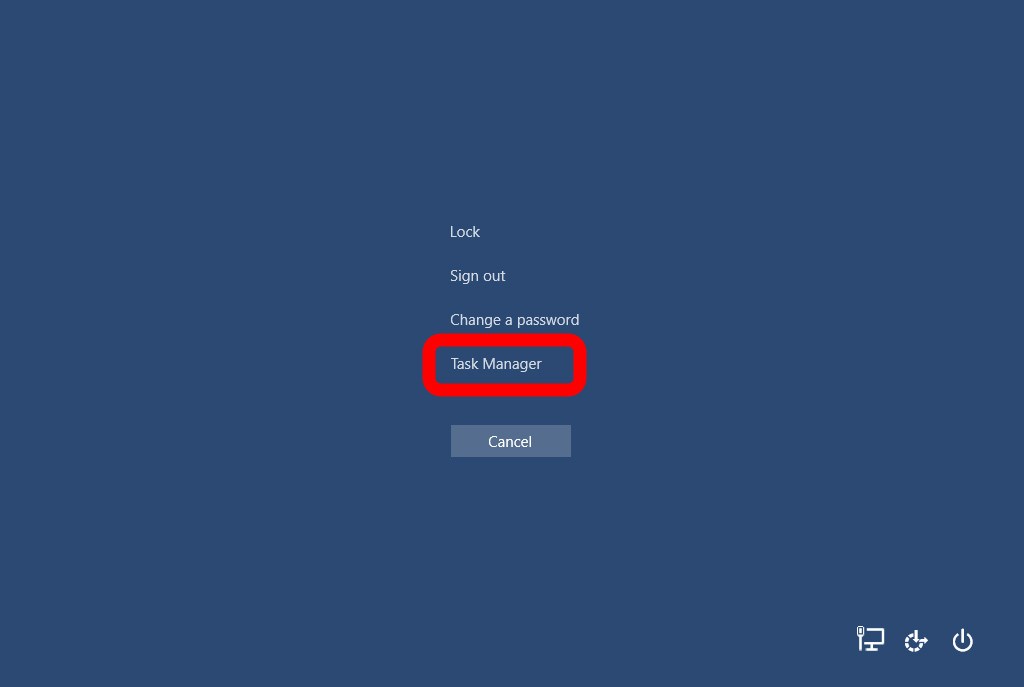
 2. Then type “cmd” in the search box and hit enter on your keyboard