3 Ways To Install MongoDB in Windows + Compass GUI Admin – MongoDB is a database system that stores data in flexible JSON-based documents, which means the fields can vary from document to document and the data structure can be changed from time to time.
3 Ways To Install MongoDB in Windows + Compass GUI Admin
How to Install MongoDB in Windows + Compass GUI Admin
MongoDB works very differently from other relational databases such as MySQL. Model documents in the MongoDB folder to objects in the application code.
This makes data smoother and easier to use. You only need to work with objects, and they have persistence with MongoDB.
MongoDB is free and open-source and very good for various types of scales of your project. With the MongoDB JSON object entered and the JSON object exiting the database, there is no data transformation like a SQL-based system.
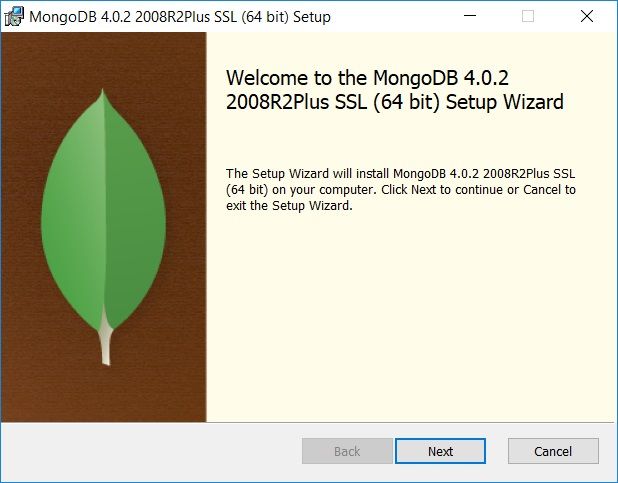
Immediately we will try to install MongoDB on our computer and try some of the interesting features it uses, you can download it first on the download page on the official MongoDB website, you can choose the community server edition for Windows and click the download button to get a copy of the installation package in form the .msi file, after downloading, just click and install it to your computer as follows.
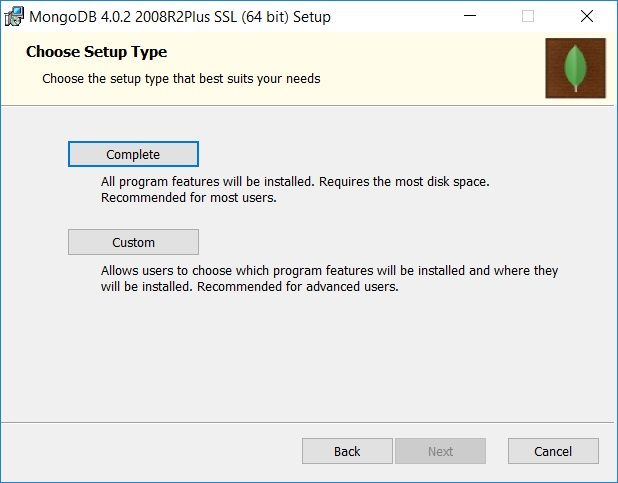
Then select the Complete installation type.
Next, the Install MongoDB Compass page appears, check the Install MongoDB Compass section in the lower left, then click the Next button to continue the process until it’s finished.
Up to this point, the MongoDB installation process is complete, but there are several additional installations needed to make the usage easier.
#1. Install Compass GUI for MongoDB
Compass GUI in MongoDB can be likened to phpMyAdmin for MySQL, this is a GUI tool to make it easier for us to manage databases more easily.
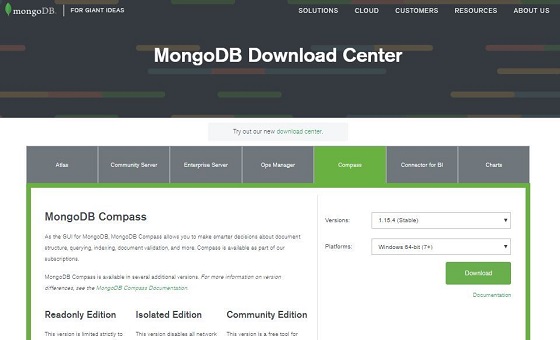
For that, you can re-visit the download page on the MongoDB website and select it in the Compass tab, select Windows, and click Download.
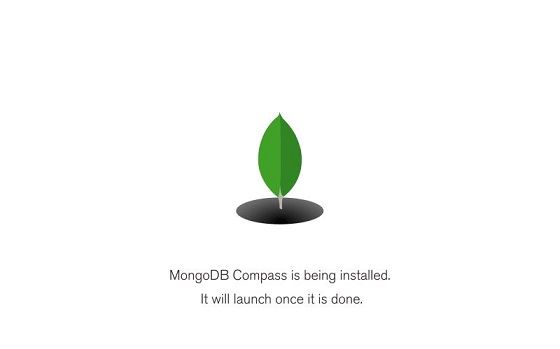
Next, install Compass that has been downloaded, you will see a display like this.
When finished, the Compass application will run and you will see a welcome message.
#2. Add path MongoDB Environment Variable
The last part we have to do during the installation process is to add the MongoDB folder address to your Windows system path so that it’s easy to use the command on the console (CMD), this is how.
Open the Windows System Settings page by typing in the Windows taskbar.
Then click the Environment Variables button.
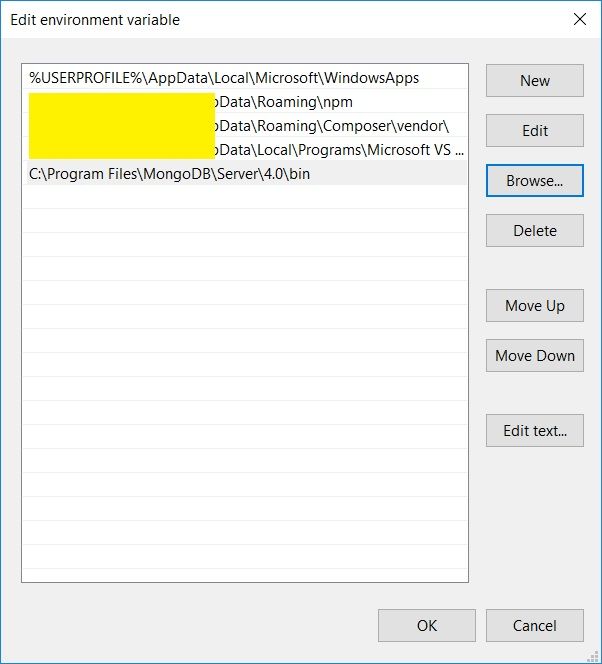
Select Path then click the Edit button.
Then in the Edit environment variable window press the New button, then enter the path of your MongoDB installation location, the location is usually in C: \ Program Files \ MongoDB \ Server \ 4.0 \ bin .
Then click OK
#3. Create a folder to store data
This is the final step that needs to be set, the folder location where MongoDB will store data.
The location is by default.c:\data\db\
Please create a folder on your computer right now.
Great, now you are ready to use MongoDB.
You can type the command mongodat the command prompt and then press Enter. You will find a lot of information there, but the most important information is that you can see the words “waiting for a connection on port 27017”.
That means the MongoDB Database is running and ready for use.
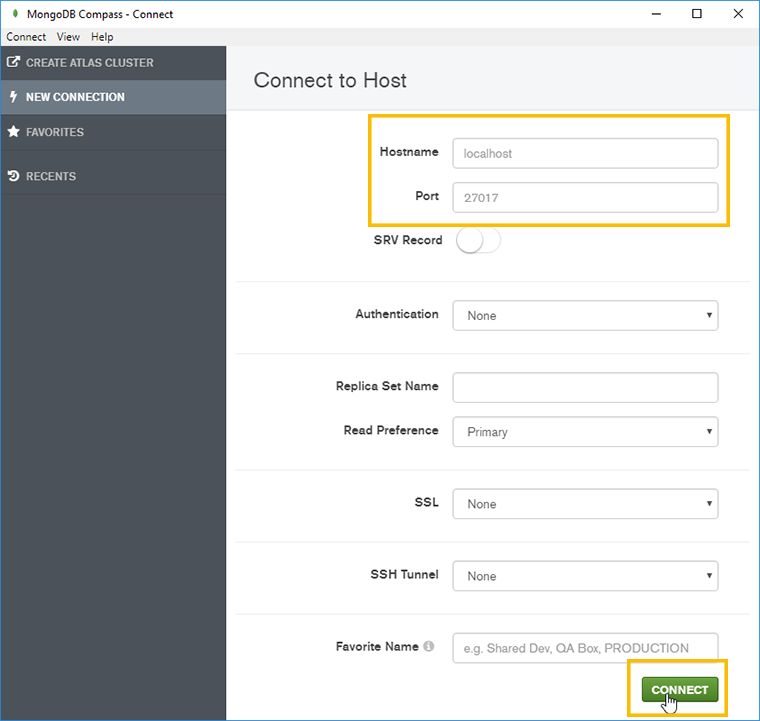
We can use Compass GUI to connect to the database, let’s try it.
If connected, it will look like this.
To run MongoDB we need several steps, but after that, you can use it on the local computer. We can also use Compass GUI which functions like phpMyAdmin for MySQL.
MongoDB is an open-source (NoSQL) document database, MongoDB stores data flexibly, like JSON documents.
So friends, these on about how to install MongoDB in Windows + Compass GUI Admin. Relational databases usually have tables & rows, while MongoDB does not. MongoDB uses collections and documents, the document can contain sub-documents.
10 Ways to Fix Network Adapter Not Detected In Windows – Without a network adapter, you will not be able to connect to the internet. Learn how to fix an undetected or missing network adapter so you can get back online again.
10 Ways to Fix Network Adapter Not Detected In Windows
10 Ways to Fix Network Adapter Not Detected In Windows 10 PC
The network adapter is an important part of a computer because it sends and receives data to and from other devices on a wireless or wired network. Sometimes, the network adapter disappears from the Device Manager or the Windows operating system tells you that it is missing.
When this happens, you will no longer be able to connect to the internet. To help you fix it, we have put together a few solutions that you can try to fix an undetected or missing network adapter.
#1. Restart And Check the Connection
Try some quick fixes like restarting your PC or laptop and checking if you can now find the missing network adapter. If you have already connected the Ethernet cable, you will also need to unplug it and plug it back in.
#2. Show Hidden Drivers In Windows
The network adapter may be missing simply because the Device Manager does not display it. Here’s how to make the network adapter visible:
Show Hidden Drivers In Windows
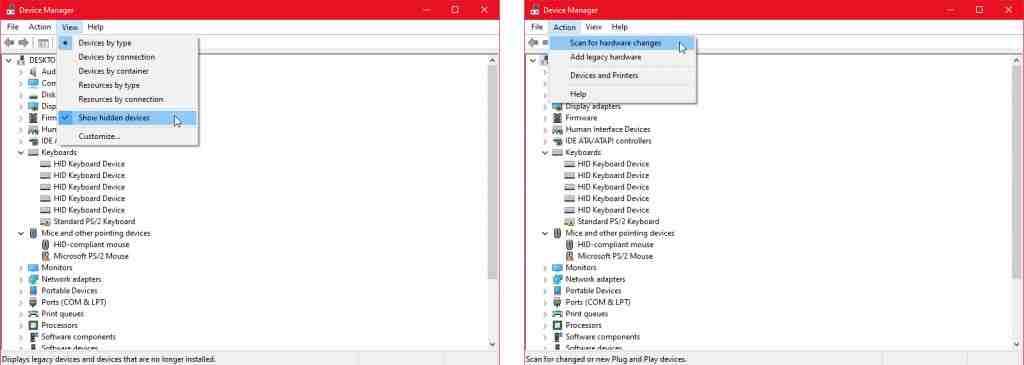
Right-click Start > Device Manager.
Open the View menu and click Show Hidden Devices.
Expand the list of Network adapters and check if the adapter is now visible.
If the adapter is still missing, click Action > Scan for hardware changes.
#3. Remove the Battery From the Laptop
If you’re on a PC, or your laptop doesn’t have a removable battery, skip this solution. While removing the battery you are forcing the motherboard to reset its settings which might be enough to fix this issue.
If your laptop comes with a removable battery, turn it off and remove the battery for a few seconds. Then, plug it back in and turn on the laptop again.
#4. Turn off Antivirus and VPN
If you are using a VPN on your device, try turning it off or even uninstalling it. Then, restart your laptop or PC and check if there is any difference. Do not forget, to also turn off the antivirus or check for available updates.
#5. Run Network Adapter Troubleshooter
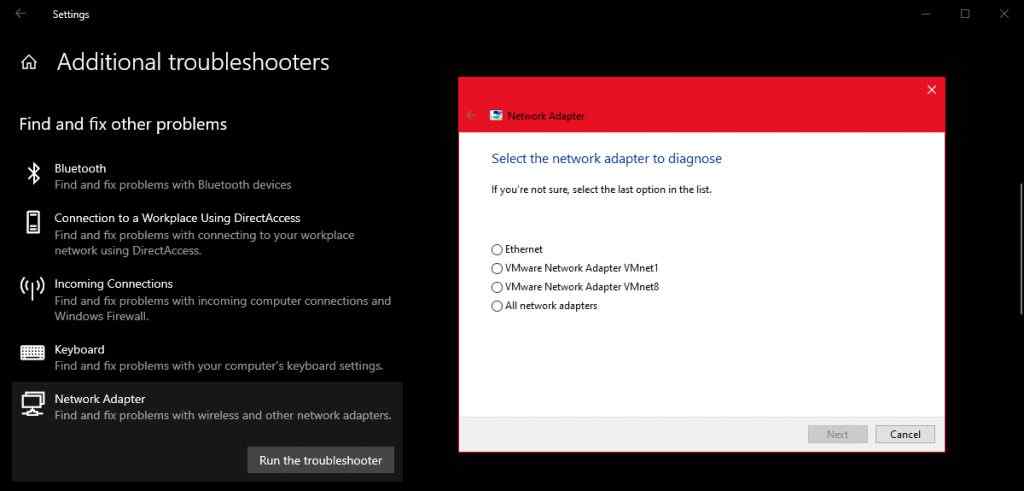
Windows 10 provides a useful list of troubleshooters so it’s no surprise that you can fix some network adapter problems using one of these tools. Follow these steps to run the Network Adapter troubleshooter:
Run Network Adapter Troubleshooter
Right-click Start and select Settings, or use the keyboard shortcut Win + I.
Go to Update & Security > Troubleshoot > Additional troubleshooters.
Under Find and fix other problems, select Network Adapter > Run the troubleshooter.
Follow the instructions shown.
#6. Use the Network Reset Tool
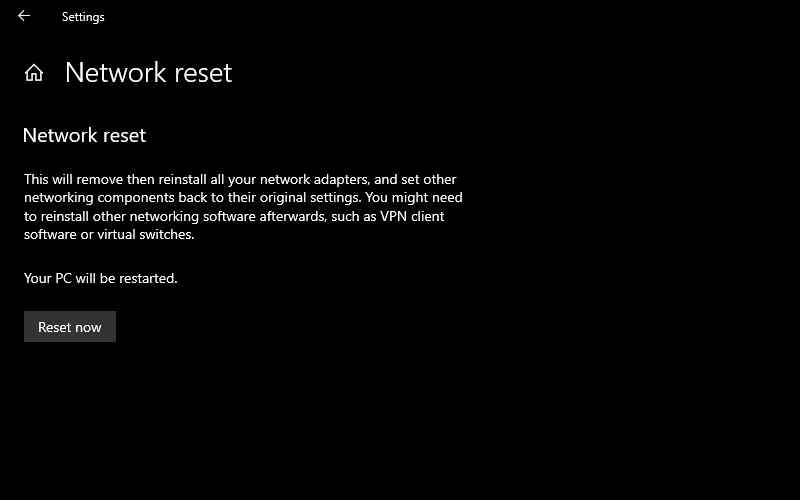
If the troubleshooter doesn’t solve the problem, you can try using the Network Reset Tool. This will make all network settings back to their default settings without disturbing your data. Follow these steps to reset your network:
Use Network Reset Tool
Go to Settings, then go to Network & Internet.
Select Status and scroll down to Network reset.
Select Reset now.
#7. Check Power Management Settings
If you are using a laptop, Windows 10 will turn off some of its features when the battery is low or when battery saver mode is activated. Follow these steps to check the Power Management settings :
Right-click Start > Device Manager.
Expand the list of Network adapters
Right-click your network adapter and select Properties.
Go to the Power Management tab.
Uncheck Allow the computer to turn off this device to save power.
Click Apply > OK to save changes.
#8. Reset Winsock Settings
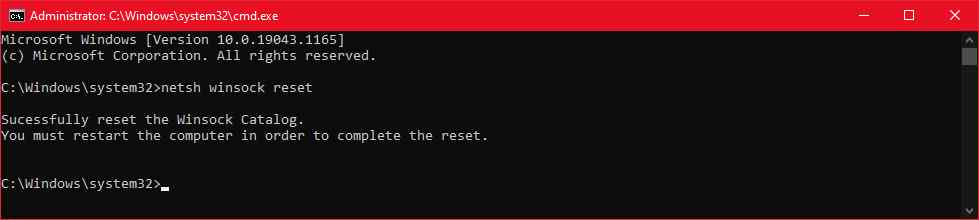
Winsock is the programming interface and supporting programs that define how Windows network software uses its network services. If something goes wrong with the Winsocks file, it can cause the network adapter to disappear from Windows 10. Here’s how to reset Winsock data:
Reset Winsock Settings
In the Start menu search bar, look for the command prompt and select Run as administrator.
Inside the Command Prompt window, type netsh winsock reset. Then, press Enter.
Restart your PC or laptop to save changes.
#9. Clean Network Devices
If the previous method didn’t work, you can follow these steps to clean network devices using the command prompt:
Clean Network Devices
Press Win + R to open the Run window.
Inside the Run window, type cmd and press Ctrl + Shift + Enter to run Command Prompt as administrator.
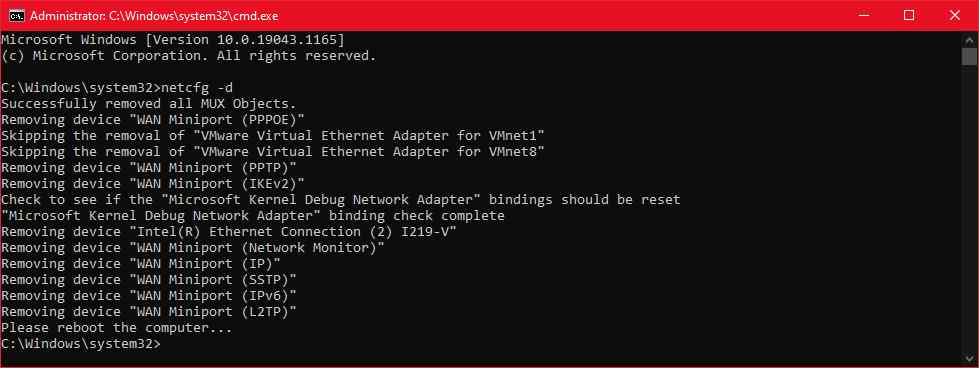
In the Command Prompt, type netcfg -d.
Restart the device and check if you can now find the network adapter.
#10. Check Windows Background Services
Your network driver may be missing because the background service stopped working properly. Follow these steps to manage it manually:
Check Windows Background Services
In the Start menu search bar, search for services and select the most suitable one.
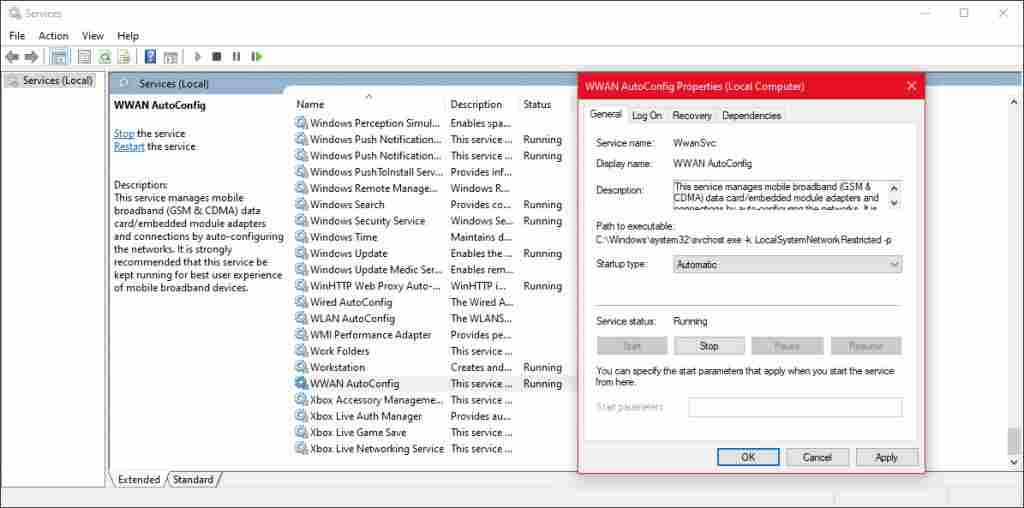
In the Services menu, locate and open WWAN AutoConfig.
Check if the Service status is Running. If not, click Start to run it.
Set the Startup type to Automatic.
Click Apply > OK to save changes.
Restart your device and check if the missing driver is now available.
So that’s how to fix the network adapter that is not detected or missing. There are many solutions available. As we discussed, you can try turning off your VPN or antivirus and Windows 10 also has some troubleshooting tools you can use.
Best 17 Cool and Light Windows 10 Theme Coolest For PC – Are you looking for light Windows 10 themes? I will provide some recommendations for the best Windows 10 themes that are light, not heavy, and make the computer slow, but have a nice and cool appearance.
Best 17 Cool and Light Windows 10 Theme Coolest
How to Download Cool and Light Windows 10 Themes For PC Laptop Desktop
Windows 10 comes with a UI that is more modern than the previous version, users can use two main modes, namely light mode which gives a bright nuance with grayish-white dominance, or dark mode with black domination.
To get a different feel, we can customize the colors, but if you want something more unique then you can install other cool themes according to your taste.
The following are some of the best cool Windows 10 themes to choose from:
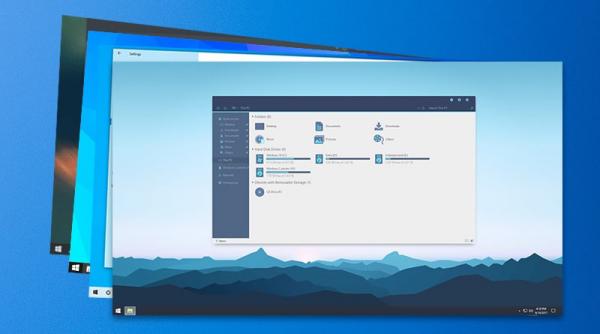
#1. Simplify 10 – A lightweight Windows 10 theme with an elegant look
Simplify 10 – A lightweight Windows 10 theme with an elegant look
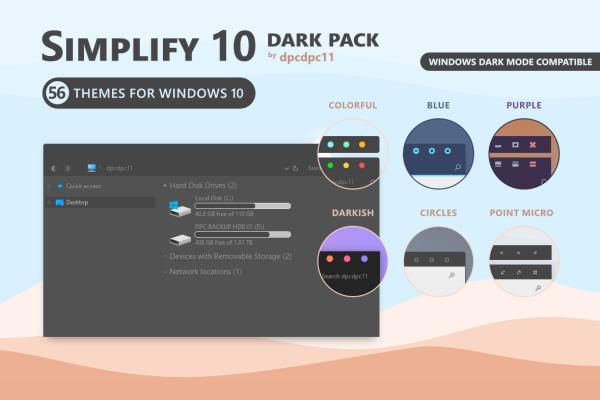
Looking for a theme with a minimalist look but still looks cool and elegant? You must try this theme called Simplify 10. In terms of beautiful design and performance, this theme is one of the best themes for Windows 10.
Simplify 10 will minimize the elements in the theme, making it look neater while making Windows 10 lighter.
There are three main modes of this theme, namely light mode (light theme), dark mode (dark theme), and Maverick which is similar in design to one of the most popular Linux distributions, namely Ubuntu.
Interested in trying it? Please download the Simplify 10 theme from the link we have provided above.
#2. Win11 Dark VS – Cool Windows 10 Dark Mode Theme
One of the things that are mandatory after installing Windows 10 is to make it look more attractive. Dark mode themes always look cool, in Windows 10 you can also have themes with dark mode.
In addition to the appearance that will look more elegant, the theme with dark mode also makes the eyes less sore when lingering on the screen. When using a laptop with a dark theme battery it can also save power consumption.
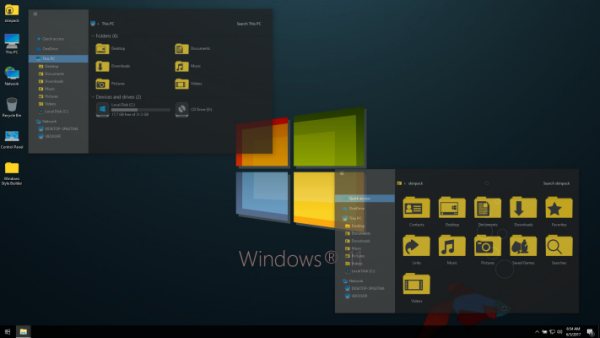
One of the best dark mode themes for Windows 10 that we recommend is Win11 Dark which you can use for free. This cool theme is suitable for those of you who like a black Windows look.
This theme will change all existing elements with a combination of dark gray and black, making Windows 10 look cool but still comfortable to look at. To make it more stable, don’t forget to use this mandatory Windows 10 application too.
If you like dark themes with black nuances then this one is a must-try. Indeed, there is not much difference between the dark mode theme and this black theme, maybe it is only different in terms of layout design.
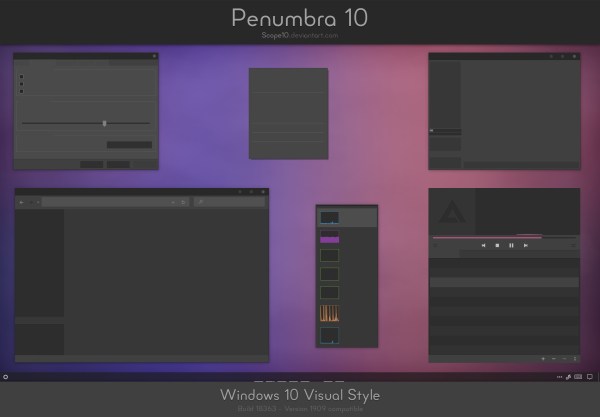
This Penumbra 10 theme also provides an appearance dominated by dark and gray colors. Folders and icons are flat in design with a black-gray color to make the display look more modern.
Just download and install this cool theme via the link we have provided.
Do you like 3-dimensional themes? Try this 3D Theme first. In this theme pack, 17 cool HD wallpapers will give you a 3D illusion as if the image is moving and alive.
You can also add other 3D wallpapers according to your taste. To monitor users with high resolution, you can use 4K wallpapers to get a clear view.
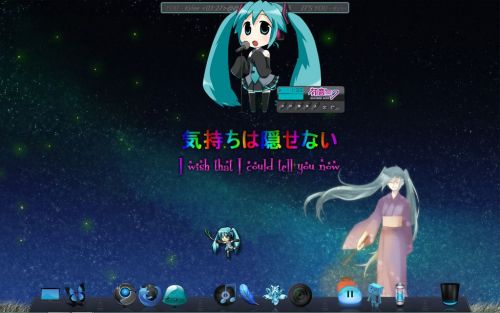
Love anime themes? In Windows 10 you can use it too. There are lots of popular anime themes such as One Piece, Naruto, Detective Conan, Haikyuu, Insekai Quartet, Gotoubun no Hanayome, Tensei shitara Slime Datta Ken, Toara Kagaru no Raigun T, Re: Zero, Kimetsu no Yaiba, Dr. Stone, The Promise Neverland, Darwin’s Game, and many more.
Please choose which anime theme is your favorite to install on your Windows 10 laptop. To make it look cooler, you can also find your favorite anime wallpaper and then make it a background to enhance the appearance of the theme.
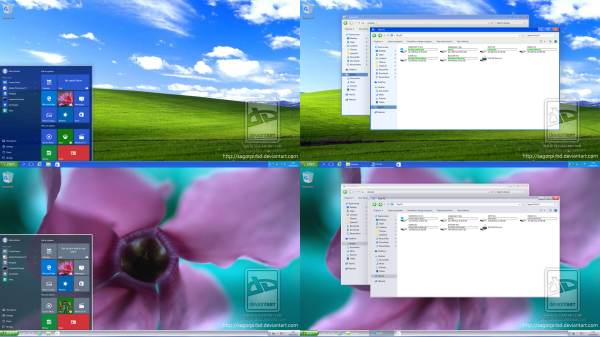
Does Miss the old school look like Windows XP? Now you can change the appearance of Windows 10 to look like Windows XP by installing this theme.
The appearance of Windows XP is indeed very simple, people who have been using the Windows OS for a long time must be very familiar with its appearance.
When using Windows 10 there may be a lot of changes, to change it to a simpler Windows XP look, we need a theme. When used, only the appearance changes, but all the features in Windows 10 will remain the same.
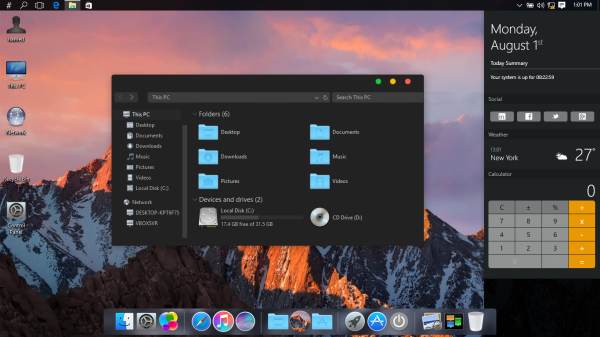
Haven’t got the MacBook yet because the price is too expensive? Take it easy, you can still feel the sensation of using a MacBook on a Windows 10 laptop. By using this MacOS theme you can get a look that is very similar to an Apple laptop.
This MacOS theme for Windows 10 will change the look of your laptop to the appearance of a Mac as a whole starting from the location of the icon at the bottom (dock), the file explorer window page view, the close button location, to the color nuances very similar to Apple.
This theme is also light enough that it can be installed on even low-spec PCs and laptops. Interested in trying this cool theme? Just download and install via the link we provide above.
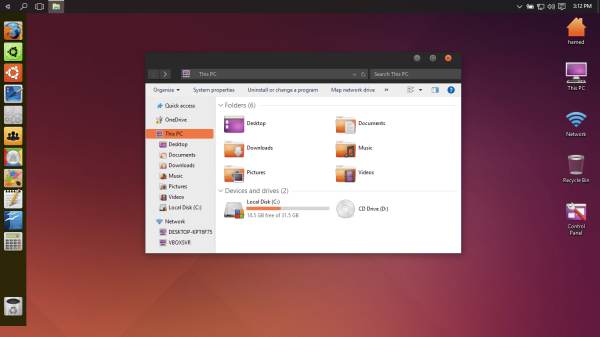
Ubuntu is the most popular Linux distro with the most users today. High compatibility and a very friendly appearance for beginners make users comfortable using this OS.
For those of you Windows 10 users who want to change the appearance of Windows 10 like Ubuntu Linux but don’t want to install it, you can use the Ubuntu SkinPack theme.
This theme will give you the sensation of using Linux on a laptop with the Windows 10 operating system without having to install it. You will get a typical Ubuntu look easily, there are also several cool skin choices that you can use.
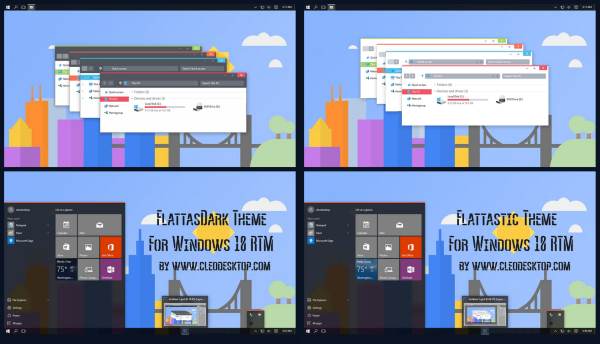
The next cool theme for Windows 10 is Flattastic, this theme will give you a simple yet modern look. Fantastic puts forward a minimalist and clean look, and the color combination is also cool on the eyes.
This theme is suitable for those of you who like a neat appearance, in terms of performance this theme is also quite light so it won’t make Windows slow.
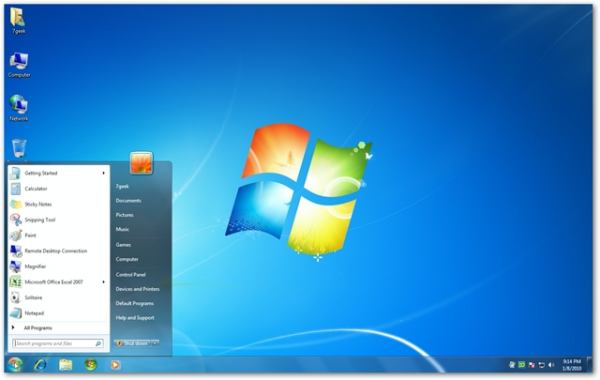
Want to change the appearance of Windows 10 to be like Windows 7? You can do it easily using this theme.
The Windows 7 theme will make your Windows 10 look very similar to Windows 7, even if you are used to it you will forget that you are currently using Windows 10.
This theme will change all elements in the UI starting from the Start menu, taskbar, tray icon, and explorer display exactly as in Windows 7. For those who are used to using Windows 7 but have to migrate due to work needs, this theme can be a powerful solution.
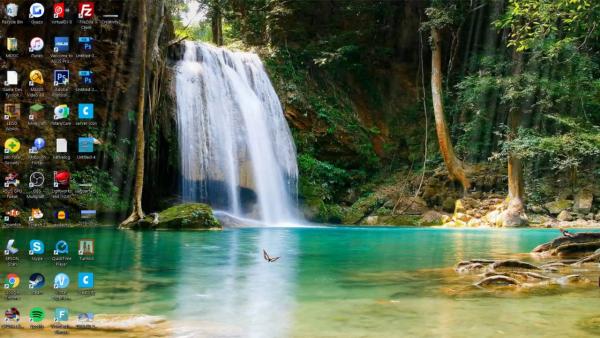
One of the most popular themes is dynamic or moving themes. You can also use this theme on Windows 10. There are tons of themes that support the moving image feature as Wallpaper, one of which we recommend you can find in the link below.
The Windows 10 moving theme lets you set dynamic backgrounds, making them look lively and real. Images of natural landscapes such as waterfalls will look more alive because the waterfall looks as if it continues to flow and gives a soothing atmosphere.
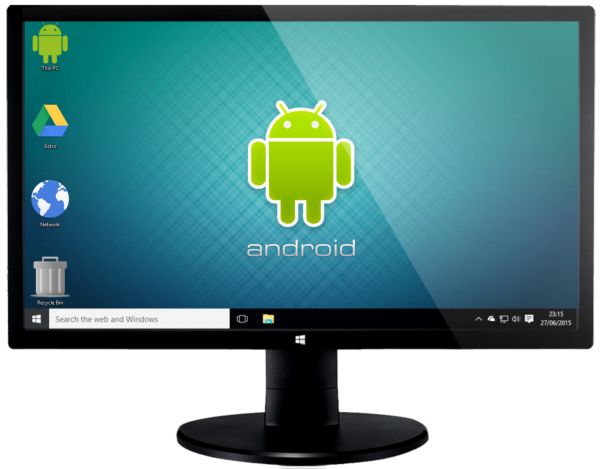
#12. Windows 10 Android theme
Windows 10 Android theme
Download
Want to change the appearance of Windows 10 to be like an Android smartphone or tablet? You can use this Android theme for Windows 10.
Android does have a cooler and more pleasing appearance compared to the default Windows 10 display which looks flat. The icons on Android also look nicer and more modern.
Unfortunately Windows and Android are different ecosystems, so we can’t use them as operating systems on PCs and laptops.
But by using this theme we can still get a look that is very similar to Android. Interested in trying it? Just download the theme via the link above.
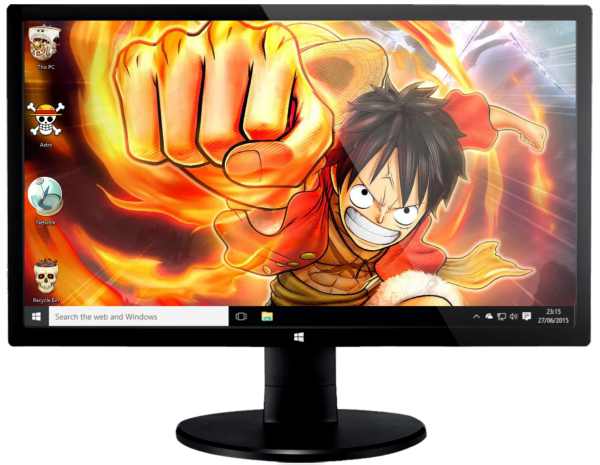
#13. One Piece theme for Windows 10
One Piece theme for Windows 10
Download
One Piece is one of the most popular anime of all time. Even though it has entered the age of 20 years but until now the story is still going on, and the great thing is that One Piece fans are still loyal to following the storyline.
The release of One Piece, both anime and manga versions, is always eagerly awaited by fans around the world. If you are one of the anime fans who tell stories about pirates, then you must try this cool theme.
You can beautify the appearance of Windows 10 with the One Piece theme. The colors on Windows will change to the theme of One Piece, as well as the existing icons. You can also change the background to make it look cooler.
To speed up Windows 10, you must use a theme that is light and does not make the computer heavy.
There are tons of cool themes that you can download from the Microsoft Store. If you feel uncomfortable using a theme downloaded from an external site, then you can look for Windows 10 themes from the Microsoft Store.
The Microsoft Store is guaranteed security because every software there has passed the verification process. How to install applications from the Microsoft Store is also very easy, and you can use the themes there for free.
Themes with natural landscapes can provide a cool nuance when we are using the computer. Green scenery, beaches, mountains, and oceans can help relieve stress at work.
For those of you who like themes like this, here we provide recommendations for themes that you can use. This theme is equipped with HD-quality natural scenery wallpapers. Please try it for free!
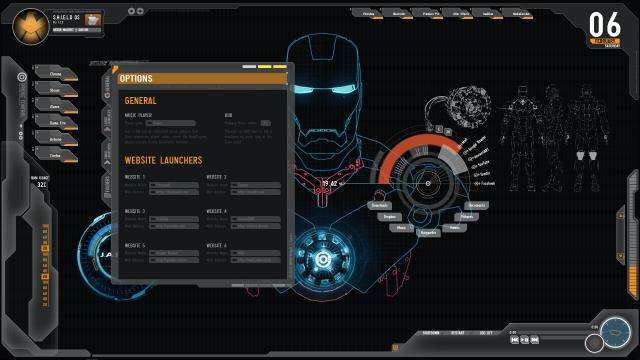
Like superhero characters? You can also install cool superhero themes on the desktop of Windows 10. There are many choices of popular characters such as Superman, Batman, Spiderman, Marvel Avengers such as Iron Man, Thor, Hulk, Ant-Man, and other superhero characters such as Wonder Woman, Aquaman, and Captain. America to Captain Marvel.
You can also install a wallpaper that matches the theme to make it look cooler. How? Want to install it now, just select the theme via the link we have provided.
For gamers who want to make Windows 10 look cool with a gaming theme, here is a Windows 10 theme that you must try.
This theme will make PCs and gaming laptops look fierce and more professional by changing the UI, wallpaper, pointer, icon, and window appearance.
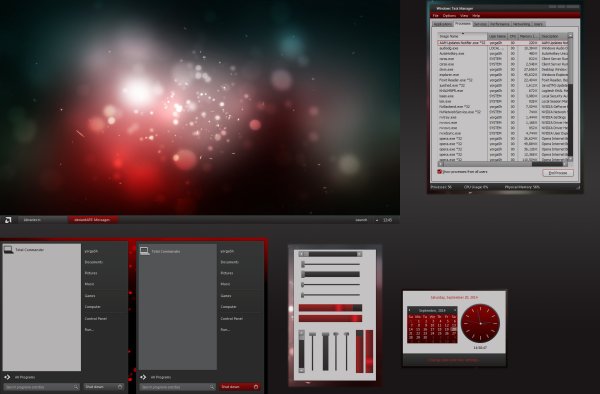
For those of you who use an Asus ROG (Republic of Gamers) laptop, there are many themes available. The theme we provide is a theme from AMD gaming, with shades of black and red that look fierce.
Immediately, try downloading the theme via the link we have provided above.
So, those are some recommendations for Windows 10 themes that can be installed on your computer to make it look cooler. Which one do you like? Please try it!
6 Ways to Fix Wireless Capability Is Turned off In Windows PC – You are having problems with Wireless Connection ( WiFi ) because there are no devices available to connect and when you try to troubleshoot the problem you get the following error: Wireless capability is turned off ( Radio is off).
How to Fix Wireless Capability Is Turned Off In Windows PC
How to Fix Wireless Capability Is Turned off In Windows 10 PC
The “Wireless Capabilities Is Turned Off” error usually occurs when the computer detects that the wireless adapter is disabled externally and cannot turn it on by itself.
This error is very common and may relate to many different situations. Appears when you run Windows Network Diagnostics when you are unable to connect to the internet.
The main problem is that the wireless device is disabled so let’s try to fix this error.
How to improve Wireless Capability is turned off
Please try any or all of the methods I recommend below to fix Wireless Capabilities Is Turned Off on all versions of Windows computers.
#1. Turn on WiFi
You may have accidentally pressed a physical button to turn off WiFi or some programs may have disabled it.
If so, you can easily fix the Wireless capability being turned off at the push of a button.
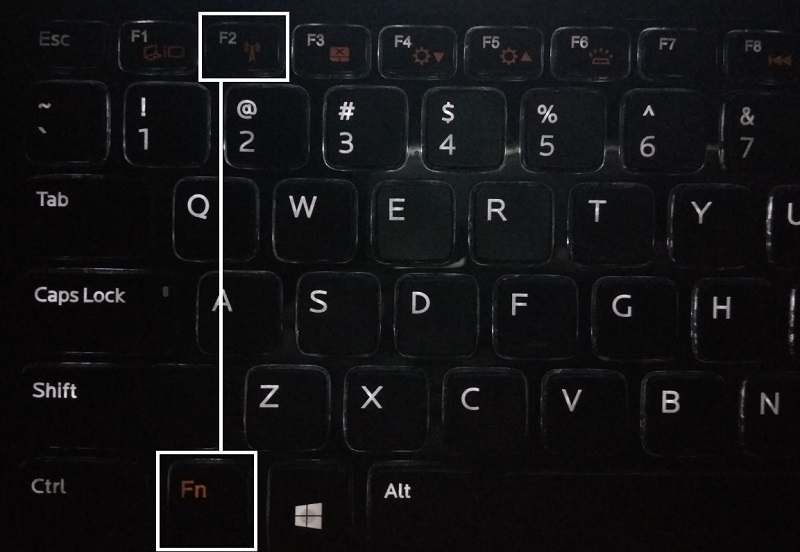
Locate your keyboard for WiFi and press to turn the WiFi back on. In most cases, you can use the Fn (function key) + F2 keys on the keyboard.
#2. Run the Network troubleshooter or Troubleshooter
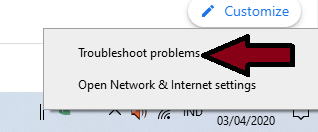
Right-click on the network icon in the notification area.
Select Troubleshoot Problems.
3. Follow the instructions on the screen to fix the problem.
#3. Enable connection
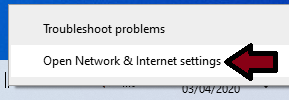
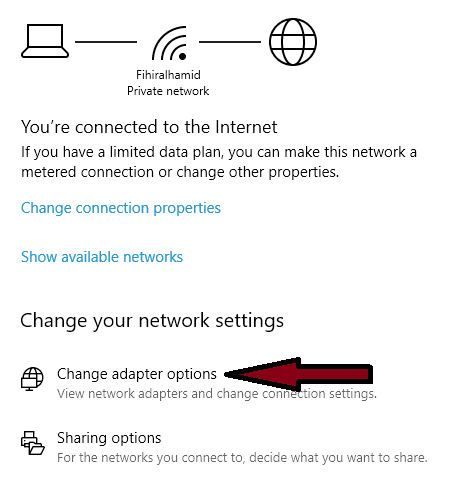
Right-click on the network icon in the notification area.
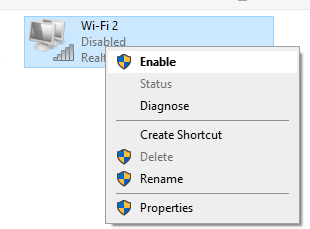
Right-click the WiFi connection and select Enable.
Restart to check if the problem was solved or not.
#4. Disable Allow the computer to turn off this device to save power
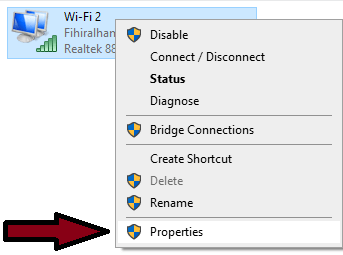
Perform steps 1 to 3 from method 3 above.
Then in step 4 select Properties.
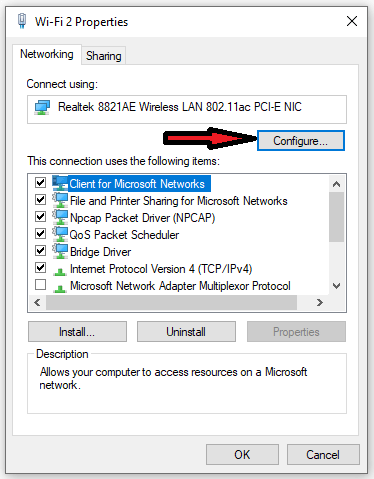
Then select Configure.
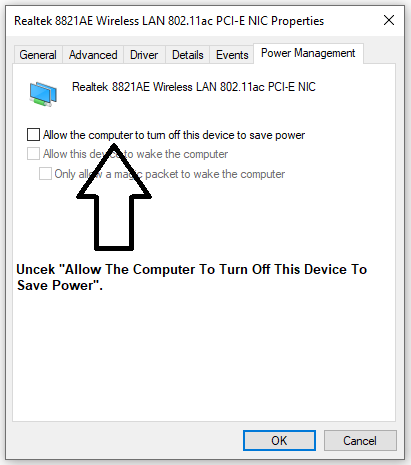
Then check “Allow The Computer To Turn Off This Device To Save Power”.
Then click OK and restart your computer.
#5. Enable Wifi from the Windows Mobility Center
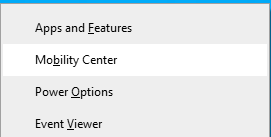
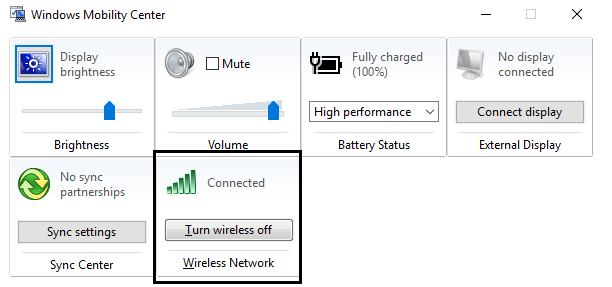
Press the Windows key + X and select Mobility Center.
In Windows Mobility Center, turn on or ON your WiFi connection.
Now restart your computer.
#6. Enable WiFi from BIOS
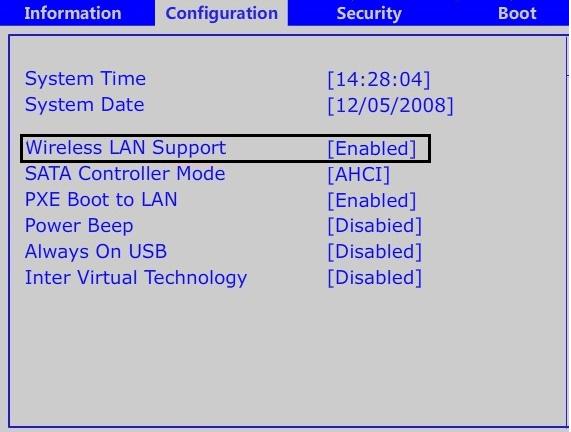
Sometimes none of the methods above work because the Wireless Adapter is not active from the BIOS, in this case, you have to enter the BIOS and set it as default, then enter again and enter “Windows Mobility Center” via the Control Panel and you can turn on / Turn off the Wireless Adapter.
This is the explanation where the above Wireless Capabilities Is Turned off (Radio Is off) error message should have been resolved by now, but if you still have any questions regarding the issue then feel free to ask me in the comments box.
How to Clone Hard Drive to SSD on Windows and Mac PC – Most computers today are equipped with a Hard disk drive (HDD), but you can enjoy better computer performance if you upgrade to a solid-state drive (SSD). But when you buy an SSD for a computer, you’ll need to copy all your data (or clone the drive) to get the operating system and all files on the new drive. Here’s how to clone a hard drive to SSD on Windows and Mac.
How to Clone Hard Drive to SSD on Windows and Mac
How to Clone Hard Drive to SSD on Windows and Mac PC
Before you take any of these steps, it’s important to back up all your important data. Problems might arise during the cloning process which can result in you losing all data. You also need to make sure that the SSD you are using has more capacity than the files you are cloning.
Download the free version of EaseUS Todo. You must enter your email address to download the application.
Follow the instructions on the screen to install the program on the computer.
Insert the SSD into your computer. Make sure the SDD is connected properly. If you only have space on your computer for a single drive, you may need to connect the SSD with a USB-to-SATA adapter or external dock for the cloning process. Then you can insert the SSD when the process is complete.
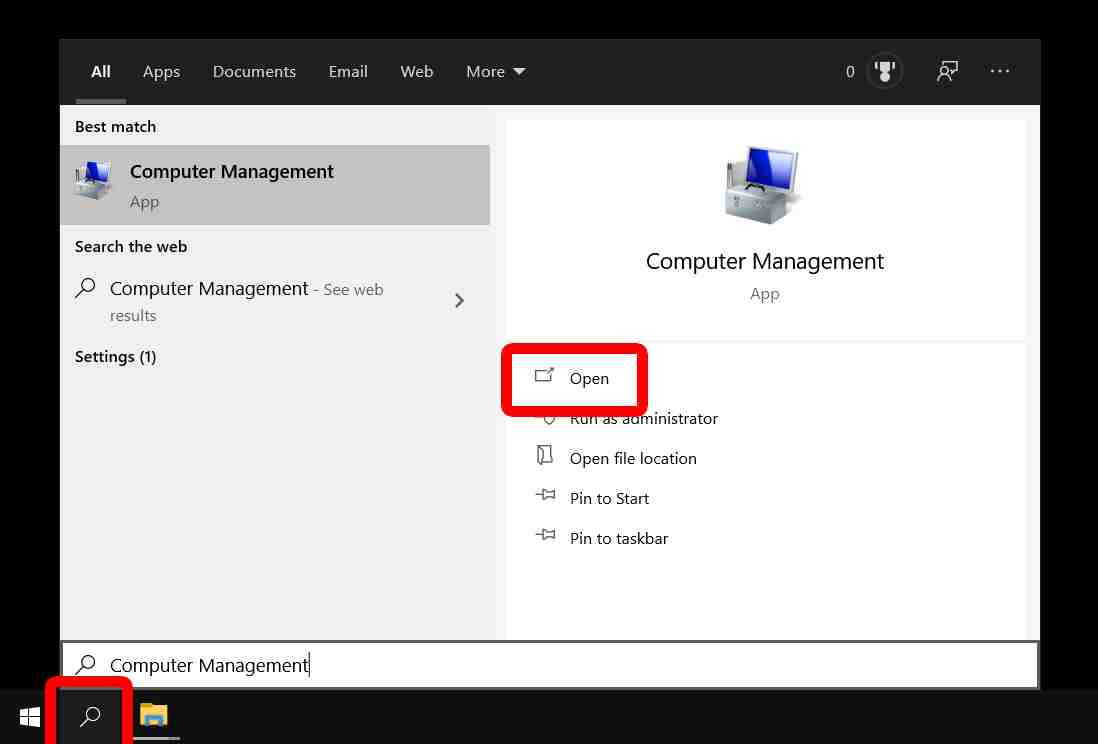
Click the magnifying glass icon in the lower-left corner of your screen and type “Computer Management” in the search box.
Then click Open.
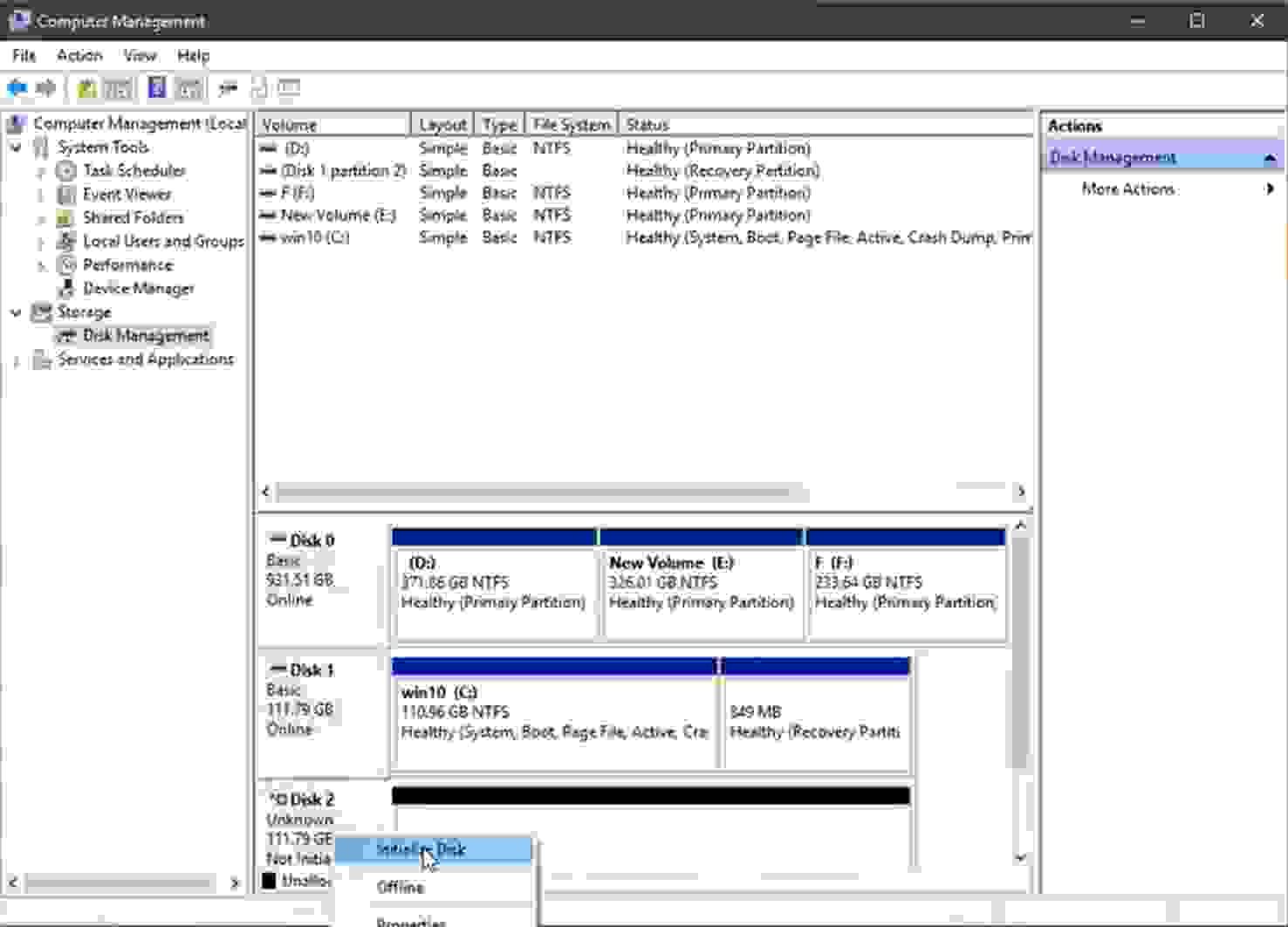
6. In the Computer Management window, initialize the SSD when prompted. If you are not prompted to initialize a disk, you can right-click on your disk and select Initialize Disk. If you don’t know which disk is the source and which is the new SSD, you can tell by looking at the size.
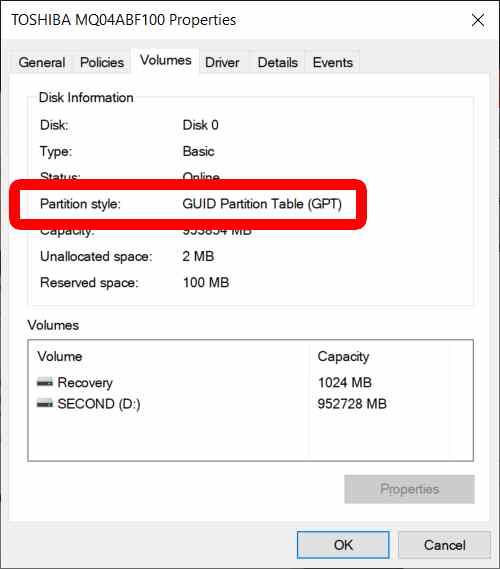
7. Select the same partition as your source drive. To find it, you can right-click on your source disk and click properties. Then select the Volume tab, where you will find the partition style, which should be GUID Partition Table (GPT) or Master Boot Record (MBR). Then select the same partition style for your SSD.
8. Click OK.
9. Open the EaseUS Todo application.
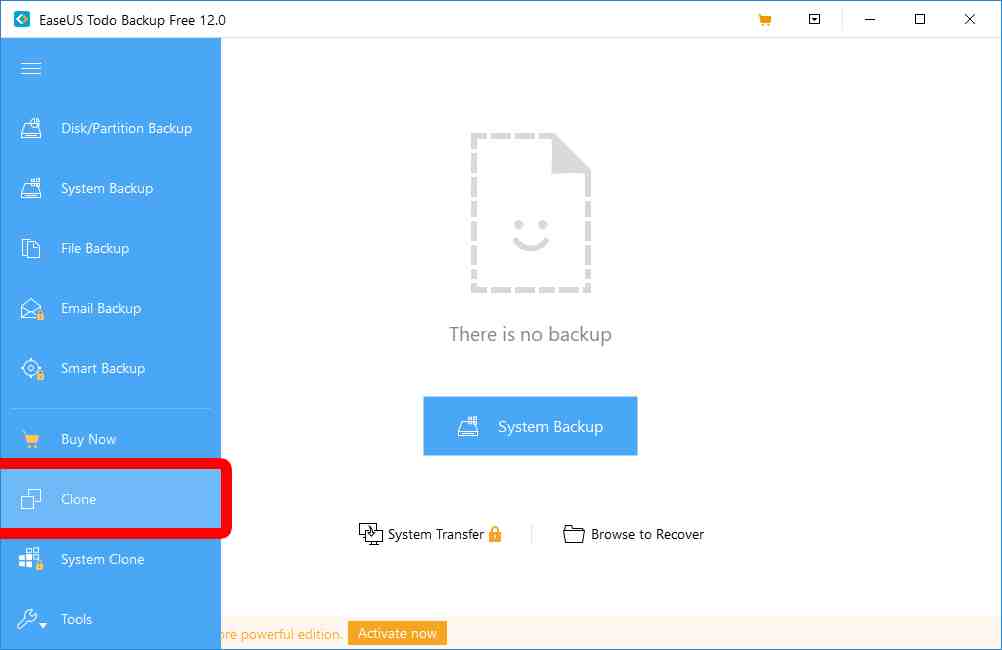
10. Click the “Clone” icon on the left sidebar. If you don’t see it, click the three horizontal lines in the top left corner of your window to expand the menu.
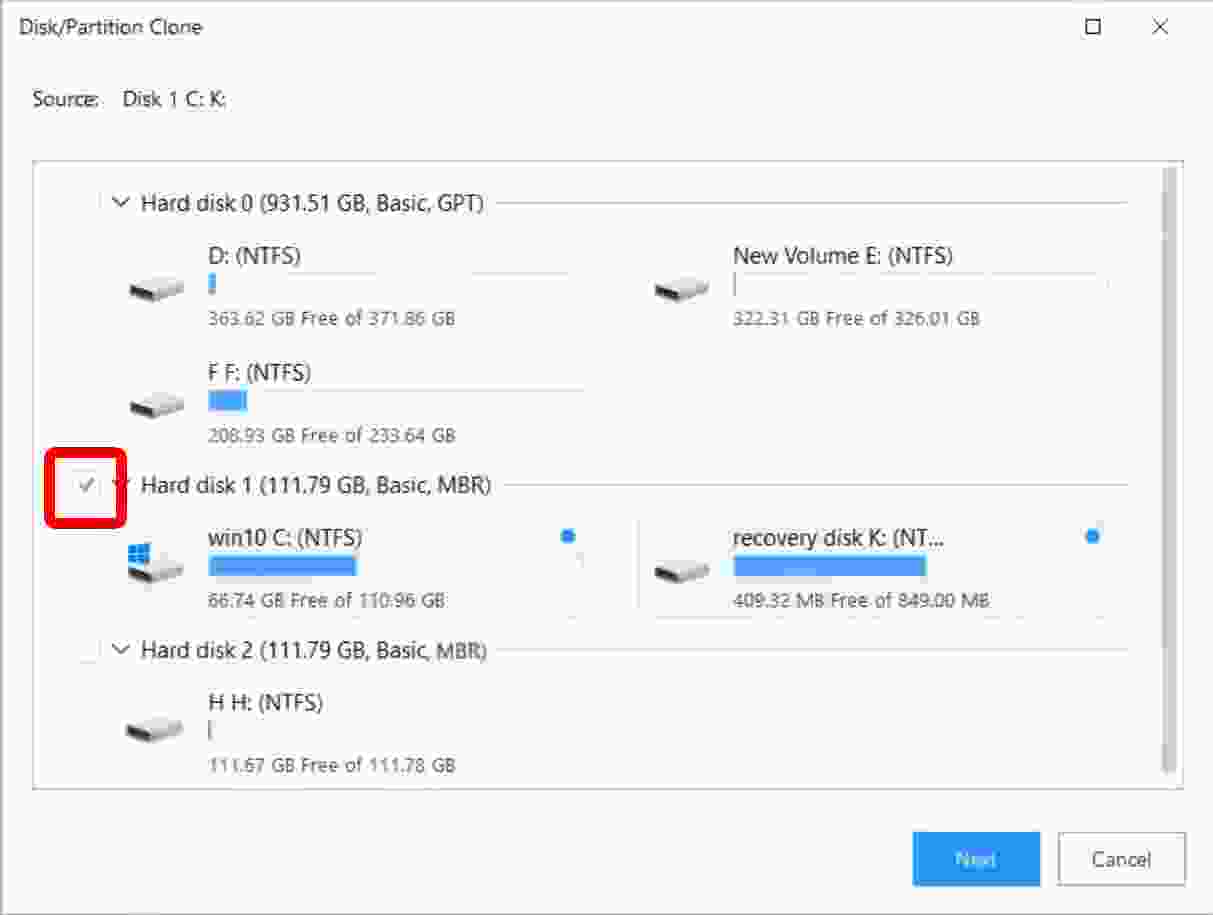
11. Select your source hard disk and click Next. This is your original drive, the drive where you clone your operating system and files.
12. Then select the target disk or SSD, but don’t click Next.
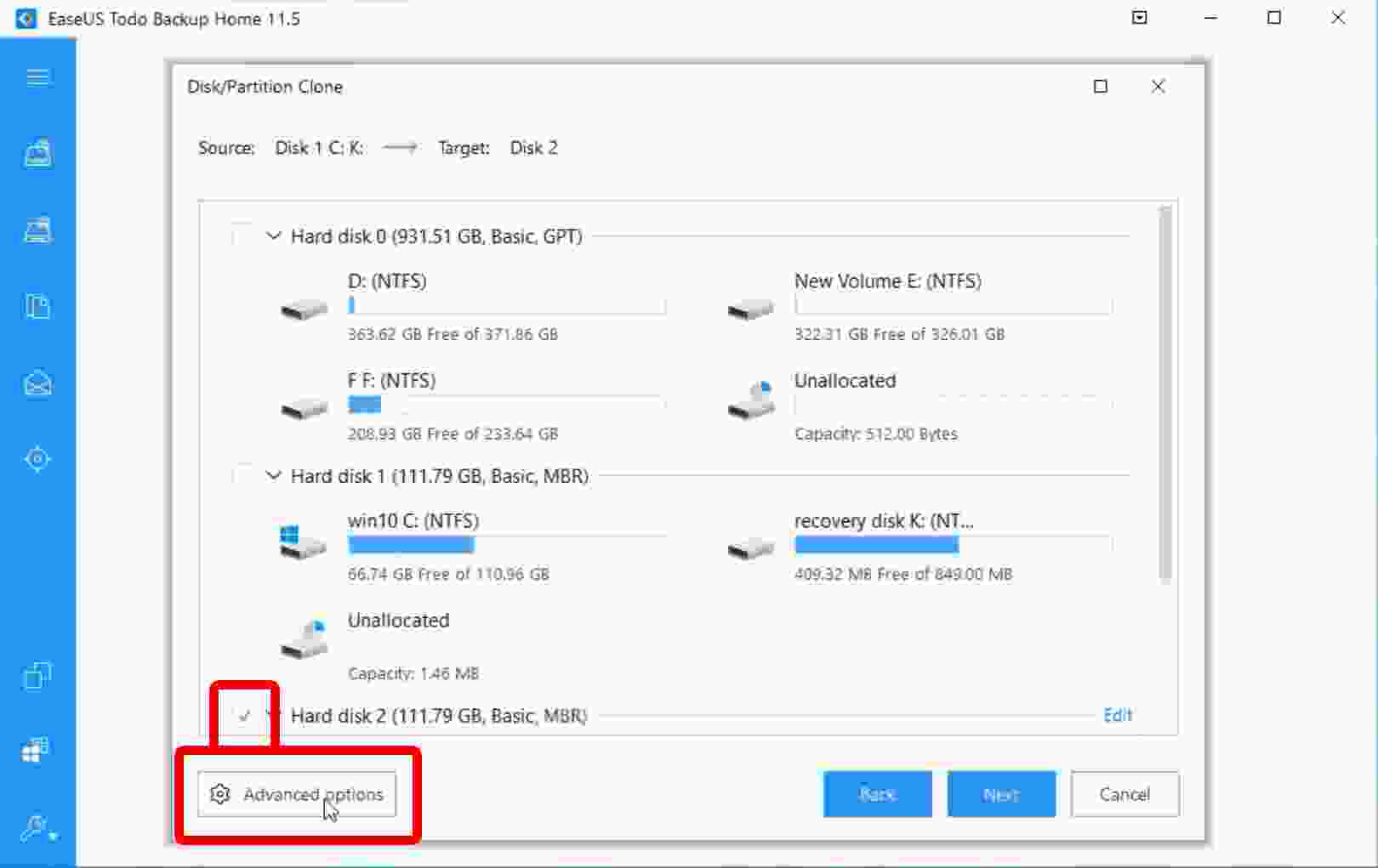
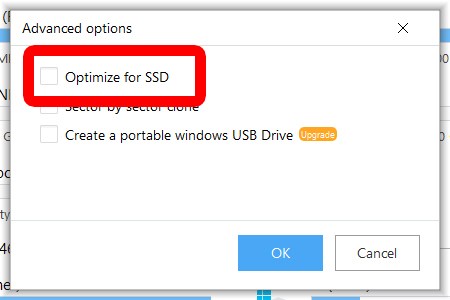
13. Next, click “Advanced Options”, then select “Optimize for SSD”. This will ensure that your partitions are aligned and that you get the most out of the SSD.
14. Click OK and then NEXT.
15. Click “Proceed” when prompted by the software.
16. Wait until the cloning process is complete. This may take a while, depending on how big your hard drive is.
17. Click “Finish” when the cloning process is complete.
How to Boot from SSD After Clone in Windows
Once you have cloned your hard drive, you can boot from the SSD to use the computer. Here are the steps on how to boot from SSD after you have cloned the hard drive.
1. Insert the SSD into the computer. If you are cloning with an external SDD, you will need to insert it into the computer before booting. If you can clone with the SSD already inserted in the computer, you can skip this step.
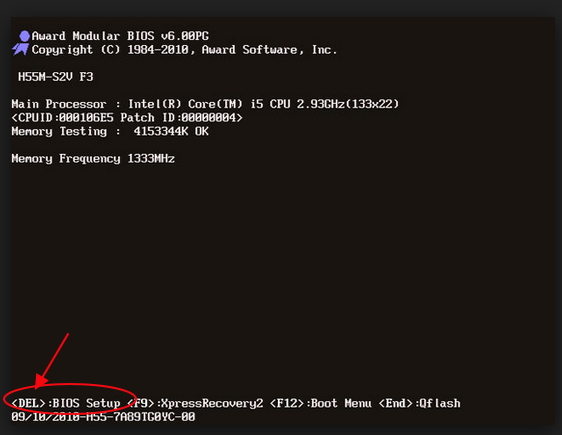
2. Restart the computer and enter the BIOS setup. Depending on your computer model, you will need to press ESC, F1, F2, F8, or F10 while the computer is restarted. You can search for the BIOS key online or check your startup screen.
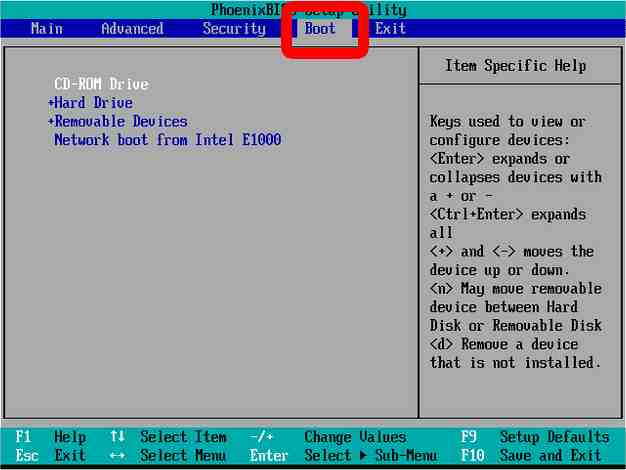
3. Go to the Boot. You will see on-screen instructions on how to navigate the BIOS menu.
4. Move the SSD to the top of the list. You can use the keyboard to change the boot order from the computer drive. Putting your SSD at the top of the list tells your computer to boot from that drive first.
5. Exit the main BIOS menu.
6. Wait for your computer to reboot.
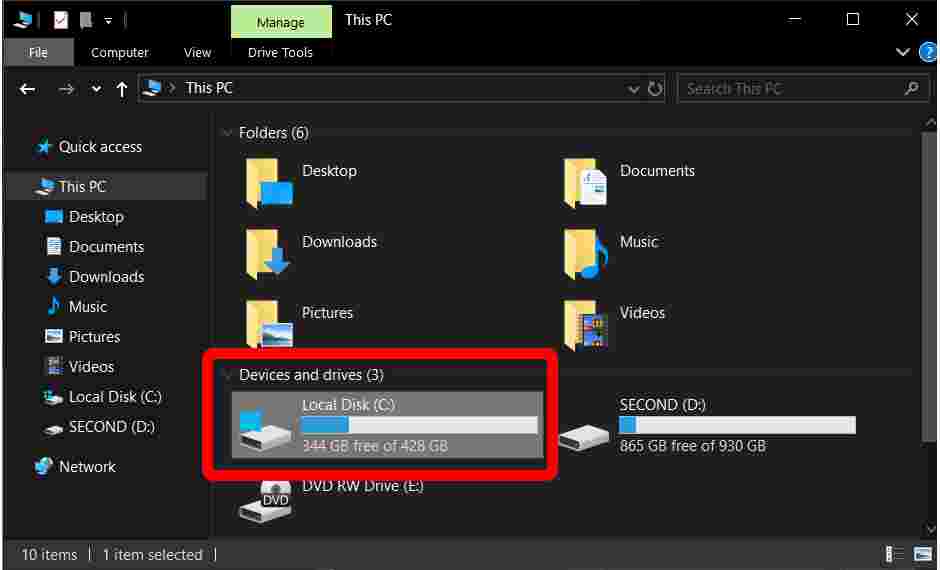
7. Open Windows Explorers and click This PC in the left sidebar to confirm that your SSD is C: drive. You can tell that an SSD is the new C drive by looking at its size.
How to Clone Hard Drive to SSD on Mac
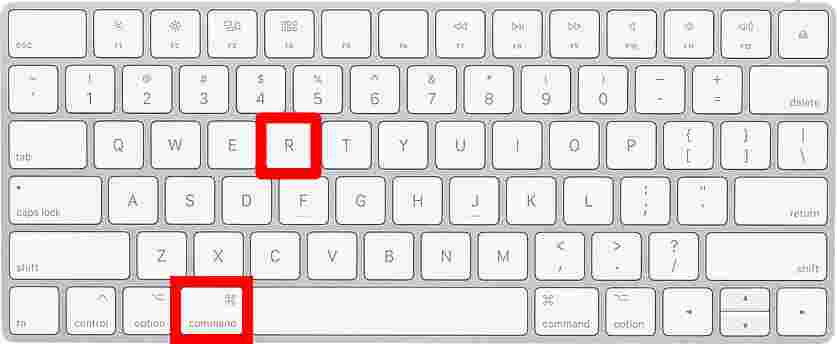
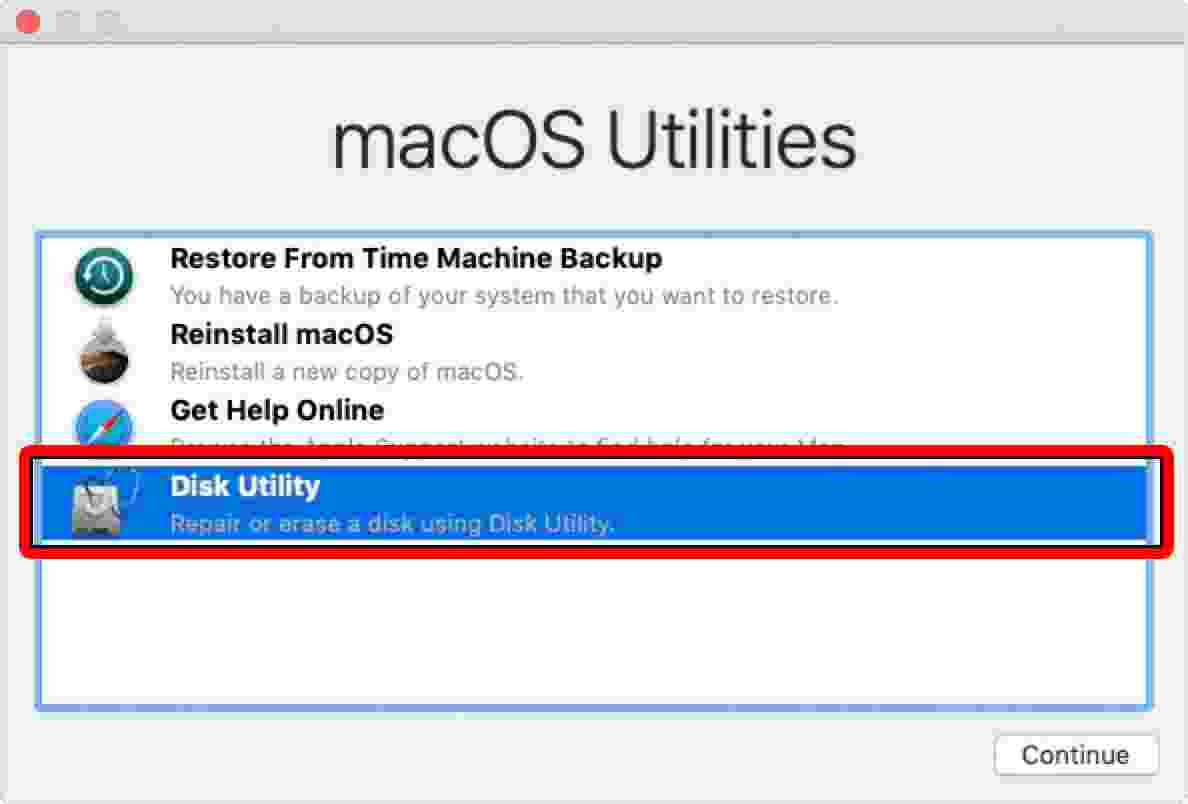
If you have a computer running macOS, you can perform the cloning process using Disk Utility. The system refers to the process as “Restore”, not cloning because you are restoring data from one source drive to another.