Category: Windows

Windows – Here you can find Computer-related updates Windows 10, Windows 8, Windows 7, Linux, technology information, and more.

  • 5 Best Driver Updater Applications For Windows 2024

    5 Best Driver Updater Applications For Windows 2024

    5 Best Driver Updater Applications For Windows – Misconfigured and old drivers are one of the main causes of Windows crashes. Why not get an update by using the following best driver update applications?
    5 Best Driver Updater Applications For Windows
    5 Best Driver Updater Applications For Windows

    Best Driver Updater Applications For Windows PC Laptop

    Some of the most common problems you may encounter with your computer can stem from outdated drivers.

    Read more:

    However, an automatic driver update application can help make the whole process easier. Instead of having to search for every driver that needs updating, the driver app will do all the searching for you. Here are five of the best driver update applications.

    #1. Driver Easy
    Driver Easy
    Driver Easy

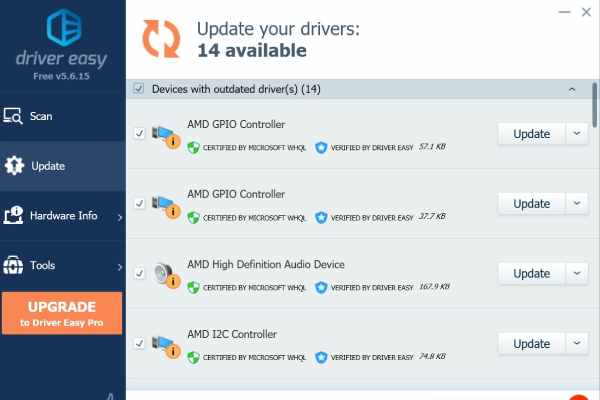
    Driver Easy is an application that helps users find, install, and manage drivers. It comes in three versions, although only two may be relevant to you. The first version of is the Lite version, which is completely free for some computers.

    This version can search for your computer’s drivers and detect missing, outdated, or incompatible drivers. After finding something wrong, the app then asks you to manually install the drivers.

    The second version is the Pro version, of course, this version is not free. But when you buy it, you will receive several additional features such as automatic driver installation, faster download speeds, free technical support, and automatic system backups.

    Visit:- Website

    #2. Driver Booster
    Driver Booster
    Driver Booster

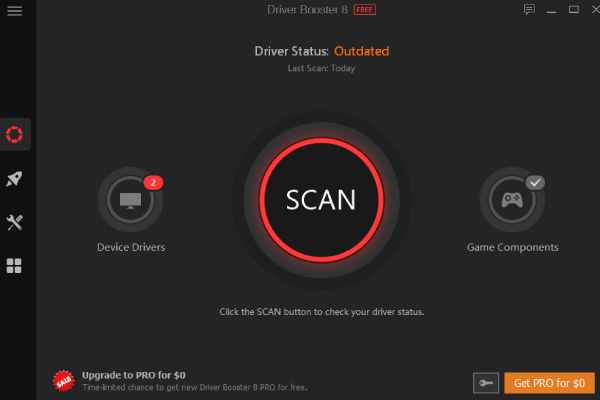
    Similar to Driver Easy, Driver Booster comes in two separate packages. The free version of Driver Booster has a claimed driver database of more than three and a half million and allows its users to update or install drivers in just one click.

    There is no manual installation of drivers here, even in the free version. In addition, this application is very fast to install your drivers.

    The Pro version of Driver Booster also has its advantages. You will get improved download speeds in this version, as well as an expanded driver database of more than four and a half million. Automatic updates and backups are also included in this version.

    And if you’re looking for game components, hardware repair, or technical support, then the Pro version might be for you. Driver Booster Pro version also has offline driver updates if you need to download drivers first. Useful if you have an internet connection or need to update network drivers.

    Visit:- Website

    #3. Bit Driver Updater
    Bit Driver Updater
    Bit Driver Updater

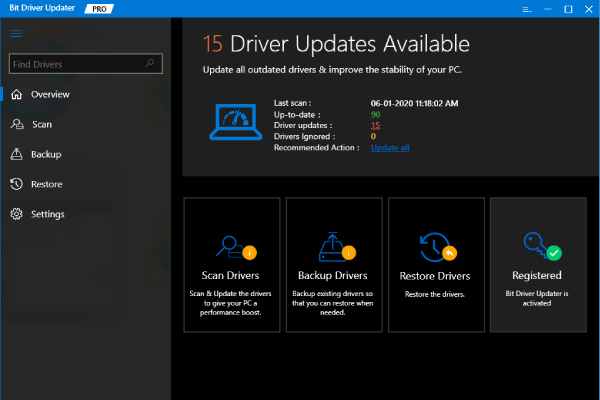
    Bit Driver Updater is another great option for those of you who are trying to prevent Windows from crashing due to configured drivers. With Bit Driver Updater, you get a choice between a free and a Pro version. With the free version, you can get access to most of its features. With one click, Bit Driver Updater can scan its users’ computers for any issues with their drivers.

    From there you users can verify the driver information and install them one by one. Bit Driver Updater automatically backs up all drivers that existed before this process. However, it is worth mentioning that Bit Driver Updater only allows its users to backup individual drivers in the free version.

    The Pro version has several additional features. Higher download speeds and a larger driver database are both included in this version, as well as one-click driver backup and installation. However, be careful, if you choose to buy the Pro version. Because Bit Guardian tries to combine its adblocker app with your purchase.

    Visit:- Website

    #4. Genius Drivers
    Genius Drivers
    Genius Drivers

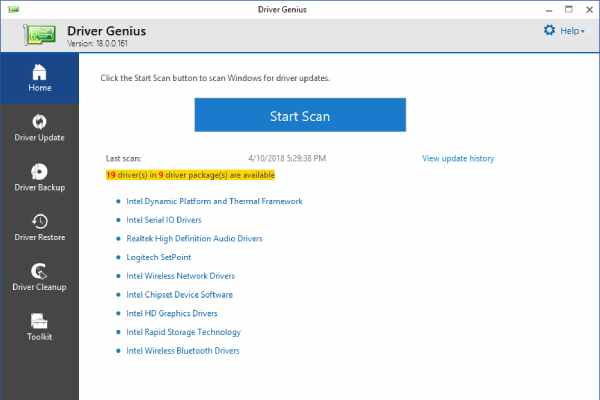
    Driver Genius is almost the same as other best driver update applications, although there are three different versions. With the free version, you can update outdated drivers in one click, even if only for a limited time. You can also backup drivers easily.

    The free version includes several other features such as cleaning useless drivers after updating and detecting hardware information. It works very fast.

    The two paid versions of Driver Genius are the Professional and Platinum editions and most of the features are pretty much the same. Both versions have more options available for use, such as automatic updates and faster download speeds, as well as the ability to back up their users’ drivers to a ZIP or EXE file. Technical support is also included.

    The main difference between the two is that the Platinum Edition includes a System Booster and a System Cleanup. These features help optimize your PC system settings and remove junk files that might be eating up your disk space.

    Visit:- Website

    #5. DriverPack
    DriverPack
    DriverPack

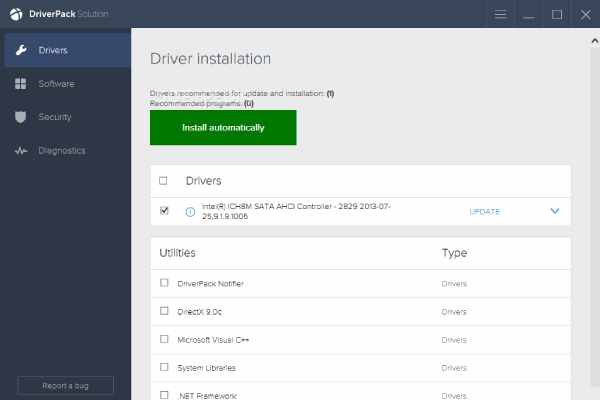
    DriverPack is the best driver update application which is completely free. There is no premium version of this app. Although there are several ads as a result. The program works well, but sometimes it’s slow. But you can still download and install any driver that needs updating in just one click.

    The best thing about DriverPack is that it is ideal for new users who are not familiar with using driver update applications because the program is filled with helpful tutorials and complete guides on what to do.

    This guide, however, is carried out by the talking robot head. DriverPack also features recommendations for useful apps as well as cleaning services that you might want to use.

    Read more:

    Visit:- Website

    Conclusion:

    So that’s the best driver update application. Whatever the case, a driver update service is just one solution among many. Sometimes it’s hard to figure out why Windows crashes and a driver update service acts as one of the solutions.
  • 10 Ways to Open Camera in Laptop Windows 10/8/7 PC 2024

    10 Ways to Open Camera in Laptop Windows 10/8/7 PC 2024

    10 Ways to Open Camera in Laptop Windows 10/8/7 PC – Every laptop usually already provides a camera at the top of the screen, but many people don’t know the function of the camera.

    How to Open Camera in Laptop Windows PC
    How to Open Camera in Laptop Windows PC

    How to Open Camera in Laptop Windows 10/8/7 PC

    At the beginning of the emergence of laptop cameras, it was only used for photos or selfies, even though they were not so bright, and even more, dominant in dark black. So that the use of laptop cameras was abandoned because people prefer to use smartphone cameras with better clarity, not only that the price of smartphones is increasingly affordable.

    Read more:

    However, currently, there are several video call services available such as Skype and even the latest one is Zoom which is very useful for conducting important meetings remotely that usually use laptops. Therefore, many are required to be able to activate the application on their respective laptops.

    Before activating these applications, of course, you have to activate the laptop camera first. This is what makes some people confused about starting it because of various complaints, including there is no application to start the camera to the camera that doesn’t work. This time I will explain how to activate the laptop camera easily and completely.

    How to Open Camera in Laptop Windows 10 PC Laptop

    There are several ways you can activate the camera on a laptop, no need to worry, you only need to follow the method below to activate the camera on a laptop.

    #1. Install Laptop Camera Driver

    The first is to check and install the laptop camera driver. If you want to use the default Windows camera application, you don’t need to look for another camera application, but before that, you can check the camera driver in the device manager. If it’s not installed, please install it first.

    You are confused about how to install the driver and also how to get the camera driver? You can download the driver from the official site below.

    There is an easier way to install the drivers you want. Namely by using a driver pack. Usually, this driver pack has one one-finger pack, you don’t need to find the driver yourself, use this driver pack.

    Apart from using the camera driver and also the driver pack, you can install it directly through the device manager. The method is quite easy, you only need to find the camera driver in the device manager then right-click on the driver and select Update Driver Software.

    How to Open Camera in laptop Windows 10, 8, 7

    After installing the camera driver, now you can activate the camera by doing several steps in the settings.

    • Open the Start Menu
    • After that, please type Settings or Settings in the Search Program
    • Then type Camera Privacy Settings in the search column
    • If you have found it, please open Camera Privacy Settings
    • Then please turn on / ON on Allow Apps To Access Your Camera
    • After that, control which applications are allowed and require camera access in the Choose which Microsoft Store apps can access your camera
    • You can bring everything to life
    • Done

    How to open camera in Laptop Windows 7

    As I explained above, there is usually a camera application on the Windows operating system, so you can immediately use it. Still, confused about how to open the camera application on a laptop? After installing the camera driver, you can immediately activate the camera, there are several ways to activate the camera on Windows 7,8, and 10.

    In Windows 7, follow the steps below:

    • First, turn on your laptop
    • and click the star
    • To activate the laptop camera, please type Camera in the search program
    • If you have found it, open the application
    • Please use the camera from the default Windows application

    How to Open Camera in Laptop Windows 8

    How to activate the camera on Windows 8. Follow the steps below.

    • You guys open the laptop
    • Then click start
    • Cross-search for the camera application in the search
    • After the meeting open the application
    • And the camera on the laptop you can use

    How to open camera in Laptop Windows 10 PC

    Not much different from Windows 7 and 8 on Windows 10, please follow the steps below.

    • Open your laptop
    • Please write the camera in the search windows column
    • Then after the application is found, please open the application
    • Wait a few moments for the application to open
    • done

    How to Open Camera in Laptop With Applications

    If the windows you use do not have a camera application, then you can use the laptop camera application below.

    #1. Youcam

    Maybe those who are used to using laptop cameras are already familiar with the Youcam application. This widely used application can be a reference for laptop camera applications for you.

    #2. Multi Webcam Video Recorder Free

    There is also the Multi Webcam Video Recorder Free application which is also widely recommended by some people and there are also many trusted sites that recommend this Multi Webcam Video Recorder Free camera application.

    #3. Camersoft Webcam Capture

    One way to activate a laptop camera is with a third-party camera application. In addition to the two applications above, there is also the Camersoft Webcam Capture application that you can use. Please download the Camersoft Webcam Capture application.

    #4. Webcam Toy

    How are you still confused about which camera application you will use? If so, you don’t need to be confused, you can use the Webcam Toy camera application. Please try.

    #5. Windows Camera

    The last one is the Windows Camera. This one application has also been installed on various laptops, an application that is simple and easy to use compared to other camera applications.

    How to Fix a Laptop Camera That Is Not Working

    Have you tried several ways to activate the camera on a laptop but still can’t? If so, please follow how to fix a laptop camera that doesn’t work or the error that I gave.

    #1. Reinstall the Camera Driver

    The first is you can reinstall the existing camera driver. This method aims to fix the driver if there is an error. For now, please follow the step by step that I created above.

    #2. Performing a Driver Update in the Device Manager

    The second way is to update the driver in the device manager. This method is easy enough to do, you only need to be connected to the internet. Please open the device manager on your laptop, then look for the camera driver, after finding it, please right-click on the camera driver select Update Driver Software then follow the next method.

    #3. Reinstalling the Laptop

    If the two methods above still can’t help, please reinstall the laptop you are using. This method is done because maybe the operating system you are using doesn’t support or can’t use the camera application. Some are after reinstalling the camera, and the camera can be used immediately, so you can try it.

    #4. Repair the Laptop in place of the Laptop Service

    If all the methods have been done but still can’t, then you can immediately come to the nearest laptop service place where you are to service the laptop so that the camera can be used.

    Read more:

    Conclusion:

    How is it still unclear? You can use the method to activate this laptop camera immediately, but you have to be careful when installing it, whether it’s driver or a laptop.

  • 6 Ways To Remove Chromium from Windows 10, 8, 7, PC 2024

    6 Ways To Remove Chromium from Windows 10, 8, 7, PC 2024

    6 Ways To Remove Chromium from Windows 10, 8, 7, PC – Removing chromium from a PC is not like uninstalling programs as usual because chromium is an open-source default application. However, if you don’t know it, you don’t need to worry because you will find answers to this article on how to clean chromium from windows.

    How to Remove Chromium from Windows 10 PC Laptop
    How to Remove Chromium from Windows 10 PC Laptop

    6 Ways To Remove Chromium from Windows 10, 8, 7, PC Laptop 2024

    According to Wikipedia chromium, the Chromium browser is a free and open-source browser developed by Google. This browser takes most of the code from the Google Chrome browser. So, it is very natural that these two browsers have some similarities in function even in the logo.

    Read more:

    Chromium is also widely used by other browser developers to recreate their browsers. Out there, chromium is very beneficial to browser developers, but what causes chromium itself to fall out of favor with some? Here’s why.

    Cause Chromium was Removed from Computer windows 10

    Because Chromium looks like Google Chrome, some people think this browser is a virus that resembles fake Google Chrome. The way it works, which often opens itself up, is also one of the reasons that chromium is considered a virus and interferes with work and performance on a laptop or computer.

    Another reason is that internet users will prefer Google Chrome which is already good enough for surfing the internet rather than Chromium. Chromium is great if you want to develop your browser, but not suitable if you are a browser user who wants to use it as usual.

    How to uninstall Chromium is the same as uninstalling a program on Windows, but some people don’t know how. Here’s how to remove Chromium on Windows 7, Windows 8, and Windows 10 until it’s clean.

    How to Uninstall Chromium on Windows 7

    There are two steps you need to follow to be able to clean chromium on windows. Step first is to uninstall, as usual, then you have to delete the chromium folder so that it can be permanently deleted.

    How to remove the chromium below, you have to make sure which version of Windows you are using. Follow the tutorial below according to the Windows version.

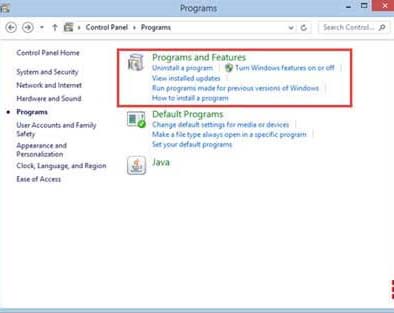
    #1. Uninstall Chromium Windows 7Uninstall Chromium Windows 7

    1. Click the Windows logo in the corner then select the Control Panel menu.
    2. Select the Program and Feature menu in the control panel menu list.
    3. Look for the Chromium program in the list of existing applications.
    4. Right-click then select the Uninstall option.

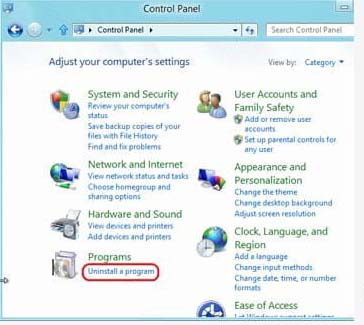
    #2. Uninstall Chromium Windows 8Uninstall Chromium Windows 8

    1. Go to File Explorer and then click Control Panel.
    2. Select the Program menu then Program and Feature.
    3. Look for the Chromium program in the list of existing applications.
    4. Right-click and select the Uninstall option.

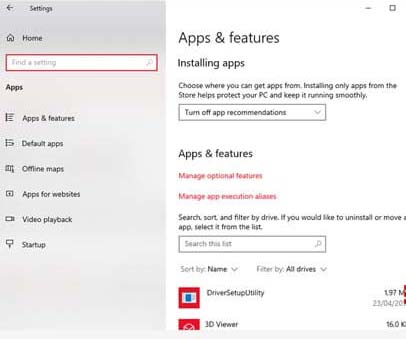
    #3. Uninstall Chromium Windows 10Uninstall Chromium Windows 10

    1. Click the Windows logo in the corner then click Settings.
    2. Select the Apps menu to enter Apps and Features.
    3. Look for the Chromium app, click it then select the Uninstall option.

    How to Permanently Remove Chromium

    If you have uninstalled Chromium from your Windows, now you must delete Chromium by deleting the folder in your Windows data so that Chromium can be permanently deleted and not come back again.

    There this stage may be slightly different for each existing version of Windows. So, make sure you follow the method to remove chromium in Windows that matches what you are using.

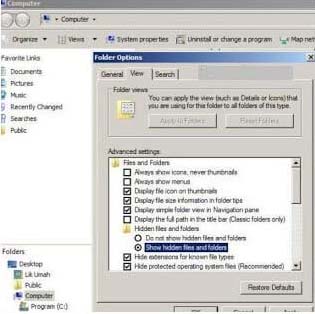
    #1. How to Remove Chromium in Windows 7How to Remove Chromium in Windows 7

    1. Open Windows Explorer or press the CTRL + E keys on your keyboard.
    2. Click the Tools menu option and then select the Options folder.
    3. Go to the View tab then check Show hidden files.
    4. Go to Drive (C 🙂 or Local Disc (C 🙂
    5. Click your Windows user.
    6. Click the Apps Data folder then select Local Folder.
    7. Find and delete the folder named Chromium.
    8. If the folder can’t be deleted, check the task manager by pressing the CTRL + ALT + Delete keys simultaneously, then end the Chromium task.

    #2. How to Remove Chromium on Windows 8How to Remove Chromium on Windows 8

    1. Open Windows Explorer and then go to the User folder or users.
    2. Go to folder C: \ Users \ NamaKomputer \ AppData \ Local (replace NamaKomputer with the name of your computer)
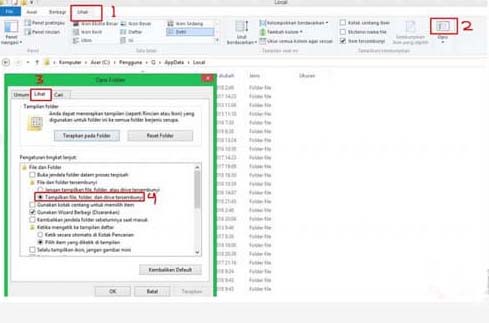
    3. Click the View menu tab then click Options then click the Change folder and Search options option.
    4. In the Hidden Files and Folders option, click the Show Hidden Files, folders, and Drivers option.
    5. Go back to the Local folder, then find and delete the folder named Chromium.

    #3. How to Remove Chromium on Windows 10How to Remove Chromium on Windows 10

    1. Open Windows Explorer then go to drive (C).
    2. Click the User or Users folder.
    3. Click the AppData folder then Local.
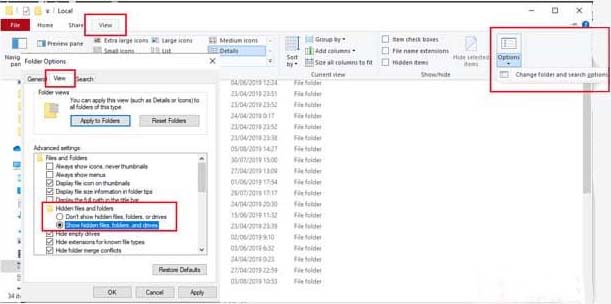
    4. Click the View menu tab then click Options then click the Change folder and Search options option.
    5. In the Folder Options option, click View, then in hidden files and folders, click the option Show hidden files, folders, and drivers.
    6. After that, the chromium folder will appear and is no longer hidden.
    7. Go back to the Local folder, find and delete the folder named chromium to wipe the chromium browser clean.

    Now chromium has been successfully removed permanently. Now you don’t have to worry about being bothered by Chromium which often opens on its own.

    Read more:

    Conclusion:

    So, friends, That’s above how to remove chromium from Windows 10 and clean it. This method has been proven successful for uninstalling the Chromium browser on a PC / laptop and won’t come back again.

  • How to Install And Activate Corel Draw X7 on Windows PC 2024

    How to Install And Activate Corel Draw X7 on Windows PC 2024

    How to Install and Activate Corel Draw X7 on Windows PC – Corel Draw is one of the most popular and very frequently used graphic design software. Corel Draw is used by various groups, from students to professional designers. The needs that can be fulfilled also vary, for example for making banners, business cards, posters, and other more complex designs.

    How to Install And Activate Corel Draw X7 on Windows
    How to Install And Activate Corel Draw X7 on Windows

    How to Install and Activate Corel Draw X7 on Windows 10,8,7 Laptop PC 2024

    The number of Corel Draw users in the world of graphic design is of course inseparable from the various attractive features offered. Not only that, the interface is very easy to use and the tool shortcuts that are often used are of course its main attraction.

    Read more:

    The existence of these tool shortcuts will certainly make the design process easier and faster because there is no need to scroll through the features menu.

    However, of course, you already know that in order to use all of these features, Corel Draw must be installed first. You have to install Corel Draw first so it can be used to create designs.

    Unfortunately, there are still many computer users who don’t know how to install Corel Draw on their Windows Desktop or Laptop PC. Both beginners who just want to learn to use Corel Draw, or even designers who have often used Corel Draw software.

    If you want to use Corel Draw software to create designs, there are already many versions available today. One of the versions of Corel Draw which is quite popular to date is Corel Draw X7.

    So, in this article, we will discuss how to install Corel Draw X7 on the Laptop or Desktop PC that you are using.

    Basically, how to install this software is not difficult, but there are things you must do first. First, make sure you already have the Corel Draw X7 master installer file on the laptop storage you are using.

    If you don’t have it yet, then please download it first via the following link. When you download the master file, make sure the download matches the Windows bit on the laptop used.

    So, please check your windows bit first then download the appropriate master file, whether it’s 32 bit or 64 bit.

    • Click here to download Corel Draw X7 32 bit, for Windows 32 bit
    • Click here to download Corel Draw X7 64 bit, for Windows 64 bit

    After you have the Corel Draw X7 master installer file that will be used to install, the install process can be done. You can install Corel Draw X7 on a Windows computer that is used by following the steps below.

    The first step is, please extract the Corel Draw X7 master installer file that you downloaded. In the extracted folder there will be two files, namely the setup file and keygen.

    However, if there is no keygen file, it is advisable to turn off Windows Defender or any other antivirus used so that the keygen file is not deleted after extracting. Then, please do the extract process again so that the keygen file appears again.

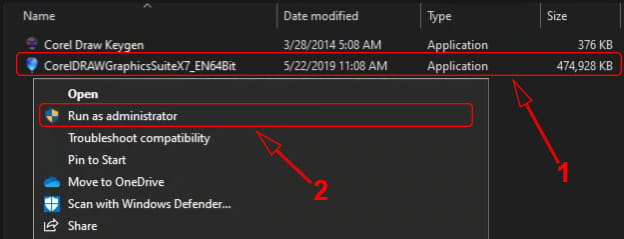
    After that, please run the setup file, namely the CorelDRAWGraphicsSuiteX7_EN64Bit file (for Windows 64 bit) or CorelDRAWGraphicsSuiteX7_EN32Bit (for Windows 32 bit) as administrator ( Run as administrator ).

    How to Install and Activate Corel Draw X7 on Windows 10,8,7
    How to Install and Activate Corel Draw X7 on Windows 10,8,7

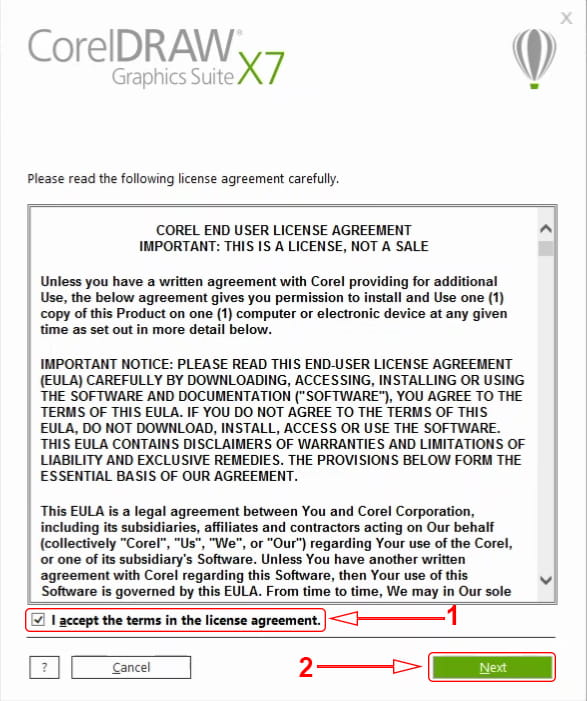
    Next, in the first window that appears, please tick the checkbox I accept the terms in the license agreement. After that, please click Next to continue to the next stage.


    how to install corel draw x7 3
    how to install corel draw x7 3

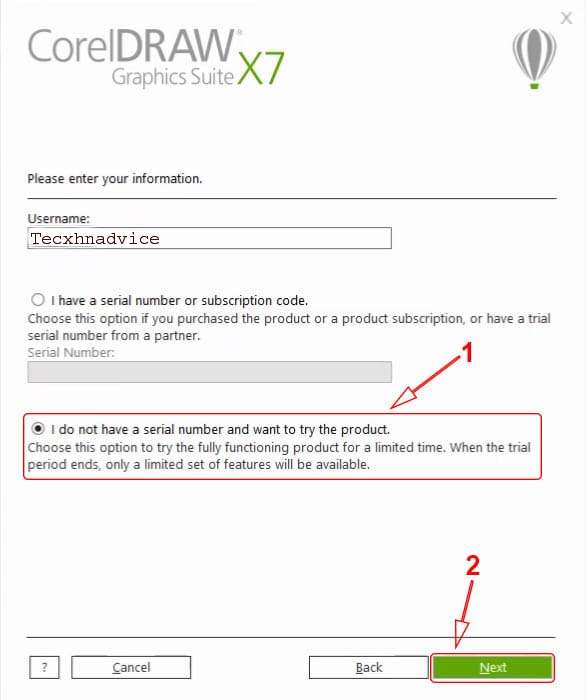
    In the next window, please click the option I do not have a serial number and want to try the product. Then, please click Next to proceed to the next step.

    how to install corel draw x7 3
    how to install corel draw x7 3

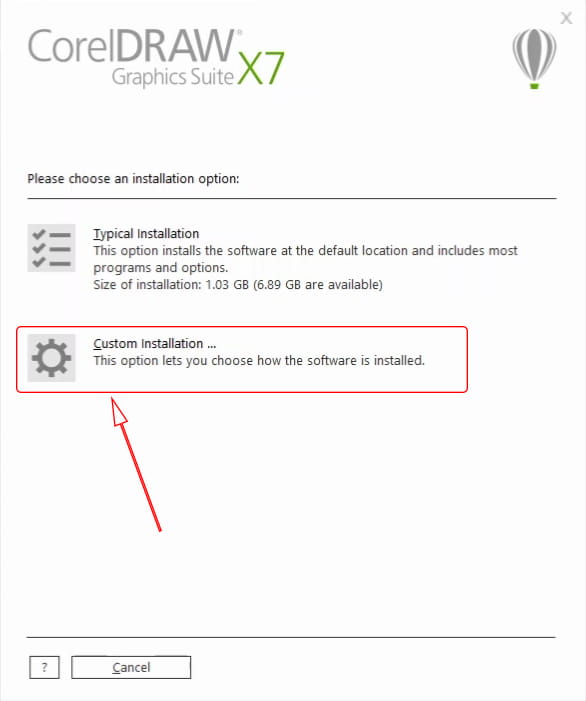
    In the next window, you can choose whether you want to install all Corel products, or only Corel Draw for design only. If you only want to install Corel Draw for design only, then please click Custom Installation….

    how to install corel draw x7 5
    how to install corel draw x7 5

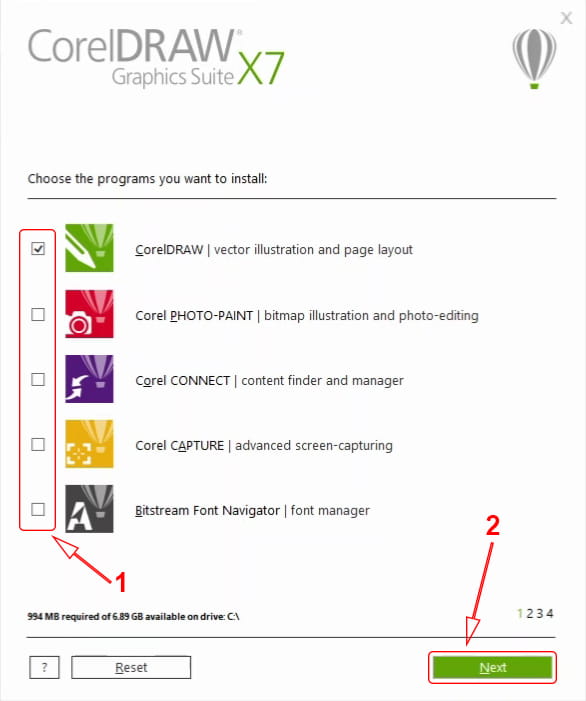
    Then, in the next window that appears, please uncheck the products that are not needed. It is recommended to only install what is really needed, for example, CorelDRAW only. Of course, this will use less installed storage. When finished, please click Next to continue.

    how to install corel draw x7 6
    how to install corel draw x7 6

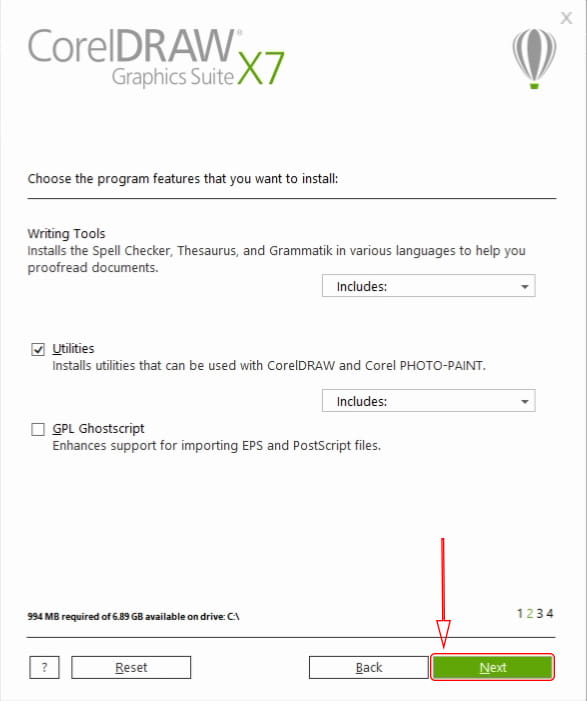
    In the next window that appears, please just click Next to continue.

    how to install corel draw x7 7
    how to install corel draw x7 7

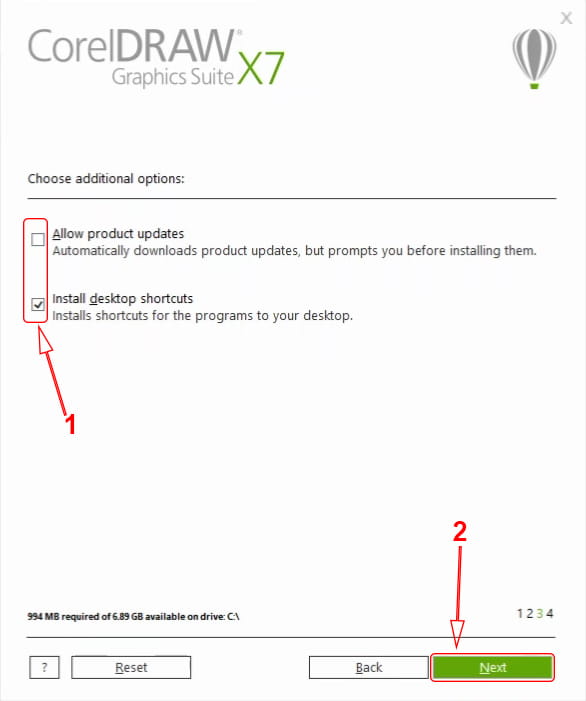
    Then in the Additional options window, please uncheck the Allow product updates checkbox.

    This is done so that Corel Draw does not update later. Then, if you want to create a shortcut on the Desktop, please check the Install desktop shortcuts checkbox. When finished, please click Next to continue to the next step.

    how to install corel draw x7 8
    how to install corel draw x7 8

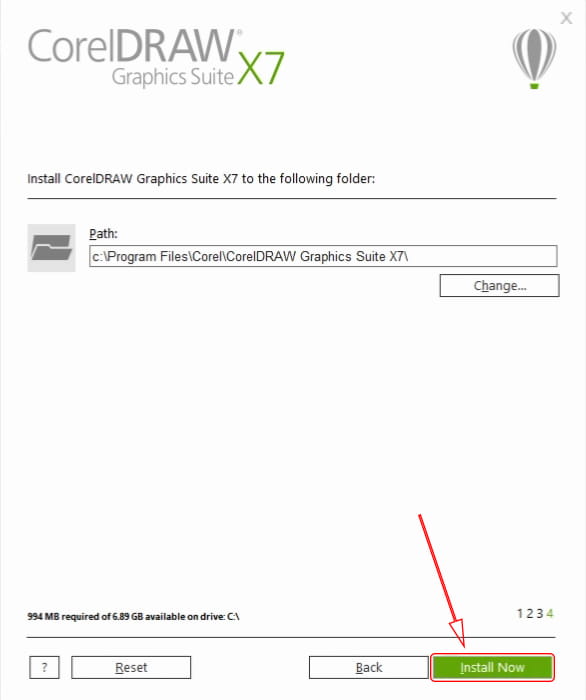
    Then, in the next window that appears you can change the location of the Corel Draw install.

    However, if the C partition of your Laptop storage is still quite large (more than 1GB), it is advisable not to change it. After that, please click Install Now to start the installation process.

    how to install corel draw x7 9
    how to install corel draw x7 9

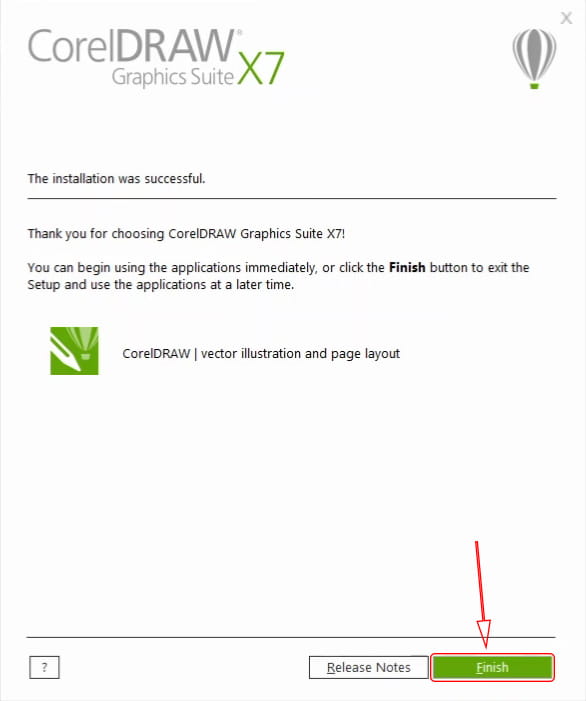
    After that, the installation process will take about 10 minutes, but it could take longer depending on the specifications of the Laptop or Desktop PC you are using.

    Please wait until the installation process is complete and a message appears successful. When finished, then please click Finish on the window that appears to close the setup window.

    how to install corel draw x7 10
    how to install corel draw x7 10

    After performing the steps above, you have successfully completed the installation process. However, there are still other things you have to do in order to use Corel Draw X7 for a long time, namely activating.

    How to activate already installed Corel Draw X7

    After you install Corel Draw X7, the next step is to activate it. This activation process is needed so that Corel Draw that has been installed can be used for a long time.

    To do the activation, what is used is the keygen file that is already in the master installer folder. To be clearer, please follow the steps below.

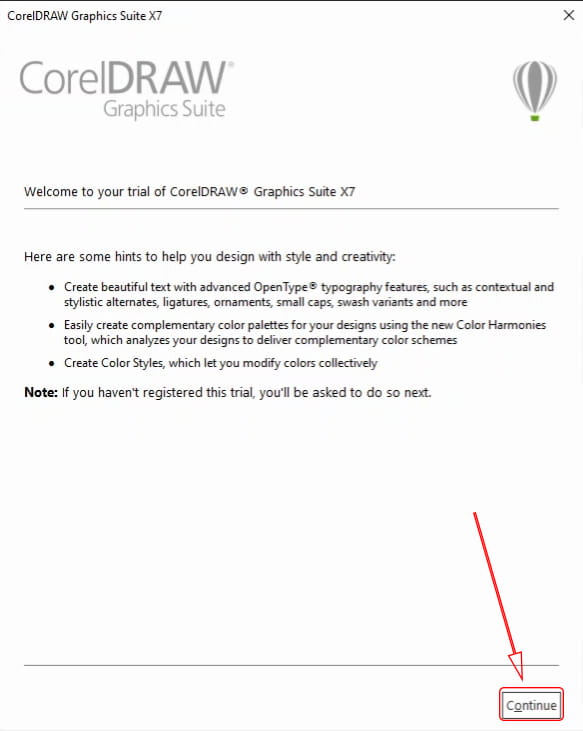
    Please turn off or disconnect the internet connection if your laptop is connected to the internet. Then, please open Corel Draw X7 that you have installed, either through the Start Menu or via a shortcut on the Desktop.

    In the Welcome to the trial window that appears, please click Continue to continue.

    how to install corel draw x7 11
    how to install corel draw x7 11

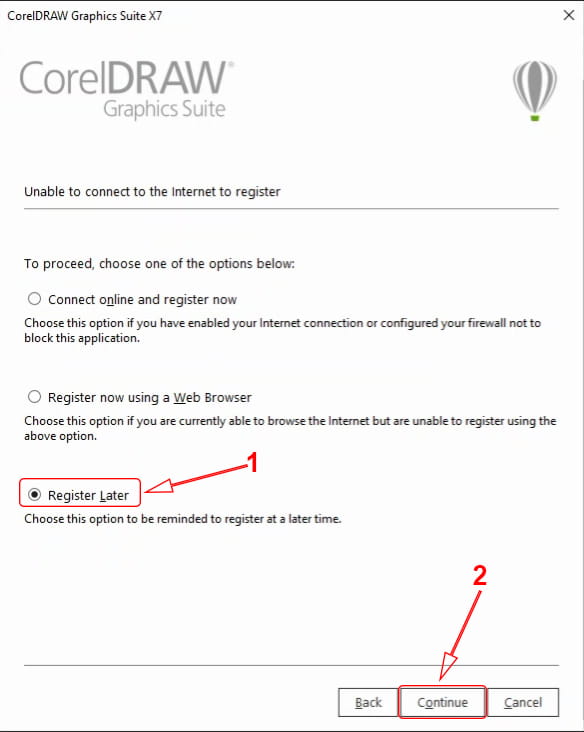
    Then, in the next window that appears, please click the Register Later option. After that, please click Continue to continue to the next step.

    how to install corel draw x7 12
    how to install corel draw x7 12

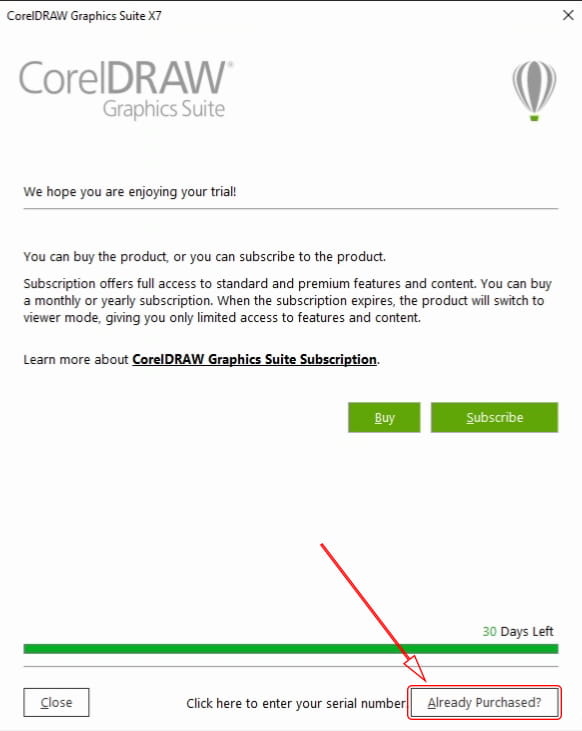
    Then, if Corel Draw X7 is already open, please close it again. Then, in the window that appears after you close Corel Draw X7, please click Already Purchased?

    how to install corel draw x7 13
    how to install corel draw x7 13

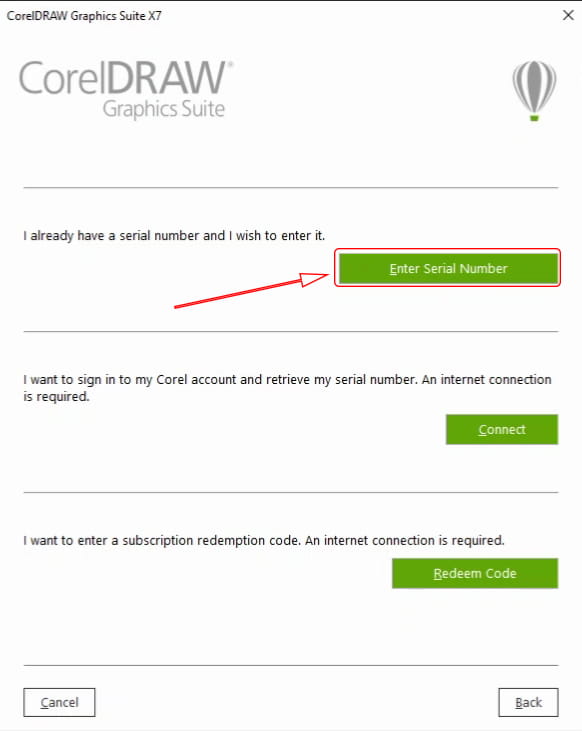
    Next, in the window that appears, please click Enter Serial Number to open the serial number window.

    how to install corel draw x7 14
    how to install corel draw x7 14

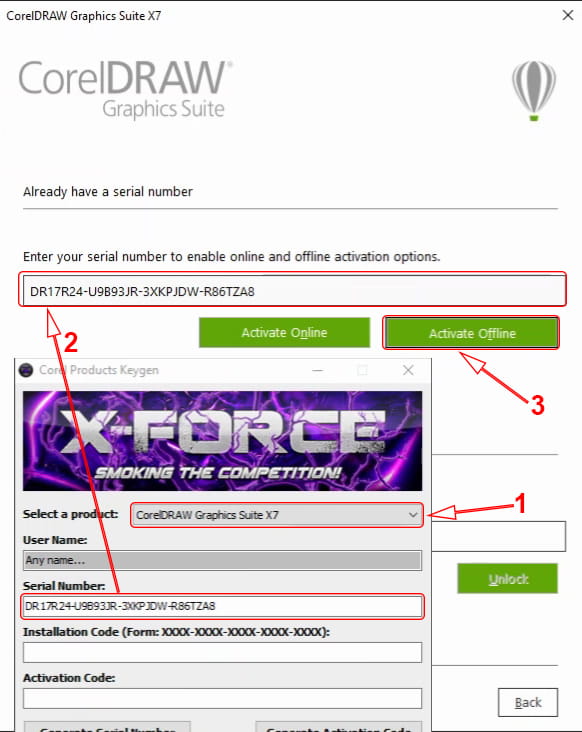
    Then, a serial number window will appear which you must fill in to continue activation. To get the required serial number, please reopen the extracted folder from the Activate Corel Draw X7 master installer file. Then, in that folder, please run the Corel Draw Keygen file.

    In the Corel Product Keygen window that appears, please click the option on the Select a product section and select CorelDRAW Graphics Suite X7.

    Then, copy the serial number contained in the Serial Number section to the serial number column in the Corel Draw activation window. After that, please click Activate Offline to validate the serial number.

    how to install corel draw x7 15
    how to install corel draw x7 15

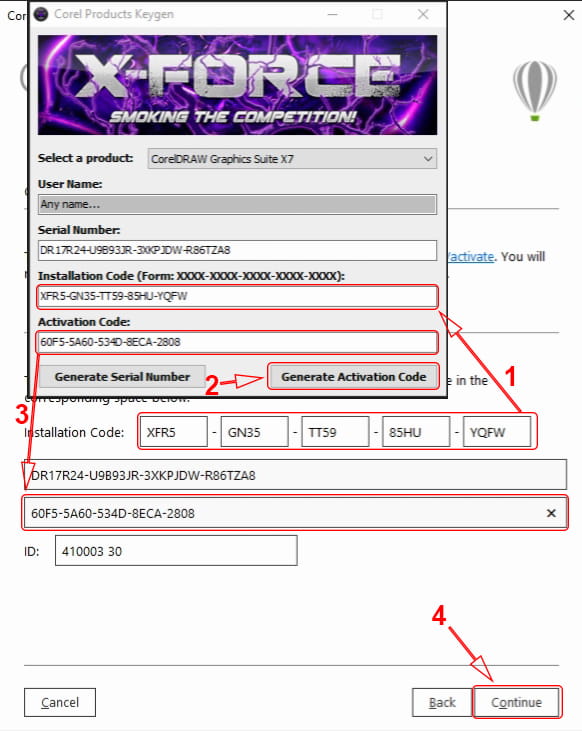
    Next, the information will appear showing the Installation Code in the Activate Corel Draw X7 activation window. Please type the Installation Code in the Installation Code section in the Corel Product Keygen window.

    After you type all the installation codes, please click Generate Activation Code in the Corel Product Keygen window.

    Then, copy the text contained in the Activation Code section to the Activation Code section in the Corel Draw activation window.

    When finished, please click Continue to continue. If a window appears containing the Error: Invalid Serial Number information, just ignore it and click Ok to close the window.

    how to install corel draw x7 16
    how to install corel draw x7 16

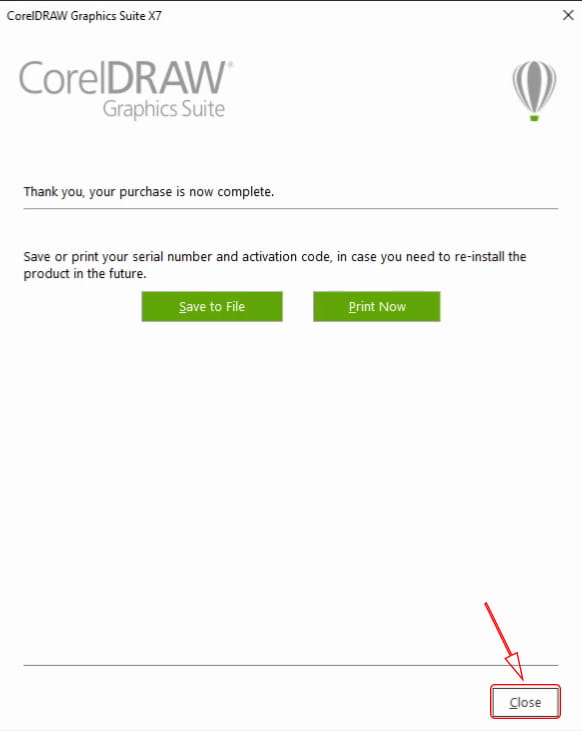
    Then, the next window will be given information that the activation is complete. Please click Close to close the activation window.

    how to install corel draw x7 17
    how to install corel draw x7 17

    After you do the steps above, the Corel Draw X7 activation process has been successfully carried out. Now you can use Corel Draw X7 for a long time.

    how to install corel draw x7 18
    how to install corel draw x7 18

    Read more:

    Conclusion:

    So, friends, That’s how to Install And Activate Corel Draw X7 design software on a Windows Laptop. You can do this on all editions of Windows, be it Windows 7, Windows 8 / 8.1, or Windows 10. So, if you want to make a design using Corel Draw, please install it yourself using the steps above.

  • 4 Ways to Stop Automatically Running Programs When the Computer Turns on 2024

    4 Ways to Stop Automatically Running Programs When the Computer Turns on 2024

    4 Ways to Stop Automatically Running Programs When the Computer Turns On – When the computer/laptop is turned on, all hardware components will work to perform the boot process by loading all Windows operating system modules. Sometimes, it is not only the operating system that is run but can be added by default or third-party programs. Programs that are run concurrently (in boot ) are not a problem, it’s just that the boot process will take longer.

    4 Ways to Stop Automatically Running Programs When the Computer Turns On

    How to Stop Automatically Running Programs 2024

    In addition, some programs usually also run/open by themselves after the Windows boot process. For example, the Firefox browser is set to run after the computer is turned on. As a result, Firefox opens without you clicking the Firefox icon.

    Read more:

    Through this article, you can try several ways to stop programs that run automatically when the computer is turned on. You can stop the program by going to the Startup feature or going to the corresponding program’s Settings. To do this, consider the following methods.

    #1. Stop the Startup program through the Settings menu

    Stop the Startup program through the Settings menuThe first way, you can turn off running programs is by entering the Startup Apps feature through the Settings menu. The existence of these features makes it very easy for users to see what programs are running at startup ( booting Windows). You can do this method on Windows 10 Build 17017 and above (newer versions).
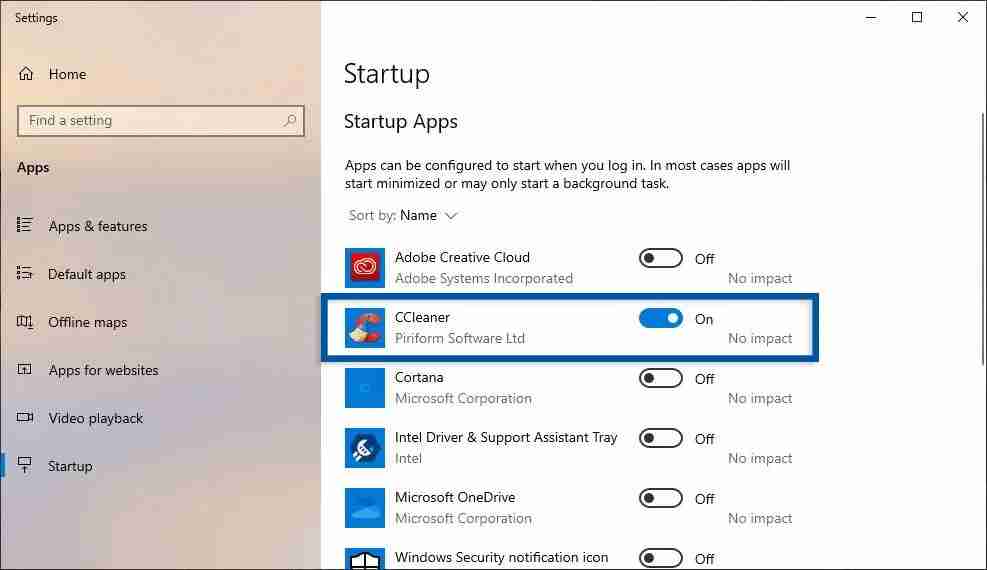
    1. Go to Settings » Apps » Startup menu.
    2. Then you will see a list of programs running at startup.
    3. Select the program you want to turn off and slide the On switch to Off to turn it off.
    4. Finished.

    #2. Stop the Startup program via Task Manager

    In the second method, you can turn off the program by going to the Task Manager menu in Windows 10 and 8. Many Windows users more often use this feature to turn off running programs, startup, errornot responding, and view memory, CPU, and other resource usage. storage.

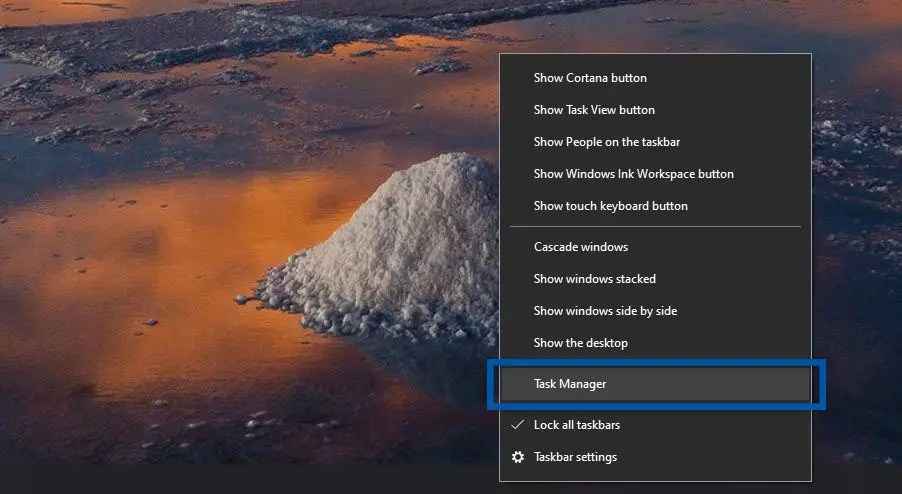
    Step 1: First, right-click on the Windows Taskbar, then select Task Manager. Or it could be with the keyboard shortcut CTRL + SHIFT + ESCAPE.

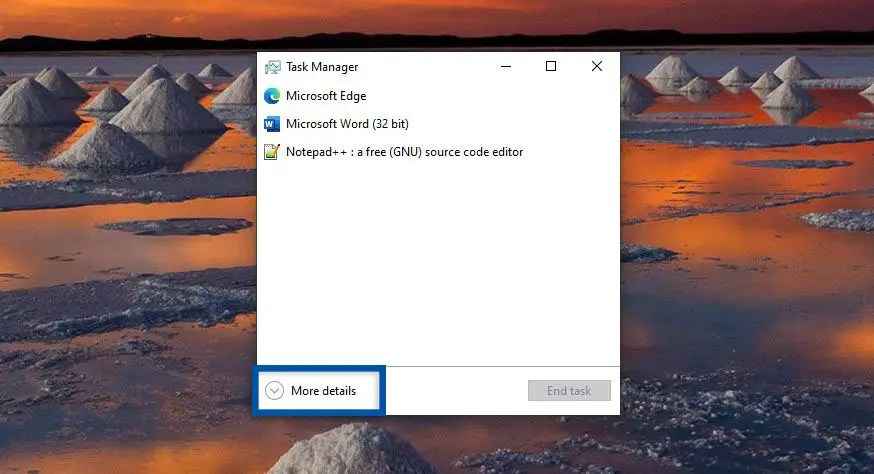
    Stop the Startup program via Task ManagerStep 2: Then click More Details to see Task Manager in a more detailed version.
    Stop the Startup program via Task ManagerStep 3: Next, click on the Startup tab, and select the program you want to turn off. Click Disable ( disabled ) to turn off the program.
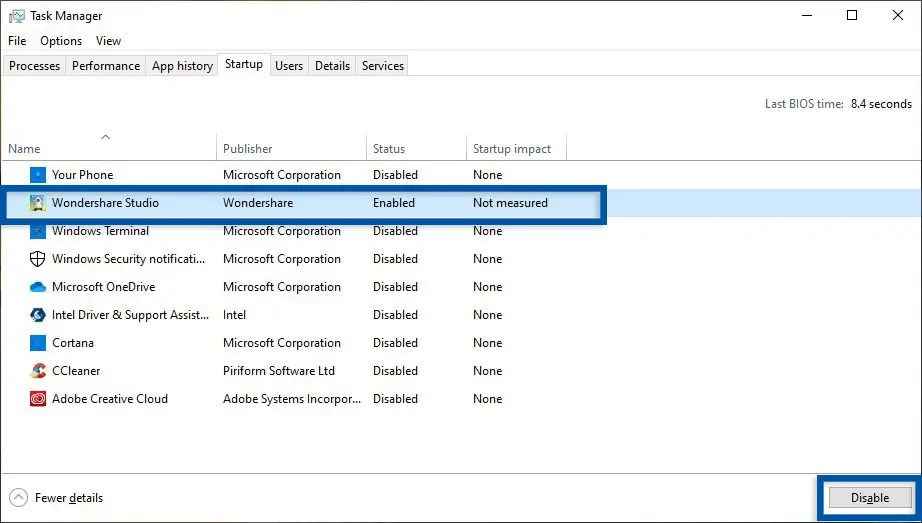
    Stop the Startup program via Task ManagerIf sorted, here are the steps.

    1. Right-click on the Taskbar » Task Manager » for more details.
    2. Select the Startup tab » select the program you want to turn off.
    3. Click Disable to disable the program.
    4. Finished.

    #3. Stop the Startup program from msconfig (System Configuration)

    Next is to turn off the Startup program through the msconfig feature ( System Configuration ) in Windows 7. In Windows 8 and 10 itself, the Startup feature stands alone. While in Windows 7 it is still attached to the System Configuration. But you can still do this method on Windows 8 and 10 which will also be switched to the Startup feature.

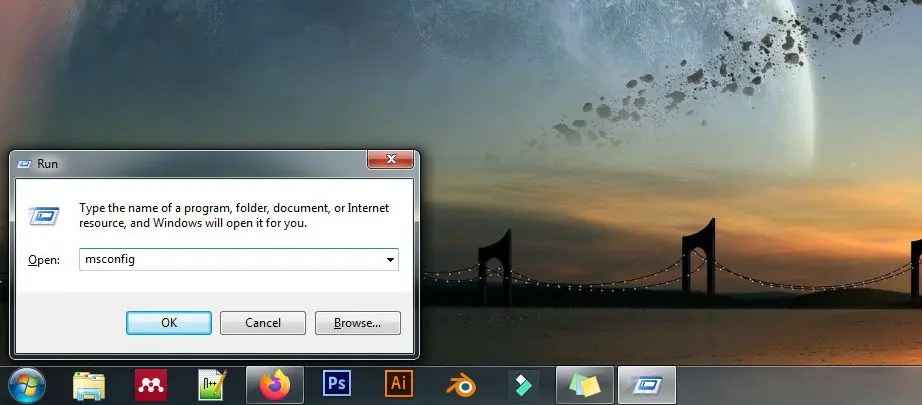
    Step 1: Open the Run program with the keyboard shortcut Windows + R . Type msconfig then OK/ Enter. Later you will be directed to the System Configuration feature.

    Stop the Startup program from msconfig (System Configuration)Step 2: In the System Configuration feature, select the Startup tab. Then uncheck the program you want to disable. After that click Apply and OK.
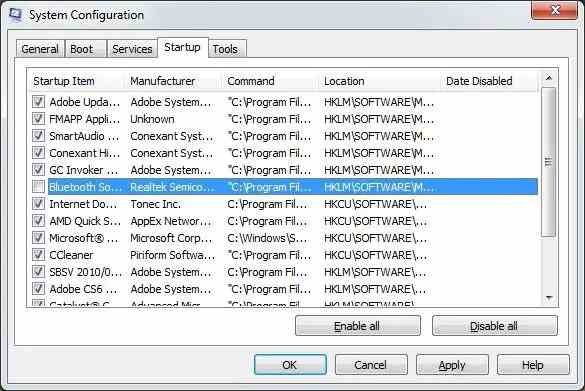
    Stop the Startup program from msconfig (System Configuration)Step 3: When a dialog box appears, you can select Restart to see the changes immediately or click Exit without restart if you want to see the changes later.
    If sorted, here are the steps.

    1. Open the Run program with Windows + R, then click OK.
    2. Select the Startup tab, and uncheck the programs you want.
    3. Click Apply and OK.
    4. Select the dialog you want.
    5. Finished.

    #4. Stopping Startup programs using Third-Party Software

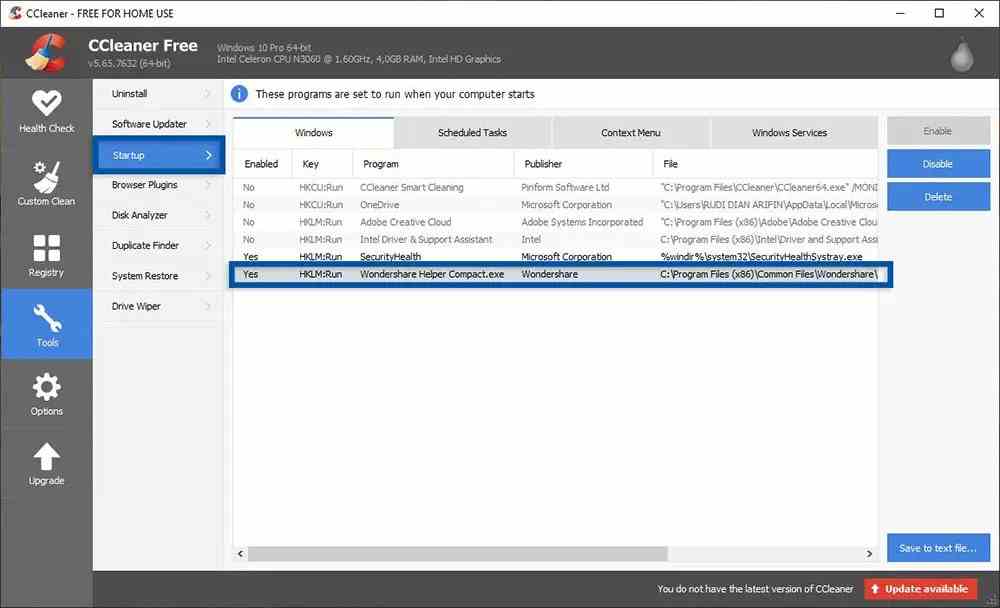
    Stopping Startup programs using Third-Party SoftwareNext is to stop the Startup program from using the software side when the ( third-party ). There are many Windows utility software that also provides a feature to disable Startup programs easily and for free. One of the software that you can use for free is CCleaner which was developed by Piriform.

    1. Download and install CCleaner here.
    2. Open CCleaner » select Tools » Startup.
    3. Then select the program you want to turn off.
    4. Click Disable to disable.
    5. Finished.

    Other alternatives to CCleaner are also very diverse, such as AVG PC TuneUp, Glary Utilities, Advanced SystemCare, and others.

    Read more:

    Conclusion:

    Stopping programs that run automatically when the laptop/computer is turned on is very easy for you to do. In addition to making the boot process faster, turning off the Startup program also makes Windows lighter when used for activities. To get the most out of it, you also need to clean all Windows junk files.

    If you feel confused about turning off the Startup program, please write your questions in the comments column. Share this article on your social media to make it more useful and useful.