Category: Windows

Windows – Here you can find Computer-related updates Windows 10, Windows 8, Windows 7, Linux, technology information, and more.

  • 7 Easy Ways To Fix Laptop Keyboard Not Working 2024

    7 Easy Ways To Fix Laptop Keyboard Not Working 2024

    7 Easy Ways To Fix Laptop Keyboard Not Working – Have you ever experienced the keyboard on a laptop that can’t function with some letters or even doesn’t work at all? It must be very annoying, right? You don’t need to panic and immediately take it to service because you can easily repair a laptop keyboard yourself.

    7 Easy Ways To Fix Laptop Keyboard Not Working
    7 Easy Ways To Fix Laptop Keyboard Not Working

    How To Fix Laptop Keyboard Not Working (100%) Fixed

    There are two types of laptop keyboard problems: errors and not working. The first is that the laptop keyboard does not work part of the letters, and the second is when the keyboard cannot function.

    Read more:

    These two problems can afflict all laptop brands from Asus, HP, Acer, Lenovo, Dell, Toshiba, and others. This problem is quite often encountered by laptop users of any brand.

    To fix this, you must know in advance whether this problem arises due to factors from hardware or software.

    Then make sure your laptop keyboard is not fully functional or only part of the letters. After that, please follow some of the following solutions below.

    #1. Restart the laptop
    Restart the laptop

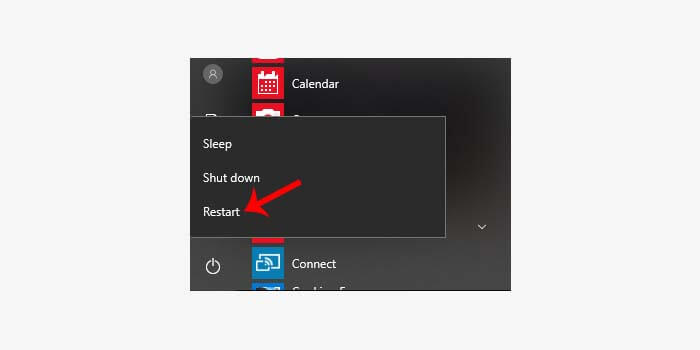
    Restarting a laptop is one of the simplest solutions to fix an error or malfunctioning keyboard.

    Sometimes we don’t realize that we have disabled the keyboard so that it can’t be used. Or there is an error from an application that makes the keyboard unable to function.

    Try to turn off the laptop first, then wait a few minutes and restart your laptop.

    #2. Update the Keyboard Driver
    Update Keyboard Driver

    The installed laptop keyboard driver does not match the suitable version, which will result in an error laptop keyboard not functioning completely.

    How to fix a laptop keyboard not working:

    1. Go to the Windows Start menu.
    2. Go to Control Panel> Hardware and Sound> Device Manager.
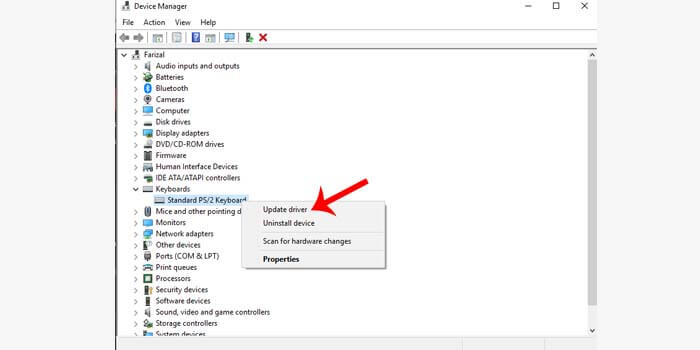
    3. Click the Keyboard option.
    4. Then right-click the driver from the laptop keyboard.
    5. Select the Update Driver option.
    6. Wait for the driver update process to complete.
    7. The complete process is indicated by the appearance of the restart command

    Next, you have to restart the laptop, and then wait for the laptop to turn back on. If the keyboard is working again, then the problem is from an outdated driver.

    #3. Disable Numlock
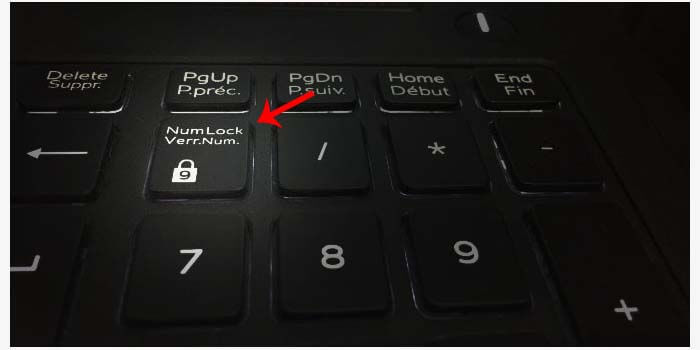
    Disable Numlock

    If you still experience the laptop keyboard doesn’t work through the two methods above, then make sure whether the num locks key on your keyboard is active.

    If so, then chances are the num lock key is making your laptop keyboard not work. Simply turn off the button, then try to test whether the keyboard is back to normal or not.

    #4. Remove the Laptop Battery
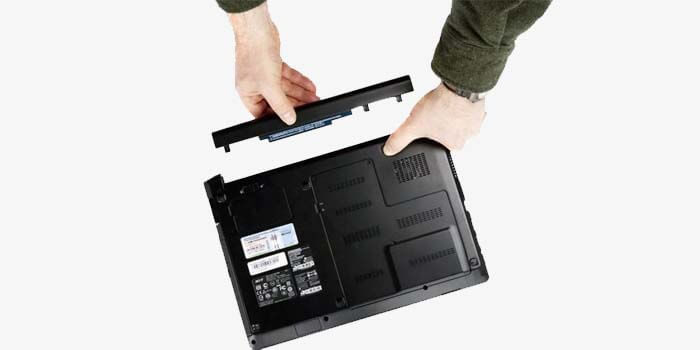
    Remove the Laptop BatteryShort circuit electricity can also be a factor in a laptop keyboard not functioning. How to fix a laptop keyboard, in this case, is you have to remove the battery on the laptop first for a few minutes.

    After that, reinstall the laptop battery and turn on your laptop. If it is true that electric current is the problem, the keyboard will now work normally again.

    #5. Restore Windows
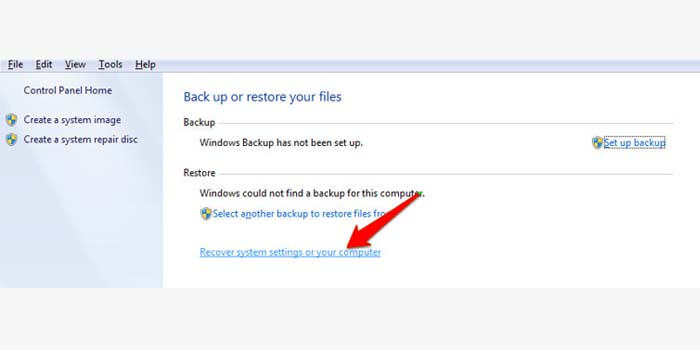
    Restore Windows

    A laptop keyboard that does not work suddenly can also be caused because we are not aware that there are changes to the settings on the laptop. In Windows, you can easily restore laptop system settings.

    1. Click your Windows Start menu.
    2. Then enter the Control Panel menu.
    3. Go to System and Security> Back up your computer.
    4. Click Recover system settings or your computer.
    5. Finally, click Open System Restore.
    6. Done.

    This command will restore your Windows settings to their original settings. If the keyboard error is due to an error in the system settings, then the keyboard can function normally again with this solution.

    #6. Remove Dirt and Dust

    Remove Dirt and Dust

    A dirty and dusty keyboard can prevent the keyboard function from working properly. Usually, a dirty keyboard causes some letters to malfunction.

    How do fix a laptop keyboard error due to dirt and dust, then you have to clean it by removing the keyboard component that doesn’t work. Or to make it more leverage, you can remove all the components on the laptop keyboard and then clean it.

    #7. Go to Repairman

    Go to Repairman

    Taking the laptop to a laptop or PC repairman is the easiest and most common solution. This solution is effective if you don’t know the basics of repairing a laptop keyboard.

    Even more so if you still have a valid laptop warranty. You can take it to an authorized laptop service center, they will fix your laptop keyboard easily.

    Read more:

    Conclusion:

    So, friends, this is an explanation of 7 ways to fix a laptop keyboard not working, Hopefully, this article can solve your laptop keyboard that is an error and can’t work so that it can return to normal.
  • 10 Ways To Fix Applications Not Opening in Windows 10 PC 2024

    10 Ways To Fix Applications Not Opening in Windows 10 PC 2024

    10 Ways To Fix Applications Not Opening In Windows 10 PC – The application cannot be opened. You, Windows 10 users may have encountered this problem several times.

    How to Fix Applications Not Opening in Windows 10
    How to Fix Applications Not Opening in Windows 10

    How to Fix Applications Not Opening In Windows 10 PC

    The meaning of software cannot be opened here is twofold:

    • Due to the appearance of an error message
    • The application is opened but does not appear at all

    The message in question is in the form of dll is missing or stopped working

    Well, conditions like this are not only you who experience it, you know.

    Many other users who have even used Windows 10 since it was first released, also often experience this problem. I am no exception.

    Read more:

    Cause the application or game cannot be opened on Windows

    # 1. System Problems

    For example, your Windows 10 system has a bug or other things like that.

    # 2. Exposed to Viruses

    Just like before, it’s just that this is caused by a virus or malware.

    # 3. Fewer Data Required

    The data in question is a system application. NET Framework, Visual Credits, and the like.

    # 4. Corrupt application

    The application has a problem (damaged or corrupted ). Usually stopped working is a message that usually appears.

    How to Fix Applications Not Opening in Windows 10

    The causes are various, and for different ways to overcome them.

    Here I will explain. Incidentally I myself quite often encounter problems like this. And until now it can be overcome continuously.

    # 1. End Application Task in Task Manager

    When a program is opened but nothing appears, usually, this is because Windows has not been able to fully load the application.

    How to fix it with End Task:

    • Click the Ctrl + Alt + Del keys
    • Then you will see the Task Manager
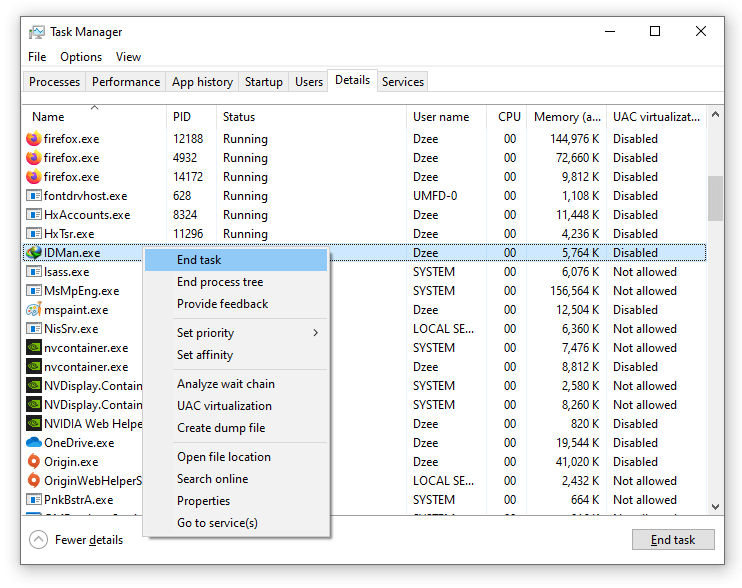
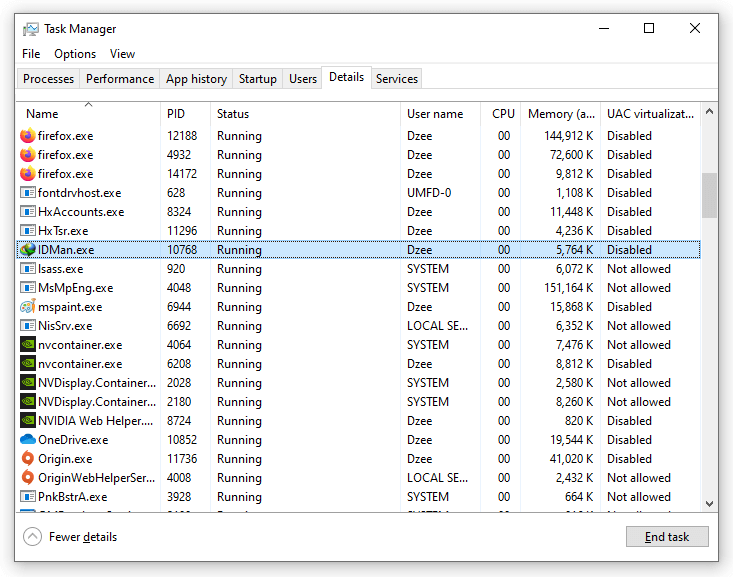
    • Please look for an application that cannot be opened. For example IDM
    How to Fix Applications Not Opening in Windows 10
    • Right-click IDM> Then select End Task
    How to Fix Applications Not Opening in Windows 10
    • If so, please reopen IDM

    Done. This way I usually always succeed. In addition, after the End Task, you can also try restarting it first.

    # 2. Install System Programs

    How to Fix Applications Not Opening in Windows 10

    I mean the system program is very important. Especially for running applications that are a bit heavy. Like Photoshop, Illustrator, CAD, or games.

    If you don’t have it installed, then the app is very likely to have an error.

    Example:

    • The application cannot display an image ( blank )
    • The application cannot open
    • An error message appears, such as ” dll is missing ” or ” unable to start correctly “

    Applications that must be installed:

    • NET Framework (Latest Version)
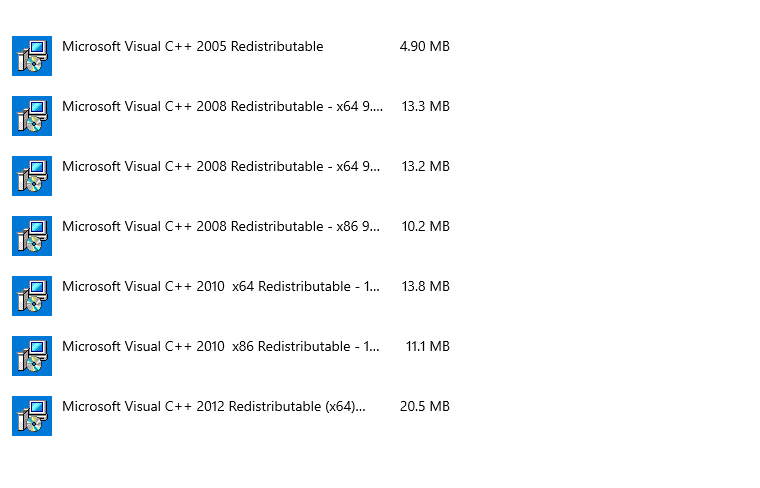
    • Microsoft Visual Credits (All versions)
    • DirectX

    For how to install the application, just visit the official Microsoft website.

    # 3. Clear Application Data

    This feature is used to clear application preference data. The aim is that the saved application settings can be lost.

    The result is a problematic application that cannot open, it can be normal as before.

    Follow these steps:

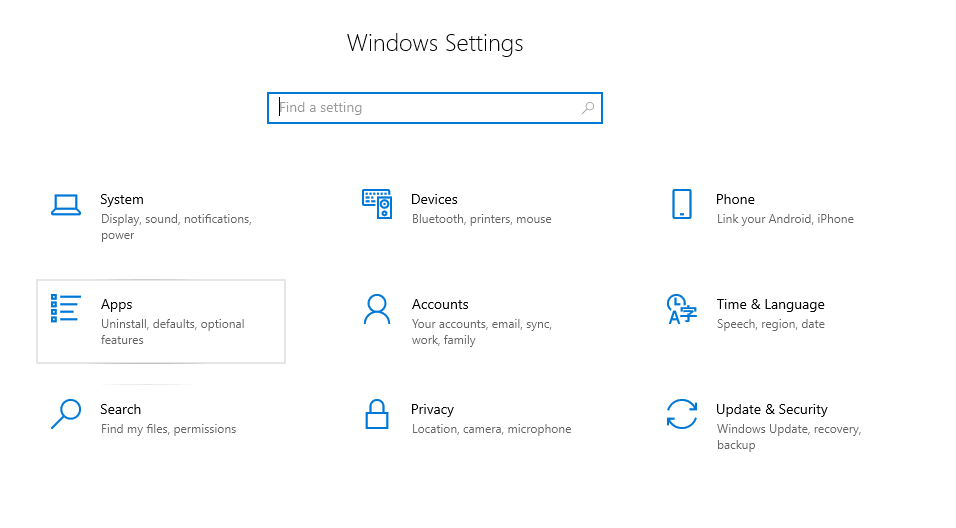
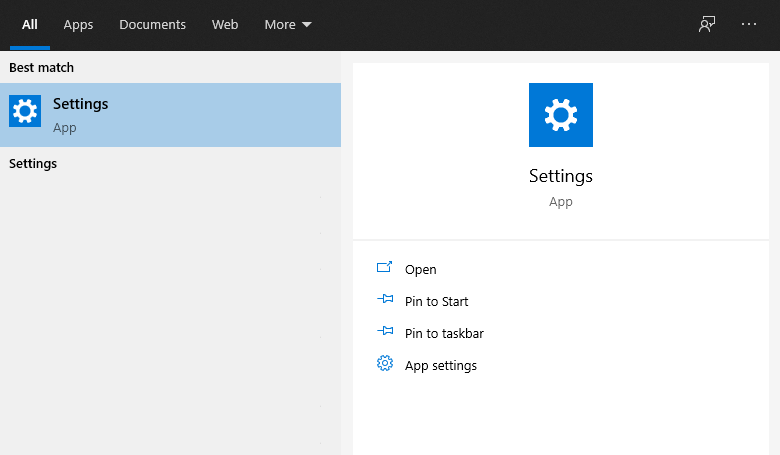
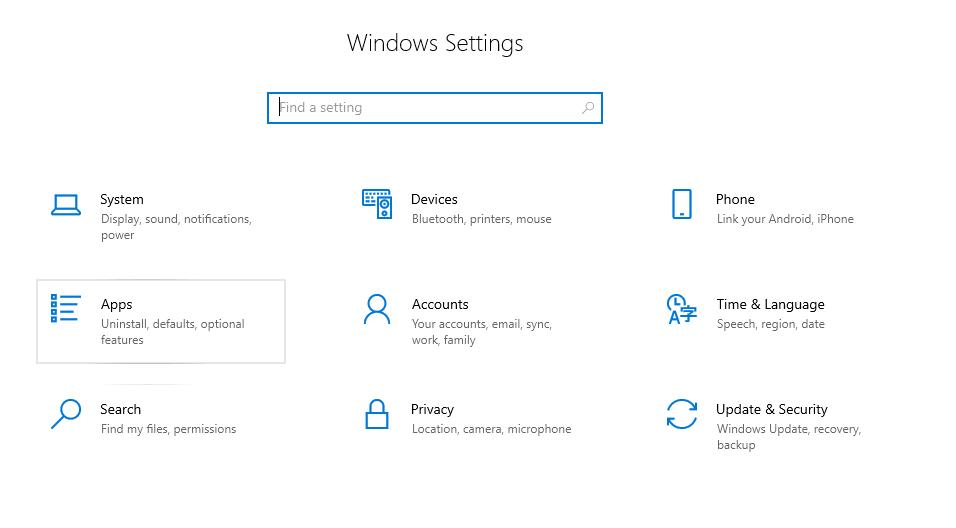
    • Please go to Settings.
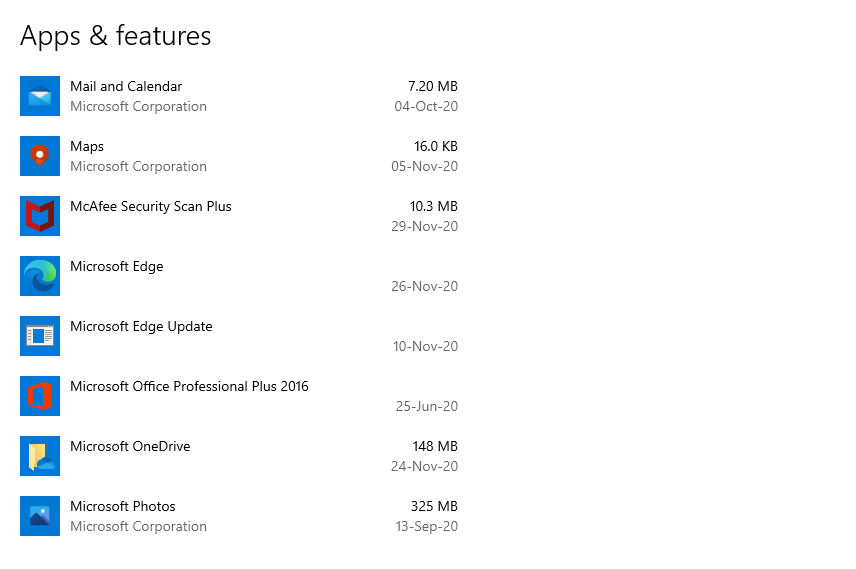
    • Search for Apps & Features.
    How to Fix Applications Not Opening in Windows 10
    • Please select the desired application.
    How to Fix Applications Not Opening in Windows 10
    • Then click Advanced Options.
    • In the next menu, please select Reset.

    This will delete all app preferences. After that, try restarting and running the application again.

    Note:

    • If the setting is not there, then first update your Windows 10 version to at least the Anniversary Update

    # 4. Set up Windows Service

    Applications that exist on Windows run based on services as well. So I can say this point is important.

    Especially for Windows default applications, such as XBOX, application settings alias settings, calculators, clocks, and the like.

    Follow these steps.

    Activating Windows Services:

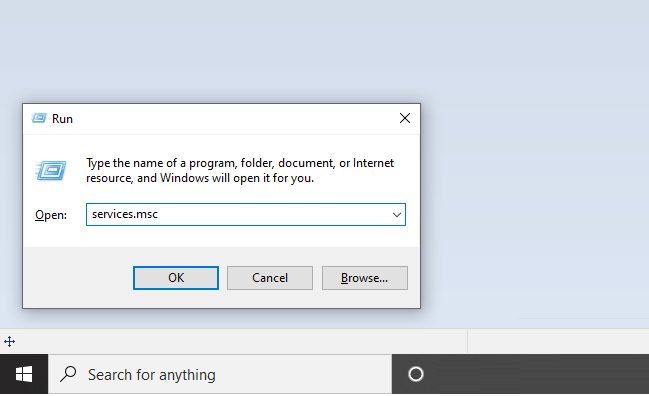
    • Press the Windows key + R
    • Type services.msc > Then click OK
    Set up Windows Service
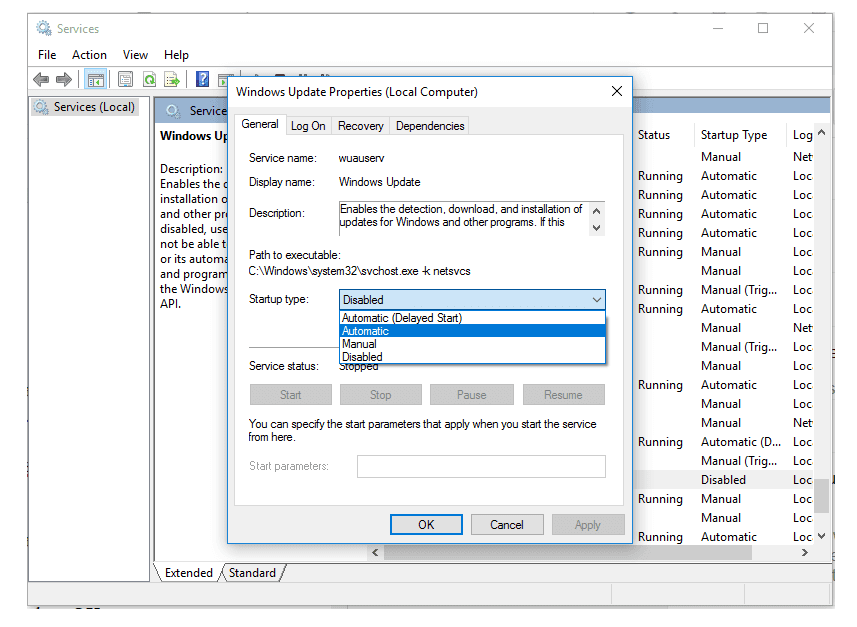
    • Then look for Windows Update > Double-click the configuration
    • In the startup type column, set it to manual or automatic

    Set up Windows Service

    • Click Apply > then click OK
    • After that, please restart your PC or laptop
    Automatic Manual
    Services will run automatically when Windows starts Services only run when activated

    Manage Application Services:

    • Press the Windows key + R
    • Type services.msc > Click OK
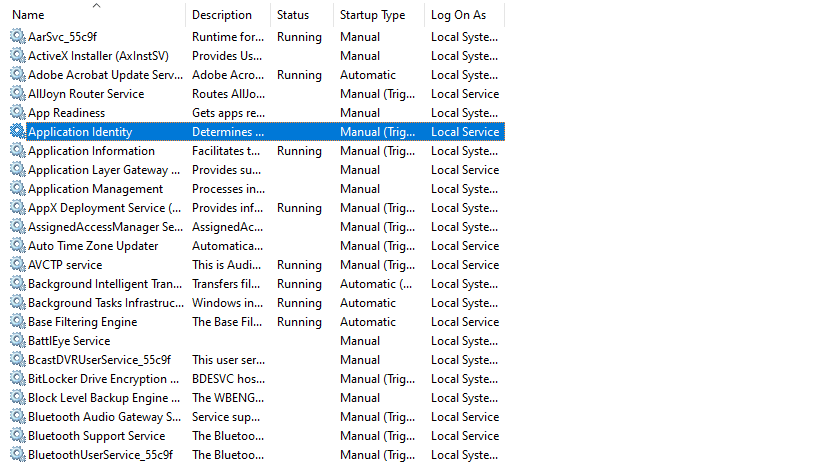
    • Next, please look for Application Identity
    Set up Windows Service
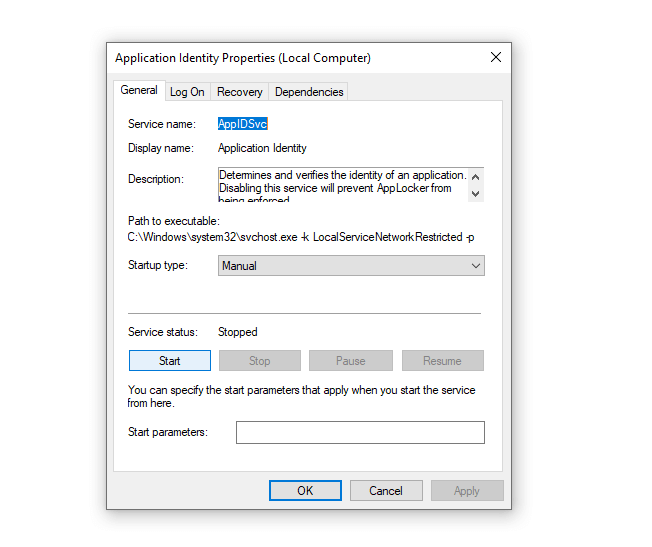
    • Then click the Start button to make the service run
    Set up Windows Service
    • Also, set the startup type to Automatic
    • Restart your PC or laptop

    After that, please check again the application you want to open.

    # 5. Set up System Administrator

    Applications cannot run, one of which is due to system administrator settings. Here you need to set it up too.

    How:

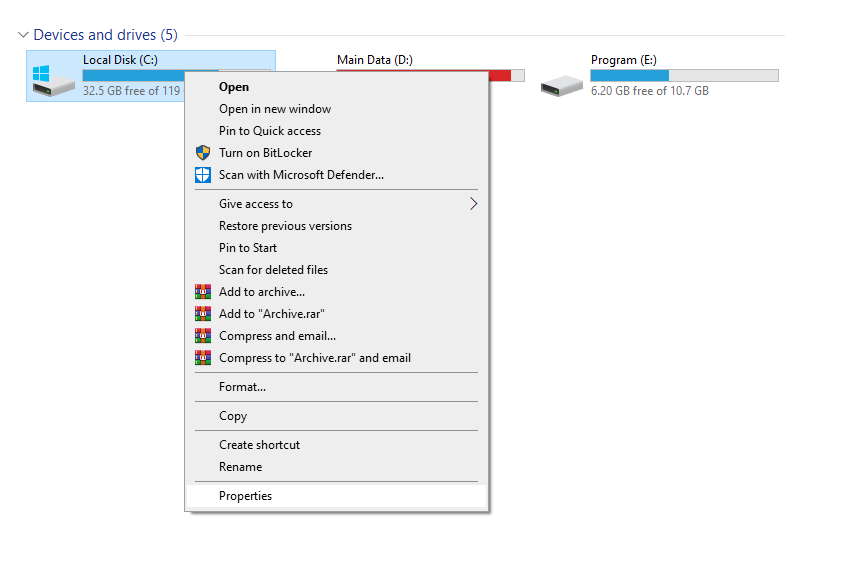
    • Open Explorer> Then right-click Drive C> Select Properties
    Set up System Administrator
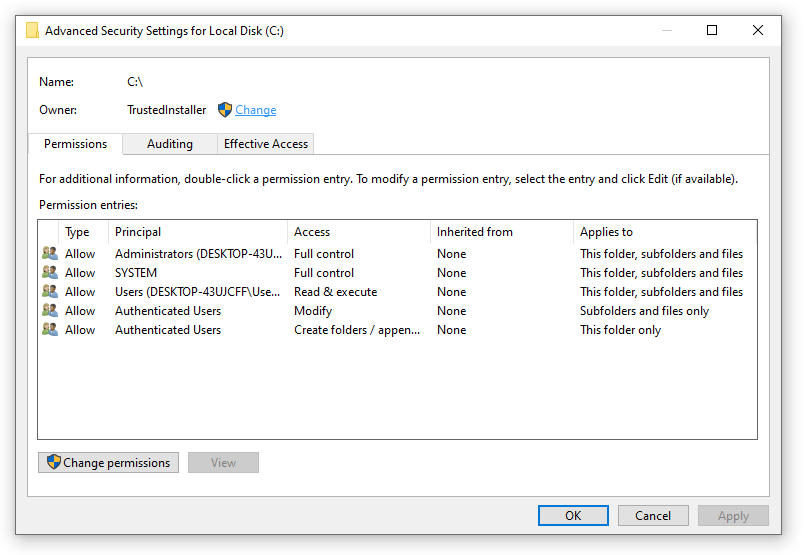
    • Then open the Security tab > Then click Advanced
    • Well, there click the Change button
    Set up System Administrator
    • Then click the Advanced button again
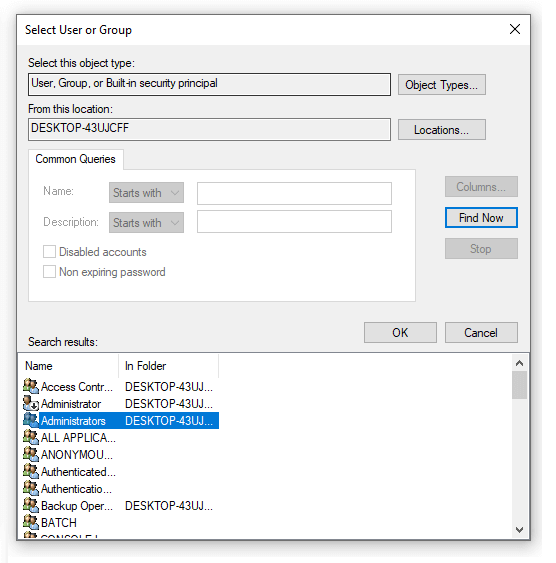
    • Click the Find now button > Click Administrator again > Then select OK
    Set up System Administrator
    • If so, check the Replace owner column > Then click Apply

    Done. You just wait for the process.

    # 6. With Regedit

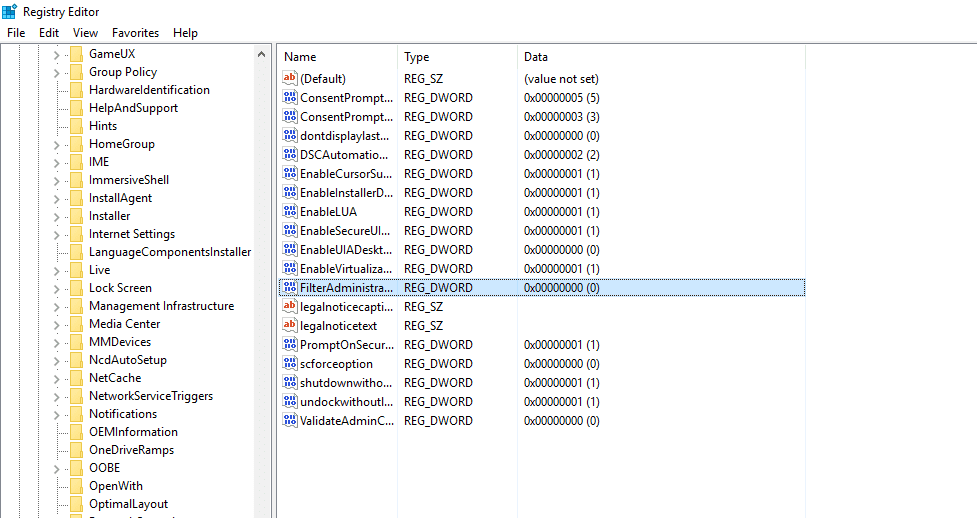
    For the problem that the program cannot be opened in Windows 10, we can try adjusting a registry setting called FilterAdministratorToken.

    This method I learned this from WindowsReport.com.

    The method is like this:

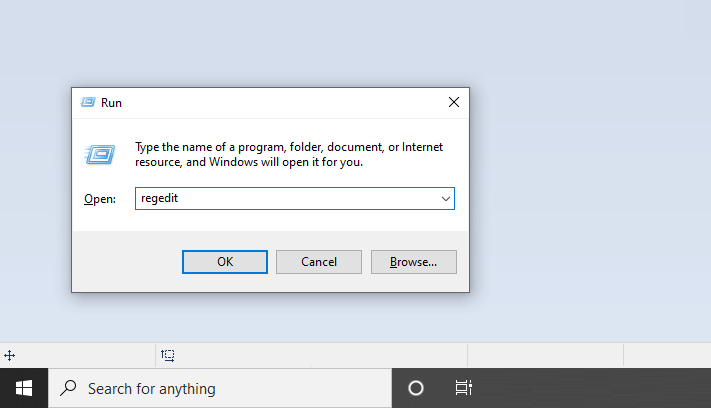
    • Click Windows key + R> Type Regedit > Then click OK
    With Regedit
    • On the left menu> Please enter HKEY_LOCAL_MACHINE > SOFTWARE
    • Open the Microsoft > Windows > CurrentVersion > Policies > System folder again

    With Regedit

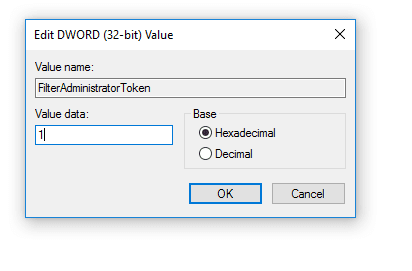
    • Double click on FilterAdministratorToken > Then change the value of its (value) to 1.

    With Regedit

    • Restart your PC or laptop.

    If the registry settings are missing:

    1. Right-click on the System section earlier.
    2. Select DWORD (32-bit) Value.
    3. Type ” FilterAdministratorToken “.
    4. Done.

    # 7. Clear Windows Store Cache

    For applications that come from the Windows Store, you can try this method. Its function is to reset the application data preferences.

    The method is like this:

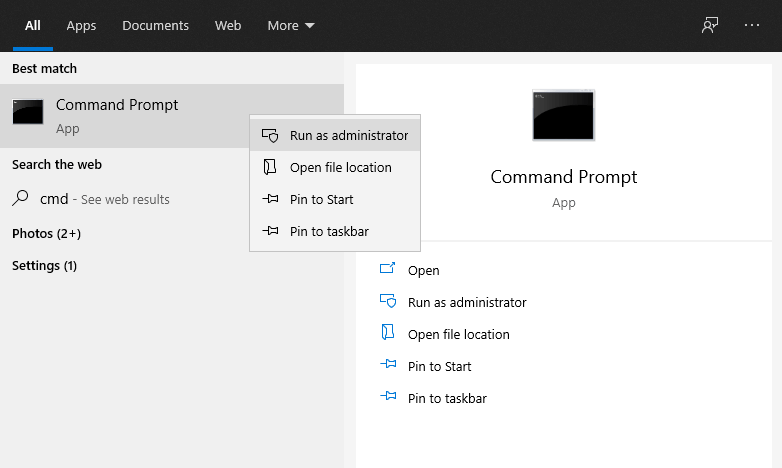
    • Type in the CMD search field
    • Right-click> Then select Run as Administrator
    Clear Windows Store Cache
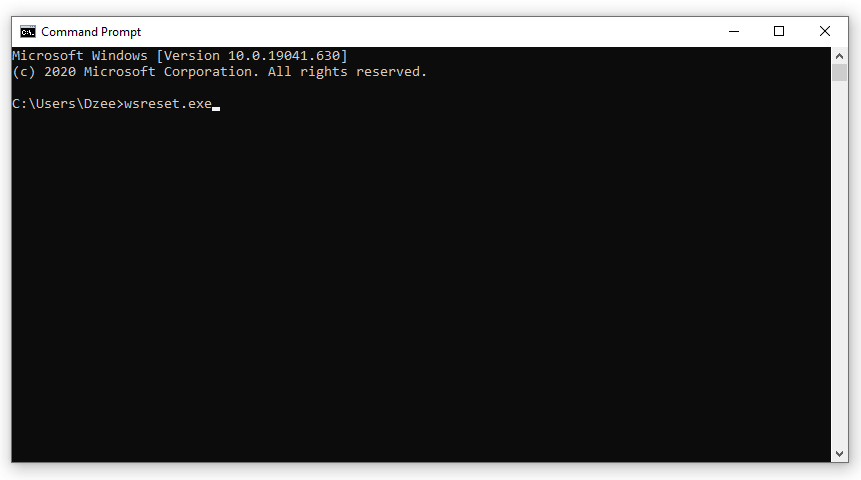
    • Type ” wsreset.exe ” on the CMD page.
    Clear Windows Store Cache
    • Wait a few moments, the Windows Store will open, then it will update existing applications.

    Note:

    This method will not erase or erase any data on your computer. So there’s no need to worry, huh.

    # 8. Reinstall Application

    Applications that have errors when opened, could be from a failed installation process. For example, there is a file that is missing or corrupt.

    Now, by reinstalling, problems like that should be resolved.

    To do this, we must first delete the application:

    • Go to Settings.
    Reinstall Application
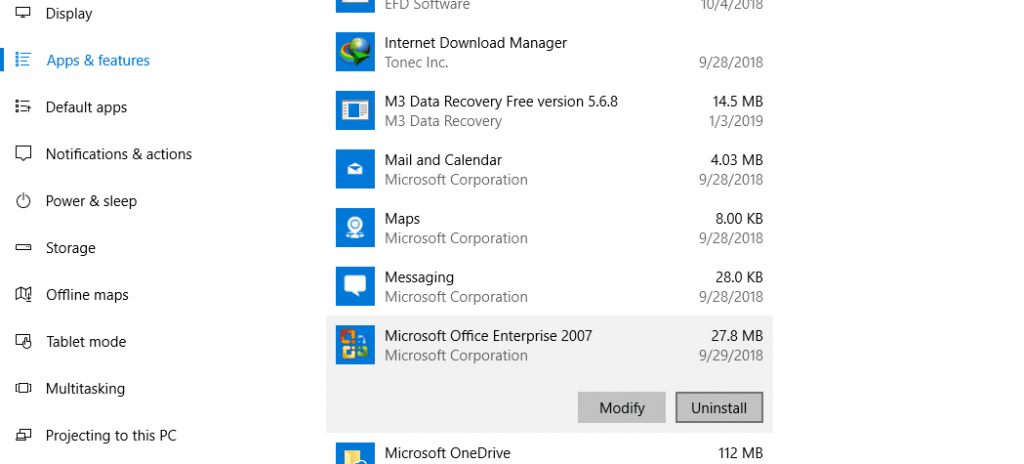
    • Open Apps & Features.
    Reinstall Application
    • Find and select the desired application.
    • Then click Uninstall.

    Reinstall Application

    After that, now install the application again as usual.

    Addition: If you have an application like CCleaner , try doing a registry wipe too , to make the uninstall process cleaner.

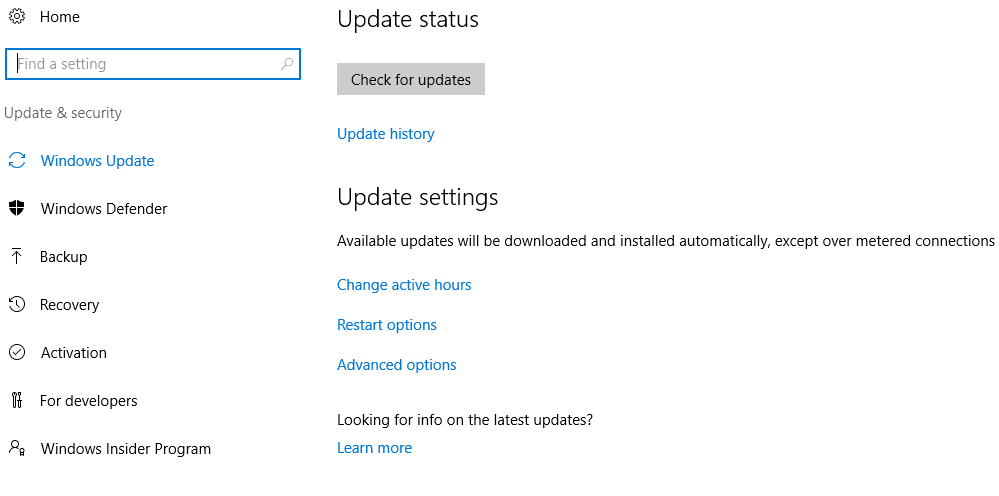
    # 9. Windows Update

    Windows Update

    As we know, every once in a while, Microsoft always updates the Windows 10 version to the newer one.

    Examples of famous updates :

    • Creators Update version
    • Fall Update version
    • Anniversary Update
    • And others

    Well, doing the update also doesn’t hurt to try.

    The reason:

    • Because in addition to being able to get a variety of new features, bug – a bug long that there would be eliminated, so that users can be more smoothly.
    • Including if you experience errors when opening certain applications, this can be normal after updating to the latest version of Windows 10.

    # 10. Reset your Windows 10

    Reset Windows 10 here is intended to delete all data, as well as the applications that we have installed so that the system can be fresh again.

    Actually, this solution option is more or less like reinstalling it. It’s just that, it can be said that it is simpler and the process is much faster.

    For those who want to try it, you can do it like this:

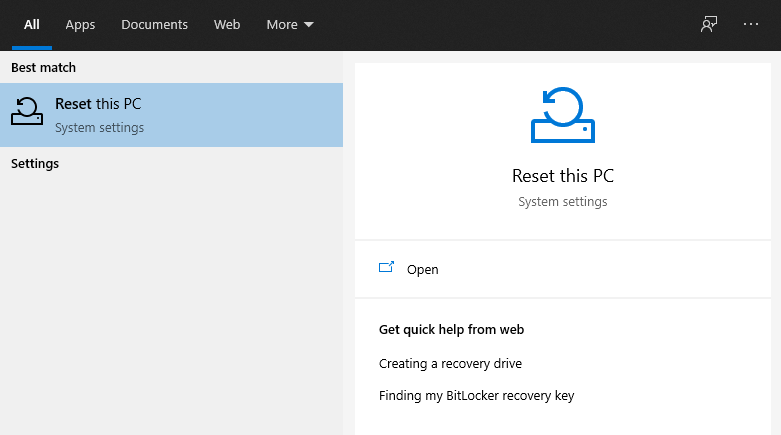
    • The column can type in the search ” Reset “
    Reset your Windows 10
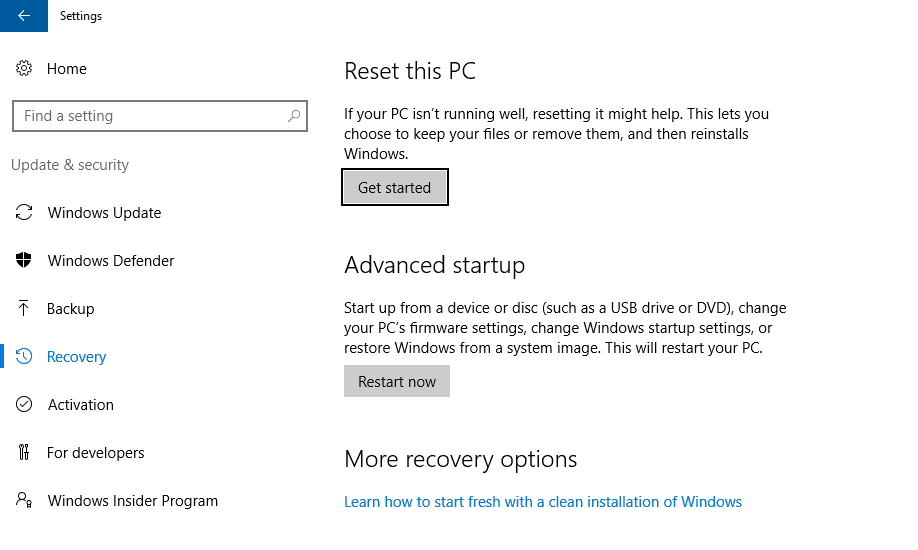
    • Then you will go to the Recovery page
    • Select Get Started

    Reset your Windows 10

    • Then follow all the instructions

    Note:

    Because it can erase all data, make sure the important data you have is already in a backup position.

    Read more:

    Conclusion:

    The method here is what I use most often. There are many other tips, but my experience doesn’t matter at all. If you have questions, please ask directly via the comment box below.

  • 3 Ways To Defragment Hard Drive on Windows 7 PC 2024

    3 Ways To Defragment Hard Drive on Windows 7 PC 2024

    3 Ways To Defragment Hard Drive on Windows 7 PC – Did you know regular defragging is useful for maintaining your computer or laptop disks? If you are a Windows 7 user then you are in luck, because how to defragment Windows 7 is quite easy.

    How To Defragment Hard Drive on Windows 7 PC
    How To Defragment Hard Drive on Windows 7 PC

    How To Defragment Hard Drive on Windows 7 PC

    Defrag is often done if the performance of a laptop or computer has started to slow down. This problem is caused by the disk containing many separate and disorganized files.

    Read more:

    These files are generally in the form of a fragment or can be called a fragment that appears because you have installed the program, deleted it, or changed it so that it produces files on the computer’s hard disk.

    Now, when the files are separated and spread on the hard drive, it will make the computer’s performance decrease. However, you can overcome this by doing a defrag so that files can be arranged more simply.

    Fortunately, Windows 7 users, can defrag directly through the features provided by Windows 7. You can even set the defrag feature to run automatically and routinely by creating a schedule.

    #1. How To Defragment Hard Drive on Windows 7

    How to Defragment Windows 7
    How to Defragment Windows 7

    Defragmenting a Windows 7 computer or laptop is a very easy job. The reason is, that you only need to access its features with just a few steps.

    Here’s how to easily defrag Windows 7:

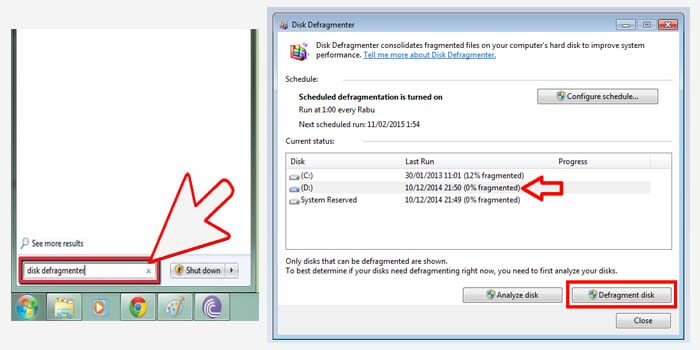
    1. Click the Windows logo at the bottom corner of the screen.
    2. Type “Disk Defragmenter” into the search field.
    3. Then the Disk Defragmenter window will appear.
    4. Select the disk you want to defragment.
    5. Then click the Defragment Disk button to start it.
    6. Now you have to wait for the process to finish.

    After the disk defragment process has been completed, then you have successfully defragmented the disk you chose. You can also select more than one disk so that you can defragment them alternately.

    #2. How to Defragment Hard Drive Windows 7 Disk

    How to Defragment hard drive Windows 7 Disk
    How to Defragment hard drive Windows 7 Disk

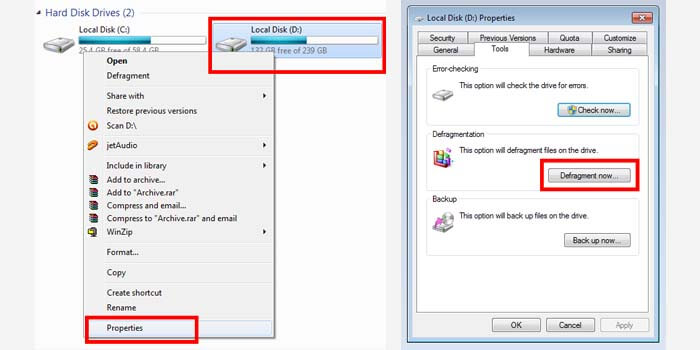
    There is also a way to defragment a disk in Windows 7 which is simpler and faster. Because you only need to access the file explorer and determine which disk to defrag.

    Follow the steps below:

    1. First, open a file explorer on your PC or laptop.
    2. Go to the My Computer folder to display the disk.
    3. Right-click on the disk you want to defrag.
    4. Then select the Properties option.
    5. Go to the Tools menu tab> then click Defragment now.
    6. Wait for the process to complete.

    The time it takes to defragment a disk in Windows 7 depends on the size and status of the disk, very easy, right?

    #3. Scheduling Defrag in Windows 7

    Scheduling Defrag in Windows 7
    Scheduling Defrag in Windows 7

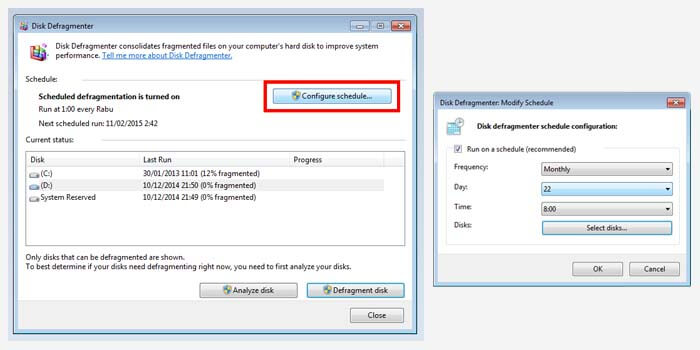
    If you depend on the defrag feature in Windows 7 because the disk you use is very limited. So it’s a good idea to use the defrag scheduling feature so that it can run automatically.

    How to automatically defrag a Windows 7 disk:

    1. Click the Windows logo then type “Disk Defragmenter” into the column.
    2. After that, the Disk Defragmenter window appears.
    3. Then click the Configure schedule button.
    4. Give a check in the box Run on schedule.
    5. Set the defragment schedule in the options frequency, day, and time.
    6. In the Disk section, check the disk you want to defrag.
    7. In the final step, click the OK button.
    8. Done.

    Make sure you set the defrag schedule properly and correctly. It is highly recommended to defragment the disk when the Windows 7 computer is not in use so that the process can run smoothly and without a hitch.

    Read more:

    Conclusion:

    There are some good and correct ways to defrag a disk in Windows 7. Which is the most effective way for you? Please let us know via the comments column below and don’t forget to share this article if you are helped by the information that has been shared.

  • How to Activate Office 2019 Permanently Offline 2024

    How to Activate Office 2019 Permanently Offline 2024

    How to Activate Office 2019 Permanently Offline – Have you just installed Microsoft Office 2019? If so, then the next step is that you have to activate it so that it can be used permanently. How to permanently activate Office 2019 is very easy, you can even do it without software and product keys.

    How to Activate Office 2019 3 Best Quick Ways

    How to Activate Office 2019 Permanently Offline

    Although a Microsoft Office 2019 product key can only be obtained by buying it. But you can activate MS Office 2019 permanently and for free at Technowizah.

    Read more:

    Microsoft Office 2019 contains various office applications such as Word, Excel, PowerPoint, and many others. If Office 2019 is not yet active, then some of the features of the application will be limited so that they cannot be used optimally.

    That is the reason why you are required to activate Office 2019 on a laptop or computer. After it has been activated, you can use it without worrying about feature limitations and it all applies permanently.

    As mentioned above, there are several methods to activate Microsoft Office 2019 so that it can be used permanently on laptops or computers with Windows 7, Windows 8, and Windows 10.

    You can use the help of the software so that it can be activated without a product key. Or you also use a script that contains a product key so you can do it offline and without software.

    #1. Activation of Office 2019 without a product key

    Activation of Office 2019 without a product key

    The first method will be very effective for those of you who want to activate Office 2019 without a product key. The trick is that you have to use software called KMSAuto which will help you activate it.

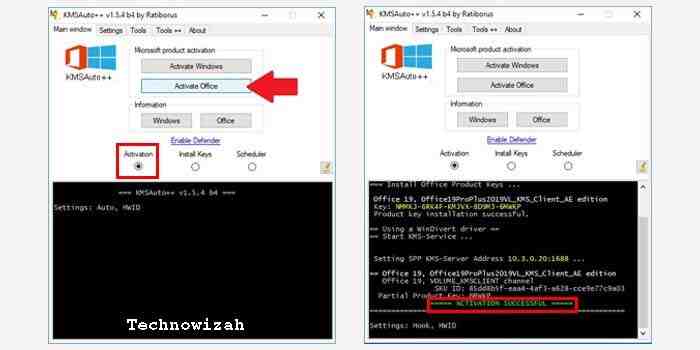
    How to activate Office 2019 with KMSAuto:

    1. Turn off antivirus or Windows Defender.
    2. Download the activator software here
      .
    3. Extract the file then run KMSAuto.
    4. In the initial screen, click the KMSAuto ++ button.
    5. Select the Activation option then click the Activate Office button.
    6. Click the YES option when a warning appears.
    7. You just need to wait for the process to complete.
    8. If successful, then the message ACTIVATION SUCCESSFUL appears.

    Now Office 2019 has been successfully activated permanently without a product key. To be sure, run one of the programs from Microsoft Office and check it in the product information section.

    #2. Activate Office 2019 with KMS

    Activate Office 2019 with KMS

    The next software is a quite popular activator. From the name, it is clear that KMS Office 2019 is software specifically for activating Office 2019 permanently.

    The following is a guide to using KMS Office 2019:

    1. Download the KMS Office 2019 software here.
    2. Extract the zip then run the Oinstall file.
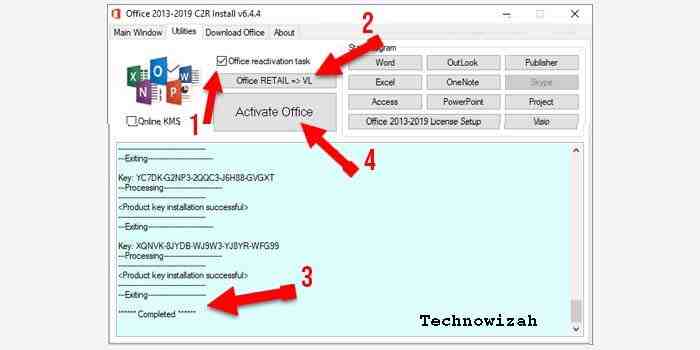
    3. In the initial screen, click the Utilities menu tab.
    4. Place a checkmark on the Office reactivation task box.
    5. Then click the Office RETAIL => VL button.
    6. Wait for the Completed message to appear in the bottom box.
    7. The final step is to click the button and click Activate Office.
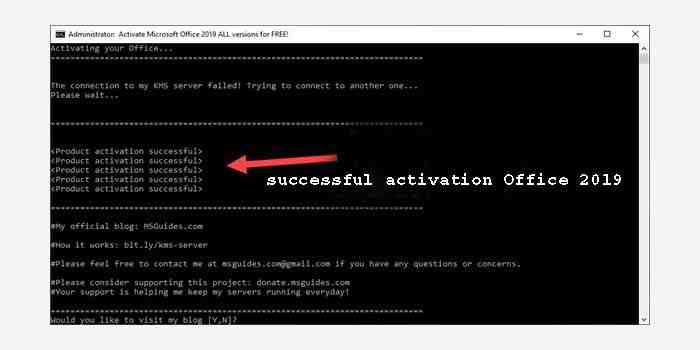
    8. If the message displays Product activation successfully, it means that you have successfully activated Office 2019.

    To ascertain whether Office 2019 is truly active and can be used, you can check this by running one of the office programs. For example, in MS Word, go to the File> Account menu to see the information.

    #3. How to activate Office 2019 without software

    How to activate Office 2019 without softwareIf you don’t want to use the software, then this last method will suit you. The reason is, that this method can be done offline because it only requires a notepad application which of course is already on your laptop or computer.

    Following are the steps for activating MS Office 2019 offline:

    1. Go to the following link and copy the script.
    2. Open the Notepad application then paste the script earlier.
    3. Save the file and name it activator. cmd
    4. Right-click the file and select the Run As Administrator option.
    5. The cmd window will open automatically.
    6. If there is a success message, then Office 2019 has been successfully activated.
    7. Done.

    This method is arguably quite safe because you can do it without the help of software so you also don’t need to disable the antivirus first.

    Disclaimer: All forms of download files on the Technowizah.com site are just for educational purposes only.

    DMCA: Technowizah.com complies with 17 U.S.C. * 512 and the Digital Millennium Copyright Act (DMCA). Our policy is to respond to any infringement notices and take appropriate action. If your copyrighted material has been posted on the site and you want this material removed, Contact us.

    Read more:

    Conclusion:

    There are several ways to activate Office 2019 that you can try on your laptop or PC. With a choice of methods, you can adjust which method is most effective for you.

    If you have a problem trying the method above, let us know in the comments column below what issues you are experiencing.

  • Download and Install Kodi 17 Krypton on Windows 10 PC 2024

    Download and Install Kodi 17 Krypton on Windows 10 PC 2024

    Download and Install Kodi 17 Krypton on Windows 10 PC – Kodi 17 with the codename ‘ Krypton ‘ has been released. This update on popular playing media software brings a new look and various enhancements to features, and in this article, I will show you how to update or (reinstall)/the Kodi 17 Krypton version.

    Download and Install Kodi 17 Krypton on Windows 10 PC
    Download and Install Kodi 17 Krypton on Windows 10 PC

    How to Download and Install Kodi 17 Krypton on Windows 10 PC

    Kodi is available on several devices and platforms such as PCs  Windows MacLinux Android, and iOS.

    Read more:

    In this update Kodi 17 does not support Android 4.4 or earlier, this means that Android version 5.0 and higher are needed.

    If you want to run the Kodi 17 Krypton application on the Windows OS, please refer to the download page, and there will be ‘current release: Kodi v17.0 “Krypton”‘ please click the ‘Installer ‘ link, to download the .exe file which will later install Kodi 17.

    If you already have an old version already installed, then after successfully downloading the .exe file, it will automatically install Kodi 17 in the same location as in the previous version of Kodi, which means it updates the version to Kodi Krypton.

    How to Install Kodi 17 Krypton in Windows
    How to Install Kodi 17 Krypton in Windows

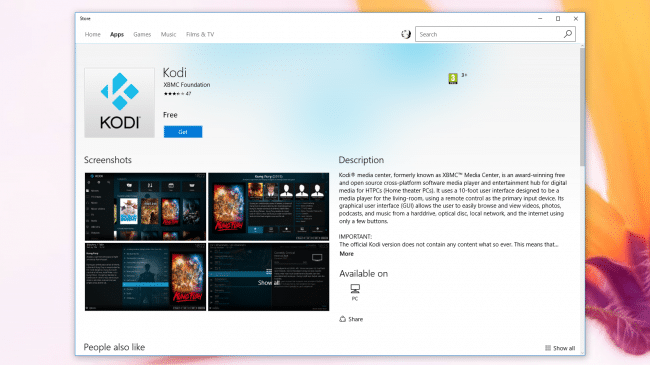
    If you use the OS Windows 10, you can download Kodi 17 Krypton through the .

    #1. How to Install Kodi 17 Krypton on Mac

    If you want to run the Kodi 17 Krypton application on the Macintosh OS, please refer to the password download page, and there will be ‘current release: Kodi v17.0 “Krypton”‘, please click the ‘ Installer ‘ link under the logo apple.

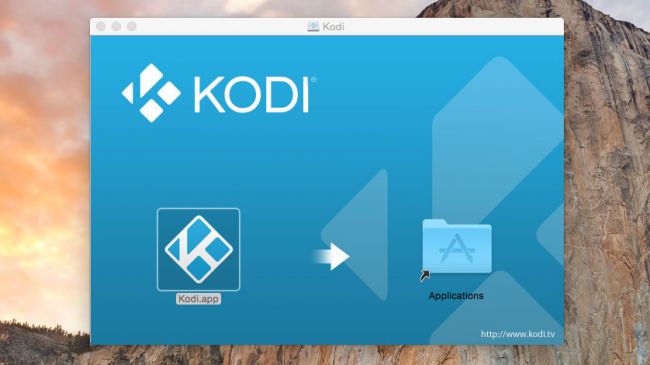
    This will download the .dmg file from Kodi 17. Double-click the file to mount on Mac OS X or macOS Sierra as a disk image.

    Open the image, then drag and drop the Kodi.app file from the disk image to the Applications folder.

    How to Install Kodi 17 Krypton on Mac
    How to Install Kodi 17 Krypton on Mac

    #2. How to Install Kodi 17 Krypton on Linux

    Kodi 17 Krypton is already in the Ubuntu repository, which means it makes it easier for us to install Kodi on Ubuntu or an Ubuntu-based distro.

    To install it, open the terminal (you can press Ctrl + Alt + T) and type the following:

    sudo apt-get install software-properties-common
    sudo add-apt-repository ppa:team-xbmc/ppa
    sudo apt-get update
    sudo apt-get install kodi

    Kodi can also be installed on other distributions using third-party repositories, but this is not officially supported directly by Kodi, so you might not get the best experience.

    You can also compile Kodi from source files to run on various Linux distributions. Kodi’s website has a comprehensive guide to installing from the source code.

    #3. How to Install Kodi 17 Krypton on Raspberry Pi

    Although you can download and install the Kodi application on the default Raspbian operating system with Raspberry Pi, the latest version of Kodi is not available which means you will not be able to / successfully install Kodi 17 Krypton on Rasbian.

    However, there are some distributions built for Raspberry Pi that use Kodi, so you can install it.

    For example, LibreELEC has released a beta version of the software based on Kodi 17 Krypton.

    You must install LibreELEC (Krypton) v7.95.2 to the SD card, then insert it into the Raspberry Pi and launch the LibreELEC distribution.

    You can download the LibreELEC USB tool creator, which you will need for Linux OS, macOS, and Windows PC through the download page on the LibreELEC Krypton web.

    Please note that because it is still in beta there may be bugs and other problems.

    #4. How to Install Kodi 17 Krypton on Android

    Kodi 17 is available in the  Google Play store, so please search in the search field by typing the keyword “Kodi” via the device on your Android to download and install the application.

    Google Play will also automatically update Kodi for you on your device. It can also be done through the following link.

    Read more:

    Conclusion:

    Note:
    Look forward to the successor of Kodi 17, namely Kodi 18 with the codename ” Leia ” to honor the iconic role played by the late Carrie Fisher.