3 Ways to Copy Paste in Windows 10 PC Laptop – Knowing how to cut, copy, and paste text, files, and folders in Windows 10 can save you a lot of time. While you may have a variety of methods, there are a few tips and tricks that can make your task easier and faster. Here’s how to copy and paste in Windows 10.
3 Ways to Copy Paste in Windows 10
How to Copy Paste in Windows 10 on Laptop PC 2024
You can copy and paste text, files, and folders in Windows 10 using keyboard shortcuts, right-clicking with the mouse, or using the Windows Clipboard. Here are three ways to copy and paste on a Windows 10 PC:
#1. How to Copy Paste in Windows 10 Using Keyboard Shortcuts
To copy and paste in Windows 10 using a keyboard shortcut, first select the item you want to copy. Then press Ctrl + C on your keyboard to copy. Next, open the destination program or file path and press Ctrl + V on your keyboard to paste.
Select the items you want to copy. You can hold down the Shift key while using the arrow keys to select multiple files or pieces of text.
Press Ctrl + C on the keyboard. You must press these buttons at the same time. You won’t see any notification that your text or files have been copied to the Clipboard.
3. Open the destination/folder where you want to paste the item. This can be another program, where you can paste text or a picture (such as Microsoft Word). For files and folders, use File Explorer to navigate to your destination path.
4. Press Ctrl + V on the keyboard. This will paste the copied image or text. For text, this will include the original formatting of the source.
Note: If you don’t want to keep your text formatting when pasting, you can press Ctrl + Shift + V keys. This will cause the text you paste to follow the surrounding text formatting or standard document formatting. If you copy files in the same file destination, Windows will append the file name with “- Copy”.
#2. How to copy and paste in Windows 10 Using the mouse
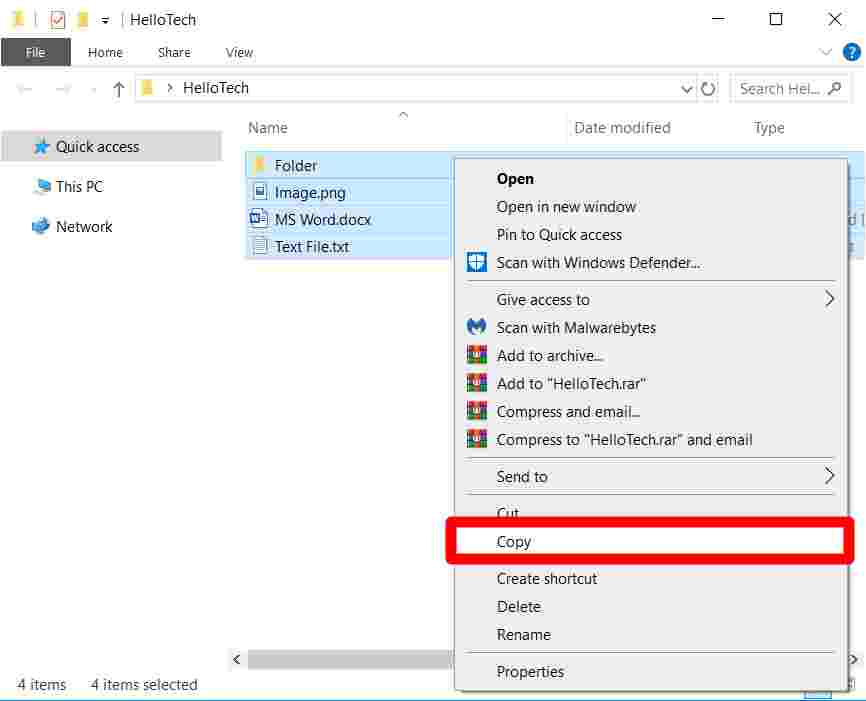
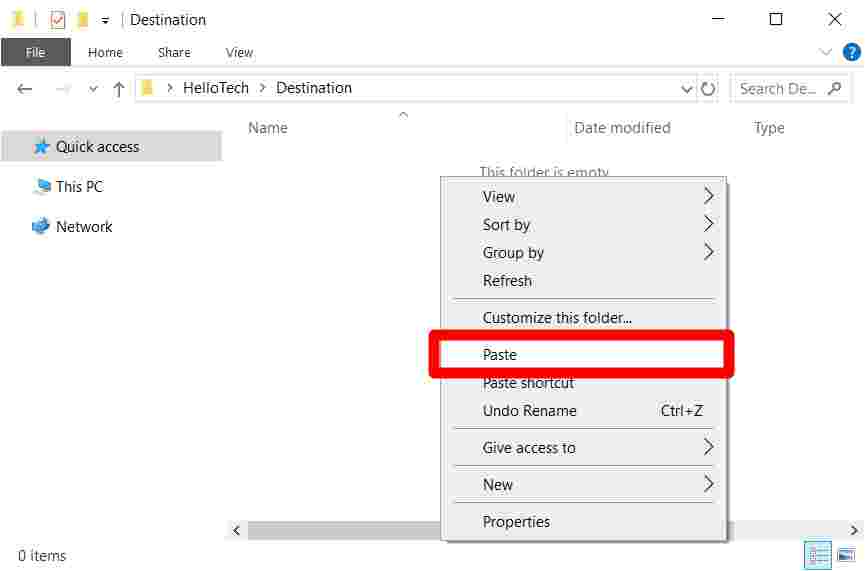
To copy and paste in Windows 10 using the mouse, select an item and right-click on it. Next, choose Copy from the pop-up menu, then open your destination file or folder path. Right-click again and select Paste for the file or folder or one of the three paste formatting options for text or images.
Select the items you want to copy.
Right-click with your mouse.
Select Copy from the menu.
Go to the destination where you want to paste the item. It could be another program where you paste text or an image, such as Microsoft Word. For files and folders, use File Explorer to navigate to the destination path.
Position your cursor where you want to paste the item. If you pasted files and folders, you can right-click anywhere in the main File Explorer box.
Right-click with your mouse.
Select the Paste or Paste option of your choice. For text, you can keep the source formatting, combine formatting, or keep it in plain text only. For pictures, you can keep the source formatting or just paste the picture.
#3. How to copy and paste in Windows 10 Using the Clipboard
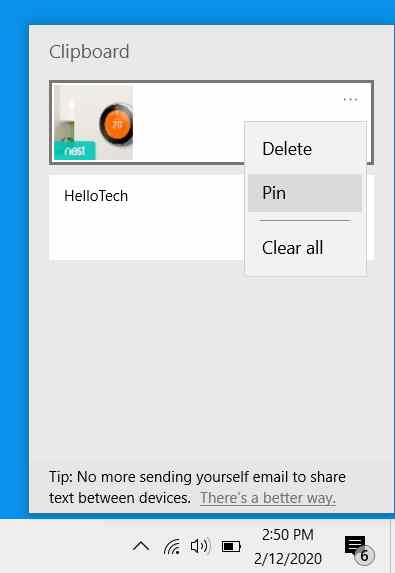
To copy-paste in Windows 10 using the Clipboard, enable Clipboard history first. Press the Windows key + V and click Turn on. Select the text or image you want to copy, then open the Clipboard using a shortcut. Click on the text you want to copy from the Clipboard, then paste it into your destination file or program.
Select what you want to copy and press Ctrl + C on the keyboard. You can also use your mouse to copy using the previous method.
Press the Windows key + V on your keyboard.
Click on the Turn on button. This will activate the Clipboard history, you will see the last 24 items you copied on the Clipboard.
Select the text or image that you want to copy. Double-click to select the word, triple-click to select the entire paragraph or use Ctrl + Shift with the arrow keys to make a selection. For a picture in an Office program, click the picture until you see the white picture formatting button.
Press the Windows key + V on your keyboard.
Choose what you want to copy. Windows 10 organizes some of the items you just copied in blocks, with the newest items at the top and older ones at the bottom. You can also choose to pin items to the Clipboard, so you can paste them later.
Open the destination folder or program.
Position your cursor where you want to paste the item.
Finally, press the Ctrl + V shortcut or right-click with your mouse and then select your preferred paste formatting option.
How to Cut Paste in Windows 10 Laptop PC Computer
How to Cut Paste in Windows 10 follows the same process as copy and paste. However, the difference is that the cut will delete items from the source file or folder to the destination file or folder.
#1. How to Cut Paste in Windows 10 Using Keyboard Shortcuts
To cut and paste in Windows 10 using a keyboard shortcut, first select the item you want to cut from your source. Press Ctrl + X on your keyboard, then open the destination program or file path. Press Ctrl + V on the keyboard to paste the cut item. Refer to the steps below for copying text, images, files, or folders.
Select the item you want to cut.
Press Ctrl + X on the keyboard. The cut text or image will disappear from your source. For files and folders, your selection will be grayed out.
3. Go to the destination where you want to paste the item.
4. Press Ctrl + V on your keyboard. This will remove the image or text from the source and place it in the destination. For text, this will include the original formatting of the source.
#2. How to Cut Paste in Windows 10 Using Mouse
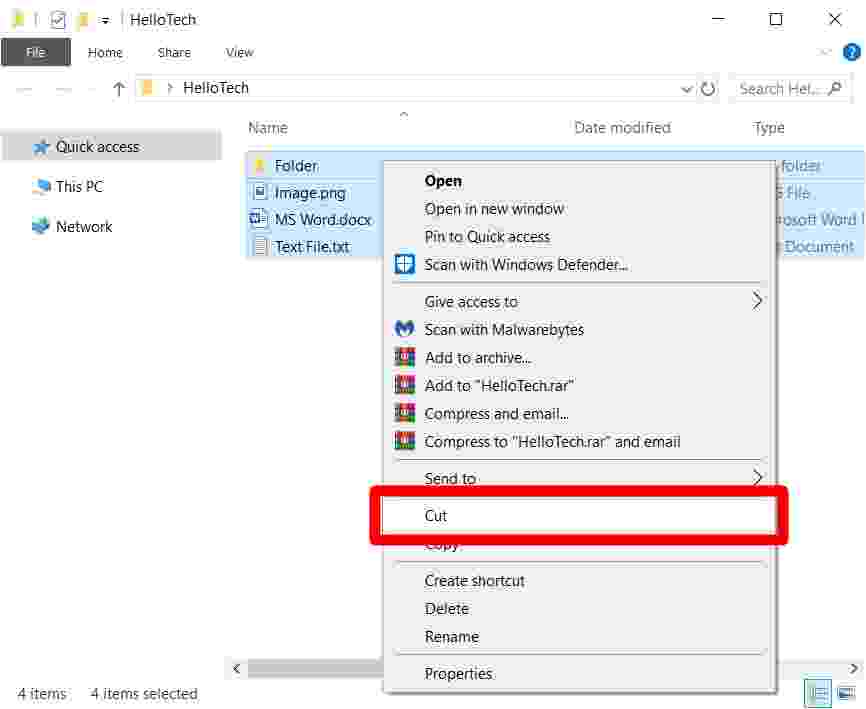
To cut and paste in Windows 10 using the mouse, select the text, file, or folder you want to cut, then right-click with your mouse. Click Cut from the menu, then open the destination file or folder path. Right-click again and select Paste for the file or folder or one of the three paste formatting options for text or images.
Select the items you want to copy.
Right-click with your mouse.
Select Cut from the menu.
4. Go to the destination where you want to paste the item.
5. Position your cursor where you want to paste the item.
6. Right-click with your mouse.
7. Select Paste.
How to copy and paste in Windows 10 from the Command Prompt
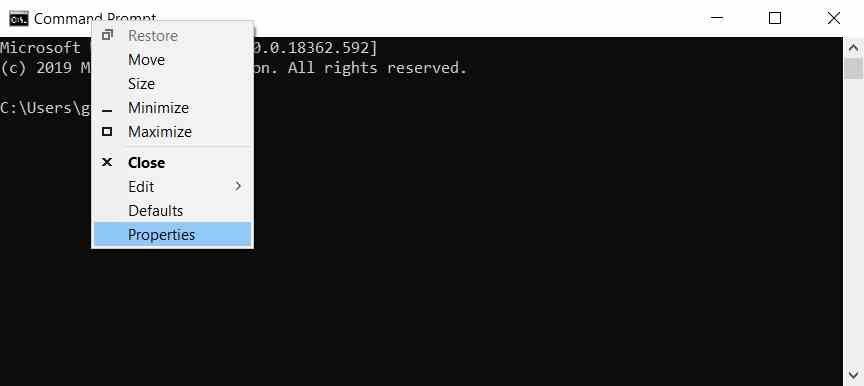
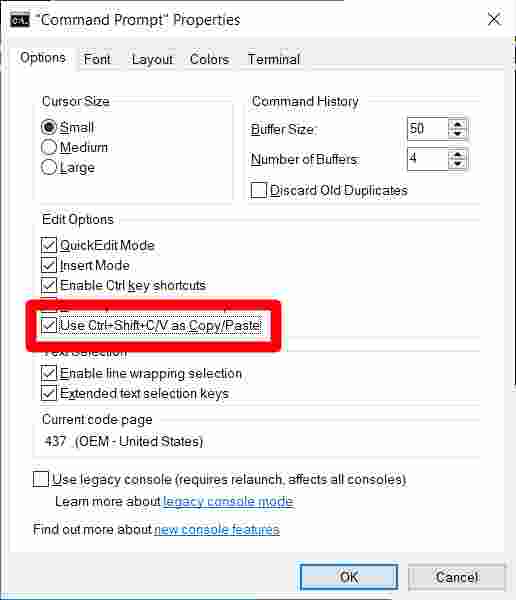
To enable copy-paste from Command Prompt, open the application from the search bar and then right-click at the top of the window. Click Properties, check the box for Use Ctrl + Shift + C / V as Copy / Paste, and hit OK.
Click the magnifying glass icon in the lower-left corner of the screen.
Then type “cmd”.
Then click Open. You can also press Enter on your keyboard after the search results appear.
4. Move your cursor to the top of the window. Navigate to anywhere in the top white of the Command Prompt window.
5. Right-click with your mouse.
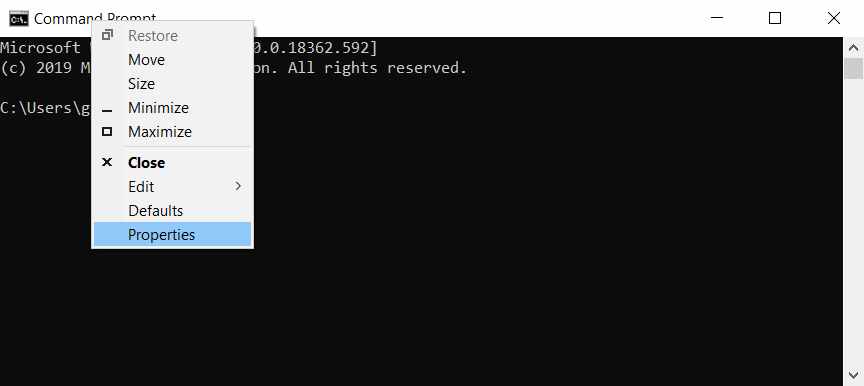
6. Then click Properties.
7. Check the box for Use Ctrl + Shift + C / V as Copy / Paste . You’ll see this under the Options tab, which is open by default.
8. Select OK.
9. Select the command you want to copy.
10. Press Ctrl + C on your keyboard.
11. Open Command Prompt.
12. Press Ctrl + V at the command line.
Now that you know how to copy and paste on a Windows 10 PC.
How to Choose a Custom Color for Windows 10 Start Menu – With the latest, October 2020 update Windows 10 uses a light theme by default which removes the accent color from your taskbar and Starts menu.
How to Choose a Custom Color for Windows 10 Start Menu
How to Choose a Custom Color for Windows 10 Start Menu 2024
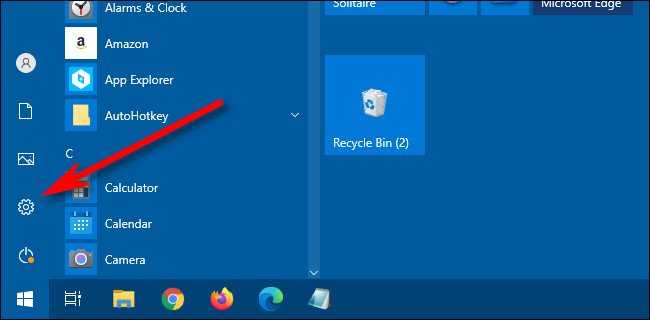
First, open ” Settings ” by opening the ” Start ” menu and clicking on the gear icon on the left. (You can also press Windows + I on your keyboard.)
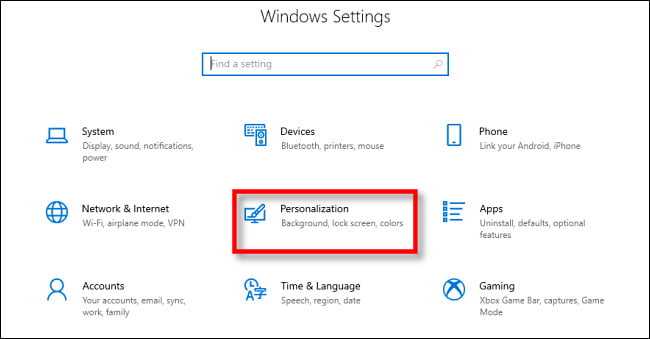
After the “Settings” menu is opened, click “Personalization”.
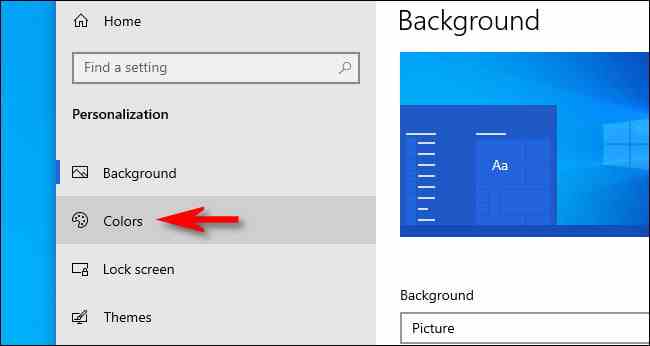
In the ” Personalization ” settings menu, click ” Colors ” from the sidebar.
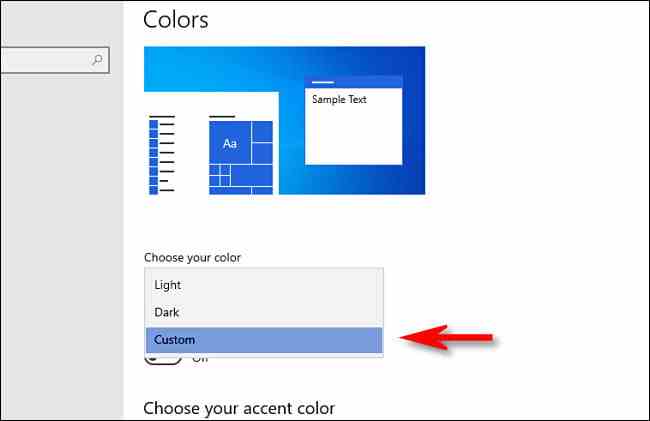
In the ” Cloros ” settings menu, look for the ” Choose your color ” drop-down menu. Then on the menu, select ” Custom “.
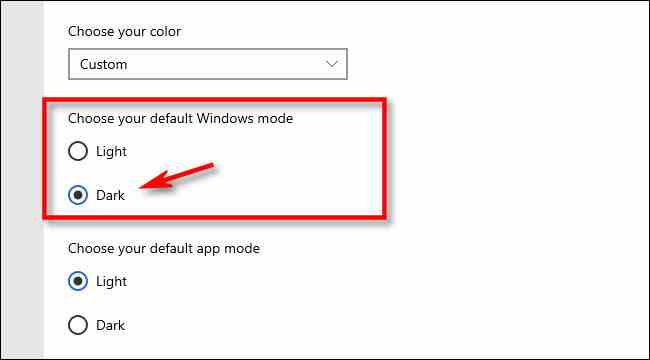
After selecting ” Custom ” from the color menu, two new options will appear below. Under ” Choose your default Windows mode “, select ” Dark “.
This Dark Mode is required to colorize your Start menu, but since you have selected the “ Custom ” color scheme, you are free to use the Light Mode application if you wish. So under ” Choose your default app mode “, choose whichever option (” Light ” or ” Dark “) you like the most.
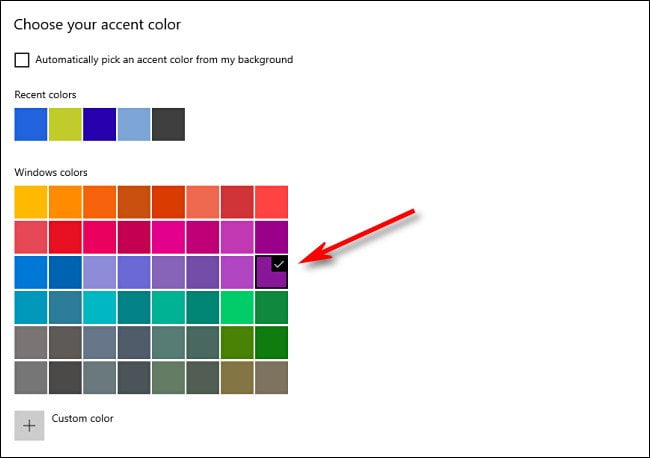
Next, scroll down the Color page and look for the “ Choose your accent color” section.
If you want the color to match the desktop background image automatically, put a checkmark next to “ Automatically pick an accent color from my background”. Otherwise, click the color in the grid you want to use for the Start menu and taskbar. You can also choose a color by clicking the “Custom color” button below the grid.
After that, look for the ” Show accent color on the following surfaces ” section and check the box next to ” Start, taskbar, and action center “.
(If the “Start, taskbar, and action center” option is greyed out, make sure you select “Dark” as your default Windows mode at the top. It won’t work in Light mode)
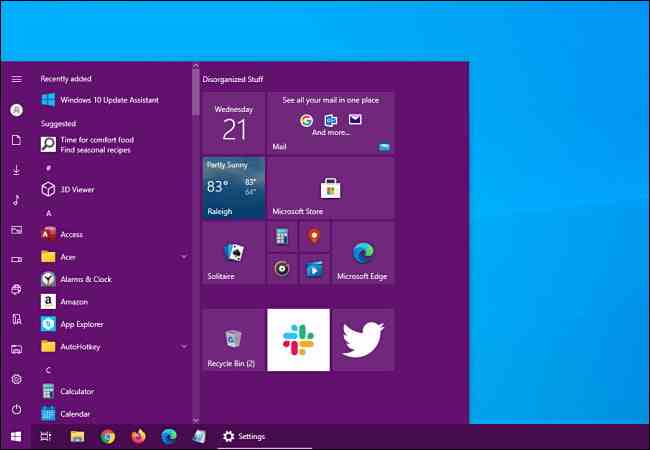
When you open the Start menu, you will see the accent color change according to your choice.
If you want to switch back to the standard Windows 10 theme, go to Settings> Personalization> Colors and select ” Light ” in the “Choose your color” drop-down menu.
17 Best Antivirus Software to Protect Windows 10 PCs – Antivirus software is nearly as crucial as a PC’soperating systemWindows 10 etc. As we witness a lot of advancements these days we also face a lot of threats that bother our daily handling of the system.
17 Best Antivirus Software to Protect Windows 10 PCs
Best antivirus software that really works well for your Windows 10 Laptop PC 2024
And when you are connected to the internet then it is very much important to take care of the data that we store on your personal computers.
The way out of course is by installing anti-virus software. But there are many choices of anti-virus software. Which good anti-virus software can help your computer?
For those of you who are looking for good anti-virus software for PCs at home or in the office, see the list of recommended anti-virus software below.
#1. Windows Defender
Windows Defender
Windows Defender is no longer the same program as a few years ago. This computer application used to have a reputation for monopolizing system resources and providing low protection standards. But all that has now changed.
Now the Microsoft security program provides some of the best protection. In the latest test at AV-TEST for March and April 2020, Windows Defender scored a 100 percent detection rate for zero-day malware attacks.
In addition, this application also detects malware that is widespread and commonly found in the last four weeks of both months. Its close integration with the Windows operating system is one of the most significant selling points of Windows Defender.
This application makes it easy to manage application virus protection, firewalls, device security, and application security directly from the Windows Settings menu. Overall, AV-TEST gives this application a score of 6/6 for protection and usability, and 5.5/6 for performance.
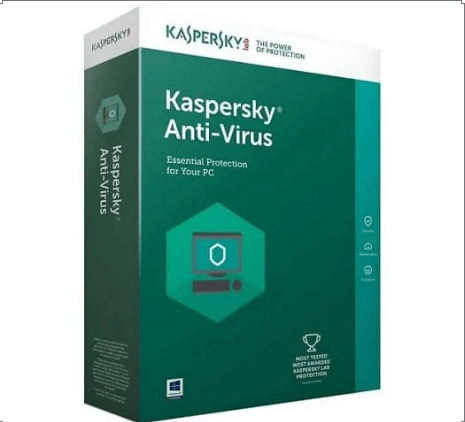
Kaspersky is a well-known name in the world of online security. This antivirus company offers three antivirus suites, namely Antivirus, Kaspersky Internet Security, and Security Cloud. All three are some of the best internet security applications for Windows 10.
Actually, in the past, Kaspersky was the same as other antivirus applications that struggled with performance problems. However, like Windows Defender, this is no longer a problem. AV-TEST provides an application score of 6/6 in all three test categories.
This entry-levelantivirus application only covers desktop PCs. For more coverage, the Internet Security suite adds cellular support with a minimal additional fee. This application is the best choice for most users.
Pros: Diverse features and affordable prices for 10 devices.
Weaknesses: Can only be used for Windows devices.
Price: IDR 429,900 – IDR 859,900
If you want the best antivirus that is friendly to the performance of your PC or laptop, BitDefender Antivirus Plus can be an option.
This antivirus scans your files in the cloud. As such, your computer’s memory is hardly affected by this process. You also don’t need to worry because BitDefender doesn’t save user files or scan their contents in the cloud.
The advantages of BitDefender Antivirus Plus do not just stop there. This software has an anti-phishing feature that blocks sites that are detected as fraud.
In addition, there is also file protection so that your documents are not encrypted by ransomware.
If you are not satisfied, you also get a password manager, a VPN with a quota of 200MB per day, and protection from the web tracker.
BitDefender Antivirus Plus can be used for up to 10 devices with prices of Rp 429,900 to Rp 859,900 per year. Unfortunately, this antivirus is only for Windows operating systems.
As the name suggests, Kaspersky Total Security is the most complete product offered by Kaspersky. As one of the best antivirus brands, Kaspersky’s features are not much different from BitDefender Antivirus Plus.
Users will get protection from ransomware, password managers, and VPN clients with a quota of 200MB per day.
However, the protection provided by Kaspersky Total Security is more diverse. The Safe Money feature that is owned by the antivirus will encrypt the browser when you make online transactions.
Thus, you can shop online and internet banking without fear. At this time, the Safe Money feature is supported by Firefox, Chrome, Internet Explorer, and Safari.
In addition, Kaspersky Total Security will deter hackers who use a webcam to spy on you. Because of this feature, you don’t need to cover the top of the laptop screen with tape or stickers again.
Plus, this antivirus also makes sure your kids don’t access dangerous content with the bad content blocker feature.
Seeing the various types of facilities, do not be surprised if Kaspersky Total Security is priced high. For one device, the annual cost of this antivirus is Rp. 743,000. However, you can get a package for five devices for Rp 1,395,000 per year.
The good news, Kaspersky Total Security is available for Windows, Mac, iOS, and Android operating systems.
Weaknesses: The cost is not so cheap for one device.
Price: IDR 495,000 – IDR 795,000
Do you want the features of BitDefender and Kaspersky at a more affordable price? If yes, ESET Smart Security Premium is the solution.
Equipped with various capabilities of the two antiviruses that have been discussed, this security software can be purchased for IDR 495,000 per year for one device.
The cost required is not too large if you need it for more devices, which is Rp. 795,000 per year for four devices. Not to mention, you can try this antivirus for 30 days, complete with all its features.
Interestingly, ESET Smart Security Premium still has other additional features. First, his Advanced Machine Learning will detect unknown types of malware. Not many other antiviruses can do this.
Second, ESET Smart Security Premium is equipped with ESET Live Grid. This is a cloud database system that stores data about the behavior of the files that you have. With it, the device scanning process can be accelerated by skipping files that are considered harmless.
Third, this antivirus will automatically enter silent mode when computer applications are running in fullscreen. This means that there are no sound notifications or pop-ups that interfere with your presentation, film, or game.
Finally, internet modems and smart devices that are connected to it will be scanned with this antivirus to look for security holes that need to be followed up. The firmware that has not been updated, for example. Sophisticated, right?
ESET Smart Security Premium is available for Windows, Mac, Linux, and Android operating systems.
Pros: Block the autoplay video feature and try it free for 30 days.
Disadvantages: The identity protection feature is only for users in the United States.
Price: $ 34.99 – $ 44.99
Another best antivirus is McAfee Total Protection which is available for Windows, Mac, iOS, and Android. Slightly different from the three software previously discussed, this antivirus is offered in three packages (the price listed is the subscription fee per year):
Individual ($ 34.99) – Only for one device
Multi-Device ($ 39.99) —- Can be used for five devices
Family ($ 44.99) – Can be used for ten devices
Please note that it is not only the number of users that distinguish the three but also the features offered by each of these packages. To help you find the package as needed, we will discuss its features.
In each McAfee Total Protection package, you will get a password manager, malicious site blockers, storage encryption, and home internet network protection from hackers.
In addition, this antivirus provides McAfee Shredder. This is a feature that ensures files containing sensitive information, such as transaction history, are completely lost from the device when you delete them.
There is another key McAfee Total Protection facility, which is optimizing device performance. Besides being known as a lightweight antivirus, McAfee also can block autoplay videos on various sites.
Different features can be found in the Multi-Device and Family packages. In the Multi-Device package, there is a protection feature from identity theft. Unfortunately, this facility can only be used for US citizens.
The Family Package has one additional feature, which is Safe Family. With this, you can manage the McAfee Total Protection subscription status for all family members through one account.
If you are not sure about the antivirus package you want to use, you can try it for free for 30 days.
Strengths: Protect email accounts from phishing and data theft.
Weaknesses: Judging from the completeness of its features, the price of this antivirus is not affordable.
Price: AU $ 69.95 – AU $ 99.95
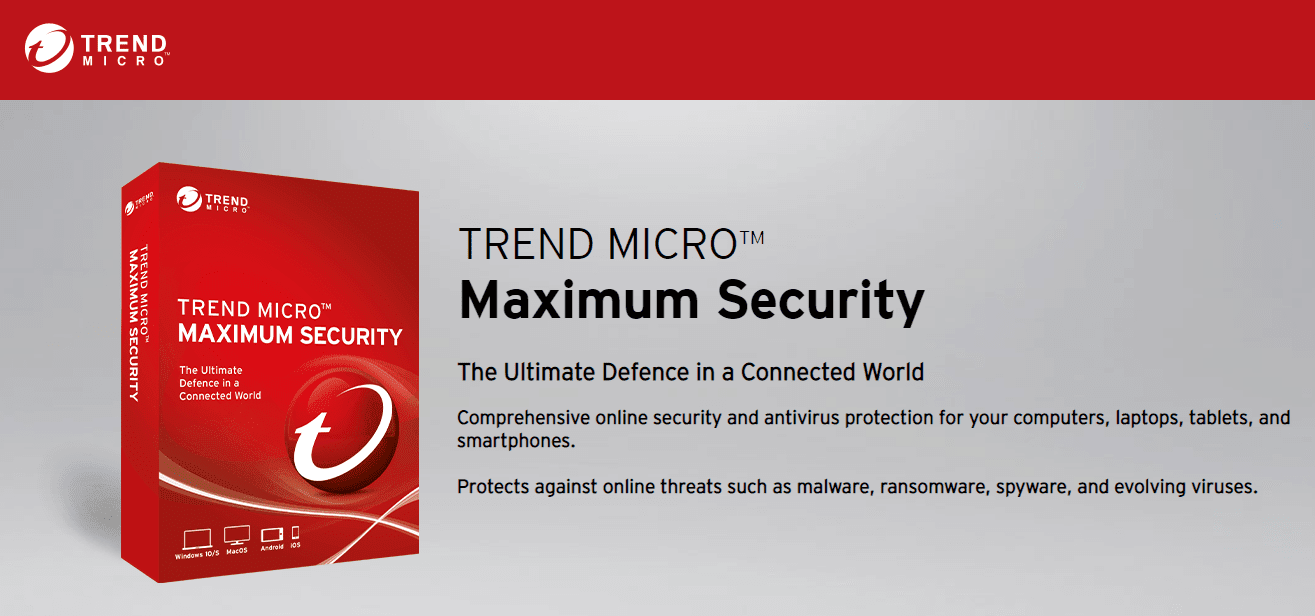
Trend Micro Maximum Security is a suitable antivirus if you want email account protection. For Gmail and Outlook users, Trend Micro’s Fraud Buster feature will keep you away from phishing or scam practices.
Not only fake emails but you will also be protected from various sites that are indicated to have stolen personal data. Of course, this capability is also accompanied by malware and ransomware protection.
Trend Micro Maximum Security feature is not only that. For loyal Microsoft Edge users, this antivirus provides more security when you use your Windows 10 device in S Mode. However, Trend Micro Maximum Security can be used on Mac, Android, and iOS operating systems as well.
Like other antiviruses that have been discussed, this software also puts user convenience aside from focusing on security. This is done via Mute Mode which will hide notifications when you are playing the game.
Trend Micro Maximum Security you can get with prices starting from AUD 69.95 per year for two devices up to AU $ 99.95 per year for six devices. The fee includes installation service for AU $ 54.95.
Unfortunately, with this expensive price, the Trend Micro Maximum Security feature is not as complete as the four previous antiviruses. Facilities such as built-in VPN, file encryption, and webcam protection are not offered.
Strengths: Complete facilities to protect your family’s cyberspace activities.
Weakness: VPN can only be used on five devices.
Price: $ 53.24 – $ 98.24
There is nothing wrong if introducing digital technology to your baby at an early age. However, their activities in cyberspace must be limited and monitored. Well, Panda Dome Premium provides a solution for that.
With this antivirus, you can not only protect computer and mobile devices from viruses and malware but also monitor their use by your child.
Not only that, but Panda Dome Premium also allows you to prevent accessing online content that is inappropriate for your child.
Do you want to block certain applications from being misused? This antivirus also provides this feature.
If the above facilities are not satisfactory enough, Panda Dome Premium still has other capabilities. If one of your devices is lost or stolen, you can track its location, lock it, and even delete all of its data and files.
In addition, Panda Dome Premium’s additional features include a password manager, VPN, and device performance optimization.
This antivirus is available for Windows, Mac, Android, and iOS. For the maximum number of users, Panda Dome Premium can be used on up to ten devices at a time. However, the VPN can only be enjoyed on five devices.
Another thing that becomes a lack of this antivirus is the less affordable price. For one device, the annual fee for Panda Dome Premium is $ 53.24.
Weaknesses: Cloud backup capacity is not as big as that of other antiviruses.
Price: $ 49.99
The majority of antiviruses discussed in this article are sold in several packages at different prices. If it’s too complicated for you, Norton 360 Deluxe can be an alternative.
This antivirus is only available in one package which is priced at $ 49.99 per year. You can use it on five devices at the same time. The operating system support is complete: Windows, Mac, Android, and iOS.
With this price, the facilities provided by Norton 360 Deluxe are quite diverse, including a built-in VPN, password manager, and webcam protection.
However, there are still other features that are superior to this well-known antivirus. First, there is an encrypted cloud backup facility with a capacity of 50GB so you can store important files safely.
In addition, there is also a smart firewall feature that monitors data traffic in and out of your device. If the Norton system encounters an unusual stream of data, it blocks the source.
Finally, in this antivirus, you will find a feature that monitors the presence of your email account on the dark web. This is a part of the internet world that cannot be accessed with a normal browser. This is where illicit trade is common.
Norton 360 Deluxe helps you by letting you know that your email account data is sold there. Thus, you can change the password or delete it.
The unfortunate thing about Norton 360 Deluxe is its cloud backup feature. In addition to the relatively small capacity, this facility can only be used on Windows devices.
Pros: One of the most affordable antiviruses on this list.
Weakness: Does not have a variety of extra features.
Price: Rp. 399,000 – Rp. 4,712,000
F-Secure Antivirus SAFE is arguably one of the simplest antiviruses on this list. In addition to protection from viruses and ransomware, you will get browser protection. This feature will notify you if there are dangerous sites. Best Antivirus Software.
Along with these facilities, your connection will be immediately encrypted when doing Internet banking.
Like the other antiviruses in this article, F-Secure Antivirus SAFE provides parental control. With this, you can limit the duration of the baby’s internet access and sites that can be visited. You also don’t need to worry when children use your device.
F-Secure Antivirus SAFE can also be used as a tracker for your Android or iOS device. Besides being in charge of telling the location of the device, you can use this facility to lock it.
Indeed, this software does not have extra features such as VPN, web tracker blocking, file protection, and others. However, F-Secure Antivirus SAFE is one of the most affordable antiviruses on this list.
With Rp. 399,000 per year, you can already use it. Moreover, this antivirus can be installed on three devices at once. Best Antivirus Software.
Of course, other packages can facilitate more than three devices at a higher price. You can install this antivirus on 25 devices at a cost of Rp 4,712,000 per year.
Pros: Antivirus with file scanning features in the most affordable virtual storage.
Weakness: Does not have a variety of extra features.
Price: IDR 260,000 – IDR 289,000
Want quality antivirus at a more affordable price? Comodo Antivirus can be tried. You can install it on one device for Cost. 260,000 or three devices for Rp. 289,000. Both are paid for one full year.
Like F-Secure Antivirus SAFE, Comodo does not have a myriad of features. However, his abilities should not be underestimated.
This antivirus is equipped with auto-containment technology, a method that runs unknown files in a virtual storage system to check for viruses.
Thus, your computer is not only protected but also not burdened with the performance of the Comodo Antivirus.
Not only that features can launch your device. When the antivirus mode game is turned on, the virus database update and the scheduled scan will be postponed so you can enjoy the game. Best Antivirus Software.
In addition, Comodo Antivirus’s extra features include 50GB backups, file encryption, spyware removal, and protection when conducting online transactions.
Fortunately, again, all of these antivirus facilities can be enjoyed on all supported operating systems: Windows, Mac, iOS, and Android.
Weaknesses: For users who want more features, this antivirus is minimalist.
Price: $ 29.99 – $ 37.49
If you need a super lightweight antivirus, Webroot SecureAnywhere can be the right choice. This antivirus only takes 15MB of your computer’s storage when it is installed. Moreover, it can scan all files with an average speed of 20 seconds.
In addition, Webroot SecureAnywhere has a simple, but powerful security system package. Its anti-phishing feature will protect you from dangerous sites when surfing in cyberspace. Best Antivirus Software.
In addition to protection in the browser, some facilities protect your identity so that hackers do not get stolen.
As with some of the other antiviruses on this list, Webroot SecureAnywhere ensures webcam security and internet connection as well.
Unfortunately, there are no other features offered by this antivirus. However, the price is no less affordable than before. Best Antivirus Software.
For one Windows or Mac device, you only need to pay $ 29.99 per year. If you need it for three devices, it costs $ 37.49 per year. Fun, you are allowed to taste all of its functions for 14 days for free.
Pros: Free, but has a file scanning feature in virtual storage.
Weaknesses: Not many features are offered.
Price: Free
Ten antiviruses that we have discussed are paid. However, that does not mean that all free antiviruses lose their capabilities.
Avast Antivirus is one of the best free and reliable antiviruses. Although free of charge, this software can prevent viruses, malware, ransomware, and phishing attacks before they can affect your device.
As performed by Comodo Antivirus, Avast checks suspicious files in virtual storage so that the computer is not burdened. Best Antivirus Software.
In addition, Avast also works as your cybersecurity advisor. Not only does it scan for blind spots on home Wi-Fi networks, but this antivirus will also notify you when there are unsafe device settings, weak passwords, and software that doesn’t update.
You can take advantage of all these facilities on Windows, Mac, Android, and iOS devices.
Pros: Free antivirus with device performance analysis feature.
Disadvantages: Only protects against viruses, malware, and spyware.
Price: Free
Besides Avast, another free antivirus that you can try is AVG. Although simple and does not have extra features such as backup, VPN, and file protection, an antivirus that has been known for a long time can be trusted.
AVG is free, but the threat that can be overcome is not just viruses and malware. You can use this antivirus to prevent spyware and ransomware attacks too.
In addition, AVG will also secure your browsing activities from links, e-mail attachments, and download files that contain danger. Not to forget, there are also features to scan for performance problems of your device. Best Antivirus Software.
AVG can be used on Windows and Mac operating systems. and Android.
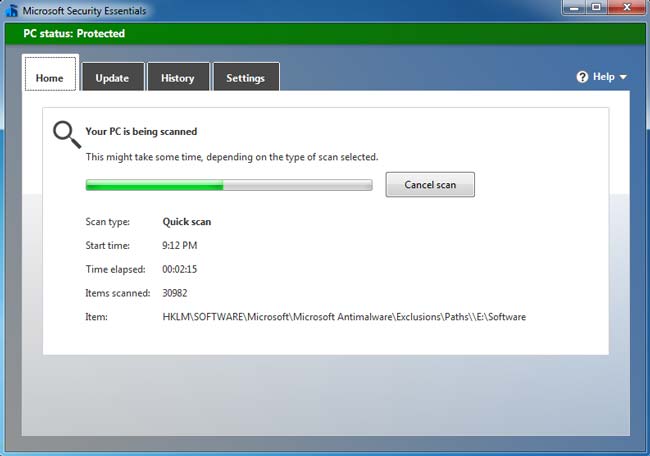
Microsoft Security Essentials or MSE is a free antivirus product that provides PC protection against various types of malicious software such as viruses, spyware, rootkits, and Trojan horses. Best Antivirus Software.
Built by virus definitions and virus scans similar to other Microsoft antivirus products, MSE provides real-time protection, continuously monitors activity on the computer, scans new files when downloaded or created, and automatically detects threats.
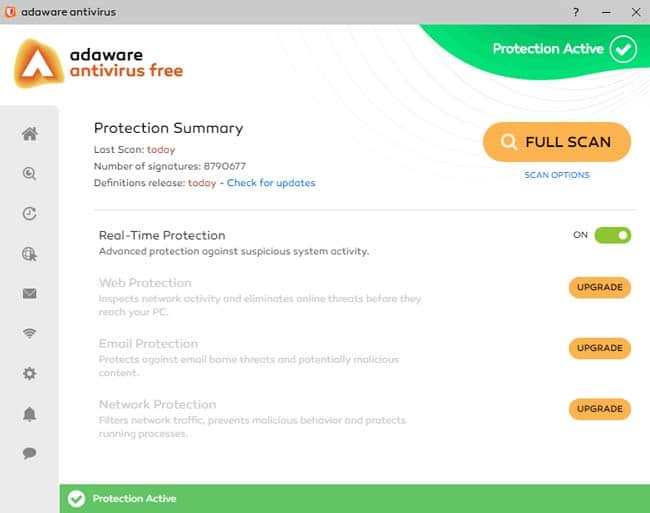
Adaware is free antivirus software that provides complete protection against viruses and anti-malware. It combines the technology of Lavasoft, a pioneer of antispyware, with traditional antivirus protection.
This software protects a computer or laptop from online threats so users can focus on the important things, safely connect with friends, check emails, and watch videos calmly. AdAware support for Windows 7, 8, 8.1, and 10.
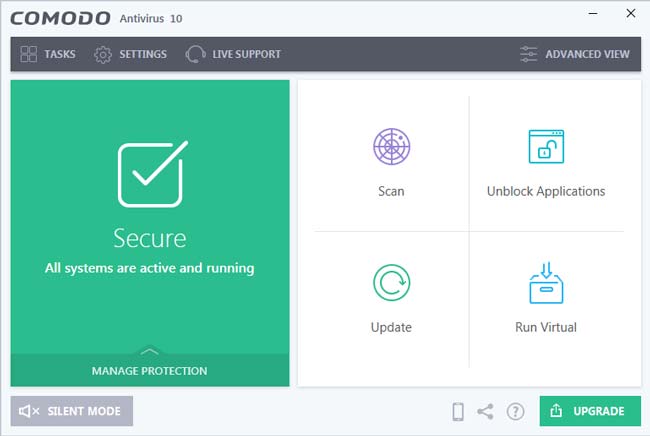
Comodo is an excellent antivirus program and security solution, one of the best free choices. Comodo Antivirus protects PCs from several sources of threats. Antivirus Software.
This software uses other technologies to make the whole process silent but is still very effective. Comodo Free Antivirus works on Windows 7, 8, 8.1, and 10.
So, friends, This is the explanation of the best antivirus software to protect Windows 10 PCs, You could try any of these 17 security software based on your budget and the importance of security. This software could help you and meet your needs at a very reasonable price.
20 Ways To Activate Windows 10 Permanently Offline – When you install Windows 10 on a PC or laptop, you need to activate it. This activation is required so that all features provided by Windows 10 can be used as a whole.
Best Tricks To Activate Windows 10 Permanently Offline
How To Activate Windows 10 Permanently Offline 2024
If the activation has not been done, its characteristics are the appearance of the words ” Activate Windows ” on the screen.
Know how to activate Windows 10 permanently so that activation is not expired. Find how to activate Windows 10 only in this article!
Activating Windows 10 requires a product key. This product key can be found anywhere, and the price is quite expensive.
In addition to buying a product key, you can still activate Windows 10 with activator software. Software that is used to activate Windows products, both Home, Pro, Enterprise, and Office. Check out the article on how to activate Windows 10 until it runs out to find the article.
Besides being online, Windows 10 can be activated offline without an internet connection.
This method can be used to activate Windows 10 without a product key. However, you need a tool called to support this method.
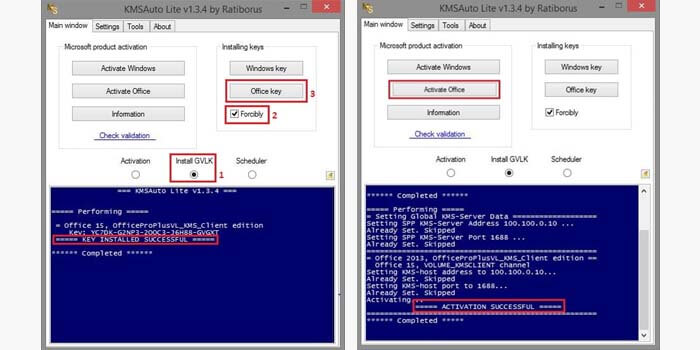
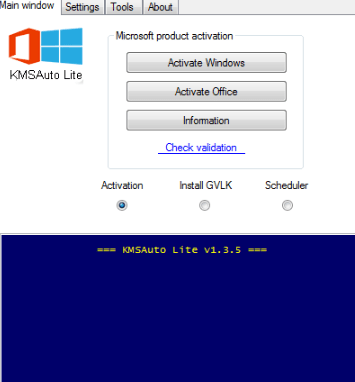
A reliable tool, KMSAuto Lite. The following will explain the steps that can be done to activate the Windows 10 is offline complete with pictures:
#1. Download and install KMSAuto Lite
As mentioned above, how to activate Windows 10 offline without a product key requires a tool called KMSAuto Lite. Look for the tool on the internet and download and install it on your PC or laptop. Besides KMSAuto Lite, download GVLK software and install it as usual.
#2. Run KMSAuto Lite
Run KMSAuto Lite
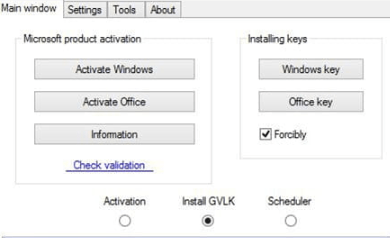
If it’s already installed, run KMSAuto Lite and check the Forcibly checkbox. After that, select Windows Key in the same window. Take it easy, this step does not require a process that takes a long time.
After the process is complete, a text will appear that provides information that the activation has been successfully carried out.
#3. Activation Windows
Activation Windows
The final step taken to be able to activate Windows 10 offline with the KMSAuto Lite tool is to activate Windows. You only need to press the ” activate windows ” button in the Microsoft product activation option.
Don’t forget to click ” activation ” in the options below. Wait until the activation process is complete and restart your PC or laptop so that activation is perfect.
Congratulations! Your Windows 10 process is now activated and can run Windows 10 features as a whole.
How to Activate Windows 10 with CMD
The next way to activate Windows 10 is to use CMD or Command Prompt. The function of this CMD is very much and one of them is used for the activation of Windows 10. This method can be done easily if you pay attention and follow each step by step in the tutorial below:
#4. Connect a PC or Laptop to the Internet
The first step to being able to activate Windows 10 with CMD is to connect your PC or laptop to an internet connection.
This is done because of the way this activation is related to the product key that will be used. You can get the product key on the FreeKey site. This key can only be used for Windows 10 activation via CMD only.
#5. Run CMD
Run CMD
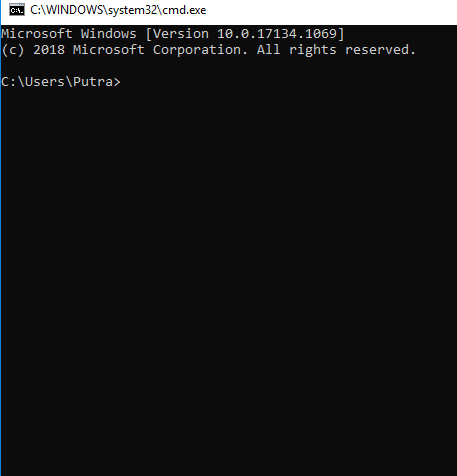
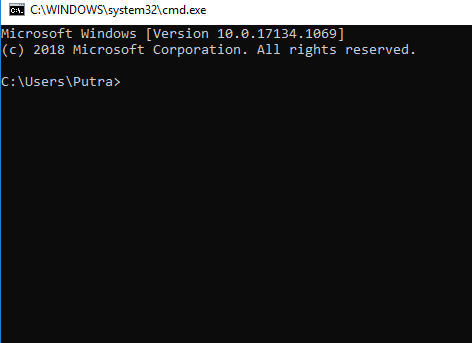
If your PC or laptop is connected to the internet, then you need to open CMD via a combination of Windows + R key keyboards simultaneously. A CMD interface will appear.
#6. Enter the Product key
Enter the Product key
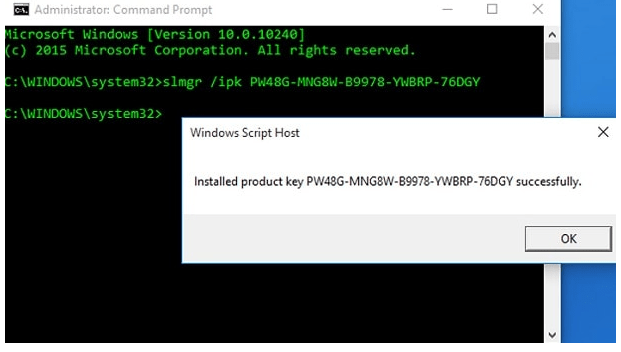
After the CMD is open, then type “slmgr / ipk XXXX-XXX-XXXX-XXXX” and press enter. This initial X is the product key that you must enter. Choose the product key that matches your Windows 10. Then, type “slmgr / skms kms.xspace.in” then enter. The final step is to type “slmgr / ato” and a pop-up will appear informing you that the product key installation has been successful.
How to Activate Windows 10 With the Product key
For those who use Windows 10 without activation on a pc / laptop, you will only get a limited Windows 10 trial.
If you want to use Windows 10 in full, you need to activate Windows 10. Read and practice the steps below to activate Windows 10 by replacing the product key :
#7. Enter the settings on the PC / laptop
How to Activate Windows 10 Product key
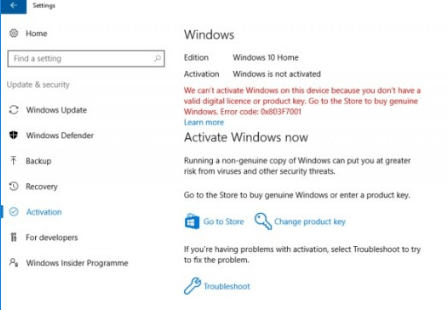
The first step that can be done to change the product key is to enter the settings, then select Update & security and enter the activation option. An interface will appear showing that your PC or laptop has not been activated.
#8. Press “change product key “
Press “change product key “
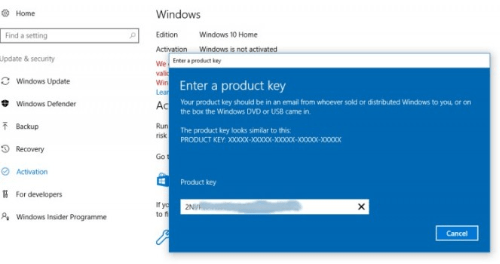
Click the option with the key picture that is “change product key ” because this is done to change the product key that has expired before.
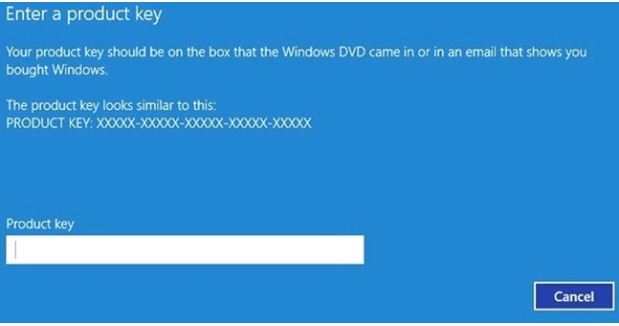
Next will appear a pop-up to fill in a new product key. Look for a product key on the internet for Windows 10 and choose one of them that works on your PC or laptop.
#9. Enter the Product key
Enter the Product key
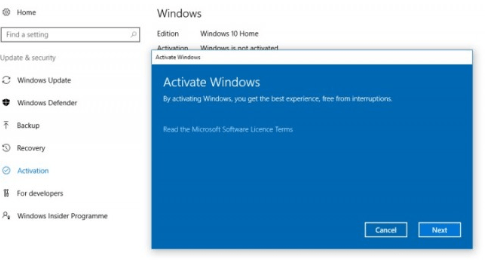
If you entered the product key correctly, then automatically proceed to the windows activation page. There is a cancel option to cancel and next to continue the activation process.
#10. Activation Success
Activation Success
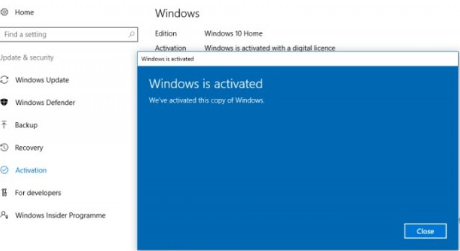
After you continue the activation process, wait a few moments, and make sure the internet connection runs smoothly. After the process is complete, a pop-up window will appear informing you that Windows has been activated.
How to Activate Windows 10 with KMSPico Software
How this one is no less easy to do the activation on Windows 10. Activation of Windows 10 kmspico has been done by many people and this method is proven successful. Come on, see the discussion below to find out the best way to activate Windows 10 using the KMSPico tool :
#11. Download and install the KMSPico tool
Download and install the KMSPico tool
The first step that must be done, of course, is by downloading and installing KMSPico on your PC / laptop. Keep in mind, before installing KMSPico, first disable the antivirus on your pc / laptop.
KMSPico can not only be used for Windows 10 activation but can also be for office activation so that it does not require continuous product keys.
#12. Run KMSPico
Run KMSPico
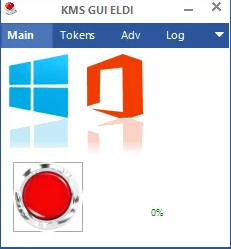
After the download and installation process is complete, select AutoPico if several options appear related to the KMSPico tool after running. After that, the KMSPico window will appear, click on the “play” menu.
#13. Activation of Windows 10 with KMSPico
Activation of Windows 10 with KMSPico
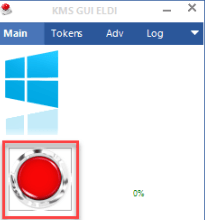
After the tool is run, the next step is to activate Windows 10 on KMSPico. In the KMSPico interface, click the “play” menu then click the red button on the left.
If so, the tool automatically scans and activates Windows 10 together. Not only Windows 10, but KMSPico will also scan Microsoft Office and activate it
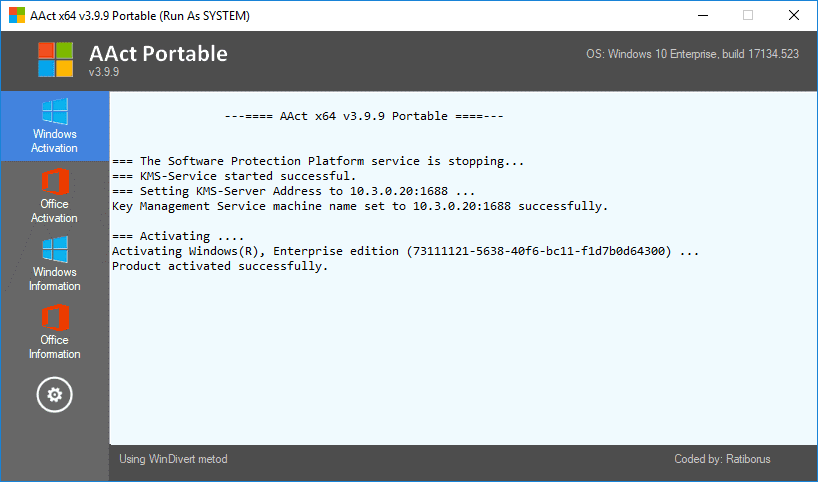
Activate Windows 10 with Portable AAct Software
In addition to some of the Windows 10 activators above, there is also another event, namely the work system of the KMS meisn which is AAct Portable.
This method has a high enough success rate that is widely used by people. One excellent feature is the built-in antivirus management to deactivate all antivirus programs installed on a PC or laptop. Here’s how you can do to activate it with AAct Portable:
#14. Download and install AAct Portable
Activate Windows 10 with Portable AAct Software
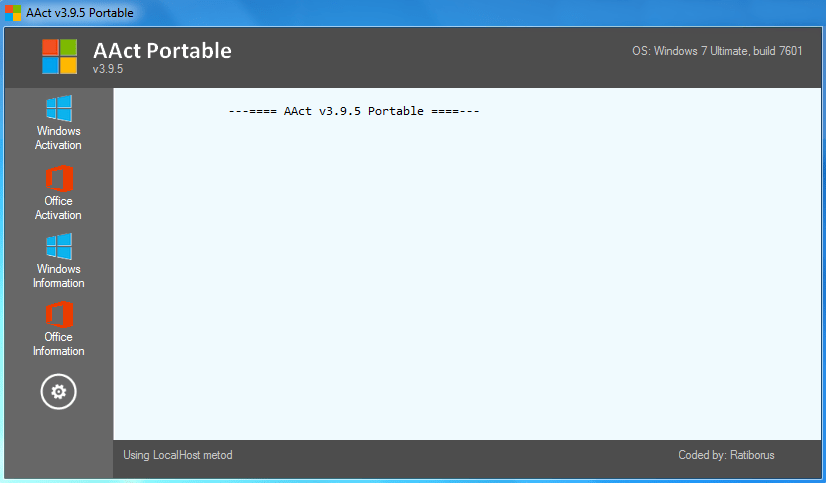
Make sure AAct Portable has been downloaded and installed on your PC or laptop to activate Windows 10. AAct Portable has a more modern and simpler interface than other activators. Not only the display interface, but the activation steps are also simpler than other tools.
#15. Run Portable AAct
Run Portable AAct
Find and open AAct Portable as an administrator by right-clicking and selecting “run as administrator”. Before the activation is done, set it first in the “settings” menu with the gear symbol.
#16. Windows Activation
Windows Activation
The next step is to install the GVLK key to find and install the product key. However, if you already have a product key, choose ” install your own key “. Next in the AAct Portable window, select the ” Windows activation ” menu and wait for the process to finish. When the process is complete, the information “KMS Services starter successful” will appear
Activation of Windows 10 with Skype
If the previous discussion focused more on software with the KMS engine, this time a Windows activation tutorial with Skype will be given.
Although it looks more complicated than some of the ways above, this method is effective in overcoming Windows expired problems. Curious? Below are the steps to activate Windows 10 with the help of Skype:
#17. Download and install Skype
Activation of Windows 10 with Skype
The first step that must be done, of course, is to download and install the Skype application on a PC or laptop. It should be noted that besides installing Skype, before activating it, you must have a Windows 10 MAK key first.
#18. Run CMD
Run CMD
After installing Skype, the next step is to run CMD by pressing the combination on the Windows and R keyboards simultaneously. Type the command in cmd “slmgr.VBS serial number from the MAK key ” for example “slmgr.VBS VN49T-874PD-XD3T2-GTRBD-3PFDB” then Enter. Then enter the command “slui 4” and enter, then a new window will appear if the entered MAK key is still active.
#19. Running Skype
Running Skype
After a new window opens because the MAK Key is still active, then a display will appear to select the country. Select the UK country and click next, then the system will use Skype as an account to confirm the ID.
#20. Make a number call
The last step that can be done is to make a call to the number +448000188354 which is a number from the Toll-Free United Kingdom. Furthermore, when asked about the use of the product key, then answer Home and press button 1 then press the fence button.
If the ID is requested beforehand, then state the ID number and follow the instructions until you get the ID confirmation. Then click “activate” and congratulations on the successful activation.
Disclaimer: All forms of download files on the Technowizah.com site are just for educational purposes only.
DMCA: Technowizah.com complies with 17 U.S.C. * 512 and the Digital Millennium Copyright Act (DMCA). It is our policy to respond to any infringement notices and take appropriate action. If your copyrighted material has been posted on the site and you want this material removed, Contact us.
This was on how to activate Windows 10 permanently offline, along with whether the product key or not. The method described above is not only to activate Windows 10 but can also be used for Office 2013 or 2016. Use according to your needs.
How to Uninstall Applications on Windows 10 Laptop PC – When your computer has problems, or you want to remove applications that you no longer use, there are many ways to uninstall programs or applications on a Windows 10 PC. You can remove some programs through the Start menu or through Settings. However, if you want to remove some applications in Windows, you will have to use the Control Panel or use a third-party application. Here’s how to uninstall applications on Windows 10.
How to uninstall applications on Windows 10
How to uninstall applications on Windows 10 through the Windows Start menu 2024
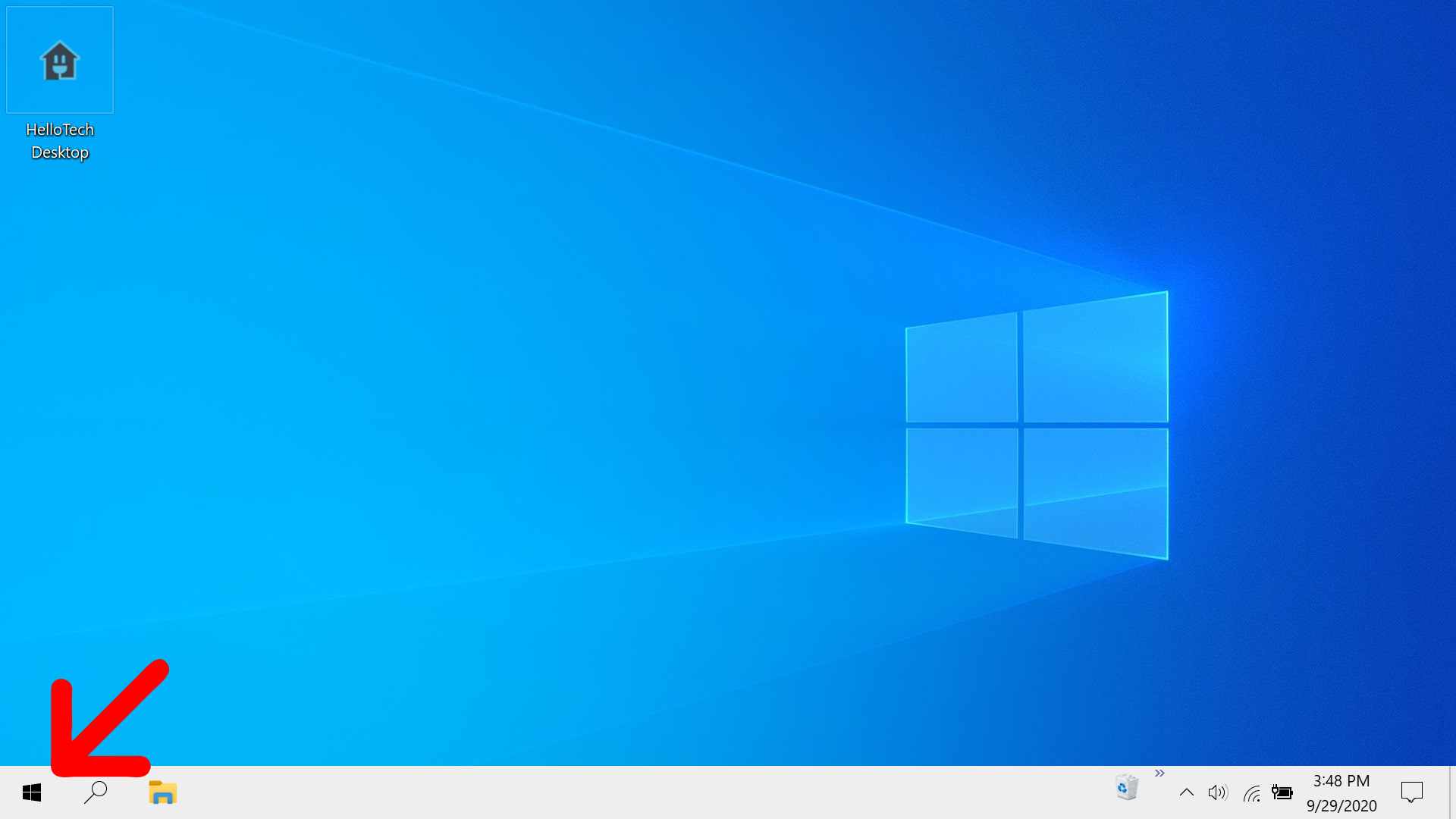
To remove programs via the Start menu, click the Windows button in the lower-left corner of the screen. Then find the program you want to uninstall in the application list, right-click it and select Uninstall. Finally, click Uninstall in the pop-up message to confirm.
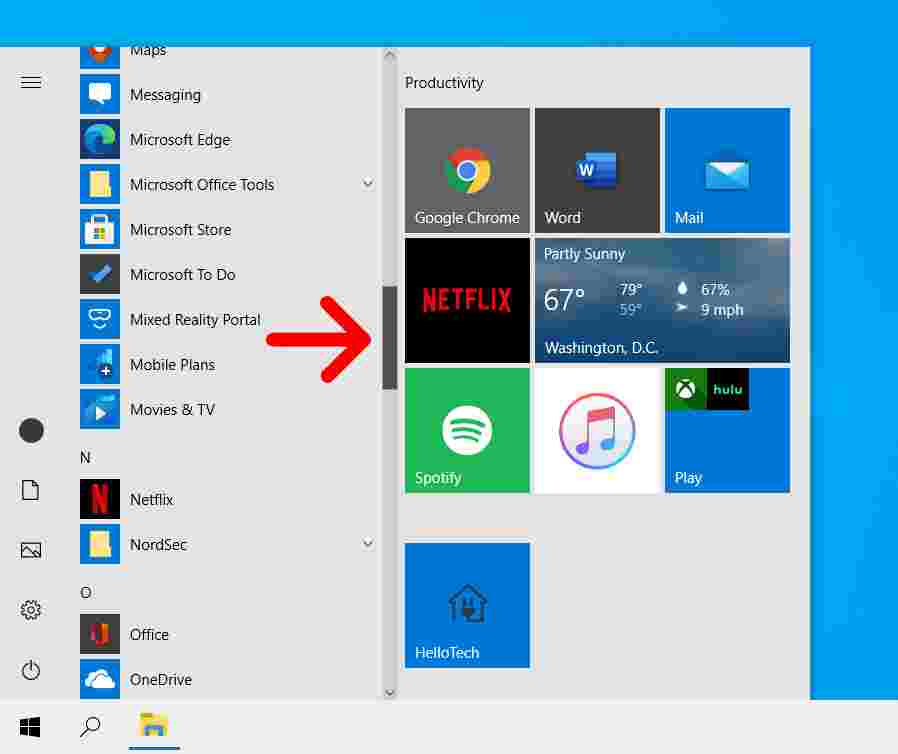
1. Click the button with the Windows logo in the lower-left corner of your screen. You can also press a key with the Windows logo on your keyboard. This will open the Start menu.
2. Then find the program you wish to remove. You can find all of your programs listed alphabetically on the left side of your screen. You can simply scroll up and down the list using the mouse wheel or by selecting the scroll bar to the right of the application column.
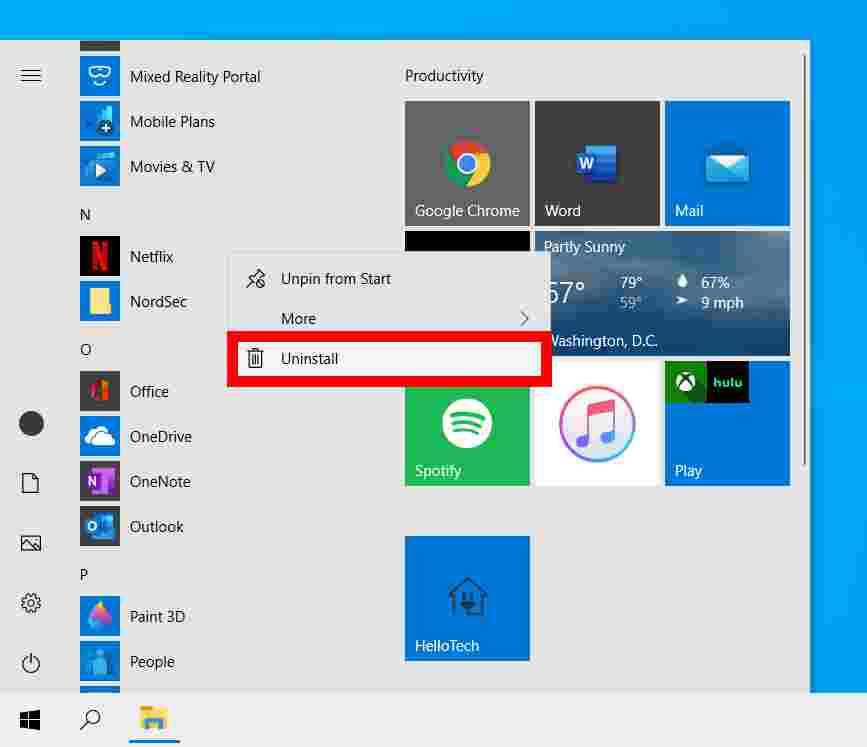
3. Next, right-click on the program.
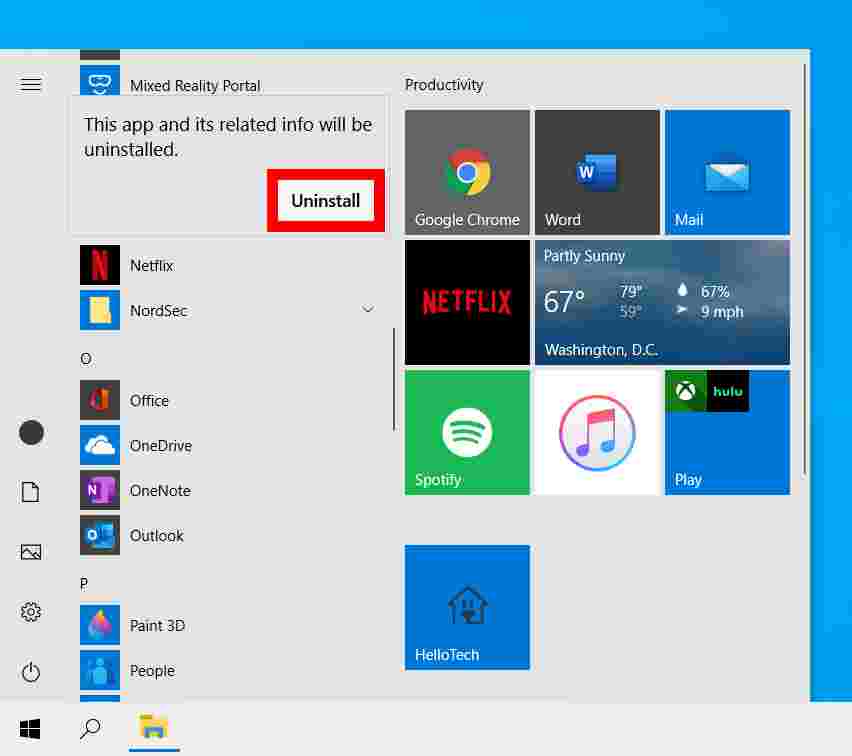
4. Then click Uninstall. After clicking Uninstall installation, a pop-up message will appear saying, “This app and its related info will be uninstalled”.
5. Finally, click Uninstall in the pop-up message.
This is the easiest way to remove programs in Windows 10. However, if you are trying to remove a specific program, you may want to use Settings or Control Panel.
How to uninstall applications on Windows 10 via Settings
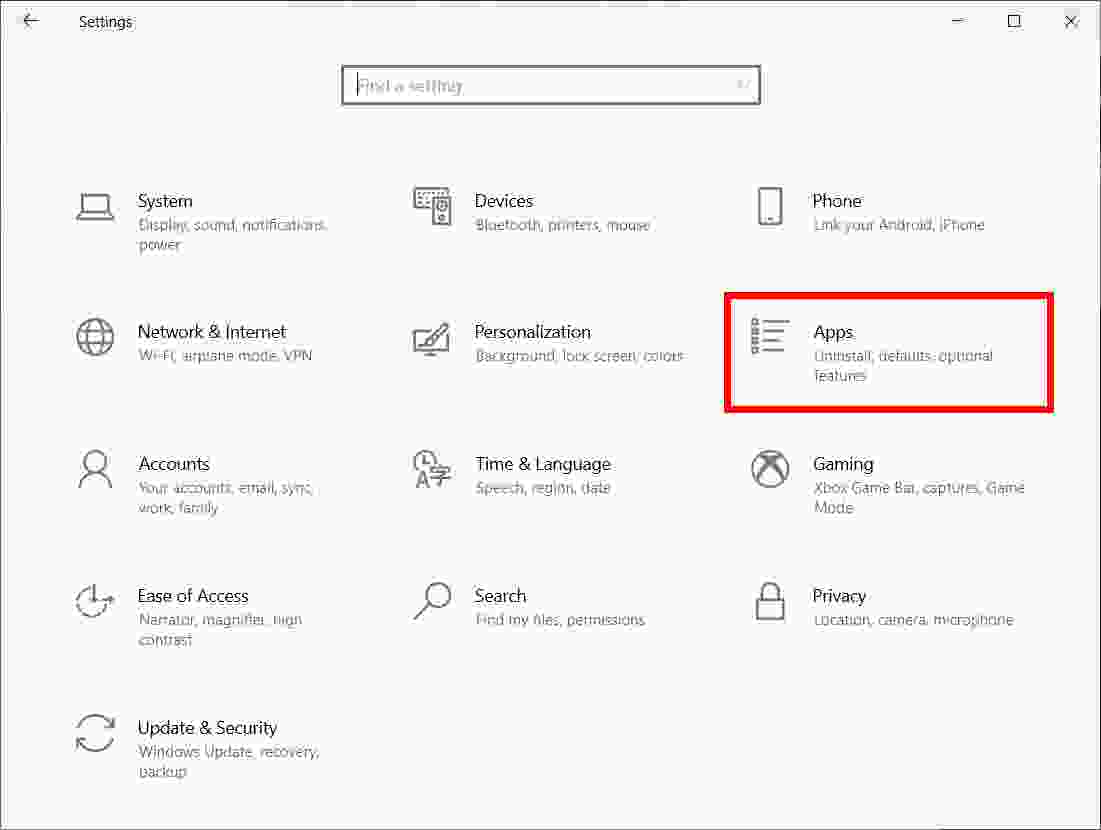
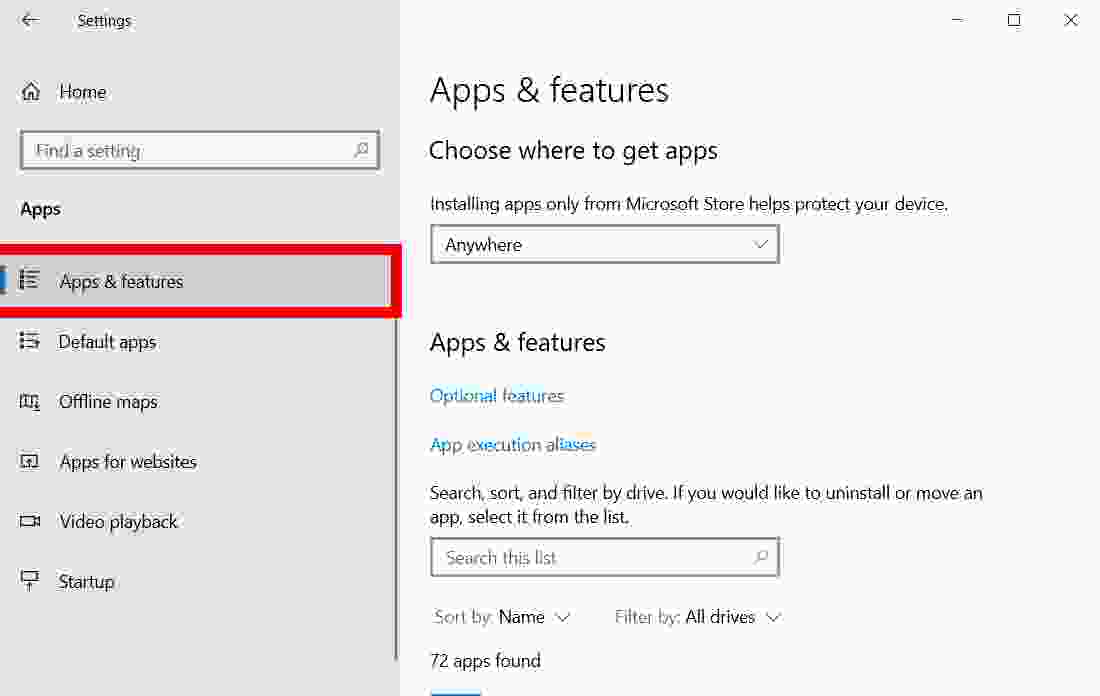
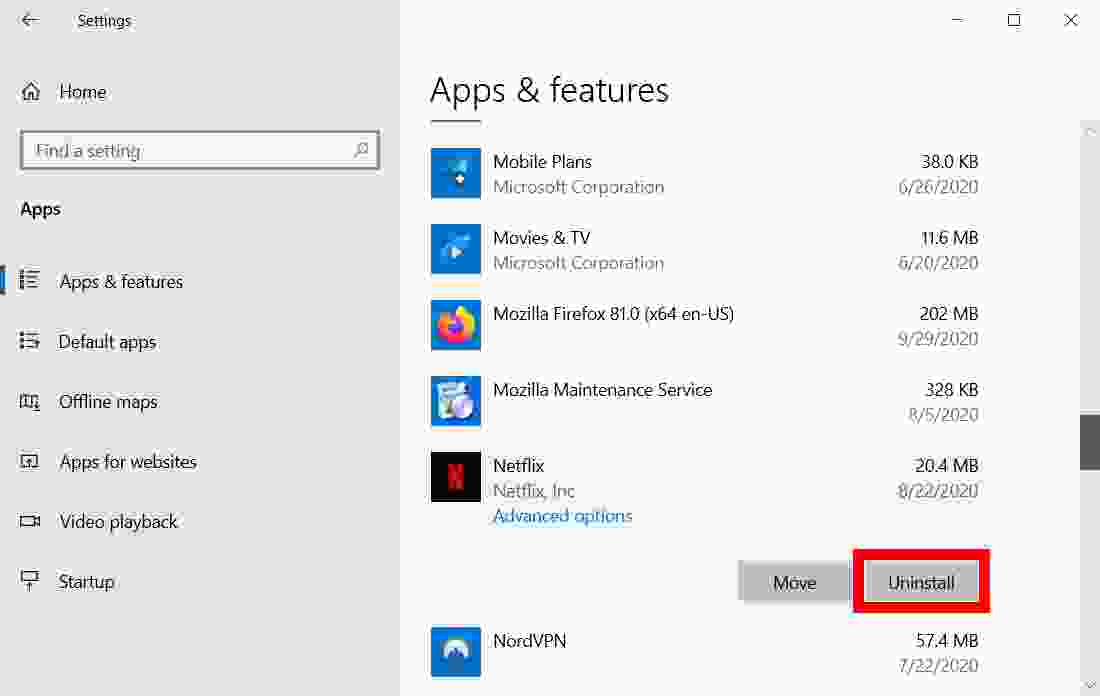
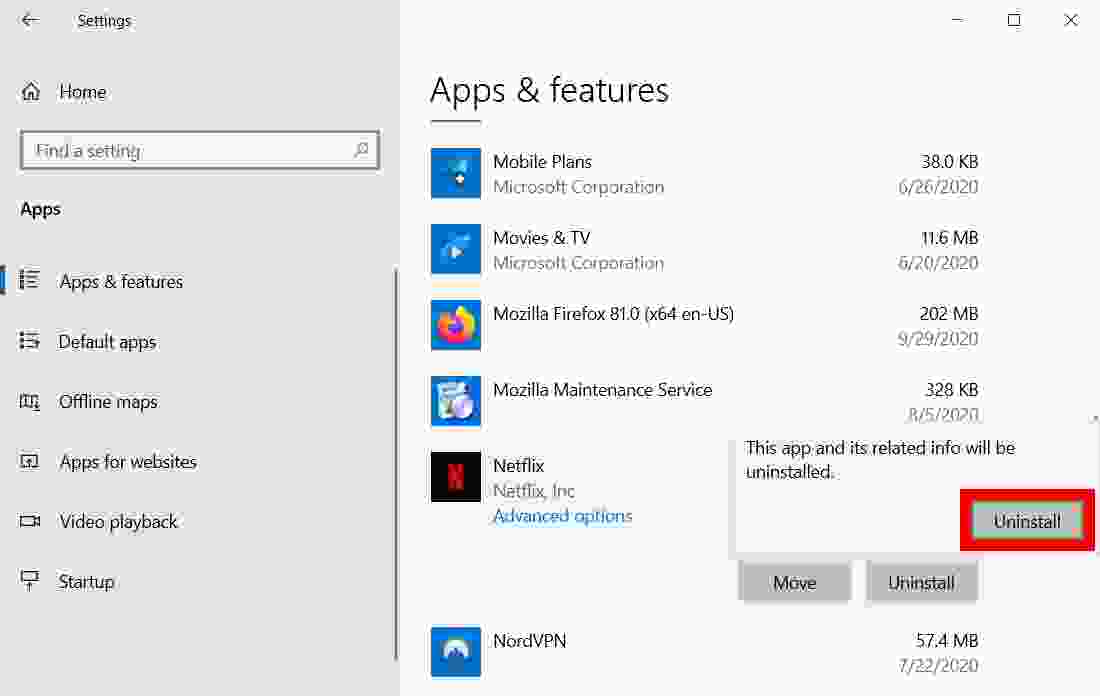
To uninstall an app via Settings, open the Windows start menu and click Settings. Then go to Apps > Apps & features and click on the program which you want to uninstall. Finally, select Uninstall and click Uninstall in the pop-up message.
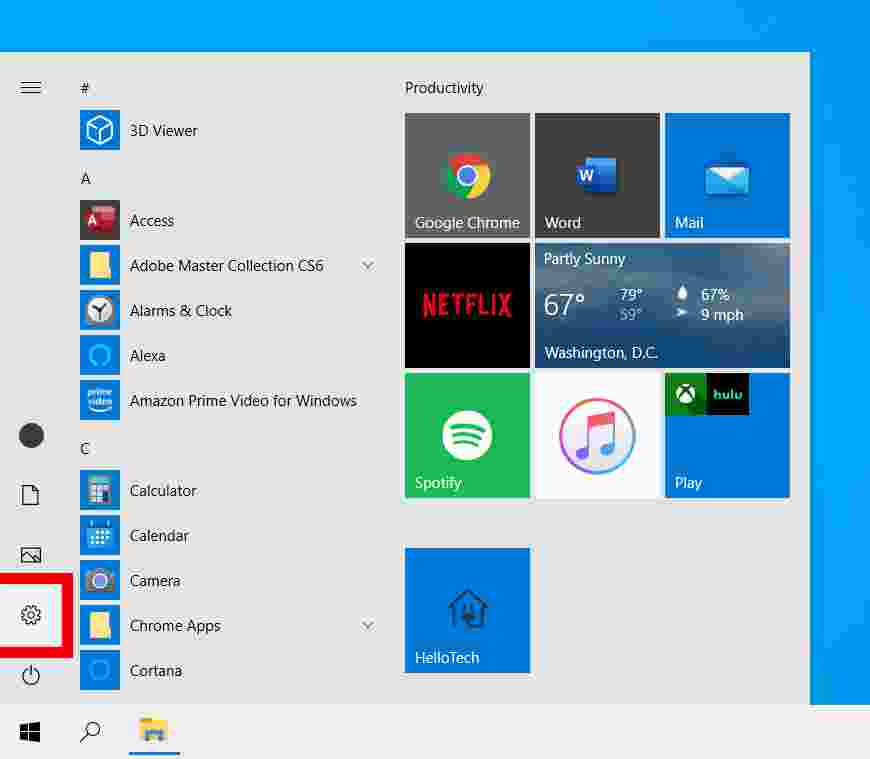
1. Open the Start menu. You can do this by clicking the button with the Windows logo in the lower-left corner of your screen.
2. Then click Settings. This is the button with the gear icon just above the power button.
3. Next, select Apps
4. Then click Apps & Features. You’ll see this in the left sidebar of the Settings window. If you don’t see this option, you can expand the Settings window.
5. Then scroll down and click the program you want to remove.
6. Next, click Uninstall.
7. Finally, select Uninstall in the pop-up message.
How to uninstall applications on Windows 10 through the Control Panel
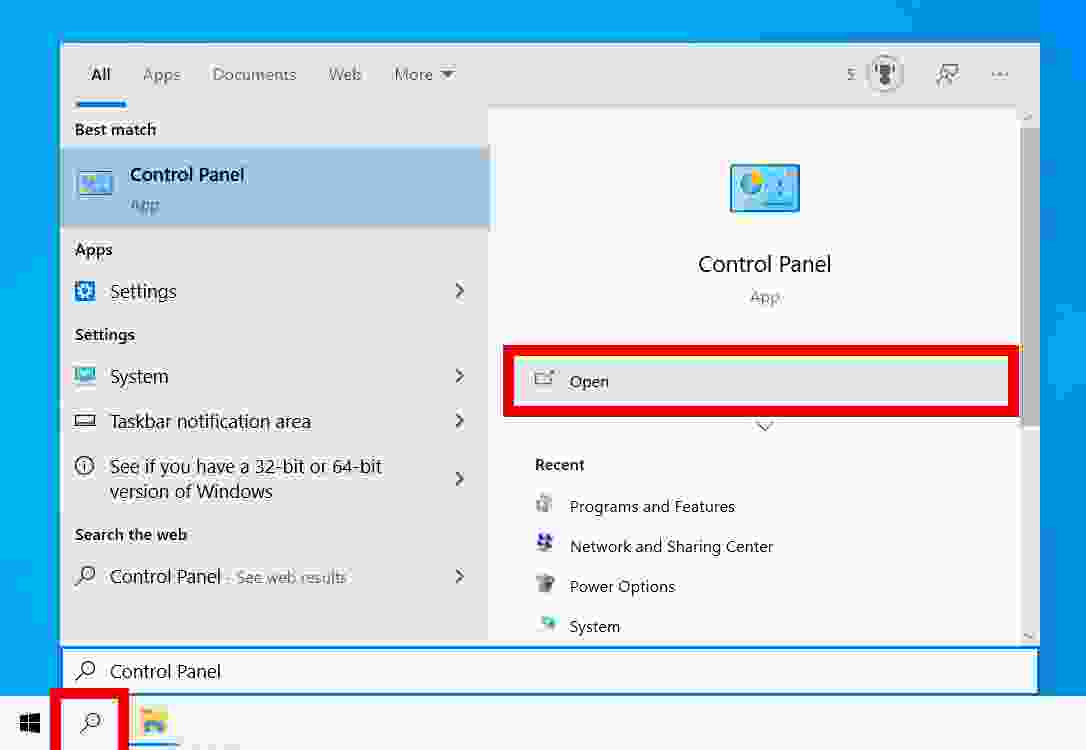
To remove an app via Control Panel, open Windows Search Box and type Control Panel into the search bar. Then click Open and select Programs and Features. Finally, select a program, click Uninstall, and click Yes in the pop-up message to confirm.
1. Open the Windows Search Box. You can do this by clicking on the magnifying glass icon in the lower-left corner of the screen.
2. Then type Control Panel into the search bar and click Open. You can also press Enter on the keyboard.
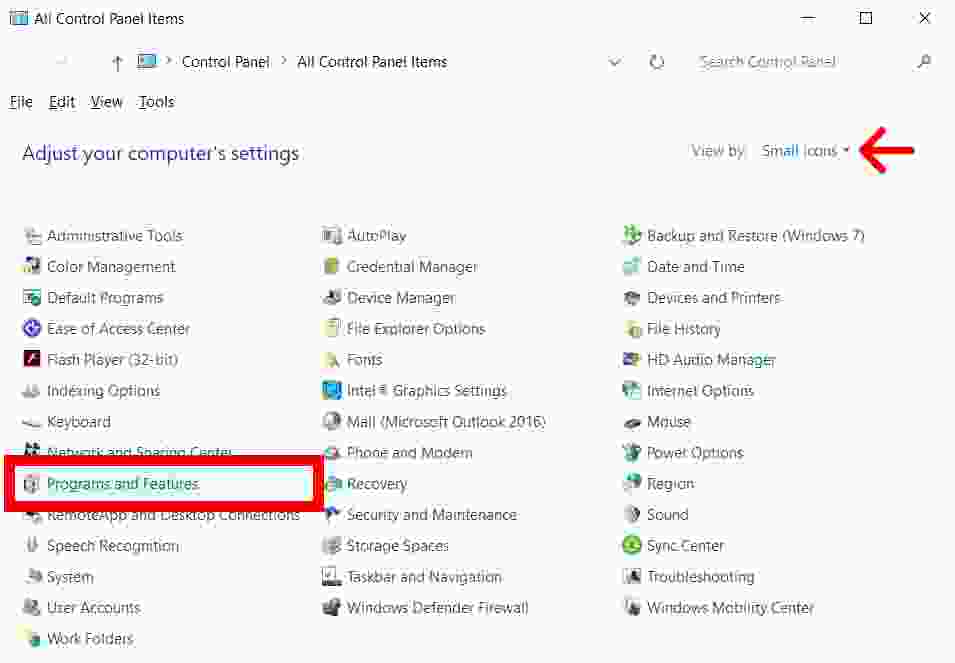
3. Next, click Programs and Features. If you don’t see this option, click the drop-down menu next to View in the upper right corner of the window and select Small icons. If you are in the Category view, you can also click Uninstall a program under Programs.
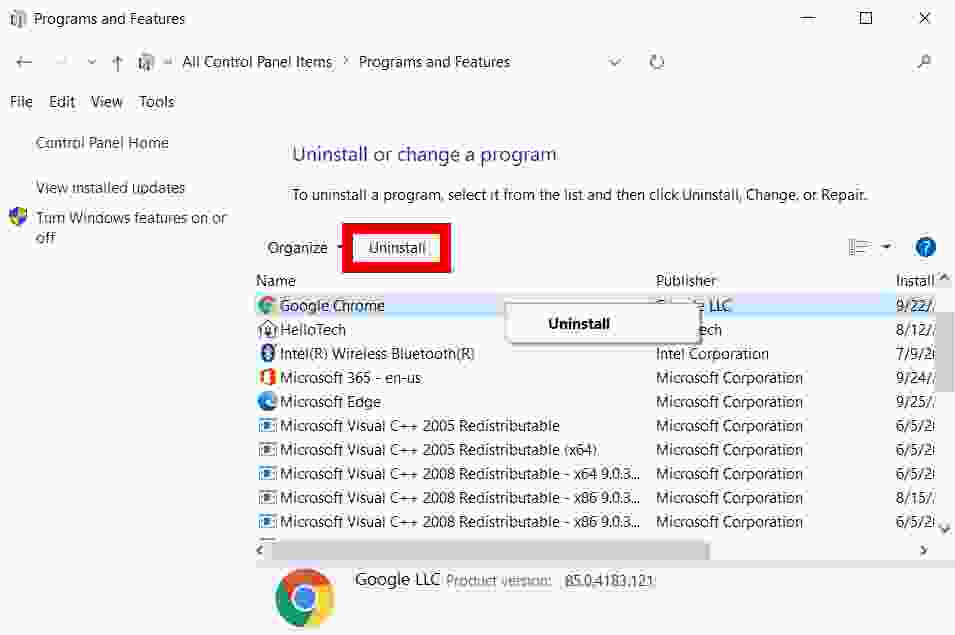
4. Then right-click the program and select Uninstall. You can also double-click the program or click the Uninstall button above the list of applications.
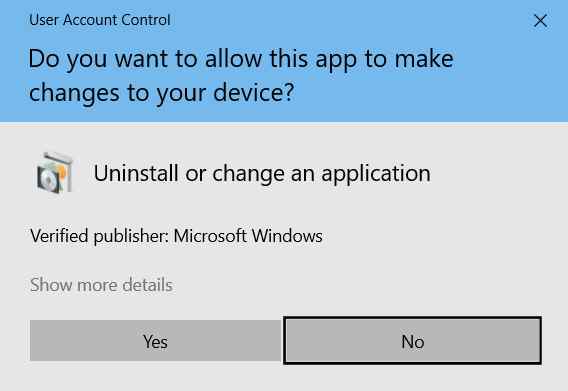
5. Finally, click Yes to confirm that you want to remove the program.
In some cases, programs will be removed immediately when you click Uninstall, while other programs will take you straight to their own uninstall wizard. Keep clicking Next until the program is finally removed. However, make sure that the uninstall wizard doesn’t try to get you to save any files or install any new programs during the process.
If you can’t uninstall using the method above, you can try using a third-party app. One of the best Windows 10 uninstalls apps that you can get for free is IObit.
How to uninstall applications on Windows 10 using IObit
To uninstall the application using IObit, download and install the application on a Windows 10 computer. Then open the downloaded file and carry out the installation process. Next, select the program and click the Uninstall button.
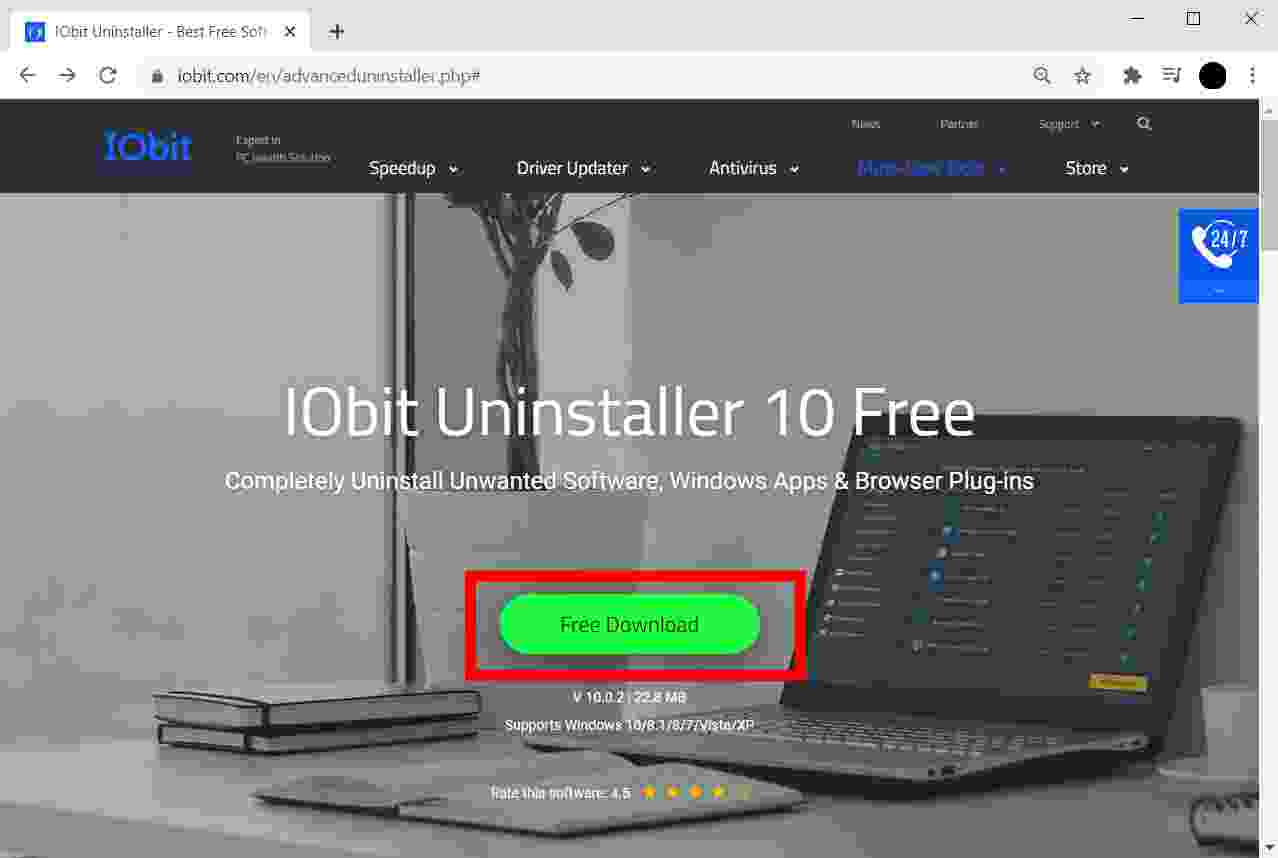
2. Then click the Free Download link. You will not be asked to enter credit card or other personal information when you download the free version.
3. Next, click Download Now. This will be the big green button at the top of the page.
4. Then open the downloaded file. Search your Downloads folder for a file named iobituninstaller.exe. To open the file, double-click it.
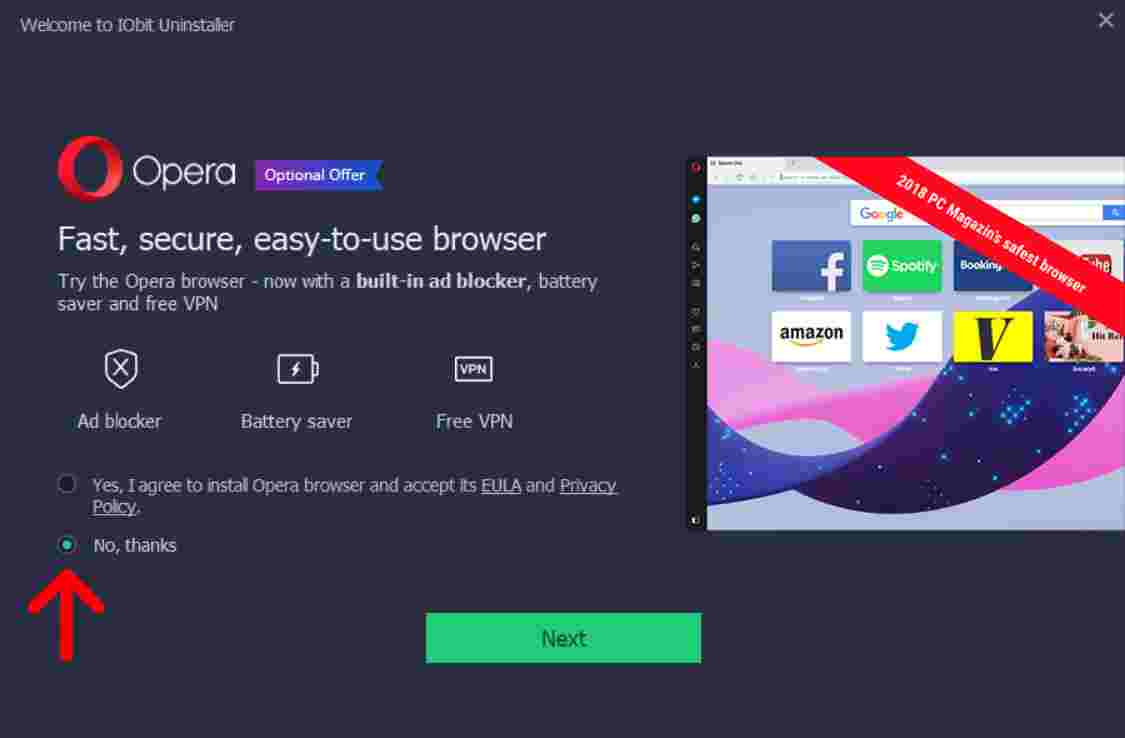
5. Next, follow the installation process. You can install by clicking Install, then clicking Next on the following screen.
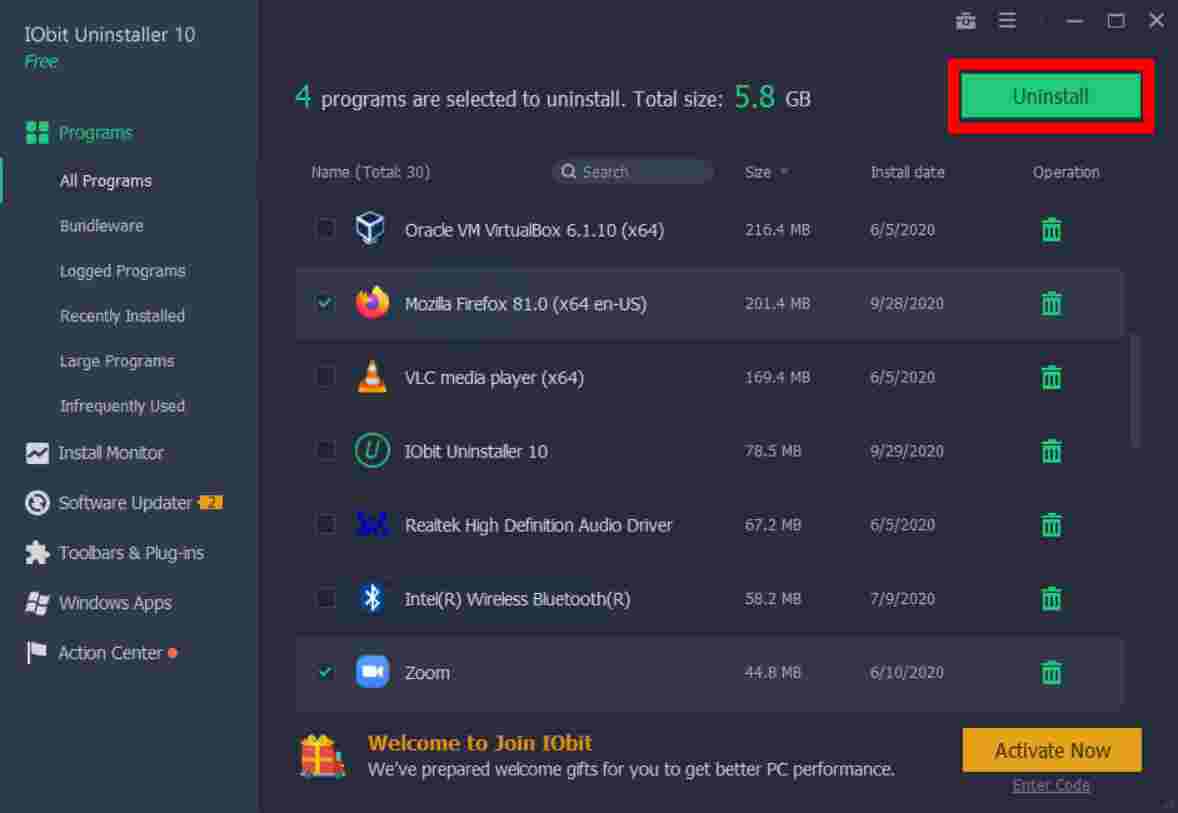
6. Then select the program you want to remove. After IObit has finished installing, it will automatically scan your computer for all available programs. You can use the left sidebar to find your recently installed programs, Windows applications, and more. Click the box to the left of the icon to select the program or applications you want to uninstall.
7. Next, click Uninstall. You will see a big green button in the upper right corner of the window. After you click on it, a pop-up window
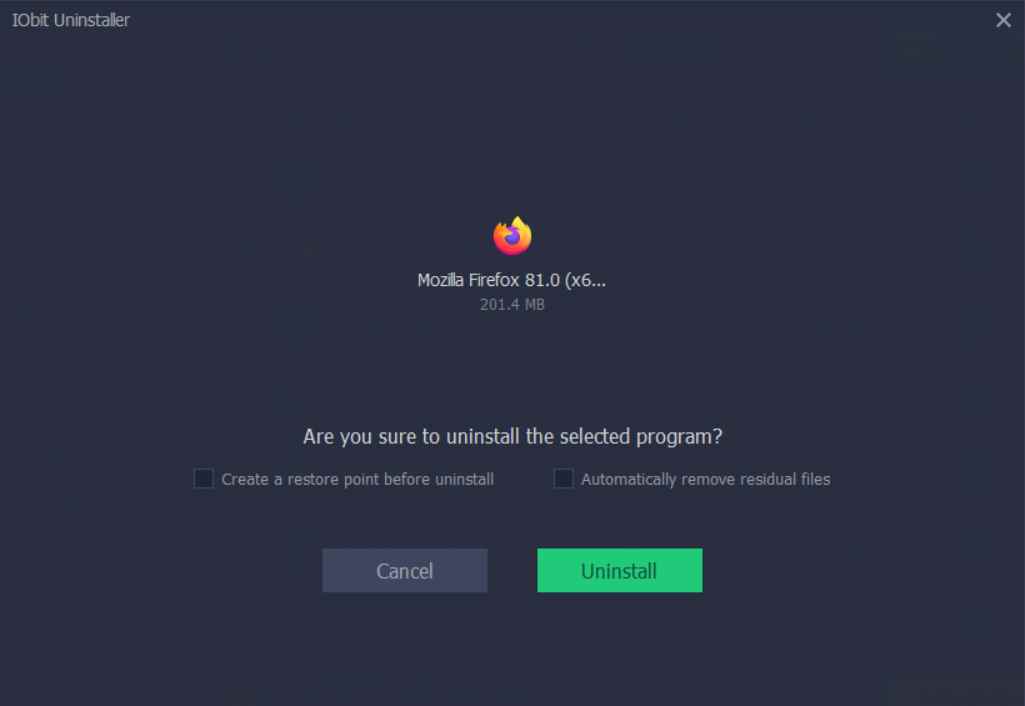
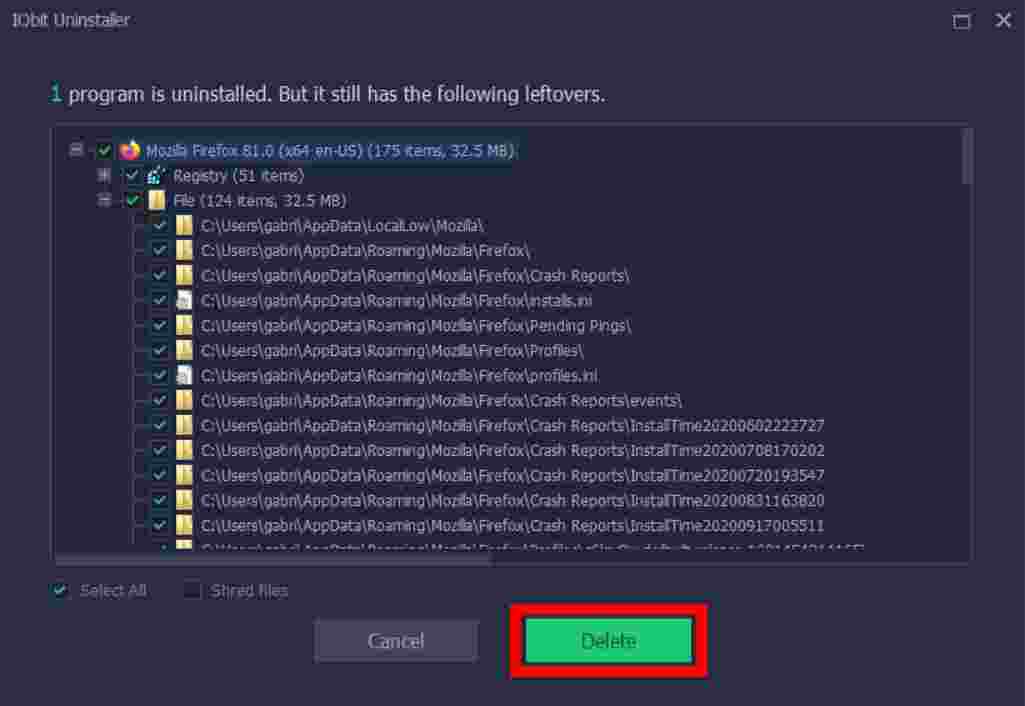
8. Finally, click Uninstall. On this screen, you can choose to create a restore point, which will allow you to back up your computer’s state if removing a program causes problems. Apart from that, it automatically removes residual files, such as registry files, temporary files, and more.
If you deselect the Automatically remove residual files option, you will see a screen with a list of all files associated with the program. You can choose to keep a file by deselecting the box to the left of its name, or you can click the Delete button to bulk delete them all.
Don’t forget to bookmark and always visit every day Technowizah.com because you can find here the latest Tech Computer Android games How-to Guide Tips&Tricks Software Review etc, Which we update every day.



















 Don’t forget to bookmark and always visit every day