Category: Windows

Windows – Here you can find Computer-related updates Windows 10, Windows 8, Windows 7, Linux, technology information, and more.

  • 3 Ways To Download Instagram on PC Windows 2025

    3 Ways To Download Instagram on PC Windows 2025

    3 Ways To Download Instagram on PC Windows – Laptop or computer user who often forgets smartphone devices? If you often use an Android phone to play Instagram, now there is also an Instagram application for laptops or PC, You can download Instagram on PC from this article.
    How To Download Instagram on PC Windows 10 Laptop
    How To Download Instagram on PC Windows 10 Laptop

    How To Download Instagram on PC Windows 10 Laptop

    Downloading Instagram for a laptop is an alternative step for those who want to open Instagram via a laptop.

    Read more:

    This practical step you can get through this review is where you will get the Instagram software by its original form.

    The original form here is like an Instagram for Android installed on laptops and computers. Running an Android application without an emulator I emphasize more. The problem is that many users complain that using an emulator can slow down the performance of a laptop or computer.

    For those of you who have laptops but want to use Instagram, you should download the Instagram app for your PC. I will provide the Instagram application download for a PC laptop without a Bluestack emulator.

    Download Instagram on PC Windows 10,8.7

    Regarding downloading Instagram for a PC without Bluestack, you will get everything I have ever done. If you use the Instagram application for the first laptop that does not work then use the IG for PC software.

    Are you not a user of laptops and computers that are smart? Now while you still have the intelligence, free download Instagram for PC can be used on all Windows. Be it Windows 10, Windows 7, Windows 8, Windows XP, or other Windows versions.

    Curious to see a list of Instagram download links for laptops? Check out the review in the following.

    Download Instagram on a Windows 10 PC

    IG application for this first laptop you can get at the Microsoft store. Exactly as Windows 10 and 8 users might still be able to access the Microsoft store service. Inside the store, a full version of the Instagram application for Windows exists.

    Where you will get the software to open Instagram on your PC. If you want the Instagram application for laptops, please go to the following link.

    Instagram feature from Microsoft

    Instagram feature from Microsoft
    • Send a photo and a video.
    • Edit profiles and photos with creative tools.
    • Combine several clicks in one video.
    • Share as many photos and videos as you want in the feed.
    • Share photos and videos on Instagram Story.
    • See other people’s stories.
    • Find photos and videos on the Instagram timeline.
    • Follow other people.
    • Can send messages in the form of videos and photos using Instagram directly for PC.
    • Share your new posting posts quickly on Facebook, Tumblr, Twitter, and other social media.

    Extension for Instagram
    Extension for Instagram

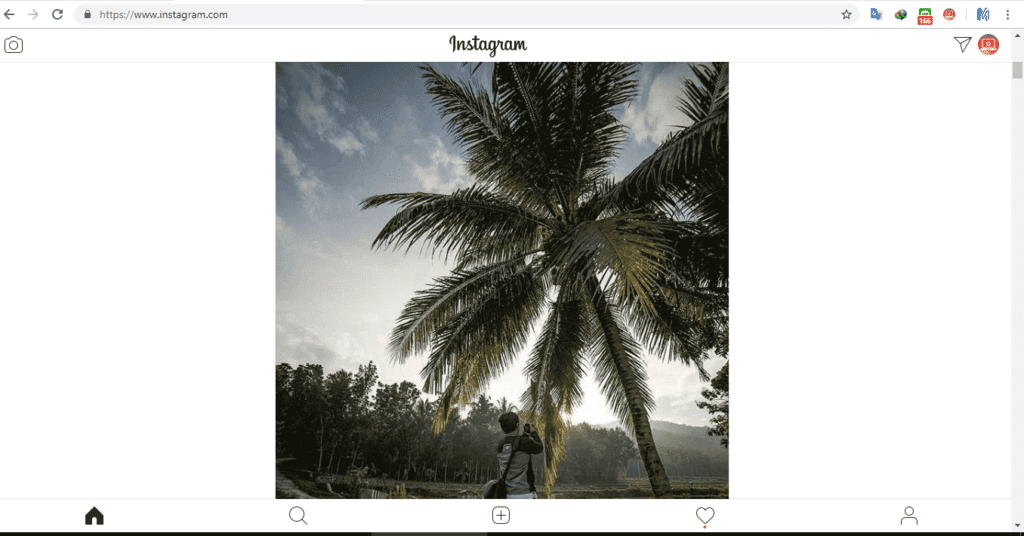
    The Instagram application recommendation for the second laptop is to use the Chrome extension. Like Instagram on Android, you can get it on your device. If on your cell phone, you can upload a story, a post, and so on. In Extension for Instagram, it can also be like that.

    It is better to use the extension instead of downloading the IG application for PC which is a burden on your device’s performance. If you want to download this extension, you can visit the link below.

    Extension for Instagram

    Inside the extension, you can use it like an Instagram application on a laptop that looks like an Android phone. The features in it are very similar to the apk on the smartphone.

    Do you want to upload stories, and postings in the form of videos or photos? You can use this free software service in your Google Chrome.

    Download Instagram on PC Windows 8, 7, 32 Bit

    For Windows 7 laptop users, there are ARM variants which are 32 bits and 64 bits. Therefore, I have a download link for 32-bit Instagram.

    1. Instagram download on Windows 7 32-bit PC

    2. Instagram’s Latest PC Version

    Download Instagram on PC Windows 8

    Not only for Windows 7 and 10 users but there are also Windows 8 Instagram applications.

    This way, the Instagram app collection for Windows is complete, so you can download it at will and by the operating system used.

    Read more:

    Conclusion:

    So, friends, This explains how To download Instagram on PC Windows. I hope Hopefully for you this article. Now you will be able to log in to your Instagram account on your PC or laptop.
  • How to Disable Touch Screen on Chromebook 2025

    How to Disable Touch Screen on Chromebook 2025

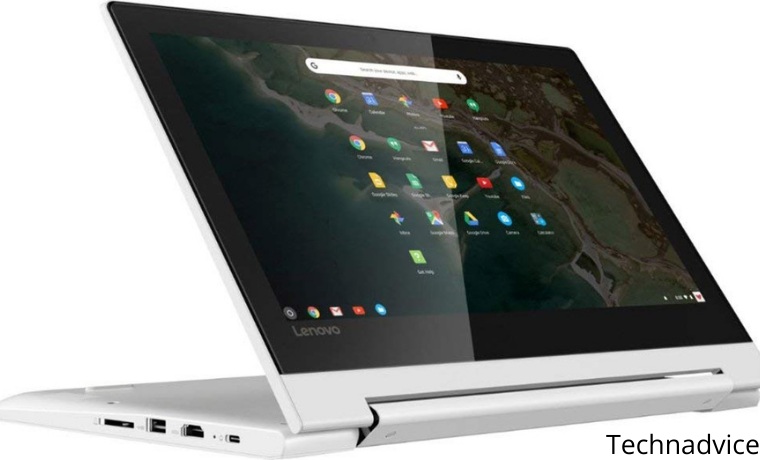
    How to Disable Touch Screen on Chromebook – How to disable the touchscreen on a Chromebook makes perfect sense if you don’t want accidental touches to ruin your work documents or movies playing during a date.

    How to Disable Touch Screen on Chromebook

    How to Disable Touch Screen on Chromebook

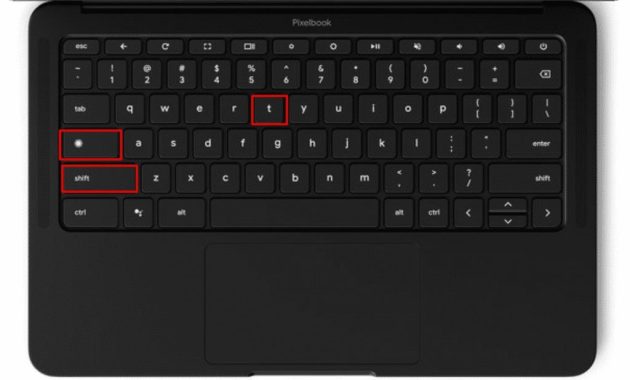
    Thankfully, the folks at Google have foreseen this extraordinary situation, giving us a key combination thanks to which we can enable or disable the touchscreen on Chromebooks.

    Read more:

    We’ve now analyzed some of the advantages of Chrome OS over Windows, at least for a group of users who really appreciate the many key features this device has to offer.

    Now, if you have one and want to have a somewhat more classic user experience on your Google computer,  you should keep reading to find out how to disable the touchscreen on a Chromebook.

    Basically, we can say that Chromebooks are an ideal product for people who use their laptops for more than just surfing the Internet, as the entire experience is based on Chrome.

    Not coincidentally, its operating system is Chrome OS and is usually also cheaper than the others.

    One of the other keys is that we can use it from the touchscreen and from the keyboard, although it might end up getting in the way. But The Big G has thought about it, and provided us with some interesting solutions.

    Reasons to disable the touch screen on Chromebook

    In general, almost all of us would agree that having a touch screen is a huge benefit. You can take advantage of it without having to use a keyboard or mouse, and it saves time and provides versatility.

    However, we recognize that there will be users or times when you will want to do without that feature.

    As we said earlier,  it is possible to partially remove it, until you need it again.

    This is useful when you don’t want an accidental screen to mess up your attempts at the document.

    Or if you’re watching a movie, and you don’t want an accidental motion to stop it at just the right moment.

    How to Disable Touch Screen on Chromebook

    All of the above beings said Chromebook settings allow you to disable the touchscreen, with how interesting it is that almost all modifications and customizations are completed directly from the Chrome browser.

    • First of all, open the Chrome browser on your Chromebook
    • Type “chrome://flags/#ash-debug-shortcuts” in the address bar
    • On the next screen, find the Debugging keyboard shortcut
    • Click Activate so that this option is enabled
    • Reboot the device, and press Search + Shift + T

    Your Chromebook’s native touchscreen feature will be completely disabled automatically.

    How to Disable Touch Screen on Chromebook

    Why doesn’t the keyboard shortcut disable the touch screen?

    If the Find + Shift + T command doesn’t work for you,  you’ll need to enable the shortcut in the Chrome browser, as we mentioned above. Or you must enable the Search button if you previously disabled it.

    As you can see, turning off the touchscreen and trackpad on your Chromebook is pretty easy with this trick. Basically, all you need to do is enable the Keyboard Shortcut Debugging option.

    Enabling and disabling the touch screen is probably the best alternative for everyday use.

    Conclusion:

    If you’re going to disable the touchscreen, another good setting to consider is enabling the Google Assistant on your Chromebook, which will give you more control over your computer.

  • 3 Ways To Resolve Error Code 0x0003 NVIDIA GeForce 2025

    3 Ways To Resolve Error Code 0x0003 NVIDIA GeForce 2025

    3 Ways To Resolve Error Code 0x0003 NVIDIA GeForce – If you are a Nvidia brand VGA Card user on a computer, have you ever experienced an ERROR CODE 0x0003 in the Nvidia Geforce Experience application? How to solve the 0x0003 error is very easy.

    How to Resolve Error Code 0x0003 NVIDIA GeForce
    Image Source: pcmag.com

    How to Fix or Resolve Error Code 0x0003 NVIDIA GeForce

    Most of the problems experienced by Geforce users in the 0x0003 error are the error message Something went wrong. Try rebooting your PC and then launch GeForce Experience when opening the Nvidia Geforce Experience application or software.

    Read more:

    All you need to know, there are several causes for the appearance of error code 0x0003 on Nvidia Geforce. This error code represents several problems, namely 0x0003.

    You must know what causes the 0x0003 error in your Nvidia Geforce so that you can more easily figure out how to solve it. Here are some of them:

    • Nvidia Telemetry cannot be applied to the desktop.
    • An important service from Nvidia cannot run.
    • The Nvidia driver has crashed.
    • Network error/glitch.
    • The Nvidia GeForce GPU driver does not support updates from Windows.

    Of the several causes of the 0x0003 error in NVIDIA GEFORCE above, is there one cause that happened to your computer? If so, here’s how to fix the error code 0x0003 on NVIDIA GEFORCE.

    #1. Run Nvidia Telemetry

    Run Nvidia Telemetry
    Run Nvidia Telemetry

    Nvidia Telemetry is the most common cause of error codes 0x0003 in Nvidia GeForce. You only need to run Nvidia Telemetry so that it can be applied on your desktop.

    How to fix error code 0x0003 in Geforce Experience:

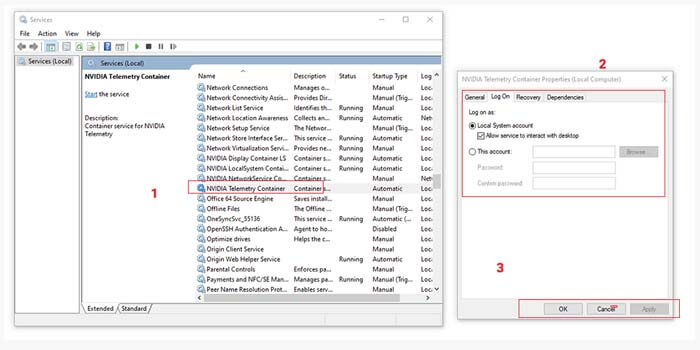
    1. Open the menu Run by pressing Windows + R.
    2. Type services.MSC then press the Enter key.
    3. Find the Nvidia Telemetry Container and right-click it.
    4. Select the Properties option > click the Log On tab.
    5. Put a check on the Allow service to interact with the desktop.
    6. Then click Apply and OK.

    Now Nvidia Telemetry is confirmed to be running on your desktop. But if it still doesn’t work, make sure the other Nvidia components are already running.

    Still in the services.MSC menu, look for Nvidia Display ServiceNvidia Local System Container, and Nvidia Network Service Container. Then right-click for each component and select the option Start.

    #2. Reset the Network Adapter

    Reset the Network Adapter
    Reset the Network Adapter

    You can also fix the 0x0003 error that occurs in the NVIDIA GEFORCE experience simply by resetting the network adapter. You can use this method on Windows 7, Windows 8, and Windows 10 very easily.

    How to solve error code 0x0003 in Geforce Experience:

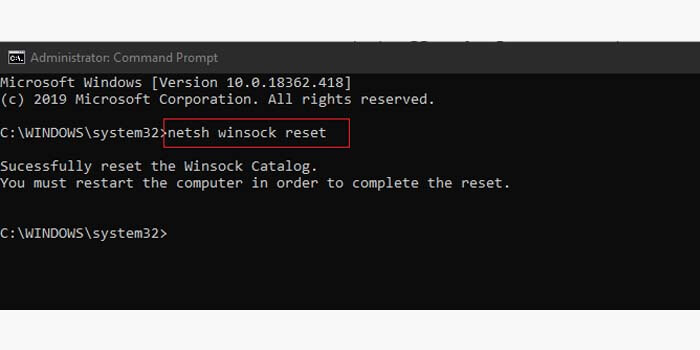
    1. Press the Windows key + R to open the Run menu.
    2. Type CMD then press Ctrl + Shift + Enter.
    3. In CMD type netsh winsock resetand press Enter.
    4. Then a message will appear that you have successfully reset Winsock.
    5. Finally, restart your PC or computer.

    Wait for your PC or computer to turn on again. Then check whether the error code 0x0003 on the Nvidia Geforce Experience has been successfully repaired or still exists.

    #3. Reinstall Geforce Experience

    Reinstall Geforce Experience
    Reinstall Geforce Experience

    The last method to resolve and fix error code 0x0003 in Nvidia Geforce Experience is to reinstall all components or drivers.

    First, you have to remove or uninstall all Nvidia Geforce Experience drivers that are already installed on your PC or computer so that the problem that occurs is completely gone.

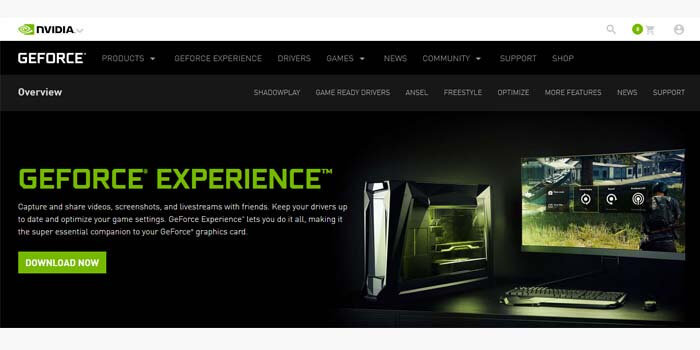
    Then, download the Nvidia Geforce Experience driver in the latest version. You can grab the Geforce Experience driver files through the official Nvidia website.

    Finally, just install the GeForce Experience driver that you have downloaded on your PC or computer as usual. If there are no problems, then you can log into your Nvidia account to find out your VGA performance.

    Read more:

    Conclusion:

    So, friends, here are the instructions above on how to resolve error code 0x0003 NVIDIA GeForce Experience, which you can use to fix your problem.

  • 4 Ways to Uninstall Avast to Clean the Roots in Windows 10 PC 2025

    4 Ways to Uninstall Avast to Clean the Roots in Windows 10 PC 2025

    4 Ways to Uninstall Avast to Clean the Roots in Windows 10 PC—Avast is an antivirus application that has many users. This is because It can be used for free, and most newly purchased laptops usually have the Avast application installed on them.

    How to Uninstall Avast to Clean the Roots in Windows 10

    How to Uninstall Avast to Clean the Roots in Windows 10 PC Laptop

    For those of you who want to delete the Avast application until it is clean, don’t use the usual method by uninstalling it via the Control Panel, because usually the residual files from the application will still be stored on the laptop. To make sure you uninstall Avast thoroughly, all residual files and configurations that are still attached should be removed as well.

    Read more:

    In this tutorial, Winpreso will provide several alternatives for how to remove Avast antivirus on Windows 10 until it is completely clean and no leftover files are still stored on your computer.

    Turn off the Self-Defense feature on Avast before uninstalling

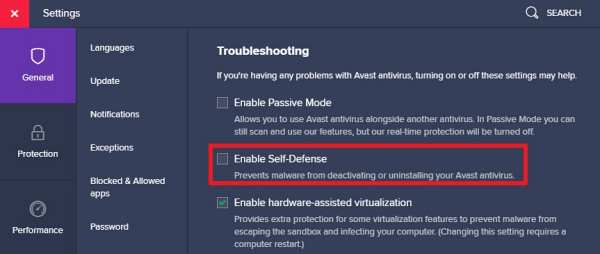
    The first step before uninstalling the Avast antivirus program is to first turn off the Self-Defense feature. If this feature is active, it will prevent the deactivation or deletion of the application, as a result, Avast cannot be uninstalled/deleted.

    So the first step you have to do is turn off this option.

    1. Open the Avast application
    2. Click the Menu button
    3. Select Settings
    4. Click on the General tab
    5. Enter the Troubleshooting section
    6. Uncheck Enable Self-Defense

    Turn off the Self-Defense feature on Avast before uninstalling
    Turn off the Self-Defense feature on Avast before uninstalling

    After turning off this feature, then we can uninstall it.

    #1. Using RevoUninstaller

    Here’s how to clean the Avast application to its roots:

    1. Download and install the RevoUninstaller application

    First, you need to have the RevoUninstaller program. If you don’t have one, download and install the application form here:

    https://www.revouninstaller.com/revo-uninstaller-free-download/

    2. Run the RevoUninstaller application

    Next, run the RevoUninstaller application that has been installed.

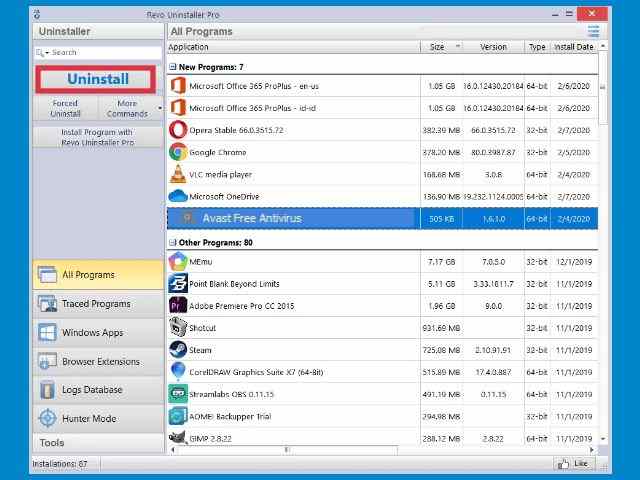
    3. Find the Avast program

    On the main page of the RevoUninstaller application, you will see all the programs on your computer. Find the Avast Free Antivirus application.

    4. Click the Uninstall button

    Then click on the Avast Free Antivirus application> then click on the Uninstall button.

    Using RevoUninstaller
    Using RevoUninstaller

    A pop-up window asking if you want to uninstall will appear> select Yes> follow the process to completion.

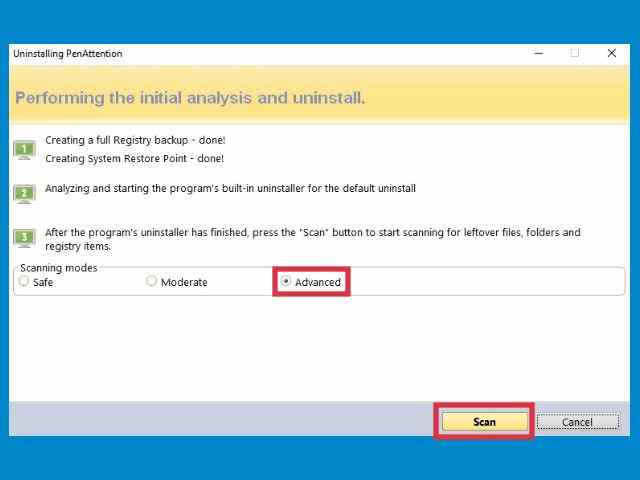
    5. Select the Advanced scanner mode

    After the uninstall is complete, a scanner window will appear> click on the Advanced option > and select Scan.

    Using RevoUninstaller
    Using RevoUninstaller

    Wait until the scan is complete. At this stage, RevoUninstaller will scan all the remaining files from Avast as well as the remaining registry entries.

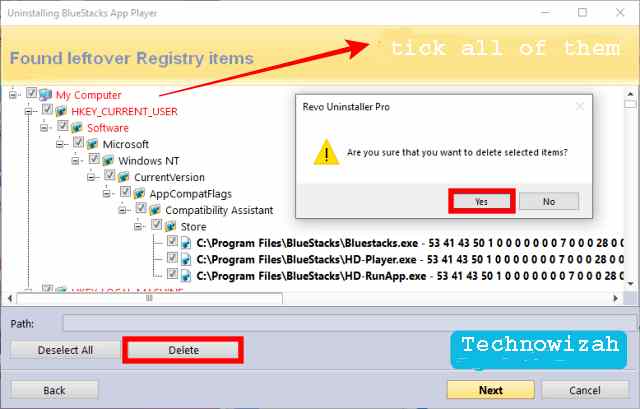
    6. Delete all Registry entries

    When finished you will enter the registry entry cleaning page> check all registry entries > click the Delete button > and click Next.

    Using RevoUninstaller
    Using RevoUninstaller

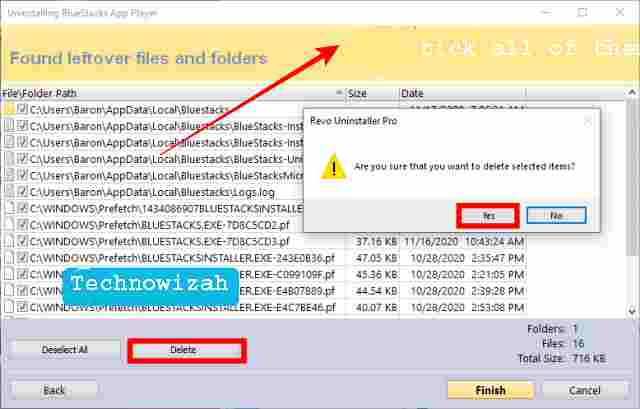
    7. Delete all residual files

    On the leftover files page, check all existing files and folders > click the Delete button > and click Finish.

    Using RevoUninstaller
    Using RevoUninstaller

    Done. At this point, you have successfully wiped Avast clean to the roots. The last step is to restart, after that, your computer is ready to use as usual.

    Revo uninstaller is one of the best software to uninstall applications cleanly that you can use. But this app is a paid app, you have to buy the pro version to get all its features.

    #2. Using the Avast uninstall utility

    The second way to uninstall Avast antivirus is to use an uninstaller called Avast to uninstall utility. You can use this as an alternative if you don’t have the RevoUninstaler application.

    Follow these steps:

    1. Download the Avast uninstall utility

    First download the application form here: https://www.avast.com/en-us/uninstall-utility

    2. Restart the computer into Safe Mode

    The second step is to restart your computer and then enter Safe Mode. The uninstall process must be done in this mode to ensure that all remaining files from Avast are deleted cleanly.

    To enter Safe Mode in Windows 10 follow the steps here:

    3. Run the avastclear.exe application

    Once in Safe Mode. Open the download folder where the Avast uninstall utility application was downloaded and run the program.

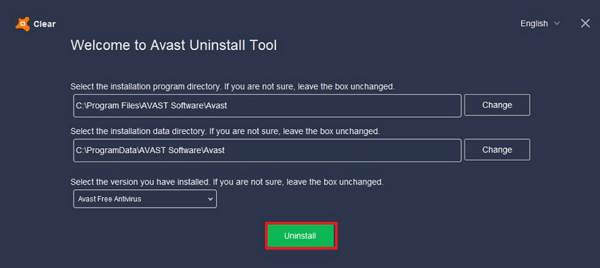
    4. Make sure the Avast location folder is correct

    In the avastclear.exe application, look at the Installation program directory and Installation data directory sections, and make sure they are correct.

    5. Click the Uninstall button

    Finally, click on the Uninstall button. Follow the process to complete.

    Using the Avast uninstall utility
    Using the Avast uninstall utility

    When finished, restart the computer to normal mode.

    #3. Using CCleaner

    The third way to remove the Avast application on a Windows 10 laptop is to use a cleaner application. You can use a free one like CCleaner.

    Follow these steps:

    1. Download and install the CCleaner application

    First, download and install the CCleaner application from here:

    https://www.ccleaner.com/ccleaner/download

    Choose the Free version. After downloading, immediately install the application on your laptop.

    2. Run CCleaner

    Then open the CCleaner program

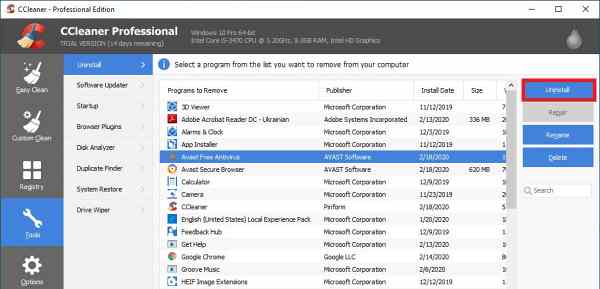
    3. Select the Tools menu> Uninstall

    In CCleaner select the Tools menu > click on the Uninstall menu.

    4. Uninstall Avast antivirus

    On the right panel, you will see a list of applications installed on the laptop. Find and click on the Avast Free Antivirus application then click the Uninstall button.

    Using CCleaner
    Using CCleaner

    5. Restart the computer

    After the uninstall process is complete you will be asked to restart> select Yes or Restart now.

    6. Clean up leftover Avast files with CCleaner

    After the computer turns back on, open the CCleaner application again then run Easy Cleaner and Registry Cleaner to clean up leftover files from Avast.

    #4. Using IObit Uninstaller

    The last way to wipe Avast clean to its roots is to use IObit Uninstaller. This application also can clean applications and uninstall residual files, and there is a free version that you can use.

    Follow these steps:

    1. Download and install the IObit Uninstaller application

    First, download the iObit application to your laptop via the link below:

    https://www.iobit.com/en/index.php

    You can select the Free version, and then install it as usual.

    2. Run IObit Uninstaller

    Then run the IObit Uninstaller application that you have installed on the laptop.

    3. Find the Avast Free Antivirus application

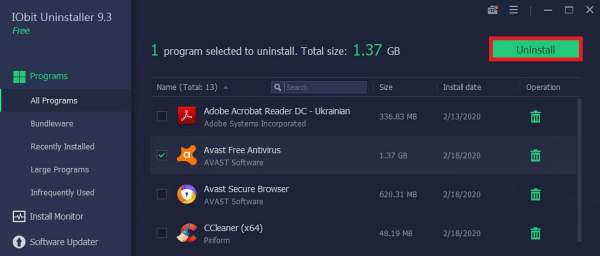
    In the iObit application click on the Program menu > select All Programs > on the right-side panel find and click the Avast Free Antivirus program.

    Using iObit Uninstaller
    Using iObit Uninstaller

    4. Click the Uninstall button

    Click on the Uninstall button then select Yes. Wait for the uninstall process to run and finish.

    5. Clean up leftover Avast files

    After Avast is successfully uninstalled, the iObit application will scan the remaining files, and wait until the process is complete. After that delete all the remaining files from Avast that were detected.

    Close the IObit application then restart your computer.

    Read more:

    Conclusion:

    These are the 4 ways you can uninstall Avast antivirus immaculate to the roots. I hope this article will be helpful for you.

  • How To Change Laptop Wallpaper Windows 10,8,7 PC 2025

    How To Change Laptop Wallpaper Windows 10,8,7 PC 2025

    How To Change Laptop Wallpaper Windows 10,8,7 PC – Are you a laptop user? There must be a display from the home screen or the wallpaper from a desktop. Maybe your cage is bored or wants to change it.

    How to Change Laptop Wallpaper Windows 1087 PC
    How to Change Laptop Wallpaper Windows 1087 PC

    How To Change Laptop Wallpaper Windows 10, 8, 7 PC

    Well, in this article I will discuss how you can change the appearance of your wallpaper according to your favorite image. Please see and follow step by step to change your laptop wallpaper.

    Read more:

    For example, the built-in Windows 10 wallpapers are nice to look at, but it’s more fun to choose the background you want on your laptop. After all, you’ll be the one staring at the screen all day and not wanting to peek at the dark blue logo for hours.

    You should also look into resizing your icons. As well as save beautiful Windows 10 lock screen images so you have more wallpaper options. For more detailed customization, try enabling Dark Mode or Light Mode in Windows 10 and consider changing these beautiful themes.

    There are 3 versions of the same method on a Windows laptop, starting from Windows 7, 8, and 10. Here’s how to change the laptop wallpaper.

    How to Change Laptop Wallpaper Windows 10

    Here’s how to change your desktop background in Windows 10.

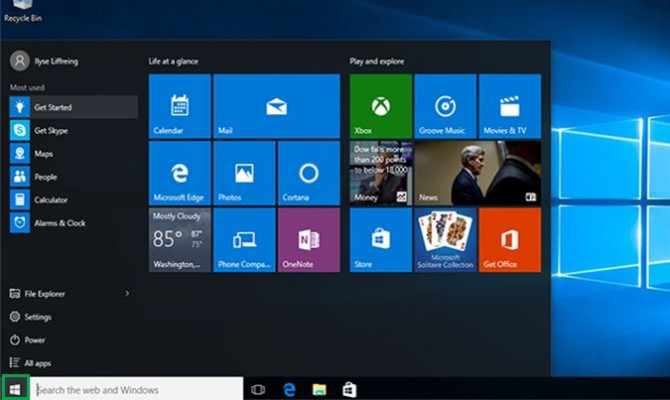
    1. Click the Windows icon at the bottom left of your screen next to the search bar.

    How to Change Windows 10 Laptop Wallpaper

    Press the windows icon in the lower left corner.

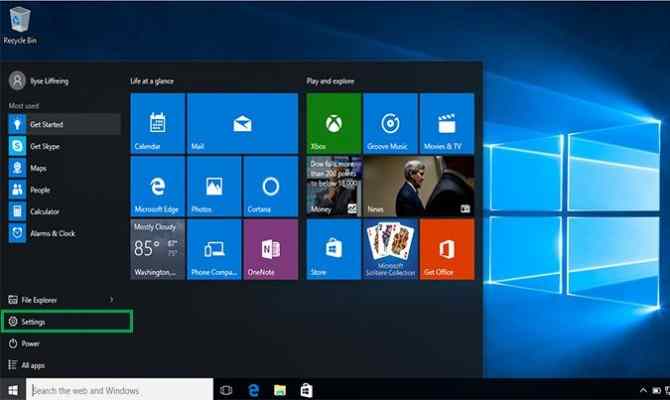
    2. Click Settings in the list on the left.

    How to Change Windows 10 Laptop Wallpaper

    Press settings on the windows 10 menu.

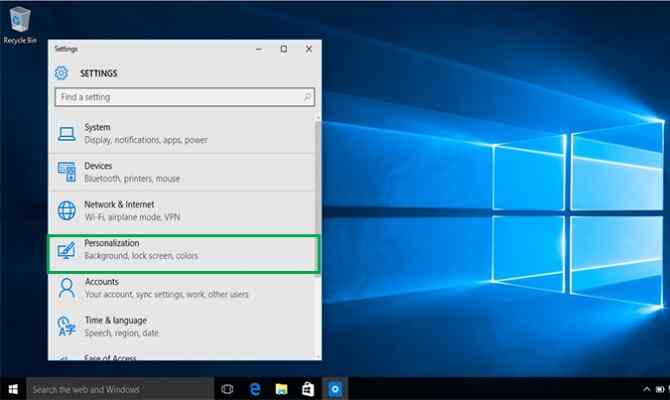
    3. Click Personalization, which is fourth from the bottom of the list.

    How to Change Windows 10 Laptop Wallpaper

    Tap personalize from the windows menu.

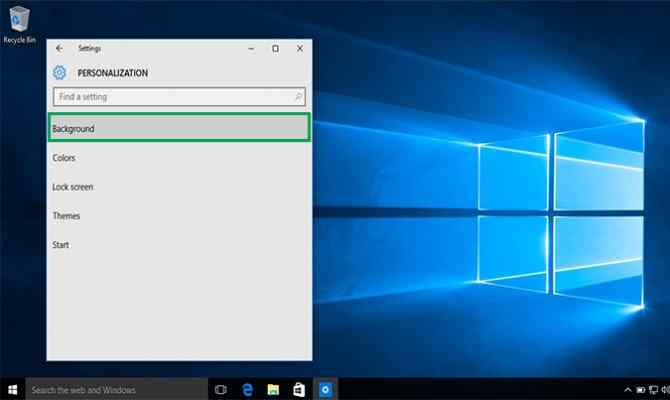
    4. Click on Background. A background page will appear allowing you to view your background image and allowing you to choose from several images or your photo for your desktop background.

    How to Change Windows 10 Laptop Wallpaper

    Click on the background in personalization.

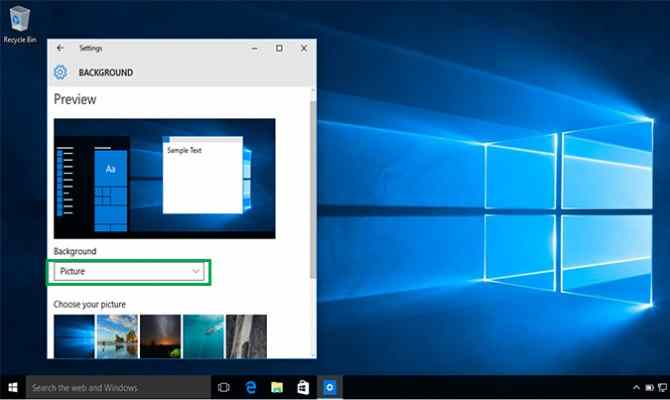
    5. Click in the box under Background to choose between an image, a solid color, or a slideshow for your background.

    How to Change Windows 10 Laptop Wallpaper

    Change the background wallpaper type using the drop-down.

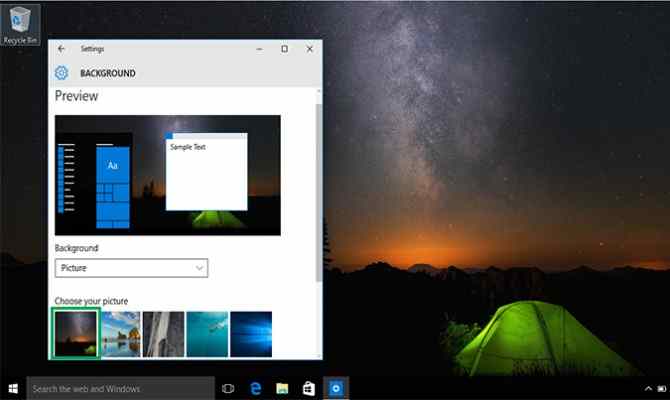
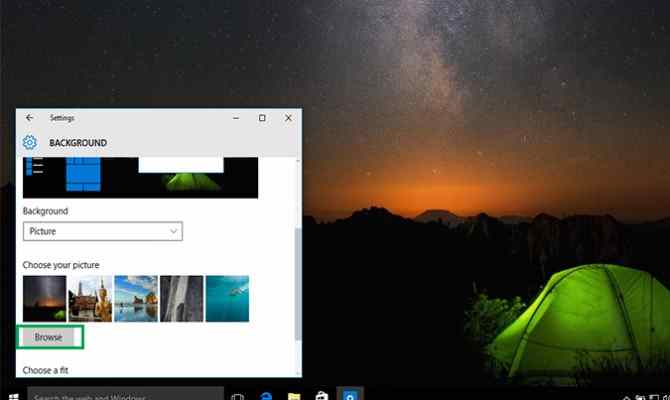
    6. Under Choose your picture, click an option or click Browse to select one from your computer. Click on whatever photo you want and it will appear as your desktop background.

    How to Change Windows 10 Laptop Wallpaper

    Click one of the default photo options or upload your own.

    How to Change Windows 10 Laptop Wallpaper

    Press browse to upload your own photo.

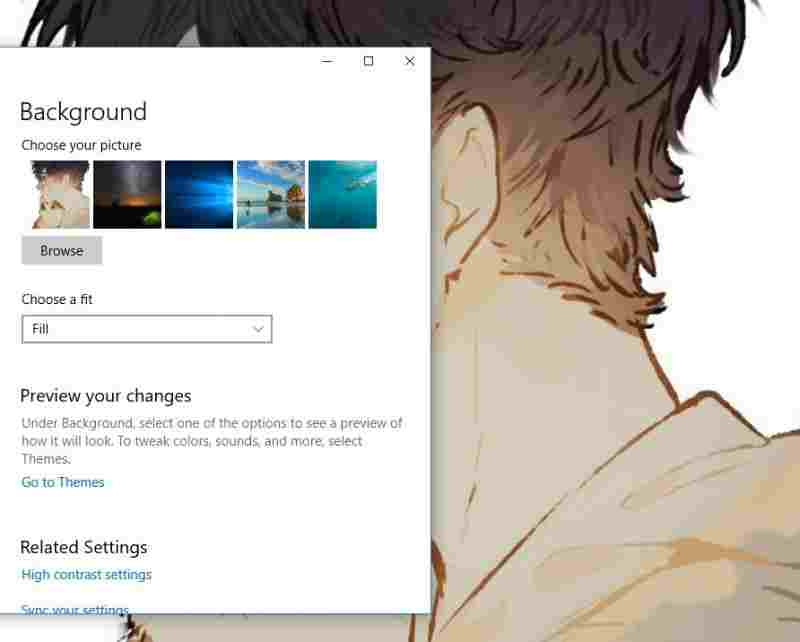
    7. If you don’t like the photo layout, you can click the box below it. Under Choose a match, choose from the “fill, fit, stretch, tile, or center” options for your background.

    How to Change Windows 10 Laptop Wallpaper

    Choose a suitable one to change the size.

    8. Once you make your selection, your Windows 10 background will change automatically, no need to submit manually.

    How to Change Laptop Wallpaper Windows 8

    A background, also known as wallpaper, is simply an image that covers your desktop. To change your background on the Windows 8 desktop, follow these steps:

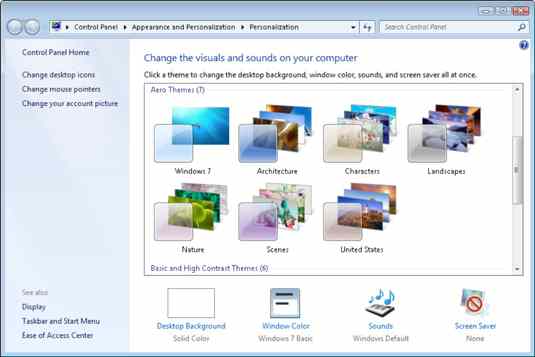
    1. Right-click your desktop and select Personalize.

    How to Change Windows 10 Laptop Wallpaper

    The Personalization window appears.

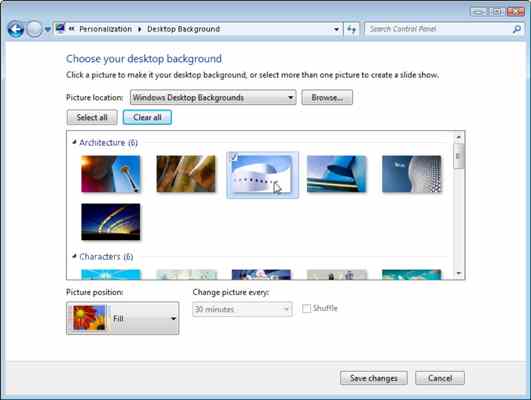
    2. Select Desktop Background from the bottom left of the window.

    How to Change Windows 10 Laptop Wallpaper

    The window displayed appears here.

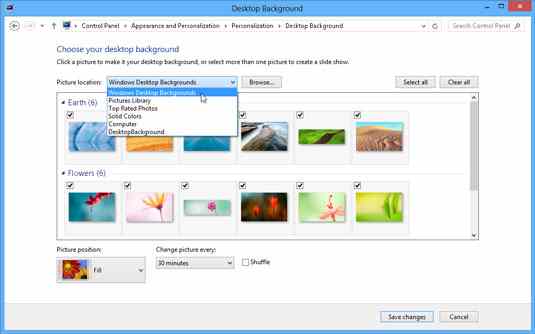
    3. Click the new image for the background.

    Make sure to click the drop-down list to see all of the available photos and colors that Windows has to offer. To browse unlisted folders, click the adjacent Browse button. Feel free to search your Image library for potential backgrounds.

    When you click a new image, Windows immediately places it on your desktop. If you’re happy, move on to Step 5.

    4. Decide whether to use the fill, fit, stretch, tile, or center image options.

    Not all images fit perfectly on the desktop. Small drawings, for example, need to be stretched to fit the space or spread across the screen in rows like tiles on the floor.

    When tiles and stretches still look odd or distorted, try the Fill or Fit options to maintain perspective. Or try to center the image and leave blank space around the edges.

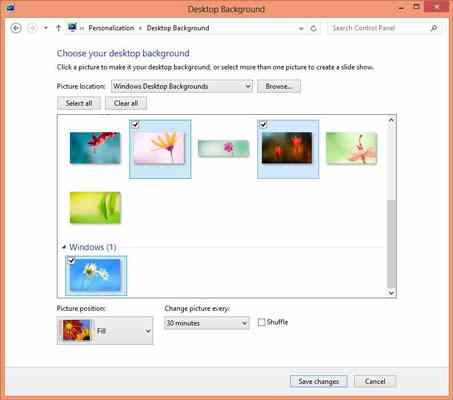
    You can automatically switch between images by selecting more than one photo. (Hold Ctrl while clicking each one.) The images then change every 30 minutes unless you change the time in the Picture Every drop-down list.

    5. Click the Save Changes button to save your new background.

    Windows saves your new background on your screen.

    To jazz up your desktop, Windows 7 covers it with pretty pictures known as backgrounds. (Most people refer to backgrounds as wallpapers.) You can easily change the desktop background in Windows 7 to let your personality shine through.

    How to Change Laptop Wallpaper Windows 7

    1. Right-click an empty part of the desktop and select Personalize.

    How to Change Windows 7 Laptop Wallpaper

    The Control Panel’s Personalization panel will appear.

    2. Click the Desktop Background option in the lower-left corner of the window.

    How to Change Windows 7 Laptop Wallpaper

    Try a different background by clicking on it; click the Browse button to view images from different folders.

    3. Click an image and Windows 7 quickly places it on your desktop background.

    Click the Save Changes button to save it on your desktop. If not, you can try clicking the Picture Location menu to see more options. Or, if you’re still looking, move on to the next step.

    4. Click the Browse button and click the file from within your personal Pictures folder.

    Most people save their digital photos in their Image folder or library.

    5. Click Save Changes and exit the Desktop Background window when you are satisfied with your choice.

    Exit the program, and the photo you selected stays on your desktop as the background.

    Here are some tips for enhancing your desktop image:

    • Adjust the image display using the Image Position option. Windows 7 now gives you Fill and Fit options to enlarge small photos, such as those taken with a mobile phone.
    • Borrow any image on the Internet. Right-click on the website image and choose Set as Background from the pop-up menu.
    • Right-click any photo in your Pictures folder and select Set as Desktop Background – for a quick wallpaper change.
    • If the background photo makes your desktop icon too hard to find, try using a single color instead: In Step 2 above, find Solid Color in the Location box down arrow
    • To change the entire look of Windows 7, right-click on the desktop, select Personalization, and select Themes. Themes affect backgrounds, icons, cursors, and sound so they coordinate with each other.

    Read more:

    Conclusion:

    So, friends, This is the explanation of how to change laptop wallpaper Windows 10/8/7 PC, but maybe your PC few different steps and a different appearance of the menu. try to read carefully and understand its functions in each of the steps.