Category: Windows

Windows – Here you can find Computer-related updates Windows 10, Windows 8, Windows 7, Linux, technology information, and more.

  • 6 Ways to Fix Werfault.exe Application Error in Windows 2025

    6 Ways to Fix Werfault.exe Application Error in Windows 2025

    6 Ways to Fix Werfault.exe Application Error in Windows – Werfault.exe is an error reporting tool for system errors. So how to fix it if the tool is broken or not working?
    6 Ways to Fix Werfault.exe Application Error in Windows 10 PC
    6 Ways to Fix Werfault.exe Application Error in Windows 10 PC

    How to Fix Werfault.exe Application Error in Windows 10 PC

    The error message “Werfault.exe Application Error” appears when the program fails to run. There are many reasons for this error, including werfault.exe crashes. This crash can cause the application to shut down and crash randomly.

    Read more:

    But you don’t need to worry because this werfault.exe error is quite easy to fix. Here are some ways to solve the werfault.exe application error in Windows 10.

    What is Werfault.exe?

    Windows 10 is a collection of various programs, routines, and tools that work together. It is very common for some of these programs and routines to experience random crashes and errors due to bugs and other issues.

    Werfault.exe is the Windows 10 Error Reporting Service which is responsible for collecting error reports about these crashes and sending them to Microsoft. The error reports that werfault.exe sends to Microsoft help companies fix bugs and improve overall system stability. Werfault.exe also offers a fix that you can try to manually resolve the issue.

    How to Fix Werfault.exe Application Error Error on Windows 10 PC

    #1. Restart Computer

    The simplest potential fix for any Windows problem is restarting your computer. Rebooting your computer will stop and restart all Windows tools, including werfault.exe. It can fix almost any random program crash.

    #2. Update Driver

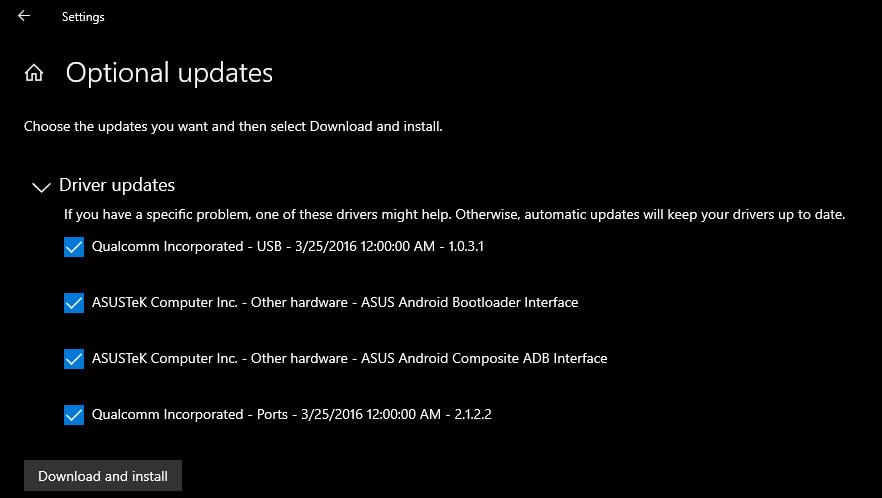
    Installing the wrong driver is one of the main causes of the werfault.exe error. If the drivers for critical components like GPUs don’t work properly, they can cause all sorts of problems, including “Werfault.exe Application Error”. So, update all your hardware drivers.
    6 Ways to Fix Werfault.exe Application Error in Windows 10 PC
    1. First, press Windows Key + I.
    2. Once the Settings panel opens, click Update & Security.
    3. Next, select View optional updates, and hit Download and install if there is a driver update available.

    #3. Update Windows

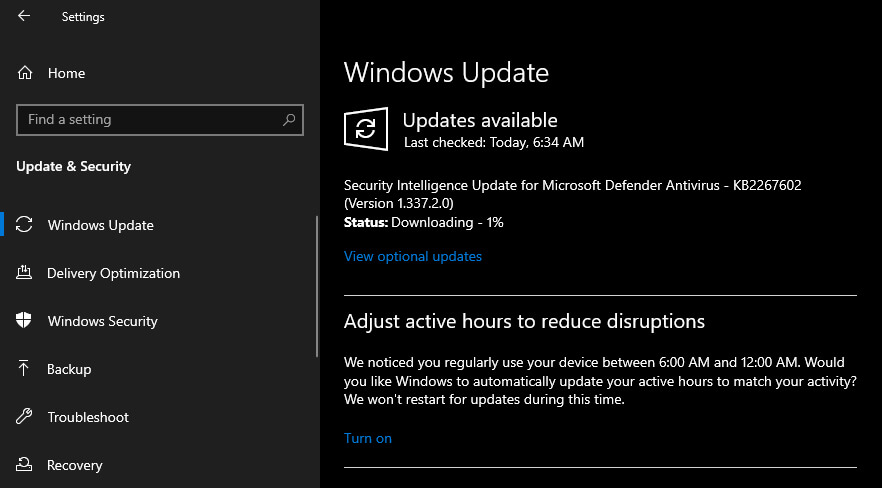
    Microsoft pushes security updates and bug fixes every month. This update aims to improve system stability and reduce program crashes. If you don’t install these updates regularly, you will run into bugs and security issues. Therefore, it is very important to update Windows regularly. To do this, follow the steps below:
    Update Windows
    1. Press Windows Key + I and click Updates & Security.
    2. Then click on the Check for updates section.
    3. Download and install, if any updates are available.

    #4. Scan Computer For Viruses

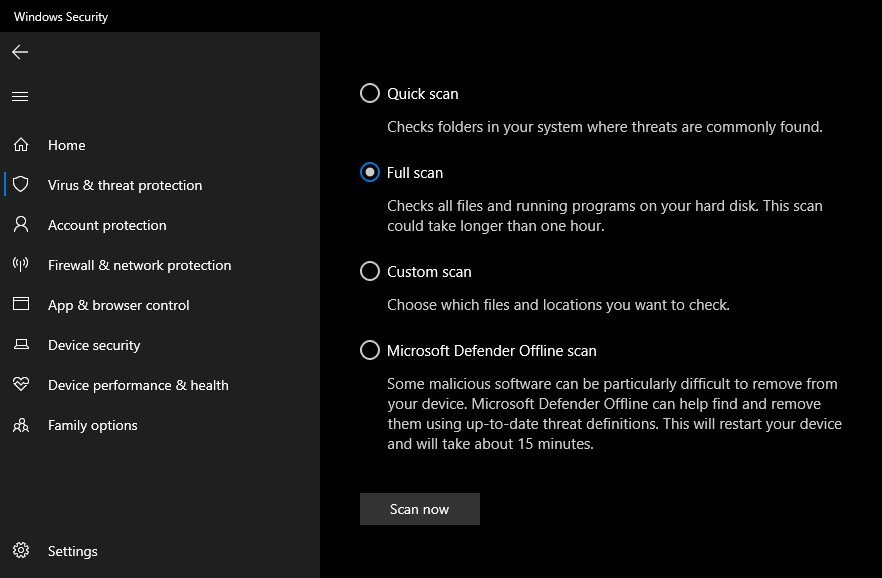
    Viruses can infect application files. In many cases, files can become corrupted and inaccessible to programs. This causes the program to crash and, potentially, cause a werfault.exe error. So, you need to make sure your computer is free from any viruses. To do this:
    Scan Computer For Virus
    1. Press Windows Key + I.
    2. In the Settings pane, click Updates & Security to open the Windows Update screen.
    3. Next, select Windows Security, which is located in the left pane. Now, select Virus & Threat Protection then click Scan options.
    4. Finally, select Full Scan>Scan Now.

    Windows will run a system-wide scan to identify threats. Once the scan is complete, delete all the files that pose a threat and restart your computer. After restarting, now check if the error is gone.

    #5. Run Windows SFC Scan

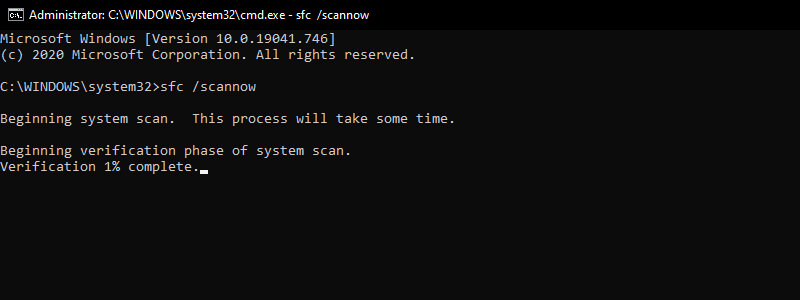
    Windows System File Checker (SFC.exe) scans the OS for corrupt system files. Once the tool finds a file that needs repair, it will fix it. Corrupt system files are one of the causes of the “Werfault.exe Application Error”. To do this, follow the instructions below:
    Run Windows SFC Scan
    1. First, search for Command Prompt in the Start menu search bar, then right-click on the most appropriate option and select Run as administrator.
    2. Next, type sfc /scannow and hit Enter.
    3. The scan can take a few minutes, so be patient and don’t close the Command Prompt.

    Once the scan is complete, Windows will try to repair any corrupted files if any. Finally, restart your computer and check if the error is fixed.

    #6. Disable Werfault.exe

    If nothing else works, try disabling werfault.exe. But before we proceed to see how to disable werfault.exe, remember that you should only use this option as a last resort. In addition to 3rd party applications, Windows uses werfault.exe to track errors and suggest improvements.

    Disabling it means Microsoft is unable to log the problem and develop a fix. This can cause the problem to last longer than it should. If you are ready with all the risks, you can do it by following the instructions below:
    Disable Werfault.exe
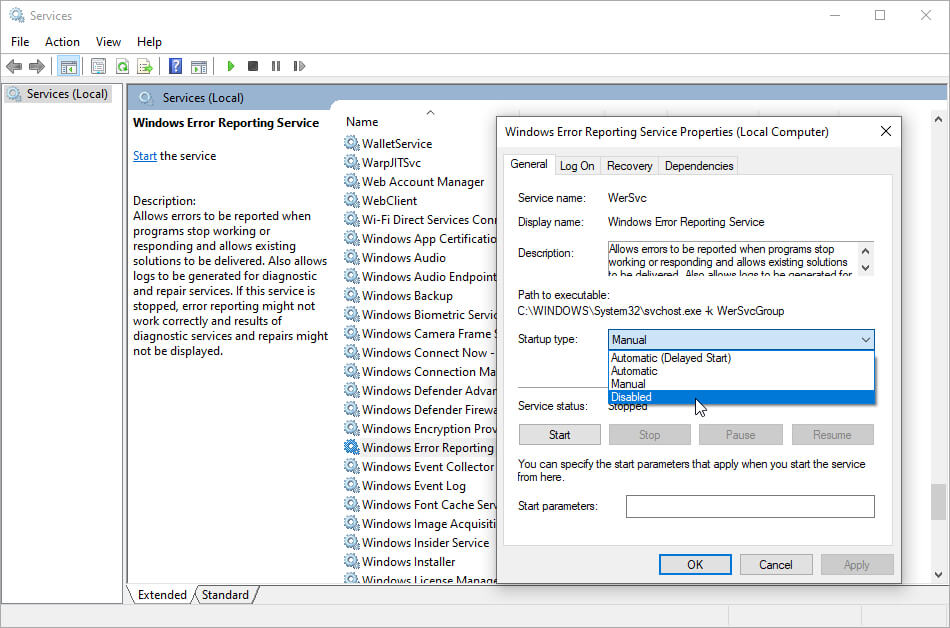
    1. Press Windows Key + R, then type services.msc and press Enter. This will open a list of services that Windows is running in the background.
    2. Scroll down the list to Windows Error Reporting Service.
    3. Next, right-click on Windows Error Reporting Service and select Properties from the list.
    4. In Startup Type, click on the dropdown list and select Disabled.
    5. Finally, click Apply, and you have successfully disabled werfault.exe.

    Disabling werfault.exe should fix almost all werfault.exe application errors. But if the error persists, your only option is to reinstall your Windows operating system with a new one.

    Read more:

    Conclusion:

    This is an explanation of 6 ways to fix the werfault.exe application error in a Windows 10 PC. Make sure you keep your OS, application programs, and hardware drivers up to date. Old drivers are the main cause of the werfault.exe error.

    Also, don’t download programs from unknown websites, don’t carelessly connect a flash drive to your computer, and don’t open unknown emails. Lastly don’t forget to scan your computer regularly for malware and remove it from your computer.
  • 5 Ways to Fix Windows 10 Slow After Update PC 2025

    5 Ways to Fix Windows 10 Slow After Update PC 2025

    5 Ways to Fix Windows 10 Slow After Update PC – Is your Windows 10 slowing down after an update? Here’s how you can solve the problem of slow Windows after an update.

    5 Ways to Fix Windows 10 Slow After Update PC
    5 Ways to Fix Windows 10 Slow After Update PC

    How to Fix Windows 10 Slow After Update PC Laptop

    It is undeniable that Windows updates are indeed useful, in addition to getting new features, updates can also be useful for fixing bugs in the system. But even so, updates can also slow down your computer after installing them.

    Read more:

    If you are also facing the issue of “Windows 10 is slow after update”, the following tips will help you troubleshoot and restore it to its original state. But what causes your computer to slow down after Windows 10 update?

    Windows 10 Slow After Update? Here’s the Cause

    Windows 10 Update is indeed very useful. This is one way to protect your computer from malicious malware and viruses even before you install good antivirus software.

    They protect your computer from malware and viruses that are created every day. The update not only plugs the security flaws but also patches all the bugs that crash the app. Each update aims to make your computer work better.

    Then what causes your computer to run slowly after the Windows update?

    Actually, there are several main causes that can cause a slow computer after a Windows update:

    • buggy updates
    • Corrupt system files
    • Background apps

    How to Fix Windows 10 Slow After Update

    Whatever the cause of Windows 10 slowness after the update, if you follow all the methods listed in this guide till the end, you will not face the slow Windows 10 issue again.

    #1. Roll Back Windows Update

    If a new update has caused your Windows 10 to be slow, then a roll-back update can fix the problem. Microsoft has a built-in method you can use to do this.

    Roll Back Windows Update
    Roll Back Windows Update
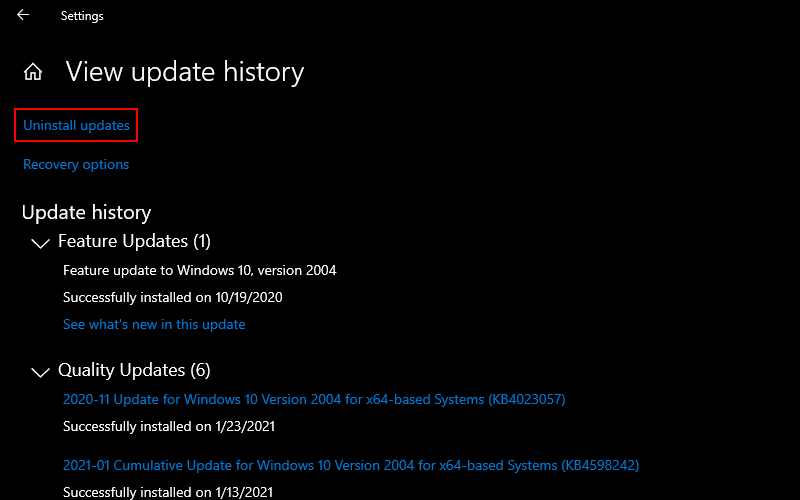
    1. First, to uninstall the update, go to  Settings >  Update & Security  >  Windows Update  >  View update history.
    2. Next, click on  Uninstall updates. There, you will see a list of all installed updates. You can then uninstall the update that you think is causing the problem.
    3. This way, you can remove updates that are slowing down your Windows 10.

    #2. Repairing Corrupt Files

    Sometimes due to a stuck update which could be due to an unstable network connection or similar issues, your important Windows files might become corrupted or corrupted.

    This can make your system act unexpectedly. You can repair the damage using a System File Checker. This is a free tool developed by Microsoft that is useful for corrupt problems like this. It works by scanning and repairing Windows System files.

    To run System File Checker, you must use the Command Prompt. Follow the steps below to do this:

    Repairing Corrupt Files
    Repairing Corrupt Files
    1. Open the  Windows Search bar and type the command prompt.
    2. Hover over the top result, and on the right side, click Run as administrator.
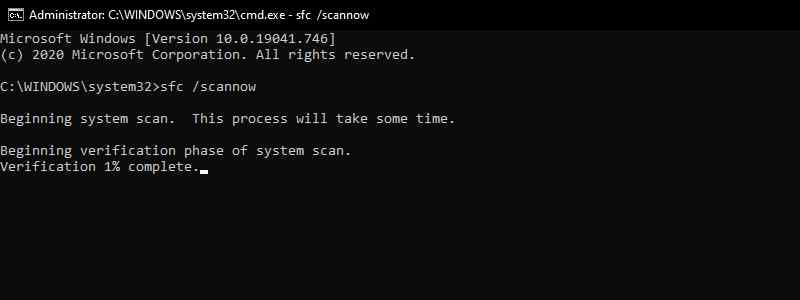
    3. Type sfc /scannow and press  Enter.

    Once the scan is complete, reboot your system. If indeed there is a corrupt problem, it can be solved after following this method.

    Run DISM Command Perintah

    If the SFC command fails to recover your files, use the Deployment Image Servicing and Management (DISM) command. This is another Windows diagnostic tool made by Microsoft, but more powerful than SFC, which works by repairing Windows system image files.

    To run this command, open a command prompt with administrator rights, as above.

    Run DISM Command Perintah
    Run DISM Command Perintah

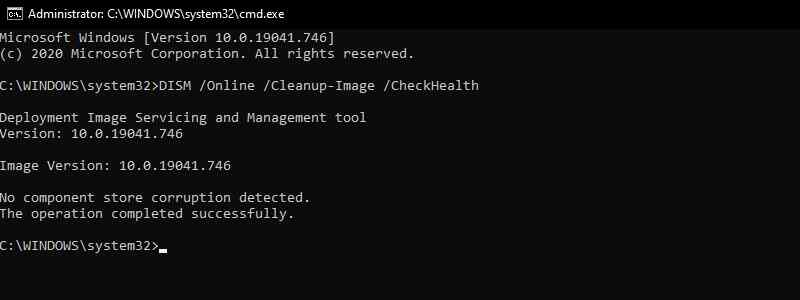
    Run the command  DISM /Online /Cleanup-Image /CheckHealth

    Run DISM Command Perintah
    Run DISM Command Perintah

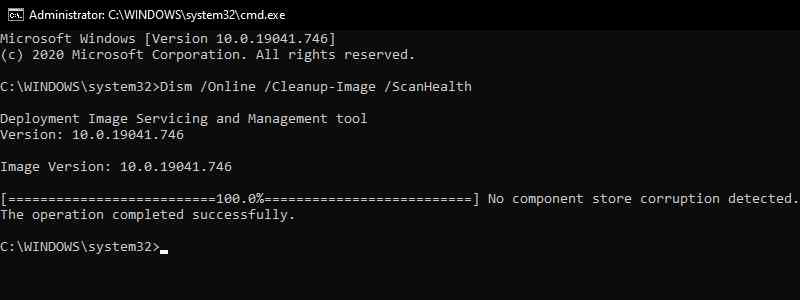
    If there are no crash issues, you can run a further scan using the command  Dism /Online /Cleanup-Image /ScanHealth

    Run DISM Command Perintah
    Run DISM Command Perintah

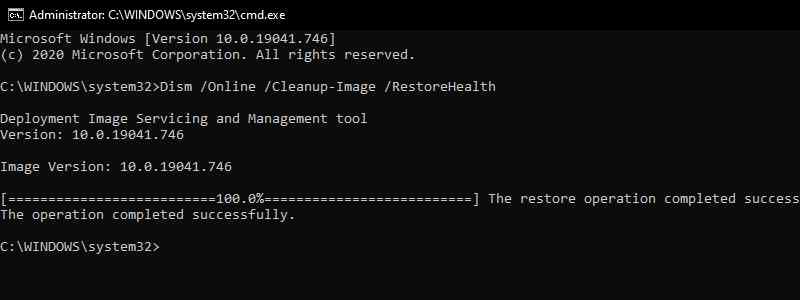
    Note that this process may take a while. If you find the problem is corrupt through the steps above, run the command  Dism /Online /Cleanup-Image /restorehealth to download and replace the corrupted files.

    Restart your computer after the command is executed. Run the SFC command again to fix the error.

    #3. Disable Background Apps

    Another method to fix Windows 10 slow after the update is to disable all unnecessary background apps.

    As you know, Windows 10 comes with a lot of pre-installed apps. This application can continue to run in the background even when you are not using it. Actually, this app is not really needed to run Windows 10.

    As they continue to run, they use up your CPU resources (RAM, cycles, etc.) and this can make your computer slower than usual.

    For that, you should stop this unnecessary application. You can follow the steps below to do this:

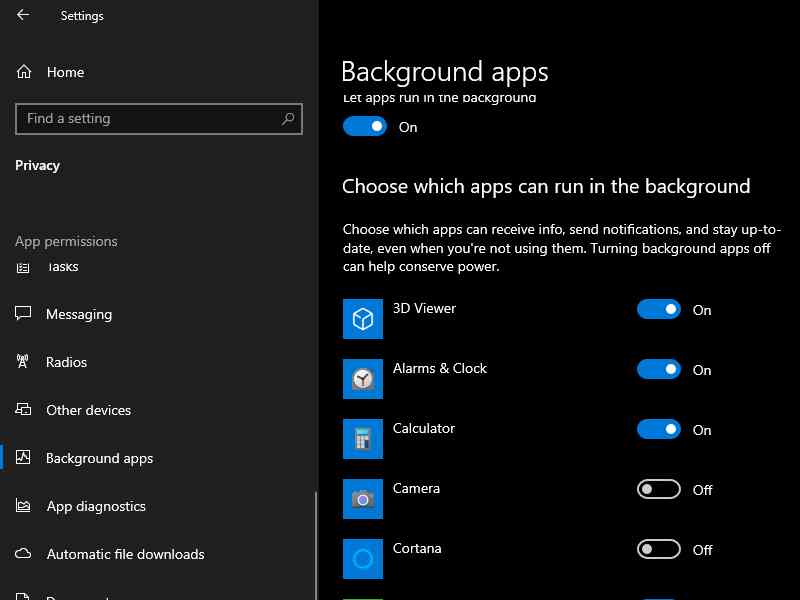
    Disable Background Apps
    Disable Background Apps
    1. Open Windows Settings.
    2. Then, click  Privacy > Background Apps.
    3. Choose which apps can run in the background of your system and turn off all non-essential apps.

    Reboot your computer and this will result in the computer speed returning to normal.

    #4. Perform a Clean Boot

    Clean boot is done by starting the computer with minimum drivers and start-up applications, it helps in identifying new applications that are causing problems in your system. Here are the steps to do a clean boot:

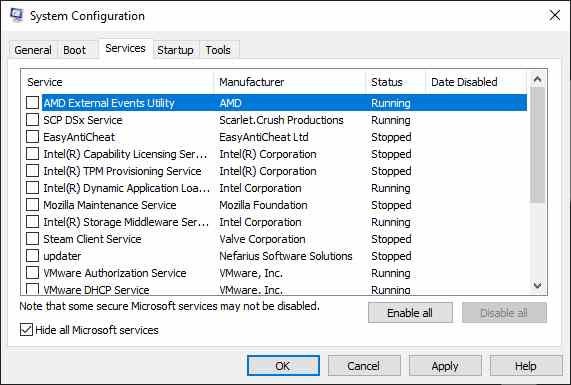
    Perform a Clean Boot
    Perform a Clean Boot
    1. In the  Windows search bar, type  MSConfig and click  System Configuration App.
    2. On the Services tab, select  Hide all Microsoft Services, then click  Disable All.
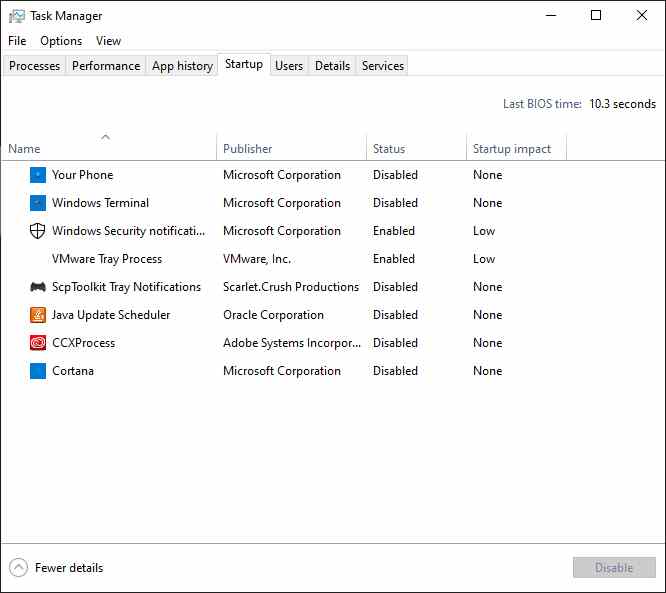
    3. Under the Startup tab, click  Open Task Manager.
    4. In the Startup section,  select and disable all the apps listed here one by one. You can also right-click on the background process and select  Disable from the menu.
    5. Close  Task Manager.
    6. On the Startup tab in  System Configuration, click  OK.

    Perform a Clean Boot
    Perform a Clean Boot

    After doing all the steps above. Just reboot your PC and the clean boot will start.

    #5. Run Windows System Restore

    Windows allows you to roll back updates. System Restore brings your PC back to the state it was in when the system was functioning perfectly.

    System Restore works by saving your Windows software files and registry as snapshots called  Restore Points for later use. You can use these restore points to restore your system to a working state. Follow the steps below to get started:

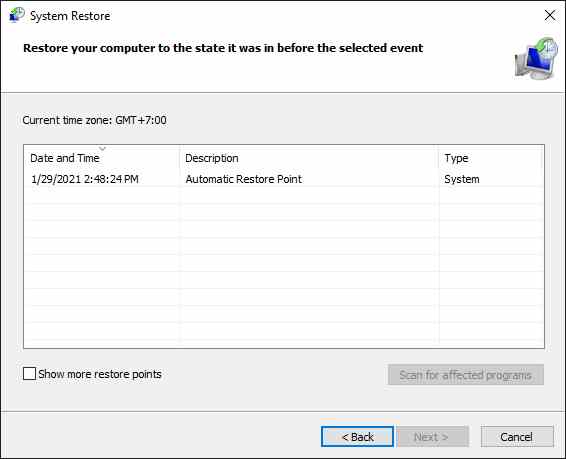
    Run Windows System Restore
    Run Windows System Restore
    1. In the Windows search bar, type “system restore”. Next, click on  Create a restore point.
    2. A  System Properties dialog box will appear.
    3. Select  System Protection and click on  System Restore. Note:  If you can’t click this button, then your system doesn’t have a restore point yet, so you can’t restore it.
    4. In the next dialog box, click the Next button.
    5. Select the desired restore point and click  Scan for affected programs to confirm which apps will be removed when installed after the restore point date.
    6. Click  Next to start the recovery.
    7. Finally, click  Finish.

    Once the restore is complete, your system will be restored to its initial state during the last backup.

    Note: The last resort for the slow Windows 10 issues is to use Windows Factory Reset and start over. This is the last option that will bring your computer back to the state it was in when you bought it.

    Read more:

    Conclusion:

    This is the explanation of 5 ways to fix Windows 10 slow after the update, You can Deal with a slow computer after a Windows 10 update is a huge annoyance. I hope this one of the methods above can solve your problem.

  • 6 Ways to Uninstall Applications that Windows Can’t Remove 2025

    6 Ways to Uninstall Applications that Windows Can’t Remove 2025

    6 Ways to Uninstall Applications that Windows Can’t Remove – Removing applications/programs in Windows that cannot be uninstalled is certainly very annoying. This indeed happens a lot in Windows 10, 8, 8.1, and 7.

    6 Ways to Uninstall Applications that Windows Can't Remove
    6 Ways to Uninstall Applications that Windows Can’t Remove

    How to Uninstall Applications that Windows Can’t Remove

    The reasons and causes can vary, it could be that the program is a default program that should not be deleted, exposed to viruses/ malwarecorrupted programs, or programs that are still running on Windows 10background, to bugs in the operating system.

    Read more:

    But don’t be upset just yet because, through this article, you can solve the problem of removing stubborn programs using several methods.

    I have compiled this guide from various sources and it has proven to be successful. Partly also from personal experience in removing programs that can’t be uninstalled. Immediately, see the following reviews.

    How to Solve Applications That Can’t Be Removed

    Before going into the method, make sure you understand some of the causes that make the application/program unable to be uninstalled. For that, consider some of the reasons why the application cannot be deleted below.

    • The program is still running in the background (in an open state). When the program is still running in the background, it may not be able to be deleted and must be closed first. To be sure, you can look at the Task Manager.
    • The user performs the installation process of another program. If you are in the process of installing a program then you are not allowed to remove other programs. You have to wait until the installation process is complete.
    • The program has been corruptedIf the program is damaged/ corrupted, perhaps the script is problematic, sometimes making the uninstall process fail.
    • The program has a virus. Virus/malware renders the application indestructible. Or it could be that the program is a virus. The solution, try scanning first using Windows Defender.
    • Bugs in the operating system. System bugs can also be the reason a program can’t be uninstalled.

    In addition to the above, there some many reasons and causes that make the program can’t be uninstalled. Each user must receive a different error message, so the cause is also different. Here are some solutions that hopefully will solve your problem.

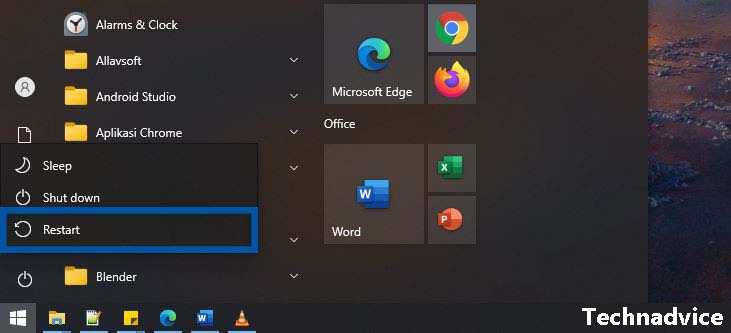
    #1. Restart the Computer

    Restart Computer
    Restart Computer

    When I want to delete an office program in Windows, the program can’t be uninstalled and it says that the program is being installed and has to wait for it to finish. I did not install the Office program. The message installing occurred because I did Windows update and opened an Office program until the program finally got an error.

    Finally, I removed the office to perform a restart of Windows first. After that, I didn’t open any program, I went straight to the Add or Remove programs feature to remove the program. As it turned out, the office program I wanted to delete was successful. If you have the same problem, this method might work for you.

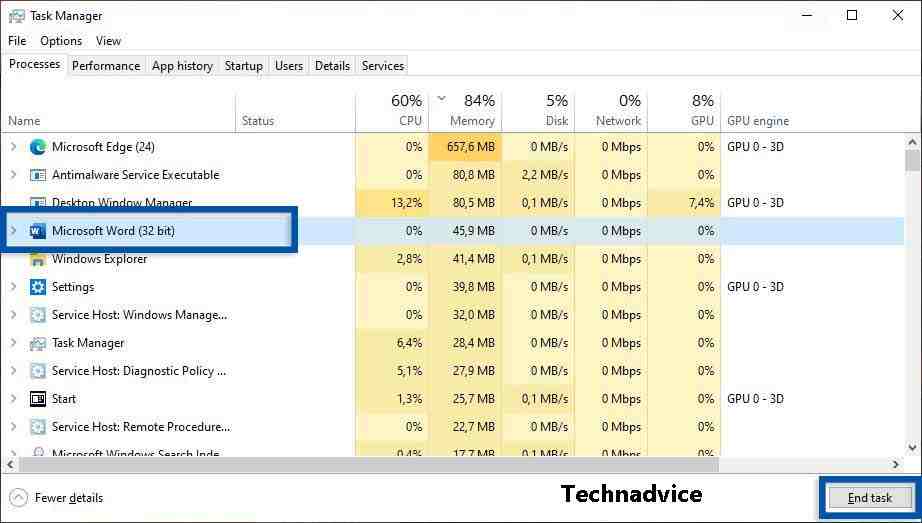
    #2. Use Task Manager

    Use Task Manager
    Use Task Manager

    Alternatively, check the programs that are running in the background through the Task Manager. This is important for you to do because if there is a program that you want to remove, make sure the program is not running in the background or you open it.

    1. Right-click on the Taskbar » and select Task Manager.
    2. Or it could be by typing Task Manager on the Windows Start menu.
    3. Then make sure the program you want to remove is not running in the background.
    4. Select a program » and click End Task to stop the program.
    5. If so, go back to the Add or Remove programs feature.
    6. Try deleting the program you want to remove again.
    7. Hopefully, it will be deleted later.
    8. Finished.

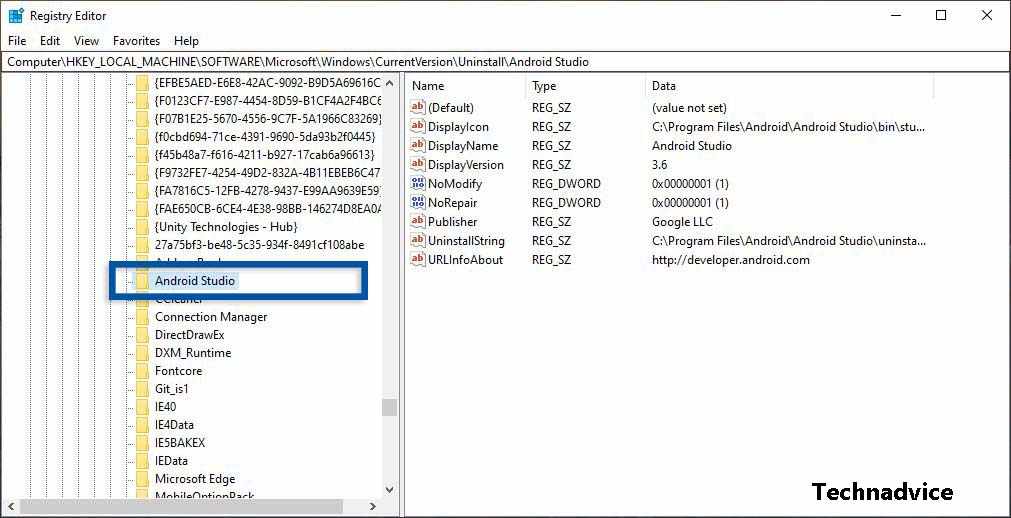
    #3. Uninstall via Regedit

    Uninstall via Regedit
    Uninstall via Regedit
    HKEY_LOCAL_MACHINE/SOFTWARE/Microsoft/Windows/currentVersion/Uninstall

    Regedit in the Windows Registry in the Windows operating system. Regedit contains information related to the system, configuration, software/programs, extensions, to user preferences. Through this feature, you can also delete programs directly via HKEY_LOCAL_MACHINE. Here are the steps…

    1. Open Run with Windows + R.
    2. Then type Regedit and click OK.
    3. Then enter the Registry Editor in the HKEY_LOCAL_MACHINE / SOFTWARE / Microsoft / Windows / current version / Uninstall folder.
    4. Scroll down and select the program you want to remove.
    5. Press the Delete key to delete/ uninstall the program.
    6. After that, a confirmation of deletion appears, select Yes.
    7. Restart Windows and make sure the program has been removed.
    8. Finished.

    #4. Uninstall via Program Files

    Uninstall via Program Files
    Uninstall via Program Files

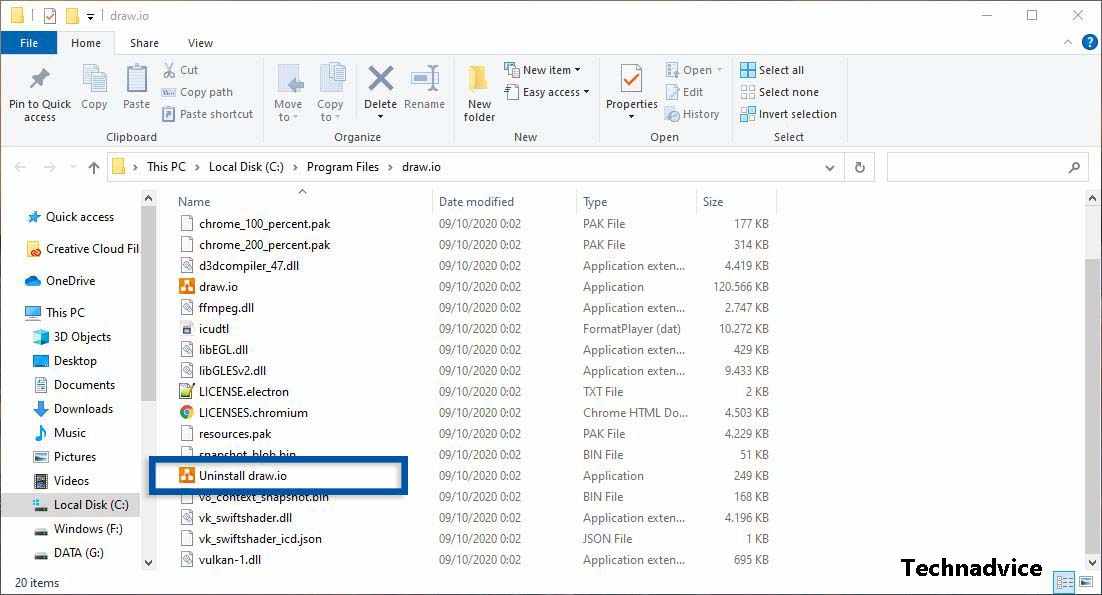
    Next is to delete the application via Program Files in Drive C: This method can also be an alternative to removing installed programs and who knows it will also work. However, it should be noted that not all programs/ software provide an uninstall feature.

    So that the uninstall process can sometimes be done by forcibly deleting the folder in Program Files or through the Regedit feature.

    1. The first step, right-click on the program you want to remove.
    2. Select Open file location, later you will be directed to the location of the installed file.
    3. Find the uninstall feature of the program as seen in the screenshot above.
    4. Uninstall the program through this feature and follow the flow until the uninstall process is complete.
    5. Finished.

    Addendum: If you don’t find the uninstall feature, just delete the program folder from the installation location.

    #5. Use CCleaner

    Use CCleaner
    Use CCleaner

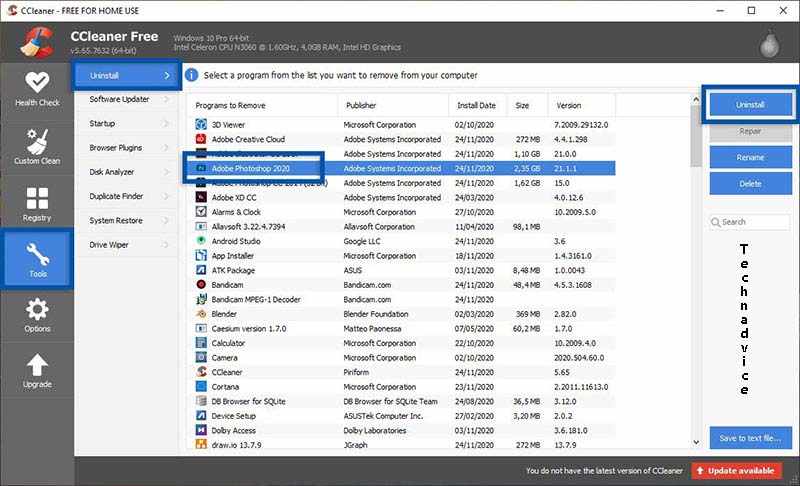
    Next, you can use the CCleaner software to remove the application forcibly. CCleaner is software to clean cache, history, and the like, but it also includes several other useful tools for repairing PCs, one of which is uninstalling.

    Besides CCleaner, there are many uninstaller software that you can use such as Revo Uninstaller, Program Install, Uninstall Troubleshooter, Geek Uninstaller, and others.

    1. Download and install CCleaner here.
    2. Open CCleaner » select Tools » and Uninstall.
    3. Then find the program you want to remove.
    4. Click Uninstall to remove the program.
    5. Follow the uninstall process until the program is successfully removed.
    6. Finished.

    #6. Activate Windows Safe Mode

    Activate Windows Safe Mode
    Activate Windows Safe Mode

    If the program also does not want to be deleted then usually several small processes are difficult to detect.

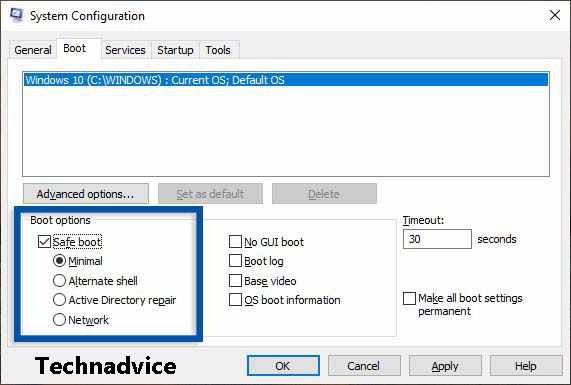
    The solution can be to activate Safe Mode, where all these small processes will be stopped. Many users have tried to enter Safe Mode and managed to remove the desired program. Follow the steps below to enter Windows Safe Mode.

    1. Enter Run mode by pressing Windows + R.
    2. Type MSConfig and Enter/OK, later you will enter the System Configuration feature.
    3. Select the Boot tab, then check the Safe Boot section and select Minimal.
    4. Click Apply and OK.
    5. Then restart your Windows.
    6. After entering Windows Safe Boot, remove the programs you want as usual via Add or Remove Programs.
    7. If it has been deleted, reopen the System Configuration then uncheck Safe Boot and you will return to the Windows display as before.
    8. Finished.

    Programs that are difficult to remove are usually due to processes that are still running in the backgroundcorruption, and viruses.

    For that, before removing the program make sure to close or restart the computer (if needed). I also experienced the same problem, and the simple solution I took was just restarting the computer.

    Read more:

    Conclusion:

    So, friends, This is the explanation of 6 ways to uninstall applications that Windows can’t Remove, I know Windows every user has problems with Windows programs with different error messages.

  • Best Tricks To Activate Windows 8 Permanently Offline 2025

    Best Tricks To Activate Windows 8 Permanently Offline 2025

    Best Tricks To Activate Windows 8 Permanently Offline – As we already know, activating Windows is mandatory after installing a PC. Therefore, Technadvice will explain how to activate Windows 8 permanently and for free.

    Best Tricks To Activate Windows 8 Permanently Offline
    Best Tricks To Activate Windows 8 Permanently Offline

    How To Activate Windows 8 Permanently Offline

    By activating Windows 8, all Windows features can be used without worrying about limitations. The reason is, that if you don’t activate Windows, you won’t be able to feel some of the features available on Windows 8.

    Read more:

    Although Microsoft has released a version above Windows 8, Windows 8 still has quite a lot of users. One reason why Windows 8 is still in demand is that it uses an attractive appearance.

    In addition, many more advantages of Windows 8 make users feel at home and not want to move to the latest version. The below are the advantages and disadvantages of Windows 8.

    Advantages of Windows 8.1

    • It has a better security system than the previous version.
    • Able to boot with a fast duration.
    • Superior in terms of speed when compared to previous versions.
    • There are features of the Modern Multi-Touch User Interface.
    • Applying an elegant and attractive appearance.

    Lack of Windows 8.1

    • It has too many default applications.
    • There is still some incompatible software.
    • When active, Windows 8 does not go directly to the desktop.
    • Placement of shutdown or power options that are difficult to access.

    There are many other reasons why Windows 8 is more effective to use. But you need to know, how to activate Windows 8 can be done offline and online for enterprise and Pro editions of Windows 8 and can even be activated without a product key.

    Offline Windows 8 Activation Preparation

    #1. Activation of Windows 8 with KMSPico

    Activation of Windows 8 with KMSPico
    Activation of Windows 8 with KMSPico

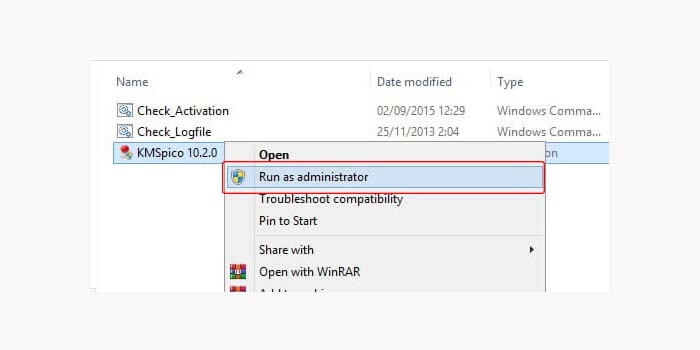
    KMSPico is one software that can help you activate Windows 8 without the need to use a product key. This software is quite popular and many have used it.

    Here’s how to activate Windows 8 without a product key:

    1. First, turn off the antivirus on your laptop or PC.
    2. Then download the KMSPico software
    1. After that, run the .exe file from the KMSPico.
    2. You only need to wait a few moments.
    3. Done.

    When KMSpico has been successfully run and has been waiting a while, then Windows 8 has been successfully activated. The sign that the activation has succeeded is that the Windows Activated sound will come from KMSpico.

    #2. Activate Windows 8 using KMS Auto Lite

    Activate Windows 8 using KMS Auto Lite
    Activate Windows 8 using KMS Auto Lite

    Similar to KMSPico, KMS Auto Lite is software that can activate Windows 8 easily and permanently. Although its size is very small, this software has the ability that is very useful for Windows 8 activation.

    How to activate Windows 8 with KMSauto:

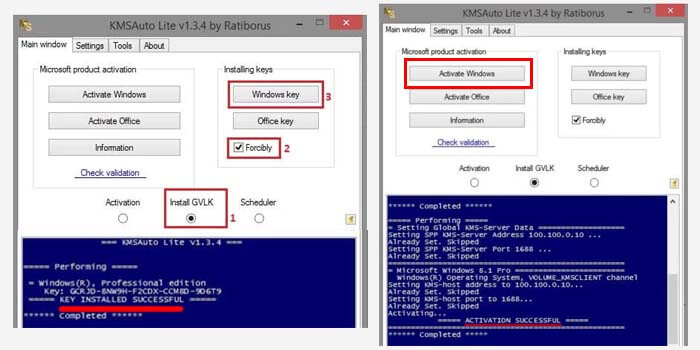
    1. Download the KMSAuto file at this link first.
    2. Then run the KMS Auto file with Run as administrator.
    3. Select the Install GVLK option and check the Forcibly box.
    4. Then click the Windows key.
    5. Wait for the KEY INSTALLED SUCCESSFUL message to appear.
    6. Click the Activate Windows button then wait a few moments.
    7. Finally, the message ACTIVATION SUCCESSFUL will appear.
    8. Done.

    If you do the above guide and get the ACTIVATION SUCCESSFUL message description at the last step. then it is certain that Windows 8 has been successfully activated permanently.

    If you experience an obstacle, then make sure to disable the antivirus first. Although this software is safe to use, some antiviruses detect it and will block it.

    #3. Activation of Windows 8 Using Activator

    Activation of Windows 8 Using Activator
    Activation of Windows 8 Using Activator

    The next software that is quite popular is used as a tool to activate Windows 8 all editions both Windows 8.1 Enterprise and Pro Build 9600. You will be assisted in activating Windows 8 permanently and offline.

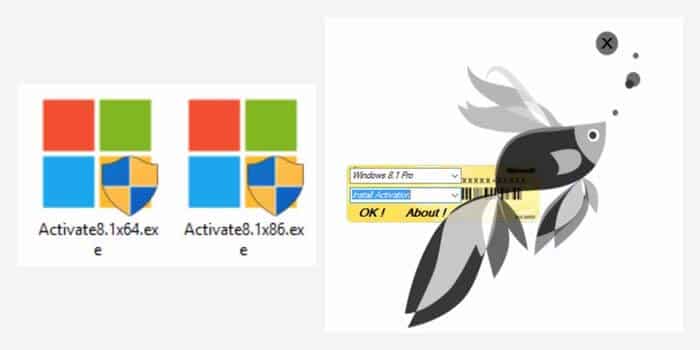
    1. Download the software file here.
    2. Then open and extract the file inside.
    3. Run the appropriate .exe file whether 32-bit or 64-bit.
    4. Once open, select the edition of Windows that you are using.
    5. In the bottom column, select the Install Activation option.
    6. Click OK then wait for the activation process to complete.
    7. Done.

    Very easy right? Even with just 6 steps, you have managed to activate Windows 8 permanently without having to use the product key.

    #4. How to Activate Windows 8 Without Software

    The last way to activate Windows 8 is to require you to use a valid product key. That way, you can do it without additional software like the three previous methods above.

    To get a Windows product key license, you must purchase it legally to be used for activation. But you don’t need to worry, because here you can get it for free.

    1. Take one of the license codes you want here.
    2. Then press CTRL + R on the keyboard.
    3. Then enter slui 3 then press enter.
    4. Enter the license code in the column that appears.
    5. Done.

    Read more:

    Conclusion:

    Well, that’s a way of activating Windows 8 that can be done to permanently activate the pro version of Windows 8, Enterprise, Build 9600, Build 9200, and other versions. Now you don’t need to worry anymore about the expired windows.

  • 5 Ways to Fix Mouse Double Click Issues on Windows 10 PC 2025

    5 Ways to Fix Mouse Double Click Issues on Windows 10 PC 2025

    5 Ways to Fix Mouse Double Click Issues on Windows 10 PC – Do you now have a mouse that double-clicks when you don’t want it? This can cause a bunch of problems, such as simple actions like clicking to select, dragging files, and more don’t behave the way you might expect.

    5 Ways to Fix Mouse Double Click Issues on Windows 10 PC
    5 Ways to Fix Mouse Double Click Issues on Windows 10 PC

    How to Fix Mouse Double Click Issues on Windows 10 PC

    I will share with you how to fix double click mouse so you can find out what is causing the problem and fix it.

    Read more:

    #1. Change Click Items Settings

    A common reason the mouse double clicks is a simple setup in Windows. You may have enabled this by accident, so it’s a good idea to check first.

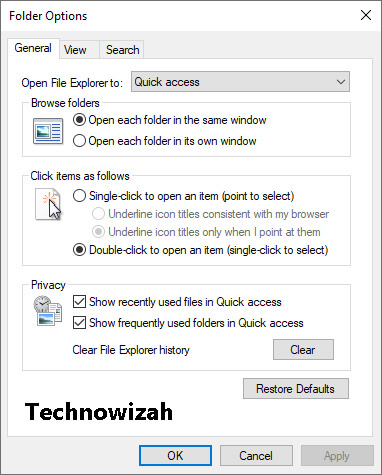
    To do this, open a File Explorer window. On the View tab, click  Options. Then in the resulting window, on the General tab, you will see the title  Click items as follows.

    5 Ways to Fix Mouse Double Click Issues on Windows 10 PC

    The default setting is  Double-click to open an item (single-click to select). If there you select  Single-click to open an item (point to select). With this setting, you only need to click on the folder once to open it. Just hovering the mouse over another folder or file is enough to select it.

    While this can help you reduce the number of clicks you make in a day, it can be confusing if you get used to the default behavior. And with this reversed option, you might think your mouse is physically double-clicking when it’s in a software setting.

    #2. Change Mouse Double-Click Speed

    Click speed is another Windows option that you can change to fix the double-click problem. For most people, the default double-click threshold is manageable, but you may have changed it by mistake or set it to a level where Windows won’t recognize your click properly.

    To change your double-click speed, go to  Settings > Devices > Mouse and click  Additional mouse options in the right sidebar. If you don’t see it, drag the Settings window to make it wider.

    When you click on that link, a new Control Panel Mouse Properties window will appear. On the Buttons tab, you will find the Double-click speed option.

    Change Mouse Double-Click Speed

    Move the slider as you wish, you can double-click on the folder icon on the right to test it. The closer to  Fast, the less time Windows will allow between double clicks. If it’s too close to  Slow, Windows will probably make a single click like a double-click.

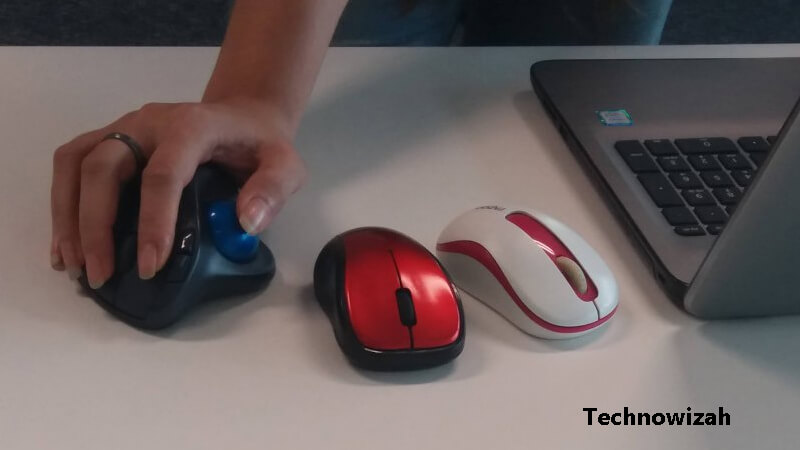
    #3. Clean the Mouse

    Clean the Mouse
    Clean the Mouse

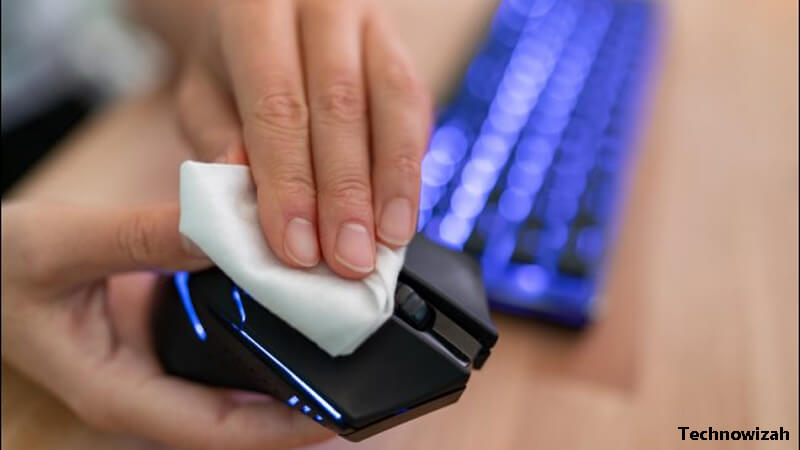
    If you rule out the two options above, your problem is most likely with the hardware. You should next look at your mouse, especially around the top button where you clicked, and see if there is any dirt or dust there.

    Excessive build-up can irritate your mouse’s internals and cause it to keep on double-clicking or wrong-clicking. Wipe with a cotton swab, compressed air, and similar tools to remove any debris. Once clean, see if your double-click problem subsides.

    #4. Check Battery Life And Interruption

    Check Battery Life And Interruption

    Another cause of mouse double-clicking is poor communication between the mouse and your computer. This usually happens for one of two reasons i.e. low battery life or glitches. Both are unique issues with wireless mice, so you can skip this step if you’re using a wired mouse.
    If your mouse runs on battery, try replacing it, as it can be damaged when it runs low on power. Similarly, you have to plug in a rechargeable mouse and give it time to regain battery power.

    If the battery is not the problem, your mouse may be having problems communicating with your computer wirelessly. Try bringing your mouse closer to the computer if it’s far away. Also, if your mouse uses a USB receiver, make sure it is placed away from metal and other materials that block the wireless signal.

    #5. Try Another Mouse

    Try Another Mouse

    If you’ve done all of the above and your mouse is still double-clicking all the time, it’s probably a faulty mouse. To test it, try connecting your current mouse to another computer or connecting another mouse to your current computer.

    If your mouse continues to behave inappropriately on other computers, it’s most likely a faulty mouse. If you tried another mouse on your PC and didn’t experience any issues, that’s another sign that your original mouse is indeed faulty.

    However, if the original mouse is working fine on the second computer, or the second mouse has the same problem on your original computer, you may have software or something interfering with the normal operation of your mouse. There is one more step you can take…

    #6. Reinstall Mouse Driver Driver

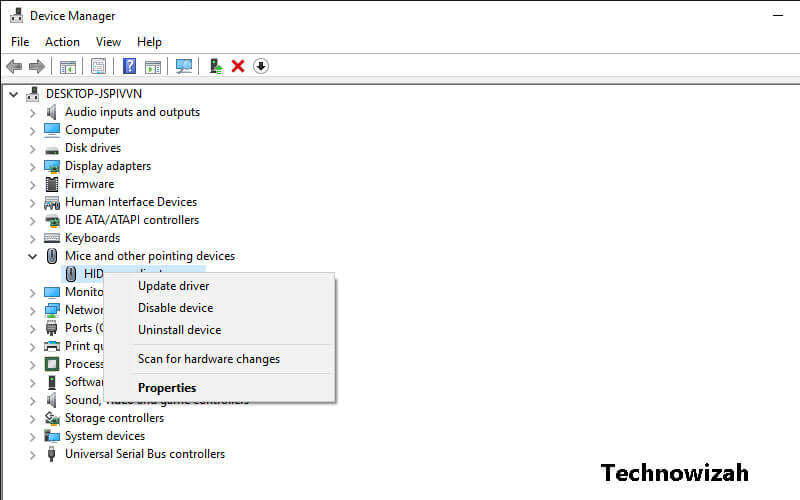
    As a final troubleshooting step, it’s worth trying to remove your current mouse driver and let Windows reinstall it. To do this, right-click the Start button (or press  Win + X  ) and select  Device Manager.

    Expand the Mice and other pointing devices category and right-click your mouse. Select  Uninstall device, confirm, then restart your PC.

    Reinstall Mouse Driver Driver

    Note that you will have to navigate your computer without a mouse to reach the restart command once you have done so.

    Click the Windows button, then press  Tab until it focuses on the left icon group. Use your arrow keys to go down to the power button and press Enter, then use the arrow keys and enter again to select  Restart.

    If you’re having trouble with this, you can also press  Win + R  to open the Run dialog and go to shutdown /r  to restart.

    Read more:

    Conclusion:

    This is the explanation of 5 Ways to Fix Mouse Double Click Issues on Windows 10 PC, I hope this is an article for you, If nothing else works, chances are your mouse isn’t working properly. You might be able to fix it by opening it and fixing the mechanics, but it’s probably not worth your time unless you have an expensive mouse.