Category: Windows

Windows – Here you can find Computer-related updates Windows 10, Windows 8, Windows 7, Linux, technology information, and more.

  • How to Take Screenshots on Windows 10 Laptop PCs 2025

    How to Take Screenshots on Windows 10 Laptop PCs 2025

    How to Take Screenshots on Windows 10 Laptop PCs – Save a nice memory of that special video call with your boyfriend. Keep an error message that appeared on your screen or on the ingredient list of a recipe. There are endless reasons to take a screenshot, and if you don’t know how to do it, it’s time you learned. Here we will explain how to take a screenshot on a PC.
    How to Take Screenshots on Windows 10 Laptop PCs
    How to Take Screenshots on Windows 10 Laptop PCs

    How to Take Screenshots on Windows 10 Laptop PCs

    If you are taking screenshots on a Windows PC, the first thing to know is that there is no single method to do it. Other options include sending screenshots to OneDrive, getting them through the Xbox game bar, and more.

    Read more:

    Our preferred method is to use the Paint program, but you can edit screenshots with almost any other tool, either your own or those of third parties.

    Step #1: capture the image
    How to Take Screenshots on Windows 10 Laptop PCs

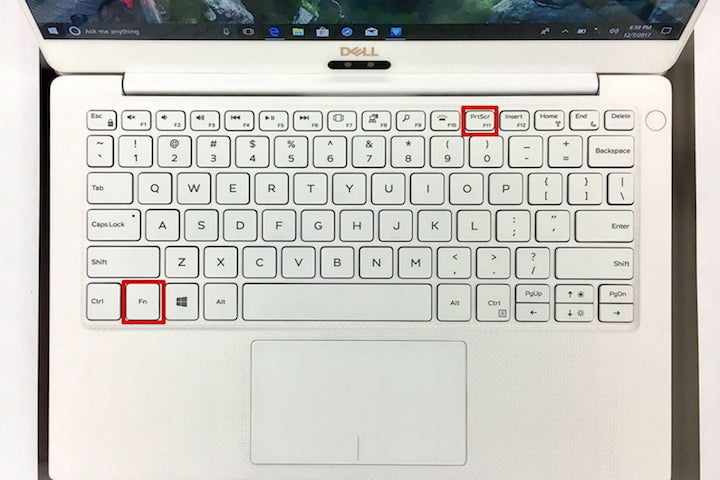
    Windows provides six methods for taking a screenshot. Three of them require the Print Screen ( PrtScn ) key, while the rest require the Windows ( Win ) key.

    On external keyboards, you will find a PrtScn key located in the upper right corner. The Win key generally resides in the lower-left corner between the Control ( Ctrl ) and Alternate ( Alt ) keys. It has the Windows logo on it, so it is easy to identify.

    On laptops, the Print Screen command can be combined with another function in a single key, as shown above. In this case, you must press the Function ( Fn ) key in addition to the Print Screen key.

    Here we break down the six screenshot commands:

    • Print Screen (PrtScn) – Capture the entire screen. If you have more than one screen, this function is a single image, everything that is displayed in all those that are connected. By default, it doesn’t save your image as a file, it just sends the content to the clipboard.
    • Alt + Print Screen – Capture a single window. Make sure to first highlight the target window, such as a document or browser, before pressing these keys (or three on a laptop). By default, it also does not save the image as a file, but instead sends it to the clipboard.
    • Win + Print Screen: Capture the entire screen. The difference is that Windows saves the image as a file. By default, it is sent to C: Users <username> Images Screenshots on your PC.
    • Win + Shift + S: Take a screenshot with the built-in Snip & Sketch tool. The screen is dimmed and offers four options in a small toolbar: rectangular, freeform, window, and full screen. It also does not save the screenshots as an image, but instead sends them to the clipboard. We will detail this function later.
    • Win + G: open the game bar. Click the screenshot button and this tool will save an image to C: Users <username> VideosCaptures by default. To use this tool, the Game Bar must be activated in Settings> Games> Game Bar.
    • Win + Alt + Print Screen: Capture the entire screen. Saves an image to C: Users <user name> VideosCaptures by default. To use this tool, make sure the screen capture feature of the Game Bar is activated in Settings> Games> Game Bar.

    In some cases, the screen flickers or dims to indicate that Windows took a screenshot. If it doesn’t, open File Explorer and go to the default locations to see if Windows saved the image.
    How to Take Screenshots on Windows 10 Laptop PCs

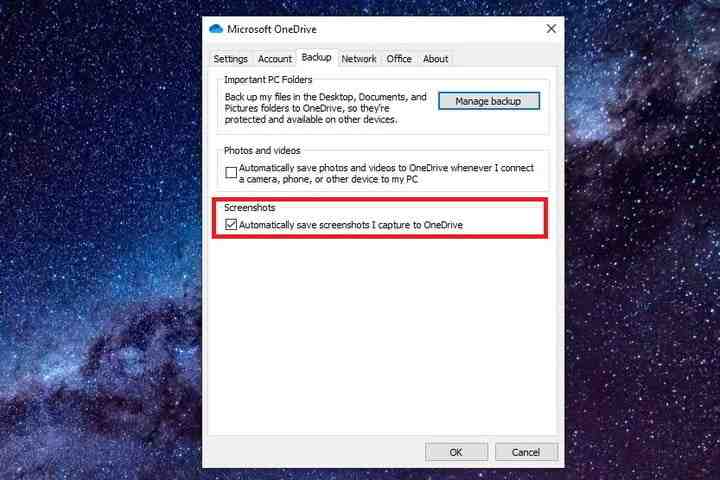
    If you use OneDrive, you can save screenshots in the cloud so they are accessible from all your devices. It doesn’t do this by default, but you have to right-click on the parked cloud icon next to the system clock and click on Settings in the pop-up menu. Then press the tab Backup in the pop resulting window and tick in the capture screen.

    In this case, you can press the first three Print Screen commands to automatically save an image to OneDrive. You will not see the screen flicker or dim, instead, you will receive a notification. Make sure to sync the Screenshots folder if you want to access the images on your PC.

    Step #2: Open the Paint program
    Open the Paint program
    Open the Paint program

    If you used a method that saves the screenshot locally as a file, you can locate and view the image using the Photos app. If it worked, you can move it, attach it to an email, upload it to the cloud, etc.

    However, if you need to crop an image, especially those taken on PCs with more than one screen, you have three native tools at your disposal: Paint, Paint 3D, and Photos.

    Compared to Paint and Paint 3D, Microsoft’s new Photos app is limited. You can rotate and crop images, change the aspect ratio, apply filters, adjust color, remove red eyes, and more. However, you cannot draw, paint, create an image from scratch, or paste from the clipboard.

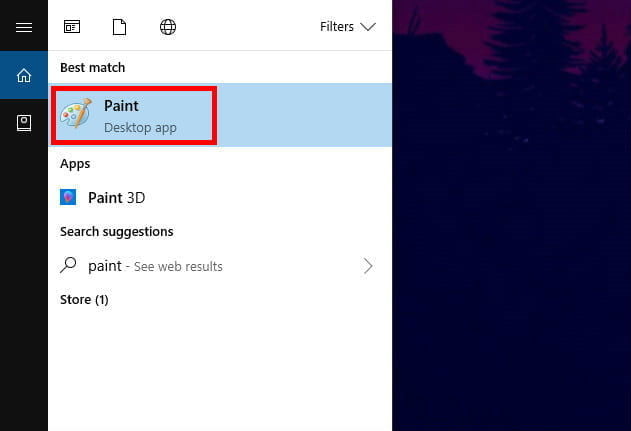
    In this guide, we use the Paint program because it is familiar and reliable. By default, you won’t find it on the Start menu. Instead, type Paint in the field on the taskbar and click on the resulting desktop application.

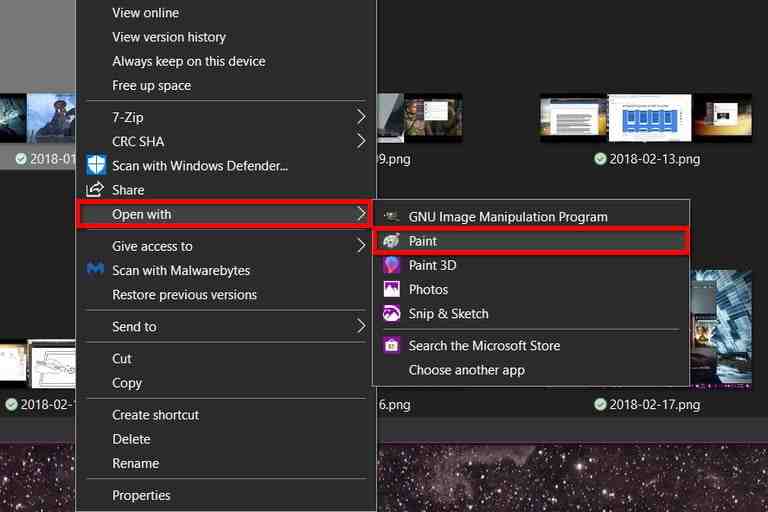
    Paint may also be available when you right-click on an image. When the pop-up menu appears, hover your mouse pointer over the Open with a menu option to find Paint, as shown below.
    Open the Paint program
    Open the Paint program

    You can also locate the program – mspaint.exe – in the C: WindowsSystem32 directory. Right-click on the file and select Pin to Start from the pop-up menu.

    Step #3: paste the screenshot (Clipboard methods only)

    paste the screenshot (Clipboard methods only)
    paste the screenshot (Clipboard methods only)

    You will need to follow this step if you used any of the methods that sent the screenshot to the clipboard.

    With Paint open, click the Paste Clipboard Style button in the upper left corner. You can also press the Ctrl and V keys on your keyboard to paste the image onto the blank Paint canvas, which will expand as required.

    With the screenshot inserted correctly in Paint, you can cut out, paint, create shapes, add text, and more. If you want to add stickers, 3D shapes, effects, and more, click the Edit with Paint 3D button at the far right of the toolbar.

    Step #4: save the screenshot
    save the screenshot
    save the screenshot

    This step applies to all screen capture methods.

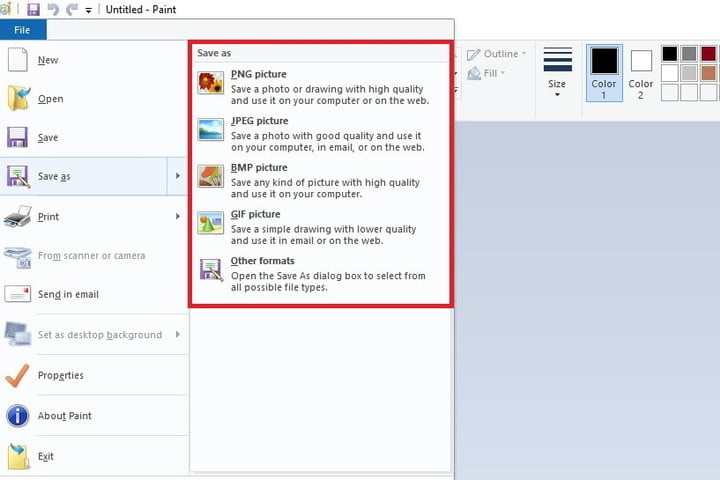
    When you’re done editing the image, click the Main File option in the upper left corner. Then select Save As from the drop-down menu.

    This option expands with a selection of four file formats: PNG, JPEG, BMP, and GIF, along with the Other Formats option to save your image as a TIFF or HEIC file.

    Alternatives

    Snipping Tool or Snipping Tool
    Snipping Tool or Snipping Tool
    Snipping Tool or Snipping Tool

    The best workaround is the native Windows 10 cropping tool. Windows’ built-in screen capture utility works quite well but is not the most robust or versatile when saving an image.

    However, the cropping tool is quite useful as it allows users to better define and capture the desired part of their desktop screen as an image, without the need for a keyboard. It’s not as fast as just pressing Print Screen, but it’s much more accurate.

    To get started, simply type Snipping Tool in the search field on the taskbar and select the resulting application. Once it opens, you will see an update notification. Snipping Tool is still an available tool, but Microsoft encourages you to use Snip & Sketch or the Win + Shift + S keyboard shortcut.

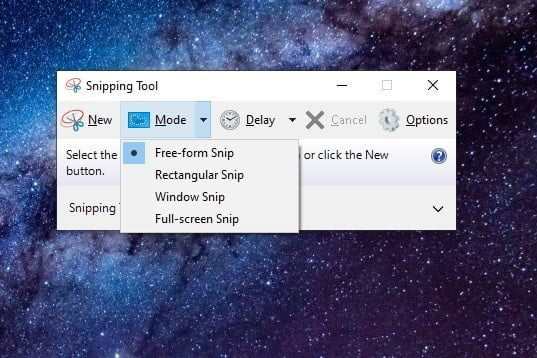
    With the tool open, click on the Mode button to expand the menu. You will find four screenshot options: Draw a window (Freeform Snip), box in an area (Rectangular Snip), capture the current window (Windows Snip), and capture the entire screen (Full-Screen Snip).

    If you use the free-form and rectangular modes, the screen turns white. Once you start defining the screenshot space, the white tint will fade within that area. If you are capturing a specific window, its screen is tinted white, except for the content within that window.

    The cropping tool also includes a delay function. You can wait between one and five seconds before taking a screenshot so that you can capture a precise moment in a video or animation. You can then take repeated clipping in the same mode by simply pressing the Alt + N keys.

    Once you take a screenshot, the Snipping Tool interface expands to display the screenshot. You can do light edits, like using a pen, highlighter, and eraser. You can also click the Paint 3D button to make additional edits to the latest application.

    When you’re done editing within the Snipping Tool, click File in the upper-left corner and then click the Save As option, which appears in the drop-down menu.

    Snip & Sketch
    Snip & Sketch

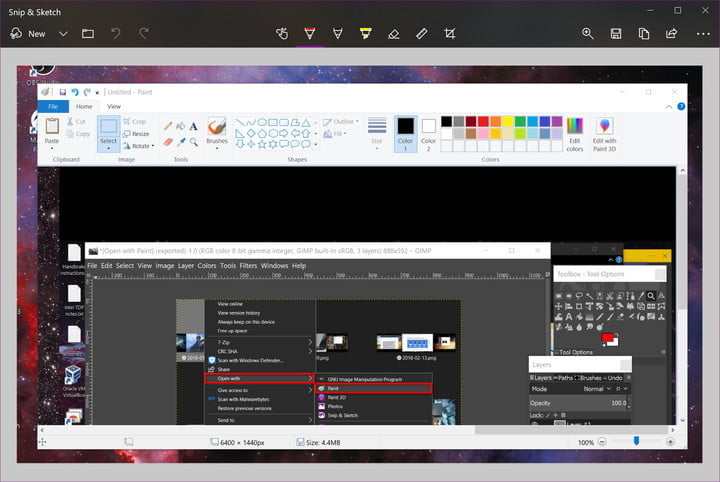
    Snip & Sketch (Snip & Sketch, in Spanish) is the latest option from Microsoft. You can access it from the Start Menu, or with the Win + Shift + S keys on your keyboard.

    If you use the keyboard shortcut, the screen will go dark and you will see a toolbar with five buttons at the top. You will have the same functions as the Snipping Tool, but your captures will not be saved as a file. Instead, the image goes directly to the clipboard.

    If you open the Snip & Sketch app, click New in the upper left corner, and choose Clip Now from the drop-down menu. The screen will go dark and the toolbar with five buttons will appear. In this case, the capture will be loaded within the application, allowing you to crop the image and make modifications.

    When you’re ready, save the image to your PC by clicking the button that looks like a disk. If you prefer to edit and save the image with another program, click the three-dot icon in the toolbar and choose the Open with option.

    Third-party programs

    If you are looking for more options to customize your screenshots (and don’t mind downloading a new app), we suggest you try LightShot. The LightShot app may be a better choice for more professional work or screenshots that require significant editing.

    Read more:

    Conclusion:

    We also suggest the GNU Image Manipulation Program or GIMP. It is an open-source tool for users who do not want to pay for a subscription to Adobe Photoshop. Provides everything you need to create illustrations, edit high-definition images, and more.
  • 15 Ways to Open Control Panel in Windows 10, 8, 7 PC 2025

    15 Ways to Open Control Panel in Windows 10, 8, 7 PC 2025

    15 Ways to Open Control Panel in Windows 10, 8, 7 PC – Every Windows user is certainly familiar with the “Control Panel” menu. Control Panel is one of Windows ‘ built-in management tools that allow users to view, manage, and modify basic system settings, both hardware and software.

    15 Ways to Open Control Panel in Windows 10, 8, 7 PCHow to Open Control Panel in Windows 10, 8, 7 PC

    For example, through this feature, you can manage user accounts, configure internet networks, set time and display, uninstall applications, and much more.

    Read more:

    Seeing its useful functions and roles, it is certainly not surprising that every user often uses the Control Panel for various purposes.

    It’s just that they have little basic knowledge about computers, they don’t realize that many ways can be done to open the Control Panel other than through the Search Box or the Start menu.

    There are at least 14 options that you can customize with your version of Windows, which you can see in the following information.

    If you are using Windows 11 and 10 on your PC/laptop, there are several ways you can try to open the Control Panel. Among them through the Windows Search Box, the Settings menu, and the Start menu for using Windows PowerShell. Listen and follow the steps below.

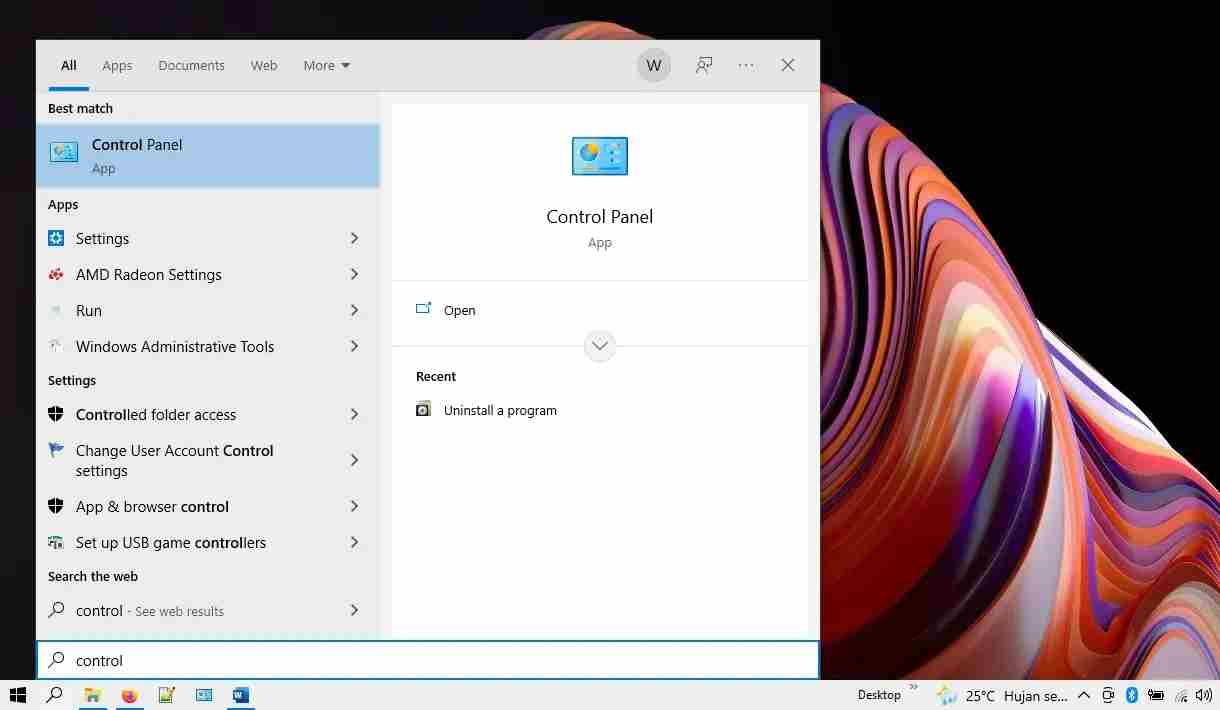
    Via Search BoxThe first way is to access it via the Search Box feature. This is arguably the easiest way to open the Control Panel in Windows 10.
    This feature is located in the left corner of the Windows Taskbar and is usually next to the Start menu button. Here are the steps:

    1. First, click the Search Box icon » then type control in the column provided.
    2. Then click Control Panel from the search results.
    3. If so, the Control Panel window will open automatically.
    4. Done.

    #2. Open the Windows Settings menu

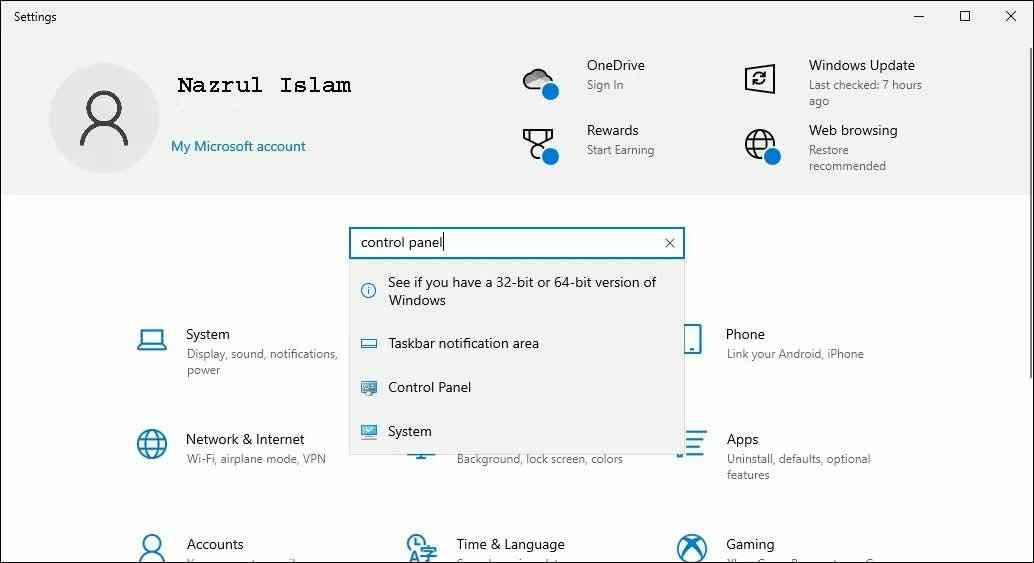
    Open the Windows Settings menuIf you want an alternative method, you can use the help of the Windows 10 Settings menu. Although this method is a little longer than before, through Settings you can also open the Control Panel.
    1. First, click the Start menu icon on the Windows Taskbar » then click the Settings menu.
    2. If so, see the column “Find a setting” » type control panel.
    3. Then click Control Panel from the list of search results.
    4. Done.

    #3. Access via the Start menu

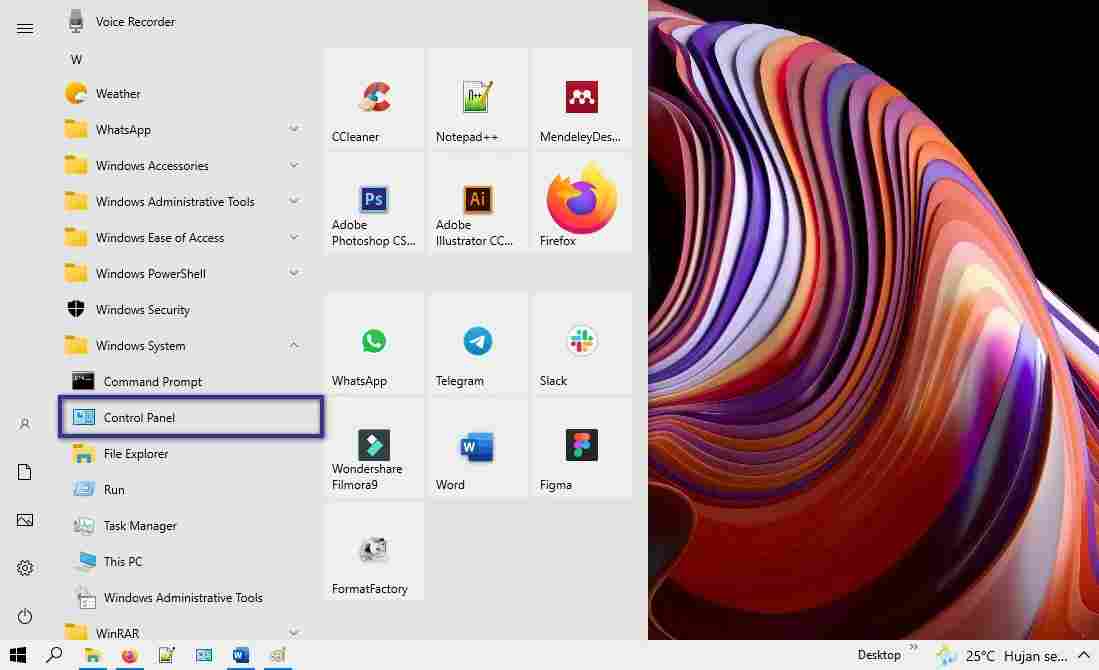
    Access via the Start menuThen you can also find the Control Panel easily, just by accessing the Start menu. If you don’t think you can find it after searching, you can see the steps below.

    1. First, click the Start menu icon on the Taskbar.
    2. Then do a mouse scroll down » open the Windows System folder.
    3. After that, you will find the Control Panel.
    4. If necessary, you can right-click the Control Panel » More » Pin to the Taskbar for easy access later.
    5. Done.

    #4. Open Control Panel in Windows Run

    Open Control Panel in Windows RunThe next option is to use Windows Run to open the Control Panel. With this feature, users can find or open programs/files that are on a Windows system easily. You can follow these steps to do this:
    1. First, press the Windows + R combination on the keyboard to open Windows Run.
    2. After the Windows Run window appears, type the control panel in the search field » and press Enter/OK to continue the process.
    3. Done.

    #5. Via Task Manager

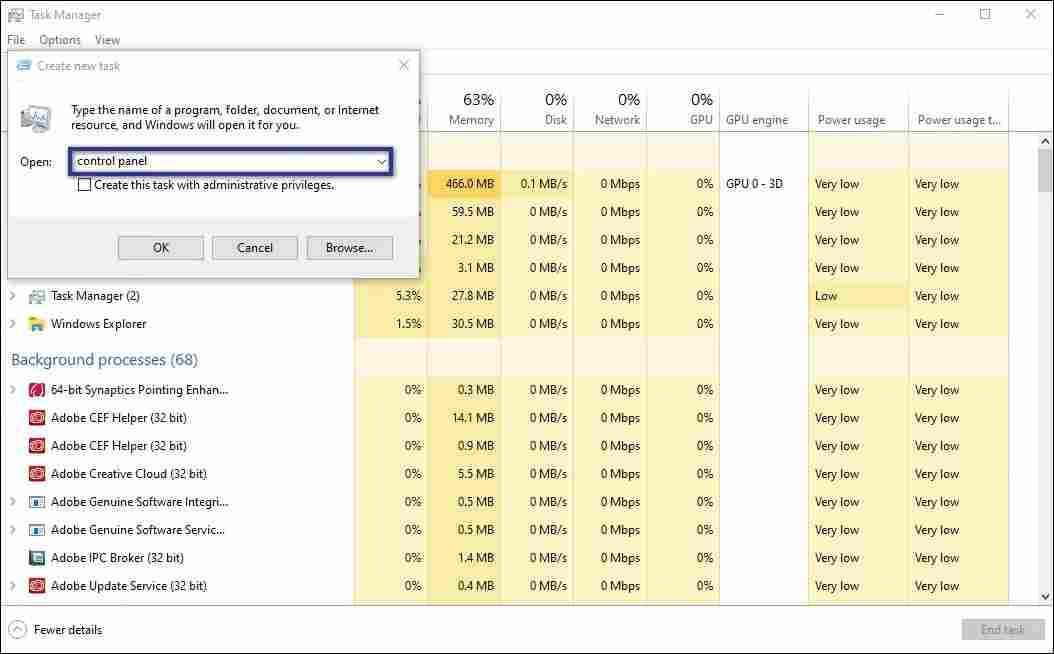
    Via Task ManagerThrough the Task Manager, you can not only monitor the condition of the device’s resources while it is running, but here you can also use it to access the Control Panel. How to? Follow the instructions below properly.
    1. First, right-click an empty area on the Taskbar » and select Task Manager. Or you can also press Ctrl + Shift + Esc combination.
    2. Then click the File menu » and select Run new task.
    3. Type control panel in the search field » press Enter.
    4. Done.

    #6. Cortana

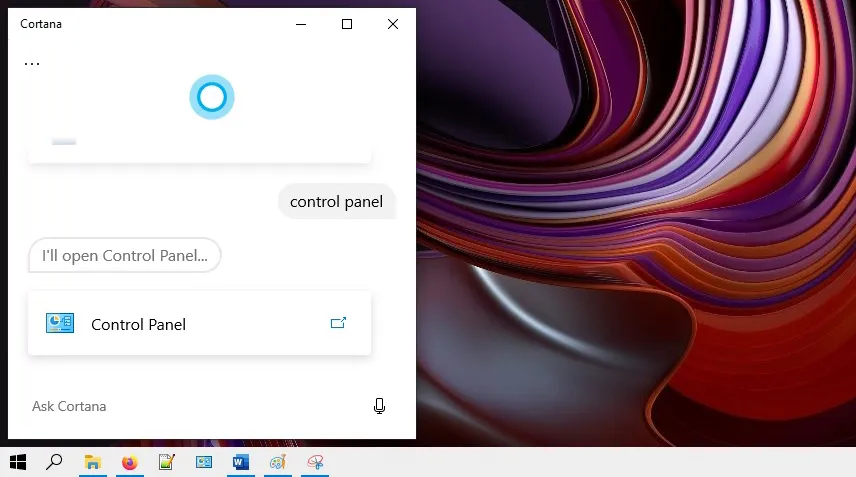
    CortanaThe next way is that you can use Cortana to open the Control Panel. Cortana is a Voice Command-based virtual assistant provided by Microsoft for Windows 10.
    Cortana is often used by Windows users when doing activities in front of a PC / laptop, such as setting reminders or planning something. Below are the steps to access Cortana on Windows 10.

    1. First, make sure you have a Microsoft account.
    2. Then open the Cortana application and log in with the account you have.
    3. If you have, you just need to say “ Control Panel ”.
    4. After that, the Control Panel will open automatically.
    5. Done.

    #7. Use Command PromptUse Command Prompt

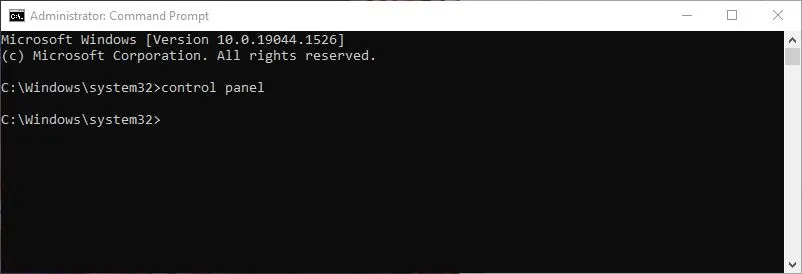
    control panel

    Command Prompt is a utility software whose main function is to run a command line and perform tasks without a GUI on a Windows PC / laptop. Through this CMD, you can open the Control Panel with a single command line.

    Not only that, but you can also perform various basic configurations on Windows; such as turning off Windows Update, repairing damaged system files to formatting the hard disk.

    1. First, open Command Prompt in Administrator mode.
    2. Then run the above command by pressing the Enter key.
    3. Wait a few moments until the Control Panel appears automatically.
    4. Done.

    #8. Open Windows PowerShellOpen Windows PowerShell

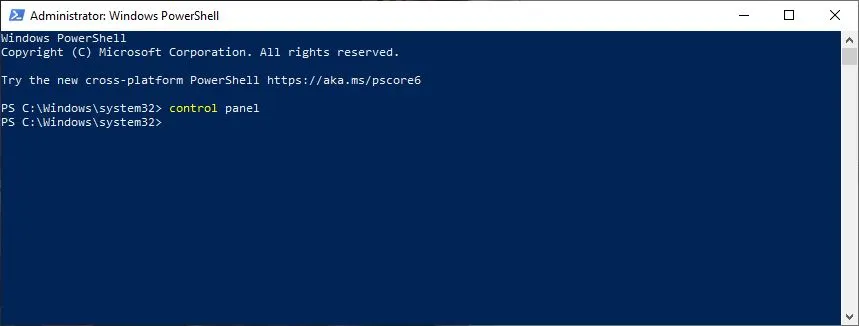
    control panel

    Not only through the Command Prompt, but you can also open the Control Panel via Windows PowerShell. Indeed, when viewed in terms of appearance, PowerShell is almost similar to CMD as a Windows Command Line program.

    However, these two programs have quite different functions from each other. Here are the commands you need to execute to open the Control Panel.

    1. First, press Windows + X on the Keyboard.
    2. When the “Power User Task menu” appears, click Windows PowerShell (Admin) .
    3. Next type the above command » then press Enter to run it.
    4. After that, the Control Panel will open automatically.
    5. Done.

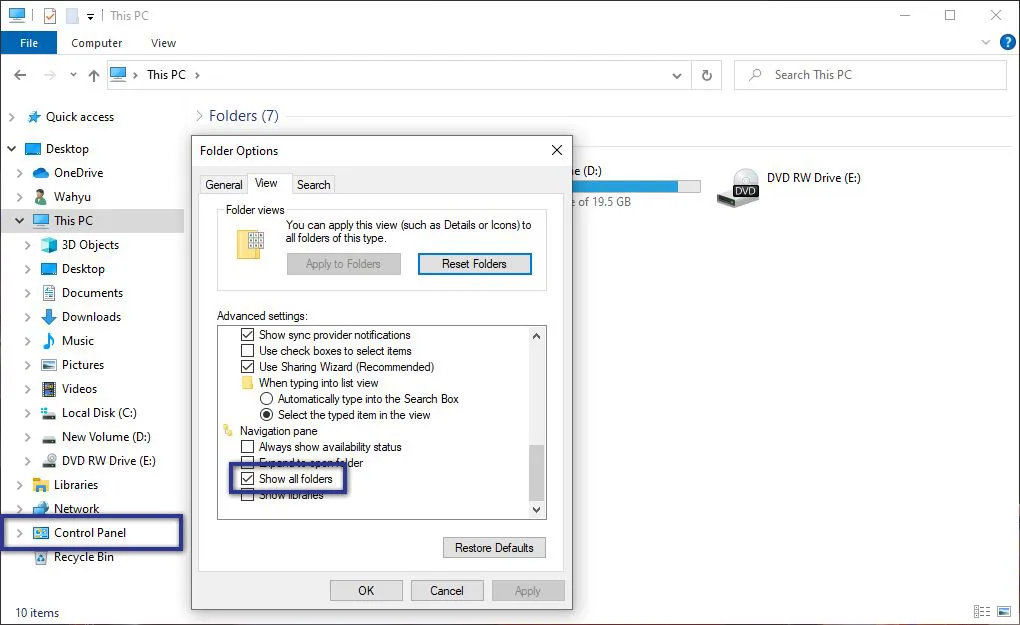
    #9. Access via Windows ExplorerAccess via Windows Explorer

    Generally, Windows Explorer plays an important role as software that gives users unrestricted access to the file system.

    Whether it’s displaying, changing to managing the folders/files contained in the PC / Laptop. In addition to this, you can also use Windows Explorer to access the Control Panel.

    1. First, open your Windows Explorer.
    2. Then click the File menu » select Change Folder and Search Options.
    3. If you have, the “Folder Options” panel will appear » click the View tab.
    4. Scroll the mouse down » check the Show All folders section.
    5. Then press Apply » OK to approve it.
    6. Then back again on the main view of Windows Explorer.
    7. Look at the left pane, locate, and click on Control Panel.
    8. Done.

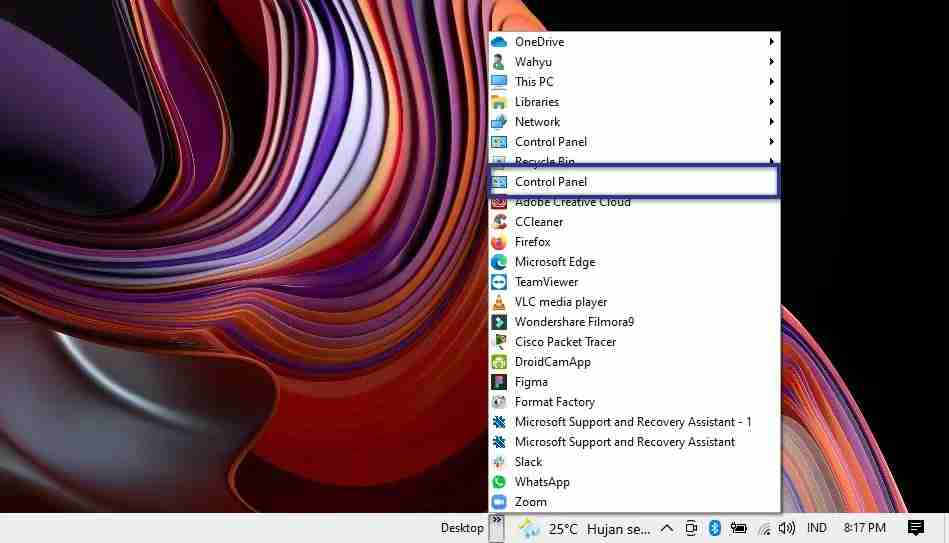
    #10. Via Quick LaunchVia Quick Launch

    Quick Launch is included in one of the features integrated with the Windows Taskbar, which makes it easier for you to access certain applications quickly without being complicated.

    Indeed, by default, you will not find this feature on the Windows Taskbar. Because to display it, you need to activate it first. Such as the following.

    1. First, right-click an empty area on the Windows Taskbar.
    2. Next, hover the mouse cursor over the Toolbars section » and click the Desktop option.
    3. If you have, you will see the words Desktop marked with an arrow that appears in the Taskbar section.
    4. Click the “»” arrow, then double-click on Control Panel to open it.
    5. Done.

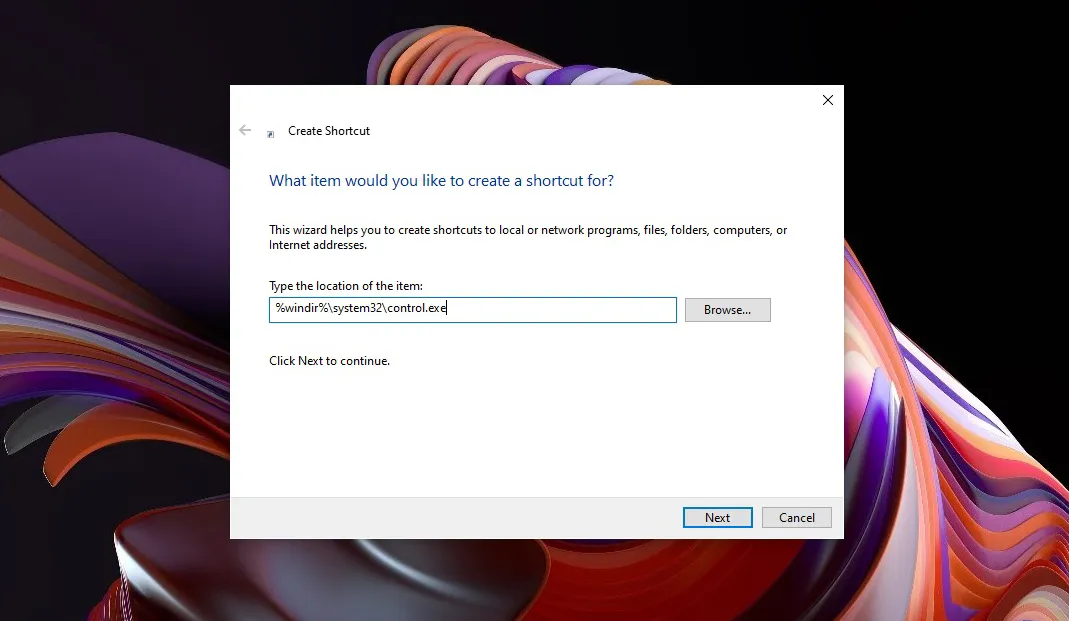
    #11. Create Control Panel Shortcuts

    In addition to the Windows Taskbar, you can also easily open the Control Panel by creating a shortcut on the Desktop.

    This is also an alternative option for those of you who don’t want to bother accessing various menus just to open the Control Panel. Here are the steps you need to go through in creating a shortcut.

    STEP 1: The first step, right-click an empty area on the Windows Desktop. Then click New » select Shortcut. If you have, a new panel will appear » then copy-paste the following location in the search field.

    %windir%\system32\control.exe

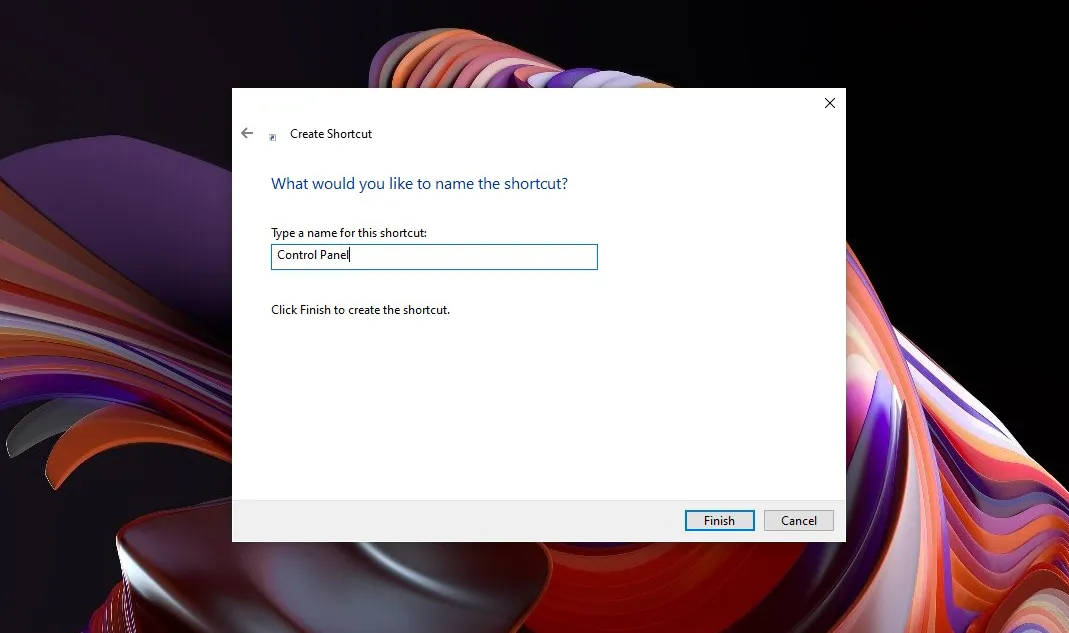
    Create Control Panel ShortcutsSTEP 2: Then click Next to continue the process. In the next panel, name it Control Panel » and then click Finish. After that to see the results, you can check on the Desktop.Create Control Panel Shortcuts
    How to open Control Panel in Windows 8, 8.1

    Not much different from Windows 10, through Windows 8/8.1 you can also access the Control panel in several ways. Namely by using the Power User Task menu and also via the Charm Bar, here’s more information;

    #1. Using the Power User Menu

    Power User Task Menu is a feature that allows Windows 8 users to quickly access various basic Windows settings.

    Through this feature, you not only find the Control Panel, but you can also access the Event Viewer, Task Manager to Command Prompt (Admin). Here’s how to access the Power User Task Menu:

    1. First, right-click on the Windows icon in the lower-left corner of the Desktop. Or you can press the combination Windows + X.
    2. If you have, the “ Power User Tasks menu ” will appear automatically » click Control Panel.
    3. Done.

    #2. Via the Charm Bar

    Not only the Power User menu, the Charm Bar is also one of the Windows 8 features that serve to speed up user access to various shortcut menus. When you activate this feature, you will find 5 main menus available, including the Search, Share, Start, Device, and Settings menus. Immediately, here’s how to open it.

    1. First, press the Windows + C combination on the keyboard.
    2. Then click the Settings menu » and select the Control Panel option.
    3. Wait a few moments until the “Control Panel” window appears.
    4. Done.

    How to open Control Panel in Windows 7

    For those of you who still use Windows 7 as the mainstay operating system, you can use options other than the Search Box when you want to open the Control Panel, namely by accessing the Windows Start Menu. The method is quite easy, follow these steps.

    1. First, you just need to click on the Start menu icon in the lower left corner.
    2. After the new display appears, select Control Panel.
    3. Wait for a moment.
    4. Done.

    Conclusion:

    So, friends, This is the explanation of 15 ways to open the control panel in Windows 10, 8, and 7 PC, As we have informed you above that there are many ways that you can do to open the Control Panel in Windows 10, 8, and.

    If you want the easiest and most practical way, you can open it via the Windows Search Box by typing the control panel.

    In addition, you can also access the Control Panel through the Windows 10 Settings menu, Start Menu, and Task Manager and use Windows PowerShell.

    If you feel confused about following some of the methods above, or maybe you have an opinion you want to convey, please write it in the comments column below. Thank you and good luck!

    What is a Control Panel?

    Features that govern basic computer functions. For example, application programs, hardware, network connections, user interfaces, to account settings.

    What is the Network & Internet function in the Control Panel?

    Users can view or perform any network-related configuration on the computer.

    How to uninstall an application via Control Panel?

    Press Windows + R » press Control Panel » Enter/OK. If it is already open, click the Uninstall a program menu in the “Programs” section » select the application you want to remove » and click Uninstall. Then follow the uninstall process given.

  • How to Fix Error 0x80242FFF When Updating Windows 10 [2025]

    How to Fix Error 0x80242FFF When Updating Windows 10 [2025]

    How to Fix Error 0x80242FFF While Updating Windows 10 – We are about to update Windows and the last thing we want is to deal with error 0x80242FFF, with all kinds of errors. This problem will cause us to not be able to restart or shut down the computer normally, not even open applications.

    How to Fix Error 0x80242FFF When Updating Windows 10

    How To Fix Error 0x80242FFF When Updating Windows 10

    So we can say that it’s serious, although we can’t deny that solving it is too simple and a little further we’ll teach you two perfect methods to achieve it.

    Read more:

    The troubleshooter in Windows 10 allows us to fix a large number of all kinds of errors on our computers. It is an integrated set of operating system tools that can fix various problems that prevent us from using our PCs normally.

    How To Fix Error 0x80242FFF When Updating Windows

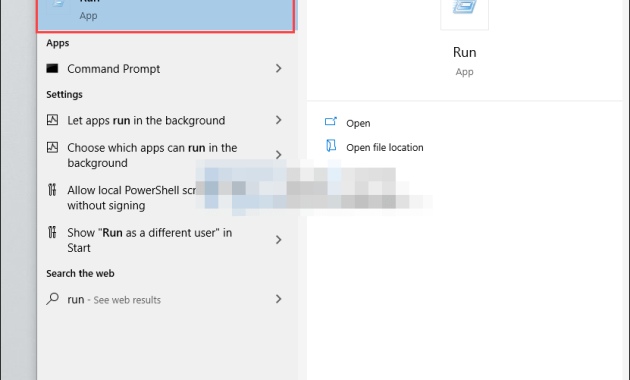
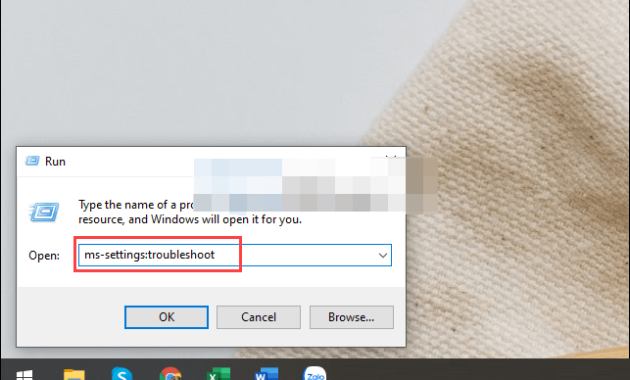
    The first thing we will do is click on “Start” and then we will write “Run”, We will press “Enter” to open a dialog box.

    How To Fix Error 0x80242FFF When Updating Windows

    Next, we will copy and paste this text “ms-settings: troubleshoot” without the quotes and press “Enter”.

    How To Fix Error 0x80242FFF When Updating Windows

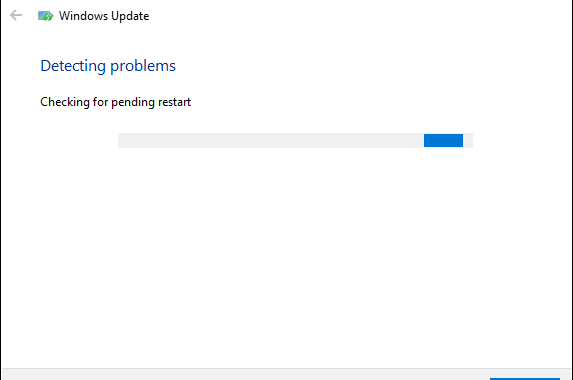
    To resolve errors related to Windows updates, we have to select Windows Update from the left sidebar; then in the right pane, we will click on Run the troubleshooter to start the process.

    This error correction process can take anywhere from 1 to 2 minutes and is automatic. All we have to do here is wait for everything to finish. If you follow this guide, you won’t have to spend too much time and effort fixing error 0x80242FFF.

    With a command prompt

    How To Fix Error 0x80242FFF When Updating Windows

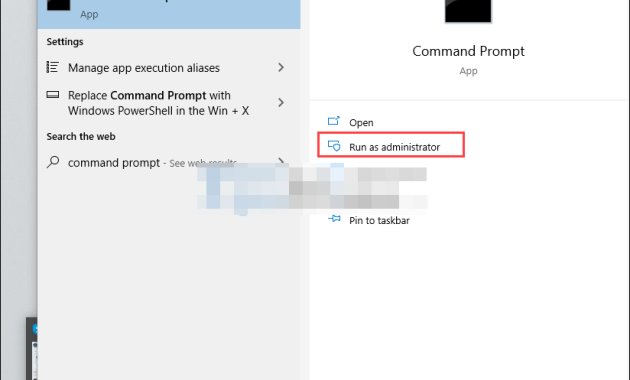
    We go to the start menu and write “Command Prompt” and from the right pane we need to select “Run as administrator”.

    How To Fix Error 0x80242FFF When Updating Windows

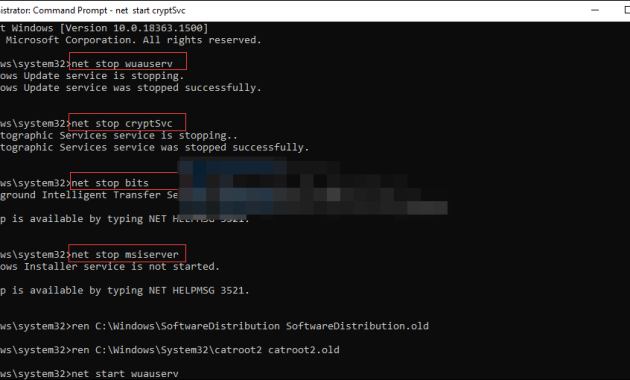
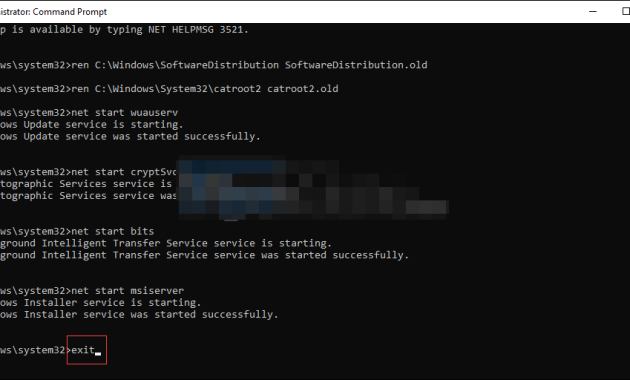
    Once the new window opens, we have to copy and paste all the commands we left a little below.

    net stop wuauserv

    net stop cryptSvc

    net stop bits

    net stop msiserver

    ren C:/Windows/SoftwareDistribution SoftwareDistribution.old

    ren C:/Windows/System32/catroot2 catroot2.old

    net start wuauserv

    net start cryptSvc

    net start bits

    net start msiserver

    exit

    How To Fix Error 0x80242FFF When Updating Windows

    After we run each last command, we have to close the command prompt. At this point, the computer should work normally.

    Read more:

    Conclusion:

    So, friends, This is the explanation of how to fix the error 0x80242FFF When Updating Windows 10, I hope this simple guide will help you fix the annoying Windows Update error 0x80242FFF.

  • 4 Ways To Enter Windows 10 Safe Mode Windows 2025

    4 Ways To Enter Windows 10 Safe Mode Windows 2025

    4 Ways To Enter Windows 10 Safe Mode Windows – How to enter the safe mode in Windows 10 is a little different from previous versions of Windows. But you don’t need to be confused because to boot into safe mode Windows 10 is it is very easy to enter.

    How to Enter Windows 10 Safe Mode Windows 10 PC
    How to Enter Windows 10 Safe Mode Windows 10 PC

    How to Enter Windows 10 Safe Mode Windows 10 Laptop PC

    Safe mode is usually used for troubleshooting a laptop or computer that is experiencing errors. In many cases, safe mode is often used to deal with viruses that damage Windows programs.

    Read more:

    When you enter safe mode windows, windows will run only with the necessary drivers and programs. That way, viruses on your laptop or computer can’t interfere when in safe mode.

    After that, then you can find solutions and fix errors on your laptop or computer easily so that Windows can run normally again.

    Usually, to boot into safe mode Windows you have to press the F8 key while the laptop/computer is booting. However, for Windows 10, several ways are quite different.

    This method can be applied to computers and various laptop brands such as Lenovo, Asus, HP, Dell, Acer, and other brands. The most important thing is the operating system used is Windows 10.

    Here are some ways you can try to enter safe mode in Windows 10.

    #1. Shift + Restart

    Shift + Restart
    Shift + Restart

    The first method is very simple and only takes a short time. This method is perfect for those of you who are beginners or those who are experts in operating Windows 10.

    How to enter safe mode windows from bios:

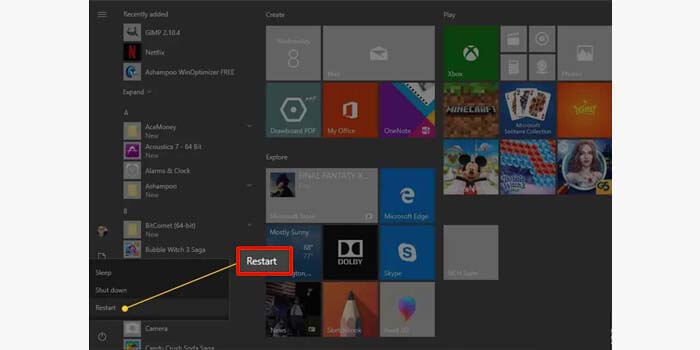
    1. Click the Power option from the Start logo on your Windows laptop.
    2. Hold down the Shift key along with clicking the Restart option.
    3. After that, you will be directed to the Recovery Mode menu.
    4. Select Troubleshoot> Advanced Options> Startup Settings.
    5. Then click Restart one more time.
    6. Press the F4 key to enter the normal Safe Mode.
    7. Or F5 to run Safe Mode with Networking.
    8. Wait a few moments then you will enter safe mode.

    Safe Mode with Networking is a safe mode in Windows 10 that can be connected to a wi-fi internet connection or a LAN connection.

    #2. Through Booting

    Through Booting
    Through Booting

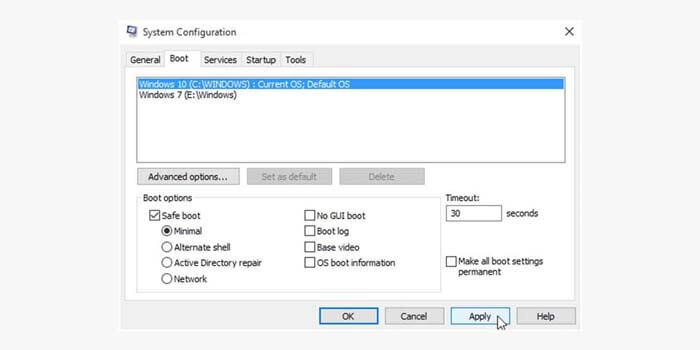
    You can access safe mode in Windows 10 via booting by setting it through System Configuration first. System Configuration or MSConfig is a place to manage all configurations on a Windows 10 system.

    How to enter safe mode Windows via boot:

    1. Open the Run menu/press Windows + R simultaneously.
    2. Then type MSConfig in the Run column.
    3. Click the boot menu tab at the top of the System Configuration.
    4. In the Boot options section, check the Safe Boot option.
    5. Then click the OK button to apply.
    6. Finally, restart your laptop or Windows 10 computer.

    To restore Windows to boot back without safe mode. Just use the same guide as above, then uncheck the Safe Boot option.

    #3. Advanced Startup

    Advanced Startup
    Advanced Startup

    To enter safe mode in Windows, you can set it through the Advanced Startup menu first. This method is quite easy and is often used to access safe mode on various laptop brands.

    How to enter safe mode Windows laptop:

    1. Open Windows Settings/press Windows + I simultaneously.
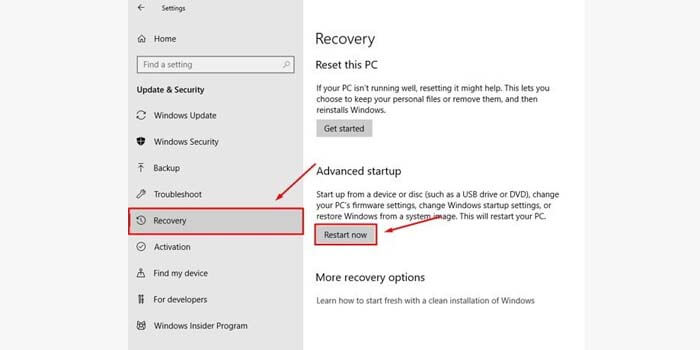
    2. Click the Update & Security menu then select the Recovery option.
    3. In the Advanced Startup section, click the Restart Now button.
    4. Windows will restart and enter Recovery mode.
    5. Select Troubleshooting> Advanced Options> Startup Settings.
    6. Then select the restart option.
    7. Press the button according to the safe mode option you want.
    8. F4 for normal safe mode, F5 for safe mode with networking.

    A safe mode with networking is a safe mode that can connect to an internet connection from a wifi network or a LAN connection.

    #4. Through CMD

    Through CMD
    Through CMD

    The F8 function to enter safe mode has been abolished in the Windows 10 operating system. However, you can reactivate the F8 feature via CMD so that it can be used to access safe mode in Windows 10.

    How to enter safe mode Windows 10 via CMD:

    1. Click Start windows in the corner of your laptop or PC screen.
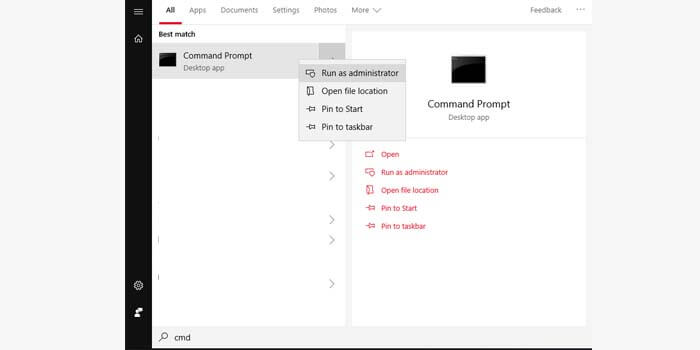
    2. Type CMD then right-click Run as administrator.
    3. Type bcdedit / set {default} bootmenupolicy legacy in CMD.
    4. Press the Enter key to apply the command.
    5. Then restart your Windows 10 laptop.

    Now you can press the F8 key to enter the safe mode menu window 10 while booting. To restore F8 functionality like all, enter the command bcdedit / set {default} bootmenupolicy standard with the same guidance.

    Read more:

    Conclusion:

    This is the explanation of 4 ways to enter Windows 10 safe mode windows, which you can try on a laptop or computer PC. Just use one of the four methods above which you think is the easiest and most effective.

  • 5 Best Ways To Enable Wifi on Acer Laptops PC 2025

    5 Best Ways To Enable Wifi on Acer Laptops PC 2025

    5 Best Ways To Enable Wifi on Acer Laptops PC – Every laptop has been equipped with the Wireless Fidelity (WiFi) feature which is a wireless network to get a local internet network.

    5 Best Ways To Enable Wifi on Acer Laptops PC
    5 Best Ways To Enable Wifi on Acer Laptops PC

    How To Enable or Turn on Wifi on Acer Laptops PC

    Like other electronic objects, sometimes WiFi has a problem so it can’t Enable on.

    In addition, it could be that laptop owners do not feel familiar with the way they operate a laptop.

    Read more:

    Laptop brands circulating in India are very diverse. One of them is Acer. If you are new to the Acer brand, you will need to know how to Enable WiFi on your laptop

    The method used to Enable WiFi depends on the WiFi trap used.

    Best Various ways to Enable WiFi on Acer laptops PC Windows 10

    #1. Using the Wifi Button

    Using the Wifi Button
    Using the Wifi Button

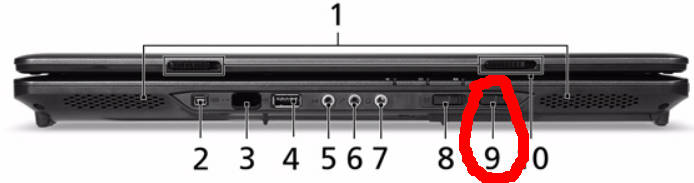
    Some types of Acer laptops provide a special button to Enable on WiFi. This button operates the same as the on-off button in general.

    The WiFi button is usually next to the laptop keyboard. WiFi buttons are usually also designed with indicator lights.

    So when the button is pressed on, the indicator light will Enable which indicates the WiFi trap is active.

    #2. Using the Fn

    Using the Fn
    Using the Fn

    If the laptop does not have a special button to Enable on WiFi traps, there are still ways you can do that by using a key combination on the keyboard.

    On a laptop keyboard, it is usually equipped with a Functional or Fn key. This button specifically has a function when combined with other buttons mainly F1 to F12.

    One of its uses is to light a WiFi trap.

    To Enable WiFi, look for the signal transmitter symbol or the WiFi symbol in the row of keys F1 through F12.

    Read more: How To Disable SmartScreen Defender in Windows 10

    On Acer laptops, the key used is F3. Press the Fn and F3 buttons simultaneously so that the WiFi trap will be enabled.

    In some types, on the F3 key, there are indicator lights that indicate whether the WiFi trap is on or not.

    To Enable it, the laptop owner also only needs to press the Fn and F3 buttons together.

    #3. Through Windows Mobility Center

    Through Windows Mobility Center
    Through Windows Mobility Center

    If the two previous methods cannot or do not exist on an Acer laptop, there are still other ways to Enable WiFi on an Acer laptop.

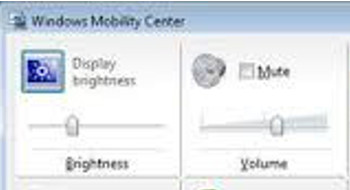
    Laptop owners can Enable WiFi through the Windows Mobility Center. This method can be done when the laptop has installed a Wireless Card.

    The following will be outlined as a special way to Enable WiFi through Windows Mobility Center:

    1. If the laptop uses Windows 7, then enter the Control Panel. If the laptop uses Windows 8, point the cursor to the bottom right of the screen, select Settings, and enter the Control Panel.
    2. In the Windows Control Panel, see the Hardware and Sound menu. Next, select the Adjust Commonly Used Mobility Settings option.
    3. After entering the window, look for the WiFi section
    4. Select the Enable Wireless On menu and click to Enable the WiFi trap
    5. If successful, the wireless symbol will appear as a sign that the WiFi trap is on

    #4. Through the Adapter Settings

    Another way to try is through the Adapter Settings. The steps that need to be done are as follows.

    1. If the laptop uses Windows 7, then enter the Control Panel. If the laptop uses Windows 8, point the cursor to the bottom right of the screen, select Settings, and enter the Control Panel.
    2. Select the Network and Internet option.
    3. Select the Networking and Sharing Center
    4. In the options on the left, select the Change Adapter Settings option
    5. Select the WiFi icon according to the device name used. Right-click on the icon, then select Enable
    6. If successful, the wireless symbol will appear as a sign that the WiFi trap is on.

    #5. Install Wireless Driver

    If WiFi is still not functioning, chances are the driver is catching the problematic WiFi or has not even been installed.

    To overcome this, laptop owners only need to install the drivers that are on the DVD driver that can be obtained when buying an Acer laptop.

    If there isn’t, the driver can be found on the website or searched with the Windows help feature. Here are the steps that need to be done to look for WiFi with the Windows help feature.

    1. If the laptop uses Windows 7, then enter the Control Panel. If the laptop uses Windows 8, point the cursor to the bottom right of the screen, select Settings, and enter the Control Panel.
    2. Select the Hardware and Sound option
    3. Select the Device Manager option which is under the Device and Printer options
    4. Look for the WiFi adapter to use. Right-click on the option and select Driver Software Update.
    5. On the page that appears, select the Search Automatically option.
    6. The process of finding drivers will take time. Wait until the process is complete. If successful, Windows will install the driver automatically so that the Acer laptop can catch WiFi.
    Read more:

    Conclusion:

    So, friends, These are the 5 best ways to enable wifi on Acer laptops, read every step carefully and I hope your laptop wifi will enable it.