How to Install and Activate SPSS 24 on Windows 10 PC – SPSS stands for Statistical Package for the Social Sciences. This software is a tool that is often used to perform statistical data processing. Generally, the use of this program is to carry out statistical analysis of social science which includes market research, health, surveys, and so on.
How to Install and Activate SPSS 24 on Windows 10,8,7 Laptop PC
The SPSS program has many advantages over other statistical data processors, one of which is its ability to read and write data from other file formats.
Read more:
- How To Ping Google To Check Internet Connectivity
- Fix Wireless Capability Is Turned Off In Windows
- How to Fix Windows License Will Expire Soon
- How to Remove Old Windows on Windows
Some of the supported file formats include ASCII, spreadsheets, databases, and statistical packages. In addition, another advantage of SPSS is that it can be used as a medium for processing external databases using ODBS or SQL.
So, if you want to perform data processing or analysis, SPSS is one of the best programs that can be used. For example, you have a college assignment that must perform data processing using SPSS.
Or, you are doing research and need a tool for data analysis. Unfortunately, many users want to use it but don’t know how to install SPSS. In fact, like other software, you must first install SPSS in order to use it.
Like various other software, SPSS also has many versions that can be used, one of which is SPSS 24. You can use SPSS 24 to perform data processing or analysis, but it must be installed first. How install SPSS on a Windows computer is actually very easy and can be done by anyone.
However, before entering the installation process, you have to make preparations first. This preparation is to ensure that you already have the SPSS 24 master installer file on the laptop storage used.
If you don’t have it yet, then please download it first via the following link. Please adjust the Windows bit installed on your laptop. So, please look at your Windows Laptop bit first then download the appropriate master file, whether 32-bit or 64-bit.
- Click here to download SPSS 24 32-bit, for Windows 32-bit.
- Click here to download SPSS 24 64-bit, for Windows 64-bit.
If you already have the SPSS 24 master installer file, the installation process can be done. This process is very easy to do and does not require an internet connection. To be clearer, please follow the steps below.
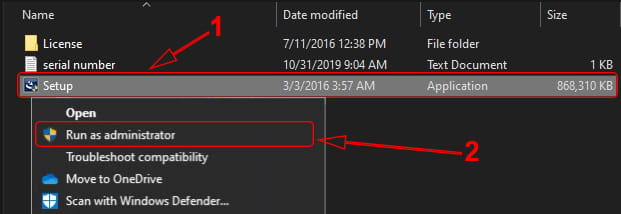
The first step is to extract the SPSS 24 master installer file that you downloaded. Then, please open the extracted folder and run the Setup.exe file (Run as administrator).
In the User Account Control window that appears, please click Yes to run SPSS 24 set up as an administrator.
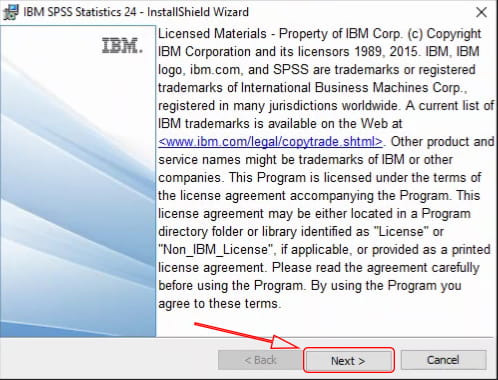
Then, in the first SPSS 24 Setup window that appears, please click Next to continue to the next stage.
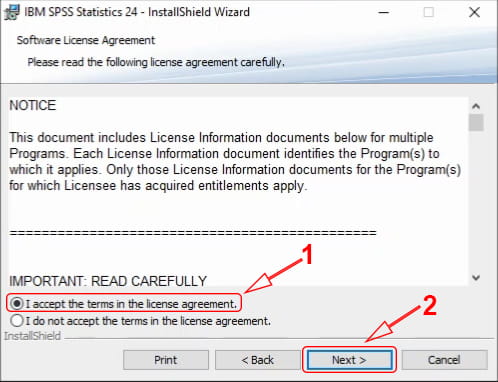
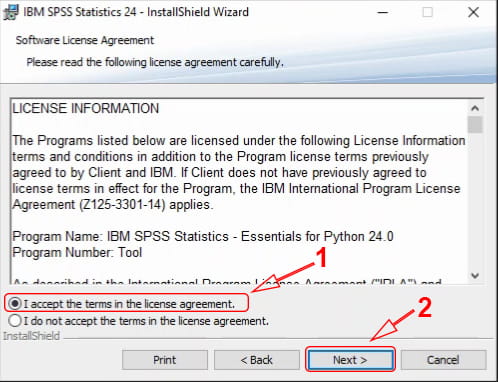
Next, in the Software License Agreement window, please click the option I accept the terms in the license agreement. After that, click Next to continue to the next stage.
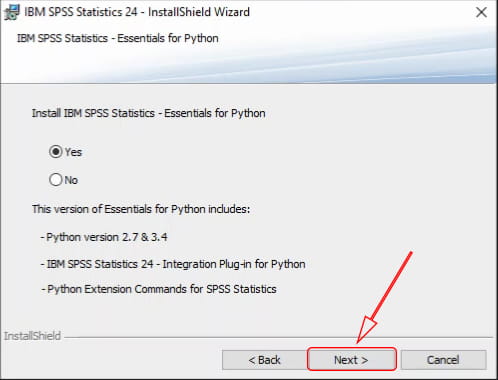
In the IBM SPSS Statistics – Essentials for Python window, please leave the Yes option. Please click Next to proceed to the next step.
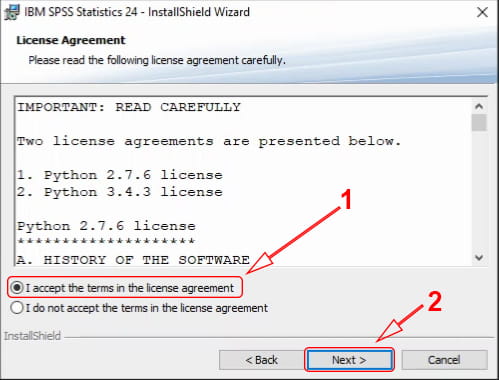
Next, on the License Agreement window, please click I accept the terms in the license agreement. This section is an agreement for installing Python. After that, please click Next to continue to the next stage.
Next, the license agreement window will appear again, namely the Software License Agreement. Please click again I accept the terms in the license agreement, then click Next to continue.
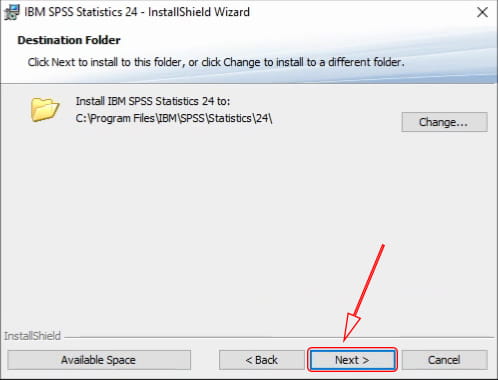
After that, the Destination Folder window will appear which allows you to change the location of the SPSS 24 installation. If you want to change the SPSS 24 install directory, please click Change … and then select the desired folder location.
However, if the free space for the C partition is still large enough, don’t change it and just click Next.
The Ready to Install Program window will provide information that SPSS 24 is ready to be installed. Please click Install to start the installation process.
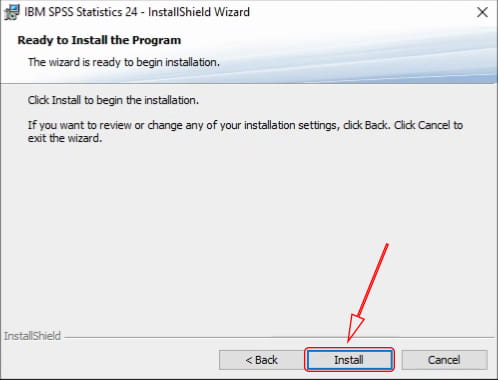
The installation process will take about 10 minutes, but it may take longer, depending on the specifications of the Laptop or Desktop PC you are using. Please wait until the SPSS 24 install process is complete.
When it’s finished, uncheck the Start IBM SPSS Statistics 24 now checkbox because there’s still something to do before opening it. After that, please click Finish to close the Setup window.
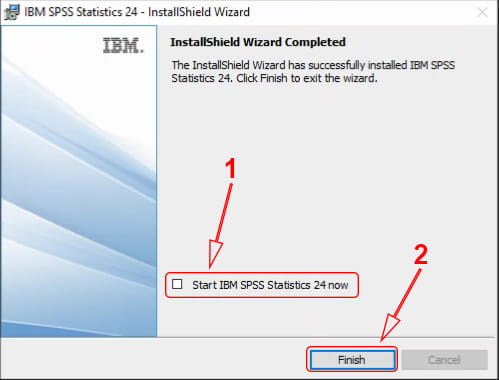
After you install SPSS 24 using the method above, you cannot use it immediately. You must activate SPSS 24 before it can be used.
How to activate already installed SPSS 24
In order to use the SPSS 24 that you have installed, it is necessary to activate it first. Activation is done by copying the license file and entering the serial number code. To be clearer, please follow the steps below.
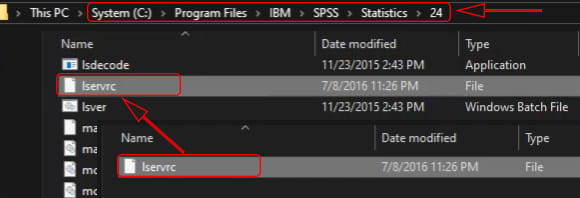
Please reopen the extracted folder from the SPSS 24 master installer. Then, in that folder, please open the License folder. Next, please copy the Iservice file to the SPSS 24 installation folder.
If you did not change the install directory when installing, then the installation folder location is Partition C> Program Files> IBM> SPSS> Statistics> 24. Please paste the Iservice file into folder 24.
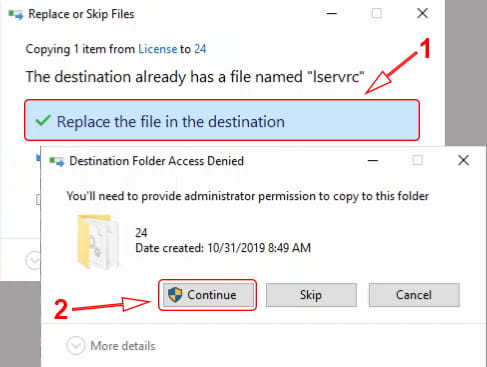
In the Replace or Skip Files window that appears, please click Replace the file in the destination to overwrite the existing file. Then, in the Destination Folder Access Denied window, please click Continue to allow the copy-and-paste process to that folder.
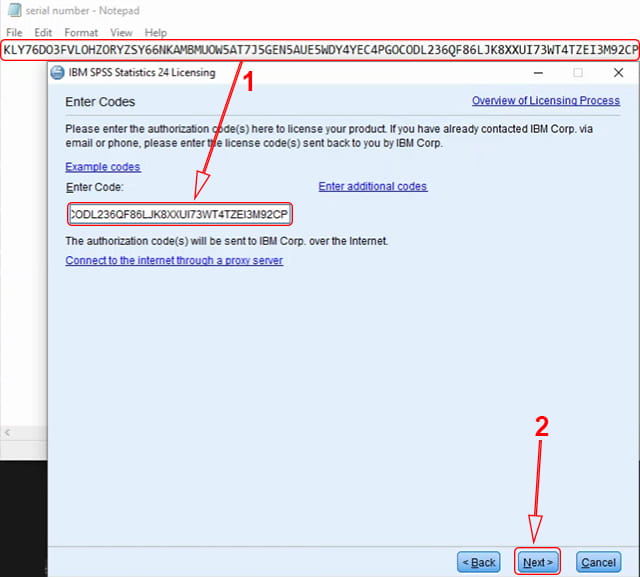
Next, please re-open the extracted folder of the SPSS 24 master installer. Then open the serial number file and copy the serial number code in it.
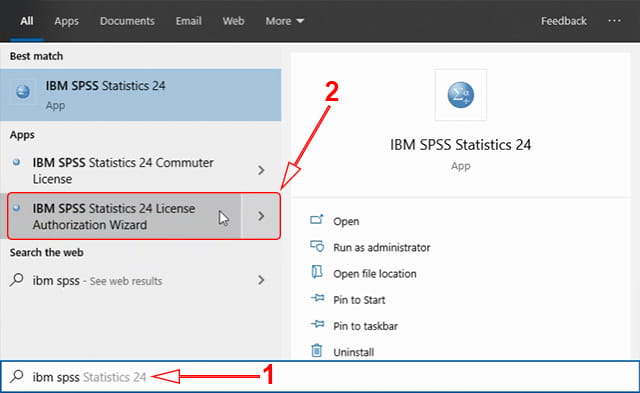
Then, please run the IBM SPSS Statistics 24 License Authorization Wizard. The trick is, please open the start menu then do a search with the keyword “IBM spss” and click I BM SPSS Statistics 24 License Authorization Wizard in the search results that appear. Then the User Account Control window will appear, please click Yes.
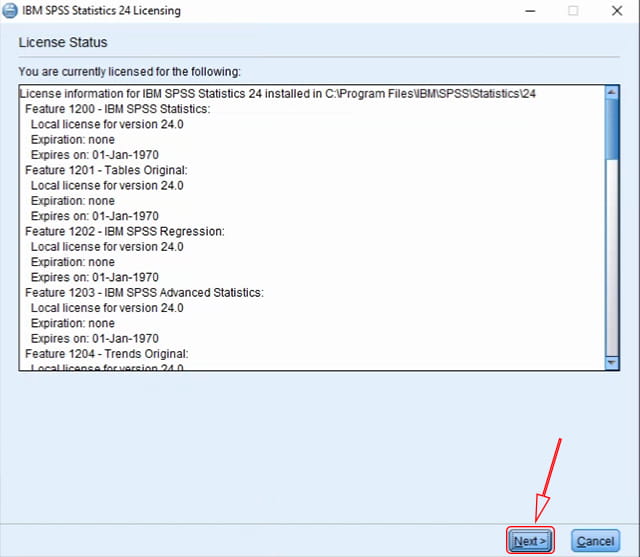
In the License Status window, please click Next to proceed to the next step.
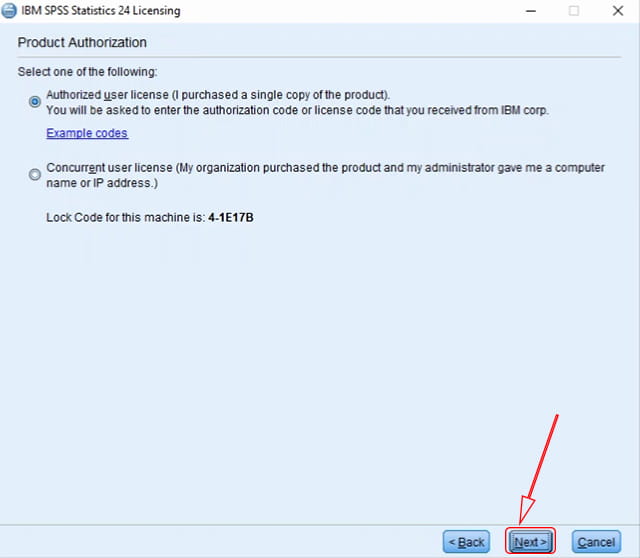
Then, in the Product Authorization window, just leave the Authorized user license option. Then, click Next to continue to the next step.
In the Enter Codes window, please paste the serial number code that you previously copied into the box provided. When finished, please click Next to continue.
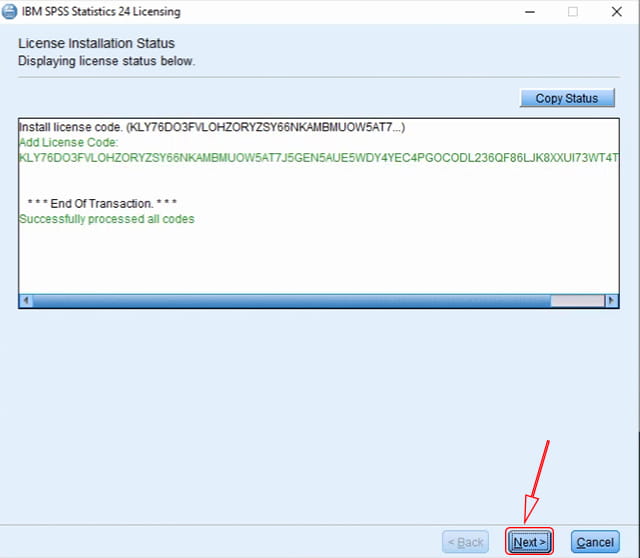
In the License Installation Status window, you don’t need to change anything just click Next.
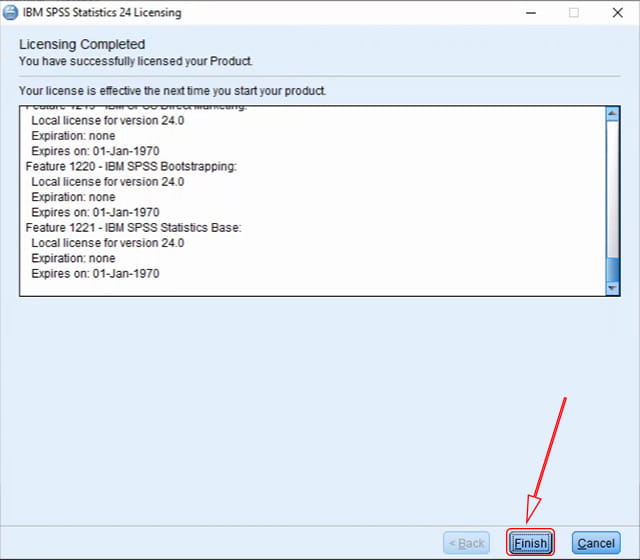
Finally, in the Licensing Completed window, please click Finish to close the activation window.
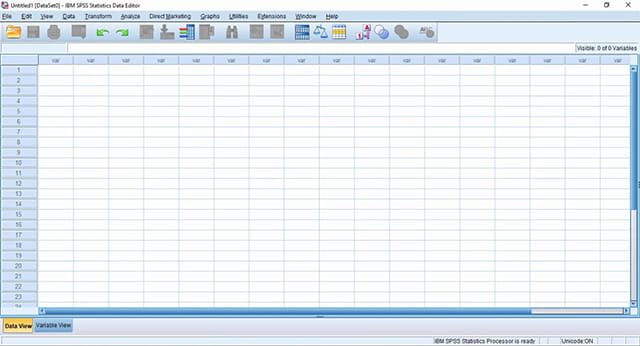
After you activate SPSS 24 using the method above, it can now be used. Now you can use SPSS 24 to assist in data processing and analysis. Whether it’s for learning purposes or college assignments and research aids.
Read more:
- 5 Ways to Turn off Windows 10 Update
- How to Activate Windows Defender
- How to Get the Update Windows 10 Via Windows
Conclusion:
So, friends, That’s an easy way to install and activate SPSS 24 on a Windows Laptop. You can use this method on all editions of Windows, be it on Windows 7, Windows 8 / 8.1, or Windows 10.
In addition, the method above applies to 32-bit and 64-bit Windows, what you need to pay attention to is adjusting the master installer used. with the Windows bit.
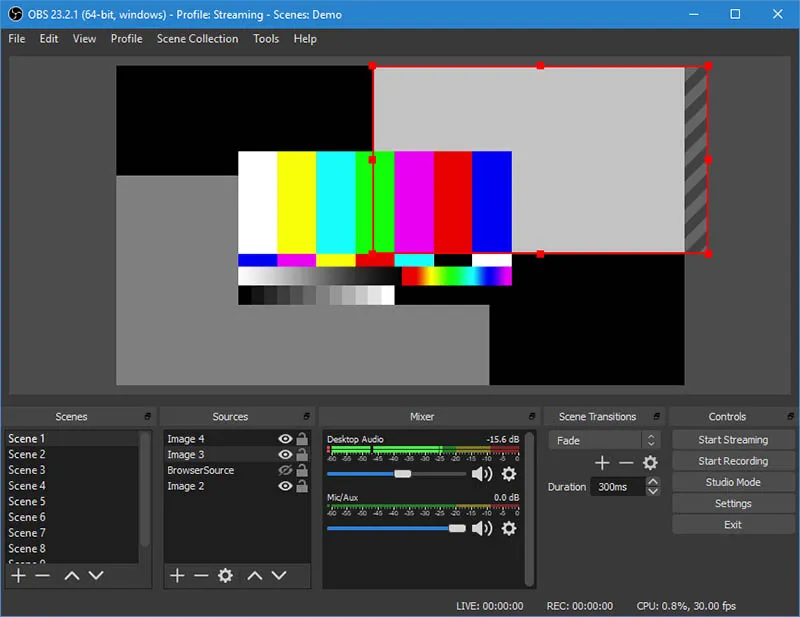 Open Broadcaster Software often called OBS Studio is the most popular screen recorder application. This application is an open-source and multiplatform application, so you can get it for free directly from the site. Apart from being open source, OBS Studio also has other advantages that you can enjoy for free. The following are some of the advantages of OBS Studio.
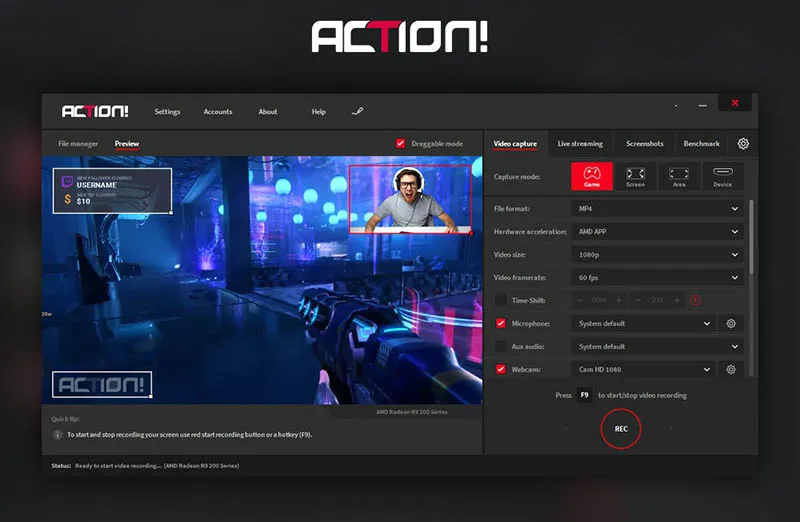 Action! This Is a screen recorder application developed by Mirillis. This application will help you when you want to record a PC monitor screen or want to stream a broadcast on a platform.
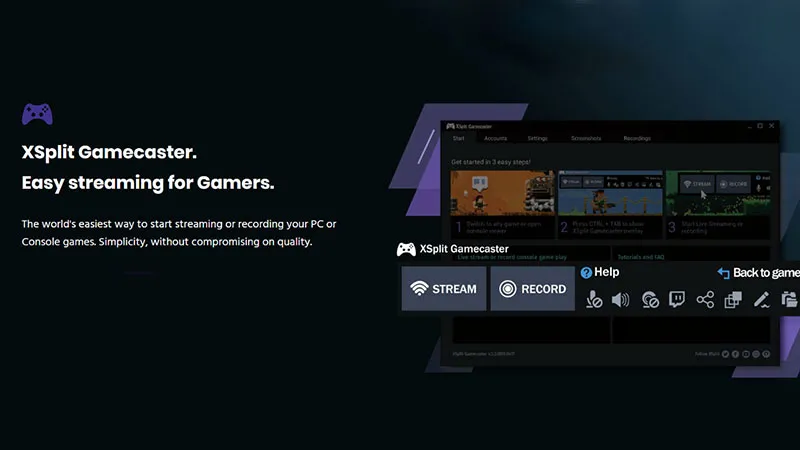 Gamecaster, which was developed by XSplit, is a screen recorder software that you can use. With Gamecaster you will be able to record or stream with just a few clicks. The advantage of this software is that you can store all projects in the Cloud. And this is an advantage when you broadcast outside the home, the Cloud option can help do it.
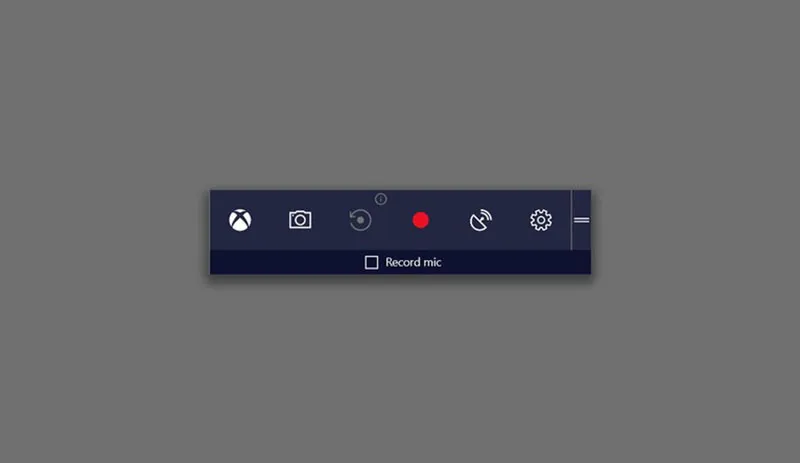 For those of you who use Windows 10, there is one built-in feature that you can use. This feature is the Windows 10 Game Bar or it can also be called Game DVR. By using this feature, you no longer need to bother downloading third-party software to perform the screen recording process.
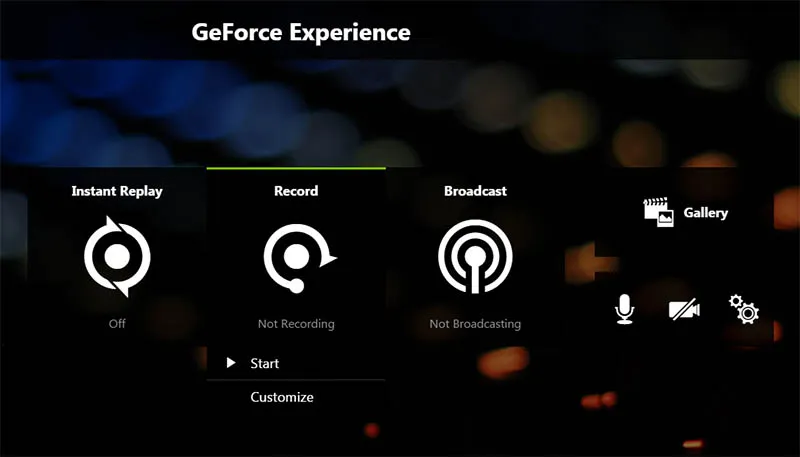 Next, is GeForce Experience (ShadowPlay) developed by N VIDIA. With this application, you will be able to record your activities on your PC with high quality. In addition, GeForce Experience (ShadowPlay) can also stream broadcasts on Facebook, Twitch, or YouTube.
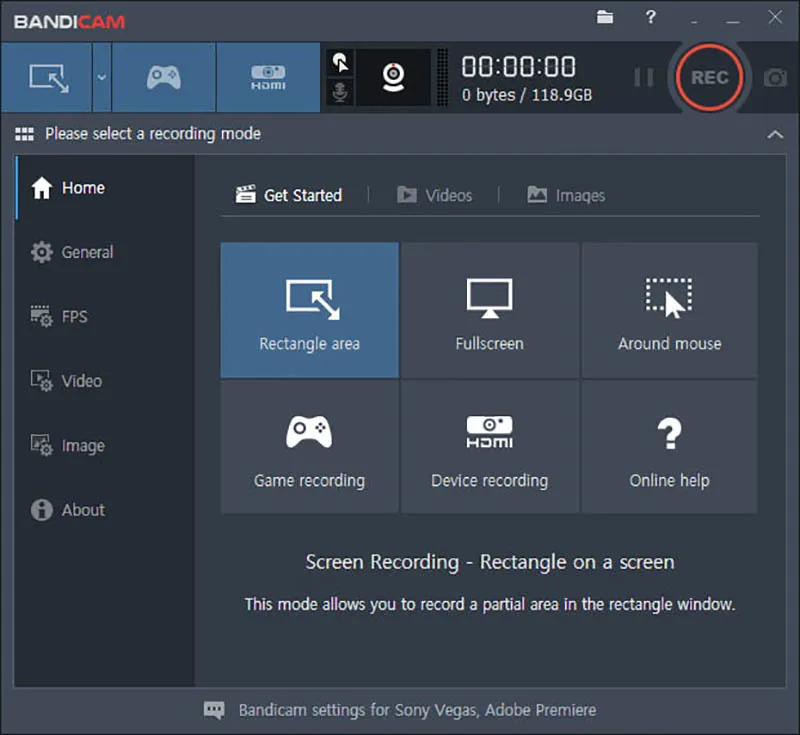 Bandicam is a screen recorder software that is quite popular. With this application, you will be able to record with the highest compression so as to make recordings as close to the original as possible. In addition, Bandicam can also record up to 4K UHD resolution with 144 frames per second.
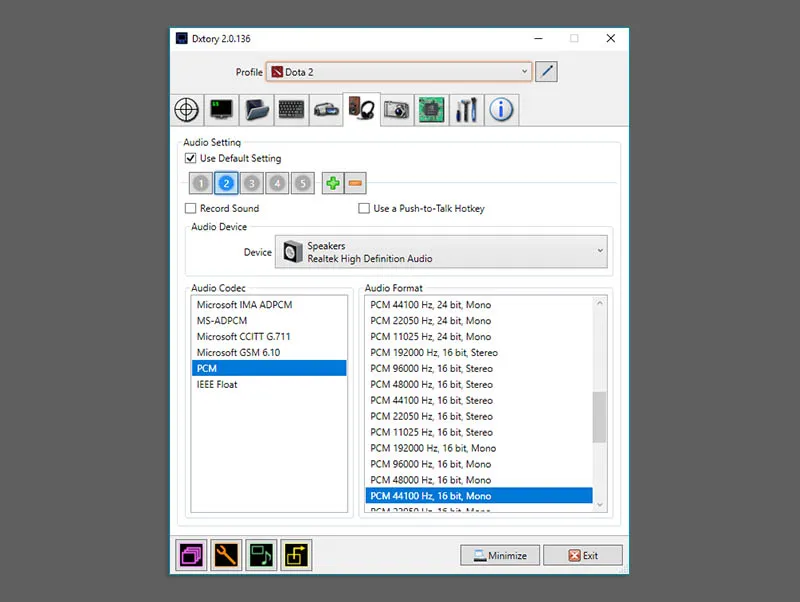 Next, there is DXtory which was developed by Exkode. DXtory is a screen recorder software for DirectX and OpenGL applications. With DXtory you will be able to record with the same level of quality as the original, with the Lossless Capture feature, DXtory will record pixel data like the original.
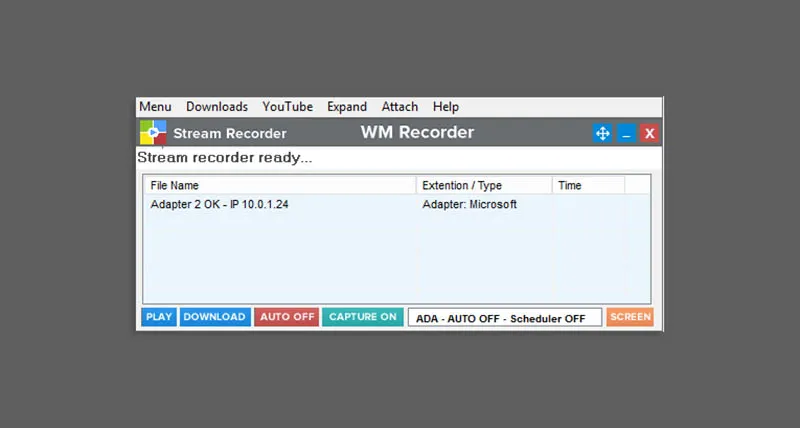 Next is WM Recorder. WM Recorder is software that has four functions at once, aka four-in-one. With WM Recorder you will get Video Downloader, On-Screen Recorder, Audio Recorder, and Converter features. Here’s a list for a more complete benefit :
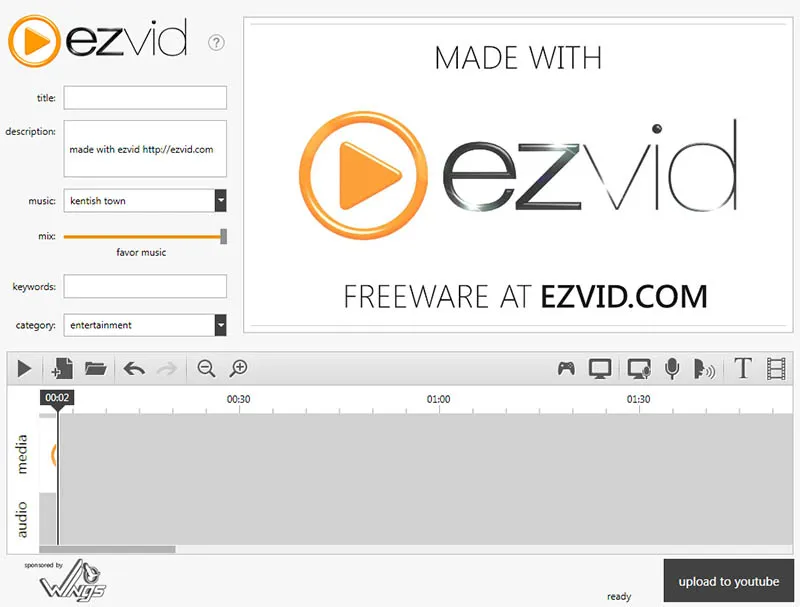 Ezvid is a screen recorder that can also run editor functions at the same time. With this Ezvid you will be able to edit the videos you take directly in the same application. You can get this editing feature for free without having to pay. The result is also fairly good, the drawback of this application is its relatively large size and takes up a lot of space.
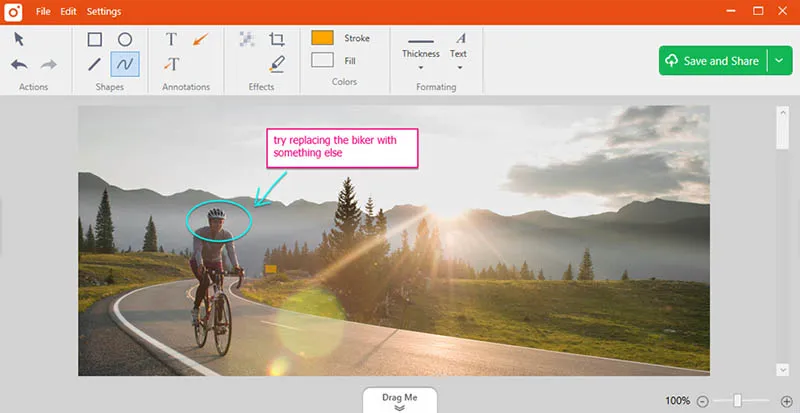 Next is TinyTake, which is a screen recorder developed by MangoApps. With this TinyTake, you will get some features that are not available in other screen recorders, the feature is Annotate. Interestingly, this application is quite easy to use, with just one button you can record the screen. Plus, you’ll get 2GB of cloud storage when you sign up for TinyTake.
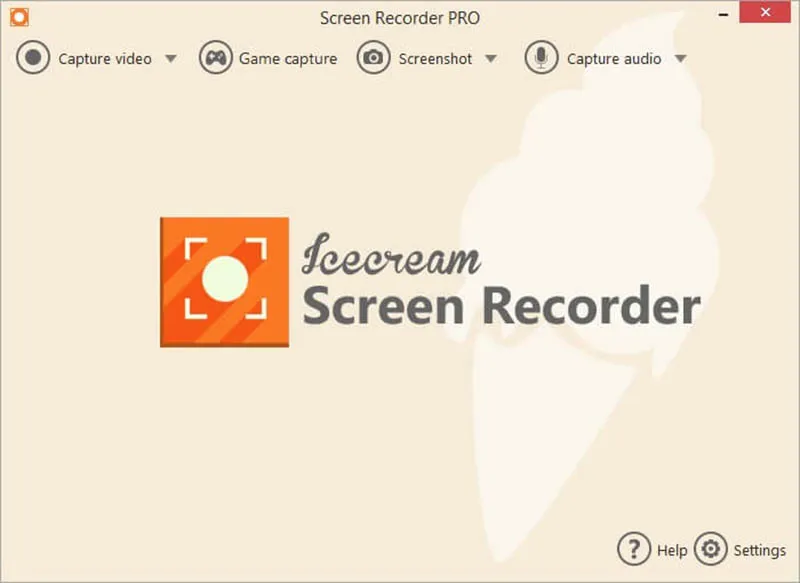 Icecream Screen Recorder can allow you to record any part of the screen. With Icecream Screen Recorder you can do screen recording even if it’s your first time using it.
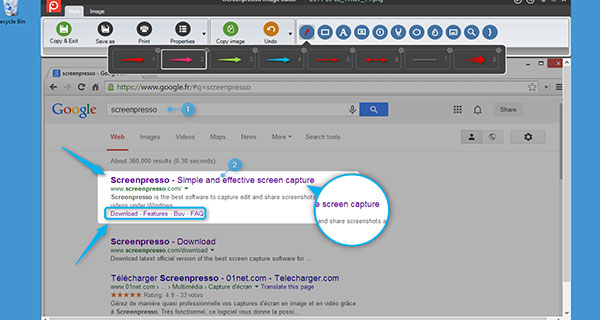
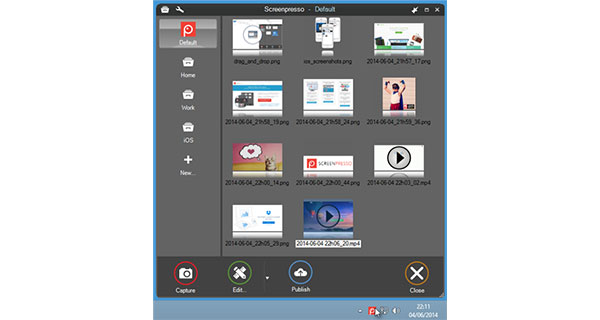
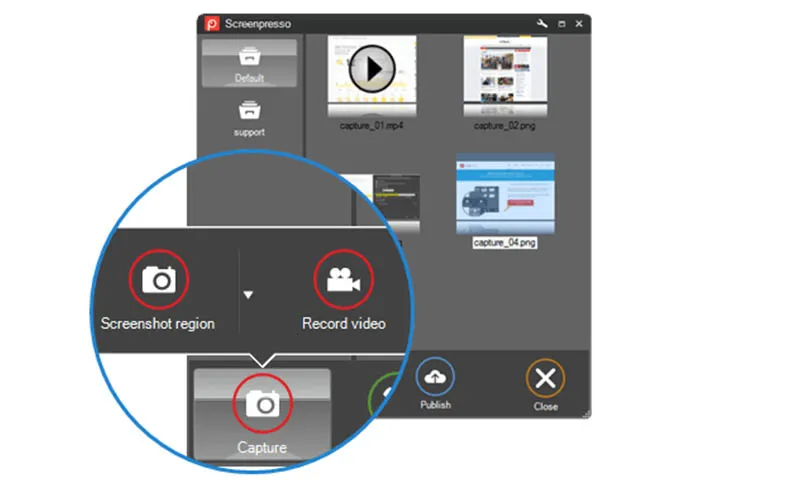 This screenpresso is a screen recorder that if you download the free version, there will be a watermark on the video you take, and also you can only take videos up to 3 minutes in duration. To go beyond that limit you have to buy the premium version.
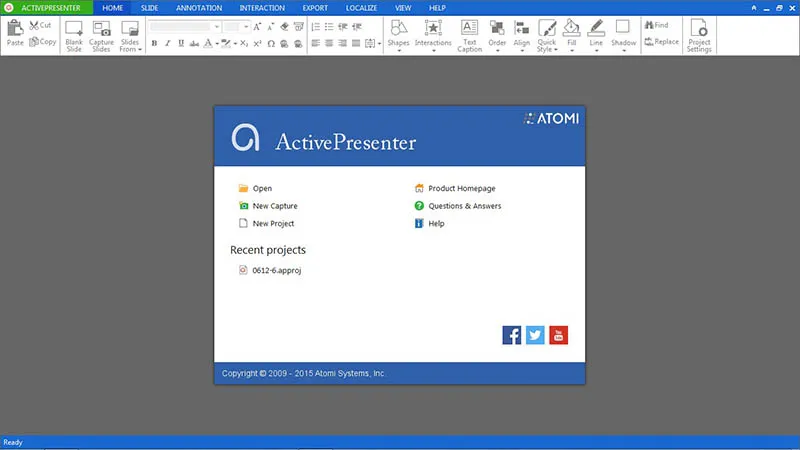 Another application that can help you in the screen recording process is Atomy Active. This application has a simple appearance but looks modern. Similar to other screen recorders, Atomi Active also has a paid version and a free version.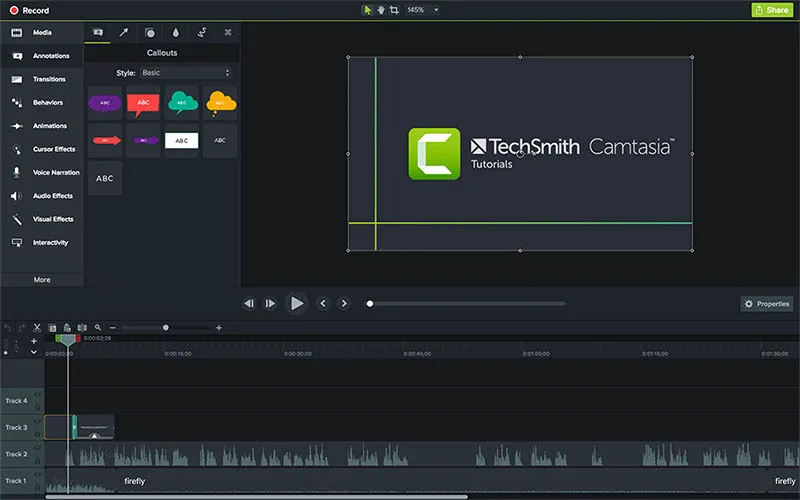
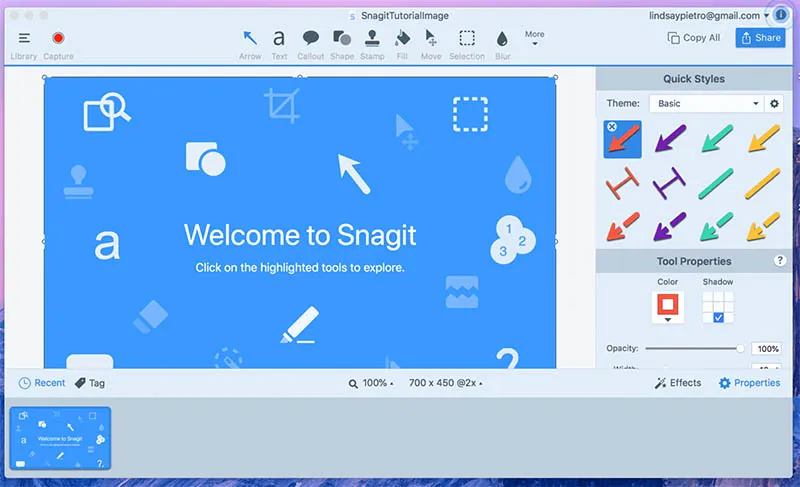 Snagit is a software developed by the same developer as Camtasia. This application is intended for those of you who want to make a video tutorial. With the features in Snagit, it will be easier for you to make explanations in video tutorials. One of them is the annotate feature that will help you with signs and writing that you can make.
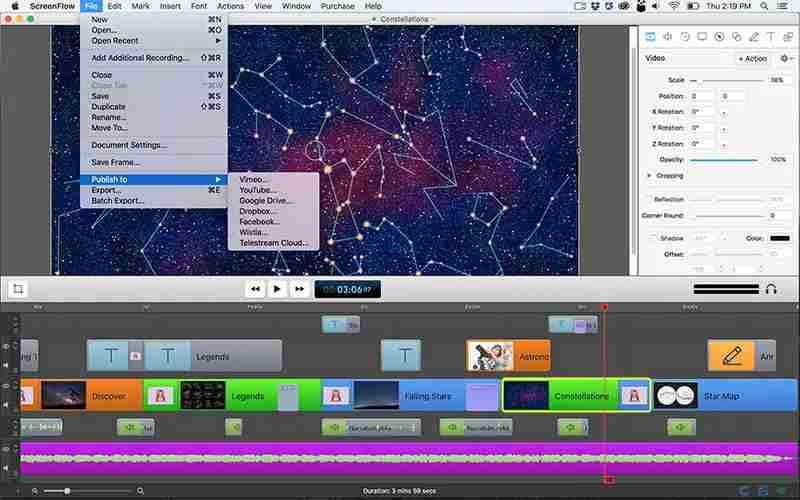 Next is ScreenFlow, an application that combines a screen recorder and an editor. This application is suitable for those of you who are an Educator, Online Trainers, Vlogger, and various other jobs. Following are some of the features available in ScreenFlow:
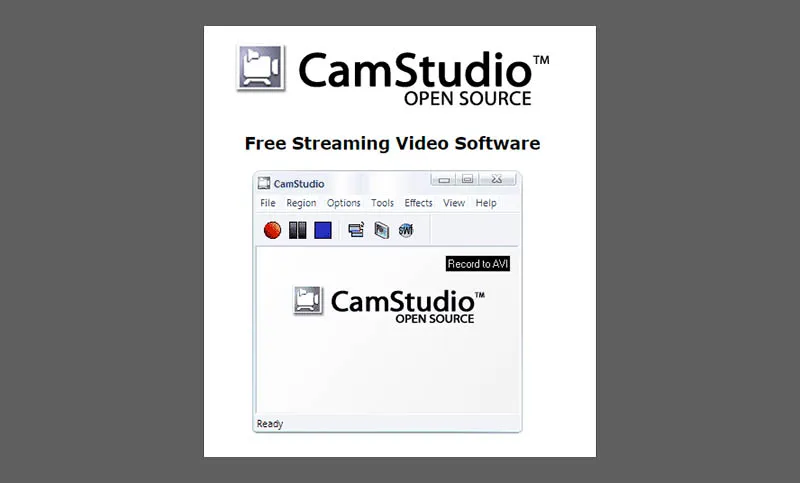 The last is software similar to OBS Studio. CamStudio is an open-source application that is quite popular. With this application, you will be able to add a caption at the top of the video. This application has a size that is not so large so it will not take up much storage space. This application also has a lightweight interface. And interestingly, you can connect CamStudio with WebCam.
![4 Best Ways To Enable Aero in Windows 7 [2025]](https://technadvice.com/wp-content/uploads/2021/12/4-Best-Ways-To-Enable-Aero-in-Windows-7.jpg "4 Best Ways To Enable Aero in Windows 7 [2025] 16")