Category: Windows

Windows – Here you can find Computer-related updates Windows 10, Windows 8, Windows 7, Linux, technology information, and more.

  • How To Create Hotspot on Windows 10 Laptop 2025

    How To Create Hotspot on Windows 10 Laptop 2025

    How To Create Hotspot on Windows 10 Laptop – Laptops using Windows 10 can be used as hotspots for other nearby devices such as cellphones or other computers. This is a handy way to share the internet between one laptop and another.
    How To Create Hotspot on Windows 10 PC Laptop
    How To Create Hotspot on Windows 10 PC Laptop

    How to create hotspot on Windows 10 Laptop

    Usually, a WiFi connection is obtained through a modem device, but if at that place there is only a connection via a LAN cable (not available WiFI) then a laptop connected to a LAN cable can be used as a hotspot. On this occasion, we will give a brief tutorial on how to make a laptop into a hotspot on Windows 10.

    Read more:

    #1 How to create hotspot on Windows 10 Laptop

    Step 1: Enter Windows 10 Settings

    First, you go to settings by clicking on the Start button > select Settings.

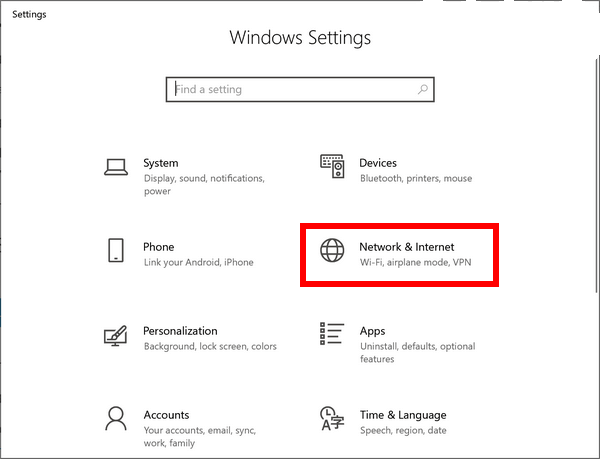
    Step 2: Select the Network & Internet menu

    After going to the main page of Windows 10 settings > find and click the menu named Network & Internet.
    How To Create Hotspot on Windows 10 PC Laptop

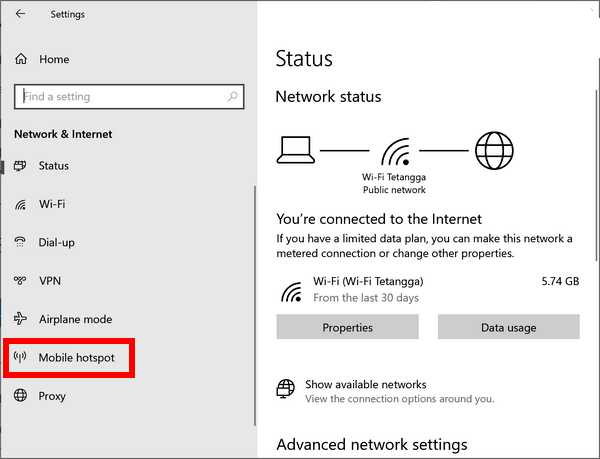
    Step 3: Enter Mobile hotspot settings

    On the Network settings page pay attention to the tab on the left > click on the Mobile hotspot menu.
    How To Create Hotspot on Windows 10 PC Laptop

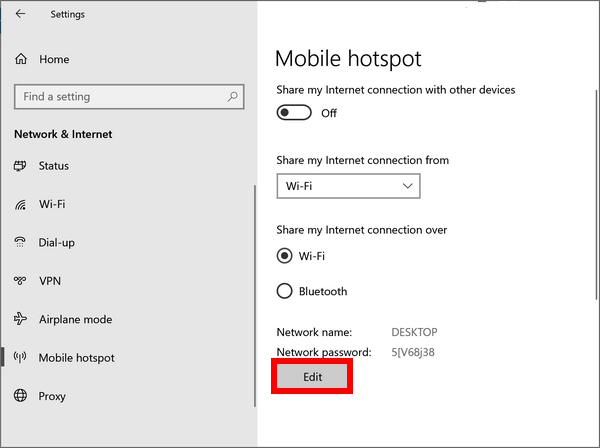
    Step 4: Edit WiFi hotspot name (SSID) and password

    On the next page, you can change the hotspot name and give a password. How to click on the Edit button.
    How To Create Hotspot on Windows 10 PC Laptop

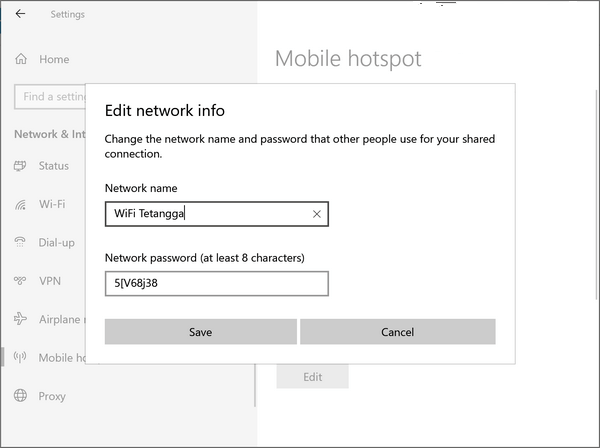
    In the Network name column,> fill in the hotspot name (SSID) as desired.

    In the Network password column,> fill in a password of at least 8 characters.

    In the Network band column > leave the default (Any available).
    How To Create Hotspot on Windows 10 PC Laptop

    Step 5: Click the Save button

    After filling in all the required information correctly then click the Save button to save the settings.

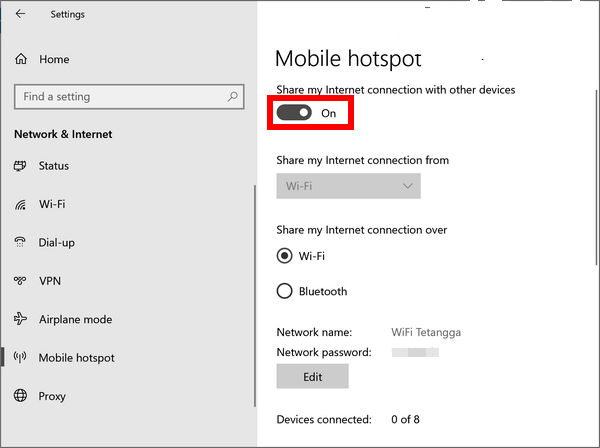
    Step 6: Enable hotspot

    Finally, activate the hotspot by clicking on the Share my internet connection with other devices option to ON.
    How To Create Hotspot on Windows 10 PC Laptop

    Done, now you have successfully created a hotspot from a Windows 10 laptop. Try checking the WiFi connection on another device, either a smartphone or a computer. If the hotspot connection is successful, the hotspot name will appear according to the given name. Connect the device to the hotspot and enter the password you created earlier.

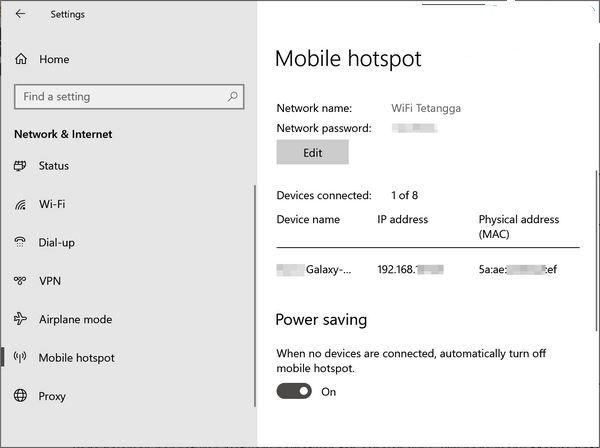
    On the hotspot settings page, the names of the devices connected to the laptop hotspot will also appear along with the device’s Mac address information. An example is in the image below:
    How To Create Hotspot on Windows 10 PC Laptop

    Notes: A hotspot on a laptop can only be used for a maximum of 8 devices.

    #2. How to create hotspot on Windows 10 laptop using CMD

    In addition to using the Network & Internet settings menu in Windows 10, you can also create a hotspot using the Command Prompt.

    Follow these steps:

    1. Open Command Prompt with administrator access

    Your first step is to open the CMD application with administrator access.

    You do this by pressing the Windows key + R to bring up the RUN window > type: cmd > press the CTRL + Shift + Enter key.

    Another way to open CMD with administrator access is to type cmd in the Windows search bar > a Command Prompt menu will appear > click on the Run as administrator option.

    2. Run the command netsh

    After the Command Prompt program opens, type the following command:

    netsh

    Press Enter.

    netsh is a console-based utility that functions to make network settings and create hotspots.

    3. Run the WLAN command

    Then at the Command Prompt type the command again:

    wlan

    Press Enter.

    Because we are going to create a hotspot, the command used is WLAN which is a type of wireless connection.

    4. Create a hotspot name

    The next step is to name the hotspot or SSID by typing the following command:

    set hostednetwork ssid=winpreso.com

    Press Enter.

    Replace winpreso.com with the name you want.

    5. Create a hotspot password

    To add security to your hotspot, add a password with the following command:

    set hostednetwork key=winpreso.com

    Press Enter.

    Replace winpreso.com with your password. It is recommended to create a password with a unique combination of letters, numbers, and characters to increase its security.

    6. Sharing hotspot so that it can be accessed by other devices

    The last step is to start sharing the hotspot from the laptop so that it can be accessed by other devices.

    To enable hotspot type the following command:

    start hostednetwork

    Press Enter.

    If you want to turn it off then use the following command:

    stop hostednetwork

    Press Enter.

    #3. How to Turn on the hotspot configured with CMD

    In the previous step, we created a hotspot with CMD and configured the SSID and password. If the laptop is restarted or turned off and then turned on again, the configuration is still stored and can be run immediately.

    You do this by opening a Command Prompt with administrator access and then typing the following command:

    netsh wlan start hostednetwork

    Press Enter.

    To stop using the command:

    netsh wlan stop hostednetwork

    Press Enter.

    4# How to create a hotspot on a Windows 10 laptop with applications

    As an alternative, you can also create a hotspot by using a third-party application. This can be an option for those of you who want more features offered by the application such as traffic monitoring features and connected devices.

    There are several free applications that you can use, including:

    Please try for yourself which application is the most suitable, but we recommend using the first and second methods without an application because it is easier and safer.

    Note: We mentioned that each one of the links is shared for educational purposes only. Downloading cracked apps is a likely violation of the terms and conditions of the app developers. So we aren’t liable for any damage dealt by your mistakes.

    Read more:

    Conclusion:

    So, friends, Those are the ways how to create a hotspot on Windows 10 laptops, that you can use for your laptop PC.
  • 11 Best Ways To Screenshot on Asus Laptop Windows 10 PC 2025

    11 Best Ways To Screenshot on Asus Laptop Windows 10 PC 2025

    11 Best Ways To Take Screenshot on Asus Laptop Windows 10 PC Laptop – Are you facing any issues while taking a screenshot on the Asus laptop? Then you are in the right place. in this post, I will share with you, how to take screenshots on an Asus laptop.
    11 Best Ways To Screenshot on Asus Laptop Windows 10
    11 Best Ways To Screenshot on Asus Laptop Windows 10

    How To Take Screenshot on Asus Laptop Windows 10 PC Laptop

    Yes, you are right, In this post, you will learn how to take screenshots on an Asus laptop with the operating system Windows 10 with various methods, like with the help of external software or by default screenshot methods available on various Operating Systems, So read the article fully and learn how to take screenshots on Asus Laptop.

    Read more:

    Following the steps below I have discussed how to take a screenshot on the Asus laptop.

    Taking screenshots on the Asus laptop is quite the same as other brand laptops, but there are slight differences depending on the brand of laptop that we use and also some differences in the various operating system.

    The latest Windows 10 provides to create screenshots with onboard tools. Although there are various additional tools available in the market, some of them are available free of cost, and some the premium tools.

    In the latest generation, ASUS Laptops that are running on Microsoft’s Windows 10 Operating System are easy to take screenshots, where you have to download and install certain Software or add-ons for taking screenshots on your ASUS Laptop.

    The latest generation of ASUS Laptops has quite a simple technique for taking screenshots.

    How To Take Screenshot on Asus Laptop Windows 10

    How To Take Screenshot on Asus Laptop Windows 10
    How To Take Screenshot on Asus Laptop Windows 10

    Some Latest ASUS Laptop Model series are listed below:

    • Asus ZenBook Series
    • VivoBook Series
    • StudioBook Series
    • Chromebook Series
    • Commercial Series
    • Gaming Series
    • FX / ZX Series
    • TUF Gaming Series

    #1. The Screenshot on Asus Laptop with Snipping Tool

    The Screenshot on Asus Laptop with Snipping Tool
    The Screenshot on Asus Laptop with Snipping Tool

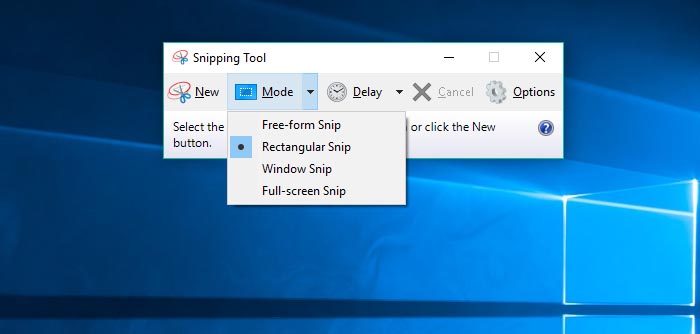
    A built-in Windows screenshot tool, Snipping Tool is present since Windows Vista. You can find this tool in Start> All Programs> Windows Accessories> Snipping Tool.

    To use the Snipping tool, open it and click New to start the screenshot process. The default snap type is a rectangular snip – you’ll use your mouse to cut off the rectangular portion of your screen to take. You can also take pictures of forms, windows, and full screen with the Snipping Tool.

    The snipping tool does not automatically save your screenshots, you need to save them manually in the tool before you exit. It automatically copies your screenshot to the clipboard.

    #2. Print Screen on Asus Laptop

    Print Screen on Asus Laptop
    Print Screen on Asus Laptop

    To capture your entire screen, tap the PrtScn keyboard button. Your screenshots will not be saved but will be copied to the clipboard, you have to open an image editing tool (such as Microsoft Paint), insert a screenshot in the editor, and save the file from there.

    #3. The Screenshot on Asus Laptop Windows Key + Print

    The Screenshot on Asus Laptop Windows Key + Print
    The Screenshot on Asus Laptop Windows Key + Print

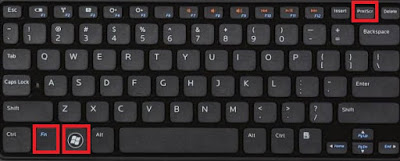
    To capture your entire screen and automatically save a screenshot, press the Windows Key + PrtScn key. Your screen will briefly dim to indicate that you’ve just taken a screenshot, and screenshots will be automatically saved in the Pictures> Screenshots folder.

    #4. The Screenshot on Asus Laptop with Windows + H Button

    The Screenshot on Asus Laptop with Windows + H Button
    The Screenshot on Asus Laptop with Windows + H Button

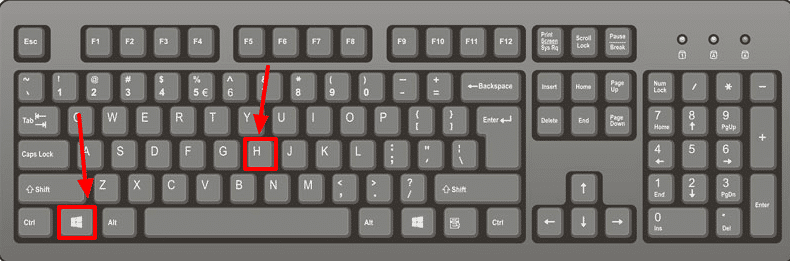
    If you want to capture the whole screen for sharing purposes, you can use Windows Key + H keyboard shortcuts.

    This will capture your entire Asus laptop screen and open the Windows Share toolbar so you can instantly share it with your friends via email, Facebook, Twitter, One Note, etc.

    #5. Alt + Print Screen

    Alt + Print Screen
    Alt + Print Screen

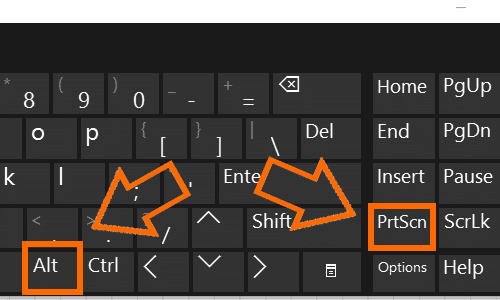
    To take a screenshot of the Asus laptop quickly from the active window, use the keyboard shortcut Alt + PrtScn. This will take your current Windows snapshot and copy the screenshot to the clipboard. You need to open a shot in the image editor to save it.

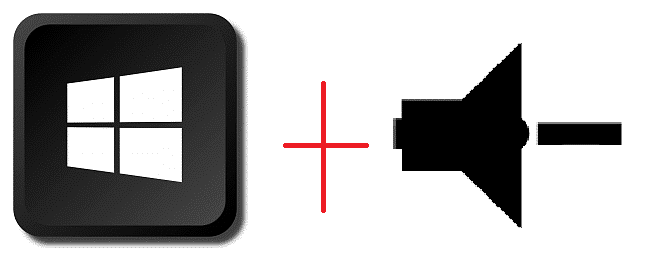
    #6. The Screenshot on Asus Laptop with Windows Logo Key + Volume Down

    The Screenshot on Asus Laptop with Windows Logo Key + Volume Down
    The Screenshot on Asus Laptop with Windows Logo Key + Volume Down

    If you shake the Windows Surface device, you can use physical buttons (well, sort of physical) to take screenshots of your entire screen – similar to how you would capture screenshots on a smartphone or Other tablets.

    To do this, hold down the Windows Logo touch button at the bottom of your Surface screen and press the physical volume-down button on the side of the tablet.

    The screen will be dimmed briefly and the screenshots will be saved automatically to the Pictures> Screenshots folder.

    #7. The Screenshot on an Asus laptop with Snip Editor

    The Screenshot on Asus laptop with Snip Editor
    The Screenshot on Asus laptop with Snip Editor

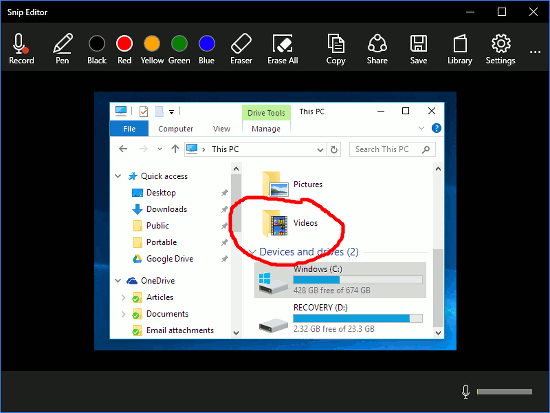
    Snip Editor, or Microsoft Snip, Is a Microsoft Garage project that works a bit better than the Cut tool (I think).

    Snip Editor allows you to quickly take screenshots of the entire screen, active window, or rectangle cropped manually – and you can set the PrtScn key as a shortcut to the Snip Editor screenshot tool.

    The app also features various ways to annotate screenshots, including free pen options (suitable for Windows Ink fans) and sound recordings.

    Like the Snipping Tool, Snip Editor lets you snooze screenshots for up to 5 seconds, so you can snapshot of the lost menu and tooltips.

    Snip Editor allows you to quickly take screenshots of the entire screen, active window, or rectangle cropped manually – and you can set the PrtScn key as a shortcut to the Snip Editor screenshot tool.

    Including free pen options (suitable for Windows Ink fans) and sound recordings. Like the Snipping Tool, Snip Editor lets you snooze screenshots for up to 5 seconds, so you can snapshots of lost menus and tooltips.

    #8. Lightshot

    Lightshot
    Lightshot

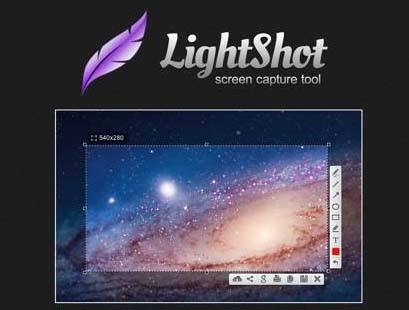
    This application offers a screenshot method that can be done easily, but before making sure you have installed this application and the Lighshot icon will appear in the Windows taskbar.

    For the next step, you need to select the screen display or image you want to screenshot, then click the Lightshot icon on the Taskbar menu. Then you select the area to be captured and use your laptop mouse.

    After you select the image and save it by clicking on the diskette icon or logo, save it according to the format provided namely PNG, JPEG, and BMP.

    For additional features there are share, print, copy, add text, give a marker, and others. In terms of small size, it is only 4MB and supports Windows XP, Windows 7, Windows 8, and Macintosh.

    #9. Jing

    Jing
    Jing

    Jing Applications that have the features and tools offered are not much different from other screenshot applications.

    Plus it can record the screen display in 5 minutes duration. It’s easy, just select the Capture Video menu in the Menu option. However, for saved image formats PNG is only available.

    #10. Schirmfoto

    Schirmfoto
    Schirmfoto

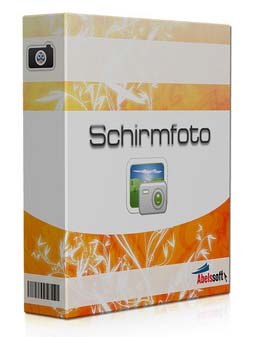
    The advantages of the application are that can store screenshots in high resolution, and the choice of format also varies such as JPG, PNG, and PDF.

    The good, the screenshot application on this laptop can record video displays on the screen. Other features you can edit by cropping, printing, and adding watermarks, markers, and more.

    The matter of its very small size, which is only about 5MB, and supports Windows XP, Windows 7, Windows 8, and Windows 10.

    To use this application, you can simply click the camera icon and the image will be saved automatically. Schirmfoto can also allow you to capture the desired image.

    Read more:

    Conclusion:

    So, friends, these above are some ways how to screenshot on an Asus laptop windows 10, I hope this guide will help you to take a screenshot on the Asus Laptop. If you have any queries related to this article you can comment below we will definitely get back to you.

  • 3 Ways To View and Check Computer IP Address 2025

    3 Ways To View and Check Computer IP Address 2025

    3 Ways to View and Check Computer IP Address—Are you looking for how to view and check laptop IP address? Maybe many of you don’t know how to check or what exactly an IP address does.

    3 Ways To View And Check Computer IP Address

    How To View and Check Computer IP Address

    When our laptop device is connected to the network, at that time our laptop has an IP (Internet Protocol) address.

    Read more:

    Every laptop device has a different IP. Not everyone knows how to check their laptop IP.

    One day, the office may experience limited bandwidth problems, so for internet network termination, an IP address will usually be asked.

    What is an IP Address?

    IP is a series of numbers or numbers made to identify a laptop, computer, or another device on an internal network or the internet based on TCP / IP.

    For those with an IT background, it is quite easy to find the IP address of their laptop. Then what if you don’t have an IT background? Check out this way.

    How to See your own laptop or PC IP Address

    #1. Viewing Laptop IP Through Network Connection

    For those of you who want to see the IP address of the laptop, one way is through a network connection. What are the steps to check it?

    Follow these guidelines:

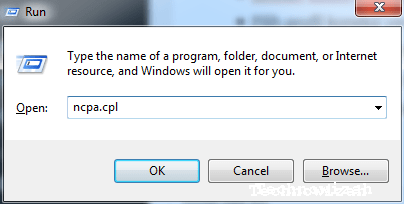
    • Enter the start menu column then look for ‘ RUN ‘ or by pressing the window button + R
    • Once the search field opens, type ‘ ncpa.cpl ‘ then hit enter.

    3 Ways To View And Check Computer IP Address

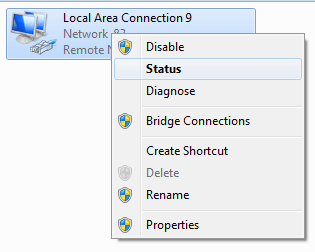
    • Select the currently active connection profile, marked by a green signal icon or an active local area
    • Right-click the icon, then select ‘status’

    3 Ways To View And Check Computer IP Address

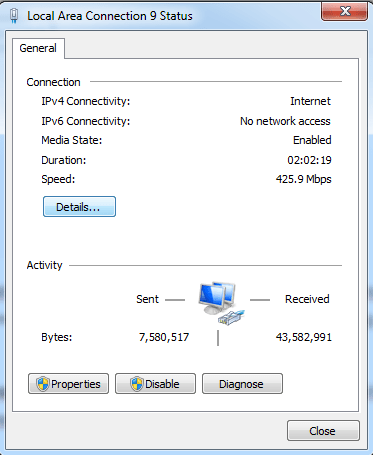
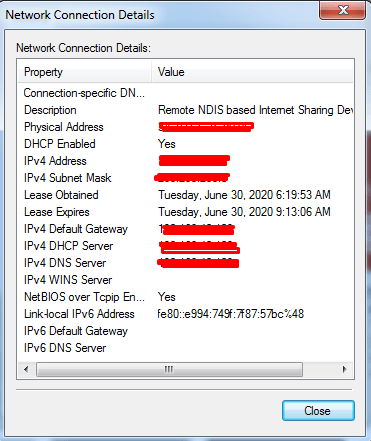
    • Click details and you can see the IP address of your laptop in detail on the screen that appears.

    3 Ways To View And Check Computer IP Address

    • Apart from the IP address, you can also see the DNS, subnet mask, default gateway, and others.

    3 Ways To View And Check Computer IP Address

    Well, it’s quite easy and simple, isn’t it a way to see laptop IP for your own device? This address is used to disconnect the network.

    #2. Check Laptop IP Through CMD

    The next way to see your laptop’s IP address is to use the command prompt. How do I view it?

    Follow these steps:

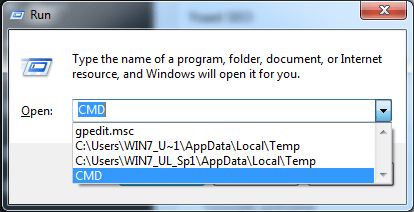
    • Enter the start menu column then look for ‘RUN’ or by pressing Windows + R.
    • After the dialog box appears, enter the words ‘cmd’ in the search field, then continue by pressing enter.

    Check Laptop IP Through CMD

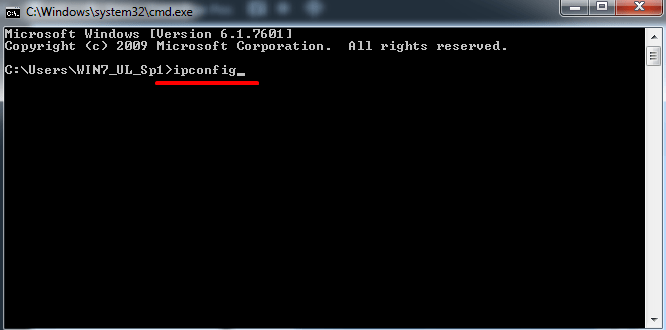
    • Then a window from the command prompt will open, then type ipconfig to bring up a list of connections on your laptop, and then press enter.

    Check Laptop IP Through CMD

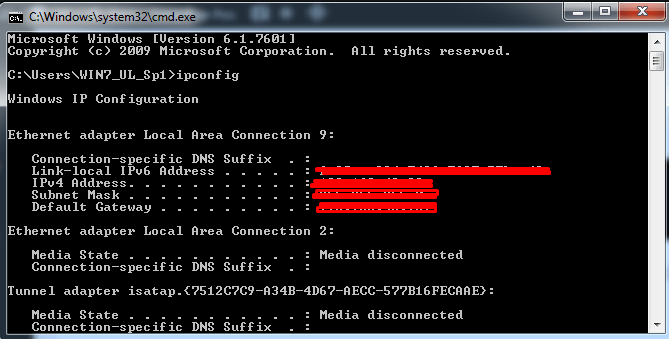
    • Then the command prompt will display a list of connections from your laptop complete with the IP address subnet mask and default gateway.

    Check Laptop IP Through CMD

    #3. Check IP Address Through Network & Internet Settings

    In addition to the two methods described above, how to find out the IP address of a laptop can also be done by looking at the network & internet settings.

    How to? Follow these steps:

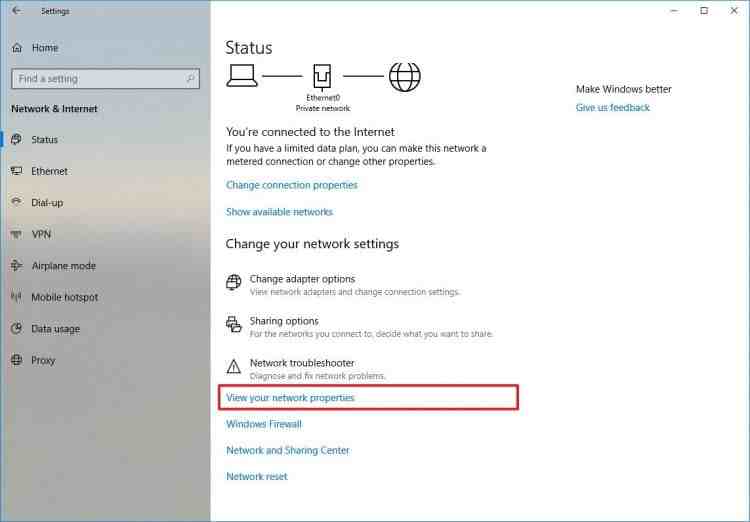
    • First of all, find the network & internet settings icon on your laptop.

    The trick is to open the control panel and then find the internet network icon. Select the icon and click.

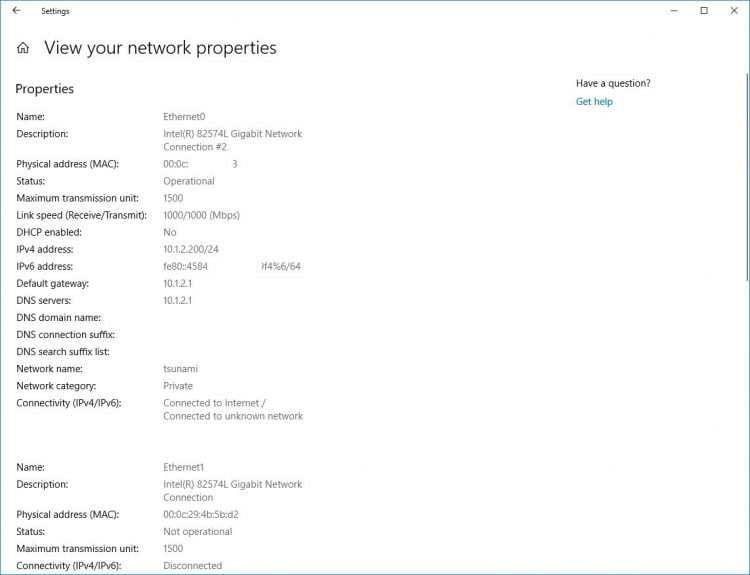
    • In the next step, please select ‘ View your network properties ‘

    Check IP Address Through Network & Internet Settings

    • Then select the connection that is being used

    Check IP Address Through Network & Internet Settings

    • Here you can get IP address information which is the IP address of your laptop.

    What is the Function of an IP Address?

    What is the Function of an IP Address

    What is the function of the IP address on a device such as a laptop?

    Here are some of the benefits you need to know about this IP address:

    #1. Becoming the Identity of a Device Accessing the Network

    As the example above has explained, this IP address functions as the identifier of the device you use to access the network.

    So, when you are going to disconnect the network from your device, you must first know the IP address of the laptop or other device you are using.

    #2. Seeing the Network Scale Used

    An IP address can also be used to see the network scale you are using. For example from the IP address 192.168.1.100.

    This figure shows that the network scale used by the related device is relatively small, only capable of a maximum of 254 hosts.

    The IP address itself is divided into 5 classes from A, B, C, and D to E. Class E and D are not used.

    #3. Can Track The Existence Of A Device That Is Accessing The Network

    For example, you can test it by knowing the IP address of your own laptop. How do you see it if your current location is in Indonesia?

    The easy way is to try entering the keyword “where is my ip” in the Google search engine. For example, you access the internet using public wifi.

    Next, the IP address of your laptop will appear, and then copy the IP address. Open the iplocation.net website then paste the IP address of your laptop on that site.

    Furthermore, you can view detailed information about the current location of your laptop. Starting from the country, and province to the city of origin of the equipment.

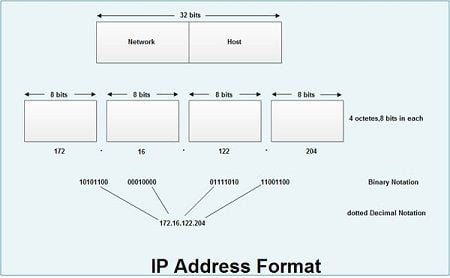
    In general, the IP address itself consists of two types, namely the IP address version 6 (IPv6) and the IP address version 4 (IPv4). Both have the same function, it’s just different shapes.

    How Important is the Existence of an IP Address on a Laptop?

    How Important is the Existence of an IP Address on a Laptop

    Based on this function, you can see how important the existence of the laptop’s IP address is, right?

    Identification of someone’s search can even be done by knowing the IP address of the device that is owned. Not only on laptops but also on PCs which are very likely to be recognized.

    Read more:

    Conclusion:

    Now, knowing the function of this IP makes you need to be careful about maintaining your internet connection when using public wifi.

    Are you currently able to recognize the IP address of your laptop yourself?

    Check and make sure first, who knows in the future this address will be asked by someone else to detect the device you have.

  • 6 Ways to fix the error “This copy of Windows is not Genuine” 2025

    6 Ways to fix the error “This copy of Windows is not Genuine” 2025

    6 Ways to Fix the Error “This copy of Windows is Not Genuine” – This copy of Windows is not Genuine is one of the most common errors found in the Windows operating system. As a result of this error, the desktop wallpaper that you set will be changed to a black screen. The battery life will decrease because this message will continue to appear on the laptop and many other problems.

    6 Ways to fix error This copy of Windows is not Genuine
    6 Ways to fix error This copy of Windows is not Genuine

    How To Overcoming Error This copy of Windows is not Genuine

    Some features of Windows 10 will no longer function unless you delete this message.

    This warning can be very annoying, especially when working with important things and this warning appears periodically.

    Read more:

    However, you can still do other things on your PC, such as completing your work and using a computer like before.

    The main reason for your computer to display this error is that you do not activate your Windows license after the trial period has run out.

    You can also receive this error because the license of the Windows operating system that you are using has expired, been blocked, or is unofficial.

    Also, if you share Windows licenses with others, such as friends or other family members, Microsoft can also block your licenses.

    This is because one license is used in many computers, or you too often activate the same license.

    If you see this error on your Windows computer, this talk post will give you a way to fix it.

    “Windows is not genuine”: Here’s how to delete this warning 2023

    #1: Use the RSOP command

    You can try to solve the errors generated on your Windows screen through the RSOP method.

    RSOP stands for Resultant Set of Policy Window, by following the steps below:

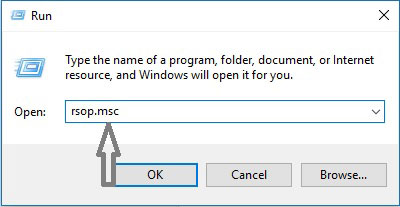
    1. Press the Windows key and R from the keyboard to open the Run window

    2. Type rsop.msc and press the Enter key

    “Windows is not genuine” Here’s how to delete this warning

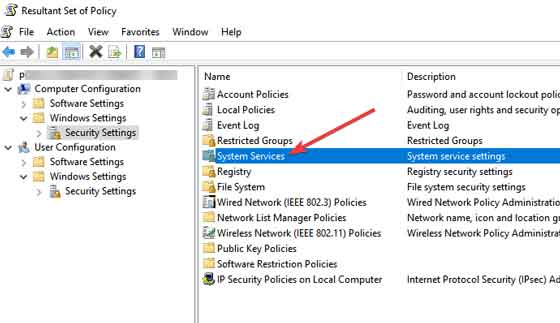
    3. Navigate to Windows settings, click on the Security system, and then go to System services

    “Windows is not genuine” Here’s how to delete this warning

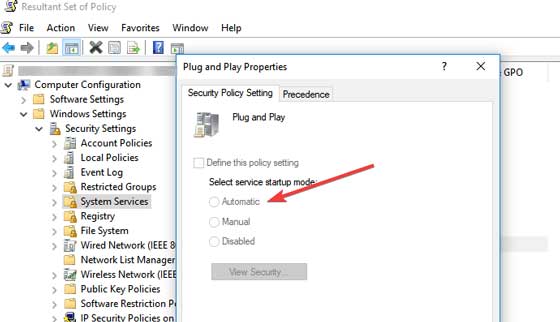
    4. Look for Plug and play services, then right-click on it and then start looking for Startup and then click Automatic

    “Windows is not genuine” Here’s how to delete this warning

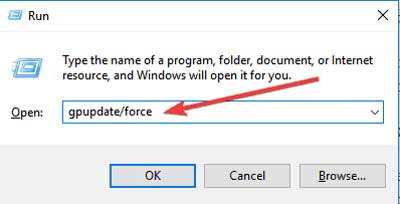
    5. Press the Windows and R keys as in the first step, then type or copy and paste this command: gpupdate/force into the Run box

    “Windows is not genuine” Here’s how to delete this warning

    6. Restart Your Computer

    #2: Use the SLMGR-REARM command

    By using Command Prompt and this simple command, you can fix this problem in 32-bit and 64-bit Windows, and on all versions of the Windows operating system:

    Read more: The Best Antivirus Software to Protect Windows 10 PCs

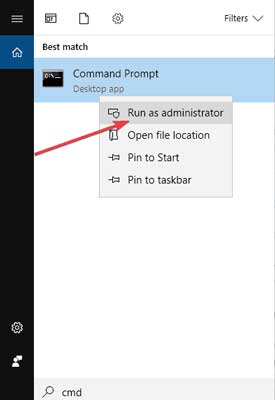
    1. Run the Command Prompt as administrator by clicking Start, typing cmd in the search box, and then right-clicking on the Command prompt and selecting Run as administrator

    How to fix the error 'This copy of Windows is not Genuine'

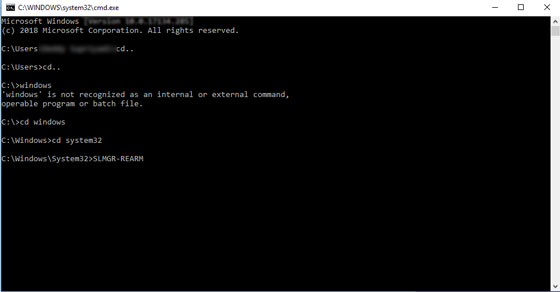
    2. Type SLMGR-REARM or SLMGR / REARM

    How to fix the error 'This copy of Windows is not Genuine'

    3. You will see a confirmation window, click OK and restart your computer

    NoteSLMGR is a Windows software license management tool. The REARMcommand will reset the machine license status.

    #3: Check whether your license is truly legal and official

    If you feel you have purchased a genuine license, and it turns out that the license is fake, then you can report this problem to Microsoft, report the fake software you have got, and see what will happen.

    Read more: How To Install Qualcomm Drivers on Windows 7/8/10

    You also have to contact your vendor because Microsoft support in many cases will only help you resolve problems when you buy a Windows OS from a Microsoft store.

    #4: Run the Microsoft Genuine Advance Diagnostic Tool

    The Microsoft Genuine Advantage help tool provides detailed information about the Microsoft Genuine Advantage components and settings that are currently on your system.

    You can diagnose and automatically solve the problem ” Windows is not genuine “.

    Run this tool, copy the findings to your clipboard, and then send a genuine Windows technical support request to Microsoft.

    Download this tool, run MGADiag.exe, and click Continue for the results of the inspection.

    There will be some useful information such as Validation Status that might tell you whether the product key is valid or not.

    Or is the product key blacklisted in Microsoft?

    You might also be notified if the LegitCheckControl.dll file has been corrupted in this case there may be some form of error when your Windows installation has been detected. If there is a problem that this tool can fix, click the Resolve button.

    #5: Remove Update KB971033 if you use Windows7

    Update KB971033 can be a source of trouble if you are using Windows 7.

    If you get the message ” Windows is not genuine ” – “This copy of Windows is not genuine “, then this means that Windows has an updated file that can detect your Windows operating system.

    Therefore, you need to delete the KB971033 update to resolve this problem.

    1. Open the Control Panel
    2. Go to the Windows update section
    3. Click View installed updates
    4. After all update installations are loaded, look for the KB971033 update and uninstall it
    5. Restart your computer

    #6: Turn off Automatic Update

    To ensure that the message ” Windows is not genuine ” does not return, make sure you turn off Windows Automatic Updates.

    To turn off Windows Automatic Update, you must:

    • Open the Control panel from the Start button
    • Go to the Windows update option
    • Click the Install Updates Automatically option and select Never check for updates (Not Recommended)
    • Click Apply to change the settings and restart your computer

    Note: Your computer will never get this error warning again. However, you cannot update your Windows to the latest version to fix bugs or get new features.

    Read more:

    Conclusion:

    This is the explanation of 6 ways to fix the error “this copy of Windows is not genuine”, Overall, I hope the method described above can help you correct an error message stating that your copy of Windows is not genuine.

    Indeed there are many other methods that you can apply, but all are not easy to follow. Also, to avoid such problems, you should not support and install a pirated version of Windows OS, and you should purchase an Official License from Microsoft.

  • 15 Best Free Audio Editors Software for Windows and Mac 2025

    15 Best Free Audio Editors Software for Windows and Mac 2025

    15 Best Free Audio Editors Software for Windows and Mac – The editor software is not only in the form of videos and photos but can also be in the form of music. Audio Editor, is the name for software that can edit audio. You can use this audio editor to modify music or other types of audio according to your wishes and creativity.

    15 Best Free Audio Editors Software for Windows and Mac
    15 Best Free Audio Editors Software for Windows and Mac

    15 Best Free Audio Editors Software for Windows and Mac (Totally Free)

    Music will not escape the editing process. In the editing process itself, Audio editor software is needed. The better the audio editor used, the more likely the resulting audio will be better. Currently, there are many audio editor software available out there. Starting from light, simple, heavy, powerful, easy to use, and difficult to use. All of them have their own advantages and disadvantages.

    Read more:

    Of the many audio editing software, the author has summarized several software that the author can recommend for you to try.

    If you have a hobby related to music and need Audio editor software. You can try one of the following software recommendations…

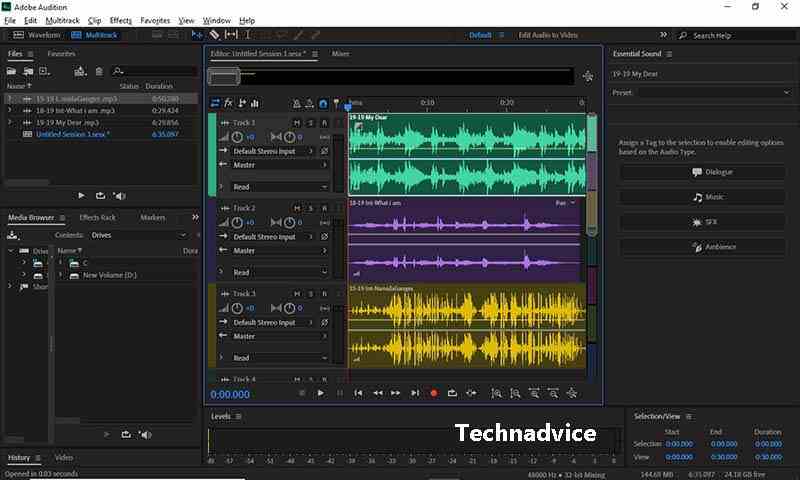
    #1. Adobe Audition

    Adobe Audition
    Adobe Audition

    Just by looking at the name, you may already be sure of this one software. Yes, Adobe has always succeeded in making its users feel satisfied when using their software. This is the result of a long experience in developing software.

    However, all quality must have a fair price. Adobe Audition is not software that you can use freely, you are required to pay in advance to be able to use Adobe Audition to its full potential. But before buying this software, you can use the trial first.

    Adobe Audition itself is a software developed by Adobe to assist professionals in modifying music. Adobe Audition itself is equipped with various interesting features such as Multi-track editing, and MixingAdobe Audition is also equipped with AI that will help you during the modification process.

    Windows ] [ macOS ] [ Linux ]

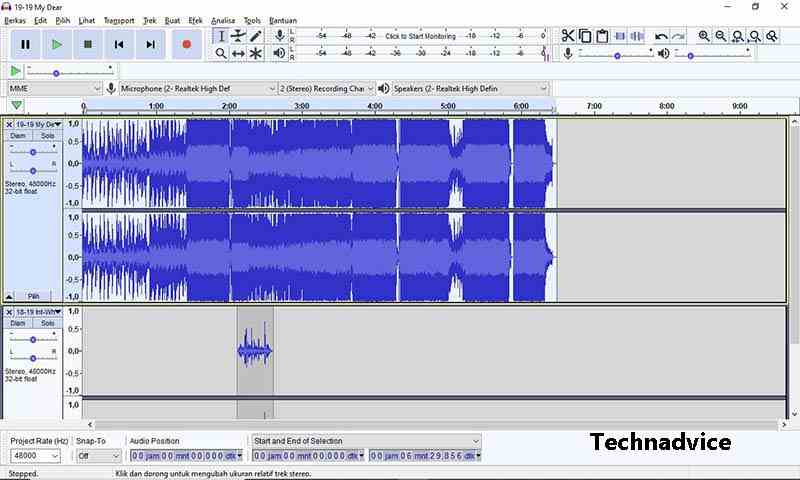
    #2. Audacity

    Audacity
    Audacity

    This next software is arguably the strongest competitor to Adobe Audition. In fact, it could be that this software is more widely used than Adobe AuditionAudacity is a free audio editor software that is free to use by anyone, quite a lot of professionals use itThis software is also very easy to use, even for beginners.

    One of the factors that make Audacity easy to use is its simple interface and strong intuitive feel. One of the advantages that Audacity has that Adobe Audition does not have is that it supports more devices. Not only that but this Audacity can also be added with various interesting plugins and effects. Apart from that, Audacity has more or less the same functionality as other Audio Editors.

    Windows ] [ MacOS ] [ Linux ]

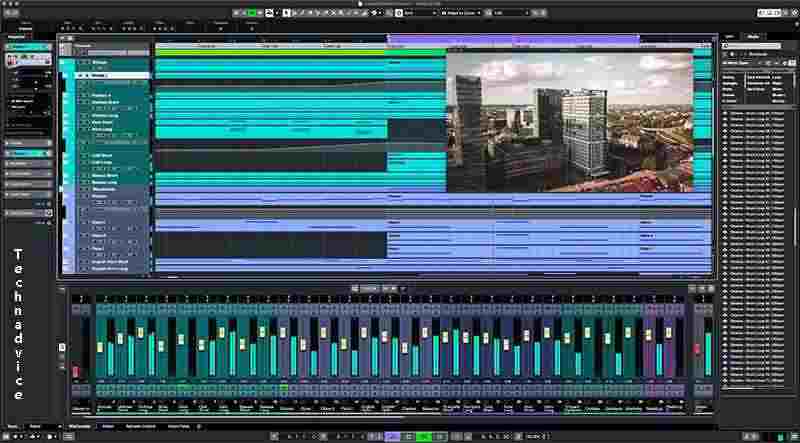
    #3. Cubase

    Cubase
    Cubase

    The next software is the software offered by SteinbergCubase. This software is another audio editing software that the author recommends for you to try. Cubase is not offered for free, but you can use the trial version to try it out.

    By using Cubase you can modify your audio to be even more interesting. You can add various filters and effects that can be separated from the audio track with the Audio-Ins featureNot only that, but in Cubase, you can also use the equalizer to adjust the frequency of your music to make it much smoother.

    Windows ] [ MacOS ] [ Linux ]

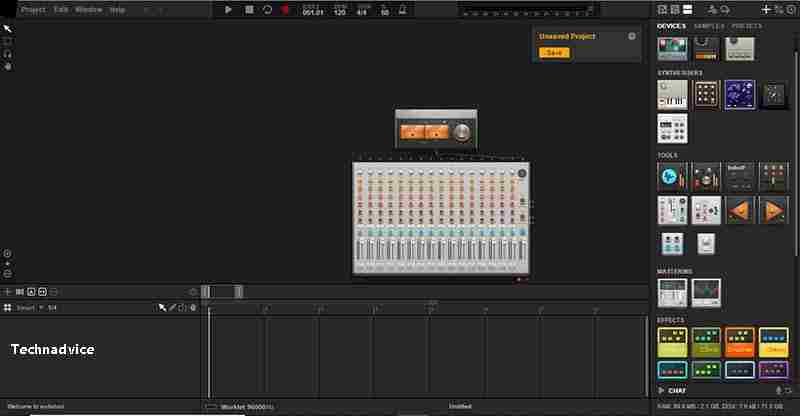
    #4. Audio Tool

    Audio Tool
    Audio Tool

    Slightly different from the previous one, the software that is in fourth place is software that you can access freely on the site. Audio Tool, is an audio editor web app software that the author recommends for you to try.

    In Audio Tool, you can modify your music to be even better. You can also use the various features that are freely available. One feature that is quite special is the feature where you can collaborate with other music editors who also use the Audio Tool. The disadvantage of this Audio Tool lies in its appearance which is less intuitive, so for those of you who are still beginners, this software is quite difficult to use.

    WebApps ]

    #5. Wavepad

    Wavepad
    Wavepad

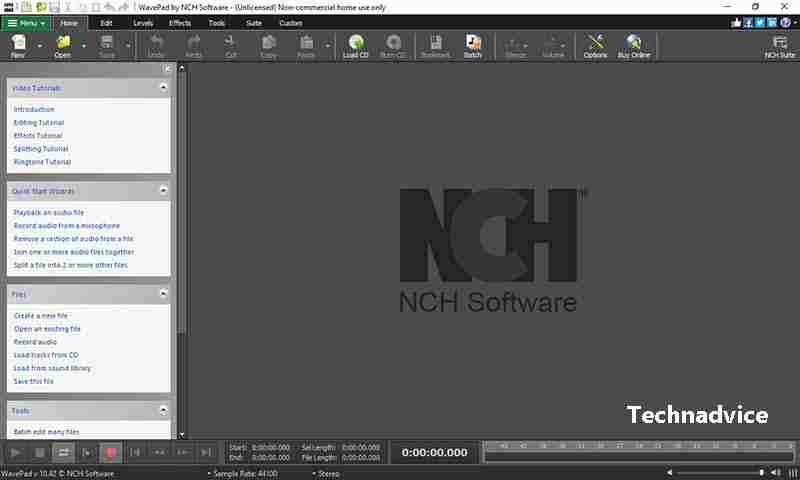
    The next software comes from developers who are famous for their various editing software. Wavepad is a software developed by NCH ​​Software with the aim of helping you modify music.

    By using Wavepad you can edit your own music at home, and you will also get access to the use of various filters and effectsWavepad is also rich in interesting tools, some of which are batch processing, scrub & search audioWavepad also supports various types of audio formats, such as ( .MP3 ), (.WAV), (.AAC), and several other audio formats.

    Windows ] [ macOS ] [ Linux ]

    #6. Reaper

    Reaper
    Reaper

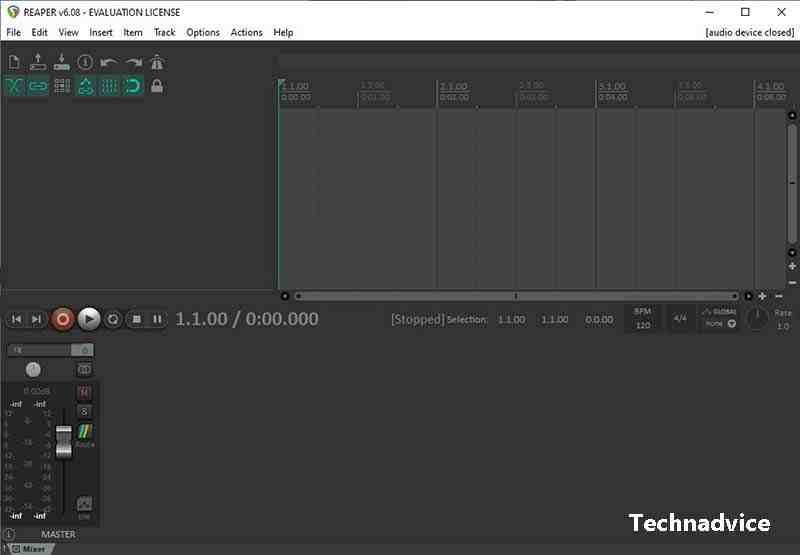
    Still with the recommendation of audio editing software, in the sixth place, there is a software called ReaperReaper is another audio editor software that I highly recommend you try. In Reaper, you will get many interesting features that will be very useful for you. One of its capabilities that are quite eye-catching is the ability to record live audio in mono, stereo, or multi-channel audio modeHowever, Reaper is a software that is intended for veterans, so beginners will find it difficult to use it.

    Windows ] [ macOS ] [ Linux ]

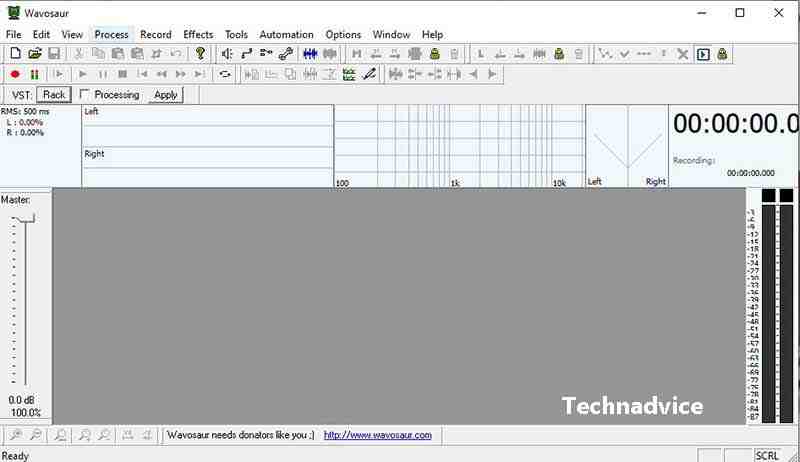
    #7. Wavosaur

    Wavosaur
    Wavosaur

    The next software is Wavosaur. This software is another audio editor software that I recommend enough for you to try. As with other Audio Editor software, here you will also find professional features that will help you modify music. Such as cutting, adding tracks, merging multiple audios into one, and other uses. Wavosaur has a simple interface, so you don’t have to worry about not being able to use it.

    Windows ] [MacOS] [Linux]

    #8. Ardor

    Ardor
    Ardor

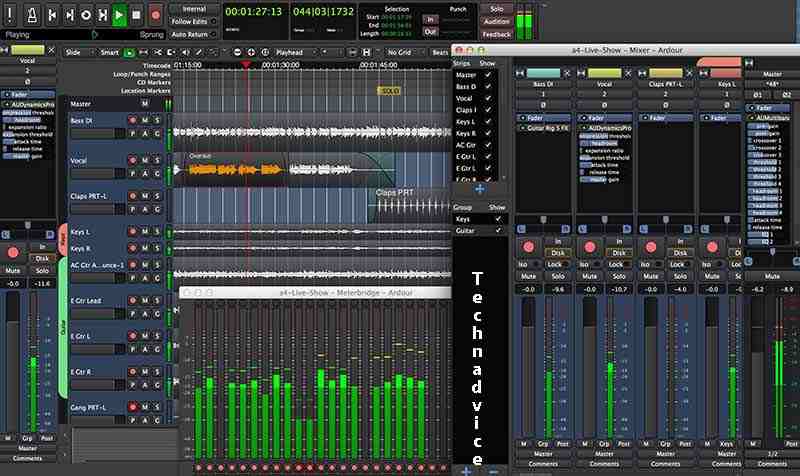
    Ardor is a music editor software with great capabilities, it can also be used on any computer OS. Starting from Windows, macOS, and even Linux though. By using this Ardor, you can modify your music with the various features it provides. Not only cutting and adding tracks, but in Ardor, you can also make your own recordings, you can use a microphone or MIDIArdor also provides unlimited undo and redo, so you don’t have to worry about making some mistakes.

    Windows ] [ macOS ] [ Linux ]

    #9. Qtractor

    Qtractor
    Qtractor

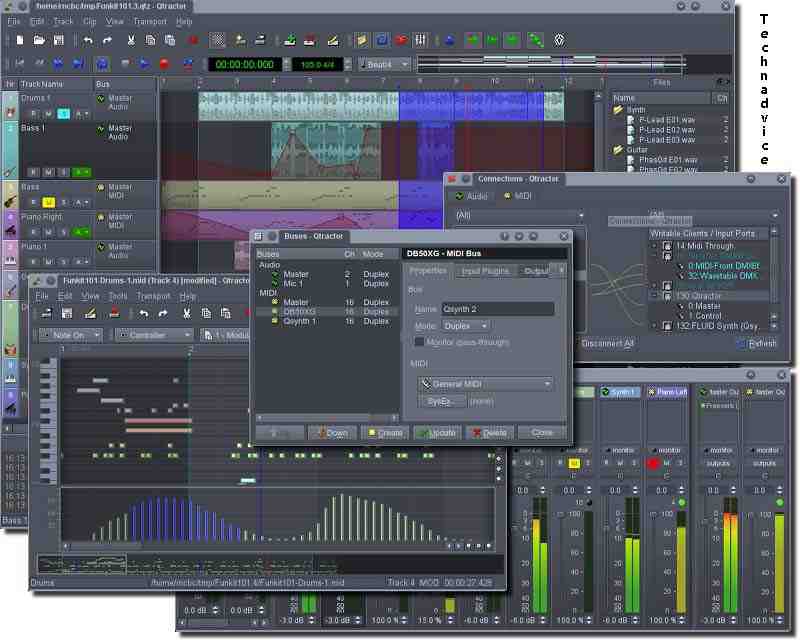
    Still like the previous software, Qtractor is an audio editor software that can also be used as a music recording at the same time. This can be done thanks to the support of the use of the MIDI Controller. Not only that, but Qtractor also provides various cool features, such as Multi-Track Audio MIDI recording, and MIDI Sequencing. This software is indeed very good for you to use, especially for those of you who want to produce your own music.

    Windows ] [MacOS] [Linux]

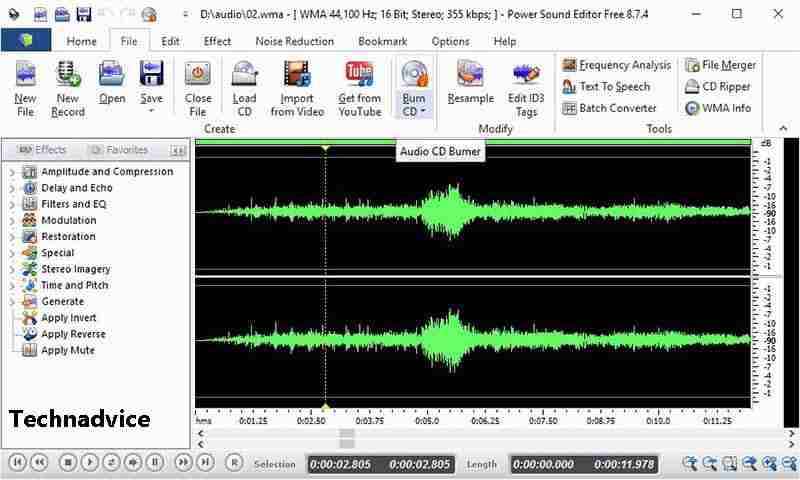
    #10. Power Sound Editor Free

    Power Sound Editor Free
    Power Sound Editor Free

    Decent audio software editorssoftware latter is also a software that is good and I recommend you try. As the name suggests, Power Sound Editor Free is available for free and can be used freely by anyone. Many say this software is similar to Audacity which is in second place. By using this Power Sound Editor Free you can produce your own music. Starting from recording, editing can be done here.

    Windows ] [MacOS] [Linux]

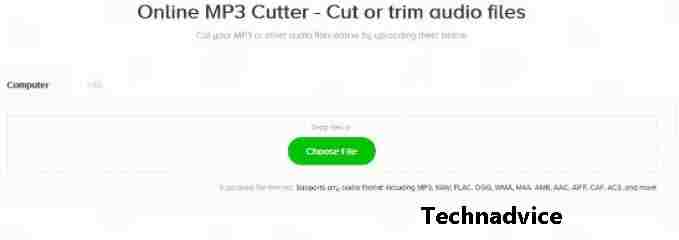
    #11. MP3 Cutter 

    MP3 Cutter 
    MP3 Cutter

    Another audio editing application is MP3 Cutter. This application can be used to cut songs, cut sounds, and cut MP3 format music. Not only supports MP3 format, but this application also supports other audio formats and can convert from one audio format to another audio format.

    In addition, you can reduce the size of the audio file that is too large. For example, size of a song with a duration of 5 minutes has a size of 30 MB and can be reduced to the standard size or under 10 MB. Oh well, the advantage of MP3 Cutter is that this application is online, so you don’t need to install it first. Just try it by visiting the official website.

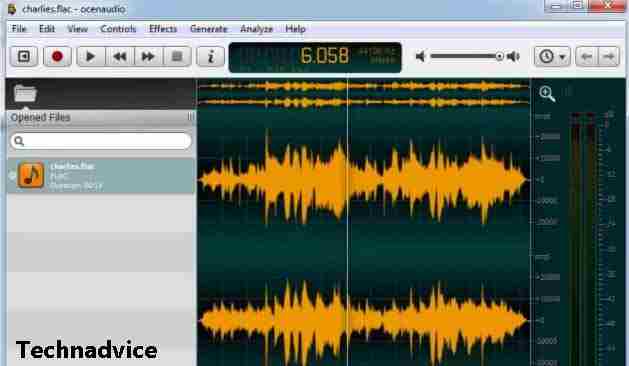
    #12. OcenAudio 

    OcenAudio 
    OcenAudio

    Another audio editing application is OcenAudio. This application comes with a simple interface that makes it easier for you as a user to use the application. Moreover, this application is available on various operating systems.

    Some of the interesting features offered by this application include support for editing large audio files, spectrogram features, and support for VTS plugins, namely plugins so you can access various effects. Apart from that, the app supports features for complex audio editing. Interested? Please visit the official OcenAudio website to download it.

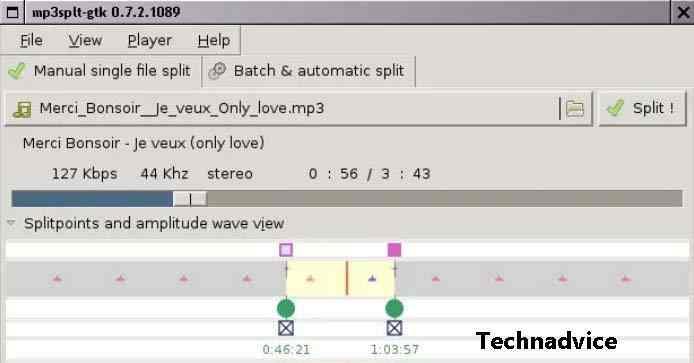
    #13. MP3 SPLT  

    MP3 SPLT  
    MP3 SPLT

    Another audio editing application that you can try is MP3 SPLT. This application is an easy-to-use application. In addition, the interface of this application is also simple so it makes this application easy to use even by users.

    This application itself supports various audio formats such as Ogg, FLAC, and others. In addition, this application is open source and supports various computers such as Windows and macOS. There are also many Linux distributions that can run this application. You can download the MP3 SPLT here if you are interested in using it.

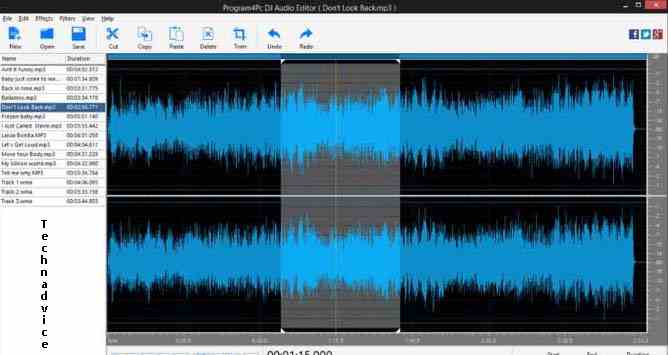
    #14. DJ Audio Editor

    DJ Audio Editor
    DJ Audio Editor

    For those who want to learn to be a DJ, we can use this application. Using the DJ audio editor, we can process audio as easily as a professional DJ.

    By using this application, we can cut songs, merge music, delete certain parts, record, and so on.

    The various filters and effects available also support various media files.

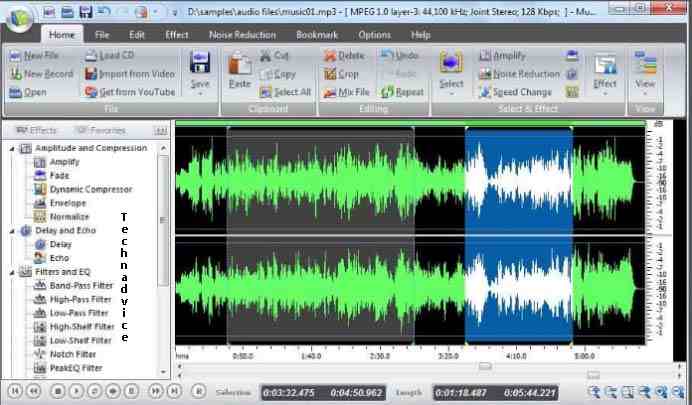
    #15. Music Editor Free

    Music Editor Free
    Music Editor Free

    This app has become very popular. Applications that seem simple and easy to understand allow beginners to choose this application.

    By using this PC song editing application, we can edit music easily. In addition, there are various interesting functions, such as adding effects, amplification, normalization, reverb, echo, and so on.

    Read more:

    Conclusion:

    In fact, there are many other PC audio editing apps that you can choose from. Some are free, some are available. However, no matter what audio editing app you choose, you should only use it when you need it.

    If you need complete and qualified features, of course, there is no harm in using a paid PC audio editing application.