How To Fix IDM Fake Serial Number Error – In this article, We will guide you to repair IDM that has been registered with a fake serial number or fake serial number. Internet Download Manager (IDM) is the most popular download manager for Windows.
Best Tricks To Fix IDM Fake Serial Number Error
How To Fix IDM Fake Serial Number Error (4 Easy and Effective Ways)
The only difference between IDM and other popular download managers is that IDM is paid software which means you have to buy it to use it.
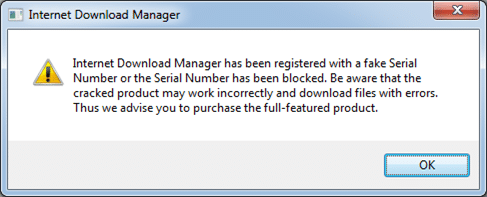
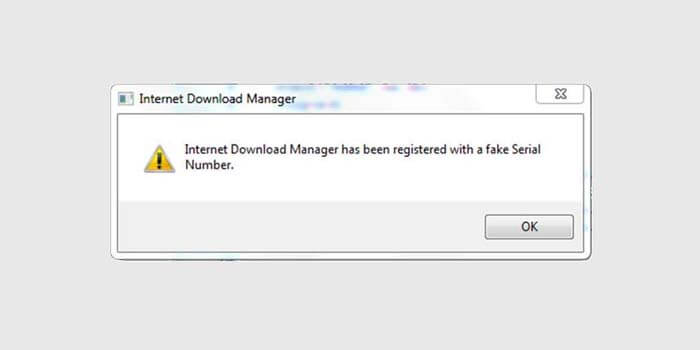
If you have purchased IDM, you can cause several problems such as “IDM has been registered with a fake serial number or the serial number has been blocked”.
Or you may have used a trial version of IDM crack before but you have already bought a new IDM but still, you get the same error message when you try to register with your official serial number.
IDM Fake serial number
Here are some solutions that you can try before contacting the IDM support team.
By the way, this IDM support page lists some problems and possible solutions, but this is not enough to get you out of this situation. You can also try our solutions first.
#1. Tweaking IDM files
We need to change some IDM program files to stop them from displaying fake serial number error messages.
Let’s go through the following steps:
Tweaking IDM files
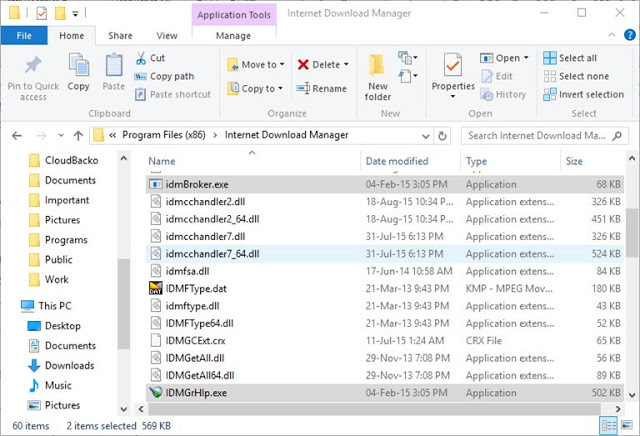
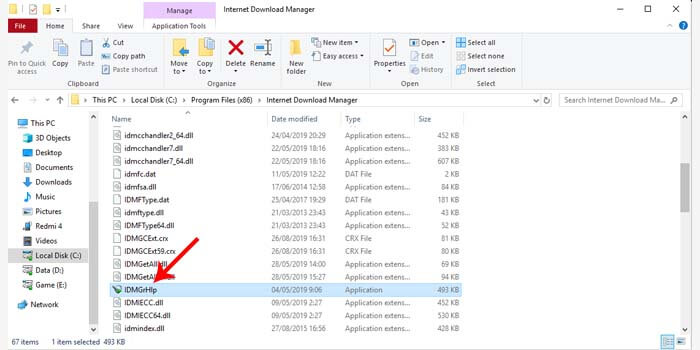
Go to C: \ Program Files \ Internet Download Manager or C: \ Program Files (x86) \ Internet Download Manager on 64-bit computers
Search and delete the file called IDMGrHlp.exe
Now copy the idmBroker.exe from the same folder and paste it in the same folder and rename it to IDMGrHlp.exe
Restart the system for the changes to take effect
If you are still having problems and an error message appears, you can deactivate the IDM automatic update function using the following methods:
#2. Disable automatic updates on IDM
You can turn off IDM updates automatically using the Windows Registry
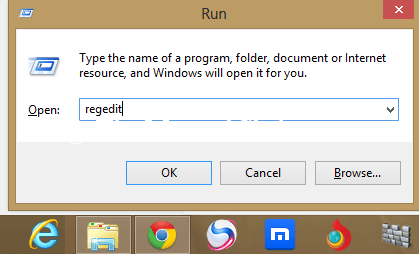
Go running -> Regedit
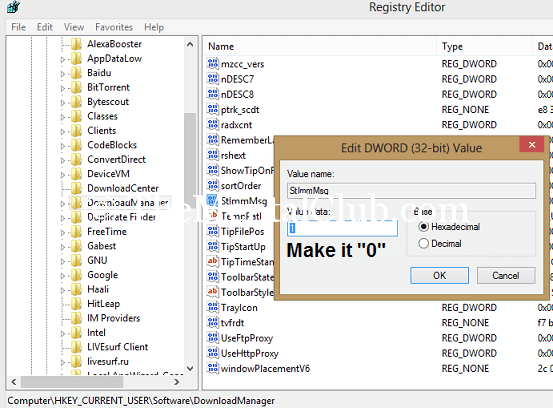
Go to HKEY_CURRENT_USER \ Software \ DownloadManager
On the right panel, select CheckUpdtVM and edit the value to 0
#3. Editing Host Files to block IDM updates
Explore C: \ Windows \ System32 \ drivers \ etc \
Open the hosts’ file using a text editor like Notepad
Copy and paste this line at the end of the HOSTS file:
Please note that this will deactivate the Internet Download Manager update function. You must download the latest updates manually.
#2: With Cleaning Regedit
First, run open (Press “Windows Key + R” together from your keyboard to open the run dialog box.) Now type “Regedit” without quotation. If it shows a message, then click the “YES” button.
Method2: With Cleaning Regedit
Now, open (HKEY_CURRENT_USER >>> Software >>> Download Manager), then you see “CheckUpdtVM” or “StlmmMsg“. Double-click on this message and changethe value from 1 to 0.
change the value from 1 to 0
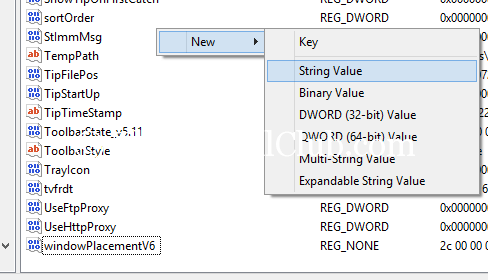
Note: If “CheckUpdtVM” does not exist, then create a new “String Value” named “CheckUpdtVM” and set the value = 0.
String Value
Now restart “IDM” or restart your PC.
#3 Rename File
Rename File
The renaming file is the first method that is quite simple. You only need to change the name of one of the files contained in the Internet download manager / IDM folder on your laptop or PC.
How to fix IDM detected using a fake serial number:
Open the system tray (lower right corner) on your laptop or PC.
Then right-click IDM> Exit.
Go to C: \ Program Files \ Internet Download Manager.
Rename the IDMGrHlp.exe file to idmhelp-old.exe.
Next, restart the laptop or computer.
After that reopen the IDM installation folder.
Change the name of the idmBroker.exe file to IDMGrHlp.exe.
The final step is to restart your laptop again.
After your laptop or PC is restarted, IDM will change to the full version. You do not need to worry about any more fake serial number warning messages appearing on IDM.
#4. Remove IDM Fake Serial Number
Remove IDM Fake Serial Number
If the first method fails to resolve the fake serial number on IDM, then you should try the second method. This method proved to be effective enough to get rid of fake serial numbers.
How to get rid of the latest Fake Serial Number IDM:
Extract the file that has been downloaded to the IDM installation folder.
Next, follow the instructions in the text file.
After you have followed the tutorial by the instructions, your IDM is certainly in the full version. Now the fake serial number warning will not reappear.
If you still get an error, the best way is to download Internet Download Manager from the Tonec website again, uninstall IDM that was previously installed, and reinstall IDM using the newly downloaded installer.
How To Change Laptop Wallpaper Windows 10,8,7 PC – Are you a laptop user? There must be a display from the home screen or the wallpaper from a desktop. Maybe your cage is bored or wants to change it.
How to Change Laptop Wallpaper Windows 1087 PC
How To Change Laptop Wallpaper Windows 10, 8, 7 PC
Well, in this article I will discuss how you can change the appearance of your wallpaper according to your favorite image. Please see and follow step by step to change your laptop wallpaper.
For example, the built-in Windows 10 wallpapers are nice to look at, but it’s more fun to choose the background you want on your laptop. After all, you’ll be the one staring at the screen all day and not wanting to peek at the dark blue logo for hours.
You should also look into resizing your icons. As well as save beautiful Windows 10 lock screen images so you have more wallpaper options. For more detailed customization, try enabling Dark Mode or Light Mode in Windows 10 and consider changing these beautiful themes.
There are 3 versions of the same method on a Windows laptop, starting from Windows 7, 8, and 10. Here’s how to change the laptop wallpaper.
How to Change Laptop Wallpaper Windows 10
Here’s how to change your desktop background in Windows 10.
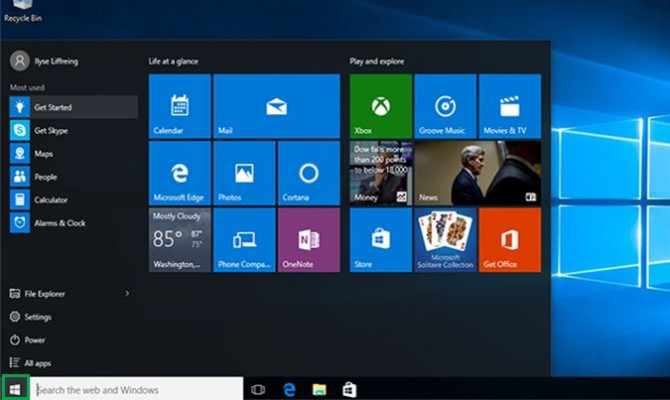
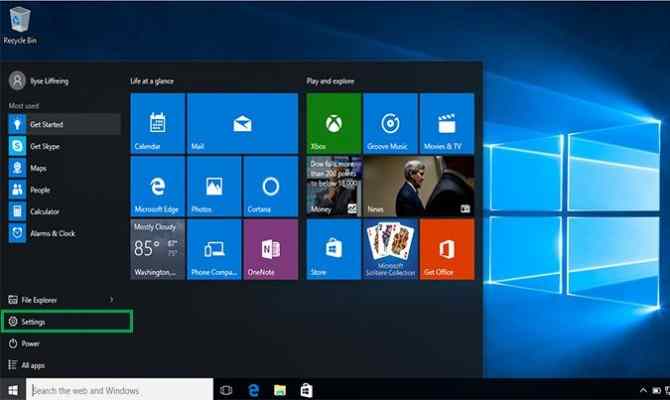
1. Click the Windows icon at the bottom left of your screen next to the search bar.
Press the windows icon in the lower left corner.
2. Click Settings in the list on the left.
Press settings on the windows 10 menu.
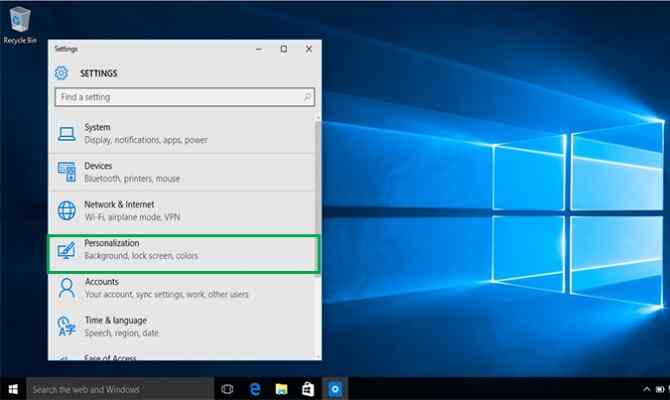
3. Click Personalization, which is fourth from the bottom of the list.
Tap personalize from the windows menu.
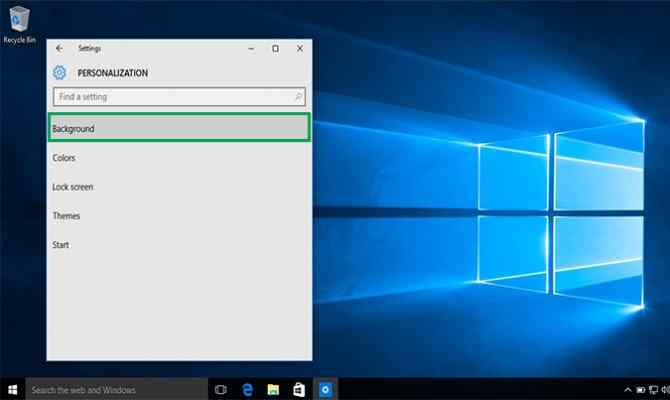
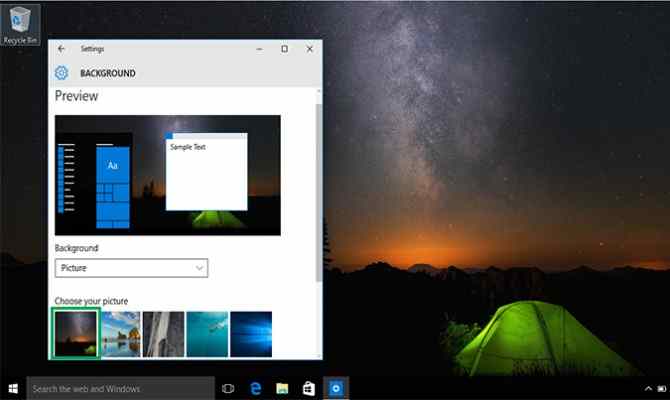
4. Click on Background. A background page will appear allowing you to view your background image and allowing you to choose from several images or your photo for your desktop background.
Click on the background in personalization.
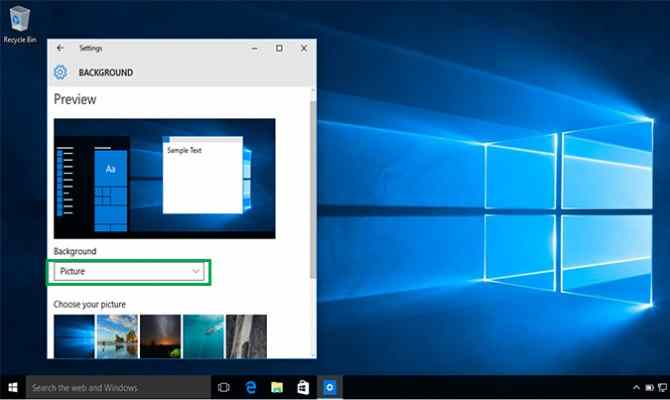
5. Click in the box under Background to choose between an image, a solid color, or a slideshow for your background.
Change the background wallpaper type using the drop-down.
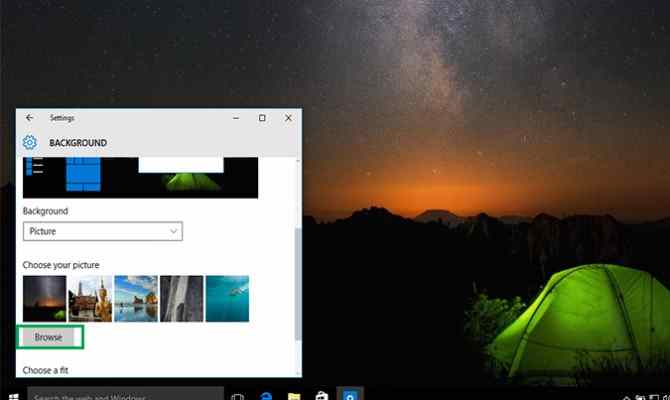
6. Under Choose your picture, click an option or click Browse to select one from your computer. Click on whatever photo you want and it will appear as your desktop background.
Click one of the default photo options or upload your own.
Press browse to upload your own photo.
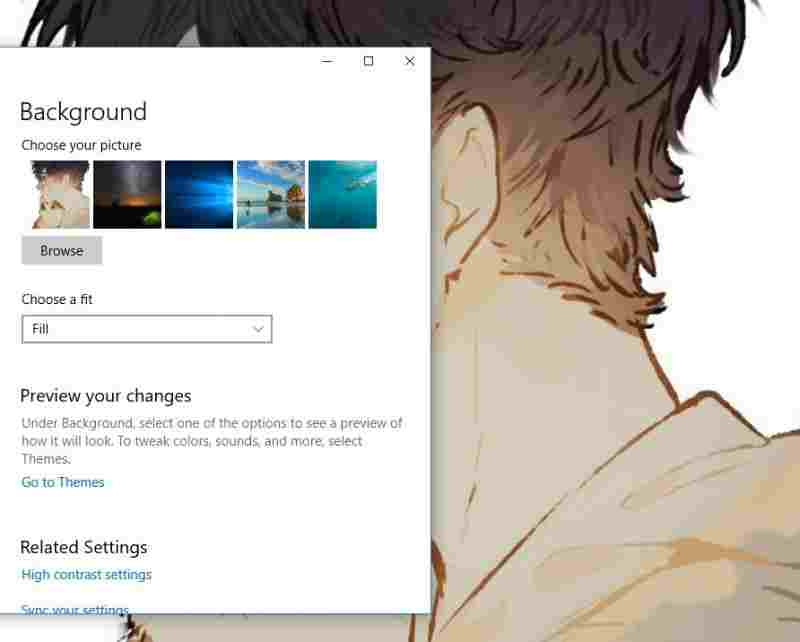
7. If you don’t like the photo layout, you can click the box below it. Under Choose a match, choose from the “fill, fit, stretch, tile, or center” options for your background.
Choose a suitable one to change the size.
8. Once you make your selection, your Windows 10 background will change automatically, no need to submit manually.
How to Change Laptop Wallpaper Windows 8
A background, also known as wallpaper, is simply an image that covers your desktop. To change your background on the Windows 8 desktop, follow these steps:
1. Right-click your desktop and select Personalize.
The Personalization window appears.
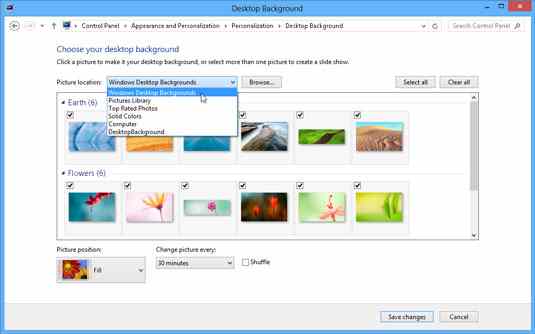
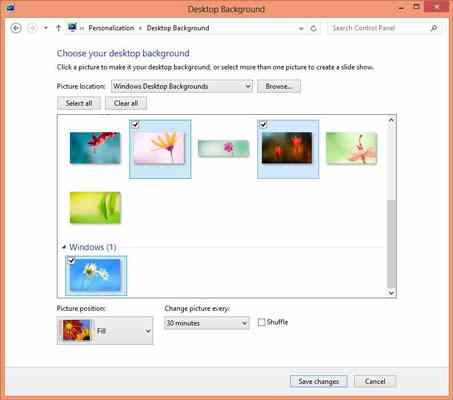
2. Select Desktop Background from the bottom left of the window.
The window displayed appears here.
3. Click the new image for the background.
Make sure to click the drop-down list to see all of the available photos and colors that Windows has to offer. To browse unlisted folders, click the adjacent Browse button. Feel free to search your Image library for potential backgrounds.
When you click a new image, Windows immediately places it on your desktop. If you’re happy, move on to Step 5.
4. Decide whether to use the fill, fit, stretch, tile, or center image options.
Not all images fit perfectly on the desktop. Small drawings, for example, need to be stretched to fit the space or spread across the screen in rows like tiles on the floor.
When tiles and stretches still look odd or distorted, try the Fill or Fit options to maintain perspective. Or try to center the image and leave blank space around the edges.
You can automatically switch between images by selecting more than one photo. (Hold Ctrl while clicking each one.) The images then change every 30 minutes unless you change the time in the Picture Every drop-down list.
5. Click the Save Changes button to save your new background.
Windows saves your new background on your screen.
To jazz up your desktop, Windows 7 covers it with pretty pictures known as backgrounds. (Most people refer to backgrounds as wallpapers.) You can easily change the desktop background in Windows 7 to let your personality shine through.
How to Change Laptop Wallpaper Windows 7
1. Right-click an empty part of the desktop and select Personalize.
The Control Panel’s Personalization panel will appear.
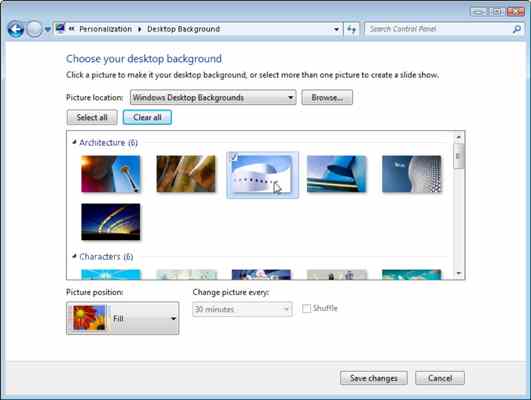
2. Click the Desktop Background option in the lower-left corner of the window.
Try a different background by clicking on it; click the Browse button to view images from different folders.
3. Click an image and Windows 7 quickly places it on your desktop background.
Click the Save Changes button to save it on your desktop. If not, you can try clicking the Picture Location menu to see more options. Or, if you’re still looking, move on to the next step.
4. Click the Browse button and click the file from within your personal Pictures folder.
Most people save their digital photos in their Image folder or library.
5. Click Save Changes and exit the Desktop Background window when you are satisfied with your choice.
Exit the program, and the photo you selected stays on your desktop as the background.
Here are some tips for enhancing your desktop image:
Adjust the image display using the Image Position option. Windows 7 now gives you Fill and Fit options to enlarge small photos, such as those taken with a mobile phone.
Borrow any image on the Internet. Right-click on the website image and choose Set as Background from the pop-up menu.
Right-click any photo in your Pictures folder and select Set as Desktop Background – for a quick wallpaper change.
If the background photo makes your desktop icon too hard to find, try using a single color instead: In Step 2 above, find Solid Color in the Location box down arrow
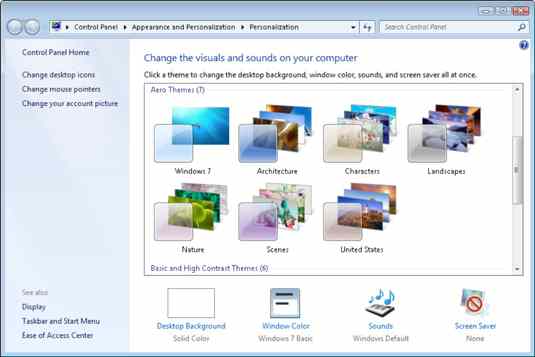
To change the entire look of Windows 7, right-click on the desktop, select Personalization, and select Themes. Themes affect backgrounds, icons, cursors, and sound so they coordinate with each other.
So, friends, This is the explanation of how to change laptop wallpaper Windows 10/8/7 PC, but maybe your PC few different steps and a different appearance of the menu. try to read carefully and understand its functions in each of the steps.
11 Ways to Fix Google Chrome Not Responding on PC – Google Chrome is the most popular browser in the world, but this doesn’t mean it’s 100% bug-free and may stop responding.
11 Ways to Fix Google Chrome Not Responding on PC
How to Fix Google Chrome Not Responding on Laptop PC
Indeed, Chrome is a very stable, fast, and reliable browser. However, it sometimes doesn’t respond, preventing users from connecting to the Internet.
If you encounter such an issue then follow the troubleshooting steps listed below.
Google Chrome is a great browser, however, many users have reported that Chrome is not responding. This can be a big deal, and speaking of the problem, here are some of the similar issues users have reported:
Google Chrome not responding to Windows 8, 7 – This problem can occur on older versions of Windows, but even if you are not using Windows 10, you should know that almost all of our solutions work with older versions of Windows.
Google Chrome doesn’t respond at startup, and won’t close, every few seconds – Sometimes a third-party app can cause this problem to occur. To fix this problem it is recommended to do a full system scan and check if that helps.
Google Chrome keeps crashing and not responding – This is another common problem that can occur. If that’s the case, make sure to clear your cache and check if it works.
Google Chrome Freeze – If Google Chrome keeps freezing, the installation might crash, so make sure to reinstall Chrome.
Google Chrome won’t open – This might happen if the process crashes. Opening the Task Manager and closing processes should fix this.
Google Chrome is not working – This error may refer to an error that won’t open. Or maybe refer to one of the others listed in this case, see what works best, and implement the solutions accordingly.
#1 – Use a better browser
If this isn’t your first problem with Chrome, we think that the easiest solution of them all is to simply move on to a better one.
Since exporting your bookmarks and settings is easy and fast, all that’s left is to choose an alternative. We recommend Opera.
It is based on Chromium so you will feel right at home with it. But you’ll also have access to Opera’s sidebar and lots of new features.
Our top pick is Opera because:
offers Adblocker
comes with free and unlimited VPN
integrated Facebook Messenger, WhatsApp, Telegram, and others right in the sidebar
You can group tabs together in different Workspaces
Basically, you can organize yourself better and be more productive. It’s also pretty fast. Maybe faster than Chrome itself.
Opera
Open from Chrome to Opera for a new web experience you’ll love.
One of the main causes of this problem can be malware infection. Malware can sometimes interfere with your browser and cause Google Chrome not to respond.
This can be a big problem, but you should be able to fix it by doing a detailed antivirus scan.
To ensure that your system is protected, we recommend that you use a good third-party antivirus solution such as BullGuard. This antivirus offers great protection as well as advanced security features that ensure that your system is protected at all times.
The multilayered approach makes this solution great: combining traditional email signatures and scanning with machine learning and cloud capabilities.
This means that it will detect viruses faster, better, and without being too resource-intensive.
Bullguard
Improve your security and remove malware so Chrome will function properly again.
After you have done a full system scan, the problem should be resolved.
#3. How to deal with not responding on Google Chrome
Uninstall and reinstall the browser
To completely uninstall Google Chrome, we are recommending you to use an uninstall software like Revo Uninstaller. This app will delete Chrome along with all the files and registry entries associated with it.
Why is that a better choice?
The default uninstaller is less effective because it removes some of the files that were installed initially. Various registry changes that occur while using it and other files that are created are ignored.
Revo Uninstaller is one of the best on the market as it restores registry changes and safely removes leftover files. It’s like you never installed the software in the first place.
So download this uninstaller and remove Chrome. While you’re at it, you might as well pick out some other old and forgotten software.
You can select multiple programs and it will remove all of them.
Revo Uninstaller
The best uninstaller with extended scanning and real-time monitoring of system changes. Take advantage of this offer
$ 17.95 Visit
Now install the latest version of Chrome and check if the problem is still there.
#4. How to Overcome Not Responding on Google Chrome
Add Chrome to your firewall exclusion list
According to users, sometimes Google Chrome may not respond if there is a problem with your firewall.
Your firewall is designed to restrict Internet access to certain applications, and to ensure that everything is functioning properly, you must allow Google Chrome through your firewall.
It’s quite simple and you can do it by following these steps:
Open the Search menu> type Windows Firewall > press Enter.
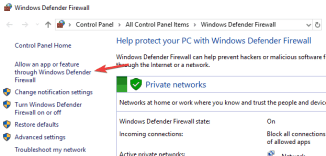
In the left pane, select Allow applications via Windows Firewall.
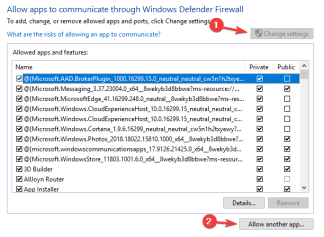
Click the Change Settings button > select Allow other applications.
Select Google Chrome > click Add > OK.
Google Chrome should automatically be allowed to bypass your firewall, but if not, make sure to follow these instructions to fix the problem.
Most of the users don’t use Windows Firewall because of this kind of problem. We recommend using one of these third-party firewalls for better, more customizable protection.
#5. Clear your DNS cache
Remove PC Errors
Run a PC Scan with the Restore Repair Tool to find errors causing security issues and slowdowns. After the scan is complete, the repair process will replace the corrupted files with new Windows files and components.
Disclaimer: to clear errors you need to upgrade to a paid plan.
Fix PC Errors
If Google Chrome isn’t responding, the problem is probably your DNS cache. This is only a minor problem, and to fix it, you just need to clear the cache.
To do so, you need to run some commands at the Command Prompt by following these steps:
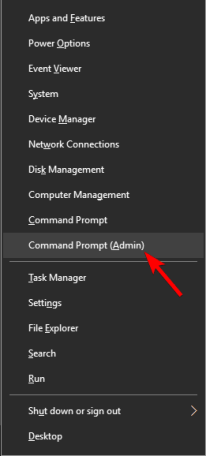
Press Windows Key + X to open the Win + X menu. Now select Command Prompt (Admin) or Powershell (Admin) from the list.
Type the following commands and press Enter after each one:
ipconfig / flushdns (In 2008)
netsh winsock reset
If you can’t open Command Prompt as admin, take a closer look at this guide.
#6. How to Overcome Google Chrome Not Responding
Run an SFC scan
Damaged files can also cause this problem to occur, and to fix the problem, you need to repair the corrupted files.
It’s relatively simple, and you can do this by running an SFC scan. To do so, just follow these steps:
Start Command Prompt as administrator.
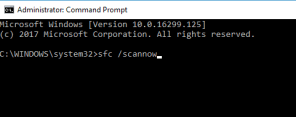
When the Command Prompt opens, enter sfc / scannow and press Enter.
The SFC scan will now start. This scan can take about 15 minutes, so don’t bother it.
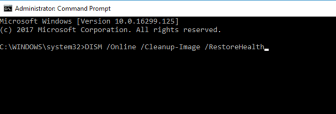
After the scan is complete, check if the problem gets solved. If the problem is still there, you may want to try using a DISM scan instead. To do that, simply start Command Prompt as administrator and run the command DISM / Online / Cleanup-Image / restorehealth.
After the DISM scan is complete, check if the problem still exists. If the problem persists you may want to try running the SFC scan one more time and check if that helps.
#7. How to deal with not responding on Google Chrome
Make sure you are running the latest version of Chrome
If Google Chrome is not responding on your PC, it is probably out of date.
Sometimes certain bugs can occur now and then and cause problems with Chrome, which is why it is very important to update Chrome.
Google Chrome usually checks for updates automatically, but you can always check for updates manually by doing the following:
Open Google Chrome.
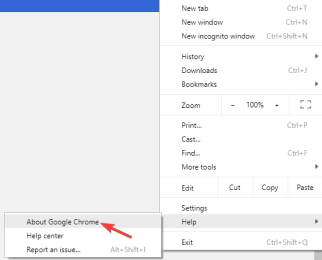
Click the menu icon in the upper right corner and select Help > About Google Chrome.
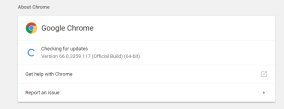
A new tab will now appear and Chrome will check for available updates. If there is an update available, it will be downloaded automatically.
After Chrome is updated, make sure to check if the problem still appears.
#8. How to Overcome Google Chrome Not Responding
Clear cache, browsing history, and cookies
Another common reason for Chrome to stop responding is your cache. If the cache is corrupt, which might be causing certain problems with Chrome, that’s why we are recommending you clear the cache.
Clearing the cache is quite simple, and you can do it by following these steps:
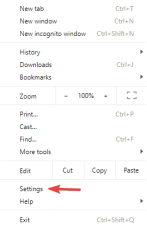
Open Google Chrome and click on the Menu icon in the top right corner. Select Settings from the menu.
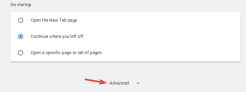
The settings tab will now appear. Scroll down and click Advanced.
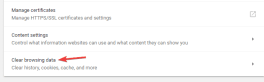
Now click Clear browsing data.
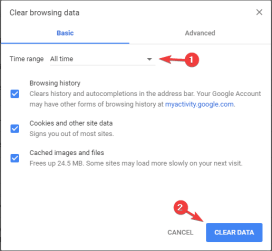
Set the Time range to All time and click Clear data.
After Chrome is done clearing the cache, check if the problem persists.
#9. Disable extensions
Google Chrome supports a variety of extensions that can enhance Chrome with new features.
While Chrome extensions can be very useful, some extensions can be very demanding in terms of resources, and others may be buggy and cause Chrome to stop responding.
To fix the problem it is recommended to find and disable a specific extension and check if that helps. It’s relatively simple, and you can do it by following these steps:
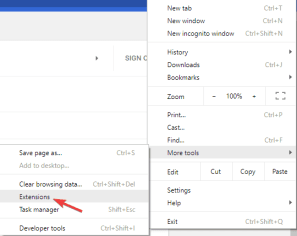
Click the Menu icon in Chrome and go to More Tools> Extensions.
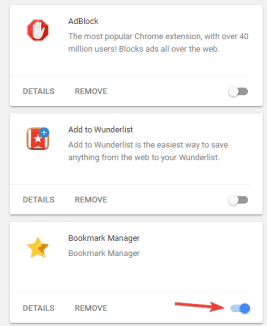
Find the extension you want to remove and click on the little toggle icon next to it.
After disabling all extensions, restart Chrome.
When Chrome restarts, check if the problem still appears.
If not, it means that one of the extensions is causing it. To find out which extension is the problem, activate one extension at a time until you find the one with the problem.
Once you find it, remove or update it and check if it solves your problem.
#10. Check the proxy settings
According to users, if Chrome isn’t responding, the problem could be your proxy. Proxies are a great way to protect your privacy online, but sometimes, they can cause certain problems.
To fix the problem, it is recommended to disable the proxy by doing the following:
Press Windows Key + Me to open the Settings app.
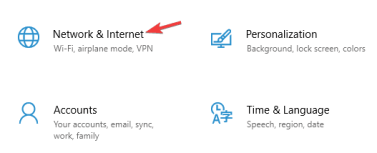
With the Settings app open, navigate to the Network & Internet section.
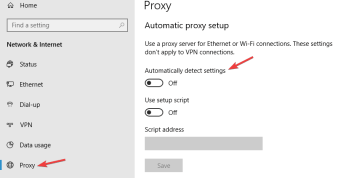
Go to the Proxies section in the left pane. Now disable all the settings in the right pane and check if that helps.
After disabling the proxy, check if the problem gets solved.
#11. How to Overcome Google Chrome Not Responding
Reset Google Chrome
If you still can’t resolve this issue with Chrome, you may want to reset it to default. It’s relatively simple and you can do it by following these steps:
Click the menu icon and navigate to Settings.
Scroll down and click Advanced.
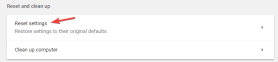
Click Reset settings in the Reset and Clean section.
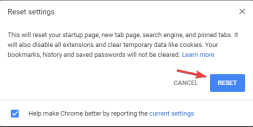
Now click the Reset button to confirm.
After resetting Chrome, check if the problem gets fixed. However, resetting will delete your browsing history. Don’t worry, we have the ultimate guide to recovering your browsing data.
Still, having problems? Fix it with this tool:
This software will fix common computer errors, protect you from file loss, malware, and hardware failures, and optimize your PC for maximum performance. Fix PC problems and remove viruses now in 3 easy steps:
This is the explanation of 11 ways to fix Google Chrome not responding on PC, I hope this article will help you fix Google Chrome’s responsiveness issues. You can list the troubleshooting steps in the comments section if you find other solutions.
9 Ways To Fix Can’t Type WiFi Password in Windows 10 PC – Unable to type a WiFi password is one of the problems that can occur due to two things: a problem with the keyboard device and a problem with the system.
9 Ways To Fix Can’t Type WiFi Password in Windows 10 PC
How To Fix Can’t Type WiFi Password in Windows 10 PC
At this point, the first thing to check is whether the keyboard works normally for typing in other applications.
If it is normal, it can be concluded that there is a problem with the system that causes you to be unable to type the password when connecting to WiFi. Here are some steps you can take to solve it.
#1. Try to check if the keyboard is installed correctly
First you have to start from the simplest step, which is to check if the keyboard is properly connected, specifically for PC users. Try unplugging the keyboard cable then try plugging it back in, and see if the keyboard is detected and works normally.
To make sure, try opening a text editor application such as Word or Notepad and then try typing there, if it runs normally then try again typing the WiFi password, is it possible?
#2. Use the on-screen keyboard
Next, try to open the on-screen keyboard application and try typing the WiFi password using this application.
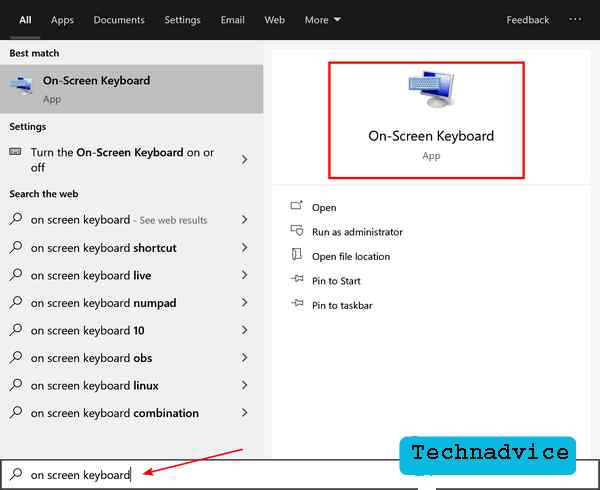
You do this by clicking on the Search bar then typing on the screen keyboard > click the application that appears on the Start menu.
Use the on-screen keyboard
After the application opens try typing the WiFi password and see if it works. If you can then temporarily you can use this method. But if you can’t try to continue to the next step.
#3. Type the password in Notepad then copy-paste it into the WiFi password field
If the case is that you cannot type the WiFi password but other applications can, then you can outsmart it by using another application to type the password and then copy-paste it into the WiFi password field.
You can use a text editor application like Notepad to do this. You do this by clicking on the Search bar > typing notepad > opening the Notepad application that appears on the Start menu.
After that type, your WiFi password in Notepad> copy the password with a block of text then right-click > copy. Go to the WiFi password field then right-click> paste.
#4. Reinstall keyboard drivers
The next step you can do is if the keyboard cannot type the WiFi password nor can it type in other applications. This problem can be caused by two things, first, because the keyboard device itself is problematic or damaged, and secondly because of a problem with the driver.
The keyboard driver is a driving program that regulates the function of the keyboard on your laptop and PC, if there is a problem then the function will also be problematic. To fix this you can do a reinstall to get a clean version of the driver file.
Follow these steps:
1. Press the Windows key + R to bring up the RUN window
2. Type: devmgmt.msc then click the OK button
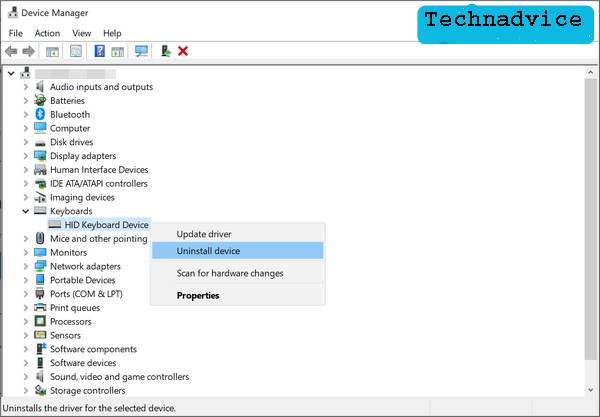
3. In the Device Manager program click the small arrow next to the Keyboard
4. Right-click on the keyboard driver and select Uninstall device
Reinstall keyboard drivers
5. Close all settings windows and restart your computer
6. After the computer restarts, the driver that was deleted will be reinstalled automatically by the system
Now try again using the keyboard to type the WiFi password, if it works. If the cause is a problem with the driver, it should now work normally again.
#5. Turn off the Sticky keys and Toggle keys features
Sticky keys and Toggle keys are additional features that regulate keyboard functions in Windows 10. Although this feature is quite useful, in some conditions it can cause problems not being able to type the WiFi password when it is active. To make sure, you can try to turn off the feature first.
Follow these steps:
1. Click the Start button and select Settings
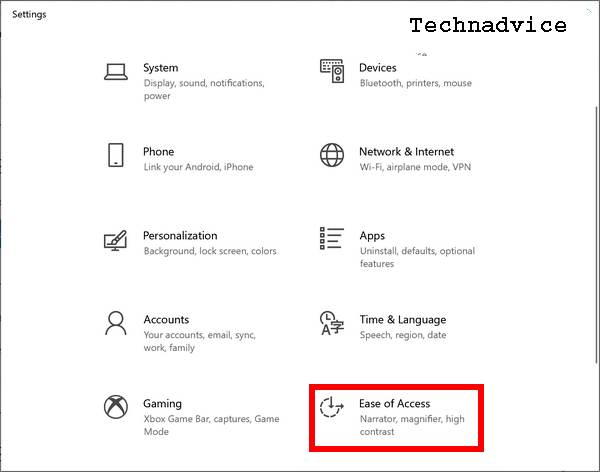
2. Select the Ease of Access menu
Turn off the Sticky keys and Toggle keys features
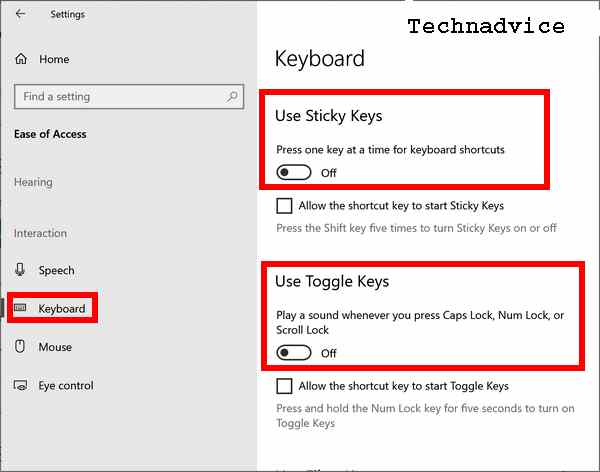
3. On the left pane click on the Keyboard tab
4. Find the option named Sticky keys and Toggle keys
5. Click the switch button to Off on both features
When finished close the Settings window and then try again by typing the WiFi password, is it working? If you haven’t tried again, do the next steps below.
#6. Run System File Checker
Corrupt system files can also cause keyboard problems such as not being able to type search on WiFi. To overcome this, we can use a tool called File System Checker (SFC) in Windows 10 which can be run via CMD.
Follow these steps:
1. First open the Command Prompt application with administrator access
2. At the Command Prompt type or copy-paste the following command:
sfc /scannow
3. Press Enter and wait until the scan process is complete
4. When finished restarting your computer
#7. Login using a new account
In the Windows operating system, we can create more than one account and each account has its settings that are different from other accounts. If the problem occurs with your current account, you can try creating a new account and then logging in with that account. In this way, the problem of not being able to type the WiFi password will not appear on the new account.
#8. Run System Restore
Follow these steps:
1. First open the Windows 10 Control Panel
2. Use the View by Small icons. option
3. Then select the Recovery menu
4. Then click on Open system Restore then click Next
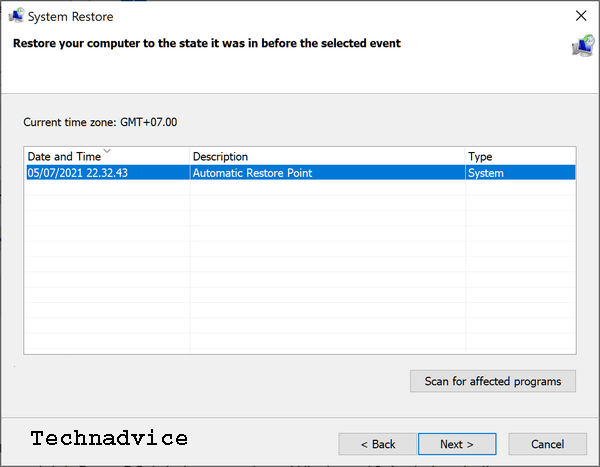
5. In the System Restore window you will see a list of Restore Points that have been created
6. Select the one with the most recent date then click Next
Run System Restore
7. Click the Finish button then wait until the restore process is complete
#9. Reset PC
If you have tried all the methods above but nothing works, then the last remaining solution besides reinstalling is to Reset the PC. This will bring your Windows 10 back to the state it was in when it was first installed, much like a factory reset.
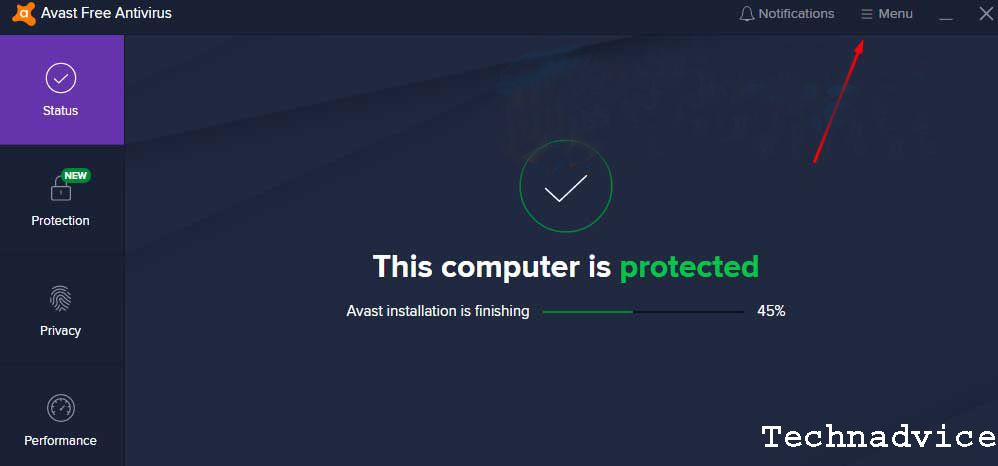
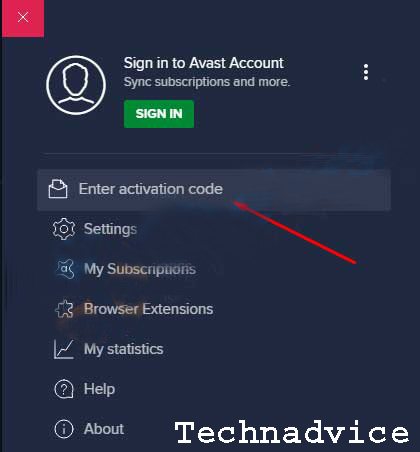
45+ Avast Premier License Key And [Activation Codes] – Create a new user of the Avast antivirus program. Have you activated the security software yet? You can activate the security program using the Avast free antivirus activation code. Avast software has various versions, including Avast Pro, Premium Cleanup, and Premiere.
45+ Avast Premier License Key And [Activation Codes
How To Get Avast Premier License Key And [Activation Codes
The serial number key in this article is likely only to be used for the premiere version (If you want to try another version, please).


 To completely uninstall Google Chrome, we are recommending you to use an uninstall software like Revo Uninstaller. This app will delete Chrome along with all the files and registry entries associated with it.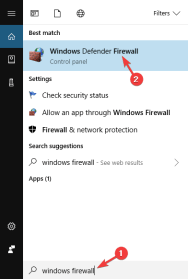
![45+ Avast Premier License Key And [Activation Codes] 2025](https://technadvice.com/wp-content/uploads/2021/12/45-Avast-Premier-License-Key-And-Activation-Codes.jpg "45+ Avast Premier License Key And [Activation Codes] 2025 5")