Category: Windows

Windows – Here you can find Computer-related updates Windows 10, Windows 8, Windows 7, Linux, technology information, and more.

  • How To Reduce Brightness in Windows 7/8/10 PC 2025

    How To Reduce Brightness in Windows 7/8/10 PC 2025

    How To Reduce Brightness in Windows 7/8/10 PC – When using a computer, sometimes some people prefer a very bright screen. Some prefer to use a less bright screen.
    How to Reduce Brightness in Windows 7810 Quick Way
    How to Reduce Brightness in Windows 7810 Quick Way

    How To Reduce Brightness in Windows 7/8/10 PC Laptop

    The problem is sometimes after being used by other people, the screen is too bright. Therefore you need to know how to dim the computer screen by various techniques.

    Read more:

    Maybe you will be surprised because some of the methods are not as common as they are often done. Because there are special tricks if you want to dim the brightness of the computer screen.

    After knowing this trick, you can try it to make the screen even dimmer.

    #1. Dim the Screen with the Keyboard Keys
    Dim the Screen with the Keyboard Keys
    Dim the Screen with the Keyboard Keys

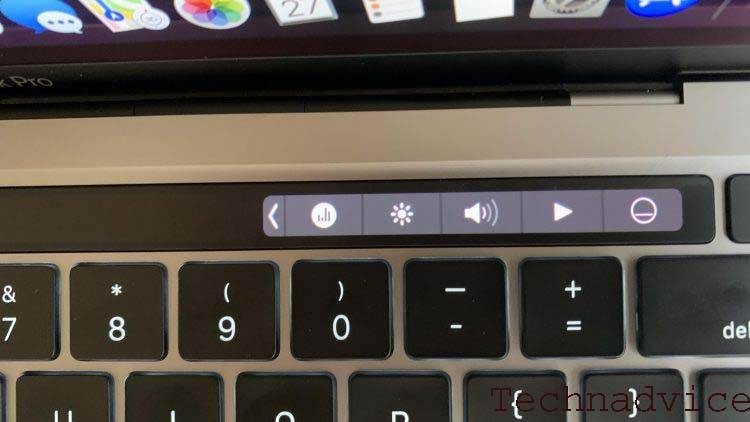
    One of the advantages of a PC is that you can use several direct buttons to adjust the screen brightness. Usually, these buttons are located at the bottom of the computer screen or on the side.

    How to dim a computer screen with this technique is also very easy. Because you just squeeze it, it will automatically change.

    In general, usually on a PC it is not possible to make lighting settings through software.

    Currently, some computers have provided special software that works like a laptop. You can handle it easily without having to look for the buttons first with the help of this software.

    #2. Dimming through the Personalize menu
    Dimming through the Personalize menu
    Dimming through the Personalize menu

    The next way is to take advantage of the personalized settings menu in Windows 7.

    If you frequently change your screen wallpaper, then of course you are familiar with this set menu.

    • The first way is to enter the Windows start page on your computer.
    • After that point, the mouse cursor is on all empty areas without any shortcuts.
    • Then right-click and a dialog box will automatically appear with several menu options.
    • In the next step, you just click on the words ” Personalize ” to adjust the brightness level of the computer screen.
    • Then if you have entered the Personalize menu, look for the words ” Display ” again. This menu location is usually located around the bottom left corner. It is on this menu that you will find several computer screen brightness level settings.
    • To be able to adjust the computer screen brightness level, you can click on the words ” Adjust Brightness “.

    This is a manual way to make adjustments to the computer screen brightness level. The result can also be maximized and you can adjust it according to taste.

    #3. Windows 10 Right-Click Menu
    Windows 10 Right Click Menu
    Windows 10 Right Click Menu

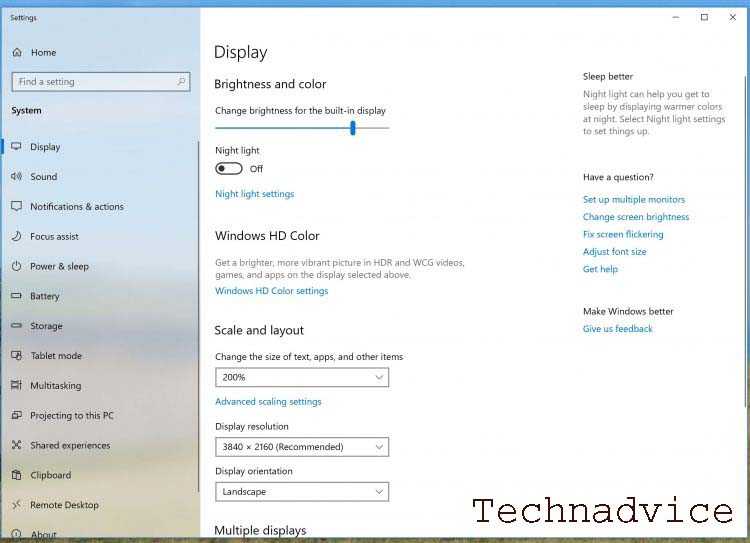
    Well, maybe you are wondering then how to dim the computer screen for Windows 10. Because in the Windows 10 ” Personalize ” menu there is no computer brightness setting option.

    • How you can hover over an empty location on the Windows start page.
    • Then right-click it will display menus including the Personalize menu.
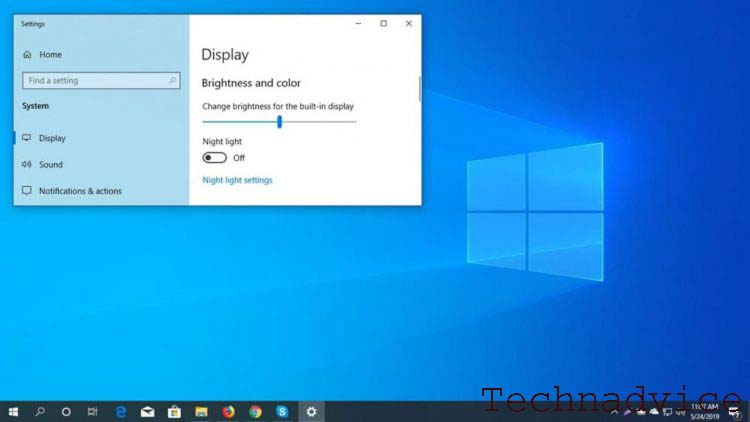
    • But on Windows 10 you won’t be using Personalize. But the attention of writing is right above Personalize with the word ” Display Setting “. It is on this menu that you can adjust the brightness level of the computer screen.
    • After you click on the words ” Display Settings “, the settings menu page will appear which is quite complete. Even on Windows 10, you can adjust the screen brightness with several types such as night light, resolution, scale and layout, and others.
    • If you only want to focus on adjusting the brightness of the computer screen, then look for the words ” Brightness and Color ” and after that ” Change Brightness “.
    • Adjust the Windows 10 screen brightness according to your taste and comfort.
    • Lastly, you don’t need to save the settings.

    Because the new brightness setting has been applied automatically, you can just exit the settings menu.

    #4. Via Windows + X Shortcut
    Via Windows + X Shortcut
    Via Windows + X Shortcut

    If you want a much simpler and faster way, you can use a combination of keys on the keyboard or also called a shortcut.

    This method can apply to almost all versions of Windows.

    • First, you just click simultaneously the key combination ” Windows + the letter X “. Several menu options will automatically appear.
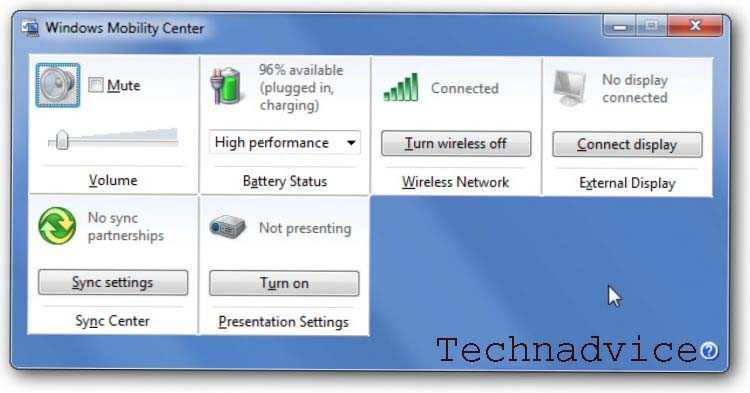
    • Look for the menu that says ” Mobility Center “. It should be noted that some versions of Windows do not contain this text. But replaced with the words ” Windows Mobility Center ” with the same menu contents.
    • Just click right on the text to adjust the brightness of the computer screen.

    After you click, a collection of some basic computer settings will appear. There are several options in this menu such as lighting settings, sound settings, computer synchronization, battery settings, external display, and projector settings.

    • To adjust the brightness level, just select the words ” Display Brightness “.
    • Then, you will see a large needle that you can slide right and left. Swiping right increases brightness and left decreases brightness.
    • Just adjust to what you want.
    • When it’s finished and it fits, you can immediately close the menu.

    This method offers a simpler display of settings than the previous method.

    #5. Make use of the Fn Key + Brightness Symbol

    Make use of the Fn Key + Brightness Symbol
    Make use of the Fn Key + Brightness Symbol

    There is also a way to use the Fn key + brightness symbol. Each computer has a different Fn key combination.

    Usually, the location of this key combination is the same as several keys F1, F2, F3, and so on. If you pay attention, you will see a small symbol on the button.

    • Look for symbols with shapes like the sun shining and dimming. Because every computer has a different button location. Someplace it on F5 and F6, some are on F8 and F9, and others. So you have to find it yourself.
    • Then press the Fn key + sun dim symbol to decrease brightness and bright sun to increase brightness.

    This method is most preferred because it is very easy and fast. Unfortunately, not all computers have an Fn key system.

    #6. Using Windows 10 Slider
    Using Windows 10 Slider
    Using Windows 10 Slider

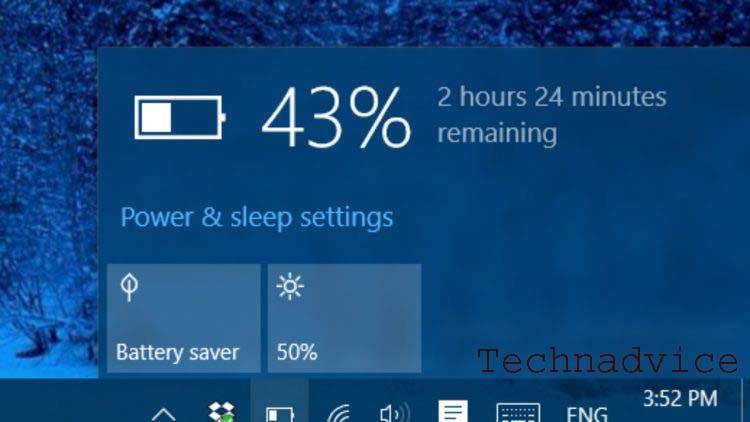
    This next way of dimming the screen is unique and unexpected. It turns out that you can just use the battery image in the lower corner of the Windows 10 computer screen.

    • Hover the mouse cursor over the battery symbol or slider on the bottom side and just click on it.
    • Now if you have clicked, the battery information menu will appearRight below it is a setting regarding the computer screen brightness.
    • Just click on the menu and you can immediately adjust the brightness according to your taste. However, this is usually related to battery usage mode. The brighter, the higher the battery consumption, and vice versa.
    • If you can’t swipe, just select ” Best Battery Life ” for lower brightness and ” Best Performance ” for a very bright screen.

    #7. Windows 7 slider
    Windows 7 slider
    Windows 7 slider

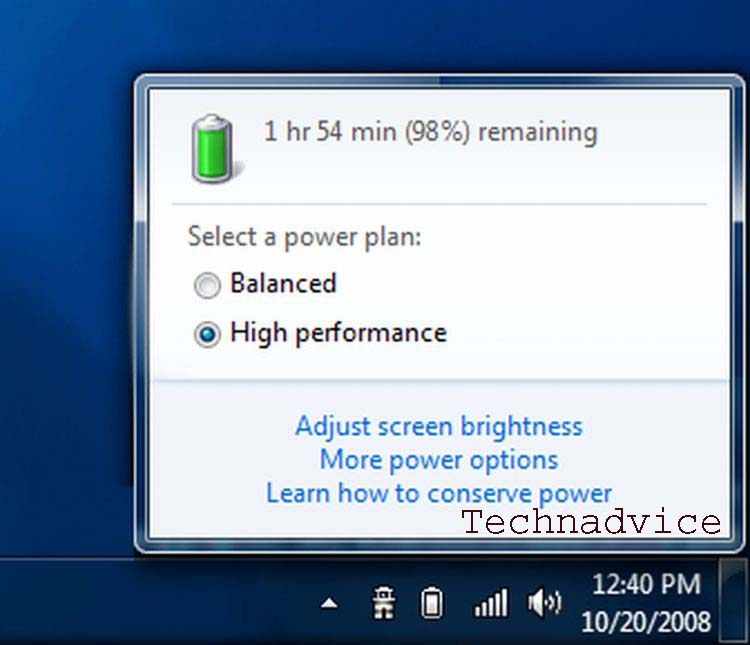
    You can also do the same method above on Windows 7. The method is very easy, namely, following the instructions above until the battery information menu appears.

    Now on the battery information menu, there are two posts that you can click on. Just select the words ” Adjust Screen Brightness ” to adjust the screen brightness.

    Read more:

    Conclusion:

    It is very important to know several ways to dim the computer screen. Remembering every computer has a different way. After knowing some of the methods above, you can try them one by one.

  • 3 Ways To Download Files From Google Drive 2025

    3 Ways To Download Files From Google Drive 2025

    3 Ways To Download Files From Google Drive – Do you want to download a file from the internet and then be directed to the Google Drive page? No need to be confused, because how to download files on Google Drive is quite easy.

    How to Download Files From Google Drive
    How to Download Files From Google Drive

    How to Download Files From Google Drive Android PC

    Google drive is often used as file storage on the internet. It is easy to access Google Drive from uploading and downloading there, making Google Drive one of the most popular cloud drive services.

    Read more:

    In addition to providing a large enough storage capacity, Google Drive also has fast file transfer speeds for downloading and uploading. So, that’s the reason why Google Drive is such a great storage service.

    Google Drive also supports many types of files, including music files, images, videos, documents, and more. Uploading is also very easy, you can find out by reading the article below.

    Another convenience on Google Drive is that you don’t need to register or login when you want to download files there. You only need to know the link from the Google Drive file.

    How to download files on Google Drive itself is also very easy. You can even do it on an Android smartphone or a computer and laptop.

    Download Google Drive Files on a PC Laptop Android

    How to Download Google Drive Files on a Laptop
    How to Download Google Drive Files on a Laptop

    How to download files or data on Google Drive only takes a few steps. Just follow the guide below to be able to download the files on Google Drive that you want.

    Here’s how to download movies on Google Drive with a laptop or PC:

    1. Make sure you have a Google Drive link from your file.
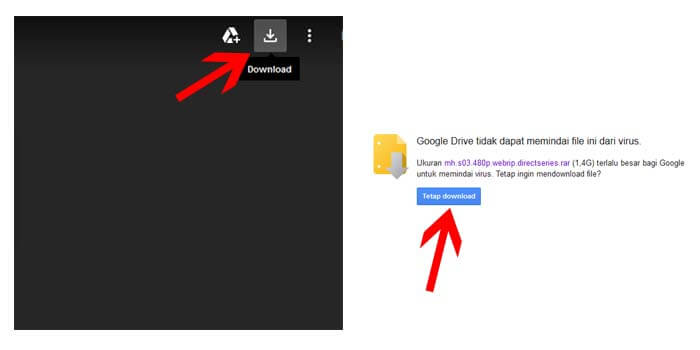
    2. Click the button with the down arrow icon.
    3. If the file is under 100MB, the file will be downloaded.
    4. Meanwhile, if it is above 100MB, it will be directed to the next page.
    5. Just click the Continue Download button and the file starts downloading.
    6. Now you just have to wait for the download process to complete.

    Well, that’s a tutorial for downloading files on Google Drive using a laptop or PC. You will do the above guide easily because Google Drive provides navigation that is fast to understand.

    How to Download Files From Google Drive, Android Mobile

    If you are using an Android cellphone, you also don’t need to worry about having trouble trying to download files on Google Drive. The reason is, the way it works is not much different when using a PC or laptop.

    You can use any browser on your cellphone like UC Browser, Google Chrome, or the default Android browser. But what needs to be considered is of course you must have the file link from Google Drive that you want.

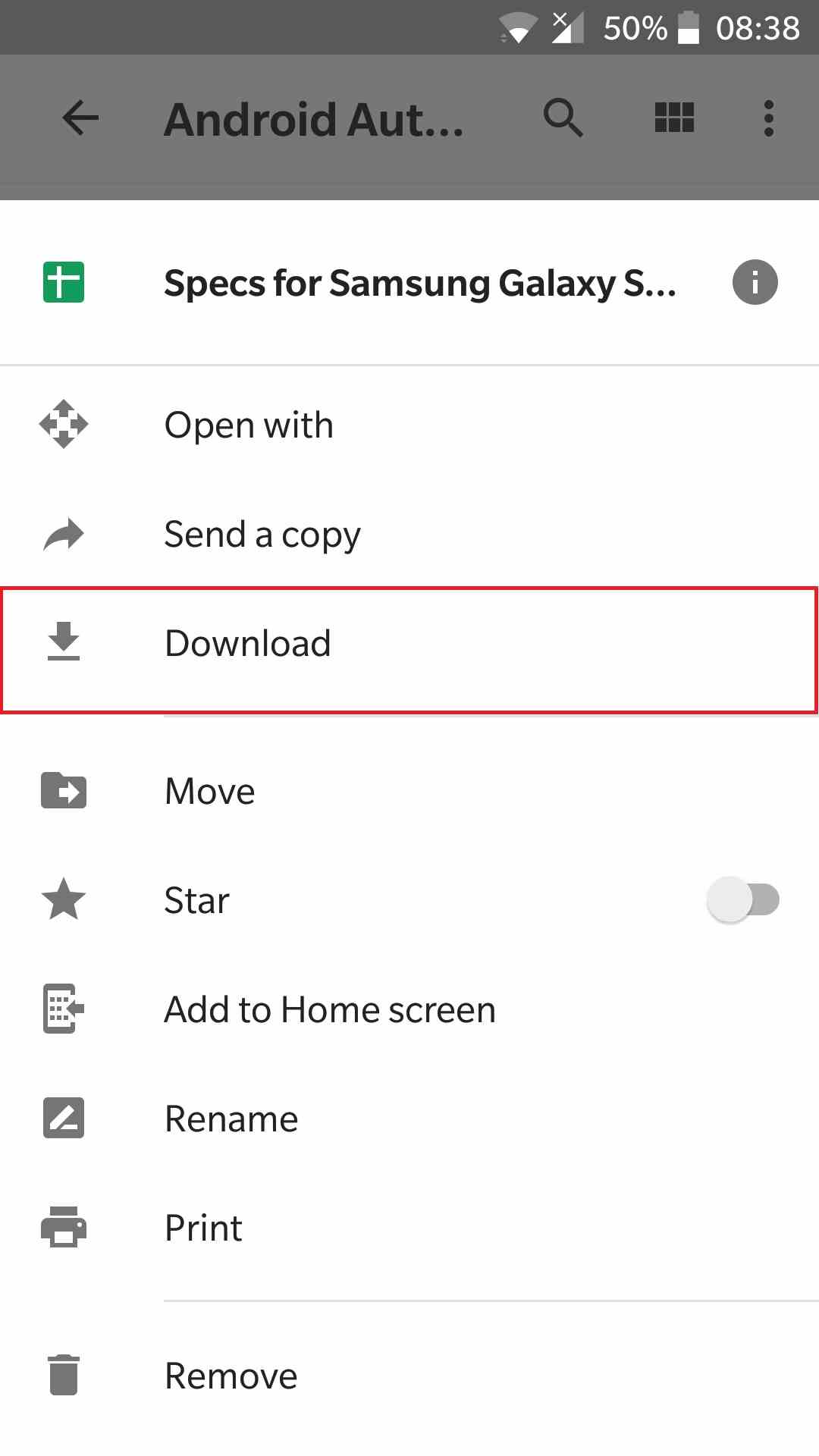
    If your browser is logged in to your Google account, the Google Drive link will appear as shown below. For how to download, just touch the three-dot icon in the upper right corner, then select the Download option.

    How to Download Files on Google Drive, Android Mobile
    How to Download Files on Google Drive, Android Mobile

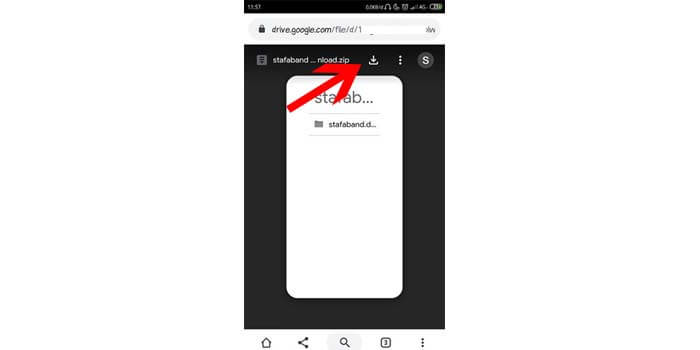
    Meanwhile, if your cellphone browser has not logged into your Google account, the Google Drive link will appear as shown below. For how to download Google Drive files like this, just touch the download option with the down arrow icon.

    How to Download Files on Google Drive, Android Mobile

    Download on Google Drive Using IDM

    IDM is a popular downloader application because it will provide faster-than-usual download speeds. If you like downloading files on the internet, of course, you are already familiar with IDM.

    However, sometimes some people who want to download files on Google Drive using IDM often experience problems. If you are one of them, you don’t have to worry about it.

    How to download files on Google Drive using IDM is not much different from downloading as usual. However, first, you have to prepare your Google Drive link.

    First, open the link in a browser and then simply click download with the down arrow icon. When the IDM notification appears, click start download or start downloading.

    The file will start downloading at IDM at a fast speed. However, if the Google Drive file does not provide file size information in IDM, you can read the solution in this article on how to deal with IDM that does not appear in file size.

    Read more:

    Conclusion:

    Isn’t it really easy to download files on Google Drive? You just need to go through a few steps to be able to download files on Google Drive. Just decide which method is the most effective for you to use.

  • 11 Ways To Fix Error Windows Explorer Has Stopped Working 2025

    11 Ways To Fix Error Windows Explorer Has Stopped Working 2025

    11 Ways To Fix Error Windows Explorer Has Stopped Working – Windows Explorer Fix Has Stopped Working: The main reason Windows Explorer has crashed is due to corrupt Windows files, which can be due to various reasons such as malware infection, corrupted registry files, or incompatible drivers, etc. But this error is very frustrating, as many programs that agree with Windows Explorer do not work.

    How To Error Windows Explorer Has Stopped Working

    How To Fix Error Windows Explorer Has Stopped Working on PC Laptop

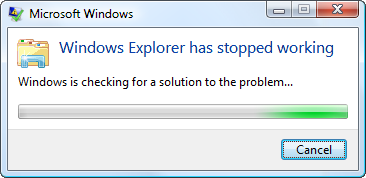
    When working in Windows, you may receive the following error message: Windows Explorer has stopped working. Windows is restarting

    Windows Explorer has stopped working SOLVED
    Windows Explorer has stopped working SOLVED

    Windows Explorer is a file management application that provides a GUI (Graphical User Interface) to access files on your system (Hard Drive).

    Read more:

    With the help of Windows Explorer, you can easily navigate through your hard drive and check the contents of folders and subfolders. Windows Explorer starts automatically when you start the Windows session.

    It is used to copy, move, delete, rename, or search for files and folders. So it can be unpleasant to work with Windows if Windows Explorer keeps crashing.

    Let’s see what are some common causes why Windows Explorer has stopped working:

    • System files may be corrupt or out of date
    • Virus or malware infection on the system
    • Outdated screen drivers
    • Incompatible drivers causing conflict with Windows
    • Faulty RAM

    Now that we have learned about the subject, it is time to see how to fix and possibly fix the error. But as you can see there is no single cause why this error can occur, so we are going to list all the possible solutions to correct the error.

    Make sure to create a restore point in case something goes wrong.

    #1: Run System File Checker (SFC) and Check Disk (CHKDSK)

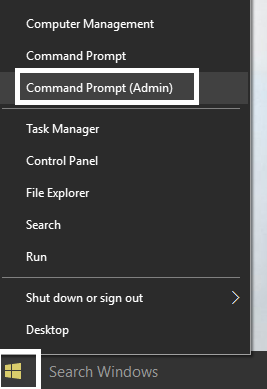
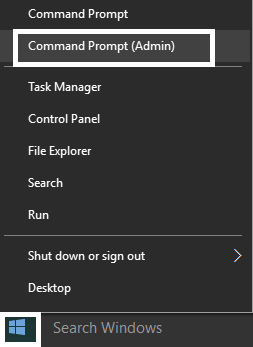
    1. Press Windows Key + X and then click Command Prompt (Admin).

    command prompt with admin rights 11

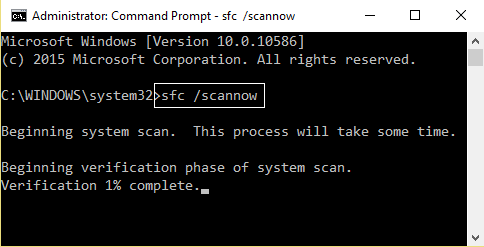
    2. Now type the following in the cmd and hit enter:

    Sfc / scannow sfc / scannow / offbootdir = c: / offwindir = c: Nwindows

    SFC scan now command prompt 4

    3. Wait for the above process to finish and once done, restart your PC.

    4. Then run CHKDSK from here Fix file system errors with Check Disk Utility (CHKDSK).

    5. Let the above process complete and restart your PC again to save the changes.

    #2: Run CCleaner and Malwarebytes

    Run a full virus scan to make sure your computer is safe. In addition to this, it runs CCleaner and Malwarebytes Anti-malware.

    It may interest you:   The default gateway is not available [fixed]

    1. Download and install CCleaner and Malwarebytes.

    2. Launch Malwarebytes and let it scan your system for harmful files.

    3. If malware is found, it will automatically remove it.

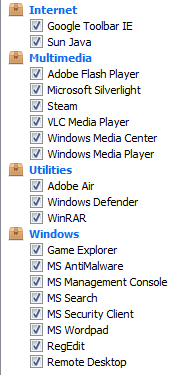
    4. Now run CCleaner and in the “Cleaner” section, in the Windows tab, we suggest that you check the following selections to be cleaned:

    ccleaner cleaner-settings 8

    5. Once you make sure the correct points are checked, simply click Run Cleaner and let CCleaner run its course.

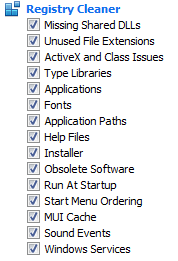
    6. To clean your system, select the Registry tab, and make sure the following is checked:

    registry cleaner 8

    7. Select Scan by problem and allow CCleaner to scan it, then click Fix selected problems.

    8. When the CCleaner asks “Do you want to make a backup of the registry changes?” select Yes.

    9. Once your backup is complete, select Fix all selected issues.

    10. Restart your PC and you may be able to fix the problem that Windows Explorer has stopped working.

    #3: Update the graphics card driver

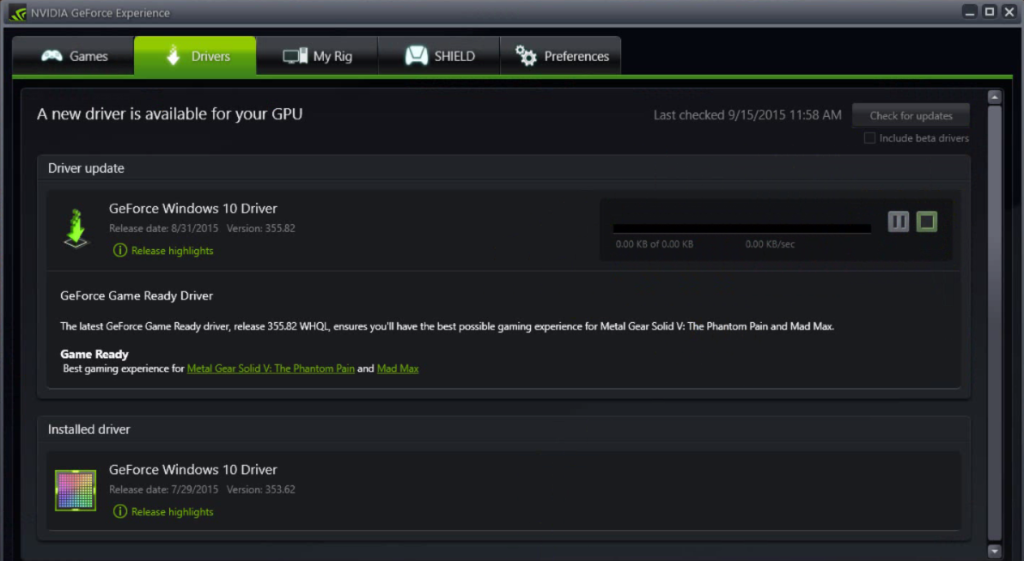
    Update your graphics card drivers from the NVIDIA website (or from the manufacturer’s website). If you are having trouble updating your drivers, click here for the solution.

    Manually update Nvidia driver if GeForce Experience is not working

    Sometimes the graphics card driver update seems like Fix Windows Explorer has stopped working by mistake, but if it doesn’t, then proceed to the next step.

    #4: Make a clean boot

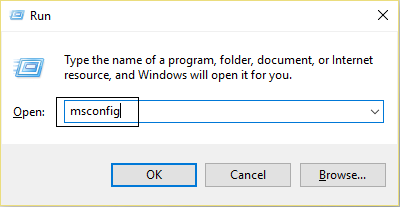
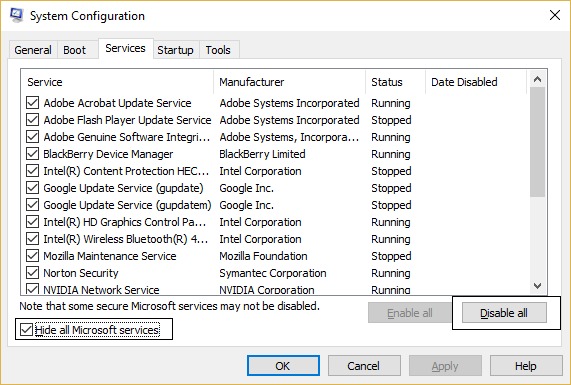
    1. Press the Windows key + R, then type MSConfig and press enter System Configuration.

    msconfig 3

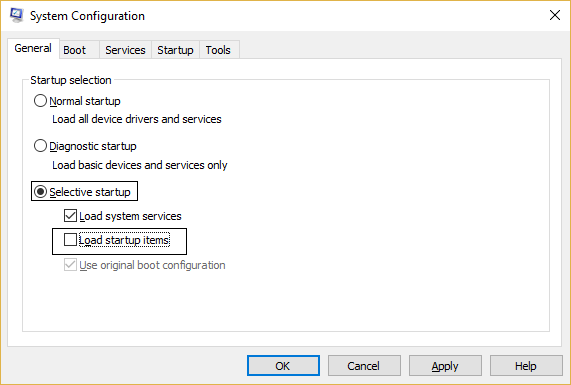
    2. On the General tab, choose Selective startup and under it make sure that the “load startup items” option is unchecked.

    system configuration check selective startup clean boot 2

    3. Navigate to the Services tab and check the box that says “Hide all Microsoft services.”

    hide all microsoft services 2

    4. Then click “Disable all”, which will disable all other remaining services.

    5. Restart your PC, and check whether the problem persists or not.

    6. If the problem is solved, then it is caused by third-party software. To focus on the particular software, you need to enable a group of services (see steps above) at a time and then restart your PC.

    Keep doing this until you find a group of services that is causing this error, and then check the services in this group one by one until you find which one is causing the problem.

    6. After you finish troubleshooting, be sure to undo the steps above (select Normal Startup in step 2) so that you can start your PC normally.

    It may interest you:   Set Windows 10 as the default operating system when dual-booting with Ubuntu

    #5: Run DISM (Deployment Image Servicing and Management)

    1. Press Windows Key + X and then select Command Prompt (Admin).

    commandprompt admin 1 11

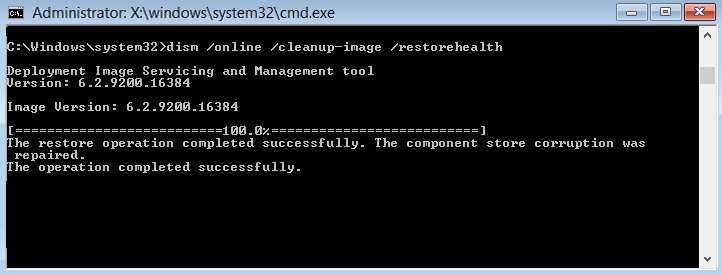
    2. Enter the following command in cmd and press enter:

    DISM / Online / Clean-Image / Restore-Health

    cmd restore health system 3

    2. Press enter to run the above command and wait for the process to complete, normally it takes 15-20 minutes.

    NOTE: If the above command does not work, then try the following: Desm / Image: C: Noffline / Clean-Image / restorehealth / Source: c: N-mounting windows Desm / Online / Clean-Image / restorehealth / Source : c: | mount windows / LimitAccess

    3. After the process is complete restart your PC.

    #6: Disable Right Mouse Button Context Menu Items

    When you install a program or application in Windows, add an item to the right-click context menu.

    The items are called shell extensions, now if you add something that might conflict with Windows this could certainly cause Windows Explorer to crash.

    As the Shell extension is part of Windows Explorer, therefore any corrupt program could easily cause Windows Explorer to stop working by mistake.

    1. Now to check which of these programs is causing the failure you need to download a third-party software called ShexExView.

    2. Double-click the shexview.exe application in the zip file to run it. 3. Wait a few seconds as when it is launched for the first time it takes a while to collect information about the shell extensions.

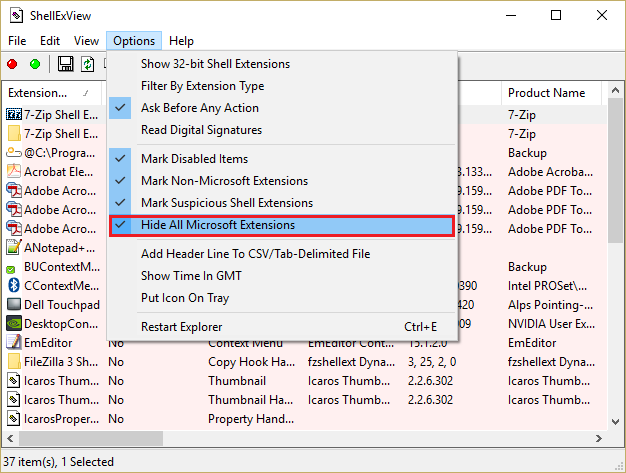
    3. Now click Options and then Hide all Microsoft extensions.

    click Hide All Microsoft Extensions in ShellExView

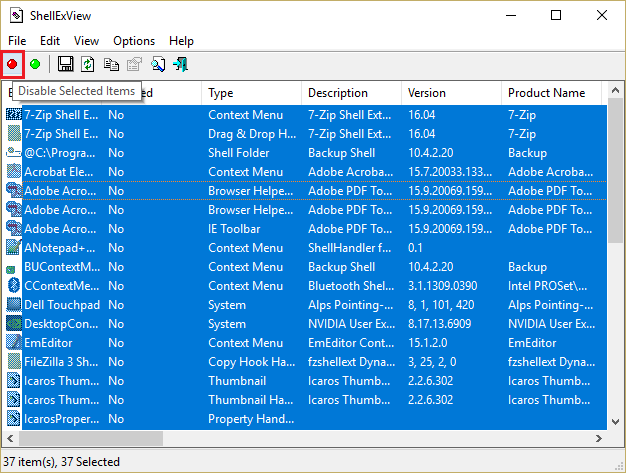
    4. Now press Ctrl + A to select them all and press the red button in the upper left corner.

    click red dot todisable all the items in shell extensions

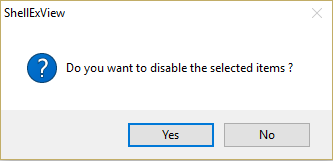
    5. If it asks for confirmation, select Yes.

    select yes when it ask do you want to disable the selected items

    6. If the problem is solved, then there is a problem with one of the extensions on the shell, but to find out which one it is, you have to turn them on one by one by selecting them and pressing the green button on the top right.

    If after enabling a particular shell extension Windows Explorer crashes, then you need to disable that particular extension or better yet if you can remove it from your system.

    #7: Disable thumbnails

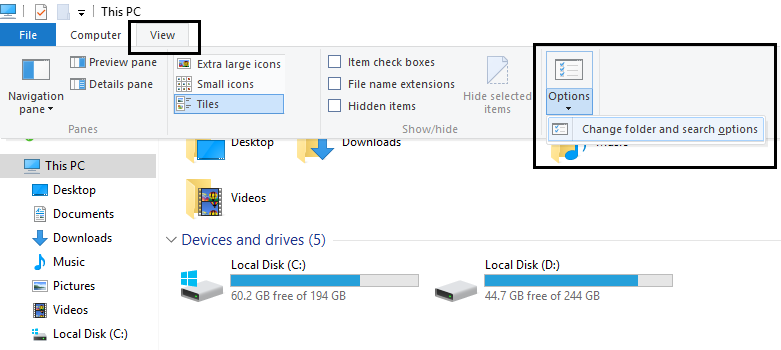
    1. Press the Windows key combination + E on the keyboard, this will launch File Explorer.

    2. Now on the ribbon, click the View tab, and then click Options, and then click Change folder and search options.

    change folder and search options 1

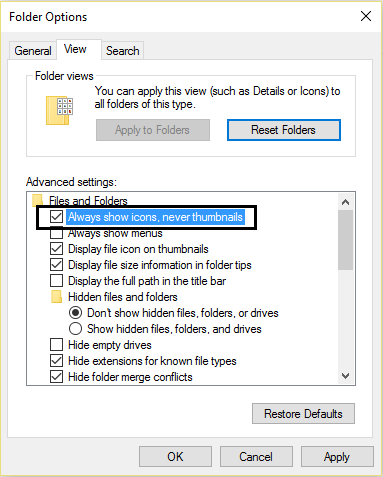
    3. In Folder Options select the View tab and enable the option “Always show icons, never thumbnails”.

    It may interest you:   Uninstall Microsoft Security Essentials in Windows 10

    Always show icons never thumbnails

    4. Restart your system and hopefully, your problem will already be solved.

    #8: Run Windows Memory Diagnostic

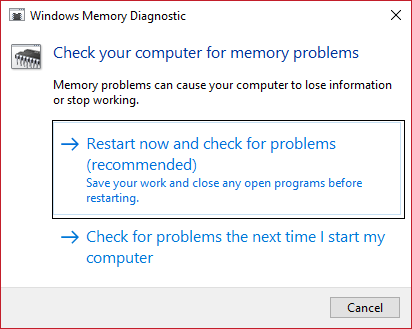
    1. Type the memory in the Windows search bar and select “Windows Memory Diagnostic”.

    2. In the set of options displayed, select “Restart now and check for problems.”

    run windows memory diagnostic 1

    3. After that Windows will reboot to check for possible RAM errors and hopefully display the possible reasons why Windows Explorer has stopped working.

    4. Restart your PC and check whether the problem is resolved or not.

    5. If the problem is still not resolved, then run Memtest86, which can be found in this post Fix kernel security check failure.

    #9: Run the Windows BSOD Troubleshooting Tool (only available after Windows 10 Anniversary update)

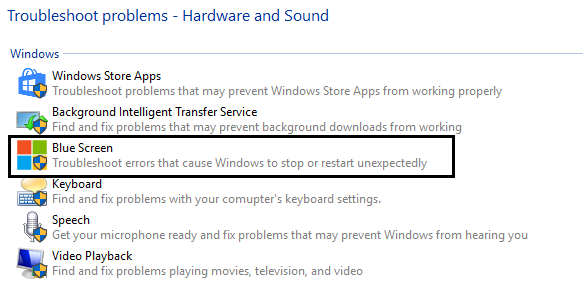
    1. Type “Troubleshooting” in the Windows search bar and select Troubleshooting.

    2. Next, click on Hardware and Sound, and from there select Windows Blue Screen.

    blue screen troubleshoot problems in hardware and sound

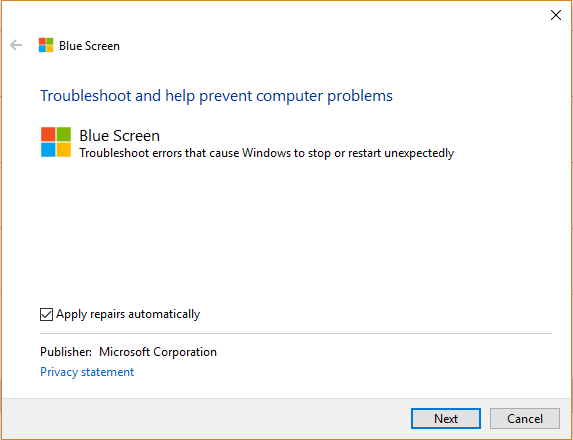
    3. Now click on Advanced and make sure “Apply repairs automatically” is selected.

    apply repair automatically in fix blue screen of death errors

    4. Click Next and let the process finish.

    5. Restart your PC, which should be able to troubleshoot Windows Explorer, which has stopped working by mistake.

    #10: Try to restore your system to working condition

    To correct the Windows Explorer that has stopped working error, you may have to restore your computer to an earlier working time using System Restore.

    #11: Repair Install Windows 10

    This method is the last resort because if nothing works then this method will surely repair all your PC problems. Repair Install only using an in-place update to repair system problems without erasing user data present on the system. So follow this article to see How to Repair and Install Windows 10 easily.

    Read more:

    Conclusion:

    So, friends, That’s it, you have successfully fixed Windows Explorer has stopped working by mistake but if you still have any questions about this guide, feel free to ask them in the comments section.

  • How to Check Windows 10 Version on Your Computer 2025

    How to Check Windows 10 Version on Your Computer 2025

    How to Check Windows 10 Version on Your Computer – Microsoft releases a new version of Windows 10 roughly every six months. However, not everyone gets it at once. Here’s how to check the version of Windows 10 on your PC, whether you have the latest version of Windows 10 or not.

    How to Check Windows 10 Version on Your Computer
    How to Check Windows 10 Version on Your Computer

    How to Check Windows 10 Version on Your Computer

    Microsoft is slowly rolling out updates to PCs, carefully measuring whether a problem occurs every time an update occurs. For example, the hardware on one laptop may have driver issues that need to be fixed before it works properly with a new version of Windows 10. Some PCs may run security software that requires changes to work on newer versions of Windows 10.

    Read more:

    Due to Microsoft’s careful updating strategy, some PCs may not get the latest updates for a year or more.

    Is the Latest Version of Windows 10 Important?

    To be honest, for most people, having the latest version of Windows 10 or not having the latest version isn’t a problem. Unless you are having problems or want a new feature, you may need to use the Windows Updates version on your system.

    Microsoft has continued to update older versions of Windows 10 with security updates for some time. When a version of Windows 10 will no longer get updates security, Windows updates are aggressive enough to upgrade to a newer version.

    In other words, most people don’t need to care whether they are using the latest version or not.

    How to Check Windows 10 Version on Your PC Laptop

    Because of this, you may want the latest version of Windows 10 for many reasons: to get new features, to gain compatibility with a particular program, to fix bugs you experienced in older versions, to test the latest software releases, or to use the latest operating system.

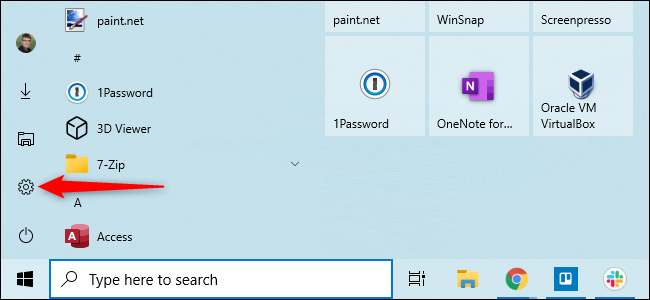
    To check which version you have installed on your PC, open the Settings window by opening the Start menu. Click the “ Settings ” gear on the left or press Windows + i.

    How to Check Windows 10 VersionNavigate to System> About in the Settings window.
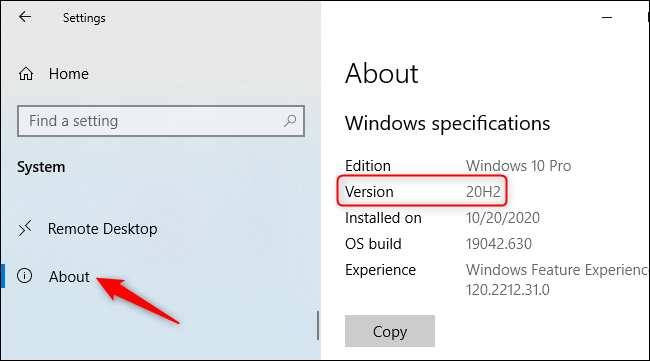
    See below the Windows specifications for the “ Version ” you have installed. (On older versions of Windows 10, this screen may look a little different, but displays the same information.)

    Note: The “Installed on” date does not necessarily reflect the date when the latest update was installed. For example, 20H2 is a smaller update and many people have noticed that they are running version 20H2 but “Installed on” shows the date before October 2020, when the update was released. Instead, the date may show the date when 20H1 was installed.

    How to Check Windows 10 VersionHow to Get the Latest Version of Windows 10
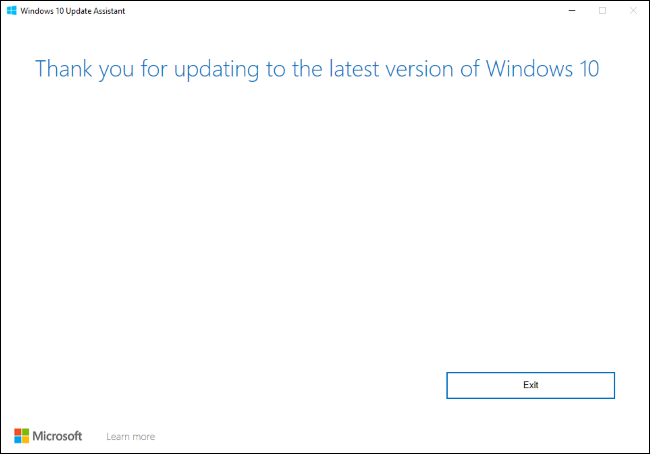
    If the numbers don’t match, you have a version of Windows 10. To update your PC to the latest version, visit Microsoft’s Download Windows 10 page and click the “Update Now” button to download Microsoft’s Update Assistant. Run the downloaded tool – if a new version of Windows 10 is available, it will search for and install it.

    To check if you have the latest version of Windows 10 on your PC, you can download and run this Microsoft tool. If a new version is available, the tool will offer to install it. If you have the latest version installed, the tool will let you know.

    Warning: By running Upgrade Assistant, you are forcing Windows 10 to upgrade itself. Even if there are known issues with the update on your computer, Windows will ignore the problem and install the updates anyway. Microsoft recommends that you first check for known issues to affect your system.

    How to Get the Latest Version of Windows 10
    You can uninstall the update if you have problems – assuming your computer still boots properly. However, it would be best if you uninstalled the update within the first ten days after installing it.

    Conclusion:

    Checking the Windows 10 version on your computer is quick and easy. You can do it in a few simple steps. You can check the version number and build number by accessing the Settings app or using the Command Prompt or PowerShell.

    Knowing your Windows 10 version is important for keeping your system up-to-date with the latest security patches and features. It can also help you troubleshoot any compatibility issues with software or hardware.

  • 4 Ways To Fix Error 0xc00001 in Windows 10 PC 2025

    4 Ways To Fix Error 0xc00001 in Windows 10 PC 2025

    4 Ways To Fix Error 0xc00001 in Windows 10 PC – The error code 0xc00001 is caused due to a missing file on the Windows 10 installation media, but you don’t have to worry about this problem, as it can be easily fixed. In some cases, this error is accompanied by a BSOD or Blue screen.

    4 Ways To Fix Error 0xc00001 in Windows 10 Laptop PC
    4 Ways To Fix Error 0xc00001 in Windows 10 Laptop PC

    How To Fix Error 0xc00001 in Windows 10 PC Laptop

    Read more:

    For complete error errors as below:

    Your PC needs to be repaired The application or operating system couldn't be loaded because a required file is missing or contains errors. File: windowssystem32windload.efiFile: windowsSyse32windowsload.efi

    #1. Re-create the Master boot Sector

    By using the Bootrec.exe feature you can rebuild the damaged Boot Configuration Data (BCD) by:

    • Boot into your Windows installation CD / USB
    • Select Repair your computer after you select the language, time, and keyboard method
    • Select your Windows installation drive (usually C: \) and click Next
    • Select Command Prompt (CMD) in System Recovery Options
    • Write the following commands and press Enter on each line:
    bootrec / FixMbr
    bootrec / FixBoot
    bootrec / ScanOs
    bootrec / rebuildBcd

    #2. Copy SAM File from the Repair Folder

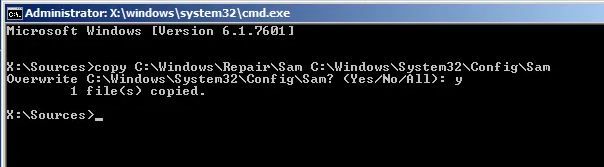
    If you still can’t log into Windows, try copying the SAM file C: WINDOWSrepair to C: WINDOWSsystem32config. Here’s how to do it:

    • Boot into your Windows installation CD / USB
    • Select Repair your computer after you select the language, time, and keyboard method
    • Select your Windows installation drive (usually C: \) and click Next
    • Select Command Prompt (CMD) in System Recovery Options
    • Write the following command and press Enter:
    copy C: \ Windows \ Repair \ Sam C: \ Windows \ System32 \ Config
    • If asked if you want to overwrite the original file, confirm with the Y key
    Copy SAM File from Repair Folder

    #3. Run the SFC Command

    • Boot into your Windows installation CD / USB
    • Select Repair your computer after you select the language, time, and keyboard method
    • Select your Windows installation drive (usually C: \) and click Next
    • Select Command Prompt (CMD) in System Recovery Options
    • Write the following command and press Enter:
    sfc / scannow

    This repair process took a while, try to wait for it to finish.

    #4. Perform Repair or Reset on your Windows

    If all the methods above haven’t worked, try to repair or reset your Windows by:

    Conclusion:

    This is an explanation of 4 ways to fix error 0xc00001 in a Windows 10 PC. Error code 0xc0000001 is a blue screen error on Windows 10 that may occur due to several reasons, such as corrupt system files, faulty software/programs, hardware changes, and more.