Author: Nazrul Islam

  • 7 Ways to Fix YouTube Not Working With Chrome on PC 2025

    7 Ways to Fix YouTube Not Working With Chrome on PC 2025

    7 Ways to Fix YouTube Not Working With Chrome on PC – If you are having trouble using YouTube on Chrome or streaming YouTube videos, don’t worry as you will see how to fix this issue in this article.

    Fix YouTube Not Working With Chrome
    Fix YouTube Not Working With Chrome

    How to Fix YouTube Not Working With Chrome on PC

    You may find YouTube not working or a problem opens in Chrome like there is no sound available for YouTube videos, instead of the video you just see a black screen, etc. then don’t worry as the main cause of this problem seems to be an outdated chrome browser or a chrome cache or cookie issue.

    Read more:

    So without wasting time, we are going to see how to solve the problem that YouTube does not work in Chrome with the help of the guide that appears below.

    Make sure to create a restore point in case something goes wrong.

    #1: Make sure the chrome is up to date

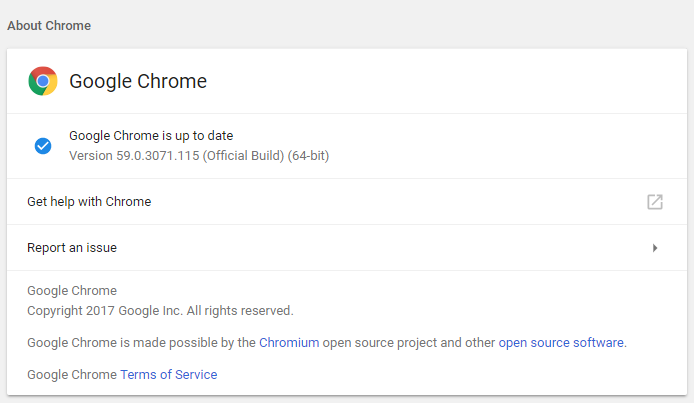
    1. To update Google Chrome, click the Three dots in the upper right corner of Chrome, select Help, and then click About Google Chrome.

    Make sure the chrome is up to date

    2. Now make sure Google Chrome is up to date, if not, you will see an update button, click on it.
    Make sure the chrome is up to date

    This will update Google Chrome to its latest version, which could help you fix YouTube not working on Chrome.

    #2: Clear the cache and cookies on the chrome

    When the browsing data is not cleared after a long time, this can also cause Youtube to not work on Chrome.

    It may interest you:   How to see the password saved in Chrome

    1. Open Google Chrome and press Ctrl + H to open the history.

    2. Then click Clear browsing data in the left panel.
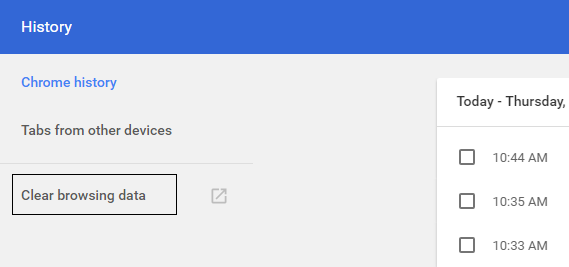
    Clear the cache and cookies on the chrome

    3. Make sure “beginning of time” is selected in Obliterate the following items.

    4. Also, check the following:

    Browsing history Download history Cookies and other stud and plugin data Cached images and files Autocomplete form data Passwords
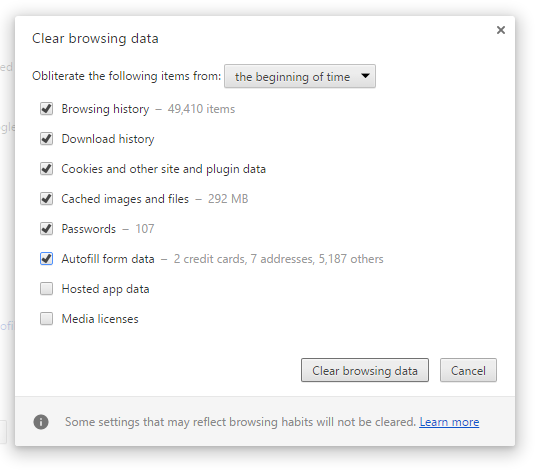
    Clear the cache and cookies on the chrome

    5. Now click the Clear browsing data button and wait for it to finish.

    6. Close your browser and restart your PC to save the changes

    #3: Disable Hardware Acceleration in Chrome

    1. Open Google Chrome click on the three dots in the upper right corner and select Settings.
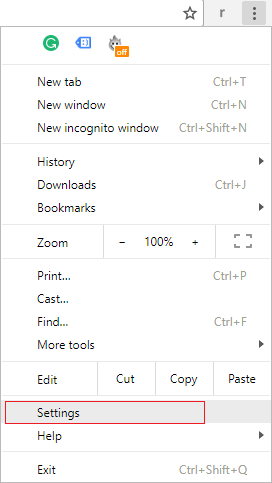
    Disable Hardware Acceleration in Chrome

    2. Now scroll down until you find Advanced (which is probably at the bottom) and click on it.
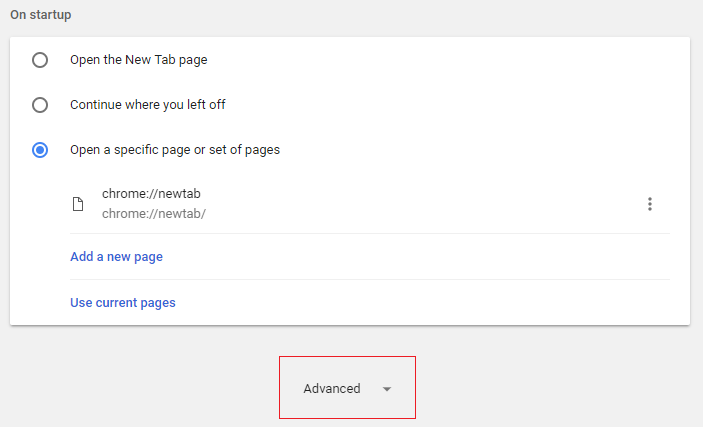
    Disable Hardware Acceleration in Chrome

    3. Now scroll down until you find the system settings and make sure to disable the “Use hardware acceleration when available” option.
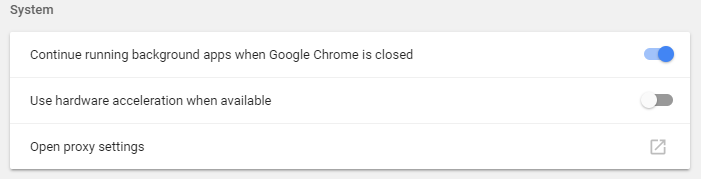
    Disable Hardware Acceleration in Chrome

    4. Restart Chrome and this should help you fix Youtube Not Working on Chrome.

    #4: Disable all third-party extensions

    Extensions are a very useful feature in Chrome to extend its functionality, but you should know that these extensions take up system resources while running in the background. In short, even if the particular extension is not in use, it will still use your system resources. So, it is a good idea to remove all the unwanted / deleted Chrome extensions that you may have installed before.

    1. Open Google Chrome and type chrome: // extensions in the address and hit Enter.

    It may interest you:   Turn your Smartphone into a universal remote control

    2. Now first disable all the unwanted extensions and then delete them by clicking on the delete icon.
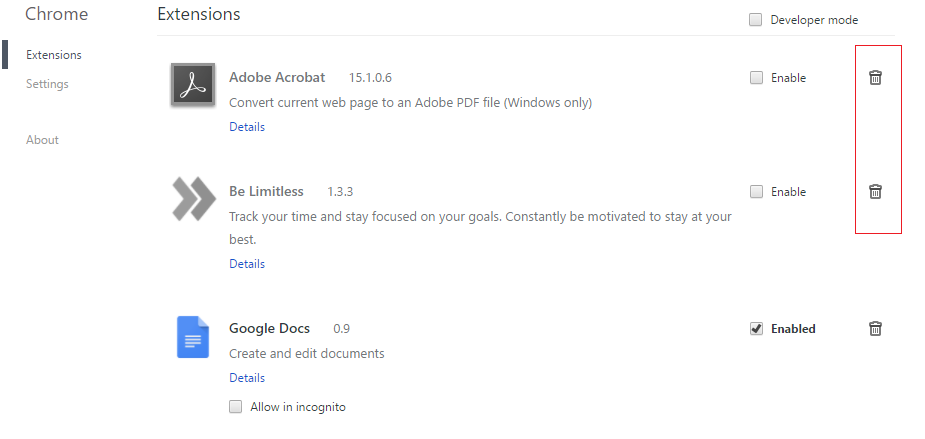
    Disable all third-party extensions

    3. Restart Chrome and see if you can fix YouTube not working issue on Chrome.

    4. If you are still having trouble with YouTube videos, then disable the entire extension.

    #5: Reset Chromium to Default

    1. Open Google Chrome and click on the three dots in the upper right corner and on Settings.
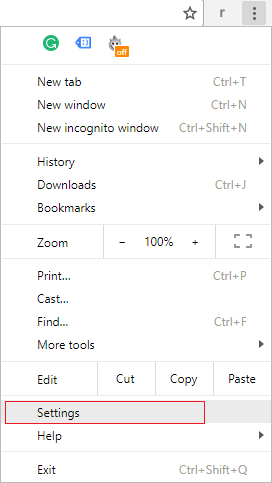
    Reset Chromium to Default

    2. Now in the settings window, scroll down and click on Advanced at the bottom.
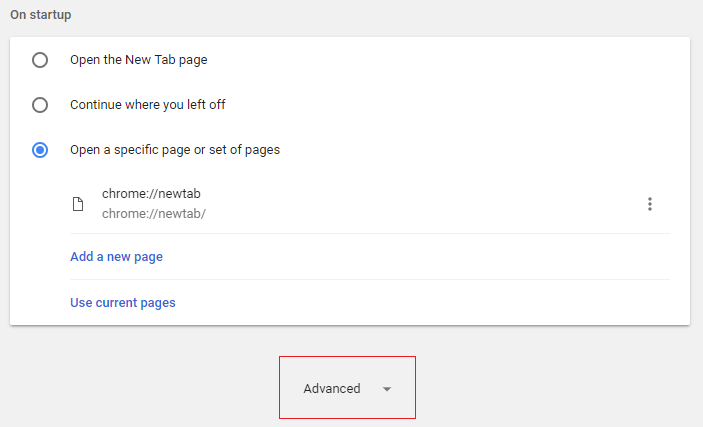
    Reset Chromium to Default

    3. Go back down to the bottom and click on the “Restart” column.
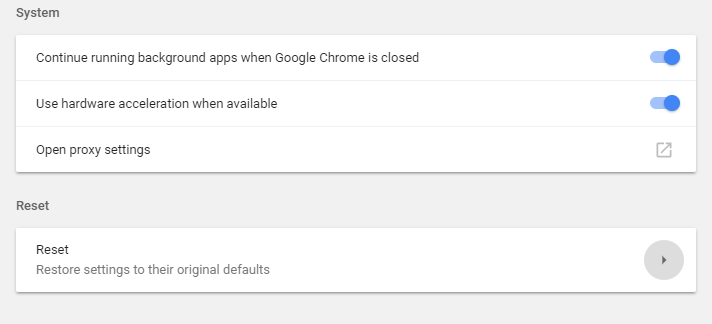
    Reset Chromium to Default

    4. This would open a pop-up window again asking if you want to Reset, so click Reset to continue.
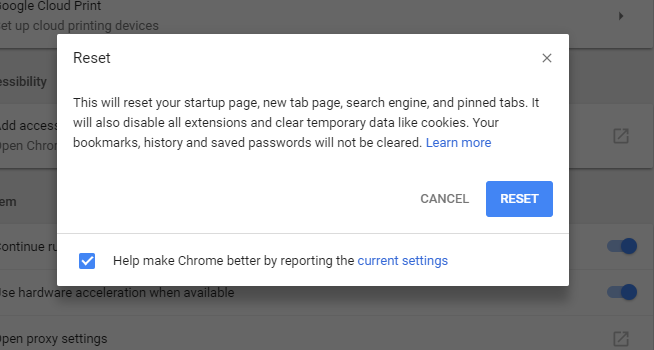
    Reset Chromium to Default

    #6: Use the Chrome Cleaning Tool

    The official Google Chrome cleaning tool helps scan and remove software that may be causing the Chrome problem, for example, crashes, unusual home pages or toolbars, unexpected ads that you cannot get rid of, or changes to the browsing experience.
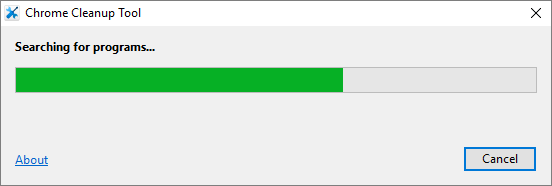
    Use the Chrome Cleaning Tool

    #7: Reinstall the Google Chrome browser

    Well, if you’ve tried everything and still haven’t been able to fix the error, then you need to reinstall Chrome again. But first, make sure to completely uninstall Google Chrome from your system and then download it again from here. Also, make sure to delete the user data folder and then reinstall it from the old source.

    1. Press Windows Key + R type the following and hit Enter:

    Google Chrome user data (tixag).

    2. Right-click on the default folder and select Rename or you can delete if you feel comfortable losing all your preferences in Chrome.
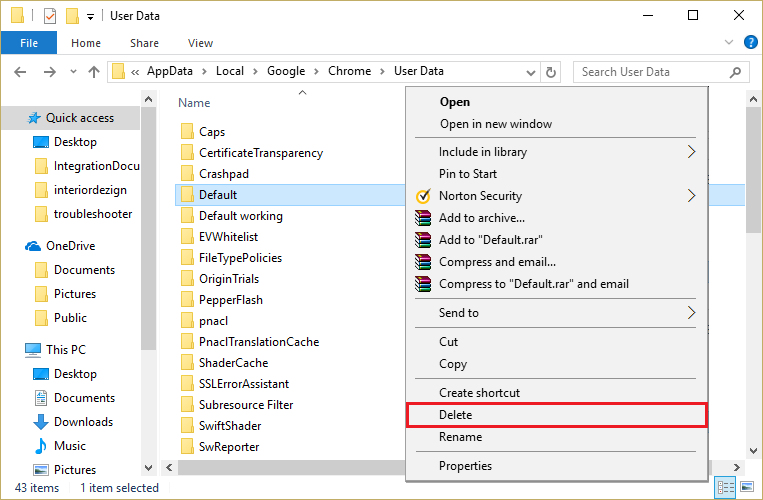
    It may interest you:   3 ways to hide applications on Android without root

    Reinstall Google Chrome browser

    3. Rename the folder to default. old and press Enter.

    Note: If you can’t change the folder name, make sure to close all instances of chrome.exe from Task Manager.

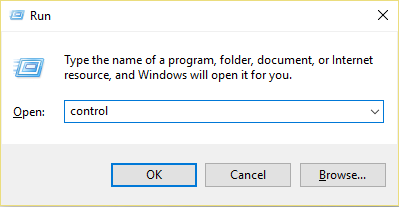
    4. Now press the Windows key + R, then type control and press Enter to open the Control Panel.
    Reinstall Google Chrome browser

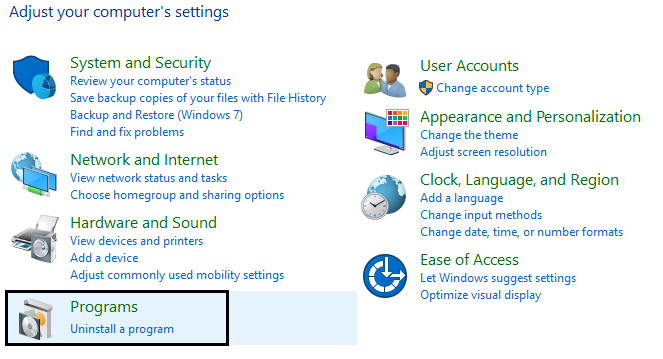
    5. Click Uninstall a program and then search for Google Chrome.
    Reinstall Google Chrome browser

    6. Right-click Chome and select Uninstall.

    7. Now restart your PC to save the changes and again download and install Chrome.

    Read more:

    Conclusion:

    This is the explanation of 7 ways to fix YouTube not working with Chrome on PC, but if you still have any questions regarding this tutorial, feel free to ask them in the comment section.

  • Download Resetter Canon iP2770 / iP2700 [100% Test Successful] 2025

    Download Resetter Canon iP2770 / iP2700 [100% Test Successful] 2025

    Download Resetter Canon iP2770 / iP2700 [100% Test Successful]—Canon is one of the most well-known printer vendors in India. One of the best-selling variants is the iP2770. It is in demand because of its quality and attractive price.

    How To Download Resetter Canon iP2770 iP2700
    How To Download Resetter Canon iP2770 iP2700

    How to Download Resetter Canon iP2770 / iP2700 [100% Test Successful]

    However, there are some users of this type of printer who experience error problems when printing.

    Read more:

    The causes vary, it can be due to an error from the machine or using this printer too much. Maybe you have encountered the error code  Error 5200  Waste ink Tank Absorber Full or  Error 5200.  Now the good news is that you can reset the printer.

    In resetting the printer we need the help of a printer resetter tool or it can be manual. Later you can try it yourself which method works to reset your Canon printer?

     Preparing to Reset the PrinterHow To Download Resetter Canon iP2770 iP2700

    1. Turn off your printer.
    2. Then press and hold the RESUME button.
    3. While holding down the Resume button, continue by pressing the POWER button until the printer’s green light turns on.
    4. Then release the RESUME button but the POWER button is still being held.
    5. Then proceed by pressing the RESUME  button for  5 x  the LED lights will turn on alternately orange, and green, and end with an orange color.
    6. Now release all buttons.
    7. Don’t be surprised because the LED light will edit and finally it stops green.
    8. Please wait, the computer is detecting the printer.
    9. Done … now the printer is in  SERVICE MODE  and ready to be reset.

    Printer Reset Process

    1. Download Resetter Canon P 2770/2700
    2. If it has been downloaded then immediately install the resetter above.
    3. Then open the Canon IP 2770 Printer Resetter software.
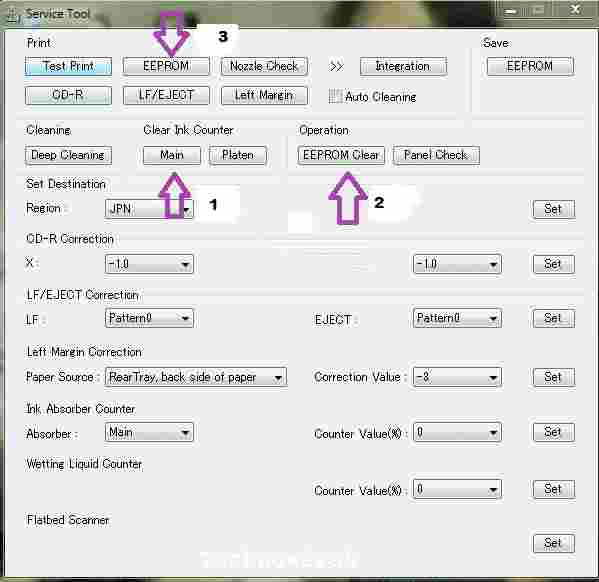
    4. Then click the MAIN button, and the printer will automatically print with the text  D = 000.0
    5. Then click EEPROM Clear.
      How To Download Resetter Canon iP2770 iP2700
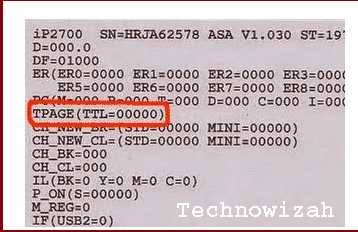
    6. The printer will print the results of resetting the Resetter iP2770 software,  please see the reset text, it should say  TPAGE (TTL = 00000).
      How To Download Resetter Canon iP2770 iP2700
    7. Turn off the printer and turn it back on.
    8. Done.

    DMCA: Technowizah.com complies with 17 U.S.C. * 512 and the Digital Millennium Copyright Act (DMCA). It is our policy to respond to any infringement notices and take appropriate action. If your copyrighted material has been posted on the site and you want this material removed, Contact us.

  • 3 Ways to Activate IDM on Google Chrome Laptop PC 2025

    3 Ways to Activate IDM on Google Chrome Laptop PC 2025

    3 Ways to Activate IDM on Google Chrome Laptop PC – Did you know that IDM is software that can increase download speed? But unfortunately, some people have problems because IDM often doesn’t appear on Chrome when needed. But there’s no need to worry, there’s still a way to activate IDM on Google Chrome that doesn’t appear.

    3 Ways to Activate IDM on Google Chrome
    3 Ways to Activate IDM on Google Chrome

    How to Activate IDM on Google Chrome Laptop PC

    As is well known, IDM is a third-party tool that helps in managing downloads. When the IDM installation stage is carried out, basically IDM will provide an additional extension so that IDM can connect to the Google Chrome browser automatically.

    Read more:

    That is the reason why IDM notifications always appear automatically when you are about to download a file or play a video from YouTube and other social media.

    In addition, IDM is also known as software that provides higher download speeds. IDM is arguably a mandatory application for those of you who like to download large files.

    Although it is very useful, there are times when IDM has problems when it is used. In some cases, IDM often won’t appear in the google chrome browser.

    There are several ways to solve this problem, the following are below.

    #1. IDM Integration Module

    IDM Integration Module
    IDM Integration Module

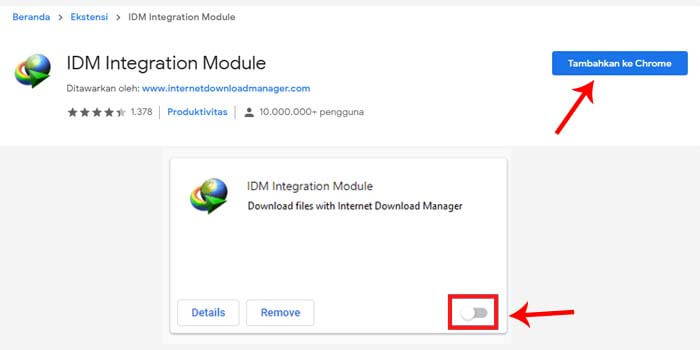
    IDM Integration Module is a google chrome extension that functions to connect IDM with Chrome. By adding this extension, IDM will be active on the Google Chrome browser.

    Here’s how to activate IDM on google chrome:

    1. Run the google chrome browser first.
    2. Go to the IDM Integration Module page.
    3. Click the Add to Chrome button.
    4. Wait until the process of adding extensions is complete.
    5. Close Chrome then reopens it for use.
    6. Done.

    After the IDM Integration Module extension has been installed on Chrome, it is certain that IDM is active on Google Chrome. To be sure, you can visit the extensions page or in Chrome: // extensions /

    #2. Update IDM

    Update IDM
    Update IDM

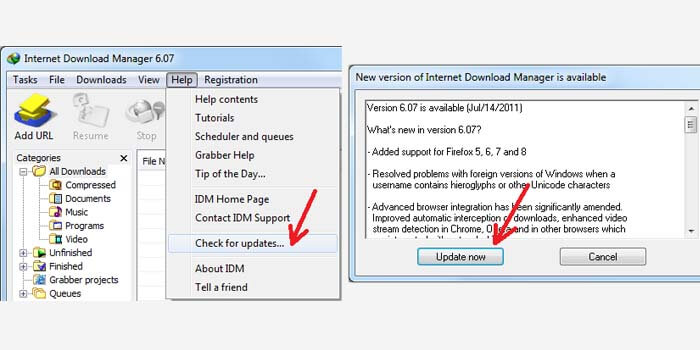
    The outdated IDM version usually can’t connect with the google chrome browser. Therefore, the second way to overcome this is by updating IDM to the latest version.

    How to display IDM on the latest Chrome:

    1. Open IDM on your computer or laptop.
    2. Then click the Help menu > Check for updates.
    3. Then wait a moment.
    4. The latest IDM version notification window will appear.
    5. Click the Update Now button.
    6. Finally, just wait for the update process to complete.

    If IDM has been successfully updated to the latest version, then IDM is automatically active in the Google Chrome browser.

    #3. Reinstall

    Reinstall
    Reinstall

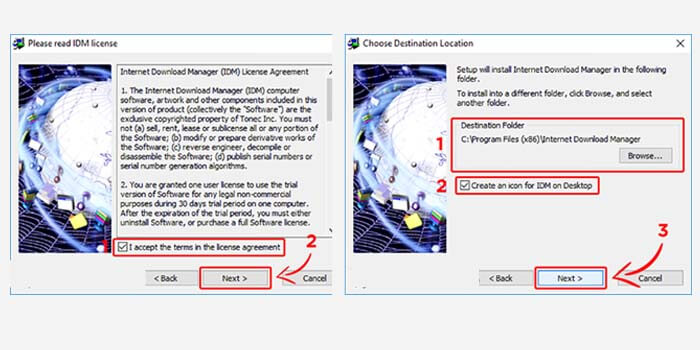
    IDM can connect to Google Chrome because of the addition of extensions at the installation stage. So by reinstalling, IDM will provide an extension to Chrome so that it can be reconnected.

    1. Make sure you have the IDM installer file.
    2. If you already have, double-click the file.
    3. In the first stage, namely, the Installation Wizard, click Next.
    4. In the License Agreement, check the box below then click Next.
    5. Specify the IDM installation folder, add a shortcut, and click Next.
    6. Wait for the IDM installation process to complete.
    7. Click Next and the final step is to click the Finish button.

    Then make sure IDM is active and the IDM icon appears in the Windows system tray. If the IDM icon does not exist, simply run IDM that you have installed to activate it.

    Read more:

    Conclusion:

    This is the explanation of 3 ways to activate IDM on a Chrome laptop PC, which often doesn’t appear. The method described above is quite easy to do, just decide which method is suitable for your computer or laptop.

  • 11 Best Ways To Screenshot on Asus Laptop Windows 10 PC 2025

    11 Best Ways To Screenshot on Asus Laptop Windows 10 PC 2025

    11 Best Ways To Take Screenshot on Asus Laptop Windows 10 PC Laptop – Are you facing any issues while taking a screenshot on the Asus laptop? Then you are in the right place. in this post, I will share with you, how to take screenshots on an Asus laptop.

    11 Best Ways To Screenshot on Asus Laptop Windows 10
    11 Best Ways To Screenshot on Asus Laptop Windows 10

    How To Take Screenshot on Asus Laptop Windows 10 PC Laptop

    Yes, you are right, In this post, you will learn how to take screenshots on an Asus laptop with the operating system Windows 10 with various methods, like with the help of external software or by default screenshot methods available on various Operating Systems, So read the article fully and learn how to take screenshots on Asus Laptop.

    Read more:

    Following the steps below I have discussed how to take a screenshot on the Asus laptop.

    Taking screenshots on the Asus laptop is quite the same as other brand laptops, but there are slight differences depending on the brand of laptop that we use and also some differences in the various operating system.

    The latest Windows 10 provides to create screenshots with onboard tools. Although there are various additional tools available in the market, some of them are available free of cost, and some the premium tools.

    In the latest generation, ASUS Laptops that are running on Microsoft’s Windows 10 Operating System are easy to take screenshots, where you have to download and install certain Software or add-ons for taking screenshots on your ASUS Laptop.

    The latest generation of ASUS Laptops has quite a simple technique for taking screenshots.

    How To Take Screenshot on Asus Laptop Windows 10

    How To Take Screenshot on Asus Laptop Windows 10
    How To Take Screenshot on Asus Laptop Windows 10

    Some Latest ASUS Laptop Model series are listed below:

    • Asus ZenBook Series
    • VivoBook Series
    • StudioBook Series
    • Chromebook Series
    • Commercial Series
    • Gaming Series
    • FX / ZX Series
    • TUF Gaming Series

    #1. The Screenshot on Asus Laptop with Snipping Tool

    The Screenshot on Asus Laptop with Snipping Tool
    The Screenshot on Asus Laptop with Snipping Tool

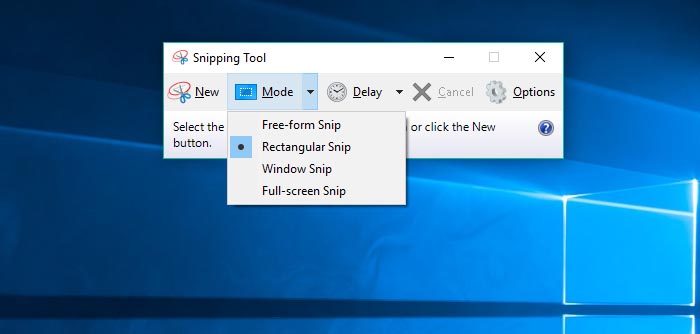
    A built-in Windows screenshot tool, Snipping Tool is present since Windows Vista. You can find this tool in Start> All Programs> Windows Accessories> Snipping Tool.

    To use the Snipping tool, open it and click New to start the screenshot process. The default snap type is a rectangular snip – you’ll use your mouse to cut off the rectangular portion of your screen to take. You can also take pictures of forms, windows, and full screen with the Snipping Tool.

    The snipping tool does not automatically save your screenshots, you need to save them manually in the tool before you exit. It automatically copies your screenshot to the clipboard.

    #2. Print Screen on Asus Laptop

    Print Screen on Asus Laptop
    Print Screen on Asus Laptop

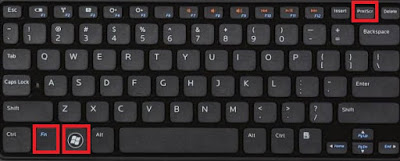
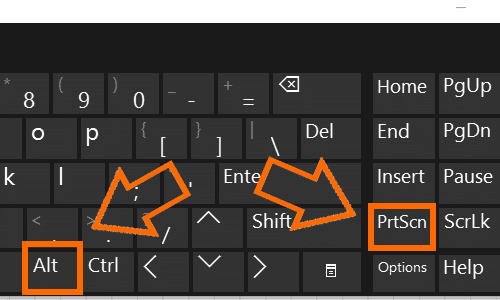
    To capture your entire screen, tap the PrtScn keyboard button. Your screenshots will not be saved but will be copied to the clipboard, you have to open an image editing tool (such as Microsoft Paint), insert a screenshot in the editor, and save the file from there.

    #3. The Screenshot on Asus Laptop Windows Key + Print

    The Screenshot on Asus Laptop Windows Key + Print
    The Screenshot on Asus Laptop Windows Key + Print

    To capture your entire screen and automatically save a screenshot, press the Windows Key + PrtScn key. Your screen will briefly dim to indicate that you’ve just taken a screenshot, and screenshots will be automatically saved in the Pictures> Screenshots folder.

    #4. The Screenshot on Asus Laptop with Windows + H Button

    The Screenshot on Asus Laptop with Windows + H Button
    The Screenshot on Asus Laptop with Windows + H Button

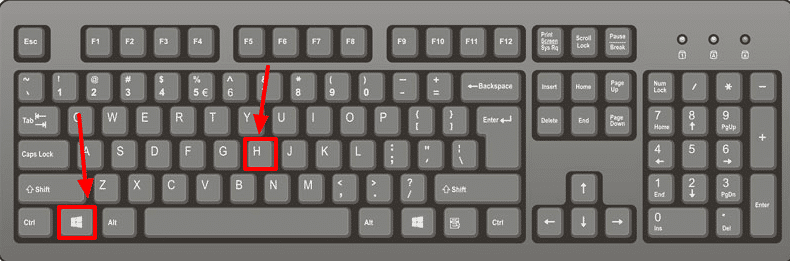
    If you want to capture the whole screen for sharing purposes, you can use Windows Key + H keyboard shortcuts.

    This will capture your entire Asus laptop screen and open the Windows Share toolbar so you can instantly share it with your friends via email, Facebook, Twitter, One Note, etc.

    #5. Alt + Print Screen

    Alt + Print Screen
    Alt + Print Screen

    To take a screenshot of the Asus laptop quickly from the active window, use the keyboard shortcut Alt + PrtScn. This will take your current Windows snapshot and copy the screenshot to the clipboard. You need to open a shot in the image editor to save it.

    #6. The Screenshot on Asus Laptop with Windows Logo Key + Volume Down

    The Screenshot on Asus Laptop with Windows Logo Key + Volume Down
    The Screenshot on Asus Laptop with Windows Logo Key + Volume Down

    If you shake the Windows Surface device, you can use physical buttons (well, sort of physical) to take screenshots of your entire screen – similar to how you would capture screenshots on a smartphone or Other tablets.

    To do this, hold down the Windows Logo touch button at the bottom of your Surface screen and press the physical volume-down button on the side of the tablet.

    The screen will be dimmed briefly and the screenshots will be saved automatically to the Pictures> Screenshots folder.

    #7. The Screenshot on an Asus laptop with Snip Editor

    The Screenshot on Asus laptop with Snip Editor
    The Screenshot on Asus laptop with Snip Editor

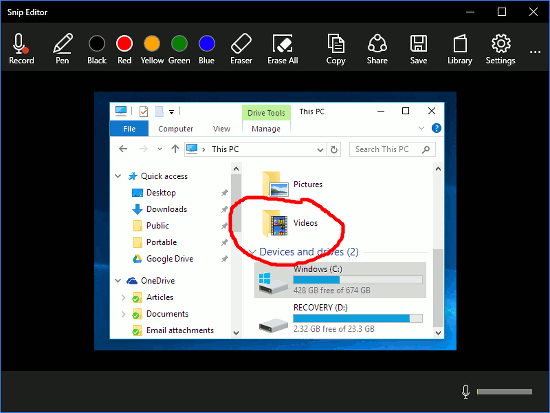
    Snip Editor, or Microsoft Snip, Is a Microsoft Garage project that works a bit better than the Cut tool (I think).

    Snip Editor allows you to quickly take screenshots of the entire screen, active window, or rectangle cropped manually – and you can set the PrtScn key as a shortcut to the Snip Editor screenshot tool.

    The app also features various ways to annotate screenshots, including free pen options (suitable for Windows Ink fans) and sound recordings.

    Like the Snipping Tool, Snip Editor lets you snooze screenshots for up to 5 seconds, so you can snapshot of the lost menu and tooltips.

    Snip Editor allows you to quickly take screenshots of the entire screen, active window, or rectangle cropped manually – and you can set the PrtScn key as a shortcut to the Snip Editor screenshot tool.

    Including free pen options (suitable for Windows Ink fans) and sound recordings. Like the Snipping Tool, Snip Editor lets you snooze screenshots for up to 5 seconds, so you can snapshots of lost menus and tooltips.

    #8. Lightshot

    Lightshot
    Lightshot

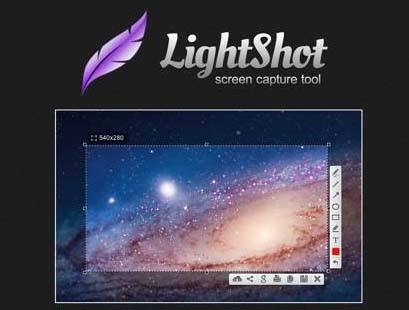
    This application offers a screenshot method that can be done easily, but before making sure you have installed this application and the Lighshot icon will appear in the Windows taskbar.

    For the next step, you need to select the screen display or image you want to screenshot, then click the Lightshot icon on the Taskbar menu. Then you select the area to be captured and use your laptop mouse.

    After you select the image and save it by clicking on the diskette icon or logo, save it according to the format provided namely PNG, JPEG, and BMP.

    For additional features there are share, print, copy, add text, give a marker, and others. In terms of small size, it is only 4MB and supports Windows XP, Windows 7, Windows 8, and Macintosh.

    #9. Jing

    Jing
    Jing

    Jing Applications that have the features and tools offered are not much different from other screenshot applications.

    Plus it can record the screen display in 5 minutes duration. It’s easy, just select the Capture Video menu in the Menu option. However, for saved image formats PNG is only available.

    #10. Schirmfoto

    Schirmfoto
    Schirmfoto

    The advantages of the application are that can store screenshots in high resolution, and the choice of format also varies such as JPG, PNG, and PDF.

    The good, the screenshot application on this laptop can record video displays on the screen. Other features you can edit by cropping, printing, and adding watermarks, markers, and more.

    The matter of its very small size, which is only about 5MB, and supports Windows XP, Windows 7, Windows 8, and Windows 10.

    To use this application, you can simply click the camera icon and the image will be saved automatically. Schirmfoto can also allow you to capture the desired image.

    Read more:

    Conclusion:

    So, friends, these above are some ways how to screenshot on an Asus laptop windows 10, I hope this guide will help you to take a screenshot on the Asus Laptop. If you have any queries related to this article you can comment below we will definitely get back to you.

  • 3 Ways To View and Check Computer IP Address 2025

    3 Ways To View and Check Computer IP Address 2025

    3 Ways to View and Check Computer IP Address—Are you looking for how to view and check laptop IP address? Maybe many of you don’t know how to check or what exactly an IP address does.

    3 Ways To View And Check Computer IP Address

    How To View and Check Computer IP Address

    When our laptop device is connected to the network, at that time our laptop has an IP (Internet Protocol) address.

    Read more:

    Every laptop device has a different IP. Not everyone knows how to check their laptop IP.

    One day, the office may experience limited bandwidth problems, so for internet network termination, an IP address will usually be asked.

    What is an IP Address?

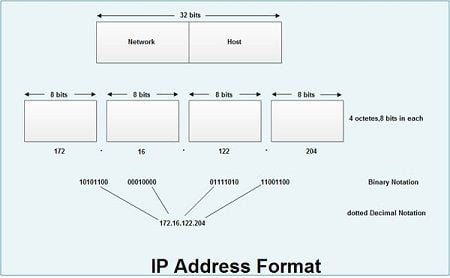
    IP is a series of numbers or numbers made to identify a laptop, computer, or another device on an internal network or the internet based on TCP / IP.

    For those with an IT background, it is quite easy to find the IP address of their laptop. Then what if you don’t have an IT background? Check out this way.

    How to See your own laptop or PC IP Address

    #1. Viewing Laptop IP Through Network Connection

    For those of you who want to see the IP address of the laptop, one way is through a network connection. What are the steps to check it?

    Follow these guidelines:

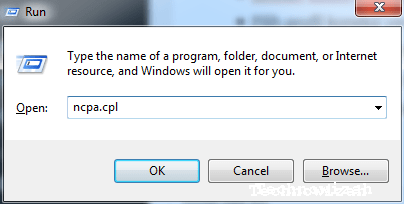
    • Enter the start menu column then look for ‘ RUN ‘ or by pressing the window button + R
    • Once the search field opens, type ‘ ncpa.cpl ‘ then hit enter.

    3 Ways To View And Check Computer IP Address

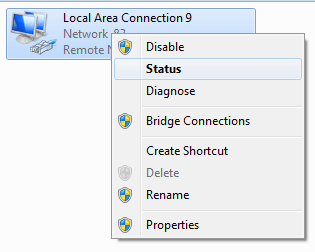
    • Select the currently active connection profile, marked by a green signal icon or an active local area
    • Right-click the icon, then select ‘status’

    3 Ways To View And Check Computer IP Address

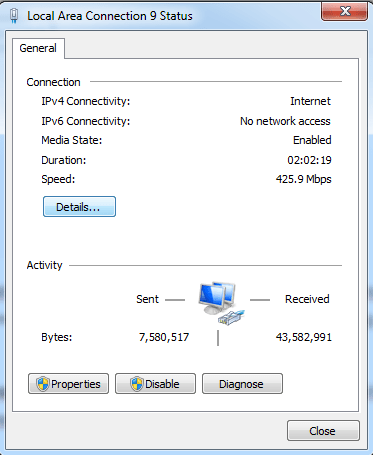
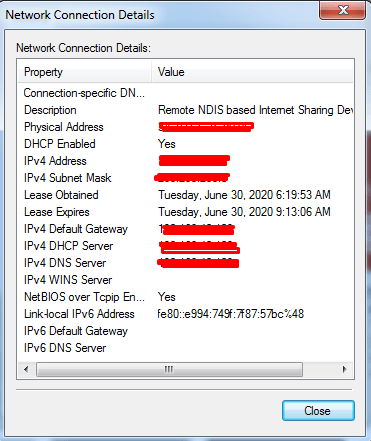
    • Click details and you can see the IP address of your laptop in detail on the screen that appears.

    3 Ways To View And Check Computer IP Address

    • Apart from the IP address, you can also see the DNS, subnet mask, default gateway, and others.

    3 Ways To View And Check Computer IP Address

    Well, it’s quite easy and simple, isn’t it a way to see laptop IP for your own device? This address is used to disconnect the network.

    #2. Check Laptop IP Through CMD

    The next way to see your laptop’s IP address is to use the command prompt. How do I view it?

    Follow these steps:

    • Enter the start menu column then look for ‘RUN’ or by pressing Windows + R.
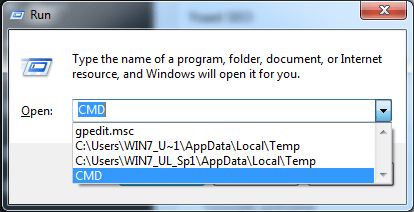
    • After the dialog box appears, enter the words ‘cmd’ in the search field, then continue by pressing enter.

    Check Laptop IP Through CMD

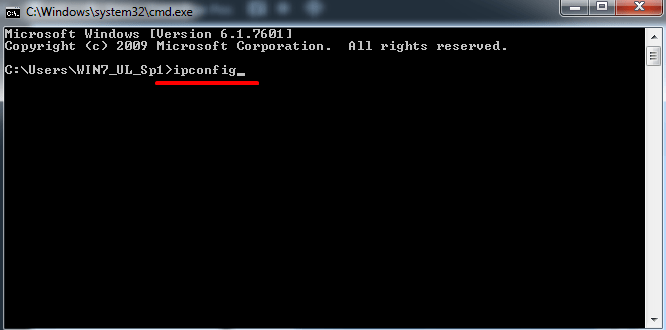
    • Then a window from the command prompt will open, then type ipconfig to bring up a list of connections on your laptop, and then press enter.

    Check Laptop IP Through CMD

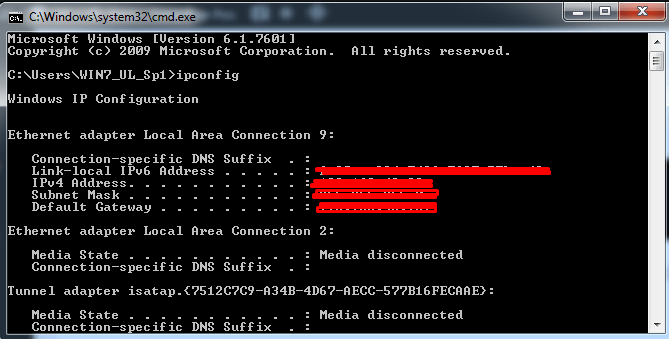
    • Then the command prompt will display a list of connections from your laptop complete with the IP address subnet mask and default gateway.

    Check Laptop IP Through CMD

    #3. Check IP Address Through Network & Internet Settings

    In addition to the two methods described above, how to find out the IP address of a laptop can also be done by looking at the network & internet settings.

    How to? Follow these steps:

    • First of all, find the network & internet settings icon on your laptop.

    The trick is to open the control panel and then find the internet network icon. Select the icon and click.

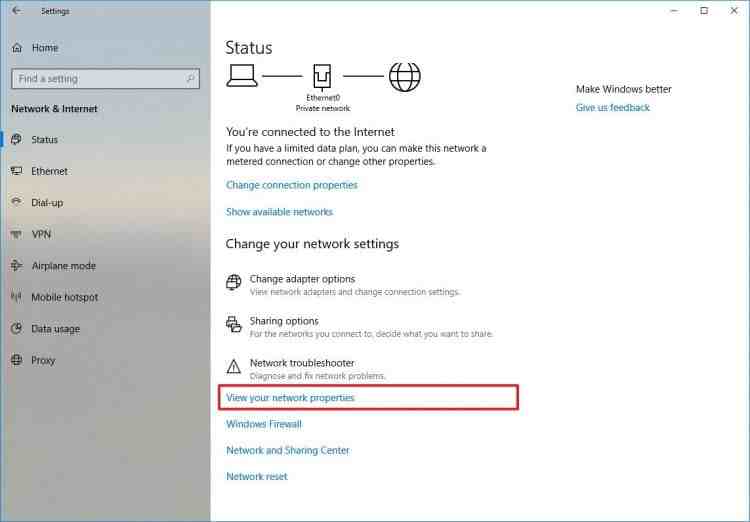
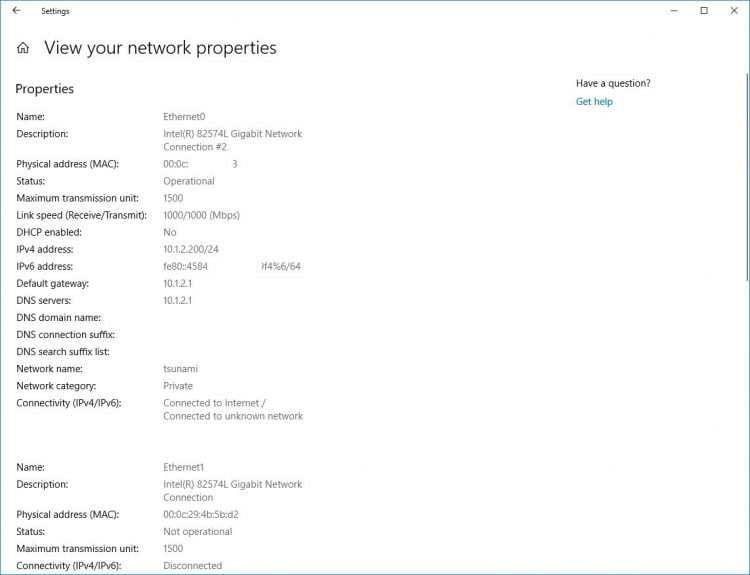
    • In the next step, please select ‘ View your network properties ‘

    Check IP Address Through Network & Internet Settings

    • Then select the connection that is being used

    Check IP Address Through Network & Internet Settings

    • Here you can get IP address information which is the IP address of your laptop.

    What is the Function of an IP Address?

    What is the Function of an IP Address

    What is the function of the IP address on a device such as a laptop?

    Here are some of the benefits you need to know about this IP address:

    #1. Becoming the Identity of a Device Accessing the Network

    As the example above has explained, this IP address functions as the identifier of the device you use to access the network.

    So, when you are going to disconnect the network from your device, you must first know the IP address of the laptop or other device you are using.

    #2. Seeing the Network Scale Used

    An IP address can also be used to see the network scale you are using. For example from the IP address 192.168.1.100.

    This figure shows that the network scale used by the related device is relatively small, only capable of a maximum of 254 hosts.

    The IP address itself is divided into 5 classes from A, B, C, and D to E. Class E and D are not used.

    #3. Can Track The Existence Of A Device That Is Accessing The Network

    For example, you can test it by knowing the IP address of your own laptop. How do you see it if your current location is in Indonesia?

    The easy way is to try entering the keyword “where is my ip” in the Google search engine. For example, you access the internet using public wifi.

    Next, the IP address of your laptop will appear, and then copy the IP address. Open the iplocation.net website then paste the IP address of your laptop on that site.

    Furthermore, you can view detailed information about the current location of your laptop. Starting from the country, and province to the city of origin of the equipment.

    In general, the IP address itself consists of two types, namely the IP address version 6 (IPv6) and the IP address version 4 (IPv4). Both have the same function, it’s just different shapes.

    How Important is the Existence of an IP Address on a Laptop?

    How Important is the Existence of an IP Address on a Laptop

    Based on this function, you can see how important the existence of the laptop’s IP address is, right?

    Identification of someone’s search can even be done by knowing the IP address of the device that is owned. Not only on laptops but also on PCs which are very likely to be recognized.

    Read more:

    Conclusion:

    Now, knowing the function of this IP makes you need to be careful about maintaining your internet connection when using public wifi.

    Are you currently able to recognize the IP address of your laptop yourself?

    Check and make sure first, who knows in the future this address will be asked by someone else to detect the device you have.