5 Easy Ways To Increase Volume In PC Laptop – Small laptop sound when used to watch videos or play music. Imagine.. Very annoying right? Unfortunately, this is common.
5 Easy Ways To Increase Volume In PC Laptops
5 Easy Ways To Increase Volume In PC Laptops
Especially for people who don’t know how to use a laptop properly. In fact, in fact, increasing the volume of the laptop is easy to do.
How to adjust a small laptop sound volume, for ASUS, Acer, Toshiba, Lenovo, and other laptops.
#1. Manually Increase Laptop Volume
In Windows, there are settings to adjust the sound… Whether it’s to reduce or enlarge.
This is important to know, for example, if the volume value is small, the sound produced will automatically be below.
You can follow these steps:
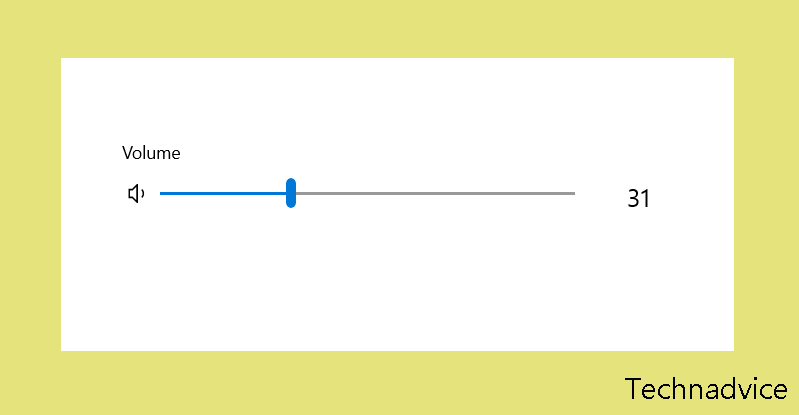
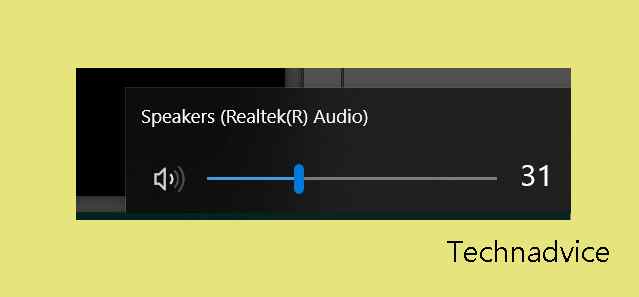
At the bottom,> Left-click the volume icon (Speaker shape)
Then slide the settings to the right to increase the volume
These settings are universal. Once set, the entire laptop system, including the application, will change the volume.
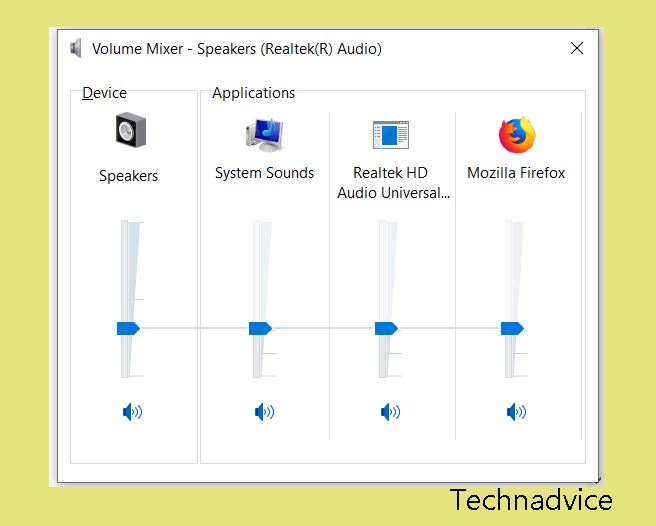
But if it’s only certain applications that you think to sound low, try setting a little deeper:
Right-click the lower right volume icon > Then click Open Volume Mixer
Setting/enlarge the sound of the desired application
#2. Via Laptop Keyboard
80 percent of laptop keyboards have shortcuts to set the laptop sound.
You can increase the laptop volume by pressing the FN key + speaker logo to enlarge the sound settings on the F1 key row to the F12 key.
If you can’t try don’t use the FN key. Use the Ctrl + ALT + Volume keys the same as before.
When you press the key combination > Then the sound settings window will appear. And the laptop volume will automatically be big.
#3. Using Media Player Classic
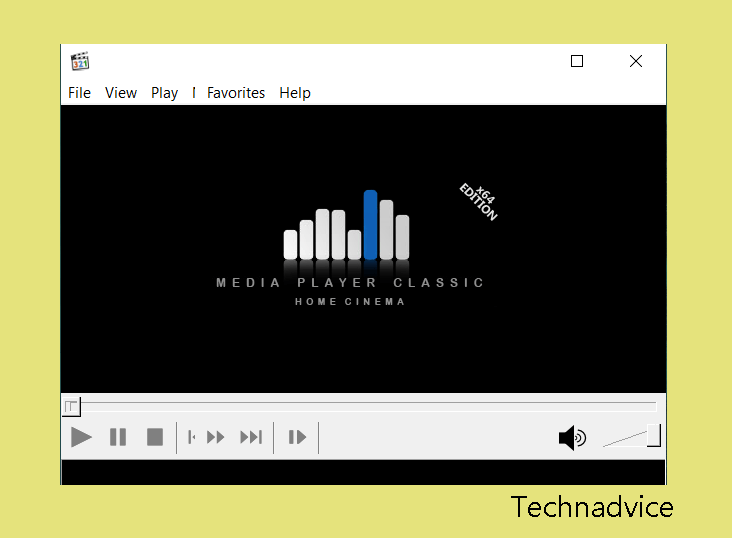
If you often watch videos on your laptop, try using Media Player Classic or commonly abbreviated as MPC-HC.
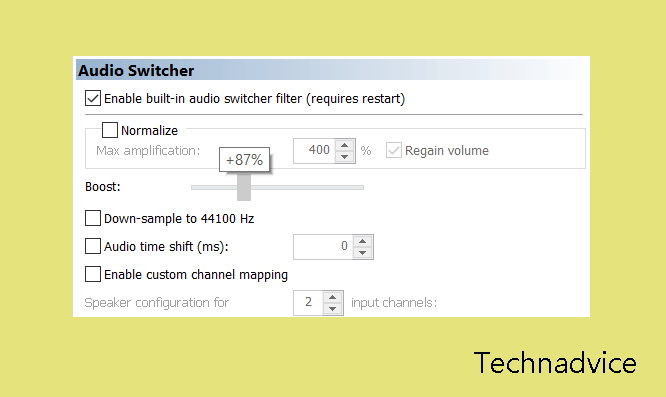
In MPC-HC there is a setting that allows us to increase the sound on the laptop beyond the maximum limit. Up to 300%.
Cool, right?
For how easy it is.
First, please install the MPCHC application (mpc-hc.org) then install it as usual.
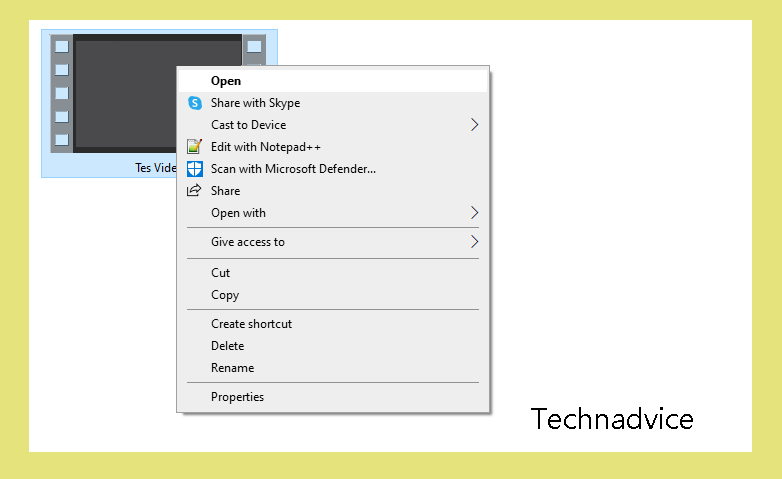
If so, open the desired video using the MPCHC application.
Then right-click > Click Options
Click on the Internal Filters section > Select Audio Switcher > Then set the Boost settings to suit your needs.
Don’t forget to also adjust the laptop volume settings as described previously.
#4. Using the Equalizer App
What is an Equalizer? An equalizer is a special application for adjusting Windows sound. In points 1 and 2, it also includes an equalizer.
You can use this application if you really want to try to set the laptop sound more than 100%.
I have often used it. And the results are very powerful. Here’s how:
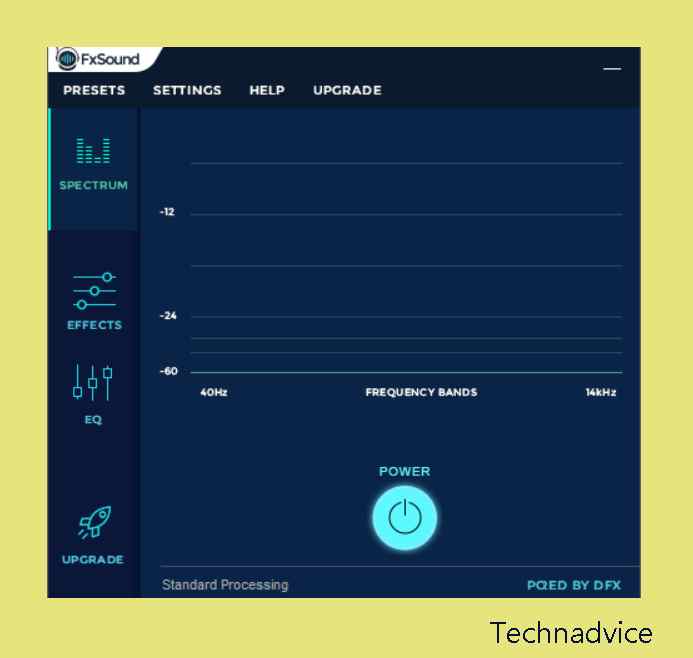
Install the FX Sounds application
Open the app
Then click the EQ button > Then increase the Equalizer frequency setting
In addition, there are also other settings such as:
3D Surround
To give special effects to laptop sound, mainly to sound virtuality
Dynamic Boost
Sound boost settings. To increase the audio volume even further.
Fidelity
Set the laptop speakers to be like stereo speakers when playing sound (Or music).
Many more. Better try it yourself.
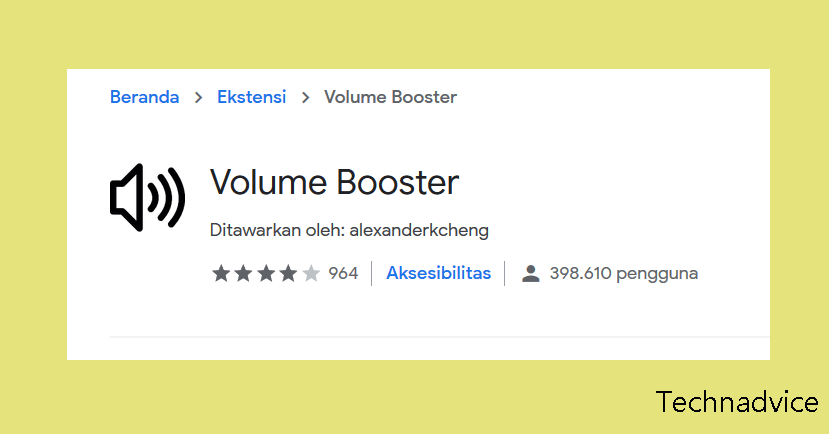
#5. Add Volume Booster Extension In Google Chrome
Like browsing? Well. If you often play videos on YouTube or music on a site, then try the Volume Booster extension.
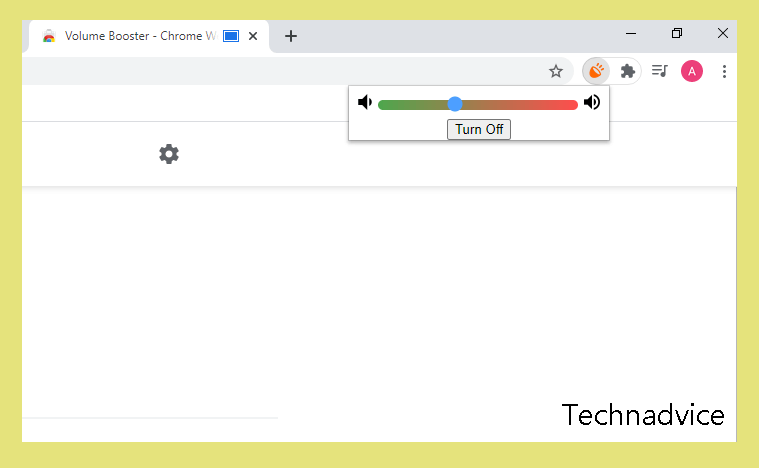
This extension allows the Browser to improve the internal sound. Not bad if it’s more than the default settings .
On the Tools menu at the top > Click the Volume Booster icon
Increase the volume
How to Fix a Small Laptop Sound
If with the methods above it turns out that the sound produced by your laptop speakers is still small, then there may be a problem.
For example:
System problem
Broken laptop speaker
How to fix it?
First: Try to reinstall Windows first. This can help to repair the damage to the system. Including the sound, settings can also be normal again.
Second: Try installing or updating the sound driver on the laptop. Usually quite influential.
Third: If it still doesn’t work, there is a possibility that the speaker is about to be damaged. The solution is, that it’s better to go directly to the service center (to replace the components).
6 Best Ways to Update PUBG Mobile on Android and IOS – The following guide will help you on how to update the latest PUBG Mobile season using Android and iOS. Immediately update your PUBG mobile version of the game so you don’t miss the latest features of PUBG Mobile this season.
6 Best Ways to Update PUBG Mobile on Android
How to Update PUBG Mobile on Android IOS
PUBG Mobile has officially launched for mobile devices. Previously, PUBG was only available for PC and Xbox One. However, because many gamers were enthusiastic about this game, PUBG Mobile was finally inaugurated.
PUBG Mobile is published by the big company Tencent, they continue to strive to deliver quality and cool games. This is proven because there are different features from the PC and Xbox versions, and of course, PUBG Mobile always brings new things every season.
However, some mobile device users such as Android and iOS sometimes find it difficult to update PUBG Mobile. To solve this problem, this article will provide a tutorial on how to update PUBG Mobile on Android and iOS.
You can see more fully what new features are in the latest PUBG Mobile season via the official PUBG Mobile website. So, don’t miss the latest update from PUBM which is of course very interesting.
To update PUBG Mobile itself, there are several different ways. So, make sure to follow the steps below so that you don’t experience problems again in the PUBG Mobile game.
Here’s How to Update PUBG Mobile on Android IOS
#1. Manual Update
There are three types of PUBG Mobile game updates that are most commonly used. The first is by updating the application on the menu in the Android cellphone Play Store.
Tap the menu icon then select the My Apps & games menu.
Applications for which updates are available will appear with an Update button to the right of the application icon.
If PUBG Mobile is also available in a new version, tap the Update button to update.
Now, you just need to wait for the update process to finish. The length of time this takes depends on the internet speed and the size of the files in the update.
#2. Automatic Updates
Playstore has an automatic update feature that functions to update every application with the latest version available. By activating this feature, you can update PUBG automatically when there is a new update.
How to update PUBG on mobile:
First, open the Google Play Store application on your Android.
Tap the menu icon then select the My Apps & games menu.
You will see a list of your applications and games, tap PUBG Mobile.
Then tap the three dots symbol in the top right corner.
You have to check the Enable automatic updates box.
Now PUBG Mobile will automatically update when an update is available. If you want to disable this feature uncheck the Enable automatic updates box.
#3. PUBG game update
PUBG InGame updates will usually download automatically when you open the PUBG Mobile game. Just open the PUBG Mobile game on your Android device, and wait for the PUBG Mobile update process to finish.
Then in the last step, close PUBGM and reopen the PUBG Mobile game so that the update can be applied without problems. Now, PUBGM has been successfully updated to the latest version.
How to Update PUBG Mobile on iPhone (iOS)
#4. Manual Update
Updating PUBG Mobile will not be much different from updating applications in general on iOS. You only need to access the App Store application on your iPhone or iPad device.
How to update the latest PUBG mobile:
Go to your device screen then tap the App Store icon.
Tap the Update icon at the bottom right corner of your device screen.
Then tap the Update All button in the top right corner.
Enter your password to confirm whether you agree to update all available applications.
#5. Automatic Updates
Similar to the Google Play Store on Android phones, the Apple Store also has an automatic update feature that is useful so that application updates run automatically. You can activate this feature by following this guide.
First, go to Settings, then go to your profile then open the iTunes & App Store menu.
Tap PUBG Mobile to activate automatic updates.
After that, the PUBG Mobile update will run automatically if there is an update.
#6. PUBG game update
PUBG InGame updates will usually download automatically when you open the PUBG Mobile game. Just open the PUBG Mobile game on your iOS device, and wait until the PUBG Mobile update process is complete then close and reopen the PUBG Mobile game.
The Internet connection speed will affect the PUBG Mobile update process and the size of the update. So, make sure you are using a stable internet network.
How to Fix PUBG Mobile Update Not Working
If you have followed the PUBG Mobile update tutorial above, but you still can’t update PUBG Mobile, try to delete the PUBG Mobile game first. After the PUBG Mobile game has been removed, reinstall PUBG Mobile.
By reinstalling PUBG Mobile, you will get the latest version of PUBG Mobile updates without the problem of failing to update PUBG Mobile again.
Also, you have to make sure the phone firmware is up to date and there are no problems whatsoever. If your cellphone is the problem, then the PUBG Mobile update can be interrupted. So try to update other applications on your cellphone, if that doesn’t work, it also means that the problem is on your cellphone.
This explains the 6 best ways to update PUBG mobile on Android IOS devices. Always update your latest PUBG Mobile on the Google Play Store, App Store, or in the game so you don’t miss the exciting content PUBG Mobile provides.
4 Ways To Enable Dark Mode for Google Chrome – Whether it be Google or Apple, it seems like every software developer is on a new wave that is taking over. Everybody seems to be obsessed with a dark mode that you can implement in the OS or a software application.
How To Enable Dark Mode for Google Chrome
How To Enable Dark Mode for Google Chrome Windows PC Laptop Android
There are many reasons for this mode, says Google. However, the most important one is performance and esthetics. Google firstly implemented this feature on YouTube in late 2018, and it was an instant hit.
People were instantly switching from normal to dark mode, but many believe that the majority are changing because of appearance, not because of performance.
Even though everyone seems to be adding a dark mode to their application many applications already have it.
Sadly, Google Chrome unlike its rivals Firefox and Vivaldi is pretty hard to activate this mode.
Nevertheless, because this mode is activated differently on many operating systems, we have included most of them in this article.
#1. Activate Dark Mode on Windows:
Go to Settings, find Personalization, and then click on Colors and find a switch “Choose your default mode”.
Then you can change this to “Dark” and all the applications that support this mode will change to Dark mode. Also, there is no need to restart.
#2. Activate Dark Mode on Android:
This model is still undergoing the development stage, so some design elements might look a little iffy. However, you can still activate it by going to chrome://flags in the address bar above.
In the field “Search flags” search for the word dark. Two options will come up which are “Android web contents dark mode” and “Android Chrome UI Dark Mode”. The first one is Google detecting if the particular website has a dark mode and displays it automatically. Even if, there are no such options, the browser will automatically change the site’s colors. The second option change the color of the browser interface.
Activate both of these features by tapping on the dropdown menu and tapping “Activate”. Then restart Google Chrome.
After opening Chrome go to settings, and then themes and you should have the option “dark”. But if you do not see this then you’ll need to restart Chrome again and try the process again/
#3. Activate Dark Mode on macOS:
Go to System Preferences, click on General, and select Appearance.
Click on the Dark feature. Like other operating systems, the colors of applications that support dark mode will change colors too.
#4. Activate Dark Mode on iOS or iPadOS:
For now, there is no Dark Mode for Chrome on these systems. Google stated that this is in development and will become available as fast as possible.
Nevertheless, there is an option that you can activate that makes it look like you have Dark Mode activated. To do this:
Go to Settings, then General then Accessibility then Display Accommodations.
Now turn on Classic Invert to change the colors on your device, or you can turn on Smart Invert which will not invert the colors of pictures.
Many websites have Dark Mode which will switch on if you have Dark Mode on Chrome activated.
Also, you can make certain websites look like they have a Dark Mode by switching their colors.
This is a beta option, so it isn’t available in the settings, however, you can activate it by going to chrome://flags/#enable-force-dark and tapping on enable.
So, friends, This is the explanation of 4 ways to enable dark mode for Google Chrome, Finally, if you have the Dark Mode option activated, the websites will switch colors automatically. Some may look a bit strange based on how they are developed, but this option generally works fine.
15 Best Video Editing Software for Windows PC – are you looking for Best Video Editing Software? if yes, then don’t worry, In this article, we will recommendations for the best video editing software for Windows laptops, and Desktop computers that are suitable for beginners and professionals.
15 Best Video Editing Software for Windows PC
Best Recommended PC Video Editing Applications/Software
There are several advantages and disadvantages that you should know such as RAM specifications, whether or not it is suitable for Windows 7, 8, and 10, and so on.
For creating eye-catching video previews, it’s essential to use a YouTube thumbnail maker that complements the features of the best video editing software for Windows.
PC video editing applications generally have fairly high system requirements. If the computer or laptop you are using has mediocre hardware, the chances of being able to use this application are very small. In fact, the application can make the gadget hang.
Although most of the applications for watching videos provide high requirements. Several applications offer a lightweight system that can be used by anyone. To find out what are the best and free PC video editing applications you can use, see below.
There are PC video editing applications that can be used for free and some are paid. To find out recommendations for video applications that can be used, see more below.
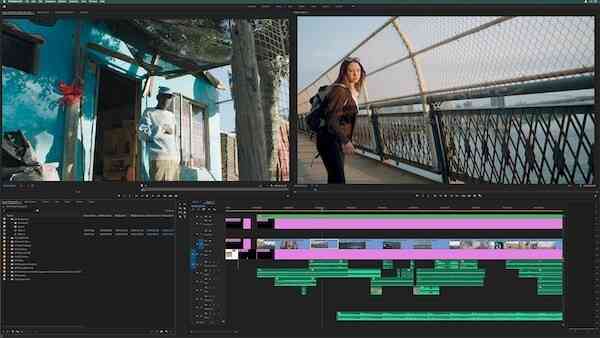
#1. Adobe Premiere Pro
Adobe Premiere Pro
The first video editing application is Adobe Premiere Pro. This application is issued by Adobe company which is known to be very skilled in issuing editing applications.
So far, we have only known image editing applications. In fact, Adobe also provides a video editor. Even with very qualified quality.
The advantage of this application is the collection of assets that can be used entirely. While doing the editing process, you can do all the work easily because of its quite intuitive features.
If you want to use this application, you can first try the application in the form of a trial. Furthermore, if you want to use it, the monthly license fee is around Rp. 300,000.
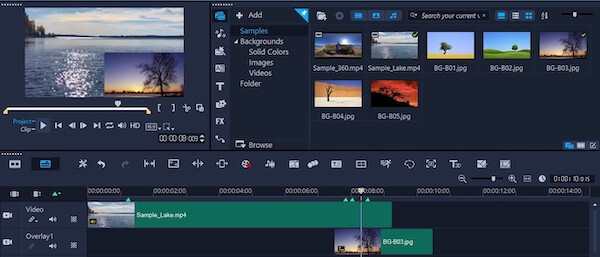
#2. Corel VideoStudio Ultimate
Corel VideoStudio Ultimate
Corel also released an application that can be used to edit videos using a PC. This application can be used for free for 30 days. Next, you have to pay for a license of around 100 dollars.
The advantage of this application is the many features to modify videos or images perfectly. With only modest sources, you can create videos with the perfect look.
If the video that has been recorded has a quality that is not good, it is a bit shaky. This application can also be used to fix this so that when viewing videos it is more stable.
Another advantage of this application is its ability to mask certain videos. The collections are quite large, making it easier for you to edit videos according to your needs.
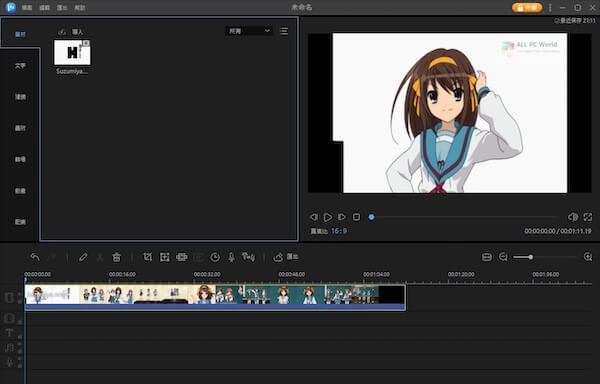
#3. EaseUS Video Editor
EaseUS Video Editor
Want to use a video editing application with a quality that is quite capable but free? The EaseUS Video Editor application can be considered to be installed on all types of Windows computers.
This application has a size that is not too large so that when used it is lighter. The computer or laptop you have will not experience hands, especially when rendering video.
The advantage of this free application is that it is able to edit videos with various interesting effects. In addition, you can also add audio elements to it.
This application is also an all-in-one type. By using this software alone, you can cut videos, combine them, and add some effects such as transitions well.
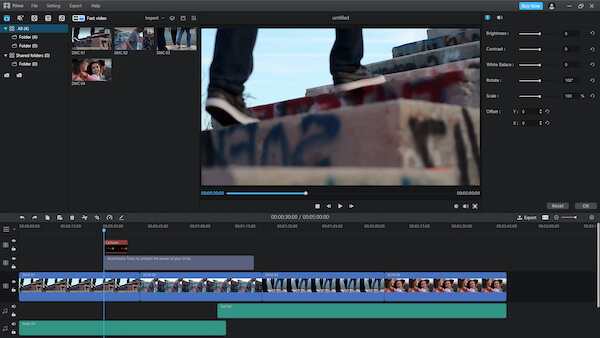
#4. iMyFone Film Video Editor
iMyFone Film Video Editor
To be able to master this video editor application, there are three features that must be studied well. The first is fast editing. By using this feature you can watch videos quickly and the results are still satisfying.
The second feature is basic editing, the application provides quite a lot of editing tools such as cutting videos to combining several videos and media into one. You can also use the templates that have been provided.
The last is the advanced editing feature, by using this feature you can add multiple media to the overlapping layer. Can add animation and narration in one video scene.
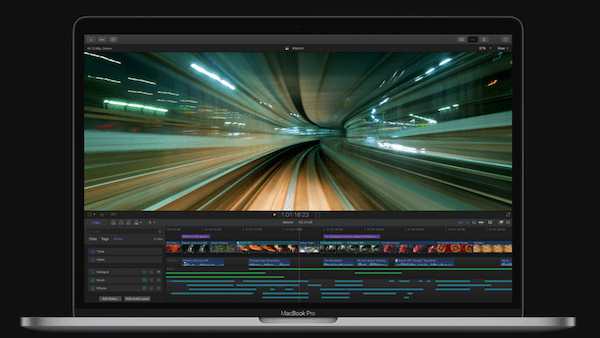
#5. Apple Final Cut Pro X
Apple Final Cut Pro X
For those of you who use a Macbook, Apple has developed its own application that can be used to watch videos. With Apple Final Cut Pro X, you can watch videos of professional quality.
The advantage of this application is the many premium features provided. Only armed with this one application you can watch videos well. It can even make sorts and short films.
Like other Apple products, this application is priced quite high. What’s the difference to being able to buy a license for one vision, it costs around Rp. 4.2 million.
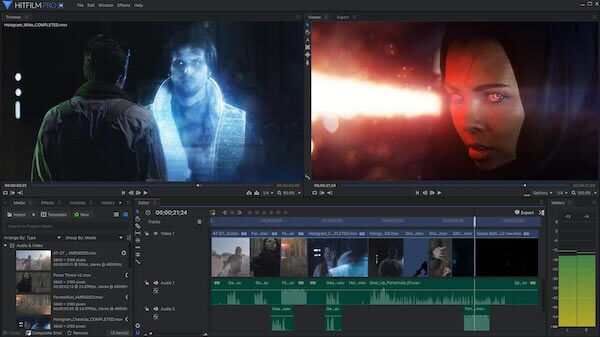
#6. HitFilm Pro
HitFilm Pro
The HitFilm Pro application is slightly different from the video editing applications that will be discussed in this article. This software is intended for video editing used for filmmaking.
Because it has a fairly professional function, the results provided can also be more perfect. The various features and effects offered are also no joke, from standard editing to 3D elements.
Again, there is a price, there is always a way or vice versa. To be able to use this application you have to buy it at a price of around Rp. 4 million. Quite high and comparable to what is given.
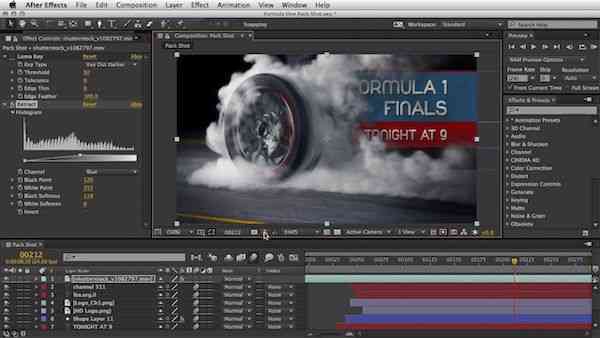
#7. Adobe After Effects
Adobe After Effects
This application is actually used for the final process of video editing. By using this application you can add various captions, animations, and transitions, to other needs until the video is really perfect and can be saved.
For simple video editing like making YouTube or short videos on Instagram. This application can be easily used because it already has enough media or assets.
You just need to use some of the features that are herewith. You can then check the preview first before saving it for sharing on the desired social media.
#8. Lightworks
Lightworks
The video-watching application that is quite light to use for Windows computers is Lightworks. Only armed with a unique application you can make videos with perfect quality.
A variety of interesting features and effects are offered so that you can easily skip the editing process. In fact, you can also add various effects such as transitions and sounds.
This application can be used for free until the trial period runs out. Meanwhile, if you want to use it you can choose a monthly review or buy a license forever for about 437 dollars. Quite high but worth the features offered.
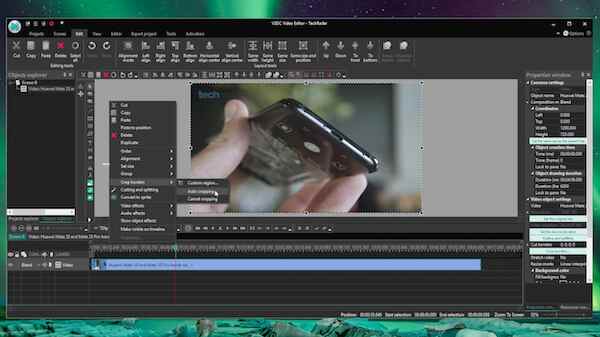
#9. VSDC
VSDC
Video editing applications with good quality and close to professionals generally have the highest license. Fortunately, this application called VSDC can be used for free even though the features in it are very complete.
The advantage of this application is that it offers an easy video editing process. What’s more, the interface design of this app is quite simple and intuitive. Beginners can easily follow the video creation process.
The important thing of all is that there is no watermark affixed. So, the created video will look very professional.
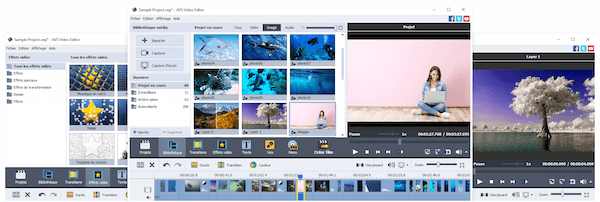
#10. AVS Video Editor
AVS Video Editor
Another video editing application has a fairly small size and is lightweight when used. This application has a video cache feature that will make the process of shooting videos with HD quality run quickly.
In addition, using this application you can easily perform various basic editing processes such as cutting, merging, and just adding other media elements into several layered layers.
This app also has a very large collection of transitions. There are only about 300 assets that can be used so that the videos you create look even more perfect.
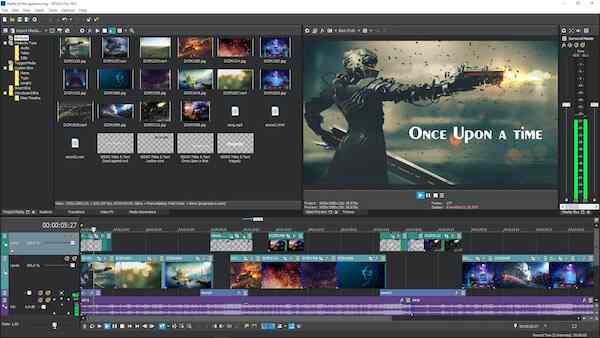
#11. Sony Vegas Pro
Sony Vegas Pro
This application is actually made especially for experienced video editors. The content of this application is quite complicated and also complex because it involves many features that make videos more attractive and professional.
Even though it is intended for professionals, the interface of this application is simple enough that beginners can use the student card. You can do some simple editing and add some animation and audio elements.
The assets owned by this application are also quite a lot so they can be put to good use. You can also add applications in the form of templates so you don’t need to do further editing. To be able to use this application, you must first purchase a license.
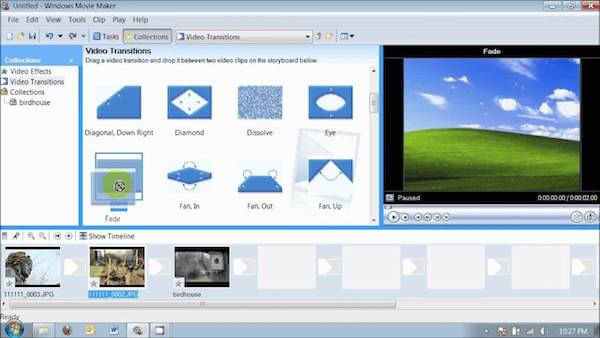
#12. Windows Movie Maker
Windows Movie Maker
One of the default applications from Windows computers that can be used to save standard videos. This application is generally already installed directly and can be used to make the editing process.
The features offered are quite simple, such as cutting to combining several videos and media. For the rest, you can save the video and choose the output format that suits your needs.
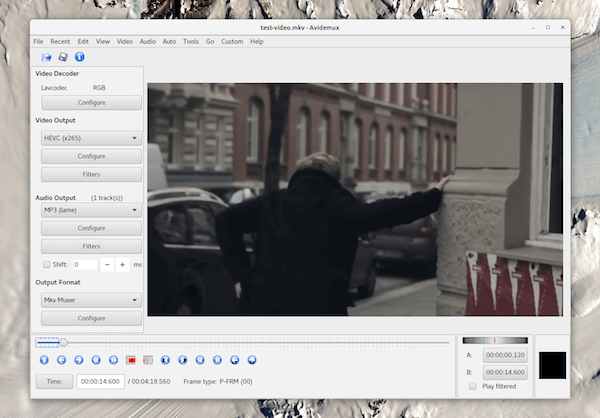
#13. Avidemux
Avidemux
The Avidemux application is a free video editing software that can be used on Windows computers. Although free and can be used freely, this application offers quite capable features.
You can use it to perform standard editing such as merging several videos with other media to cutting. Adding audio files can also be done in this application.
This application is perfect for beginners who want to learn to create content for their social media. However, you can also use it to make videos with better and more professional quality.
#14. Pinnacle Studio
Pinnacle Studio
One of the easy-to-use and lightweight video editing applications. The Pinnacle Studio application makes it easy for you to combine several video and image media into one.
This application also offers several effects and templates and the results are quite interesting. By using this effect, the videos created can look more professional and not monotonous.
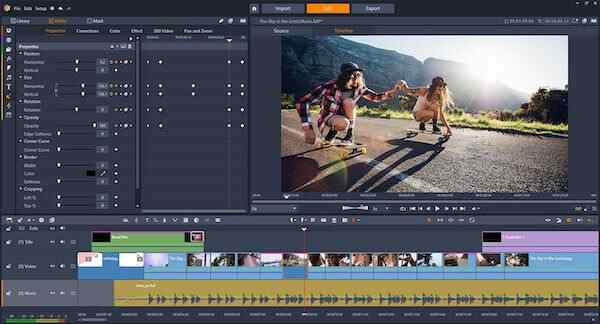
To be able to use this application, you have to pay for a license ranging from 50-100 dollars. Depends on the type of package selected.
#15. Filmora
Filmora
For those of you who have used the Android version of FilmoraGO, it’s time to use the PC version of Filmora which has a larger collection of assets. In addition, the resulting video quality can also be maximized.
This application allows you to watch videos professionally with a simple interface. The application also provides a variety of interesting features that are intuitive enough that even beginners can create videos with ease.
This is an explanation of the 15 best video editing software for Windows PC, You can choose it according to your PC. If you want to wait for professional needs and also work, of course, the application used must have high qualifications.
6 Ways to Fix Operating System Not Found In Windows – You must be surprised when you get the “Operating system not found” error. Here’s how to fix this unusual problem!
6 Ways to Fix Operating System Not Found In Windows 10 PC
How to Fix Operating System Not Found In Windows
Of all the errors, glitches, and problems that you may encounter while using Windows 10, only a few cause fear, and one of them is “Operating system not found”.
Let’s see how to fix the Operating system not found error on Windows 10.
#1. Check BIOS
Check BIOS
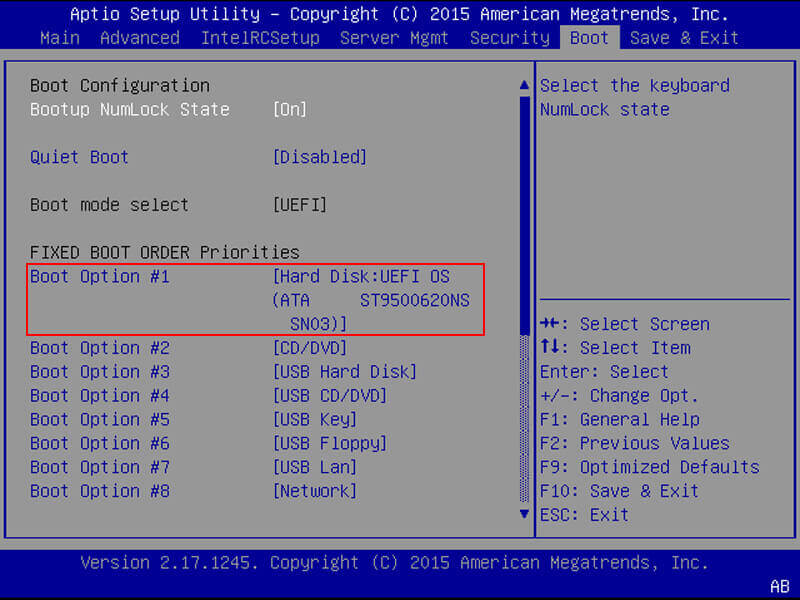
You need to check two things in the BIOS. First, you need to make sure your machine recognizes your hard drive. Second, you need to make sure the drive where you are installing Windows is listed as the preferred boot drive.
The way to enter the BIOS changes according to the manufacturer. Usually, you have to press Escape, Delete, or one of the Function keys. You will see a message on the screen telling you which is the correct key to enter the boot process.
The BIOS menu itself also varies between devices. Broadly speaking, you need to look for the Boot tab at the top of the screen. (You can only use the keyboard to navigate the BIOS menu.)
Inside the Boot tab, highlight Hard Drive and press Enter. Make sure theHard Drive is listed above USB Storage, CD\DVD\BD-ROM, Removable Devices, and Network Boot. You can adjust the order using the + and – buttons.
If everything in your BIOS menu looks fine, skip stepping three. If you don’t see the hard drive listed, go to step two.
#2. Reset BIOS
Reset BIOS
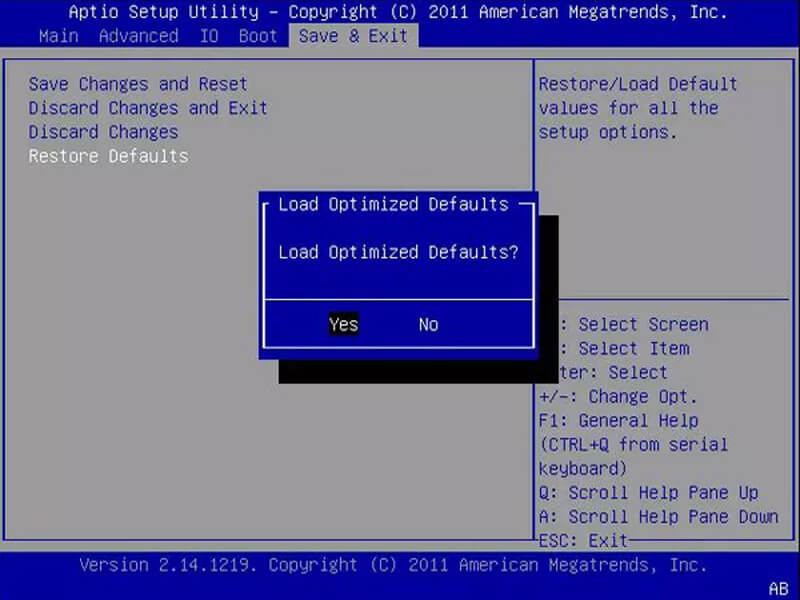
If your machine doesn’t recognize your hard drive, there are many possible causes. For non-tech-savvy users, the only easy solution is to try resetting the entire BIOS menu to its defaults.
At the bottom of the BIOS menu, you will see a button for Setup Defaults or Reset BIOS. On the admin’s computer, there is F9, but it may be different from yours. Confirm your decision when prompted and restart your machine.
If the operating system is still not found, you can stop reading this article. Unless you know a lot about assembling computers, you should take your machine to a computer repair shop.
#3. Fix Boot Records
Windows relies on three records to boot your machine. They are the Master Boot Record (MBR), DOS Boot Record (DBR), and Boot Configuration Database (BCD).
If one of the three records is corrupted, there is a high chance that you will find the message “Operating system not found”.
Fortunately, fixing these records is not as complicated as you might think. You just need to have a Windows installation drive. Use Microsoft’s Media Creation Tool for creating Windows 10 installation media.
When your tools are ready, you need to use them to boot your machine. Depending on your device, you may only need to press one key during the boot process, or you may have to change the boot order in the BIOS menu.
But eventually, you will see the Windows Settings screen. Enter your preferred language, keyboard, and time format, and click Next. On the next screen, select Repair your computer.
Next, navigate to Troubleshoot > Advanced Options > Command Prompt. When the Command Prompt loads, type the following three commands. Press Enter after each:
bootrec.exe /fixmbr
bootrec.exe /fixboot
bootrec.exe /rebuildbcd
Each command may take a few minutes to complete. After all the process is done, restart your PC and see if it boots up successfully.
#4. Enable Or Disable UEFI Secure Boot
Enable Or Disable UEFI Secure Boot
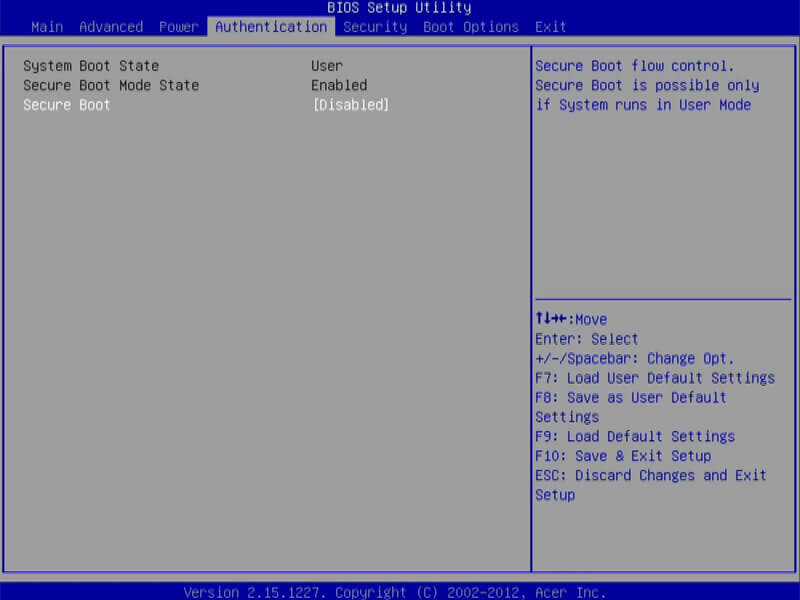
Almost every Windows machine ships with UEFI firmware and Secure Boot enabled. However, in some cases, this may not work. For example, if Windows is installed on the GUID Partition Table, it can only boot in UEFI mode. On the other hand, if Windows 10 is running on an MBR disk, it cannot boot in UEFI mode.
Therefore, it is a good idea to enable or disable UEFI Secure Boot and see if there is a difference. You make adjustments in the BIOS menu. Usually, the option is named Secure Boot and can be found in the Authentication or Security tab.
#5. Enable Windows Partition
Enable Windows Partition
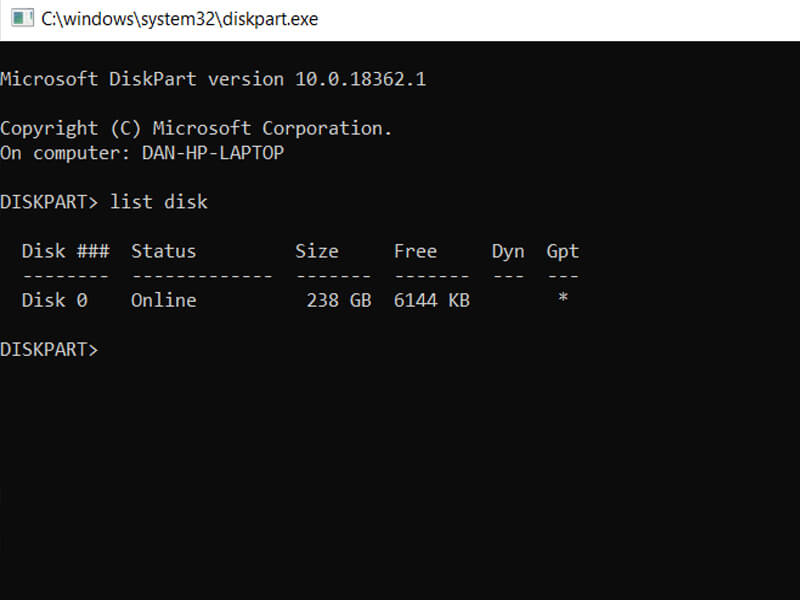
The partition where Windows is installed may have been disabled. You can fix it using the Windows native diskpart tool. To perform the following steps, you will once again need a Windows USB installation media.
Turn on your machine and boot from tools. As in the third step, you have to enter your language preferences, etc., click Next, select Repair your computer, and go to troubleshoot > Advanced Options > Command Prompt.
In the Command Prompt, type diskpart and press Enter, then type list disk and press Enter. You will see a list of all the disks attached to your machine. Write down the disk number you need. Usually, it’s the biggest.
Next, type select disk [number], replacing [number] with that number. Press Enter.
Now type list volume and press Enter. This will show you all the partitions on your selected disk. Specify which partition Windows is installed on and note the number, then type select volume [number], again replacing [number] with the number you just noted down.
Finally, type active and press Enter. To see if the process was successful, restart your machine.
#6. Use Easy Recovery Essentials
Use Easy Recovery Essentials
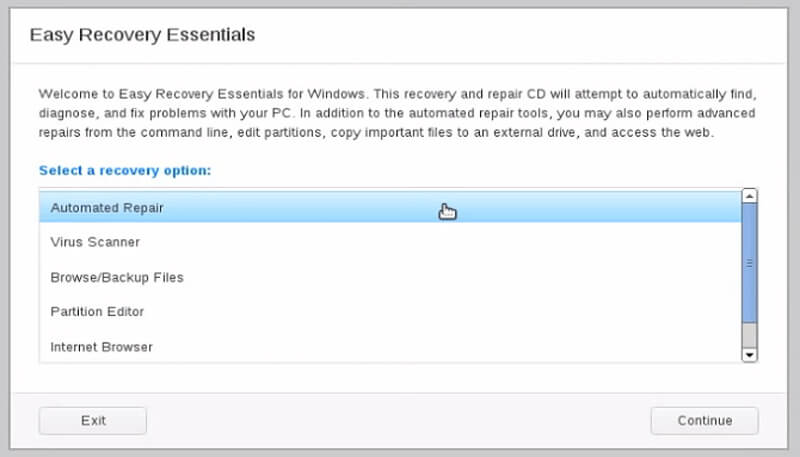
Easy Recovery Essentials is a third-party application that specializes in fixing boot problems. If none of the previous five steps worked, it’s worth trying.
This can resolve other common startup error messages, in addition to fixing the “Operating system not found” message.
Just download the app, burn the ISO to a CD, and use the CD to boot your machine. The application wizard guides you through the repair process.
This explains 6 ways to fix the operating system Not Found In Windows. Hopefully from some of these methods, there is one that can fix it on your computer.