Category: Windows

Windows – Here you can find Computer-related updates Windows 10, Windows 8, Windows 7, Linux, technology information, and more.

  • Best Ways to Fix Error 0x800F081F in Windows 10 PC 2025

    Best Ways to Fix Error 0x800F081F in Windows 10 PC 2025

    Best Ways to Fix Error 0x800F081F in Windows 10 PC—Although Microsoft has made significant improvements over the last few years, Windows still tends to have occasional error codes. In this post, we will share how to fix the 0x800F081F error in Windows 10.
    Best Ways to Fix Error 0x800F081F in Windows 10 PC
    Best Ways to Fix Error 0x800F081F in Windows 10 PC

    What Causes Error 0x800F081F?

    Error code 0x800F081F is one of four possible error codes that all point to the same underlying problem. The other three are error code 0x800F0906, error code 0x800F0907, and error code 0x800F0922.

    Read more:

    Microsoft .NET Framework 3.5 incompatibility causes all code errors. Typically, they will occur when you activate the .NET Framework using the installation wizard, Deployment Image Servicing and Management (DISM) tool, or Windows PowerShell commands.

    You will only see the code on Windows 10, Windows Server 2016, Windows Server version 1709, Windows 8.1, Windows Server 2012 R2, Windows 8, and Windows Server 2012. On those operating systems, Microsoft .NET Framework 3.5 is a “Feature on Demand” (meaning it is not enabled by default).

    When you enable this feature, Windows update tries to fetch the .NET binary along with other required files. If your computer is not configured properly, you may see those codes.

    • 0x800F081F: Windows cannot find the .NET source files for the installation to continue.
    • 0x800F0906: Windows cannot download .NET source files, cannot connect to the internet, or cannot install roles, role services, or features.
    • 0x800F0907: Either the DISM tool failed, or your network policy settings are preventing Windows from connecting to the web.
    • 0x800F0922: Processing of .NET advanced installers or generic commands failed.

    How to Fix Error 0x800F081F, 0x800F0906, 0x800F0907, or 0x800F0922 in Windows 10

    Fortunately, the way to fix the first three errors is the same. There are two approaches you can try. For error 0x800F0922, you should immediately switch to method two.

    #1: Configure Your Group Policy

    It’s possible that your Group Policy is affecting Windows’ ability to enable installation.

    To get started, press  Windows + R  to bring up the Run dialog. Next, type gpedit.msc and press  Enter. This command will open the Group Policy Editor window.

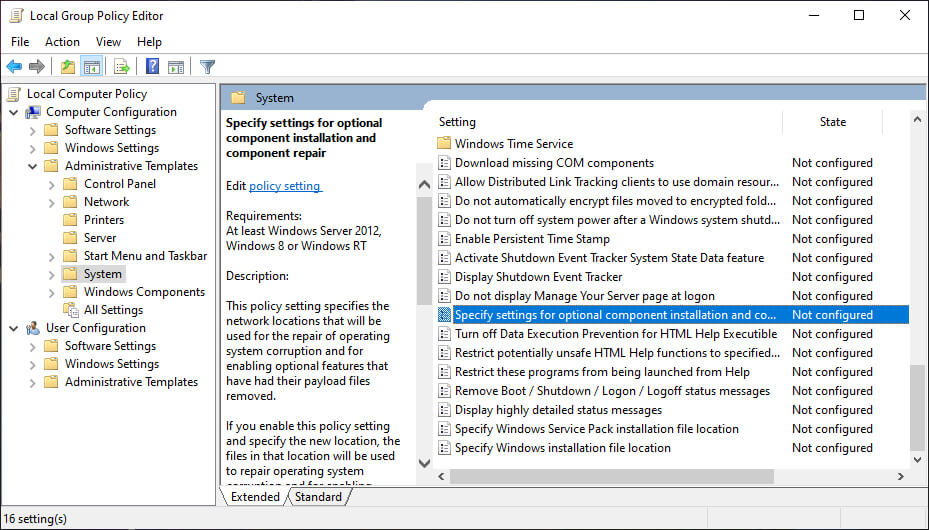
    Once the editor is on your screen, use the left pane to navigate to Computer Configuration > Administrative Templates > System.
    Configure Your Group Policy

    Move your attention to the right panel. Scroll down until you find the entry labeled Specify settings for optional component installation and component repair. You’ll find it under the folder you see at the top of the list.

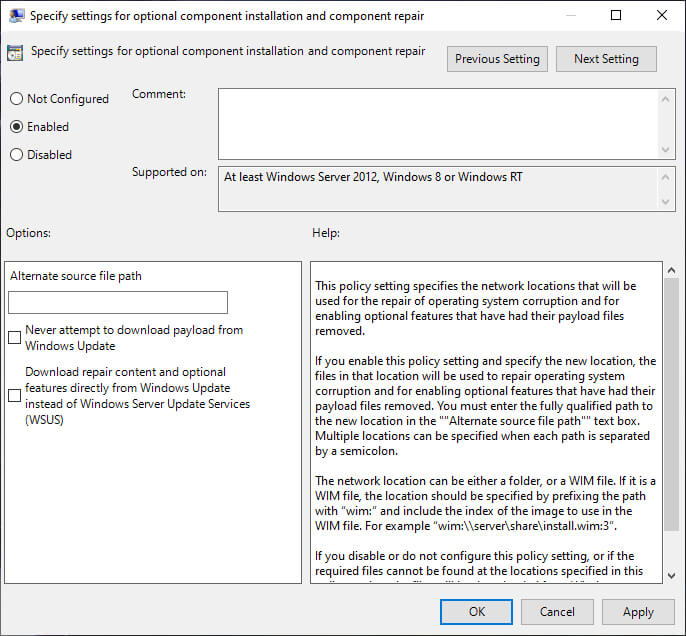
    Double link on the entry to open the Settings window. Finally, in the upper left corner, mark the checkbox next to Enabled and click  OK.
    Configure Your Group Policy

    #2: Enable .NET Framework Using DISM Command

    Note:  This is the only method that will fix error code 0x800F0922.

    The second approach requires you to use the DISM command to activate the .NET Framework. Don’t worry, it’s not as complicated as it sounds.

    Before starting the main process, you must first make sure you have an ISO image of Windows 10. The ISO version must be exactly the same as your current operating system.

    You can create an ISO image using Microsoft’s official Media Creation Tool, which you can download from the Microsoft website.

    Once the download is complete, run the tool and click on Create installation media for another PC. On the next screen, select your language and system architecture, then select the ISO file to start the creation process. Burn the ISO file to DVD before proceeding.

    To get started, you’ll need to mount the ISO image you just created earlier. Open File Explorer and double-click on the file. It should be installed automatically. Alternatively, you can right-click on the file and select Mount from the context menu. If the process is successful, you will see the ISO in the virtual drive in the left pane of the window. Take note of the drive letter.

    Note: To unmount the image, right-click on the virtual drive on This PC and select Eject.

    Enable .NET Framework Using DISM Command

    Once the image is mounted, open the Start menu and type cmd. Then right-click on Command Prompt and select  Run as administrator.

    At the command line, type dism /online /enable-feature /featurename:NetFx3 /All /Source:[Drive]:\sources\sxs /LimitAccess. Replace [Drive] with the drive letter you noted earlier, then press Enter when you’re ready.

    #Try Reinstalling Microsoft .NET Framework 3.5

    Once you’ve successfully navigated through the instructions, it’s time to install the .NET Framework 3.5 and see that error code 0x800F081F (or one of the related error codes) has disappeared.

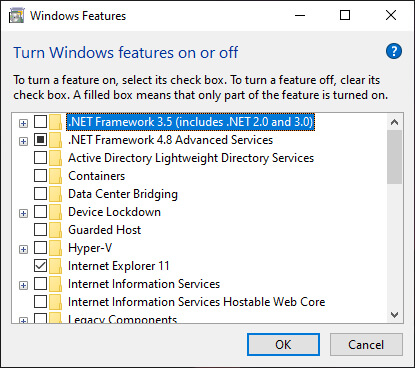
    Open the Settings app and go to Apps > Apps and Features. Scroll down to Related Settings and click on Programs and Features. Next, in the new window, click Turn Windows features on or off in the top left corner.
    Try Reinstalling Microsoft .NET Framework 3.5

    Finally, mark the checkbox next to it. NET Framework 3.5 (including .NET 2.0 and 3.0)  and click  OK. The installation process will take a few minutes, depending on your connection speed.

    So to fix or resolve error 0x800F0922 on Windows 10:

    1. Open the Group Policy Editor.
    2. Go to Computer Configuration > Administrative Templates > System.
    3. Double-click on Specify settings for optional component installation and component repair.
    4. Select Enable.

    If that doesn’t work, follow these instructions instead.

    1. Create and mount a Windows 10 ISO image.
    2. Open Command Prompt as administrator.
    3. Type dism /online /enable-feature /featurename:NetFx3 /All /Source:[Drive]:\sources\sxs /LimitAccess  (replacing [Drive] with the appropriate letter).
    4. Press Enter

    Read more:

    Conclusion:

    That’s an article on how to Overcome Error 0x800F081F on Windows 10, Wait for other interesting articles, and don’t forget to share this article with your friends. Thank you.
  • 7 Ways To Fix Windows Defender won’t turn on in Windows 2025

    7 Ways To Fix Windows Defender won’t turn on in Windows 2025

    7 Ways To Fix Windows Defender won’t turn on in Windows – Many Windows 10 users reported that they were unable to activate Windows Defender because Microsoft’s antimalware tool detected other antivirus software running.

    7 Ways To Fix Windows Defender won't turn on in Windows
    7 Ways To Fix Windows Defender won’t turn on in Windows

    How To Fix Windows Defender won’t turn on in Windows 10 PC

    This happens even if the user confirms that they have removed all third-party security software.

    Read more:

    This isn’t the first time users have reported that they can’t activate Windows Defender.

    Windows Defender is the built-in antivirus in Windows 10, and it provides solid protection.

    However, many users report that Windows Defender is not working on their PC.

    Talking about how to fix Windows Defender that won’t activate in Windows 10, here are some common problems related to Windows Defender:

    • Unable to activate Windows Defender Windows 8 – This issue can also occur in Windows 8, but you should be able to fix it using one of our solutions.

    • Windows Defender cannot be opened – Many users claim that Windows Defender cannot be opened on their PC. If so, remove all third-party antivirus tools from your PC. Also, make sure to delete all files and registry entries related to your antivirus.

    • Windows Defender turned off by group policy – Sometimes Windows Defender can’t run because it’s disabled from Group Policy. However, you can easily fix this with one of our solutions.

    • Windows Defender could not start unexpected error – In some cases, you may get an error message when you try to start Windows Defender. If that happens, try doing an SFC and DISM scan and check if that solves your problem.

    • Windows Defender won’t turn on after uninstalling Avast, AVG, Bitdefender, McAfee – Sometimes Windows Defender doesn’t work even after you uninstall the antivirus. To fix that problem, make sure to use a special removal tool to remove all leftover files and registry entries related to your antivirus.

    • Windows Defender won’t start Windows 10 Spybot – Many Windows 10 users reported this issue with the Spybot app. To fix this problem, make sure to completely remove Spybot from your laptop and check if that solves the problem.

    • Windows Defender won’t open, run, work, activate, or start – Many problems with Windows Defender can occur, and if you’re having trouble running Windows Defender, don’t hesitate to try some of our solutions.

    How to fix Windows Defender won’t activate on Windows 10 PC

    How to fix Windows Defender won't activate on Windows 10 PC

    Follow these steps to fix Windows Defender not working in Windows 10:

    #1. Check your system files

    1.1 Run SFC scan

    1. Press Windows key + S, type cmd, and click Run as administrator to start Command Prompt as administrator.

    2. Type the following command and press Enter, then wait for the scan to finish:

    sfc /scannow

    System File Checker is a tool for repairing corruption in system files.

    Use this tool to verify whether Windows Defender is broken or not.

    To perform an SFC scan, perform the previous step.

    If the scannow command has stopped before the process is complete, don’t worry, we have an easy solution for you.
    If you can’t run an SFC scan or if SFC can’t fix the problem, you can try using a DISM scan.

    To do so, just follow the next steps.

    1.2 Run a DISM scan

    1. Start Command Prompt as administrator, as shown in the previous step.

    2. When the Command Prompt opens, enter the following command and press Enter to run it:

    DISM /Online /Cleanup-Image /restorehealth

    3. The DISM scan will now start. This scan can take up to 20 minutes or more, so don’t bother.

    After the scan is complete, check if the problem persists.

    If you were unable to run the previous SFC scan, or if the DISM scan did not solve your problem, repeat the SFC scan and check if it solves the problem.

    If you are having trouble accessing the Command Prompt as an admin, then you should take a closer look at this helpful guide to fix the problem.

    #2. Install a better antivirus

    Windows Defender is a decent security solution for your PC, but it can’t match third-party antivirus services and features.

    If you use the Internet for shopping, banking, work, and communication, you need to protect your sensitive data with the best antivirus as recommended below.

    The tool supports all major platforms, including Windows and Android, and provides advanced banking and privacy solutions.

    ESET’s layered protection solutions are trusted by more than 110 million users worldwide, so make sure you try them out.

    You can benefit from a 30-day trial period now.

    #3. Clean boot your computer

    1. Press Windows Key + R and enter msconfig. Press Enter or click OK.

    2. The System Configuration window will appear. Go to the Services tab and check to Hide all Microsoft services. Now click on the Disable all button.

    3. Navigate to the Startup tab and click Open Task Manager.

    4. You will now see a list of startup applications. Right-click the first entry in the list and select Disable. Repeat this step for all startup applications.

    5. After you have disabled all startup applications, return to the System Configuration window and click Apply and OK. Now select restart your PC.

    Sometimes third-party apps can interfere with Windows and cause this problem to appear.

    However, you can find the problematic application by performing a Clean boot.

    After your PC restarts, check if the problem persists.

    This means that one of the disabled apps or services is causing the problem.

    To find the problematic app or service, you have to enable them individually or in groups until you find the problematic app.

    Now disable or uninstall that app and the problem will be solved.

    If you’re interested in more details on how to add or remove startup apps in Windows 10, check out this simple guide.

    #4. Use a special antivirus removal tool

    When you uninstall a third-party antivirus using the Uninstall option from the Control Panel, some files may remain undetected, and this prevents you from running Windows Defender.

    Some antivirus software has its special removal software so you can look for it to remove antivirus quickly.

    You can also use uninstaller software to completely remove the antivirus from your PC.

    If you’re not familiar, software uninstallers are special applications that are optimized for removing programs.

    The uninstaller will remove the selected application, but will also delete all files and registry entries associated with that application.

    As a result, the selected app will be completely uninstalled and it’s as if the app was never installed.

    There are many good uninstaller software, and one of the best uninstallers we recommend is IObit Uninstaller.

    It is very easy to use, so you should be able to remove your antivirus easily.

    Uninstall the remnants of your previous antivirus, restart your computer, and Windows Defender will be activated automatically.

    #5. Restart the Security Center Service

    1. Press the Windows key + R to launch the Run application.

    2. Type services.msc and press Enter or click OK.

    3. In Services, search for Security Center. Right-click on it and select Restart.

    4. After you restart the required services, check if the problem with Windows Defender is resolved.

    For Windows Defender to work properly, you must enable certain services.

    If the service is not running properly, Windows Defender will not be able to start at all.

    However, you can always start the required service by performing the steps above.

    #6. Change group policy

    1. Press Windows Key + R and enter gpedit.msc . Now press Enter or click OK.

    2. When the Group Policy Editor is open, in the left pane navigate to the following path:

    Computer Configuration/ Administrative Templates/ Windows Components/ Microsoft Defender Antivirus

    3. In the right pane, double click Turn off Microsoft Defender Antivirus.

    4. Select Not Configured and click Apply and OK to save changes.

    Sometimes Windows Defender won’t turn on because it’s disabled by your group policy.

    This can be a problem, but you can fix it just by changing that group policy.

    To do so, just follow the steps above.

    After making these changes, Windows Defender should be able to be activated, and it should run without any problems on your PC.

    If you install the Windows Home version on your PC, you will not have access to the Group Policy Editor.

    However, you can follow our expert guide to install it.

    #7. Change your registry

    7.1 Use Registry Editor

    1. Press Windows Key + R and enter Regedit. Press Enter or click OK.

    2. When the Registry Editor opens, navigate to this key in the left pane:

    HKEY_LOCAL_MACHINE/SOFTWARE/Policies/Microsoft/Windows Defender

    3. In the right pane, look for DisableAntiSpyware DWORD and double-click it.

    4. If DWORD is not available, right-click the right pane select New, and select DWORD (32-bit) Value from the menu.

    5. Set Value data to 0 and click OK to save changes.

    If Windows Defender won’t turn on, the problem may be related to your registry.

    However, you can easily modify your registry and fix this problem by performing the previous steps.

    After doing that, Windows Defender should be able to be activated on your PC and it should start working without any problems.

    If you can’t access Registry Editor, don’t panic because we have an excellent guide on how to quickly solve this problem.

    7.2 Use Command Prompt

    1. Start Command Prompt as administrator.

    2. Now enter the following command and press Enter to run it:

    REG ADD “HKLMSOFTWAREPoliciesMicrosoftWindows Defender” /v DisableAntiSpyware /t REG_DWORD /d 0 /f

    If you are an advanced user and you prefer to use the command line, you can do so from the Command Prompt or PowerShell by performing the previous steps.

    Some users have also suggested removing the DisableAntiSpyware DWORD key, so you might want to try that too.

    Read more:

    Conclusion:

    This is the explanation of 7 ways to fix Windows Defender won’t turn on in Windows, How to Fix Windows Defender can’t be activated in Windows 10 with some of the best solutions.

    We hope our solutions help you fix this Windows Defender problem once and for all.

    If Windows Defender is still giving you a headache, consider using third-party antivirus software.

    For other suggestions on how to fix Windows Defender won’t activate on Windows 10, leave a comment below.

  • 5 Easy Ways To Increase Volume In PC Laptop 2025

    5 Easy Ways To Increase Volume In PC Laptop 2025

    5 Easy Ways To Increase Volume In PC Laptop – Small laptop sound when used to watch videos or play music. Imagine.. Very annoying right? Unfortunately, this is common.

    5 Easy Ways To Increase Volume In PC Laptop
    5 Easy Ways To Increase Volume In PC Laptops

    5 Easy Ways To Increase Volume In PC Laptops

    Especially for people who don’t know how to use a laptop properly. In fact, in fact, increasing the volume of the laptop is easy to do.

    How to adjust a small laptop sound volume, for ASUS, Acer, Toshiba, Lenovo, and other laptops.

    #1. Manually Increase Laptop Volume

    Manually Increase Laptop Volume

    In Windows, there are settings to adjust the sound… Whether it’s to reduce or enlarge.

    This is important to know, for example, if the volume value is small, the sound produced will automatically be below.

    You can follow these steps:

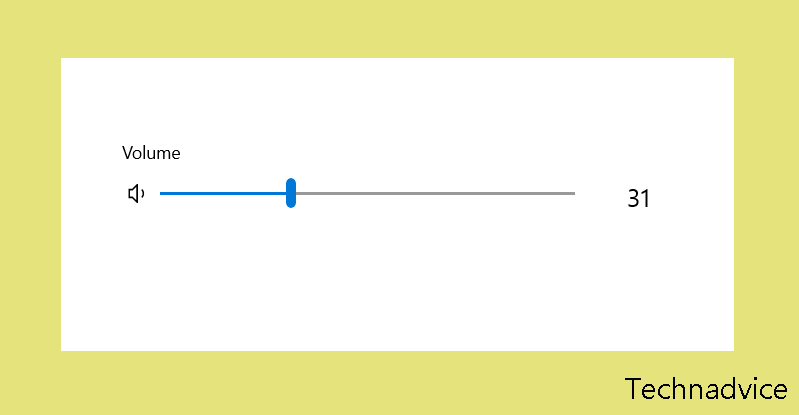
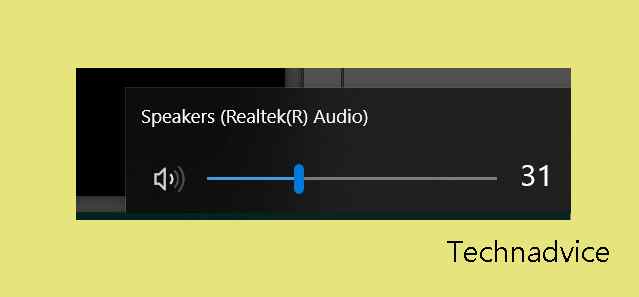
    • At the bottom,> Left-click the volume icon (Speaker shape)
    • Then slide the settings to the right to increase the volume
    Manually Increase Laptop Volume

    These settings are universal. Once set, the entire laptop system, including the application, will change the volume.

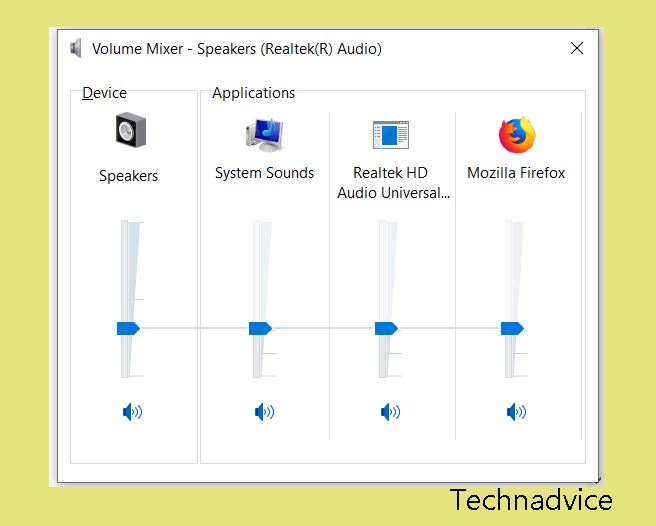
    But if it’s only certain applications that you think to sound low, try setting a little deeper:

    • Right-click the lower right volume icon > Then click Open Volume Mixer
    • Setting/enlarge the sound of the desired application
    Manually Increase Laptop Volume

    #2. Via Laptop Keyboard

    Via Laptop Keyboard

    80 percent of laptop keyboards have shortcuts to set the laptop sound.

    You can increase the laptop volume by pressing the FN key + speaker logo to enlarge the sound settings on the F1 key row to the F12 key.

    If you can’t try don’t use the FN key. Use the Ctrl + ALT + Volume keys the same as before.

    When you press the key combination > Then the sound settings window will appear. And the laptop volume will automatically be big.

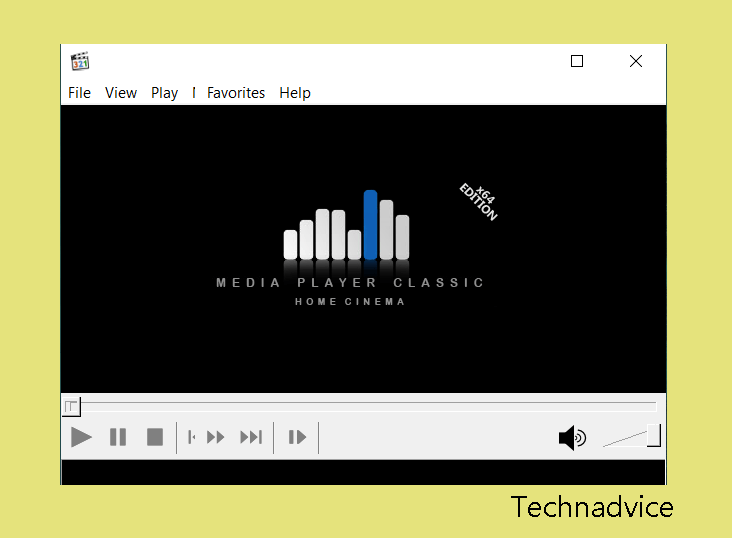
    #3. Using Media Player Classic

    Using Media Player Classic

    If you often watch videos on your laptop, try using Media Player Classic or commonly abbreviated as MPC-HC.

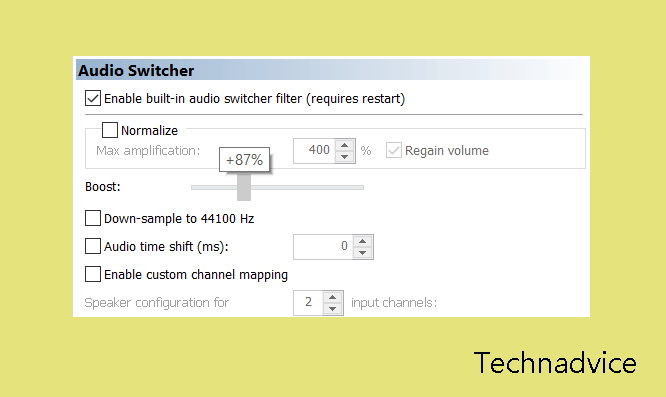
    In MPC-HC there is a setting that allows us to increase the sound on the laptop beyond the maximum limit. Up to 300%.

    Cool, right?

    For how easy it is.

    • First, please install the MPCHC application (mpc-hc.org) then install it as usual.
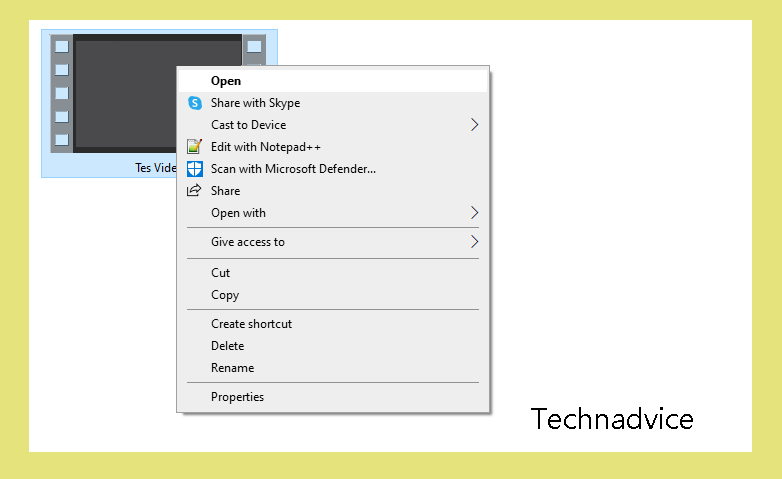
    • If so, open the desired video using the MPCHC application.
    Using Media Player Classic
    • Then right-click > Click Options
    • Click on the Internal Filters section > Select Audio Switcher > Then set the Boost settings to suit your needs.
    Using Media Player Classic

    Don’t forget to also adjust the laptop volume settings as described previously.

    #4. Using the Equalizer App

    What is an Equalizer? An equalizer is a special application for adjusting Windows sound. In points 1 and 2, it also includes an equalizer.

    You can use this application if you really want to try to set the laptop sound more than 100%.

    I have often used it. And the results are very powerful. Here’s how:

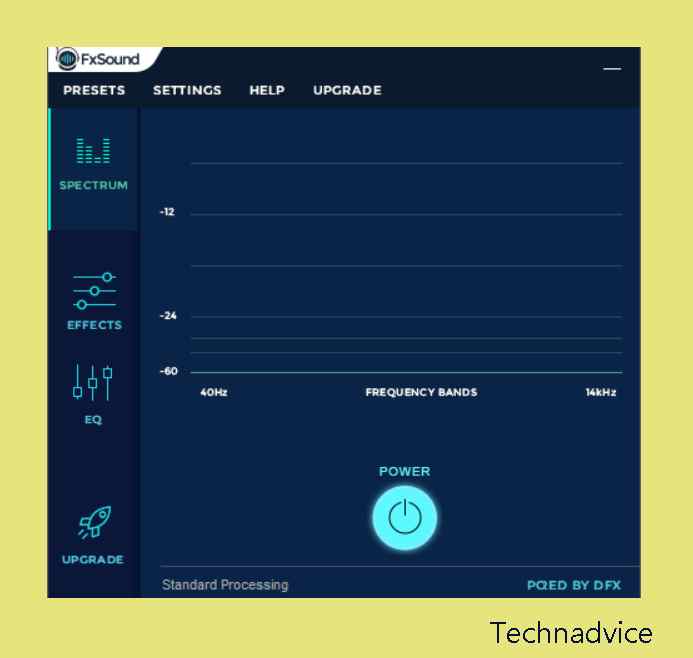
    1. Install the FX Sounds application
    2. Open the app
    3. Then click the EQ button > Then increase the Equalizer frequency setting
    Using the Equalizer App

    In addition, there are also other settings such as:

    3D Surround To give special effects to laptop sound, mainly to sound virtuality
    Dynamic Boost Sound boost settings. To increase the audio volume even further.
    Fidelity Set the laptop speakers to be like stereo speakers when playing sound (Or music).

    Many more. Better try it yourself.

    #5. Add Volume Booster Extension In Google Chrome

    Like browsing? Well. If you often play videos on YouTube or music on a site, then try the Volume Booster extension.

    This extension allows the Browser to improve the internal sound. Not bad if it’s more than the default settings .

    How to do it? Here’s how:

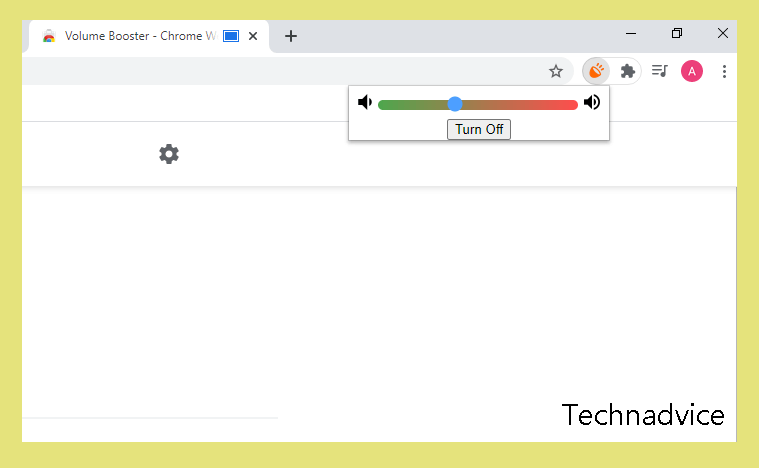
    Add Volume Booster Extension In Google Chrome
    • On the Tools menu at the top > Click the Volume Booster icon
    • Increase the volume
    Add Volume Booster Extension In Google Chrome

    How to Fix a Small Laptop Sound

    If with the methods above it turns out that the sound produced by your laptop speakers is still small, then there may be a problem.

    For example:

    • System problem
    • Broken laptop speaker

    How to fix it?

    • First: Try to reinstall Windows first. This can help to repair the damage to the system. Including the sound, settings can also be normal again.
    • Second: Try installing or updating the sound driver on the laptop. Usually quite influential.
    • Third: If it still doesn’t work, there is a possibility that the speaker is about to be damaged. The solution is, that it’s better to go directly to the service center (to replace the components).

    Read more:

    Conclusion:

    So a little review on how to enlarge the sound of a small laptop. These methods have been proven to increase the volume and even audio quality.

    Additional? Or maybe you have another problem? Please just ask directly through the comments column below. Maybe later I can help with a solution.

  • 15 Best Video Editing Software for Windows PC 2025

    15 Best Video Editing Software for Windows PC 2025

    15 Best Video Editing Software for Windows PC – are you looking for Best Video Editing Software? if yes, then don’t worry, In this article, we will recommendations for the best video editing software for Windows laptops, and Desktop computers that are suitable for beginners and professionals.

    15 Best Video Editing Software for Windows PC
    15 Best Video Editing Software for Windows PC

    Best Recommended PC Video Editing Applications/Software

    There are several advantages and disadvantages that you should know such as RAM specifications, whether or not it is suitable for Windows 7, 8, and 10, and so on.

    For creating eye-catching video previews, it’s essential to use a YouTube thumbnail maker that complements the features of the best video editing software for Windows.


    Read more:

    PC video editing applications generally have fairly high system requirements. If the computer or laptop you are using has mediocre hardware, the chances of being able to use this application are very small. In fact, the application can make the gadget hang.

    Although most of the applications for watching videos provide high requirements. Several applications offer a lightweight system that can be used by anyone. To find out what are the best and free PC video editing applications you can use, see below.

    There are PC video editing applications that can be used for free and some are paid. To find out recommendations for video applications that can be used, see more below.

    #1. Adobe Premiere Pro

    Adobe Premiere Pro
    Adobe Premiere Pro

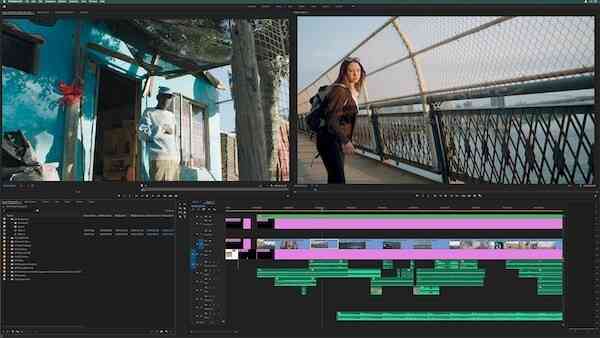
    The first video editing application is Adobe Premiere Pro. This application is issued by Adobe company which is known to be very skilled in issuing editing applications.

    So far, we have only known image editing applications. In fact, Adobe also provides a video editor. Even with very qualified quality.

    The advantage of this application is the collection of assets that can be used entirely. While doing the editing process, you can do all the work easily because of its quite intuitive features.

    If you want to use this application, you can first try the application in the form of a trial. Furthermore, if you want to use it, the monthly license fee is around Rp. 300,000.

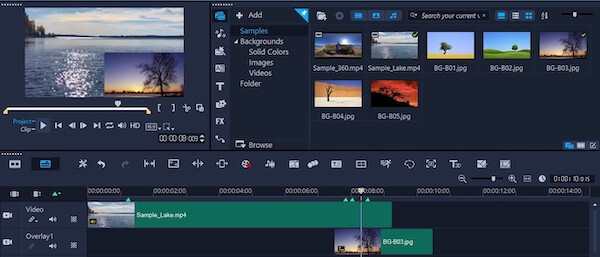
    #2. Corel VideoStudio Ultimate

    Corel VideoStudio Ultimate
    Corel VideoStudio Ultimate

    Corel also released an application that can be used to edit videos using a PC. This application can be used for free for 30 days. Next, you have to pay for a license of around 100 dollars.

    The advantage of this application is the many features to modify videos or images perfectly. With only modest sources, you can create videos with the perfect look.

    If the video that has been recorded has a quality that is not good, it is a bit shaky. This application can also be used to fix this so that when viewing videos it is more stable.

    Another advantage of this application is its ability to mask certain videos. The collections are quite large, making it easier for you to edit videos according to your needs.

    #3. EaseUS Video Editor

    EaseUS Video Editor
    EaseUS Video Editor

    Want to use a video editing application with a quality that is quite capable but free? The EaseUS Video Editor application can be considered to be installed on all types of Windows computers.

    This application has a size that is not too large so that when used it is lighter. The computer or laptop you have will not experience hands, especially when rendering video.

    The advantage of this free application is that it is able to edit videos with various interesting effects. In addition, you can also add audio elements to it.

    This application is also an all-in-one type. By using this software alone, you can cut videos, combine them, and add some effects such as transitions well.

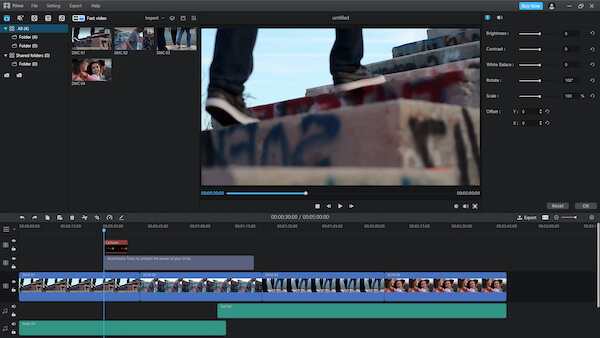
    #4. iMyFone Film Video Editor

    iMyFone Film Video Editor
    iMyFone Film Video Editor

    To be able to master this video editor application, there are three features that must be studied well. The first is fast editing. By using this feature you can watch videos quickly and the results are still satisfying.

    The second feature is basic editing, the application provides quite a lot of editing tools such as cutting videos to combining several videos and media into one. You can also use the templates that have been provided.

    The last is the advanced editing feature, by using this feature you can add multiple media to the overlapping layer. Can add animation and narration in one video scene.

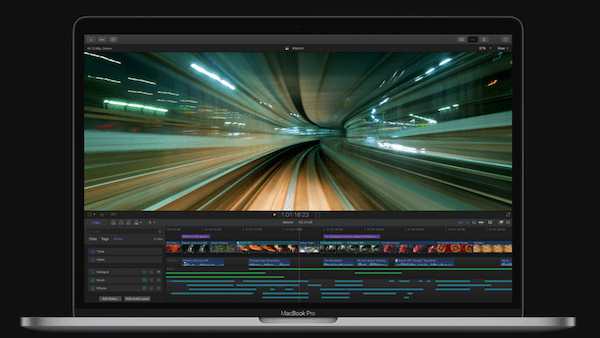
    #5. Apple Final Cut Pro X

    Apple Final Cut Pro X
    Apple Final Cut Pro X

    For those of you who use a Macbook, Apple has developed its own application that can be used to watch videos. With Apple Final Cut Pro X, you can watch videos of professional quality.

    The advantage of this application is the many premium features provided. Only armed with this one application you can watch videos well. It can even make sorts and short films.

    Like other Apple products, this application is priced quite high. What’s the difference to being able to buy a license for one vision, it costs around Rp. 4.2 million.

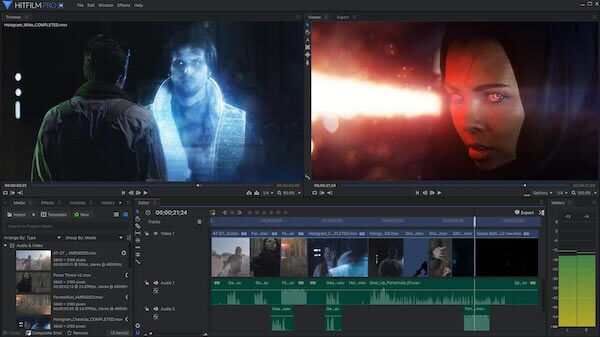
    #6. HitFilm Pro

    HitFilm Pro
    HitFilm Pro

    The HitFilm Pro application is slightly different from the video editing applications that will be discussed in this article. This software is intended for video editing used for filmmaking.

    Because it has a fairly professional function, the results provided can also be more perfect. The various features and effects offered are also no joke, from standard editing to 3D elements.

    Again, there is a price, there is always a way or vice versa. To be able to use this application you have to buy it at a price of around Rp. 4 million. Quite high and comparable to what is given.

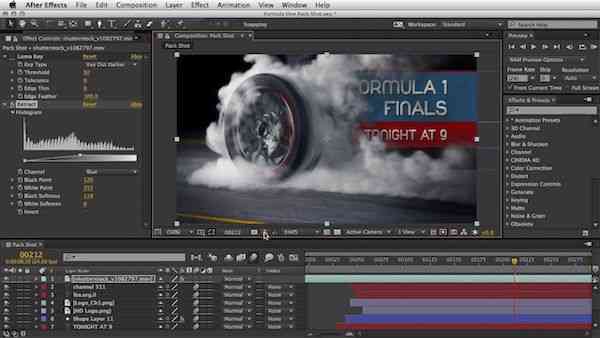
    #7. Adobe After Effects

    Adobe After Effects
    Adobe After Effects

    This application is actually used for the final process of video editing. By using this application you can add various captions, animations, and transitions, to other needs until the video is really perfect and can be saved.

    For simple video editing like making YouTube or short videos on Instagram. This application can be easily used because it already has enough media or assets.

    You just need to use some of the features that are herewith. You can then check the preview first before saving it for sharing on the desired social media.

    #8. Lightworks

    Lightworks
    Lightworks

    The video-watching application that is quite light to use for Windows computers is Lightworks. Only armed with a unique application you can make videos with perfect quality.

    A variety of interesting features and effects are offered so that you can easily skip the editing process. In fact, you can also add various effects such as transitions and sounds.

    This application can be used for free until the trial period runs out. Meanwhile, if you want to use it you can choose a monthly review or buy a license forever for about 437 dollars. Quite high but worth the features offered.

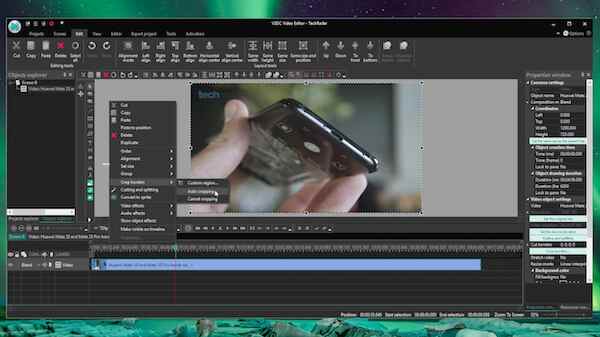
    #9. VSDC

    VSDC
    VSDC

    Video editing applications with good quality and close to professionals generally have the highest license. Fortunately, this application called VSDC can be used for free even though the features in it are very complete.

    The advantage of this application is that it offers an easy video editing process. What’s more, the interface design of this app is quite simple and intuitive. Beginners can easily follow the video creation process.

    The important thing of all is that there is no watermark affixed. So, the created video will look very professional.

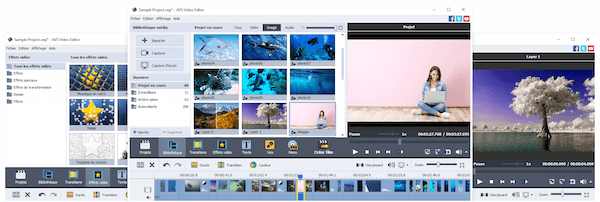
    #10. AVS Video Editor

    AVS Video Editor
    AVS Video Editor

    Another video editing application has a fairly small size and is lightweight when used. This application has a video cache feature that will make the process of shooting videos with HD quality run quickly.

    In addition, using this application you can easily perform various basic editing processes such as cutting, merging, and just adding other media elements into several layered layers.

    This app also has a very large collection of transitions. There are only about 300 assets that can be used so that the videos you create look even more perfect.

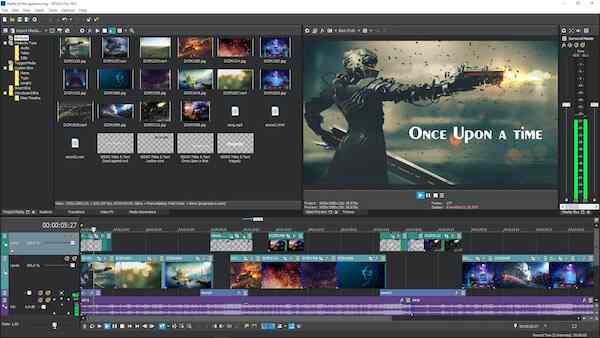
    #11. Sony Vegas Pro

    Sony Vegas Pro
    Sony Vegas Pro

    This application is actually made especially for experienced video editors. The content of this application is quite complicated and also complex because it involves many features that make videos more attractive and professional.

    Even though it is intended for professionals, the interface of this application is simple enough that beginners can use the student card. You can do some simple editing and add some animation and audio elements.

    The assets owned by this application are also quite a lot so they can be put to good use. You can also add applications in the form of templates so you don’t need to do further editing. To be able to use this application, you must first purchase a license.

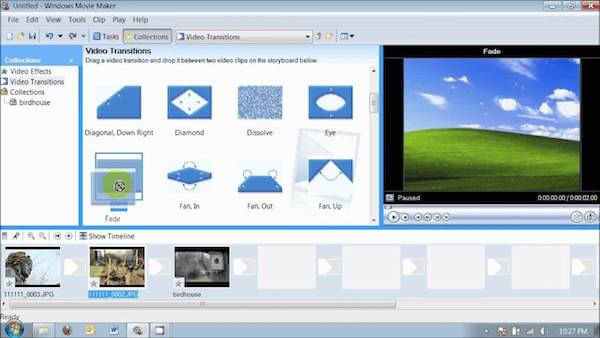
    #12. Windows Movie Maker

    Windows Movie Maker
    Windows Movie Maker

    One of the default applications from Windows computers that can be used to save standard videos. This application is generally already installed directly and can be used to make the editing process.

    The features offered are quite simple, such as cutting to combining several videos and media. For the rest, you can save the video and choose the output format that suits your needs.

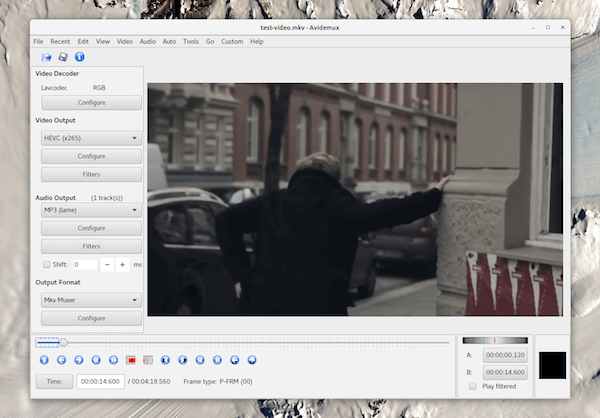
    #13. Avidemux

    Avidemux
    Avidemux

    The Avidemux application is a free video editing software that can be used on Windows computers. Although free and can be used freely, this application offers quite capable features.

    You can use it to perform standard editing such as merging several videos with other media to cutting. Adding audio files can also be done in this application.

    This application is perfect for beginners who want to learn to create content for their social media. However, you can also use it to make videos with better and more professional quality.

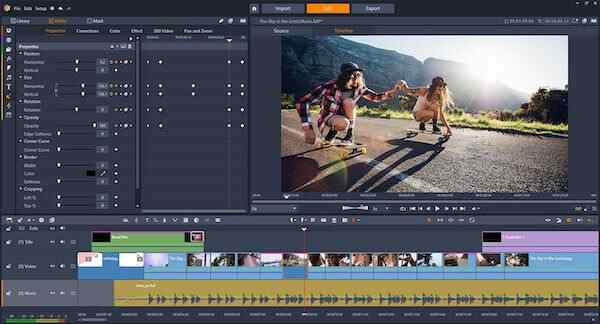
    #14. Pinnacle Studio

    Pinnacle Studio
    Pinnacle Studio

    One of the easy-to-use and lightweight video editing applications. The Pinnacle Studio application makes it easy for you to combine several video and image media into one.

    This application also offers several effects and templates and the results are quite interesting. By using this effect, the videos created can look more professional and not monotonous.

    To be able to use this application, you have to pay for a license ranging from 50-100 dollars. Depends on the type of package selected.

    #15. Filmora

    Filmora
    Filmora

    For those of you who have used the Android version of FilmoraGO, it’s time to use the PC version of Filmora which has a larger collection of assets. In addition, the resulting video quality can also be maximized.

    This application allows you to watch videos professionally with a simple interface. The application also provides a variety of interesting features that are intuitive enough that even beginners can create videos with ease.

    Read more:

    Conclusion:

    This is an explanation of the 15 best video editing software for Windows PC, You can choose it according to your PC. If you want to wait for professional needs and also work, of course, the application used must have high qualifications.

  • 6 Ways to Fix Operating System Not Found In Windows 2025

    6 Ways to Fix Operating System Not Found In Windows 2025

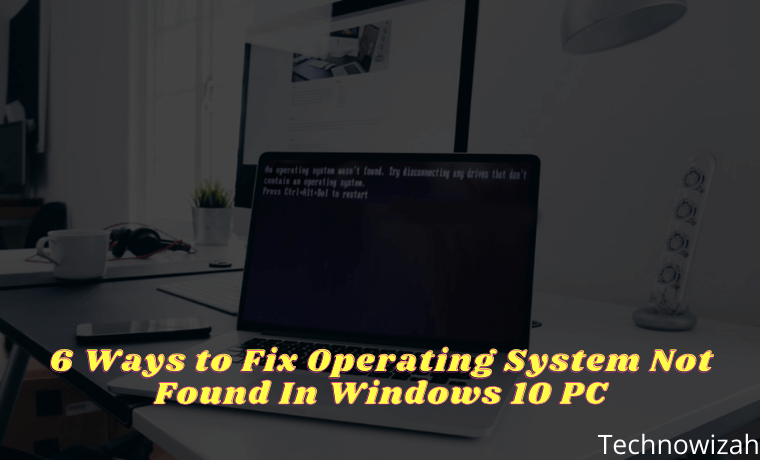
    6 Ways to Fix Operating System Not Found In Windows – You must be surprised when you get the “Operating system not found” error. Here’s how to fix this unusual problem!

    6 Ways to Fix Operating System Not Found In Windows 10 PC
    6 Ways to Fix Operating System Not Found In Windows 10 PC

    How to Fix Operating System Not Found In Windows

    Of all the errors, glitches, and problems that you may encounter while using Windows 10, only a few cause fear, and one of them is “Operating system not found”.

    Read more:

    Let’s see how to fix the Operating system not found error on Windows 10.

    #1. Check BIOS

    Check BIOS
    Check BIOS

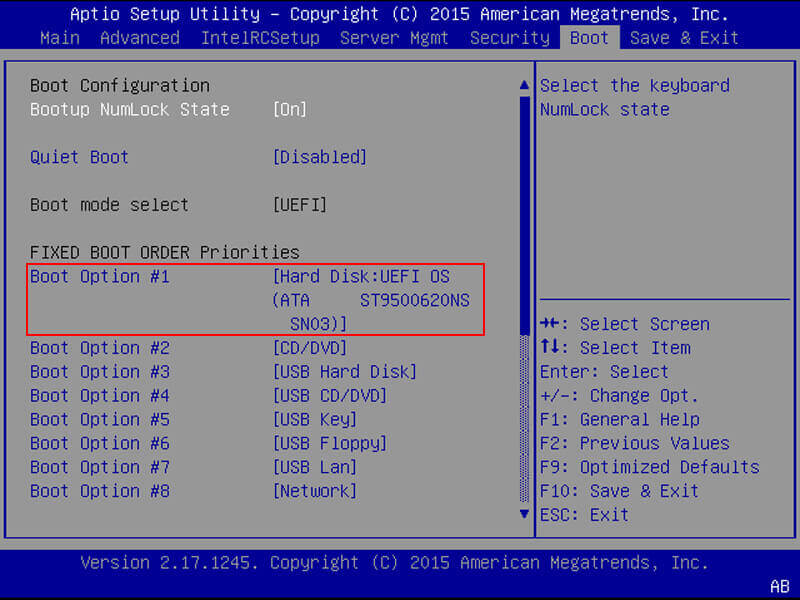
    You need to check two things in the BIOS. First, you need to make sure your machine recognizes your hard drive. Second, you need to make sure the drive where you are installing Windows is listed as the preferred boot drive.

    The way to enter the BIOS changes according to the manufacturer. Usually, you have to press  Escape,  Delete, or one of the Function keys. You will see a message on the screen telling you which is the correct key to enter the boot process.

    The BIOS menu itself also varies between devices. Broadly speaking, you need to look for the Boot tab at the top of the screen. (You can only use the keyboard to navigate the BIOS menu.)

    Inside the Boot tab, highlight  Hard Drive and press  Enter. Make sure the Hard Drive is listed above  USB Storage,  CD\DVD\BD-ROM,  Removable Devices, and  Network Boot. You can adjust the order using the +  and   buttons.

    If everything in your BIOS menu looks fine, skip stepping three. If you don’t see the hard drive listed, go to step two.

    #2. Reset BIOS

    Reset BIOS
    Reset BIOS

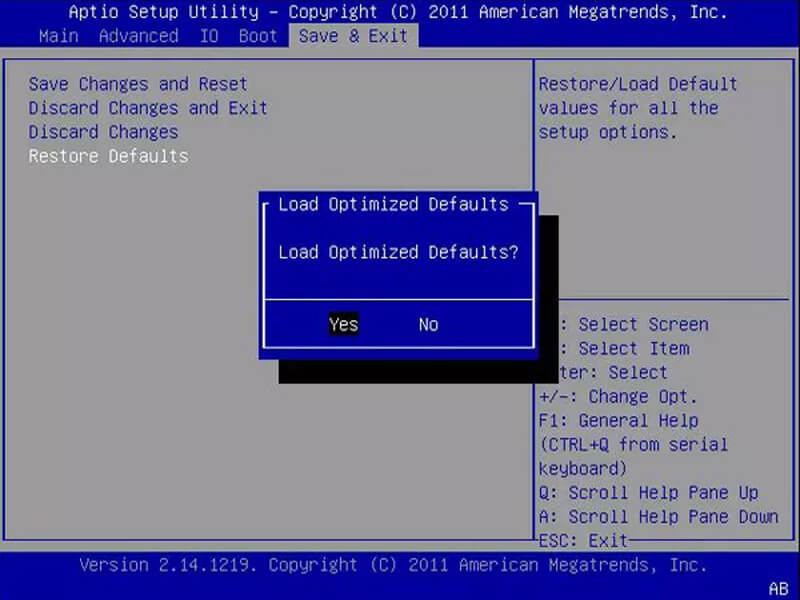
    If your machine doesn’t recognize your hard drive, there are many possible causes. For non-tech-savvy users, the only easy solution is to try resetting the entire BIOS menu to its defaults.

    At the bottom of the BIOS menu, you will see a button for  Setup Defaults or  Reset BIOS. On the admin’s computer, there is  F9, but it may be different from yours. Confirm your decision when prompted and restart your machine.

    If the operating system is still not found, you can stop reading this article. Unless you know a lot about assembling computers, you should take your machine to a computer repair shop.

    #3. Fix Boot Records

    Windows relies on three records to boot your machine. They are the  Master Boot Record  (MBR),  DOS Boot Record  (DBR), and  Boot Configuration Database  (BCD).

    If one of the three records is corrupted, there is a high chance that you will find the message “Operating system not found”.

    Fortunately, fixing these records is not as complicated as you might think. You just need to have a Windows installation drive. Use  Microsoft’s Media Creation Tool for creating Windows 10 installation media.

    When your tools are ready, you need to use them to boot your machine. Depending on your device, you may only need to press one key during the boot process, or you may have to change the boot order in the BIOS menu.

    But eventually, you will see the Windows Settings screen. Enter your preferred language, keyboard, and time format, and click  Next. On the next screen, select  Repair your computer.

    Next, navigate to  Troubleshoot > Advanced Options > Command Prompt. When the Command Prompt loads, type the following three commands. Press  Enter  after each:

    • bootrec.exe /fixmbr
    • bootrec.exe /fixboot
    • bootrec.exe /rebuildbcd

    Each command may take a few minutes to complete. After all the process is done, restart your PC and see if it boots up successfully.

    #4. Enable Or Disable UEFI Secure Boot

    Enable Or Disable UEFI Secure Boot
    Enable Or Disable UEFI Secure Boot

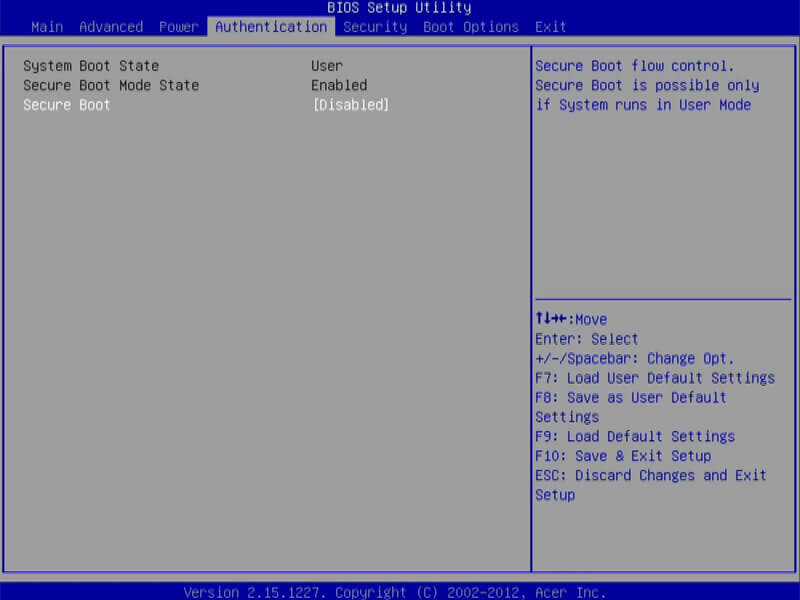
    Almost every Windows machine ships with UEFI firmware and Secure Boot enabled. However, in some cases, this may not work. For example, if Windows is installed on the GUID Partition Table, it can only boot in UEFI mode. On the other hand, if Windows 10 is running on an MBR disk, it cannot boot in UEFI mode.

    Therefore, it is a good idea to enable or disable UEFI Secure Boot and see if there is a difference. You make adjustments in the BIOS menu. Usually, the option is named  Secure Boot and can be found in the Authentication or Security tab.

    #5. Enable Windows Partition

    Enable Windows Partition
    Enable Windows Partition

    The partition where Windows is installed may have been disabled. You can fix it using the Windows native diskpart tool. To perform the following steps, you will once again need a Windows USB installation media.

    Turn on your machine and boot from tools. As in the third step, you have to enter your language preferences, etc., click  Next, select  Repair your computer, and go to troubleshoot > Advanced Options > Command Prompt.

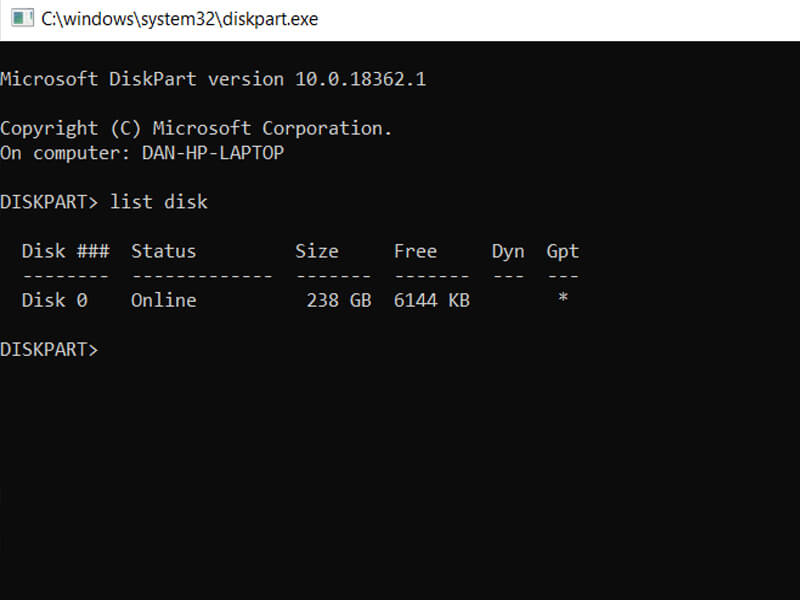
    In the Command Prompt, type diskpart and press  Enter, then type list disk and press  Enter. You will see a list of all the disks attached to your machine. Write down the disk number you need. Usually, it’s the biggest.

    Next, type select disk [number], replacing [number] with that number. Press  Enter.

    Now type list volume and press  Enter. This will show you all the partitions on your selected disk. Specify which partition Windows is installed on and note the number, then type select volume [number], again replacing [number] with the number you just noted down.

    Finally, type active and press  Enter. To see if the process was successful, restart your machine.

    #6. Use Easy Recovery Essentials

    Use Easy Recovery Essentials
    Use Easy Recovery Essentials

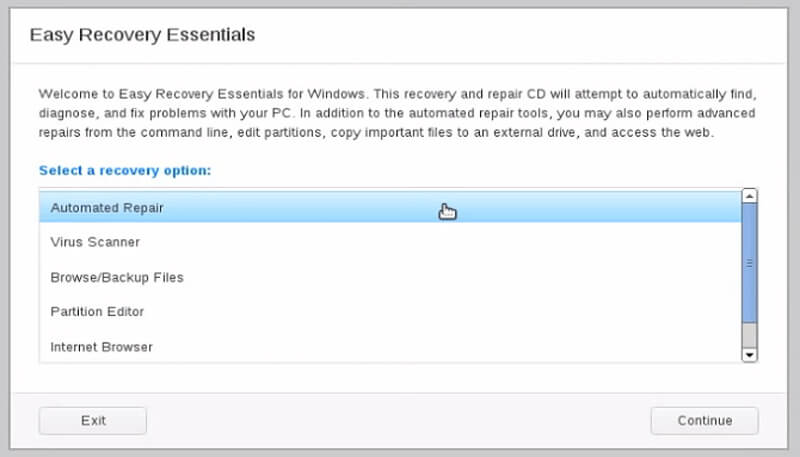
    Easy Recovery Essentials is a third-party application that specializes in fixing boot problems. If none of the previous five steps worked, it’s worth trying.

    This can resolve other common startup error messages, in addition to fixing the “Operating system not found” message.

    Just download the app, burn the ISO to a CD, and use the CD to boot your machine. The application wizard guides you through the repair process.

    Read more:

    Conclusion:

    This explains 6 ways to fix the operating system Not Found In Windows. Hopefully from some of these methods, there is one that can fix it on your computer.