5 Easy Ways to Solve Laptop Camera Not Working – A laptop camera that doesn’t work is of course a big problem because it can’t be made for online meetings, video calls on laptops, and other needs. The good news is that the way to deal with a laptop camera that doesn’t work is easy and varied.
How to Solve Laptop Camera Not Working
The laptop camera not working depends on the cause. If you have found the cause, then repairing the laptop camera should not be a problem anymore.
So, below you can see how to deal with a laptop camera that doesn’t work quickly and easily.
#1. Reinstall Camera Driver
A laptop camera that doesn’t work can be caused by a problematic camera driver. If the cause is the problematic driver, then you have to reinstall it.
Before reinstalling the camera driver, make sure it is compatible with the type of laptop as well as Windows.
You can install the camera driver by inserting the CD that came with it when you bought a new laptop. If not, you can download the appropriate laptop driver on the internet. After the reinstallation is complete, don’t forget to restart the laptop, so the camera can work again.
#2. Turn on the Camera
A laptop camera that doesn’t work could be because it hasn’t been activated. So, check first, lest you haven’t activated it.
If you don’t know how you can check the explanation below:
First, right-click on This PC.
Enter Properties.
Open the Device Manager menu.
Right-click on the device name Cameras/Imaging Devices then click Enable.
After that restart the laptop.
Done, the laptop camera will work again because it has been activated.
The method above can be done in all versions of Windows, whether Windows 7, 8, or 10.
#3. Update the Driver
Sometimes, a laptop camera that doesn’t work can also be caused by out-of-date drivers.
Like it or not, if you want the camera to work again, you have to update the driver. Especially if you don’t apply the settings for automatic driver updates.
Here are the steps:
Right-click on This PC.
Enter Properties.
Then select Device Manager.
Right-click on the Camera device name, then click Update Driver Software.
After the update is complete, please restart the laptop.
Finished.
#4. Webcam Configuration
The next way to deal with a laptop camera that doesn’t work is to configure a webcam. It could be, that the camera is not active because the configuration is not activated.
How do I configure the webcam? Easy, check the tutorial below:
Click Start.
Click Settings.
Select Privacy then click the Camera tab.
Look on the right, and click Change.
Change it to ON in the “Camera access for this device” option.
Change it to ON in the options “Allow apps to access your camera”.
Done, the webcam configuration was successful.
The method above can be done on the problematic webcam in Windows 10.
#5. Allow Camera Use
Do you want to join a Zoom Meeting but the laptop camera doesn’t work? Don’t worry, maybe the problem is not as complex as you think.
It’s possible, you haven’t allowed Zoom or Google Meet to access the laptop camera.
If not, here’s how to allow it:
If using Google Chrome, click the three dots in the upper right corner.
Select Settings > Privacy and Security then select Site Settings.
Then click meet.google.com, and change the Camera section to Allow.
Finally, restart Google Chrome.
Finished.
If using Zoom, here’s how:
Open Zoom, click the Zoom panel on the top left then select Preferences.
Then go into Settings.
Select camera or click video.
Finished.
Conclusion:
So, friends, This is the explanation of The above collection of quick and easy ways to solve laptop camera not working.
So, after knowing the methods above, you don’t need to rush to laptop repair to fix the camera that isn’t working.
12 Ways to Fix Windows Defender Can’t Opening – Windows Defender is an antivirus software developed by Microsoft. This is a default application that serves to protect the Windows operating system from virus or malware attacks.
How to Fix Windows Defender Can’t Opening
There are tons of features you can use to protect your computer. You can perform periodic virus scans, remove problematic applications, and monitor device health, and performance, to protect you when accessing dangerous sites or links in a web browser. Seeing these functions, Windows Defender has a myriad of benefits for its users.
But what happens, if the Windows Defender you are using has problems or malfunctions, such as Windows Defender cannot be opened or accessed?
This of course irritates you. This condition is usually indicated by the appearance of some error information when opening Windows Defender, such as “ Windows Defender is turned off by group policy ” or “ Windows Defender has been turned off and isn’t monitoring your computer ”.
Then what are the causes and problems of Windows Defender that can’t be opened? And how to solve it? To overcome this, you can see the causes and solutions to overcome them below.
Causes Windows Defender Can’t Opening
There are several reasons why Windows Defender has failed to function, for example, due to problematic system factors, there are several colliding services until the device is attacked by a virus or malware. For a more complete explanation, please refer to the following points.
Troubled system – If your Windows system fails to function, then some of the components in it may be also having problems, including Windows Defender. This is reasonable, considering the role of the system is very influential on the performance of the program or application.
Service crashes – It could be that the main cause of Windows Defender not being able to open is due to system services that have crashed or are not running. This condition is usually marked by a statement not responding to several programs, which ultimately has an impact on other programs.
There is a problem with an antivirus application – You cannot rule out the possibility that an antivirus application also has the potential to be dangerous on your computer/laptop device. Even more so if you download the app from an unknown source. It is possible that these applications can also take full control of your device, So, it is recommended to be more careful in installing third-party antivirus.
Exposed to virus/malware attack – Virus or malware itself can change to delete files contained in the system. As a result, some files become corrupt and problematic.
etc.
How to Solve Windows Defender Can’t Opening
There are several methods that you can use to fix Windows Defender that won’t open. For example, by reloading the device, removing the antivirus application, restarting the Security Center, and using the scanning command with CMD ( Command Prompt ). In this article, I use Windows 10 as a medium and an explanation. If you have the same problem but are using a lower or higher operating system, please make some adjustments to the method used. The following methods and explanations;
#1. Restart your laptop/computer
The first method to solve the problem of Windows Defender not opening is to reload your computer/laptop. This method does look simple, but in fact, many Windows problems are well resolved just by reloading the device.
However, this method applies when the problem is caused by a system service that crashes or is not running. If this method does not produce any changes, then please proceed to the second method.
#2. Removing antivirus apps
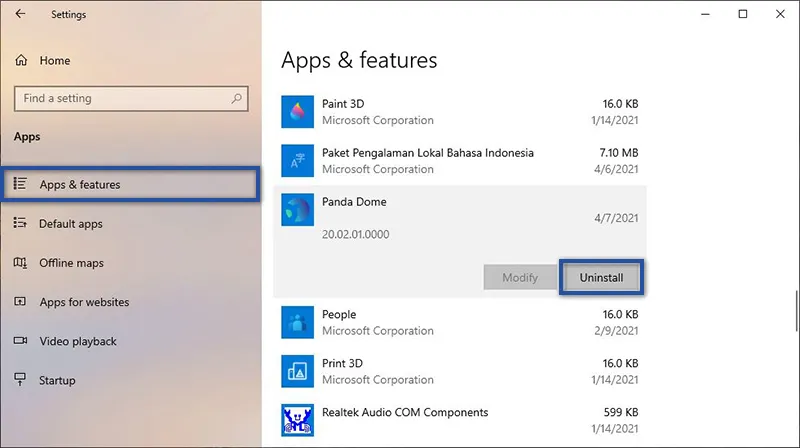
As I said above, there is a possibility that the antivirus application that causes Windows Defender cannot be opened. Conditions like this can happen if you use an antivirus from an unknown source. For this reason, it is recommended that you remove the antivirus application in the following way.
First, click on the Start menu » Settings » Apps.
Then select the Apps & Features tab.
Find and select the Antivirus application » click Uninstall » and click Uninstall again to confirm the removal of the application.
Follow the app removal process.
Done.
There are many ways you can delete an application or program in Windows. So you can use other methods that are easy to do and don’t have to refer to one method above.
#3. Restart the Security Center Service
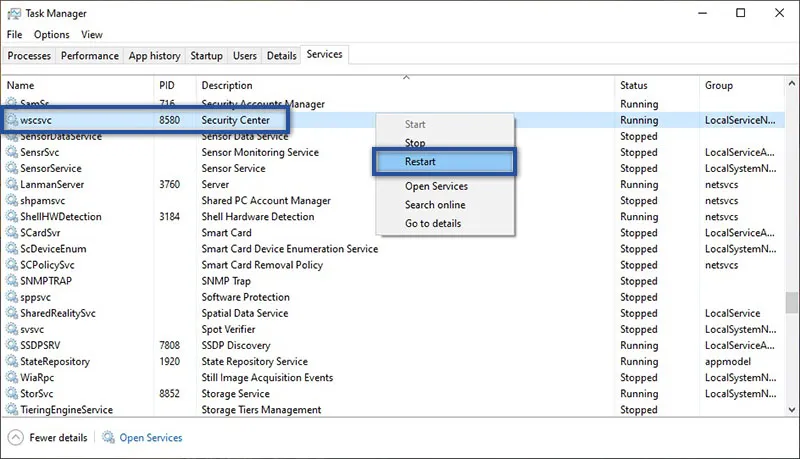
The next method is to restart the Security Center service. From the results of research that I did on several sites, some think that this method can solve Windows Defender that cannot be opened. To do so, you can refer to the points below.
First, open the Task Manager.
Then select the Services tab, locate and right-click Security Center » and select Restart.
If so, check whether Windows Defender is still having problems or not.
Done.
#4. Run CMD Command
The cause of this problematic Windows Defender may come from corrupted or missing system files. Therefore you can use some commands in the Command Prompt to fix the problem.
You could try running the System File Checker or DISM command. These two commands have almost the same function, namely to repair damage to system files.
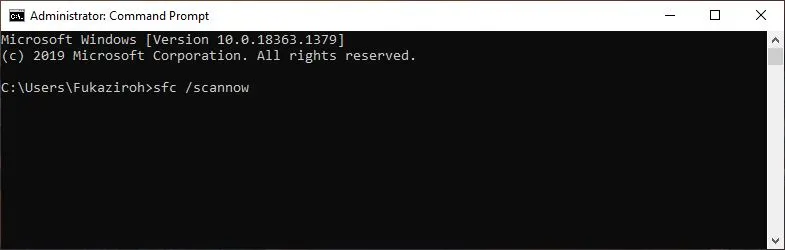
sfc /scannow
First, click the Windows Start menu on the Taskbar.
Then scroll down to find Windows System.
If so, right-click Command Prompt » More » and Run as administrator.
Next type the command: sfc /scannow » and press Enter.
Wait for the process to reach 100%.
After that please restart your device to see the result.
Done.
If running an SFC scan still doesn’t fix the problem. You can use the DISM command. To do so, just follow the steps below.
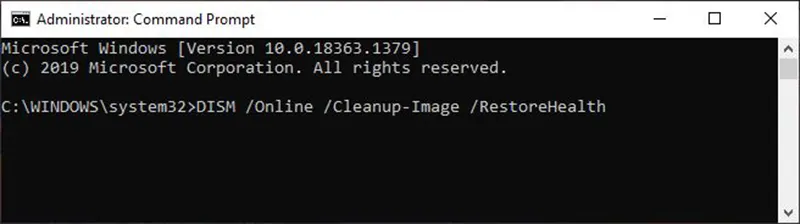
DISM /Online /Cleanup-Image /RestoreHealth
First, log in and run Command Prompt as Administrator.
Next type the command: DISM /Online /Cleanup-Image /RestoreHealth » and press Enter.
Wait for the process for a while.
After that please restart your device to see the result.
Done.
#5. Activate Windows Defender
Sometimes the Windows Defender problem that can’t be opened occurs because the feature is turned off or off. In this condition, you can turn it back on through the Group Policy settings. To change it, please follow the steps below:
STEP 1: In the first step, please open the Group Policy Editor window.
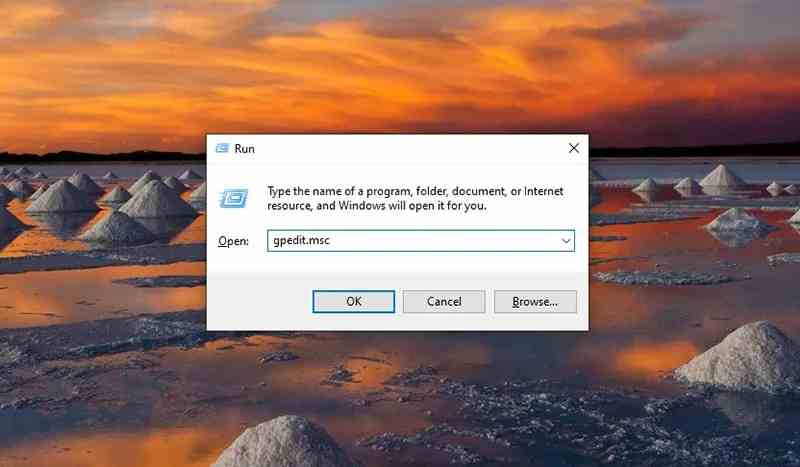
gpedit.msc
Press Windows + R on Keyboard.
Then type gpedit.msc in the Run » search field and press Enter/OK.
STEP 2: After that, enter the Windows Defender directory menu.
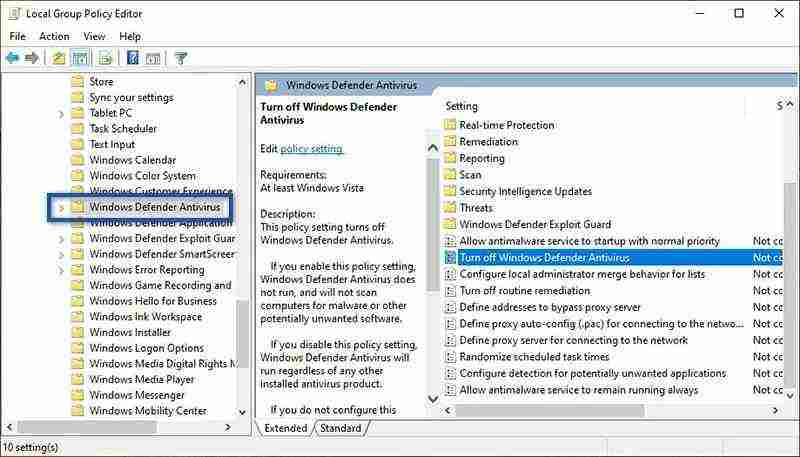
Computer Configuration > Administrative Templates > Windows Components > Windows Defender
Click the Administrative Templates directory in the left pane.
Then proceed by selecting Windows Components » and click Windows Defender / Windows Defender Antivirus.
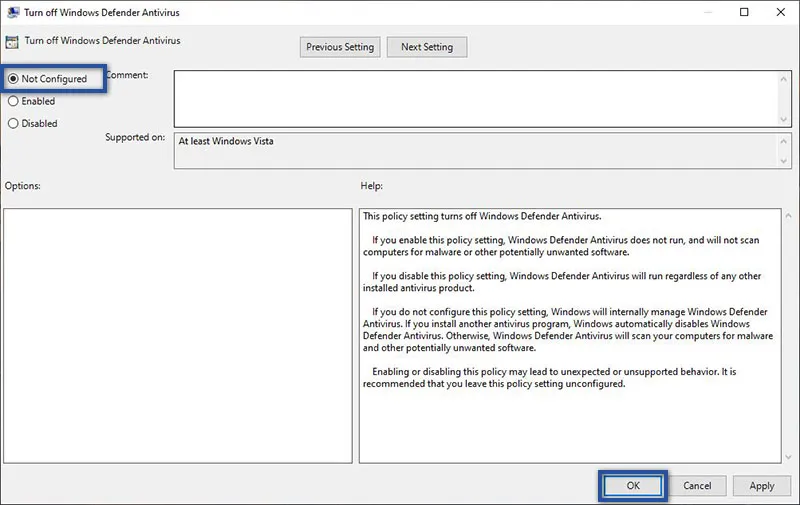
If so, look at the panel on the right. Then double click Turn off Windows Defender Antivirus.
STEP 3: Change Windows Defender settings
After that, click Not Configured on the available menu options » click Apply » OK.
Done.
Conclusion:
So, friends, This is an explanation of 12 ways to fix Windows Defender Can’t open, If Windows Defender has an error, it means that your device is not getting maximum protection. Although this problem is rare, when you experience it, you will feel confused.
Conditions like this are usually caused by several things, such as corrupt system files, problematic antivirus applications, or virus or malware attacks.
By trying some of the tips that I described above, hopefully, the Windows Defender error problem can be resolved properly. If there is something you want to ask or convey, please write it in the comments column below. Thank you and good luck!
What is Windows Defender?
Windows Defender is an antivirus application developed by Microsoft for the Windows operating system.
Does Windows Defender need to be activated all the time?
Depends on the user, but would be better if it was enabled. This is done so that your device gets maximum protection from virus and malware attacks.
Why can’t Windows Defender run?
Several things causeWindows Defender problems, such as corrupt system files, colliding services/crashes, or virus or malware attacks.
7 Ways to Fix Error 0x80070422 in Windows 10 PC – If you encounter error 0x80070422 in Windows 10, chances are you are having problems with Windows Update. Let’s take a look at how to fix error 0x80070422 and what causes this problem.
How to Fix Error 0x80070422 in Windows 10 PC
What is Windows Error 0x80070422?
Before we start, it’s a good idea to know what 0x80070422 means in Windows 10. As it turns out, this error occurs most often with Windows Update errors.
When it appears, any pending Windows updates will not install properly. You may see a message like “There were some problems installing updates” or “Windows Update is disabled” in the Windows Update pane when that happens.
This error prevents you from updating your computer properly, which could open you up to security issues if not fixed. Because you expect Windows Update to run smoothly in the background.
Fortunately, error 0x80070422 is usually not that difficult to fix, as it has many common causes.
How to Fix Error 0x80070422 in Windows 10 PC Laptop 2022
#1. Restart the PC
While this is general advice for all errors, it is important to restart your computer before moving on to further troubleshooting. Restarting can often fix the problem temporarily, so you don’t want to waste time working on an issue that has a simple fix.
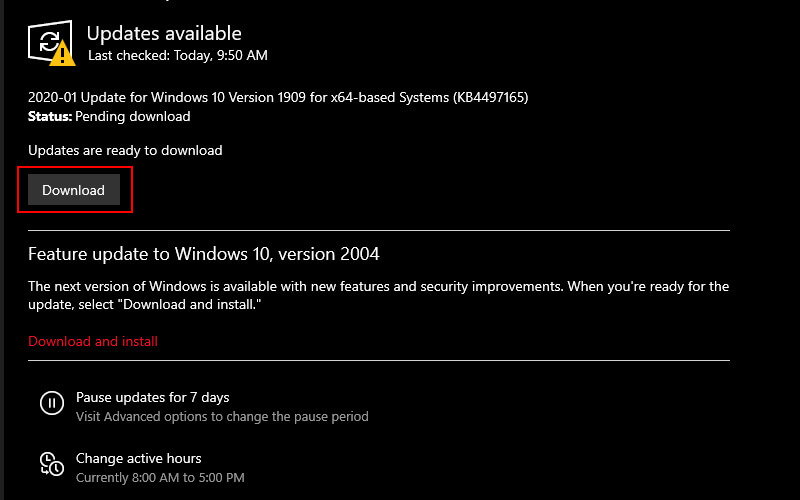
After you reboot, try installing the latest updates again in Settings > Update & Security > Windows Update.
If you see the error again, use the next method.
#2. Fix Windows Update Service
In some cases, Windows Update error 0x80070422 occurs because of a problem with the Windows Update service. In case you weren’t aware, Windows services are processes that run in the background, regardless of your user account. Your computer has many services, most of which run at startup and work silently.
The Windows Update service is built into Windows. If this stops working properly, Windows Update will fail to run properly. So, this is the time to check first, be aware that you need admin rights to use it.
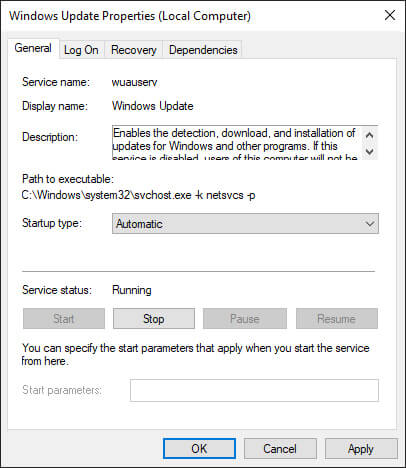
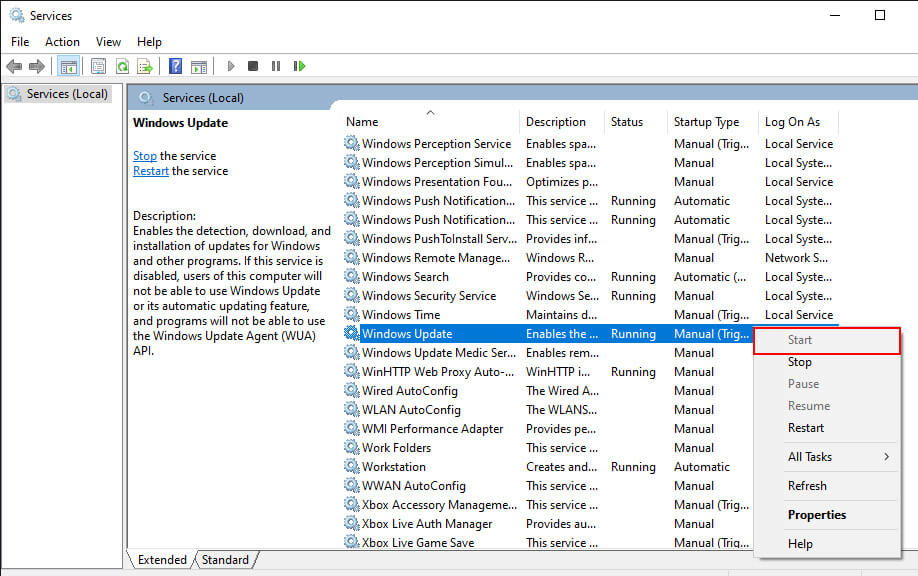
To open the Services Manager, type services in the Start menu to open its panel. You will see a list of services here, you look for Windows Update. Double-click to open the Properties window.
If the Startup type box is filled with Disabled, this is probably the cause of error 0x80070422. The default option is Manual, since you guys are having problems try Automatic.
Still on this page, if the Service status says Stopped, right-click and change it to Start.
After making these changes, try running Windows Update again.
#3. Restart Other Services
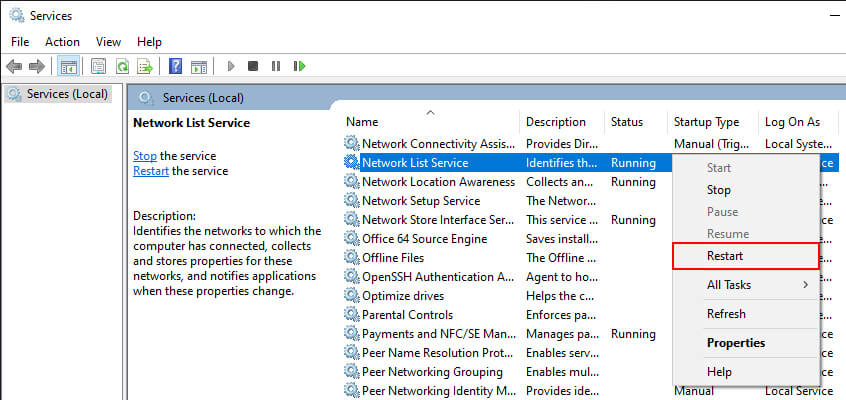
While you are in the Services panel, there is another service to check which is the Network List. This service is responsible for identifying the network your computer is connected to and storing information about it, so you won’t find it relevant. Nonetheless, many people have reported restarting fixed error 0x80070422.
In Services Manager, look for Network List Service. Right-click and select Restart to start again and hopefully, this fixes the problem.
While you’re here, or if the next steps don’t fix the problem, you should also make sure that all of the following services are running:
BitLocker Drive Encryption Service
DCOM Server Process Launcher
Network Connections
Windows Defender Firewall
#4. Run Windows Update, Troubleshooter
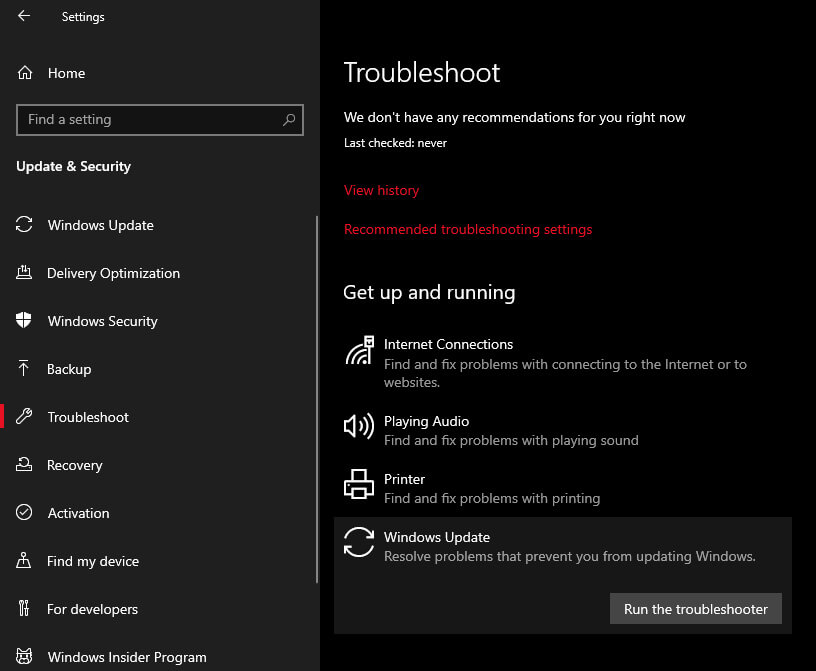
Windows includes several automated troubleshooting tools to fix common problems. While these sound good, in theory, they often do nothing of value. But they’re still worth a try, as they only take a minute to run.
Go to Settings > Update & Security and select Troubleshoot in the left pane. Under Get up and running, select Windows Update > Run the troubleshooter.
This tool will check for problems, and then notify you if it finds an action to take. If you can’t identify the problem, you can select View Detailed Information to see what Windows tests.
#5. Disable IPv6
Since Windows Update depends on your internet connection, another solution to fix error 0x80070422 is to disable IPv6 in Windows. IPv6 is the successor to the IPv4 protocol, which was designed to allow more addresses possible than previous versions.
While it will be important in the future, many devices are not yet using IPv6. As a result, it can cause problems, but you can disable it.
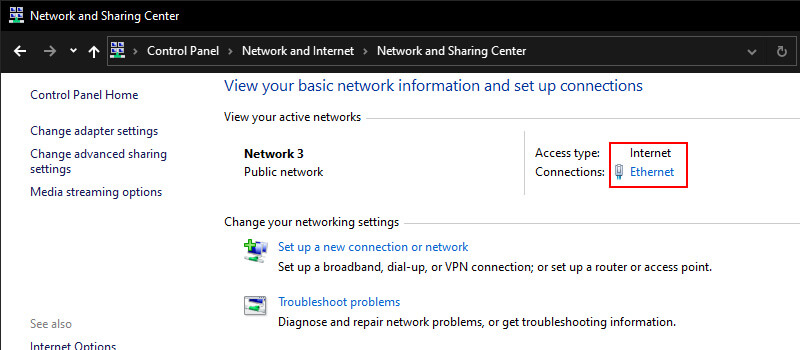
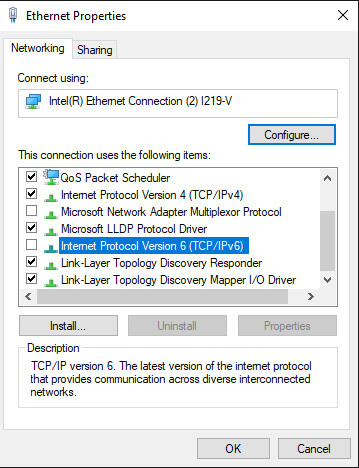
To disable IPv6 in Windows 10, enter the control panel in the Start menu to search for the utility and open it. If the View by mode on the top right shows Category change to Small icons and select Network and Sharing Center. Here, click on the link text next to Connections at the top right to open options for your current network.
In this pane, click the Properties button, which will open another window. There, scroll down to find Internet Protocol Version 6 and clear the checkbox next to it. Press OK to save your changes, then you have successfully disabled IPv6. Restart and try downloading the update again.
#6. Check Registry Value Nilai
If you still haven’t resolved the error code 0x8007042, you should next check some Registry entries to make sure they are all correct. Keep in mind that editing the Registry improperly can damage your system, so be careful while you’re there.
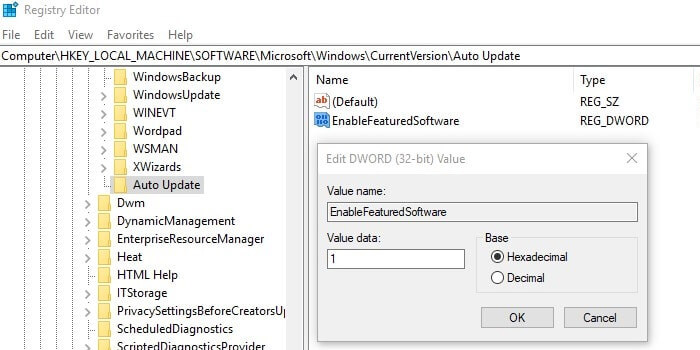
Type Regedit into the Start menu to open the Registry Editor utility. Then browse to the following button:
If you see a key titled EnableFeaturedSoftware, make sure it is set to 1. Otherwise, double-click to change the value to 1.
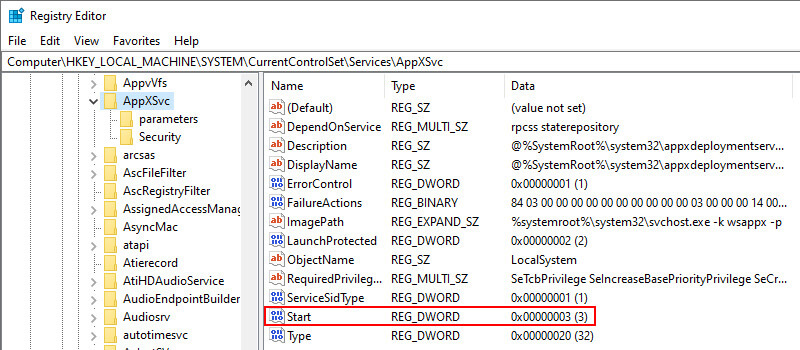
If you don’t see this key, or if it doesn’t fix the problem, other users have reported that changing another Registry key fixed their problem. Go to the following location:
Here, if the Start button is other than 3, double-click it and change it to 3, then reboot and try again.
#7. . Perform Advanced Windows Update Troubleshooting
If the solutions above still don’t fix your problem, then this error has a deeper cause. If you have to dig further to find out what is going on, you can use the SetupDiag tool. This is a self-diagnostic tool that can be used to get details on why the Windows 10 upgrade didn’t work.
So those are some ways to solve error 0x80070422 in Windows 10. Hopefully, there is one way that can solve your Windows 10 error code 0x80070422. But if the above methods still don’t work, you’re forced to reinstall your operating system to fix the corrupted files.
10+ Best Karaoke Apps for Windows and macOS – If you like karaoke, then you can do it at home using your PC. With special applications such as the PC Karaoke Application, you can karaoke whenever you want.
10+ Best Karaoke Apps for Windows and macOS
Best Karaoke Apps for Windows and macOS
This application has a function to maximize computer or laptop devices for karaoke. That way, you can do karaoke very cool. Therefore, if you are interested in karaoke, you can choose one of the applications below as a reference.
The first application you can use is MiniLyric which you can install on Windows. This application itself can be used on Windows XP, Windows 7, 8, and 10.
The advantage of this application is that you can use it for free. This application is perfect for those of you who want to use it personally.
#2. Karaoke Tube (MacOs)
Karaoke Tube (MacOs)
While the best karaoke application for PC is Karaoke Tube. This application has a large collection of songs up to 7000 songs. To use it, you are also quite easy because you just install and run the application.
That way, you can choose the song according to what you want. This application also provides karaoke videos with HD quality.
#3. CDG Plug-in Winamp (Winamp)
CDG Plug-in Winamp (Winamp)
This one application is a plugin for Winamp. The function of this application is to turn Winamp into karaoke software.
That way, you no longer need another karaoke application. By using this application you can karaoke quite easily.
#4. Tri Karaoke (Windows)
Tri Karaoke (Windows)
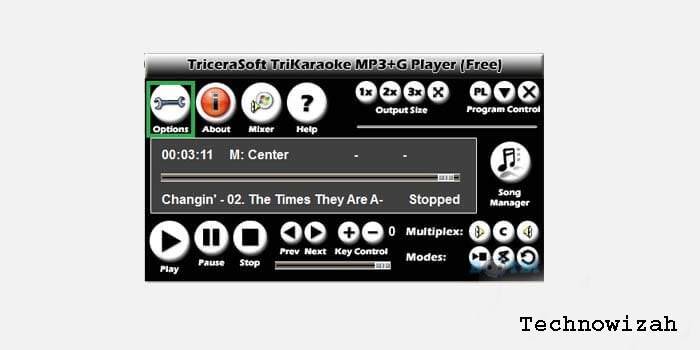
The next application is Tri karaoke which will make other users happy. This application also has pretty cool features such as deleting vocal sounds, setting the tempo, and so on.
In addition, this one software can play all song files ranging from mp3, mov, flv, and so on. With a simple and easy-to-understand display, it will certainly be a distinct advantage in this one application.
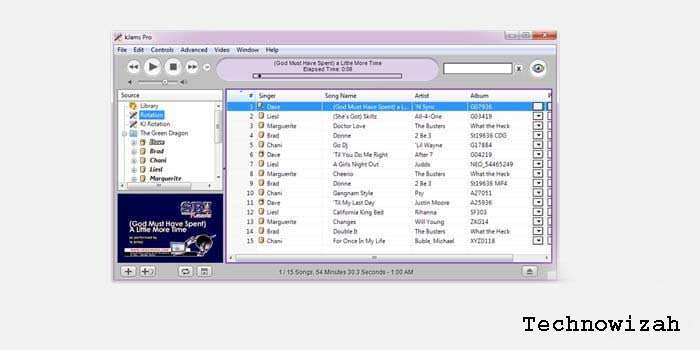
#5. kJams (macOS)
kJams (macOS)
This Karaoke PC application is indeed quite satisfying because it has an interface similar to iTunes so it is very pleasant to look at and use.
The advantage of this application is that it can be used very easily so you can start karaoke using this application.
This application itself has two versions, namely the Lite version and the Pro version. That way, you can get comfortable when using this one application.
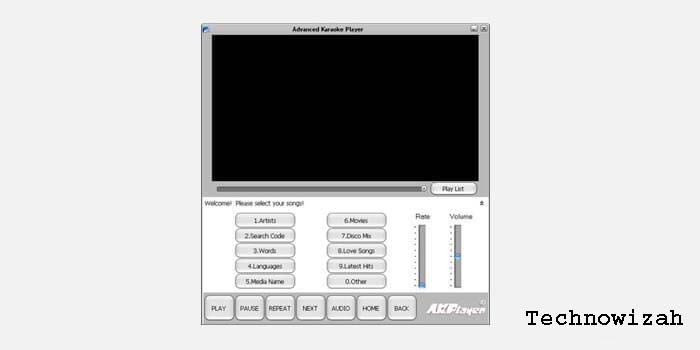
#6. Advanced Karaoke Player (Windows)
Advanced Karaoke Player (Windows)
The next interesting application is the advanced karaoke player. This PC Karaoke application does have a lot of features where this application has a collection of millions of songs which of course can be played for free.
In addition, users can also adjust the tempo of the song so that they will feel comfortable while karaoke.
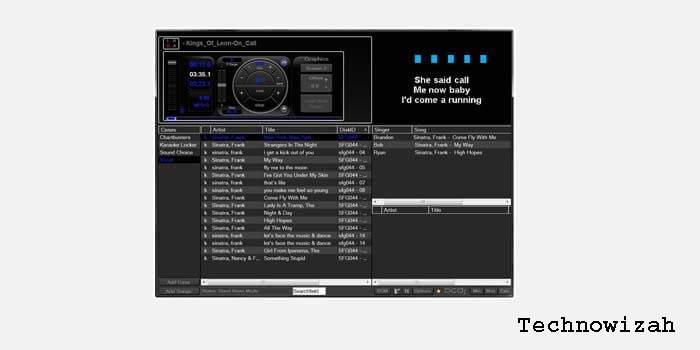
#7. PCDJ Karaoke (Windows)
PCDJ Karaoke (Windows)
PCDJ Karaoki is one of the best PC Karaoke applications, which is better than some free karaoke applications. This application is indeed developed professionally so that the features and access are very attractive and convenient.
This application itself is indeed used for ordinary people. Some of the excellent features of this application are singer rotation, singer display, and other formats.
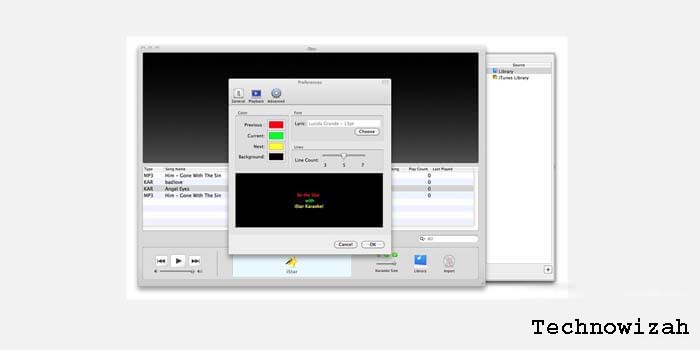
#8. iStar (macOS)
iStar (macOS)
In addition, you can also use this application to be used for free. Unlike most macOS which is premium, this application is quite different from the free ones.
Even so, this application has interesting features such as selecting songs and an attractive appearance.
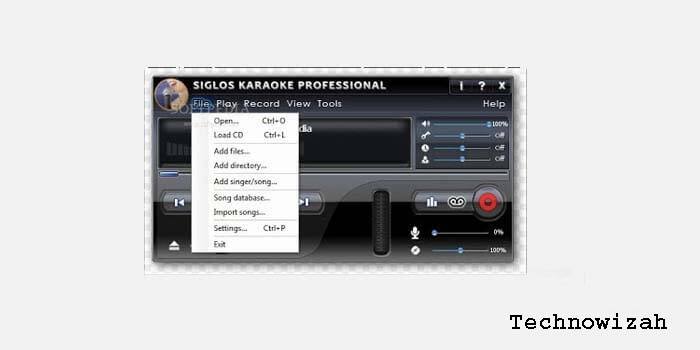
#9. Siglos Karaoke Professional (Windows)
Siglos Karaoke Professional (Windows)
This application is indeed quite sophisticated with the features and services in it. This application is indeed professional and has several features that make it easier for karaoke owners to karaoke.
With these advantages, this PC karaoke application will of course make users comfortable when singing.
#10. Walaoke (Windows)
Walaoke (Windows)
The other best PC Karaoke application that you can use is Walaoke. This application does have a display that is quite simple and easy to use.
This application is indeed very suitable for personal use, especially for those of you who want to often karaoke alone at home.
Even so, this application has exciting features. One of the interesting features is that it uses its video for the songs it plays. In addition, you can also print out the list of songs available in this karaoke software.
With the various advantages of the PC Karaoke Application, of course, you will get comfort when karaoke wherever you are.
Conclusion:
In addition, the existence of this karaoke application will also make you more comfortable and enjoy filling your free time without having to go to a karaoke place to karaoke more easily.
19 Ways to Fix Laptop Cursor Not Working in Windows – A stationary laptop cursor can be a pain, especially if you can’t use the keyboard as an alternative. The article below will help with any type of cursor freeze you may encounter.
19 Ways to Fix Laptop Cursor Not Working in Windows
How to Fix Laptop Cursor Not Working in Windows
If you are using Windows 10 and your cursor freezes, jumps or disappears during your game or while doing something at work, then this tutorial will help.
Windows 10 has a built-in feature that should make your cursor disappear as you type.
This feature is very useful when using a Windows 10 laptop device because if your cursor is active then the cursor will jump everywhere if you accidentally touch it while typing something.
By following the instructions posted below, you can solve the cursor problem and also know how to use the cursor feature properly.
Why Laptop Cursor Doesn’t Work
Why Laptop Cursor Doesn’t Work
When your mouse doesn’t move, it’s hard to tell if the problem is a frozen app, your laptop’s touchpad, or just a frozen computer.
This behavior can occur in the following ways:
• Pointer doesn’t move in Windows 10
According to users, a common problem with the mouse is that the pointer freezes. Users report that their pointer freezes randomly in Windows 10.
• The cursor freezes every few seconds
Another problem with the mouse cursor is that it freezes frequently. Due to this error, you will not be able to perform even basic tasks.
• Cursor freezes while typing
This is a variation of the laptop cursor not moving, and many users report that their cursor freezes while typing. This sounds like a weird bug, but you should be able to fix it with one of our solutions.
• Cursor freezes then disappear
Sometimes the laptop cursor doesn’t move or freezes and then disappears. This can be a big problem and is most likely caused by a problematic driver.
• The cursor does not move at all
Another problem that can arise with laptop mice is the inability to move your cursor. According to users, their cursor is stuck in place and can’t move at all.
• Cursor jumps
One of the most common problems is cursor jumping. This can be an annoying problem, but you can fix it with one of the solutions in this guide.
• Cursor does not appear
This is another problem that users have reported on their PCs. According to them, their cursor disappeared making them unable to use their mouse.
You might think the mouse cursor not moving is definitely a problem with the mouse or touchpad, but that’s only one possibility and it’s not always the case.
Other causes include a computer crashing partially, one application consuming all CPU resources, a mouse driver crashing, or an application you are using freezing.
The troubleshooting steps below will help you isolate the problem and unlock the frozen mouse on the laptop.
How to Fix Laptop Cursor Not Working on Laptop
How to Fix Laptop Cursor Not Working on Laptop
This issue applies to all editions of Windows 10, Windows 8, Windows 7, and Windows Vista, including the 32-bit and 64-bit versions of these operating systems.
Follow the steps below to fix the laptop cursor that won’t move:
#1. Check for physical problems
Depending on which mouse doesn’t work:
• If it is a touchpad mouse, continue to the next solution.
• If it’s an external mouse, try a different port, or a mouse that works differently, and replace/recharge the battery (if applicable) to see if this fixes the problem. If not, continue on to the solutions below.
#2. Restart Your Laptop
Usually, one way to fix a problem like this is to try restarting your computer.
However, when the computer is not responding, this is not easy.
Try several methods to shut down a frozen computer, including a hard start.
#3. Check mouse properties
Another possible cause of the laptop cursor not moving is the issue of the trackpad being turned off.
To release your mouse:
1. press the Windows logo key on your keyboard, then copy & paste main.cpl into the box and click OK.
2. Click the Device Settings tab > your device > Enable > Apply > OK .
Hopefully, this time your mouse doesn’t freeze and works fine. If the problem persists, try the next solution.
#4. Try the function keys
Sometimes the mouse not moving problem occurs just because you pressed the function key and disabled the trackpad unknowingly.
If so, we may have to press the button again to turn it back on.
Here’s how:
1. On your keyboard, hold down the Fn key and press the touchpad key (or F7, F8, F9, or F5, depending on the brand of laptop you are using).
2. Move your mouse and check if the mouse froze on the laptop problem is fixed.
If the problem persists, proceed to the next solution, below.
#5. Disable the disappearing feature in Windows 10
1. Left-click on the Desktop icon from the Windows 8, 10 Start Menu.
2. Move the mouse cursor to the lower right corner of the screen.
3. A menu will appear and left-click on the Settings icon that has appeared on the laptop screen.
4. Left-click on the Control Panel feature l.
5. Left-click on the Mouse icon.
6. A window with Mouse Properties will open; You need to left-click on the Pointer Options tab at the top side of the window.
7. Uncheck the box next to the Hide pointer while typing.
8. Left-click on the OK button at the bottom side of the screen.
9. Close every window you have open and reboot your Windows 8 or Windows 10 device.
#6. Double-tap your touchpad
On many laptops like HP Notebooks, double-tapping the touchpad is one way to enable or disable the touchpad.
This setting is often enabled by default, so accidentally double-tapping can disable the touchpad.
Double-tap again to turn it back on.
#7. Check if the touchpad is not disabled
Users sometimes accidentally turn off their laptop’s trackpad, which will cause the cursor to not move.
You can also accidentally disable the keyboard.
If the laptop and touchpad share a single driver, the touchpad will also stop working.
Every laptop manufacturer has a keyboard shortcut that will disable the trackpad.
Some keyboards have function keys with a trackpad image that will enable or disable them.
Search the manufacturer’s website to learn about the shortcuts so you can avoid them.
#8. Enable the Mouse
If this problem appears on your laptop, you need to check if your device is activated.
To do this, follow these steps:
1. Go to Control Panel > Mouse.
2. Navigate to the last tab on the right and make sure the device is switched on.
You can access this by opening Device Manager and searching for Mice and other pointing devices.
Look for an exclamation point, which can indicate a disabled or failed mouse driver.
Device Manager is also where you will disable Hard Drives like mouse or trackpads.
After doing that, your mouse will reappear and everything will start working fine.
Keep in mind that you may have to perform these steps using your keyboard.
#9. Do Troubleshooting
1. Open Control Panel.
2. Select the Troubleshooting option.
3. The Troubleshooting window will open, from the right side of the window click on the Hardware and Sound option.
4. Now in the Device category click on the Next button for Hardware and Devices.
5. Scanning will start and once done click on Apply this fix.
6. Close any windows you have open.
7. Reboot the Windows 8 or Windows 10 device and see if the laptop cursor that doesn’t move can move.
Read also:
• How to fix can’t right-click on the laptop
#10. Update the mouse driver
If the laptop cursor still freezes, you may need to do this in safe mode.
If the automatic driver search doesn’t work, you may need to download the driver from the mouse manufacturer’s website.
If your trackpad isn’t working, you should be able to get drivers from the computer manufacturer’s website.
Restart the computer after the drivers are updated.
#11. Reinstall the mouse driver
Update drivers manually
Sometimes the laptop cursor doesn’t move because of your mouse driver.
Some users reported that their mouse was recognized as PS/2 instead of a USB mouse, and that caused various problems to appear.
If the laptop cursor doesn’t move, jump, or disappear, you can fix the problem by reinstalling the drivers.
To do this, follow these steps:
1. Press the Windows key + X to open the Win + X menu and select Device Manager from the menu.
2. Find your mouse, right-click it, and select Uninstall device.
3. When the confirmation message appears, click Uninstall.
4. After doing that, your mouse will be disabled. Using the keyboard keys, you can navigate to Action > Scan for hardware changes.
If you can’t open this menu with your keyboard, just restart your PC.
After doing that, your mouse will be detected and you should be able to use it again without any problems.
Automatically update the mouse driver
Updating drivers manually may be a time-consuming task.
That’s why we recommend using a special tool that can do it automatically.
The tools recommended below are quick and will update and repair all of your drivers in one go without any hassle.
Often the generic drivers for your Hard Drive and PC peripherals are not properly updated by the system.
There is a key difference between generic drivers and manufacturer drivers.
Finding the right driver version for each component of your Hard Drive can be tedious.
That’s why the automatic assistant can help you find and update your system with the right drivers every time, and we highly recommend DriverFix.
Here’s how to do it:
1. Download and install DriverFix.
2. Launch the Software.
3. Wait for the detection of all your faulty drivers.
4. DriverFix will now show you all the drivers that have a problem, and you just need to select the one you want to fix.
5. Wait for the application to download and install the latest drivers.
6. Restart your PC for the changes to take effect.
Disclaimer: This program needs to be upgraded from the free version to perform certain actions.
#12. Go back to the previous driver
Sometimes problems with your cursor can appear due to new drivers.
According to users, this problem can appear if you recently update your mouse or touchpad drivers.
If the laptop cursor doesn’t move, jump, or disappear, you will need to roll back to an older driver.
You can do this by following these steps:
1. Open Device Manager and locate the problematic device. Double-click the device to open properties.
2. When the Properties window opens, go to the Driver tab and click the Roll Back Driver button.
After rolling back to an older driver, check if the problem is solved.
If the Roll Back Driver option is not available, you may have to reinstall the driver by following the steps from Solution 4.
You need to understand that Windows can sometimes update your drivers automatically and cause this problem to reappear.
To prevent this, be sure to check out our article on how to prevent Windows from automatically updating certain drivers.
#13. Disable additional mouse drivers from the Device Manager
According to users, the problem with your cursor could be due to some mouse drivers on your PC.
If the laptop cursor doesn’t move, jump, or disappear, you may need to disable additional mouse drivers on your PC.
To do this, follow these steps:
1. Open Device Manager and navigate to the Mice and other pointing devices section.
2. If you see multiple entries in this section, you should disable all devices that you are not using.
To do so, simply right-click the device you want to disable and select Disable device from the menu.
3. A confirmation window will now appear. Click Yes to continue.
After removing the enhancements, the laptop cursor that didn’t move should work again.
#14. Uncheck the ‘Enhance pointer precision’ feature
1. Open the Control Panel and navigate to the Mouse section.
2. Navigate to the Pointer Options tab and disable the Enhance pointer precision feature.
Now click Apply and OK to save changes.
After turning this feature off, the problem with your cursor will go away.
#15. Disable HP Control Zone
If the laptop cursor doesn’t move, jump, or disappear, your problem may be related to the HP Control Zone.
Some users reported that they fixed the problem by simply disabling the HP Control Zone.
To do so, follow these simple steps:
1. Navigate to the Mouse in the Control Panel.
2. Go to the HP Control Zone tab and disable HP Control Zone. Click Apply and OK.
Disabling this feature is one way to fix a laptop cursor that doesn’t move.
Note that the HP Control Zone may not be available on your PC unless it is an HP device.
#16. Remove AdAware
Sometimes third-party apps can cause problems with your mouse.
Many users report that the laptop cursor can’t move, jump, or disappear because of AdAware.
It is a solid anti-spyware application, but can sometimes cause various problems to appear.
Users reported that uninstalling AdAware fixed the problem for them, so please give it a try.
If you want to continue using this app, make sure to update it to the latest version and check if that solves the problem.
#17. Remove Recently Installed Apps
If the laptop’s cursor doesn’t move anymore after restarting, there may be a driver or application problem.
Boot the computer into safe mode, then uninstall any recent applications you may have recently installed.
Restart the computer when you are done.
#18. Disable Realtek HD Audio Manager
According to users, sometimes Realtek HD Audio Manager can cause cursor problems on Windows 10 laptops.
If the laptop cursor does not move, jump, or disappear, you need to prevent Realtek HD Audio Manager from starting automatically on your PC.
To do this, follow these steps:
1. Press Ctrl + Shift + Esc to open Task Manager.
2. When the Task Manager opens, go to the Startup tab. Look for Realtek HD Audio Manager, right-click, and select Disable.
After doing that, restart your PC and check if the problem reappears.
If you can’t find Realtek HD Audio Manager in the list, you can fix the problem by going to C: Programs -> FilesRealtekAudioHDA and renaming FMAPP.exe.
After doing that, the application will not start automatically every time you turn on the laptop.
#19. Run an SFC scan
System File Checker ( SFC ) is a handy feature in Windows that helps scan your system files and repair missing or corrupt system files (including those related to unresponsive mouse issues).
Here’s how to run an SFC scan:
1) On your keyboard, press the Windows key and type cmd. Then right-click on Command Prompt and click Run as administrator.
Click Yes when prompted to confirm.
2) In the command prompt window, type SFC /scannow and press Enter.
SFC will take some time to replace corrupted system files with new ones if detected, so please be patient.
3) Restart your computer and hopefully, the frozen mouse issue on the laptop is fixed now.
So, if you carefully follow the 19 ways to fix a laptop cursor not working in Windows 10, you can fix any issues with your cursor in Windows 10 and get on with your work.
 How to Solve Laptop Camera Not Working
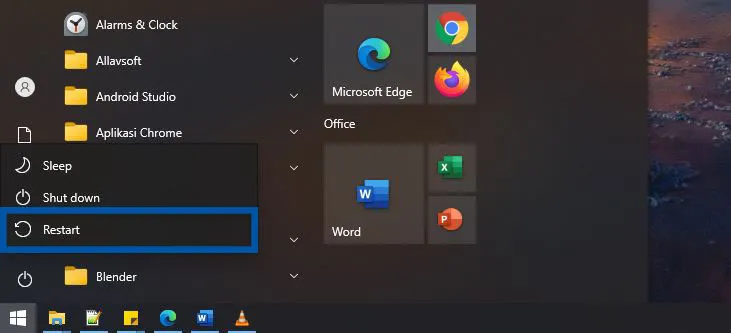 The first method to solve the problem of Windows Defender not opening is to reload your computer/laptop. This method does look simple, but in fact, many Windows problems are well resolved just by reloading the device.
 As I said above, there is a possibility that the antivirus application that causes Windows Defender cannot be opened. Conditions like this can happen if you use an antivirus from an unknown source. For this reason, it is recommended that you remove the antivirus application in the following way.
 The next method is to restart the Security Center service. From the results of research that I did on several sites, some think that this method can solve Windows Defender that cannot be opened. To do so, you can refer to the points below.