Category: Windows

Windows – Here you can find Computer-related updates Windows 10, Windows 8, Windows 7, Linux, technology information, and more.

  • 9 Basic Computer Components And How To Upgrade It 2025

    9 Basic Computer Components And How To Upgrade It 2025

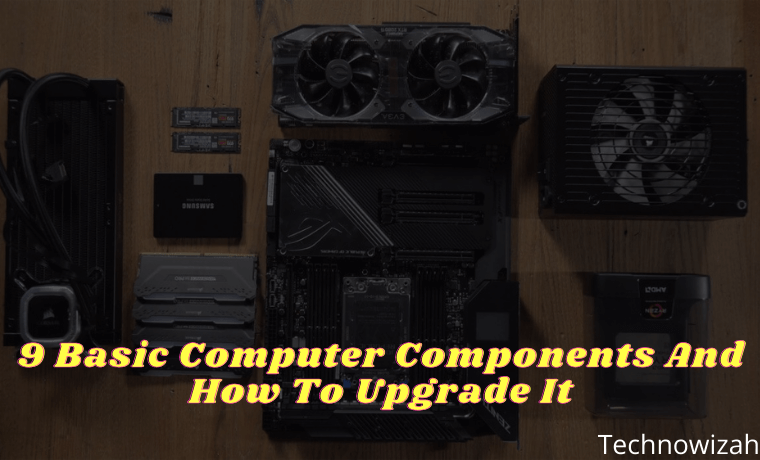
    9 Basic Computer Components And How To Upgrade It – You know how to use a computer, but how familiar are you with what’s inside? However complex the inner workings of a computer may be, they are made up of only a few component parts.
    9 Basic Computer Components And How To Upgrade It
    9 Basic Computer Components And How To Upgrade It

    9 Basic Computer Components And How To Upgrade

    But what is their function? What are the different parts of a PC? This time, we will show you how to identify the basic components of your computer.

    Read more:

    What are the Basic Parts of a Computer?

    A PC is made up of several discrete components that are designed to work together. With a desktop computer, these components can be easily replaced, less on a laptop. This is due to the dimensions of the laptop, its power and cooling requirements, and the lack of standardization.

    Fortunately, this is not a problem with desktop PCs. Designed to last longer, desktop computers can be customized and upgraded by replacing some or all of the components. But what is this component called?

    Computer Basic Components

    #1. Motherboards
    Motherboards

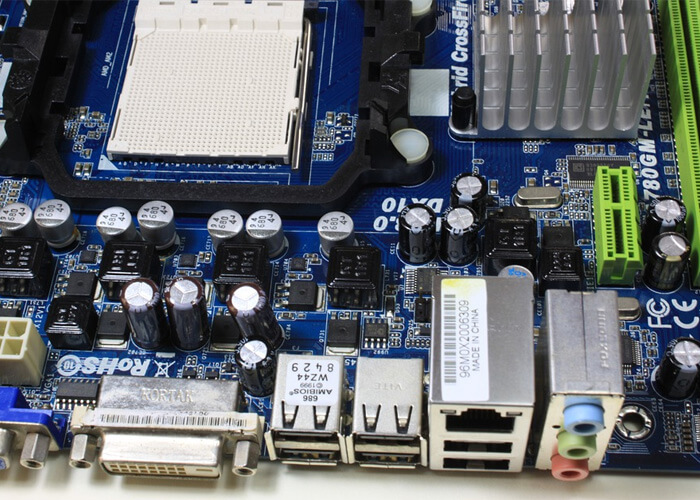
    The motherboard or commonly known as the mainboard is where all the components are connected. Inside there are slots for CPU, RAM, storage devices, GPU, and sound cards. If you are a beginner, we will not advise you to upgrade your motherboard yourself.

    This requires full compatibility with not only other components but also the PC case. However, the other components discussed here require you to unplug the cable from the motherboard.

    #2. Random Access Memory (RAM)
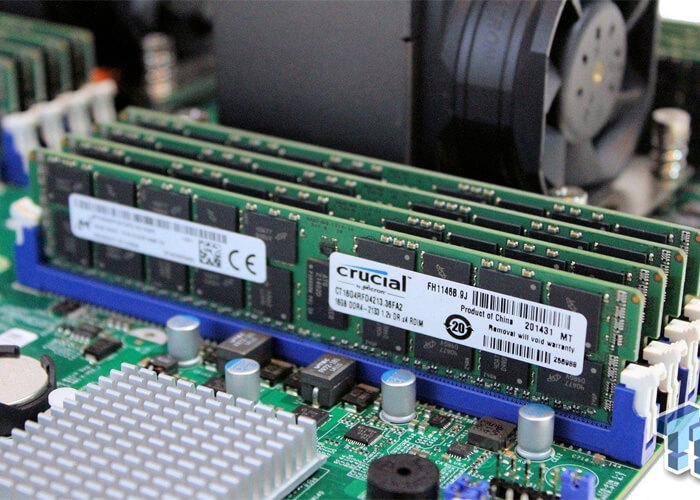
    Random Access Memory (RAM)

    RAM is temporary or short-term memory and is concerned with overall system performance and speed. The RAM module consists of a long stick that plugs directly into your motherboard. Your computer manual or motherboard manual will tell you what is the maximum amount of RAM supported by your system.

    The increase in RAM depends on how many slots you have and the maximum size each slot supports. Some computers require that you have the same amount of RAM in each slot. Check the PC manually to confirm this.

    Replacing RAM is very easy, you just release the latch at one end of the slot, and pull out the RAM. Thanks to the notch, the replacement module will only fit in one direction. Align the new module by the notches, and press firmly into the slot until the latch locks into place. Check if it is correct and safe.

    #3. Central Processing Unit (CPU)
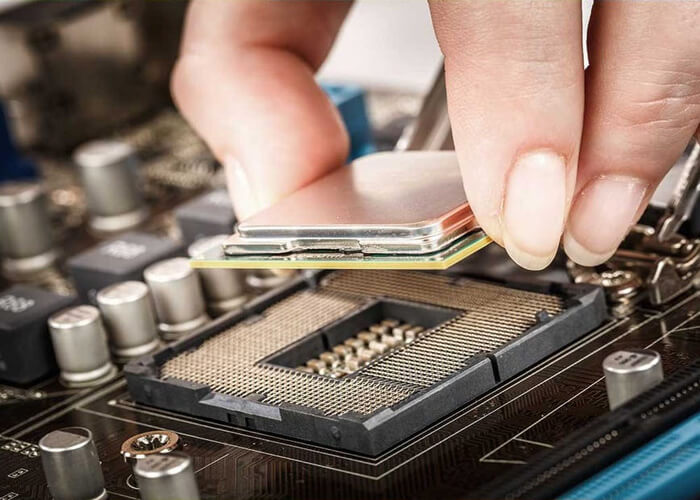
    Central Processing Unit (CPU)

    If computers were humans, CPUs would be brains. This is the most important part of a computer. The CPU processes data calculates and controls most of the other components. The CPU sits on the motherboard in a special socket.

    It’s important to know that these sockets are sometimes specific to certain CPU generations. They are also specific to the CPU manufacturer (AMD or Intel).

    Once secured to the motherboard, the CPU is cooled by a heat sink, usually a heatsink and fan. However, there are other PC cooling solutions available. As with motherboards, never install your own CPU if you are a beginner. In most cases, upgrading your CPU will require a new motherboard, along with a cooler and possibly other components.

    #4. Power Supply Unit (PSU)
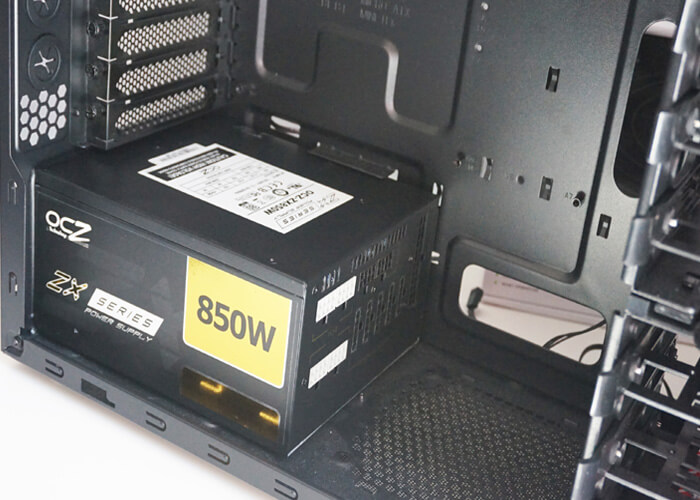
    Power Supply Unit (PSU)

    Providing power to the PC is the job of the PSU, usually found on the back of the PC case. Looking at the back of your computer will show you where the power cable is plugged in. There is usually an on-off switch on this PSU, in addition to the power switch on the front of the computer.

    The PSU powers the motherboard and CPU via special cables. The SATA power cable powers everything else in the computer. PSUs are rated based on the amount of power they supply (eg 600 watts). It is important that your computer is properly powered. Otherwise, the components will not function properly, and the system will fail immediately.

    To upgrade your PSU, research the Video Card and CPU specifications first. You also want to make sure you get the right connector for your system. To replace the PSU, you have to make sure all the internal cables are disconnected. Follow this up by removing the screws that secure it to the PC case.

    #5. Fixed Storage Device (Hard Drive Or SSD)
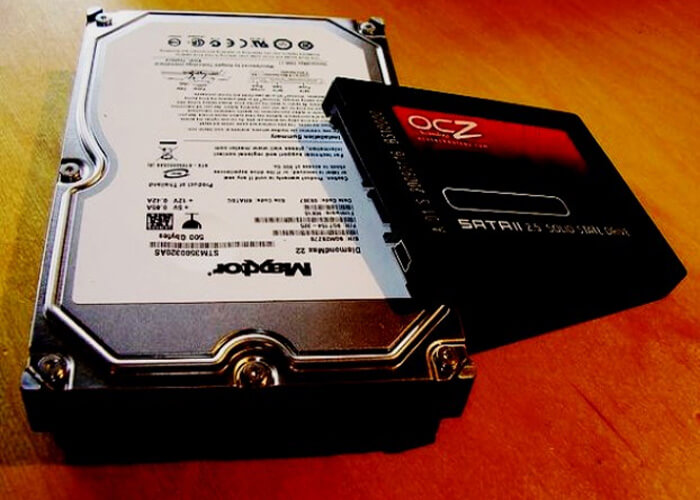
    Fixed Storage Device (Hard Drive Or SSD)

    The data is stored on your PC on the storage device. For decades, hard disk drives (HDDs) have served this purpose, but PCs have become increasingly dependent on other devices. A new device was created, namely Solid State Storage (SSD), a 2.5-inch device that looks like an HDD but is much faster.

    The HDD and SSD are found on the front of the PC case and are connected to the motherboard via a SATA cable. The drive requires two cables: one for power, and one for data. Older disk drives relied on a wider ribbon cable, known as PATA, with an IDE connector for data. They are powered by Molex plugs.

    If the HDD or SSD dies or you plan to upgrade to a larger capacity storage device, they can be easily replaced. Just take the necessary backup precautions, before you unplug the device and remove the screws/safety clips. The SSD or HDD can then be replaced.

    #6. Removable Storage: DVD-ROM Or Blu-ray
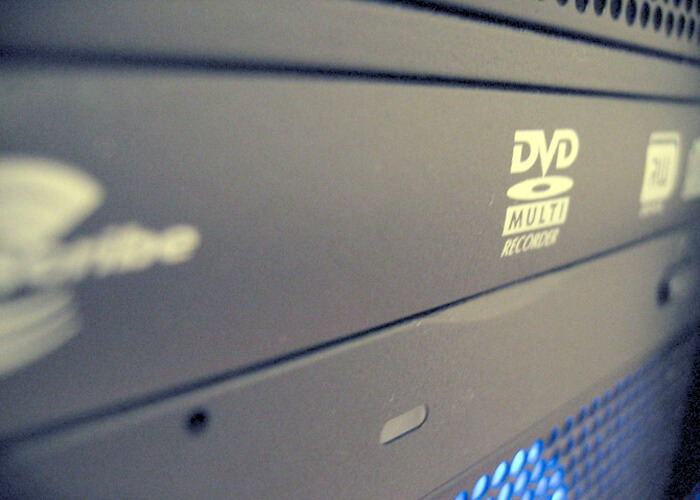
    Removable Storage DVD-ROM Or Blu-ray

    Less common on laptop computers, desktops still seem to ship with optical drives. This is known as removable storage or removable storage, usually a DVD-ROM or Blu-ray drive, with reading and writing capabilities.

    Upgrading an optical drive is simple. Unplug, unscrew, or unlock the drive from the bay, pushing out the front of the case. USB sticks or SD cards are also based on flash RAM, which is removable storage.

    #7. Cooling Fans
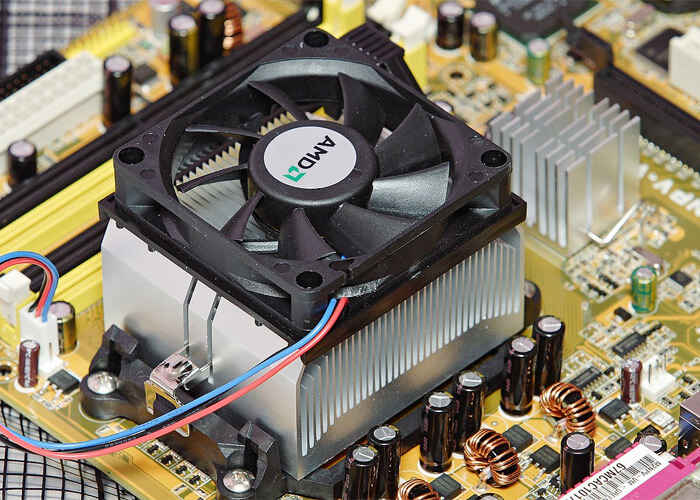
    Cooling Fans

    The PC part that is often overlooked is the cooling fans. At least two are required: one for the CPU, and one for the case. The purpose of the CPU fan is to keep the CPU cool. Because of the heat inside the computer, the motherboard fan draws in cool air, the auxiliary fan draws hot air out.

    In most cases, there should be a fan on the back of the case, and another on the side or front. Many cases come with built-in fans, but these are usually low-end. Superior fans can be installed, and designed to replace or complement existing cooling solutions.

    Cooling fans are usually powered by cables from the PSU and secured to the case with screws. Many also add a built-in LED for cleaning PC cases.

    #8. Graphics Card (GPU)
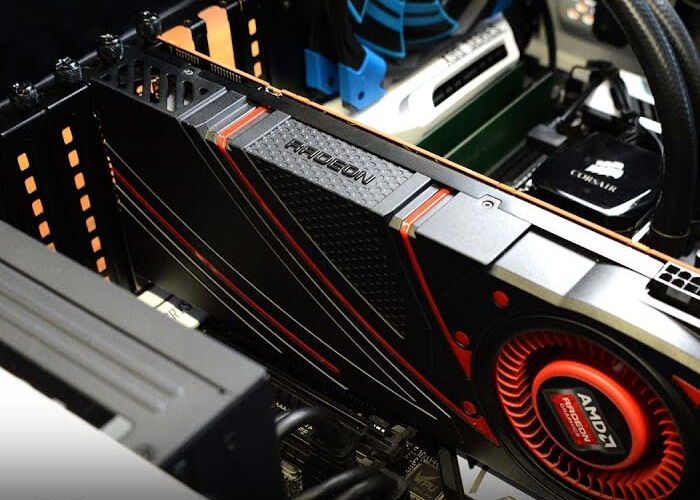
    Graphics Card (GPU)

    Commonly known as a video card or VGA (Video Graphics Array). The GPU is the device that connects your computer to the display. While older PCs used VGA ports, today’s computers use HDMI to connect to HD displays. In most cases, the video out port is connected to the integrated graphics card on the motherboard. However, this is not always the case.

    Modern games require better graphics cards. As such, gamers, video editors, graphic designers, and other specialists use dedicated graphics cards. The GPU slot becomes a dedicated PCI-Express ( PCIe ) slot on the PC motherboard. This overwrites the motherboard GPU.

    Graphics cards are prone to compatibility issues such as size specifications, slot placement, motherboard type, processor speed, and power intake. However, the upgrades are quite simple like removing the securing screws and clips, unplugging the GPU, and snapping the replacement in place.

    #9. Sound Card
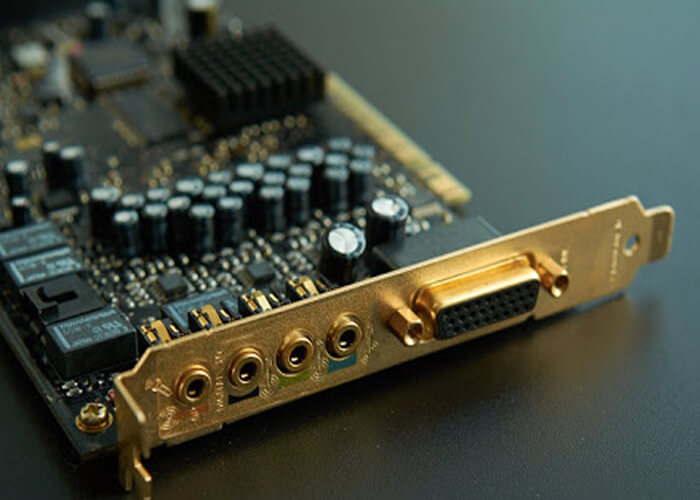
    Sound Card

    On the back of your PC, you will usually find three to five small circular ports. These are usually colored. In some cases, you may also find it on the front of your PC.

    This is the audio port that connects to your computer’s sound card. Like video cards, sound cards are usually integrated into the motherboard. However, for specialist uses such as game and audio development or recording purposes, a dedicated sound card can be used.

    The sound card offers various audio enhancements, such as advanced audio processing and Dolby surround sound 7.1. Like the GPU, the sound card is inserted into a PCIe slot on the motherboard (a different slot to the GPU, however). The new sound card has minimal compatibility issues.

    Read more:

    Conclusion:

    By now, you should know the names of the various PC parts on your computer. You also need to be able to recognize them and have an idea of how they can be replaced. Now you are on your way to understanding how to fix your computer and save money. Maybe later you can assemble your computer.
  • 3 Ways To Remove Shortcut Virus from Windows 10 PC 2025

    3 Ways To Remove Shortcut Virus from Windows 10 PC 2025

    How to Remove Shortcut Virus from Windows 10 PC – How to remove the shortcut virus on the flash and remove it from the laptop or on the computer is a relatively easy job. But unfortunately, not a few people are still having trouble dealing with this shortcut virus.

    3 Ways To Remove Shortcut Virus from Windows 10 PC
    3 Ways To Remove Shortcut Virus from Windows 10 PC

    How to Remove Shortcut Virus from Windows 10 PC Laptop

    Shortcut viruses are very annoying, not a few people have experienced shortcut virus attacks on flash drives or laptops. This virus came suddenly and without knowing its origin, which resulted in people experiencing this problem being confused about removing the shortcut virus from flash drives and laptops.

    Read more:

    What’s even more annoying is that this virus always attacks storage devices such as flash drives, hard drives, and storage drives. This virus is very easy to transmit from one device to another.

    For example, what is often found is on a Flashdisk connected to a PC that is infected with a shortcut virus. The flash has a high probability of being exposed to the same shortcut virus.

    How to Delete Shortcut Virus From Windows 10 Laptop PC

    There are several different methods but proven effective as a way to remove shortcut viruses on your flash drive and laptop. This article will guide removing all shortcut viruses in the flash or Windows computer.

    #1. Flashdisk

    If the flash is hit by a shortcut virus, then you don’t need to panic. You can remove the virus without worrying about the files and data on the flash being lost.

    Here’s how to remove the shortcut virus on the flash so it doesn’t come out again:

    1. Connect your flash drive to the PC.
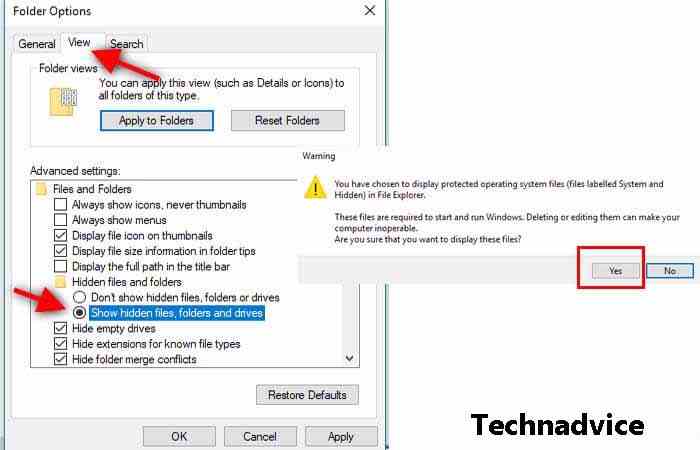
    2. Show hidden files on the flash by clicking Organize if using Windows 7 and 8 or going to View > Options if in Windows 10.
    3. Go to the View tab, and enable Show hidden files, folders, and drives.
    4. Uncheck Hide-protected operating system files (recommended).
    5. If a notification box appears, click the Yes button.

    Flashdisk

    1. All files on your flash drive that are affected by the virus will reappear, but you must delete the virus first.
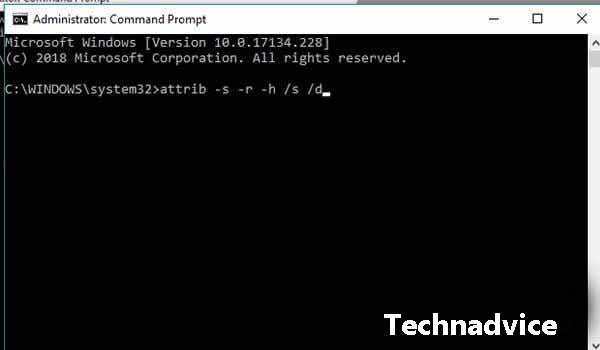
    2. To remove the shortcut virus, open Command Prompt as Administrator.
    3. Command CMD to go to the drive where your flash is located.
    4. Then, type the command attrib -s -r -h /s /d in CMD and press Enter.Flashdisk
    5. Finished.

    After that, your flash will return to normal. If there is a strange file, you can delete the file. You can also restore hidden file settings using the method described above. And to make sure that the shortcut virus is gone, scan your flash drive using anti-virus.

    #2. Via System configuration

    Via System configuration

    There are two ways to remove the shortcut viruses on laptops permanently. Both are proven effective to ward off shortcut viruses and ensure that they don’t come back again.

    How to remove shortcut virus on laptop:

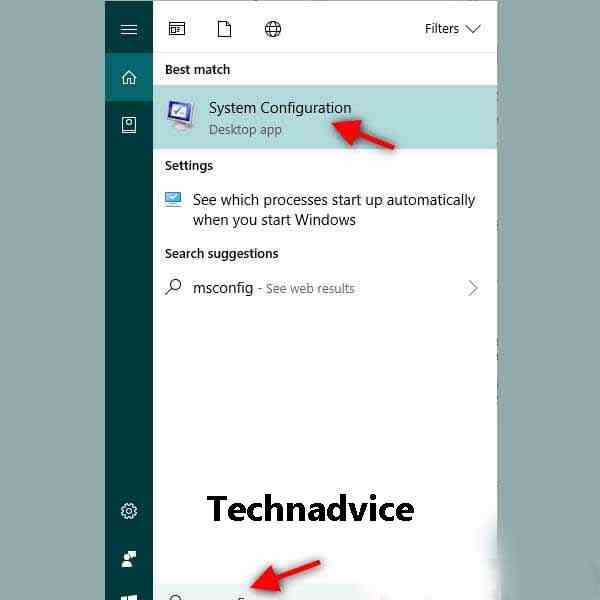
    1. Go to System Configuration by typing MSConfig in Windows search.
    2. Go to the Startup tab > Open Task Manager.
    3. When you are on the Startup tab, right-click nkvasyoxww.vbs and select the Disable option.

    #3. Via Temp File Files

    Via Temp File Files
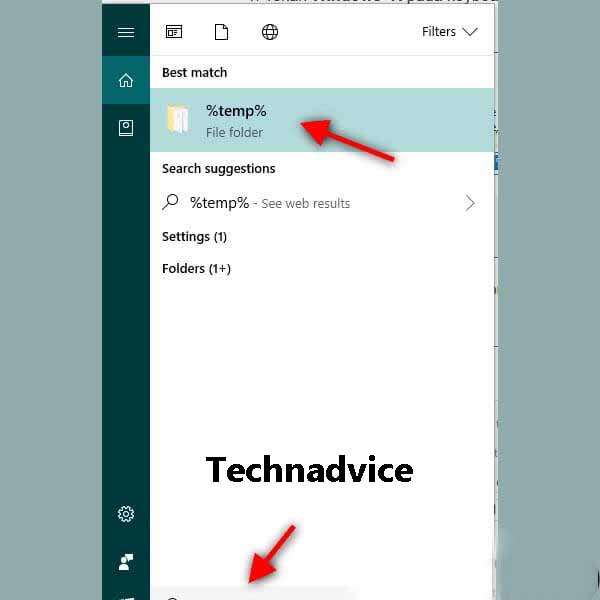
    1. Use the Windows search feature and type %temp% in the search field.
    2. Click the %temp% search result that appears.
    3. A folder window will appear then find the file named nkvasyoxww.vbs then delete the file.
    4. Also, delete the file if it goes to the Recycle bin.

    How to Prevent Shortcut Virus

    Anyone would not want their flash drive or PC to be infected with a virus, especially this shortcut virus that is very easy to spread. So besides already knowing how to get rid of shortcut viruses, in this article, you also need to know how to prevent shortcut viruses.

    Here are tips and how to prevent it:

    • Use a trusted anti-virus. It is recommended to use Windows Defender, but if you don’t want to use it, you can turn off Windows Defender and then use another anti-virus.
    • Schedule regular scanning of your laptop.
    • Do a scan when you connect your storage device.
    • Also, do a scan for storage devices that are connected to your PC for the first time.
    • Back up important files to Google Drive, Dropbox, or others.
    • Always be aware of the devices that are connected to your PC.
    • On the other hand, always be aware of the PC you want to connect to your flash drive.

    Read more:

    Conclusion:

    So friends this is the explanation of how to remove shortcut viruses that can help you to permanently remove the virus from your storage devices such as flash drives or hard drives on your computer. Hope it is useful!
  • 13 Steps To Install Qualcomm Drivers on Windows 10 PC 2025

    13 Steps To Install Qualcomm Drivers on Windows 10 PC 2025

    13 Steps To Install Qualcomm Drivers on Windows 10 PC – Drivers are certainly needed for all activities on our computers because drivers are the bridge between software and hardware. Therefore, if there are no drivers, then some hardware will not be able to operate normally on our computers.

    How To Install Qualcomm Drivers on Windows
    How To Install Qualcomm Drivers on Windows

    How To Install Qualcomm Drivers on Windows PC Laptop

    But this hardware is not always just hardware that is already installed inside, there is also hardware that comes from outside the computer, for example, a printer.

    Read  more:

    In addition, smartphones can also be interpreted as hardware for our computers, therefore we also need drivers to be able to operate smartphones on a computer or just so that a cell phone is detected on a computer.

    Well, let’s get to the point, there are two ways you can install Qualcomm drivers on Windows, be it 32-bit or 64-bit. This method can also be used for all mobile phones that use Qualcomm as processors such as Xiaomi, Oppo, Smartfren, Samsung, and others.

    First, Download the following Qualcomm Drivers

    How to Install Qualcomm QDLoader USB Driver Automatically

    The first way is to use the installer file, but this way is not necessarily the driver will work properly.

    Even so, you should try it first, just download the file above and extract it. There you will find the file “QUD WIN Installer.exe”, just install the file normally and wait until the process is complete.

    To find out whether the driver is running properly or not, first, install the Minimum ADB Fastboot which we have also provided in the file above. Install like installing other applications and wait for it to finish. Then follow the steps below.

    Step #1. Enable USB Debugging on the cellphone, the way is:

    • Open Settings, and in Settings, scroll down until you find “About Device
    • Then search for “Build Number” and press 7 times until there is a notification indicating that the Developer mode is active
    • Return to Settings
    • This time in Settings, look for “Developer Options”
    • Then check/enable “USB Debugging Mode” and “Enable OEM Unlock”

    If you are using a Xiaomi phone, then the one pressed as much as 7 times is not the Build Number, but the MIUI Version. In addition, the location of Developers Options is in Settings> Additional Settings.

    Step #2. Open the Minimum ADB Fastboot folder, which is usually located at C: Program Files (x86) Minimal ADB and FastbootPress and hold the Shift key and right-click in an empty area within the folder. Select Open Windows Her Command or open Windows PowerShell here, the CMD or PowerShell window will open.

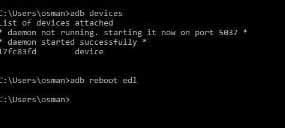
    Step #3. Now connect your cellphone to the PC and reboot into EDL mode by typing the following commands in the CMD window that opens.

    adb devices

    then

    adb reboot edl

    How To Install Qualcomm Drivers on Windows 7/8/10
    How To Install Qualcomm Drivers on Windows 7/8/10

    Step #4. Your phone is already in EDL mode this time. After that, open the Device Manager in Windows. For Windows 10, just press the Windows + X key on the keyboard and select “Device Manager”. For other Windows, you can find it in the Control Panel.

    Step #5. In the Device Manager, look in the “Other Devices” section. If there is a device called QHSUSB_BULK, the Qualcomm driver fails to install properly.

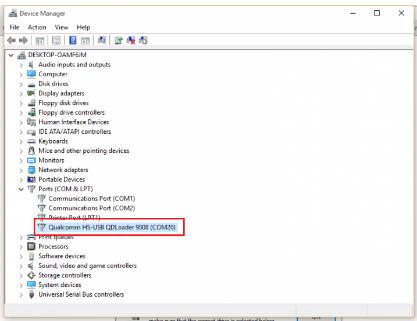
    But if there is no device with that name, you try to see the “Ports (COM & LPT)” section, and see if there is a device with the name Qualcomm HS-USB QDLoader 9008. If there is, then congratulations, you have successfully installed the Qualcomm driver with good and right.

    How To Install Qualcomm Drivers on Windows 7/8/10
    How To Install Qualcomm Drivers on Windows 7/8/10
    Drivers are installed correctly

    How to Install Qualcomm QDLoader USB Driver Manually

    As mentioned above, you may fail to install Qualcomm drivers on your PC. If it happens to you, then follow the steps below.

    Step #1. I assume that you are in step 5 of the previous tutorial, which is a device called QHSUSB_BULK on your PC. If not, then repeat steps one to five in the tutorial above.

    Step #2. Make sure in the file that you downloaded earlier, there is a folder called “Driver”

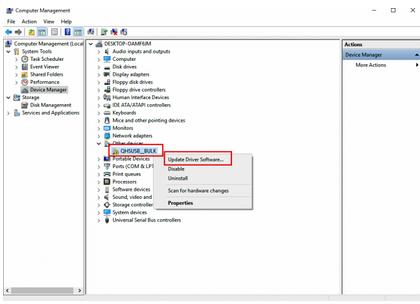
    Step #3. Return to Device Manager, right-click on the QHSUSB_BULK device, and select “Update Driver Software”.

    QHSUSB_BULK
    QHSUSB_BULK
    Update Qualcomm driver

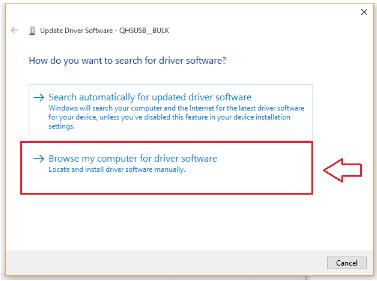
    Step #4. Then select “Browse my computer for driver software“.

    Browse my computer for driver software
    Browse my computer for driver software
    Select Browse my computer for driver software

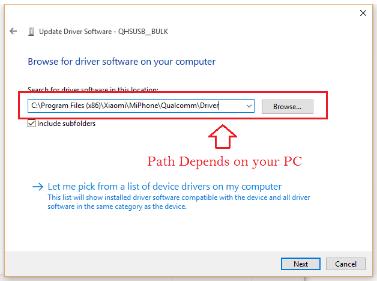
    Step #5. Select Browse and select the “Driver” folder.

    Driver

    Select the Driver folder that you downloaded

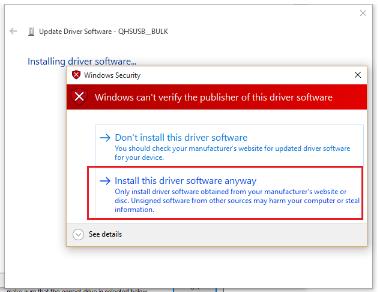
    Step #6. There will be a warning, select “Install this driver software anyway

    Install this driver software anyway
    Select Install this driver anyway

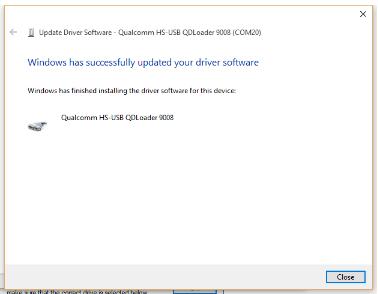
    Step #7. You will see that the Qualcomm driver is installed correctly on the computer.

    Driver successfully installed
    Driver successfully installed

    Step #8. To check, if you try to see the section “Ports (COM & LPT)”, there will be a device named Qualcomm HS-USB QDLoader 9008 later.

    Read more:

    Conclusion:

    So, friends, There are two ways you can install Qualcomm drivers on your PC, we recommend first trying the automatic one, but if it fails you can try the manual one.

  • 12+ Best Audio Equalizer For Windows 10 PC Free 2025

    12+ Best Audio Equalizer For Windows 10 PC Free 2025

    12+ Best Audio Equalizer For Windows 10 PC Free – An equalizer is an audio configuration that is often used to improve sound quality in music, videos, and games. For me, having a sound equalizer application on a PC is quite important.

    12+ Best Audio Equalizer For Windows 10 PC Free
    12+ Best Audio Equalizer For Windows 10 PC Free

    12 Best Audio Equalizer For Windows 10 PC Free Download

    Moreover, if you like listening to music, then if you use an equalizer the sound will be better to hear.

    Read more:

    There are a lot of equalizer apps on your PC that you can install for free. Starting from being easy to use to have advanced features.

    You can choose according to what you need.

    Here are some equalizer applications on PC that I recommend:

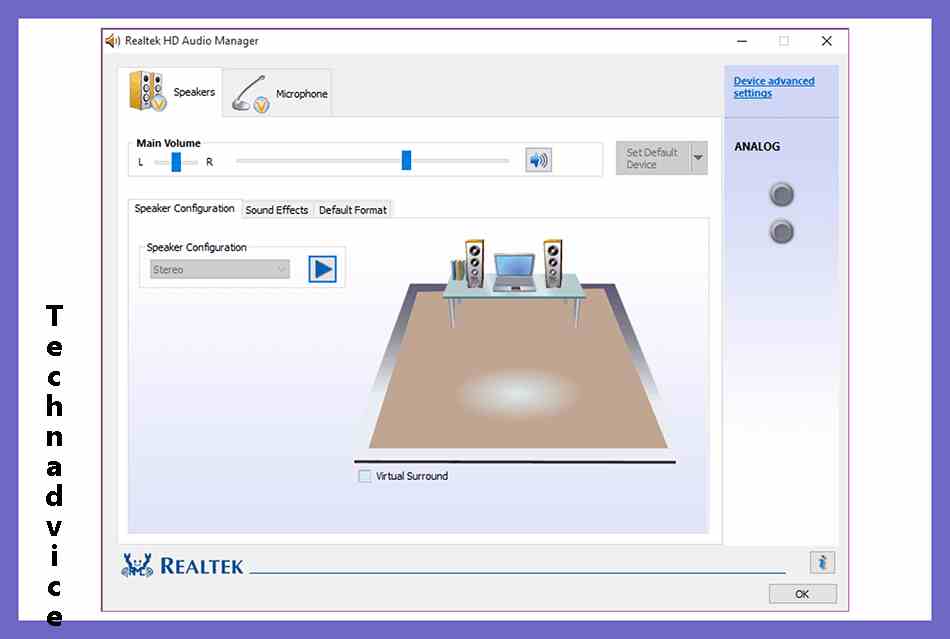
    #1. Realtek HD Audio Manager

    Realtek HD Audio Manager

    The first equalizer application that I recommend is Realtek HD Audio Manager. This application is open source and its use is also very easy.

    Here are some of the features offered in the Realtek HD Audio Manager application:

    • Has a user-friendly interface
    • Provides a variety of interesting modes
    • Can mix stereo audio

    Then for the operating system, the equalizer application on this PC can be applied to Windows 10, 8, 7 to XP.

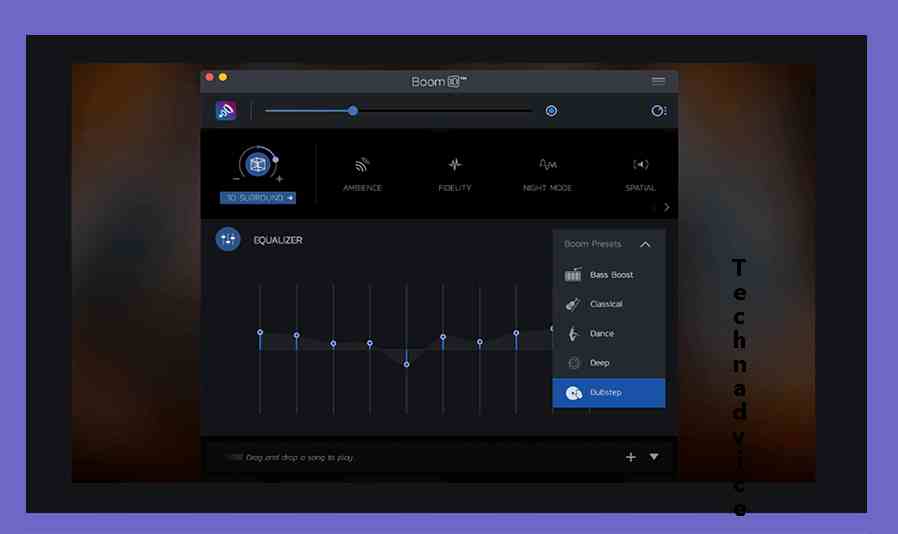
    #2. 3D Boom

    3D Boom

    Furthermore, you can also use the 3D Boom application to optimize the audio on the PC.

    You can see its features in the following points:

    • Has a variety of interesting sound presets
    • Provides configuration for advanced users
    • User-friendly display so easy to use
    • There is a 3D Surround feature to improve the sound quality of games, videos, and music

    However, for an operating system that can implement this application, it must be up-to-date. Because Boom 3D is only compatible with Windows 10 and macOS version 10.10.3.

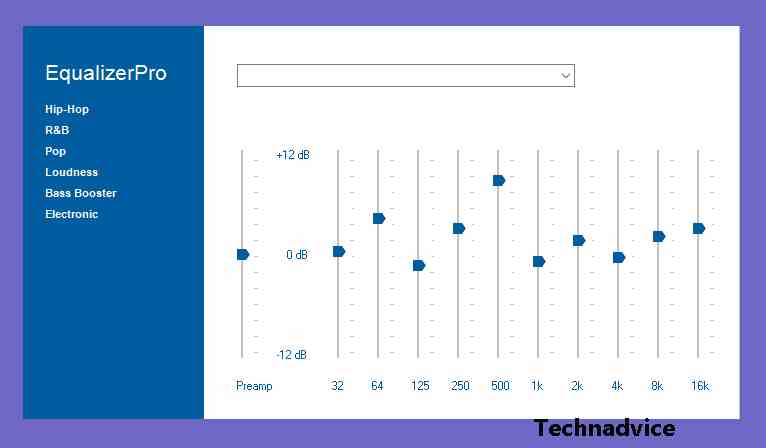
    #3. Equalizer Pro

    Equalizer Pro

    Then there is also a new application called Equalizer Pro. Although it is still new, the features provided are quite a lot and can be used easily.

    Here are some of its features:

    • Provides a bass booster effect
    • Has more than 20 presets
    • The preset you choose can be customized as desired

    In addition, you can install the Equalizer Pro application on Windows 10, 8, and 7 operating systems only.

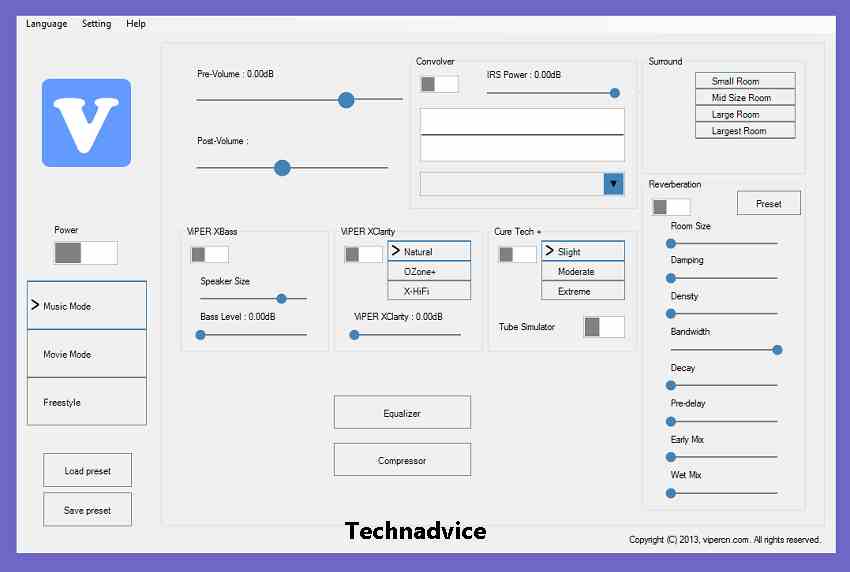
    #4. Viper4Windows

    Viper4Windows

    The next application to improve audio quality on a PC is Viper4Windows. This application is open-source, so you can use it easily.

    There are several features provided in the Viper4Windows application, such as:

    • Provides many interesting sound presets
    • Has a feature to improve the sound on low notes
    • Allows you to select 3 presets at once and change their configuration manually
    • There are features to adjust the echo, mute the audio, and so on

    Then for the operating system, this Viper4Windows application can be installed on Windows Vista, 7, 8, and 10.

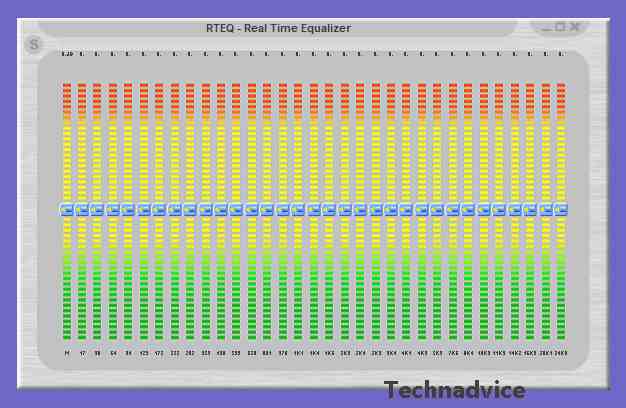
    #5. Realtime Equalizer

    Realtime Equalizer

    Then you can also use the Realtime Equalizer application to improve the sound quality of music, videos, and games on your PC.

    Regarding the features you can see as following:

    • Supports many audio formats, such as WAV, MP3, MP4, and more
    • Has a simple appearance, so easy to use
    • Has a useful spatial resurrection feature to improve stereo audio
    • Can support smooth and strong sound amplification

    Now the operating system that can apply this application is Windows 7, 8, and 10.

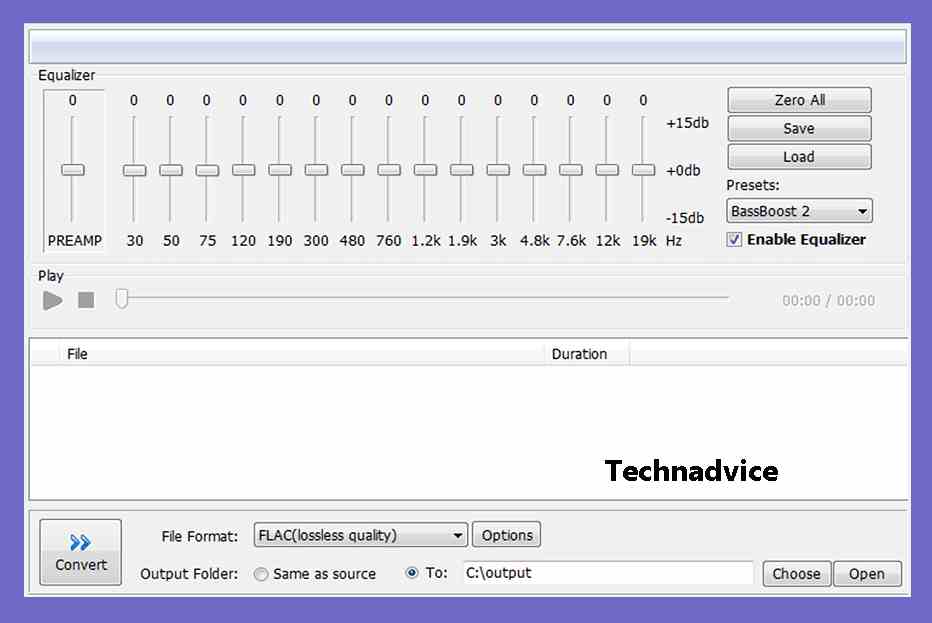
    #6. Bass Treble Booster

    Bass Treble Booster

    Then to be able to improve the sound quality of the bass or treble then you can use this application.

    Here are some of the features offered on Bass Treble Booster:

    • Has quite a lot of audio presets
    • Can be used to convert modified files
    • Supports many audio formats, such as OGG, AAC, MP3, M4A, and more

    In addition, this application can be run on Windows XP, Vista, 7, 8, and 10 operating systems.

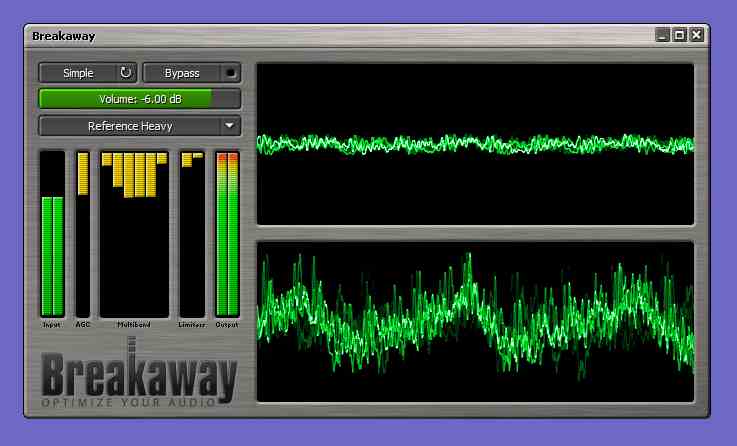
    #7. Breakaway Audio Enhancer

    Breakaway Audio Enhancer

    Then for those of you who want to adjust the audio tone, you can use the Breakaway Audio Enhancer application.

    There are several features provided, such as:

    • Adjust volume automatically
    • User-friendly display
    • Has quite a lot of presets

    In addition, the Breakaway Audio Enhancer application can also be applied to the Windows Vista to Windows 10 operating system.

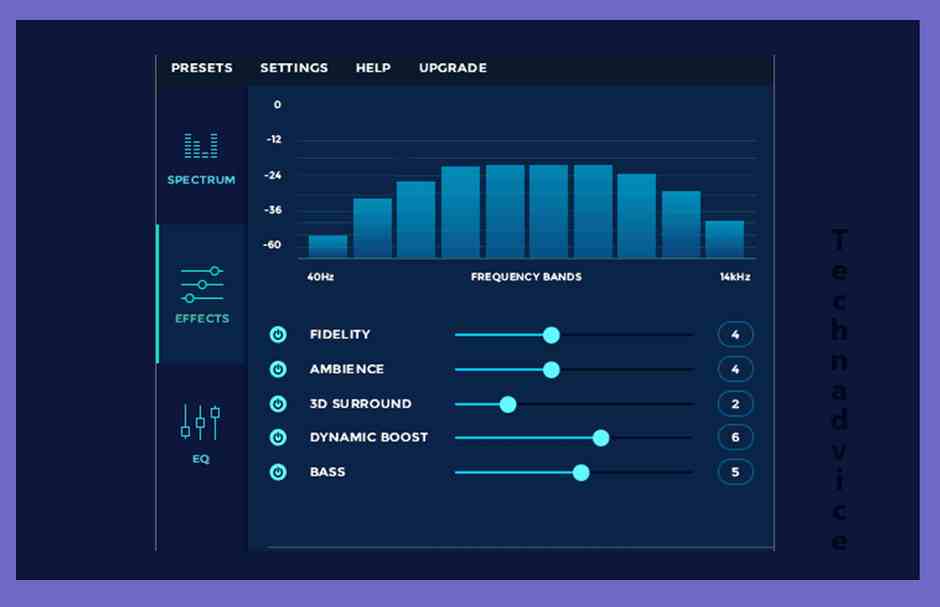
    #8. FX Sound

    FX Sound

    The next application that you can use to create clear audio in your music, recordings and more is FX Sound.

    Here are some of the features that FX Sound provides:

    • Features 3D Surround to improve the sound quality of games, videos, and music
    • Can remove audio compression
    • Has features to improve bass quality
    • Can be used to solve when the laptop doesn’t make sound

    If you want to install the FX Sound application, make sure to use the Windows Vista, XP, 7, 8, or 10 operating system.

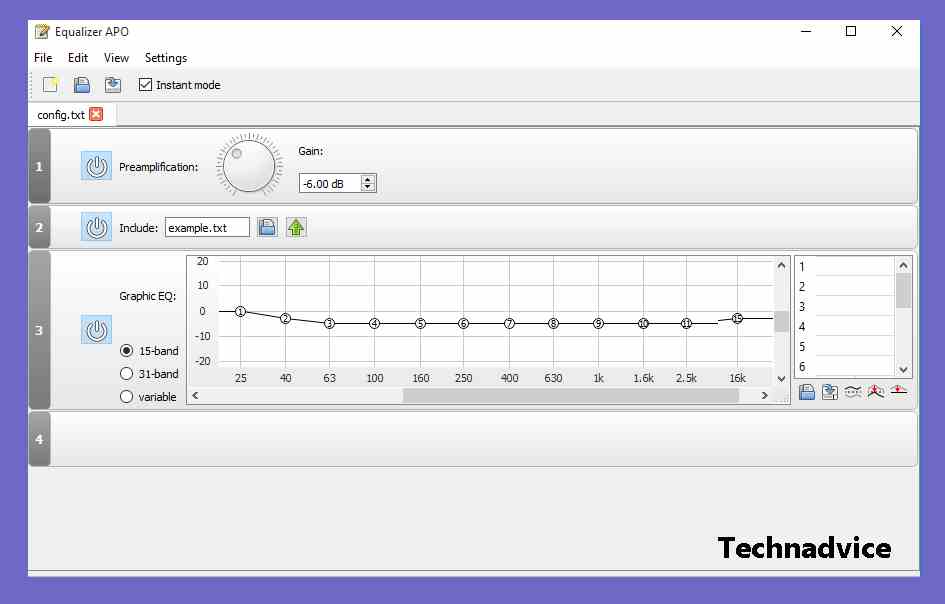
    #9. APO Equalizer

    APO Equalizer

    If you like the display of statistics for adjusting audio, then you can use the APO Equalizer application.

    In addition, there are also several features offered in this application, such as:

    • Provides features to clear and improve audio quality
    • Has many audio presets
    • Supports Voicemeter plugins like VST and others

    Regarding the operating systems that are compatible with this application such as Windows 7, 8, and 10 only.

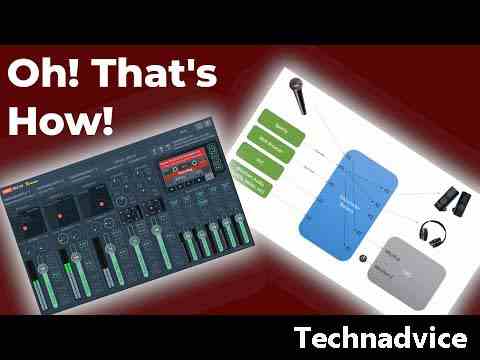
    #10. Voicemeeter Banana

    Voicemeeter Banana

    Another PC sound booster application that you can install is Voicemeeter Banana. Usually, it is often used as a PC sound editing application because it has various features.

    Here are some features of Voicemeeter Banana:

    • Can be used to remove vocals
    • Has features to slow down or speed up your voice
    • Provides multi-channel access to run Stereo PA systems

    Then for the operating system, you can apply this application in all Windows OS.

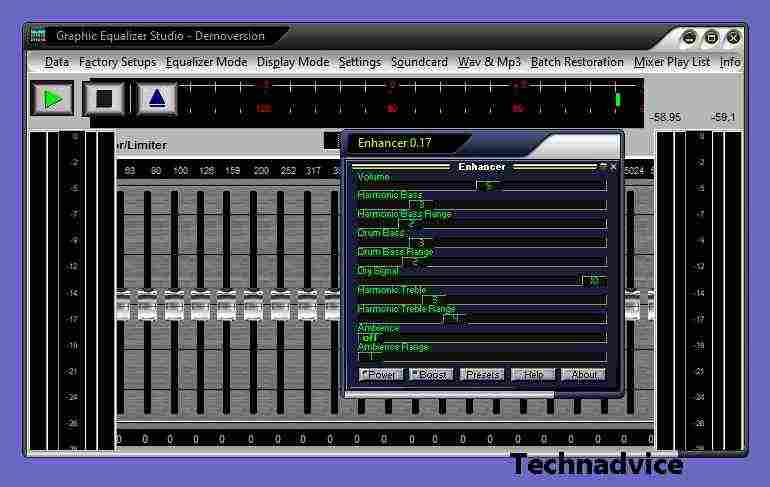
    #11. Graphic Equalizer Studio

    Graphic Equalizer Studio

    The next Windows 10 equalizer application is Graphic Equalizer Studio. This application is suitable for those of you who are already advanced because it has quite complicated features.

    Here are some of the features offered:

    • Can adjust audio quality automatically
    • Has complete features to clarify audio sound
    • Can work in all Windows audio applications to DVD Player software

    Besides being able to operate on Windows 10, Graphic Equalizer Studio can also be paired to all versions of Windows.

    #12. Ears Audio Extension

    Ears Audio Extension

    Finally, if you don’t want to install the application, then you can use the Ears Audio extension on Google Chrome. In addition to the easy installation process, the features provided are also many.

    Here are some of the features of Ears Audio:

    • Useful on all website audio to apps on your PC
    • Has a variety of audio presets
    • User-friendly display

    Since Ears Audio is an extension, any operating system can install it. As long as you have the Google Chrome web application.

    Read more:

    Conclusion:

    This is the explanation of 12+ best audio equalizers for Windows 10 PC Free, With the equalizer application for your Windows 0 PC, you can now listen to clearer and higher-quality audio.

    Enough of the discussion of this article about some equalizer applications on PC. If you have other application suggestions, you can write them in the comments column.

  • 6 Ways To Fix System Service Exception in Windows 10 [2025]

    6 Ways To Fix System Service Exception in Windows 10 [2025]

    6 Ways To Fix System Service Exception in Windows 10 – The System Service Exception in Windows 10 is the Blue Screen of Death (BSOD). Unlike older versions of Windows, BSOD now has useful information for repairing your computer. This time we will examine the SYSTEM_SERVICE_EXCEPTION error, why it occurs, what we can do to fix the System Service Exception, and how to stop it from happening again.

    6 Ways To Fix System Service Exception in Windows 10
    6 Ways To Fix System Service Exception in Windows 10

    What is a System Service Exception Error?

    The SYSTEM_SERVICE_EXCEPTION error can occur for several reasons, including graphic user interface errors, corrupted system files, and problems with outdated or corrupted drivers. Since there are various possible causes of SYSTEM_SERVICE_EXCEPTION, several methods exist to fix this problem.

    Read more:

    Some will probably fix your Windows system errors, while others won’t. The main action is to update drivers and check your Windows 10 file system errors, but to get rid of the SYSTEM_SERVICE_EXCEPTION error once and for all, you have to do some of the steps below.

    How to Fix System Service Exception Error on Windows

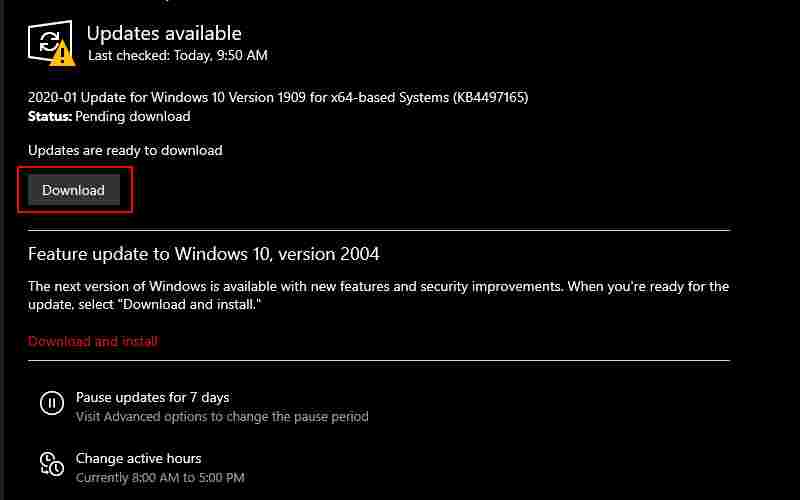
    #1. Update Windows 10

    The first thing to do is to check if Windows 10 is really up to date. Outdated system files can cause unexpected errors. Checking for pending updates is a quick and easy way to find out if that’s what’s causing your problem.

    Update Windows 10
    Update Windows 10

    Press the Windows key + I  to open the Settings panel. Now, head over to Update & Security then check under  Windows Update for any pending updates. If there is an update, save any important files, then hit  Restart now.  Your system will reboot during the process.

    #2. Update System Driver

    Windows Update keeps your system drivers up to date. Automating the process means your system drivers are less likely to miss their recommended versions, but that doesn’t mean some won’t fall through the cracks. Other times, Windows does not use the correct driver version.

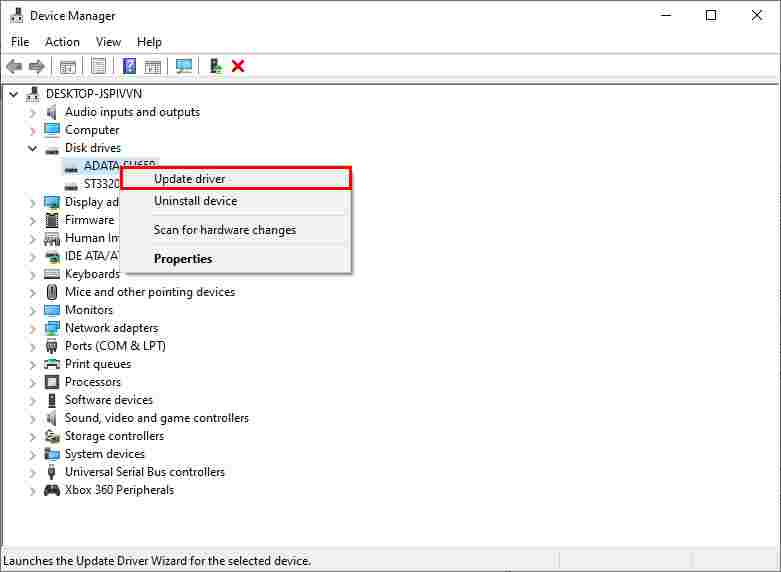
    To check for the latest automatic driver updates, go to Update & Security > Windows Update > View update history.  The latest driver updates appear here. Now, type the device manager in the Start menu search bar and select the most suitable one. Go down the list and check for the error symbol.

    If not, your driver status is probably not the source of the problem. If there is a yellow “alert” symbol, go to the section using the dropdown arrow, then right-click the problem driver and select Update Driver.  Select Search automatically for updated driver software to let Windows automate the update process for you.

    Update System Driver
    Update System Driver

    Otherwise, you can use a third-party tool to update all your system drivers at the same time. For the first two options, you can use the IOBit Driver Booster and Snappy Driver Installer applications.

    #3. Run CHKDSK

    Run CHKDSK
    Run CHKDSK

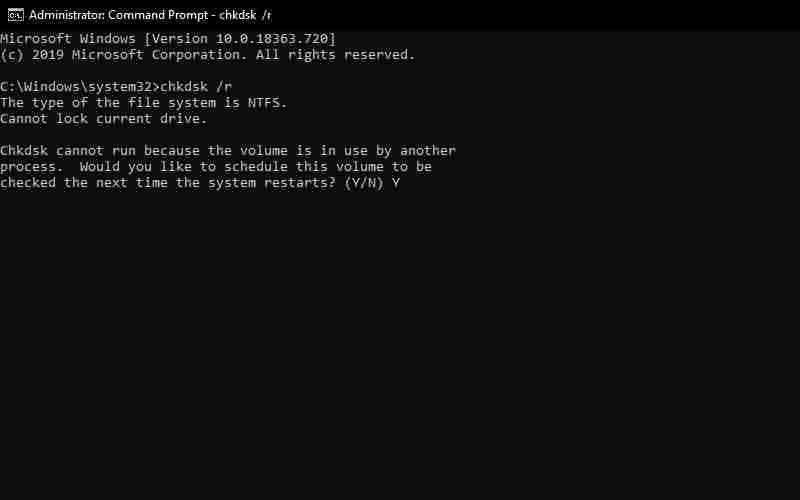
    Next, try running Windows Check Disk from the Command Prompt. CHKDSK is a Windows system tool that verifies the file system and with certain settings, fixes problems as it runs. Type command prompt in your Start menu search bar, then right-click the most suitable one and select Run as administrator or, press Windows key + X, then select  Command Prompt (Admin) from the menu. Next, type chkdsk /r  and press Enter. This command will scan your system for errors and fix any issues along the way.

    #4. Run DISM And SFC

    System File Check is another Windows system tool that checks for missing and corrupted Windows system files. Sounds like CHKDSK. But SFC checks Windows system files specifically, while CHKDSK scans your entire drive for errors. But before running the SFC command, it is best to double-check if it works.

    DISM  stands for Deployment Image Service and Management. DISM is an integrated Windows utility with multiple functions. In this case, the DISM Restorehealth command ensures that our next fix will work properly. Perform the following steps.

    1. Type  Command Prompt (Admin)  in the Start menu search bar, then right-click and select  Run as administrator to open an elevated Command Prompt.
    2. Type the following command and press Enter:  DISM /online /cleanup-image /restorehealth
    3. Wait for the command to complete. The process can take up to 20 minutes depending on the health of your system. The process seems to crash at times, but wait for it to finish.
    4. When the process is complete, type SFC /scannow and press Enter.

    #5. Install the Official Windows Hotfix

    There is an Official Windows hotfix for the SYSTEM_SERVICE_EXCEPTION error. However, the hotfix relates to a stop code that defines a specific SYSTEM_SERVICE_EXCEPTION issue. The stop code is 0x0000003B, and it corresponds to an IEEE 1394 device; in other words, FireWire and the standard version of the interface are branded similarly.

    Go to the Microsoft Hotfix page and select the Hotfix Download Available linkFollow the on-screen instructions (requires email details to send the hotfix to you). When the hotfix arrives in your email account, use the link at the bottom of the page to download the file. Once downloaded, double-click the file.

    The automatic extraction file suggests  C:/  as the default location. However, you can also add a “hotfix” to the file path, (for example, C: / hotfix) to make it easier to find unpacked files. Next, navigate to the extracted file, then right-click and select  Run as Administrator to complete the process.

    #6. Reset Windows 10

    Reset Windows 10
    Reset Windows 10

    If nothing else works, you can use the Windows 10 Reset function to refresh your system files. Windows 10 Reset replaces your system files with a completely new set of files and theoretically removes issues related to your SYSTEM_SERVICE_EXCEPTION error while keeping most of your important files intact.

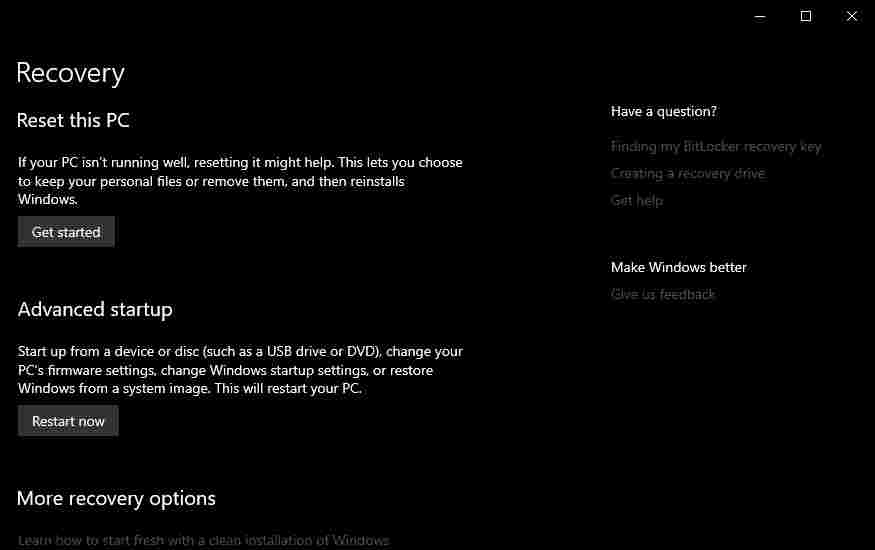
    Go to Settings > Update and Security > Recovery, then under Reset, this PC select Get Started. Your system restarts as soon as you press the button, so make sure you back up any important files beforehand. Your system will restart, then you can choose to Keep my files or Remove everything.

    Read more:

    Conclusion:

    So that’s 6 Ways to Fix System Service Exception In Windows 10. One of these fixes or a combination of all of them will resolve your SYSTEM_SERVICE_EXCEPTION error, making your system BSOD-free.

    If not, there’s another short solution you can try:  Work your way through the recently installed programs, uninstalling each one until the issue is resolved. Some programs have unwelcome habits that cause certain system processes to crash.