Category: Windows

Windows – Here you can find Computer-related updates Windows 10, Windows 8, Windows 7, Linux, technology information, and more.

  • 9 Ways To Fix Can’t Type WiFi Password in Windows 10 PC 2025

    9 Ways To Fix Can’t Type WiFi Password in Windows 10 PC 2025

    9 Ways To Fix Can’t Type WiFi Password in Windows 10 PC – Unable to type a WiFi password is one of the problems that can occur due to two things: a problem with the keyboard device and a problem with the system.
    9 Ways To Fix Can't Type WiFi Password in Windows 10 PC
    9 Ways To Fix Can’t Type WiFi Password in Windows 10 PC

    How To Fix Can’t Type WiFi Password in Windows 10 PC

    At this point, the first thing to check is whether the keyboard works normally for typing in other applications.

    Read more:

    If it is normal, it can be concluded that there is a problem with the system that causes you to be unable to type the password when connecting to WiFi. Here are some steps you can take to solve it.

    #1. Try to check if the keyboard is installed correctly

    First you have to start from the simplest step, which is to check if the keyboard is properly connected, specifically for PC users. Try unplugging the keyboard cable then try plugging it back in, and see if the keyboard is detected and works normally.

    To make sure, try opening a text editor application such as Word or Notepad and then try typing there, if it runs normally then try again typing the WiFi password, is it possible?

    #2. Use the on-screen keyboard

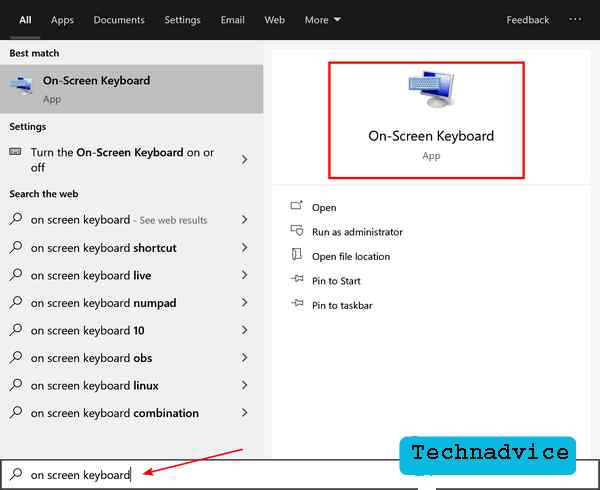
    Next, try to open the on-screen keyboard application and try typing the WiFi password using this application.

    You do this by clicking on the Search bar then typing on the screen keyboard > click the application that appears on the Start menu.
    Use the on-screen keyboard
    Use the on-screen keyboard

    After the application opens try typing the WiFi password and see if it works. If you can then temporarily you can use this method. But if you can’t try to continue to the next step.

    #3. Type the password in Notepad then copy-paste it into the WiFi password field

    If the case is that you cannot type the WiFi password but other applications can, then you can outsmart it by using another application to type the password and then copy-paste it into the WiFi password field.

    You can use a text editor application like Notepad to do this. You do this by clicking on the Search bar > typing notepad > opening the Notepad application that appears on the Start menu.

    After that type, your WiFi password in Notepadcopy the password with a block of text then right-click > copy. Go to the WiFi password field then right-click> paste.

    #4. Reinstall keyboard drivers

    The next step you can do is if the keyboard cannot type the WiFi password nor can it type in other applications. This problem can be caused by two things, first, because the keyboard device itself is problematic or damaged, and secondly because of a problem with the driver.

    The keyboard driver is a driving program that regulates the function of the keyboard on your laptop and PC, if there is a problem then the function will also be problematic. To fix this you can do a reinstall to get a clean version of the driver file.

    Follow these steps:

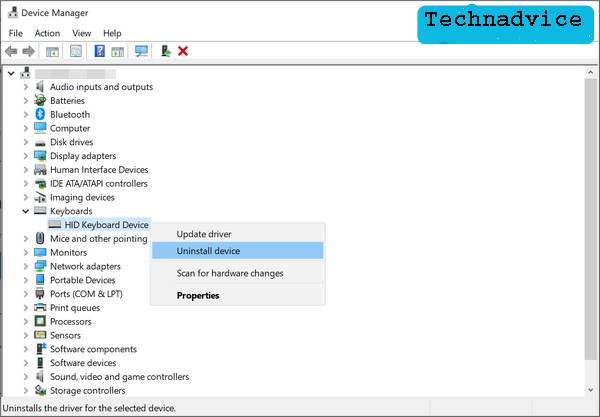
    1. Press the Windows key + R to bring up the RUN window

    2. Type: devmgmt.msc then click the OK button

    3. In the Device Manager program click the small arrow next to the Keyboard

    4. Right-click on the keyboard driver and select Uninstall device
    Reinstall keyboard drivers
    Reinstall keyboard drivers

    5. Close all settings windows and restart your computer

    6. After the computer restarts, the driver that was deleted will be reinstalled automatically by the system

    Now try again using the keyboard to type the WiFi password, if it works. If the cause is a problem with the driver, it should now work normally again.

    #5. Turn off the Sticky keys and Toggle keys features

    Sticky keys and Toggle keys are additional features that regulate keyboard functions in Windows 10. Although this feature is quite useful, in some conditions it can cause problems not being able to type the WiFi password when it is active. To make sure, you can try to turn off the feature first.

    Follow these steps:

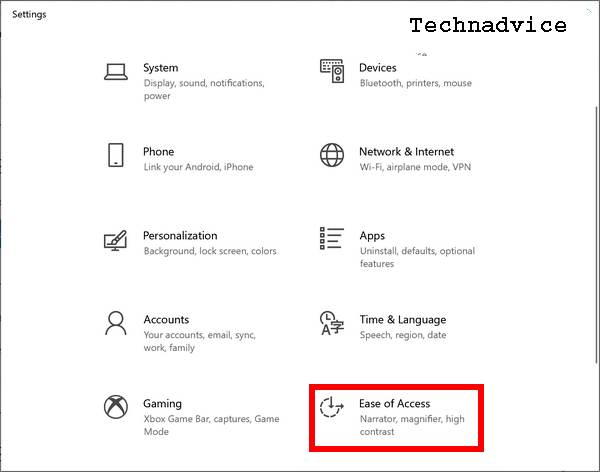
    1. Click the Start button and select Settings

    2. Select the Ease of Access menu
    Turn off the Sticky keys and Toggle keys features
    Turn off the Sticky keys and Toggle keys features

    3. On the left pane click on the Keyboard tab

    4. Find the option named Sticky keys and Toggle keys

    5. Click the switch button to Off on both features
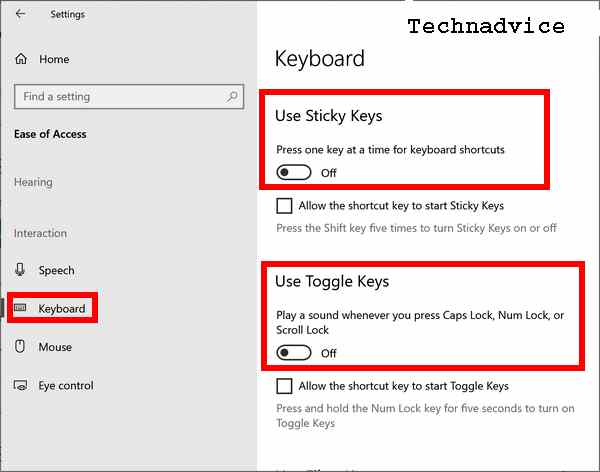
    Turn off the Sticky keys and Toggle keys features

    When finished close the Settings window and then try again by typing the WiFi password, is it working? If you haven’t tried again, do the next steps below.

    #6. Run System File Checker

    Corrupt system files can also cause keyboard problems such as not being able to type search on WiFi. To overcome this, we can use a tool called File System Checker (SFC) in Windows 10 which can be run via CMD.

    Follow these steps:

    1. First open the Command Prompt application with administrator access

    2. At the Command Prompt type or copy-paste the following command:

    sfc /scannow

    3. Press Enter and wait until the scan process is complete

    4. When finished restarting your computer

    #7. Login using a new account

    In the Windows operating system, we can create more than one account and each account has its settings that are different from other accounts. If the problem occurs with your current account, you can try creating a new account and then logging in with that account. In this way, the problem of not being able to type the WiFi password will not appear on the new account.

    #8. Run System Restore

    Follow these steps:

    1. First open the Windows 10 Control Panel

    2. Use the View by Small icons. option

    3. Then select the Recovery menu

    4. Then click on Open system Restore then click Next

    5. In the System Restore window you will see a list of Restore Points that have been created

    6. Select the one with the most recent date then click Next
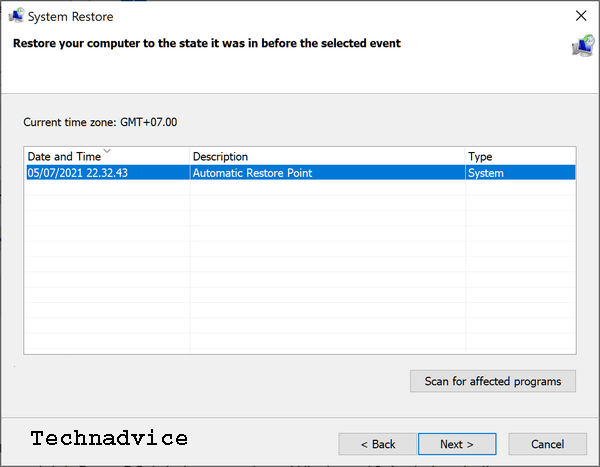
    Run System Restore
    Run System Restore

    7. Click the Finish button then wait until the restore process is complete

    #9. Reset PC

    If you have tried all the methods above but nothing works, then the last remaining solution besides reinstalling is to Reset the PC. This will bring your Windows 10 back to the state it was in when it was first installed, much like a factory reset.

    Read more:

    Conclusion:

    This is an explanation of 9 ways to fix can’t type WiFi password on a Windows 10 PC, I hope this article is useful for you.

  • 45+ Avast Premier License Key And [Activation Codes] 2025

    45+ Avast Premier License Key And [Activation Codes] 2025

    45+ Avast Premier License Key And [Activation Codes] – Create a new user of the Avast antivirus program. Have you activated the security software yet? You can activate the security program using the Avast free antivirus activation code. Avast software has various versions, including Avast Pro, Premium Cleanup, and Premiere.

    45+ Avast Premier License Key And [Activation Codes
    45+ Avast Premier License Key And [Activation Codes

    How To Get Avast Premier License Key And [Activation Codes

    The serial number key in this article is likely only to be used for the premiere version (If you want to try another version, please).

    Read more:

    Avast Premier License Functions

    Functionally, Avast Premiere has the same usability as the other versions.

    However, to enjoy advanced security features, you need the latest Avast premier license key.

    Advantages & Disadvantages

    When you decide to use an activation code to turn Avast free into Pro, you must know the advantages and disadvantages, including:

    Excess Deficiency
    Make Avast Pro forever Unofficial serial key (it is illegal)
    Become a full version Virus
    Get Avast Pro for free Only active until the specified time.

    The advantages and disadvantages above can be different when you have used the Avast premier license file.

    Avast Free Antivirus Activation Code Collection

    The following SNs are used to make the Avast premium for free and you can choose which activation code to use:

    This serial code will expire quickly alias can not be used anymore. Maybe at midnight, it won’t work.

    #1. Serial Number Up To Several Years

    Serial Number Up To Several Years

    You will get a license code (Non-Official) which will be active for the next few years.

    Code Active time
    NPRNW5-3JEVT2-4YL492 2024
    8MBYLZ-BVTLSJ-5NC5RE 2023
    AGHSPE-982YJJ- 5YU56N 2025
    DFJIEIWKSS-DFKOWKS 2038
    RGXUTX-8DJXCJ-4TL73A 2023
    3DWS9E-CW75YJ-4Q48YA 2022
    RPRWFT-PV7LEJ-5LC7LN 2028
    GWBB3M-ND3R3J-4EL4QA 2027
    UHFDN3-97X5C2-4Z443S 2026
    XHZ8FT-JUAKMJ-4KL496 2040
    BHECJD-WASZCJ-54C4UA 2029

    #2. Code Avast Free Antivirus

    In addition to the registration key above, you also get the latest Avast internet security license file.

    Name avast serial key file
    Size 855 Byte
    Type Txt
    Download https://s.id/taImi

    #3. Avast Premier License Code for Forever

    You will also get an Avast Premier license key. Get it by copying the code below:

    1. N7Q8R9TBUCVEXFYG2J3K4N6P7Q
    2. 4M5N6Q8R9SBUCVDXFYGZJ3K4M6
    3. H2J3M5N6P8R9SAUCVDWFYGZH3K
    4. XFYH2J3K5N6P7R9SATCVDWEYGZ
    5. CVEXFYG2J3K4N6P7Q9SATBVDWE
    6. SBUCVDXFYGZJ3K4M6P7Q8SATBU
    7. 8R9SAUCVDWFYGZH3K4M5N7Q8R9
    8. N6P7R9SATCVDWEYGZH2J4M5N6Q
    9. 3K4N6P7Q9SATBVDWEXFZH2J3M5
    10. GZJ3K4M6P7Q8RATBUCWEXFYH2J
    11. 938TMH-VYE5LJ-4P4B9J

    #4. File Kode Only

    The SN belongs to people on the internet who have been admin-packed in an archive file.

    Name File Kode Only
    Size 903 Byte
    Type Zip
    Download https://s.id/taJDR

    #5. Lisensi Avast Premium Security Updated

    • ELAADX-TLAVC2-4PCBJN
    • 86K6RB-7T2LV2-4MLBK6
    • W8S4GM-MKURU2-4MLB26
    • 5WUXDW-JDFCX2-4MLBKJ
    • 2ZKGDC-7JDUL2-4MLBGA
    • QBMDET-QAP582-4MLBH6
    • 32ATW6-7R4UA2-4MLBYS
    • DQQ9YX-6A4U5J-4MLBP2
    • H2UG83-WQEU52-4MLBPA
    • FV5ZBW-4HBC32-4MLBC6
    • ZFUA38-VBE5J2-4MLBYN
    • cgudq2-krk4r2-4p4bf6
    • ZYZL2X-VCZY92-4P4BT2
    • BH7U9J-4QQ8W2-4PCBUE

    #6. Avast Secureline VPN Keys x10

    VUJF2S-YWD9XJ-5MUAD6

    K364PP-VVGDC2-5MUAPJ

    NLHLH6-HPL5R2-5K4A46

    YCJC5H-3LXLZJ-5K4AGA

    9HKNF5-5A956J-5K4AAW

    JZNAVB-6WYZVJ-5K4AME

    23E6NZ-JF78Y2-5K4AGS

    ZD5CDU-RSY85J-5JUAZJ

    KQDWJQ-Z4SH62-5JUAM2

    8RYJRU-3KQHMJ-5JUAZS

    Avast Ultimate for PC Laptop

    Code Link Download Avast
    WFNBVR-JVFVHJ-4MLBFE bit.ly/3oCFHcX
    Code: A5B6XR-VKJ4TJ-4MUBLA bit.ly/3oCFHcX

    Link Download: bit.ly/3oCFHcX

    Avast Premier Features

    You will get the full features if you have activated Avast.

    So what are the features of Avast Premier?

    1. Optimize PC from virus threats.
    2. Stop unnecessary programs.
    3. Clear cookies and browser cache.
    4. Cloud storage.
    5. Anti Phishing.
    6. Registry cleaner.
    7. Silent mode.
    8. Anti-spam.
    9. Password protection.
    10. Game mode.
    11. Application updates automatically.
    12. Detect ransomware.
    13. Cyber capture.
    14. User interfaces are modern.
    15. Smart scan.

    How to Activate Avast Premier

    Maybe some new Avast Premier users haven’t been able to activate using the serial number code.

    Here are the activation steps:

    • Run Avast Premiere.
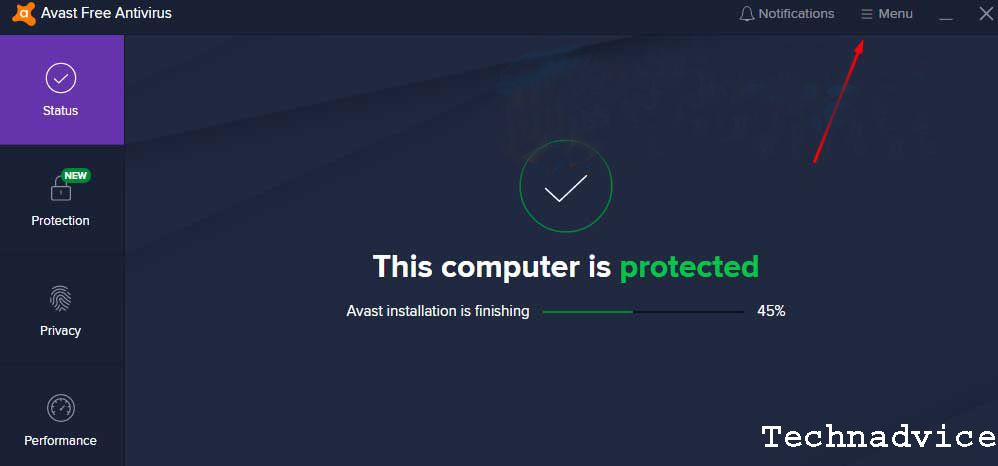
    • Open Menu (located in the upper right corner).
    How to Activate Avast Premier
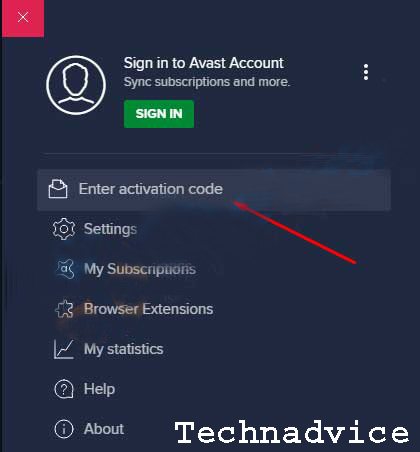
    • Then select the Enter Activation Code option.
    How to Activate Avast Premier
    • Enter the code in the column provided.
    • Then press Enter.
    How to Activate Avast Premier
    • Wait for the Verifying code process.
    • Finished.

    Note: If all of the above codes can’t be used, chances are that the code is dead (many users do that).

    Note: If all of the above codes can’t be used, the code may be dead (many users are like that).

    Disclaimer: Technadvice is not responsible if the activation code has died, because this has been spread on forums and the internet.

    Read more:

    Conclusion:

    So, that’s the 45+ Avast premier license keys and [activation codes, that you can copy to activate its premium features.

  • How to Open ENC File in Android Laptop Windows 10 PC 2025

    How to Open ENC File in Android Laptop Windows 10 PC 2025

    How to Open ENC File in Android Laptop Windows 10 PC – .docx is an extension of Microsoft Word, .pptx is an extension of Microsoft PowerPoint and .xlsx is an extension of Microsoft Excel .enc is encryption. There are a lot of extensions that not many people know about, there are hundreds or even thousands.

    How to Open ENC File in Android Laptop Windows 10 PC
    Image Source: techrapt.com

    How to Open ENC File in Android Laptop Windows 10 PC

    But for the occasion of this time, I will discuss extensions ( .ENC ). Maybe some of you are confused, why did I send the file on WhatsApp, how come it changed to ENC?

    Read more:

    Enc file stands for encryption. Encryption is data security. So if you find a file with an enc extension from WhatsApp, it is a WhatsApp feature for securing a file.

    How to open an encrypted enc file from WhatsApp? Here are some ways you can extract enc files on your Windows and on your Android phone.

    Open ENC File in Android Laptop Windows 10 PC

    To open a file that has an enc extension, you can use compress zip / rar. Here are the steps. The Windows I use is Windows 10. So for those of you who use Windows 8 or 7, it’s a little different. But for how to extract files that have the same enc extension.

    #1. Make ENC File into a ZIP

    1. First, please prepare the enc file that you want to open. If it’s still on an Android cellphone, you can move it to Windows first
    2. Then you right-click the file
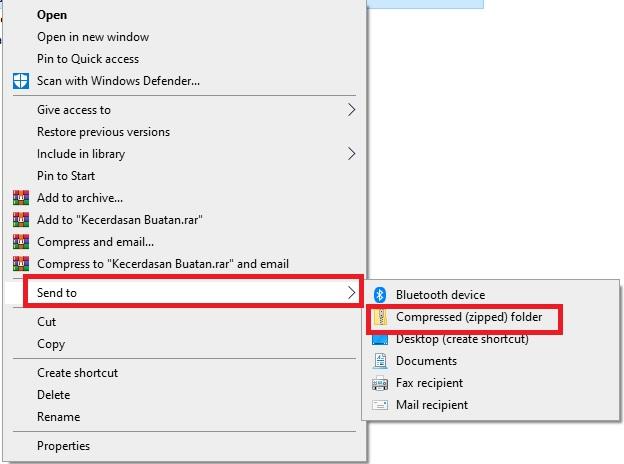
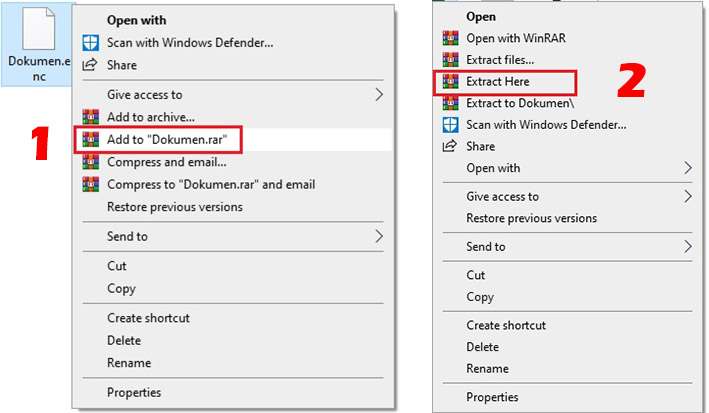
    3. Then click Send to and select the compressed (zipped) folder. The file with the .enc extension will turn into a zip
    4. After making the enc file into a zip, then just extract the file
    Make ENC File into a ZIP
    Make ENC File into a ZIP
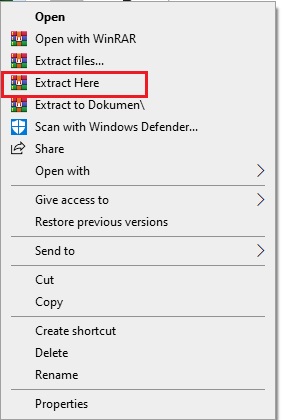
    1. The trick is to right-click the file
    2. Then select Extract Here
    Make ENC File into a ZIP
    Make ENC File into a ZIP

    Besides making the file into a zip, you can also make an enc file into a rar so that the file can be opened.

    #2. Make ENC file into RAR

    1. First, please find the enc file that will be opened
    2. Then right-click on the file
    3. There are several menus, select Add to “namafilekalian.rar”
    4. It’s become rar, then you can extract the rar file
    5. The trick is to right-click on the RAR file
    6. Then select Extract Here
    7. Previously I also discussed how to create and extract RAR files on Windows and Androids.
    Make ENC file into RAR
    Make ENC file into RAR

    Maybe some of you don’t have a computer or Windows. You can open the ENC file with the Android smartphone that you are currently using. It’s easy to open files that have an ENC extension on an Android phone. Here’s how to open an enc file on Android.

    How to Open Enc File on Android

    #1. Using the ZArchiver application

    ZArchiver is an application like the default cellphone file manager, but in this application, it is very complete. Lots of people use this application for their purposes because the default cellphone file manager application cannot extract files with the ENC extension. And also not only, in this application, there are lots of functions where the default cellphone file manager cannot fulfill the wishes of its users. Immediately, here’s how to open an enc file on an Android phone.

    1. First, please prepare the ZArchiver application. You can download it on the Google Play Store for free.
    2. After you download and install it, please open the application and find where the enc document file is located. If you get the file sent from WhatsApp, you can find it in the file local-> WhatsApp-> media-> document.
    3. If you have found just click the file, there will be several extract options, just select it.
    4. If it is later a new folder will appear with the name of your enc file earlier. Open it and see what’s inside.
    5. Done.

    Well, it’s possible to open an enc file on a cellphone that much. Using the help of the ZArchiver application is very, very easy. But there is another, easier way to open this enc file.

    This method can be used on Windows and cell phones. Not only on Android phones but on iPhone phones you can also use the following methods. Using a web-based application is one of the right solutions if you are too lazy to install applications again. Here’s how to open an enc file online without software or application.

    How to Open ENC Files Online

    1. First, you open the browser on Windows or an Android smartphone.
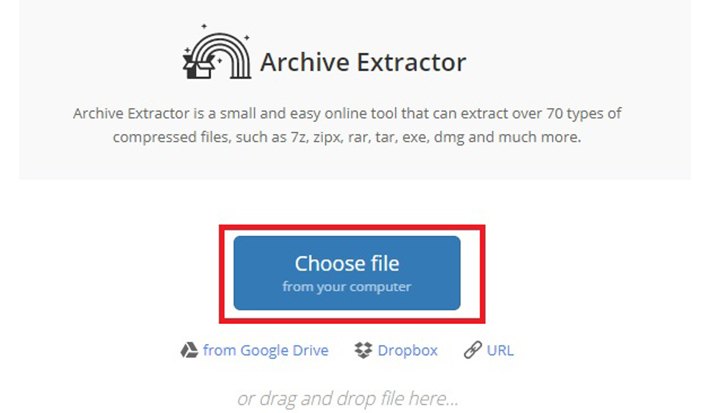
    2. Then visit the extract.me site
    3. Then you can the Choose File tab (Select File)
    How to Open an Online ENC File
    How to Open an Online ENC File
    1. Please look for the enc file format on your Windows or smartphone
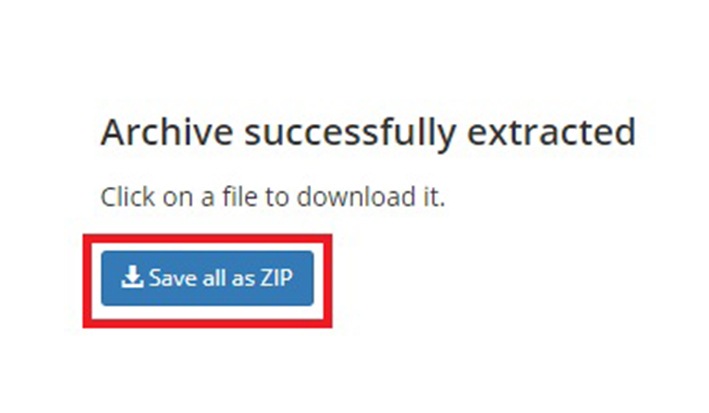
    2. Wait for the process to finish, if you can download it, click Save All as zipping (Save all as zipping)
    How to Open an Online ENC File
    How to Open an Online ENC File
    1. Done

    Read more:

    Conclusion:

    So, friends, that’s above on how to open an ENC file on an Android laptop or Windows 10 PC, If you are still confused, you can ask in the comments column. Usually, the enc file is the result of encryption from WhatsApp.

  • 7 Ways to Fix USB Device Not Recognized / Unreadable USB 2025

    7 Ways to Fix USB Device Not Recognized / Unreadable USB 2025

    7 Ways to Fix USB Device Not Recognized / Unreadable USB – In This article, we will provide a solution for those of you who experience USB Device Not Recognized an unreadable and unknown Flashdisk, whether that happens in Windows 10/8/7 or Windows XP.

    7 Ways to Fix USB Device Not Recognized Unreadable USB
    7 Ways to Fix USB Device Not Recognized Unreadable USB

    How To Fix USB Device Not Recognized / Unreadable USB Windows 10 PC Laptop

    If you experience this error and receive an error message that says “The last USB you connected to this computer didn’t work, Windows doesn’t recognize it.” Don’t worry, because below we have a solution to solve it in just 7 easy steps.

    Read more:

    An unreadable flashdisk is an error that usually occurs in Windows 10/8/7 / XP / Vista when you plug a USB into a PC. This USB device can be either a USB hard drive or a flash drive.

    When Windows has such an error, the USB cannot be read on the laptop and consequently cannot open data access. To fix this, follow the steps below:

    Fix USB Device Not Recognized/ Unreadable USB Windows 10,8,7 Laptop PC

    #1. Restart the Device

    Sometimes, a simple reboot can fix the USB Device Not Recognized device. Try restarting or shutting down your PC for a while, then try turning it on again.

    Next, try to reconnect your USB device and see the results. If it still doesn’t work, try the next steps below.

    #2. Try on another computer

    Try pairing your flash drive on another computer. If it still doesn’t work on another PC, then your USB is indeed a problem. Then there are only two options for you, buy another new one or try to repair it.

    #3. Remove another USB

    Too many USBs on the same computer can also create conflicts that may hinder the device from functioning.

    To avoid possible conflicts between the devices, it is recommended that you remove any other USB devices that were attached at the same time and see if the USB you want to use works.

    #4. Repair the USB Root Hub

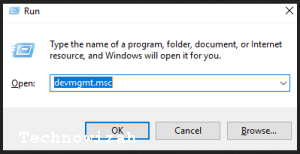
    1). Press the Windows logo key and R at the same time. Next type devmgmt.msc.

    Repair the USB Root Hub2). Click the down arrow to open Universal Serial Bus controllers. Right-click on the USB Root Hub option and click on Properties.
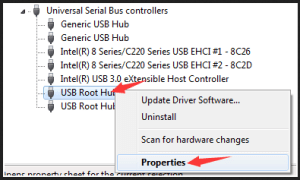
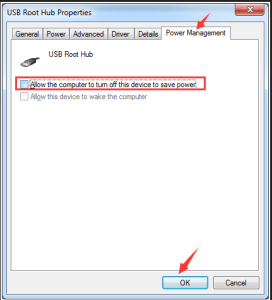
    Repair the USB Root Hub

    3). Go to the Power Management tab and uncheck Allow the computer to turn off this device to save power. Click OK.

    Repair the USB Root Hub

    If you have more USB Root Hubs, you will need to repeat this operation several times. Please remember to click OK after each performance.

    After setting, plug back in your Flashdisk to see if your computer can read it.

    If your Pendrive is still unreadable after this, please check Allow the computer to turn off this device to save power again.

    #5. Update the USB Port Driver

    If the methods above don’t work for your problem, you may be using the wrong USB driver altogether.

    There are two ways you can update the USB port driver, namely: Manual and automatic.

    – Manual Driver Update
    You can update the USB port driver manually by visiting your PC manufacturer’s website and looking for the latest driver that is correct and suitable for yours.

    Make sure to select the only driver that is compatible with your variant of Windows.

    – Automatic Driver Update
    If you don’t have enough time or computer skills to update the driver manually, you can do it automatically with Driver Easy.

    Driver Easy will automatically recognize your system and find the correct and suitable driver you have. You don’t need to know exactly what system your computer is running.

    You also don’t have to take the risk of downloading and installing the wrong driver, and you don’t have to worry about making a mistake while installing, here’s how:

    1). Download and install Driver Easy on its official website.

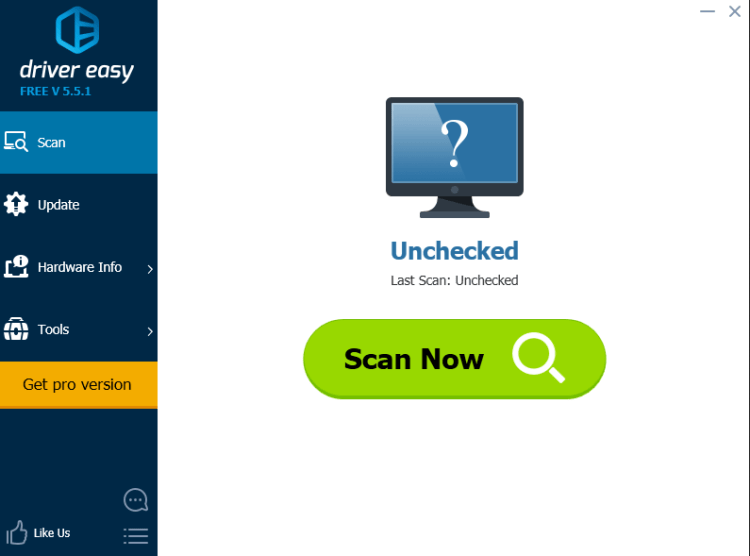
    2). Run Driver Easy and click the Scan Now button. Driver Easy will then scan your computer and detect any problem drivers.

    Update the USB Port Driver

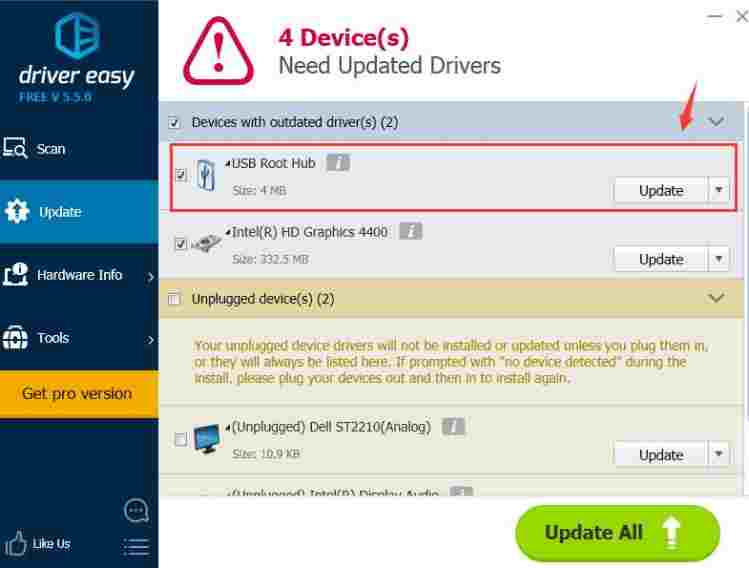
    3). Then click the Update button next to the driver marked with a red arrow to automatically download and install the correct version of that driver (you can do this with the FREE version).

    Alternatively, click Update All to auto-download and install the correct version of all the missing or outdated drivers on your system (This step requires the Pro version)

    You will then be prompted to upgrade when you click Update All.

    Update the USB Port Driver

    #6. Change USB Settings

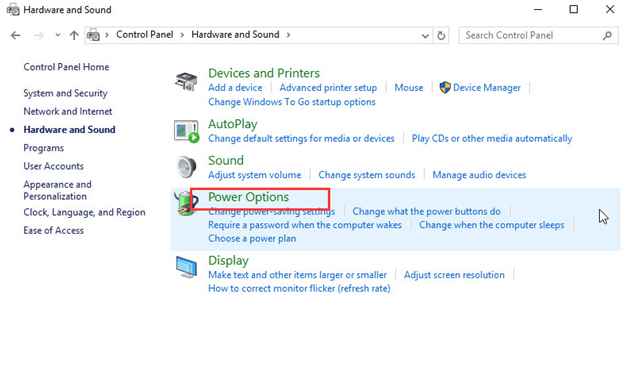
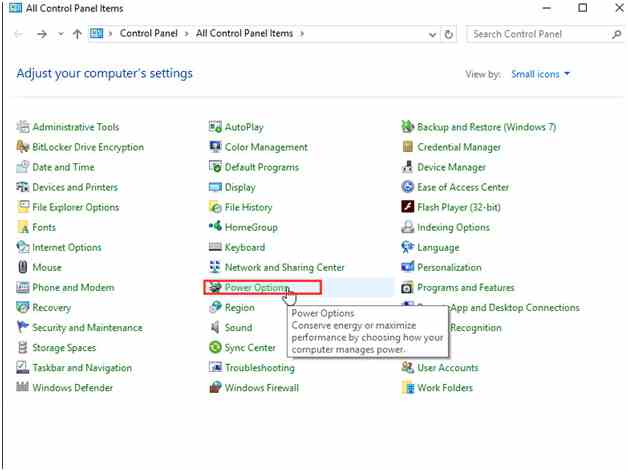
    1). Follow these steps: Control Panel > Hardware and Sound > Power Options.

    Change USB Settings2). Click Choose what the power button does.
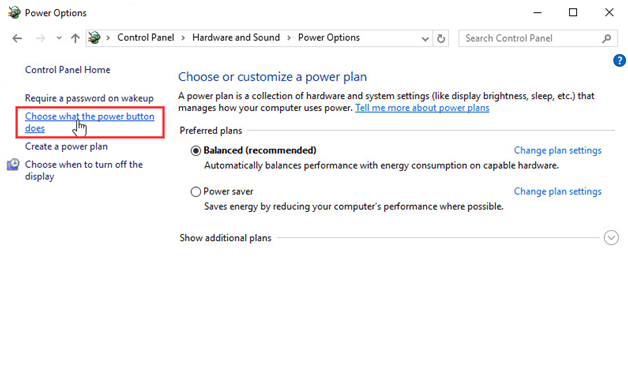
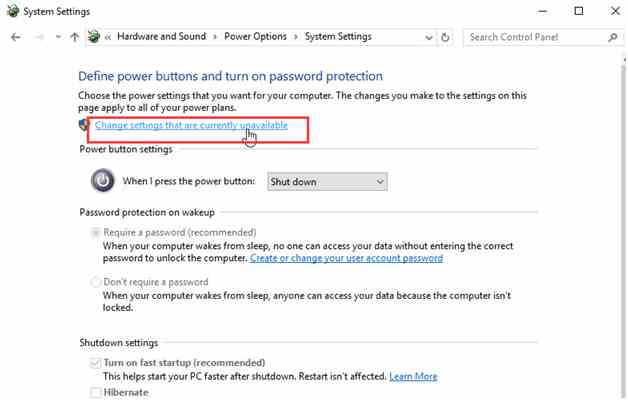
    Change USB Settings

    3). Click Change settings that are currently unavailable.

    Change USB Settings

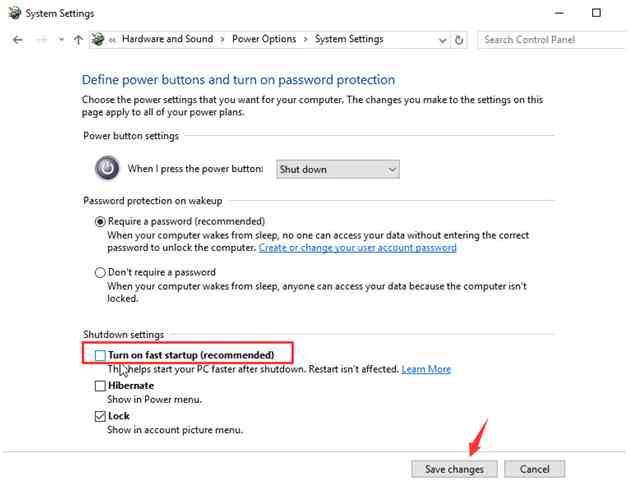
    4). Uncheck Turn on fast startup and Save changes.

    Change USB Settings

    5). Next Restart your computer and try to plug your USB back in to see if it is working or not.

    If your USB device still doesn’t work after this setting, please change the setting again and follow the next method below.

    #7. Change the USB Selective Suspend Settings

    1). Open the Control Panel and click Power Options.

    Change the USB Selective Suspend Settings

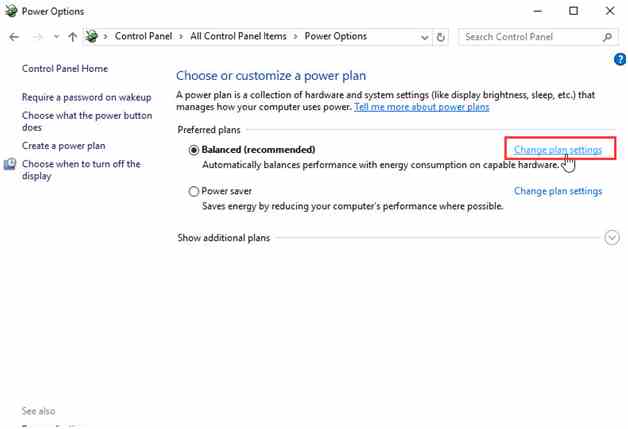
    2). Click Change plan settings.

    Change the USB Selective Suspend Settings

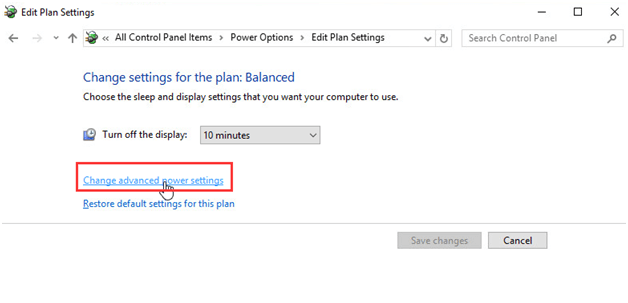
    3). Click Change advanced power settings.

    Change the USB Selective Suspend Settings

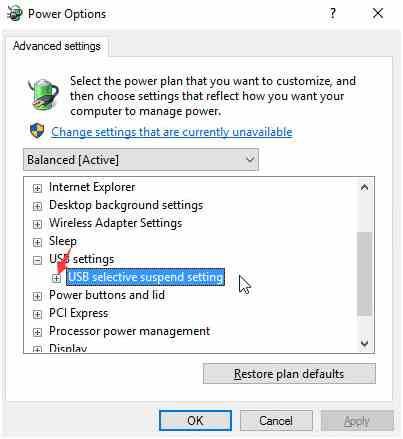
    4). Go to USB settings and USB selective suspend settings.

    Change the USB Selective Suspend Settings5). Disable Power Buttons and Plugged in Settings.
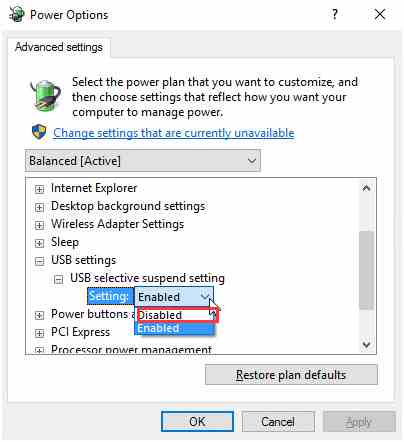
    Change the USB Selective Suspend Settings

    Click OK and Apply.

    Lost USB Data Recovery

    The above are ways that you can use to fix and overcome USB Device Not Recognized. If one of the methods above is successful, you can access the USB and go back to using the data stored on it.

    But sometimes, even though the USB Drive can be opened, it doesn’t find any data on it, aka all data stored on it, is lost. How to handle it?

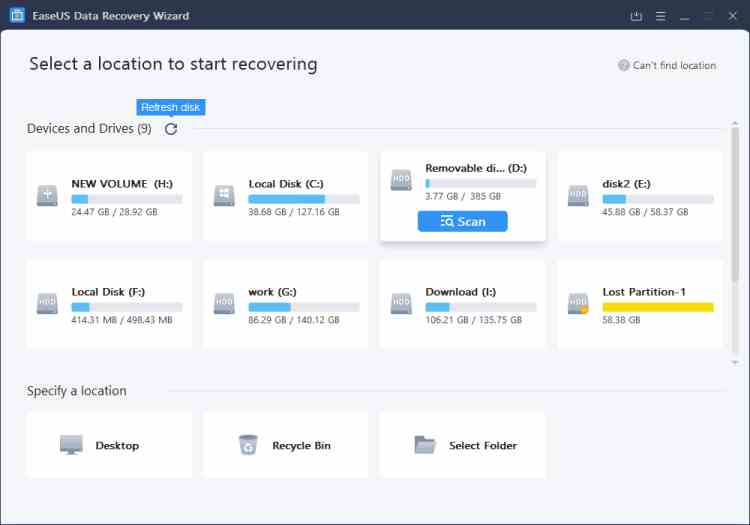
    In this guide, USB data recovery can be performed using EaseUS. Even when your USB device is registered in disk management but does not appear on your computer.

    This EaseUS program can work properly on Windows 10/8/7 / XP and other versions. Please download first:

    – Download EaseUS for PC
    – Download EaseUS for Mac

    #Step 1: Run the USB Data Recovery Software

    Connect the USB flash drive to your computer and run the EaseUS USB data recovery software on your PC. Select your USB drive marked as a removable disk, and click “Scan” to start finding your lost files.

    Run the USB Data Recovery Software

    #Step 2: Scan All lost files from the USB

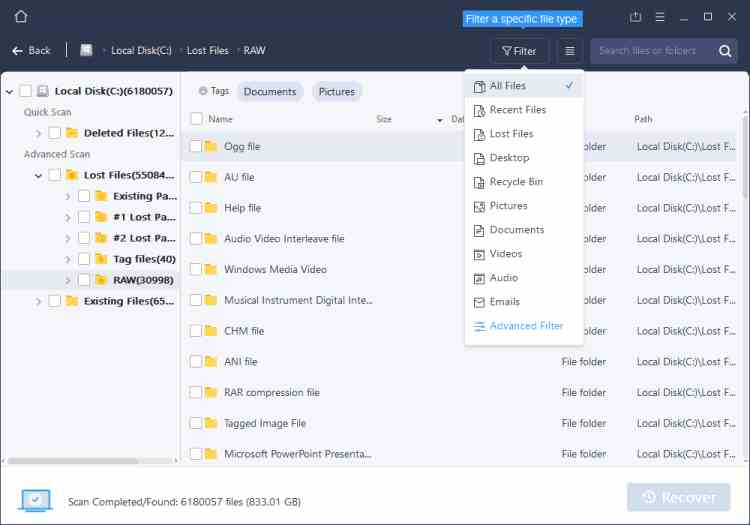
    EaseUS Data Recovery Wizard will scan your USB flash drive thoroughly and find all your lost data on it.

    After the scanning process, use the Filter feature to filter out specific file types. You can check and preview the USB files found in this program.

    Scan All lost files from USB

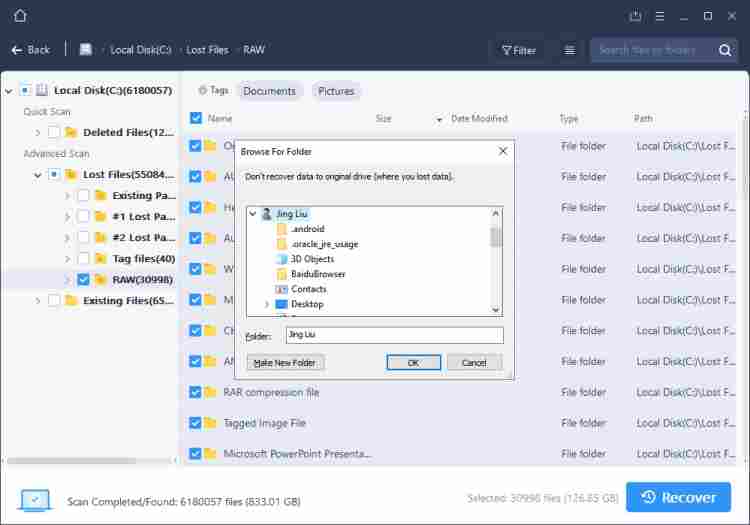
    #Step 3: Restore All Lost Files from the USB

    Double-clicking will allow you to preview the resulting file. Select the target file and click “Restore” to save it to a safe location on your PC or another external storage device.

    Restore All Lost Files from USB

    To retrieve data from a USB device, we recommend that you save the captured files to another safe location in case of further problems.

    Format USB to NTFS / FAT32 and Re-Create Partition on USB

    Some people have serious problems more than once. Some of them experienced the USB Device Not Recognized problem again after being repaired.

    If that happens, you can format and re-create a new partition again, the method is:

    • Connect USB to PC, right-click on My Computer =>, and select Manage.
    • Enter Device Manager, select Disk Management, locate and right-click on your USB which is not working, and select Format volume.
    • Complete the Format process and set the file system to NTFS or FAT32.

    Now you can check whether the Flashdisk has been read on your laptop or not, if not then continue with the steps below:

    • Open Disk Management, right-click on USB, and select Erase Volume, complete the process.
    • When the USB shows unallocated, right-click and select New Simple Volume, set the drive letter and file system (NTFS / FAT32), and complete the process.

    Read more:

    Conclusion:

    This is an explanation of 7 ways to fix USB devices that are not recognized or readable. After this process, the unreadable Flashdisk problem that you experience should be resolved, and you can save data again.

  • 6 Ways To Use Administrative Tools in Windows 10 PC 2025

    6 Ways To Use Administrative Tools in Windows 10 PC 2025

    6 Ways to Use Administrative Tools in Windows 10 PC—Administrative Tools is the folder in the Control Panel that contains programs for system administrators and advanced settings.

    How to Use Administrative Tools in Windows 10 Laptop PC
    How to Use Administrative Tools in Windows 10 Laptop PC

    How to Use Administrative Tools in Windows 10 Laptop PC

    These programs are what you will always use every time you configure the Windows 10 operating system, change settings at the administrator level, and perform troubleshooting when you encounter problems.

    Read more:

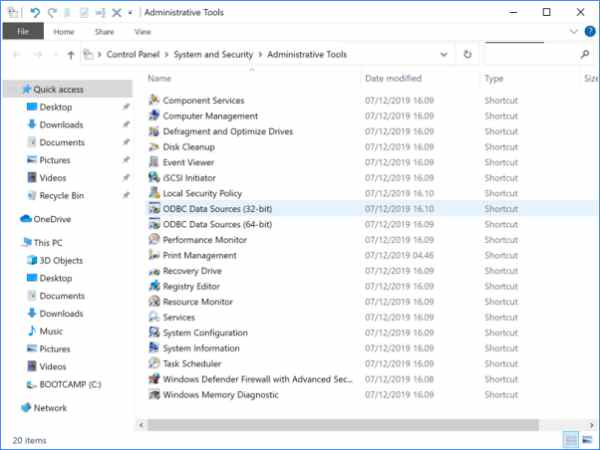
    In Windows 10, the Administrative Tools folder contains the following programs:

    1. Component Services
    2. Computer Management
    3. Defragment and Optimize Drives
    4. Disk Cleanup
    5. Event Viewer
    6. iSCSI Initiator
    7. Local Security Policy
    8. ODBC Data Sources
    9. Performance Monitor
    10. Print Management
    11. Recovery Drive
    12. Registry Editor
    13. Resource Monitor
    14. Services
    15. System Configuration
    16. System Information
    17. Task Scheduler
    18. Windows Firewall with Advanced Security
    19. Windows Memory Diagnostic
    How to Use Administrative Tools in Windows 10

    Programs in Administrative Tools are used the most

    #1. Defragment and Optimize Drives

    Disk fragmentation occurs when a file is split into pieces to fit on the disk. As files are constantly being written to, deleted, and resized, fragmentation on a hard drive is a natural occurrence. Make sure the Defragment and Optimize Drives function continues to run regularly, this tool allows the admin to start the process manually.

    #2. Disk Cleanup

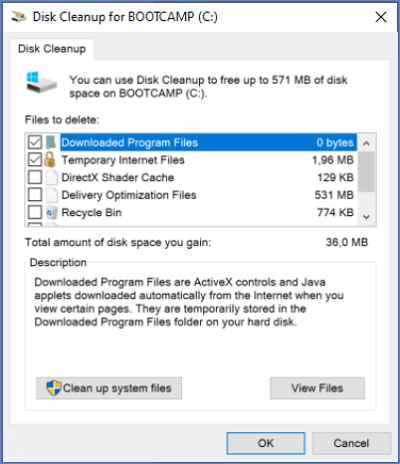
    Allows admin to delete junk files such as temporary files, old logs, cache, browser cookies, and delete leftover Windows Update files. A full hard drive is one of the main causes for a system slowing down and cleaning up the disk should speed it up again

    Programs in Administrative Tools are used the most

    #3. Print Management

    This tool allows admins to manage printers related to the system.

    #4. Windows Memory Diagnostic

    This program allows admins to check for errors on installed systems.

    #5. Services

    Through this tool, the admin can manage all system services running in the background.

    #6. System Configuration

    This program allows the admin to manage the boot-up process on a system. Multiple applications are launched when the system boots and too many applications launched together can prolong the boot-up process. This tool, also known as msconfig.exe, can stop applications from launching when the computer starts/restarts.

    How to open Administrative Tools on a Windows 10 PC

    There are several ways to access the Administrative Tools folder in Windows 10, either through the Control Panel or by using Windows Search.

    Follow these steps:

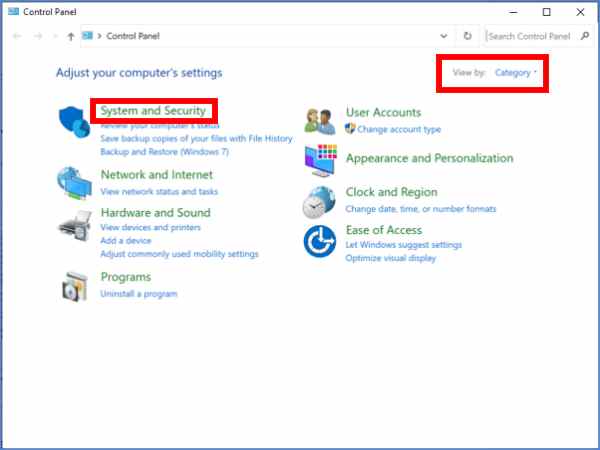
    1. Open the Control Panel
    2. Make sure you are using the Category view mode
    3. Select System and Security
    4. Select the Administrative Tools menu
    How to open Administrative Tools in Windows 10

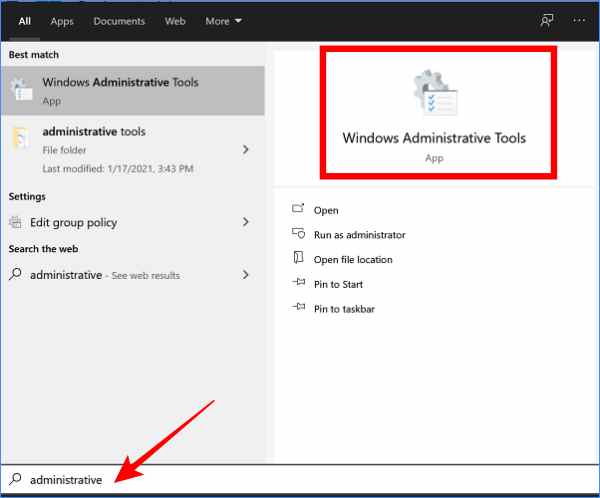
    Opening Administrative Tools can also be done using the search feature. The trick is to click on the search box or click on the Start button then type: administrative  > select the Windows Administrative Tools menu that appears on the Start menu.

    How to open Administrative Tools in Windows 10

    Then you can also use the RUN command to open Administrative Tools in Windows 10. You do this by pressing the Windows key + R then typing the command:

    shell:common administrative tools

    Click the OK button.

    Read more:

    Conclusion:

    This is the explanation of 6 ways to use administrative tools on a Windows 10 PC, I hope this article will be helpful.