Category: Windows

Windows – Here you can find Computer-related updates Windows 10, Windows 8, Windows 7, Linux, technology information, and more.

  • 11 Ways To Restore Windows Photo Viewer Windows 10 PC 2025

    11 Ways To Restore Windows Photo Viewer Windows 10 PC 2025

    11 Ways To Restore Windows Photo Viewer Windows 10 PC – If you are looking for how to Restore Windows Photo Viewer on Windows 10, then you are in the right place.
    How to Restore Windows Photo Viewer Windows 10 PC
    How to Restore Windows Photo Viewer Windows 10 PC

    How to Restore Windows Photo Viewer Windows 10 PC Laptop

    because, in this post, I will share with you, How to Restore Windows Photo Viewer on Windows 10, the Windows Photo Viewer application functions to open image files.

    Read more:

    In terms of usage, this application is easy to operate and lightweight so it doesn’t take up a lot of resources.

    If you want to open a photo file from your laptop and can’t find an app called Windows Photo Viewer, then it’s most likely not active.

    This problem is usually experienced after reinstalling Windows 10 on your laptop. If it’s like that, it takes a few steps to reactivate it.

    Cause Windows Photo Viewer does not appear on Your PC Laptop

    Things you should know, Windows Photo Viewer is a default application that is already installed by default on Windows 7 and 8.

    But if you upgrade from Windows 7 or 8 to Windows 10, usually this application will still be there and still usable.

    The common cause is that you are reinstalling Windows 10 and there may be an error during the installation process. So you need to know how to restore this application.

    How to restore the Windows Photo Viewer application is very easy to understand. So don’t worry anymore because the method that will be given can help.

    But make sure you don’t find the Windows Photo Viewer application while opening a photo file. This indicates that the application is not active.

    Here are some steps to restore the Windows Photo Viewer app in Windows 10:

    #1. Download the Registry Key

    The first step is to download the Registry Key from Windows Photo Viewer.

    So this Registry Key can make it easier for you to update the system from the Windows Photo Viewer application.

    Wait a few moments until the download is complete. If so, you click Show in the folder to make it easier to access files that have been downloaded.
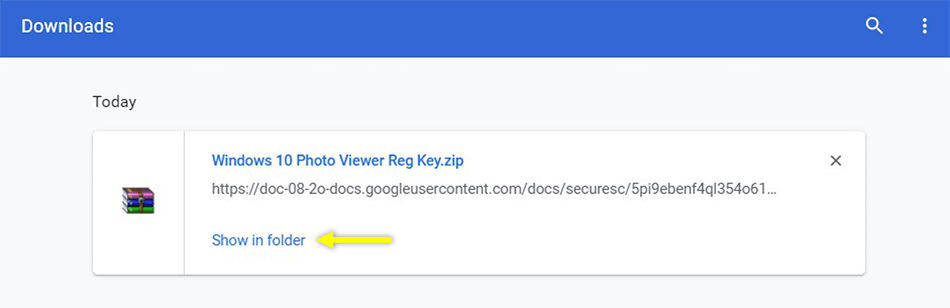
    Download the Registry Key

    #2. Extract the downloaded file

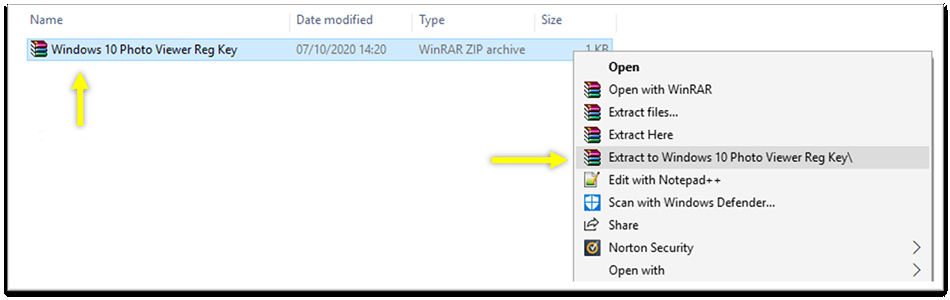
    Next, you need to extract the ZIP file from the registry key.

    The trick is you can right-click on the registry key file > then select the Extract to Windows 10 Photo Viewer Reg Key \ menu.
    Extract the downloaded file

    After extracting it, the folder from the registry key for the Windows Photo Viewer application will appear above it.

    #3. Enter the file into the system

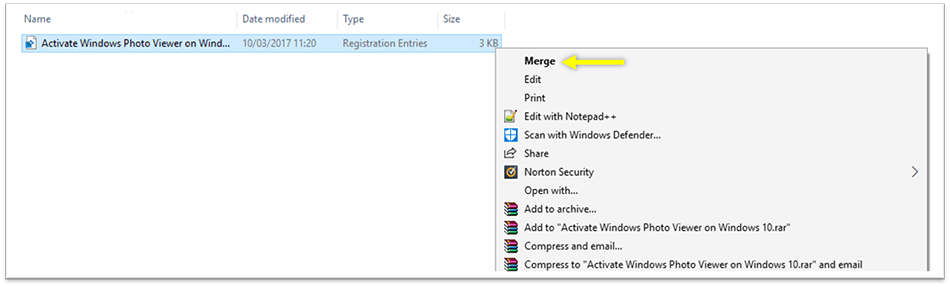
    Then you can enter the registry key folder that was extracted and will see that there is a file in it.

    Now you right-click the file> then select Merge.
    Enter the file into the system

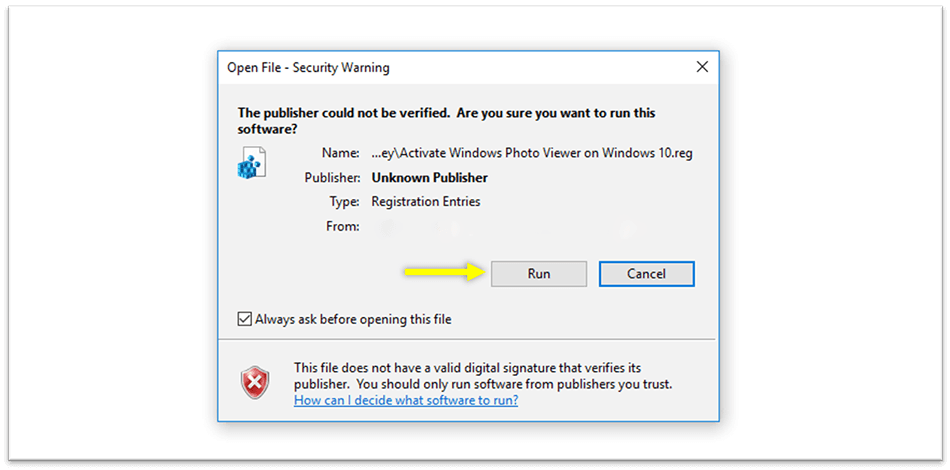
    After clicking merge, usually, an Open File – Security Warning dialog box will appear to continue the merge process.

    So you can click Run to continue.
    Enter the file into the system

    #4. Enter the System Registry

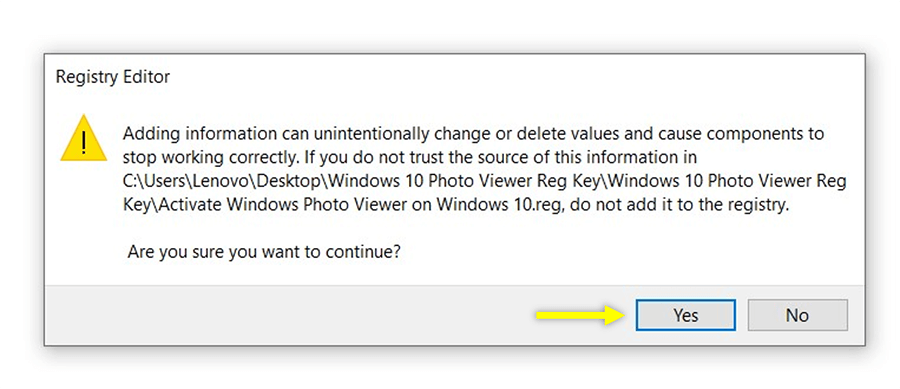
    After the file enters the system, now you have to enter the system registry.

    The trick is to click Yes when the registry editor dialog box appears after you enter the file into the system.
    Enter the System Registry

    Then wait a few moments until the process is complete.

    #5. Open Photos with Windows Photo Viewer

    After you have followed all the steps above, now you can try to open any photos on the laptop.

    But there is a way, here are some steps to open photos with Windows Photo Viewer:

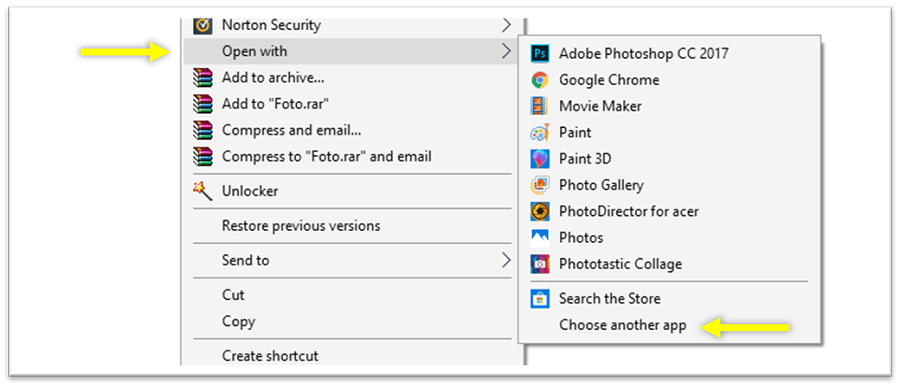
    1. Right-click on the photo that you have opened.
    2. Then select the Open With menu.
    3. After that select Choose another app.
    Open Photos with Windows Photo Viewer
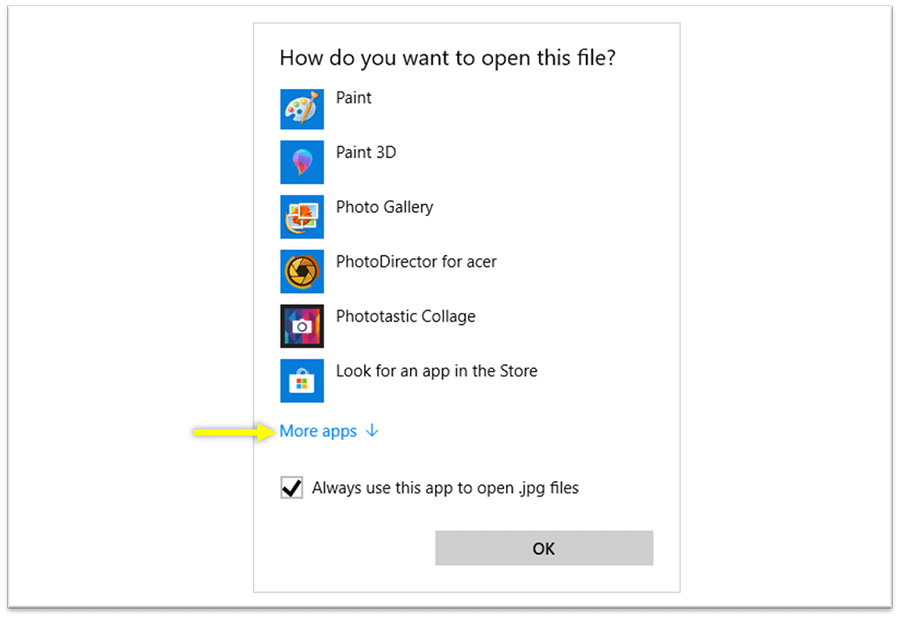
    1. Then select More apps
    Then select More apps
    1. Select Windows Photo Viewer and put a checkmark in the column Always use this app to open .jpg files then click OK.
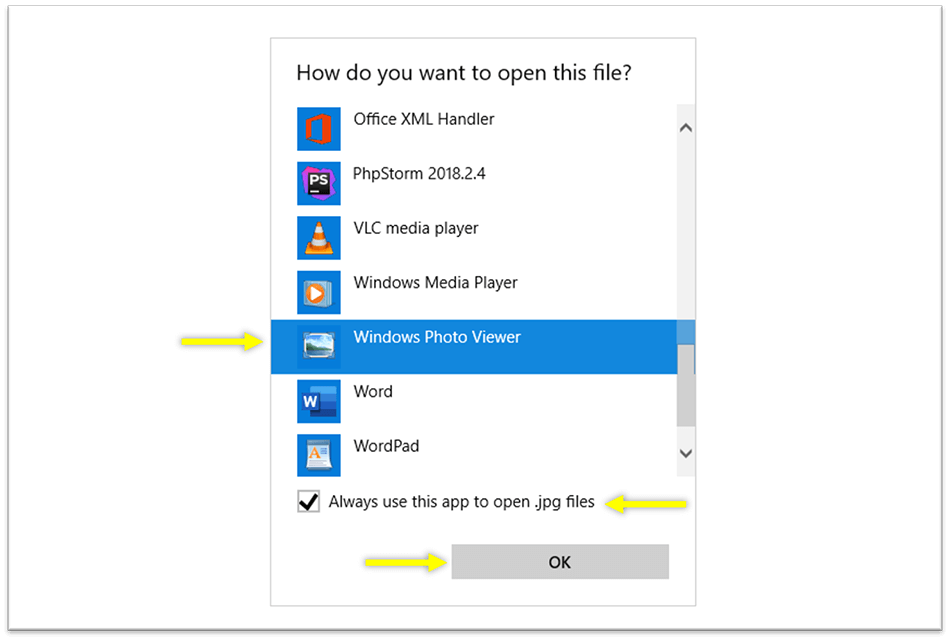
    Windows Photo Viewer
    1. So now the photo you want to open will use Windows Photo Viewer to display it.

    Windows Photo Viewer to display it
    Windows Photo Viewer to display it

    So now you can use the Windows Photo Viewer application again to open photos.

    The Windows Photo Viewer option does not appear. What’s the solution?

    In some cases, quite a lot of people experience this, maybe you are one of them. Even though you have followed all the steps correctly.

    So to handle it, you can try restarting the laptop you are using. Usually, on some laptops, it takes time or a special way to update the application system.

    Apart from restarting, you can also apply Windows Photo Viewer manually. More details can follow the steps below:

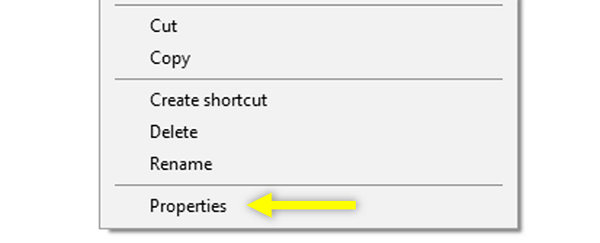
    1. Right-click the photo you want to open.
    2. Then select the Properties menu.
    The Windows Photo Viewer option does not appear. What's the solution
    1. Then on the General tab, select the Change button.
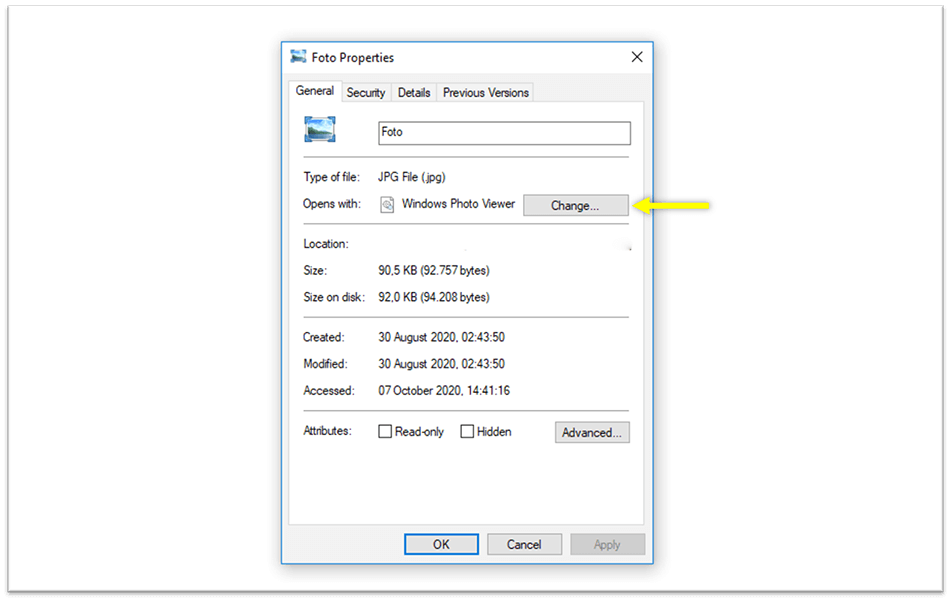
    The Windows Photo Viewer option does not appear. What's the solution
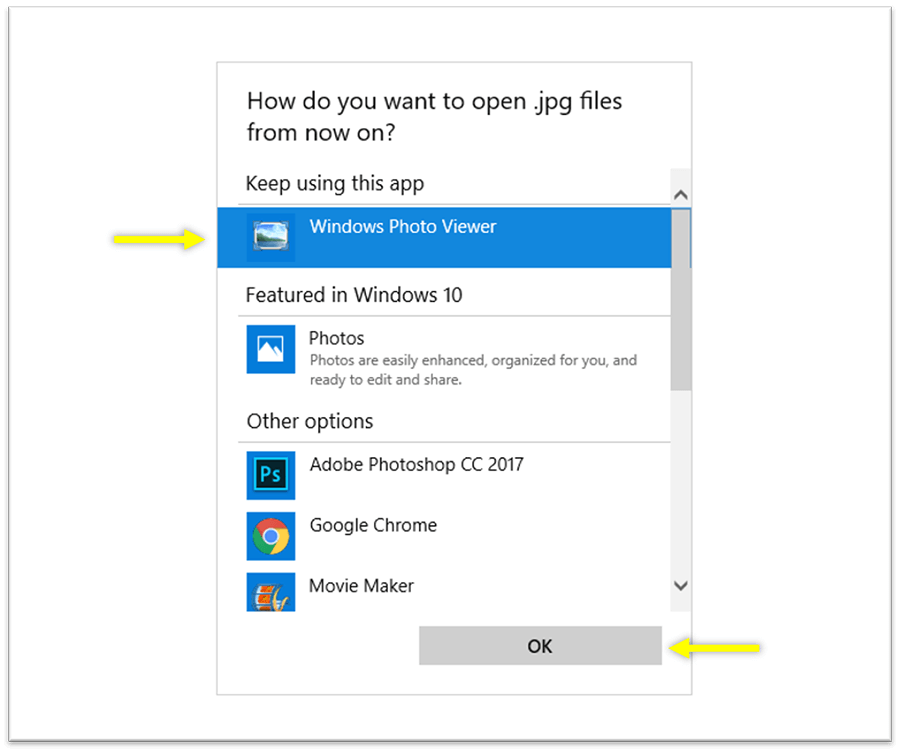
    1. Then select the Windows Photo Viewer application.
    2. Then click OK
    Windows Photo Viewer application
    1. So now your photos can be displayed using Windows Photo Viewer.
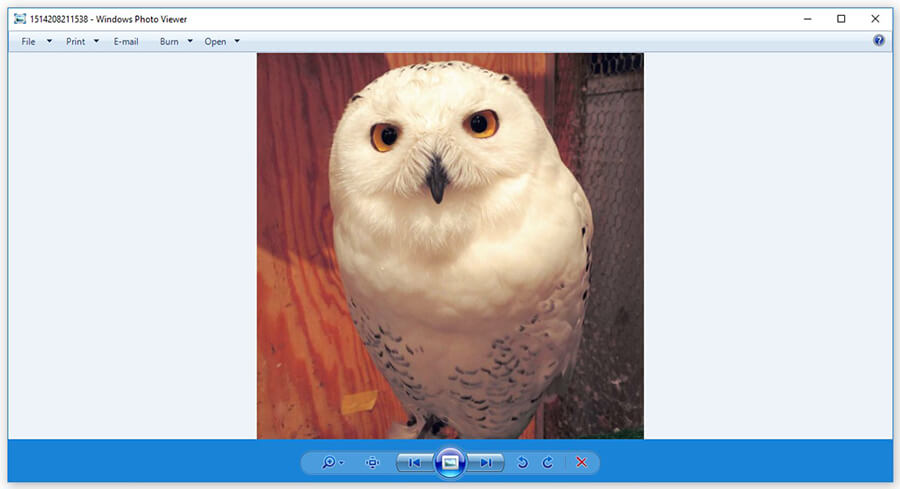
    now your photos can be displayed using Windows Photo Viewer

    Read more:

    Conclusion:

    The problem is not the presence of the Windows Photo Viewer application on Windows 10 occurs only if you do the installation again or encounter an error during installation.

    This application is the default application on Windows 7 and 8. If you want to upgrade to Windows, certain default applications will change.

    What is Windows Photo Viewer Windows 10?

    Windows Photo Viewer is an application for viewing photos on Windows.

    Why isn’t Windows Photo Viewer Windows 10?

    Because it has been removed, but of course, you can still return it if you want.
  • 7 Ways to Restore Deleted Files on Windows Defender (Quarantine) 2025

    7 Ways to Restore Deleted Files on Windows Defender (Quarantine) 2025

    7 Ways to Restore Deleted Files on Windows Defender (Quarantine) – If you are looking to restore deleted files on Windows? then properly follow this guide. Windows Defender is a security feature found on the Windows operating system. This feature is also known as Windows Security and acts as the default antivirus Windows 10.

    How to Restore Deleted Files on Windows Defender
    How to Restore Deleted Files on Windows Defender

    How to restore deleted files on Windows Defender (Quarantine)

    When a file is detected as a virus or malware, Windows Defender will delete it automatically, even though sometimes the file is the file we need.

    Read more:

    You will get a pop-up notification when this happens, which reads “ Virus & threat protection. Threats found. Microsoft Defender Antivirus found threats. ”

    Files that have been deleted by Windows Defender can still be recovered. The file is entered into the Quarantine directory. It is in this directory that all files deemed to contain malware will be stored.

    In this article, we will discuss how to restore files that have been subject to Windows Defender’s Quarantine and how to prevent them from being spared back on the files we still need.

    How to restore deleted files on Windows Defender (Quarantine)

    #1. Enter the Settings menu

    The first step is to enter the Settings menu by clicking on the Windows button> selecting Settings.

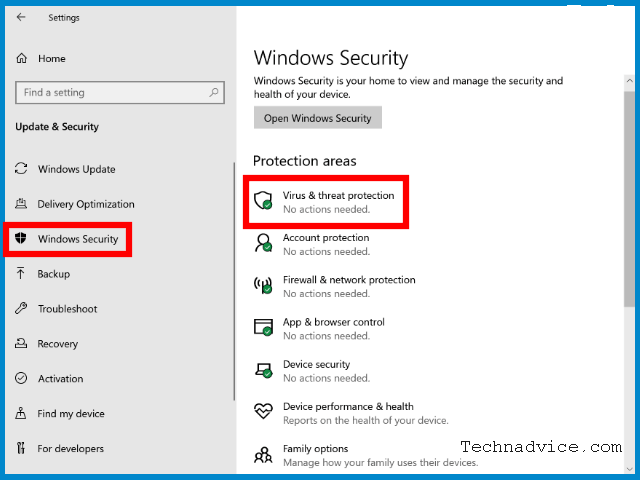
    #2. Select Update & Security

    Then select the Update & Security menu.

    #3. Click the Windows Security tab

    Once the settings window opens, click on the Windows Security tab.

    #4. Select the menu Virus & threat protection

    In the right panel, click on the menu Virus & Threat Protection.

    Virus & threat protection

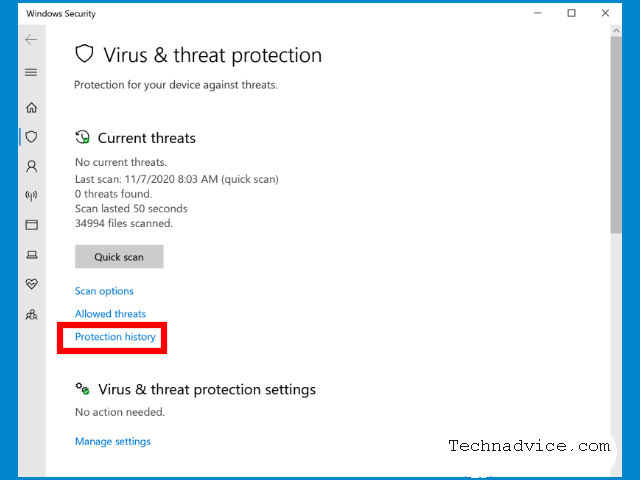
    #5. Click on Protection history

    Then under the menu, Current Threats click on Protection History.

    Protection history

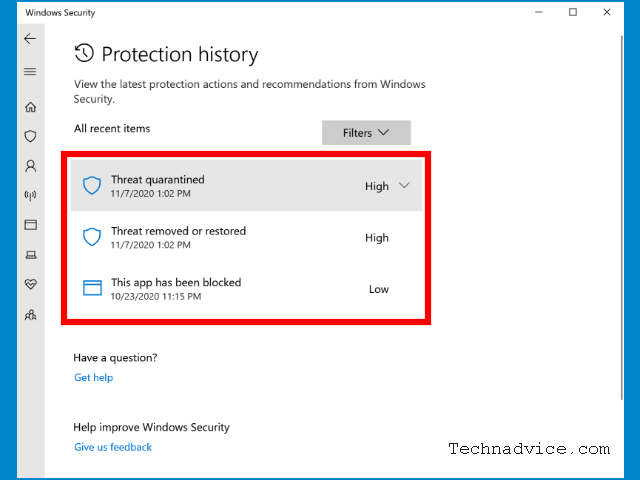
    #6. Select the files you want to restore

    The files in the Quarantined Windows Defender list will appear. There you will find deleted files.

    Click on the file> a UAC window will appear> click Yes.

    Select the files you want to restore

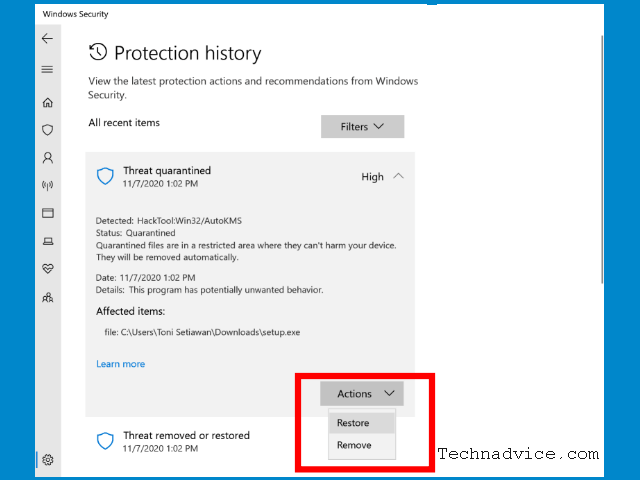
    #7. Click the restore button

    The final step to restore deleted files is to click on the Action button > select Restore.

    Click the restore button

    The file will return to its original location.

    How to prevent files from being deleted by Windows Defender

    Windows Defender will continue to work automatically to detect files that are considered to contain malware, both on local storage and from flash drives and external hard disks connected to the laptop.

    Every time you use a flash disk, for example, Windows Defender will automatically scan the files in it.

    If there is a file that is considered dangerous, it will automatically be exposed to the Quarantine and deleted from the flash. This is useful for preventing viruses from the flash from entering the computer.

    Likewise, when downloading files from the internet, especially programs that have an executable (.exe) extension, whenever the program is considered to contain malware it will be automatically deleted.

    To prevent this from happening, we can exclude certain directories so that Windows Defender does not scan there.

    It is possible to completely turn off Windows Defender, but this is not recommended considering its function as one of the best antivirus Windows 10 which is powerful to prevent viruses from entering the computer.

    Follow these steps to prevent files deleted by Windows Defender Windows 10:

    1. Click the Windows button
    2. Select Settings
    3. Select Update & Security
    4. Click on the Windows Security tab
    5. Select Virus & threat protection
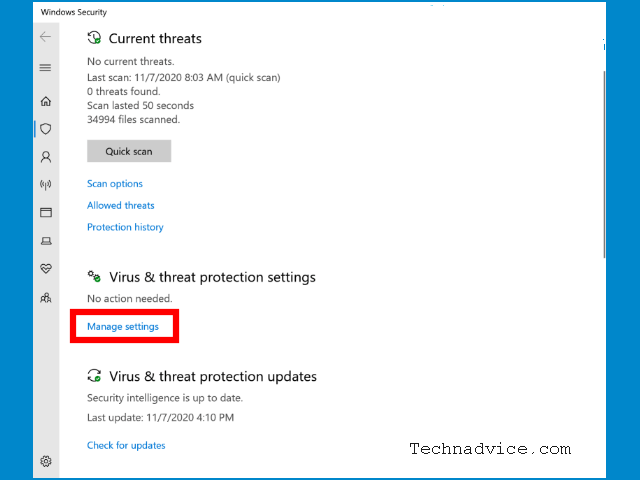
    6. Select Virus & threat protection settings, click Manage settingsHow to prevent files from being deleted by Windows Defender
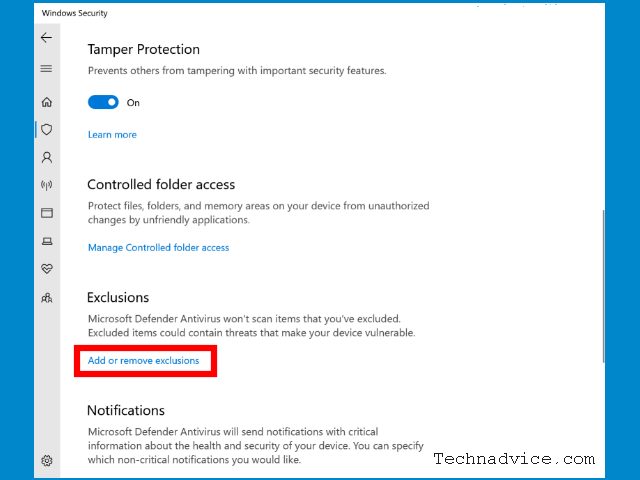
    7. In the Exclusions, section click on Add or remove exclusionsAdd or remove exclusions
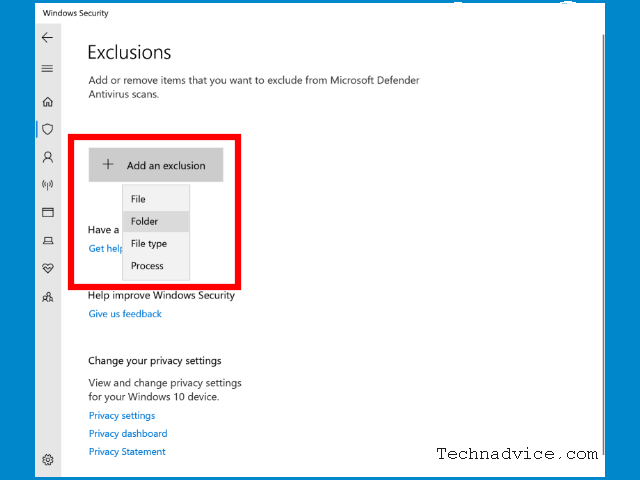
    8. Click the Add an exclusion button then select FolderAdd an exclusion button then select Folder
    9. Select the Folders you want to exclude from the Windows Defender scan
    10. Add other locations such as flash and external hard disks by repeating steps 8-9

    Windows Defender Quarantine file storage location

    Some users may also have questions about the files that Windows Defender Quarantine will move to where.

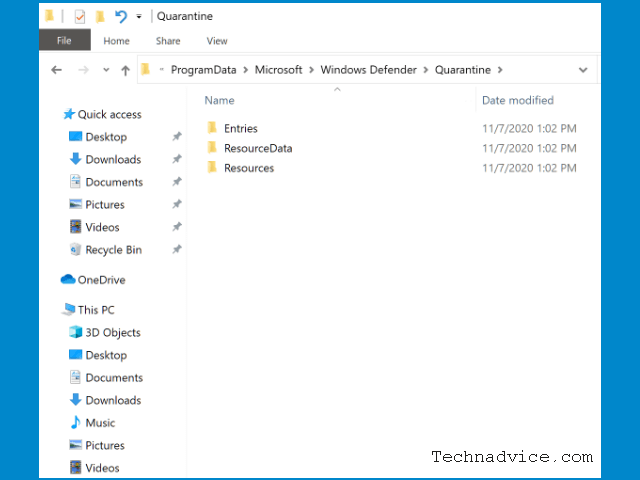
    Please note, that deleted files with Quarantined status are not deleted by Windows Defender. The file is still stored in an altered form for security purposes.

    You can find it in the directory:

    C: \ ProgramData \ Microsoft \ Windows Defender \ Quarantine

    Windows Defender Quarantine file storage location

    The Program Data folder has a hidden attribute by default, to bring it up you must change the setting to show hidden files, click the View menu in Explorer then check the Hidden items option.

    If you try to open the files in the Quarantine directory then their shape is no longer like the original file, but has changed and can no longer be opened in the normal way.

    Read more:

    Conclusion:

    So, friends, that’s above how to restore deleted files on Windows Defender, In other words, the files in the Quarantine directory have been “tamed” so that they can no longer be executed by the user.

  • 12 Ways To Restore Deleted Files on Windows 10 PC 2025

    12 Ways To Restore Deleted Files on Windows 10 PC 2025

    12 Ways To Restore Deleted Files on Windows 10 PC – How to restore deleted files on the laptop? We know in theory that something that has been deleted or deleted in a certain place cannot be returned. But what if this has already happened to our laptops?

    How to Restore Deleted Files on Windows 10 PC Laptop
    How to Restore Deleted Files on Windows 10 PC Laptop

    How to Restore Deleted Files on Windows 10 PC Laptop

    If we use a laptop or computer when we press the delete button the file will be deleted. There are two conditions, delete then enter into the trash or recycle bin, and delete permanently. Usually, if you delete it permanently, you need to press the shift key so that it can be deleted permanently and not in the recycle bin.

    Read more:

    Here are two types of ways to restore deleted files on a laptop. Check out the steps and how well.

    How to Restore Deleted Files on Windows 10, 8, and 7 Laptops

    We can use this method for Windows systems, from Windows 7, and Windows 8 / 8.1 to Windows 10. Using the default Recycle Bin from Windows we can restore files that were temporarily deleted. Follow these steps:

    #1. With the Recycle Bin Default Application

    • First, we find the file we need, remember the file name, and write it in the search field.

    With the Recycle Bin Default Application

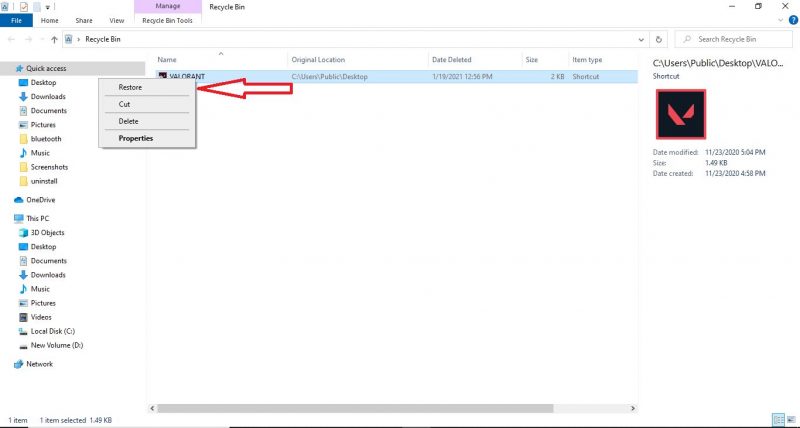
    • If you have found it, we try to right-click on the file and select the option ” Restore ” so that the file returns.

    With the Recycle Bin Default Application

    • If we have practiced the steps above, the system will automatically restore our files to the previous place where the files were deleted.

    There are some desktop cases, sometimes we can’t find the Recycle Bin icon. For that, we need a way to bring it up. Let us right-click the mouse on the desktop, then select the option ” View ” and select ” Show desktop icons “.

    #2. Using Backup and Restore

    First, use the default application from your laptop, namely Backup, and Restore. Come on, see the steps below:

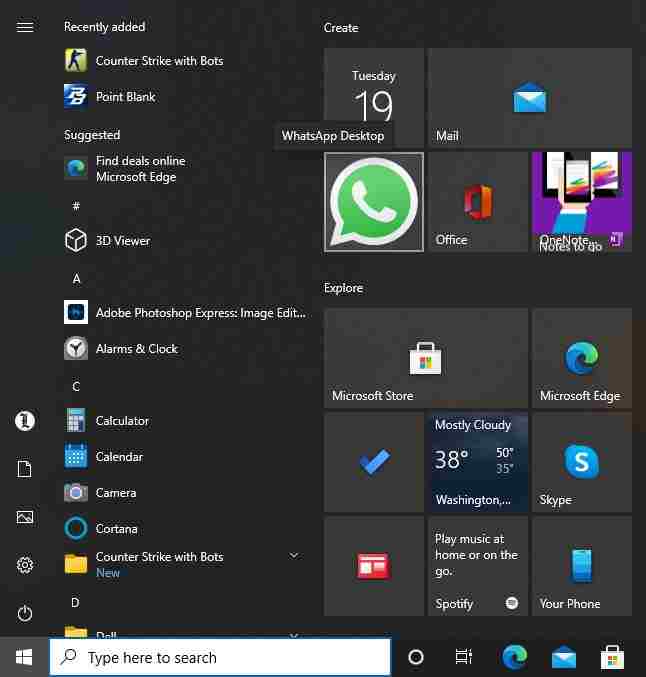
    • First, we open the ” Start ” menu or we can open it with the Windows key on the keyboard.

    Using Backup and Restore

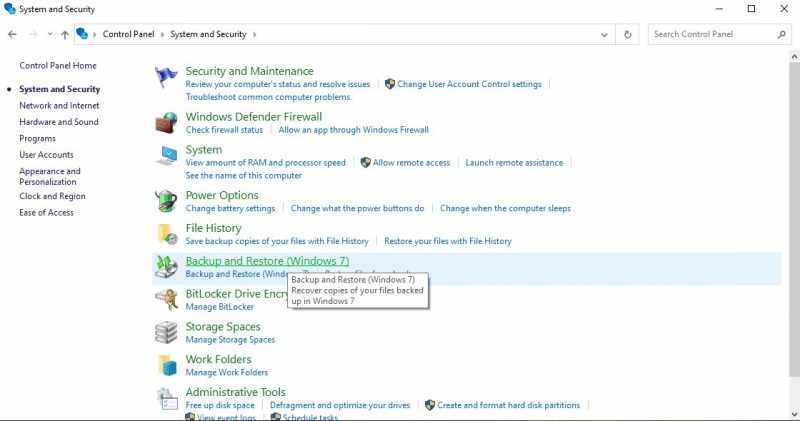
    • We select Control Panel or we look for the search bar and type ” control panel “

    Using Backup and Restore

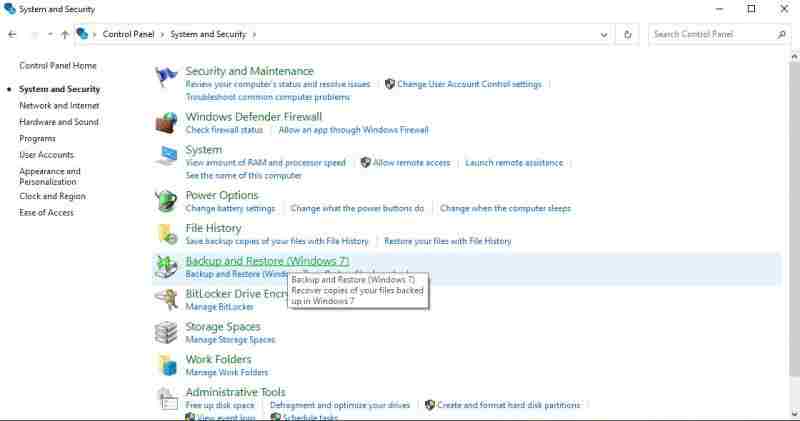
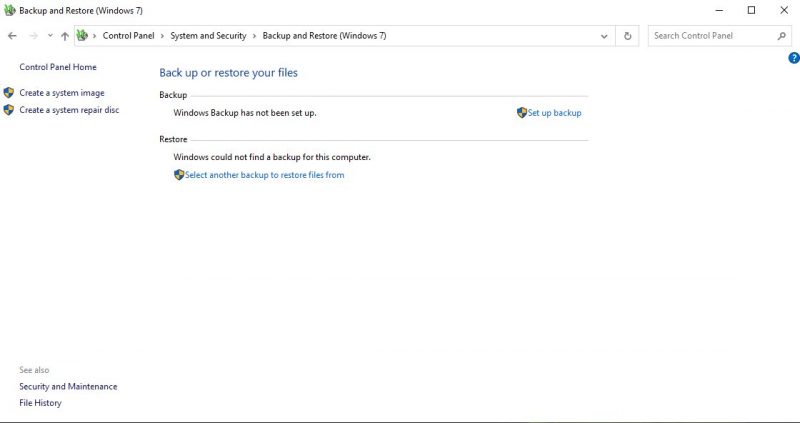
    • Then we select the option ” System and Maintenance ” and then select ” Backup and Restore “

    Using Backup and RestoreUsing Backup and Restore

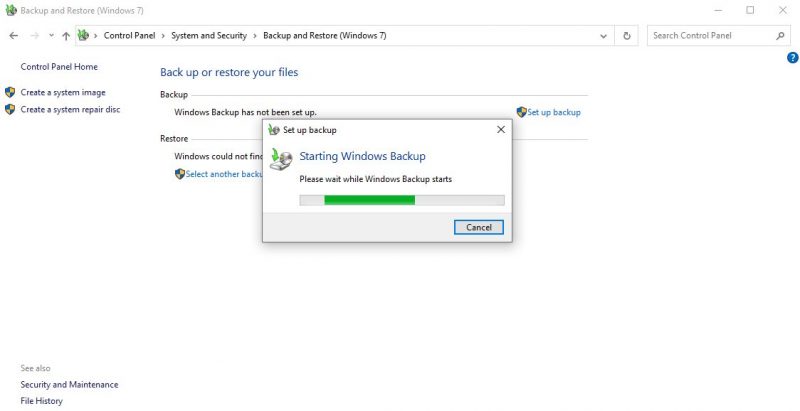
    • Finally, we click ” backup ” then wait until the process is complete, then the deleted files will come back and finish.

    Using Backup and Restore

    How to restore permanently deleted files on Windows 7, 8, and 10 laptops

    #1. The Restore Previous Versions method

    If you are using a laptop with Windows 7, 8, or 10, you can restore permanently deleted files by restoring the previous version. But, make sure your File History feature is active beforehand.

    How to restore the file starts by looking for the folder where files or folders have been permanently deleted. Right-click on the folder and select the option Restore previous versions.

    You will see a list containing the various versions of the file or folder. Select the most recent version and click Restore to restore permanently deleted files.

    How to Restore with Recuva Application

    #1. Install the Recuva application

    • In order to be able to restore a file that was permanently deleted on a laptop, we need help from a recovery application. There are many choices of applications for internet searches, but this time we will use the Recuva application to handle this case.
    • For that, we need to download the application at the following link: Download Recuva
    • Take it easy, we can use this application for free without the need to pay. We just need to download and install the free version.

    #2. Open the application to start recovering deleted data

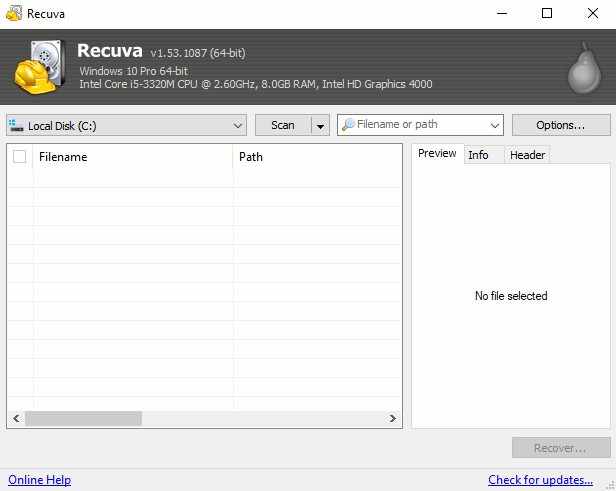
    • After we finish downloading and installing the application, we just run the application. We will see the main view of the Recuva application as shown below:

    Open the application to start recovering deleted data

    #3. Select the location of the drive where the file will appear again

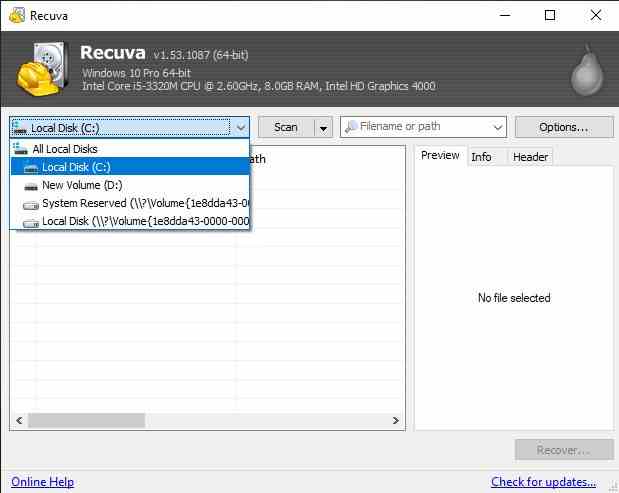
    • We focus on the top tab, there will be a button to select the drive that is on our computer or laptop to be the location for permanently deleted files.
    • Adjust the location of the drive to the location of data that has been permanently deleted, for example on drive C, then select Local Disk (C :).

    Select the location of the drive where the file will appear again

    #4. Type the name of the missing file, if possible

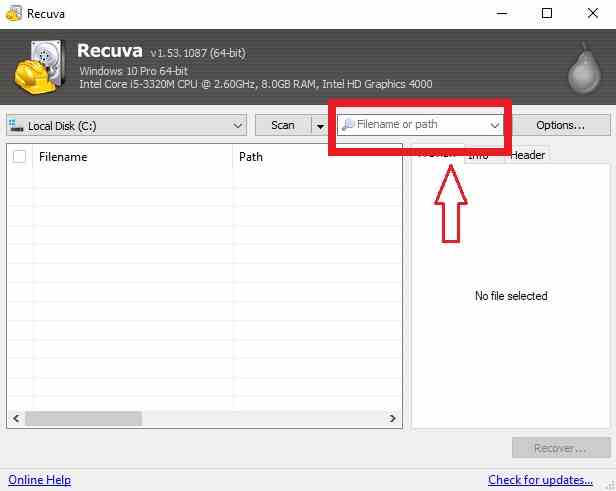
    • We go to the Filename or path tab, if we still remember the file name that was deleted then type the file name. If we do this it will make the recovery process easier for us to do. If you don’t remember then we just leave it blank.

    Type the name of the missing file, if possible

    #5. Start Scan

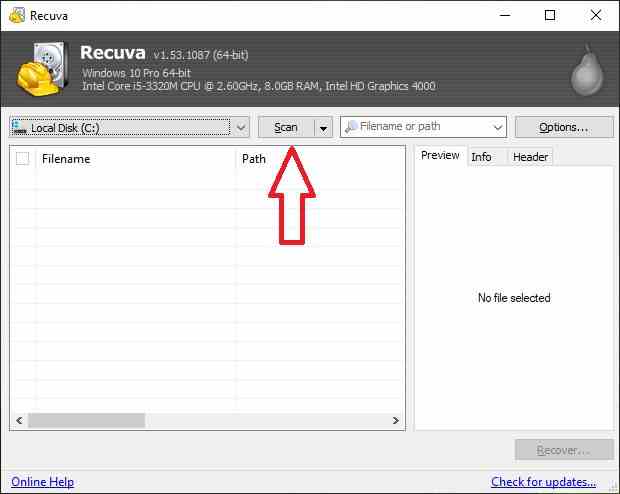
    • Next, we will start the scanning process. Click the Scan button so that the process of searching for deleted data starts the process.
    • The scanning process will take a lot of time, it depends on the capacity and ability of the drive to scan data. Until the process is complete.

    Start Scan

    #6. Select the files that we will restore

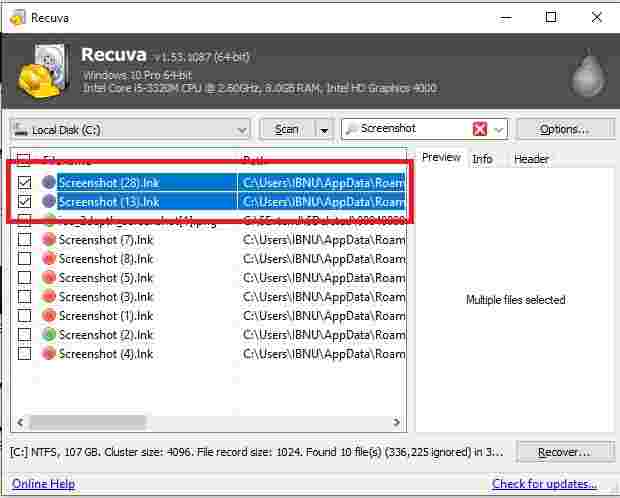
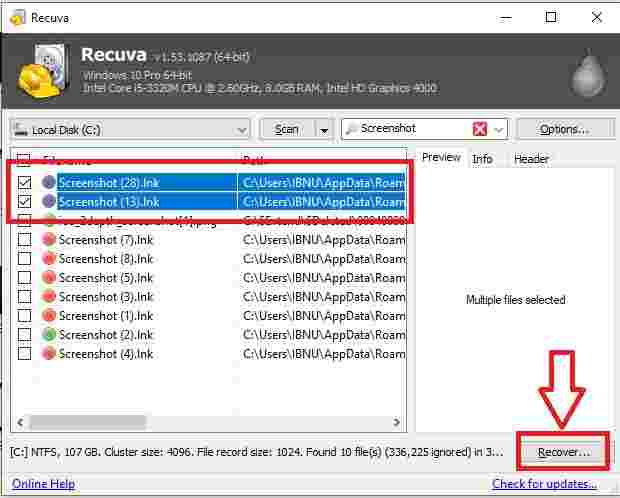
    • When the scanning process has been completed, the deleted files will appear. Look for the file that we will return to again or that we need.
    • We can also select more than 1 file at once by checking which files we want to restore.

    Select the files that we will restore

    #7. Click the Recover button

    • When we have selected the files that we will restore, then we click the Recover button at the bottom right to start the recovery process or restore deleted data.

    Click the Recover button

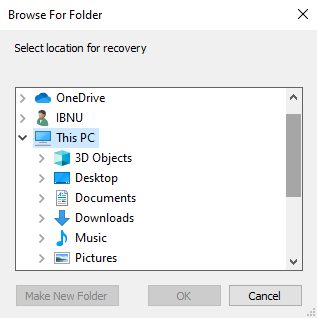
    #8. Select a location to save the file

    • Next, we choose a location to save the file that we recovered earlier. When finished selecting the storage location we click OK.

    Select a location to save the file

    #9. Check the file whether it is still functioning properly or not

    • Permanently deleted files will reappear and be saved according to the storage location that we specified in the previous process. First, check whether the file can still be used again or not.

    Note : We can use the method above to recover various types of files that were permanently deleted on a laptop, as follows:

    • Images (jpg, jpeg, png, gif).

    • Video (mp4, avi, mkv).

    • Documents such as word (docx) excel (xls) powerpoint (pptx) text (txt).

    • Programs or applications (exe) and various other file types.

    Easy Tips to Restore Files so They are Not Damaged

    Our files that have not been deleted for too long are usually easy to return to normal or as before. However, we will find damaged files that we restore, which usually happens when we restore them for too long so our files will be difficult to read or corrupt.

    Then how do we deal with this kind of thing?

    There is nothing but we have to recover our data quickly or don’t wait too long to recover it if it is our important data. Because files that have been deleted for too long will find it difficult to return or recover even though we use paid applications.

    How long is the time limit for deleted files so that they can be recovered without being damaged?

    Just as previously explained, files that have been deleted over a long period of time will usually be difficult to recover properly. Even though for example, we can find the file with the Recuva application, usually the file will be corrupt or have an error.

    But it’s not really how long the files have been deleted or lost. However, how long have we used or operated our laptops after our files have been deleted or lost? Because of the higher activity of ‘writing’ or filling new data on our disk or laptop storage, there is little chance that the files we are looking for will be able to return perfectly.

    An easy example is when we delete a video file one day, then it turns out we need it 1 year later, if our laptop has not been used or used for 1 year, then we can recover the file perfectly. It’s a different story if we have operated our laptop for 1 month after the video file was deleted. Then it will be difficult to recover it completely.

    Can this method be used for files that are overwritten or replaced?

    Apart from being deleted, files on your computer are often overwritten by other files with the same name. Sometimes this happens to files that are quite important to us, such as task files or work files.

    Can you use this method to restore it?

    Of course, you can, we don’t need to worry if there are files that are overwritten on the laptop. We only need to do the same steps as recovering lost data. Maybe this is the discussion of how to restore deleted files on a laptop.

    Conclusion:

    It’s important to note that the chances of successfully restoring deleted files decrease the longer you wait to take action. Therefore, it’s recommended to restore the files after deletion as soon as possible. Additionally, it’s always a good idea to regularly back up your important files to prevent data loss in case of accidental deletion or other issues.

  • 3 Easy Ways to Fix Can’t Type WiFi Password in Windows 10 [2025]

    3 Easy Ways to Fix Can’t Type WiFi Password in Windows 10 [2025]

    3 Easy Ways to Fix Can’t Type WiFi Password in Windows 10 – Some Windows operating system users keep asking what should they do when they can’t type a Password in Windows 10.

    3 Easy Ways to Fix Can't Type WiFi Password in Windows 10How to Fix Can’t Type WiFi Password in Windows 10

    Some of the known causes are an installation problem, or a hardware error, which can be resolved by a hard reset or using a troubleshooter.

    Read more:

    Because we don’t know if this error is on our hardware/software, so you should try the steps below to solve it:

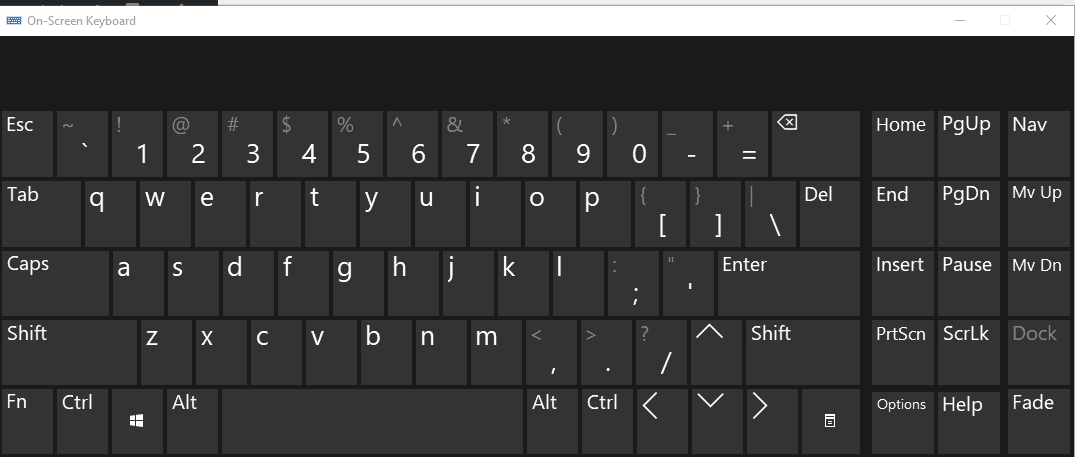
    #1. Use On-Screen Keyboard

    First, you can try using the On-screen keyboard. An on-screen Keyboard is a tool provided by Windows 10 to display the keyboard on your computer screen. Here are the steps to enable the on-screen keyboard:

    You can follow the article above to be able to activate the on-screen keyboard.

    Use On-Screen Keyboard

    After the on-screen keyboard is active, try typing the wifi password you want to enter.

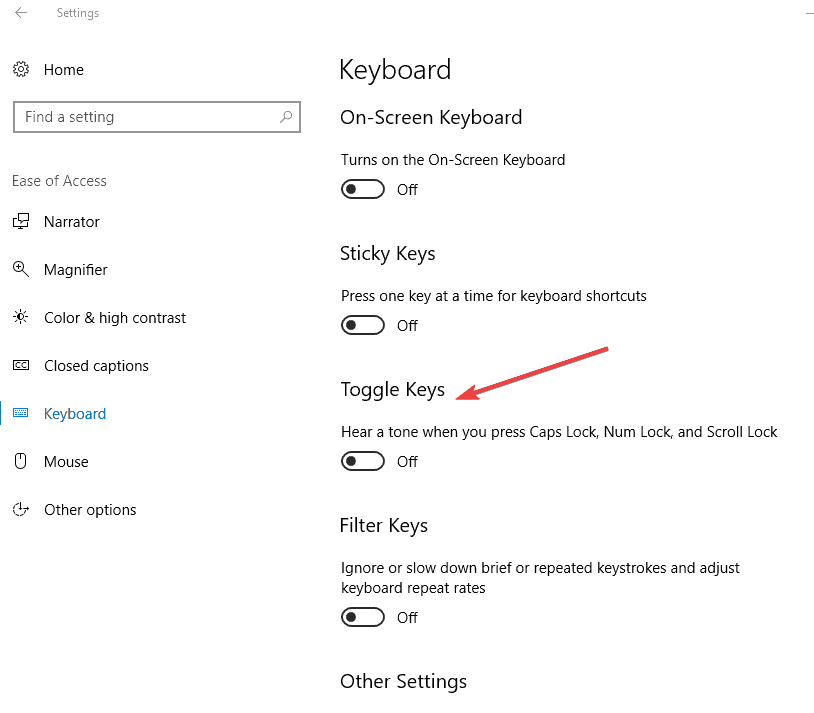
    #2. Turn off the Toggle and Sticky keys

    Sometimes Sticky Keys can prevent you from typing your password, so you may need to disable the function. Here are the steps to disable it:

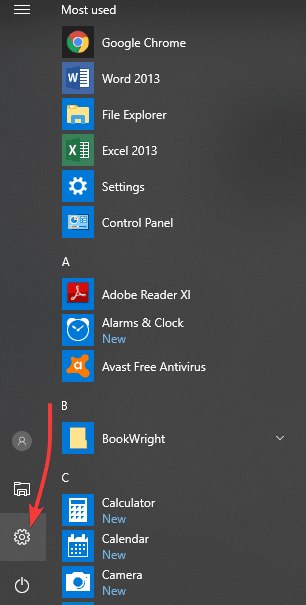
    • Click the Windows Logo at the bottom left
    • Select Settings
    Turn off Toggle and Sticky keys
    • Choose Ease of Access
    • Click Keyboard
    • and navigate to the Toggle Keys feature
    • And make sure Toggle Keys are disabled
    Turn off Toggle and Sticky keys

    After deactivating please try typing the wifi password again.

    #3. Uninstall and Reinstall the Keyboard

    After checking on the software side, we next check on the hardware side. Make sure the keyboard you are using is in good condition and there are no error keyboard keys.

    You can try removing and reinstalling the keyboard on the computer and make sure that the keyboard is properly seated.

    The problem of not being able to type the WiFi Password in Windows 10 can be caused by the keyboard or the security of the wifi which when we type the password, the password is not visible. So you have to make sure of this too.

    Conclusion:

    This is an article related to 3 easy ways to fix can’t type WiFi passwords in Windows 10. I hope this article is useful for you.

  • How to Settings Windows 10 Start Menu Laptop PC 2025

    How to Settings Windows 10 Start Menu Laptop PC 2025

    How to Settings Windows 10 Start Menu Laptop PC – The Start Menu in Windows 10 comes with a more modern look than its predecessor and more complete functions that tend to be easier to use.

    How to Settings Windows 10 Start Menu Laptop PC
    How to Settings Windows 10 Start Menu Laptop PC

    How to Settings Windows 10 Start Menu Laptop PC

    On the Start Menu, there are shortcuts to the applications on your computer organized into folders and tiles. From there you can also access all programs and directories in Windows 10, open PC Settings, sign out, lock the screen, sleep, and even turn off the computer.

    Read more:

    If you often use the Start Menu to access applications while working, then the following tips will be useful for you.

    How to set the Windows 10 Start Menu

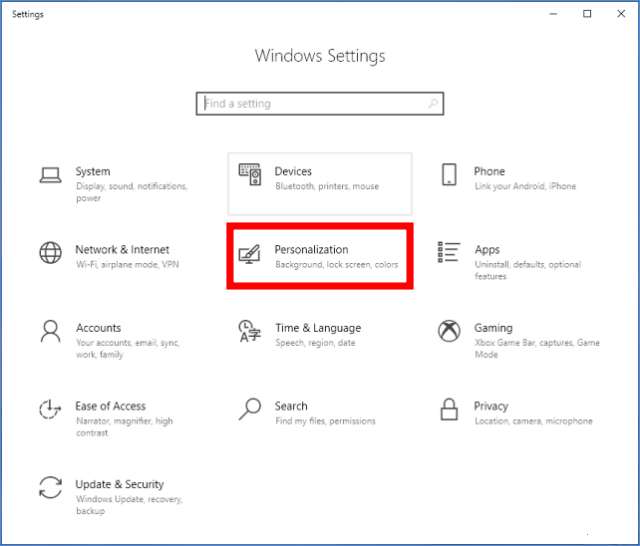
    1. Enter Windows Settings

    2. Select the Personalization menu

    Enter Windows Settings
    Enter Windows Settings

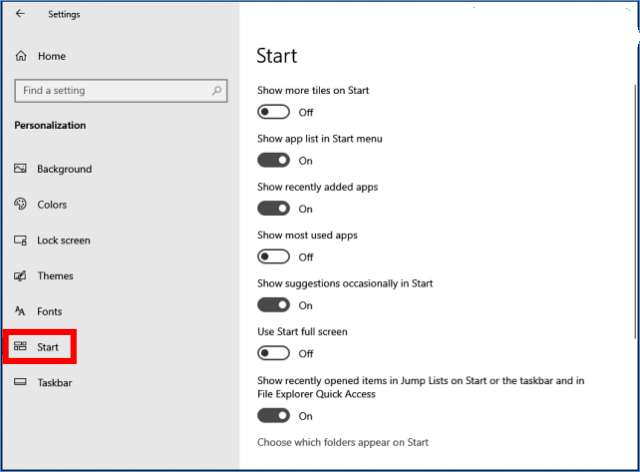
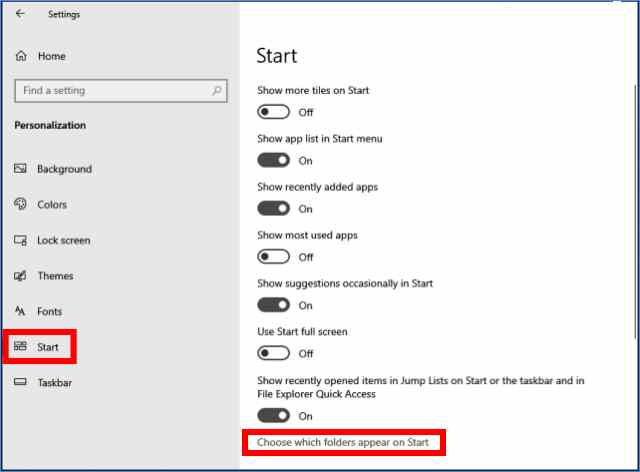
    3. Click on the Start tab

    Click on the Start tab
    Click on the Start tab

    4. Select Show More Tiles on the Start

    The first option is to Show more tiles on Start, if it is turned on, the number of applications displayed on the tile panel will be more. Please choose to turn it on (On) or off (Off).

    5. Select Show app list in the Start menu, recently added apps, and most-used apps

    Then you can choose to remove or bring up the following options:

    Show app list in the Start menu: serves to display all applications in Windows 10 based on alphabetical order.

    The show recently added apps: to display recently installed apps.

    Show most used apps: to display the applications most frequently used.

    6. Select Show Suggestions occasionally in Start

    Turn off this option to remove suggestions and tips from Microsoft that appear on the Start Menu.

    7. Use Start fullscreen

    Enable this option if you want to display the Start Menu in a full-screen window.

    8. Select show recently opened items

    Turn off this option to clear the history of recently opened files and applications, both in the Start Menu and in File Explorer.

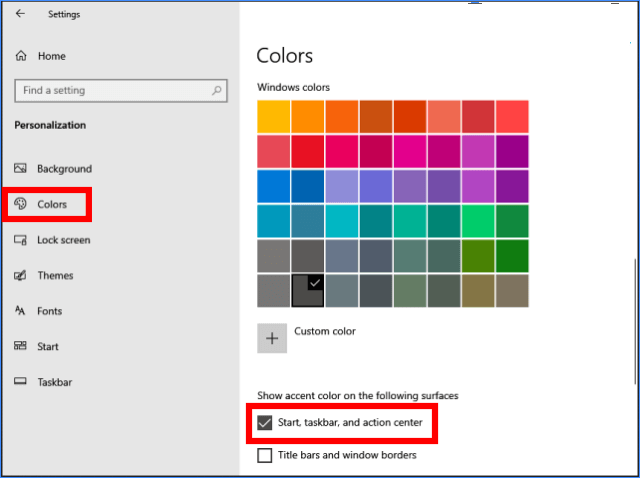
    9. Change the Start Menu color as desired

    You can also adjust the Start Menu color as you wish. The trick is to click on the Colors tab > Select the desired color> check the Start, taskbar, and Action Center options.

    Change the Start Menu color as desired
    Change the Start Menu color as desired

    How to organize applications on the Windows 10 Start Menu

    The apps displayed on the tile panel in the Start Menu are automatically selected by the system from the first time you install Windows 10. Adding applications to the Start Menu or adjusting its position must be done manually.

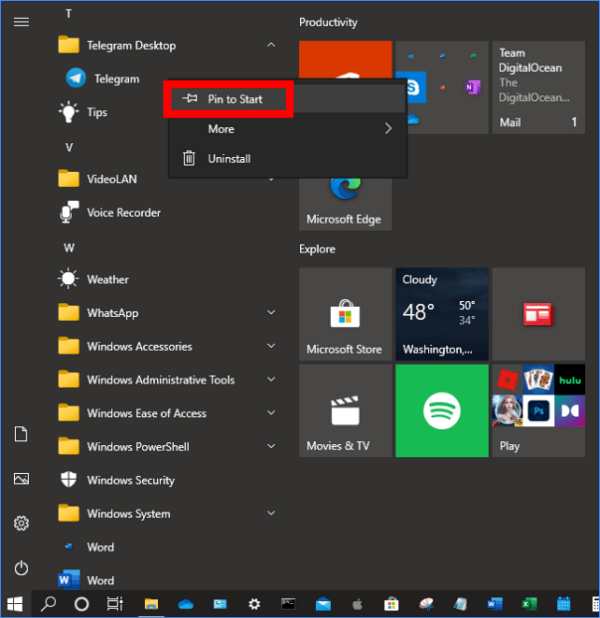
    #1. Adding applications to the Start Menu

    1. Open the Start Menu by clicking the Windows icon or pressing the Windows key on the keyboard

    2. Find the application you want to add to the Start Menu on the applications pane

    3. Right-click on the application icon and select Pin to Start

    Adding applications to the Start Menu
    Adding applications to the Start Menu

    4. Move the position as you wish by drag and drop

    5. Repeat the above steps to add more applications to the Start Menu

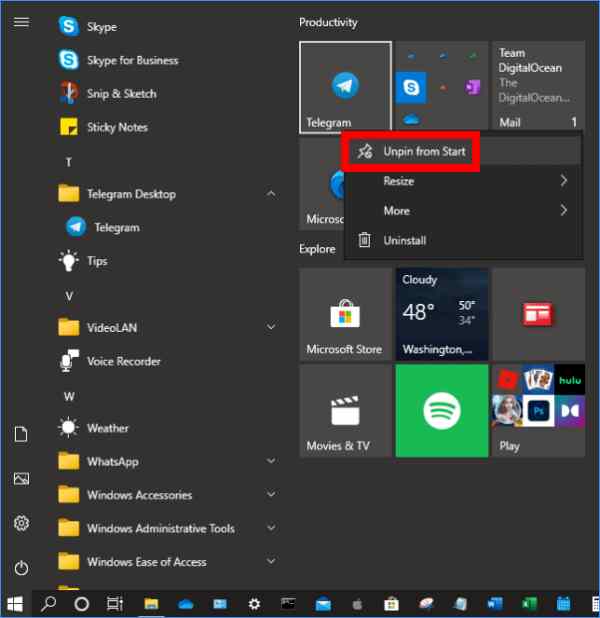
    #2. Remove applications from the Start Menu

    You can also delete applications in the Start Menu panel as desired. Applications that are considered very rare or even never used should be deleted and replaced with the applications that you use the most.

    Follow these steps:

    1. Click the Windows icon to open the Start Menu

    2. Right-click on the application you want to remove

    3. Select Unpin from Start

    Remove applications from the Start Menu
    Remove applications from the Start Menu

    4. Continue the above steps to remove other applications

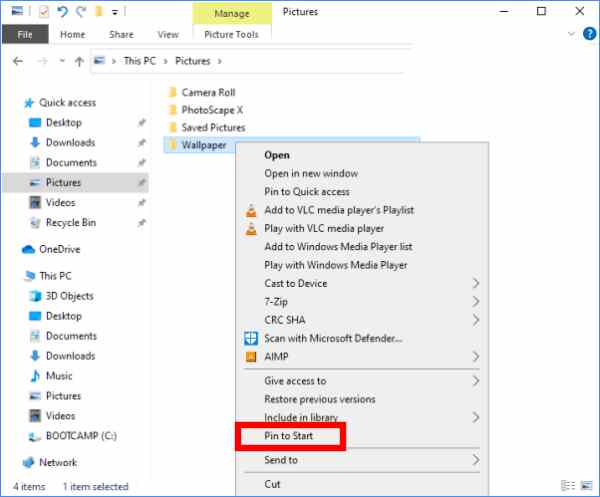
    #3. Add and remove folders in the Start Menu

    The Start Menu in Windows 10 can also be used as a place to store shortcuts to certain folders on your computer. You can use this shortcut to quickly access folders, especially if the folder is located in a deep directory.

    Follow these steps:

    1. Open a file explorer

    2. Go to the location of the folder

    3. Right-click the folder

    4. Select Pin to Start

    Add and remove folders in the Start Menu
    Add and remove folders in the Start Menu

    5. The folder shortcut will appear on the tiles panel

    You can also display user folders in the toolbar panel on the Start Menu. You do this by going to Settings > Personalization > Start > Choose which folder appears on Start. After that check which folders you want to appear.

    Add and remove folders in the Start Menu
    Add and remove folders in the Start Menu

    #4. Change the icon size in the Start Menu

    If you want to include lots of apps on the Start Menu then you need to resize them so that they fit on the tiles panel.

    To change the icon size, right-click on the icon > select Resize > select the desired size.

    There are four types of sizes that you can choose from, namely Small, Medium, Wide, and Large. You can adjust the application icon size

    Moves the Start Menu application shortcut to the desktop

    Each newly installed application will usually provide an option on whether the user wants to display a shortcut on the desktop or not. This shortcut will be used to open the application.

    However, some applications on your computer may not have shortcuts on the desktop. If the application is used frequently enough then you can use the Start Menu to create a shortcut.

    Follow these steps:

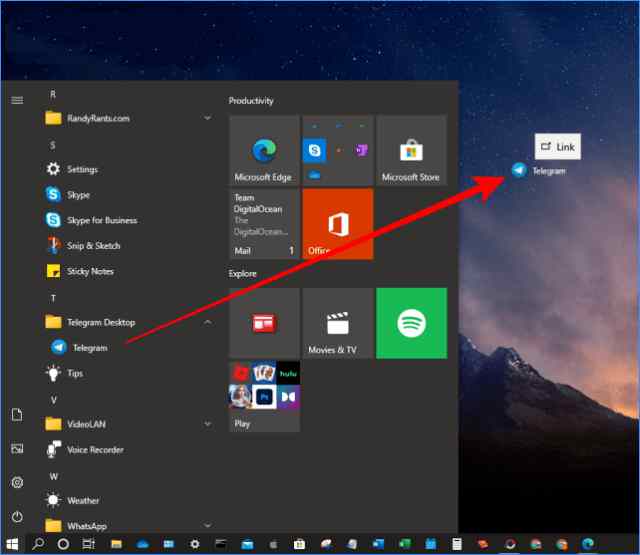
    1. Open the Start Menu

    2. Find the application for which you want to create a desktop shortcut

    3. Drag and drop the application icon to the desktop

    Moves the Start Menu application shortcut to the desktop
    Moves the Start Menu application shortcut to the desktop

    Read more:

    Conclusion:

    This is the explanation of how to settings the Windows 10 start menu laptop PC. You can find all the applications on the computer collected in the Start Menu, so you can easily create any shortcuts, including system default programs such as Control Panel, On-screen keyboard, Command Prompt, and so on.