Category: Windows

Windows – Here you can find Computer-related updates Windows 10, Windows 8, Windows 7, Linux, technology information, and more.

  • 10 Ways To Fix Windows 10 Can’t Connect To This Network 2025

    10 Ways To Fix Windows 10 Can’t Connect To This Network 2025

    10 Ways To Fix Windows 10 Can’t Connect To This Network – When trying to connect a laptop to a WiFi network, we might get an error message Can’t connect to this network and we can’t connect to the network.

    How To Fix Windows 10 Can't Connect To This Network
    How To Fix Windows 10 Can’t Connect To This Network

    10 Ways To Fix Windows 10 Can’t Connect To This Network Windows 10 PC Laptop

    This problem is common among Windows 10 users. The reason could be a changed WiFi password, a configuration error, or a problem with the driver.

    Read more:

    To properly follow all the steps: fix Windows 10 can’t connect to this network.

    #1. Turn off the power saver on the WiFi

    The first tip you must try is to turn off the power saver feature on the WiFi adapter in Windows 10.

    This feature has the main function of turning off the adapter when the battery capacity is low and can cause it to fail when connecting the laptop to WiFi.

    Complete the following steps:

    First, enter the Control Panel, then select the Network and Sharing Center menu.

    Then click on the Change adapter settings tab.

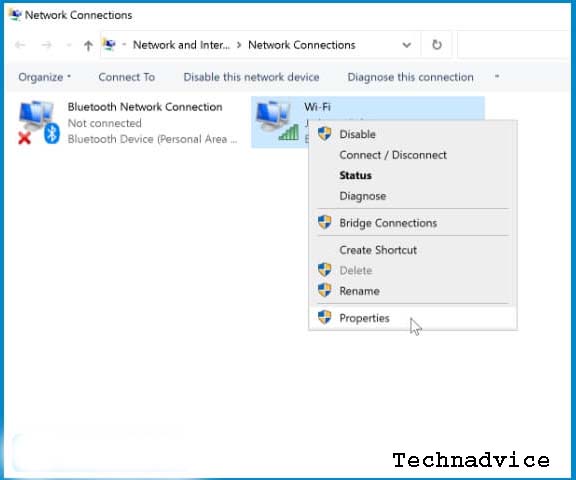
    There you will see the network adapter on your laptop. Right-click on the Wi-Fi adapter in use then select Properties.
    Turn off the power saver on WiFi

    In the Properties window click on the Configure button.
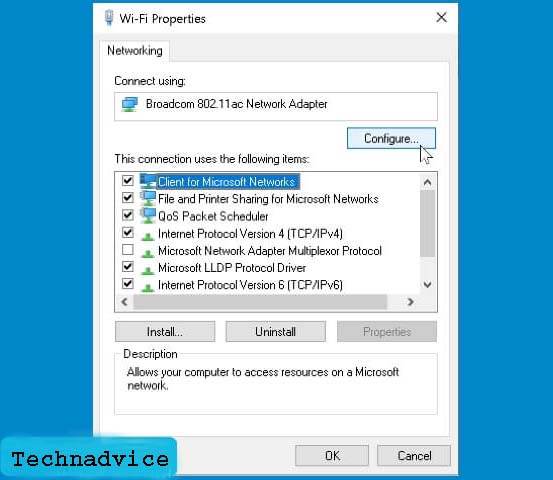
    Turn off the power saver on WiFi 2

    Then click on the Power Management tab > uncheck the option Allow the computer to turn off this device to save power.
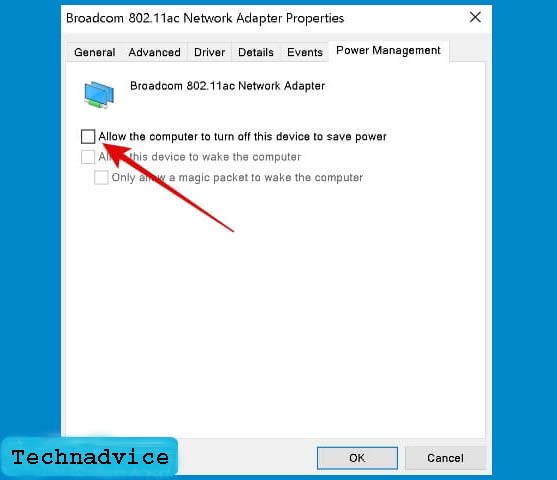
    Turn off the power saver on WiFi 3

    Click the OK button. Close all setup windows then restart your laptop. After restarting, try again to connect to the Wi-Fi network that was problematic, it should now work.

    #2. Restart the WiFi adapter

    Restarting the adapter may also help you troubleshoot WiFi Can’t connect to this network in Windows 10.

    Just like other devices in general, restarting the WiFi adapter will also have the same effect, namely to refresh the device and its configuration.

    Before trying anything else you need to do this one tip first.

    Follow these steps: fix Windows 10 Can’t Connect To This.

    First, enter the Control Panel, then select Network and Sharing Center.

    Click on the Change adapter settings menu.

    Right-click on the Wi-Fi adapter> select Disable.
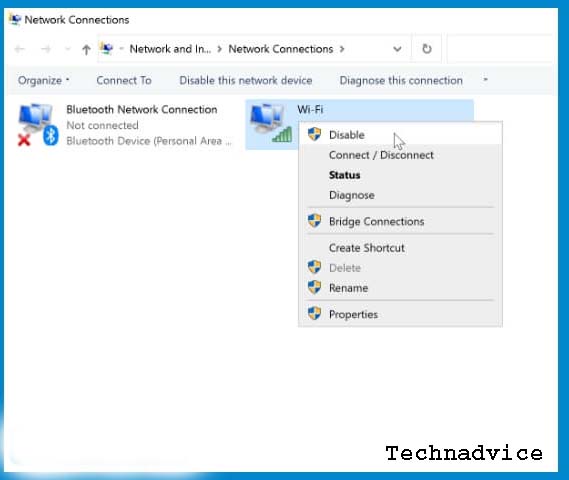
    Restart the WiFi adapter 1

    Wait a moment for the icon to turn gray, then right-click again and select Enable.
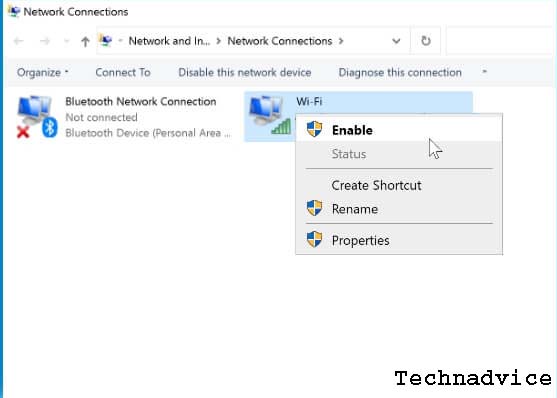
    Restart the WiFi adapter 2

    The adapter will turn back on. This disable-enable process will have a restart effect.

    #3. Check the ISP status used

    You also need to check whether the internet provider you are using is being interrupted or not. So the problem of the laptop not being able to WiFi is not always caused because there is an error on the laptop or device used. It could be if the internet provider is experiencing problems.

    To find out, you can use other devices to access the network in use. For example, using another smartphone, tablet, or laptop. You can also ask people who use the same provider.

    If the provider’s network is experiencing problems, there is nothing we can do but wait for the network to return to normal. Skip all the tips in this tutorial.

    #4. Forget WiFi

    When the hotspot changes the password, every device must also change the password if you want to use it. The problem is that sometimes the WiFi on the laptop doesn’t display a dialog to change the password.

    When we try to connect to the hotspot Windows keeps trying to use the old password, as a result, the connection fails.

    One of the easiest ways to overcome this is to use the forgotten feature to delete old passwords and configurations and create new ones.

    Follow these steps: fix Windows 10 can’t connect to this network.

    Enter the Settings menu > select Network & Internet.

    On the left panel click on the Wi-Fi tab > select Manage Known Networks menu.
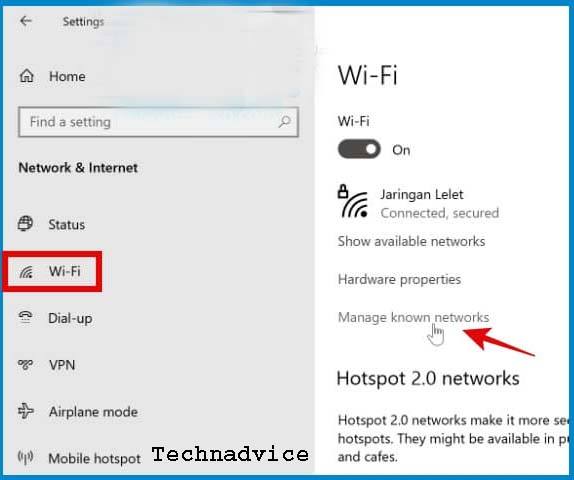
    Forget WiFi 1

    There you will see a list of all the Wi-Fi networks your laptop has connected to.

    Click on the Wi-Fi that is problematic> click on the Forget button.
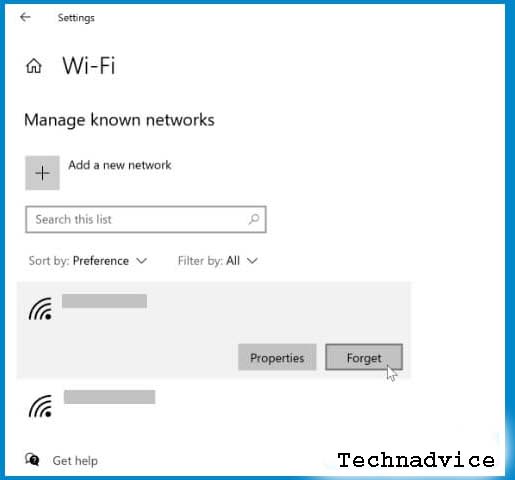
    Forget WiFi 2

    Close all setup windows, then reconnect to Wi-Fi by entering a new password.

    #5. Set IP Address and DNS to automatic mode

    Manually setting the IP Address and DNS can also cause an internet connection to fail using Wi-Fi on a laptop. If you are not very familiar with the theory, then using automatic IP and DNS is the best option.

    By default, the Wi-Fi settings in Windows 10 will be set automatically, but for some reason, you may change it to manual.

    Filling in the wrong IP and DNS will cause the internet to not be able to connect, sometimes it can be connected but the information No internet access appears. Therefore, to fix this we can return to automatic settings.

    Follow these steps: fix Windows 10 can’t connect to this network.

    Open Control Panel > Select Network and Sharing Center.

    Next, select Change adapter settings.

    Right-click on the Wi-Fi adapter> select Properties.

    Select Internet Protocol Version 4 (TCP / IPv4) > then click the Properties button.
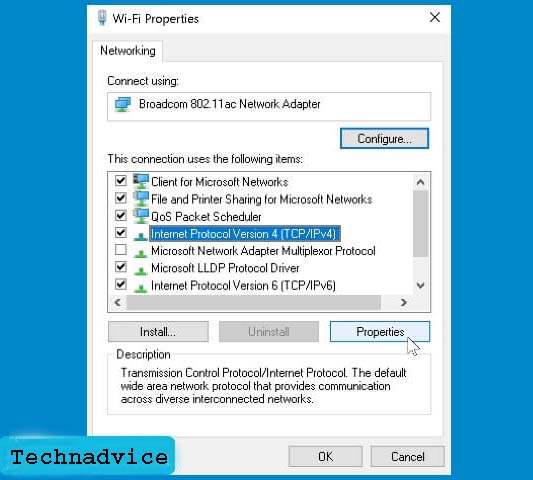
    Set IP Address and DNS to automatic mode 1

    Check the option Obtain an IP address automatically and Obtain DNS server address automatically.
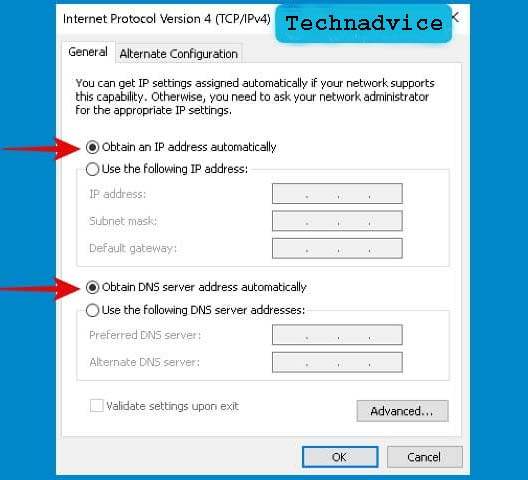
    Set IP Address and DNS to automatic mode 2

    Close all settings windows. Reconnect to the Wi-Fi network that was changed to automatic settings.

    #6. Reset network configuration via CMD

    Tips for dealing with laptops that Can’t connect to this network in Windows 10, which next is to reset the network using the command prompt.

    The occurrence of this problem can be due to many things, not infrequently it is caused by a configuration error that we are not aware of. The most effective way to solve this problem is to completely reset the network which can be done with cmd.

    Follow these steps: fix Windows 10 can’t connect to this network.

    Open the command prompt with administrator access permissions, how to click on the Windows key > type cmd > the Command Prompt program will appear> click on the Run as administrator option in the right panel.
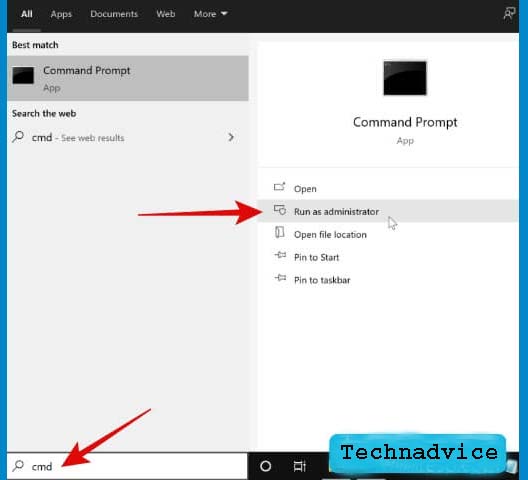
    Reset network configuration via CMD

    After the cmd program opens, type the following commands one by one end by pressing the enter key.

    netsh winsock reset

    netsh int ip reset

    ipconfig / release

    ipconfig / renew

    ipconfig / flushdns

    Explanation of the function of each command line above:

    • netsh winsock reset> restore Windows socket configuration (wsock32.dll) to default.
    • netsh int ip reset> reset TCP / IP configuration and restore it to its default state.
    • ipconfig / release> removes current IP configuration.
    • ipconfig / renew> Create a new IP configuration.
    • ipconfig / flushdns> clear DNS cache.

    When finished, restart your computer, then try again to connect to the problematic WiFi and see if this method works or not. If you still can’t, take the next step.

    #7. Run the Network Troubleshooter

    We can use the Network Troubleshooter in Windows 10 to find out what is the cause of the WiFi problem. This feature will perform a diagnosis automatically and provide recommendations on what to do to fix it.

    Follow these steps: fix Windows 10 can’t connect to this network.

    First, open Settings > select Update & Security > click on the Troubleshoot tab > click on the Additional troubleshooter’s menu.
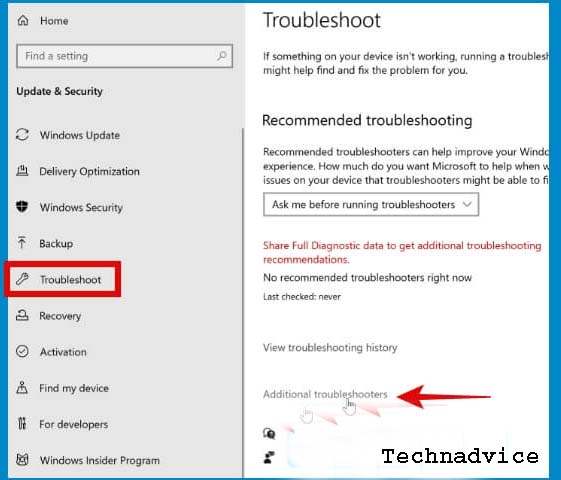
    Run the Network Troubleshooter 1

    Click on Internet Connections > click the Run the troubleshooter button.
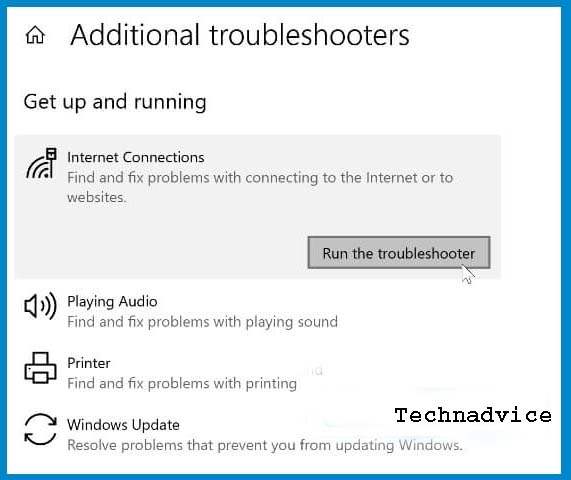
    Run the Network Troubleshooter 2

    Wait until the troubleshooter has finished making a diagnosis, then you will see the problems that were detected and recommendations for fixing them. Follow the next steps according to what is recommended by the troubleshooter.

    Then click on Network adapters > click the Run the troubleshooter button.
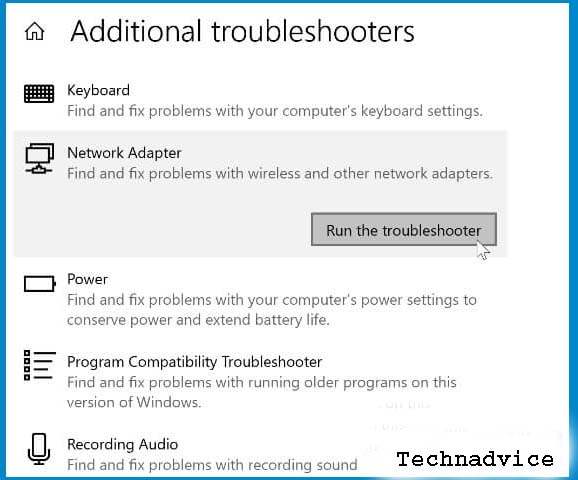
    Run the Network Troubleshooter 3

    Make repairs according to the recommendations given by the troubleshooter.

    #8. Restart and reset the router or modem

    You may also need to restart and reset the router or modem used to solve this problem.

    Restarting and resetting are different. To restart you simply turn off the device and then turn it back on.

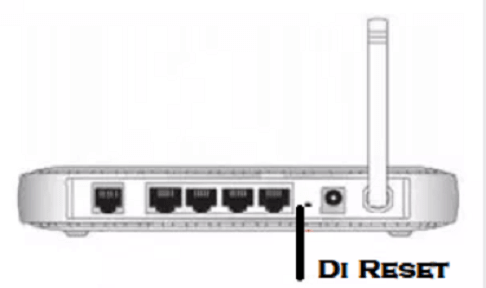
    How to reset it depends on the type and brand of modem used. You can see how in the manual that was at the time of purchase or visit the official website.

    #9. Reinstall the driver

    The next step that needs to be done is to reinstall the driver to refresh the driver file and replace the old one with the new one. The reinstall process will be carried out automatically, so you don’t have to bother looking for drivers manually.

    Follow these steps: fix Windows 10 can’t connect to this network.

    Open the Device Manager by pressing the Windows key + R on the keyboard> then typing devmgmt.msc > click OK.

    Click the little arrow on the device Network adapters > find the WiFi driver on your laptop> right click> select Uninstall device.
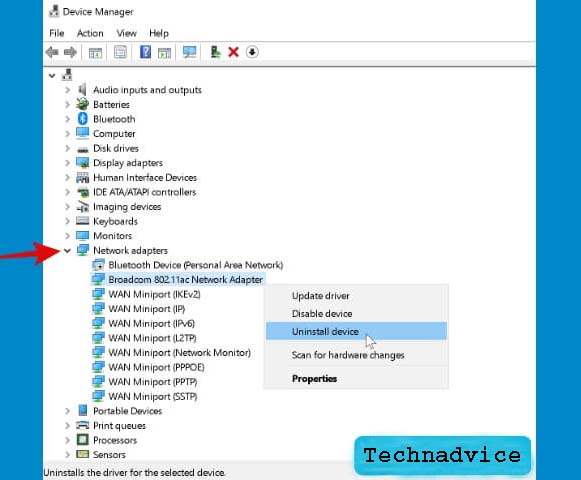
    Reinstall the driver

    After that restart the computer. After turning it on, Windows 10 will automatically reinstall the WiFi driver that was uninstalled earlier.

    #10. Reset the PC

    If you get here but none of the tips above have worked then all that’s left is to reset the PC. Fortunately, Windows 10 already has a reset feature that is very easy to use, no need to use a CD or bootable disk like previous versions of Windows.

    Read more:

    Conclusion:

    Those are some ways we can try to solve Windows 10 can’t connect to this network, and the problem of a laptop not being able to the internet due to an error I hope this helps.

  • 4 Ways to find your Computer’s System Specification on PC 2025

    4 Ways to find your Computer’s System Specification on PC 2025

    4 Ways to find your Computer’s System Specification on PC – To be able to check the specifications of a PC or laptop, can be done easily. There is even more than one way to view laptop and computer specifications in full, such as display type, storage, RAM, and others.

    4 Ways to find your Computer's System Specification
    4 Ways to find your Computer’s System Specification

    How to find your Computer’s System Specification on Laptop PC

    Although including a very easy job, quite rarely do people check the specifications of their laptops. As a result, many of them don’t even know how to check the specifications of their laptop or computer.

    Although checking the specifications of the laptop is not a thing to do, it doesn’t hurt, right? This might be useful for those of you who want to buy a laptop or want to improve the system on your laptop.

    In addition, if you already know the specifications of the computer, then you can adjust the specifications required in a game or application so that it can be installed on your laptop or computer easily.

    How to check your PC’s full specifications on Windows XP 7, 8,10

    Checking the specifications of laptops and computers in Windows is the same, so using either Windows XP, Windows 7, Windows 8, or Windows 10 will not be much different.

    Quite a lot of choices to find out the specifications of the laptop, you can use the default features of Windows or additional applications or software.

    #1. Through the Control Panel

    Through the Control Panel
    Through the Control Panel

    Seeing specifications through the control panel is the easiest and simplest method. You only need to make a few clicks to display the specifications of the laptop or computer you are using.

    How to see laptop specifications in the control panel:

    1. Open Windows Explorer or press Windows + E on the keyboard.
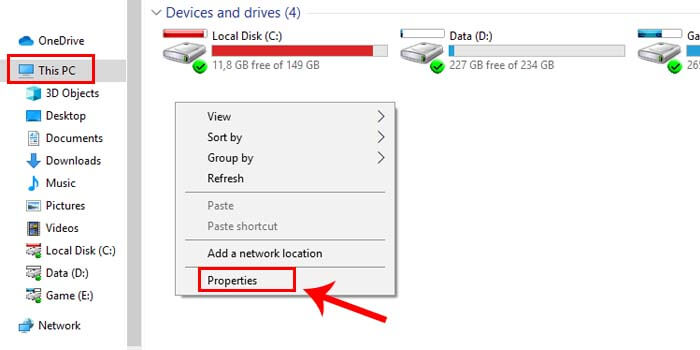
    2. Enter the This PC or My Computer folder.
    3. Then right-click> Properties.
    4. The basic information will appear on your PC or laptop.

    The information provided is the Windows edition, Windows type, processor, RAM, system type, computer name, and many others. Computer’s System Specification

    #2. DirectX or DXdiag

    DirectX or DXdiag
    DirectX or DXdiag

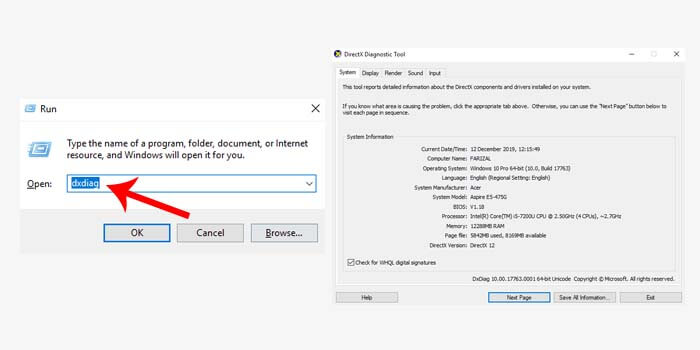
    DirectX is a Windows default tool that is intended to display hardware specifications, and test software, to see the drivers used for sound and video on a computer or laptop.

    How to see Windows laptop specs via dxdiag:

    1. Run the Run feature or press Windows + R on the keyboard.
    2. Type dxdiag then press Enter.
    3. Wait a few seconds for the DirectX window to open.
    4. DirectX will display information related to your PC’s specifications.

    You can move to the system tab menu, display, rendering, sound, or input to find out the full specifications.

    #3. How to Check Laptop Specifications from CMD

    4 Ways to find your Computer's System Specification
    How to Check Laptop Specifications from CMD

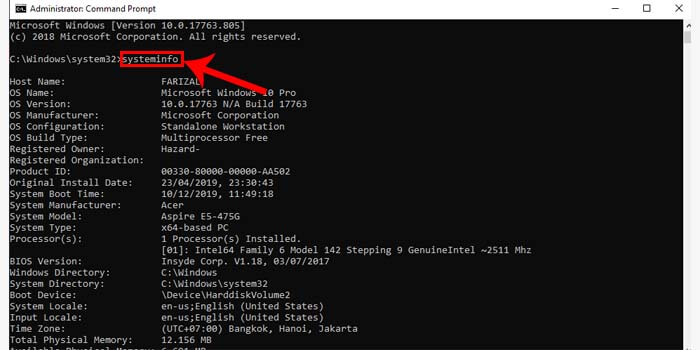
    Command Prompt which we often briefly with CDM apparently can also be used to view laptop and computer specifications in full. CMD itself is a default utility for the Windows operating system, so you don’t need to install any additional applications.

    How to see laptop specifications in CMD:

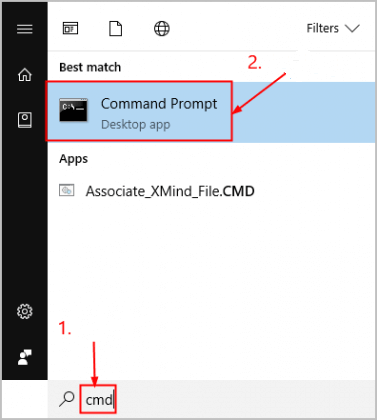
    1. Open the Start menu and then type Command Prompt in the search.
    2. Run CMD using Run as Administrator.
    3. Type system info in the command prompt window.
    4. Then press the Enter key on the keyboard.
    5. Wait for the system information request process to finish.

    The process only takes a few seconds. After that, you can already find out what are the full specifications of your laptop and computer in the CMD window.

    #4. CPU-Z

    CPU-Z
    CPU-Z

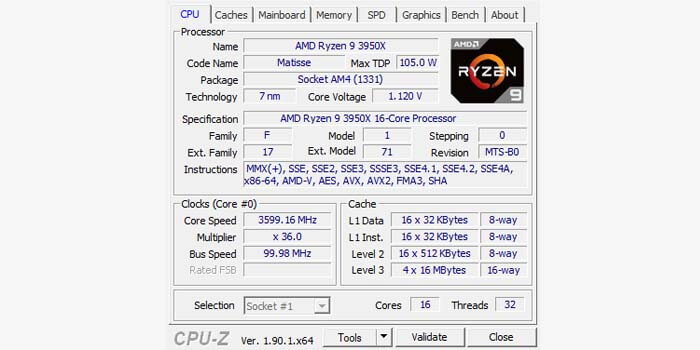
    If the previous method only uses the default features of Windows, then this next method is to use a third-party application. CPU-Z is one application that is powerful enough to check PC and laptop specifications.

    Here’s how to check laptop specifications using CPU-Z:

    1. Download the CPU-Z application through the official website.
    2. Then install it on your PC or laptop.
    3. After it is installed, open the CPU-Z application.
    4. Now you can see the specifications of the laptop you are using.

    The CPU-Z application can provide detailed information such as processor name, core speed, mainboard, RAM slot, and many others. You only need to move the menu tab on CPU-Z according to the information you want.

    Read more:

    Conclusion:

    So, friends, that’s the above 4 Ways to you find your Computer’s System Specifications of a computer or laptop you can try to check the system specs in Windows completely. Knowing this information, you can now adjust game or application specifications more easily before installing it on your laptop.

  • Fix Windows Resource Protection Could Not Start The Repair Service

    Fix Windows Resource Protection Could Not Start The Repair Service

    Fix Windows Resource Protection Could Not Start The Repair Service – If the SFC /scannow command returns the error message “Windows resource protection could not start the repair service”, it may be because there is a problem with the TrustedInstaller service. Here’s how to fix it.

    Fix Windows Resource Protection Could Not Start The Repair Service
    Fix Windows Resource Protection Could Not Start The Repair Service

    How To Fix Windows Resource Protection Could Not Start The Repair Service

    The system File Checker tool is activated with the SFC /scannow command in the Command Prompt. This is a very useful system repair utility.

    Read more:

    Scans all protected system files and replaces corrupted files with cached copies located on the system.

    However, when running this command, you may encounter an error message that reads “Windows resource protection could not start the repair service”.

    This error often occurs due to permission issues or a malfunctioning Windows TrustedInstaller. Having said that, let’s explore how to fix Windows resource protection could not start the repair service.

    Why is SFC Scannow Not Working?

    For the System File Checker to work, Windows TrustedInstaller must be operational. Windows TrustedInstaller is a service required to enable the installation, removal, and modification of Windows updates and other system components.

    By default, TrustedInstaller controls the Windows Resource Protection (WRP) tool. WRP protects against unauthorized modifications, including changes to important system files, folders, and registry keys. It also handles the “SFC /scannow” command you are trying to use.

    Thus, when TrustedInstaller malfunctions, other services that depend on it will also stop working. This means that the WRP tool and System File Checker will fail to function properly.

    Although there is no definite solution to this problem, we have listed some troubleshooting steps that you can follow to fix this error.

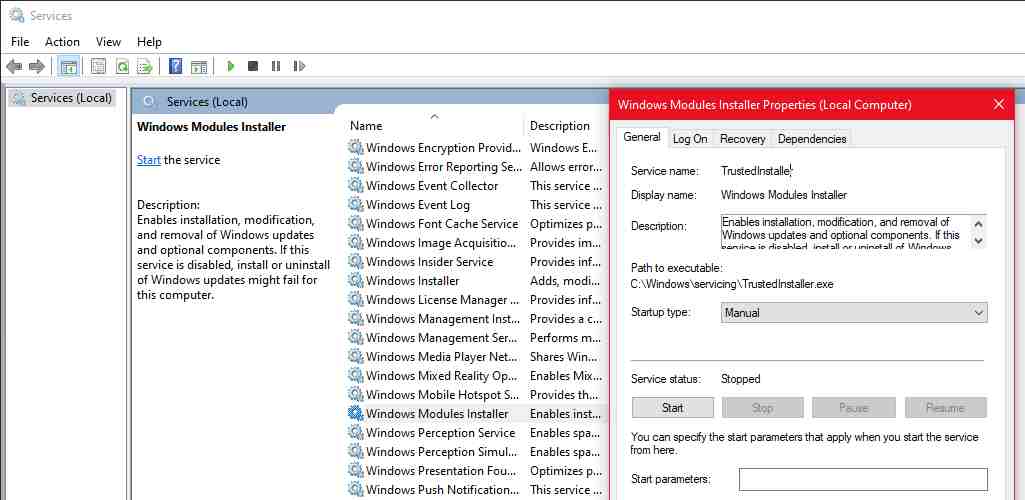
    #1. Restart Windows TrustedInstaller (Windows Modules Installer)

    If Windows TrustedInstaller is not running or not working, a quick restart of the service can help resolve the error. You can easily restart it via the Windows Service Console. Here’s how to do it.

    Restart Windows TrustedInstaller (Windows Modules Installer)
    Restart Windows TrustedInstaller (Windows Modules Installer)
    1. Press  Win + R  to open the Run box.
    2. Then, type services.msc and click  OK  to open the Service Console.
    3. In the Service Console window, locate the Windows Modules Installer.
    4. Right-click on the service and select  Properties.
    5. In the Properties window that appears, set the  Startup type to  Manual.
    6. If the service is not running, click the Start button under the Service status section.
    7. Click  Apply and  OK  to save changes. Close the Service Console and check if you can run the System File Checker tool without issuing an error message.

    #2. Start TrustedInstaller Using Command Prompt

    If restarting the Windows Modules Installer from the Service Console doesn’t work, you can use the Command Prompt to restart it. Here’s how to do it.

    Start TrustedInstaller Using Command Prompt
    Start TrustedInstaller Using Command Prompt
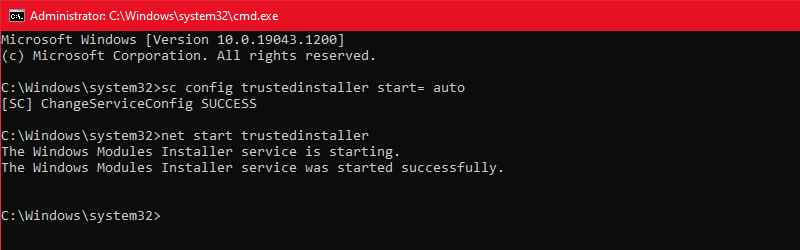
    1. Type cmd in the Windows search bar. From the search results, right-click on  Command Prompt and click  Run as Administrator. Click  Yes when prompted by User Account Control.
    2. In the Command Prompt window, type the command sc config trusted installer start= auto and press Enter to execute.
    3. This command will set the Windows Modules Installer service startup type to automatic. After successful execution, you will see the message  ChangeServiceConfig SUCCESS  displayed on the screen.
    4. Next, enter the command net start trusted installer to restart the TrustedInstaller service.
    5. After successfully running, run the command SFC /scannow and check if the error is resolved.

    #3. Run SFC Scannow In Safe Mode

    In Safe Mode, Windows starts in a minimal state, loading a limited set of files and drives. Safe Mode is useful for finding conflicts from third-party apps or services that are causing problems on your system.

    If you think a third-party application is causing a conflict with the System File Checker tool and triggering the Windows Resource Protection could not start the repair service error message, run the SFC /scannow command in Safe Boot mode to verify the problem. Here’s how to run System File Checker in Safe Mode:

    Run SFC Scannow In Safe Mode
    Run SFC Scannow In Safe Mode
    1. Press  Win + R  to open the Run box.
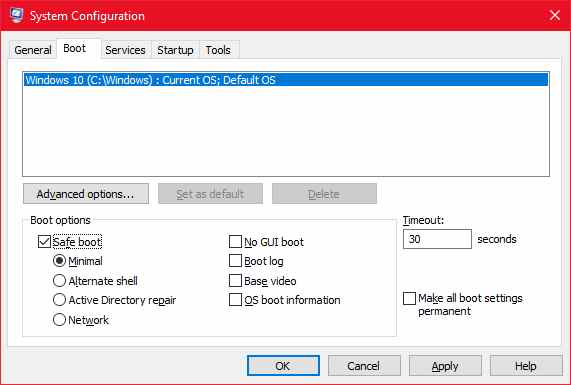
    2. Type msconfig.msc and click  OK  to open the System Configuration window.
    3. In the window that appears, go to the Boot tab.
    4. Under Boot options, check the Safe boot option. Then, select the Minimal option.
    5. Click  Apply and  OK  to save changes.
    6. Click the Restart button if you want to use Safe Mode immediately. If not, click  Exit, save and close any open applications, then restart your PC.

    After restarting, your system will boot in Safe mode running only essential Windows services.

    Now, open Command Prompt and run the command SFC /scannow . If the command runs without errors, the third-party application installed on your system is most likely conflicting with Windows Resource Protection, thus triggering the error.

    To disable Safe Mode, launch System Configuration, go to the Boot tab, and uncheck  Safe boot under  Boot options. Then, click  Apply and  Restart your  PC.

    #4. Add TrustedInstaller Expandable String Value to Registry Editor

    If you don’t mind working with the Windows Registry editor, you can fix this error by adding an expandable string value to the Registry. However, if you modify the registry entries incorrectly, it can damage your system, so make sure to make a Windows registry backup before proceeding.

    In addition, create a system restore point. This will help you undo system-level changes and restore your PC to its working state. Once you have a backup, follow these steps.

    #1. Find TrustedInstaller ID And Sub-folder Name In File Explorer

    Find TrustedInstaller ID And Sub-folder Name In File Explorer
    Find TrustedInstaller ID And Sub-folder Name In File Explorer
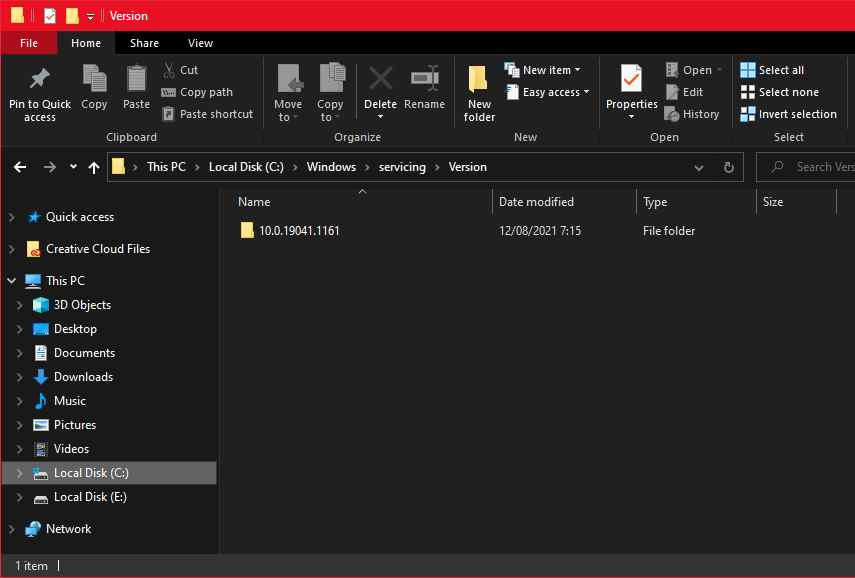
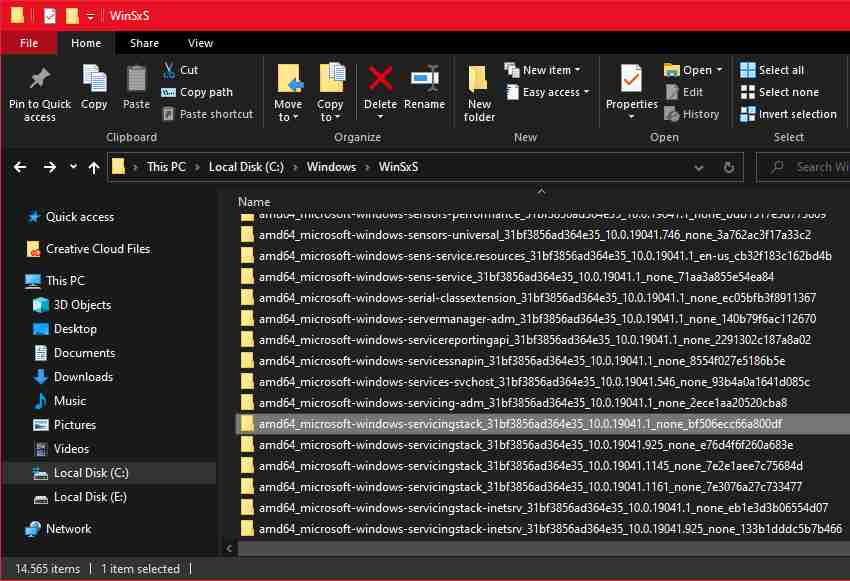
    1. Press  Win + E  to open File Explorer and navigate to the location C:\Windows\Servicing\Version.
    2. You should see a folder named something like 10.0.19041.1XXX. This is your TrustedInstaller ID. Copy the ID/name to the clipboard or paste it into a Notepad document.
    3. Next, navigate to the location C:\Windows\WinSxS.
    4. Here, depending on the CPU you are using, find one of these subfolders.
      • x86_microsoft-windows-servicingstack_31bf3856ad364e35_{TrustedInstaller ID} (32bit Windows)
      • amd64_microsoft-windows-servicingstack_31bf3856ad364e35_{TrustedInstaller ID} (64bit Windows)
    5. In the subfolder name above, { TrustedInstaller ID } is the folder name that you noted in step 2.
    6. Copy the folder name and location to the Notepad file as well.

    Find TrustedInstaller ID And Sub-folder Name In File Explorer
    Find TrustedInstaller ID And Sub-folder Name In File Explorer

    #2 Create String Expandable Value In Registry Editor

    Now that you have the necessary information, it’s time to create an Expandable String value in the Registry Editor. Here’s how to do it.

    Create String Expandable Value In Registry Editor
    Create String Expandable Value In Registry Editor
    1. Press  Win + R  to open Run.
    2. Type regedit and click  OK  to open the Registry Editor.
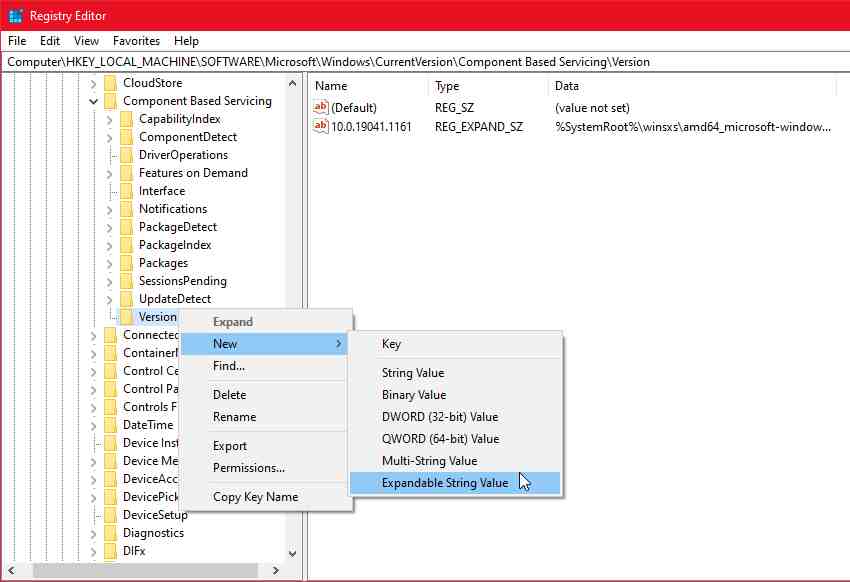
    3. In the Registry Editor, navigate to the location HKEY_LOCAL_MACHINE\SOFTWARE\Microsoft\Windows\CurrentVersion\Component Based Servicing\Version. You can copy and paste the path in the Registry Editor address bar for quick navigation:
    4. Select it and right-click on the Versions subkey. Choose  New > Expandable String Value.
    5. Rename the value to match your TrustedInstaller ID name. After replacing it, it should look like this:
      • 10.0.19041.1XXX
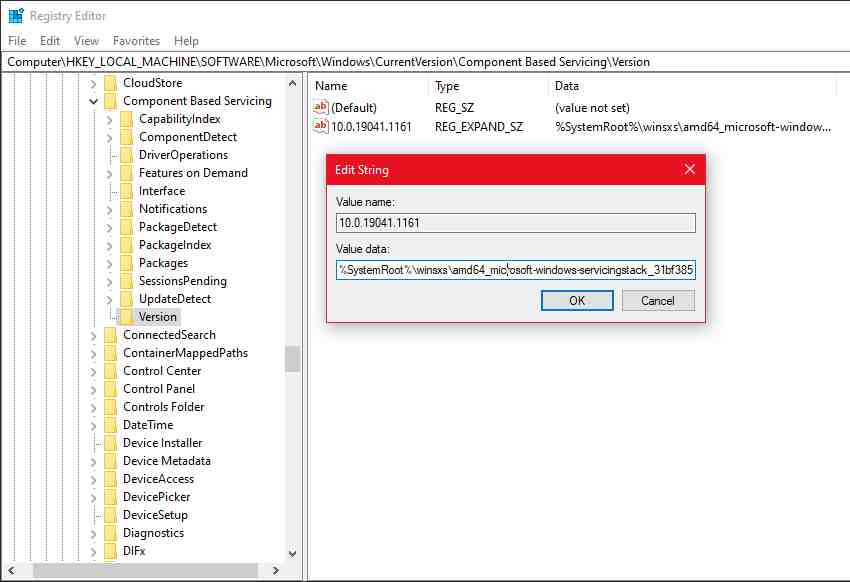
    6. Then double-click on the newly created value and paste the folder location identified in  WinSxS in the Value data field. It will look like this:
      • %SystemRoot%\winsxs\amd64_microsoft-windows servicingstack_31bf3856ad364e35_10.0.19041.1XXX_none_7e3d47227c694b34
    7. Make sure to use  %SystemRoot% correctly and cut  C:\Windows  from the folder location.
    8. Click OK to save changes.

    Create String Expandable Value In Registry Editor
    Create String Expandable Value In Registry Editor

    If you see an error message when creating a subkey or string value, you must have a Component-Based Servicing key. You can take ownership of the keys manually or use automated tools to do so.

    #3. How to Take Registry Key Ownership

    How to Take Registry Key Ownership
    How to Take Registry Key Ownership
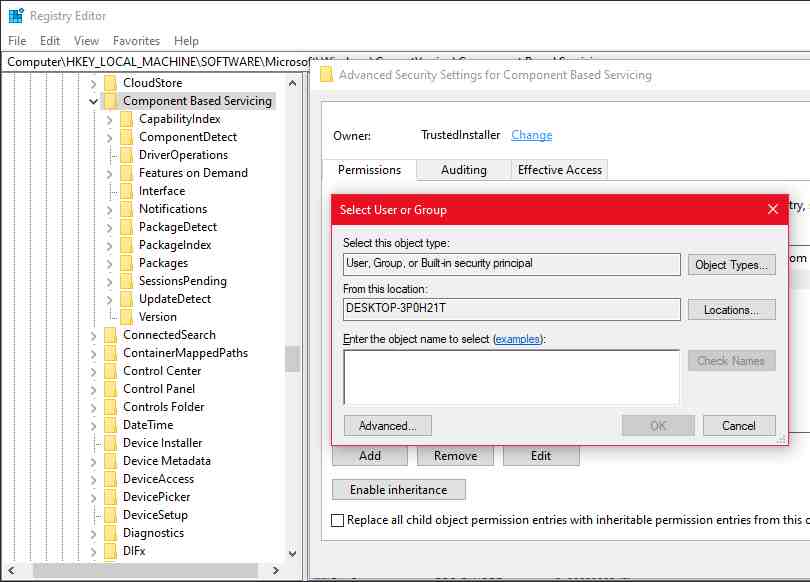
    1. In the Registry Editor, right-click on Component-Based Servicing and select  Permissions.
    2. In the Permissions window, click the Advanced button on the Security tab.
    3. The owner, by default, is set to  TrustedInstaller. Click the Change link.
    4. Type in your username and click  Check names. Click  OK  to save changes.
    5. Check the Replace owner on sub containers and objects box and click  Apply for changes.

    After changing ownership, you can modify the registry keys to add new values ​​and subkeys without getting an error message.

    Read more:

    Conclusion:

    this is the explanation of how to solve Windows resource protection could not start the repair service. One of these four fixes will allow you to fix Windows resource protection that could not start the repair service and you can run the SFC /scannow command normally again.

    In most cases, you can fix this problem by fiddling with the registry entries. However, if nothing else works, try a restore point or reset your system to factory defaults.

  • 9 Ways To Remove Old Windows on Windows 10 PC 2025

    9 Ways To Remove Old Windows on Windows 10 PC 2025

    9 Ways To Remove Old Windows on Windows 10 PC – Is the system drive on your computer full? C: for example. it will be troublesome because we don’t have the freedom to install things or applications.

    Quick Ways to Remove Old Windows on Windows
    Quick Ways to Remove Old Windows on Windows

    How to Remove Old Windows on Windows 10 PC Laptop

    To fix this, usually, we will optimize the drive again. Like deleting unnecessary data, or uninstalling applications that are rarely used.

    Read more:

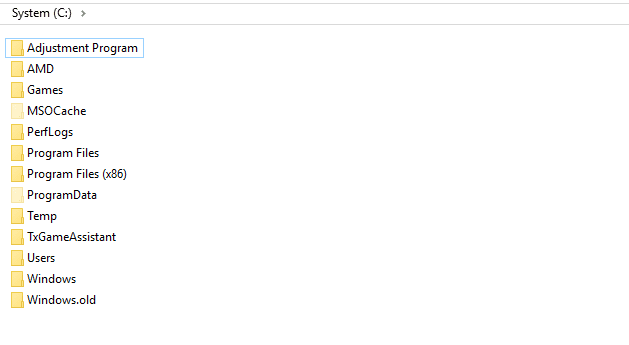
    Unfortunately, sometimes this method is still not effective, because the drive is still full. For that, it is also recommended to delete the Windows. old folder.

    Windows.old itself is a folder located on the system drive . Usually appears after a reinstall , or after a system upgrade . We will discuss the details below.

    What is Old Windows?

    What is Old Windows?
    What is Old Windows?

    Old Windows is a folder that contains old system backup data. In other words, this folder has the role of restoring the system at any time if needed.

    If you just did a fresh install before, then this folder can’t be found. But it’s a different story if you’ve ever upgraded your system, usually, Windows.old will be generated automatically.

    Very useful at a glance, huh? Yup, that’s true.

    The problem is, that the total data size in this folder is quite large, you know. From my experience, at least it has reached above 5GB, it could even reach more than 30GB.

    Therefore, for some people, deleting this folder is better than having to keep it.

    Remove Old Windows on Windows 10, 8, and 7 PC

    The usual deletion method (click the Delete button), sometimes does not affect this folder. So, here we need special techniques so that Old Windows can be completely removed.

    But don’t worry, because here I will make a tutorial, especially for those of you who might need it.

    This method is 100% safe because I have done it myself several times before. However, it is also recommended to create a Restore Point, just in case.

    #1. Using Disk Cleanup

    Disk Cleanup is a program that allows you to clean a drive. Usually for a file – a file of garbage. remove old windows.

    Well, it turns out that many don’t know if we can use this feature to safely remove the Old Windows folder.

    I demonstrated the tutorial here with Windows 10, yes. Here’s how:

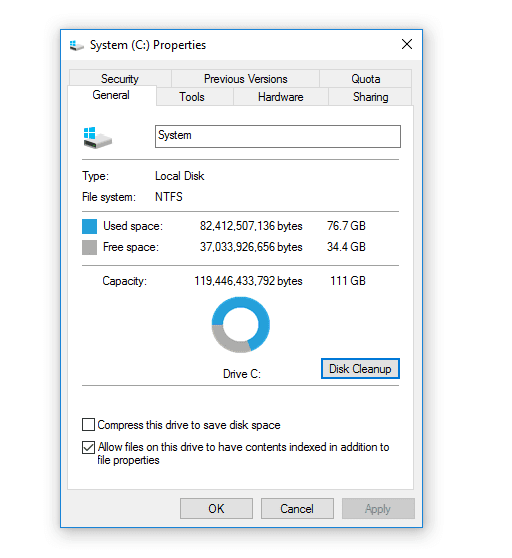
    • Step 1. First, open File Explorer. Next, right-click the system drive (usually C:) and click Disk Cleanup.
    How to Remove Old Windows on Windows
    How to Remove Old Windows on Windows
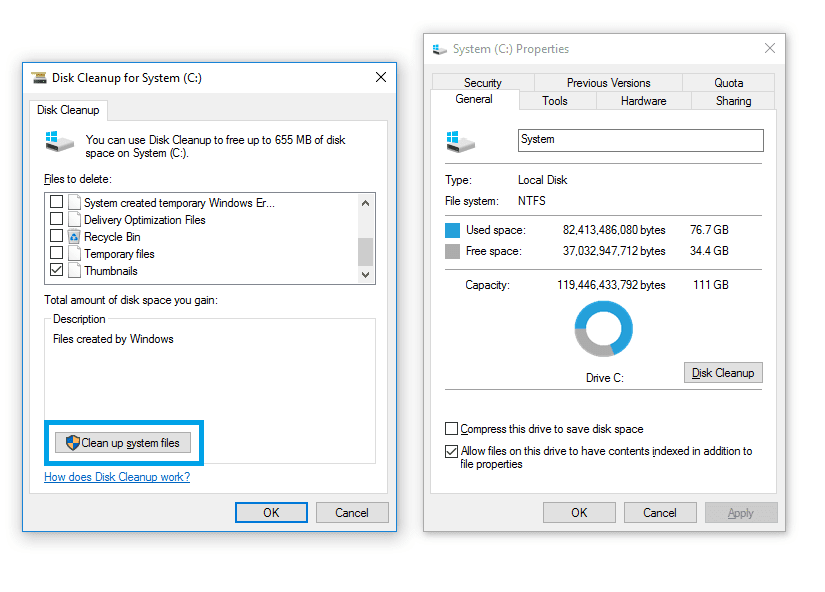
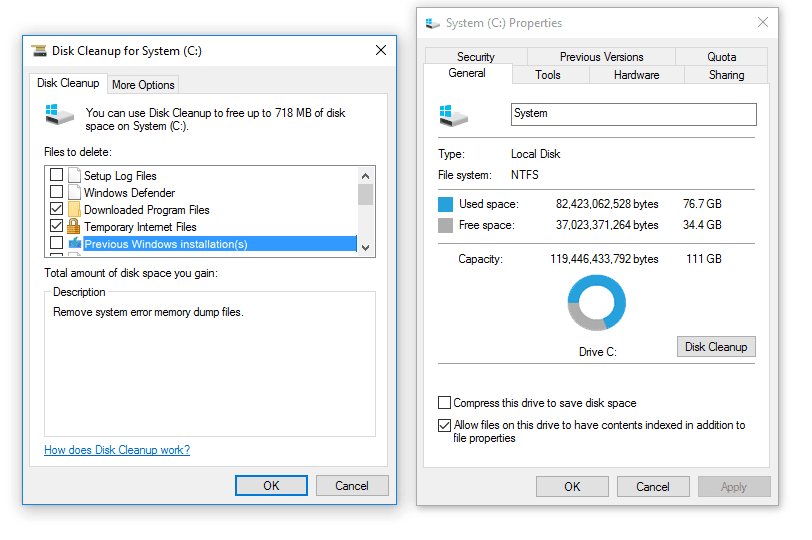
    • Step 2. Wait for the loading process for a few moments. If so, click Clean Up System Files.
    How to Remove Old Windows on Windows
    How to Remove Old Windows on Windows
    • Step 3. Wait again for the loading process. If so, check the option Previous Windows Installations, then click OK.
    How to Remove Old Windows on Windows
    How to Remove Old Windows on Windows
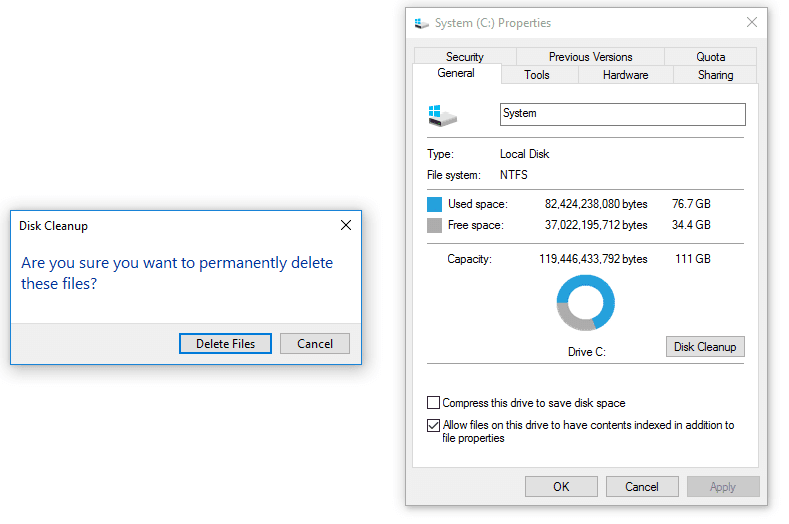
    • Step 4. A notification window will appear. Click Delete Files.

    How to Remove Old Windows on Windows
    How to Remove Old Windows on Windows
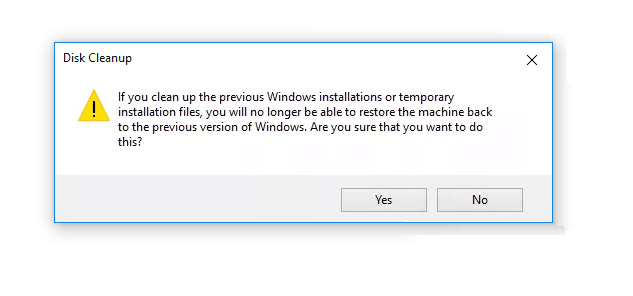
    • Step 5. A notification window will appear again to confirm the deletion. Just click Yes.
    How to Remove Old Windows on Windows
    How to Remove Old Windows on Windows

    After that, just wait for the process to finish.

    The length of time itself varies, huh. Sometimes it’s fast, and sometimes it’s slow. It depends on how big the Old Windows folder is.

    In my own experience, it usually takes less than 10 minutes.

    If so, please restart your computer or laptop. Then, check the system drive again. It’s guaranteed that the capacity is now more relieved.

    #2. Using CMD

    For Command Prompt (CMD), you don’t need to explain, you know, huh? This is a program, in which we can run certain commands against Windows systems.

    So, including removing the Old Windows folder, we can do it via CMD.

    This is how:

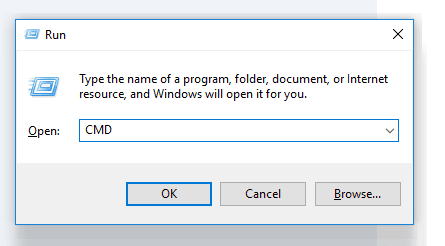
    • Step 1. First, first open the Command Prompt. Click Windows key + R > Type ” CMD “> Then click OK.
    Using CMD
    Using CMD
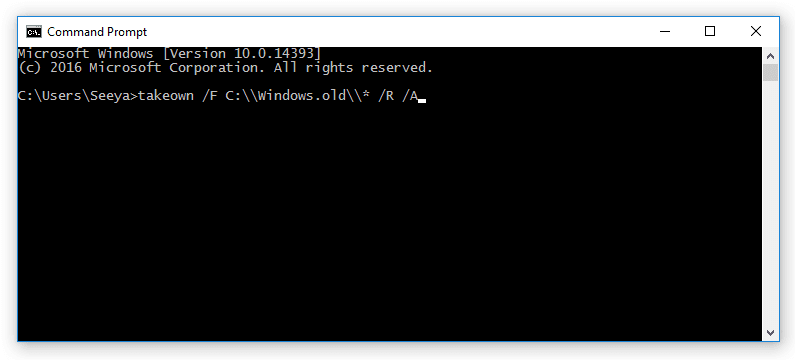
    • Step 2 . On the CMD page, type the command ” takeown /FC:Windows.old* / R / A “, then press Enter on the keyboard.

    Using CMD

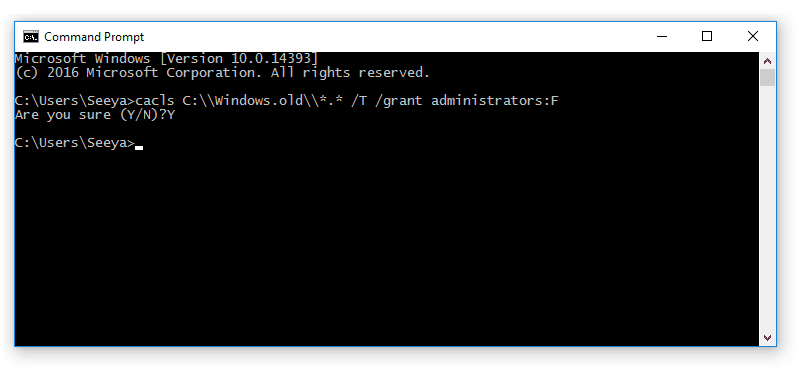
    • Step 3. After successfully granting Old Windows access, enter the command ” cacls C: Windows. old *. * / T / grant administrators: F “, then press Enter. After the confirmation message, type ” Y “, then press Enter again.

    Using CMDStep 4. Enter the command ” rmdir / S /QC: Windows.old “, then press Enter.
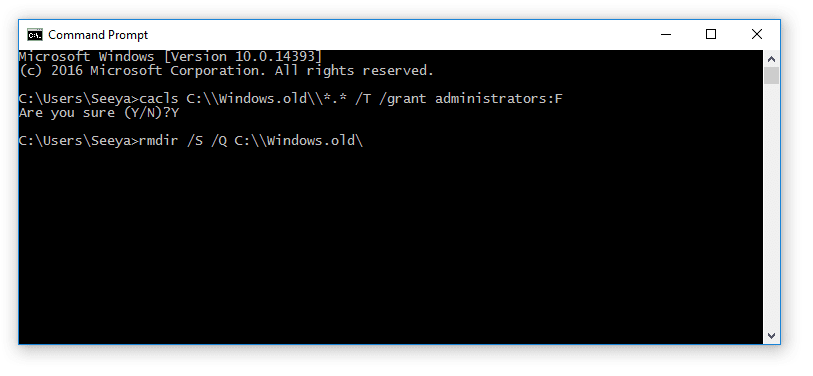
    Delete Via CMD

    If so, just wait for the process to finish, then restart your computer or laptop as usual.

    This method is not much different from the first one. However, it can still be used as an alternative, especially if the previous method didn’t work.

    Deleting the Old Windows folder is not difficult. Even though it can’t be done normally, with the 2 methods above, it turns out that the folder can still be deleted too.

    I have tested this method myself, and it has proved successful.

    Read more:

    Conclusion:

    This is an explanation of 9 ways to remove old Windows on a Windows 10 PC. However, there is something to remember here, too. Because the folder that functions as a backup has been deleted, if an error occurs on the system, you can no longer restore it to the old system.

  • 6 Ways to Speed ​​Up Slow Internet Connection in Windows PC 2025

    6 Ways to Speed ​​Up Slow Internet Connection in Windows PC 2025

    6 Ways to Speed ​​Up Slow Internet Connection in Windows PC – The most accurate way to speed up slow internet on Windows 10 is guaranteed to speed up the WiFi internet connection on your Windows 10.

    6 Ways to Speed ​​Up Slow Internet Connection on Windows PC
    6 Ways to Speed ​​Up Slow Internet Connection on Windows PC

    How to Speed ​​Up Slow Internet Connection in Windows PC Laptop 2024

    The Internet connection can be fast and can also be slow or slow. The second condition is the worst. We hope that never happens. But unfortunately, it not infrequently, in fact, happens.

    Read more:

    If you are downloading content from the internet using the pirate bay, your internet speeds will matter a lot. If the speeds are not high enough, your downloads will end up taking a lot longer. Additionally, you also need to focus on the bandwidth.

    Slow or slow internet conditions can be caused by several things, all because of technical matters. The easiest to identify is if the internet in your home is used as WiFi and many family members use the internet on the same WiFi.

    Then this will affect the internet speed. Especially if someone downloads a large file with IDM and or video streaming. It slows down the internet speed.

    If a condition like this makes your internet slow, then postpone your internet activity first, or tell a family member who downloaded it so that it will be postponed later, if he continues to fuss, use an ignorant method, just change the WiFi password, the guaranteed connection is lost, but this is stupid hehe.

    However, if your internet is slow not because of that problem, then try using a solution from the collection of solutions that I recommend for you to use.

    Oh yes, I use Windows 10 in this article but don’t worry because it can also be practiced on all versions of Windows such as 7 and 8. Please follow the steps above on how to speed up slow internet on Windows 10.

    How to speed up a slow internet connection on Windows 10 PC Laptop

    • Disable/disable Peer to Peer updates.
    • Measure Internet Bandwidth Settings.
    • Update WiFi/network drivers.
    • Disable/disable Windows Auto-Tuning.
    • Restart the modem.

    Important: It’s a good idea to first check your internet connection by pinging Google.com to find out if the problem is in your browser or in your broadband connection .

    #1: Disable Peer-to-Peer Updates

    Peer-to-peer Update is a feature found in the Windows operating system with which you can make your computer share Windows updates in pairs with other computers as long as it is connected to the internet, but this can affect your internet connection because one of them is an unstable internet connection.

    Therefore to disable Peer Peer Update is as follows:

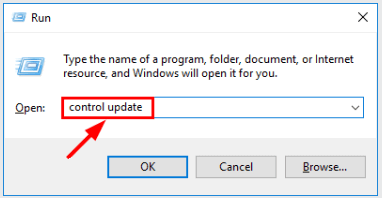
    1. On the keyboard, press the Windows logo and   R  at the same time, then type control update in the box then press  Enter.

      Disable Peer to Peer Updates
      Disable Peer to Peer Updates
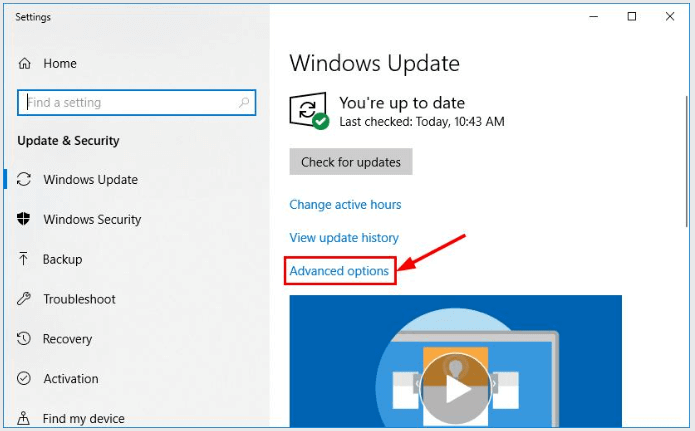
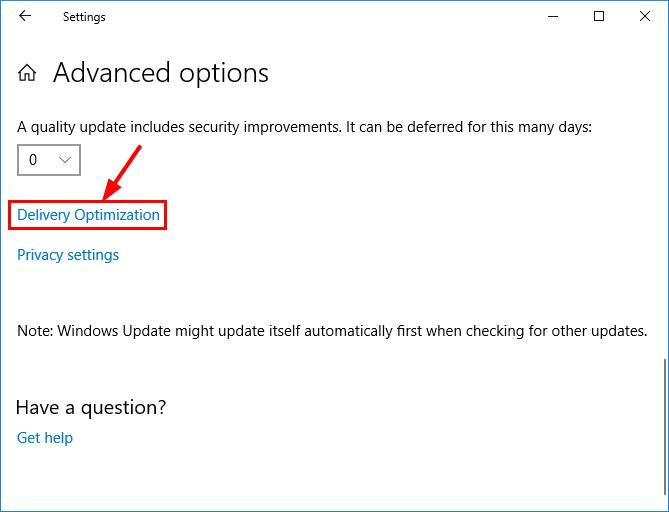
    2. Now click on  Advanced options.

      Disable Peer to Peer Updates
      Disable Peer to Peer Updates
    3. Click again on  Delivery Optimization  (Or   Choose how updates are delivered depending of course on your Windows 10 build version).

      Disable Peer to Peer Updates
      Disable Peer to Peer Updates
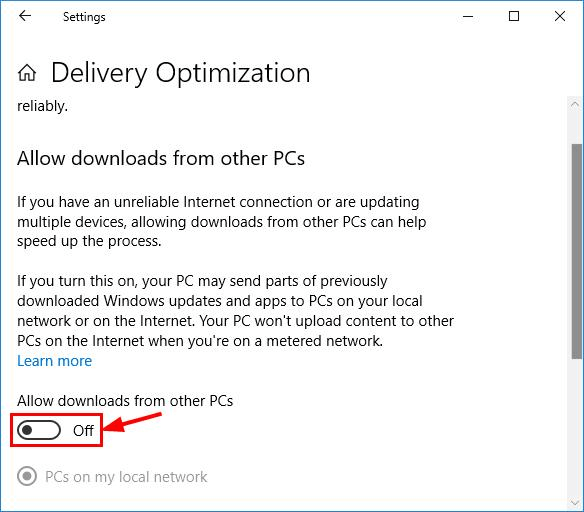
    4. Turn off or  Off on  Allow downloads from other PCs  (Or   Update from more than one place ).

      Disable Peer to Peer Updates
      Disable Peer to Peer Updates
    5. Check if the internet lag in  Windows 10  has been fixed. If so, then good. If the problem persists then proceed to the following Solution 2.

    #2: Set Internet Bandwidth Settings

    This can also be used as a way to speed up slow internet on Windows 10 for you to try to speed up the internet by lowering the bandwidth used on Windows 10 and system applications. The method is:

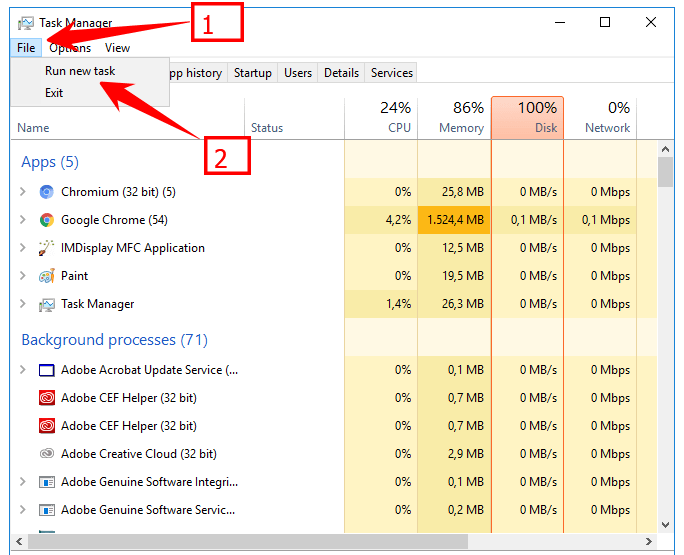
    1. On the keyboard, press  Ctrl, Shift, and Esc simultaneously to open the  Task Manager.
    2. Click on  File > Run new task.

      Set Internet Bandwidth Settings
      Set Internet Bandwidth Settings
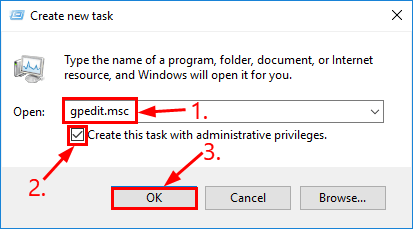
    3. Then type or copy and paste gpedit.msc into the box, don’t forget to type in the box next to  Create this task with administrative privileges then click  OK.

      Set Internet Bandwidth Settings
      Set Internet Bandwidth Settings
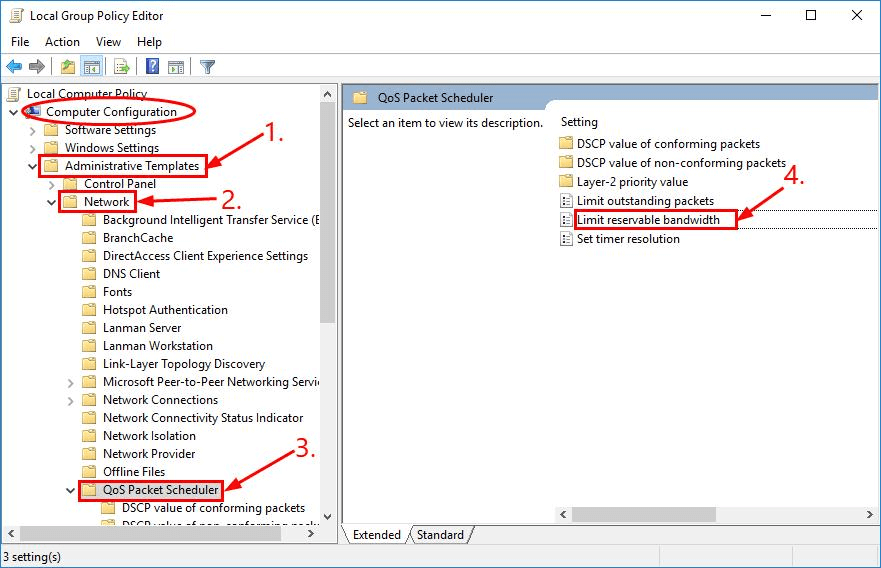
    4. Under  Computer Configuration, double-click on  Administrative Templates > Network > QoS Packet Scheduler. Then click on  Limit reservable bandwidth.

      Set Internet Bandwidth Settings
      Set Internet Bandwidth Settings
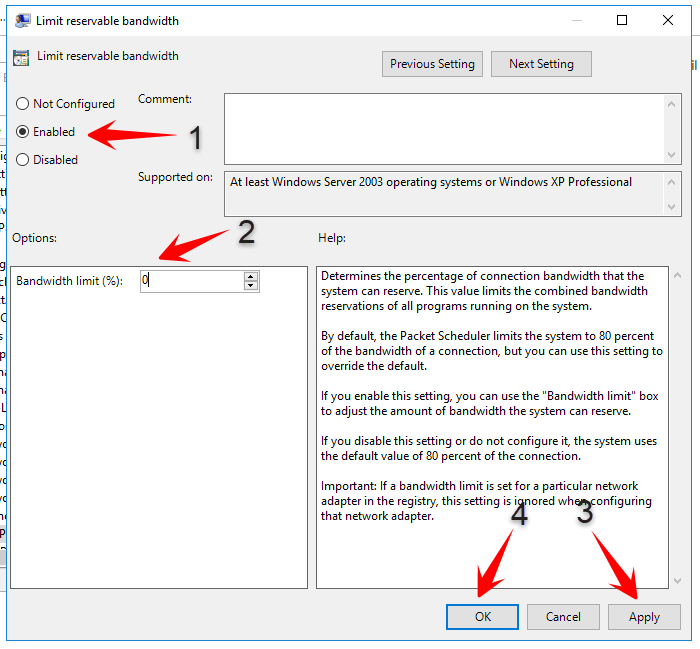
    5. Click on the Enabled option and set the  Bandwidth limit (%) value to 0. Then click ApplyOK.
      Bandwidth limit
      Bandwidth limit
    6. So the result, is your internet faster now? If it’s still crawling, then go to Solution 3, below.

    #3: Update WiFi/network drivers driver

    Slow internet problems can be caused by the wrong or not up-to-date WiFi adapter driver or network. The solution is that you have to update it and then check whether by updating your slow internet it becomes fast.

    If you don’t have free time because you are busy or have computer skills to update manually, then I recommend using Driver Easy software.

    With Driver Easy you don’t have to find out what system your computer is using, you don’t have to run the risk of installing the wrong driver and you don’t have to worry about making mistakes when installing.

    With Driver Easy you can update automatically with the Free or Pro version. But with the Pro version, the process is faster, it only takes 2 clicks.

    1. Download then install Driver Easy.
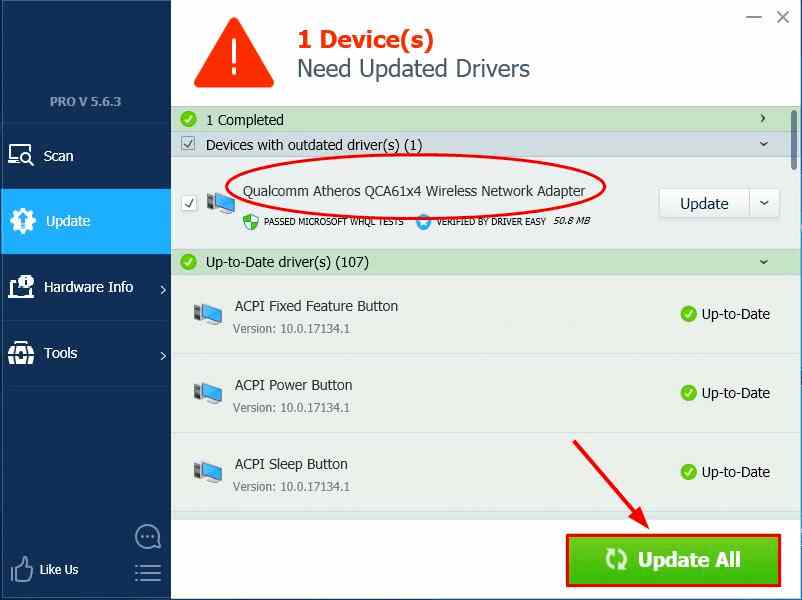
    2. Run Driver Easy and click the Scan Now button. Driver Easy will immediately scan your computer and detect if there is a driver problem.Update WiFinetwork drivers driver
    3. To take advantage of the Update All feature you can upgrade to the Pro version to automatically download and install the correct version of all drivers that may be missing from your system.Update WiFinetwork drivers driverYou can also use the Update feature to do it for free if you want, but the process is done manually.
    4. Now restart the computer and see if the slow internet in Windows 10 has been resolved.

    #4: Disable Windows Auto-Tuning

    Window Auto-Tuning is a feature provided by Microsoft in Windows 10 with the intention of using data transfer more efficiently.

    However, this feature likes to mess with the network which results in lost connections. So it’s best to turn it off. Because the success rate is pretty good, that’s why I listed deactivating Windows Auto-Tuning as a way to speed up slow internet on Windows 10.

    1. On your keyboard, press the Windows logo and then type cmd. Then right-click on  Command Prompt and click on  Run as administrator.
      Update WiFinetwork drivers driverClick Yes to confirm.
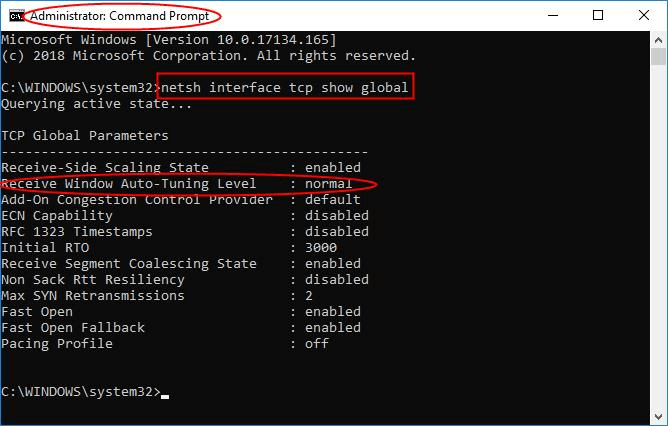
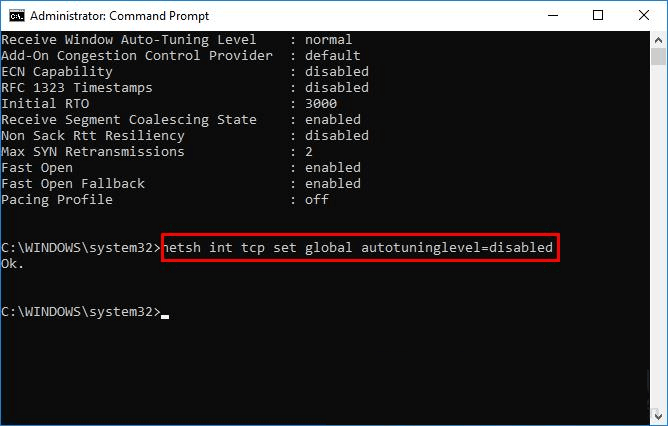
    2. Copy and paste netsh interface tcp show global into the window and then press  Enter. Then check if the Receive Window Auto-Tuning Level section is set to normal.

      Disable Windows Auto-Tuning
      Disable Windows Auto-Tuning
    3. If it’s normal as in the picture above, then disable or disable it by copying and pasting this command:  netsh int tcp set global autotuninglevel=disabled then press  Enter to disable it.

      Disable Windows Auto-Tuning
      Disable Windows Auto-Tuning
    4. Now you can see if the slow internet problem on Windows 10 has been fixed. I hope so.

    #5: Update IP address

    Sometimes, IP conflicts can also cause your laptop to not successfully connect to Wi-Fi and also slow down the internet. You can work around this by updating the IP address on your laptop. Here’s what you can do to update your IP.

    1. On your keyboard, hold down the Windows logo key, then press R to open the Run box.
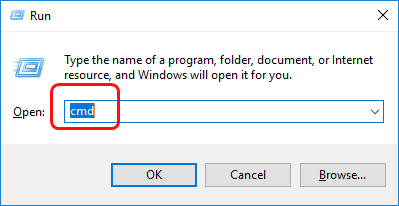
    2. Type cmd and press Enter.
    Update IP address
    Update IP address
    1. In the CMD window that opens, type ipconfig /release and press Enter. Wait for the command to be processed to completion.
    ipconfig /release
    1. Once the command is complete, continue by typing ipconfig /renew and pressing Enter. Wait for the command process to complete.
    ipconfig /renew

    Once you’ve done that, connect your laptop to Wi-Fi to see if this works. If it connects successfully, great! If the internet connection is still slow, don’t give up, continue to solution 6.

    #6: Restart the modem

    Restart the modem
    Restart the modem

    The method that also often provides solutions for WiFi problems such as no internet access / limited access in Windows is restarting the modem. I have also used this method to speed up the internet connection at home which happened to be slow.

    Indeed, the modem should be restarted to delete cache files, at least once a week restart by turning it off and waiting for a few seconds, at least 30 to 40 seconds, then turning it on again.

    Additional

    In addition to all the ways to speed up slow internet on Windows 10 in this article, there is one more thing that I recommend for you to use, namely using public DNS.

    Read more:

    Conclusion:

    This is the explanation of 6 ways to speed ​​up a slow internet connection in a Windows PC laptop, I think all the above tricks are enough to explain all the solutions that have the potential to speed up slow internet on Windows 10 but can also be practiced on other versions of Windows.

    And one more thing if you have another method that is not listed in this article and has proven to be successful in speeding up the internet on your computer, don’t hesitate to write it down in the comments area later I will add your method in this post.