How to Set Virtual Memory Windows 10 PC (9 Easy Steps) – In this post, you will learn how to add virtual memory in Windows 10, 8, and 7 step by step accompanied by pictures so that it is easy to understand.
How to Set Virtual Memory Windows 10 PC Laptop
What are Virtual Memory Windows 10 and its functions?
Virtual Memory or Paging files is an important component that determines the performance of a computer. Increasing the size of Virtual Memory can speed up Windows 10’s performance, especially when running heavy programs and games.
The main function of Virtual Memory is as a place to accommodate program files that are running but in an idle state (not active or rarely used), so that RAM space can be prioritized for currently active programs.
Virtual memory can be said to be an extension of RAM, the difference lies in RAM which is physical memory, while virtual memory is the result of virtualizing a portion of the space on the hard disk.
Data transfer from RAM to Virtual Memory will occur continuously as long as the system is running. Data that is rarely used will be moved from RAM to Virtual Memory, and data needed by the processor will be transferred to RAM. With this kind of approach, the system will still have sufficient resources and avoid lags and hangs.
That is more or less important as the presence of Virtual Memory in the Windows operating system, and it is no less important to allocate the right size.
By default, Windows allocates the Virtual Memory size automatically, but usually, the size is still too small. If you like running heavy programs such as playing games on an emulator, you can be sure that an error with the message “low virtual memory” will often appear, as well as when running other heavy programs.
How to Set Virtual Memory Windows 10 PC Laptop
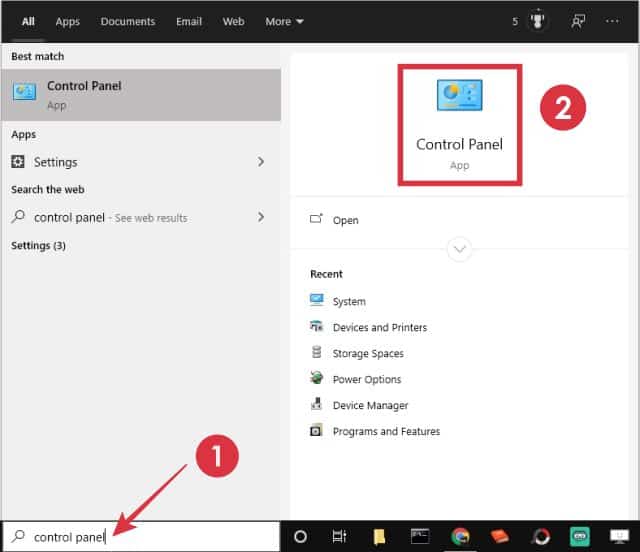
#1. Open Control Panel
The first step is to enter the Control Panel. In Windows 10, you can type “control panel” in the search bar and then select the Control Panel menu.
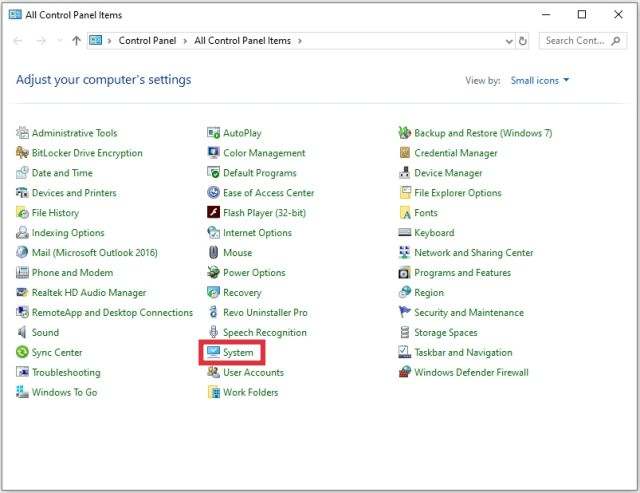
#2. Enter the Menu System
Then select the System menu.
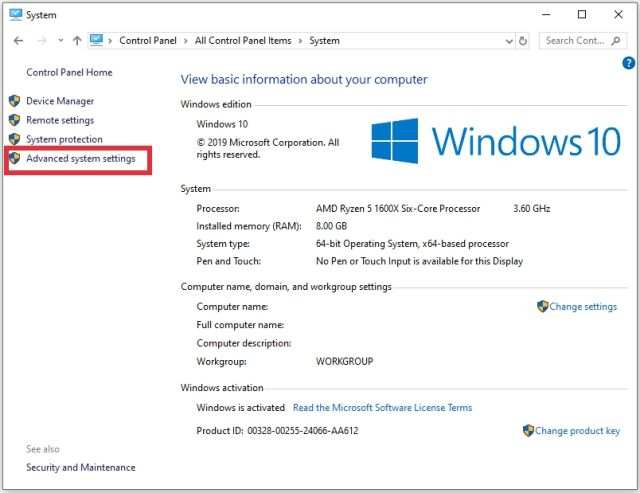
#3. Select Advanced System settings
On this page, you will see the details of the systems on our computer, find the menu called Advanced system settings then click once to enter.
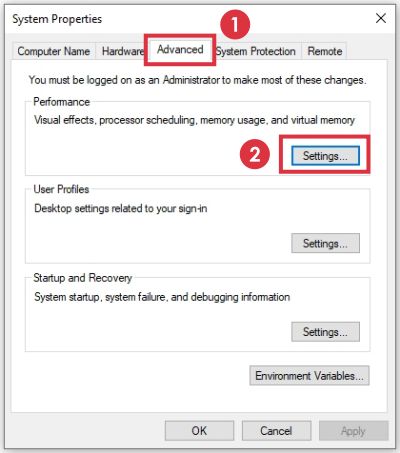
#4. Click on the Advanced tab
We will be taken to the System Properties window, and click on the Advanced tab.
5. Click Settings on the Performance option
Look at the Performance option then click on the Settings button.
Click Settings on the Performance option
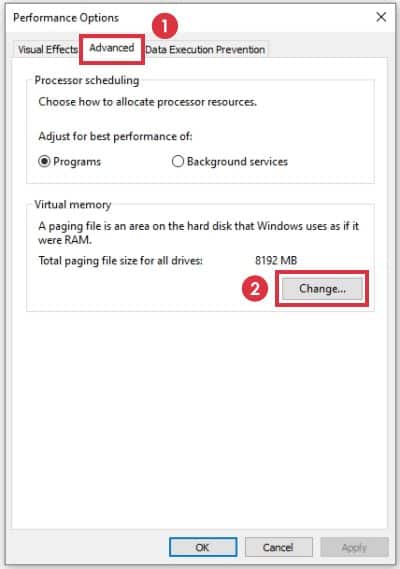
#6. Go to the Advanced tab
Then go to the Advanced tab.
7. Click the Change button on the Virtual memory option
Look at the Virtual memory option, there is a button labeled Change. Click the button.
Click the Change button on the Virtual memory option
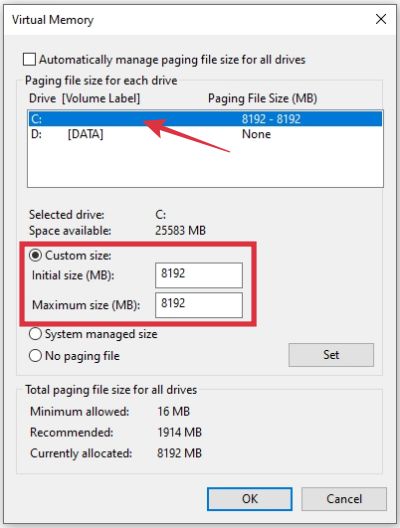
#8. Click drive C
In the virtual memory menu, you will see a list of drives on our computer, click on the C drive.
#9. Check the Custom size then change the Virtual Memory size
Check Custom size then change the Virtual Memory size
Still, in the same window, check the Custom size option then change the size.
You can use half of the same size as RAM, this is the most commonly used value.
If you only have 8GB of RAM or less then I suggest using the same virtual memory size as RAM, if it’s above that then using half of it is enough. When finished, click the OK button.
How to add Virtual Memory in Windows 7 PC Laptop
The following is how to increase the size of Virtual Memory in Windows 7:
Click the Start button.
Right-click on Computer.
Select Properties.
Look at the left panel, and click on Advanced system settings.
Click on the Advanced tab
Pay attention to the Performance option, click the Settings button there.
Click the Advanced tab again
In the Virtual Memory section, click the Change button.
Click on the C drive.
Check the Custom size, and enter the desired Virtual Memory value.
If you need instructions in the form of an image you can see above in the section Windows 10 and 8, the process is the same only different at the beginning.
After adding Virtual Memory the computer does not need a restart to apply the changes. A restart is only needed when we reduce the Virtual Memory value.
11 Best Internet Download Manager Applications for PC – Do you like downloading a file? From small ones that are only a few KB, or large ones to gigabytes of bytes. And at times like that, we want fast internet. But to increase internet speed, we need to spend even more money. Well, many people want fast internet but don’t have the money to pay for an even faster connection.
Best Internet Download Manager Applications for PC
At times like this, you need the help of a download manager software. With download manager software, it will help you to get higher download speeds without having to pay for a faster connection.
There is various download manager softwareout there that you can use with their advantages and disadvantages. Well, in this review, the author recommends some of the best download manager applications. Curious as to what the application is, here’s the list….
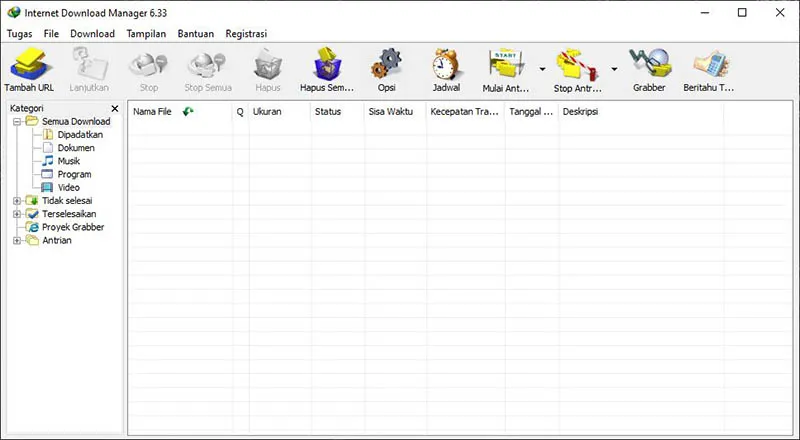
#1. Internet Download Manager
Who doesn’t know about Internet Download Manager? Maybe almost all computer users know about this application. This application, which is often referred to as IDM, is the most popular compared to other download manager applications.
With the working principle of dividing downloads into several streams, IDM can download faster than standard downloads. In addition, IDM also has a feature to download videos from video streaming sites such as YouTube. Download Internet Download Manager here,
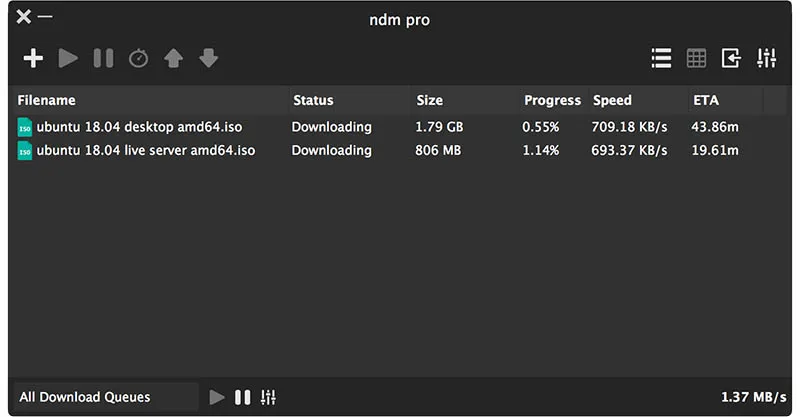
The next downloader application is called Ninja Download Manager with the developer Download Ninja. Similar to IDM, Ninja Download Manager also uses the same working principle to speed up the download speed. By dividing the download into several parts, and then downloading it with different servers, Ninja Download Manager can speed up downloads up to 10X times the standard download.
In addition to being functional, this application is also good in appearance. With a given modern impression which is also combined with simplicity, it makes the appearance of this application pleasing to the eye. In addition, this application also has a function to download videos on YouTube and can also be used as a video converter when finished downloading. Download Ninja Download Manager here,
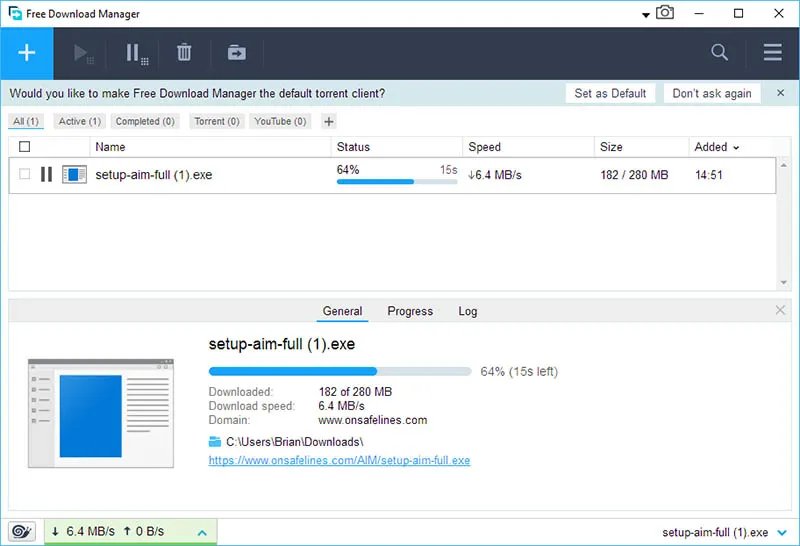
Next is Free Download Manager which was developed by Free Download Manager. By using Free Download Manager you will get benefits that are no less good than IDM.
One of them is the feature to download the contents of the .torrent file which we know to open it requires a special application. Well, by using Free Download Manager, you will get downloaded files more easily. In addition, this application also provides a file converter feature that you can use to convert the format of a file into the format you want.
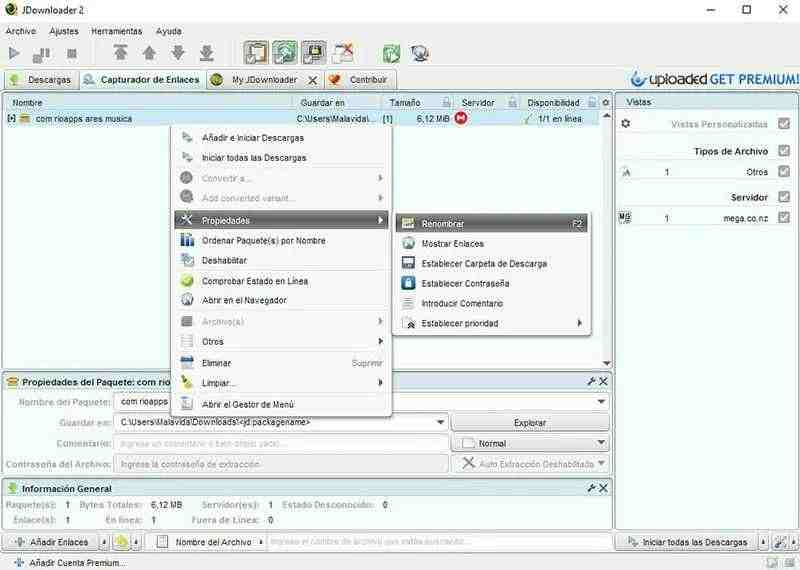
Next is an application developed by a developer called AppWork GmbH, namely JDownloader. This is another best download manager application that you can use. What’s special about JDownloader is its very interesting features. One of them is a feature that can automatically extract archives or files in .rar, .zip, .7z, and other archive formats. With this feature, you will find it easy when you want to download archive files.
In addition, JDownloader also has a simple interface and easy-to-master settings. Also the most interesting thing about JDownloader is the nature of the application which is open-source, so everyone can use or modify this application as they wish.
The fifth is EagleGet from developer EagleGet. With this relatively small size, only 6 Megabytes, EagleGet can bring you various interesting features that will help you in the download process. But before that, EagleGet has a very attractive interface, not only attractive but also clean so you don’t have to worry about seeing it.
One of the features in EagleGet is the Malware Checker feature, which will scan your downloads for malware or viruses that harm your computer or not. In addition, there is also a smart video grabber that can detect videos on a site and you will be able to download them.
The sixth application is a bit different from the others, this application developed by Eltima is an application that can only be used on Mac. Folx is a download manager software that is quite popular among Mac users, apart from being free, the features provided are also diverse. One of the features in Folx is the feature to download the contents of files from .torrent format files.
Although not available for the Windows version, Eltima makes a Chrome extension version that you can use when downloading via the Chrome browser on Windows.
Unlike the previous Application, Folx. This application developed by Presenta is an application that you can use on Windows or Mac. iGetter is a download manager application that is in the same class as IDM that you use for free. iGetter has an interface that is quite similar to IDM. With the same working principle, which is to make downloads into several parts and then download them on different servers, iGetter can speed up your downloads.
Apart from that, this app can also automatically reconnect corrupted downloads. Also, iGetter has a feature that can detect your internet connection, with this feature you can disconnect or connect the internet connection.
Next, there is the Internet Download Accelerator or IDA for short which was developed by Westbyte. By using Internet Download Accelerator your downloads will be able to reach 500% speed compared to standard downloads.
Even though it has a very old look, Internet Download Accelerator has excellent features that you will get if you use IDA. One of them is the feature to download 4K, 8K, or Full HD videos on multiple video channels.
Next in line is Download Accelerator Plus, although it has almost the same name as Internet Download Accelerator, it is a different application with a different developer. Download Accelerator Plus is an application developed by SpeedBit Ltd. By using this Download Accelerator Plus you will get faster download speeds than standard downloads.
In addition, you will also get useful features, one of which is a video converter feature, video to MP3, and also a video player at the same time.
In tenth place is FlashGet, which is an application developed by Trend Media Co. Ltd. _ With this FlashGet, you will be very helpful when downloading a file.
FlashGet will help increase the download speed beyond the standard download speed. In addition, what makes you choose this application over other download managers is that it is relatively small in size, and also has a lot of download support.
Last but not least is DownTango, which was developed by Red Sky. DownTango has a simple interface, the settings are also very simple, and there are not many annoying buttons. This application is suitable for those of you who don’t want to see a lot of annoying buttons and are satisfied with only the main features.
So, friends, these are the best internet download manager applications for PC. that you can download large files faster. What are you waiting for? Let’s prove the sophistication of the above application right now!
13 Ways To Fix “No Internet Access” and “No Internet Secured” Windows 10 PC – It is one of the problems that Windows 10 users often experience when connecting PCs and laptops to the internet is a connection that doesn’t work. When we connect to a LAN or WiFI network, it appears on the icon that the laptop is connected but cannot be used for the internet.
How To Fix No Internet Access and No Internet Secured PC
How To Fix “No Internet Access” and “No Internet Secured” Windows 10 PC Laptop
There you will also see the messages ” No Internet Access ” and ” No Internet Secured “. So even though the internet is connected, when it is used for browsing, downloading, and opening online games the internet cannot work.
There are several causes for this problem, it could be due to signal interference, incorrect IP address and DNS settings, out-of-internet quota, or problems with the modem and router.
Fix No Internet Access and No Internet Secured Windows 10 PC Laptop
Identify the source of the problem
Restart the computer
Restart the router and modem
Make sure the ISP used is not being interrupted
Forget the WiFi network then reconnect it
Try using another LAN cable
Flush DNS and reset network with CMD
Use IP Address and automatic DNS
Make sure the WiFi and LAN drivers are running properly
Run Network Reset
Run the Network Troubleshooter
Reset router and modem
Reset PC
The steps above are solutions that you can do to solve this problem, ranging from the simplest to the more complicated ones.
You can try them one by one in sequence, here’s an explanation.
#1. Identify the source of the problem
The first step that needs to be done is to find out in advance where the source of this problem is, whether on the modem and router or our laptop.
The easiest way to find out is to access the network using another device and see if that device is also experiencing the same thing or not.
You can use another laptop, PC, or smartphone and then connect to the same network. If it turns out that the internet is accessible, it means that the problem is not the modem or router, but the laptop used to access the network.
By doing these simple things we can know what needs fixing. If the problem is with the laptop being used, usually the cause is a corrupted or missing driver and a misconfiguration.
To fix this, you can reinstall the driver, reset the connection, flush the DNS, and use automatic IP configuration (the method will be explained below).
#2. Restart the computer
As with other errors in Windows in general, restarting is a step that should not be missed. If you’re lucky, just restarting the minor errors can usually be resolved.
To solve the no internet problem on a laptop, try restarting it first. After the laptop turns back on, connect again to the unusable internet network.
#3. Restart the router and modem
Problems that occur on the network cannot be separated from the modem and router. After doing the first step by restarting the computer but the connection is still problematic, the next step that needs to be done is to restart the modem and router.
Why does restarting solve the no-internet problem on the laptop? Because restarting the modem and router, it means that we are refreshing the device.
Modems and routers are basically like minicomputers with a more limited processor and memory. If used continuously and burdened with many tasks, errors can occur.
Modems and routers also act as devices that connect to the ISP network, if the connection to the ISP fails, restarting the modem will reconnect and the network can be connected normally again.
#4. Check if the ISP network is not being disturbed
When the laptop has successfully connected to WiFi but the internet cannot be used, then what you need to check next is the ISP status.
If the ISP network turns out to be experiencing interference, the internet no problem on the laptop is normal. This means that the laptop is successfully connected to the router, but the router does not get internet access from the ISP due to interference.
The way to check whether the ISP network is out of order or not is by visiting the social media pages of the ISP used. Usually, there will be a notification there if there is a disturbance. You can also contact the call center for more detailed information.
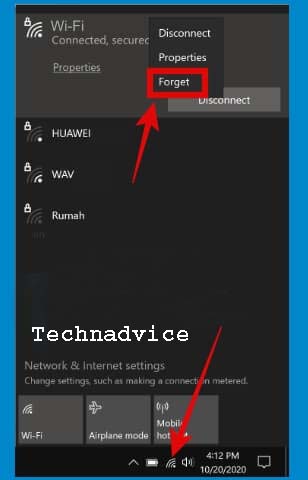
#5. Forget the WiFi network then reconnect
If your laptop is connected to the internet via a WiFi network and is experiencing “No Internet Access” or “No Internet Secured” problems, the next step you can do is to forget the network and then reconnect.
Forget network means removing all existing configurations and when reconnecting, the connection to the laptop will return to the initial settings.
Windows 10 users can follow the steps below to do this.
Click on the WiFi icon on the taskbar
Click once on the WiFi network that is currently connected
Right-click again on the connected network
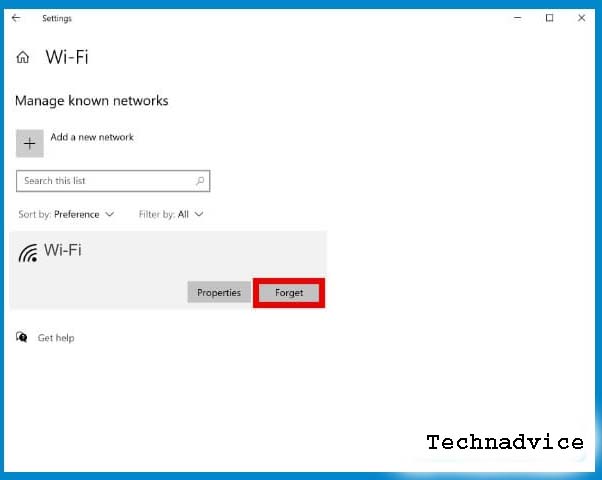
Click on the Forget button
Wait a moment, then reconnect to the WiFi network.
The second way can also go to the Settings menu > select Network & Internet > select WiFi > click on the Manage known networks menu > select the desired WiFi network> click the Forget button.
#6. Try using another LAN cable
Apart from using WiFi, you can also connect to the internet via a LAN cable. For those of you who use a LAN cable, you can try to swap the cable used.
No Internet Access problems that arise on the internet connection on a laptop can also be caused by a damaged LAN cable, so the connection will also be problematic.
If you work in the same room with another colleague who uses the same network, but only your laptop can access the internet, then most likely the problem is the cable used or the wrong configuration on your laptop.
#7. Flush DNS and reset the network with CMD
The next step you can do is flush DNS and reset the network.
In Windows 10, we can use Command Prompt (cmd) to solve the problem of no internet access. Please follow the steps below.
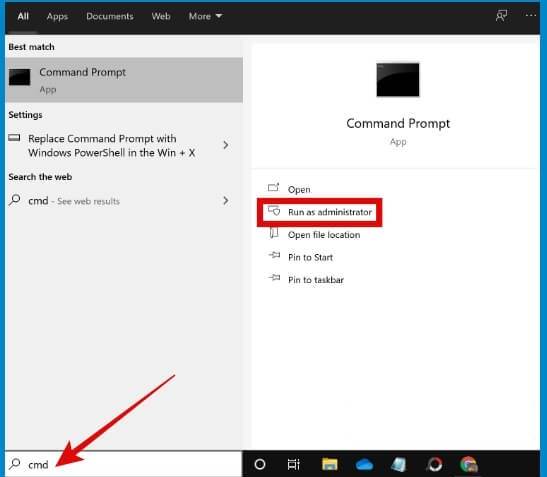
First, open a Command Prompt with administrator access permissions, how click on the Start button> type cmd > the Command Prompt program will appear> click on Run as administrator.
After the cmd window opens, do a network reset with the following command:
netsh Winsock reset
netsh int IP reset
After that, refresh the IP address with the following command:
ipconfig / release
ipconfig / renew
Finally, do a DNS flush with the following command:
ipconfig / flushdns
When finished running all the command lines above, close the cmd program, then restart your laptop.
At this point, the internet connection should be running normally again.
#8. Use IP Address and automatic DNS
The use of static IP and DNS which are manually set sometimes can also be one of the reasons why the internet on the laptop is connected but the information No Internet Access appears.
To fix this, we must return the settings to automatic.
Please follow the steps below.
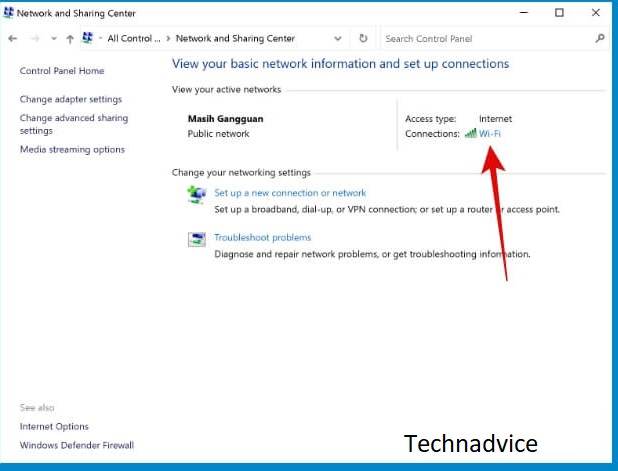
First, go to Control Panel > select Network and Sharing Center.
In the right pane click on the currently connected connection, WiFi, or Ethernet (LAN).
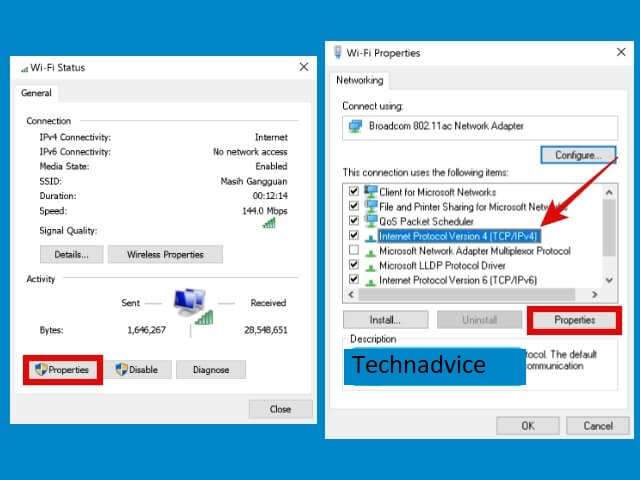
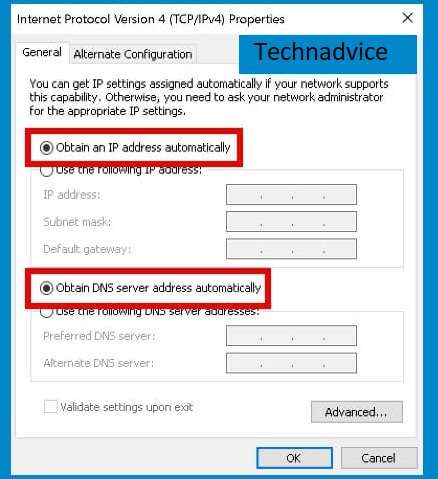
Then click on the Properties button > select Internet Protocol Version 4 (TCP / IPv4) > click the Properties button.
Check the options Obtain an IP address automatically and Obtain DNS server address automatically.
Click OK> close all setup windows> restart the computer.
By making the settings as above, your laptop will be connected to the internet with IP and DNS that are obtained automatically (dynamically), this will reduce the possibility of no internet access problems.
#9. Check WiFi and LAN drivers
A driver is a program that functions as a hardware driver on a computer. WiFi and LAN drivers are responsible for the work of the Wireless and Ethernet cards on the laptop.
If the driver has a problem, the device will also have a problem, this is what can cause interference with the internet connection on our laptop. It can even cause the laptop to not be able to connect to WiFi at all.
Try checking the status of the WiFi and LAN drivers on the laptop, and see if it goes well or if there is a problem.
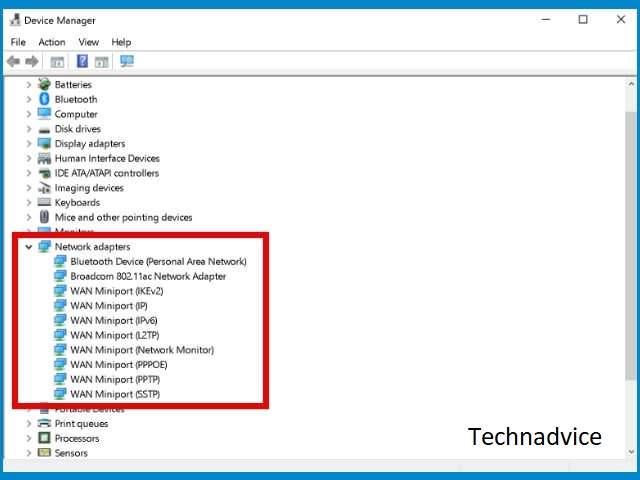
Open the Device Manager by pressing the Windows key + X on the keyboard> then selecting Device Manager.
Click on Network adapters driver > click on the little arrow next to it to expand> a list of network drivers will appear.
See if all drivers are in normal condition. The problematic driver will have a yellow exclamation mark icon. This means that the driver is not working properly and needs repair.
#10. Run Network Reset
In Windows 10, there is a network reset feature that we can use. If at this point the No Internet Access problem still occurs, then this step needs to be tried.
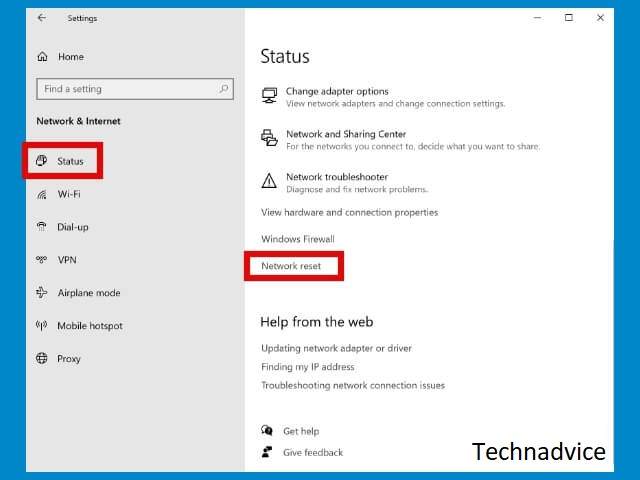
First, click on the Start menu > then select Settings > select the Network & Internet menu.
Click on the Status tab > on the right panel click the Network Reset button > click Reset Now.
Wait for the process to finish.
After resetting all network adapters and configurations will be returned to their original settings. You may need to reconnect to the network and make the necessary configurations.
#11. Run the Network Troubleshooter
Troubleshooter is a feature that we can rely on when we have problems with unknown causes and how to solve them, including problems with an internet connection.
You can try to run the network troubleshooter to solve the internet that doesn’t work on the laptop.
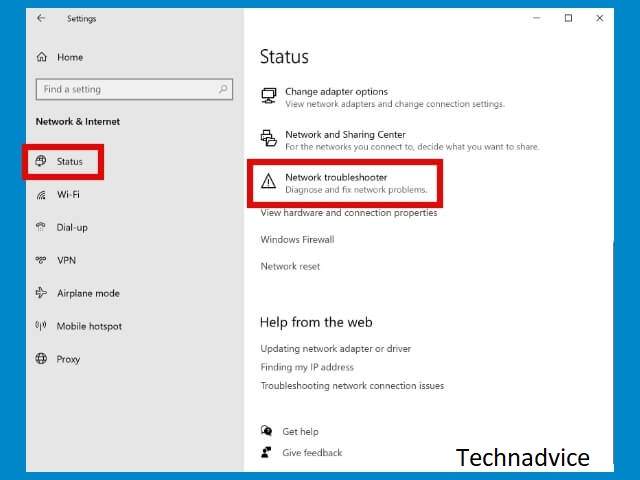
First, click on the Start button > select Settings > select Network & Internet.
Then click on the Status tab > find and click on the Network troubleshooter menu.
Follow the steps to complete.
The troubleshooter will tell you what is causing the problem and provide recommendations for how to fix it.
#12. Reset the router and modem
If at the beginning we tried to restart the router and modem, this time we will reset. Restart and reset are two different processes, doing a reset means we are returning the router and modem to factory settings.
This way all configuration errors can be resolved. To reset your router and modem, you can see the guide based on the brand of device used. You can open the manual or visit the official website.
This method applies to both GSM modem users who use Telkomsel, 3, XL, Axis, Indosat, and subscription internet services such as Indihome, Biznet, First Media, and MNC Play.
#13. Reset PC
If you get here but the No Internet Access problem is still not resolved, then the only option left is to reset the PC. This is the best solution without reinstalling because reinstalling will certainly be more troublesome. After all, you have to back up the data on drive C.
You can choose to keep personal data from being lost during the reset process later. Meanwhile, all applications that are not built into Windows must be installed again one by one.
This is the explanation of 13 ways to fix “no internet access” and “no internet secured” PC and laptop Windows 10, I hope this article is helpful to you. If you still have questions, please comment on the column.
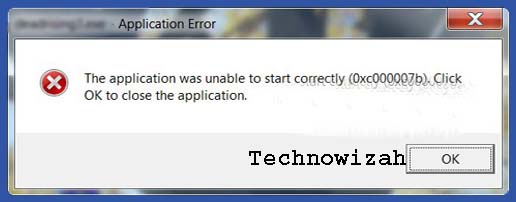
8 Ways To Fix Application Error 0xc00007b in Windows – Usually, there are several obstacles when using a laptop or computer, one of which is The application is unable to start correctly (0xc00007b). Error 0xc00007b is an error message that appears when we want to open or install a program, application, or game on Windows 10, be it 64-bit or 32-bit.
8 Ways To Fix Application Error 0xc00007b in Windows
Cause of Error 0xc00007b
Many things cause the error message unable to start correctly (0xc00007b) to appear.
The following are some of the things that are often the cause of the 0xc00007b error message.
Incompatible installation files.
Incompatible program bits.
Problem with DirectX.
Problem with Visual C++.
NET Framework problems.
There is a file system that is infected with a virus.
And many others.
However, most computers get the error message 0xc00007b when upgrading Windows as an operating system.
Usually, after upgrading the operating system, several program files are not compatible with the version of Windows used, causing the Application Unable to Start 0xc00007b Error message to appear.
How to Fix Application Unable to Start Error 0xc00007b
The appearance of the error message 0xc00007b on a Windows computer is not a big problem.
There is no need to replace the damaged part to repair it and can be overcome in the following ways:
#1. Restart PC/laptop
The first method you need to try is to restart the computer.
The restart process is one of the most powerful ways to overcome some minor errors that occur in Windows 10.
How to restart Windows 10 is as follows:
Click Start Menu.
Then click the Power button.
Then click Restart.
Wait a few moments until the computer restarts.
If this method does not work to resolve the error “The application was unable to start correctly”, please continue using the next method.
#2. Run the Program in Administrator Mode
Error 0xc00007b appears when the user opens a program. To fix this, try opening it via Run as administrator.
How to right-click on the application you want to open, then click Runs as administrator. If the approval page appears, please click Yes.
If with this method the error 0xc00007b issue can be fixed, we recommend implementing this feature automatically. It’s like this:
Right-click and select Properties on the error program.
Then click the Compatibility tab.
Then put a checkmark on the Run this program as an administrator option.
#3. Reinstall the Application
Because this error appears when opening a particular program, application, or game, you should delete the application or game, and then reinstall it.
The way you have to do a clean install first is to the game or application that is in error.
Open Control Panel, then Programs and Features, then select or click the problematic program, then click Uninstall.
After the Uninstall process is complete, please restart your PC/laptop. Then reinstall the program that you deleted earlier.
#4. Install Microsoft Visual C++
Microsoft Visual C++ is a series of components that computer programs need to open and run smoothly.
If Microsoft Visual C++ is corrupt, it will cause the error message The application was unable to start correctly to appear.
Therefore, you need to reinstall Microsoft Visual C++.
Please download the Visual C++ installation file through the official Microsoft website. Make sure you choose the installation file that matches the version of the operating system you are using
#5. Install .NET Framework
NET Framework functions to provide NET Framework library resources to applications or programs that need them.
NET Framework is included in the most important program components that are not included in the Windows installation package. Therefore, you have to install it manually.
How to reinstall the .NET Framework is as follows:
Go to the official .NET Framework page.
Then download the latest version of the .NET Framework that matches the Windows you are using.
Next right right-click on the dotnet-sdk-5.0.100-win-x64.exe file.
Then select Run as administrator.
Wait until the installation process is complete.
NET Framework is open source and cross-platform, and there is no license to pay so you can get it for free.
#6. Install DirectX
Some applications and games require DirectX files. If your PC / laptop does not have the latest version or has not installed DirectX, please install it first.
Please download the DirectX installation setup via the link below:
5 Ways to Optimize Slow SSD in Windows 10 PC – SSD is short for a solid-state drive. It is a very popular storage device in recent years. Windows 10, with its many features, can help SSDs operate to their full potential. However, it doesn’t always enable the SSD.
5 Ways to Optimize Slow SSD in Windows 10 PC
How to Optimize Slow SSD in Windows 10 PC
You may sometimes find SSD running slow in Windows 10 or other Windows systems. How did this case happen? What can we do to speed up SSD in Windows 10? This article will discuss how to optimize a slow SSD in Windows 10.
In general, the computer will run fast after using the SSD. This is why more and more people are choosing to buy SSDs. However, problems will occur during usage because SSD runs slowly.
Two situations make an SSD slow. First, SSDs run slowly for long periods of use, especially when used as secondary storage. Second, the SSD may run slowly because there is something wrong with the device.
But in fact, many causes can cause SSD to run slowly. Here are some common reasons.
Low Disk Space – Check the SSD capacity and free space, because if it runs in low disk space, the operating speed will be greatly reduced.
Low RAM – If there is not enough RAM, the cache size can be compressed so the SSD can run slowly.
AHCI Mode Disabled – AHCI Mode is important to help SSD get the best performance. So, if disabled, SSD can run slowly.
BIOS/firmware used is OutToDate – BIOS or firmware that is too old will affect SSD performance.
Onboard VGA Enabled – The Onboard VGA feature will slow down your computer’s boot speed.
Virus Infections – We know that viruses can cause hard disks and computers to run slowly. If your SSD or computer is attacked by a virus, it may run very slowly.
How to Optimize SSD in Windows 10 PC Laptop
If you have a slow SSD, you can use some of the effective ways below to optimize the performance of your SSD.
#1. Delete Useless Data
Delete unnecessary data (files, folders, or applications) from SSD to free up more free space.
#2. Disable Hibernation
You can try disabling Hibernation to free up more disk space. To do this, follow the steps below.
Type cmd in the Windows search box then click Command Prompt and select Run as administrator.
Type this command powercfg -h off and press Enter to execute.
#3. Disable Onboard VGA
Onboard VGA is a common cause of slow SSDs according to most SSD users. So, trying to disable Onboard VGA is also a method to speed up SSD in Windows 10.
Restart the computer to boot into the BIOS settings.
Go to the Advanced BIOS /Advanced Chipset Features section to find the Onboard VGA feature. Then disable it.
Exit BIOS setup and press Yes to apply changes.
#4. Update BIOS
As the first software for loading a computer, of course, the BIOS will affect the boot speed of the computer. So, you need to make sure you are using the latest BIOS version.
#5. Check the Hardware
If any of the hardware connected to the PC is damaged, the system will continue to search for the cache, so the SSD speed will drop. Try removing all hardware from the PC to see if there is a change in SSD speed. The hardware includes USB devices, sound cards, DVD-ROM, VGA cards, and so on.
So those are some ways to optimize a slow SSD. Your SSD may be slow for different reasons. So when you face this case, confirm the cause and take appropriate action to fix it.
Of course, you can’t try all the above solutions to speed up SSD in Windows 10. Take one or two of them and the problem will be solved. In short, I hope this article can help you deal with a slow SSD.

 The next downloader application is called Ninja Download Manager with the developer Download Ninja. Similar to IDM, Ninja Download Manager also uses the same working principle to speed up the download speed. By dividing the download into several parts, and then downloading it with different servers, Ninja Download Manager can speed up downloads up to 10X times the standard download.
 Next is Free Download Manager which was developed by Free Download Manager. By using Free Download Manager you will get benefits that are no less good than IDM.
 Next is an application developed by a developer called AppWork GmbH, namely JDownloader. This is another best download manager application that you can use. What’s special about JDownloader is its very interesting features. One of them is a feature that can automatically extract archives or files in .rar, .zip, .7z, and other archive formats. With this feature, you will find it easy when you want to download archive files.
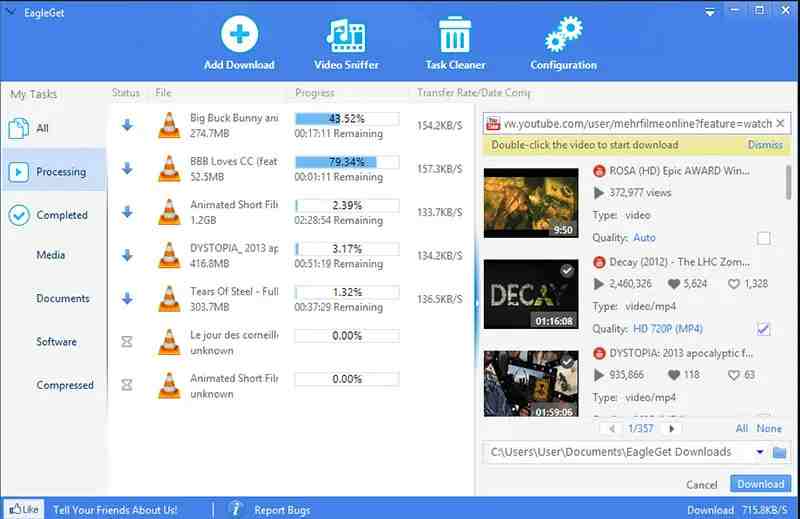 The fifth is EagleGet from developer EagleGet. With this relatively small size, only 6 Megabytes, EagleGet can bring you various interesting features that will help you in the download process. But before that, EagleGet has a very attractive interface, not only attractive but also clean so you don’t have to worry about seeing it.
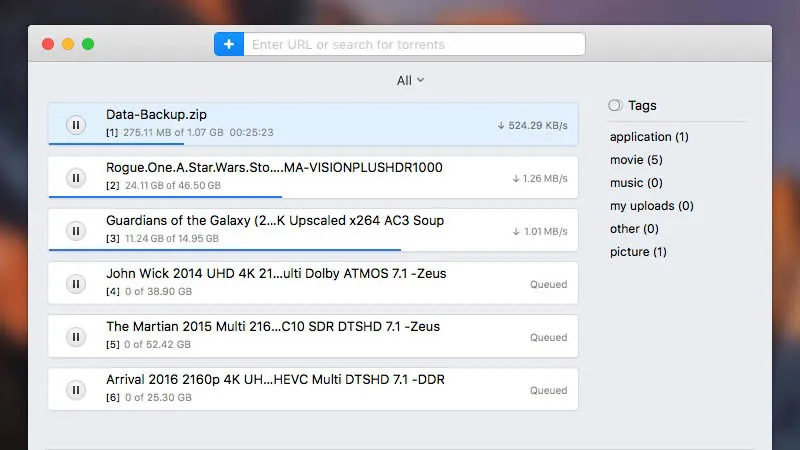 The sixth application is a bit different from the others, this application developed by Eltima is an application that can only be used on Mac. Folx is a download manager software that is quite popular among Mac users, apart from being free, the features provided are also diverse. One of the features in Folx is the feature to download the contents of files from .torrent format files.
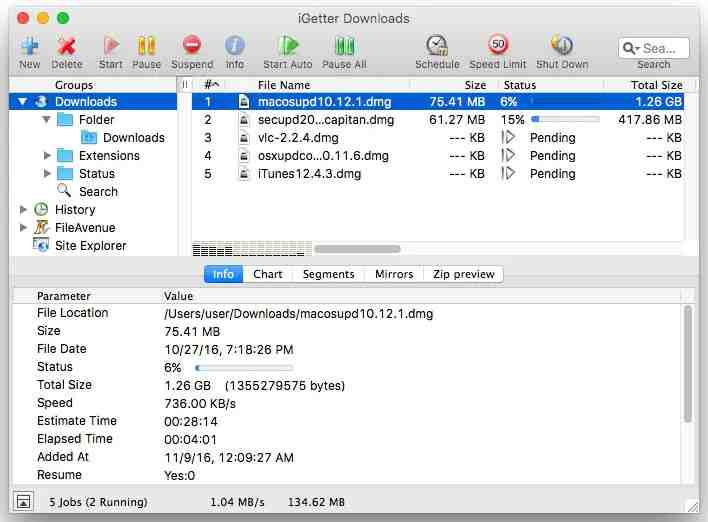 Unlike the previous Application, Folx. This application developed by Presenta is an application that you can use on Windows or Mac. iGetter is a download manager application that is in the same class as IDM that you use for free. iGetter has an interface that is quite similar to IDM. With the same working principle, which is to make downloads into several parts and then download them on different servers, iGetter can speed up your downloads.
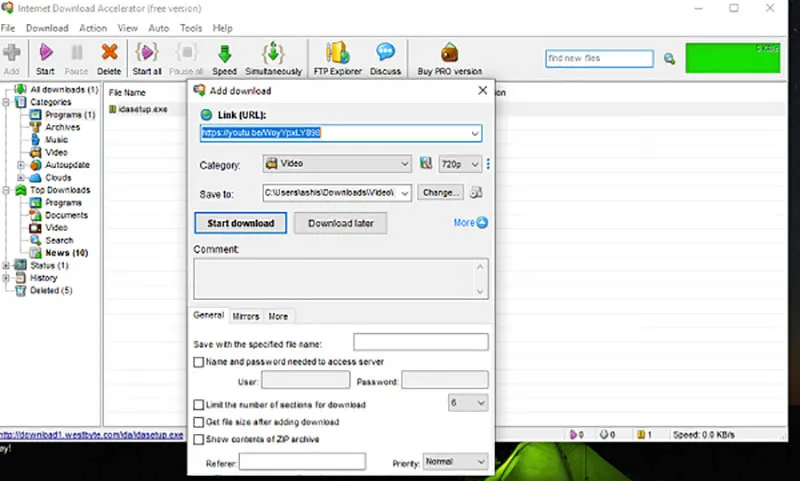 Next, there is the Internet Download Accelerator or IDA for short which was developed by Westbyte. By using Internet Download Accelerator your downloads will be able to reach 500% speed compared to standard downloads.
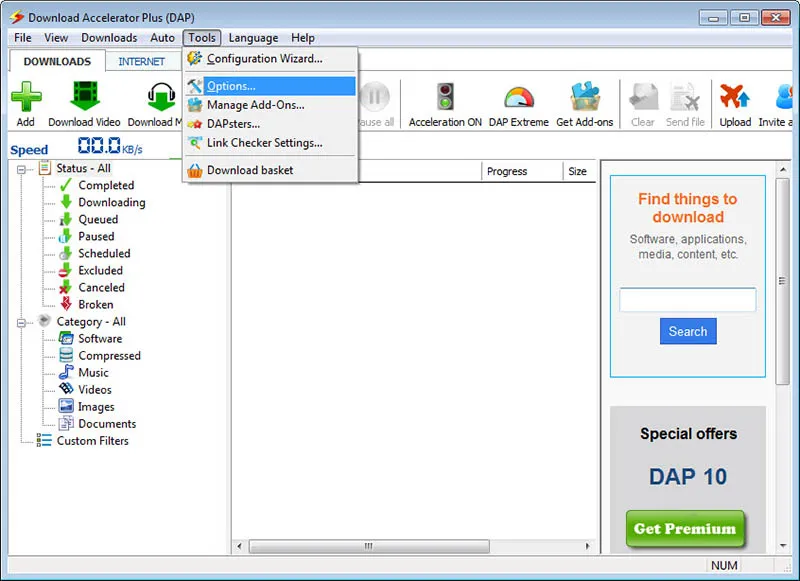 Next in line is Download Accelerator Plus, although it has almost the same name as Internet Download Accelerator, it is a different application with a different developer. Download Accelerator Plus is an application developed by SpeedBit Ltd. By using this Download Accelerator Plus you will get faster download speeds than standard downloads.
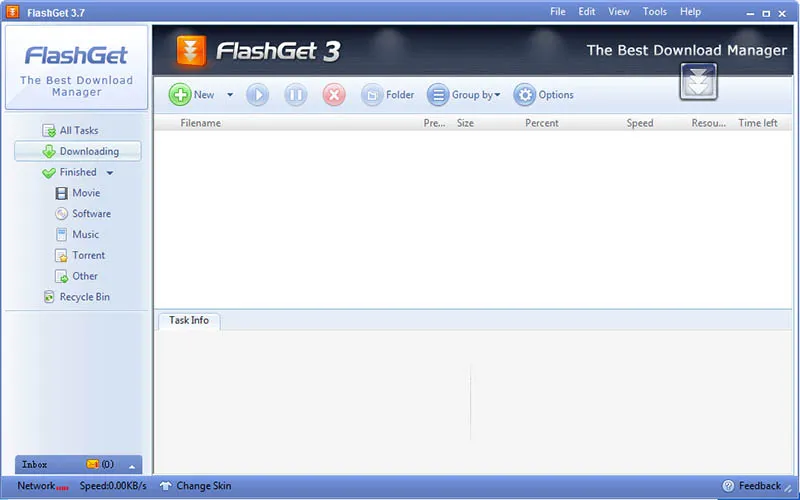 In tenth place is FlashGet, which is an application developed by Trend Media Co. Ltd. _ With this FlashGet, you will be very helpful when downloading a file.
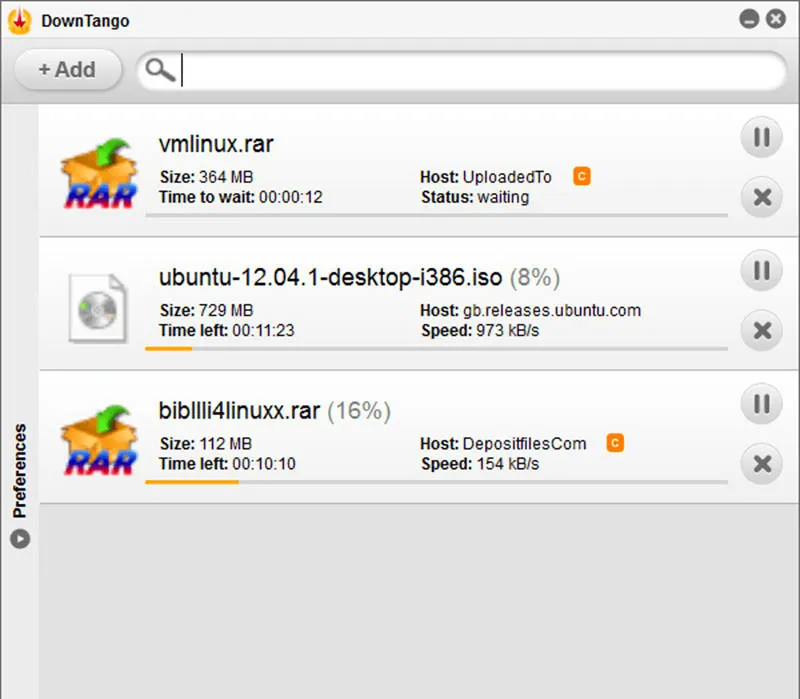 Last but not least is DownTango, which was developed by Red Sky. DownTango has a simple interface, the settings are also very simple, and there are not many annoying buttons. This application is suitable for those of you who don’t want to see a lot of annoying buttons and are satisfied with only the main features.
 How to Fix Application Unable to Start Error 0xc00007b