4 Ways To Enable Dark Mode for Google Chrome – Whether it be Google or Apple, it seems like every software developer is on a new wave that is taking over. Everybody seems to be obsessed with a dark mode that you can implement in the OS or a software application.
How To Enable Dark Mode for Google Chrome
How To Enable Dark Mode for Google Chrome Windows PC Laptop Android
There are many reasons for this mode, says Google. However, the most important one is performance and esthetics. Google firstly implemented this feature on YouTube in late 2018, and it was an instant hit.
People were instantly switching from normal to dark mode, but many believe that the majority are changing because of appearance, not because of performance.
Even though everyone seems to be adding a dark mode to their application many applications already have it.
Sadly, Google Chrome unlike its rivals Firefox and Vivaldi is pretty hard to activate this mode.
Nevertheless, because this mode is activated differently on many operating systems, we have included most of them in this article.
#1. Activate Dark Mode on Windows:
Go to Settings, find Personalization, and then click on Colors and find a switch “Choose your default mode”.
Then you can change this to “Dark” and all the applications that support this mode will change to Dark mode. Also, there is no need to restart.
#2. Activate Dark Mode on Android:
This model is still undergoing the development stage, so some design elements might look a little iffy. However, you can still activate it by going to chrome://flags in the address bar above.
In the field “Search flags” search for the word dark. Two options will come up which are “Android web contents dark mode” and “Android Chrome UI Dark Mode”. The first one is Google detecting if the particular website has a dark mode and displays it automatically. Even if, there are no such options, the browser will automatically change the site’s colors. The second option change the color of the browser interface.
Activate both of these features by tapping on the dropdown menu and tapping “Activate”. Then restart Google Chrome.
After opening Chrome go to settings, and then themes and you should have the option “dark”. But if you do not see this then you’ll need to restart Chrome again and try the process again/
#3. Activate Dark Mode on macOS:
Go to System Preferences, click on General, and select Appearance.
Click on the Dark feature. Like other operating systems, the colors of applications that support dark mode will change colors too.
#4. Activate Dark Mode on iOS or iPadOS:
For now, there is no Dark Mode for Chrome on these systems. Google stated that this is in development and will become available as fast as possible.
Nevertheless, there is an option that you can activate that makes it look like you have Dark Mode activated. To do this:
Go to Settings, then General then Accessibility then Display Accommodations.
Now turn on Classic Invert to change the colors on your device, or you can turn on Smart Invert which will not invert the colors of pictures.
Many websites have Dark Mode which will switch on if you have Dark Mode on Chrome activated.
Also, you can make certain websites look like they have a Dark Mode by switching their colors.
This is a beta option, so it isn’t available in the settings, however, you can activate it by going to chrome://flags/#enable-force-dark and tapping on enable.
So, friends, This is the explanation of 4 ways to enable dark mode for Google Chrome, Finally, if you have the Dark Mode option activated, the websites will switch colors automatically. Some may look a bit strange based on how they are developed, but this option generally works fine.
8 Ways to View WiFi Password on Windows PC—Have you ever used a computer that has been connected to a Wi-Fi network? If you have, you must have wondered how to find out the password for the Wi-Fi connection to the computer.
8 Ways To View WiFi Password on Windows PC
How To View WiFi Password on Windows PC
How to get the Wifi password stored on the computer is not difficult. Because you can see it directly in the computer system settings or control panel and CMD (command prompt). No need for further ado, let’s go straight to the steps.
The first time, make sure the operating system used by your computer or laptop is Windows, if you have one, just follow these steps.
Viewing Saved Wifi Passwords Through Control Panel
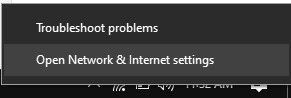
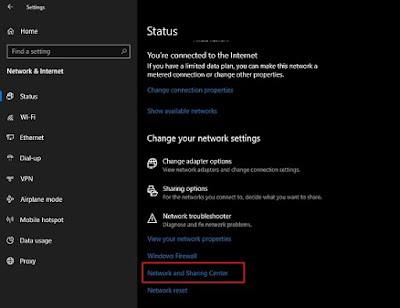
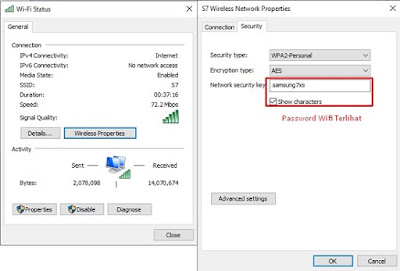
1. Right-click on the WiFi logo connected to your PC/Laptop, then select Open Network & Internet Settings. Then you will enter the system settings containing the status of the network you are currently using, swipe to the bottom then select Network and Sharing Center.
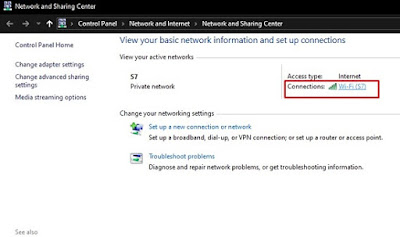
2. In the Network and Sharing Center section, you can see the SSID of the wifi connected to the computer (in the picture it is wifi with SSID S7 ).
3. Click the WiFi name, and a WiFi Status pop-up will appear.
4. Go to the Wireless Properties and Security tab check Show Characters. Then you will see the WiFi password in the Network Security Key column.
Viewing Saved Wifi Passwords Through Control Panel
Viewing Saved WiFi Passwords on Computer with CMD
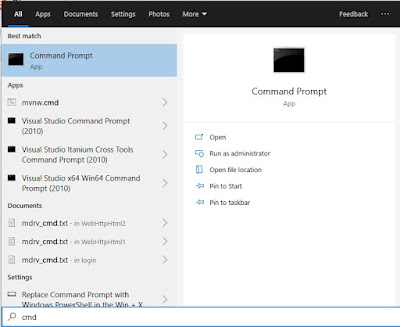
1. Open CMD by typing CMD in Windows Search.
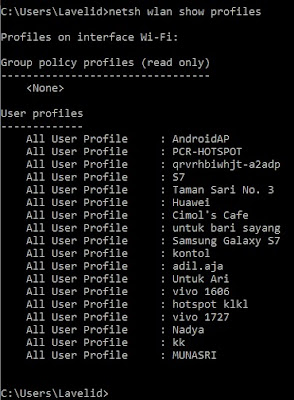
2. Type the command netsh WLAN show profiles to see all WiFi that has ever been connected to a laptop or PC device. Then a list of saved Wifi SSIDs will appear.
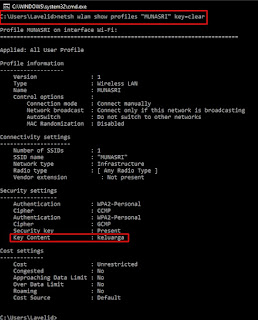
3. To find out the WiFi password of each WiFi. You just type the command netsh WLAN show profiles “SSID WIFI” key=clear
Replace the WIFI SSID with the WiFi name you want to see the password for, for example as follows: netsh WLAN show profiles “MUNASRI” key=clear This is used to view Wifi info along with the WiFi password named MUNASRI.
4. If you have, scroll to the bottom and find the word Key Content. Then there will be written the password from the WiFi stored on your Windows PC / Laptop (In the picture the wifi password is family.)
How? Very easy isn’t it? No need for additional applications, you can already break into WiFi passwords that were previously connected to a computer or laptop device.
This is the explanation of 8 ways to view WiFi passwords on Windows PC laptops, Hopefully, the above method can help you who may have forgotten the WiFi password because of the automatic feature that connects to the WiFi that has been used.
How To Root Android Using Kingroot (100% Working) – If you are looking for how to root an Android phone then you are in the right place, Now getting root access rights on Android phones is getting easier.
How To Root Android Using Kingroot (100% Working)
How To Root Android Using Kingroot (100% Working)
because we can use many methods. Starting from the root using a PC, even without a PC. One of the most popular applications that Android users rely on for root is KingRoot.
Based on statistics from the official website, KingRoot can now be used to root more than 100 thousand types of Android phones.
Lots of it, right?
I’m sure the type you use can also be rooted by KingRoot.
So, just go ahead.
Following is the tutorial on how to root Android using KingRoot.
Here’s Root Android Using KingRoot on a PC and Laptop
1. First, please download the KingRoot app first on the official website. After that install it on your PC.
2. After it’s installed, open the application immediately.
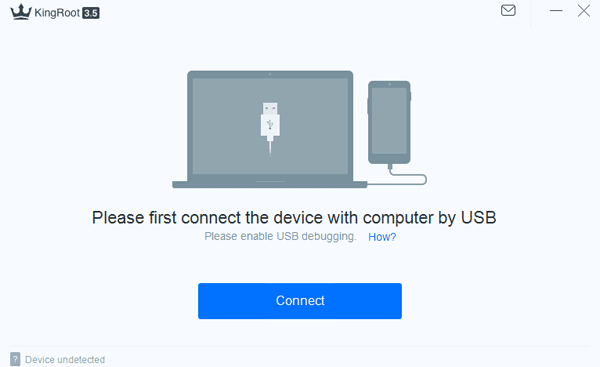
3. Then connect your Android phone to a PC using a USB cable. If there is a request to activate USB Debugging, please activate it. Because if it’s not activated, the rooting process cannot continue. If you don’t know how to activate USB Debugging, you can read the tutorial here.
4. If you have, please click the Connect button on the KingRoot application on your PC.
How to Root Android Using KingRoot on PC & Laptop
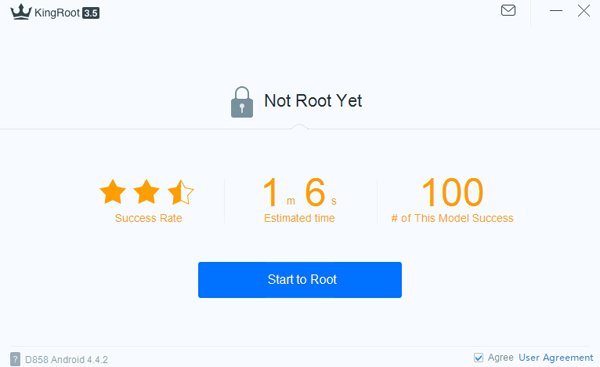
5. If your device is successfully connected, you will see the note Not Root Yet. This means that KingRoot has detected that your device is still not rooted. To start the rooting process, you can click the Start to Root button.
Start to Root button
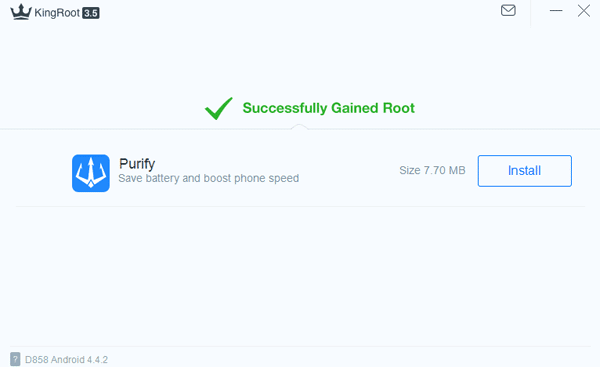
6. After that, the rooting process will run. Friend Androbuntu just needs to wait. During the process, later your Android phone will restart, that’s natural. So don’t panic. When it’s finished, there will be a Successfully Gained Root.
Successfully Gained Root
It’s easy, right?
For those of you who might happen to not have a PC or laptop, you can also use the KingRoot application directly on Android.
Follow the method below:
How to Root Android without PC Using KingRoot Application
1. Please visit the KingRoot website, then click the Download for Android button to download Kingroot.apk, then double-click the apk file to install it on your Android.
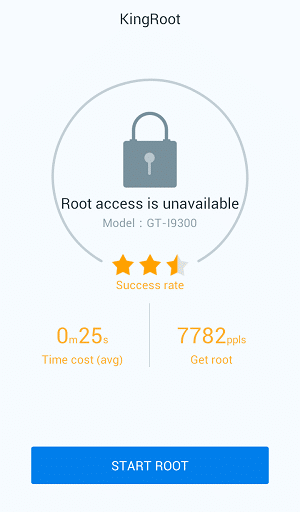
2. After that, please open the KingRoot application that you just installed. Then click the Start Root button.
How to Root Android without PC Using KingRoot Application
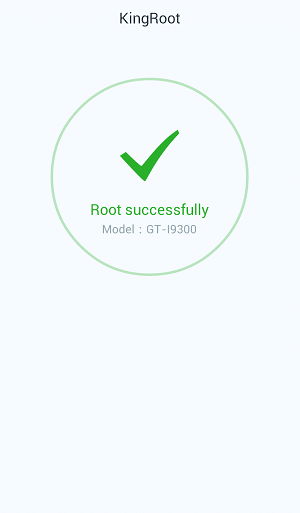
3. Wait a while until KingRoot finishes rooting for your Android phone. When it is finished, you will see a green check button and then write Root successfully.
So, friends, This was how to use kingRoot for root Samsung, Xiaomi, Oppo, Vivo, Acer, Asus, LG, Advan, and all brands of Android phones using KingRoot.
10+ Best Online Photo Editing Apps Paid and Free – For those of you who want to edit photos but are reluctant to download the application because you don’t want to add to the burden of computer or cellphone memory. so. using an online photo editing application is the right way.
10+ Best Online Photo Editing Apps Paid and Free
Best Online Photo Editing Apps Paid and Free
You can do photo editing activities starting from cropping, resizing, combining photos, giving effects, adding text, etc. without installing additional applications, just open a browser and access online photo editing applications.
To be able to enjoy all the features available in the online photo editor, your device must be connected to the internet, yes, here are 10 recommendations for online photo editors that you can try.
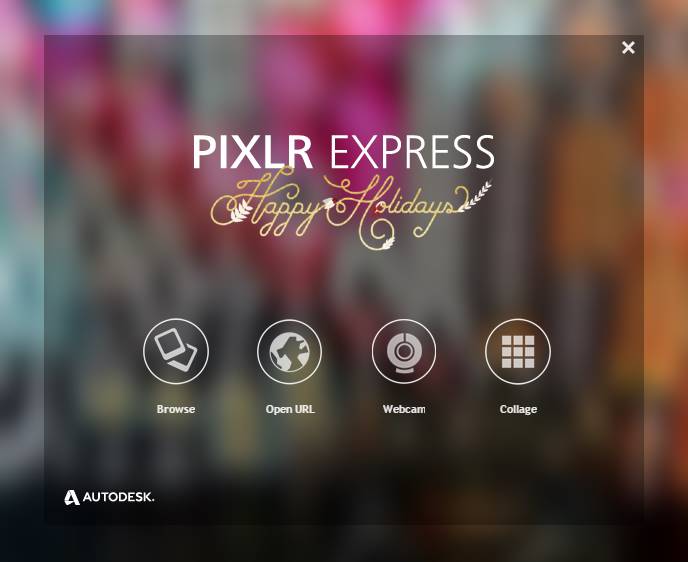
#1. Pixlr: Free Photo Editor Online
Pixlr Free Photo Editor
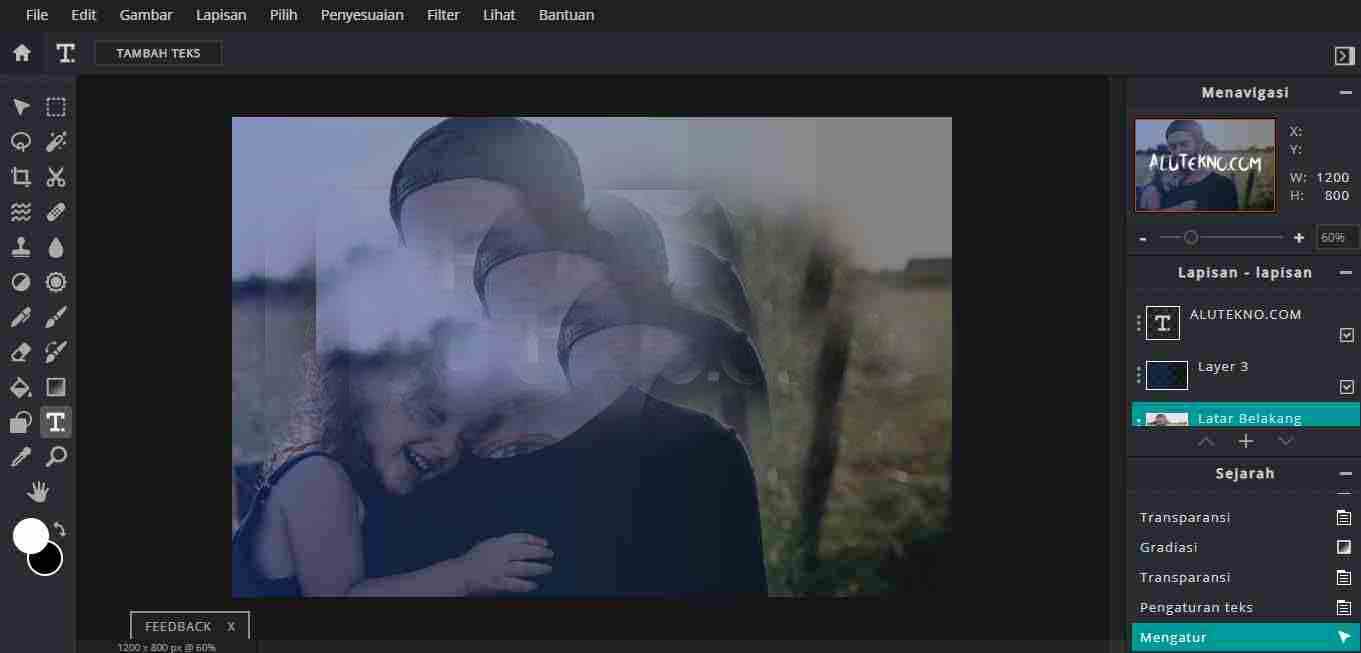
Recommended The first free online photo editor is Pixlr, Pixlr is a free online photo editor that can be accessed through your browser.
If you are used to using Photoshop, the interface of Pixlr and the features in it are not that much different from the Photoshop application, even Pixlr can open almost all image formats, such as PSD (Photoshop), PXD, JPEG, PNG (transparent), WebP, SVG, and much more.
Pixlr has several excellent features such as the use of AI to remove backgrounds, a variety of interesting filters and templates, and supports multi-platform that can be used on computers and mobile phones.
With a total of more than 500 million users, Pixlr is one of the best free online photo editors in the world today. For those of you who want to use Pixlr, you can access it on the official Pixlr website.
#2. Canva
Canva
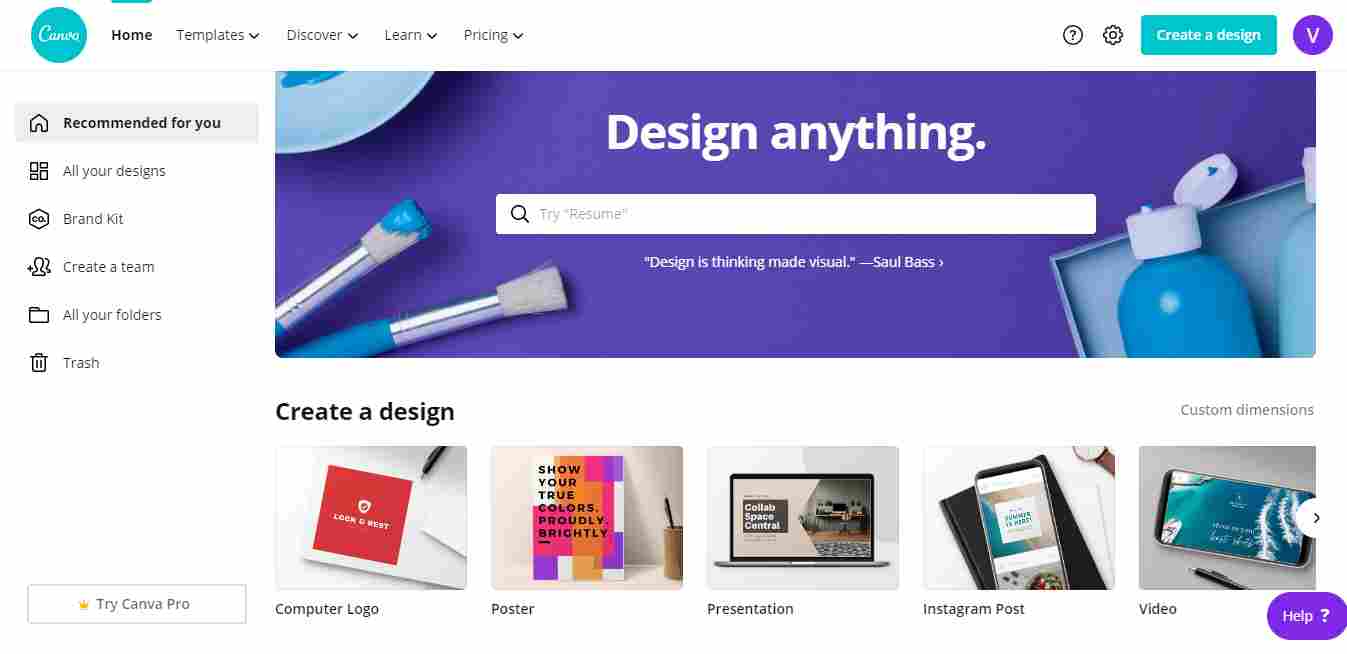
If Pixlr offers an interface and features that are quite advanced and seem complicated for beginners, then you should try Canva which is simpler and easier to use.
Canva is a graphic design platform that is quite widely used in Indonesia and is one of the world’s favorite graphic design applications, so far there have been millions of people using Canva since it was founded in 2012.
Canva is widely used because it has quite complete features, not just photo editing, but Canva also has millions of images, hundreds of fonts, various filters, and icons that can be used for free to support social media facilities or do business online, besides that Canva is also very easy. used.
For those of you who want to use Canva, the method is quite easy, you can access Canva through the official Canva website, but first, you have to register to be able to use Canva.
After registering, all you have to do is login and use all the features there, various invitation templates, business cards, presentations, and product designs in Canva, Canva also provides subscriptions for members who want to enjoy premium features from Canva.
However, for those of you who don’t want to spend money on a subscription, you can still use Canva for free but some features are limited.
#3. Picresize: Crop, Resize, and Edit images online for free
Picresize Crop, Resize, Edit images online for free
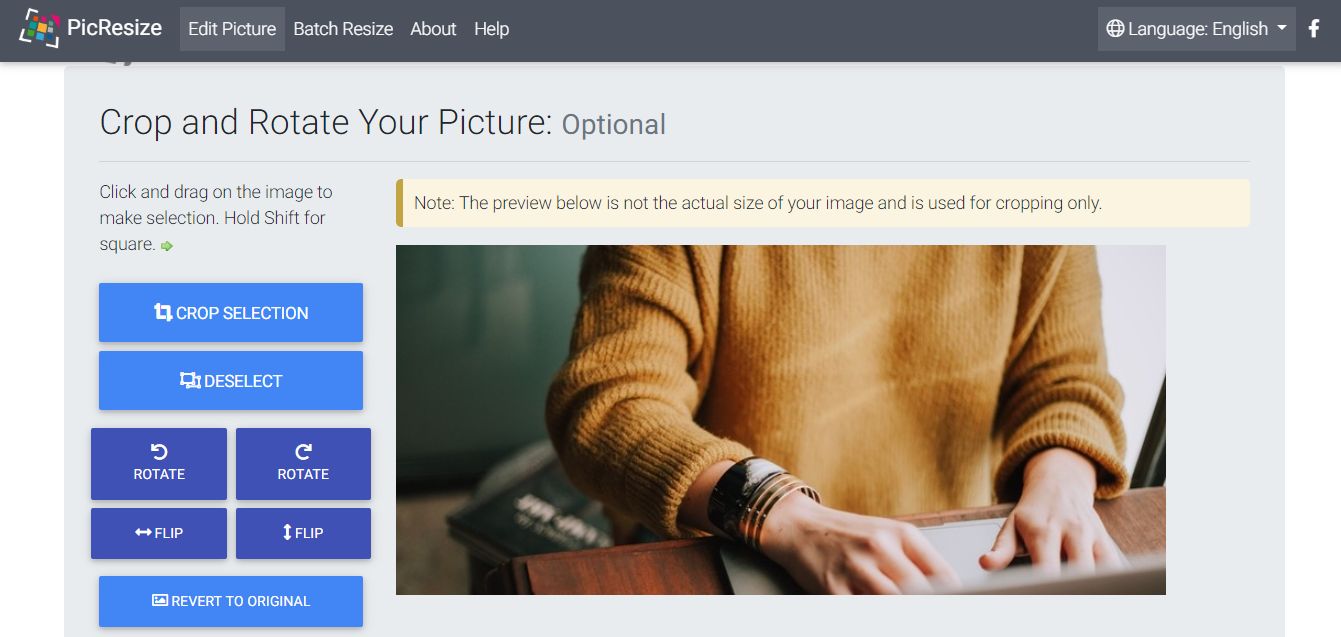
Next is Picresize, a free online photo editing platform that offers easy photo editing, as the name suggests, the main feature of this platform is to change the image size, namely rotate, crop, and flip.
But in addition to the features above, this application also has several filter effects that you can choose if you want. This platform can be used without having to register or sign up first, very practical for those of you who are just cropping or resizing images.
How to use it is also very easy, just enter the image you want to edit, you can use the upload feature via a computer or insert a URL, and after that just edit the uploaded image according to your wishes.
#4. Polarr: Online Photo Editor
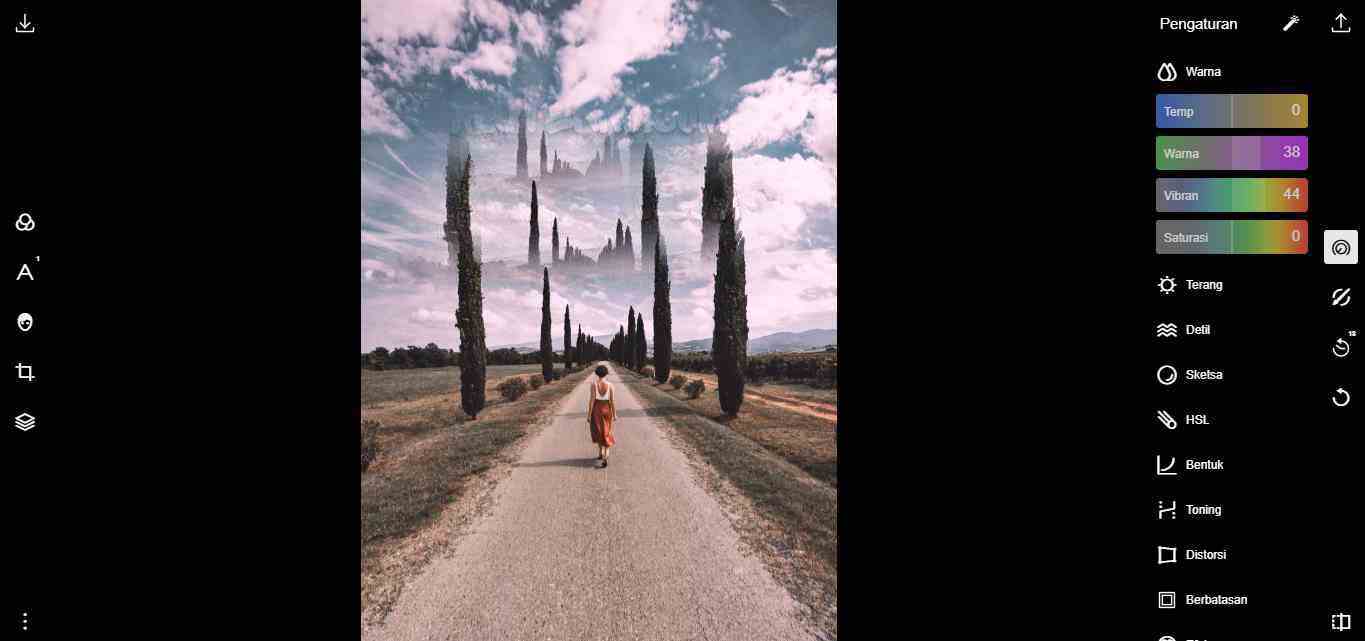
Polarr Photo Editor
The next free online photo editor recommendation is Polarr, Polarr is an artificial intelligence or AI-based graphic editor who was founded in California in 2014.
Also Read: 10 Best Launchers for Android Phones
Polarr has an interface that at first glance is almost the same as Pixlr but is simpler and easier to access without having to mess around with various tools.
Polarr has a variety of filters that will make your photos more aesthetic when uploaded on social media. In addition to having a variety of interesting filters, Polarr also has other features like other photo editors such as image resizer, adding text, and changing color tones. To use this online photo editor, you can access it at photoeditor.polarr.com
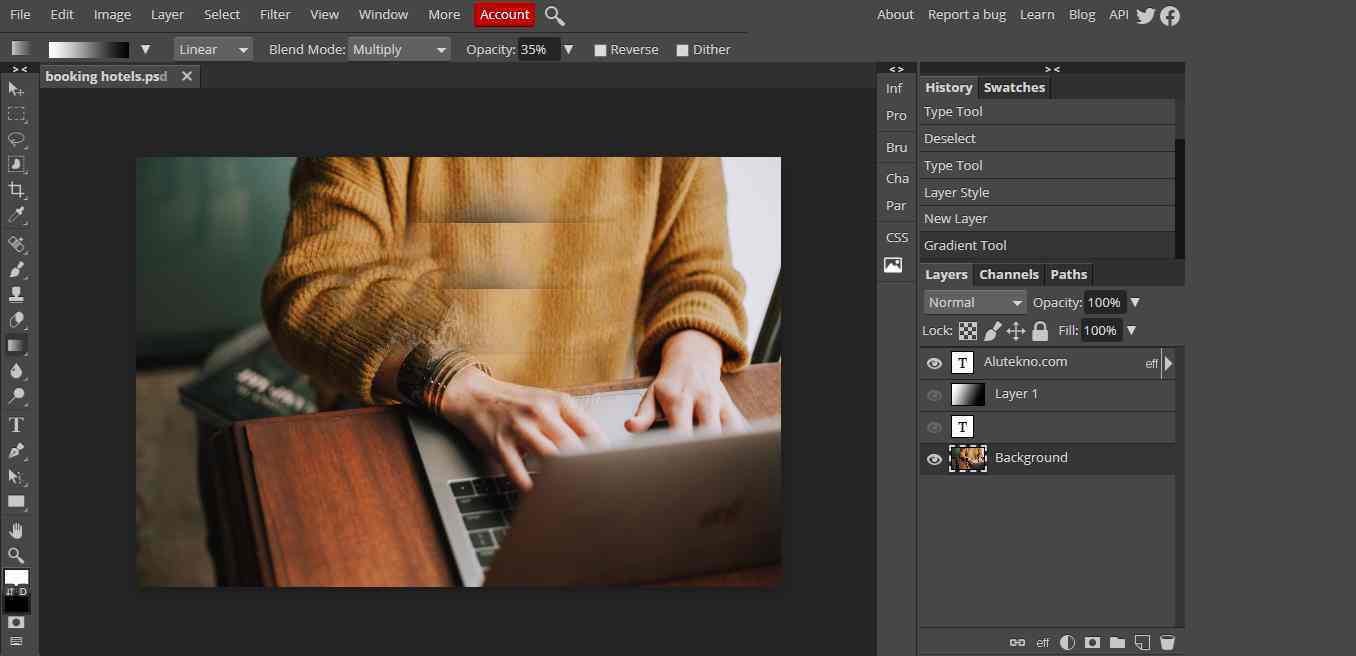
#5. Photopea: Online Photo Editor
Photopea Online Photo Editor 1
Next, there is Photopea, Photopea is a web-based raster and vector graphics editor that is used to edit images, create illustrations, design the web, or convert different image formats.
Photopea is an ad-supported software, with ads you can use this application for free. Photopea is compatible with several web browsers, including Opera, Edge, Chrome, and Firefox.
This photo editing application is very similar to Pixlr, but your connection must be stable because this application is quite heavy to run and several times delays waiting to load each change is complete.
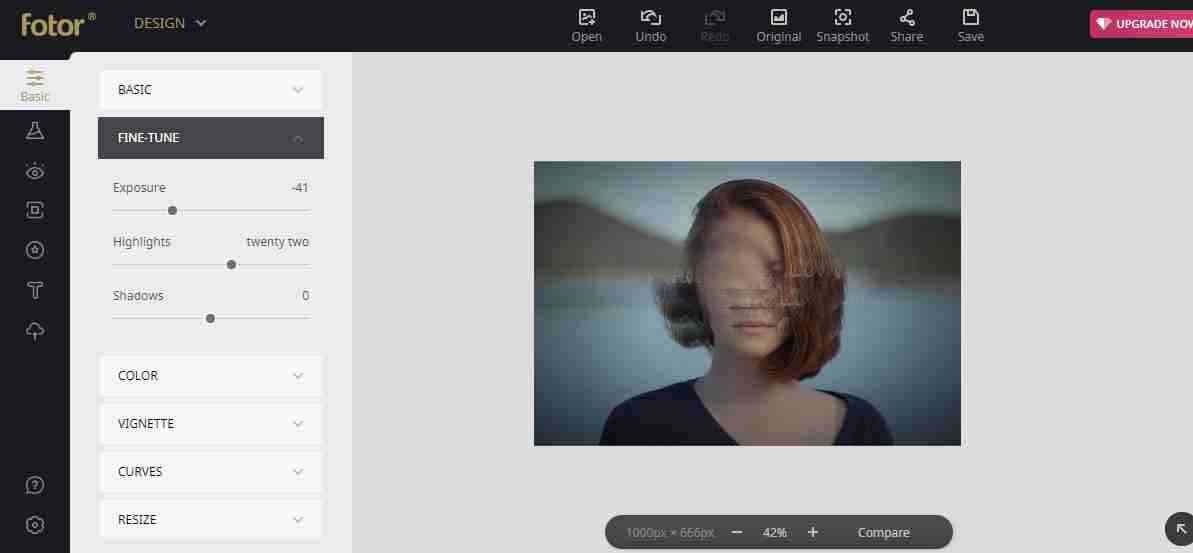
#6. Fotor: Free Image Editor & Graphic Design
Fotor Free Image Editor and Graphic Design
The next free online photo editor recommendation is Fotor, this application provides features that are a combination of Canva and Polar because it has a variety of attractive design templates that you can use, from invitation designs, Facebook covers, posters, photo cards, YouTube banner ads, and many more. much more.
In addition, this application also has a retouching feature that allows you to make photos more lively or colorful and can even beautify your face or remove pimples easily and quickly.
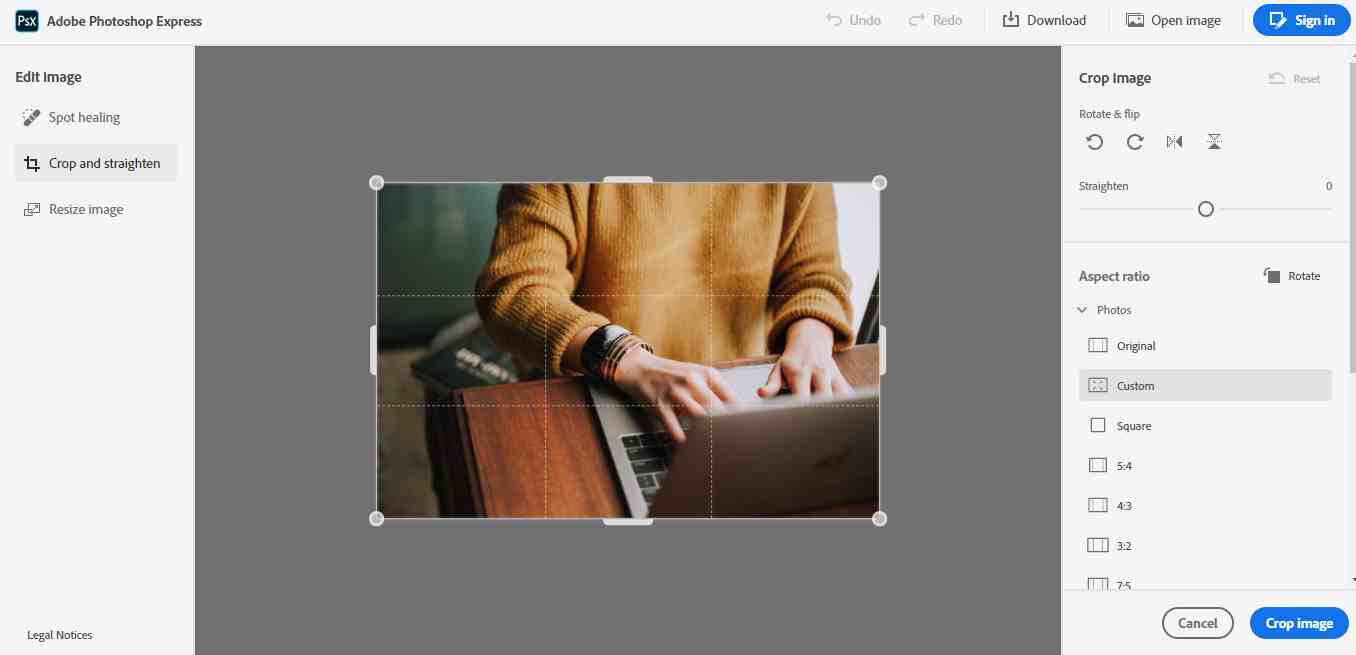
#7. Photoshop Express
Photoshop Express
Furthermore, there is a free version of Adobe Photoshop that you can use, namely Photoshop Express, because the free version means you can only use a few features, such as cropping, and spot healing to remove certain parts neatly, and image resizing.
Some of the features above are sufficient under certain conditions when you don’t need a lot of tools for complex photo editing. You can access Adobe Photoshop Express at photoshop.adobe.com
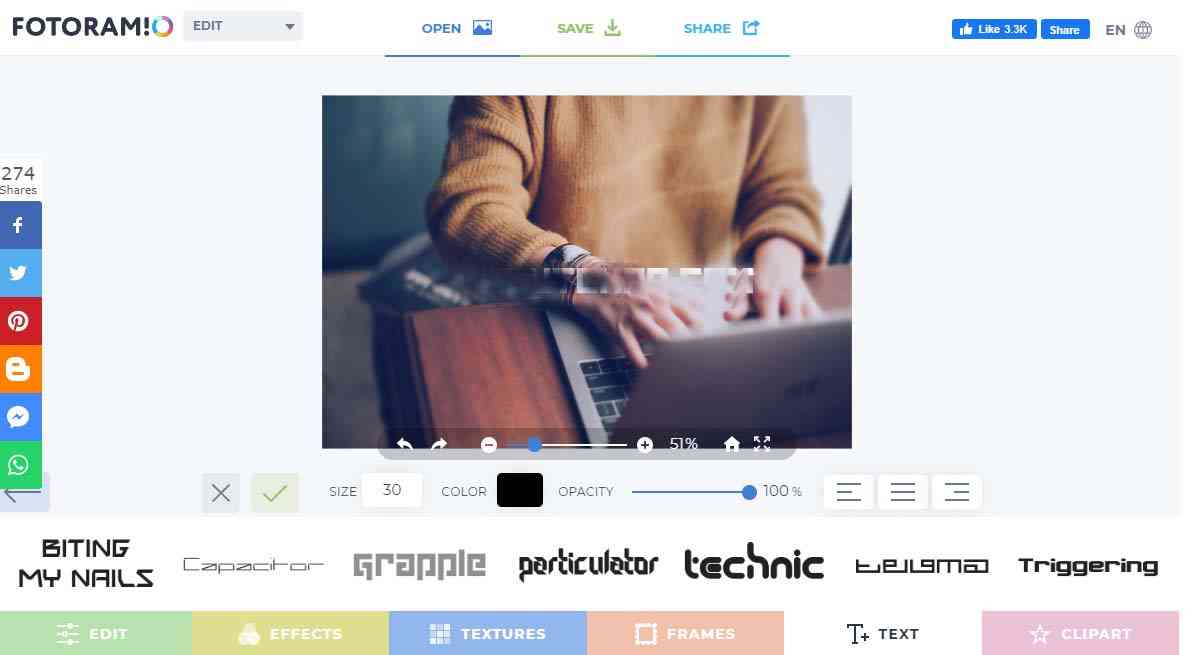
#8. Fotoram.io
Fotoram.io
The next recommendation is Fotoram.io, Fotoram.io has 3 main features, namely Photo editing, Art Style, and Photo Collage.
This application is quite light to run and its features are also sufficient for simple photo editing such as adding text, cropping, providing filter effects, and changing color tones.
Fotoram.io
The art style feature in this application can convert images into various interesting art ranging from anime to abstract and comic effects with just one click.
You can access this application for free on their official website, Fotoram.io
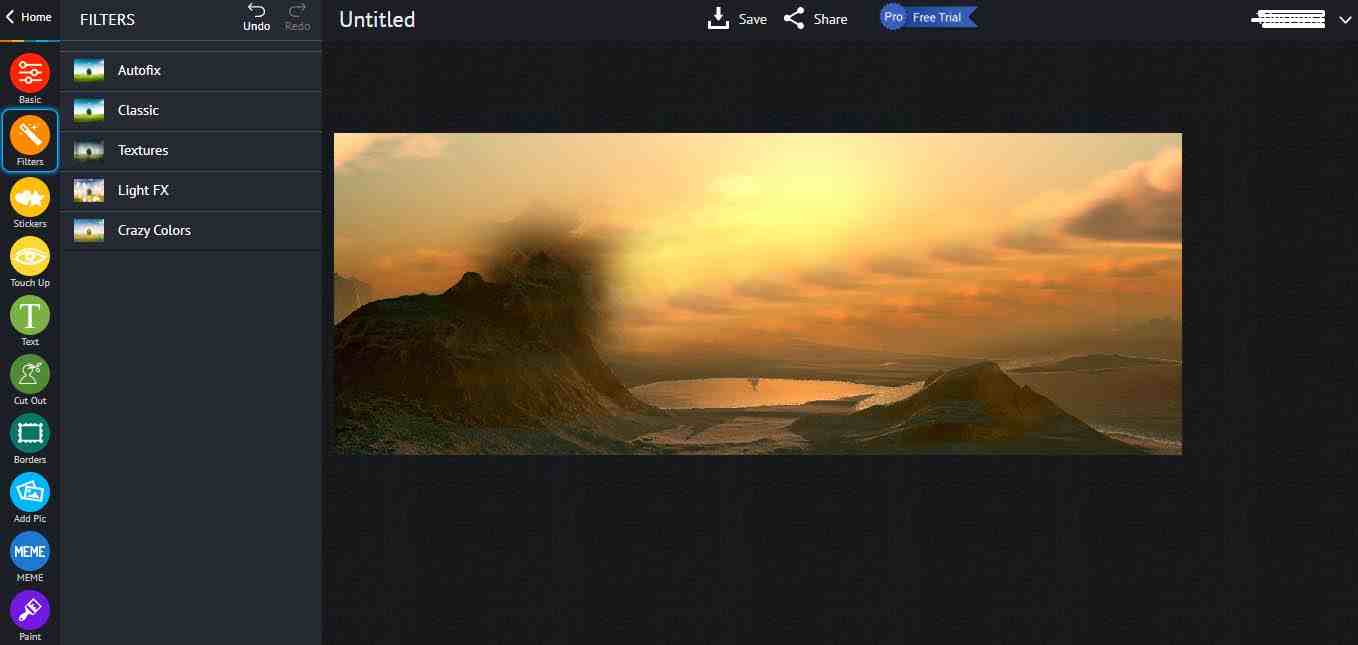
#9. Ipiccy Photo Editor – Mobile
Ipiccy Photo Editor – Mobile
Furthermore, there is an online Photo Editing Application from Ipiccy, this application has 3 main features, namely Image Editor, Collage Maker, and Graphic Designer.
For the image editor feature, iPiccy has many photo editing tools that are quite good and easy to use in various browsers. Can adjust photos automatically in one click, crop, rotate, and resize images in no time. Over 100+ photo effects and PRO-level photo enhancement.
To use this application you must use Flash in your browser.
#10. Pizap: Free Photo Editor & Collage Maker
Pizap Free Photo Editor & Collage Maker
The last recommended free online photo editing application is Pizap, like other photo editors, Pizap has various features such as an image resizer, text adder, effect filter, and image collage.
This application can be an alternative to free image editor applications that you can use to edit photos. However, many features such as fonts and effects cannot be used because you have to become a pro member first.
Those are 10 free online photo editing applications that you can use as photo editor recommendations, we have tried the above application and it works well so we can provide a review and brief review that you can take into consideration before deciding which online photo editing application you will use.
13 Digital Marketing Tools to Increase Productivity – These 13 tools can help your productivity and save you time, so you can complete projects that have been set deadlines. Various tools that can improve work productivity also help you to get a balance of life between work and personal life.
13 Best Digital Marketing Tools to Increase Productivity
Best Digital Marketing Tools to Increase Productivity
So you remain a professional!
Not only that, but these tools can also help you to create an interesting presentation, allowing you to get a promotion!
And do not need to widen again in the opening, let’s peel the trap in the following paragraph!
Soon we start the discussion! Digital Marketing tools.
Here are Some Best Tools That Can Increase Work Productivity
There are a lot of online tools that are “scattered” everywhere if you take the time to search on Google, but not all the tools you find can be effective if it does not match the field of your work in the digital marketing world.
To help you, this article will screen 13 tools that can improve your work productivity.
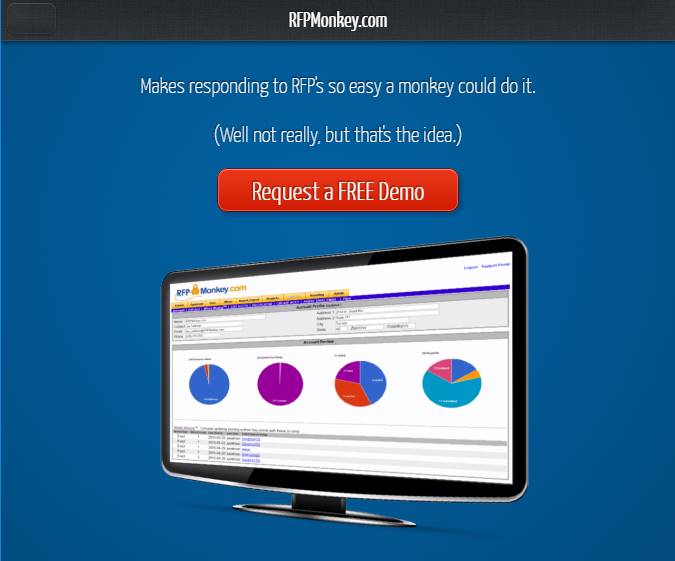
This tool is a good automation solution and helps you respond faster and better to RFP (request for proposal) or RFI (request for information).
This will assist you in reusing, merging, categorizing, and even searching for data sources of knowledge which will then be processed into information for you.
You can track project tasks from team members and see the progress of RFP or RFI.
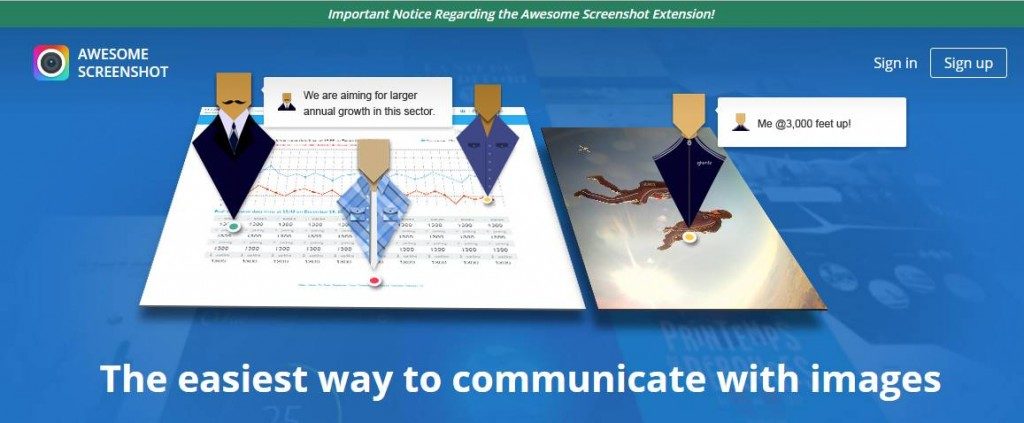
One of the tools that can improve your work productivity will help you to capture screenshots for all or part of the web page.
You can add annotations, put in comments, so sensitive information, save and organize images, and get design feedback from your coworkers on screenshots.
You can also add this tool as an extension on your Chrome web browser.
This website is similar to Awesome Screenshot, Snagit will help you to capture the image on the computer with a few clicks.
You can customize the screen you capture with markup tools. You can also create fast videos by recording your screen and then giving narration and tidying up.
Snagit is also accessible from Android and iOS with the Fuse app, so you can send photos and videos from mobile to your Snagit editor.
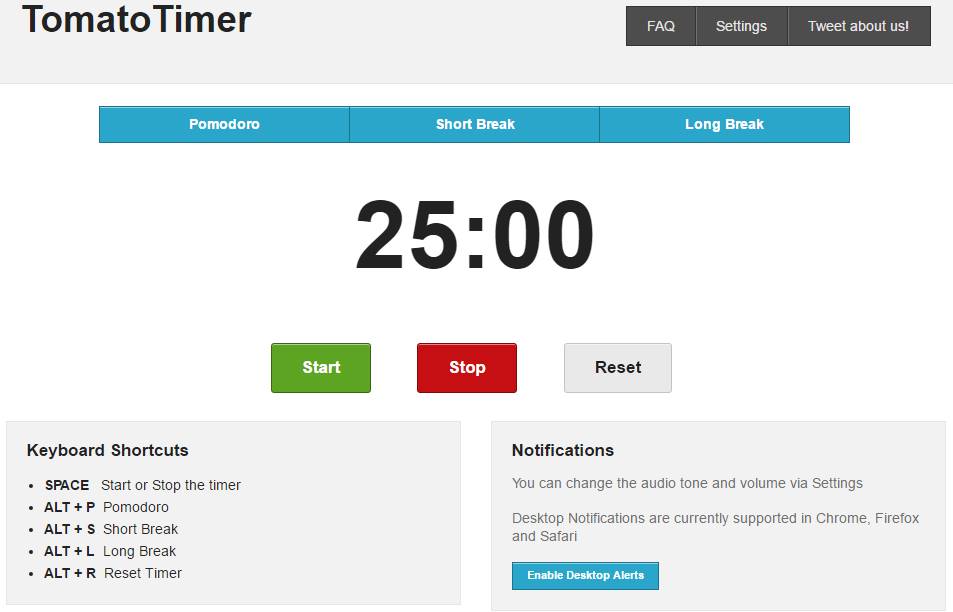
This mobile-friendly tool helps you take the time to take a break when you use the flexible Pomodoro technique, the time management method to break the work into intervals (usually 25 minutes to focus on work and 5 minutes for a short break). Digital Marketing tools.
With this timer, you can stop and reset the time, get notified on the desktop with audio notifications, and change the volume and sound alert.
If you want to organize and add more rest time to your workday, this is one of the tools that can increase your work productivity.
This tool is an application for time management. When you click the Toggle button, the time will start running and you can track the time it takes to complete various tasks.
You can do all this through your web browser or you can install it on the desktop.
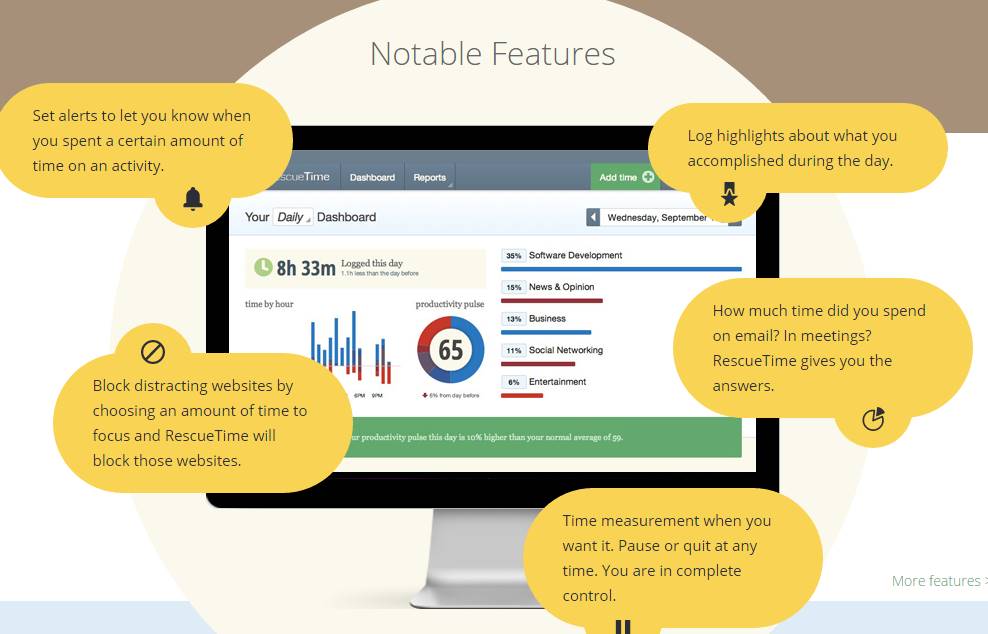
Similar to Toggl, this tool is more bell and its notifications. One of the tools that can increase the productivity of this work will show you how long your productive time is in a day.
Not just daily, you will see when your best and worst times are weekly/monthly / yearly.
Live install on the desktop and then you can start men tracking your productive time.
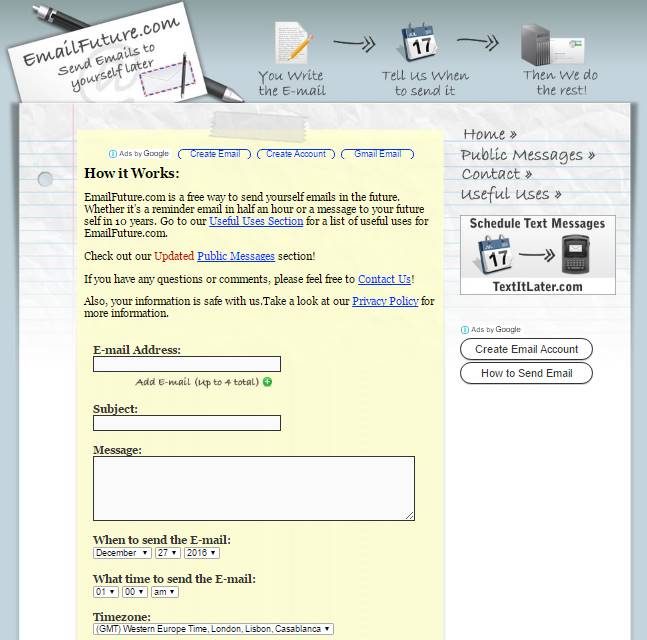
This tool will send you an email to yourself in the future. Whether it’s a half-hour reminder email or a message to yourself in 5 or 10 years.
It’s a great way to remind yourself of important days (like birthdays, anniversaries, sporting events, when concerts will go on sale, or decline projects) or remind you to buy something at the grocery store.
You can send us useful links that you find on the internet or send emails about a list of goals you want to achieve in 5, 10, or 15 years from now.
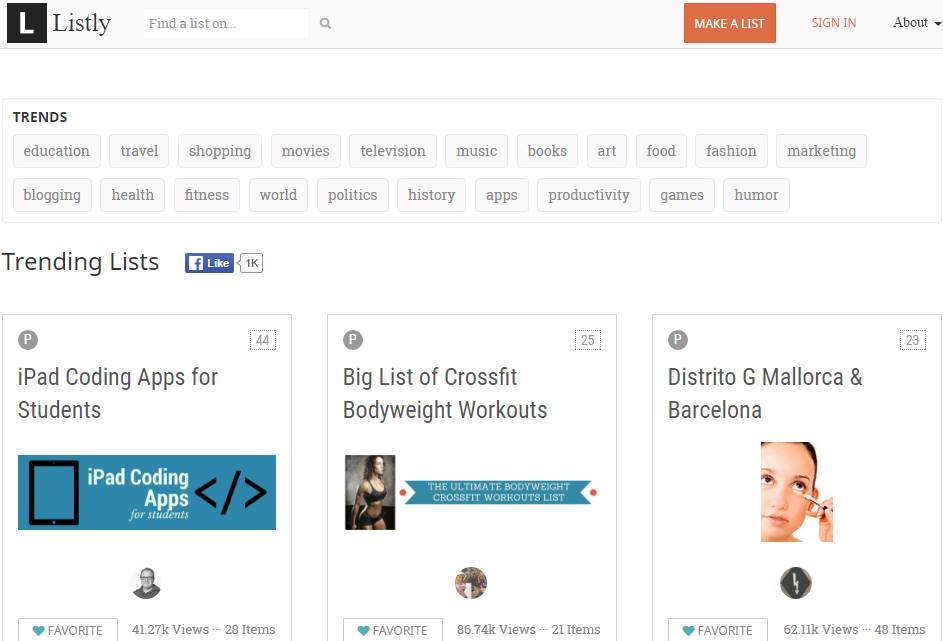
We all love the list. Some people like to create a list of things they favor. If you are a blogger and you want to keep the list you create, this is one tool that can increase your work productivity.
This provides you with an interactive and compelling list format for your readers.
Want to know how well the legibility of your content is? This online calculator will help you to determine the level of ease of content in readability, with a scale of 0-100.
This tool will tell how many characters, syllables, number of words, number of sentences, characters per word, syllables per word, and words per sentence.
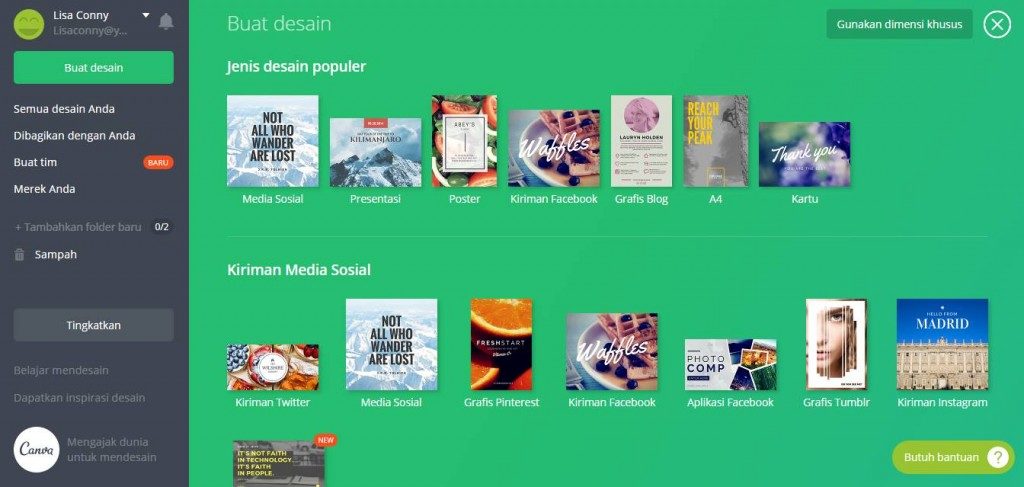
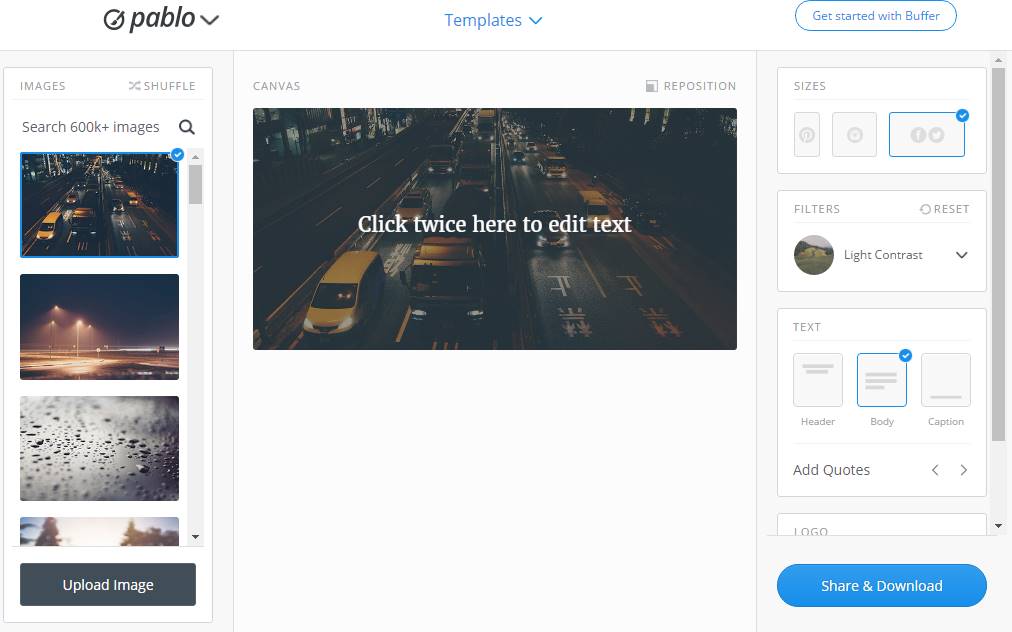
Do you want to create cool graphics for social media platforms like Facebook, Pinterest, Twitter, Google+, and Instagram? If so, this tool is suitable for use!
In Canvas, you can access 100 layouts! Open Canvas, select a layout for a particular social media channel, upload your image stock or from the stock image in the app, fix the image, edit the text, and then save.
If there is no tool to support screen recording, it will be extremely flawed to perform tutorials. RecordCast is an effective and quality computer screen recording tool for you. Because it can record the screen online, and allow users to capture webcam footage and schedule editing efficiently.
Not to mention, it also supports simultaneous recording of audio and video, so users can easily create and edit content quickly.