Author: Nazrul Islam

  • 10 Best Android and PC Cashier Applications for Grocery Stores 2025

    10 Best Android and PC Cashier Applications for Grocery Stores 2025

    Best Android and PC Cashier Applications for Grocery Stores – Point of Sale (POS) is a designation for cashier applications that are widely used by businesses as financial records, especially sales. Using this kind of application will help you know and plan your business financial cycle.

    10 Best Android and PC Cashier Applications for Grocery StoresBest Android and PC Cashier Applications for Grocery Stores

    To use it, of course, you don’t need to wait for a big business first, because starting from the beginning when the business is opened, it will get even better.

    Read more:

    If you can use an automated and computerized method, why do you still use the manual way to record transactions?

    Trusted Cashier Application Recommendations

    When talking about business, of course, you want to get something that is cheap but can provide a lot of benefits. For example, now many applications for cashiers can be used free of charge but are of good quality, easy to use, safe, and fast.

    For some applications that can be used by your cashier in a new shop or shop, you can use one of the following:

    #1. MokaPOS
    MokaPOS

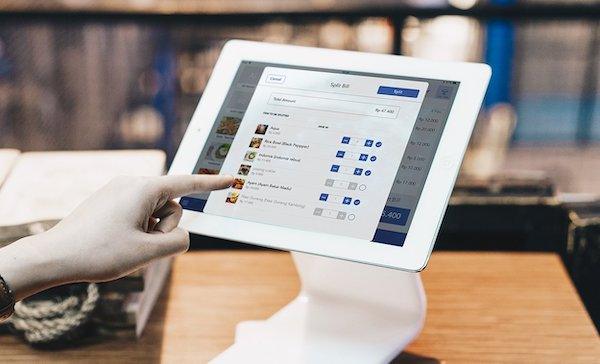
    The first recommendation is MokaPOS which can be used online and cloud-based in Indonesia. Even to use it can be through applications based on Android and iOS.

    Features that MokaPOS has include menu lists, adding prices, updating stock items, and transaction reports from buyers. Because it is cloud-based, it can be monitored in real-time both online and offline.

    When using this application, it is easy to make cashless payments such as OVO, Gopay, DANA, LinkAja, Kredivo, Akulaku, and WeChatPay.

    #2. ProfitCentre

    ProfitCentre

    If you want to use a PC-based application for your business, you can use ProfitCentre at the checkout. It can be used for free on Windows, unfortunately, it can’t be used on smartphones or MacBooks.

    Meanwhile, the features it has, such as free updates, free support, currency support (foreign currency), and much more focus on cashier services for businesses.

    #3. Free Smart Cashier
    Free Smart Cashier

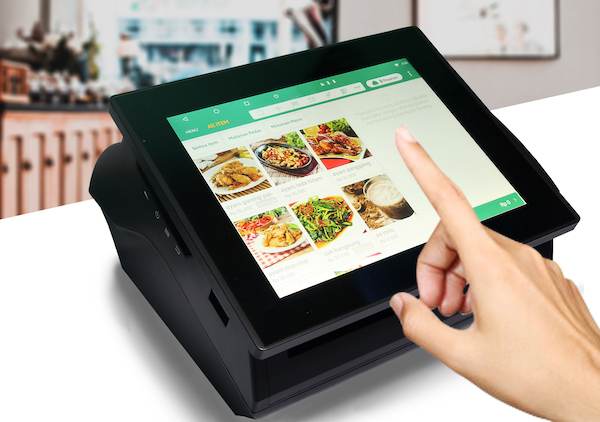
    Judging from the name alone, this application is Free, aka free and free to use. However, to be able to use it, you must have an internet connection and a smartphone because the Kasir Pintar Free application can only be used on smartphones but is still cloud-based.

    The superior feature that differs from the previous application is barcode scanning so that buyers who want to use a digital wallet can take advantage of this superior feature quickly and easily.

    #4. VendHQ
    VendHQ

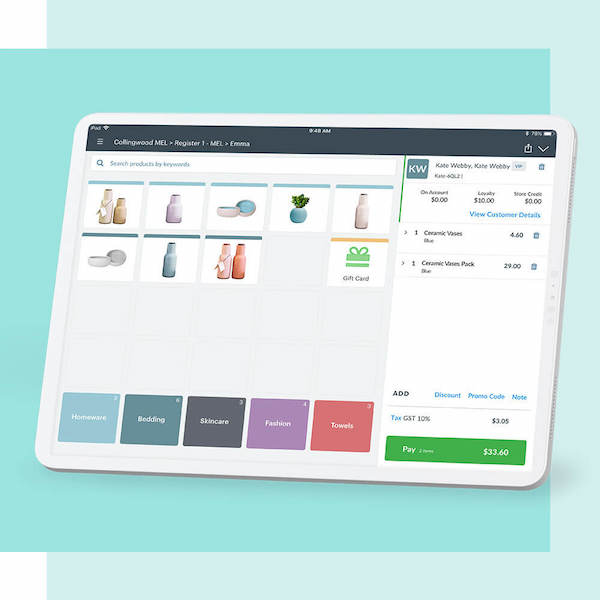
    Henceforth, it will be introduced to a special computer application for cashiers that can be used online. The name of the cashier application is VendHQ which is suitable for new small-scale businesses with not too many and varied items.

    It is suitable for those of you who have just had a small business with a product focus that’s all. This application is easy to use and user-friendly so it can be said to be very easy for new business start-ups.

    Talking about VendHQ, its superior features are cloud-based online storage, offline storage, CRM, inventory, loyalty, and many more that can be used for your business.

    #5. Portable Shop Cashier

    Portable Shop Cashier

    The application that will be introduced next is Kasir Toko Portable which can be used on Android gadgets. When you first enter the application, you will see a very simple, practical, and easy-to-operate design.

    For new business owners, they will be very comfortable using it because it won’t be confusing. The resulting transaction records are also easy to read, making them suitable for Food & Beverage businesses, Workshops, Pharmacies, Grocery Stores, Fashion Stores, and many more.

    #6. Keyhut
    Keyhut

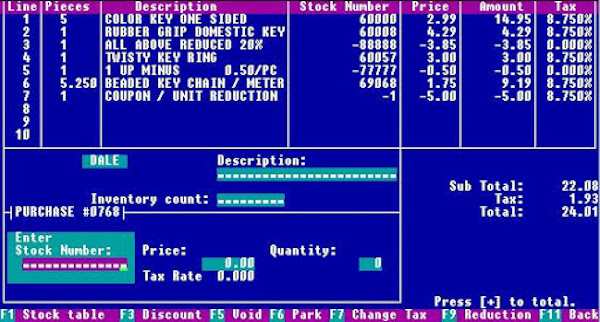
    Have you ever seen the old BIOS on Windows, well if so then this Keyhut application will remind you of that BIOS. What makes it very similar is that the type of font and background it has are very similar.

    This desktop-based application has many excellent features such as CRM, inventory tracking, and sales reporting, and what is different from other applications is employee management.

    These employee management features are certainly difficult to find in free or unpaid cashier applications. However, if you are comfortable with the Keyhut application and your business is growing, you can enjoy its more complete features with the paid version package.

    #7. Olsera POS
    Olsera POS

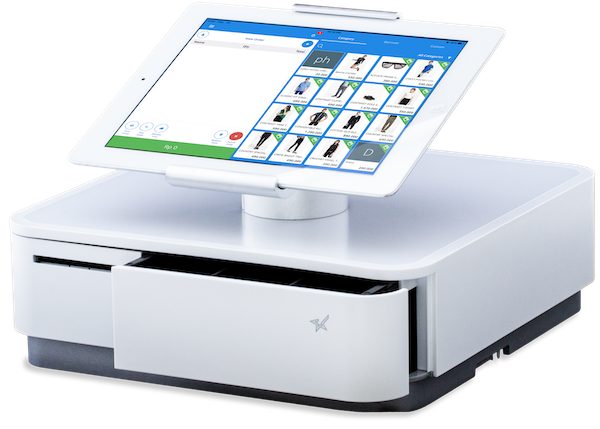
    For stores that have only Android gadgets for the cashier section, they can use Olsera POS. This cloud-based application is the same as previous applications that can be used on Android.

    You can access it from anywhere for sales transactions that are currently happening in your store. In addition, Olsera POS supports offline storage so that when you are connected to the internet, all stored data will automatically sync with cloud storage.

    #8. Chromis POS
    Chromis POS

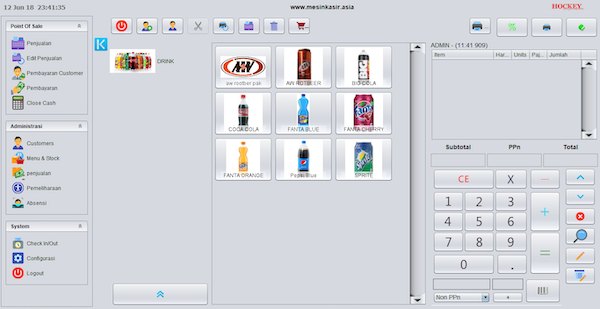
    If you want to use a different application that can be used on Windows, Linux, or Mac OS devices, then you can use a special computer application called Chromis POS.

    The display it gives is very simple and easy to understand. In addition, what is more, interesting is the photo display of the menu or merchandise that will be displayed on the sidana so that it is only one click away to record the sales transactions made.

    For those who have small businesses such as food, cafes, restaurants, coffee shops, drinks, and small franchises, it is very suitable to use them. Especially if a few or not many kinds of goods are sold, making it easier to insert pictures on the display.

    #9. Omega POS
    Omega POS

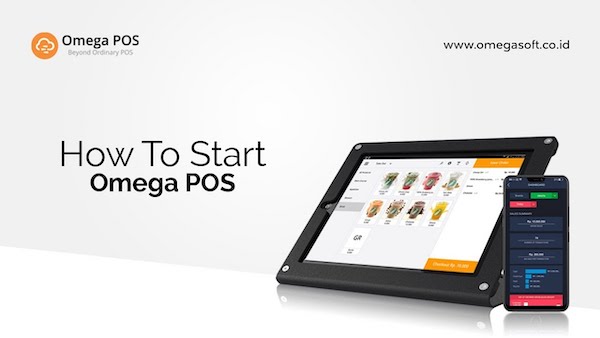
    Furthermore, the application that is recommended and can be used optimally is Omega POS which is mobile-based for Android users.

    The advantage possessed by Omega POS is that it can be integrated into the accounting and product inventory modules so that it will produce easy recordings and provide reports that can be understood by users.

    The feature it has is an analysis of customer behavior which is rarely found in other cashier applications. This customer behavior analysis will be in the form of data regarding the needs of each customer in your store.

    However, you can only use this Omega POS application for 14 days for free, whereas if you want to use it again, you have to pay a monthly fee. And other premium features can be used when you have subscribed to the application.

    #10. TruePOS
    TruePOS

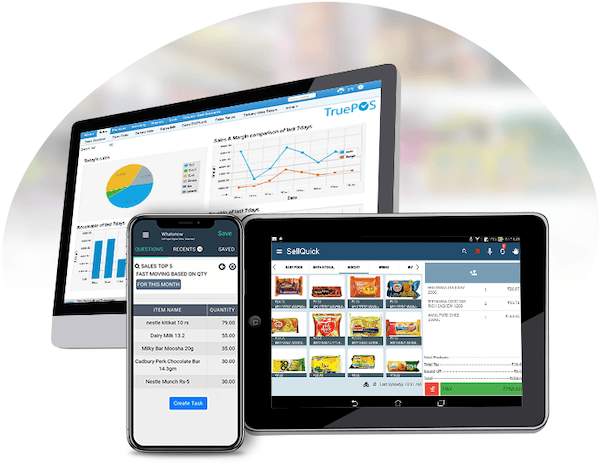
    TruePOS is the last application that will be recommended for your business for free. It has features such as an integrated system that allows it to connect to several different devices.

    That way, the controlling process will be even better, and this is different from free applications for cashiers in general. Meanwhile, other features are the same as applications in general, so they can improve the cashier’s performance even more.

    However, if your business is large enough and has a lot of goods, you can use the paid version so that the features you can use are even more complex.

    Conclusion:

    Indeed, using the application for free is a distinct advantage, especially for the cashier, who is an important part of the company. However, getting the best features with a paid system will be even easier because it is more premium.

  • 12 Best PS2 Emulators for Android Smartphone 2025

    12 Best PS2 Emulators for Android Smartphone 2025

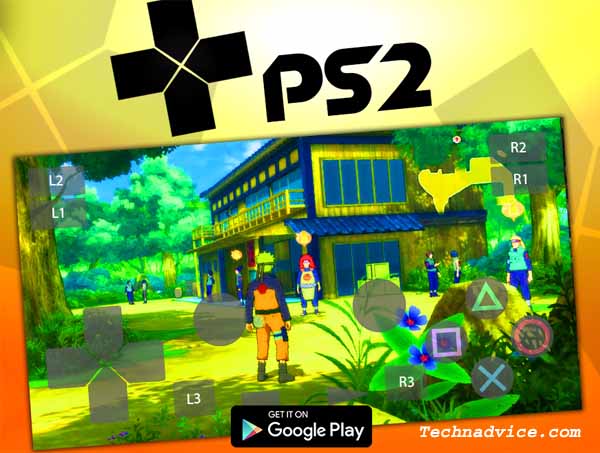
    Best PS2 Emulators for Android Smartphones – Looking for the best PS2 emulator on Android? Then you come to the right place. Because we will provide some PS2 emulator recommendations that you can use to play PS2 games on smartphones.

    12 Best PS2 Emulators for Android SmartphoneHere’ The 12 Best PS2 Emulators for Android Smartphone

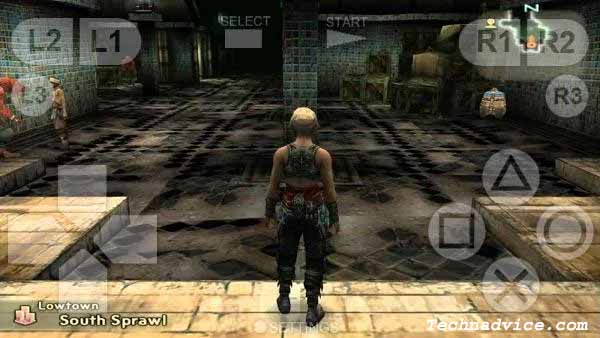
    Of course, with this PS2 emulator, you can play all PS2 games from Grand Theft Auto (GTA) to other popular PS2 games.

    Read more:

    Instead of long, just read this article, guys. Then you can decide which PS2 emulator you want to use.

    Playing PlayStation games this year will make us happy again. What’s more, you can play on Android that you can play anywhere.

    Well, if you want to play PS2 games and are confused about what emulators you can use to play PS2 games on Android. You can watch carefully below.

    #1. PPSSPP – PSP Emulator

    PPSSPP - PSP Emulator
    PPSSPP – PSP Emulator

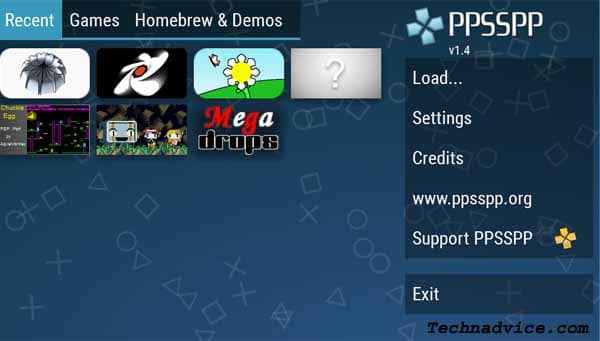
    The first emulator is  PPSSPP. This emulator that has been developed by Henrik Rydgard has been downloaded approximately 50 million times and has a size of approximately  28 MB.

    This emulator is quite famous, many people who play PS2 games on Android use this emulator.

    Read more: How to Add Text on Your Android Lock Screen

    Its advantages are, you can adjust the graphics in which you can adjust to the specifications of your smartphone.

    This emulator only supports PPSSPP games that have an ISO or CSO format. PPSSPP is very simple and certainly very tasty for you to use.

    Download Size 29MB
    Advantages Light and easy to use
    Deficiency
    Download link  

    #2. PSP Emulator Gold Pro

    PSP Emulator Gold Pro
    PSP Emulator Gold Pro

    PSP Emulator Gold Pro is the next best PS2 emulator that we highly recommend. That way you can play all PS2 games on Android through this emulator.

    When you play PS2 games through this emulator, it will produce graphics that are quite satisfying. This PSP emulator runs well on a variety of smartphones.

    Download Size 25MB
    Advantages Fast in terms of data processing
    Deficiency
    Download link  

    #3. PS2 Emulator For PS2 Games: New Emulator For PS2

    PS2 Emulator For PS2 Games: New Emulator For PS2
    PS2 Emulator For PS2 Games: New Emulator For PS2

    Next, there is the PS2 Emulator For PS2 Games. With this emulator, you can play any PS2 game if you have the game file.

    The graphics that are presented when playing PS2 games on the emulator are also pretty good. The sound produced is also quite clear.

    Download Size 33MB
    Advantages Fast enough to read data
    Deficiency
    Download link  

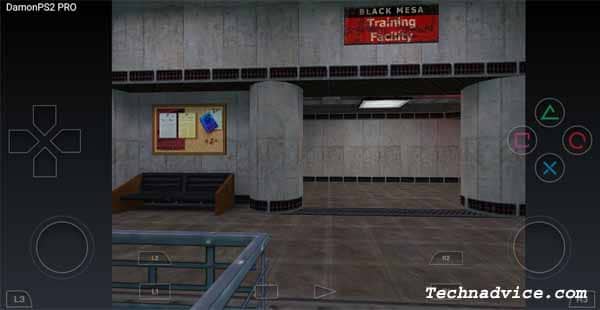
    #4. Damon PS2 Pro (Paid)

    Damon PS2 Pro (Paid)
    Damon PS2 Pro (Paid)

    This one emulator is predicted as the best PS2 emulator. Because this emulator is claimed to be faster than other emulators.

    Therefore you cannot use this emulator for free. To be able to use this emulator, you have to spend Rp 139,999, – guys. Interested in trying it?

    Download Size 11MB
    Advantages The fastest PS2 emulator
    Deficiency
    Download link  

    #5. Gold PS2 Emulator

    Gold PS2 Emulator
    Gold PS2 Emulator

    The next emulator is the Gold PS2 Emulator. This emulator which has been developed by Exclusive Emulators LLC  has been downloaded 10,000 times and has a size of approximately 33 MB.

    This PS2 emulator provides amazing graphics quality when you play PS2 games. This emulator also supports all formats. In addition, this emulator has a simple display that will make it easier for you when using it.

    Download Size 33MB
    Advantages Fast data processing and easy to use
    Deficiency Some devices, often experience Force Close
    Download link  

    #6. Dolphin Emulator

    Dolphin Emulator
    Dolphin Emulator

    Next is the Dolphin Emulator. This emulator can indeed be relied upon to play PS2 games on your Android guys.

    In this emulator there are no PS2 games, so you have to download PS2 games through various PS2 game download sites.

    Download Size 12MB
    Advantages No lag and fast the data processing
    Deficiency Sometimes in some games, there are buttons that cannot be used
    Download link  

    #7. Free HD PS2 Emulator – Android Emulator For PS2

    Free HD PS2 Emulator - Android Emulator For PS2
    Free HD PS2 Emulator – Android Emulator For PS2

    The next emulator is the Free HD PS2 Emulator. This emulator has been downloaded approximately 50 thousand times in the Playstore.

    This emulator has a size of approximately 559 MB. The advantage of this emulator is that the sound produced is quite clear and uninterrupted.

    Download Size 599MB
    Advantages The sound and graphics produced are quite clear
    Deficiency
    Download link  

    #8. ePSXe for Android

    ePSXe for Android
    ePSXe for Android

    This emulator provides fairly high compatibility, and good speed, and the resulting sound is quite clear.

    Unfortunately, to enjoy this emulator you have to spend too. The price offered for this emulator is IDR 49,404, – only guys.

    Download Size 5MB
    Advantages The results of the sound and graphics are quite good
    Deficiency
    Download link  

    #9. Play!

    Play!
    Play!

    The next emulator is Play! guys. You can’t search for it in the Play Store, but you can use the link below to download this application.

    This emulator supports all types of PS2 games in ISO format. Its simple appearance also makes it easy for users to use it.

    Download Size 8.2MB
    Advantages Light and the resulting graphics are quite good
    Deficiency
    Download link  

    #10. PTWOE – Playstation 2 Emulator

    PTWOE - Playstation 2 Emulator
    PTWOE – Playstation 2 Emulator

    The last emulator was PTWOE – Playstation 2 Emulator. This emulator that has been developed by TeamEMU has been downloaded 100 thousand times and has a size of approximately 45 MB.

    With this emulator, the game you play will look so amazing. Because of the graphics quality that this emulator has is quite high. In addition, this emulator has a simple display that will make it easier for you when using it.

    Download Size 45MB
    Advantages Easy to use and fast in processing data
    Deficiency
    Download link  

    #11. PPSS2 Golden

    PPSS2 Golden
    PPSS2 Golden

    PPSS2 Golden is an Android emulator for PS2 that can satisfy your longing to play old PS2 games. This emulator is claimed to be able to run up to 90% of games on the PS2 and is also compatible with nearly 80% of Android phones on the market.

    This application is quite easy to install and doesn’t require a BIOS file to run, like other emulators. The need for specifications is also low, it can even run on Android 4.4 and above. This emulator also provides cheat codes and the save game can be saved directly to the SD Card.

    Download

    #12. New PS2 Emulator

    New PS2 Emulator
    New PS2 Emulator

    The new PS2 Emulator is one emulator for free PS2 that you can use not only to play PS2 games on Android but also includes PSX and PSOne games.

    Even though you can’t play PS2 games as a whole, you can play games like Gran Turismo, Tekken 3, or Resident Evil 2.

    This Android emulator also supports several file types, such as .bin, MDF, or .img. Unfortunately, this emulator is still not too smooth to play heavy games because the results will lag, but you can play your favorite lighter games.

    Download

    Read more:

    Conclusion:

    So, friends, these above 12 best PS2 emulators for Android smartphones, that you can use on your Android smartphone. So don’t forget to share this article with your friends!

  • 8 Steps To Install and Use Apple Notes on Windows 10 PC 2025

    8 Steps To Install and Use Apple Notes on Windows 10 PC 2025

    8 Steps To Install and Use Apple Notes on Windows 10 PC – Apple Notes is a useful application for taking notes on Apple devices. This application is linked to an Apple ID account so that it can be used on all connected Apple devices be it a Macbook, iMac, iPhone, or iPad.

    How to Install and Use Apple Notes on Windows 10
    How to Install and Use Apple Notes on Windows 10

    How to install and use Apple Notes on Windows 10 Laptop PC

    You create notes in Apple Notes are stored in Apple’s iCloud, so they sync across all your devices. This will make it easier for you to quickly take important notes on whichever device is currently being held, and to continue them on other connected devices.

    Read more:

    What about users who use Apple devices but also use Windows, such as Dual Boot macOS and Windows 10 for example. Can you install the Apple Notes application on Windows 10?

    Until now, there is no Apple Notes application for the Windows 10 desktop, so it can only be accessed via a browser. However, there is one trick we can do to access Apple Notes as if it were an application.

    #1. Open Google Chrome

    First, as usual, to access the Apple Notes application on Windows 10 we need a browser. It is recommended to use the Google Chrome browser.

    #2. Create a new profile on Google Chrome

    The next step is to create a new profile on Google Chrome. The goal is to separate the Apple Notes cache and cookies from the commonly used browser.

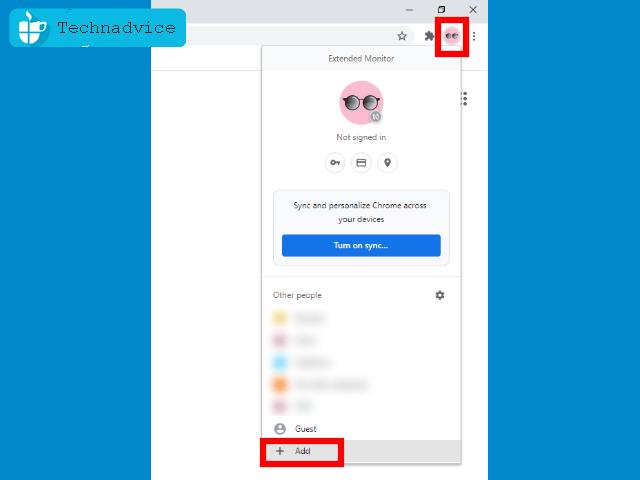
    In Google Chrome, click the Profile button > click the Add button.

    How to install and use Apple Notes on Windows 10

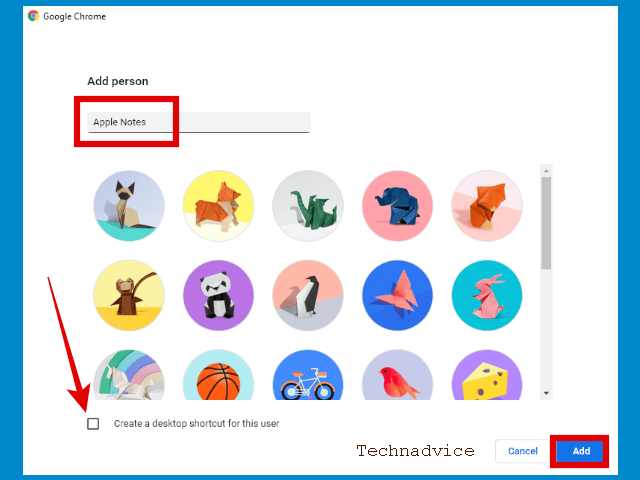
    Name the new Chrome profile Apple Notes, or whatever you like. Uncheck Create a desktop shortcut for this user > then click the Add button.

    How to install and use Apple Notes on Windows 10

    #3. Open the Apple Notes application

    Make sure you are on the new browser profile that was created earlier.

    Then enter the Apple Notes application via the following link:

    https://www.icloud.com/notes

    #4. Login with Apple ID

    You will be asked to log in with an Apple account.

    Login as usual, if you have activated 2-step verification then you need to open your Apple device to get the code.

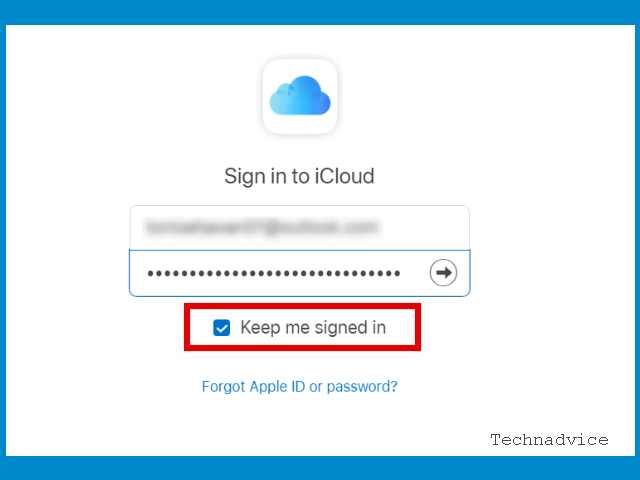
    Important step: You have to check the option Keep me signed in.

    Open the Apple Notes application

    The Keep Me signed in option must be checked, the goal is that the Apple Notes application on Windows 10 can be opened immediately without logging in repeatedly.

    #5. Select Trust this browser

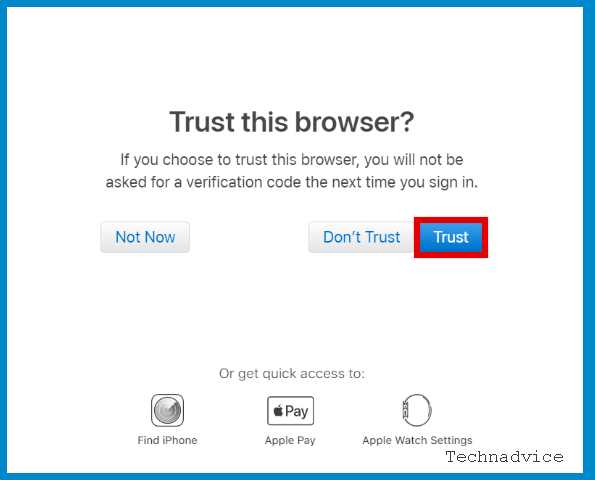
    Then the question Trust this browser will appear. Click on the Trust option. The goal is that the next login does not need to use a verification code again.

    Open the Apple Notes application

    #6. Create an Apple Notes application shortcut in Windows 10

    After entering Apple Notes in the browser, the next step is to create a shortcut on the Windows 10 desktop.

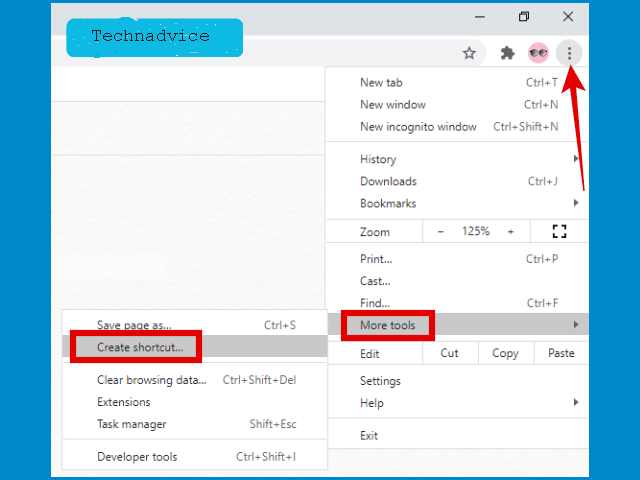
    The trick is to click on the menu button in the upper right corner> select More tools > click Create a shortcut

    Create an Apple Notes application shortcut in Windows 10

    #7. Give the shortcut a name as you wish

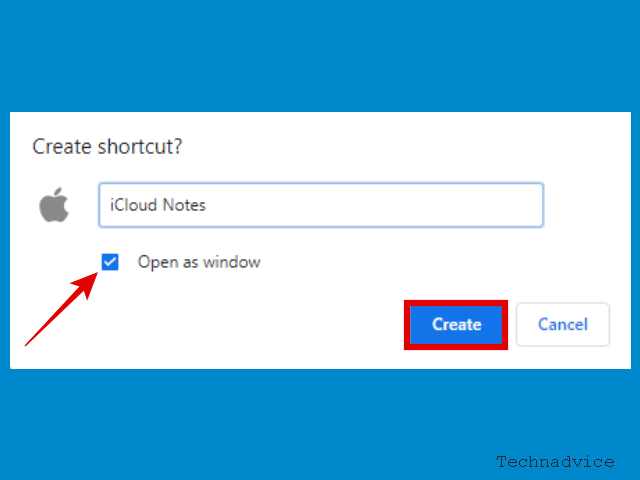
    A pop-up window will appear, then you can name the Apple Notes application shortcut as you wish. Check the Open as window option > click Create.

    Give the shortcut a name as you wish

    #8. Use the Apple Notes application via the shortcut that has been created

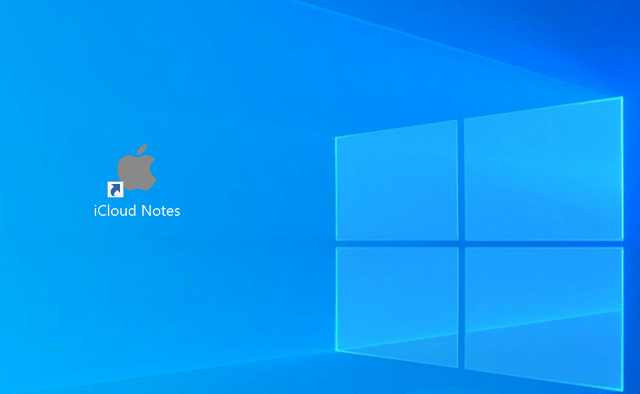
    Return to the Windows 10 desktop. There you will find the Apple Notes application shortcut according to the name you gave earlier.

    This shortcut will be used to open Apple Notes every time you want to use it.

    Use the Apple Notes application via the shortcut that has been created

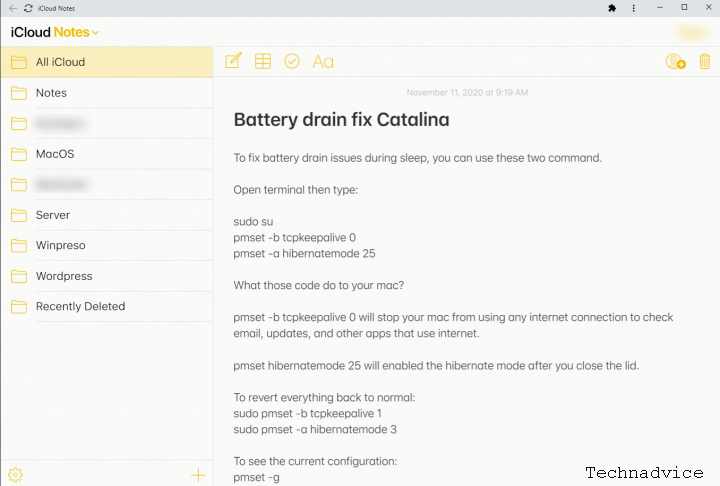
    By accessing this shortcut, you will go directly to Apple Notes without having to log in, provided you do not clear the cache and cookies on your browser.

    The Apple Notes app on Windows 10 looks like this:

    Use the Apple Notes application via the shortcut that has been created

    Solution for dual boot Windows 10 and macOS

    Those of you who use Windows 10 and macOS dual boot on one Apple computer (Macbook or iMac) and don’t have any other Apple devices will experience difficulty logging in.

    When logging into Apple Notes on Windows 10, you will be asked for a verification code sent to the Apple device, which is the computer currently being used.

    The problem is, that we can’t run macOS and Windows at the same time.

    Then what is the solution?

    So easy. All you need to do is sign out of your Apple ID account on your Macbook or iMac before doing the tricks in this tutorial.

    You do this by going to System PreferencesApple ID > Overview > Sign Out.

    After that reboot into Windows 10 and start doing the trick to create a shortcut to the Apple Notes application in this tutorial. When logging in, a verification code will be sent to the cellphone number.

    Read more:

    Conclusion:

    When finished, you can re-login on your Macbook or iMac as usual. Don’t forget to bookmark and always visit every day Technadvice because here you can find the latest technology information such as How-to Guide Tips and Tricks Blogging Digital Marketing Windows Android Root Social Media games, ETC. Best of luck.

  • How To Turn Off Laptop Keyboard on Windows 10 PC 2025

    How To Turn Off Laptop Keyboard on Windows 10 PC 2025

    How To Turn Off Laptop Keyboard on Windows 10 PC – The laptop’s internal keyboard that often errors is sometimes very annoying. However, by turning off the laptop keyboard, you can solve the problem.
    How to Turn Off Laptop Keyboard on Windows 10
    How to Turn Off Laptop Keyboard on Windows 10

    How to Turn Off Laptop Keyboard on Windows 10 PC

    In addition, most laptop users are even more comfortable when using an external keyboard. The reason is, that the default laptop keyboard sometimes feels louder when used for typing.
    Read more:

    That’s the reason it’s good if you disable the laptop’s internal keyboard which is rarely used so as not to interfere.

    There are also cases where the laptop keyboard often types by itself. One way to solve this problem is to disable the laptop’s internal keyboard.

    How to Turn Off Laptop Keyboard on Windows 10 PC

    How to Turn Off Laptop Keyboard on Windows 10

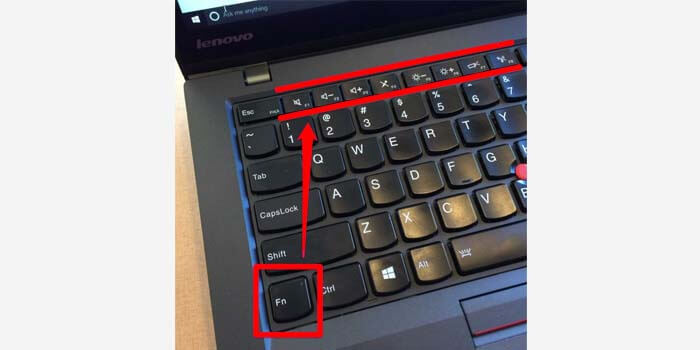
    Most laptops basically have shortcut keys to disable the function of the keyboard. Check the F1 to F12 keys on the laptop keyboard that has the keyboard logo.

    You must press the key in combination with the Fn key to turn off the keyboard.

    But if it’s not available on your laptop, try checking the side of the laptop where the button turns off the keyboard. If it’s still not there, please try the next method below.

    #1. Device Manager

    Device Manager is a feature where you can manage all the devices connected to the laptop. With the device manager, you can disable the function of your laptop keyboard.

    Here’s how to turn off a damaged laptop keyboard:

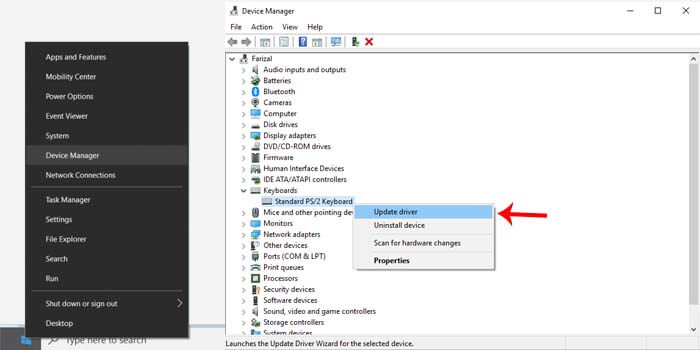
    1. Right-click the Windows logo in the lower corner.
    2. Then select the device manager menu.
    3. Click the Keyboard option> select internal keyboard (Generally called standard / PS2 keyboard)
    4. Right-click then select the Update Driver Software option.Device Manager
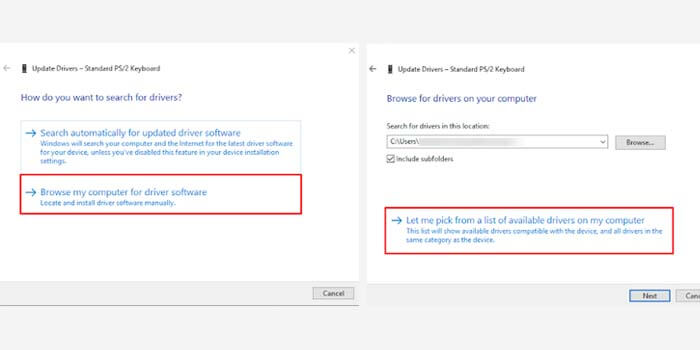
    5. Select Browse My Computer for Driver Software.
    6. Then select Let Me Pick From a List of Devices.Device Manager
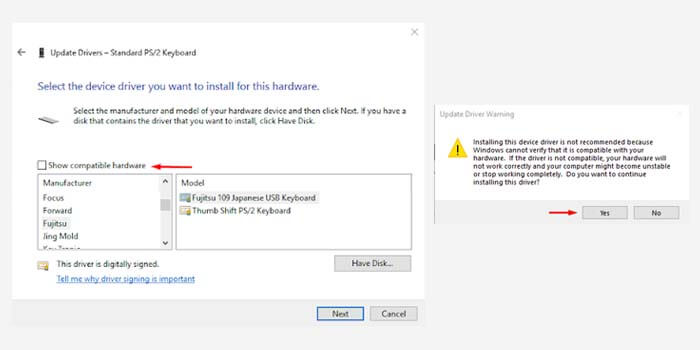
    7. Uncheck the Show Compatible Hardware box.
    8. Choose a driver that is not compatible with the laptop.Device Manager
    9. After that, click Next and then select the Yes option.

    The guide above is the steps for changing the laptop keyboard driver to an incompatible driver. That way, the laptop keyboard won’t work due to a driver error.

    To restore the laptop keyboard to work again, simply repeat the steps above and select the appropriate driver. Or to make it simpler, you can restore it by simply restarting the laptop.

    This method can be tried for all types and brands of laptops. Be it Lenovo laptops, HP, Asus, Dell, Acer, Samsung, Toshiba, Huawei, MSI, and many others.

    #2. Policy Editor

    A policy editor is a tool that can manage all connected devices and networks on a laptop system. With its function that plays an important role in the system, you can use it to disable the laptop keyboard.

    How to permanently turn off the laptop keyboard:

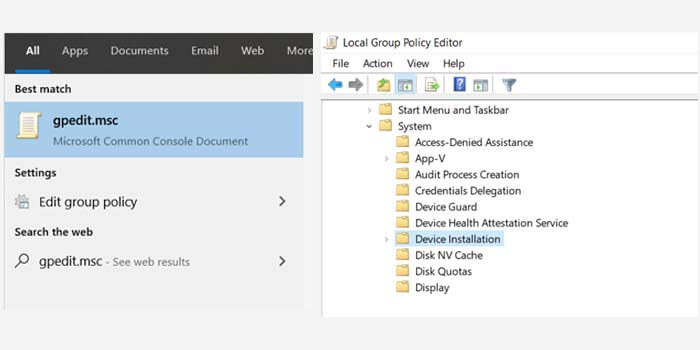
    1. In the search, menu type gpedit.msc and select.
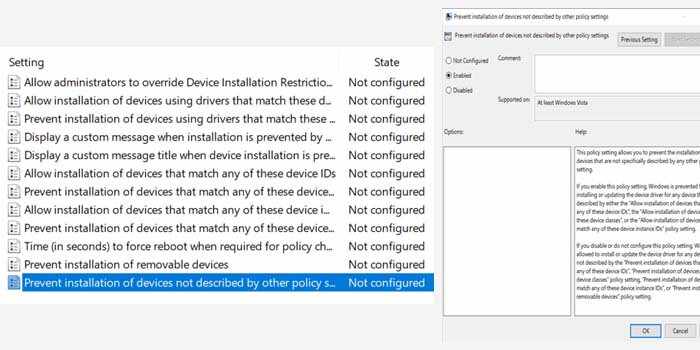
    2. Enter the Computer Configuration File> Administrative Template> System> Device Installation menu.

      Policy Editor
      Policy Editor
    3. Open the Device Installation Restrictions folder icon in the right window.
    4. Click the Prevent Installation Devices option.
    5. In the new window, select the Enabled option then click OK.Policy Editor
    6. Done.

    Now the laptop keyboard has been successfully disabled permanently. Even if you restart the laptop, the keyboard still turns off and doesn’t work.

    To restore it, just repeat the above guide and then return the options that have been changed to the initial settings.

    But what needs to be considered is, to make sure your laptop has a power button that is not integrated into the laptop keyboard function.

    Because the power button is integrated, an error will appear in the system it will interfere with laptop performance. And in most cases, the laptop won’t turn on.

    Read more:

    Conclusion:

    This is the explanation of how to turn off the laptop keyboard on Windows 10 PC, I hope this article is helpful for you. This method is quite effective if you want to use an external keyboard completely so that the keyboard function of the laptop cannot be used.

  • 11+ Best Download Managers For Windows 10 PC 2025

    11+ Best Download Managers For Windows 10 PC 2025

    11+ Best Download Managers For Windows 10 PC – The internet is a huge resource for many things which include music, videos, movies, and many other things. The ability to download and save all these wonderful things makes the Internet profitable.

    11 Best Download Managers For Windows PC Laptop
    11 Best Download Managers For Windows PC Laptop

    How to Download Managers For Windows 10 PC Laptop

    We can find anything on the web and download it on our computer but for that, having the best download manager for Windows PC is very necessary.

    Read more:

    Finding anything can be done easily with a few search strings in a search engine. Every web browser has an integrated download manager to help you download files quickly.

    But almost every web browser has a pretty basic download manager, which doesn’t do much for downloading large files.

    So, we suggest you use the best download manager apps or download managers for Windows to download large files.

    There are many free and paid Download Manager software programs available for the Windows operating system. You can choose any of them and enjoy downloading large files without any hassle.

    In this post, we are going to share some of the best file download manager software for Windows pc. All of these apps have been personally tested by us and we highly recommend that you choose one.

    List of 11+ Best Download Managers for Windows 10 PC

    #1. Internet Download Manager

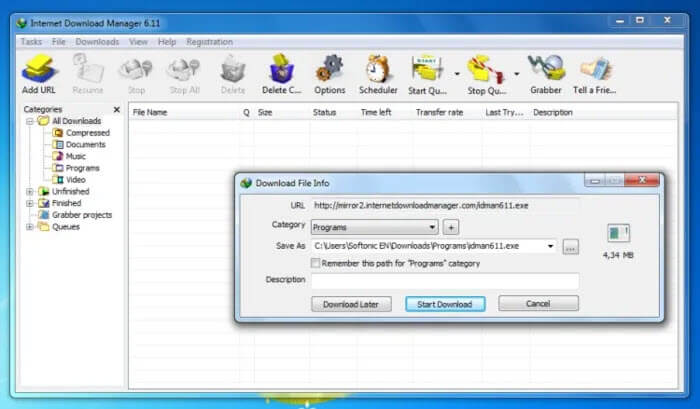
    Almost every one of us knows about Internet Download Manager. Internet Download Manager is without a doubt the best Download Manager app for Windows.

    I’ve been using IDM for years, and it’s never let me down. IDM can download large files easily, also you can use IDM to download torrents and you can see an interactive progress bar of this download manager guys.

    Internet Download Manager
    Internet Download Manager

    IDM comes with Pause and Resume options for most downloads. So you can pause and resume downloads at your convenience. IDM is not software that can be used for free.

    IDM can be used as a Trial for 30 days, but then you have to pay a small amount of money for a lifetime license of this software. All I can say is that it is necessary to purchase Internet Download Manager.

    #2. Xtreme Download Manager

    Xtreme Download Manager
    Xtreme Download Manager

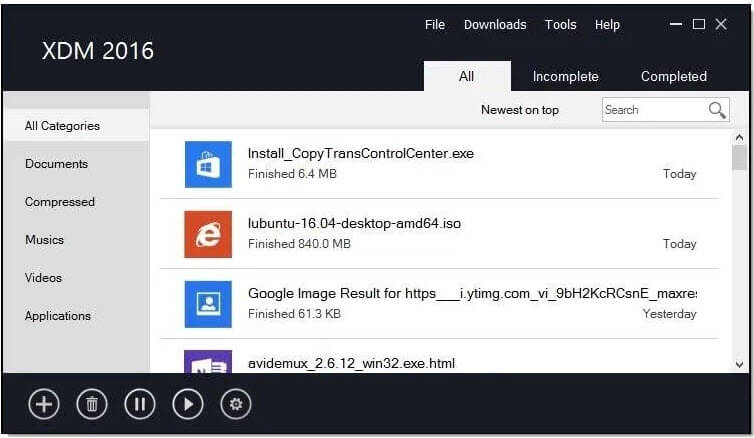
    If you are one of those people who download a lot of videos and movies from the internet, Xtreme Download Manager is probably the best choice for you. It supports downloads from many video streaming platforms like YouTube, Dailymotion, Facebook, Vimeo, and more than a thousand such websites.

    With that said, we’re not saying that Xtreme Download Manager is just for videos. It also downloads all types of files and their formats.

    One of the best features we like about Xtreme Download Manager is that it can download entire YouTube Playlists without needing to enter multiple links for each video.

    There is also a unique and cool feature called a smart scheduler. It lets you schedule download times along with the ability to play and pause file downloads. Other features include bandwidth allocation, support for proxy servers, authentication algorithms, and more.

    Download Xtreme Download Manager!

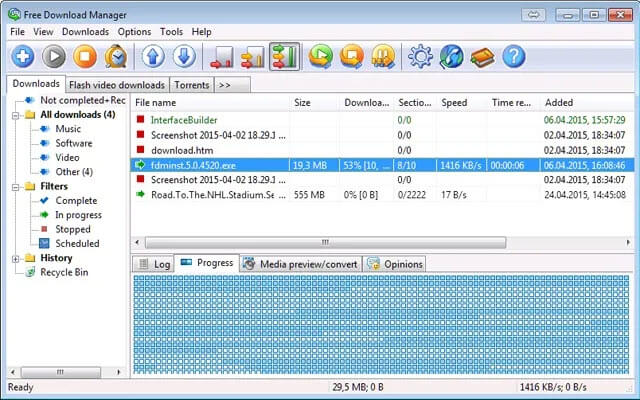
    #3. Free Download Manager

    Free Download Manager
    Free Download Manager

    Free Download Manager or FDM is similar to IDM and free to use. FDM provides faster download speeds than traditional browsers or browsers by dividing the downloaded file into several parts and then downloading the parts together.

    What’s interesting about Free Download Manager also supports torrent files. The ability to allocate bandwidth to split multiple downloads is the best.

    So if you are watching a video and want to transfer bandwidth for a while, you can do so by using FDM.

    Apart from that, FDM has a neat and clean user interface (UI) which adds added value to its features.

    Download Free Download Manager!

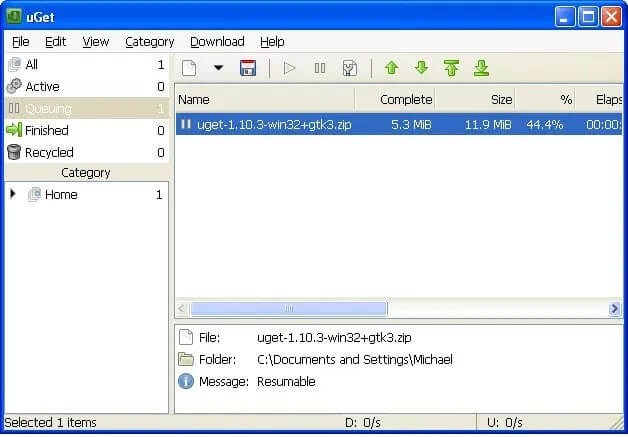
    #4. uGet

    uGet
    uGet

    uGet is also an open-source download manager for Windows. It also has a multi-threading download option., as well as the ability to pause and resume downloads.

    You can also download multiple files using batch download with the file queue feature.

    Just like Free Download Manager, uGet also has browser integration. One of uGet’s best features is its ability to automatically request downloads using the clipboard manager.

    There’s plenty of theme support and a clean and intuitive UI that gets the job done without any hassle. Download speeds are amazing and uGet is one of our favorite download managers on this list.

    Download uGet!

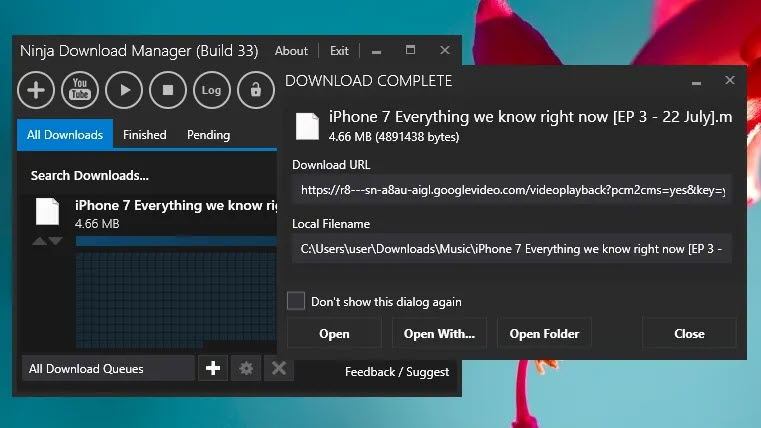
    #5. Ninja Download Manager

    Google Chrome’s default download manager is not sufficient to download large files from the internet. However, you can use a Google Chrome extension to do the same thing, in a fast way.

    Download Ninja is a download manager extension for Chrome on PC. You can install Download Ninja on Google Chrome and start using it to easily download large files in Chrome.

    Ninja Download Manager
    Ninja Download Manager

    This Chrome extension replaces the default download manager/download manager in the Google Chrome browser. Apart from that, it comes with features like pause/resume downloads, themes, and multiple language support. This Ninja Download Manager is a great option for those who don’t want to install a standalone download manager.

    Download “Ninja Download Manager”!

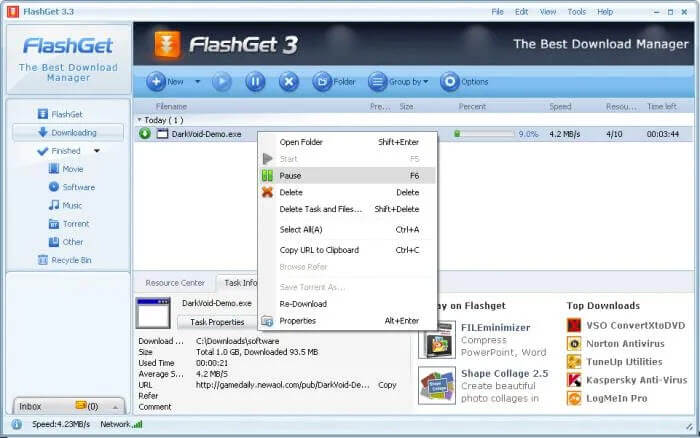
    #6. FlashGet

    FlashGet
    FlashGet

    FlashGet is another great download manager for Windows. It has excellent integration with browsers and besides, it even scans your downloads for viruses! How cool is that!

    FlashGet supports HTTP, FTP, BitTorrent, and other protocols with seamless integration. With just one download button, it automatically detects the type of file you are downloading and handles your download.

    It also has a floating desktop button that you can use to monitor your downloads or to play/pause or add new download links as well.

    Download FlashGet!

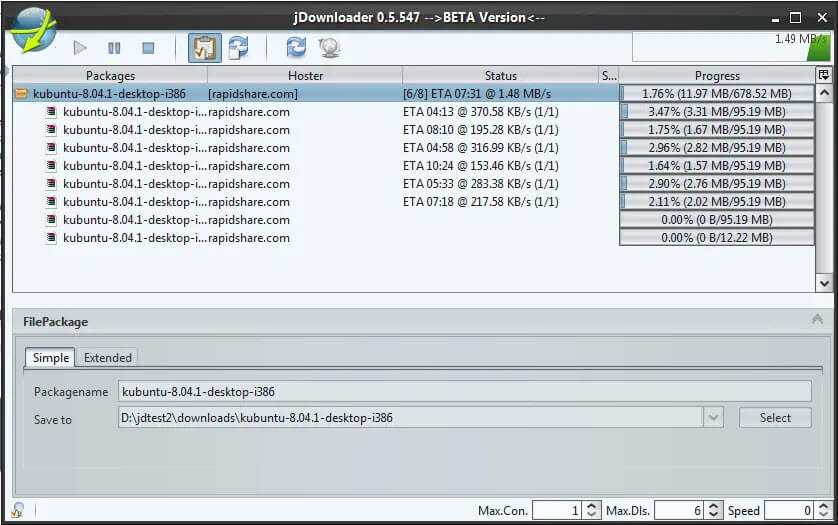
    #7. JDownloader

    JDownloader is another free download manager software for Windows-based computers. JDownloader is an open-source software program. With JDownloader, you can download any file quickly. Moreover, it allows you to pause and resume added downloads.

    JDownloader
    JDownloader

    The great thing about this fantastic software program is that it changes the IP address during download in case any Download service blocks the real IP address to prevent us from being able to download files at full speed.

    So, this feature is useful for us to download files from any file-sharing service without sacrificing speed.

    JDownloader is a minimalistic file download manager for Windows. If the user wants, then he can download many customizable themes for JDownloader for free. You can download JDownloader from this link.

    Update:  JDownloader 2 Has Been Released for Better Usability & Features. So give it a try!

    Download JDownloader 2!

    #8. EagleGet

    EagleGet
    EagleGet

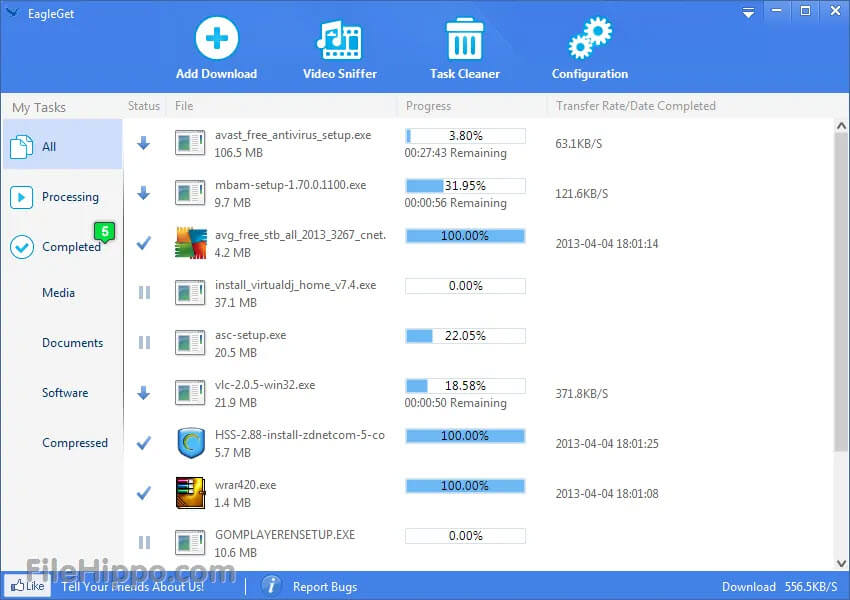
    EagleGet is another great free download manager for the Windows operating system. This may be one of the most underrated download managers, but we guarantee that it has some unique features that other download managers don’t have.

    EagleGet supports many protocols such as HTTP, HTTPS, FTP, MMS, and RTSP. This makes it easy to integrate with modern browsers like Chrome, Firefox, and Opera. It can automatically capture the link from this browser and start downloading.

    The cool thing is that it uses multi-threading to increase download speed. This ensures that you don’t lose bandwidth and full speed while downloading files.

    We love the availability of Themes for EagleGet. Apart from that, Batch Download and Browser integration are fantastic features. If you are looking for a lightweight download manager with a customizable UI, then EagleGet is the best out of the crowd.

    Download EagleGet!

    #9. GetGo Download Manager

    GetGo Download Manager
    GetGo Download Manager

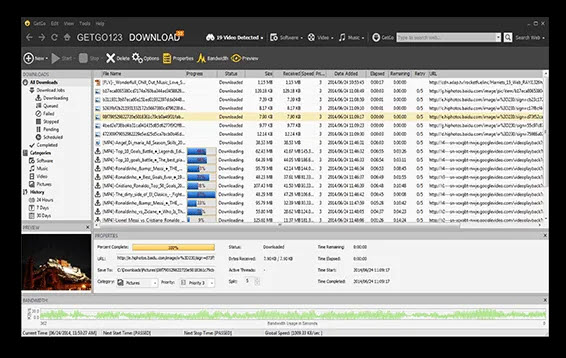
    GetGo Download Manager is also one of the best apps to download, especially if you want to download a lot of files. It has some unique perks like a floating box for a quick drag-and-drop download feature.

    You can even import LST files with links to all the files to download and it will do the job very easily.

    You can also sort downloads and group them by file extension. Another interesting feature of GetGo is that it can save login credentials to download files from password-protected websites.

    So you don’t need to login many times to download files from such websites. It also includes integration with Firefox, Chrome, and other modern browsers.

    Download GetGo!

    #10. Download Accelerator Plus

    Download Accelerator Plus
    Download Accelerator Plus

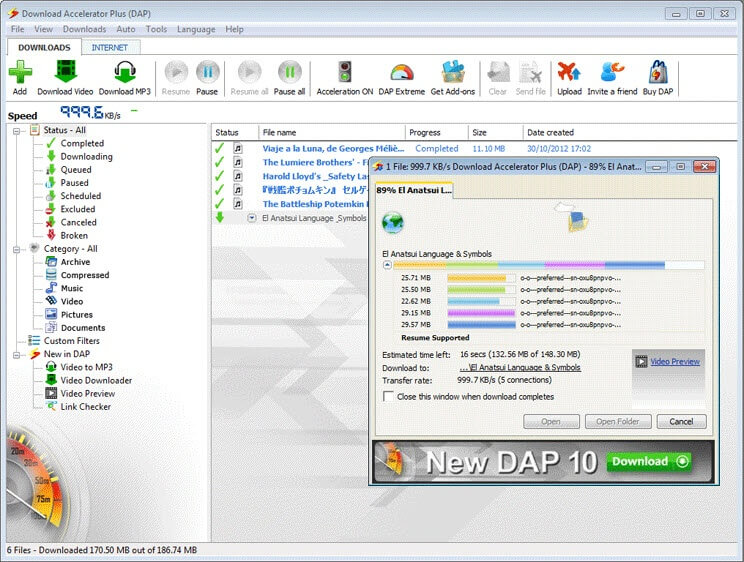
    Download Accelerator Plus (DAP) is a very secure download manager. It has a built-in web browser where you can browse your downloads safely.

    DAP supports importing link lists via M3U or plain text files as well. It can even disconnect from the internet after all files are downloaded.

    This Accelerator Plus has a virus checker as well as the ability to start the download immediately after importing the link.

    Integration with most modern browsers is available and also supports working on schedule.

    Download DAP!

    #11. Internet Download Accelerator

    Internet Download Accelerator
    Internet Download Accelerator

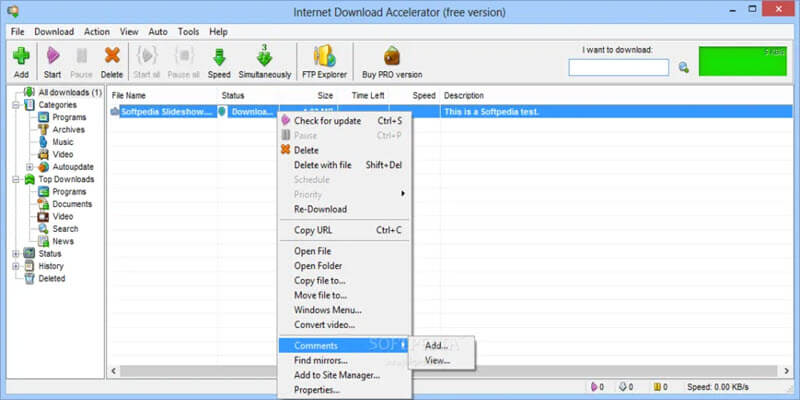
    Internet Download Accelerator is one of the most advanced download managers on this list. It not only speeds up download speeds and manages download files, but also includes the ability to resume broken downloads even from HTTP, HTTPS, and FTP servers.

    This feature is the most impressive in the app that we featured on the list.

    Just like other download managers, Internet Download Accelerator also splits large files into multiple files and then downloads them simultaneously.

    In addition, there is browser integration with Chrome, Firefox, Mozilla, Opera, and all major browsers.

    With such a comprehensive list of download managers, it’s no wonder you’re confused.

    To be honest, the free download managers are better than the paid ones, and also outperform them in terms of features.

    The best download manager software or our favorite download manager is EagleGet Download Manager.

    Download Internet Download Accelerator!

    Read more:

    conclusion:

    This is the explanation of 11+ best download managers for Windows 10 PCs, I hope this article is helpful for you, enjoyed this post. Let us know which one you use from the list above. Also, let us know if you want to add any suggestions or other download managers as well.