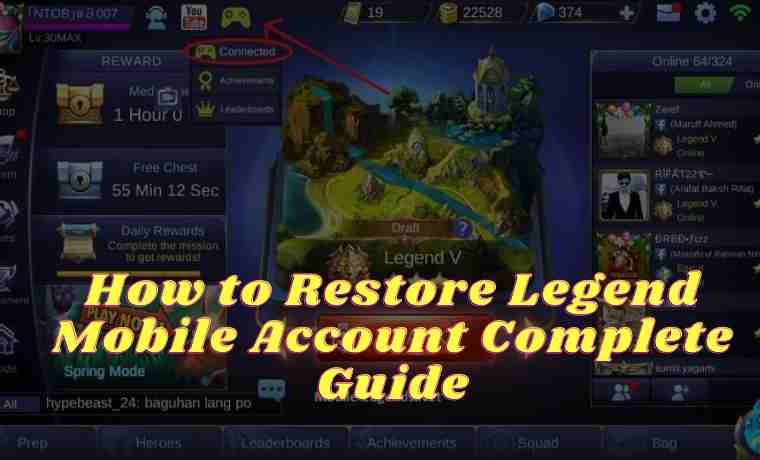
How to Restore Legend Mobile Account: [Quick Guide] – If you are looking for a guide on how to restore legends’ mobile accounts, then you are in the right place. Mobile Legends is one game that has a lot of fans. How restoring the following legendary mobile account will help users get their accounts back.
How to Restore Legend Mobile Account Complete Guide
The problem of losing an account will certainly be very detrimental, especially if the player has reached Mythical Glory.
Mobile Legend itself has quite a lot of pro gamers, even though there are esports teams formed specifically for Mobile Legend games such as RRQ, EVOS, and others.
Large competitions are routinely held every season such as the Mobile Legend Primary League or MPL. For users who have lost their accounts, see the following article to the end.
How to restore a lost legend mobile account can be done with several methods that are easy to follow and try. Here we present a variety of methods that can be used to restore a fallen mobile account that is not bound.
Returns a Legend Mobile Account with a Temporary Account
The first way to restore a Mobile Legend account is through a Temporary Account. Users must have a Temporary Account to follow this step. The way
1. Login
Users need to log in using a Temporary Account on a Legend Mobile account using a screenshot from the QR Code Temporary Account.
2. Enter TP Password
Then enter the password from the temporary account. If successful, the user will enter the lost Mobile Legend account.
#1. Return the Legend Mobile Account with the Related Login Platform
How to restore the second account can be done if the user associates a Mobile Legend account with related platforms such as Facebook, Google Play Games, Moonton accounts, or VK.
Simply log in using one of the social platforms above and your lost Mobile Legend account will automatically be re-connected.
#2. Return a Legend Mobile Account by Contacting Customer Service
If the user does not associate one of the platforms mentioned above with a Mobile Legend account, the user can directly contact Customer Service.
1. Select Account Issues
The trick is to tap the Customer Service icon on the main page. Then select “account problem” and click “account return”
2. Fill in the Form
Next, select ” I forgot to link the Game account to the social platform before changing the game ID “. After that, fill out the form provided there.
Fill in the data specifically so that the developer can help the user to recover the lost account.
#3. Restore Legend Mobile Account Via Email
Users can also submit an account return via email to Legend Mobile Customer Service. The way
1. Open Gmail
First, open Gmail, and try to use an email account that is connected to a Mobile Legend account. Then type the recipient’s destination, [email protected].
2. Ask for Help
Then in the email subject enter the phrase “My mobile legends account has been hacked, please help me to retrieve it” or another sentence that explains that the user lost the account or the account was hijacked.
3. Write Complaints with Details
Fill in the email message with details about the user’s lost Mobile Legend account. It is intended that the developer believes that the account belongs to the user. Account details need to be conveyed starting from ID, the number of heroes, nickname, last tier, server, and other information related to the user’s account.
4. Wait for the Response
If you have written down the missing account details, please send it. Then wait for a reply from the Mobile Legends team. Developers may need time to process user complaints.
Now that’s some way to restore the Mobile Legend account. Many causes result in an account being lost or hacked. For one thing, users fake phishing logins on the web.
Usually, due to the lure of free heroes or skins, users do not realize that they have entered Mobile Legend account information such as username and password.
Therefore, do not just click on suspicious links that give the lure of free skin or others. Moreover, to provide account information.
This is the explanation of How to Restore Legend Mobile Account. Lastly, we would like to remind bangs to share this article with all the social accounts mediums so your friends can also get back their Legend mobile account.
14 Most Effective Ways to Root Android Without a PC Laptop – The term root certainly sounds familiar to the ears of Android users, especially for friends who have a hobby of cracking gadgets, of course, this Android root activity can be called a ‘ritual’ which is quite important to do.
Most Effective Ways to Root Android Without PC Laptop
According to information quoted from Wikipedia, Android root is a method where the Android system provides full access to a user to access previously inaccessible features.
This root process gives full access to administrative privileges just like on Linux. With full control access obtained after rooting, we can more freely customize the Android system on our favorite gadgets.
Which smartphones can be rooted?
Almost all types of Android smartphones can be rooted, it’s just that sometimes not all root applications can be compatible with certain smartphones.
Some popular types of smartphones such as Advan I5C Plus, S50K, S5E NXT, Asus Zenfone 5, Zenfone 6, Zenfone C Z2007, Zenfone Go, Evercoss A54, A74A, A75A, R50A, Huawei, Samsung J1, J2, J5, Lenovo A1000, K4 Note, Vibe C, Oppo 1201, A33W, NEO 5, NEO 9, Xiaomi Note 4, Note 5a, Redmi 2s, Redmi 5a can be rooted.
And almost all versions of the Android system starting from Android versions 2.1, 2.2, 2.3, 2.3.4, 2.3.6, 4.0, 4.1.1, 4.1.2, 4.2.2, 4.4.2, 5.1, 5.0.2, 6.0, 6.1, 7.0, 7.1.1, 8.0, 8.1, up to version 9.0, the root process can be done.
But again, just like other types of smartphones, different versions of the Android operating system require different root applications.
Is Android root safe?
As we know, all gadget manufacturers with the Android operating system ‘lock’ certain features.
Why is that? That is because manufacturers want to protect their products from system damage that can occur when a user changes the security settings on his gadget.
That is also the reason why the Android gadget warranty can be lost after rooting. The producer certainly does not want to bear the damage caused by the negligence of its users.
After seeing some of the descriptions above, we can conclude that rooting Android is unsafe.
But whether or not an Android system needs to be rooted, it returns to each other. If you think you need it, please do it and we will guide it in this article.
But you should think carefully first considering the considerable risk.
The dangers and risks of having an android-rooted
#1. Void warranty
As we previously discussed, the manufacturer strictly prohibits its users from making system modifications that can potentially damage the device.
#2. Vulnerable to viruses
After rooting an Android, dangers such as malware will further threaten the Android security system.
#3. Android system malfunctions
This can happen when someone misconfigures a rooted system.
#4. Cannot update the system by OTA
During the root process, several system applications are deleted so that it will hamper the update process, as a result, the gadget can only use the latest version of the Android system.
#5. Decreased Performance
The heart intends to improve the performance of the gadget but instead makes an incorrect configuration, and what happens is the performance of the gadget worsens.
The advantage of being rooted in android
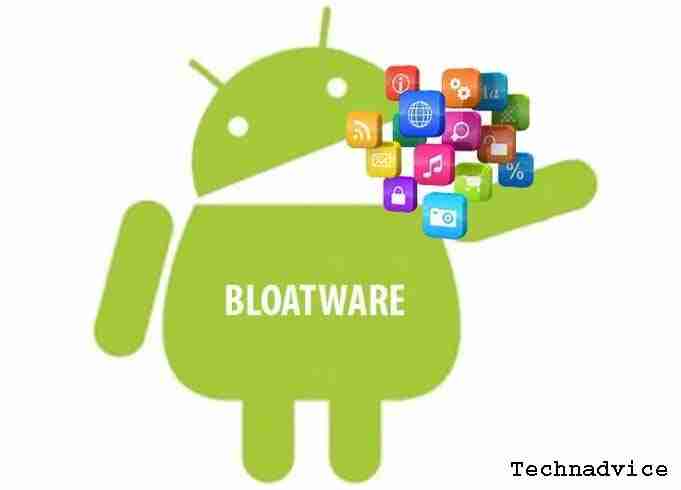
#1. Remove the default application/bloatware
One of the most annoying things about a smartphone that hasn’t been rooted is that we don’t have access to uninstall built-in manufacturers’ applications that only take up storage space.
After the smartphone has been rooted, all applications that you think are useless can be immediately uninstalled at will.
#2. Control the CPU and kernel
When an Android system is rooted, we can maximize the performance of the processor by overclocking it. The term overclocks itself means forcing the processor to work to the maximum limit which will make smartphone performance feel faster and lighter.
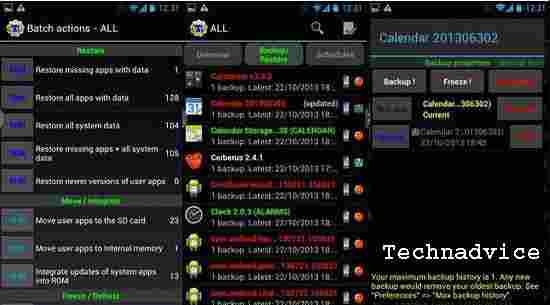
#3. Perform backup and restore applications
One of the advantages of rooting on Android is that we can easily back up and restore data from an application.
This will be very beneficial when we do a factory reset which will erase all data for each application, but we can restore these data with the titanium backup application which requires root access, of course.
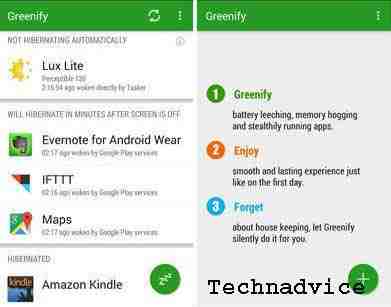
#4. Avoid the Wakelock
Wakelock is the process of an application that runs continuously in the background of the Android system, this condition will certainly consume a large number of resources and will result in wasteful battery life and decreased smartphone performance.
#5. Editing Build.Prop
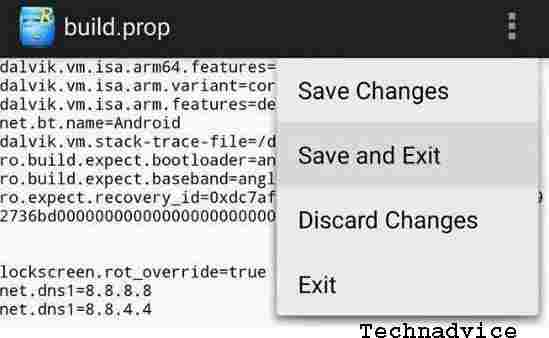
This prop build contains various Android system configurations, we can maximize Android performance by editing this build prop file. We can do various kinds of tweaks with goals such as saving battery, increasing RAM performance, and so on.
Preparation before rooting Android
#1. Backup data on an Android smartphone
Make sure you have backed up important data on the Android device that will be rooted, this is done to avoid unwanted things. You can use cloud services such as Google Drive, Dropbox, or One Drive, or you can back up your data on your computer/laptop.
#2. Know complete information about the gadget that will be used
As discussed earlier, every gadget has a different root method. And the root application used will be different, know in advance which Android root method suits your gadget.
#3. Make sure the battery is sufficiently charged
To avoid unwanted things such as gadgets that suddenly shut down while the root process is in progress, you should make sure that the power supply on the battery is sufficient. The gadget may even experience interference when the root process does not run properly because it runs out of battery.
#4. Download the ingredients for the root process
To do the root process, it doesn’t require many tools. What’s more, if we want to root Android without a PC or laptop, we only need one or two applications.
Best root application recommendations
These applications are known to be powerful enough to provide root access to Android gadgets of all brands and types, you can use one of them according to your needs and the type of gadget you are using.
Framaroot.
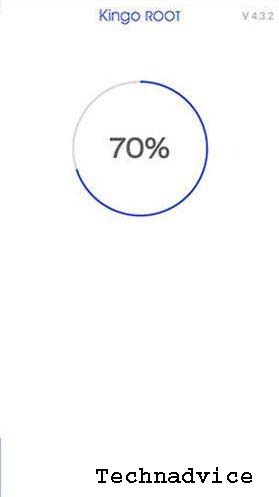
Kingroot.
Kingoroot.
TowelRoot.
IRoot.
VRoot.
Next, we will discuss how to root using these 7 applications, hopefully, this discussion can be a guide for friends who want to root Android on their favorite gadget.
How to root Android using Framaroot
Framaroot is one of the most popular root applications with the best capabilities. With this application, we don’t need a PC / laptop to root Android.
Even better, we only need to do one click to do the root process using Framaroot. Before using this application, please check if your gadget is compatible with Framaroot here.
The advantages of the Framaroot application:
Its use is very easy.
Very small application size.
Has SuperUser, SuperSU, and unroot install features.
Root steps using Framaroot
1. Please buddy download the Framaroot application and install the application as usual.
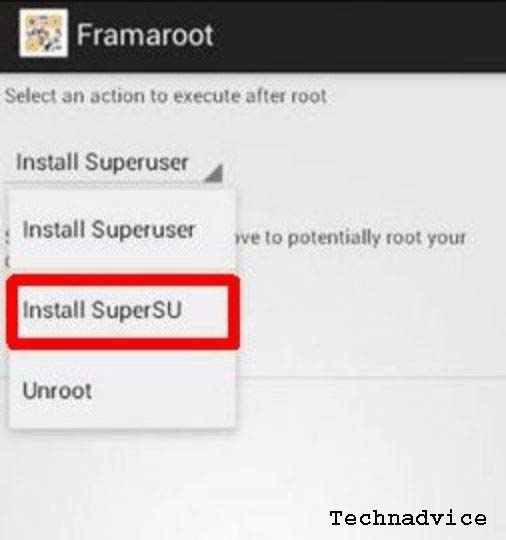
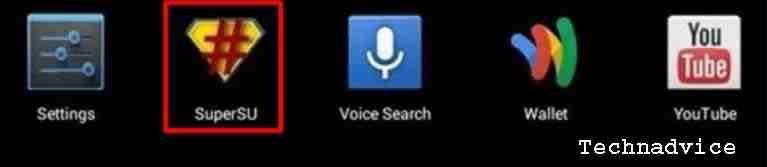
2. Run the Framaroot application, then select SuperUser / SuperSU according to your wishes. SuperUser and SuperSU are what will provide full access to your Android smartphone. The features of both are almost the same, it’s just that SuperSU has more complete features.
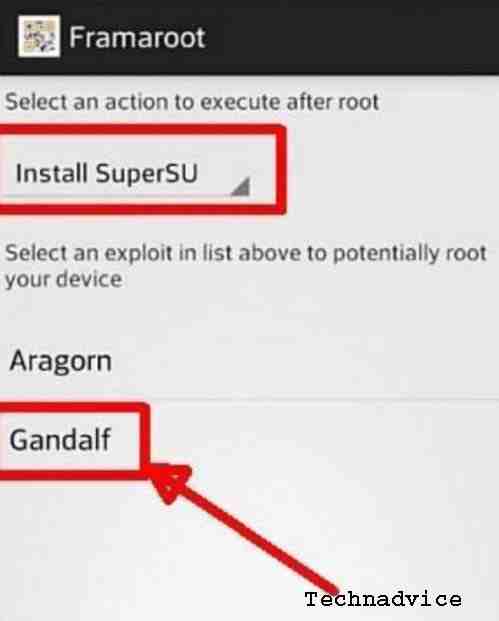
3. Furthermore, there are options for Aragon and Gandalf, both of which can be used to root Android. Choose according to your type of gadget, please check here.
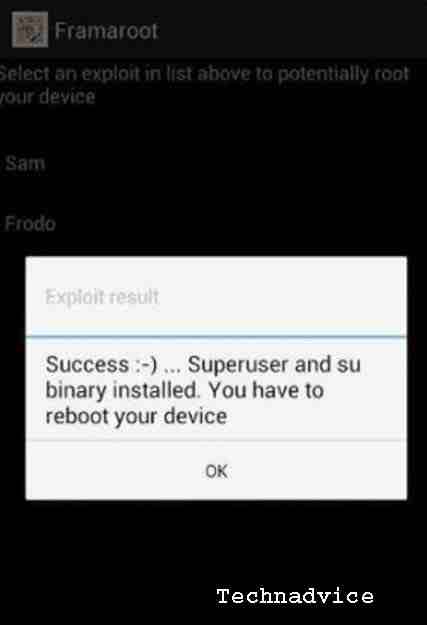
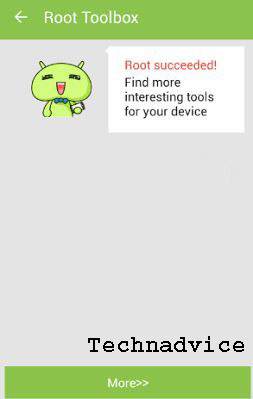
4. Wait for a while until the root process is complete, and if you see a notification like the one below, it means that the Android root process that you did was successful.
5. Please reboot your gadget and make sure the SuperSU or SuperUser application appears.
How to root Android using Kingroot
According to the data we quoted from the official website, this Kingroot application supports 104,136 types of gadgets. This application can also run well on the Android 6.0 Marshmallow system.
the advantages of the kingroot application:
Very easy to use, with just one click.
Can manage applications that run automatically.
Can remove unused bloatware applications.
It’s free and ad-free.
Root steps using Kingroot
1. Download the application via the Kingroot official website, then install the application.
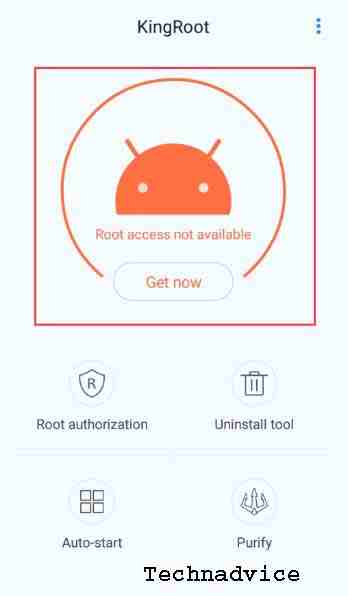
2. Open the application and my friend will see an interface like the following image, please click try it.
3. Next, please click Get Now to start the root process.
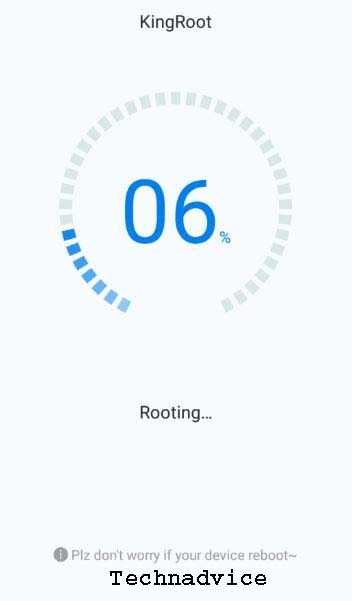
4. Wait for the root process to complete.
How to root Android using Kingoroot
The same as the two previous applications that we discussed, this Kingoroot application is also very easy to use, which is just one click.
This application can also be used to root Android version 7.0 Nougat. Even though this application has a relatively small size, its performance is still satisfying.
The advantages of the Kingoroot application:
This application is free.
Supports many types of smartphones.
Just one click.
Small application size.
Steps to root Android using kingoroot:
1. Download the Kingoroot application via the official website, then install the application.
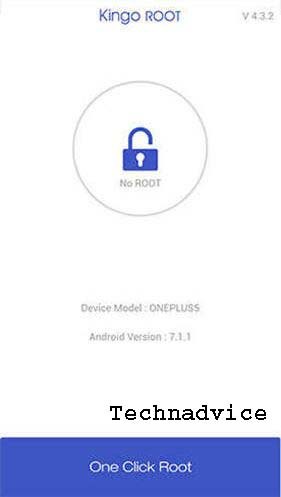
2. Run the Kingoroot application and my friend will see a screen like the following image, then click on One Click Root.
3. Wait for the root process to complete.
To better understand it, you can follow the video on how to root Android using the following Kingoroot.
How to root Android using towelroot
The towelroot application is an application made by George Hotz (Geohot), a hacker who also created a jailbreak application for iOS. The towelroot application is indeed less well known by Android gadget users, but for matters of quality, we don’t need to doubt it. Its use is enough with one tap to start the root process.
the advantages of the towelroot application:
Very small application size.
Just one click.
Compatible with various brands of Android gadgets.
Steps for root Android using towelroot:
1. Download the Towelroot application, then install the application as usual.
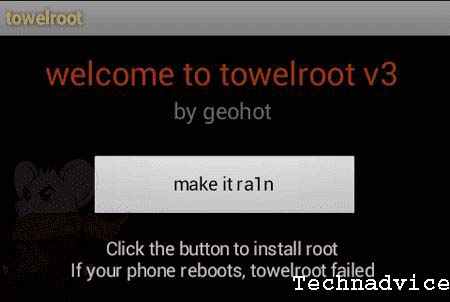
2. Run the application and click Make it Rain to start the root process.
3. Wait for the root process to complete.
How to root Android using iroot
According to the information we quoted from the official website, this iroot application successfully rooted 367,629,630 devices. This indicates that this one application is one of the best root applications that you can make your choice.
the advantages of the iroot application:
The possibility of a bootloop is very small.
It can be used to unroot gadgets.
Ease of the root process, just one click.
Compatible with many smartphone brands.
Steps to root Android using iroot:
1. Download the iroot application, then install the application.
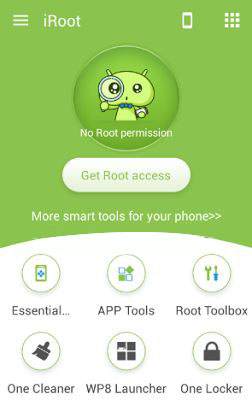
2. Run the iroot application and my friend will see an interface like the following image. Click get root access.
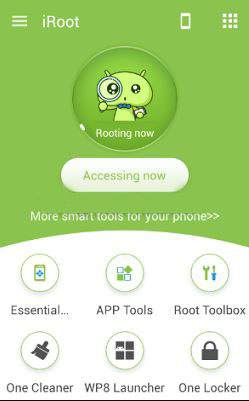
3. Wait for the root process to complete.
4. If the root process is complete, my friend will get a notification like the following image.
How to know if an Android phone is rooted or not
After you have tried some of the ways to root Android above but you are not sure whether your Android device has been successfully rooted or not, you can check it with the following tips.
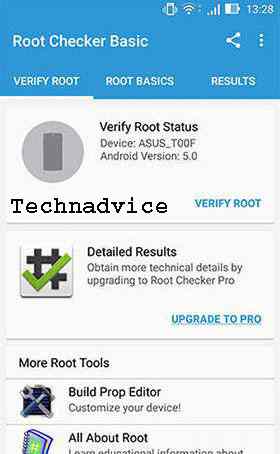
1. Please download the Root Checker application and then install the application.
2. After that, please, buddy, open the application, then click on Verify Root.
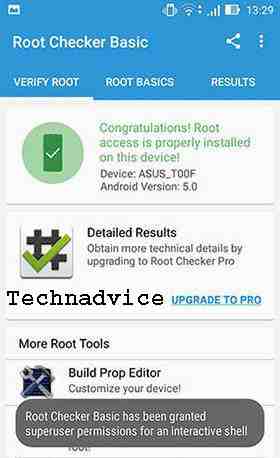
3. Wait a moment until the checking process is complete, and if your Android friend has been rooted, a notification will appear like the following
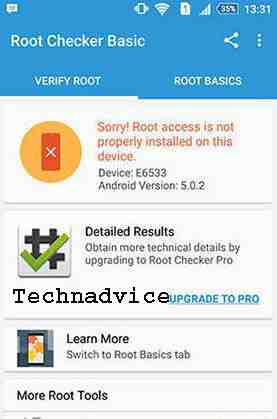
4. And if your Android device fails to root, the following notification will appear.
That’s a brief discussion about how to root Android without a PC that we can convey, once again we emphasize that rooting Android is not safe because it has some fairly serious impacts.
But if you still want to root your favorite Android device, make sure you do it carefully and regularly to minimize the risks that occur. That’s all for this discussion and hopefully, it’s useful, friend!
How to Make A4 Size Paper in Photoshop (Effective Way) – When you want to print photos, documents, brochures, or anything else, you have to adjust the paper size first.
8 Ways to Make A4 Size Paper in Photoshop (Effective Way) Laptop PC
For example, A4 paper, this size is often used to print these purposes.
Many applications can be used. One of them is Adobe Photoshop.
It’s not that hard. The most important thing is that we know first, the exact size of this A4 paper.
So if you already know the width and height, you just need to adjust it.
For more details, please follow the steps below:
#1. Open Adobe Photoshop
In the first step, you can open the Adobe Photoshopapplication on the PC you are using.
In providing this method, I use Adobe Photoshop CC 2017.
Maybe if you use Photoshop versions CS6, CS5, CC 2019, and others there will be a little difference. Usually not that much.
#2. Create a New Document
Now that Photoshop is open, you can now create a new paper.
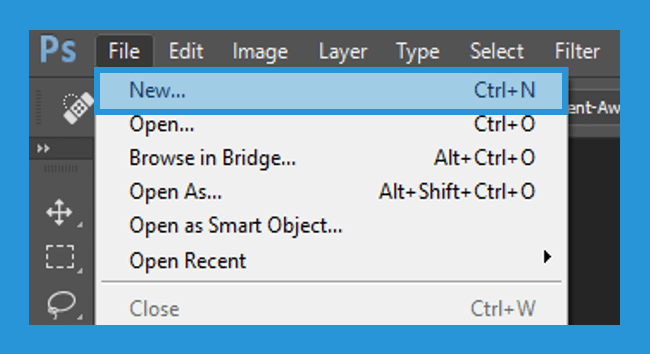
The trick is to click the File tab> select the New menu. You can also use the shortcut by pressing Ctrl + N on the keyboard.
#3. Set the Paper Size
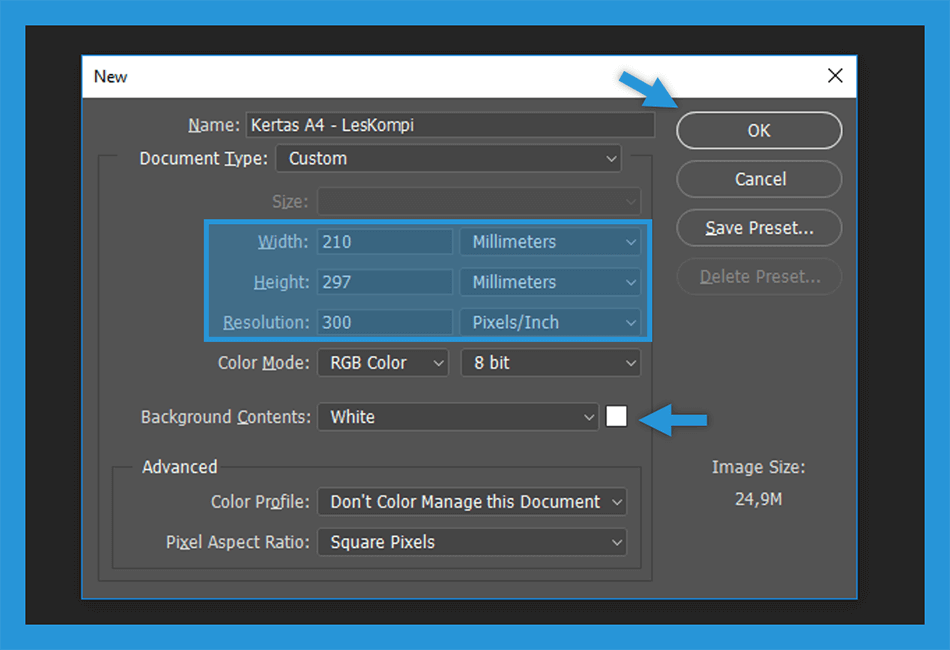
If so, there will be a dialog box that is useful for arranging paper in Photoshop.
Next, you only need to adjust the size, more or less the following format.
Here’s the A4 paper size.
Information
Size
Unit
Width
210
millimeters
Height
297
millimeters
Resolution
300
Pixel / Inch
Tips: Especially for Resolution , you can add it as needed. Because the higher the resolution pixel size , the better the resulting image.
Apart from some of the settings above, you also have to make sure the Background Contents or the background must be white.
If everything is set, now just click OK to create the new document.
A4 Paper Size in MM, CM, Inch
All papers have their standards or parameters that can be found in mm, cm, and inches from the paper.
As we know the paper itself has many types and sizes, one of which is A4 paper which adopts the term A. The term A is a term that has been patented with ISO standards.
Paper size
cm
mm
inch
pixel
A4
210 x 297 mm
21.0 x 29.7 cm
8.27 x 11.69 inches
1240 x 1754
pixels
To find out whether the paper you are using is A4 size or not, you have to prepare a ruler first. Then measure the length and width of the paper while matching the following table:
Paper Type
Size Length x Width (mm)
Size Length x Width (cm)
Size Length x Width (inch)
A0
841 x 1189 mm
84.1 x 118.9 cm
33.11 x 46.81 inches
A1
594 x 841 mm
59.4 x 84.1 cm
23.39 x 33.11 inches
A2
420 x 594 mm
42.0 x 59.4 cm
16.54 x 23.39 inches
A3
297 x 420 mm
29.7 x 42.0 cm
11.69 x 16.54 inches
A4
210 x 297 mm
21.0 x 29.7 cm
8.27 x 11.69 inches
A5
148 x 210 mm
14.8 x 21.0 cm
5.83 x 8.27 inches
A6
105 x 148 mm
10.5 x 14.8 cm
4.13 x 5.83 inches
A7
74 x 105 mm
7.4 x 10.5 cm
2.91 x 4.13 inches
A8
52 x 74 mm
5.2 x 7.4 cm
2.05 x 2.91 inches
A9
37 x 52 mm
3.7 x 5.2 cm
1.46 x 2.05 inches
A10
26 x 37 mm
2.6 x 3.7 cm
1.02 x 1.46 inches
Based on the table above, we can conclude that A4 paper has sizes in mm, cm, inches: 210 x 297 mm, 21.0 x 29.7 cm, or 8.27 x 11.69 inches .
How to Print Full A4 Paper Size in Photoshop on a PC
After successfully configuring the A4 paper size, you may also want to know how to print it.
But first, make sure you have prepared the A4 paper on the printer machine.
If everything has been prepared, now follow the following steps:
#1. Select the Print Menu
First, you can open the document you want to print via Photoshop.
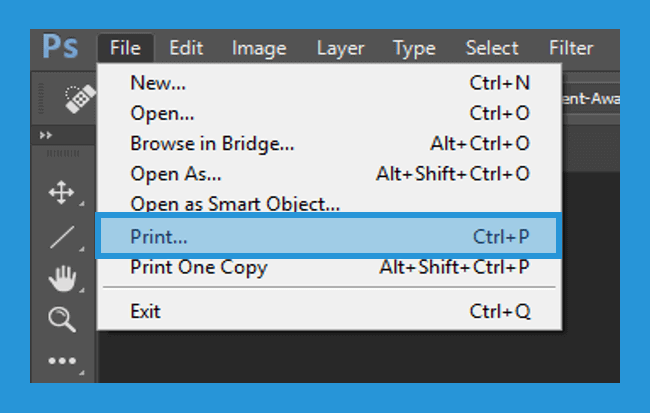
Then click the File tab> select the Print menu. You can also use a shortcut to open it by pressing Ctrl + P on the keyboard.
#2. Layout configuration
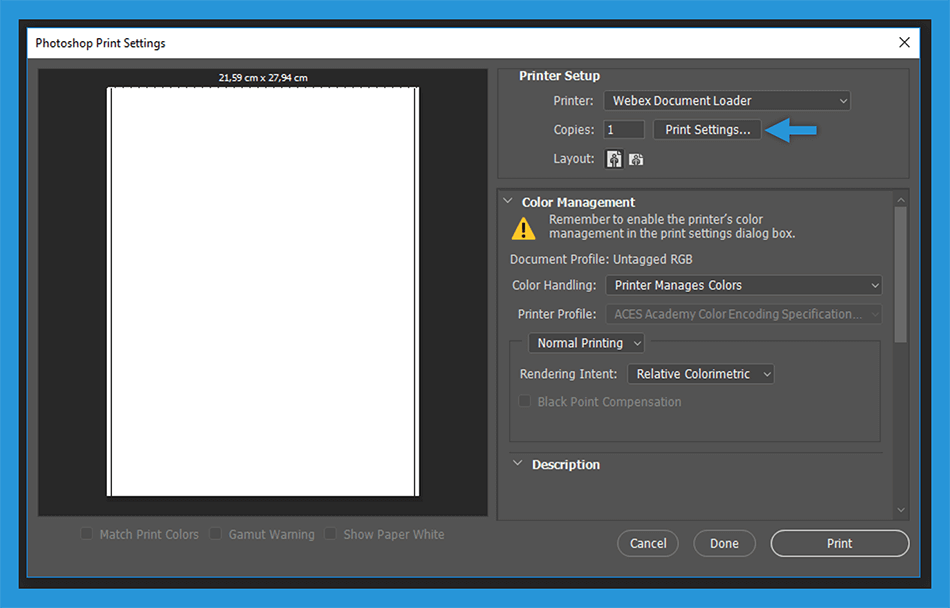
Then the Photoshop Print Settings dialog box will open. Furthermore, you can configure the layout of his first, so now click Print Settings. A4 Size Paper in Photoshop.
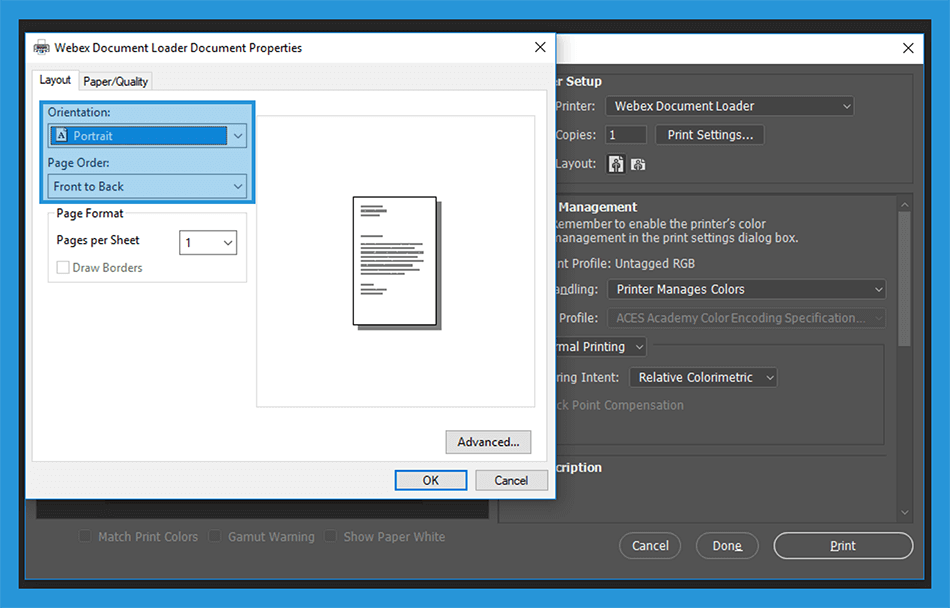
Now select the paper type in the orientation according to your needs, whether you want to use portrait or landscape.
Then on the menu Page Oder, You can set the paper in print, which would be printed on the front or back first. A4 Size Paper in Photoshop.
Note : You can select Front to Backto print the paper from front to back . Then select Back to Frontif you want to print the paper from back to front .
#3. Select Print Color
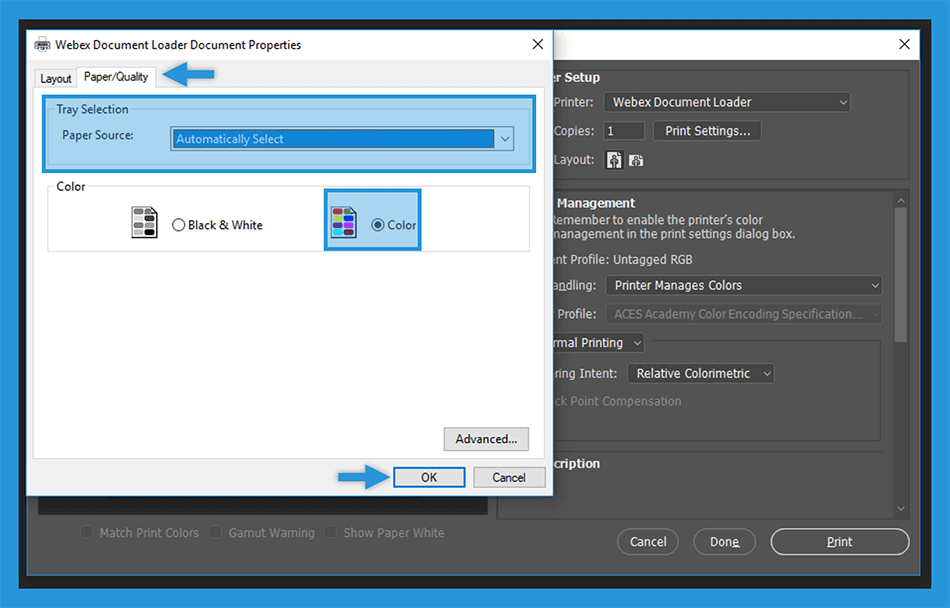
Then still on the print settings menu, please select the Paper / Quality tab.
On the Tray Selection menu, you can just select the Automatically Select option. Then on the color, you can define yourself, want to be printed in black and white or in color.
Note : If you want black and white , you can select the Black & White option . Meanwhile, if you want color, select the Color option .
When you have finished setting it up, now click OK.
#4. Set Printer Setup
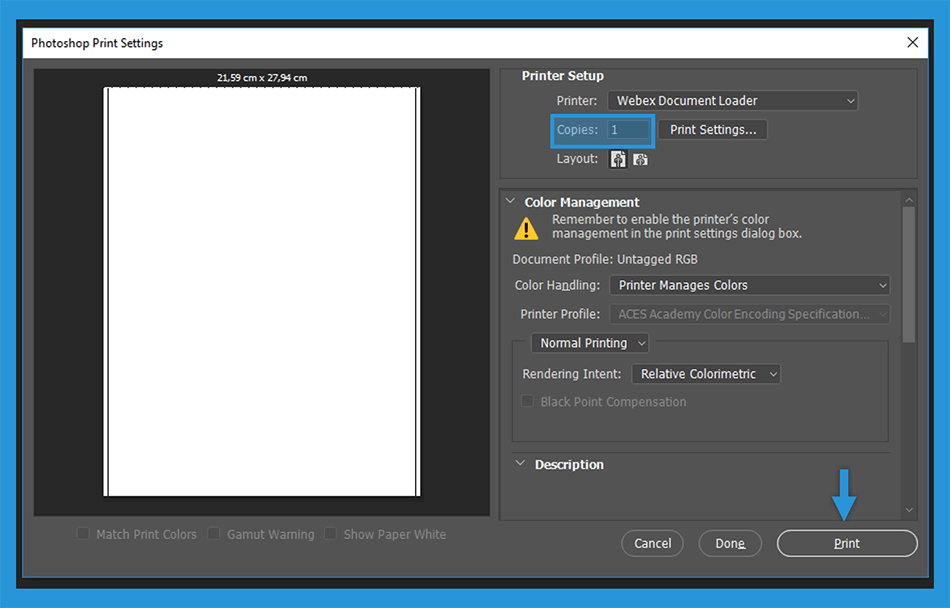
Then you will be redirected back to the Photoshop Print Settings dialog box. Here, you only need to set the copies or how many papers you want to print.
The contents should be according to your needs.
In the final step, you can click the Print menu to start the paper printing process.
So, friends, that’s how to make A4 size paper in Photoshop, In short, before printing documents, photos, paper, or anything else, you have to adjust the size first.
Maybe that’s all I can say about how to make A4 paper size in Photoshop.
This method can also make A3, A2, and other paper sizes as long as you know only the width and height. It may be useful.
How To Flash Samsung J1 Ace SM-110G Easy Way – Samsung J1 Ace is an Android smartphone that has been released in the market for a long time. When it was first sold in the market, there were many enthusiasts. Even today there are still many who use it.
How To Flash Samsung J1 Ace SM-110G
How To Flash Samsung J1 Ace SM-110G
So it is not surprising that at this time many smartphones are experiencing system problems. This kind of thing is indeed normal for Android smartphones.
System damage that is generally experienced by Samsung J1 is that it has begun to slow down, it often comes out on its applications, noisy, bootloop even some are dead.
One solution that can be used to restore the performance of the Samsung J1 Ace as before is by re-flashing or flashing.
Flashing is a way to reinstall the firmware of the Samsung J1 Ace which aims to repair the damage to the system so that the phone’s performance returns to normal.
In this article, the admin will give 2 tutorials for Samsung J1 Ace’s Flash Repeat, namely with the help of a PC / laptop and via SD Card without a PC.
How To Flash Samsung J1 Ace via ODIN
Before you flash again, you must first prepare some equipment and supporting files.
In addition, you are advised to back up your important data in advance on your cellphone, because the flash reset will erase all files in the Smartphone.
Also, try a cellphone battery above 50%. This aims to avoid dropping when flashing.
The most important file you make is Samsung Galaxy J1 Ace SM-110G, the firmware used this time is the original firmware developed by Samsung
Prepare and download several files above and then extras and put them in one folder, so that it is easier to find the file that will be installed into Odin later.
How to Flash via ODIN
Install USB Driver pad PC / laptop used
Enable USB Debugging on mobile by entering the Settings menu >> Developer Options >> USB debugging
Then check the OEM Unlock option
If Developer Options are not in the Settings menu, you must first activate it by going to Settings> About Device and then clicking 6-8 times in the Base Band Version section
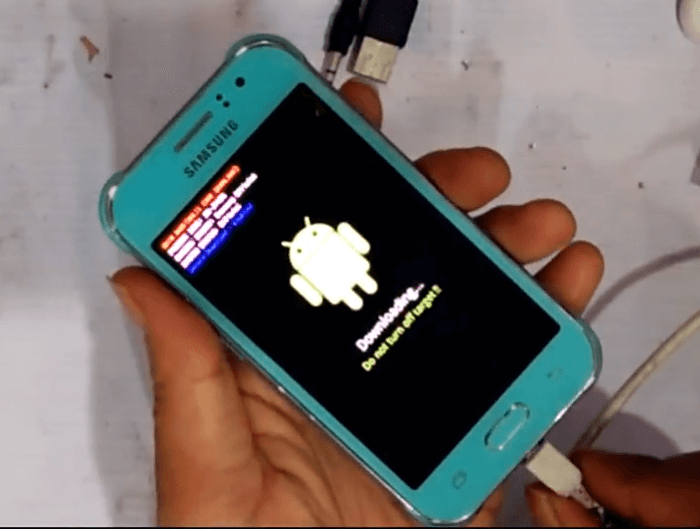
Next, turn off the Samsung J1 Ace, then turn it on again by pressing the Power + Home + Volume up button simultaneously until the Warning appears
After that, press the volume up once to continue entering Download Made
Use the USB cable that was previously slammed to connect the Samsung J1 Ace to the PC / laptop
How to Flash via ODIN
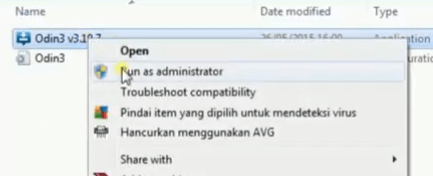
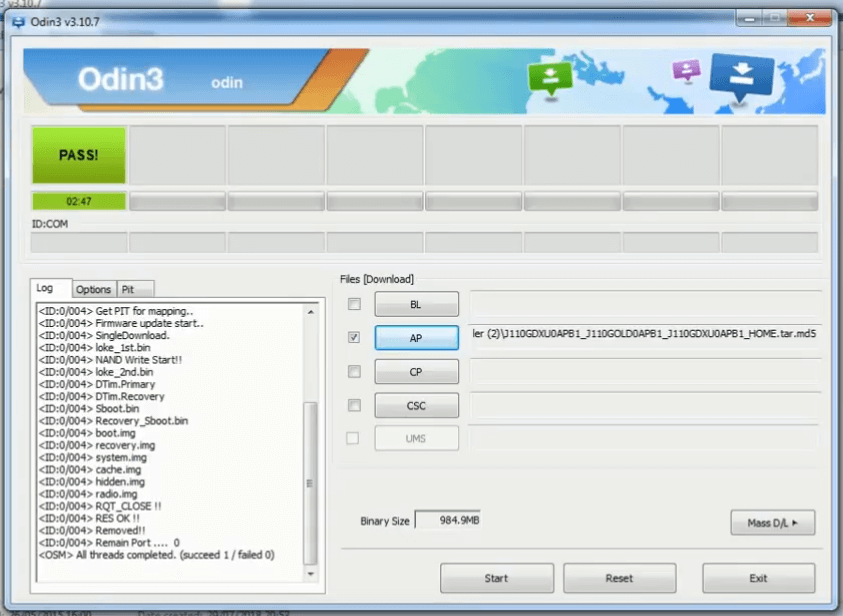
Open and run ODIN
Open and run ODIN
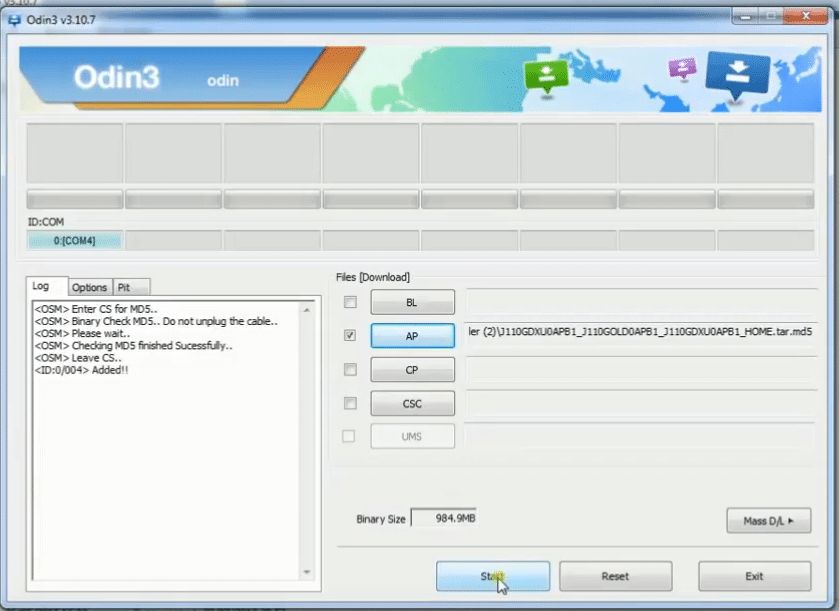
Look at the Port ID: COM printed in the upper right corner of ODIN, make sure your Samsung J1 Ace is fully connected and read correctly
Enter firmware Samsung Galaxy J1 Ace SM-110G firmware by clicking the AP button in ODIN
Enter firmware Samsung Galaxy J1 Ace SM-110G firmware by clicking the AP button in ODIN
After the firmware has been successfully inserted, now click START to begin the flashing process
Just wait until the repeat flash process is complete
When a green PASS notification appears on ODIN, it means that the flashing process is complete and successful
PASS notification appears on ODIN
Wipe your Samsung j1 Ace from the PC / laptop then turn it on
When first booting after a flash reset, it will usually take a while. So just be patient waiting for him.
Those of you who are the first time to flash themselves again will be a little confused. But don’t worry, all you have to do is follow all the tutorials above so you don’t miss anything that will work.
In addition to the above method, there are still other methods that are more simple, namely without a PC using only an SD card. As the following tutorial.
How To Flash Samsung J1 Ace SD Card
This flash method is fairly simple because it does not require a PC / laptop, it is suitable for those of you who don’t want to be complicated or have problems because no PC / laptop can use this method.
In this method, all we need is Samsung J1 Ace and Micro SD firmware stock only. How you can follow a few steps below
Transfer the file to the SD card that has been prepared
Turn off the Samsung J1 Ace
Next, enter recovery mode by pressing the Home + Power + Volume Up button simultaneously
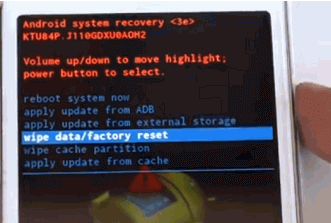
Then select the Wipe Data/factory reset option followed by selecting Yes – delete all user data
Wipe Data/factory reset option followed by selecting Yes – delete all user dataWipe Data/factory reset
If you have now selected the Apply Update from the External Storage option then navigate to the Samsung J1 Ace Stockrom Deodex file that has been downloaded and transferred to the SD Card earlier
Just wait until the installation process is complete
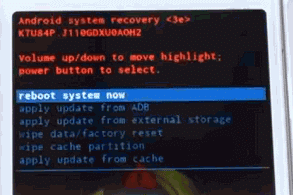
When done, select the system reboot option now and your phone will restart automatically
Apply Update from External StorageSelect reboot system now
Done.
Select reboot system nowDeodex Samsung J1 Ace ROM
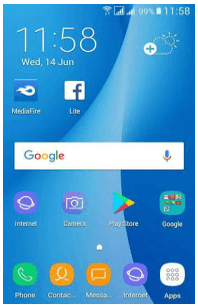
Deodex Samsung J1 Ace ROMDisplay of Samsung J1 Ace Deodex ROM
6 Best PS1 Emulators For Android and Laptop PC – Information for using the PS1 emulator. Complete with recommendations for the best emulator software for PC and Android that you can choose as you wish.
6 Best PS1 Emulators For Android and Laptop PC
6 Best PS1 Emulators For Android and Laptop PC Windows 10
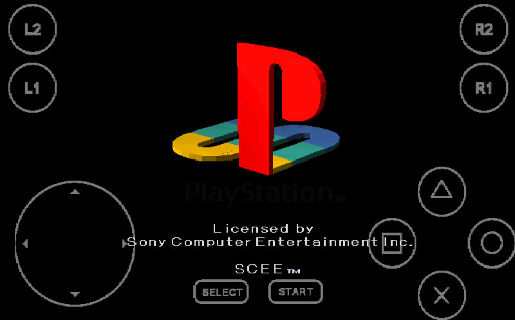
The PlayStation 1 is Sony’s first-generation console. This console is fairly successful in the market.
Although it was first released in 1994 in Japan, his games are still often played today.
This is because of the PS1 emulator application. Through this application, we can play it even without a console.
Currently, we can even download the PS1 emulator for Windows 10. In addition, it can still be used in previous Windows series.
There is also an emulator that we can install on Android, you know.
Best PS1 Emulators For Android and PC Laptops
You need to know, that this emulator can run on a PC / laptop with low specs. Likewise, on Android, we don’t need to have PCs/laptops and smartphones with high specs.
Well, here we describe some of the best types of PC emulators and also for Android that you can install and use.
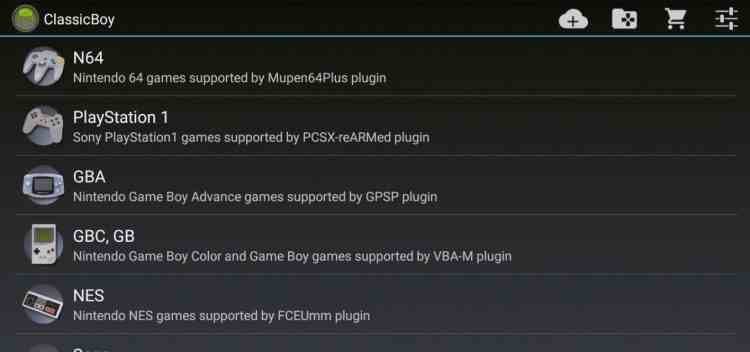
#1. ClassicBoy (For Android)
For those who want to play PS1 games on mobile, this application can be a solution for your cellphone.
This application is one of the best recommended PS1 Android emulators.
You can download ClassicBoy directly on the Play Store. Once installed, please download the PS1 game which can be searched via Google.
In addition to PS1, this Android emulator can also be played for other types of classic games.
#2. EPSXe emulator (PC and Android)
This software is very popular. Because it is one of the most reliable emulators for PCs/laptops.
In addition, now there is also the ePSXe application that you can use on an Android cellphone. This application offers a lot of feature options that we can customize.
Not only that but there are also many ePSXe PC plugins and bios to choose from. Bios and plugins can be downloaded separately.
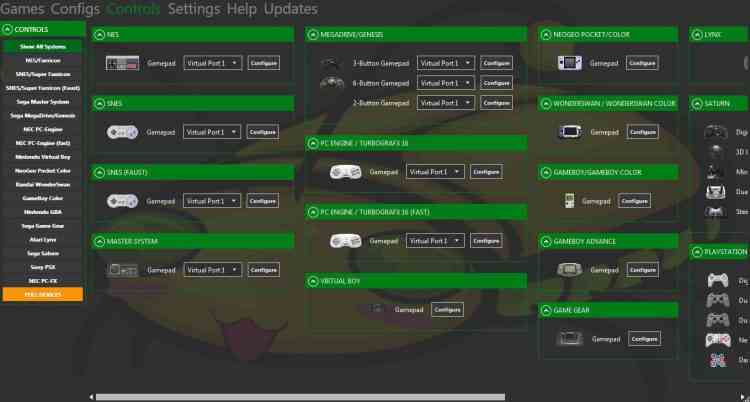
#3. Mednafen (For PC / Laptop)
This emulator software is available for PC only. Mednafen is even distributed free of charge, meaning that anyone is free to use it.
This application was created by a group of developers and also volunteers. Besides being able to play the PlayStation 1, you can also play games from the NES and Game Boy consoles.
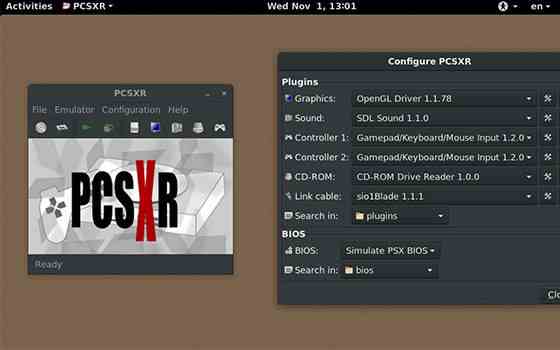
#4. PcsxR (For PC)
This emulator is quite old. It’s been used since the 2010s.
Currently, the application already has several developments. It is claimed to be more responsive and also capable of producing better images.
PcsxR has a relatively small size. So, anyone who wants to play PS1 games can immediately download them quickly at any time.
#5. FPse (For Android)
Through this application, you can play all PS1 games with stunning graphics. Because this application allows us to use OpenGL software.
In addition, the interface design is quite attractive and easy when choosing your favorite game.
#6. EmuBox (For Android)
This emulator is for Android, just like ClassicBoy. We can not only play PS1 games, but also other games from SNES, GBC, NDS, and GBA.
This software has also been supported by external game controls such as a gamepad. The application is also quite popular. Lots of people have downloaded it on the Play Store.
How to Play PS1 Games on PC
To play all PlayStation 1 games on a PC, please download the emulator first.
Choose one of several emulators that we informed above. After that, please follow the steps below:
If the download is in the form of RAR, please extract it first. After the emulator icon appears, please click or open it.
Install the application by following the instructions that already exist.
Make sure you download the emulator complete with the bios. If the bios are not included, please download it separately.
After the application is installed, please enter the bios into the bios folder in the emulator installation folder. After that, please open the emulator by double-clicking it.
Generally, bios that have been placed in the installation folder will automatically be read. So, you can immediately use the emulator.
Please prepare the PS1 game that you want to play. If you don’t have it, please download it first. Information on where to download PS1 games is easy to find on Google.
If the PS1 game downloaded is in the form of RAR, please extract it first. Then an ISO game file will appear.
Please start playing the game through the emulator. Select the game earlier in the place where you saved it.
How to Play PS1 Games on Android
As we mentioned above, besides on PC, we can also play it on Android. For those who are curious to try, please follow the steps below:
Please choose one of the best PS1 emulators for Android. After that, search for and download it on the Play Store.
Please install the application on the smartphone.
Once installed, don’t open it yet. Please download the PS1 game first, or you can ask a friend.
Next, extract the game until an ISO game file appears. Put the game file on the SD Card for later scanning and running.
Step number 3 above, can be skipped if you already have a PS1 game on your cellphone.
To play it, please open the application. After that, select the menu “Run the game” (the menu to run the game will be different in each application). Then, you select or click the game to be played.
For additional information, PS1 games are quite large. That is, it will take up storage space. So, prepare an SD card with a large size.
The PS1 emulator is a solution for gamers who want to reminisce about playing Playstation 1 games. For those who miss old-school games, let’s download one of the applications above to play them.