How To Fix IDM Fake Serial Number Error – In this article, We will guide you to repair IDM that has been registered with a fake serial number or fake serial number. Internet Download Manager (IDM) is the most popular download manager for Windows.
Best Tricks To Fix IDM Fake Serial Number Error
How To Fix IDM Fake Serial Number Error (4 Easy and Effective Ways)
The only difference between IDM and other popular download managers is that IDM is paid software which means you have to buy it to use it.
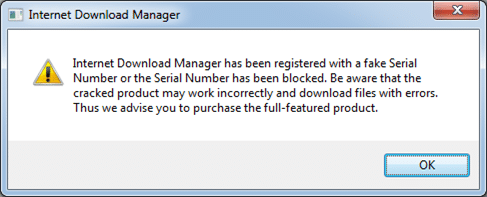
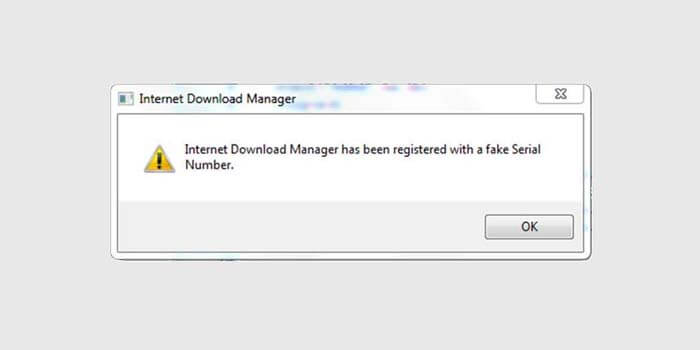
If you have purchased IDM, you can cause several problems such as “IDM has been registered with a fake serial number or the serial number has been blocked”.
Or you may have used a trial version of IDM crack before but you have already bought a new IDM but still, you get the same error message when you try to register with your official serial number.
IDM Fake serial number
Here are some solutions that you can try before contacting the IDM support team.
By the way, this IDM support page lists some problems and possible solutions, but this is not enough to get you out of this situation. You can also try our solutions first.
#1. Tweaking IDM files
We need to change some IDM program files to stop them from displaying fake serial number error messages.
Let’s go through the following steps:
Tweaking IDM files
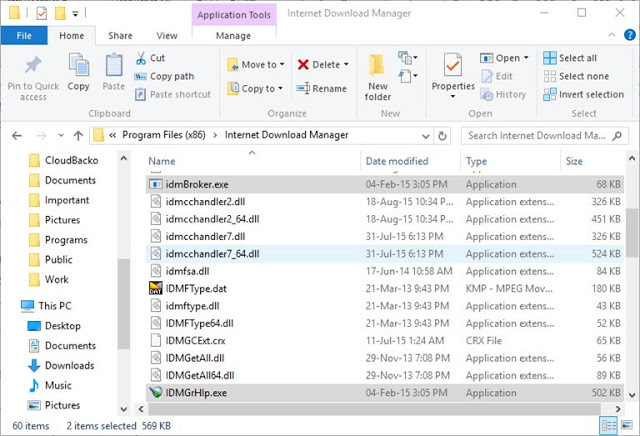
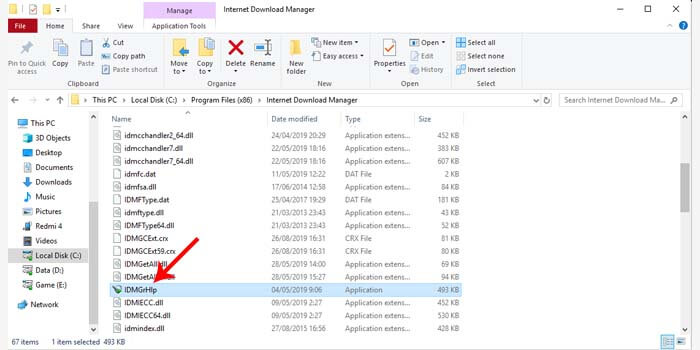
Go to C: \ Program Files \ Internet Download Manager or C: \ Program Files (x86) \ Internet Download Manager on 64-bit computers
Search and delete the file called IDMGrHlp.exe
Now copy the idmBroker.exe from the same folder and paste it in the same folder and rename it to IDMGrHlp.exe
Restart the system for the changes to take effect
If you are still having problems and an error message appears, you can deactivate the IDM automatic update function using the following methods:
#2. Disable automatic updates on IDM
You can turn off IDM updates automatically using the Windows Registry
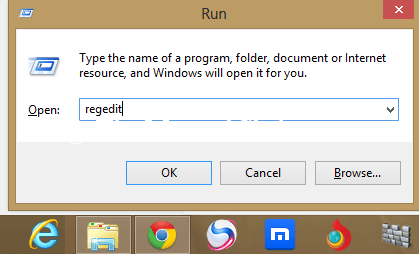
Go running -> Regedit
Go to HKEY_CURRENT_USER \ Software \ DownloadManager
On the right panel, select CheckUpdtVM and edit the value to 0
#3. Editing Host Files to block IDM updates
Explore C: \ Windows \ System32 \ drivers \ etc \
Open the hosts’ file using a text editor like Notepad
Copy and paste this line at the end of the HOSTS file:
Please note that this will deactivate the Internet Download Manager update function. You must download the latest updates manually.
#2: With Cleaning Regedit
First, run open (Press “Windows Key + R” together from your keyboard to open the run dialog box.) Now type “Regedit” without quotation. If it shows a message, then click the “YES” button.
Method2: With Cleaning Regedit
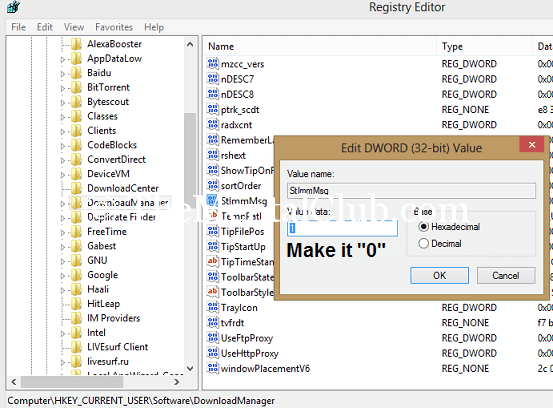
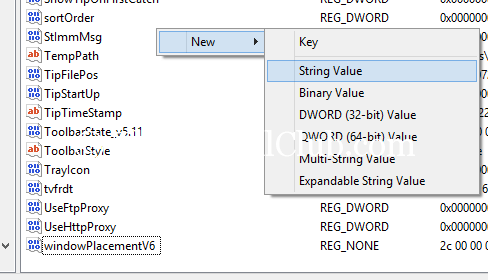
Now, open (HKEY_CURRENT_USER >>> Software >>> Download Manager), then you see “CheckUpdtVM” or “StlmmMsg“. Double-click on this message and changethe value from 1 to 0.
change the value from 1 to 0
Note: If “CheckUpdtVM” does not exist, then create a new “String Value” named “CheckUpdtVM” and set the value = 0.
String Value
Now restart “IDM” or restart your PC.
#3 Rename File
Rename File
The renaming file is the first method that is quite simple. You only need to change the name of one of the files contained in the Internet download manager / IDM folder on your laptop or PC.
How to fix IDM detected using a fake serial number:
Open the system tray (lower right corner) on your laptop or PC.
Then right-click IDM> Exit.
Go to C: \ Program Files \ Internet Download Manager.
Rename the IDMGrHlp.exe file to idmhelp-old.exe.
Next, restart the laptop or computer.
After that reopen the IDM installation folder.
Change the name of the idmBroker.exe file to IDMGrHlp.exe.
The final step is to restart your laptop again.
After your laptop or PC is restarted, IDM will change to the full version. You do not need to worry about any more fake serial number warning messages appearing on IDM.
#4. Remove IDM Fake Serial Number
Remove IDM Fake Serial Number
If the first method fails to resolve the fake serial number on IDM, then you should try the second method. This method proved to be effective enough to get rid of fake serial numbers.
How to get rid of the latest Fake Serial Number IDM:
Extract the file that has been downloaded to the IDM installation folder.
Next, follow the instructions in the text file.
After you have followed the tutorial by the instructions, your IDM is certainly in the full version. Now the fake serial number warning will not reappear.
If you still get an error, the best way is to download Internet Download Manager from the Tonec website again, uninstall IDM that was previously installed, and reinstall IDM using the newly downloaded installer.
11 Ways to Fix Google Chrome Not Responding on PC – Google Chrome is the most popular browser in the world, but this doesn’t mean it’s 100% bug-free and may stop responding.
11 Ways to Fix Google Chrome Not Responding on PC
How to Fix Google Chrome Not Responding on Laptop PC
Indeed, Chrome is a very stable, fast, and reliable browser. However, it sometimes doesn’t respond, preventing users from connecting to the Internet.
If you encounter such an issue then follow the troubleshooting steps listed below.
Google Chrome is a great browser, however, many users have reported that Chrome is not responding. This can be a big deal, and speaking of the problem, here are some of the similar issues users have reported:
Google Chrome not responding to Windows 8, 7 – This problem can occur on older versions of Windows, but even if you are not using Windows 10, you should know that almost all of our solutions work with older versions of Windows.
Google Chrome doesn’t respond at startup, and won’t close, every few seconds – Sometimes a third-party app can cause this problem to occur. To fix this problem it is recommended to do a full system scan and check if that helps.
Google Chrome keeps crashing and not responding – This is another common problem that can occur. If that’s the case, make sure to clear your cache and check if it works.
Google Chrome Freeze – If Google Chrome keeps freezing, the installation might crash, so make sure to reinstall Chrome.
Google Chrome won’t open – This might happen if the process crashes. Opening the Task Manager and closing processes should fix this.
Google Chrome is not working – This error may refer to an error that won’t open. Or maybe refer to one of the others listed in this case, see what works best, and implement the solutions accordingly.
#1 – Use a better browser
If this isn’t your first problem with Chrome, we think that the easiest solution of them all is to simply move on to a better one.
Since exporting your bookmarks and settings is easy and fast, all that’s left is to choose an alternative. We recommend Opera.
It is based on Chromium so you will feel right at home with it. But you’ll also have access to Opera’s sidebar and lots of new features.
Our top pick is Opera because:
offers Adblocker
comes with free and unlimited VPN
integrated Facebook Messenger, WhatsApp, Telegram, and others right in the sidebar
You can group tabs together in different Workspaces
Basically, you can organize yourself better and be more productive. It’s also pretty fast. Maybe faster than Chrome itself.
Opera
Open from Chrome to Opera for a new web experience you’ll love.
One of the main causes of this problem can be malware infection. Malware can sometimes interfere with your browser and cause Google Chrome not to respond.
This can be a big problem, but you should be able to fix it by doing a detailed antivirus scan.
To ensure that your system is protected, we recommend that you use a good third-party antivirus solution such as BullGuard. This antivirus offers great protection as well as advanced security features that ensure that your system is protected at all times.
The multilayered approach makes this solution great: combining traditional email signatures and scanning with machine learning and cloud capabilities.
This means that it will detect viruses faster, better, and without being too resource-intensive.
Bullguard
Improve your security and remove malware so Chrome will function properly again.
After you have done a full system scan, the problem should be resolved.
#3. How to deal with not responding on Google Chrome
Uninstall and reinstall the browser
To completely uninstall Google Chrome, we are recommending you to use an uninstall software like Revo Uninstaller. This app will delete Chrome along with all the files and registry entries associated with it.
Why is that a better choice?
The default uninstaller is less effective because it removes some of the files that were installed initially. Various registry changes that occur while using it and other files that are created are ignored.
Revo Uninstaller is one of the best on the market as it restores registry changes and safely removes leftover files. It’s like you never installed the software in the first place.
So download this uninstaller and remove Chrome. While you’re at it, you might as well pick out some other old and forgotten software.
You can select multiple programs and it will remove all of them.
Revo Uninstaller
The best uninstaller with extended scanning and real-time monitoring of system changes. Take advantage of this offer
$ 17.95 Visit
Now install the latest version of Chrome and check if the problem is still there.
#4. How to Overcome Not Responding on Google Chrome
Add Chrome to your firewall exclusion list
According to users, sometimes Google Chrome may not respond if there is a problem with your firewall.
Your firewall is designed to restrict Internet access to certain applications, and to ensure that everything is functioning properly, you must allow Google Chrome through your firewall.
It’s quite simple and you can do it by following these steps:
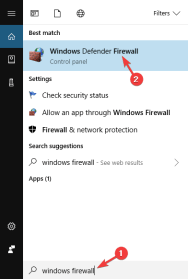
Open the Search menu> type Windows Firewall > press Enter.
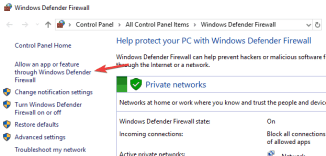
In the left pane, select Allow applications via Windows Firewall.
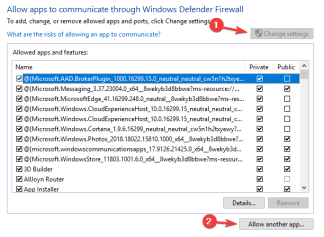
Click the Change Settings button > select Allow other applications.
Select Google Chrome > click Add > OK.
Google Chrome should automatically be allowed to bypass your firewall, but if not, make sure to follow these instructions to fix the problem.
Most of the users don’t use Windows Firewall because of this kind of problem. We recommend using one of these third-party firewalls for better, more customizable protection.
#5. Clear your DNS cache
Remove PC Errors
Run a PC Scan with the Restore Repair Tool to find errors causing security issues and slowdowns. After the scan is complete, the repair process will replace the corrupted files with new Windows files and components.
Disclaimer: to clear errors you need to upgrade to a paid plan.
Fix PC Errors
If Google Chrome isn’t responding, the problem is probably your DNS cache. This is only a minor problem, and to fix it, you just need to clear the cache.
To do so, you need to run some commands at the Command Prompt by following these steps:
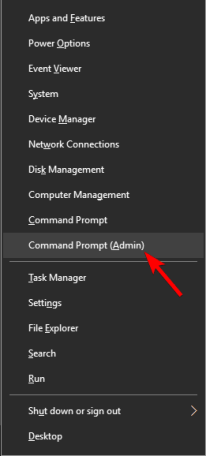
Press Windows Key + X to open the Win + X menu. Now select Command Prompt (Admin) or Powershell (Admin) from the list.
Type the following commands and press Enter after each one:
ipconfig / flushdns (In 2008)
netsh winsock reset
If you can’t open Command Prompt as admin, take a closer look at this guide.
#6. How to Overcome Google Chrome Not Responding
Run an SFC scan
Damaged files can also cause this problem to occur, and to fix the problem, you need to repair the corrupted files.
It’s relatively simple, and you can do this by running an SFC scan. To do so, just follow these steps:
Start Command Prompt as administrator.
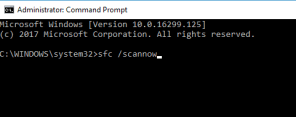
When the Command Prompt opens, enter sfc / scannow and press Enter.
The SFC scan will now start. This scan can take about 15 minutes, so don’t bother it.
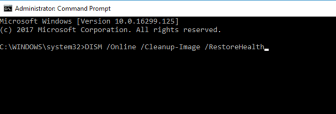
After the scan is complete, check if the problem gets solved. If the problem is still there, you may want to try using a DISM scan instead. To do that, simply start Command Prompt as administrator and run the command DISM / Online / Cleanup-Image / restorehealth.
After the DISM scan is complete, check if the problem still exists. If the problem persists you may want to try running the SFC scan one more time and check if that helps.
#7. How to deal with not responding on Google Chrome
Make sure you are running the latest version of Chrome
If Google Chrome is not responding on your PC, it is probably out of date.
Sometimes certain bugs can occur now and then and cause problems with Chrome, which is why it is very important to update Chrome.
Google Chrome usually checks for updates automatically, but you can always check for updates manually by doing the following:
Open Google Chrome.
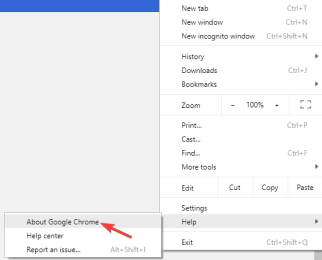
Click the menu icon in the upper right corner and select Help > About Google Chrome.
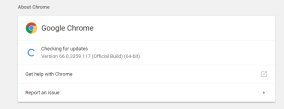
A new tab will now appear and Chrome will check for available updates. If there is an update available, it will be downloaded automatically.
After Chrome is updated, make sure to check if the problem still appears.
#8. How to Overcome Google Chrome Not Responding
Clear cache, browsing history, and cookies
Another common reason for Chrome to stop responding is your cache. If the cache is corrupt, which might be causing certain problems with Chrome, that’s why we are recommending you clear the cache.
Clearing the cache is quite simple, and you can do it by following these steps:
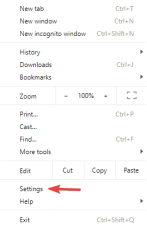
Open Google Chrome and click on the Menu icon in the top right corner. Select Settings from the menu.
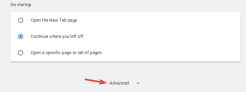
The settings tab will now appear. Scroll down and click Advanced.
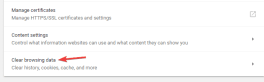
Now click Clear browsing data.
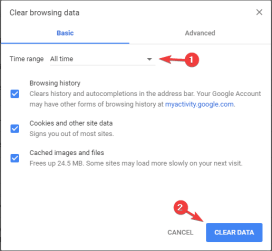
Set the Time range to All time and click Clear data.
After Chrome is done clearing the cache, check if the problem persists.
#9. Disable extensions
Google Chrome supports a variety of extensions that can enhance Chrome with new features.
While Chrome extensions can be very useful, some extensions can be very demanding in terms of resources, and others may be buggy and cause Chrome to stop responding.
To fix the problem it is recommended to find and disable a specific extension and check if that helps. It’s relatively simple, and you can do it by following these steps:
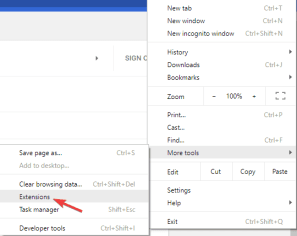
Click the Menu icon in Chrome and go to More Tools> Extensions.
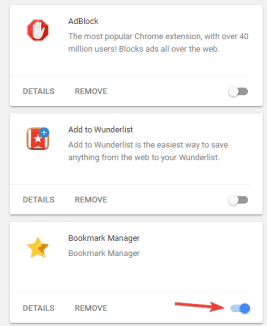
Find the extension you want to remove and click on the little toggle icon next to it.
After disabling all extensions, restart Chrome.
When Chrome restarts, check if the problem still appears.
If not, it means that one of the extensions is causing it. To find out which extension is the problem, activate one extension at a time until you find the one with the problem.
Once you find it, remove or update it and check if it solves your problem.
#10. Check the proxy settings
According to users, if Chrome isn’t responding, the problem could be your proxy. Proxies are a great way to protect your privacy online, but sometimes, they can cause certain problems.
To fix the problem, it is recommended to disable the proxy by doing the following:
Press Windows Key + Me to open the Settings app.
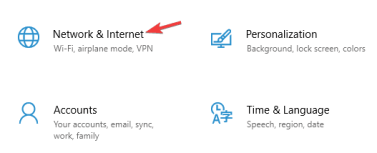
With the Settings app open, navigate to the Network & Internet section.
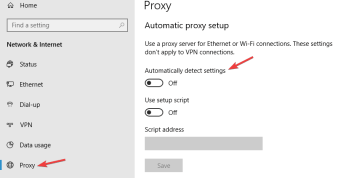
Go to the Proxies section in the left pane. Now disable all the settings in the right pane and check if that helps.
After disabling the proxy, check if the problem gets solved.
#11. How to Overcome Google Chrome Not Responding
Reset Google Chrome
If you still can’t resolve this issue with Chrome, you may want to reset it to default. It’s relatively simple and you can do it by following these steps:
Click the menu icon and navigate to Settings.
Scroll down and click Advanced.
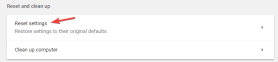
Click Reset settings in the Reset and Clean section.
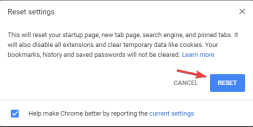
Now click the Reset button to confirm.
After resetting Chrome, check if the problem gets fixed. However, resetting will delete your browsing history. Don’t worry, we have the ultimate guide to recovering your browsing data.
Still, having problems? Fix it with this tool:
This software will fix common computer errors, protect you from file loss, malware, and hardware failures, and optimize your PC for maximum performance. Fix PC problems and remove viruses now in 3 easy steps:
This is the explanation of 11 ways to fix Google Chrome not responding on PC, I hope this article will help you fix Google Chrome’s responsiveness issues. You can list the troubleshooting steps in the comments section if you find other solutions.
200+ Best Cool, Funny, and Nice Roblox Names – Looking for a cool name for your Roblox account? Below we’ve put together a list of 200 cool and cute options for you to copy or to inspire you to create your own. Enjoy while it’s available!
200+ Best Cool, Funny, and Nice Roblox Names
Roblox is a massively multiplayer game enjoyed by millions of people from all over the world. With so many players, it can be hard to come up with a username that stands out. In this article, we will give you some of the most creative Roblox names that you can use.
We’ll take a look at several categories of usernames you can choose from. We’ll also give you some tips for creating your own unique and catchy Roblox name. With that, let’s get started.
#1. Cool Roblox Names for Men
Robloxsson
Roblido
MeepCitense
XolboR
Playmobile
Prison Breaker
Shindo
darkinho
BOLTX
boblox
Slendinho
BloxZ
campfire
LEGOX
Lazarus From Project
Roblosvaldo
GaroX
PRIUS
Roblonildo
Blox bourgeoisie
matiX
AdoptedNoAdoptMe
Human_Giraffe
Robinho
Slendersson
Bal00n
rakekiller
One Kick_Man
tycoon
robloco
Playmobox
DracoX
BoomR
BloxZera
MimdaRobux
potatox
mangoX
raja
player0x
Last_0ne
It’s a mess
CoyoteX
ZeniZ
CRAFTEX
mementos
ZeroX
separation
Clawzra
YardoX
KAT4R
WolveroX
BlitzZera
BladoX
Wolfor
Sirex
BAR0N
#2. Female name for Roblox
PutriX
Robloxane
Witch
goddess
robilinda
Noble woman
Blox_Queen
sellyna
KZARR
D3LTA
Blox_Witch
RosaX
0M3G4
ruled
Snow Princess
MAF1A
amazed
HEALS
girl box
Lyrics
VENUX
Harpya
Storm
Medus4_X
banshee
MaliciaX
EN1GMA
TEQUIL4
JUNOX
wicked
VALKY
Slendinha
PERMAISURI
lada
peppa_piggy
darkinha
phobia
Miss_Luck
DIVINAX
Sind3L
V1P3R
VEGAX
AC ID
NovaX
Astra
MortaX
alpine
alyana
CHROME
TIRED
Rolex
storm
AryaX
cheating
samsarah
mirage
#3. Roblox Names for Boys
SecretAgent
crimson_pain
The_Prophet
rider
thud
shooter
hearthacker
dudeboy
swagyboy
mustache_lover
range
programmer
technician
righty
lefty
trapper
brother
bomber
brother
captain
hero
marvel_lover
shaktimaan
superman
spiderman
batman
superboy
drugmylife
How to make a name on Roblox
The Roblox platform doesn’t offer much freedom when it comes to creating your nickname, and it imposes a few rules that you must follow:
Each name must be between 5 and 20 characters. Roblox accepts 3 and 4-letter names, but all possible character combinations have been used with that number.
Names can only include regular letters (uppercase or lowercase), numbers, and underscores (_).
Roblox does not accept the use of special symbols or letters.
The name must include at least one letter because Roblox rejects any name containing only numbers.
The underscore must always be between letters and/or numbers, never at the beginning or end of the name, and each name can only have one of these characters.
The use of obscene words, references to terrorism, or any expression of violence is prohibited.
You need to spend 1000 Robux to change the name on the created account.
How to Change Name on Roblox
Log in to your Roblox account.
Go to Settings at the top right.
Click the Account Info button.
Then you can select the option for the Change Username button.
From there, you’ll have to pay 1,000 Robux to convert it, so select Buy.
Finally, sign out and sign in using the username you just changed.
Note: A username change on Roblox will cost you 1,000 Robux.
Conclusion:
Now you can get the best Roblox name for you or create your own. You can even choose a name on our list and add your twist to it. It is important that your Roblox name represents you and must be unique so that other players will remember you.
How To Delete Samsung Account From Your Phone – Like most other technology companies, Samsung also applies the accounting system to each of its services, including those made by its mobile phones to help users.
How To Delete Samsung Account From Your Phone
How To Delete Samsung Account from Your Phone
With this system, you will have a place to connect and store your data, including backing up cell phones, storing videos, making subscriptions, buying content on Samsung digital services, etc.
Even so, of course, not infrequently you want to delete the Samsung account for several reasons. For those of you who have not been able to do it, you can follow the following reviews.
How to remove a Samsung account from a cellphone
You only need to enter Settings to delete a Samsung account from a mobile.
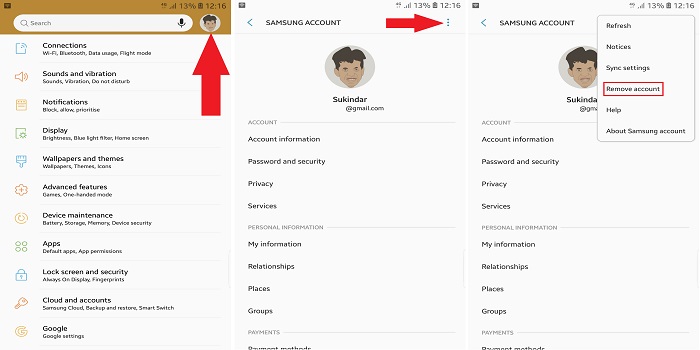
From the Settings main page, you can choose a profile photo in the top right corner.
If it’s already entered into the Samsung Account page, select another option (three dots) in the upper right corner then select Remove account.
From the Remove Account page, select the REMOVE button in the lower right corner.
Then you will be asked to enter a password, and after that, you can press the REMOVE ACCOUNT button.
How to remove a Samsung account from a cellphone
But before doing so, you need to pay attention to several things. One of them is when a Samsung account is successfully deleted from the device, some data will also be deleted even if it’s not permanently.
In addition, you will no longer be able to use some Samsung services from these phones, including Samsung Cloud services, Find My Mobile, Samsung Pay, and also Samsung Pass, when the Samsung account has been deleted.
Even so, you don’t need to worry because you can still restore some access to the service by adding back the deleted Samsung account to your device.
How to Permanently Remove Samsung Account
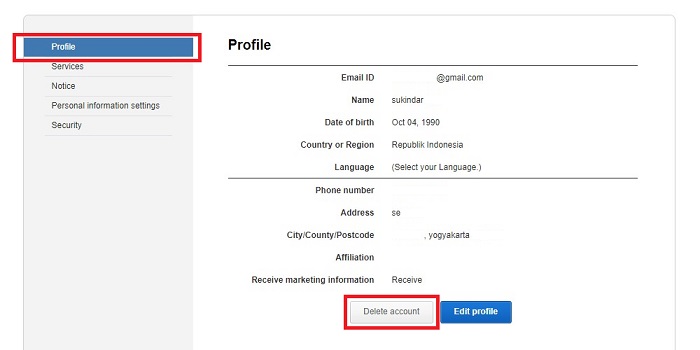
First of all, you can visit the Samsung account page.
Enter the account you have, then enter the Profile tab.
If so, you can choose the Delete Account button.
Next, confirm by entering the password in the column provided and click Continue.
Review action prevention options, and confirm by tapping the Confirm button.
Samsung Account will be deleted, and completed by pressing the Confirm button again.
How to Permanently Remove Samsung Account
By taking this action, various kinds of information related to the account will be permanently deleted, alias you will not be able to return it or send it to another account.
So, friends, that’s how to delete Samsung account on your phone, I hope this information will help you too. if you think it is helpful then please share it on your social media.
How to Fix IDM Cannot Download on Google Chrome—Internet Download Manager, or IDM as many call it, is software that helps to manage downloads on a computer or laptop. Many have used IDM and find it helpful because it is known for accelerating the file download process.
How to Fix IDM Cannot Download on Google Chrome
How to Fix IDM Cannot Download on Google Chrome
Here we will discuss how to fix a problematic IDM on Google Chrome by adding the IDM extension to Google Chrome. IDM can run automatically in almost all web browsers.
But there may be some problems with integration with IDM and Google Chrome. Not a few also experienced IDM not being able to download automatic files and IDM not working on Google Chrome.
What is Internet Download Manager?
IDM is the best download manager that you can use for computers and laptops. IDM is paid software, but it’s worth the amount paid. You can get it with a one-year subscription for $ 12. IDM is popular because it can speed up downloads and can manage downloaded files more easily.
Of the many features of IDM, most people use IDM for speed. Downloads on IDM are faster than downloads from normal browsers without IDM. Technically, IDM divides the file into several parts which are then downloaded separately and then merged at the end. IDM accesses the server several times and then downloads are carried out in parallel to speed it up.
Another great feature is support for resume downloads which can be made. You can easily pause and resume downloads. In a web browser take Chrome for example If we pause the download and then exit the browser the download is canceled. That’s not the case with IDM, it saves all progress. You can pause downloads and resume them even after restarting your computer.
In addition, maybe you have downloaded a file that is quite large, then you pause the download process, and the download process will start from scratch. But not with IDM, this software can refresh the download link so that it can be run again even though it’s paused.
#1. How to Fix IDM Cannot Download Automatically
Extensions are a bridge between IDM applications and web browsers. This extension is what helps IDM capture downloads from a web browser. IDM uses an extension on Google Chrome as a means of connecting so that you can download files from IDM via Google Chrome.
If IDM integration with the browser is broken, IDM will not be able to download files automatically and IDM will not work. In such a case we need to improve the integration so that IDM can function properly again.
Sometimes there are fake extensions or extensions that have malware or other viruses that can cause IDM not to work on Google Chrome. So always be careful when you install new software on your computer and laptop. Always make sure to install from official and trusted sources.
#2. How to Fix IDM Cannot Download on Google Chrome
If the IDM extension is missing from the browser or the integration is broken, IDM will not function properly. IDM will usually pop up a small warning for the download command when you play a video. However, if it does not appear, it means that your IDM has a problem.
Therefore, here will explain how to fix the IDM extension on Google Chrome so that it can download automatically. However, first, check whether the IDM extension exists or not.
Open Google Chrome.
Then type chrome://extensions/in the URL field.
Check if there is an IDM Integration Module extension.
Also, check whether the extension is active or not.
If the extension is not active, simply activate the extension then restart Chrome by closing Chrome and reopening it. Then try to download some files whether IDM can be downloaded or not.
If not, it means there is a problem with the extension. Then you have to uninstall it first and then install the extension again.
#3. How to Install IDM Extension to Google Chrome
Open Google Chrome.
Go to the Extensions menu.
Open the folder where IDM is installed.
Look for a file named IDMGCExt.crx
Drag the file and drop it in the Extensions menu in Google Chrome.
Chrome will pop up a command to add an extension or not. Click Add Extension.
Google Chrome will display a notification that the extension was successfully installed.
But if the above method still doesn’t work, you can install the IDM extension directly via the Google Chrome Webstore. [ Click Here ]
After that, you have to restart Chrome by closing and re-opening Chrome Google so that the extension can run properly. However, make sure that the settings on IDM itself are available for Google Chrome.
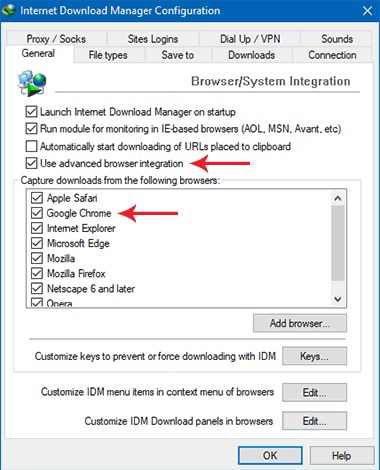
Open IDM and Go to Downloads / Downloads> Options / Options.
Under General, make sure Advanced Browser Integration is checked.
This is the explanation of how to fix IDM that cannot download on Google Chrome, I Hope this article is useful. If you encounter problems when Internet Download Manager is not running or IDM cannot download files automatically. Use the above IDM method.


 To completely uninstall Google Chrome, we are recommending you to use an uninstall software like Revo Uninstaller. This app will delete Chrome along with all the files and registry entries associated with it.