How to Make Square Root Symbol In MS Word – Working with Microsoft Word is not only for people who process data in words. Some people who are struggling with numbers also use the Microsoft Word application for processing data.
How to Make Square Root Symbol In MS Word
How to Make Square Root Symbol In MS Word
Data in the form of numbers usually also involves numbers or mathematical sentences it.
Of course, if you use mathematical sentences to enter data or write in Microsoft Word, it is a little different than if you write data in the form of ordinary letters.
In the writing method at Microsoft, to make it easier for users to write mathematical sentences, there is a special feature made to make typing easier.
This feature is called an “Equation”. This feature will make it easier for users to write mathematical sentences such as fractions.
Although writing fractions can be done manually by using slash symbols, the results will certainly be different if written automatically.
This feature will also make it easier to write more difficult mathematical sentences such as writing squares.
Well, for those of you who still haven’t mastered the method of writing, there are ways to write that you can emulate.
Easy Ways to Type Root Numbers
To start writing root numbers, the first step is to make sure you have opened a new sheet or new document on your Microsoft Word worksheet.
How to create the root symbol in the latest Microsoft Word:
How to create the root symbol in the latest Microsoft Word:Microsoft Word 2007 creates a root symbol
Select the Insert menu, then Equation
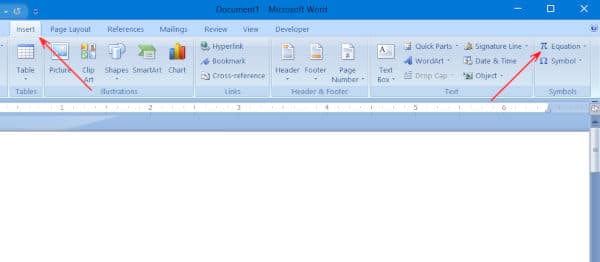
When opening the Microsoft Word work page, you will find various tab menus at the top of the worksheet. Select the tab “Insert” menu, then a variety of other sub-menus will appear. Find the “Equation” submenu, which is usually located at the far right of the upper screen.
Select the Insert menu, then Equation
Choose Design
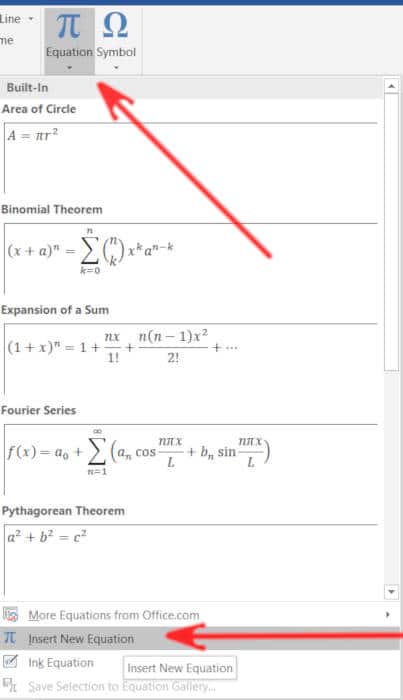
When you select the “Equation” menu, click the down arrow next to the writing, then you will get more design choice menus. Click again on the “Insert New Equation” menu and a box will appear where you can write the formula.
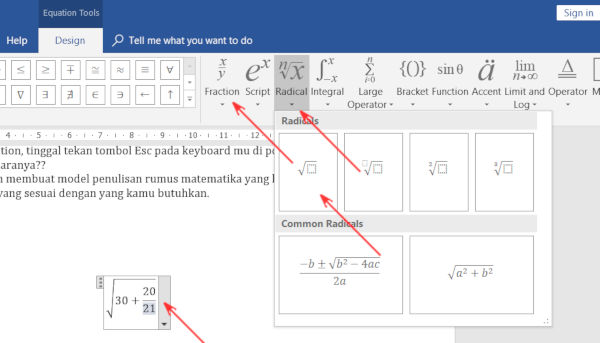
Choose the math operation you need. For quadratic operations, select the “Radical” menu tab and then select “Square root”. Then the square root symbol or symbol will enter your worksheet.
Choose Design
Fill in the Column Box with the desired number
To enter a number, click on the box and fill in the number you want to enter. If the number is a fraction, before filling in the numbers, first click on the box in the square root symbol, then select the “Design” menu again, this time select the “fraction” menu tab then click again on the “Stacked fraction” option, it will form a fraction. Your stay enters the desired number.
Method 2: Square and square root
namely a discussion of squares and square roots. What are the functions of the square and square root in mathematics? Following is further exposure
Definition of squares
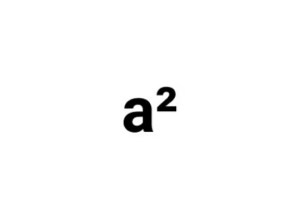
What is a square? The square of a number is the multiplication of a number with the number itself as much as 2 times so that the square is also referred to as the power of 2. Writing number 2 is indicated by the power of 2
Definition of squares
For example, here, the admin takes a number that is a
What is the square value of a?
For any integer a then:
a² = axa
In the same way, it will be obtained
1² = 1 x 1 = 1
2² = 2 × 2 = 4
3² = 3 x 3 = 9
4² = 4 x 4 = 16
5² = 5 x 5 = 25
6² = 6 x 6 = 36
7² = 7 x 7 = 49
8² = 8 x 8 = 64
9² = 9 x 9 = 81
10² = 10 x 10 = 100
11² = 11 x 11 = 121
12² = 12 x 12 = 144
13² = 13 x 13 = 169
14² = 14 x 14 = 196
15² = 15 x 15 = 225
16² = 16 x 16 = 256
17² = 17 x 17 = 289
18² = 18 x 18 = 324
19² = 19 x 19 = 361
20² = 20 x 20 = 400
Both positive and negative numbers if squared will produce positive numbers
-1² = -1 x (-1) = 1
-2² = -2 x (-2) = 4
-3² = -3 x (-3) = 9
-4² = -4 x (-4) = 16
-5² = -5 x (-5) = 25
etc.
Quadratic numbers are used as units of the area in a two-dimensional flat building such as a square, rectangle, triangle, parallelogram, etc.
The broad units in two-dimensional shapes are expressed in units of squares or squares
Definition of the square root
What is the meaning of the square root? the square root is the opposite of the square. For example, there is a statement as follows
What is the square root of 25?
the above statement can also be expressed as what number if squared, will produce the number 25
So buddy, what do you mean?
So the square root of a is the square of a certain number that produces a number
In mathematics, the square root is written as follows (can it be number 2 or not?
Square root symbol
Square root symbol
Or it could be with
Square Root Symbol
√1 = 1
√4 = 2
√9 = 3
√16 = 4
√25 = 5
√36 = 6
etc.
square root can be used to calculate the length of a square if its width is known
The square of a number is the sum of all odd numbers as many as the intended number
Did you know that squared is the sum of odd numbers? As an example
First Step: That’s how to add data as a square root operation. If you want to try, make sure you have created a new document.
Second Step: It’s easy not to understand squares and square roots. There is so little explanation about the meaning of squares and square roots. it’s easy. maybe useful.
11 Best Free Video Editing Applications For Windows PC – To create interesting video content, we need a lightweight and powerful editor application. But the average application that is popular today is not free, you have to pay a license to use it.
10 Best Free Video Editing Applications For Windows
Best Free Video Editing Applications For Windows 10 PC Laptop
But the question is, should we use paid video editing applications to create interesting video content?
Not really. It turns out that there is a free video editing application that is good enough for editing videos on a PC with results that are no less interesting than expensive applications. Many YouTubers and Instagram activists also use free applications. It all depends on the skill and creativity that uses it.
In this post, I will provide several choices of free, lightweight, and easy video editing applications that you can use on PCs and laptops. Equipped with an explanation of its features, along with its advantages and disadvantages.
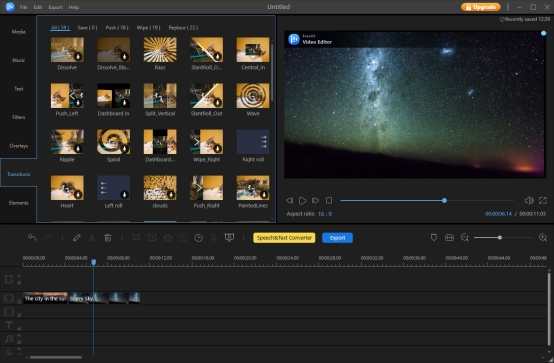
#1. EaseUS Video Editor
EaseUS Video Editor is an easy-to-use video editing software for beginners. Nowadays, since videos are so popular, anyone could be a video creator. No matter what kind of videos you’d like to create – birthday video, wedding video, tutorial video, product demo, website guides, etc., you can rely on this amazing video editor for Windows 10.
This software is a novice-friendly video editor. It features a super simple and clean interface – even your grandma can quickly start making videos with it. You can import your video resource from your PC or many portable video devices, like Apple, Samsung, HTC, SanDisk, Sony, LG, Huawei, BlackBerry, Amazon, etc.
In addition, it includes nearly all the features a handy video editing software might have, such as basic timeline editing features, speech & text converter, green background cutout feature, and many more.
Better still, it also offers built-in resources, including music, filters, overlays, transitions, and many other elements. With a mouse click, you can apply the video resource as you want to your video, to add a creative touch to your masterpiece.
100+ built-in quality video effects, such as filters, overlay, transition, etc.
Edit and manage multiple videos and audio tracks on the timeline
Easily Trim, crop, split, rotate, and mix video and audio as you want
Add subtitles or text to your video with ease
Add watermark, zoom, mosaic, etc.
Convert your video to a file type you prefer, for example, convert MP4 to GIF, MP4 to MP3, YouTube video to MP3, etc.
Speed up/slow down your video/audio
Record your narrations with one mouse click
Convert speech to text or text to speech
Support green effects to separate the subject from the green background
Audio enhancement
Advantages:
Perfect for beginners
Straightforward interface
Complete features
Multiple tracks
Video effects, filters, etc.
Unique speech&text converter
Audio optimization
A free version is available
Deficiency:
Only available for Windows
The free trial has some limitations of features
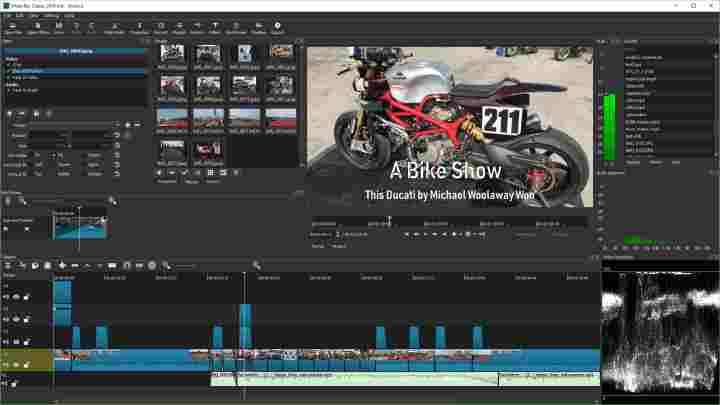
#2. Shotcut
Shotcut
Shotcut is an open source-based video editor application that can be used cross-platform on Windows, macOS, and Linux operating systems. This application is the right choice for beginners who are new to the world of video editing.
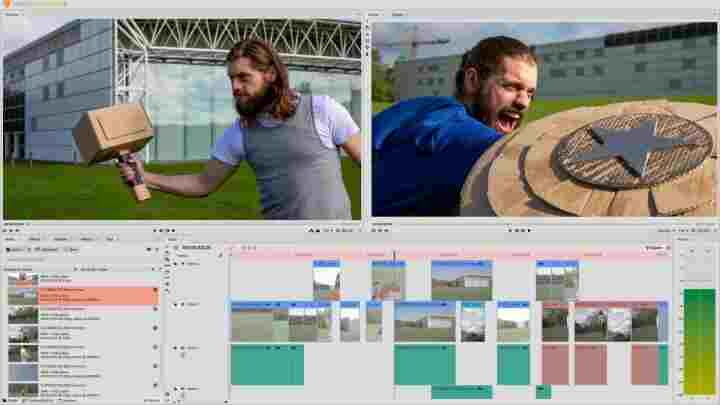
Shotcut has sufficient features to carry out a professional editing process, but it has a display and navigation that is quite easy to understand. This application is also quite light to use on laptops with low specifications.
You can edit videos in a multilayer manner, add audio, apply effects, combine several video clips, cut the part of the video that you want to remove, and many other features.
Because it is open-source-based, Shotcut can be used free of charge by anyone for various purposes. Shotcut is also light enough to use on PCs and laptops with low specs, with a fairly fast rendering process. This application is included in the list of must-have applications in Windows 10.
For those of you who want to work as a Youtuber, or want to make promotional videos on Instagram but have a limited budget to buy expensive software, try using Shotcut first, guarantee you will like it.
Balance, Bass & Treble, Band Pass, Compressor, Copy Channel, Delay, Downmix, Expander, Gain, High Pass, Invert, Limiter, Low Pass, Noise Gate, Normalize: One Pass, Normalize: Two Pass, Notch, Pan, Pitch, Reverb, Swap Channels
Audio mixing across all tracks
Fade in and out the audio and fade video from and to black with easy-to-use fader controls on the timeline
Video Effects and Filters
360 videos
Trimming, cutting, cropping, muting, and other professional editor features
Drag-n-drop files from the file manager
Scrubbing and transport control
Keyframes for filter parameters
Cross-Platform & Codec Independent
Display and Monitoring
OpenGL GPU-based image processing with a 16-bit linear floating point per color component
AMD, Intel, and NVIDIA hardware encoding
Advantages:
Free, open-source
The lightweight video editing application
Suitable for beginners
Cross-platform can be used on PCs and laptops with Windows, Linux, and Mac operating systems
Complete features for professional editing
Multi-track editing
Complete effects and filters
Lightweight and fast rendering process
Hardware support can use CPU and GPU acceleration
Deficiency:
There is no filter preview
It takes time to understand the Navigation UI
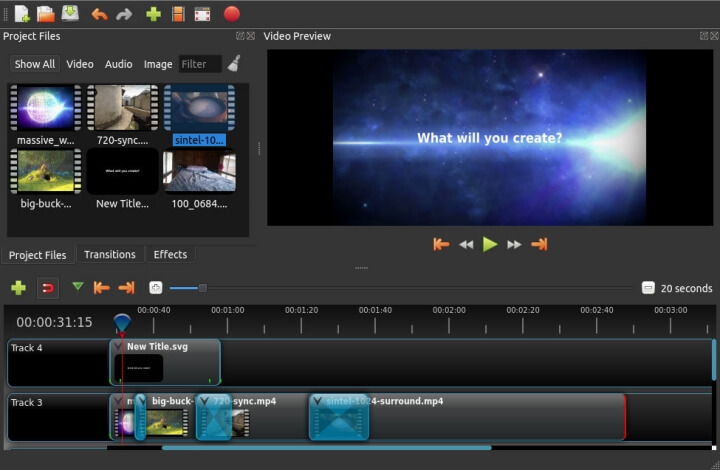
#3. Openshot
Openshot
Openshot is an open-source video editor application that you can use for free. This application is very light and easy to use, perfect for beginners who want to learn to edit videos.
The appearance of this application is very easy to understand, for Mac users its appearance will remind you of the iMovie application.
Editing videos at Openshot can be done as easily as drag and drop, there are no complicated menus that will confuse you like using other professional video editors.
But make no mistake, the features in the Openshot application are complete enough to create interesting videos according to your needs. Want to make cool aesthetic videos for Instagram or want to edit videos with slow-motion effects? You can edit it at Openshot.
For beginner YouTubers, this application is also very suitable to use, apart from being free, this application also supports multi-track layer editing which can be used to combine several videos into one interesting video.
The appearance of the application is not confusing
Can edit multi-track with unlimited layers
Audio mixing
Suitable for beginners
Deficiency:
The rendering process is a bit slow
Tutorials that discuss using Openshot are a few
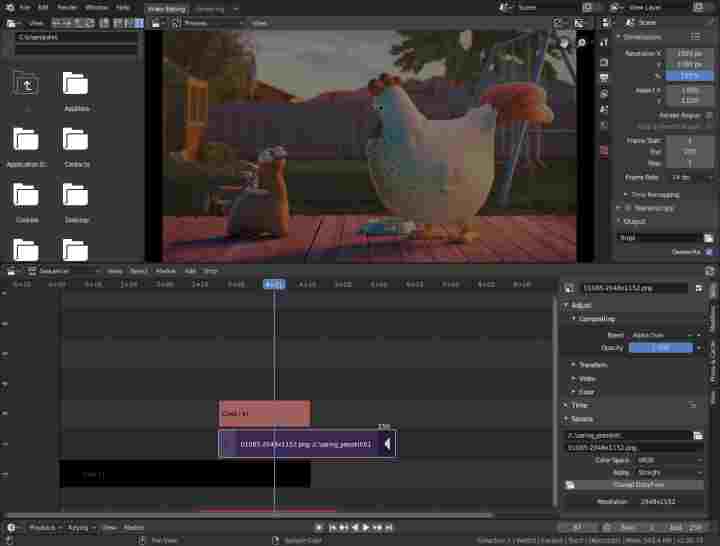
#4. Blender
Blender
The next best free video editing application for PC is Blender. Maybe you’ve heard the name as a 3D animation maker application, but it turns out that Blender also has features that can be used to edit videos.
Blender’s video editor can be used to do basic editing, such as cutting videos, combining clips, and inserting audio. The live preview feature will make the editing process easier.
Blender is an open-source application that is completely free, you can use it on any computer device you own without having to pay for a license. This application can also be used on Windows, Mac, and Linux operating systems.
This application is designed for 3D modeling, so the features are too many and a little confusing when used for editing videos
The tutorials available mainly cover 3D modeling, with only a few on video editing
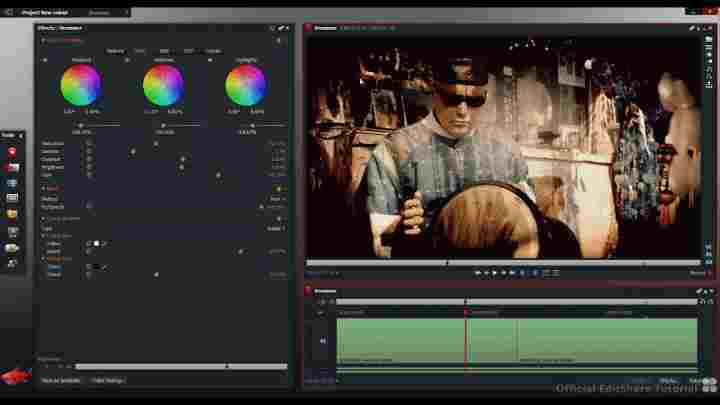
#5. Lightworks
Lightworks
Lightworks is the right choice for those of you who are looking for a free professional video editing app. Whatever the need, whether it’s to make YouTube videos, short films, or videos for promotional purposes, you can do this with this application.
The features in Lightworks are no less complete than expensive applications such as Adobe Premiere, Final Cut Pro, or Sony Vegas. With this application, you can edit videos in a non-linear and multi-track manner so you can have more freedom in your creation.
Using the free version of Lightworks allows you to produce great videos with 720p HD resolution for YouTube. If you want to produce videos with 4K resolution you have to buy the pro version.
This application is suitable for those of you who want to jump into the world of professional video editing or want to be a YouTuber but are not ready to buy expensive software. You can use the free version first to master editing skills with Lightworks, after which you can easily upgrade to the pro version.
There are many editing tutorials with Lightworks that you can learn from
UI can be modified according to user taste
Cross-platform can be used on Windows, Mac, Linux
Deficiency:
The UI will be difficult to understand for beginners
For 4K video editing, you must use the paid version
Video export is limited to the MPEG format for the free version
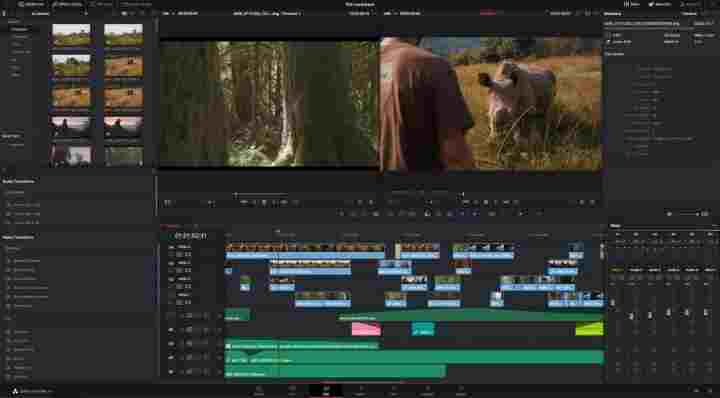
#6. Davinci Resolve Free
Davinci Resolve Free
Davinci Resolve is an application for editing videos with professional features and a modern UI. This application also provides a free version that can be used for free on PCs and laptops.
The appearance of this application at a glance is similar to Adobe Premiere with editing features such as slicing, trimming, filters, cool effects, and color correction. You can produce professional editor-class videos and films when you master them.
This application is also suitable for those of you who want to dive into the world of professional video editing, make promotional videos on Instagram and Facebook, to become a YouTuber.
You can use the free version of Davinci Resolve to edit videos, but if you want all of its features you’ll have to buy the pro version.
The features are so many that it takes time to understand, especially for beginners
#7. HitFilm Express
HitFilm Express
Want to edit a video recorded with a smartphone camera into an interesting movie? Or intend to be a gaming YouTuber with full-effect videos? This HitFilm Express application is what you need.
HitFilm Express is a professional video editor application for PCs that can be used on Windows and Mac operating systems. In it, some features are complete enough to make video editing ranging from slicing, trimming, audio mixing, effects, filters, and much more.
Speaking of effects, HitFilm Express provides more than 180 types of cool effects that are ready for you to use to create epic films. If you just want to edit slow-motion videos, it will feel very easy. Even films like Star Wars are made with this application.
HitFilm Express is a paid application with a hefty price, but those of you who are still in the learning stage can use the free version. To get the free version, the conditions are enough to share the status on social media.
Has many interesting effects that are ready to use
Suitable for professional editing
Perfect for vlogging, film making, and YouTuber Gaming
Deficiency:
The free version has limited feature access
It takes time to understand the navigation UI and its features
#8. Avidemux
Avidemux
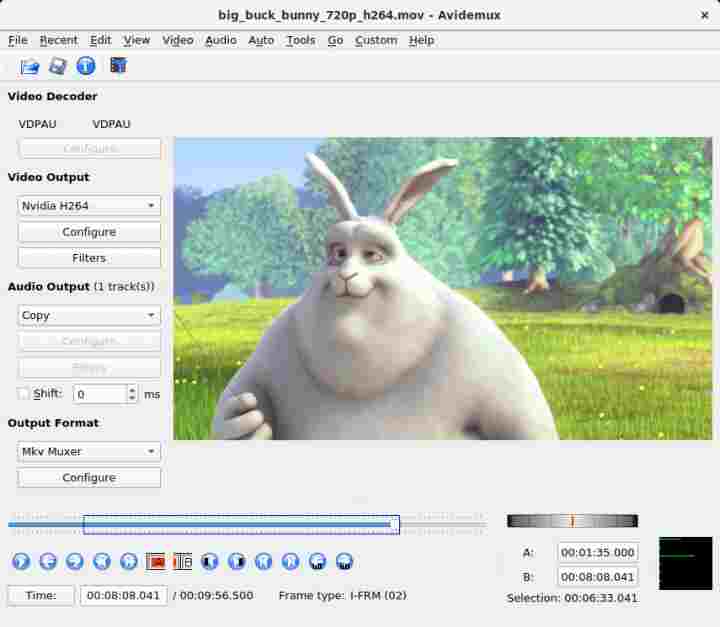
Avidemux is a video editing application that is very light and easy to use. This application is suitable for beginners who want simple video editing such as cutting and merging videos, inserting audio, and adding text.
For those of you who are truly beginners in the world of editing, this application is perfect for starting learning. Avidemux can also be used on low-spec laptops with Windows, macOS, and Linux operating systems.
Apart from being used for basic editing, Avidemux also has filtering and encoding features that you can take advantage of.
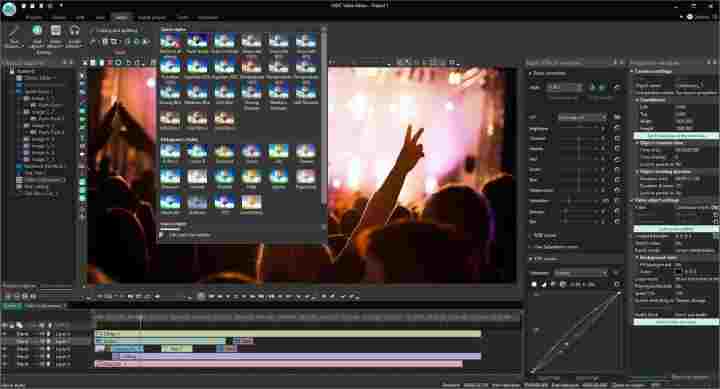
The next free PC video editing application is AVSDC Free Video Editor which is available for free for Windows users. This application is a professional editor that provides a free version with quite complete features.
One of the advantages is the color blending feature which allows making the nuances in the video more alive. With a little creativity in this section, you can produce a video that suits your needs.
VSDC Free Video Editor is also suitable for celebrities, or those of you who want to make Instagram content more interesting. It includes filters similar to those on Instagram, ready to be used to make videos better, faces smoother, and other beauty effects.
It has lots of great effects, similar to the Instagram effect
UI navigation is quite easy to understand
Deficiency:
Only available for Windows
#10. iMovie
iMovie
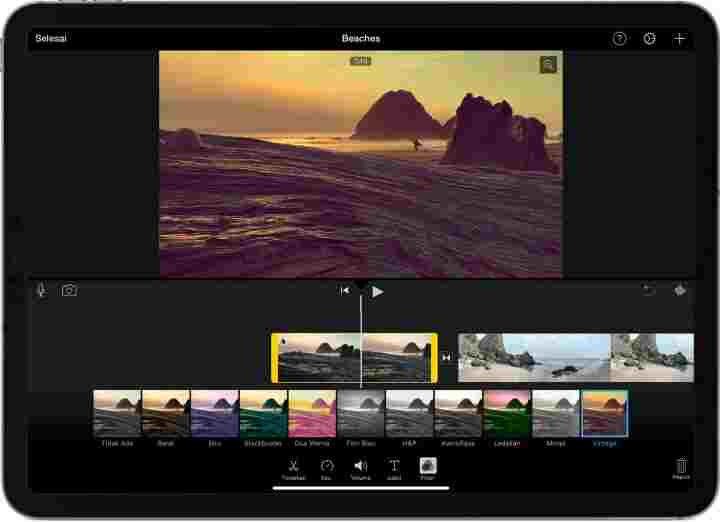
iMovie is a great app for learning to edit videos on Mac for free. This application is like a native application on macOS which is very easy to use.
For basic edits like video trimming, merging clips, and adding sound this app is more than sufficient. If the need is just for making a simple documentary film or a school assignment then using iMovie is the best choice for Mac users.
What’s more, iMovie also has ready-to-use filters with a cool cinematic touch. This filter can be used for free to edit videos into interesting films. If you want to make a video with a slow-motion effect in certain parts, iMovie also has a feature.
Limited features, not as complete as other professional video editors
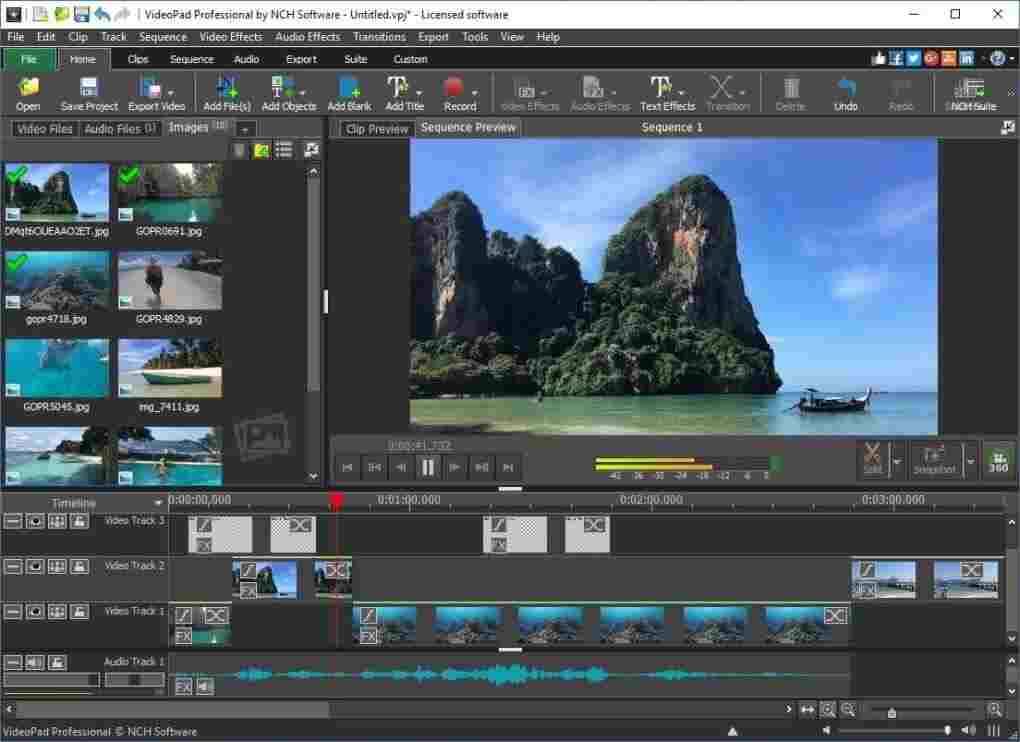
#11. VideoPad
Producing cool videos with professional quality doesn’t have to always use expensive software, as long as you have the creativity and willingness to learn, free applications like VideoPad can be very powerful.
VideoPad is a free video editing application specifically for Windows PC and laptop users. This application is very easy to use by beginners but has complete editing features. Even for those who don’t have any experience at all, it won’t be difficult to use it.
The VideoPad application display is fairly simple with easy-to-understand menus. Not much navigation is confusing like other advanced editor applications so it is suitable for starting the learning process in the world of video creators.
VideoPad supports multi-track editing, meaning you can create multiple video layers in one timeline, add transition effects, and audio, create zoom effects, and much more. The more creative you use it, the resulting video is no less good than an expensive editor.
2 Easy Ways to Hide Your Location on Instagram Posts – Want to hide your location on the popular Instagram app? Today’s guide will teach you how to easily hide your location on the Instagram site or app.
How to Hide Your Location on Instagram Posts 2024
Most of our Android apps have access to our geographic location, to suggest similar content from advertisers in our country.
But there are ways to hide your location if you want to protect your privacy.
Follow the detailed steps below and stop sharing your personal information with the Instagram app.
How to Hide Instagram Location on Android
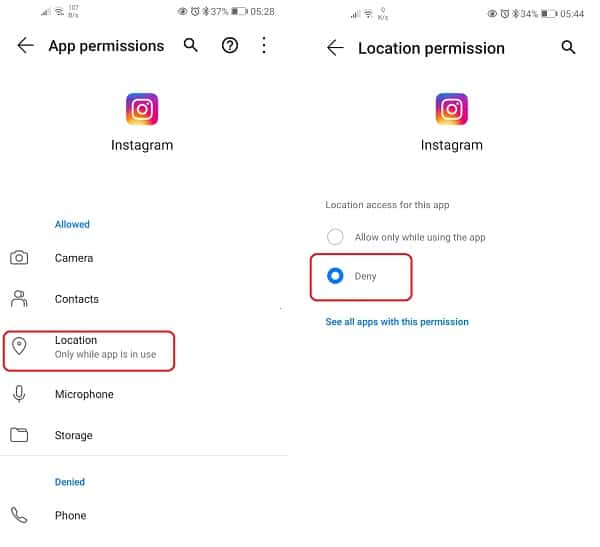
Your first step to hiding your location information in your Instagram app is to turn off your Android Settings.
More specific:
Go to your Android Settings.
Go to Application Manager > Application List.
Find the Instagram app.
Go to License and disable access to your site.
This way, the Instagram app won’t have access to your data, so it won’t show your personal in future posts and won’t suggest promotional content for your country.
How to Remove Location on Instagram Posts on Android
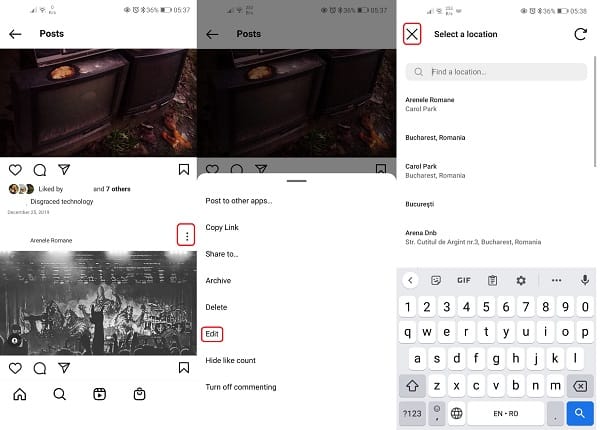
If you’ve recently added your exact location to some of your Instagram posts and you want to remove them, there’s a way to do it.
Just follow these steps:
Open the Instagram app.
Find the post you want to edit.
Click the menu icon with three horizontal bars.
Select Edit.
Scroll to the location field and press (x) to delete an existing location.
You can follow the steps above for each post you want to edit to remove your site. Unfortunately, you’ll have to edit them one by one, as there’s no way to delete all of your sites.
Conclusion:
We hope this article was useful to you and helped protect your privacy on the popular Instagram app.
If you want to download the latest version of Instagram for free, follow the link below.
9 Basic Google Sheets Features You Should Know – Functionality is a key component of spreadsheet applications like Google Sheets. But if you rarely use them, or are just starting out, they can feel overwhelming.
Image: stitchdata.com
Basic Google Sheets Features You Should Know
For the most basic actions you’ll take, here are some simple Google Spreadsheet functions.
There’s nothing more basic when working with numbers than adding them up. Using SUMthese functions, you can add multiple numbers, add numbers in cells, or use combinations.
The function syntax is SUM(value1, value2,...)with value1required and value2Optional.
To add up the numbers 10, 20, and 30, use the following formula:
=SUM(10,20,30)
To add the numbers in cells A1 to A5, you would use this formula:
=SUM(A1:A5)
#2. Average score: AVERAGE
Maybe you need to look at the average of a number or numbers in a range of cells. This feature AVERAGEhave you covered
Similar to calculating the average in Excel, the syntax for the Google Sheets function is Required and AVERAGE(value1, value2,...)Optional.value1value2
To find the average of the numbers 10, 20, and 30, you would use the following formula:
= RATE-RATE (10,20,30)
To find the average of the numbers in cells A1 through A5, use this formula:
= RATE-RATE (A1: A5)
Tip: You can also view basic calculations without formulas in Google Sheets.
#3. Count cells with numbers: COUNT
If you’ve ever counted cells, you’ll appreciate COUNTthe feature. With it, you can count how many cells in the range contain numbers.
The function syntax is COUNT(value1, value2,...)with value1required and value2Optional.
To count cells A1 through A5, you would use the following formula:
=COUNT(A1:A5)
To count cells A1 through A5 and D1 through D5, use the following formula:
=COUNT(A1:A5,D1:D5)
You can also calculate data that match the criteria using COUNTIFGoogle Sheets.
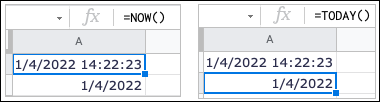
#4. Enter the current date and time: NOW and TODAY
If you want to see the current date and time every time you open a Google Sheet, you can use the NOWor function TODAY. NOWshows the date and time while TODAYshowing only the current date.
The syntax for each is NOW()and TODAY()no arguments are required. Simply enter one or the other of the following in your sheet to display the date and time or date only.
NOW()
TODAY()
If you want the date to appear in a certain format, you can set the default date format in Google Sheets.
#5. Delete non-printable characters: CLEAN
When you import data from other locations into your sheet, the data may include non-printing or ASCII characters such as backs and returns. This function CLEANremoves visible and invisible characters.
syntax CLEAN(text)with the required text.
To remove non-printable characters from the text in cell A1, you would use this formula:
= NET (A1)
Note: Because the function removes characters you can’t see as well as characters you can see, you might not see a difference in the resulting cells.
#6. Remove whitespace: TRIM
Another useful function for tidying up your sheets is TRIMthe function. Just like in Microsoft Excel, this function removes blank spaces from cells.
syntax is TRIM(text)where text can represent a cell reference or actual text.
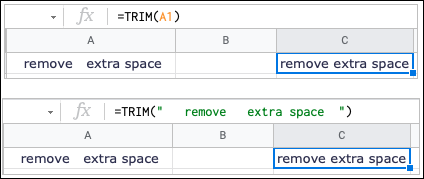
To remove the blank space in cell A1, you would use the following formula:
=TRIM(A1)
To remove whitespace from “remove extra spaces”, use this formula:
=TRIM("hapus spasi")
#7. Combine Text or Value: CONCATENATE and CONCAT
To concatenate strings, text, or values, you can use the CONCATENATEfunction CONCAT. The main difference between the two is that it CONCATENATEoffers more flexibility. For example, you can combine words and insert a space between them.
The syntax for each is CONCATENATE(string1, string2,...)and CONCAT(value1, value2)where all arguments except string2are required.
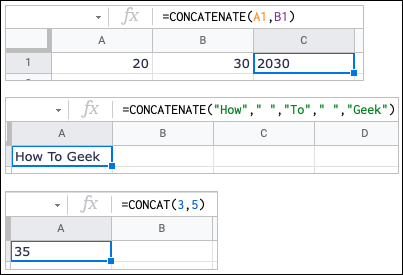
To combine the values in cells A1 and B1, you can use the following formula:
=CONCATENATE(A1,B1)
To combine the words “How”, “To”, and “Geek” with a space, you would use this formula:
To combine the values 3 and 5, you can use the following formula:
=CONCAT(3,5)
For more details on these two functions, see our tutorial for combining data in Google Sheets.
#8. Insert the image into the cell: IMAGE
While Google Sheets provides the feature to insert an image into a cell, IMAGEit gives you additional options to resize it or set a custom height and width in pixels.
Function syntax IMAGE(url, mode, height, width)with the required URL and other optional arguments.
To embed an image with the URL as-is, you would use the following formula:
In 4this formula is the mode that allows the custom size of the image to be 50 by 200 pixels.
Note: You cannot use URLs or SVG graphics for images in Google Drive.
For more help on resizing images with the IMAGE function, visit the Document Editor’s help page for the IMAGE function.
#9. Validate email address or link: ISEMAIL and ISURL
Whether you’re importing or entering data into Google Sheets, you may want to check if the data should be. With ISEMAILand ISURL, you can verify that the record is a valid email address or URL.
The syntax for each is ISEMAIL(value)and ISURL(value)where you can use text or cell references. The validation result is displayed as TRUE or FALSE.
To verify the email address in cell A1, you would use the following formula:
= ISEMAIL (A1)
To check the URL in cell A1, use this formula:
= ISURL (A1)
To use text in a formula for an email address or URL, simply enclose it in quotes like this:
=ISURL("www.technadvice.com")
Conclusion:
So, friends, This is the explanation of 9 basic Google Sheets features you should know, To go further, see how to use the AND and OR functions, take advantage of the QUERY function, or start using the IF function in Google Sheets.
Download and Install Kodi 17 Krypton on Windows 10 PC – Kodi 17 with the codename ‘ Krypton ‘ has been released. This update on popular playing media software brings a new look and various enhancements to features, and in this article, I will show you how to update or (reinstall)/the Kodi 17 Krypton version.
Download and Install Kodi 17 Krypton on Windows 10 PC
How to Download and Install Kodi 17 Krypton on Windows 10 PC
Kodi is available on several devices and platforms such as PCs Windows, Mac, Linux, Android, and iOS.
In this update Kodi 17 does not support Android 4.4 or earlier, this means that Android version 5.0 and higher are needed.
If you want to run the Kodi 17 Krypton application on the Windows OS, please refer to the download page, and there will be ‘current release: Kodi v17.0 “Krypton”‘ please click the ‘Installer ‘ link, to download the .exe file which will later install Kodi 17.
If you already have an old version already installed, then after successfully downloading the .exe file, it will automatically install Kodi 17 in the same location as in the previous version of Kodi, which means it updates the version to Kodi Krypton.
How to Install Kodi 17 Krypton in Windows
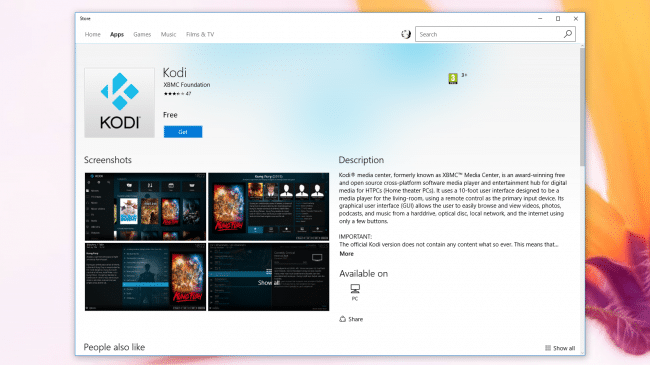
If you use the OS Windows 10, you can download Kodi 17 Krypton through the .
#1. How to Install Kodi 17 Krypton on Mac
If you want to run the Kodi 17 Krypton application on the Macintosh OS, please refer to the password download page, and there will be ‘current release: Kodi v17.0 “Krypton”‘, please click the ‘ Installer ‘ link under the logo apple.
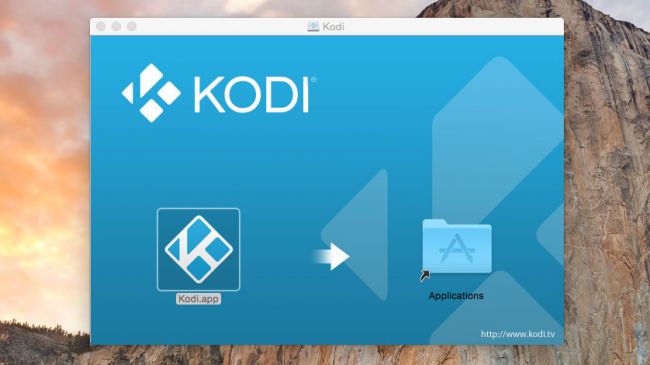
This will download the .dmg file from Kodi 17. Double-click the file to mount on Mac OS X or macOS Sierra as a disk image.
Open the image, then drag and drop the Kodi.app file from the disk image to the Applications folder.
How to Install Kodi 17 Krypton on Mac
#2. How to Install Kodi 17 Krypton on Linux
Kodi 17 Krypton is already in the Ubuntu repository, which means it makes it easier for us to install Kodi on Ubuntu or an Ubuntu-based distro.
To install it, open the terminal (you can press Ctrl + Alt + T) and type the following:
Kodi can also be installed on other distributions using third-party repositories, but this is not officially supported directly by Kodi, so you might not get the best experience.
You can also compile Kodi from source files to run on various Linux distributions. Kodi’s website has a comprehensive guide to installing from the source code.
#3. How to Install Kodi 17 Krypton on Raspberry Pi
Although you can download and install the Kodi application on the default Raspbian operating system with Raspberry Pi, the latest version of Kodi is not available which means you will not be able to / successfully install Kodi 17 Krypton on Rasbian.
However, there are some distributions built for Raspberry Pi that use Kodi, so you can install it.
For example, LibreELEC has released a beta version of the software based on Kodi 17 Krypton.
You must install LibreELEC (Krypton) v7.95.2 to the SD card, then insert it into the Raspberry Pi and launch the LibreELEC distribution.
You can download the LibreELEC USB tool creator, which you will need for Linux OS, macOS, and Windows PC through the download page on the LibreELEC Krypton web.
Please note that because it is still in beta there may be bugs and other problems.
#4. How to Install Kodi 17 Krypton on Android
Kodi 17 is available in the Google Play store, so please search in the search field by typing the keyword “Kodi” via the device on your Android to download and install the application.
Google Play will also automatically update Kodi for you on your device. It can also be done through the following link.