Why is My Facebook account locked or disabled – and how to recover an account? If your Facebook Account is disabled or Blocked and you want to recoveryourFacebook account, then you are in the right place. Today I will explain all such issues related to the Facebook Account and their solution.
Why Is My Facebook Account Locked or Disabled
How to Recover Your Blocked or Disabled Facebook Account
If your Facebook account is not disabled, then you should keep the information about it, because if you are aware of the Facebook Account Privacy Policy, then Future will be very helpful for you.
Because many people have Facebook accounts blocked and they do not even know why their account Block has happened, something similar happened to me. That’s why I am telling you all about this, which can help you,
Here I will talk about Facebook’s Top 3 related topics,
Why is a Facebook Account Disabled or Blocked?
How to Recover Facebook Blocked Account?
How to prevent a Facebook account from being blocked?
Why Is My Facebook Account Locked or Disabled
Facebook Account Disable the main reason for or Blocked, which is why Facebook Account Block Gets | for example …
If you do not show your real name on Facebook, your account may be blocked because of this ( For example – @, $ You can not use it for Facebook Name.)
Account Block is blocked even if a lot of group joins on Facebook ( Max-200 Group )
If you share a lot of links on a group or your timeline, then Facebook blocks your account.
Poking too many logos also leads to the account block.
Using the VPN server also causes Facebook Accounts to be disabled.
If you do too many Offensive Content posts on Facebook then a Facebook Security Message will show on your account, after which your Facebook Account will be disabled or Blocked. (For example – Accident, e-War).
If you send a friend request to people you do not know or who are not from your community, then Facebook can block your account in such a way.
If you need information in related detail related to your Facebook account, you can read the Facebook Privacy Policy.
(How to Recover Blocked Facebook Account):
If your Facebook account has been blocked or disabled for some reason, you will have to appeal to Facebook to Unblock the Account.
Note- You can Be Unblocked and recover your Facebook Account only when the Gmail ID or Phone Number is added to your account.
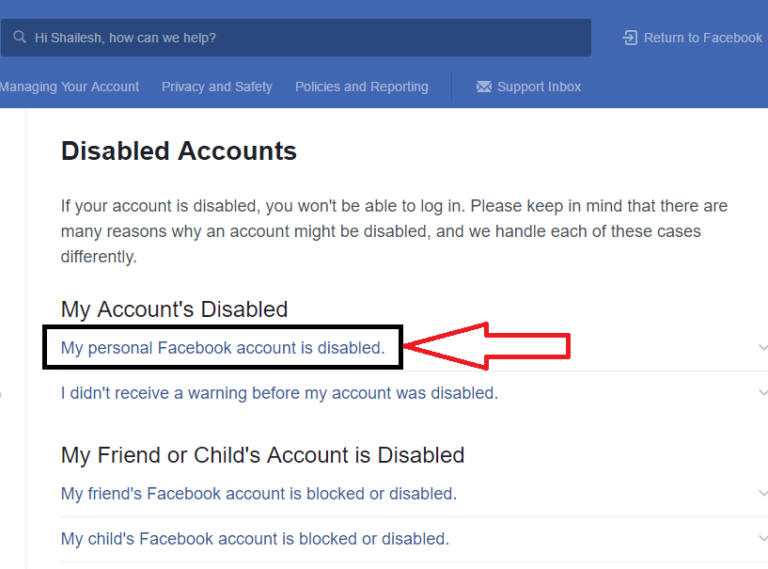
To make an Account Recovery Appeal you will have to go to the Facebook Helpdesk, if you do not know about it, you can click on the link and access the Direct Facebook Helpdesk.
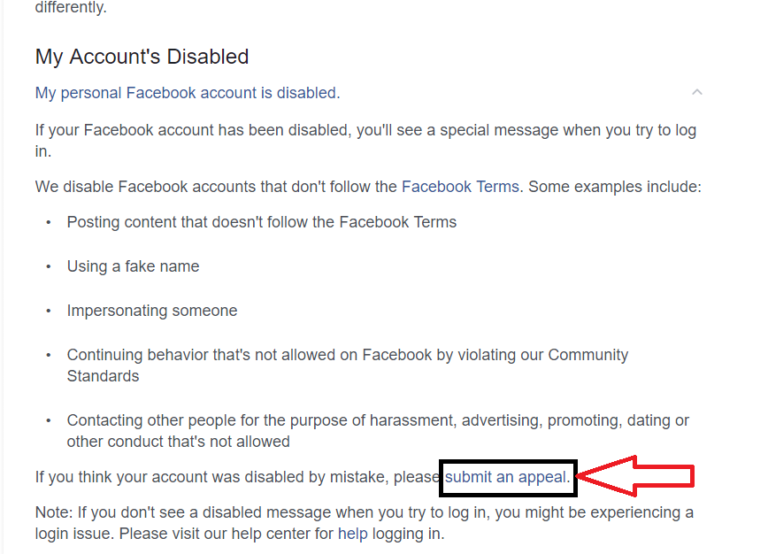
After going to the Facebook Helpdesk, you can click on the “My Personal Facebook Account is Disabled” option,
Facebook account appeal
After going to Personal Account, you can click on “Submit an Appeal ”
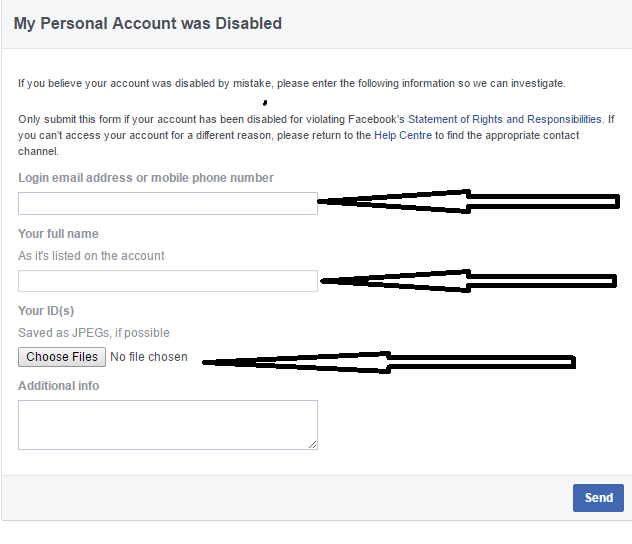
Now here you will get a form, which will be asked about your Email, Phone Number, Name, and ID (Aadhar Card, Voter ID, PAN Card, etc.). After you have completed all the options, upload a PDF file of one identity card.
Note: – When you appeal to Facebook to unblock your Facebook Account, you must upload an ID, of course, if you do not upload the ID, then Facebook will not unblock your account.
How to Avoid Getting a Facebook Account Disable:
If you follow some of the Facebook terms, your Facebook Account will never be blocked or Disabled, and by doing so your account will also be safe.
Do not share any posts, or Messages Share on Facebook Timeline, which is against Facebook policy.
Send a friend request to any people who have no mutual friends.
Never post an accident, personal, or offensive, if you do once, then Facebook ignores it.
If you do this, Facebook understands that you are doing spam.
For more information about Facebook Policies & terms, you click on a ray Policy Facebook Terms.
So, friends, that’s above why is my Facebook account locked or disabled? which will help you to recover your “Blocked Facebook Account“ and also inform you why the Facebook Account is Disabled or Blocked.
3 Ways To Defragment Hard Drive on Windows 7 PC – Did you know regular defragging is useful for maintaining your computer or laptop disks? If you are a Windows 7 user then you are in luck, because how to defragment Windows 7 is quite easy.
How To Defragment Hard Drive on Windows 7 PC
How To Defragment Hard Drive on Windows 7 PC
Defrag is often done if the performance of a laptop or computer has started to slow down. This problem is caused by the disk containing many separate and disorganized files.
These files are generally in the form of a fragment or can be called a fragment that appears because you have installed the program, deleted it, or changed it so that it produces files on the computer’s hard disk.
Now, when the files are separated and spread on the hard drive, it will make the computer’s performance decrease. However, you can overcome this by doing a defrag so that files can be arranged more simply.
Fortunately, Windows 7 users, can defrag directly through the features provided by Windows 7. You can even set the defrag feature to run automatically and routinely by creating a schedule.
#1. How To Defragment Hard Drive on Windows 7
How to Defragment Windows 7
Defragmenting a Windows 7 computer or laptop is a very easy job. The reason is, that you only need to access its features with just a few steps.
Here’s how to easily defrag Windows 7:
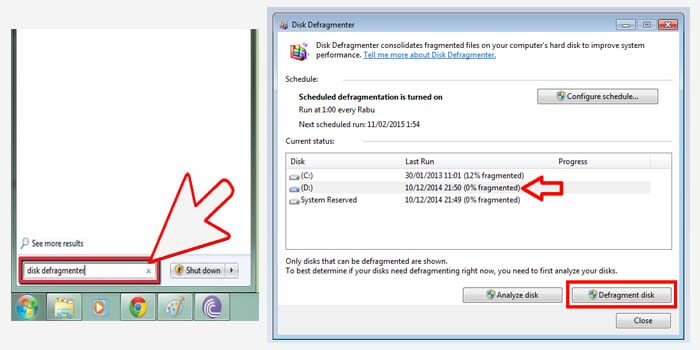
Click the Windows logo at the bottom corner of the screen.
Type “Disk Defragmenter” into the search field.
Then the Disk Defragmenter window will appear.
Select the disk you want to defragment.
Then click the Defragment Disk button to start it.
Now you have to wait for the process to finish.
After the disk defragment process has been completed, then you have successfully defragmented the disk you chose. You can also select more than one disk so that you can defragment them alternately.
#2. How to Defragment Hard Drive Windows 7 Disk
How to Defragment hard drive Windows 7 Disk
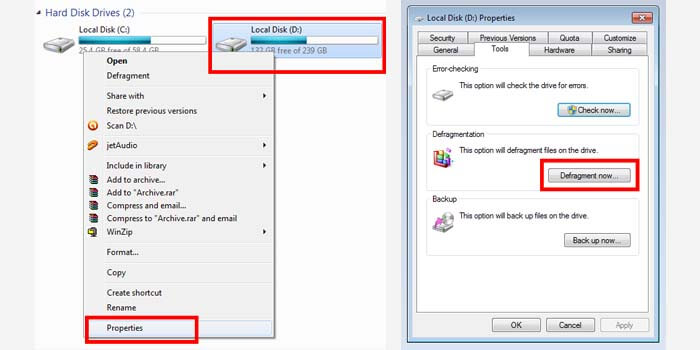
There is also a way to defragment a disk in Windows 7 which is simpler and faster. Because you only need to access the file explorer and determine which disk to defrag.
Follow the steps below:
First, open a file explorer on your PC or laptop.
Go to the My Computer folder to display the disk.
Right-click on the disk you want to defrag.
Then select the Properties option.
Go to the Tools menu tab> then click Defragment now.
Wait for the process to complete.
The time it takes to defragment a disk in Windows 7 depends on the size and status of the disk, very easy, right?
#3. Scheduling Defrag in Windows 7
Scheduling Defrag in Windows 7
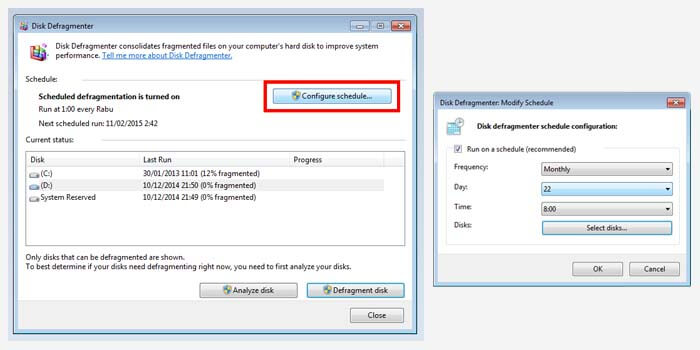
If you depend on the defrag feature in Windows 7 because the disk you use is very limited. So it’s a good idea to use the defrag scheduling feature so that it can run automatically.
How to automatically defrag a Windows 7 disk:
Click the Windows logo then type “Disk Defragmenter” into the column.
After that, the Disk Defragmenter window appears.
Then click the Configure schedule button.
Give a check in the box Run on schedule.
Set the defragment schedule in the options frequency, day, and time.
In the Disk section, check the disk you want to defrag.
In the final step, click the OK button.
Done.
Make sure you set the defrag schedule properly and correctly. It is highly recommended to defragment the disk when the Windows 7 computer is not in use so that the process can run smoothly and without a hitch.
There are some good and correct ways to defrag a disk in Windows 7. Which is the most effective way for you? Please let us know via the comments column below and don’t forget to share this article if you are helped by the information that has been shared.
120+ Complete Adobe Photoshop Shortcuts – Photoshop one of the most popular photo editing software to date is none other than Adobe Photoshop. Photoshop is used by most people, including photographers, designers, advertising companies, and computer users to process various images, create effects, or manipulate any photo.
120+ Complete Adobe Photoshop Shortcuts
This bitmap-based editor software offers a variety of effects and tools to support your editing needs. Examples such as the Crop Tool which can be used to take or cut areas in a photo or image, then there is also the Lasso Tool which can be used to make a selection by drawing a freehand pattern.
In its use, not all tools in Adobe Photoshop are always used. But it would be better if you understood every function of the tools in Adobe Photoshop. To speed up the editing process, you also need to learn the shortcut keys from Adobe Photoshop.
Why is this necessary? By learning the Adobe Photoshop shortcut key, you will be faster in accessing the tool without having to search for it or click on the tool manually. Many designers and editors out there also suggest the same thing, shortcut keys are important to learn.
Know Complete Adobe Photoshop Shortcuts
The existence of a shortcut in Adobe Photoshop can speed up the execution of commands when working on or editing an image. In general, a shortcut is a shorter shortcut key to perform an operation method on a command.
For users of Adobe Photoshop or other editing software, using shortcuts will really help your work. Besides being able to save time, shortcuts also give your ability to edit photos more honed and more creative.
Especially if you understand and memorize the Adobe Photoshop shortcut keys, you will be more nimble in creating or editing the designs you want to create.
Shortcut keys for Photoshop tools are divided into two types, namely single buttons (one button) and combined buttons (combination buttons).
Here’s a list of Adobe Photoshop shortcuts you can learn it.
Shortcut Tools
Shortcut
Tools
M
Rectangular Marquee Tool
M
Elliptical Marquee Tool
V
Move Tool
L
Lasso Tool
L
Polygonal Lasso Tool
L
Magnetic Lasso Tool
W
Magic Wand Tool
C
Crop Tool
K
Slice Tool
K
Slice Select Tool
J
Spot Healing Brush Tool
J
Healing Brush Tool
J
Patch Tool
J
Red Eye Tool
B
Brush Tool
B
Pencil Tool
B
Color Replacement Tool
S
Clone Stamp Tool
S
Pattern Stamp Tool
Y
History Brush Tool
Y
Art History Brush
E
Eraser Tool
E
Background Eraser Tool
E
Magic Eraser Tool
G
Gradient Tool
G
Paint Bucket Tool
R
Blur Tool
R
Sharpen Tool
R
Smudge Tool
O
Dodge Tool
O
Burn Tool
O
Sponge Tool
A
Path Selection Tool
A
Direct Selection Tool
T
Horizontal Type Tool
T
Vertical Type Tool
T
Horizontal Type Mask Tool
T
Vertical Type Mask Tool
P
Pen Tool
P
Freeform Pen Tool
U
Rectangle Tool
U
Rounded Rectangle Tool
U
Ellipse Tool
U
Polygon Tool
U
Line Tool
U
Custom Shape Tool
N
Notes Tool
N
Audio Annotation Tool
I
Eyedropper Tool
I
Color Sampler Tool
I
Measure Tool
H
Hand Tool
Z
Zoom Tool
D
Default Foreground/Background Colors
X
Switch Foreground/Background Colors
Q
Toggle Standard/Quick Mask Modes
F
Toggle Screen Modes
/
Toggle Preserve Transparency
[
Decrease Brush Size
]
Increase Brush Size
{
Decrease Brush Hardness
}
Increase Brush Hardness
,
Previous Brush
.
Next Brush
<
First Brush
>
Last Brush
Shortcut File
Shortcut
Options
Ctrl+N
New
Ctrl+O
Open
Alt+Ctrl+O Shft+Ctrl+O
Browse
Alt+Shft+Ctrl+O
Open As
Shft+Ctrl+M
Edit in ImageReady
Ctrl+W
Close file in Photoshop
Alt+Ctrl+W
Close All
Shft+Ctrl+W
Close and Go To Bridge
Ctrl+S
Save a file in Photoshop
Shft+Ctrl+S Alt+Ctrl+S
Save As
Shortcut Simpan (Save)
Shortcut
Options
Alt+Shft+Ctrl+S
Save for Web
F12
Revert
Alt+Shft+Ctrl+I
File Info
Shft+Ctrl+P
Page Setup
Alt+Ctrl+P
Print with Preview in Photoshop
Ctrl+P
Print
Alt Shift Ctrl P
Print One Copy in Photoshop
Shortcut Editing (Edit)
Shortcut
Options
Ctrl+Z
Undo/Redo in Photoshop
Shft+Ctrl+Z
Step Forward in Photoshop
Alt+Ctrl+Z
Step Backward
Shft+Ctrl+F
Fade
Ctrl+X+F2
Cut
Ctrl+C+F3
Copy
Shft+Ctrl+C
Copy Merged
Ctrl+V F4
Paste
Shft+Ctrl+V
Paste Into
Shft+F5
Fill
Ctrl+T
Free Transform in Photoshop
Ctrl+Y
Proof Colors
Shft+Ctrl+Y
Gamut Warning
Ctrl++ Ctrl+=
Zoom In
Ctrl+-
Zoom Out
Ctrl+0
Fit on Screen
Alt+Ctrl+0
Actual Pixels
Ctrl+H
Extras
Shift+Ctrl+Z
Step Forward (Photoshop History)
Alt+Ctrl+Z
Step Backward (Photoshop History)
Alt+Shift+Ctrl+F
New Frame (Photoshop Animation)
Ctrl+K
General (Shortcut Preference)
Ctrl+Q
Exit
Shortcut Transform
Shortcut
Options
Shft+Ctrl+T
Again
Shft+Ctrl+K
Color Settings
Alt+Shft+Ctrl+K
Keyboard Shortcuts in Photoshop
Alt+Shft+Ctrl+M
Menus
Shortcut Adjustments
Shortcut
Options
Ctrl+L
Levels
Shft+Ctrl+L
Auto Levels
Alt+Shft+Ctrl+L
Auto Contrast in Photoshop
Shft+Ctrl+B
Auto Color
Ctrl+M
Curves
Ctrl+B
Color Balance
Ctrl+U
Hue/Saturation
Shft+Ctrl+U
Desaturate
Alt+Ctrl+I
Image Size
Alt+Ctrl+C
Canvas Size in Photoshop
Shortcut Layer
Shortcut
Options
Shft+Ctrl+N
Layer
Ctrl+J
Layer via Copy
Shft+Ctrl+J
Layer via Cut
Alt+Ctrl+G
Create/Release Clipping Mask
Ctrl+G
Group Layers
Shft+Ctrl+G
Ungroup Layers in Photoshop
Shift Ctrl ]
Bring to Front in Photoshop
Ctrl+]
Bring Forward
Ctrl+[
Send Backward
Shft+Ctrl+[
Send to Back
Ctrl+E
Merge Layers
Shft+Ctrl+E
Merge Visible in Photoshop
Shortcut Select
Shortcut
Options
Ctrl+A
All
Ctrl+D
Deselect
Shft+Ctrl+D
Reselect
Shft+Ctrl+I Shft+F7
Inverse
Alt+Ctrl+A
All Layers
Alt+Ctrl+D Shft+F6
Feather
Shortcut Filter
Shortcut
Options
Ctrl+F
Last Filter
Alt+Ctrl+X
Extract
Shft+Ctrl+X
Liquify
Alt+Shft+Ctrl+X
Pattern Maker
Alt+Ctrl+V
Vanishing Point
Shortcut Show
Shortcut
Options
Shft+Ctrl+H
Target Path
Ctrl+’
Grid
Ctrl+;
Guides
Ctrl+R
Rulers
Shft+Ctrl+;
Snap
Alt+Ctrl+;
Lock Guides
Alt+F9 F9
Actions
F5
Brushes in Photoshop
F6
Color
F8
Info
F7
Layers
Photoshop Help
Shortcut
Options
F1
Photoshop Help
Conclusion:
So, friends, This is an explanation of 120+ complete Adobe Photoshop shortcuts, Some of the shortcuts above consist of the most frequently used shortcut keys to those that you don’t use, therefore with this list of shortcut keys, it is hoped that you can learn and use them easily.
At least, by learning Adobe Photoshop shortcuts, you can be more enthusiastic about editing photos or creating designs.
Maybe you will need a long time to learn and memorize all the shortcuts above. For that, try to start from the tools or options that you access the most.
For example, to increase and decrease the brush size, you can use the shortcut “[“ to zoom in and “]” to zoom out.
That way, you don’t have to bother setting the brush size manually. Next, you can also create a new layer with the shortcut Shift + Ctrl + N (new layer), then write the layer name and press Enter / OK.
If you have any questions you’d like to share, please write them in the comments section below. Thank you and good luck!
What is an in-app shortcut tool?
Shortcuts are shortcut keys that are used to speed up the execution of commands when working on or editing an image.
What is a tool or icon in Photoshop?
Tools are useful tools for designing and editing images or objects on a worksheet.
What are the functions and uses of Adobe Photoshop?
Adobe Photoshop is software that serves to perform image editing, photo editing, image manipulation, and adding effects.
How to Activate Office 2019 Permanently Offline – Have you just installed Microsoft Office 2019? If so, then the next step is that you have to activate it so that it can be used permanently. How to permanently activate Office 2019 is very easy, you can even do it without software and product keys.
How to Activate Office 2019 Permanently Offline
Although a Microsoft Office 2019 product key can only be obtained by buying it. But you can activate MS Office 2019 permanently and for free at Technowizah.
Microsoft Office 2019 contains various office applications such as Word, Excel, PowerPoint, and many others. If Office 2019 is not yet active, then some of the features of the application will be limited so that they cannot be used optimally.
That is the reason why you are required to activate Office 2019 on a laptop or computer. After it has been activated, you can use it without worrying about feature limitations and it all applies permanently.
As mentioned above, there are several methods to activate Microsoft Office 2019 so that it can be used permanently on laptops or computers with Windows 7, Windows 8, and Windows 10.
You can use the help of the software so that it can be activated without a product key. Or you also use a script that contains a product key so you can do it offline and without software.
#1. Activation of Office 2019 without a product key
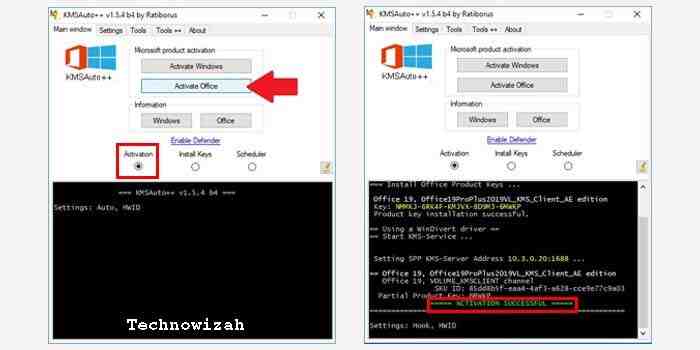
The first method will be very effective for those of you who want to activate Office 2019 without a product key. The trick is that you have to use software called KMSAuto which will help you activate it.
How to activate Office 2019 with KMSAuto:
Turn off antivirus or Windows Defender.
Download the activator software here
.
Extract the file then run KMSAuto.
In the initial screen, click the KMSAuto ++ button.
Select the Activation option then click the Activate Office button.
Click the YES option when a warning appears.
You just need to wait for the process to complete.
If successful, then the message ACTIVATION SUCCESSFUL appears.
Now Office 2019 has been successfully activated permanently without a product key. To be sure, run one of the programs from Microsoft Office and check it in the product information section.
#2. Activate Office 2019 with KMS
The next software is a quite popular activator. From the name, it is clear that KMS Office 2019 is software specifically for activating Office 2019 permanently.
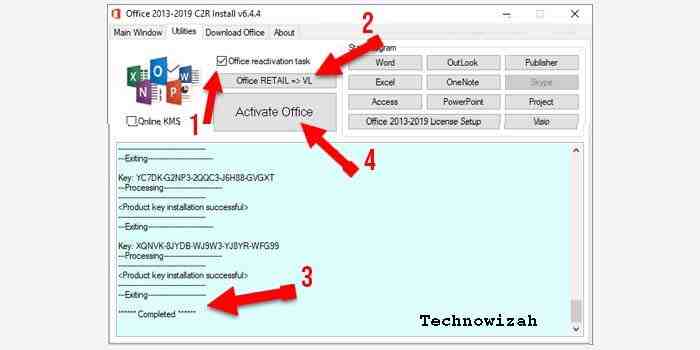
The following is a guide to using KMS Office 2019:
In the initial screen, click the Utilities menu tab.
Place a checkmark on the Office reactivation task box.
Then click the Office RETAIL => VL button.
Wait for the Completed message to appear in the bottom box.
The final step is to click the button and click Activate Office.
If the message displays Product activation successfully, it means that you have successfully activated Office 2019.
To ascertain whether Office 2019 is truly active and can be used, you can check this by running one of the office programs. For example, in MS Word, go to the File> Account menu to see the information.
#3. How to activate Office 2019 without software
If you don’t want to use the software, then this last method will suit you. The reason is, that this method can be done offline because it only requires a notepad application which of course is already on your laptop or computer.
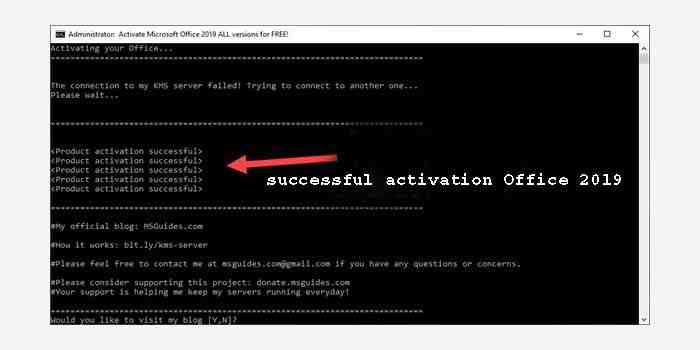
Following are the steps for activating MS Office 2019 offline:
If there is a success message, then Office 2019 has been successfully activated.
Done.
This method is arguably quite safe because you can do it without the help of software so you also don’t need to disable the antivirus first.
Disclaimer: All forms of download files on the Technowizah.com site are just for educational purposes only.
DMCA: Technowizah.com complies with 17 U.S.C. * 512 and the Digital Millennium Copyright Act (DMCA). Our policy is to respond to any infringement notices and take appropriate action. If your copyrighted material has been posted on the site and you want this material removed, Contact us.
There are several ways to activate Office 2019 that you can try on your laptop or PC. With a choice of methods, you can adjust which method is most effective for you.
If you have a problem trying the method above, let us know in the comments column below what issues you are experiencing.
12 Cool Android Keyboard Apps, Best New – Most Android users rely on the keyboard app that comes pre-installed on their cellphones. However, there are lots of third-party apps that make the Android Keyboard look cool and nice.
12 Cool Android Keyboard Apps, Best New
12 Best, Cool, and Latest Android Keyboard Apps
When choosing the best keyboard app for Android, there is always a risk of keyloggers and other malware. But as Android’s keyboard array continues to evolve, the need for an efficient keyboard feels like a necessity to stay up-to-date on the latest features.
I have compiled a list of the most trusted and safe third-party Android keyboard apps that you can use as an alternative to your default keyboard. You can download this cool and best Android keyboard app, no matter if it’s Pixel, Samsung, OnePlus, Xiaomi, Huawei, LG, Sony, or any other brand.
Best Cool, and Latest Android Keyboard Apps
SwiftKey
Fleksy Fast + GIF Keyboard
Gboard
Chroma Keyboard
Grammarly
Go Keyboard
Touchpal Keyboard
Facemoji Emoji Keyboard
AnySoft Keyboard
Simple Keyboard
Google Handwriting Input
#1.Download the Cool Android Keyboard App – SwiftKey
There is no doubt that SwiftKey is one of the best keyboard apps for Android 2024 to replace native keyboard apps. In 2016, SwiftKey was acquired by Microsoft for an impressive amount which further enhances its reliability.
This is an Android Keyboard application using artificial intelligence that allows it to learn automatically and predict the next word the user intends to type. The Swiftkey feature corrects auto-corrections and gestures for faster input. It intelligently learns your typing pattern and adapts to it.
This Keyboard App for Android is also a cool emoji keyboard that brings tons of emojis, GIFs, and more to the table. Under keyboard customization, one can not only choose from hundreds of themes but also, can create personal themes.
Overall, SwiftKey can make virtual typing feel better. This free cool Android keyboard app for phones is bundled with many features.
Fleksy Keyboard is known as the newest and fastest Android keyboard app in 2024. It holds the world record for typing speed twice. Fleksy uses next-generation gesture- and motion-correction controls so you can type accurately in less time.
Swiping gestures are used to control standard functions, such as quickly adding punctuation, and spaces, deleting, and word correction.
Fleksy is also highly customizable. It includes more than 50 varieties of colorful themes, three customizable keyboard sizes, and more than 800 emojis and GIFs. In addition, users can create keyboard shortcuts, access navigation apps directly from their keyboard, copy/paste, and even have easy access to the number row. It also supports more than 40 different languages.
Apart from that, this cool Android keyboard 2024 app follows a strict privacy policy. It does not collect any personal data without your permission. Overall, Fleksy is the best Android keyboard app in 2024 and it turns out to be a great Gboard alternative.
#3. Download Best Android Keyboard Apps 2024 – Gboard – Google Keyboard
Gboard has everything you love about Google Keyboard apps – speed and reliability, gestures, voice typing, etc. It’s one of the fastest Android keyboard apps on the Google Play Store. You’ll find it preloaded on the Pixel series and many Android One devices.
Android app integrated with Google search; suggest GIFs and emojis as you type. You can also send stickers. You can also make your own stickers if you want. People who use a lot of Google services will get real benefits from its text predictions.
Gboard features a minimalist design that fits perfectly with its material design. Additional functionality includes multiple themes, adding a personal image as keyboard background, voice dictation, phrase prediction, and hand-drawn emoji recognition.
The default keyboard app for Android is also very good with multilingual typing and supports more than 100 different languages. In my opinion, Gboard is unbeatable the best and coolest keyboard app for Android in 2024.
#4. Download the Best Android Keyboard Apps 2024 – Chrooma Keyboard
Chrooma is very similar to the Google keyboard, except that it provides far more customizable options than the Google keyboard. You will find all the essential features like swipe typing, keyboard resizing, predictive typing, and autocorrect.
Chrooma has a row of neural actions that help you with emojis, numbers, and punctuation. It has also added a Night mode feature which can change the color tone of the keyboard when activated. You can also set the timer and program the Night mode.
This free keyboard app for Android is powered by smart artificial intelligence which gives you more accurate and better contextual predictions while typing.
The nice thing about the Chrooma keyboard app is its adaptive color mode, i.e., it can automatically adapt to the color of the app you’re using and make the keyboard look like it’s part of the app. However, it tends to come up with bugs and glitches, especially in the emoji and GIF sections.
Download
#5. Download the Best Android Keyboard Apps 2024 – Grammarly
Grammarly is primarily known for its grammar checker extension for desktop web browsers. Luckily, they have created an Android keyboard app that can also be used as a grammar checker
While we may not worry too much about the grammatical aspect of English when texting our friends, it becomes very important when dealing with professional conversations and emails on smartphones.
Apart from the notable spelling and grammar features, I also love the visually pleasing design, especially the mint-green color theme. There is a dark theme option too if you like a darker interface. All in all, this is a basic texting app for Android that won’t let you down if you engage in a lot of professional communication while using your smartphone.
However, Grammarly swaps out some of the other features common in other best keyboard apps for Android.
#6. Download the Best Android Keyboard Apps 2024 – Go Keyboard
Go Keyboard is another great choice when looking for the best and the latest cool Android keyboard apps in 2024. The keyboard has a simple, minimalistic design that is quite practical. It can improve and reduce your typing habits.
Among its many features, the Go keyboard supports multiple languages, even those that don’t use a Roman script. It also includes an integrated dictionary that can tell you the meaning of any word in any language.
Go Keyboard packs more than 1000 themes, emojis, GIFs, fonts, etc. Additionally, it includes a swipe-to-unlock lock screen and a charging mode feature unique to the app. Go Keyboard is free but contains ads and some in-app purchases.
#7. Download Android Keyboard App No Ads – Touchpal Keyboard
TouchPal is an impressive award 2024 coolest keyboard app for Android which has more than 500 million users worldwide. This app has been around for a long time. It is available for free and is compatible with most Android phones.
TouchPal is a feature-rich keyboard for your phone and packs all the necessary features like GIF support, emoticons & emojis, voice typing, glide typing, gesture typing, T+ & T9 keys, autocorrect, predictive text, number bar, multilingual support, etc.
Additional features of this third-party Android keyboard app include voice recognition, stickers, one-touch writing, and other useful tricks. Also, this ad-free Android keyboard app has integrated a small internal store to handle add-ons and ads.
If you want to send cool emojis, then Facemoji might be the perfect emoji keyboard app for your Android phone. There are more than 3600 Emojis, Emoticons, GIFs, Symbols, Emoji Stickers, and more.
Since this app focuses on virtual expressions, it has all the emoji-related features you could want in the newest keyboard app for Android in 2024. For example, there are Emoji combos to combine multiple emojis in one tap; Emoji Prediction that works like a charm; all trending gifs and more trending added.
As the name suggests, the best feature of this keyboard app is Facemoji where you can create your own emoji by taking your picture. While the Gboard app has more quality when it comes to making face stickers, it’s an Android app that excels in terms of quantity. Please download the latest 2024 cool Android keyboard application from the link below.
AnySoft is a keyboard app for Android that is very transparent in its data collection. The privacy-friendly transparent Android keyboard app even suggests users view their source code on the welcome page.
But privacy isn’t the only highlight: this transparent Android keyboard app also features great keyboard app themes, multi-touch support, power saving mode, gesture typing, and more. AnySoft can also change the keyboard theme based on the application used.
Luckily, this app doesn’t use much RAM, given its small size. It features text prediction, however, it’s not the best out there. I believe this is a reasonable compromise to protect users’ personal data.
Simple Keyboard is another lightweight and cool Android keyboard app known for its minimalistic design and simplicity. Users are not bothered by the lack of features of contemporary keyboard apps, Simple Keyboard is for you.
The maximum you will find is the option to change the theme and color of the on-screen keyboard. Other than that, it’s very basic: you have support for multiple languages, changing keyboard height, separate number rows, and a few others.
Note that there are no emojis, gifs, spell checkers, or even swipes.
The last entry on this list of best Android keyboard apps 2024 is not a traditional keyboard app that will allow you to press simple keys and you will be able to type what you want. For a change, you can also consider Google Handwriting Input in addition to the regular Google keyboard app (Gboard).
Turning it on will give you an empty area in place of a button that allows you to write with your finger or stylus. Text recognition on the keyboard is quite fast. If you are using an Android tablet, you should try it on the big screen.
Now you can download the coolest and best 2024 Android keyboard application from the link below.
This keyboard is a must-have for my international readers who find it difficult to get a third-party keyboard that supports their language. Multiling O Keyboard supports more than 200 languages.
It allows you to choose the layout and appearance of the keyboard. It also supports swiping and emojis. It offers four- and five-line layouts, and you can also switch between QWERTY, DVORAK, AZERTY, or even design your own layout. It doesn’t match the predictive quality of other keyboards, but for multilingual support and customization options, it’s hard to beat.
Now, it’s important to know that many keyboard apps, including those pre-installed on your device, collect your typing data to provide personalized services like text prediction, etc.
Sure, it’s a privacy issue for many Android users. All keyboard apps list a privacy policy regarding their data collection, therefore it is best to take a look at it. Google doesn’t value Play Store apps that mine data, therefore you can give this keyboard app the benefit of the doubt
 If you don’t want to use the software, then this last method will suit you. The reason is, that this method can be done offline because it only requires a notepad application which of course is already on your laptop or computer.