How to Disable Battery Health Management on Mac PC – The macOS Catalina 10.15.5 update brings you a new Battery Health Management feature, designed to extend the battery life of Apple MacBooks by changing how often the device is fully charged. Here’s how to turn off Battery Health Management.
How to Disable Battery Health Management on Mac
How does the Battery Health Management feature work on a Mac?
Battery Health Management on Mac is similar to the Optimized Charging feature on iPhone and iPad but designed for a different use case. This method only works on MacBooks shipped with a USB-C Thunderbolt 3 port (all of which include the 2016 MacBook Pro, 2018 MacBook Air, and later).
If you’re using a MacBook with a monitor, the charger may stay plugged in most of the time. This means your MacBook is almost always fully charged.
This is great if you’re used to going out with your MacBook and charging it several times a day. But if your MacBook battery is always fully charged it decreases battery life and battery health.
The Battery Health Management feature takes care of this by not always fully charging your MacBook. In this way, it can reduce the number of full battery charge cycles and extend the life of your battery.
Apple says they do it this way smartly, by monitoring your MacBook usage and only stopping the MacBook from reaching a 100 percent charge level if it knows that the MacBook will be plugged in for a long time (based on your usage patterns).
However, the feature is enabled by default if you buy a new MacBook or after you upgrade to macOS Catalina 10.15.5 (or later). What if you wanted your MacBook to be charged 100 percent, so even if you wanted to log out, you knew that your MacBook wouldn’t run out halfway? You can disable the Battery Health Management feature.
How to Disable Battery Health Management on Mac
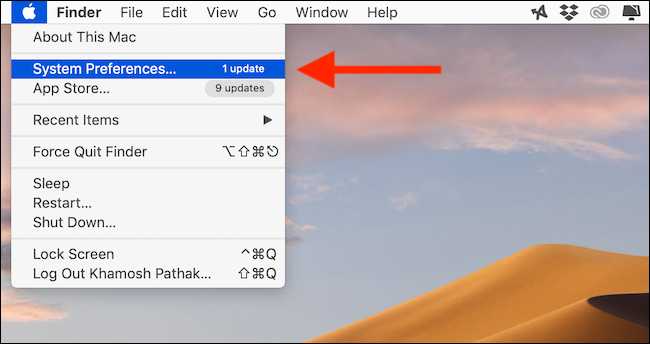
Battery Health Management is an energy-saving feature. To disable it, click the Apple icon in the top left corner of the menu bar and then select the option ” System Preferences ”
How to Disable Battery Health Management on Mac
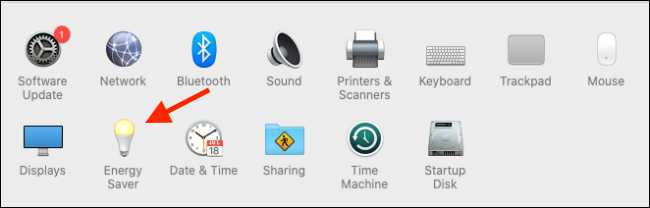
Here, click on the ” Energy Saver ” button.
Now, click on the ” Battery Health ” button which is on the bottom toolbar. Here, uncheck the Battery Health Management option.
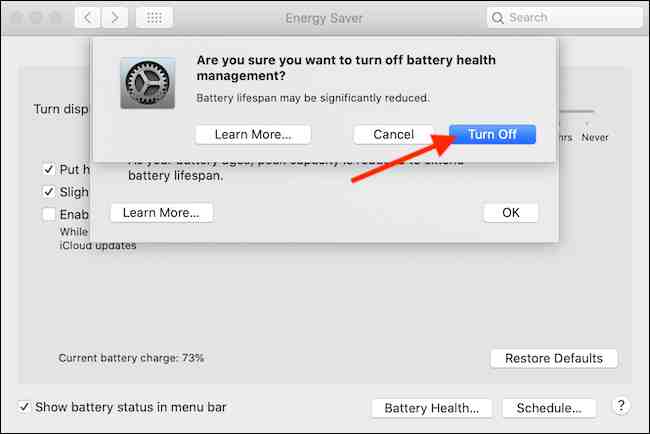
From the confirmation box, select the button ” Turn Off ” to confirm.
This is the explanation of How to Disable Battery Health Management on a Mac PC, If the Battery Health Management feature has been disabled on your Mac, then the Mac will charge regularly.
How to Play PS4 Game on Android All Smartphones—Who doesn’t know PlayStation? Sony created the PlayStation in 1994, and it has become very coveted by gamers.
How To Play PS4 Game on Android All Smartphones
How To Play PS4 Game on Android All Smartphones
At this time, PlayStation has entered the 4th generation. PlayStation 4 (PS4) games have good gameplay and charming graphics.
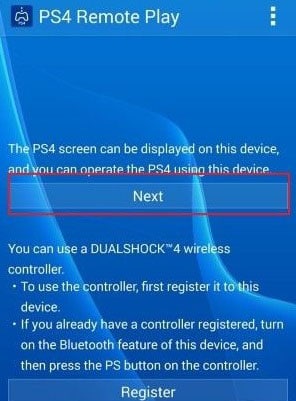
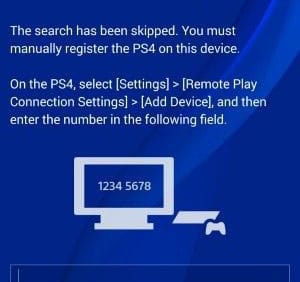
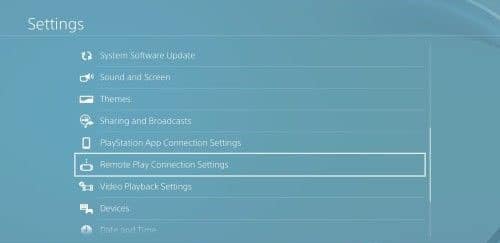
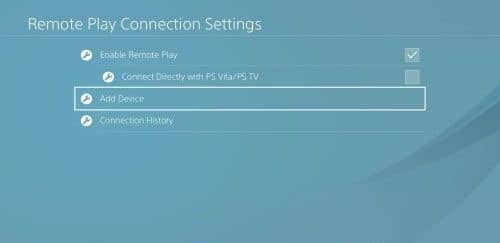
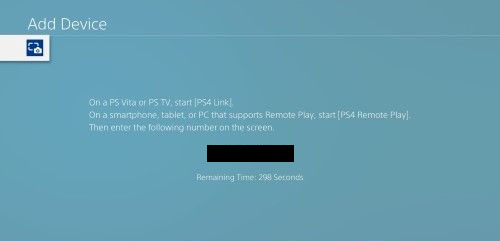
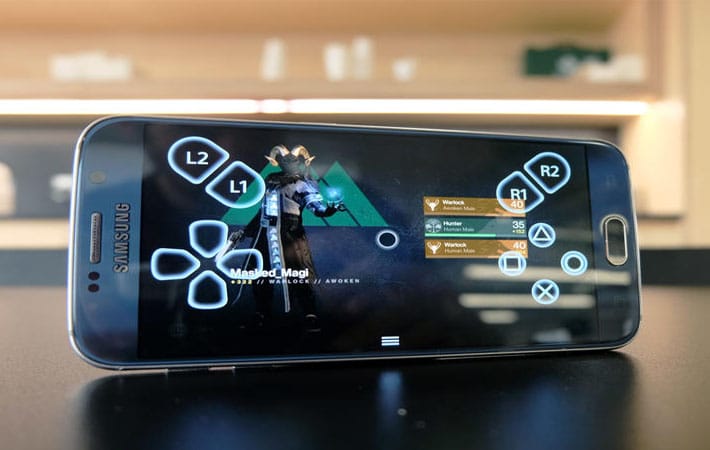
This can be done officially by using the PlayStation Remote Special Application. Unfortunately, this application can only be used on Sony Xperia series smartphones. In this discussion, all Android smartphones can be used for this!
#1. Initial Preparation
Here are the things that need to be prepared:
PlayStation 4 connected to a PSN account.
Any brand Android smartphone, as long as the 4.2 operating system and above.
So, friends, this is the explanation of how to Play PS4 Games on Android smartphones, Now you can play PS4 games like the Nintendo Switch that can be carried anywhere.
7 Ways To Open Positive Blocked Sites on the Internet – Internet users today cannot open sites found online. Because not as a whole, sites on the internet can be accessed directly.
7 Ways To Open Positive Blocked Sites on Internet
How To Open Positive Blocked Sites on the Internet
Some several sites or websites turn out, cannot be opened in India. This can be because the site is blocked by positive internet, or the internet is good.
Sites that are blocked by the government, usually caused by the content contained in the site, are not by the policies of the Indian government. Like gambling sites, porn sites, adult sites, or other prohibited sites.
We can find several sites that block positive internet, or healthy internet. The site is not inaccessible but only redirects to positive internet pages. This is due to the content on the site, violating the rules of internet usage in India.
But you don’t need to worry if the site can’t be opened, because it’s blocked by healthy internet or the like. Because now there are many ways to open blocked sites. The way to break into positive internet is very easy, it will be our discussion this time.
How To Open Positive Blocked Sites on the Internet
Some websites or sites that are on the internet, not all of them can be opened easily when you are in the region of India.
Because the government has appointed the Ministry of Communication and Information or Communication and Information Technology to block websites that smell negative. Like porn sites, gambling sites, or other illegal sites, which violate the rules of Communication and Information.
But not all sites blocked by the internet are positive, there are websites or sites with negative content. Because many good sites are also blocked by positive internet or healthy internet.
To open a site that is blocked by positive internet, you must use the method to eliminate the positive internet below. But use the way to open this positive internet block wisely, and don’t use it to access sites that have negative content.
Never use this method to open blocked porn sites, gambling sites, adult sites, or other prohibited sites, which are deliberately blocked by the government.
Method1. How to eliminate positive internet with a free VPN application
Android applications are currently very diverse, and the functions and uses are also quite varied. There is the best launcher application, to enhance the appearance of a smartphone. There is also the best music player application, which can be used to enjoy favorite songs.
For those of you who want to try how to open a blocked website on your Android phone, you can use a free VPN application. There are enough of the best free VPN applications that you can download on the Play Store.
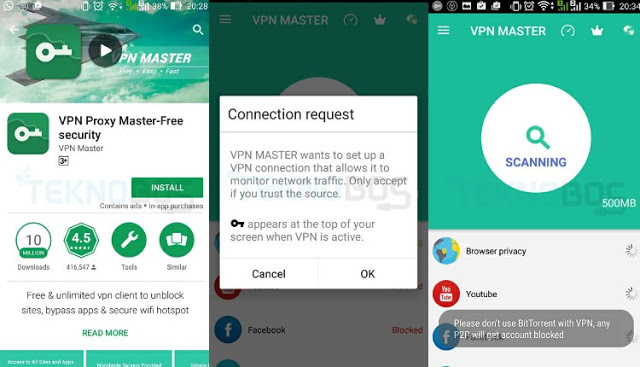
But in discussing how to get past the positive internet this time, we will use the VPN Proxy Master application – Free Security. You can download this free VPN application through the Google Play store.
Please download and install the VPN Proxy Master application first on your smartphone. After the installation is complete, please open the free VPN application. Then a notification will appear asking for access to the notification system by the VPN application, you only need to press the OK button to continue.
Then this free VPN application will scan, and find the best server location for you to use. After your Android cell is connected to the server, please go back to the main menu, and make sure you are connected / under the status again.
If your status is already connected to the server, that means you can open sites that are blocked by positive internet. This also indicates that you have successfully broken into positive internet with a free VPN application.
Method 2. How to Open a Positive Internet With Touch VPN
In addition to the VPN Proxy Master application, we can also open websites that are blocked by positive internet, using the Touch VPN application.
This best free VPN application is already quite widely used by smartphone users. Therefore, Touch VPN is one of the applications that open the best-blocked sites at this time.
You can see how to use Touch VPN, in the explanation below.
First, open the Play Store, then type the word ” Touch VPN ” in the search box.
After that, install the application that says Touch VPN on your smartphone.
If the free VPN application is installed on the cellphone. You can directly use it to open positive internet on Android.
Open the Touch VPN application. Then you will be faced with the Connect button and the choice of the server that will be used.
Please select the server you want to use. You can choose the Best Choice, to produce a more stable connection.
If you have selected a server, then you only need to press the Connect button.
You will automatically be directed to the proxy server, before opening various types of sites.
If the status on the screen is Connected, it means that you are already connected to Proxy. Then you can open sites that are blocked by positive internet.
Method 3. How to open a blocked site without an Android application
If above, we have discussed how to open a blocked website with a VPN application. Then Technadvice will also explain, how to open a blocked site without an Android application.
At this stage, we don’t need additional applications. Because we will use the services of a web proxy. Web Proxy is a site that provides proxy services so that we can open blocked sites through the Proxy Web site.
Several web portals can be used, but this time we will use a proxy service from Proxysite.com. How to open a blocked site without an application, you can see the full info below.
First, open there Proxysite.com, and use a browser on a smartphone.
On the website, you will be faced with a URL and server column.
Please write down the URL of the site you want to open. Then specify the location of the server you want to use.
If both have been determined, then you only need to click the GO button.
You will automatically be directed to sites that were previously blocked. But this time, the site is accessible, without positive internet blocking or anything else.
Besides Proxysite.com, you can also use proxy services from Whoer.net/webproxy. This web proxy also provides proxy services, to open blocked sites without applications.
Method 4. The Latest Ways With Applications 1.1.1.1
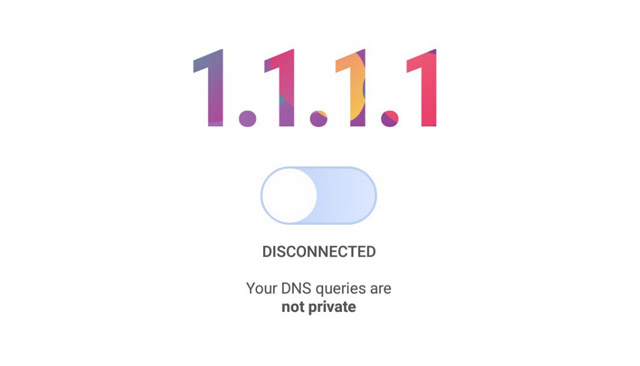
As we know application 1.1.1.1, is one of the latest applications, developed by Cloudflare. This application offers a fast internet connection and also pays for blocked sites.
Check the application 1.1.1.1 now on the link.
Well, now we go to tips on opening a blocked site below.
How to open a blocked site on a PC or laptop
Not all internet users access the internet from a smartphone. Many of them use computers to connect to the internet.
Not infrequently also from the use of computers that complain, there is positive internet on a PC or laptop. So they can’t open a blocked site on a PC.
Method1. How to open a blocked site on Google Chrome
To be able to open positive internet on a computer, here is Teknodroid to give tips on how to open a blocked site in Google Chrome.
Open the Google Chrome browser on your laptop or PC.
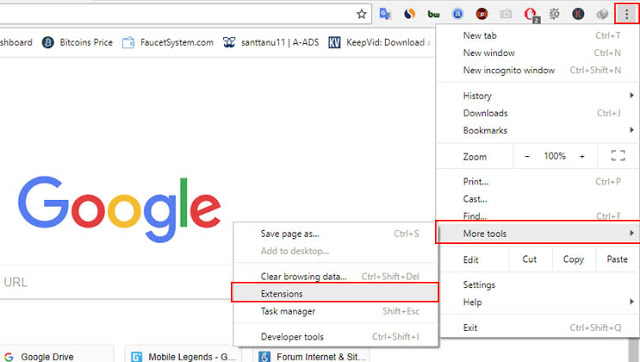
In the top right corner of the browser, please click the vertical dot 3> More Tools> Extensions.
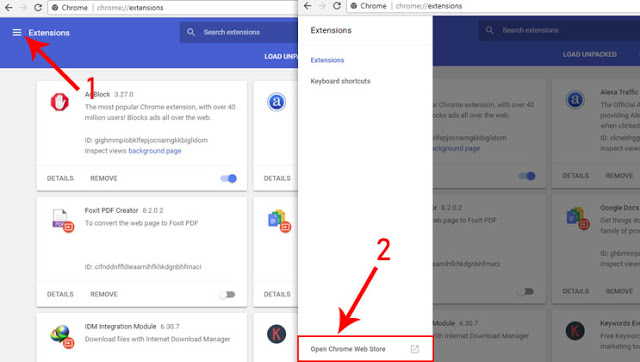
On the Extensions page, click the Extensions menu (line 3 horizontal image). After that at the bottom, click Open Chrome Web Store.
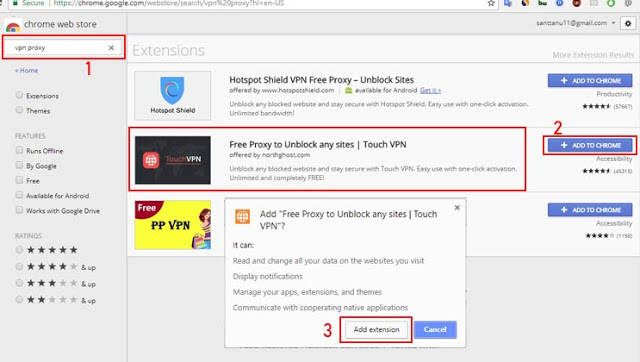
In the search box on the Chrome Web Store, please type the keyword ” VPN Proxy “.
Then look for the Chrome extension with the name ” Free Proxy to Unblock any Sites | Touch VPN “.
After that click the ” Add To Chrome ” button, right on the right.
If a dialog box appears, please press the Add Extensions button, to install the extensions in the Chrome browser.
If the Chrome extension installation is complete, it means that the Touch VPN extension is installed on your Chrome browser.
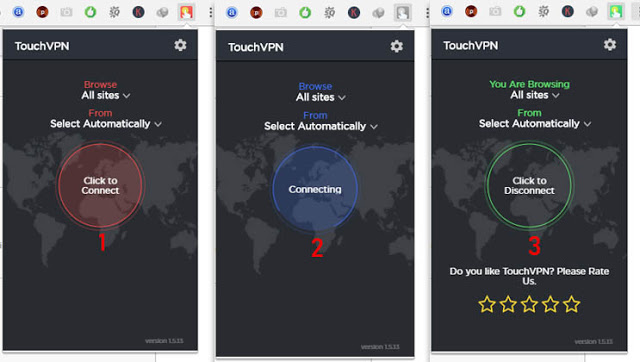
To use the extension, please click the Touch VPN icon in the upper right corner, then click the ” Click To Connect “button. Now you can try to open a site that is blocked on Google Chrome, using the Touch VPN extension.
With these Touch VPN extensions, you can access various limited sites throughout the world. Because Touch VPN can break into the internet positively, by using a proxy from abroad.
Method 2. How to Eliminate Positive Internet in Mozilla Firefox
Besides Google Chrome, Mozilla Firefox is also one of the most used browsers by the public.
In some cases, there are also computer users who are stuck on positive internet at Mozilla. So that they cannot open a site that is blocked by the government.
To overcome positive internet in Mozilla Firefox, please follow the steps below.
Open the Mozilla Firefox browser first.
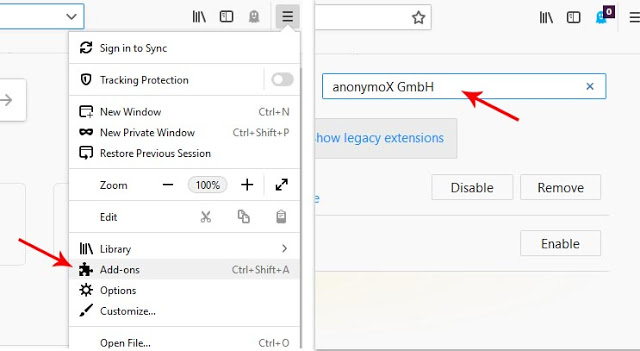
Then click the line 3 icon, then select the Add-on menu.
Please type the keyword ” anonymoX GmbH ” in the search field.
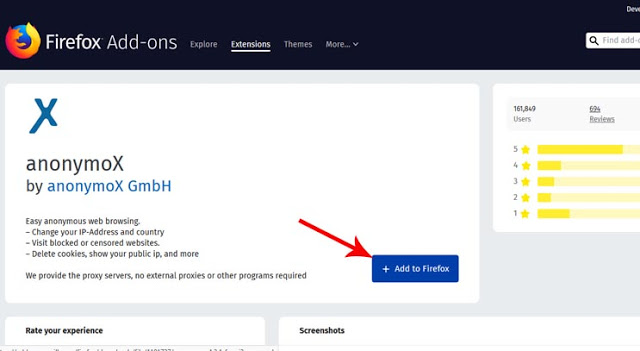
Then install the add-on in the Mozilla Firefox browser.
Restart the browser before using it to open a blocked site in Mozilla Firefox.
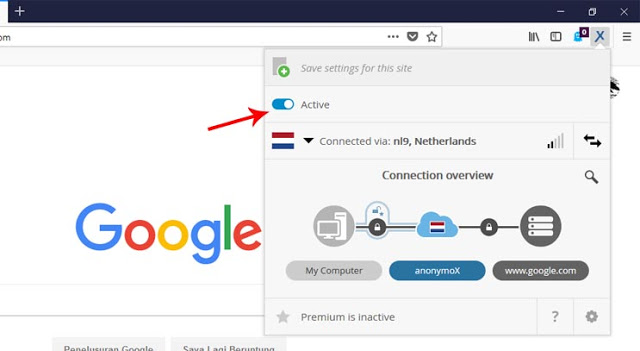
In the upper right corner of the browser, an X icon will appear if this Addon is active.
If it’s not active, then you need to click the X icon, and then click Active.
Mozilla’s Addon AnonymoX described above, is a Mozilla Firefox extension to open sites that are blocked by positive internet.
The way this extension works is to change the user’s IP address, with a temporary IP address from another country. Where in that country, the site you want to visit is not blocked.
Method 3. Open a Blocked Site with Google DNS
DNS (Domain name system) is a system that stores the hostname, or domain name in the form of a distributed database (distributed database), which is on a computer network or the internet.
You can also use Google DNS, as one way to open positive internet on your PC or laptop.
Google DNS consists of several digit numbers, which can be used to replace the DNS network that you previously used. Please see how to replace the following Google DNS.
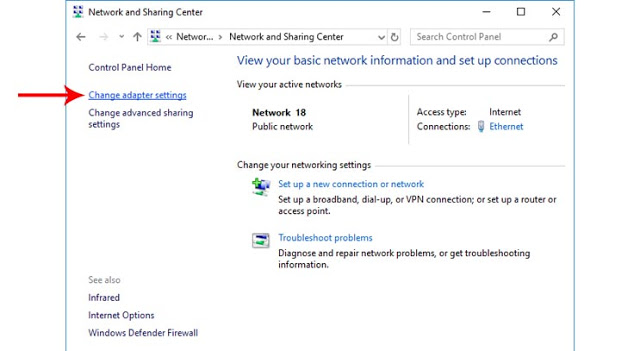
First, open the Control panel, then select Network And Internet.
Then select the Network and Sharing Internet option.
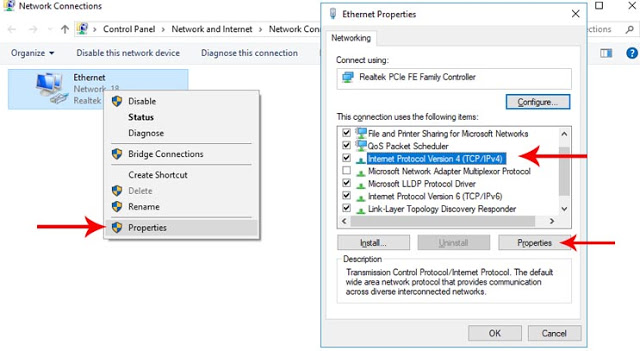
After that, select Change Adapter Settings, then right-click on the Ethernet / Wireless Device option. Select Properties.
Next, select Internet Protocol Ver.4 (TCP / IPv4), then click the Properties button.
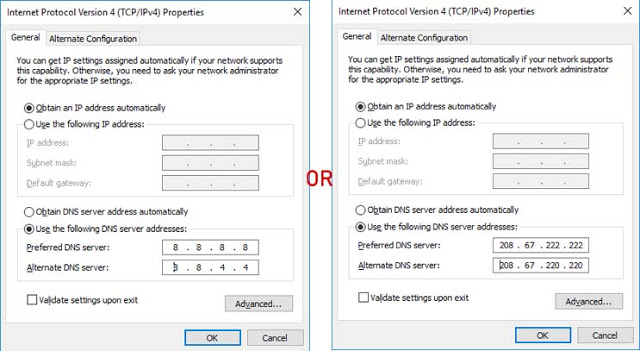
Then select Use the Following DNS Server Addresses.
Only then can you enter Google DNS in the preferred DNS Server option with code (8.8.8.8) or with an alternate DNS Server with code (8.8.4.4).
You can also use Open DNS with codes like this preferred DNS (208.67.222.222) and alternate DNS Server (208.67.220.220).
After that click OK.
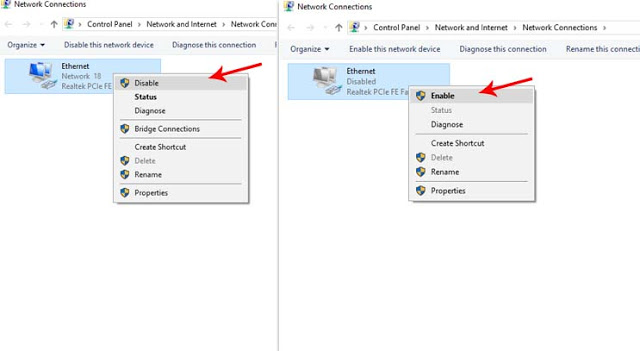
Then turn off the internet connection, by right-clicking on Ethernet> Disable. After a few seconds, then turn it on again by right-clicking> Enable.
If you have followed the steps above correctly, that means you have successfully changed Google DNS to open a blocked site.
To find out whether it’s successful or not, you can try to open a blocked site. If it works, it means that you can enter the site without being blocked by positive internet or something else.
Note: It is strongly recommended that when you use a free VPN application for browsing, try not to fill out personal data, or financial information on any site. As long as you are browsing with this Android application, the application will read and record all the data you input.
5 Ways To Share Printer Windows 10 Wired LAN and Wi-Fi – To use the printer together, we can take advantage of the printer sharing feature in Windows 10. When working in an office or a room that uses the same network, either LAN or Wi-Fi, all computers in that place can use a printer connected to it. network without having to use cables.
How To Share Printer Windows 10 Wired LAN and Wi-Fi
How To Share Printer Windows 10 Wired LAN and Wi-Fi
Sharing the printer over the network will be more practical and effective because the job of printing documents becomes easier. You can print documents directly from the computer or laptop that you are using without having to plug the USB cable into the printer.
If in a room several computers are used by different people, then each of these computers can use a printer together. The condition is that both the computer and printer must be connected to the same network, either via a LAN cable or Wi-Fi.
On this occasion, Technadvice will provide a step-by-step tutorial on how to share a printer in Windows 10. You can practice it yourself at the office or at home where you work.
Share printer Windows 10 via Wired LAN and Wi-Fi Network
1. Turn on Network Discovery and File and Printer Sharing
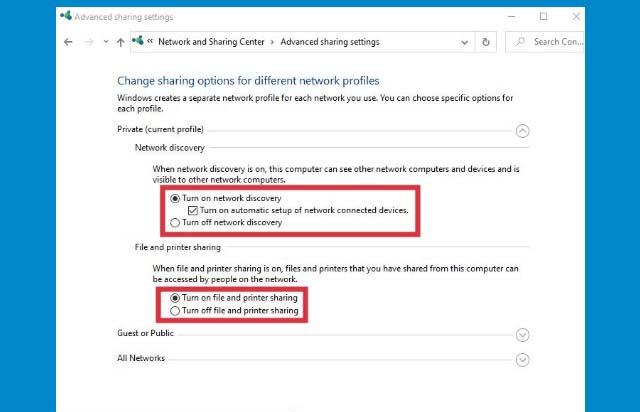
The first step that must be done is to turn on the Network Discovery feature, this feature functions so that computers can be found and connected to other computers or devices on a network. Share Printer Windows 10.
Second, also activate the File and Printer Sharing feature to share the printer that we use with other computers connected to the same network.
You do this by going to the Control Panel> select Network and Sharing Center> select Change advanced sharing settings> check Turn on network discovery> check Turn on file and printer sharing> Save changes
The network discovery and file and printer sharing features must be live on both the server computer that is sharing the printer and the client computer that uses the printer.
2. Share the printer on the server computer
On the server computer (the computer that is sharing the printer) open Control Panel> Devices and Printers> Right-click on the printer you want to share> select Printer Properties.
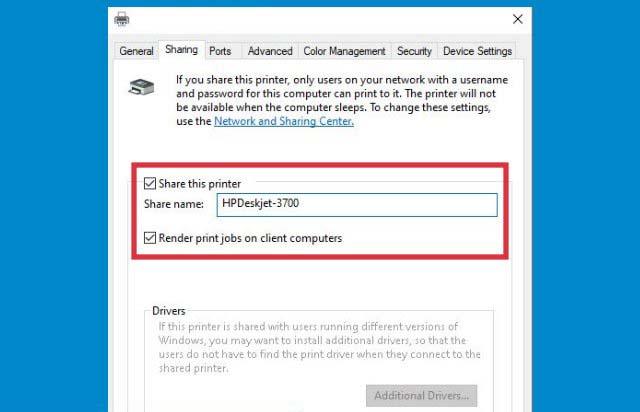
Notice in the Properties window, click on the Sharing tab> click the Change Sharing Options button> check to Share this printer> name it as you wish> click OK.
Also, check the option to Render print jobs on client computers.
You can name the shared printer with a free name, but it’s better if you give the printer type name or location, or other description to make it easier to identify which printer to use.
3. Add a printer to the client’s computer
The next step is to add a printer that is already shared on the client’s computer. After you have done the two steps above, the printer should be network-ready and ready to be used by other computers. Share Printer Windows 10.
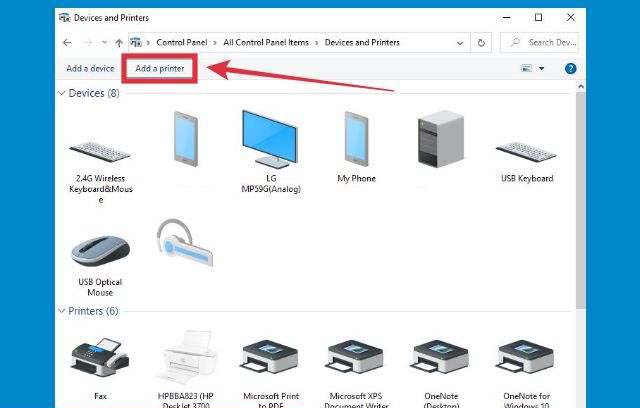
To add a new printer, go to Control Panel> Devices and Printers> Add printer.
Windows will scan, after which a list of printers on the network will appear ready for use.
Click on the printer that will be used and then click the Next button.
4. Print the document. Print a test page
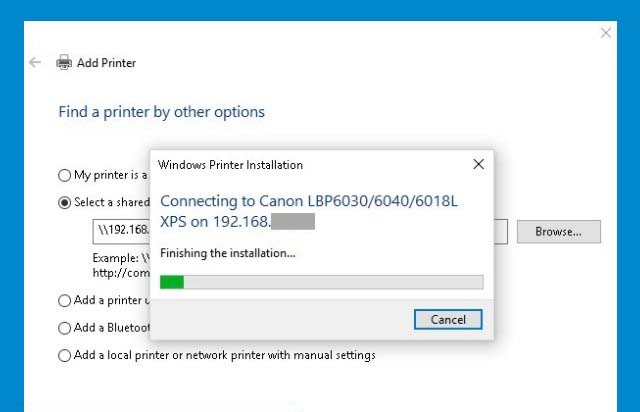
After pressing the Next button in the above step you only need to wait a moment for the computer and printer to connect successfully.
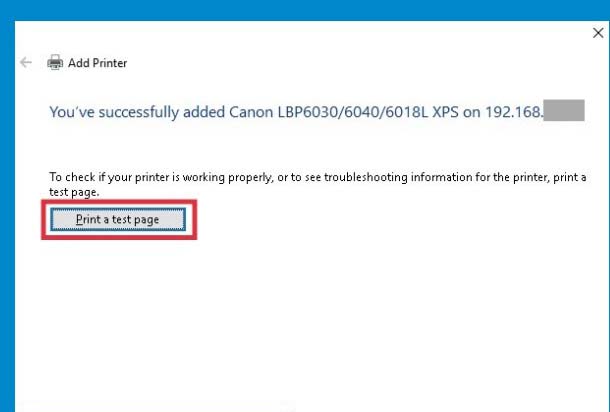
If successful, a new window will appear with a button to print the document to test whether the printer is functioning properly.
Click on the Print a test page button and see if the printer is ready to print the document. If you have clicked the Finish button.
5. The printer has successfully connected to the computer via LAN and Wi-Fi
Done, until here we have succeeded in sharing the printer on Windows 10.
Then you just need to replace the printer that is used when printing documents in applications such as Word, excel, PDF, and others with this printer. The printer will appear with the name you gave it.
How to connect a printer via a network in Windows 10
To add a new printer that has been shared from the network in Windows 10, there are other ways you can use it. The condition is that the printer must be in a “shared” state, meaning that it is ready to be used by other computers connected to the network.
Follow these steps:
Click the Start button
Type ” printer “
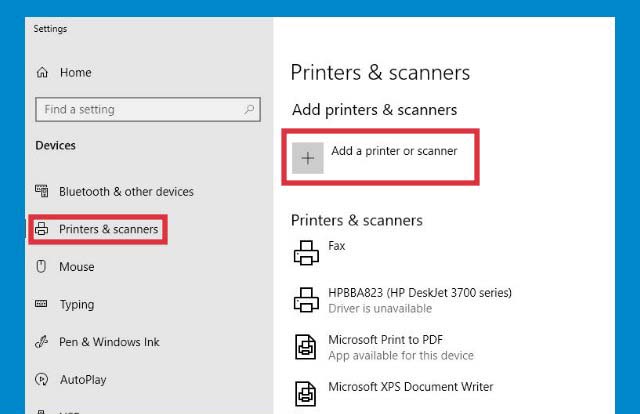
Select the Printers and Scanners menu
Click on the Add a printer or scanner button
Wait for the list of printers shared on the network to appear
Click the printer that you want to use
Click Next
Follow the steps to Finish
How to connect a printer via the IP Address in Windows 10
We can also use the IP address to connect the printer via LAN and Wi-Fi networks in Windows 10.
The trick is to access the shared directory on the server computer using the IP address and then connect the shared printer from there.
Follow these steps to share the printer via IP Address:
First, know how many IP addresses of computers that share the printer (server)
Press the Windows key + R on your keyboard, then type the IP address of the server computer.
Click the OK button
We will enter the shared directory window (it looks like Windows Explorer)
Find the name of the printer sharing there
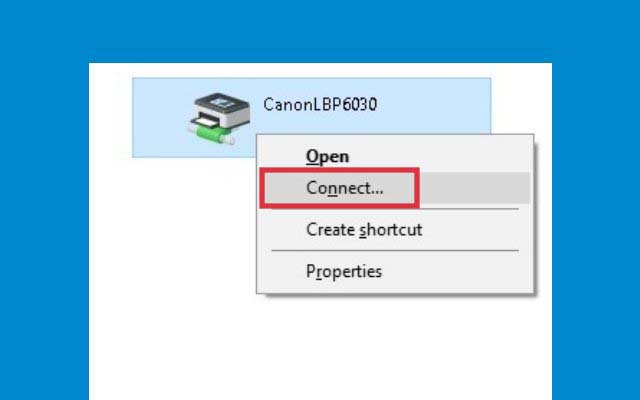
Right-click on the printer
Select Connect
The installation process will begin, wait for it to finish
The printer is ready to use
Do a test print document to make sure the printer is functioning properly
Resolve undetected printer and print job jams
When sharing a printer in Windows 10, there may be problems such as a printer that is not detected or does not appear so that it cannot be connected.
To fix this, make sure you have enabled the Network discovery and File and printer-sharing features as described in the steps above.
Next is to make sure that the computer and printer must be connected to the same network, either using a LAN cable or Wi-Fi.
The second problem is the printer jam. When printing documents through the printer sharing feature in Windows 10, you may experience printer problems that cannot print.
Usually, an error message will appear, such as print jobs cannot be sent or others. This problem occurs quite often and solving it is not difficult.
How to solve a print job jam in Windows 10:
Open the Control Panel
Select Devices and Printers
Double-click the printer with problems
Press the CTRL + A button to select all existing print jobs
Select Cancel all documents or press the delete key on the keyboard
Close all windows
Try printing the document again
After doing the steps above, the printer should return to normal. Just try a test to print a document and see if the printer is good again.
So, friends, This is the explanation of 5 ways to share printer Windows 10 wired LAN and Wi-Fi. or Wi-Fi networks and some solutions to solve problems that often occur. I hope this article is helpful for you.
How To Root ASUS ZenFone Go of All Types Phone – Even though the ZenFone Go has pretty fierce specs in its class, there are still users who are not satisfied and want to root so that the phone can perform even more optimally.
How to Root ASUS ZenFone Go of All Types\
How to Root ASUS ZenFone Go of All Types Smart Phone
You can use root access to remove bloatware, find wifi passwords, remove ads, and many more.
Then install the KingRoot application that you downloaded earlier
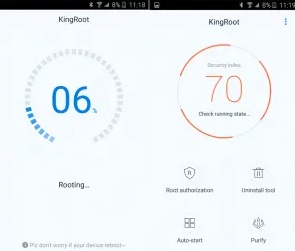
Open and run the Kingroot application.
After the KingRoot application opens, then click Try it.
Wait for the rooting process to complete.
Until here, the Asus Zenfone Go rooting process is complete.
To be sure, you can check it with the RootChecker application which you can download on the Playstore.
Root on the Asus Zenfone GO can cause your smartphone warranty to be lost.
Any risks that arise during the rooting process are your responsibility as the owner of the Asus Zenfone Go.
If it is successful, the KingUser application should have been installed on the Asus Zenfone Go you are using.
You could say that root is full access that Android users will get.
After we have managed to get root access, then we can crack the Android phone according to our wishes.
For example, changing the appearance, starting from the font, and installing additional applications that can only run after the cellphone is rooted.
Asus Zenfone Go specifications
Asus Zenfone Go is a smartphone with a middle-class Android operating system output from a well-known gadget manufacturer, ASUS, which is here to compete in the middle-class segment.
Zenfone Go has provided quite satisfying specifications. It has a 5-inch screen combined with a full HD screen and an Android v5.1 Lollipop operating system.
In addition, the Asus Zenfone Go is also equipped with excellent photography capabilities with an 8 MP main camera and a front camera with a 2 MP resolution.
With pretty good capabilities in its class, the Asus Zenfone Go is perfect for supporting your selfie activities to become better and more satisfying.
Apart from having a good camera, this cellphone also has specifications that are quite fierce in their class.
So it is smooth enough to run a variety of applications that are quite heavy.
Asus Zenfone Go has been supported with Mediatek Chipset, Quadcore, and Mali GPU combined with 2GB of RAM and 8GB of internal memory can be maximized with an additional microSD slot of up to 32GB.
Asus Zenfone GO uses a MediaTek MT6580 Quad-core processor, so the way to root Asus ZenFone Go will be different from Asus Zenfone using an Intel chipset.
This explains how to Root ASUS ZenFone Go x014d without a PC, which you can use.
Don’t forget to bookmark and always visit every day Technowizah.com because here you can find the latest technology updates such as Blogging Computer Android games Tips&Tricks Social Media Software Reviews etc.

 Now, click on the ” Battery Health ” button which is on the bottom toolbar. Here, uncheck the Battery Health Management option.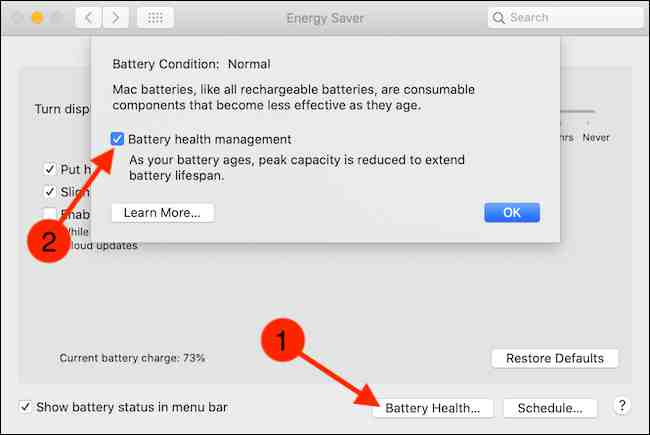



 Then this free VPN application will scan, and find the best server location for you to use. After your Android cell is connected to the server, please go back to the main menu, and make sure you are connected / under the status again.
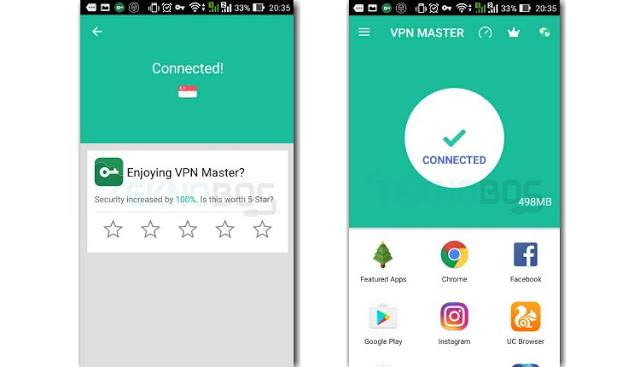 If your status is already connected to the server, that means you can open sites that are blocked by positive internet. This also indicates that you have successfully broken into positive internet with a free VPN application.
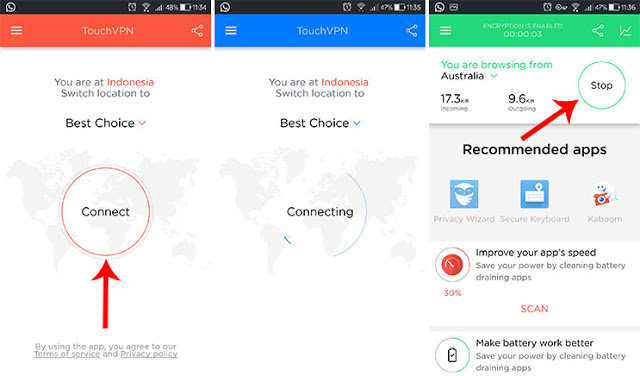 In addition to the VPN Proxy Master application, we can also open websites that are blocked by positive internet, using the Touch VPN application.
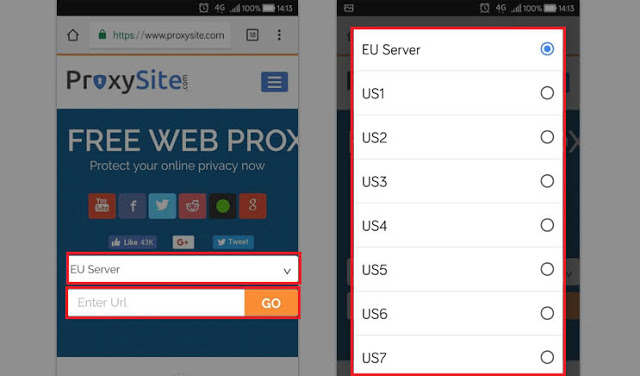 If above, we have discussed how to open a blocked website with a VPN application. Then Technadvice will also explain, how to open a blocked site without an Android application.