Author: Nazrul Islam

  • The 7 Best iOS Emulators for Windows and Mac PC 2025

    The 7 Best iOS Emulators for Windows and Mac PC 2025

    The 7 Best iOS Emulators for Windows and Mac PC – smartphones are one of those advanced technologies that make the world run faster than ever. Humans can get millions of information in seconds with just one device the size of the palm of a hand and can be used wherever and whenever they want. This does not escape the sophistication of the technology that is in the smartphone device, especially the operating system.
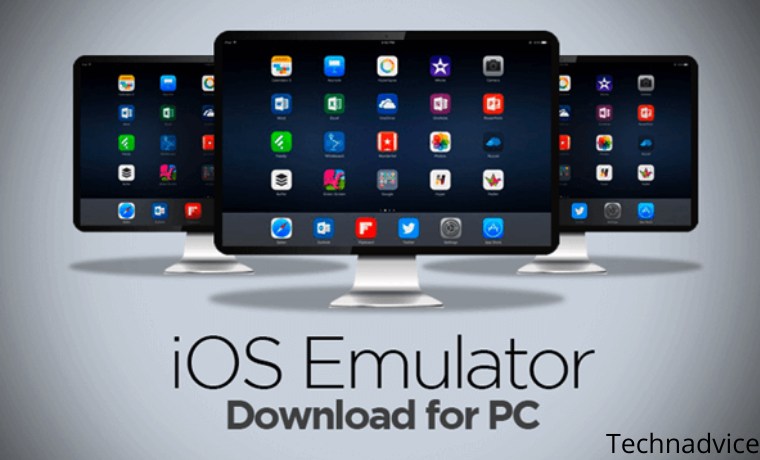
    The 7 Best iOS Emulator for Windows and Mac

    Best iOS Emulator for Windows and Mac PC

    There are two most popular operating systems used on smartphones today, namely Android and iOS. Android was developed specifically and officially by Google and this operating system is usually used by various mobile phone brands such as Samsung, LG, Sony, Xiaomi, Realme, Oppo, Vivo, and others. The iOS operating system is specifically developed by Apple and released on Apple devices only.

    Read more:

    Due to its exclusive nature, iOS gets more attention from some freelance or non-official developers. Ordinary users will not be able to tamper with the contents of iOS and require deeper coding and programming reasoning.

    However, with the existence of an iOS emulator, hobbyists or freelance developers can find it easier to understand and use iOS as experimental material on their PCs or laptops. Curious about this iOS emulator? Check out the following reviews.

    iOS, Premium Smartphone Operating System

    iOS, Premium Smartphone Operating System

    iOS originated from an earlier operating system called iPhone OS, a special operating system developed by Apple for their iPhone phones. Currently, iOS is popular because so many iPhone users end up choosing this phone as their daily driver. The reason is only two words, “reliable”.

    iPhone users will never be disappointed with the camera quality of this phone. Even the latest iPhones always top the rankings for the quality of camera captures. No wonder so many influencers, artists, and business owners rely on the iPhone to promote many things on social media because the photos produced are very good and detailed.

    The catch of this iPhone camera does not escape the help of the operating system which processes RAW captures from the cellphone camera. iOS is famous because the software contained in it can improve the optimization of the performance of hardware and applications on a smartphone.

    In the software or application development stage on the iOS operating system, a test is needed. These tests are usually carried out on live iPhone devices and the performance of the application is directly assessed based on the experience of using it.

    If there is an error in usage, the developer can fix the part that caused the error. If the results are good, then the application can be released or can be said to be a suitable application.

    However, testing like this can also be done on a tool called the iOS Emulator.

    Overview of the iOS Emulator
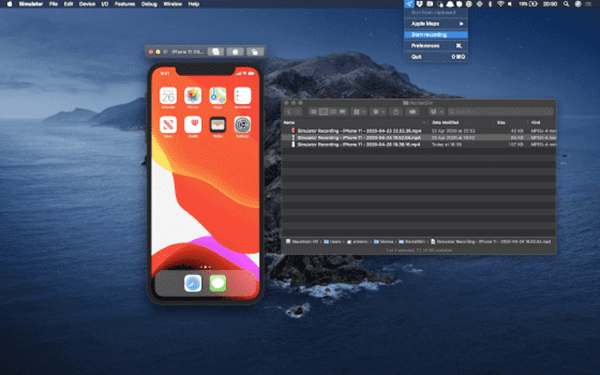
    Overview of the iOS Emulator

    As the name implies, the iOS Emulator provides an iPhone experience on a computer or laptop. Only with a computer or laptop that you have, you can experience using iOS without the need to have an iPhone first.

    With this iOS Emulator, ordinary users and even developers can be helped to develop their applications before they are released to the public.

    Developers deliberately try their applications on emulators like this before they are released to the public. This is done to test and monitor the performance of the application. Because of this need, there are so many emulators for Android, iOS, and other operating systems have sprung up on the internet.

    List of Best and Latest Best iOS Emulators

    Like other emulators, the iOS Emulator can also be used on computers or laptops with Windows and Mac operating systems. Therefore, emulators like this are worth trying so you can experience using iOS for yourself or develop your version of the application.

    Just learning the code and programs can be done with the help of this iOS Emulator. Interesting right? Without further ado, here are some of the best iOS Emulators that you can use on your PC and laptop:

    #1. Emulator for iOS IPadian
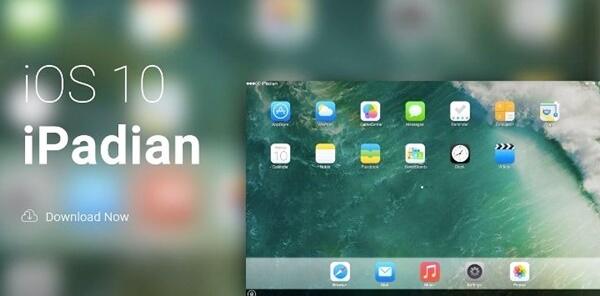
    Emulator for iOS IPadian

    iOS software developers or hobbyists who use Windows are familiar with this application. iPadian provides an experience for users to experience the iOS operating system with a display similar to Apple’s tablet, namely the iPad. With a Windows-based computer, this application can run smoothly and users can use the applications available on it, just like the iPad.

    Unfortunately, some applications cannot be used such as iMessage because applications like this can only run on Apple’s original software such as iPad, Mac, and iPhone. To download iPadian, you can directly visit the site at the following link: https://bit.ly/3E3BHII

    #2. Emulator iOS Appetize.io

    Next up is the web-based iOS Emulator, Appetize.io. Unlike previous emulators, this emulator does not require the user to first install it on a computer or laptop. By directly using a browser like Mozilla Firefox or Google Chrome, you can directly access it and use iOS features for free. To test your developed application, you can upload it to this site and your application will run and be controlled through your browser. Simple isn’t it?

    When using Appetize.io, you will get the first 100 minutes for free and it will cost you $0.05 per minute. It’s not expensive for an interesting feature like this, moreover, you only need to use a browser to test your application. To try this Appetize.io emulator, please visit the official website using the https://bit.ly/30qKOFk

    #3. Emulator iOS AIR iPhone Emulator
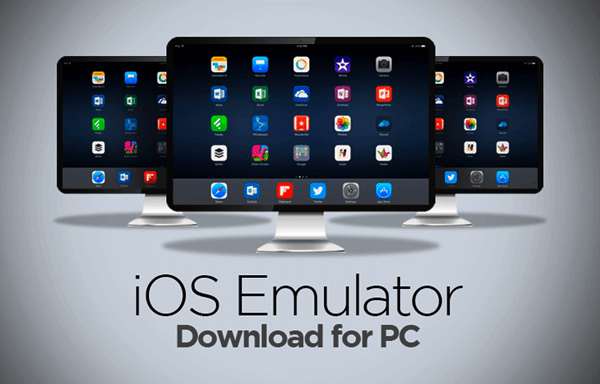
    Emulator iOS AIR iPhone Emulator

    AIR iPhone, as the name implies, this software is a development of Adobe AIR which is devoted to providing users with an iOS experience. Unlike other iOS Emulator software, this software is specifically for developers or developers who want to test their applications or test the features contained in iOS.

    Developers can check if their application runs smoothly or if there are problems and errors in it using this iPhone AIR.
    To use this iOS Emulator, you need Adobe AIR on your computer and laptop. After that, please download AIR iPhone at the link below: https://bit.ly/3pVpGzL

    #4. Smartface iOS Emulator

    Smartface is an iOS emulator that can run on the Windows operating system. In fact, not only serves as an emulator, Smartface can also be used as a Debugger or to find Bugs and fix them.

    Users can download apps from the App Store and learn about and debug those apps. Developers can directly change the coding of the program in real-time, so there is no need to leave the emulator first. You can even choose the environment from various iOS such as iPhones and iPads.

    This emulator can be obtained for free and you can download it on the official Smartface website or by clicking the link below: https://bit.ly/3pWK5EK

    #5. Emulator iOS MobiOne Studio
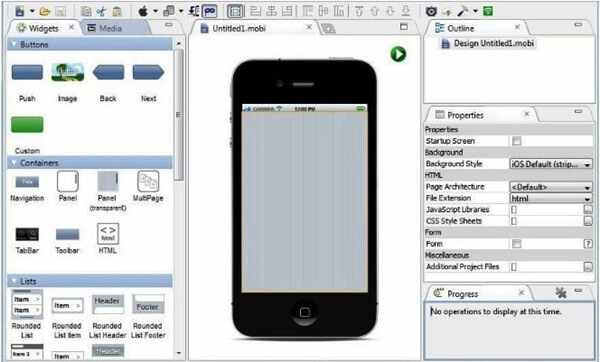
    Emulator iOS MobiOne Studio

    The next application is an application that is very popular in the developing world of iOS software development, namely MobiOne Studio. This application is popular because many developers are helped in developing iOS applications thanks to its features it.

    You can change the UI of this application, run iOS applications, develop iOS applications, choose portrait or landscape mode, and much more. With the help of App Sync technology, you can use MobiOne Studio to test large applications.

    #6. Emulator iOS Ripple

    Apart from Appetize.io, Ripple is also a web-based iOS emulator that can run on a web browser. By using browser applications such as Mozilla Firefox and Google Chrome, users especially developers can run iOS smoothly.

    Many hobbyists and iOS developers take advantage of this emulator because Ripple can be relied on in terms of debugging and testing applications. Although users are required to pay or become premium members first, the developers still use this application because of its good performance. For Ripple, you can use the link at https://bit.ly/31RbPml

    #7. Emulator iOS Xcode
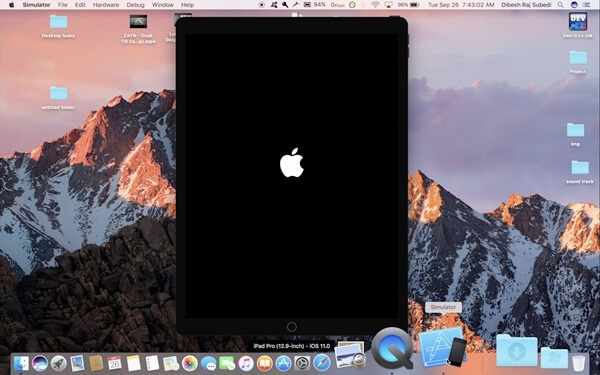
    Emulator iOS Xcode

    Another iOS Emulator that is widely used by users and developers is called Xcode. Unlike other Emulator software, Xcode can only be used on Mac or Apple computers.

    This is because Xcode is an application that was released by Apple itself as software for developing iOS software and applications. Because this application was released by Apple itself, the features contained in it are not arbitrary.

    The features in Xcode are specifically designed for developing iOS applications so that developers can get the most out of applications.

    Even not only iOS, developers can develop applications for macOS, WatchOS, and also tvOS. If interested, you can get Xcode on the official website by entering your Apple IDE using the link below: https://apple.co/320diXp

    After getting an iOS Emulator that is suitable for you, you can immediately download and install it. Then, you can immediately taste an iOS-flavored Windows computer and start developing your applications or just take a look at the features in it.

    Why is an iOS Emulator Important?

    As ordinary users, we may never think about how an application runs. We may only use it according to the instructions listed or use it as we please.

    However, unlike ordinary users, developers must think about every application aspect carefully. Even the slightest errors and bugs can be a problem for the application and must be fixed immediately.

    Imagine if there was no iOS Emulator, developers would have to buy iPhones and iPads with various versions before being able to develop their applications.

    The costs used will be very high and the free applications that we usually enjoy will turn into paid applications even though the application is trivial. Thanks to the iOS Emulator, we as users also benefit, although not directly.

    Read more:

    Conclusion:

    So, friends, This is the explanation of The 7 best iOS emulators for Windows and Mac, which you can use to develop your own iOS applications. Not only developers, but ordinary users can also experience using the iPhone on their computer without the need to buy an iPhone smartphone.
  • How To Root Redmi 4A Without PC (100% Working) 2025

    How To Root Redmi 4A Without PC (100% Working) 2025

    How to Root Redmi 4A Without PC (100% Working)—If you have a Xiaomi Redmi 4A Android Smartphone and you want to root it safely without a PC, Mac, or laptop, then you are in the right place. This article will guide you through rooting the Redmi 4A without a PC.

    How To Root Redmi 4A Without PC (100% Working)
    How To Root Redmi 4A Without PC (100% Working)

    How to Root Redmi 4A Without PC (100% Working)

    Xiaomi Redmi 4A is powered by a 1.4GHz quad-core Qualcomm Snapdragon 425 processor and comes with 2GB of RAM.

    Read more:

    This phone packs 16GB of internal storage which can be expanded up to 128GB via a microSD card.

    As far as the camera is concerned, the Xiaomi Redmi 4A has a 13-megapixel main camera on the front of a 5-megapixel selfie.

    Enable Root Access on Redmi 4A without a PC

    So many users want to reboot their Android phone to unlock more features several ways allow you to enable root access on your Android device.

    In this guide, we will show you how to Root Redmi 4A without using a PC / Computer. So before you start the guide, let’s look at the advantages and disadvantages of the Redmi 4A root.

    The advantage after you root Redmi 4A without a PC

    • You will be able to Update Redmi 4a to Android 7.0 Nougat.
    • You will be able to do customization
    • You will be able to add tweaks such as battery tweaks which increase battery life.
    • You will be able to Install Custom ROMs on your device.

    Disadvantages of having rooted your Redmi 4A without a PC

    • After you root Redmi 4a without a PC your warranty will expire.
    • Sometimes the cellphone becomes slow if the procedure is not followed correctly.

    Pre-requirements before you do root Redmi 4a without a PC

    • Make sure you have installed TWRP on your cellphone.
    • Make sure there are more than 65% batteries on your cellphone.
    • Make sure you have backed up your cellphone.

    3 Ways to Root Redmi 4A Without a PC

    Make sure you read the requirements before rooting.

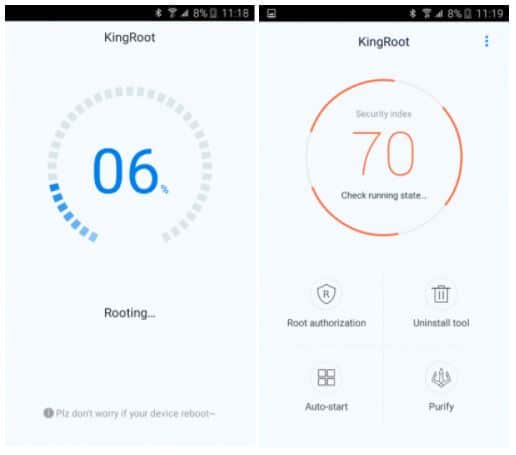
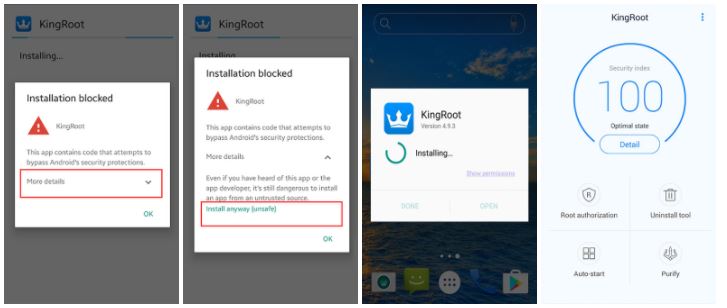
    #1. How to Root Redmi 4A with Kingroot

    • Download KingRoot APK
    • After the KingRoot download is complete, install the Kingroot APK.
    • If you receive a ”  Google installation message blocked  “, take the following steps.

    How to Root Redmi 4A with Kingroot
    How to Root Redmi 4A with Kingroot
    • If you have not set it before ”  install blocked  “, it will set a reminder, such as the steps in the following image, if you have set it before, skip this step.
    • On the System installation screen, click ”  install  ” to start the installation, when the installation is complete, click the ” open ” button to start using Kingroot.

    install blocked
    install blocked
    • Click ”  try  ” to enter the main interface, and click the ” get now  ” button to start rooting.
    • The implementation process is complete and complete, and after that, you will return to the main screen, then Rooting is complete.

    #2. How to Root  Redmi 4A without a PC with KingoRoot

    • Download the latest version of KingoRoot APK.
    • After the KingoRoot download is complete, install the   KingoRoot APK.
    •  If Chrome warns you about KingoRoot.apk, click “OK” to continue.
    • Install KingoRoot.apk on your device. Suppose you don’t check “Unknown Sources” in Settings> Security, then during installation. In that case, you will get “Install blocked”, which states that “For security, your cellphone is set to block the installation of applications obtained from unknown sources”.
    • Just follow the telephone instructions and install Kingo Root on your device and allow installation from “Unknown Sources”.
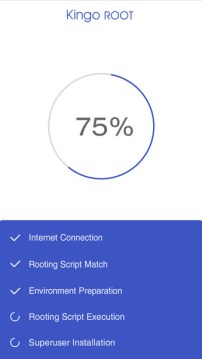
    • Launch the “Kingo ROOT” application and click  One Click Root to start rooting.
    • Wait a few seconds for the results screen to appear.

    How to Root  Redmi 4A without a PC with KingoRoot
    How to Root  Redmi 4A without a PC with KingoRoot
    • Finally, open the search and Download the Google Play App Store: Root Checker to Check the Root successfully, like the following image that represents success.
    • Done!

    #3. Root Redmi 4A with SuperSU

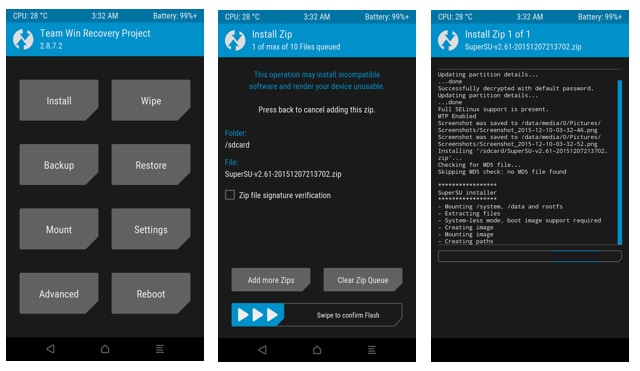
    The whole rooting process is easy after opening the Unlock bootloader and flashing TWRP. Now, you only need to flash the Supersu.zip Flashable file and you are ready to go.

    1. Boot into  TWRP Recovery using the Power on + Volume Up button.

    2. Select  “Install”  from the menu.

    3. Select  SuperSu.zip, and save your device’s internal storage.

    4. Select the ” Swipe to confirm flash  ” button. This will flash it.

    5. After installing  Wipe Cache  &  Dalvik Cache select the reboot option.

    The first boot will take time to load all of your applications. So wait a minute.

    Root Redmi 4A with SuperSU
    Root Redmi 4A with SuperSU

    Well, done, and root successfully

    How to Unroot Xiaomi Redmi 4A?

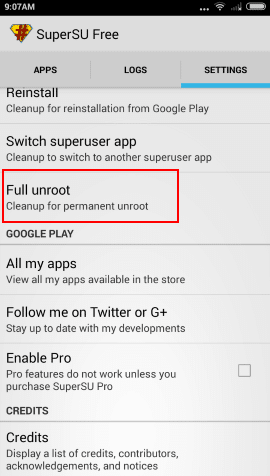
    It’s easier to root your device. You can easily root your phone by using the SuperSU application that we use to manage root permissions.

    1. Open the SuperSU application from the application menu.

    2. Open the   Application settings.

    3. Scroll down and select the Unroot  &  Reboot your mobile option. This will root your device in a few seconds.

    How to Unroot Xiaomi Redmi 4A?
    How to Unroot Xiaomi Redmi 4A?

    Read more:

    Conclusion:

    So, friends, that’s above how to root Redmi 4A without a PC, I hope this article is helpful for you. Please share this post on Social Media.

  • 6 Ways to Fix Error 0x80070091 in Windows 10 PC 2025

    6 Ways to Fix Error 0x80070091 in Windows 10 PC 2025

    6 Ways to Fix Error 0x80070091 in Windows 10 PC – Are you unable to complete the System Restore process and suddenly your Windows operating system displays an error message 0x80070091? If so, you need not worry. Because this time we will discuss how to solve errors 0x80070091 in Windows 10, 8, and 7.

    6 Ways to Fix Error 0x80070091 in Windows 10 Laptop PC
    6 Ways to Fix Error 0x80070091 in Windows 10 Laptop PC

    Why Windows 10 System Restore Doesn’t Complete?

    The problem of System Restore failing could be due to an antivirus error. But it’s also possible that the problem has something to do with the WindowsApps folder. Basically, when error code 0x80070091 appears, it means the destination directory is not empty.

    Read more:

    In other words, the System Restore process recognizes that the supposedly empty WindowsApps folder has content instead. It’s also possible that the anti-virus is blocking the process or the error has something to do with Sync Settings. Here are some of the causes of error 0x80070091:

    • Windows 10 System Restore did not complete successfully  – This is the most common error message related to System Restore. Make sure you try one of the solutions below to fix this problem.
    • 0x80070091 Windows 7  – It is possible that the same error message appears in earlier versions of Windows. So, if you are not using Windows 10, don’t worry because this method also works on Windows 8.1 and Windows 7.
    • System Restore encountered errors: unexpected errors and unknown errors  – In some cases, corrupted system files cause problems interfering with System Restore. So, it is best to check the system for file corruption.
    • System Restore failed due to antivirus  – Error 0x80070091 can also appear due to anti-virus. Your security apps can interfere with your operating system, preventing it from reverting to a previous restore point. If you want to learn how to fix System Reset that failed due to an antivirus error, make sure you check the solutions below.

    It’s quite difficult to pinpoint the exact cause of the error, but the important thing is that Microsoft has figured out the problem. The company also promises to release a foolproof solution to this problem.

    In the meantime, the best step you can take is to follow the instructions below. While this method is designed to fix errors in Windows 10, it also applies to older versions of the operating system.

    How to Fix Error 0x80070091 in Windows 10 Laptop PC

    #1. Boot Into Safe Mode And Rename WindowsApps

    1. Boot your PC into Safe Mode.
    2. Right-click the Windows icon, then select Command Prompt (Admin) from the list.
    3. Paste the following commands one by one:
      1. cd C:\Program Files
      2. takeown /f WindowsApps /r /d Y
      3. icacls WindowsApps /grant “%USERDOMAIN%\%USERNAME%”:(F) /t
      4. attrib WindowsApps -h
      5. rename WindowsApps WindowsApps.old
    4. Reboot your computer.
    5. Try running System Restore again and check if the error is fixed.

    #2. Check for Anti-Virus

    Anti-virus applications do provide protection on computers from attacks and threats. On the other hand, they can also interfere with Windows systems and cause error 0x80070091. If you are experiencing the same problem on your computer, it is recommended to disable certain features on your anti-virus. They may be able to prevent other applications from accessing certain directories.

    If you have tried this method and the error persists, then the best way is to disable your anti-virus completely. If you find that your anti-virus app is causing the problem, it might be the best time to uninstall your security app and consider switching to a different brand.

    #3. Use Third-Party Apps

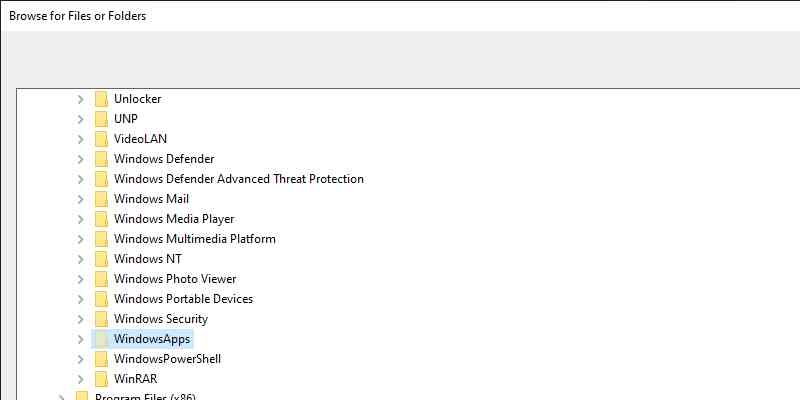
    Error 0x80070091 may have something to do with the WindowsApps folder issue. One way to deal with this is to use a third-party app like Unlocker. Here are the steps to do it:

    Use Third-Party Apps
    Use Third-Party Apps
    1. Download and install the Unlocker application on your computer.
    2. Open C:\Program Files, then right-click the WindowsApps folder.
    3. From the menu, select Unlocker.
    4. You will see a drop-down menu, select Rename.
    5. Rename the directory to “WindowsApps.old” (without the quotes).
    6. Save changes by clicking OK.
    7. You may get a prompt asking you to rename the object on boot. Select Yes.

    After following the instructions above, you should be able to perform a System Restore smoothly.

    #4. Use Linux Live CD

    Apart from Unlocker, another option to fix the error 0x80070091 problem is to use a Linux Live CD. You just need to create bootable media by downloading any version of Linux. Launch your PC from the bootable media and select the “Try Linux without installing” option. After that, go to C:\Program Files and rename the directory for WindowsApps to “WindowsApps.old” (without the quotes).

    Restart your computer, then boot into Windows. After taking ownership of the WindowsApps.old directory, you can try to do a System Restore again.

    #5. Perform System Update

    There are users who report that updating their system has allowed them to get rid of the error. So, there’s nothing wrong if you try the same way. Windows will usually automatically download and install updates.

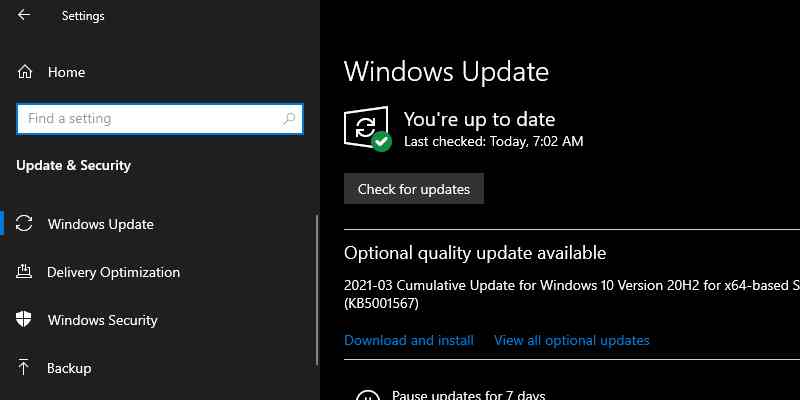
    However, it is possible that certain issues may cause your system to miss an update or two. So, it’s best to manually check if there are any updates that you should install. Therefore, follow the instructions below to do so:

    Perform System Update
    Perform System Update
    1. Open the Settings window by pressing the Windows key + I on your keyboard.
    2. Go to Updates & Security.
    3. Go to the right pane and click the Check for Updates button.

    Your system will now start checking if an update is available, and will automatically download if there is one. After you restart the computer, the update will be installed.

    #6. Perform CHKDSK Scan

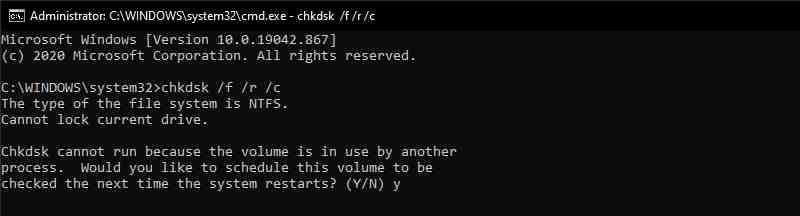
    Some users reported that file corruption was one of the causes of error 0x80070091. You can fix this problem by doing a chkdsk scan. You can do this by following the instructions below:

    Perform CHKDSK Scan
    Perform CHKDSK Scan
    1. Click the Search icon on the taskbar.
    2. Type “command prompt” (without the quotes).
    3. Right-click Command Prompt on the result, then select Run as Administrator.
    4. Type “ chkdsk /f /r /X: ” (without the quotes). Note: you have to replace ‘ X ‘ with your system drive.
    5. Run the command by pressing Enter.
    6. You will also be asked to schedule a disk scan on reboot. Type “ Y ” (without the quotes), then press Enter.
    7. Reboot your computer.

    The scan will take a few minutes, and its duration depends on the size of your system drive. After the process is complete, try to do a System Restore and check if the error is gone.

    Read more:

    Conclusion:

    So those are some ways to solve errors 0x80070091 in Windows 10, 8, and 7. This error is a common problem that you will receive when you want to delete a file or folder or perform other operations on it. We hope that one of the methods above can fix the error 0x80070091 problem on your computer.

  • 6 Ways To Fix Copy Paste Not Working in Windows 10 [2025]

    6 Ways To Fix Copy Paste Not Working in Windows 10 [2025]

    6 Ways to Fix Copy Paste Not Working in Windows 10 – Learn how to fix copy-paste not working in Windows 10 so you don’t lose productivity. Every day, you copy and paste text, files, or folders on your computer.

    6 Ways To Fix Copy Paste Not Working in Windows 10
    6 Ways To Fix Copy Paste Not Working in Windows 10

    How To Fix Copy Paste Not Working in Windows 10

    Thus, it is very inconvenient when the copy-paste tool stops working suddenly. While this is one of the most basic functions that have existed since the first Windows versions, sometimes it just stops working.

    Read more:

    If this has happened to you, this post will give you a solution on how to fix copy-paste not working in Windows 10.

    #1. Restart the Currently Used Application

    If you are unable to copy and paste while using a particular app, close and reopen the app and check if this fixes the problem. Also, check if the app has any updates available as software bugs can prevent copy and paste from working. You can update the app via the app settings menu or the Microsoft Store if it’s there.

    #2. Try Copy-Pasting With the Mouse Not the Keyboard

    Usually, we use the shortcuts Ctrl + C and Ctrl + V to copy and paste because it is faster. If you guys do that too, try using a mouse instead. If it works, try using another keyboard shortcut on the PC and see if it works.

    If the copy-paste keyboard shortcut doesn’t work, it means the tool is still working on your computer, but the keyboard shortcut has stopped working.

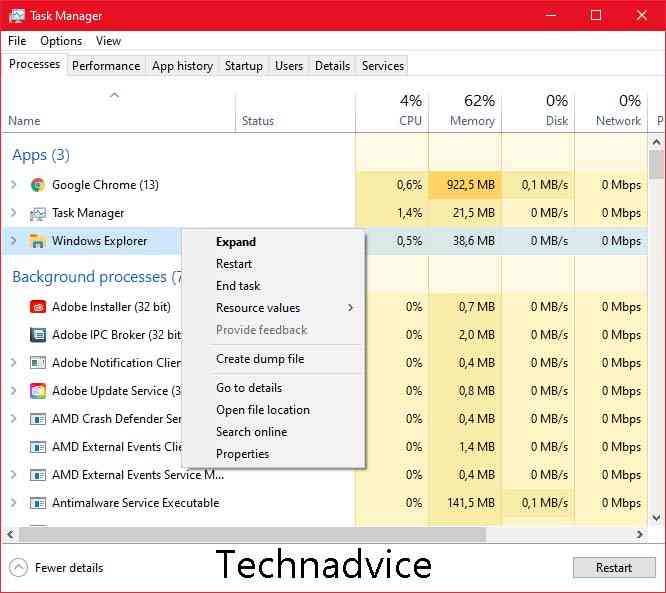
    #3. Restart Windows Explorer

    Before restarting Windows Explorer, save the work in progress as it will close all open applications and windows. Then, follow these steps:

    Restart Windows Explorer
    Restart Windows Explorer
    1. Right-click  Start > Task Manager.
    2. In the Processes tab, find  Windows Explorer.
    3. Right-click and select  Restart.
    4. Check if copy-paste now works.

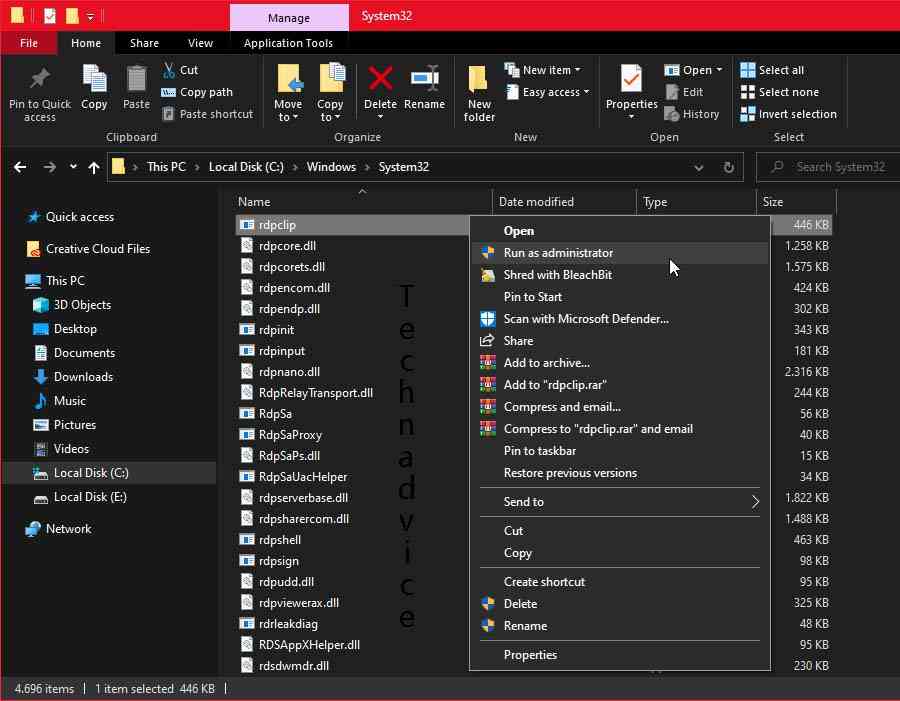
    #4. Reset Process Remote Desktop Clipboard

    You can restart the Remote desktop clipboard using File Explorer. Here’s how to do it:

    Reset Process Remote Desktop Clipboard
    Reset Process Remote Desktop Clipboard
    1. Open  File Explorer.
    2. Go to  This PC > Local Disk (C:) > Windows > System 32.
    3. Right-click  rpdclip.exe  and select  Run as administrator.
    4. Look for  dwm.exe  and run it with administrator rights as well.
    5. Restart your computer.

    #5. Turn Off All RAM Optimization Apps

    When you copy an image or text, the system will use Random Access Memory (RAM) to temporarily store it. Unfortunately, while file cleaning or RAM optimization apps try to save space and make your computer faster, they may also delete all of your clipboard data. As such, it erases all the data you are trying to paste, rendering the feature unusable.

    To fix this, you can force close the application or configure its settings so that it doesn’t include the computer clipboard in the optimization process.

    #6. Fix Windows 10 Clipboard

    Whenever you copy text or an image, Windows 10 saves it in the virtual clipboard. When you paste it, you paste it from the clipboard. However, if the clipboard stops working properly, you won’t be able to copy and paste any more. Fortunately, fixing this problem is an easy job.

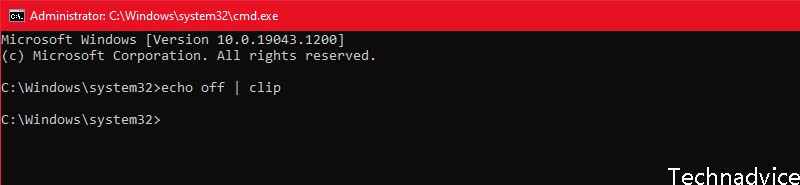
    How to Fix Windows 10 Clipboard Using Command Prompt

    How to Fix Windows 10 Clipboard Using Command Prompt
    How to Fix Windows 10 Clipboard Using Command Prompt

    In Windows 10, you can use the Command Prompt to clear the Windows clipboard cache. Open Command Prompt with administrator rights, type echo off | clip, and press Enter.

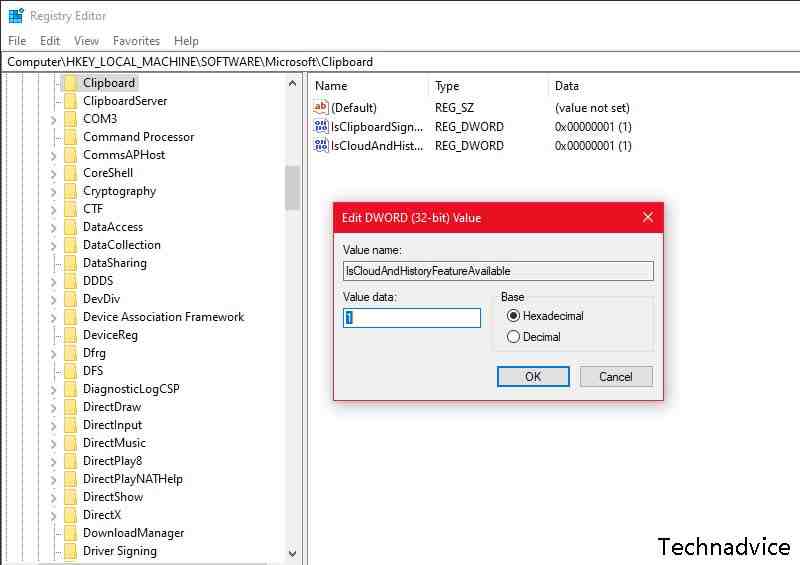
    How to Fix Windows 10 Clipboard Using Registry Editor

    You can also repair the clipboard via the Registry Editor. Here’s how to do it:

    How to Fix Windows 10 Clipboard Using Registry Editor
    How to Fix Windows 10 Clipboard Using Registry Editor
    1. In the  Start menu search bar, search for regedit and select  Run as administrator.
    2. Go to  HKEY_LOCAL_MACHINE > SOFTWARE > Microsoft > Clipboard.
    3. Open  IsCloudAndHistoryFeatureAvailable.
    4. Set  Value data to  1  and  Bae to  Hexadecimal.
    5. Click  OK  to save the new changes.
    6. Restart the computer and test if you can now copy and paste.

    How to Fix Windows 10 Clipboard Using Group Policy

    You can also fix Windows 10 clipboard using Group Policy. If you are not sure about using Group Policy, you should create a System Restore point for your system if an error occurs. Follow these steps to configure Windows clipboard settings:

    How to Fix Windows 10 Clipboard Using Group Policy
    How to Fix Windows 10 Clipboard Using Group Policy
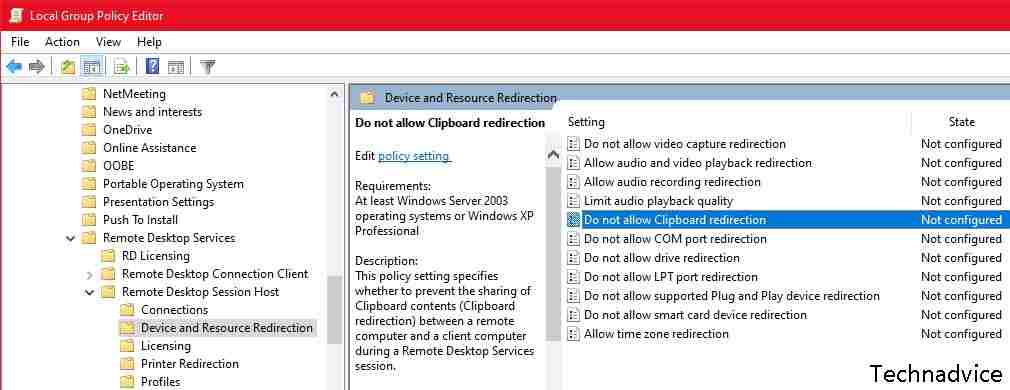
    1. In the  Start menu search bar, search for gpedit.msc and select the Best match.
    2. Go to  Computer Configuration > Administrative Templates > Windows Components > Remote Desktop Services > Remote Desktop Session Host > Devices and Resources Redirection.
    3. Look for  Do not allow Clipboard redirection.
    4. Check whether  Not Configured or  Disabled is selected.

    Read more:

    Conclusion:

    So, Freinds, This is the explanation of how to fix copy-paste not working in Windows 10. now you can copy and paste without any problems. Sometimes it’s not the copy and pastes command that stop working. As shown above, you may need to restart certain apps, fix keyboard shortcuts, or fix clipboard crashes.

  • How to Root Samsung Galaxy S5 Without PC 2025

    How to Root Samsung Galaxy S5 Without PC 2025

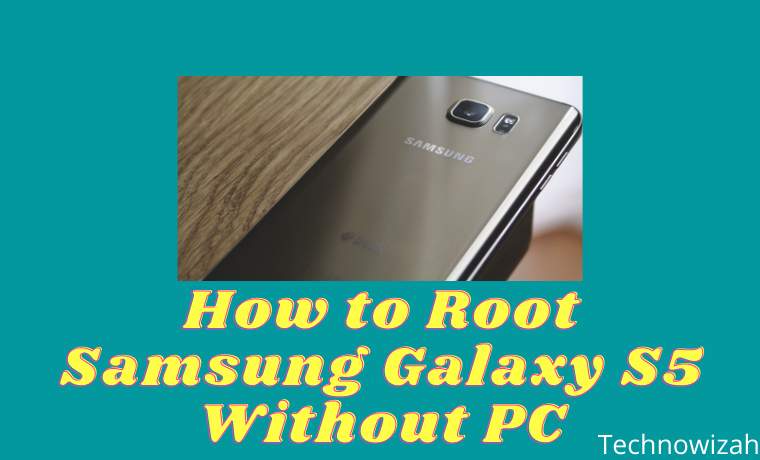
    How to Root Samsung Galaxy S5 Without PC – The Samsung Galaxy S5 is one of the flagship smartphones from Samsung which was released a few years ago.

    How to Root Samsung Galaxy S5 Without PC
    How to Root Samsung Galaxy S5 Without PC

    How to Root Samsung Galaxy S5 Without PC

    The Galaxy S5 has quite high specifications and a sharp screen display, this phone became very popular in its class at that time.

    Read more:

    For now, of course, the Samsung Galaxy S5 is old enough, so many users want to customize it.

    How to root the Galaxy S5 is not much different from other Android, and there is no need to enter Samsung’s Save mode.

    For the root process, everything is almost the same, the only difference is the performance of the cellphone itself.

    Root Samsung Galaxy S5 Without PC

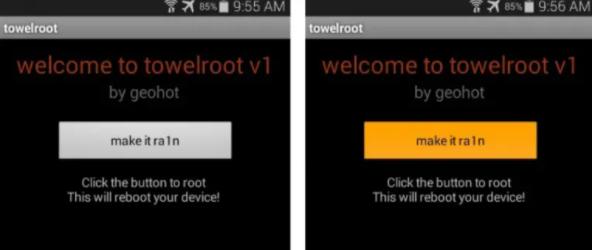
    1. Download the Towelroot APK application.
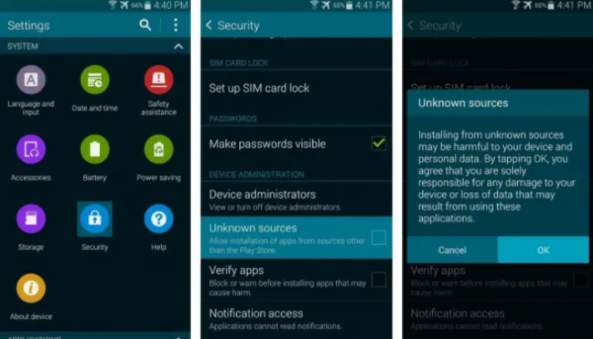
    2. Enable Permissions to install third-party applications, how to open the menu S etings> security> device administrators then enable the option unknown sources.
      How to Root Samsung Galaxy S5 Without PC
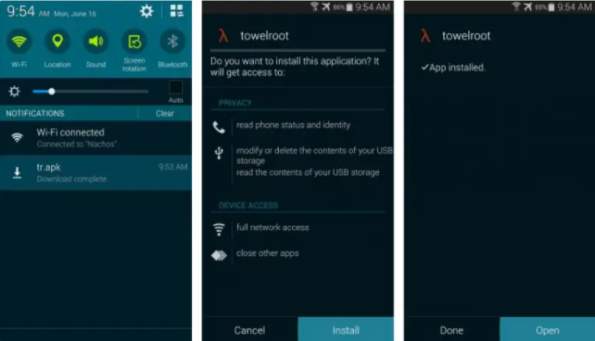
    3. Next, install the Towelroot application.
      How to Root Samsung Galaxy S5 Without PC
    4. Then open and run the Towelroot application that has been installed.
    5. Once open, please press the ” make it ra1n ” button.
      How to Root Samsung Galaxy S5 Without PC
    6. The installation will start, wait for it to finish and your S5 will automatically restart.
    7. Don’t forget to install & update Supersu.
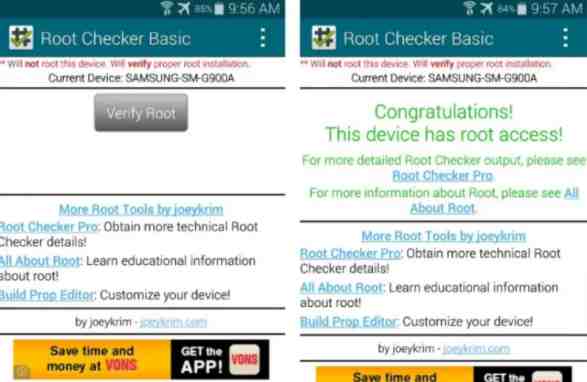
    8. To see if it is true that Root has been installed, you can install Root Checker.
      How to Root Samsung Galaxy S5 Without PC
    9. Done.

    How to Root Samsung Galaxy S5 Marshmallow

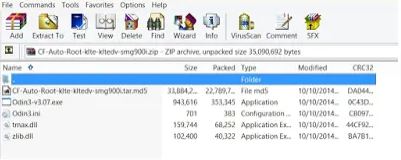
    1. Download  CF-Auto-Root on the http://autoroot.chainfire.eu/ page   (choose the appropriate type for your Android device) or for the sm-900i type.
    2. Download Odin3-v3.07.exe  then Install it on your computer.
    3. If it has been downloaded now  Extract the file on the PC  then run Odin3-v3.07.exe.
      How to Root Samsung Galaxy S5 Marshmallow
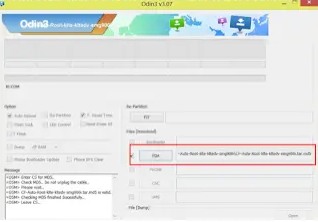
    4. Click the PDA  button then browse to the CF-Auto-Root-klte-kltedv-smg file.
      How to Root Samsung Galaxy S5 Marshmallow
    5. Turn off your cellphone then enter Download Mode, how to press and hold the power button + volume down + home button simultaneously.
    6. After that will appear a notification to get into the mode “download”, please press the ” volume up “to continue to proceed.
      How to Root Samsung Galaxy S5 Marshmallow
    7. Then connect the Samsung S5 to the PC / Laptop using a USB cable.
    8. If successful, a Yellow code will appear in the ODIN Column.
      How to Root Samsung Galaxy S5 Marshmallow
    9. Then click the start button on ODIN. Wait until the process is complete and the cellphone will restart automatically.
    10. Install & update Supersu.
    11. To see if it is true that Root has been successful, you can use the Root checker application which you can download on the Playstore.
    12. Done.

    We need to know that root access is very useful for doing various things, for example, such as deleting unnecessary default applications.

    Even for experienced people, root can be a prerequisite for replacing the entire operating system by replacing a custom ROM, for example, MIUI or Cyanogen Mod.

    But root access cannot get rid of Safe Mode on Samsung cellphones.

    With Galaxy S5 Root Access you can operate more freely and suit your needs.

    In this sense, you can choose what applications you want to use without being bothered by junk applications.

    Read more:

    Conclusion:

    This is an explanation of how to root the Samsung Galaxy S5 without a PC. Hopefully, the above explanation will be useful for you.