3 Easy Ways To Access Steam Screenshot Folder Windows – I will discuss the Best Tips To Access the Steam ScreenshotFolder, In any Steam game, you can click the shortcut button (default is F12) to take screenshots of the screen in the current game.
How To Access Steam Screenshot Folder
How To Access Steam Screenshot Folder Windows 10 PC 2024
You can publish this screenshot on your Steam profile or upload it to other social media forums. However, sometimes you might face a problem because you can’t find the picture you took.
There are two ways you can access Steam Screenshot Folder; one of them is accessing it through screenshot manager in Steam and the other is accessing it through hard drive storage.
Method #1: (Screenshot Manager)
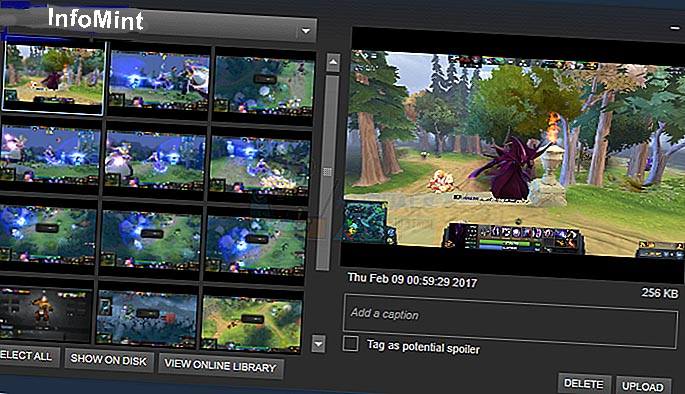
You can use your Steam client to see all screenshots taken in the game using the Screenshot Manager.
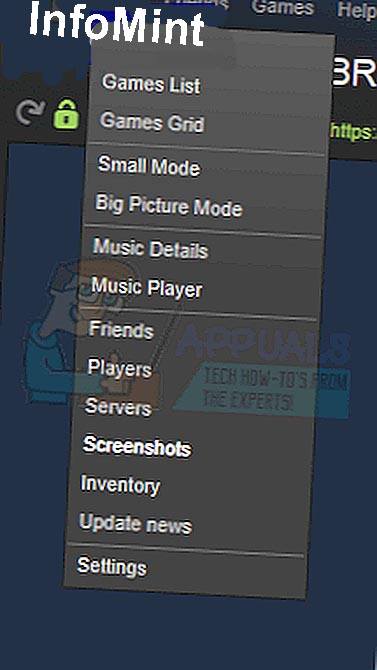
First, open your steam window. At the top left where all the drop-downs are, click [ view> screenshots ].
Screenshot Manager
Using the Screenshot Manager, you can upload the desired image or delete it. You can also access the screen directly through your hard drive by clicking the [ show on disk ] button. There is also an option to permanently delete certain screenshots from your hard drive directly from here.
Steam Screenshot Folder 2
Method #2: (Accessing the Screenshot folder physically)
Each user has their screenshot folder where all screenshots taken in the game are stored physically. This folder is located where your Steam is currently installed. The default location is on the Local C disk.
Open your drive C: \ Program files (x86) \ Steam \ user data \ 760 \ remote screenshot.
Accessing the Screenshot folder physically
3. How do you find your SteamID?
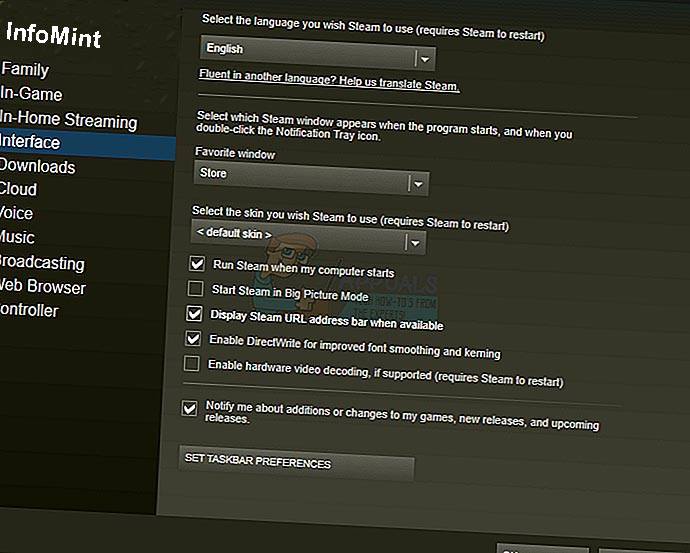
If you don’t know your SteamID, you can access it by opening your Steam client. Click on the display and select settings. Go to the interface and you will find a box that reads the Display URL address when available. Check and save.
How do you find your SteamID
Now go to your Steam Profile and click View profile. The number at the end that is located in the URL is your SteamID and you can use it to search for the image you saved as described earlier.
TIP: If none of the Methods have resolved the issue for you, we recommend using the Reimage Repair Tool which can scan the repositories to replace corrupt and missing files.
This works in most cases, where the issue originated due to a system of corruption. Reimage will also optimize your system for maximum performance. You can download Reimage by Clicking Here
How to Find Your Computer System Specifications – Knowing how to check the specs ( specifications ) laptop or computer can be helpful in several ways. You may wish to upgrade your computer or find out the system requirements for a program you want to install. Here’s how to find out how much RAM you have, and what type of GPU, motherboard, and CPU you have.
How to Find Your Computer System Specifications
How to Find Your Computer System Specifications 2024
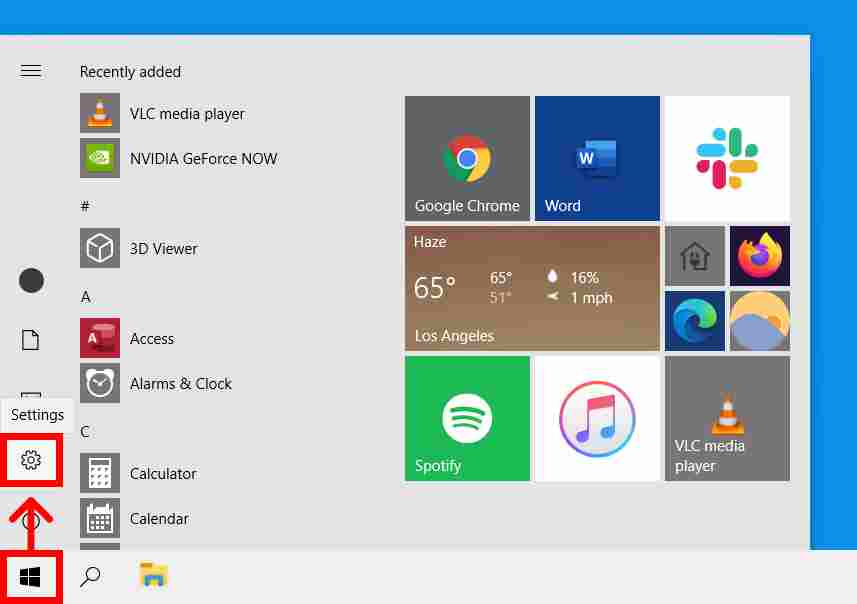
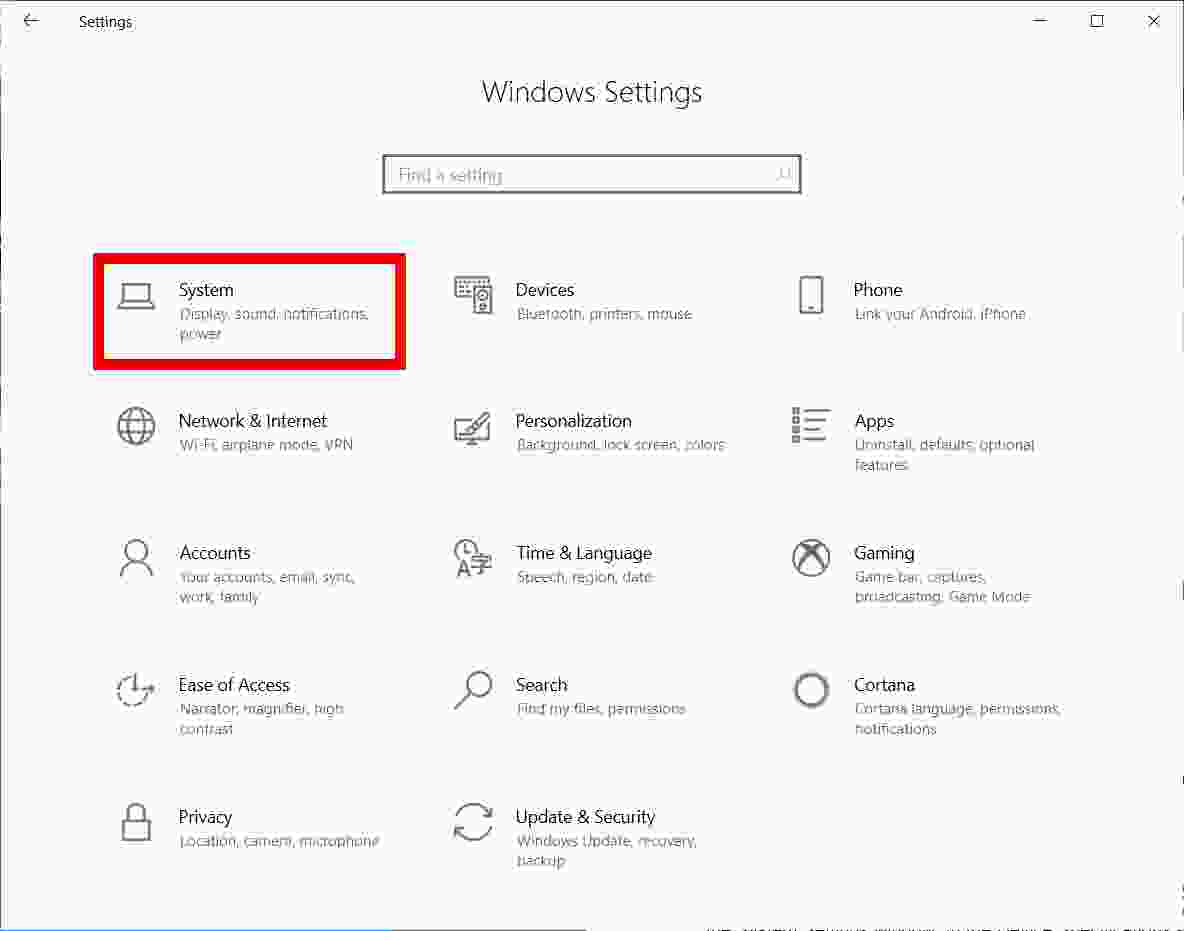
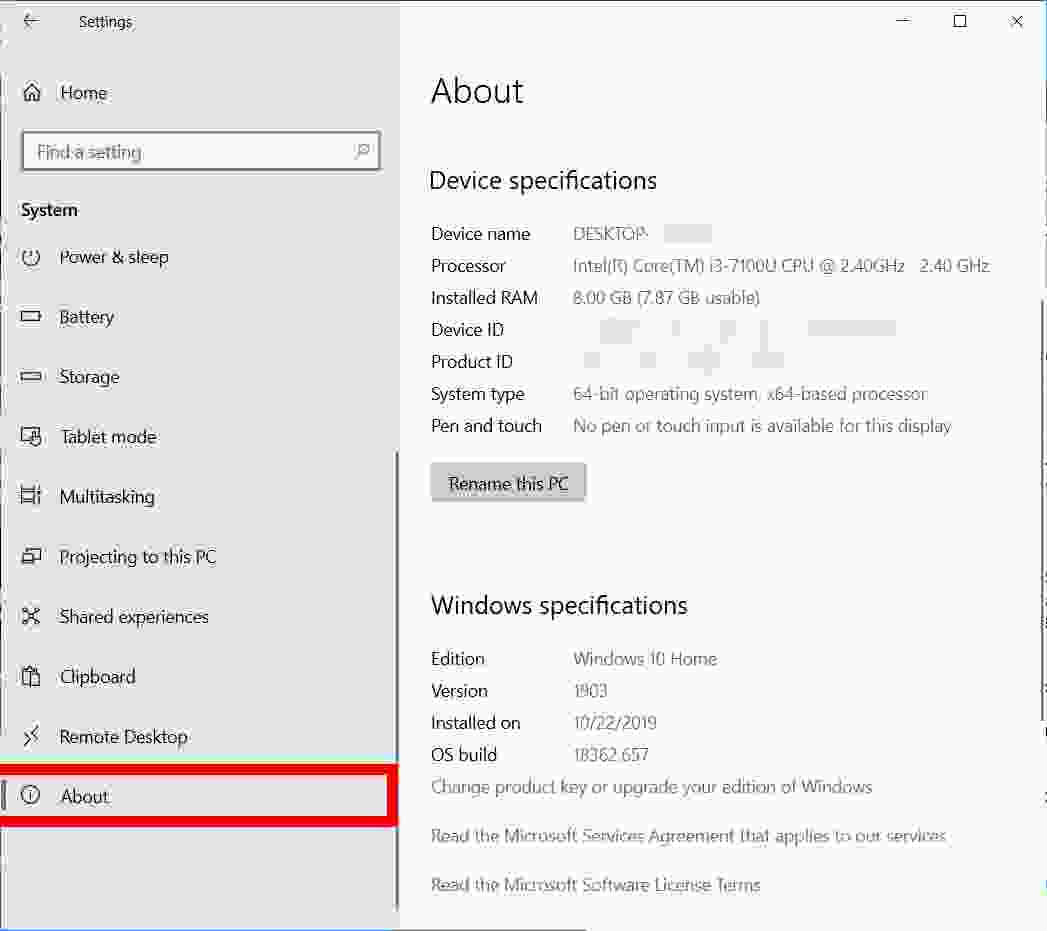
To check the specifications of your laptop or computer in Windows 10, click the Windows Start button, then click the gear icon for Settings. On the Windows Settings menu, select System. Scroll down and select About. From here, you’ll see processor specs, RAM, and other system info.
Then click Settings. It’s the gear icon directly above the power button.
3. Next, click System
4. Scroll down and click About in the left sidebar. Here, you can find details about the processor, RAM, and other info.
How to Find Out the RAM You Have on Your PC
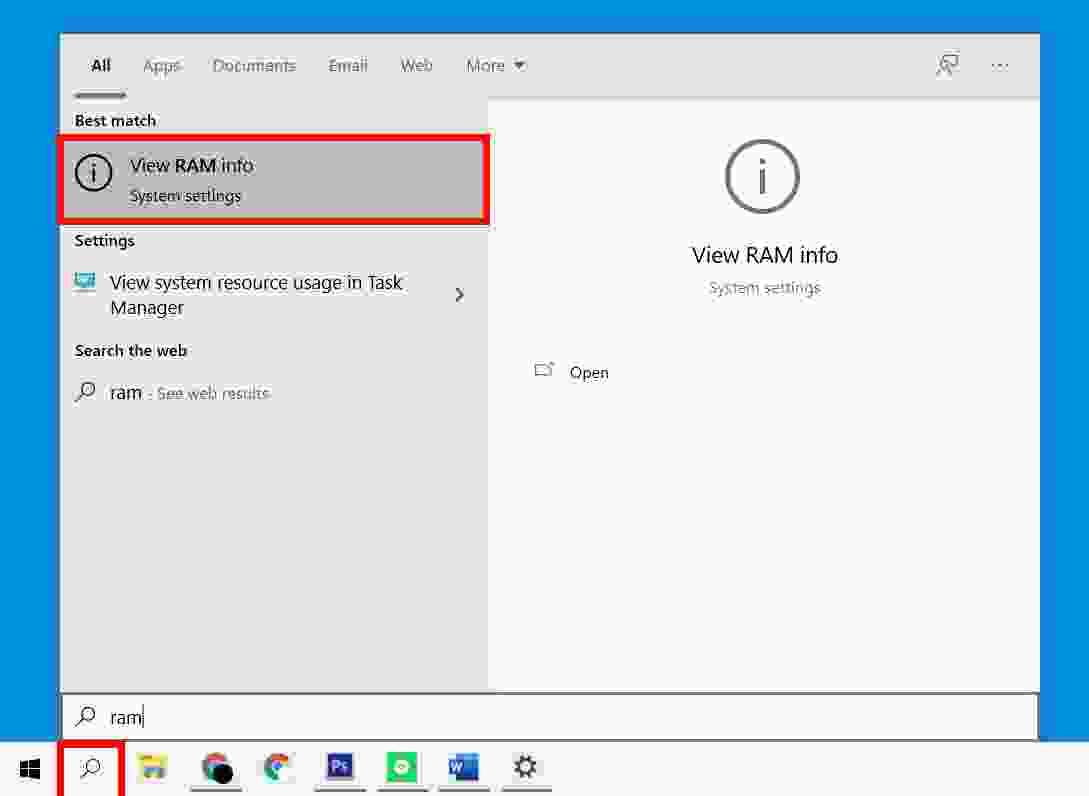
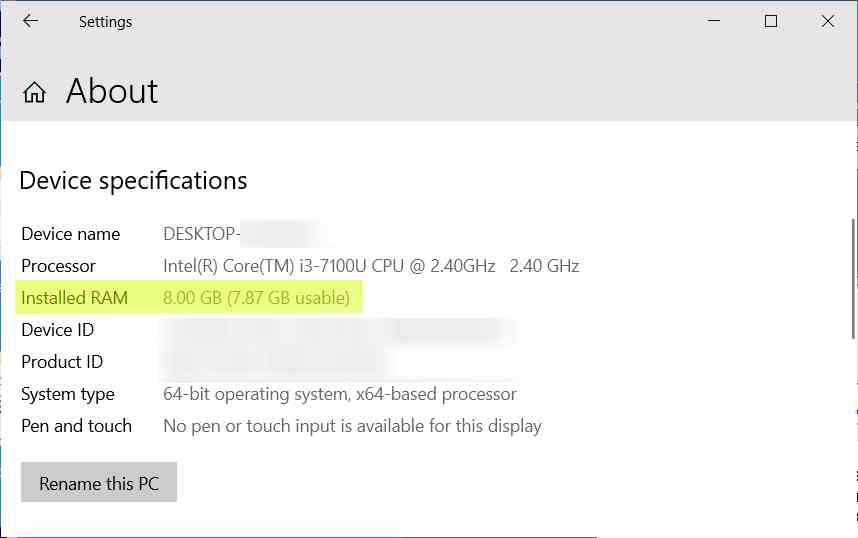
The easiest way to find out how much RAM you have is by typing RAM into the Windows search bar. The search results box will return results for the View RAM Info option. Click this to open the System Settings window. In the Device Specifications section, check the Installed RAM field.
Click the magnifying glass icon in the lower-left corner of your screen.
Then type RAM in the Windows search bar.
Press Enter or click View RAM Info from the search results.
4. Check the Installed RAM info. Windows will tell you how much RAM you have installed and how much you have used. You will find it under the Device Specifications section.
How to Find Out Which GPU You Have
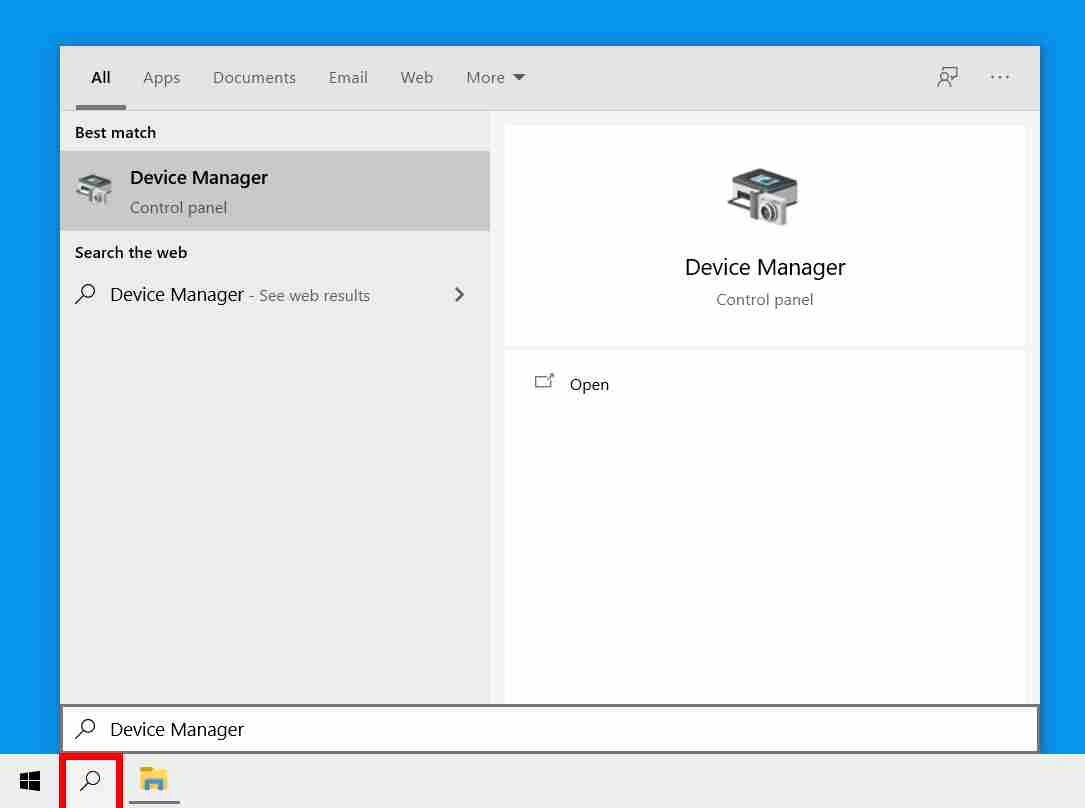
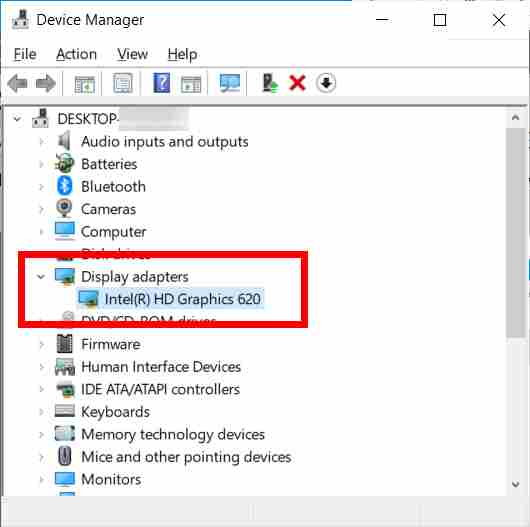
To find out which Graphics Processing Unit (GPU) you have, type Device Manager in the Windows search bar and hit enter. Then click the arrow next to Display adapters.
Type Device Manager in the Windows search bar. Windows will load the search results before you even finish typing the search term.
Press Enter or click the Device Manager application icon that appears. The Device Manager application icon will look like a camera next to the printer. Pressing Enter or clicking the icon will open the Device Manager window.
3. Finally, click the arrow next to Display adapters to see which GPU you have. The entry under Display adapters shows which GPU you have.
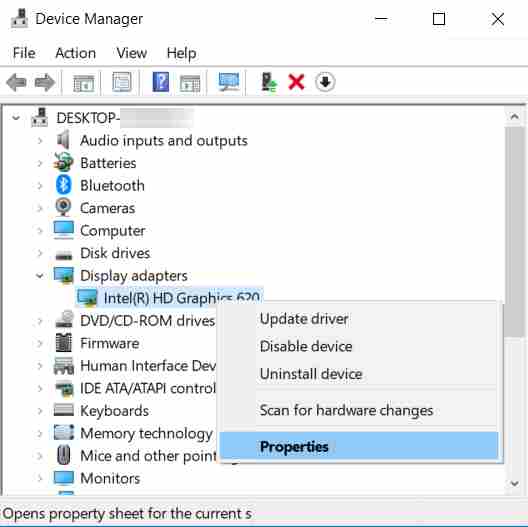
Note: If the entry does not show the name of the manufacturer, do the following:
Select GPU name. It will be highlighted in blue.
Right-click GPU.
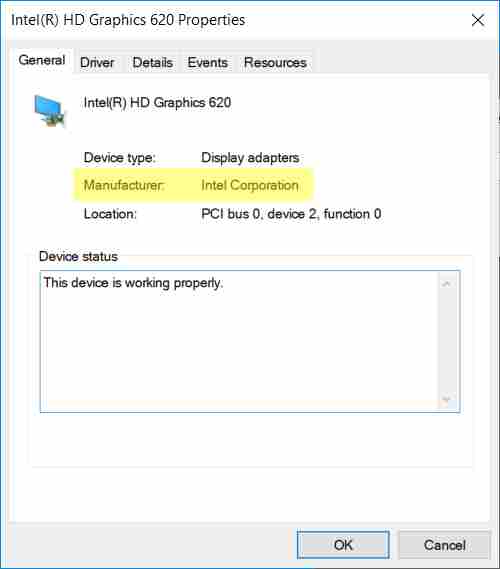
Select Properties on the menu that appears. The Properties window will open to the General tab by default.
4. From the General tab, find the column labeled Manufacturer.
How To Find Out Which Motherboard You Have
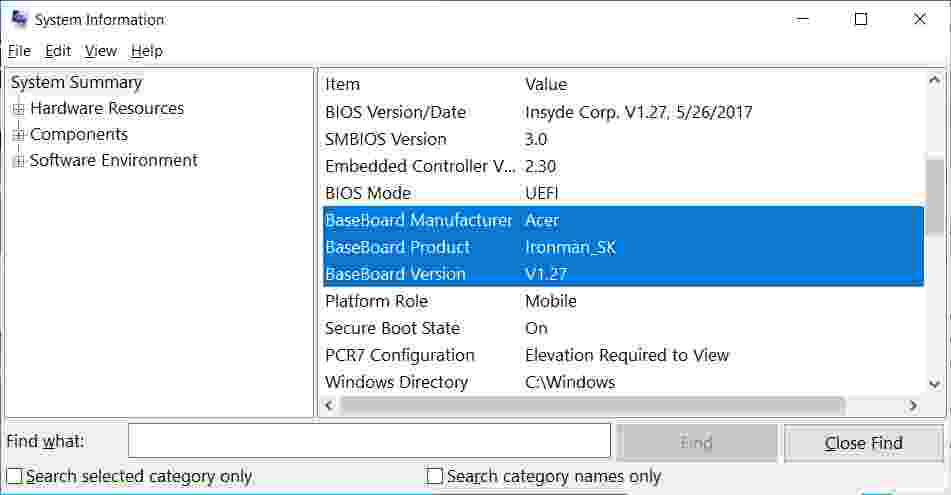
To see what type of motherboard you have, type system information in the Windows search bar and hit enter. Then look for the fields labeled System Manufacturer and System Model. This will tell you the make and model of your motherboard.
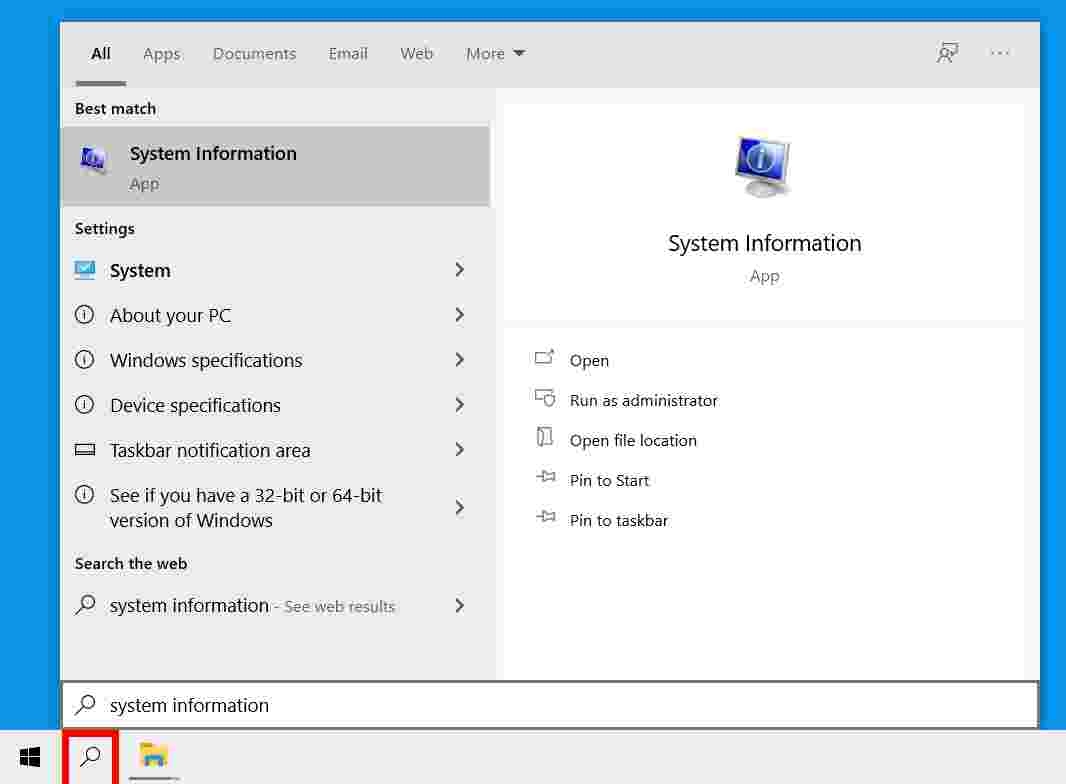
Type system information in the Windows search bar. Windows will load the search results before you even finish typing the search term.
Press Enter or click the system information application icon. The application icon System information looks like a computer with a blue screen with the letter “i” in the middle. Pressing Enter or clicking the application icon by default opens the System Summary section.
3. See the fields for Manufacturer, Product, and BaseBoard Version
How to Find Out Which CPU You Have
To find out which CPU you have, press Ctrl + Alt + Delete on your keyboard. Click on Task Manager and go to the Performance tab. You’ll find your CPU details on the top right side of the window, just above the CPU usage graph.
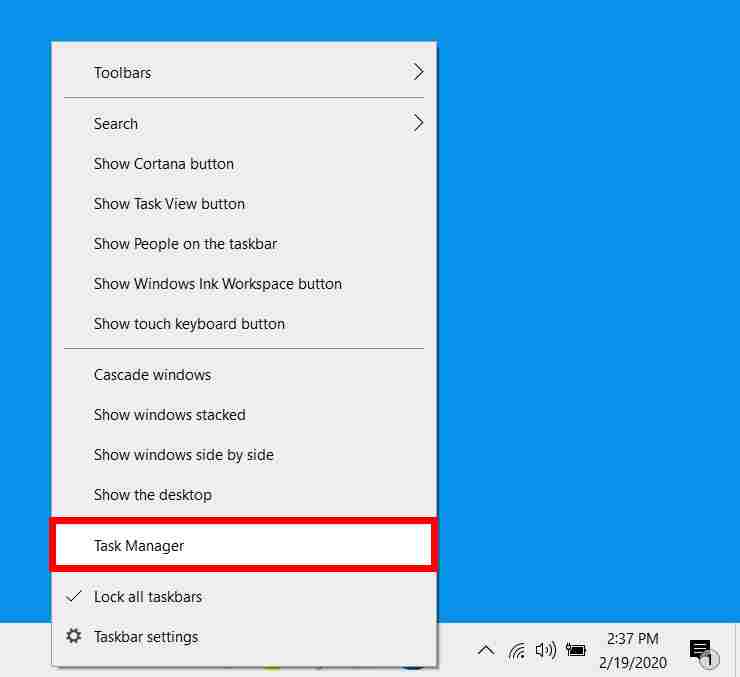
Right-click on your taskbar. This is the bar that’s always at the bottom of your screen.
Then select Task Manager. This will open the Processes tab, which contains a list of all your currently running programs.
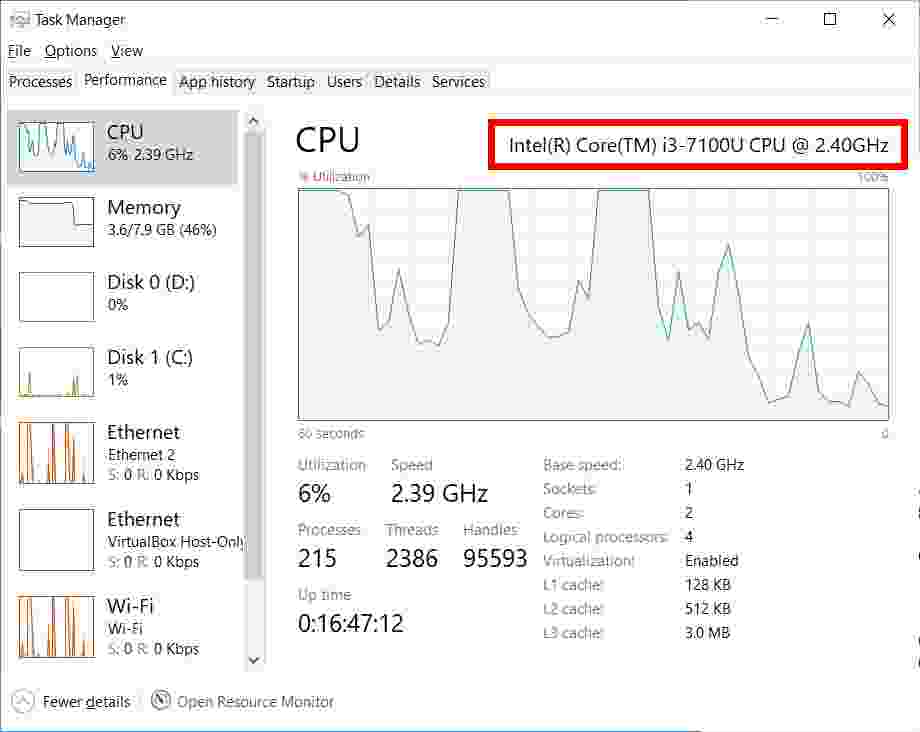
3. In the Task Manager window, open the Performance tab. If you don’t see the Performance tab, make sure to click More Details
4. Click on the CPU section in the left pane. This will make the selection highlighted in blue.
5. You will see what kind of CPU you have next to the word “ CPU ” in the upper right corner of the window.
Don’t forget to bookmark and always visit every day Technowizah.com because you can find here the latest Tech Computer Android games How-to Guide Tips&Tricks Software Review etc, Which we update every day.
5 Easy Ways to Activate Windows 11 Using Licence – Looking for how to activate Windows 11 with a license key? if yes you are in the right place, we took the time to make a step-by-step activation of Windows 11.
How to Activate Windows 11 Using Licence 2024
The reason is that many Windows users are still confused about the activation of Windows 11. Let’s say that Windows 11 needs a new license.
In fact, Windows 11 can still use the original Windows 7 and 8.1 licenses to activate without having to buy a new license.
For Windows 10, you also don’t need to worry because you can install Windows 11 with an operating system update via Windows 10 update Assistant.
Thus the Windows 10 license will carry over to Windows 11 and Windows 11 will also be activated automatically.
But for those of you who installed Windows 11 from the ISO installer, you need to activate the latest OS if your license is not embedded in the motherboard. For that, here are the complete steps:
Materials needed
Actually, you don’t need complex materials. Just prepare an original Windows 7, 8.1, or Windows 10 license.
For example, if you don’t have an original license, use an OEM or retail license purchased from an online marketplace.
#1. Copy Product Key
The first step you have to do is copy the product key. The product key is a special set of codes to activate the Windows operating system so that it becomes a full version.
Well, usually the product key that you bought will be sent to your email (if you bought a retail Windows license). Try copying the license code right now.
#2. Open the Settings Menu
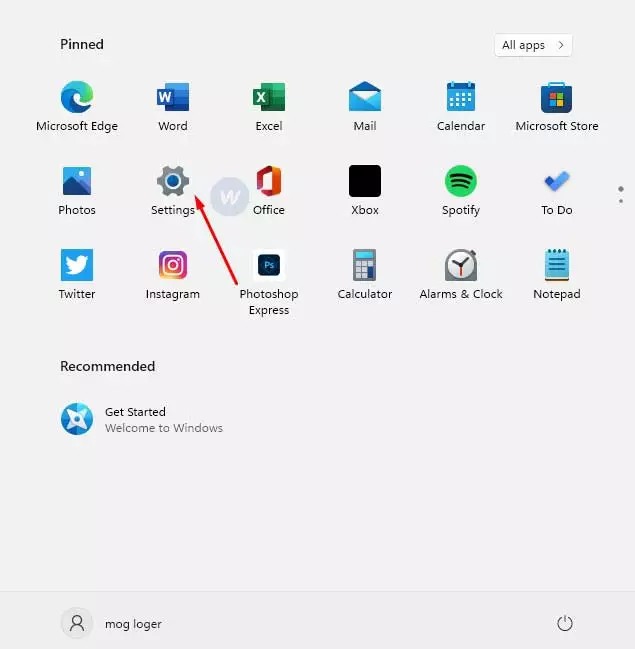
After copying the code, it’s time for you to go to a computer that has Windows 11 installed. Then go to Settings.
Generally, the Settings place is the same as in Windows 10, it is located in the Start Menu, and then press the button with the gear icon.
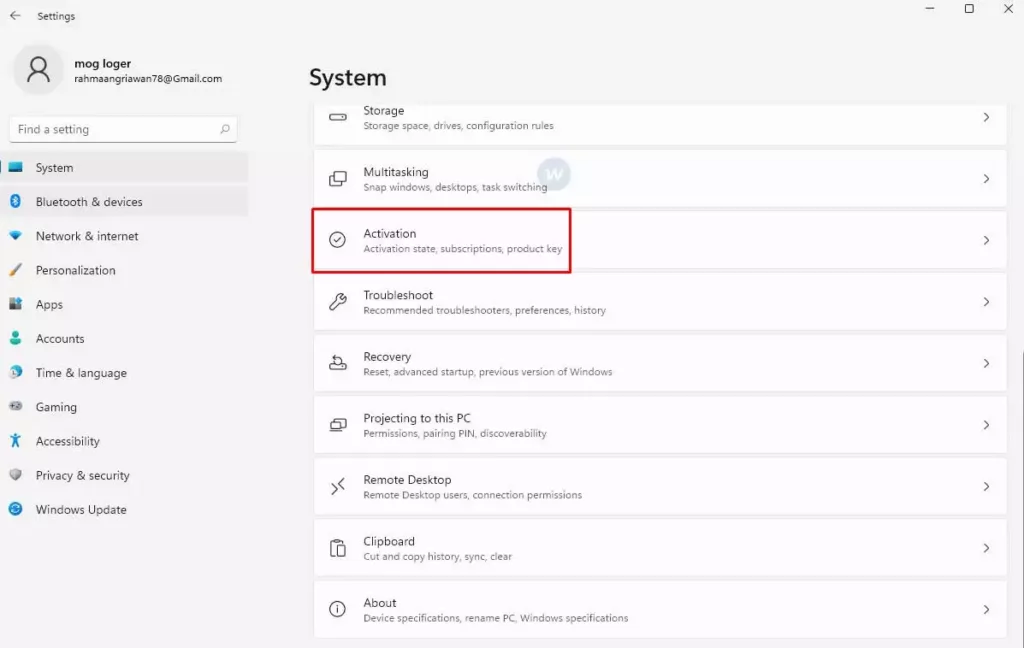
#3. Then Open “System”
The main appearance of Settings in Windows 11 is almost the same as in Windows 10. For that, now is the time for you to click the “System” menu.
#4. Click the Activation Menu
Next, you need to select the Activation menu. This menu is in the middle of the Windows 11 System settings window.
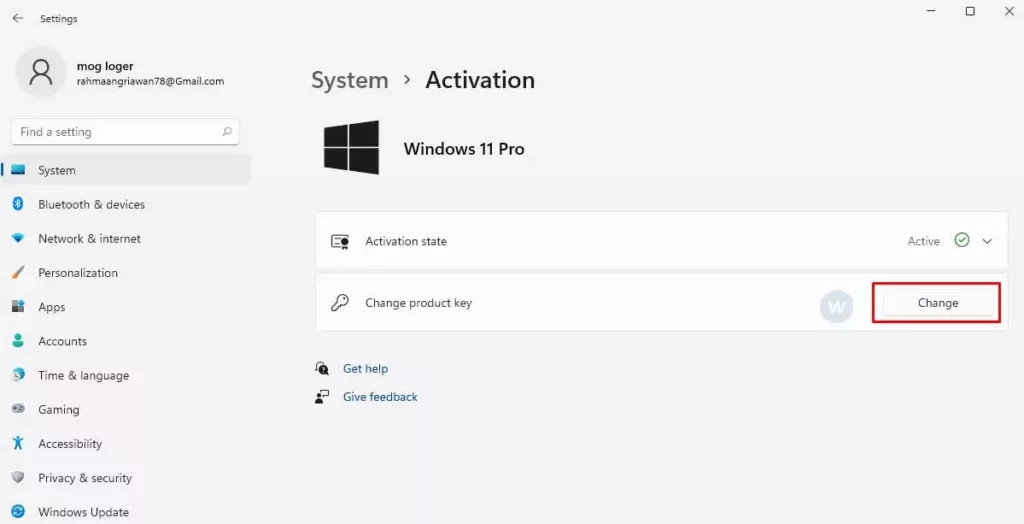
Then look to the right, there will be written “Change Product Key”, and click Change to start opening the activation window.
#5. Enter Windows License
This is the last step, where you simply paste the copied license into the activation window column.
Here Windows 11 activation requires internet access for the license verification process that you are using. So you need to connect your computer to the internet first.
After that click the Next button and follow the instructions given, it’s really easy!
Note: As a Windows fan and loyal user, you should avoid activating Windows 11 using pirated programs such as KMS Pico, KMS Auto-Lite, and so on. This is intended to avoid the dangers of ransomware threats.
Conclusion:
So, friends, this is an explanation of 5 easy ways to activate windows 11 Using a Licence, I hope this article will be helpful for you. If you have any questions regarding the discussion above, write questions in the comments column.
How to Fix ‘This copy of Windows is not Genuine’ – “This copy of Windows is not genuine” is one of the most common errors found in the Windows operating system.
How to Fix ‘This copy of Windows is not a genuine error
How to Fix Error This copy of Windows is not Genuine Error 2024
As a result of this error, the desktop wallpaper that you set will be changed to a black screen. The battery life will decrease due to this message will keep appearing on the laptop, and many other problems.
Some Windows 10 features will no longer work unless you clear this message.
These alerts can be very annoying, especially when working with important things and they appear periodically.
However, you can still do other things on your PC, like complete your work and use the computer as before.
The main reason your computer displays this error is that you didn’t activate your Windows license after the trial period was up.
You can also receive this error because the license of the Windows operating system you are using has expired, is blocked, or is unofficial.
In addition, if you share your Windows license with other people, such as friends or other family members, Microsoft can block your license as well.
This is because one license is used on many computers, or you activate the same license too often.
If you are seeing this error on your Windows computer, this post will give you tips on how to fix it.
“Windows is not genuine”: Here’s how to remove this warning
Method #1: Use the RSOP command
You can try to solve the error generated on your Windows screen via the RSOP method.
RSOP stands for Resultant Set of Policy Window, by following the steps below:
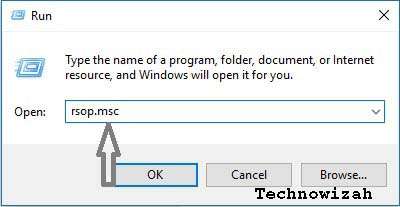
1. Press the Windows key and R from the keyboard to open the Run window. 2. Type rsop.msc and press the Enter key
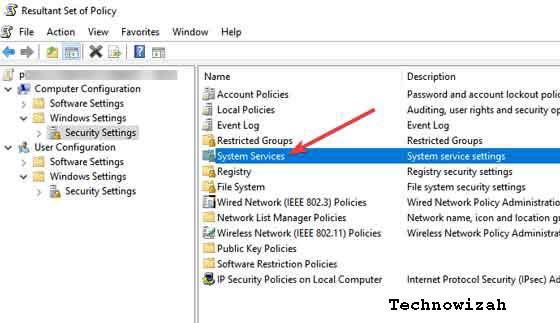
3. Navigate to Windows settings, click on the Security system, and then go to System services
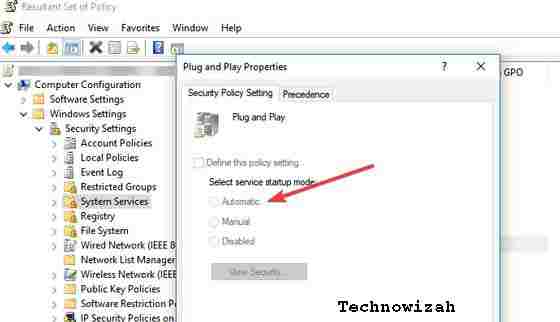
4. Look for the Plug and play service, then right-click on it and then start looking for Startup and then click on Automatic
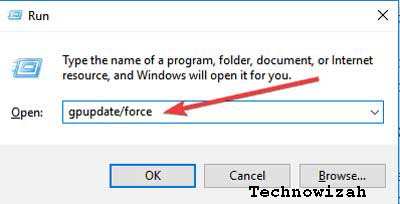
5. Press the Windows and R keys as in the first step, then type or copy and paste this command: gpupdate / force into the Run box
6. Restart your computer
Method #2: Use the SLMGR-REARM command
Using Command Prompt and these simple commands, you can fix this problem in 32-bit and 64-bit Windows, and in all versions of the Windows operating system:
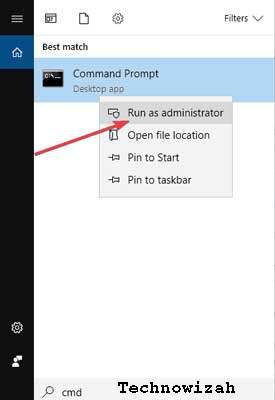
1. Run Command Prompt as administrator by clicking Start, typing cmd in the search box, and then right-clicking on Command prompt and selecting Run as administrator.
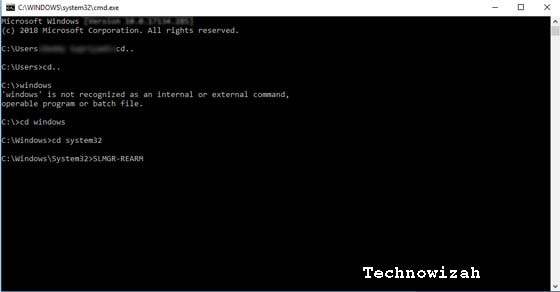
2. Type SLMGR – REARM or SLMGR / REARM
3. You will see a confirmation window, click OK and restart your computer.
Note: SLMGR is a Windows software license management tool. The REARM command will reset the machine license status.
Solution #3: Check if your license is legitimate and official
If you think you have purchased a genuine license, and it turns out that the license is fake, then you can report the problem to Microsoft, report the counterfeit software you have got, and see what happens.
You should also contact your vendor as Microsoft support in most cases will only help you solve the problem when you buy Windows OS from a Microsoft store.
Solution #4: Run the Microsoft Genuine Advance Diagnostic Tool
The Microsoft Genuine Advantage help tool provides detailed information about the Microsoft Genuine Advantage components and settings currently on your system.
You can diagnose and automatically solve the problem ” Windows is not genuine “.
Run this tool, copy the findings to your clipboard, and then send Microsoft a genuine Windows technical support request.
Download this tool, run MGADiag.exe, and click Continue for examination results.
There will be some useful information such as Validation Status which might tell you whether the product key is valid or not.
Or is the product key blacklisted by Microsoft.
You may also be notified if the LegitCheckControl.dll file has been tampered with in which case some form of error during your Windows installation has been detected. If there is a problem the tool can fix, click the Resolve button.
Solution #5: Uninstall Update KB971033 if you are using Windows7
The KB971033 update can be a source of trouble if you are using Windows 7.
If you get the message ” Windows is not genuine ” – “This copy of Windows is not genuine “, then this means that Windows has an updated file that can detect your Windows operating system.
Therefore, you need to uninstall and update KB971033 to resolve this problem.
Open the Control Panel
Go to the Windows update section
Click View installed updates
After all update installations are loaded, look for update KB971033 and uninstall it
Restart your computer
Solution #6: Turn off Automatic Update
To make sure that the ” Windows is not genuine ” message doesn’t return, make sure you turn off Windows Automatic Updates.
To turn off Windows Automatic Update, you need to:
Open the Control panel from the Start button
Go to the Windows update option
Click the Install Updates Automatically option and select Never check for updates (Not Recommended)
Click Apply to change the settings and restart your computer
Note: Your computer now never gets this error warning again. However, you can’t upgrade your Windows to the latest version to fix bugs or get new features.
Overall, we hope that the methods described above were able to help you fix the error message stating that your copy of Windows is not genuine.
There are many other methods you can apply, but most of them are not easy to follow. Also, to avoid such problems, you should not support and install a pirated version of Windows OS, and we recommend that you purchase an Authorized License from Microsoft.
Types of Linux Operating Systems and their Strengths – There is nothing wrong with getting to know various kinds of Linux operating systems with all their uniqueness and advantages.
Types of Linux Operating Systems and their Strengths
Types of Linux Operating Systems and Their Strengths 2024
The operating system is a program designed to manage hardware resources on a computer, and functions as a place to provide general services for software applications.
An operating system is a type of software in a computer system. Where without an operating system, users cannot run application programs on the computer, except for booting applications. The operating system also has systematic scheduling consisting of memory usage, data processing, data storage, and other resources.
Where the operating system here acts as an intermediary between software and hardware, and vice versa. However in its execution, the application code is usually executed directly by the hardware and will contact the operating system if the connection is lost.
Until now, there are quite a lot of different types of operating systems in circulation. Where each type of operating system has advantages and disadvantages so that users can choose which operating system is the best according to their needs.
What is Linux?
Linux is a UNIX-based operating system, one example of the development results of free software (Freeware) and open source (Open Source), the average Linux OS user is a programmer to create a program and also a developer to develop applications more easily.
Now in this article, Koneksia.com will discuss the various types of Linux operating systems along with their advantages and disadvantages, so that you can get to know the Linux operating system more clearly, including:
Advantages of the Linux Operating System
Linux can be obtained easily and even free (freely) without the need to pay a license and a user and can download Linux source code. Even if you want to see this OS you can because Linux is Free and Open Source Software, in other words, Linux can be developed by anyone.
In installing Linux, all hardware can be detected immediately and includes applications that support Linux OS. So that once installed, the application can be used immediately. Thus you no longer need to install other hardware drivers such as VGA, motherboard, chipset, and soundcard.
Linux also provides a fairly complete software collection, where this software is usually needed for desktops, laptops/notebooks, and PC servers. If during installation, the software is missing, the user can easily add the software via the repository that has been provided. However, some software on Linux requires installing several Windows applications on Linux such as Crossover and wine.
Linux is proven to be reliable and stable. This is the reason why many servers use Linux OS compared to other OS. Even after completing the system configuration, the user does not need to restart (warm boot)
Of the many types of OS (operating system), Linux is an OS that is safe against viruses, because besides the number of viruses on this OS is very minimal, Linux OS manages very tight security so that it will usually make the virus unable to operate/run on Linux OS This way, the user can immediately delete the virus easily via the delete button.
Linux also can do bug or flaw fixes very quickly. This is because Linux is developed by a Linux community, where the Linux community can provide suggestions and fix bugs or defects through documentation.
Many kinds of Linux have their characteristics and advantages. Make sure you choose the type of Linux that suits your needs.
Disadvantages of the Linux Operating System
Linux lacks support from hardware manufacturers in terms of controllers (drivers). So that requires Linux developers to create this driver control system.
Linux also lacks support from some gamers. So that when playing games on Linux, the game display is not full-screen.
Linux still has some software that can only run on other operating systems and there is no open-source replacement software on Linux OS.
There are various types of Linux operating systems, including Debian Linux (server OS), Redhat Linux (easy installation for beginners), and SuSe Linux (Linux OS that supports the Indonesian language programming language). For more details, see some of the Types of Linux Operating Systems below:
Types of Linux Operating Systems
#1. Red Hat Linux
If you are looking for a type of Linux operating system, the installation process is very easy to do. Then your answer is Redhat Linux. The RedHat Linux operating system is one of the oldest GNU / Linux systems, offering convenience, a fully graphical display mode from the time of installation, and being user-friendly.
The latest version of Red Hat is the RedHat Linux 9.0 Distribution, it is a stable version and fixes and improves system administration which comes with the latest desktop managers like KDE 3.1 and GNOME 2.2, and the latest applications such as GIMP 1.2.3 graphics, OpenOffice, KOffice, Diagrams, Multimedia applications Player, etc.
#2. Debian Linux
Debian is a type of Linux operating system that has been around for a long time since 1999 and continues to be developed regularly every year until now it has entered version 8.
If you are looking for an operating system that is suitable for server computers or for admin computers. So the answer is the Debian Linux operating system because this operating system is suitable if it is used as a server or admin computer.
This type of Linux operating system is less suitable for personal purposes because its function is more for use on server and admin computer systems.
#3. Ubuntu Linux
Ubuntu is a type of Linux operating system that is based on Debian. The difference is this Ubuntu operating system can be used not only on server computers and admin computers but also can and is suitable for use on personal or personal computers. The Ubuntu project itself is financed by Canonical Ltd (a company owned by Mark Shuttleworth).
Since then, Canonical has released a new version of Ubuntu every 6 months. Each release is supported for 18 months for the system, security, and bug updates. Every 2 years (version xx.04 with x even numbers) will get Long Term Support (LTS), for 3 years for the desktop and 5 years for the server edition.
Even the latest version is also conditioned for use on smartphone devices. Therefore, this type of Linux operating system is the most widely used of the various existing Linux operating systems. On October 31, 2011, Mark Shuttleworth announced that Ubuntu 14.04 would support smartphones, tablets, and smart TVs.
#4. Linux Mint
If Ubuntu was a development of Debian, then Linux Mint is arguably the grandson of Debian because it was developed based on Ubuntu. The Linux Mint operating system was developed for personal or personal (PC) use and is divided into 2 variants, namely CINNAMON and MATE.
CINNAMON is a Linux Mint OS that is more modern than Linux MATE, but the drawbacks are less stable than MATE Linux, CINNAMON Linux also doesn’t support many graphics cards on some computers or laptops.
#5. Fedora Linux
Fedora (formerly Fedora Core, sometimes also known as Fedora Linux) is a Linux distribution based on RPM and yum developed by the Fedora Project which is supported by the programming community and sponsored by Red Hat. The latest version is Fedora 24.
Fedora 24 is considered to have many advantages in terms of platforms and applications, such as the ‘Glitch-Free’ version for PulseAudio, the Security system, the Audit and Intrusion-Detection Sectool, and the PackageKit-Framework. Even so, Fedora has shortcomings, including updates that are not as regular as Ubuntu due to the type and development process.
#6. SuSE Linux
The SuSE Linux operating system is the most interesting and used in most European countries. Although it is widely used by some Europeans there. The appearance of a fresher design and ease of management make it an added value for this Linux operating system.
The SuSE Linux operating system can also use Indonesian as one of the language choices used in this computer operating system. With the choice of Indonesian, of course, it makes it easy to operate your computer.
#7. CentOS Linux
CentOS is an enterprise operating system built on the Linux framework. This CentOS operating system was first released in 2004 and is one of the largest and most popular among Linux users. CentOS can be used and is also developed for free, the CentOS operating system is not intended for beginners.
However, CentOS is intended for server users who have more knowledge, can use Linux, as well as users who can do computer programming, and also know the systems and applications that are currently running.
#8. Slackware Linux
Slackware is the oldest of all Linux operating systems, created by Patrick Volkerding. Slackware was originally a personal project, and in order not to get serious, Patrick named this project “slack” from the Church of SubGenius which means a state in which a person uses the least amount of energy possible to live.
Which are your favorite Linux Operating System Types? maybe interested in moving from Windows OS to Linux OS? or do you have your favorite distro choice that hasn’t been mentioned? please leave them in the comments!