10 Lightest and Best Android Emulators for PC and Mac – There are many reasons why someone would want to run an Android emulator on their computer. App developers may try to test their app before submitting it to the Play Store. Gamers may want to use a mouse and keyboard to play their games on a PC.
10 Lightest and Best Android Emulators for PC and Mac
10 Lightest and Best Android Emulators for PC and Mac 2024
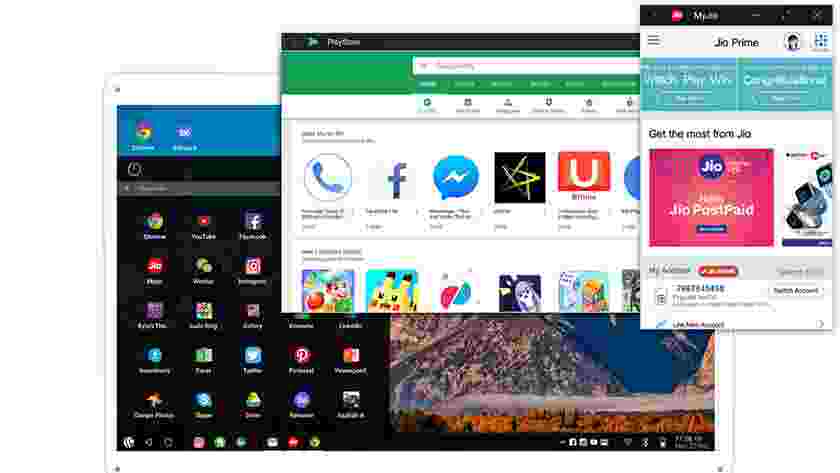
The Android emulator simulates an Android device on your computer so that you can test apps on a variety of Android devices and API levels without having to own a physical device.
The emulator provides true Android device feature capabilities. You can simulate incoming phone calls and text messages, set device locations, simulate different network speeds, simulate rotation and other hardware sensors, access the Google Play Store, and much more.
Three Main Functions of the Android Emulators
#1. Playing Games
Gamers can use emulators on their computers to make some games easier to play. They don’t depend on the battery life of their device and the presence of macros and other tricks aiding the process. In most cases, these little tricks aren’t illegal (in most games) so no one really matters. The best Android emulators for gaming are LDPlayer, Bluestacks, MeMu, KoPlayer, and Nox.
#2. Application test
Android app developers and game developers like to test as many apps and games as possible on their devices before they launch. Usually using the Android Studio Emulator. However, there are also other Android Emulators such as Xamarin and Genymotion which are also very good for application testing.
#3. Productivity
Any game emulator works as a productivity emulator to some extent. However, those with very specific use cases and a little knowledge can give ARChon and Bliss a try. Even so, in this day and age, we recommend going the Chromebook route if you want to run Android apps on a laptop or computer.
Lightest and Best Android Emulator for PC and Mac
#1. LDPlayer
Price: Free
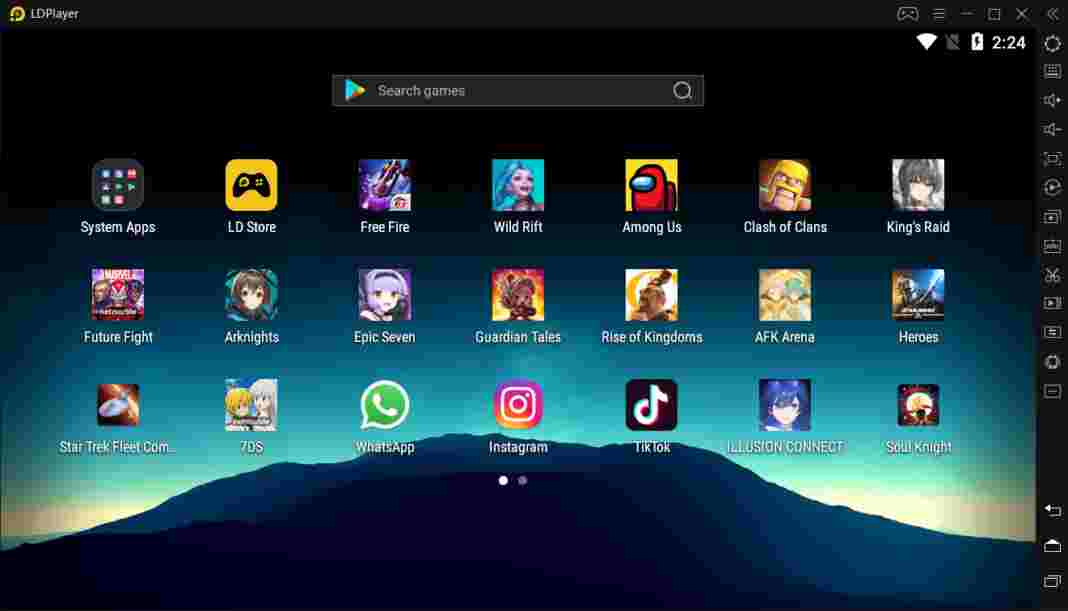
LDPlayer is an Android emulator that focuses on gaming performance. Running Android Nougat 7.1, LDPlayer features a variety of gamers-oriented features in general, such as good keyboard mapping controls, multi-instances, macros, high FPS, and graphics support. LDPlayer is one of the emulators on the list that is getting active updates to improve compatibility.
Apart from that, it supports a wide variety of games, including Garena Free Fire, Among Us, Clash of Clans, and many more. LDPlayer is also a complete emulator for users of TikTok, Instagram, WhatsApp, etc.
Android Studio is the default development console for Android. It comes with many tools to help developers create applications and games specifically for Android. As it turns out, there is also a built-in emulator that you can use to test your app or game. The setup is a bit complicated and can take some time.
So, this is not what we recommend for consumer-level use. However, developers can simply use this tool as an emulator to test their app. Android Studio also supports Kotlin if the developer wants to give it a try.
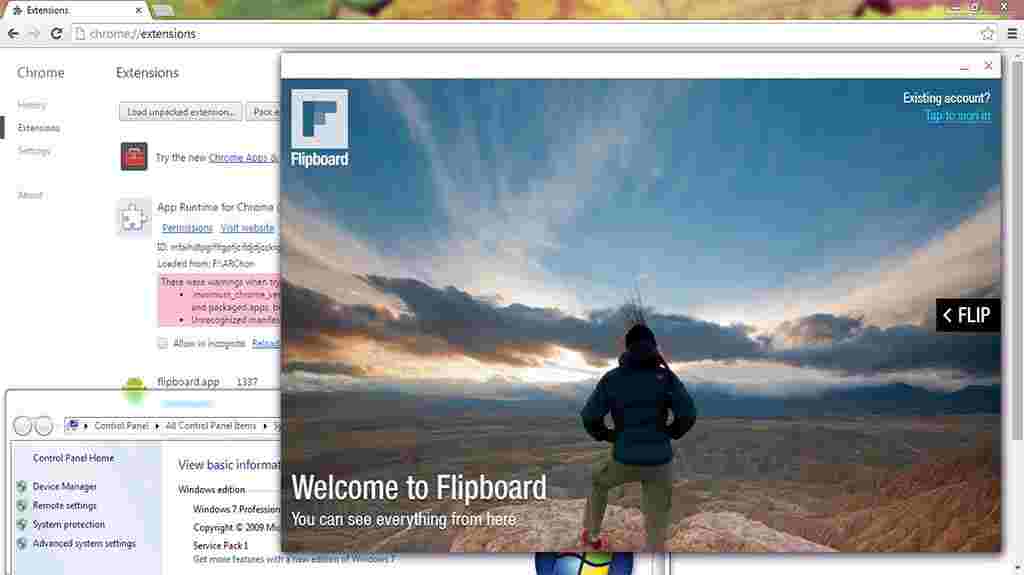
ARChon is not a traditional emulator. You install it as a Google Chrome extension, and then ARChon gives Chrome the ability to run Android apps and games (albeit with limited support). ARChon is not an easy emulator to run. You have to install it into Chrome. From there, you have to get the APK and load it.
In addition, you may need to use a tool to change the APK for compatibility. There are more ways to make this ARChon work than any other Android PC emulator. On the side of its advantages, ARChon works with an operating system that can run Chrome instances (Mac OS, Linux, Windows, etc.).
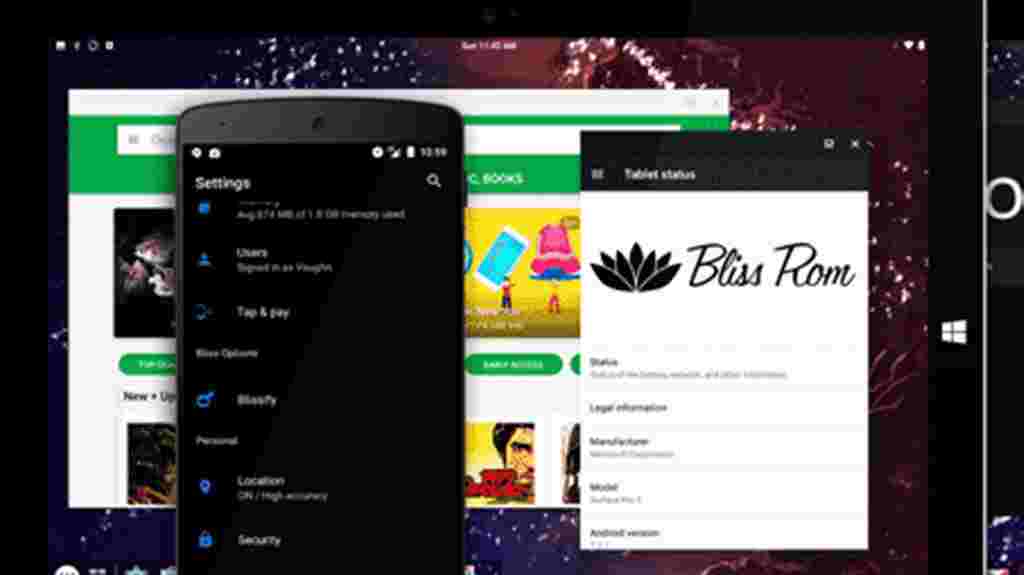
It is an Open Source OS, based on Android, that combines optimizations, features, and device support. Available for almost any Chromebook, Windows / Linux PC, or tablet released in the last 4 years
Bliss OS includes many options for customization and themes throughout the OS, custom options for large and small screens, speed performance and stability with tweaks, and battery-friendly usage. Additional security options and features are found throughout the OS. And AOSP security updates are merged regularly.
Bluestacks is the best-known Android emulator. Bluestacks is compatible with Windows and Mac, which works very well and still gets regular updates. This emulator targets mobile gamers. Bluestacks is one of the toughest emulators around, but it has the most features.
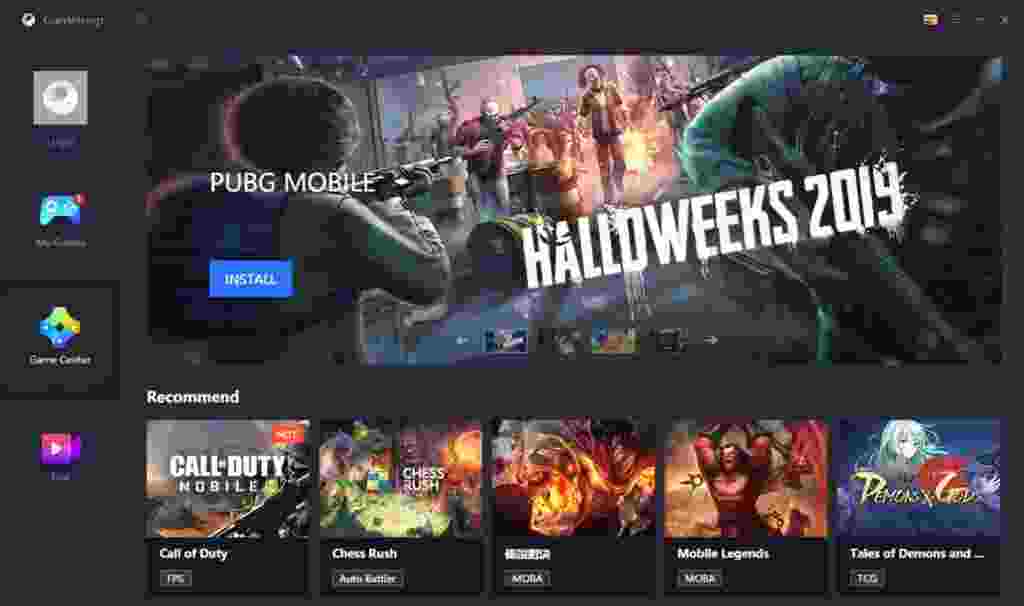
Of course, GameLoop features other games aside from Tencent’s, even if the collection isn’t as big as it should be. The emulator was downloaded and installed properly and the games tested ran smoothly.
This Android emulator is mostly for developers. Genymotion allows you to test your app on various devices without having to have one. You can configure the emulator for various devices with different versions of Android to suit your needs.
For example, you can run a Nexus One with Android 4.2 or a Nexus 6 with Android 6.0. You can also switch between virtual devices at will. Genymotion does offer services free of charge for personal use. The most useful feature is its availability on your desktop and cloud computers.
MEmu is one of the rising Android emulators that seems to be quite popular with gamers. One of its biggest features is support for AMD and Intel chipsets. Mostly work on AMD processors, but it’s nice to see developers paying particular attention to AMD platforms.
Apart from that, MEmu supports Android Jelly Bean, Kit Kat, and Lollipop. You can run multiple games or test features. MEmu is aimed at gamers like Bluestacks and other emulators and can be used as a productivity tool.
Nox is an Android emulator for gamers on PC. It features key mapping with your keyboard, controller support, and even the ability to map gesture controls.
For example, you can assign a function to swipe right over an arrow key and use it in games without actual hardware controller support. Nox works well is completely free and always updates the application to improve compatibility.
#10. PrimeOS
Price: Free
PrimeOS stands out somewhat in the Android emulator space and isn’t an emulator. You install PrimeOS as a partition on your computer and boot up running native Android. It’s a gamer-centric Android experience, although you can use it for productivity.
PrimeOS includes a game center, support for mice and keyboards, and access to Android apps and games. It runs almost like ChromeOS without all the Chrome parts. You can multitask, watch videos, or play games of your choice.
15 Best PSP Emulators for Android iPhone Windows PCLaptop – Gaming companies have produced games specifically for the Playstation, which are most often not available for Android.
15 Best PSP Emulators for Android iPhone Windows PC
15 Best PSP Emulators for Android iPhone Windows PC 2024
But now, you can enjoy PSP games on your Android phone, PC, or Windows. The new technology in the gaming area has introduced me to a new application, which refers to the PSP emulator.
You can easily run your favorite PSP games by using this best PSP Emulator 2021 on Android, PC, and Windows.
What is a PSP Emulator?
PSP emulator is to make your device platform transcribed to PlayStation for certain games or programs. That’s the job of the PSP Emulator, which allows you to enjoy PlayStation portable games on your Android device. Android, but the PSP emulator also works on PC and iPhone to play PSP games smoothly.
Before PSP Emulators were innovated, emulation tasks were handled by JPCSP, which refers to Java-based PSP Emulators with strong compatibility. However many buggy problems are found in this mimic program.
Also, it’s hard to run PSP games using it. That’s the reason the PSP Emulator has launched with a fresh start without any serious issues. Even using this technology is so easy that anyone can use it with just their Android or PC to run PSP games.
List of Best PSP Emulators for Android iPhone Windows 10 PC Laptop
Here, you will find the 15 Best PSP emulators 2022 for Android, PC, Windows & iPhone. I have chosen this emulator based on its compatibility to run the game smoothly on your device.
Most of the time, PSP games demand high-spec devices, especially ROMs. So, I tried to make a list of emulators that will be able to run the game more smoothly and graphically. So, take a look at 15 emulators to pick the best one for you.
#1. PPSSPP – PSP Emulator
The best PPSSPP emulator for Android, PC, Windows & iPhone 2022. To run all the interesting PSP games on your Android device, getting an emulator like this is quite difficult.
Easy to use with a hassle-free process. Also, it is free to download and use. But to get the premium version, you can use PPSSPP Gold.
Important Features
You can play PSP games that support the capabilities of your Android device.
This app is free.
You can convert your mobile game into ISO and CSO files using this app.
Using this app, you can save PSP games in your storage like an SD card.
Running PSP games using this application is very very easy and fast.
If are you looking for the best PlayStation PSP Emulator for Android, PC, and laptops in 2023, then give the PSPlay Emulator a try.
It is available on Playstore, and you can install and use it for free. Again, there are many useful features of this app. Apart from that, it is very easy to use on your updated Android device. I’ve added the specs for you.
Important Features
This app is better to ensure the best performance.
It increases the rendering capacity automatically.
It gives full control over the screen.
It provides a strong network system to support your gameplay.
Allows you to use hardware controllers supported by your device.
Playstore
#3. PSP Rocket Emulator
Emul World Limited has presented one of the Best PSP Emulators for Android 2022. It is a Rocket PSP Emulator. It’s free, and you can use it to run your favorite PSP games.
Even for many of its users, it’s good to have the same feeling on PlayStation PC games. However, you can keep an eye on the features of this app before making a decision.
Important Features
Advanced technology is used to ensure the best performance.
Lets you run PlayStation games without time and network issues.
It runs well on both low-end and high-end devices.
It includes ISO, CSO, and cool ROM formats.
It includes beautiful themes and sound effects.
Playstore
#4. DamonPS2 Pro
For those who don’t like to compromise and want to enjoy a full-function emulator, DamonPS2 Pro PSP Emulator is for them. To get all that, you have to pay a small amount of your money because this is not a free app.
But it’s also true that it works better than other free apps. The features included in this app may not be present in many of the familiar and best PSP Emulators for Android.
Important Features
This is the fastest PSP Emulator in the world.
It can run 90% of the total PSP games such as war games, racing games, and so on.
It is free from any kind of ads.
You can try it as a free trial for a few days.
You can use every cheat code and gamepad.
You can also use a PSP memory card to store your favorite games.
Playstore
#5. PSP Emulator Pro
Let’s meet another best & Lightest PSP Emulator for Android, which will always be your friend to provide a way to run your favorite PSP games. This is PSP Emulator Pro.
This application, with the most advanced technology, will allow you to enjoy almost all PSP games with a great system and network speed. If you are interested, you can take a look at the important features from the list below.
Important Features
Lets you play PSP games at very high resolution and speed.
It runs well on any updated smartphone and tablet.
This ensures a very high definition of game graphics.
Very few great games can’t run if your phone’s specs are lower than its interface.
All the essential features you need to have a great PSP gaming experience.
Playstore
#6. Rapid PSP Emulator
Now you can get or source PSP games from anywhere and play flawlessly on your mobile with Rapid PSP Emulator. It’s very possible to use, and best of all, it doesn’t clash with the game’s source files.
You don’t have to buy a PlayStation portable to run Sony’s premium titles. You can play almost all PSP games on your mobile device anytime from anywhere. It provides beautiful graphic rendering and comes with a simple interface for better accessibility.
Important Features
It supports many variations of game controller input and works with most 3rd party controllers.
You will rarely encounter compatibility issues with this app.
It delivers high-quality sound and stunning in-game graphics performance.
It supports all kinds of file formats and offers platform-based support.
It doesn’t natively include PSP ROMs, ISOs, and more, so you’ll have to download games manually for console devices.
Playstore
#7. PSP Emulator – Ultra Emulator for PSP
You can play PlayStation portable platform games on your mobile device, just like playing on PSP with PSP Emulator – Ultra Emulator for PSP.
It is one of the open-source applications with fantastic graphics performance. It supports almost all games but depends on your host device. The system interface of this emulator is easy to use with many useful features.
Important Features
It offers HD gaming performance and enhanced textures depending on the device configuration.
It lets you have the gameplay experience of a real PSP device.
It supports online gaming sessions and a lag-free gaming experience.
You can easily save and load your in-game progress.
It supports multiplayer options using Bluetooth connectivity and also supports dedicated game controllers for convenience.
Playstore
#8. PSP Emulator for Mobile Pro Version
If you want the perfect PSP-like gaming experience on your mobile device, check out PSP Emulator for Mobile Pro Version. It is free to use on Android devices and provides high-definition graphics.
You can adjust the graphics quality of the game if you wish. This emulator supports different ROMs for wide accessibility. It works with most external storage, such as sd cards on your phone and USB storage.
Important Features
You can control how you play and change the screen size of your DS in various modes.
It offers smart storage options and a fast game-loading speed.
This emulator offers excellent compatibility with a large number of titles.
You can play with any Android-supported game controller without any problem.
It does not consume much battery life and includes a battery-saving feature.
The sound and graphics quality of the games is comparable to the original device.
download
#9. PPSSPP Gold
Are you looking for a premium PSP gameplay experience on an Android device? Then PPSSPP Gold will be your perfect friend. It is an emulator with high compatibility and fewer system issues.
It comes with easy system navigation and a modern user interface. This emulator app comes with a lot of features and requires relatively low system resources. You have to buy it from Playstore to access it.
You will have an ad-free gaming experience and it supports almost all PSP games. You can also try the free version before upgrading to the gold edition.
Important Features
It offers smooth performance and a captivating gaming experience.
The user’s age rating is 3+, and the operation is widely accessible.
It supports an external SD card, and USB-accessible storage to save and access game files.
This emulator does not include ROMs and game files; You have to manage game files.
It offers console-like visuals and performance with zero system errors.
PSP GAME is one of the few PSP emulators for Android that comes with ready-made download ROMs and offline PSP games. You can download and play from any ISO game file. This app also allows you to download from its list of games.
It’s very easy to access the game collection. This emulator comes with a downloader. You can play downloaded games anytime, anywhere. It supports various PSP game ROMs.
Important Features
It supports the latest game titles.
You can make PSP games into ISO files and play them on this emulator.
External storage is supported, and you can access game ROMs via PSP GAME.
It supports original PSP games of all categories, such as arcade, action, sports, classic, and so on.
You can also download the Naruto Shippuden series, God of War series, and FIFA series in this application directly.
This emulator offers an excellent control system and supports Android gamepads.
download
#11. Enjoy Emulator for PSP
To turn your device into a real PSP console, you can also try Enjoy Emulator for PSP. This best PSP emulator 2022 includes the best functionality to emulate your favorite PSP games with high graphics and smoothness.
With this supported emulator app, you can easily download PSP games and run them too. Even the performance quality of these games with this emulator is very similar to the games you play on PS4 or PC.
Important Features
It can run ROM, ISO, CSO, COS, and PPS smoothly.
It will always save and restore the game state whenever you stop.
Provides high-quality sound effects and an audio system.
Includes stunning graphics and fps in most games.
It can emulate homebrew PSP in HD resolution and PSP games.
download
#12. Free PSP Emulator
The Best Android, PC & Windows PSP Emulators 2022 which you can try to enjoy your favorite PSP games are here. This is a Free PSP Emulator. It is also a very popular PSP emulator for your Android Phone.
The best part about this app is that it works for free, and won’t ask you to pay a penny for each activity. You can play games with high-quality graphics and sound effects if you start using this app. Also, you don’t have to worry about how to use it. There is a guide on how to use this emulator, available here.
Important Features
This emulator app can play more than 90% of PlayStation games.
This will restore and save the game state and start again from where you left off.
You do not need the PSP BIOS to run this application.
It includes multi-threading acceleration.
You have to enter the PSP iso image of the PSP game you want to play.
Download
#13. Sunshine Emulator for Android
If you want to enjoy the best gaming speed on your favorite PSP games, you should try Sunshine Emulator for Android. This best Android PSP emulator 2022 is very good for running PSP games on any platform device.
At the same time, it will help you to enjoy the game with the most smoothness and graphics. If you want to learn more about this game, you can take a look at its features. This will help you learn about the game properly.
Important Features
It provides sound quality, which is almost the same as the sound of games on the PlayStation.
The most satisfying graphics and visual effects are also provided here.
It includes very smooth game controls.
It can save and load games from the exact place you stopped.
It is easy to use and all additional information on how to use the emulator is given in it.
Download
#14. Emulator for PSP Games
Another option for you is Emulator for PSP Games. It’s also fast to use to run most of the popular PSP games on Android devices.
Running games on your device using this app is easy. The exact instructions are also mentioned so you can do it yourself. Also, the game speed and sound system are satisfactory for users of this emulator.
Not all of these apps can help. The following features are also very important in the case of this emulator.
Important Features
It is capable of emulating thousands of PSP Games.
It provides the fastest and smoothest gameplay.
The performance is good enough for both high and low-spec devices.
It also supports PSP Homebrew.
It delivers huge fps on a variety of powerful PSP games.
Download
#15. Gold PSP Emulator
The latter is the Latest and completely free PSP Emulator for Android devices. This is PSP Gold Emulator.
Now you can achieve incredible performance with the satisfying graphics and sound system of the most popular PSP games with this emulator.
Also, it’s a good idea to save and restore game stays so you can start where you left off. So you don’t have to worry about how it works with the emulator.
You can play and enjoy high-definition games just like you would any other Android game.
Important Features
It includes high-definition game graphics and visual effects.
Able to run games with 3D effects.
It provides a vest game controller.
Fastest game speed and high-quality sound effects.
Easy Network System and able to save the state of gaming.
This is the explanation of the 15 best PSP emulators for Android iPhone and Windows PC, which you can use to enjoy your favorite PSP games. This emulator is great for providing the best quality gaming experience and graphics.
At the same time, you will enjoy the most satisfying sound effects. If you want to enjoy the most premium service, you should try PPSSPP Gold. But using Enjoy Emulator for PSP and PPSSPP will also be a good choice.
6 Ways To Fix Microphone Not Working Windows 10 PC – Initially, a microphone (or microphone in English) was used to amplify the human voice to be heard in front of the public.
How to Fix Microphone Not Working Windows 10 PC
How to Fix Microphone Not Working Windows 10 PC Laptop 2024
The earliest loudspeakers were called megaphones, but today, microphones are used to record voice, provide voice recognition features, and talk to friends, family, and colleagues using various apps and devices.
Most modern computers and laptops have built-in microphones so you don’t have to connect additional devices to your computer.
Despite the popularity of microphones, many users have had problems with them – the microphone doesn’t record sound, doesn’t make a sound, can’t use Skype and other similar apps, etc. This issue became more common after the Windows 10 Creators update was introduced.
Various reasons cause a microphone’s technical problem (either internal or external): the wrong driver has been installed; problems with the Windows operating system; hardware problems, etc.
First, make sure the microphone hardware is functional and not damaged. Connect the microphone to another computer. It would be even better if the other computers were not running the same version of the Windows operating system.
For example, if you are using Windows 10, we recommend that you test your microphone on a computer running Windows 7, and so on. If the microphone does not work when connected to another computer, the microphone itself may be damaged.
If possible, connect a different microphone to your current computer and see if that works. This will help you determine if the problem is with the computer or microphone. If you are using a desktop computer and an external microphone, try plugging it into the backport of the computer. In some cases, the front ports don’t always work.
If you have tried to connect your microphone to another computer and it is working which means the problem is with your computer, then please read the guide below to find out how to fix microphone problems. These steps also apply to laptop computers with built-in microphones.
fix the Microphone not working Windows 10
Well, my fellow Windows users here, I will spoil you with 6 solutions to fix if the Microphone on your Windows doesn’t work.
Please try one of them and hopefully, one of the following solutions will solve your Microphone problem.
Solution # 1:Run the Windows Troubleshooter
Windows includes a Troubleshooter or troubleshooting feature that is designed to quickly diagnose and automatically solve various computer problems.
The Troubleshooter is not designed to fix all problems, but it can provide a report on the cause of the problem, so it’s a good place to start if you encounter problems with your computer or operating system, including microphone problems.
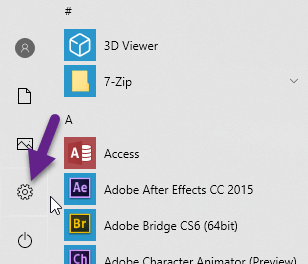
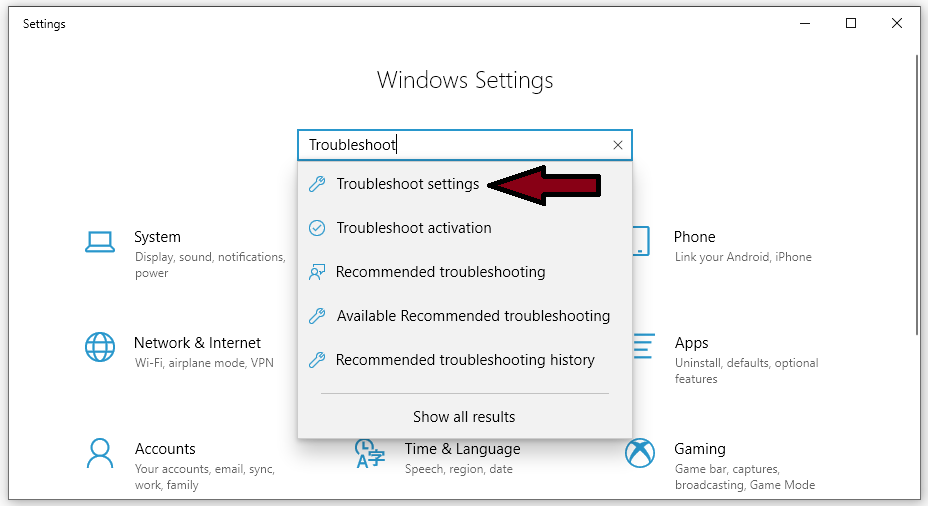
To start the Troubleshooter, go to Settings type in “Troubleshoot” and select “Troubleshooter Settings” from the list.
Run the Windows TroubleshooterTroubleshoot Settings
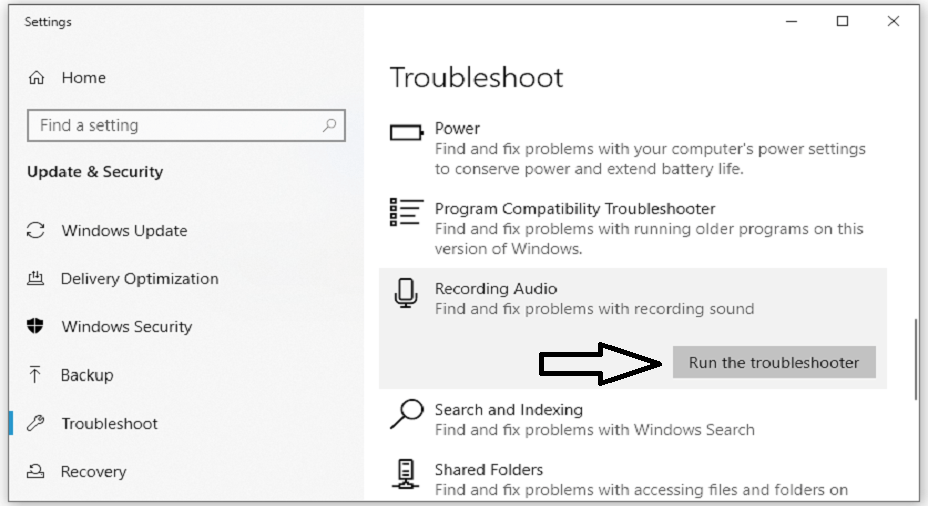
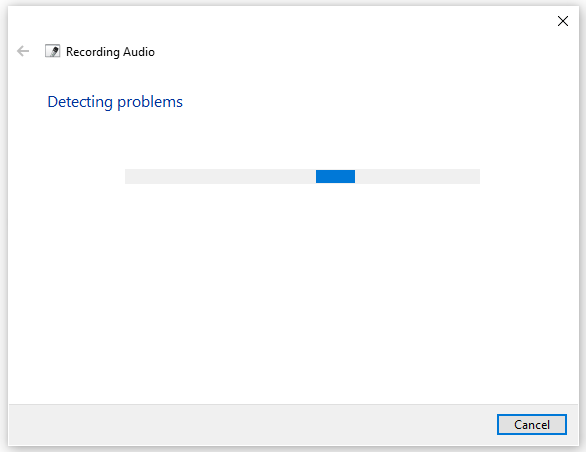
Find “Recording Audio” underneath it says “Find and fix problems with recording sound” and select it. Click “Run Troubleshooter” and follow the instructions.
Run The Troubleshooter-Recording Audio WindowsRun The Troubleshooter-Recording Audio Windows
See if the Windows Update Troubleshooter can solve the problem with the external or internal microphone. Additionally, run the “Speach” Troubleshooter.
Solution # 2: Make sure the Microphone is Enabled
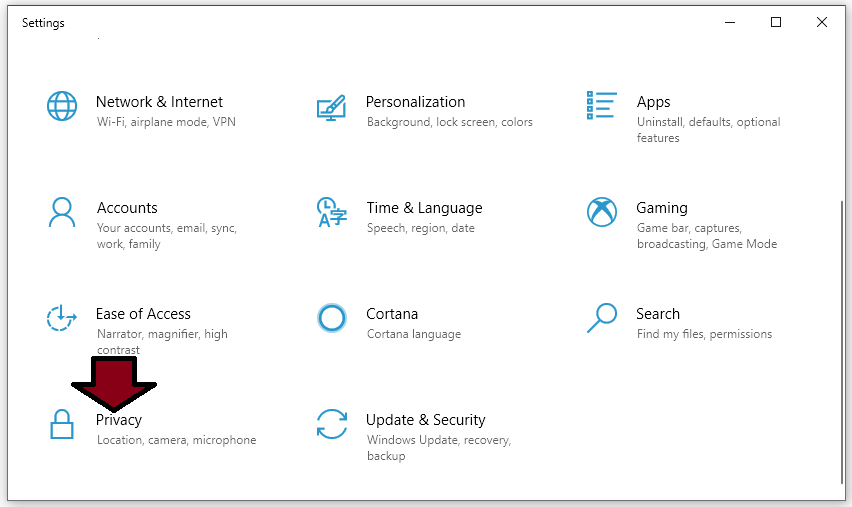
Make sure your microphone on the Windows 10 operating system is enabled. It might just be turned off – this is the reason why it doesn’t work. To see if it’s enabled in Windows, go to Settings, find, and click on “Privacy”.
Settings-Privacy
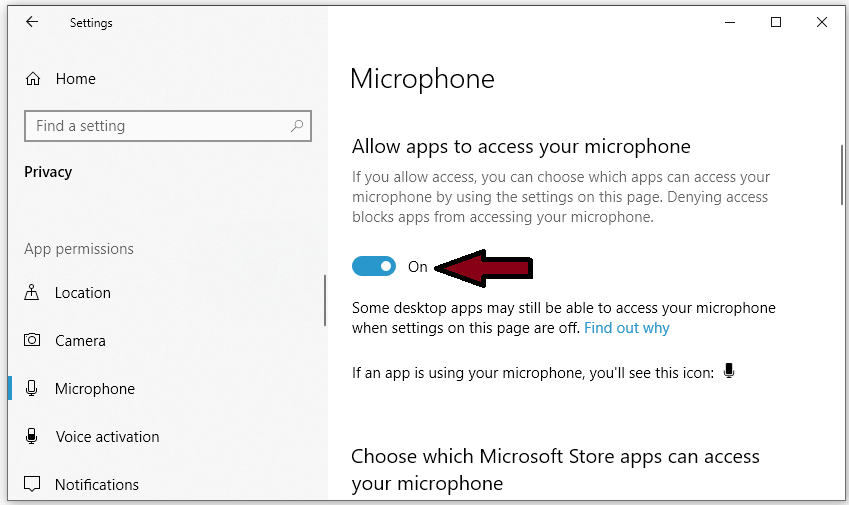
In the Privacy Settings window, find and select the “Microphone” section in the left pane. Make sure that the switch under “Let apps use my microphone” or “Allow apps to access your microphone ” is in the “On” position. If you are using the microphone with a particular application, check if you are giving that application access to the microphone. Find the application in the list and check if the switch has been switched to the “On” position. See if this solves the problem with the microphone.
Microphone On
Solution # 3: set your microphone as the default device
If an external microphone is connected to your computer, this doesn’t mean it’s set as the default device – you may need to do this manually.
Physically connecting your headset to a PC running SmartSDR for Windows is the first step. Now to turn it into the Windows default playback and recording device the way is as follows.
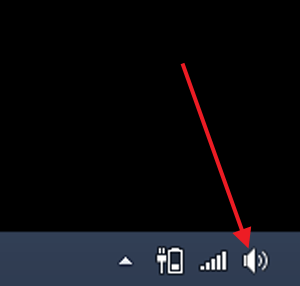
The simplest and fastest way to change your microphone device is the same as in Windows 7 and Windows 8. x. Find the Sound icon in the notification area (lower right corner of your screen) and right-click or press and hold.
icon Speaker
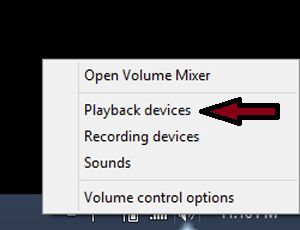
You will see a menu offering several options: Open Volume Mixer, Playback devices, Recording devices, Sounds, and Volume Control options.
Select Playback Devices to open the Sound Control Panel.
Playback Devices Windows Microphone
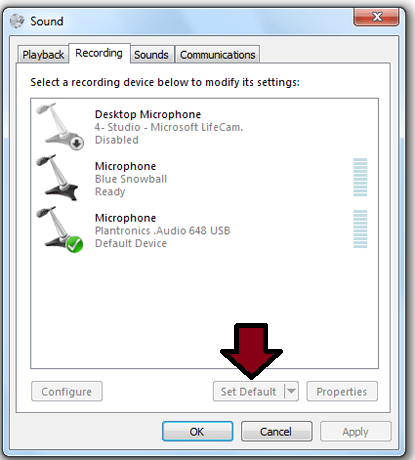
Open the Sound Control Panel, as described above, and click on the Recording tab. Here you will see any audio devices you have that can be used as a microphone.
Again, your current default device is marked with a green checkmark. Select your Microphone and click Set Default.
Microphone and click Set Default
You can select (click) on any available device, then select Set Default. When you’re happy with your new choice, click OK, and you’re done.
Solution # 4: make sure the microphone is not muted
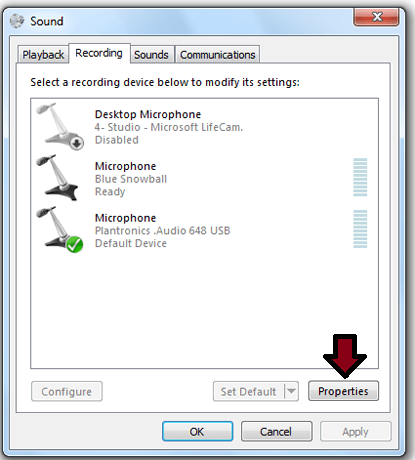
Another reason for the ‘microphone problem’ is that it is simply turned off or the volume is set to a minimum. To check, right-click the speaker icon on the Taskbar and select “Recording devices”. Select the microphone (your recording device) and click “Properties”.
make sure the microphone is not muted
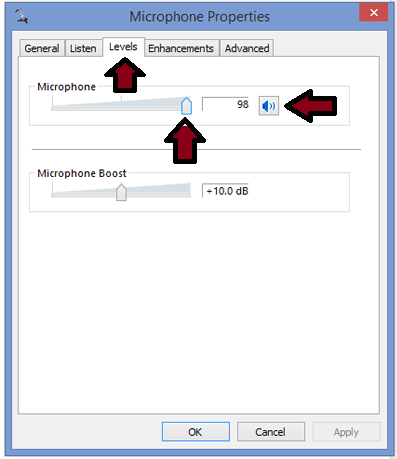
In the Microphone Properties window, click the “Level” tab and make sure that the speaker icon doesn’t have a red mark next to it and that the volume is set to 100. Check changes if needed and click “Apply”. See if the microphone problem persists.
Unmute Microphone Windows 10
Solution # 5: Reinstall or update your Microphone driver
A device driver is software that provides information to the Windows operating system and other software about how to interact with certain hardware on the computer.
Drivers act like translators between software and hardware because they are often made by various manufacturers, companies, or individuals. Drivers allow software and hardware to communicate smoothly.
In most cases, the computer can’t send and receive data properly without drivers. If the appropriate driver is not installed, the device may not function properly.
You can try to remove the driver and then let Windows reinstall the driver automatically, or you can try to update the driver manually (or try both methods).
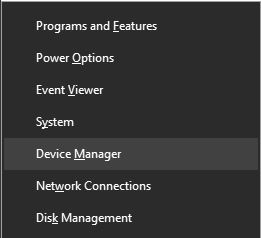
To reinstall the Microphone driver, press the Windows logo + X on the keyboard and select Device Manager
Device Manager
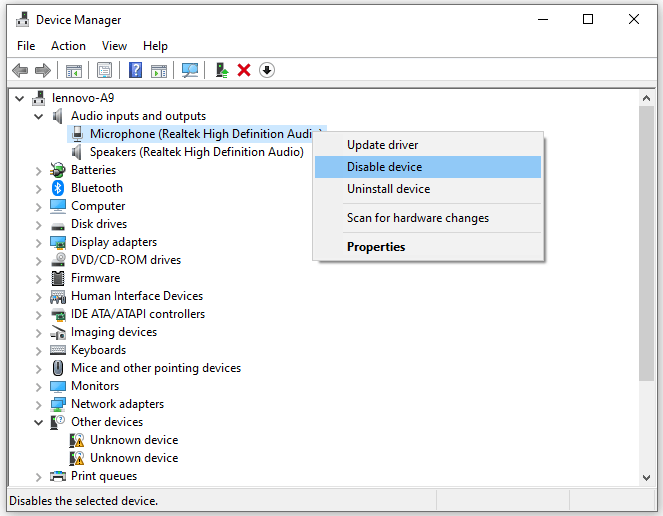
In the Device Manager window, double-click “Audio Input And Output” (or click the arrow) to open that section. Right-click the recording device (your microphone) and select “Uninstall Device” from the contextual menu.
Disable Device Micrphone Windows
Restart the computer and Windows will reinstall the missing drivers.
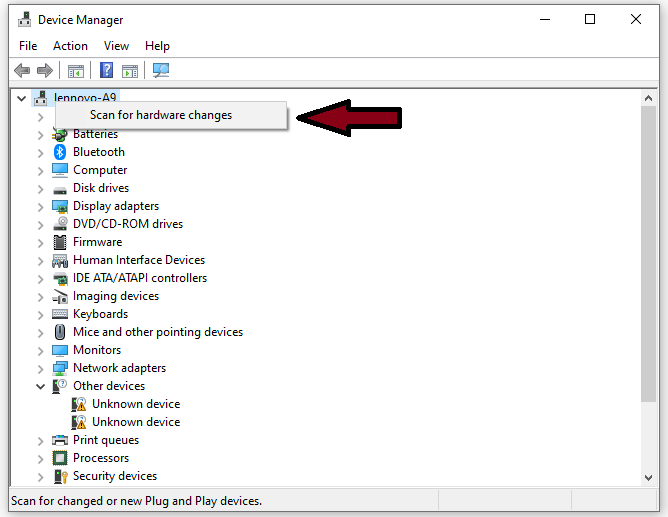
If for some reason Windows fails to reinstall the drivers, you can force the system to reinstall by going again to the Device Manager and right-clicking the computer name (it should be first on the list). Select “Scan For Hardware Changes” and Windows will install the missing drivers.
Scan For Hardware Changes
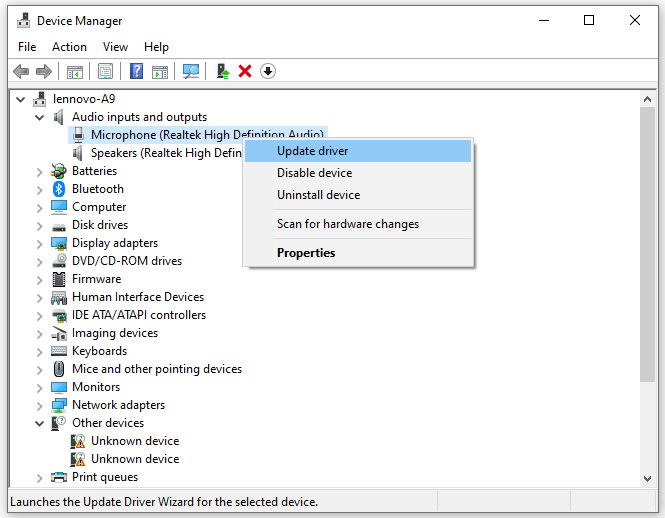
If you wish to update your driver manually or automatically, right-click the recording device in Device Manager and select “Update driver” from the contextual menu.
Update Driver Microphone Windows
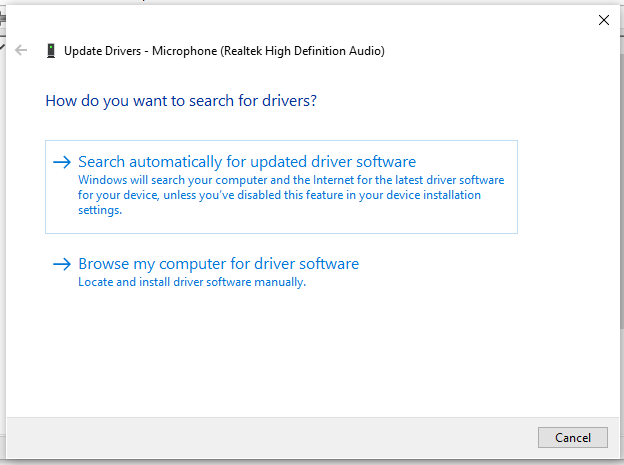
You will be asked if you want to search for the automatically updated driver software or search your computer for driver software. If you choose the first option, Windows will search your computer and the Internet to find the latest software for your Microphone.
If you choose the second option, you will have to manually locate and install the driver. To use this option, you must have the drivers downloaded earlier to your computer or a USB flash drive.
USB flash drive
Another way to update or install a new driver for the microphone is to do it using third-party software such as Snappy Driver Installer. You will need a computer with a working internet connection to download it.
Snappy Driver Installer (SDI) is a powerful free driver updater tool for Windows that can save its entire driver collection offline.
Having offline drivers gives Snappy Driver Installer the ability to have access to fast driver updates, even if there is no active Internet connection on your computer.
Snappy Driver supports Windows 10, Windows 8, Windows 7, Windows Vista, 32-bit, and 64-bit, and also works with Windows XP.
Drivers will be downloaded via Snappy Driver Installer in ‘driverpacks’, which is a collection (package) of drivers for various hardware devices such as sound devices, video cards, network adapters, etc. It can also display duplicate drivers and invalid drivers.
Solution # 6: Restart Windows Audio Service (Windows Audio Service)
Windows services (also known as services.MSC) are used to modify how Windows services (services) run on your system.
This service is responsible for running the available programs and managing many system settings and resources. You can change service settings for security, troubleshooting, and performance-related reasons.
Windows Audio Service manages audio for Windows-based programs. If this service is stopped, audio and effects devices will not function properly. If disabled, any services that depend on it will fail to start.
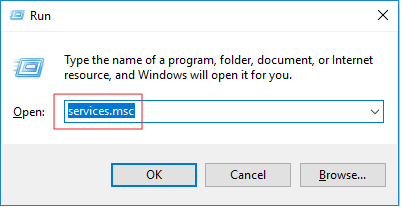
To restart the Windows Audio service, press the Windows key + R on the keyboard or type run in Search and click the “Run” result to open the Run dialog box. Once open, type services.MSC and press Enter on your keyboard or click OK.
services.MSC
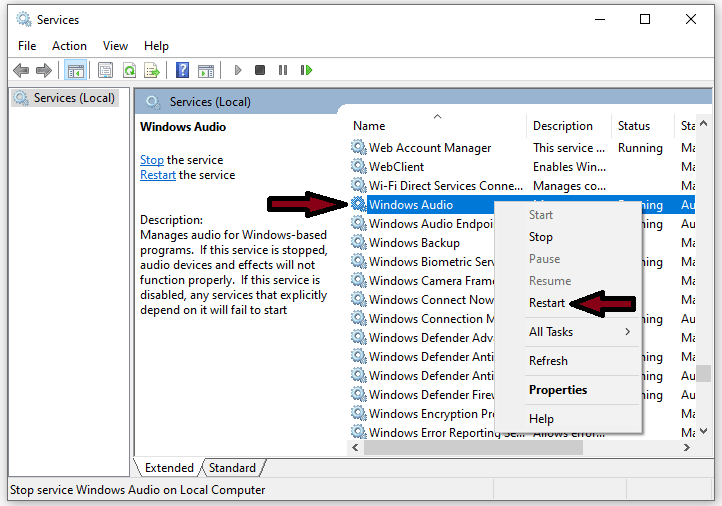
In the Services window, you will see a list of Windows services. Find the “Windows Audio” service and right-click it. Choose “Restart” from the contextual menu. Alternatively, you can select “Stop” and then right-click again and select “Start”. Check if this solves the microphone problem.
Windows Audio Restart Microphone
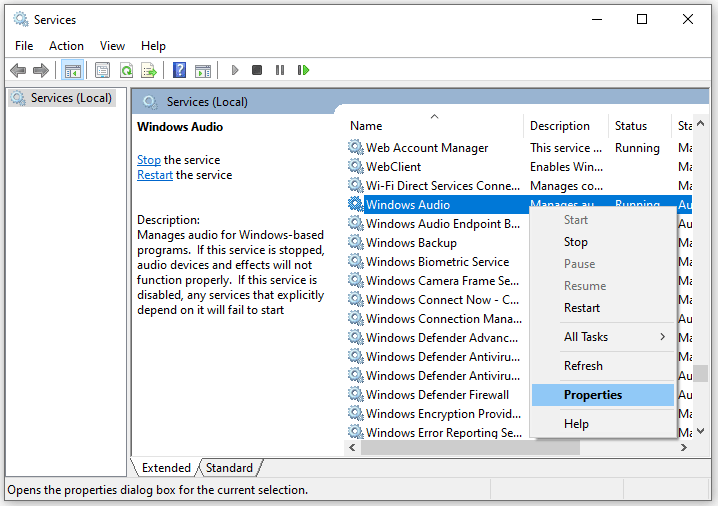
If that doesn’t work, right-click the “Windows Audio” service and select “Properties” from the contextual menu.
Windows Audio Properties Microphone
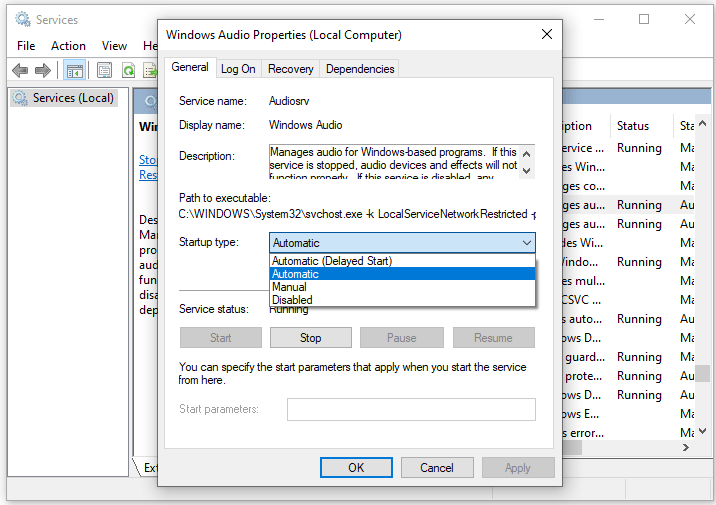
In the Windows Audio service properties window, check if “Startup Type” is set to “Automatic”. If not, set it to Automatic and click “Apply” to save changes. Restart the computer and see if this solves the problem.
So, friends, that’s on above how to fix a microphone not working Windows 10, I hope the above set of solutions was helpful and that you were able to resolve the problem with your microphone. If you are aware of another method that resolves this issue, not mentioned in our guide, please share it with us by leaving a comment in the section below.
6 Ways To Best Secure Your Windows PC Laptop – While Microsoft tries hard to ensure its users’ security, all its Windows versions are vulnerable to cyber threats. This is because this operating system is designed more for ease of use rather than security.
How to Best Secure your Windows PC
How to Best Secure your Windows 10 Laptop PC 2024
Hackers continue to exploit unique vulnerabilities only present in Windows PCs, making Windows the most hacked operating system worldwide. Even Windows 10, the most secure version with vastly improved firewall, antivirus, and disk encryption features, is still at risk.
The good news is that most of these threats are relatively easy to protect. It only takes a few steps to ensure your PC is safe and secure. But first, here are some of the risks affecting PC users.
#1. Malware
Malware (Malicious Software) comes in many forms and can cause tremendous damage to your computer. The various forms of malware include viruses, Trojans, and worms, among others. Malware is a collective term used to refer to any software invented to cause harm to a computer network server.
#2. Spam
While most spam is always considered harmless, some may come with links that can install venomous software on your computer in case you click on it.
#3. Phishing
Nearly all successful cyberattacks start with a phishing scheme. Phishing schemes come disguised in many forms; it can come as an email from your bank or service provider, with the main aim of luring you into clicking some links or attachments and asking you to confirm personal information, account details, or passwords.
While most phishing attacks are associated with emails, hackers are now employing other methods like phony apps, text messages, social media quizzes, and phone calls to trick unsuspecting victims.
How you Can Protect your Devices
#1. Always Keep Your Software Up To Date
Keeping your Windows and other software up-to-date is a simple but effective way of protecting your device from hackers. Running on old and outdated software is risky as it provides a backdoor for hackers. Unfortunately, many users are operating on old software versions, and hackers have an easier time exploiting the same susceptibilities for years. Windows 10 updates automatically as long as you are connected to the internet.
#2. Use a Firewall
A firewall is meant to monitor both incoming and outgoing traffic from your network, and in the process, blocks incoming traffic from dubious locations. This way, malicious files, and hackers will not be able to invade your system through your internet connection. You can access Windows’s built-in firewall through the control panel or go for any of the third-party options that are extra powerful.
#3. Use a VPN to Remain Anonymous Online
By using a VPN, you’ll be able to hide your location through an encrypted tunnel and keep your browsing private. That means anyone trying to track your internet activity will only see the IP of the VPN server. VPNs are particularly important when using free public Wi-Fi networks as they are more vulnerable to hacking.
Windows PCs face a lot of threats, but the good news is that with a little tweaking of your system, you are able to keep the bad guys away. Use the above tips to keep your Windows PC safe and secure.
4 Ways To Activate Office 2016 Permanently Offline – How to activate Microsoft Office 2016 can be done in 4 easy things and you can do it with or without additional software. Check out the full story!
How To Activate Office 2016 Permanently
How To Activate Office 2016 Permanently on Laptop PC 2024
Microsoft Office 2016 requires activation so that this program can be used smoothly on a computer or laptop.
If you install Office 2016 but don’t activate it, then many tools cannot be run and will hinder your work, of course.
There are several ways to activate Microsoft Office 2016 which of course can be done simply. Doing this activation can use additional software or no software at all.
This depends on which one you want to try. Check out the following how to activate Microsoft Office 2016 and follow the steps carefully.
#1. Activate Microsoft 2016 with KMS Office 2019
Activation requires a product key. But usually, the price is expensive, therefore many people choose the freeway.
The freeway is to use the activator software tool, this time with KMS Office 2019. Using this tool means you activate offline. Check out how:
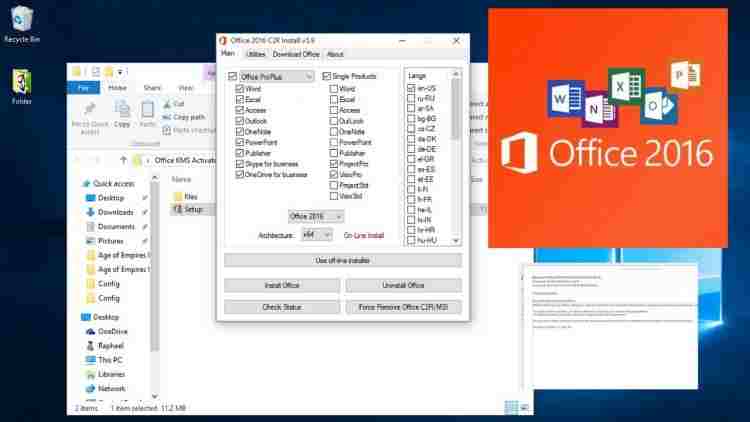
Make sure you already have the KMS Office 2019 software on your laptop or computer.
If you don’t have it, download it first, then extract the KMS Office 2019 file.
After extracting it, there will be a folder with the file name OInstall.
You can run the file as an administrator.
After the KMS office 2019 window opens, you will be at the Main Window and click Utilities. You can put a checkmark on the checkbox.
Convert Office 2016 to automatically change to Volume License. Wait for the conversion process to complete, there will be a notification that the conversion is complete.
Click on the Activate Office section so you can buy Microsoft Office 2016 activation.
When the Windows Security Alert window appears, click Allow Access.
You just have to wait for the process to finish and be successful. Then it will appear that the activation process has been successful and Office 2016 can be used with the help of the Office Activator.
#2. Activate Microsoft Office 2016 with KMS Auto Lite
You can get the Office 2016 activation code with the following activator tool. You can use KMS Auto-Lite and it’s easy too.
First, turn off the internet or antivirus on your computer or laptop.
Download KMS Auto-Lite, and when finished, extract the files from the application.
Open the KMS Auto Lite folder, then there will be two choices of options according to the Hindu architecture you have. KMSAuto X64 for Windows 64-bit and KMS Auto for Windows 32-bit.
Create the KMS Auto Lite application as an administrator.
Please do the office 2016 conversion to get a Volume License.
Return to the main page by selecting it and clicking Main Window.
Then do the GVLK installation and checklist on Forcibly. You can click the Office Key and enter the office product key.
Wait for the process and a notification will appear from Key Installed Successful on a blue screen if the process is successful.
The last step is to just activate Office 2016. Later when the activation is successful, a success notification will appear.
#3. Activate Microsoft Office 2016 with KMS Pico
Product Key Office 2016 Crack can also be done with KMS Pico. It is also an activator tool.
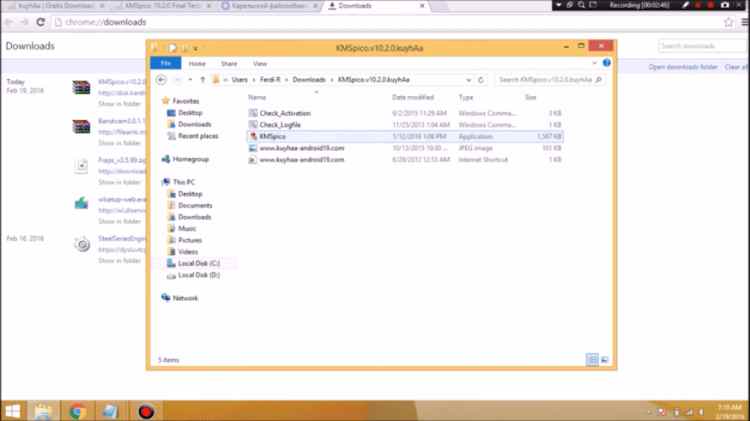
Make sure the KMS Pico software is already on your computer or laptop. If not, download it first, and usually, the download is in the form of a .rar file, then you have to extract it.
After the file is extracted, then open the KMSPico.exe file. run the file as administrator.
Later the Extracting window will automatically appear and the activation process will be carried out immediately.
If the activation process is successful, the activation window will disappear automatically.
Indeed, more people use KMS Pico, because it’s easier and the activation process can be done automatically without any other commands.
After the activation process is complete, you can immediately go up and try to open one of the Microsoft Office applications and prove whether all the tools there can be used.
#4. Activation of Microsoft Office 2016 Without Software Assistance
The last one is how to activate Office 2016 without software. The trick, of course, is to buy a key office product first at a retail store or the official Microsoft Store Indian website. This is certainly not fail-safe.
First, install Microsoft Office 2016 on a computer or laptop. This Microsoft Office is compatible with Windows 7 to Windows 10.
You can choose Microsoft Office, for example, Excel 2016.
Then open the program, later the program will not open and you will be directed to enter the 2016 office product key.
Enter the product that you bought earlier in the Microsoft Office packaging box. you can also get information from your Office account
Later, if the product key is known, then you can immediately install it by clicking Install.
The activation process will begin immediately.
Later a dialog box will appear and you can select Accept.
after that, there will be a notification that the Microsoft 2016 activation process has been completed.
The activation process can permanently store the documents you work on directly on OneDrive. This storage feature will also appear in every Microsoft Office 2016 program that you have.
Disclaimer: All forms of download files on the Technowizah.com site are just for educational purposes only.
DMCA: Technowizah.com complies with 17 U.S.C. * 512 and the Digital Millennium Copyright Act (DMCA). Our policy is to respond to any infringement notices and take appropriate action. If your copyrighted material has been posted on the site and you want this material removed, Contact us.