Category: Windows

Windows – Here you can find Computer-related updates Windows 10, Windows 8, Windows 7, Linux, technology information, and more.

  • 7 Ways to Optimize RAM on Windows 10 PC 2025

    7 Ways to Optimize RAM on Windows 10 PC 2025

    7 Ways to Optimize RAM on Windows 10 PC – RAM is important for us to be able to multi-task, so take a minute to make sure RAM is running at its best.
    7 Ways to Optimize RAM on Windows 10 PC
    7 Ways to Optimize RAM on Windows 10 PC

    How to Optimize RAM on Windows 10 PC

    Random-Access Memory (RAM) is very important to make your computer work effectively. RAM has a very high read-write capability, which allows it to store all processes simultaneously on the computer.

    Read more:

    Faster and better RAM is essential to improve system multi-tasking. For that, you must know how to optimize the RAM of a Laptop or PC. Because well-optimized RAM can improve system performance and make it more responsive.

    Let’s take a look at some ways to efficiently optimize your Laptop or PC’s RAM and produce maximum performance or performance from your computer.

    #1. Track Memory Used And Run the Cleanup Process

    Unnecessary background processes are one of the main causes of high RAM usage. Therefore, the easiest and most efficient way to optimize your RAM is to track memory usage and eliminate unnecessary processes.

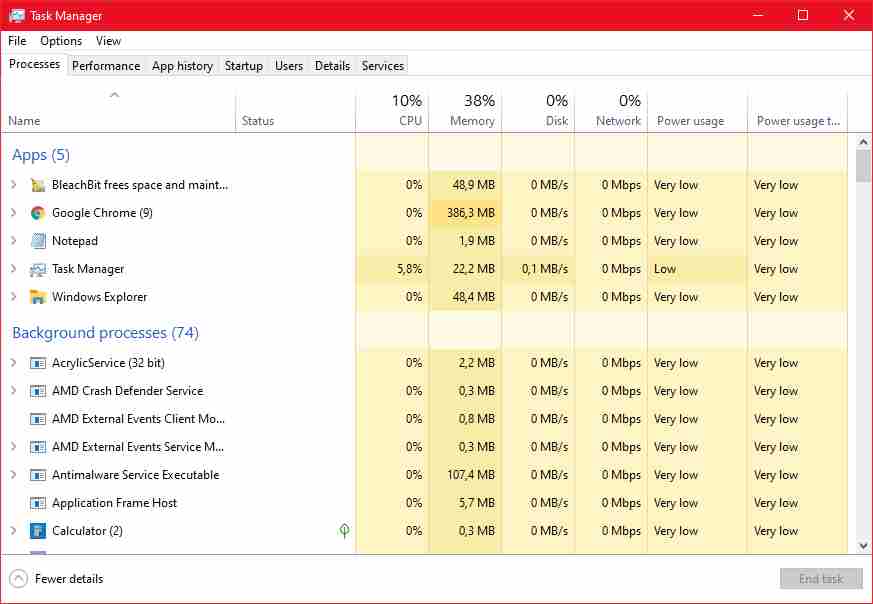
    You can track memory usage using the Task Manager in Windows. Task Manager shows a comprehensive evaluation of parameters like Memory Usage, CPU Usage, Network Usage, and GPU Usage of every process running on your machine.
    Track Memory Used And Run Cleanup Process
    Track Memory Used And Run Cleanup Process

    To access the Task Manager, right-click on the Taskbar in your Windows OS and select the Task Manager option. Or, you can use the shortcut Ctrl+Shift+Esc to open the Task Manager automatically.

    Scroll through the Task Manager to end any seemingly unnecessary tasks. However, be careful, because there are some processes that you should never end or kill.

    #2. Disable Unwanted Startup Programs
    Disable Unwanted Startup Programs
    Disable Unwanted Startup Programs

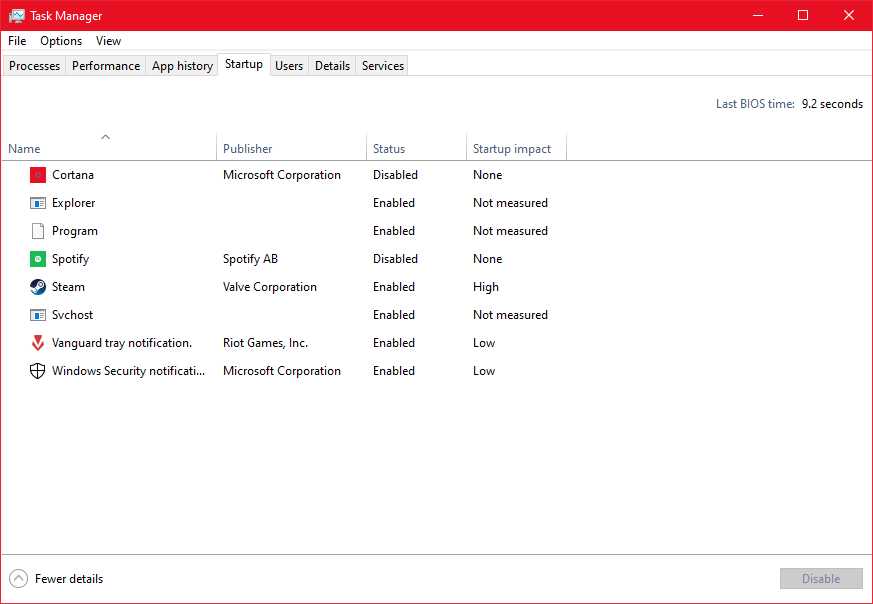
    Some programs run as soon as the computer boots up. Startup programs can drain memory resources, even if you don’t use them. It is best to disable unwanted programs to make the computer run faster, especially after boot-up.

    In Windows, you can disable startup programs by accessing the Task Manager and opening the Startup tab. This tab lists all startup programs and their impact on your system memory. It would be better to consider disabling all startup programs that are significantly affecting memory.

    #3. Use Other Browser Applications
    Use Other Browser Applications
    Use Other Browser Applications

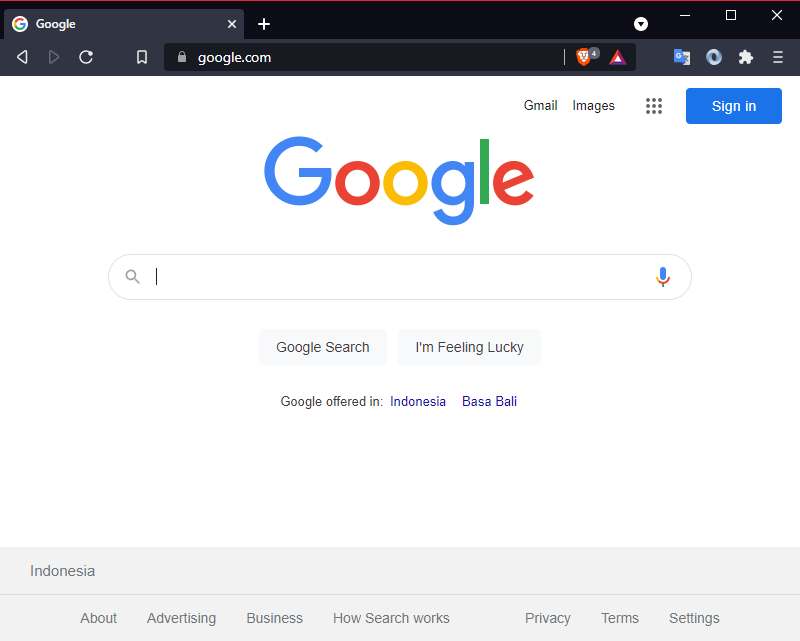
    Google Chrome comes with many features that make it popular among millions of users worldwide. However, not many people know how Chrome consumes your system resources every time it is used.

    Chrome can quickly drain your RAM resources, especially if you are using 4GB/8GB RAM. You should consider changing your browser, especially if you access the internet via Chrome.

    Light browsers like Opera, Midori, Vivaldi, and Light are great alternatives to heavier Chromium-based browsers. You can also consider Microsoft Edge as it greatly improves RAM optimization after switching to a Chromium-based version.

    #4. Software Updates
    Software Updates
    Software Updates

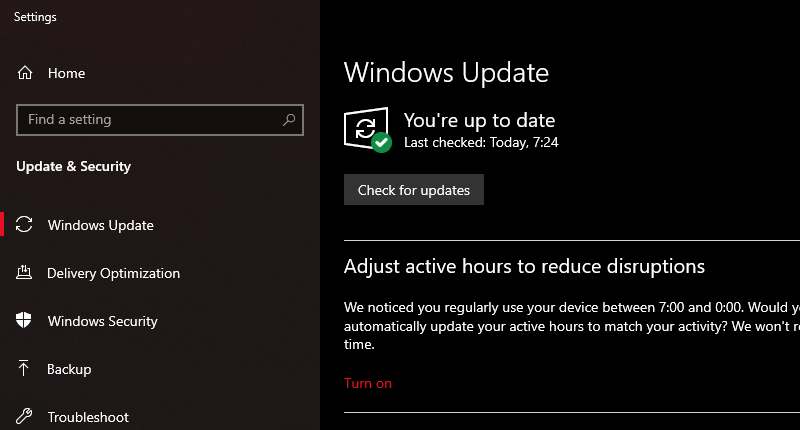
    Most software companies provide better RAM optimization by frequently updating their products. This applies to all types of software, including operating systems such as Windows. It would be better if you consider updating all the programs installed on your device to achieve the best memorable experience.

    Also, make sure to install all minor and significant Windows updates as they can increase performance massively. You can also enjoy new features by continuously updating the software.

    #5. Use the MSConfig Menu

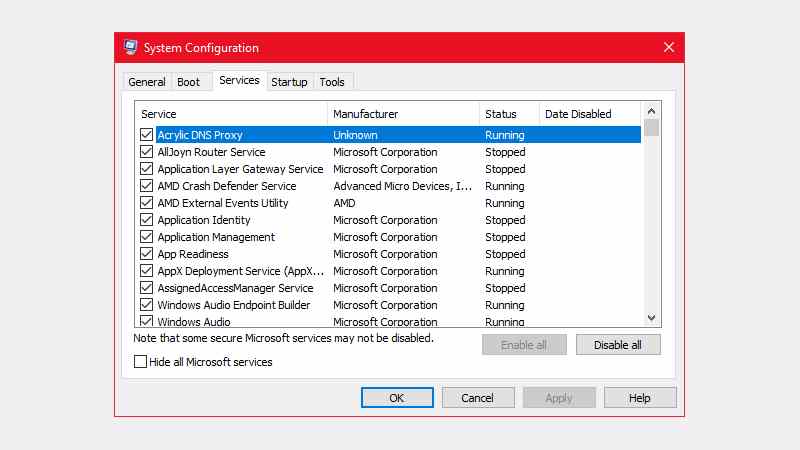
    Third-party applications run their system configuration services in the background. This process consumes a lot of valuable RAM capacity and slows down the computer. You can disable all third-party services using the MSConfig menu.
    Use the MSConfig Menu
    Use the MSConfig Menu

    You can access the MSConfig menu by searching for MSConfig in the Run Window. After accessing it, the system configuration tab will open and show all running services.

    This list also contains some important Microsoft services, so be sure to check the Hide all Microsoft services button before continuing. Removing all third-party services can cause unexpected errors, for example, so it’s best to remove them one at a time.

    #6. Set Virtual Memory

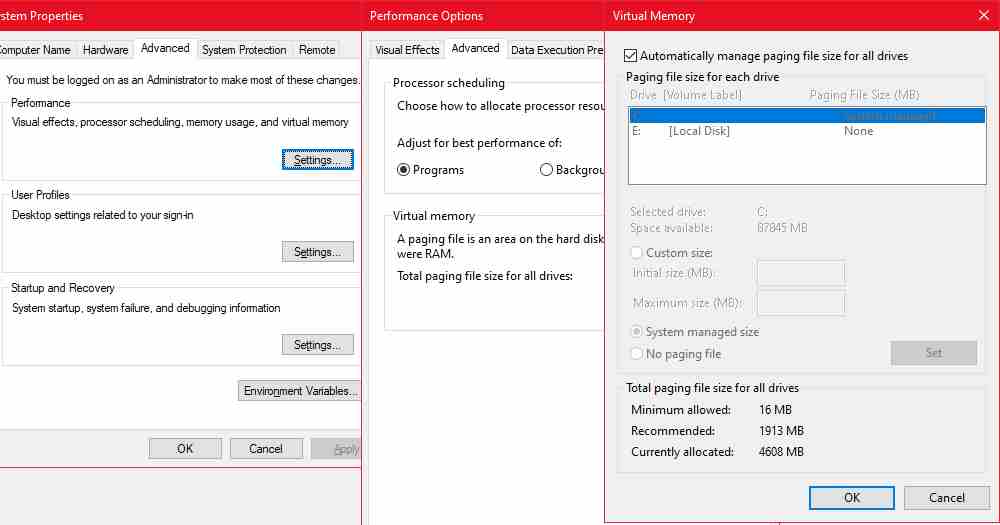
    Windows offers a feature to use your disk space as a memory storehouse, especially when RAM is being used. This feature is known as virtual memory or page file.
    Set Virtual Memory
    Set Virtual Memory
    1. Go to  Settings > System >  About,  and select  Advanced system settings.
    2. Under  Performance,  select  Settings.
    3. Now, switch to the Advanced tab and select  Change under the Virtual memory section.

    The virtual memory window will appear. You can check the Automatically manage paging file size for all drives option, and Windows will automatically handle the virtual memory size. You can also set the values ​​you want under the Initial size and Maximum size columns.

    The amount of virtual memory that can be used depends on your system. So using too much virtual memory can cause the system to slow down, and important information moves from super-fast RAM to too much slower storage memory, even if you are using an SSD.

    #7. XMP/AMP Profile

    Your computer may be limiting the maximum clock speed of RAM. However, you can take advantage of every bit of RAM capability using the Intel Extreme Memory Profile (XMP) or AMD Memory Profile (AMP).

    You can boot into the BIOS and enable the XMP or AMP profile. Configuring the XMP or AMP profile pushes the RAM to run at a higher frequency, and automatically adjusts the voltage required to overclock this.

    Why Not Use a RAM Optimizer Software?
    Why Not Use a RAM Optimizer Software
    Why Not Use a RAM Optimizer Software

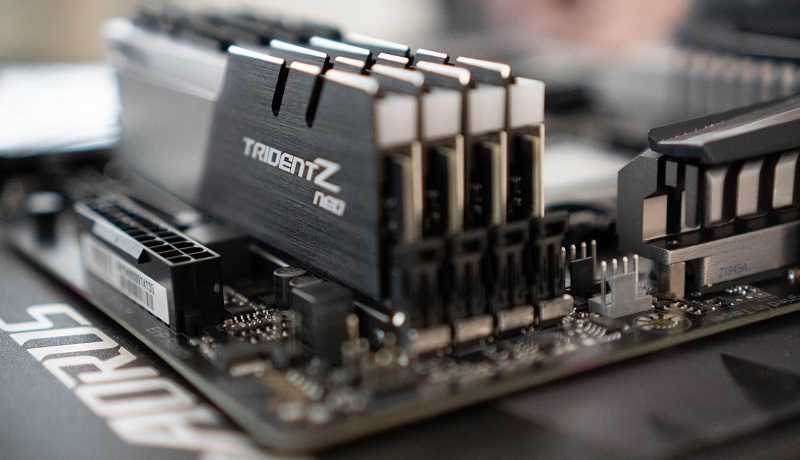
    RAM optimizer software markets itself as a solution to all memory-related problems. But such software often slows down the system while freeing up RAM.

    RAM optimizer software calls what is known as the “EmptyWorkingSet” Windows API and forces running applications to use the Windows page file instead of the actual RAM.

    This frees up quite a bit of space on your RAM, but the computer gets relatively slow when Windows starts using the page file. So it will feel useless even if you use RAM booster software.

    Read more:

    Conclusion:

    So that’s how to optimize the RAM of a laptop or PC. Low memory systems can face various problems like frequent system crashes, intermittent experiences, unexpected crashing apps, and many more. All of these can make the computer difficult to use.

    RAM optimizers are the best option for optimizing memory, but they are often counterintuitive. We recommend that you consider optimizing RAM using the simple methods listed in the article.

  • 5 Ways To Fix Laptop Touchpad Not Working on Windows 10 [2025]

    5 Ways To Fix Laptop Touchpad Not Working on Windows 10 [2025]

    5 Ways To Fix Laptop Touchpad Not Working on Windows 10 – The touchpad is a component of a laptop that plays an important role in replacing the mouse. So when the touchpad doesn’t work, it must be very annoying right? But take it easy, you don’t need to take it to a repairman, the article is about how to repair a laptop touchpad you can do yourself.

    5 Easy Ways To Fix Laptop Touchpad Not Working
    5 Easy Ways To Fix Laptop Touchpad Not Working

    How To Fix Laptop Touchpad Not Working on Windows 10

    Problems related to a non-functioning touchpad can be experienced on laptops of any brand. Whether it’s Asus, Acer, Dell, Toshiba, axioo, Lenovo, HP, and many others.

    Read more:

    There are also many types of ways to deal with a laptop touchpad that can’t work. The reason is, the touchpad is an error so it cannot be used due to several different factors.

    You don’t need to worry if the touchpad suddenly can’t be used. No need to take it to a laptop repairman, because you can even fix it yourself easily.

    here are 5 methods to deal with a touchpad that is not working.

    #1. Touchpad Driver Update

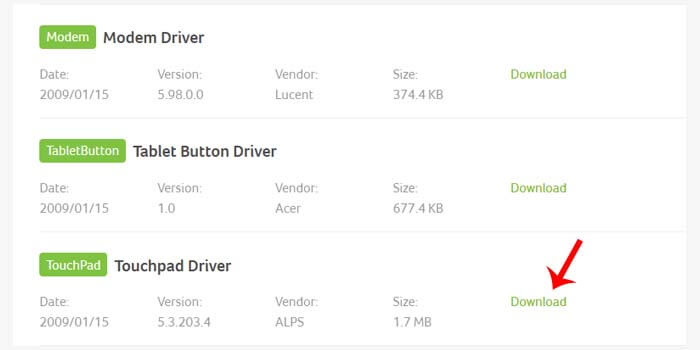
    Touchpad Driver UpdateDrivers from laptop components that are out of date will interfere with the performance of these components and even cannot be used. This also applies to touchpads on laptops that can’t work.
    How to fix the laptop touchpad not working:

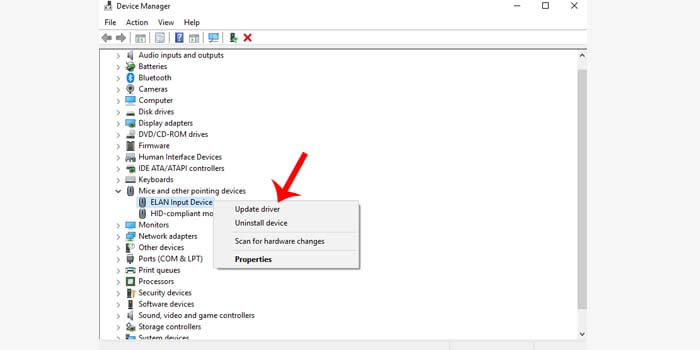
    1. Click the Windows button and then search for Device Manager.
    2. After the Device Manager opens, click on the name of your laptop.
    3. Double-click on the Mice and other pointing devices option.
    4. Right-click on your laptop touchpad driver.
    5. Then select Update Driver.
    6. Select the option Search automatically for updated driver software.
    7. Wait until the touchpad driver update process is complete.

    When finished, usually the laptop will give the order to restart. When your laptop is on, the touchpad can function again.

    #2. Reinstall Touchpad Driver

    Reinstall Touchpad Driver

    An error or error from an application can sometimes cause other problems with the laptop system. By reinstalling the laptop’s touchpad drivers, you can fix a malfunctioning touchpad.

    For each laptop brand, it may be different, but basically, it won’t be much different. To find a touchpad driver that matches your laptop, you can use the DVD driver provided by the laptop or visit the official website of the laptop brand you are using.

    Or you can use the Google search engine by typing laptop brand touchpad driver, for example, Acer aspires 1200 touchpad driver.

    #3. Enable Touchpad Feature

    Enable Touchpad Feature

    If your touchpad driver is on the latest version, but the touchpad still can’t be used. Then most likely the touchpad feature on your laptop was accidentally disabled.

    The reason is, to deactivate the touchpad on some laptop brands, namely using a combination of keys on the keyboard. So to activate the laptop’s touchpad feature again, you can press the button that matches the brand of the laptop you are using.

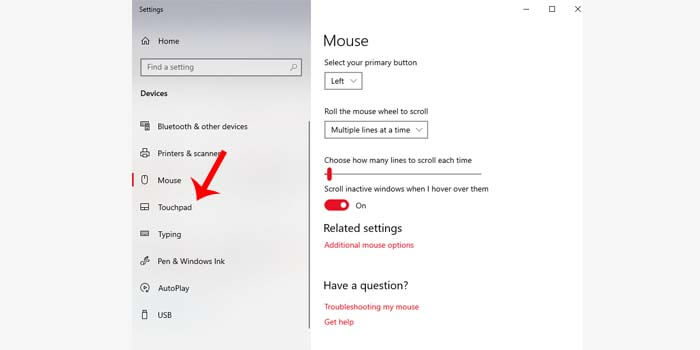
    You can also activate it if you are a Windows operating system user. To do this, click the Windows button then type Mouse, in the device settings section, look for the touchpad menu, and activate the status.

    #4. Reinstall the OS

    Reinstall the OS

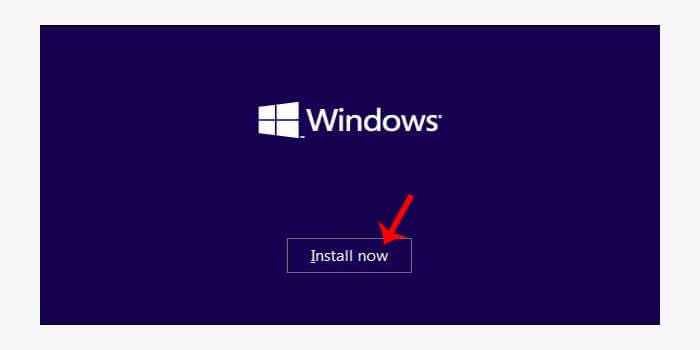
    The next way to fix a laptop touchpad that doesn’t work is to reinstall the operating system. The reason is, that a damaged OS can affect the performance of the components of the laptop, including the touchpad.

    One solution to this problem is that you have to reinstall the operating system on your laptop so that all existing damage can be repaired and return to normal function.

    #5. Touchpad Hardware Repair

    Touchpad Hardware Repair

    Sometimes components that are overheated due to the performance of the laptop that is too forced result in damage to the components connected to the touchpad. For how to repair the laptop touchpad in this case, you have to replace the component.

    In order not to cause other damage, it is advisable to bring the laptop to a repairman. Or even better if you take it to a service center that matches the brand of the laptop you are using.

    Read more:

    Conclusion:

    So, friends, those above 5 ways to fix a laptop touchpad not working, you can fix it yourself. If you experience other problems while trying the guidelines above, you can leave a comment below.

  • 8 Steps To Install and Use Apple Notes on Windows 10 PC 2025

    8 Steps To Install and Use Apple Notes on Windows 10 PC 2025

    8 Steps To Install and Use Apple Notes on Windows 10 PC – Apple Notes is a useful application for taking notes on Apple devices. This application is linked to an Apple ID account so that it can be used on all connected Apple devices be it a Macbook, iMac, iPhone, or iPad.

    How to Install and Use Apple Notes on Windows 10
    How to Install and Use Apple Notes on Windows 10

    How to install and use Apple Notes on Windows 10 Laptop PC

    You create notes in Apple Notes are stored in Apple’s iCloud, so they sync across all your devices. This will make it easier for you to quickly take important notes on whichever device is currently being held, and to continue them on other connected devices.

    Read more:

    What about users who use Apple devices but also use Windows, such as Dual Boot macOS and Windows 10 for example. Can you install the Apple Notes application on Windows 10?

    Until now, there is no Apple Notes application for the Windows 10 desktop, so it can only be accessed via a browser. However, there is one trick we can do to access Apple Notes as if it were an application.

    #1. Open Google Chrome

    First, as usual, to access the Apple Notes application on Windows 10 we need a browser. It is recommended to use the Google Chrome browser.

    #2. Create a new profile on Google Chrome

    The next step is to create a new profile on Google Chrome. The goal is to separate the Apple Notes cache and cookies from the commonly used browser.

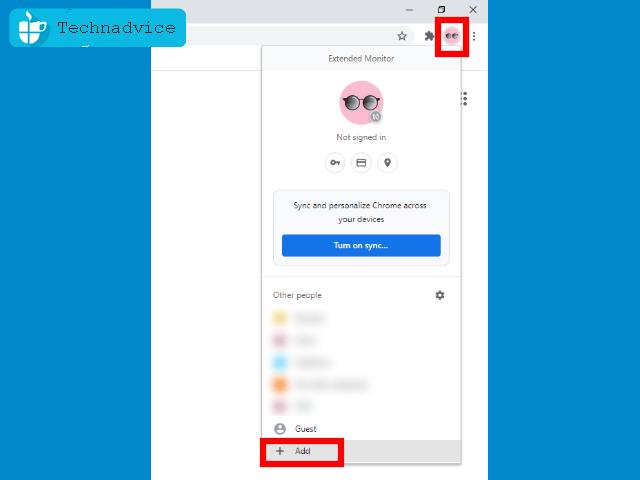
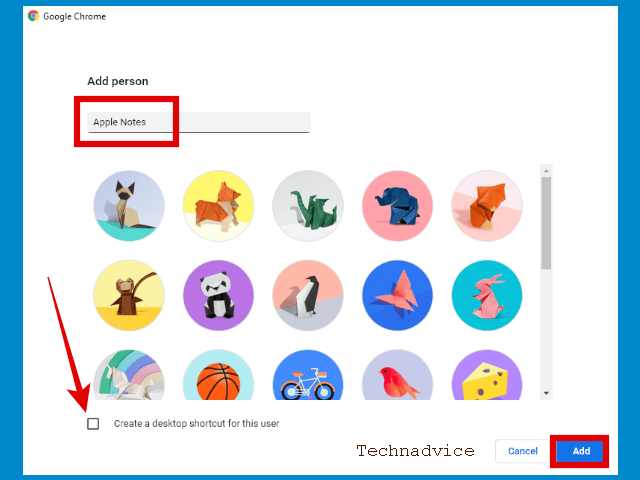
    In Google Chrome, click the Profile button > click the Add button.

    How to install and use Apple Notes on Windows 10

    Name the new Chrome profile Apple Notes, or whatever you like. Uncheck Create a desktop shortcut for this user > then click the Add button.

    How to install and use Apple Notes on Windows 10

    #3. Open the Apple Notes application

    Make sure you are on the new browser profile that was created earlier.

    Then enter the Apple Notes application via the following link:

    https://www.icloud.com/notes

    #4. Login with Apple ID

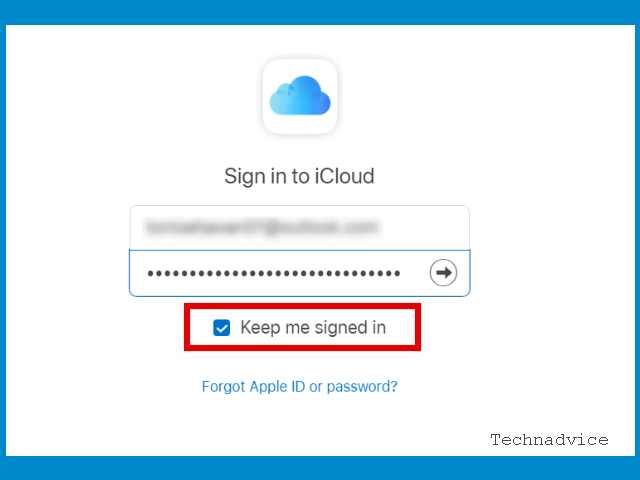
    You will be asked to log in with an Apple account.

    Login as usual, if you have activated 2-step verification then you need to open your Apple device to get the code.

    Important step: You have to check the option Keep me signed in.

    Open the Apple Notes application

    The Keep Me signed in option must be checked, the goal is that the Apple Notes application on Windows 10 can be opened immediately without logging in repeatedly.

    #5. Select Trust this browser

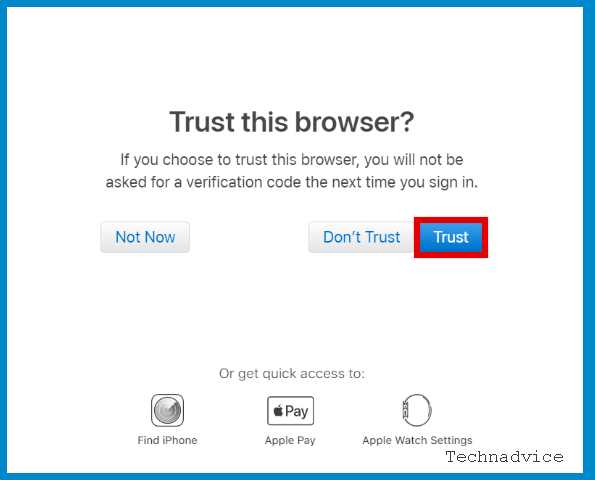
    Then the question Trust this browser will appear. Click on the Trust option. The goal is that the next login does not need to use a verification code again.

    Open the Apple Notes application

    #6. Create an Apple Notes application shortcut in Windows 10

    After entering Apple Notes in the browser, the next step is to create a shortcut on the Windows 10 desktop.

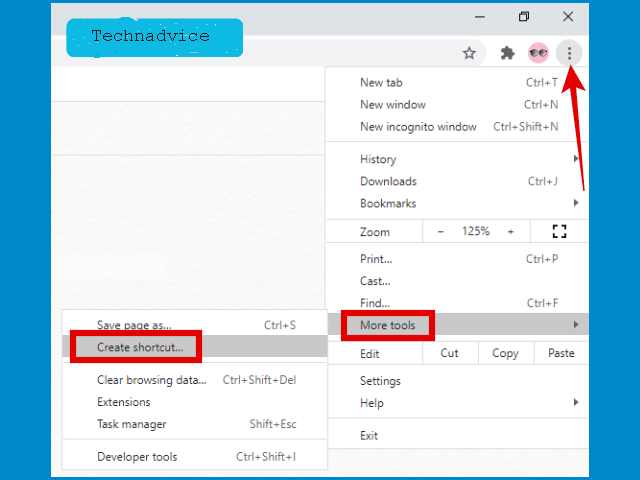
    The trick is to click on the menu button in the upper right corner> select More tools > click Create a shortcut

    Create an Apple Notes application shortcut in Windows 10

    #7. Give the shortcut a name as you wish

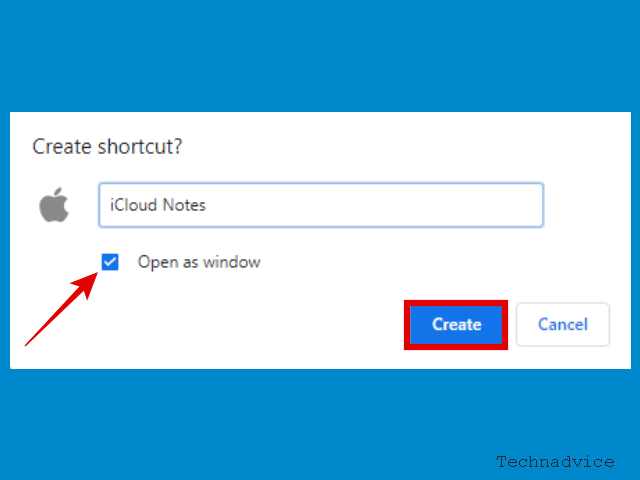
    A pop-up window will appear, then you can name the Apple Notes application shortcut as you wish. Check the Open as window option > click Create.

    Give the shortcut a name as you wish

    #8. Use the Apple Notes application via the shortcut that has been created

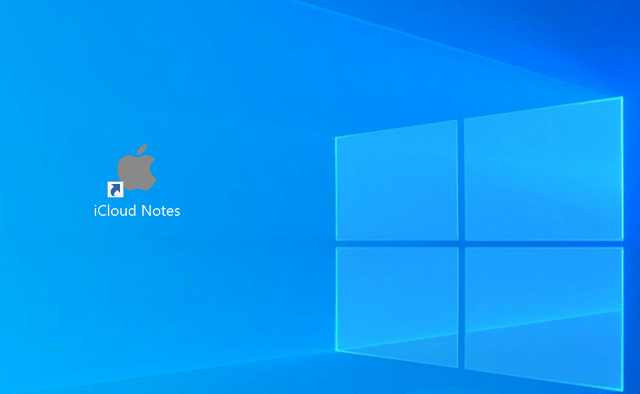
    Return to the Windows 10 desktop. There you will find the Apple Notes application shortcut according to the name you gave earlier.

    This shortcut will be used to open Apple Notes every time you want to use it.

    Use the Apple Notes application via the shortcut that has been created

    By accessing this shortcut, you will go directly to Apple Notes without having to log in, provided you do not clear the cache and cookies on your browser.

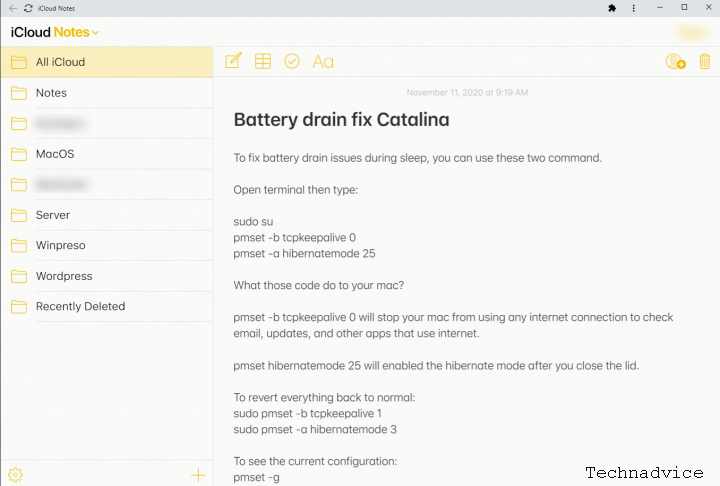
    The Apple Notes app on Windows 10 looks like this:

    Use the Apple Notes application via the shortcut that has been created

    Solution for dual boot Windows 10 and macOS

    Those of you who use Windows 10 and macOS dual boot on one Apple computer (Macbook or iMac) and don’t have any other Apple devices will experience difficulty logging in.

    When logging into Apple Notes on Windows 10, you will be asked for a verification code sent to the Apple device, which is the computer currently being used.

    The problem is, that we can’t run macOS and Windows at the same time.

    Then what is the solution?

    So easy. All you need to do is sign out of your Apple ID account on your Macbook or iMac before doing the tricks in this tutorial.

    You do this by going to System PreferencesApple ID > Overview > Sign Out.

    After that reboot into Windows 10 and start doing the trick to create a shortcut to the Apple Notes application in this tutorial. When logging in, a verification code will be sent to the cellphone number.

    Read more:

    Conclusion:

    When finished, you can re-login on your Macbook or iMac as usual. Don’t forget to bookmark and always visit every day Technadvice because here you can find the latest technology information such as How-to Guide Tips and Tricks Blogging Digital Marketing Windows Android Root Social Media games, ETC. Best of luck.

  • How To Turn Off Laptop Keyboard on Windows 10 PC 2025

    How To Turn Off Laptop Keyboard on Windows 10 PC 2025

    How To Turn Off Laptop Keyboard on Windows 10 PC – The laptop’s internal keyboard that often errors is sometimes very annoying. However, by turning off the laptop keyboard, you can solve the problem.

    How to Turn Off Laptop Keyboard on Windows 10
    How to Turn Off Laptop Keyboard on Windows 10

    How to Turn Off Laptop Keyboard on Windows 10 PC

    In addition, most laptop users are even more comfortable when using an external keyboard. The reason is, that the default laptop keyboard sometimes feels louder when used for typing.

    Read more:

    That’s the reason it’s good if you disable the laptop’s internal keyboard which is rarely used so as not to interfere.

    There are also cases where the laptop keyboard often types by itself. One way to solve this problem is to disable the laptop’s internal keyboard.

    How to Turn Off Laptop Keyboard on Windows 10 PC

    How to Turn Off Laptop Keyboard on Windows 10

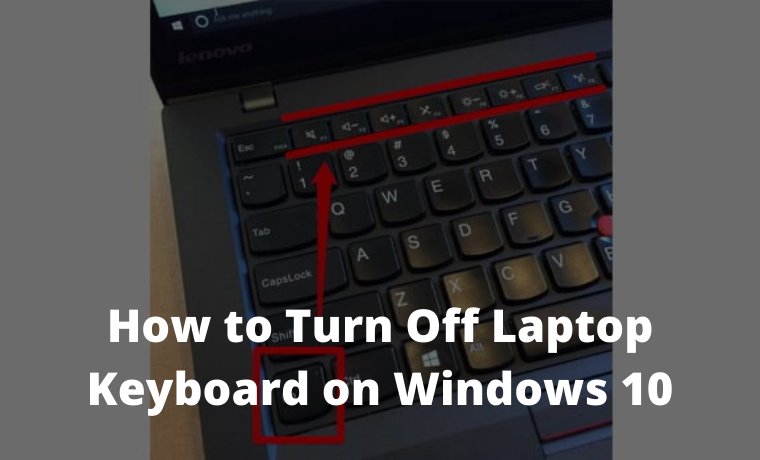
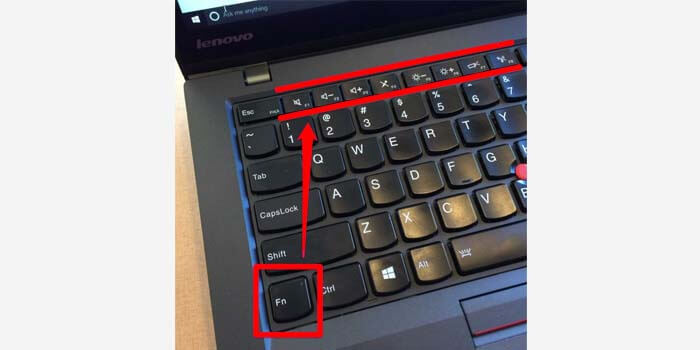
    Most laptops basically have shortcut keys to disable the function of the keyboard. Check the F1 to F12 keys on the laptop keyboard that has the keyboard logo.

    You must press the key in combination with the Fn key to turn off the keyboard.

    But if it’s not available on your laptop, try checking the side of the laptop where the button turns off the keyboard. If it’s still not there, please try the next method below.

    #1. Device Manager

    Device Manager is a feature where you can manage all the devices connected to the laptop. With the device manager, you can disable the function of your laptop keyboard.

    Here’s how to turn off a damaged laptop keyboard:

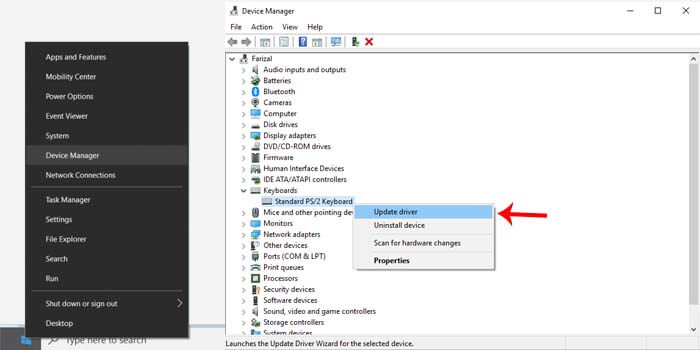
    1. Right-click the Windows logo in the lower corner.
    2. Then select the device manager menu.
    3. Click the Keyboard option> select internal keyboard (Generally called standard / PS2 keyboard)
    4. Right-click then select the Update Driver Software option.Device Manager
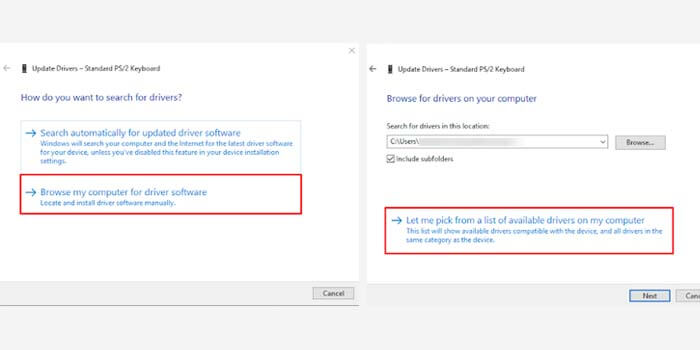
    5. Select Browse My Computer for Driver Software.
    6. Then select Let Me Pick From a List of Devices.Device Manager
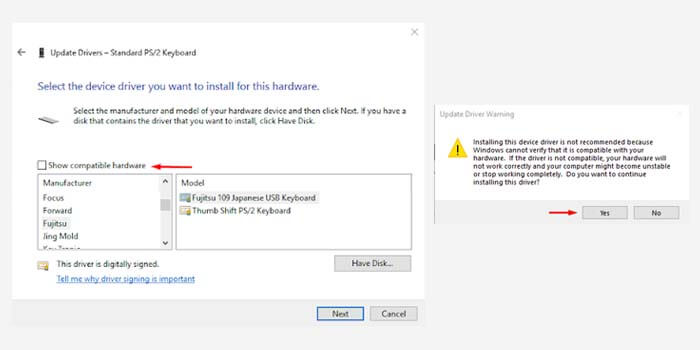
    7. Uncheck the Show Compatible Hardware box.
    8. Choose a driver that is not compatible with the laptop.Device Manager
    9. After that, click Next and then select the Yes option.

    The guide above is the steps for changing the laptop keyboard driver to an incompatible driver. That way, the laptop keyboard won’t work due to a driver error.

    To restore the laptop keyboard to work again, simply repeat the steps above and select the appropriate driver. Or to make it simpler, you can restore it by simply restarting the laptop.

    This method can be tried for all types and brands of laptops. Be it Lenovo laptops, HP, Asus, Dell, Acer, Samsung, Toshiba, Huawei, MSI, and many others.

    #2. Policy Editor

    A policy editor is a tool that can manage all connected devices and networks on a laptop system. With its function that plays an important role in the system, you can use it to disable the laptop keyboard.

    How to permanently turn off the laptop keyboard:

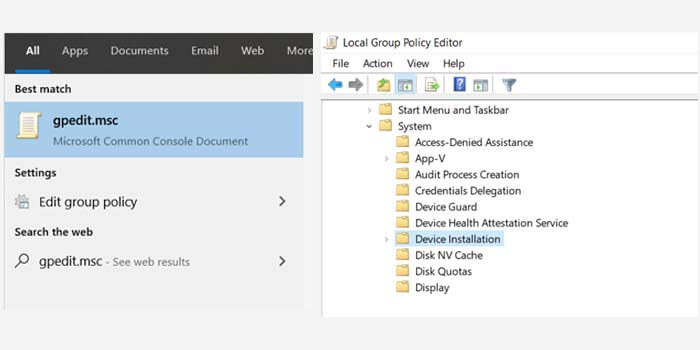
    1. In the search, menu type gpedit.msc and select.
    2. Enter the Computer Configuration File> Administrative Template> System> Device Installation menu.

      Policy Editor
      Policy Editor
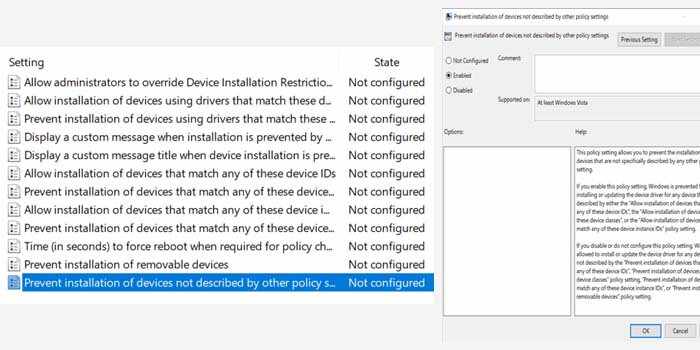
    3. Open the Device Installation Restrictions folder icon in the right window.
    4. Click the Prevent Installation Devices option.
    5. In the new window, select the Enabled option then click OK.Policy Editor
    6. Done.

    Now the laptop keyboard has been successfully disabled permanently. Even if you restart the laptop, the keyboard still turns off and doesn’t work.

    To restore it, just repeat the above guide and then return the options that have been changed to the initial settings.

    But what needs to be considered is, to make sure your laptop has a power button that is not integrated into the laptop keyboard function.

    Because the power button is integrated, an error will appear in the system it will interfere with laptop performance. And in most cases, the laptop won’t turn on.

    Read more:

    Conclusion:

    This is the explanation of how to turn off the laptop keyboard on Windows 10 PC, I hope this article is helpful for you. This method is quite effective if you want to use an external keyboard completely so that the keyboard function of the laptop cannot be used.

  • 10 Ways to Take Screenshot on Laptop or Macbook 2025

    10 Ways to Take Screenshot on Laptop or Macbook 2025

    10 Ways to Take Screenshot on Laptop or Macbook – Taking a screenshot from a computer screen is one of the most common ways that owners of Windows-based computers/laptops, as well as Macbook computers and laptops, do so.

    7 Easy Ways to Take Screenshot on Laptop or Macbook
    7 Easy Ways to Take Screenshot on Laptop or Macbook

    How to Take Screenshot on Laptop or Macbook

    Taking screenshots in Windows requires a few steps, starting by pressing the “Print Screenshot” button on the keyboard, followed by opening Microsoft Paint, and then pressing Control + V.

    Read more:

    Then how do I screenshot on a Macbook laptop? For those of you who have just switched to using a Macbook from Windows (commonly called a switcher), here are 7 ways to take screenshots on a Macbook laptop that you can try.

    #1. Screenshot With Cmd + Shift + 3

    Screenshot With Cmd + Shift + 3
    Screenshot With Cmd + Shift + 3

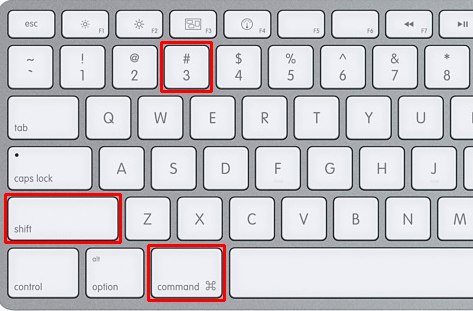
    In this way, you don’t have to bother thinking about which area to screenshot, because the result is a full screen on the laptop. This screenshot method is arguably the easiest, just press the Cmd + Shift + 3 shortcut.

    When the Macbook sound is activated, there will be a camera shutter sound that sounds a sign that the screenshot was successful. The resulting image will be saved on the desktop in .png format.

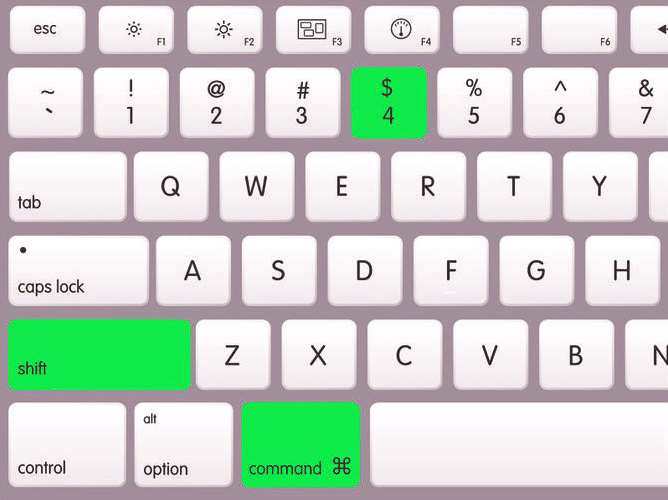
    #2. Screenshot With Command + Shift + 4

    Screenshot With Command + Shift + 4
    Screenshot With Command + Shift + 4

    This feature is specifically for those of you who only want to take partial screenshots on a laptop. You first have to mark which area you want to screenshot. To do this, press the shortcut Command + Shift + 4.

    You will see the cursor icon change to a crosshair or a box with a thin line. Click and hold the mouse, then drag it to the area you want to screenshot.

    You can press the Esc (Escape) key to restart without taking a picture. Release the mouse, if the sound on the computer turns on, it is a sign that the screenshot has been successful.

    #3. Screenshot With Cmd + Shift + 4 + Space

    Screenshot With Cmd + Shift + 4 + Space
    Screenshot With Cmd + Shift + 4 + Space

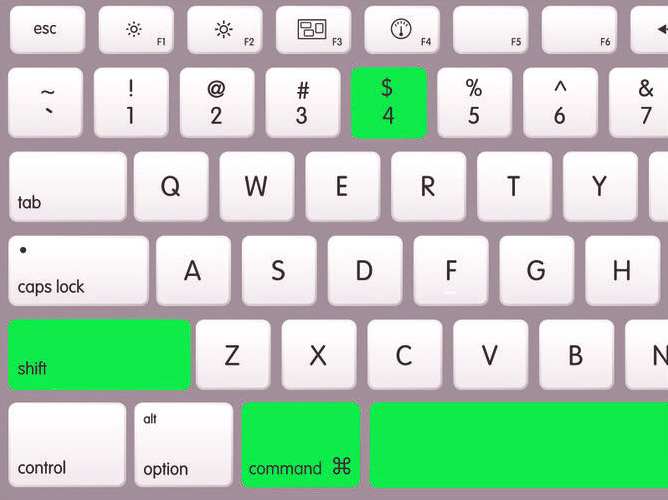
    This method is almost the same as the method discussed earlier, the only difference is that this way, you don’t have to bother doing it with tidier results because it uses the Macbook screenshot shortcut which is intended to take a full window screenshot.

    Not only that, this method even immediately gives a shadow effect from the results of the screenshot image on the Macbook laptop that you made. To do this, press the shortcut Cmd + Shift + 4 + Space. The pointer will change to a crosshair, then press the space key to change the cursor to a small camera icon that will tell you which window you want to screenshot. Finally, the left mouse clicks to take a screenshot and the results will appear on the desktop.

    #4. Screenshot to Clipboard

    Screenshot to Clipboard
    Screenshot to Clipboard

    If you want to copy and paste the screenshot into a program, you can save the screenshot to the Clipboard, not the desktop.

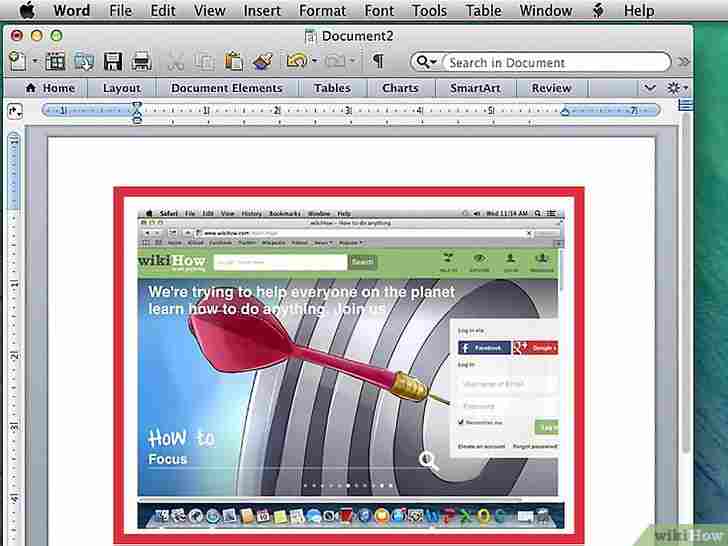
    How to screenshot on a Macbook laptop and save the results to the Clipboard is very easy, namely by pressing the keyboard shortcut as needed as described above and then directly pasting it into Word or Pages.

    #5. Screenshot Timer with Grab

    Screenshot Timer with Grab
    Screenshot Timer with Grab

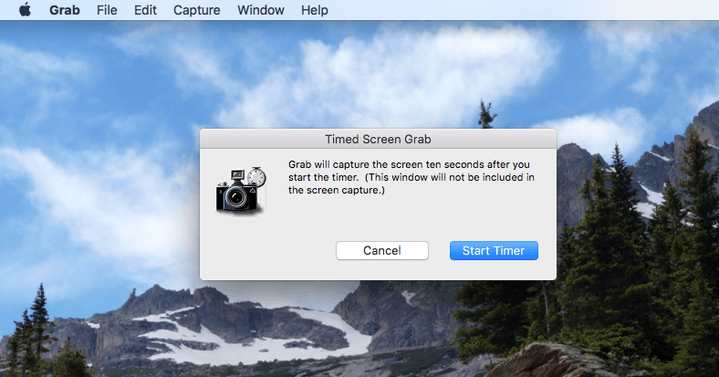
    Without additional applications, you can use the default OS X application, Grab, which can be found in the Utility folder. With the help of this application, you can take screenshots with a timer automatically.

    To run this application, first, open Application> Utilities> Grab. Then open the menu bar select Capture> Timed Screen or press Command + Shift + Z to start the screenshot-taking time countdown, and finally press the Start Timer button.

    #6. Screenshot With Shift + command + 6

    Screenshot With Shift + command + 6
    Screenshot With Shift + command + 6

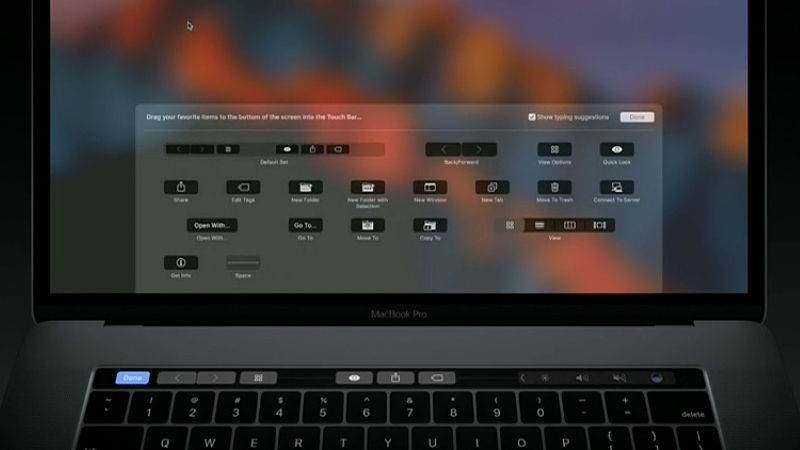
    For those of you MacBook Pro Touch Bar users with macOS Sierra 10.12.2 or a later version. You can still take a screenshot from the Touch Bar screen, just press Shift + command + 6 then look for the screenshot image from the Touch Bar display on the desktop with the .png format.

    In addition, you can also display the screenshot button by adjusting the touch bar control strip area. Finally, click the screenshot button to see the results and where they are saved.

    #7. Screenshot With Application Help

    Screenshot With Application Help
    Screenshot With Application Help

    If you are not satisfied with some of the methods above, you can try using third-party applications to take screenshots on a Macbook laptop, for example, such as:

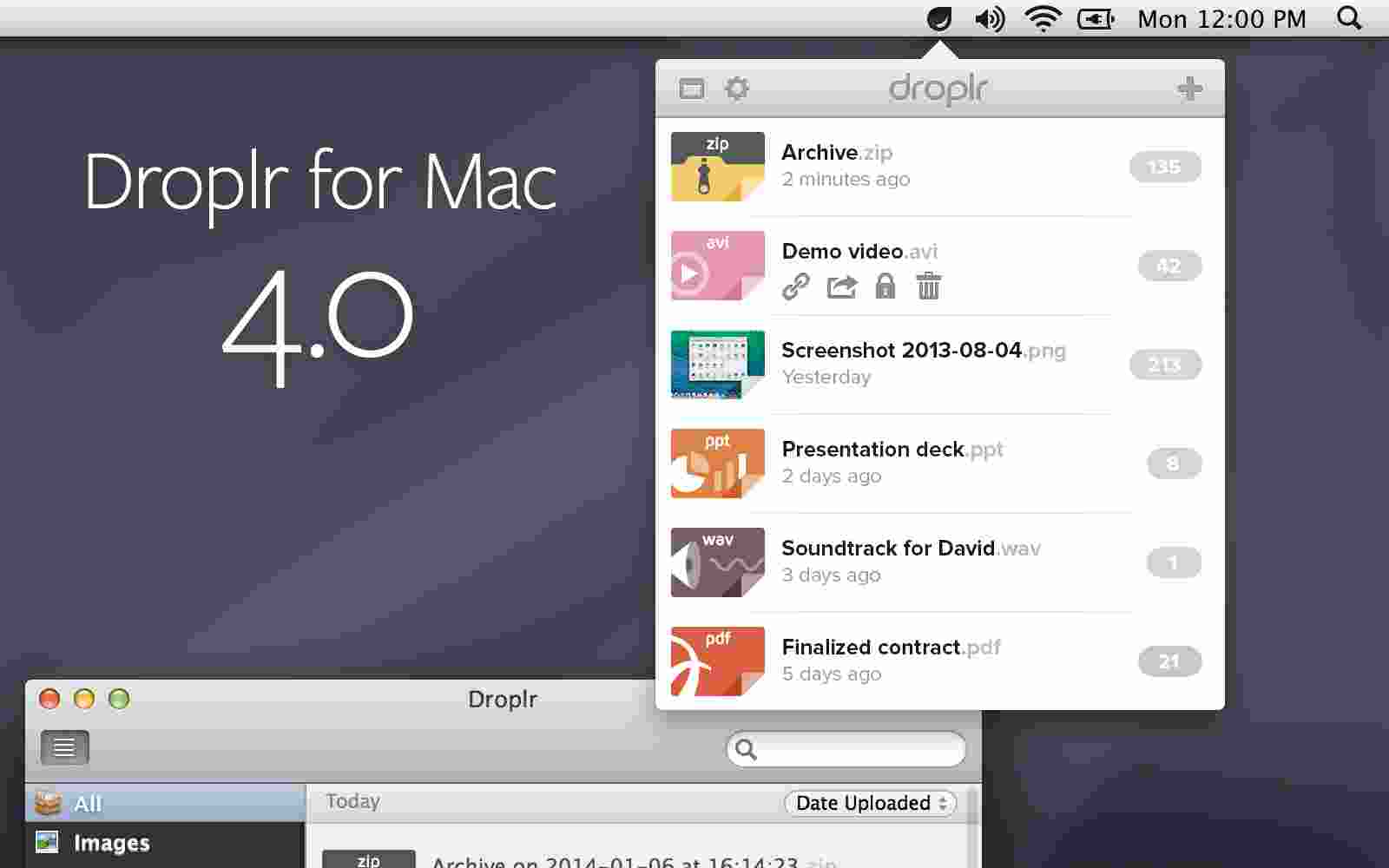
    #8. Droplr application

    With the Droplr application, not only have screenshots in the form of images, but you can also create screen recording videos that can be recorded in whole or in part.

    In addition, this application is also equipped with an automatic upload mode with a more complete and easily accessible shortcut and annotation mode.

    #9. PSD application

    With the help of this application, you can take a screenshot on a MacBook laptop into a PSD or Photoshop image. Not only that, but the PSD screenshot can also detect application windows that are running behind the main display.

    #10. Monosnap application

    With the Monosnap application, you can add some information to take a screenshot and upload it directly to the cloud. You can also save or reopen the file with another external editor.

    Read more:

    Conclusion:

    this is the explanation of 10 ways to take screenshots on a laptop or MacBook. That’s the method you can use for your laptop screenshot. I hope this article is helpful to you.