9 Ways to Take Screenshots on Galaxy J7 / J7 Pro/ J2 / MI A1 –Samsung is one of the vendors from South Korea that successfully made smartphone sales in various countries, including India. You could say Samsung itself sells smartphones ranging from the lower class, and middle to the top. One of the favorite ones bought by Indian people is the Samsung Galaxy J7 Pro which has attractive hardware specifications.
9 Ways to Take Screenshot on Galaxy J7 / J7 Pro/ J2 / MI A1
How to Take Screenshot on Galaxy J7 / J7 Pro/ J2 / MI A1
This can be seen with the use of the Exynos 7870 Octa-core chipset with a speed of 1.6 GHz, 3 GB RAM, and internal storage with a choice of 32 GB or 64 GB which can be added to a microSD capacity of up to 256 GB.
The screen itself has a width of 5.5 inches with Full HD resolution (1,920 x 1,080 pixels) and Super AMOLED technology. With this sharp and bright screen, users can view various files, photos, and videos comfortably.
But it turns out some people are still many who are wondering about how to do a screenshot on the Samsung Galaxy J7 Pro. For this reason, for those who are curious, you can see the tutorial as follows.
#1. How to Screenshot Samsung Galaxy J7 Pro with Physical Key Combination
Steps 1:
First, turn on the Galaxy J7 Pro smartphone.
Next, the gadget can determine the area to be a screenshot.
Once determined, the Gadgets can press the Home button combination and Volume Down combination simultaneously.
Later the screen will blink and a shutter sound can be heard indicating that the screenshot has been successfully performed.
Later the screenshot will appear in the notification menu or can be seen in the Gallery menu.
#2. How to Screenshot Samsung Galaxy J7 Pro with Swipe Capture
Steps 2:
First, open the Settings menu or application.
On the Settings page, Gadgets can choose the Advanced Features menu.
After being on the Advanced Features page, the Gadget can activate the Palm swipe to capture the feature.
If the Palm swipe to capture feature is active, the gadget can automatically flick his palm from right to left.
After the screen flashes and the shutter sound is heard, the Gadget can see the results of screenshots in the notification menu or the Gallery application.
You could say these two methods are very easy to use. But if the gadget wants to do a shorter process, you can use a physical key combination without having to enter the Settings menu or application.
#3. How to quickly and accurately screenshot the Samsung Galaxy J7
How to quickly and accurately screenshot the Samsung Galaxy J7
Steps 1:
1. Determine the screen to capture
2. Hold the smartphone tightly
3. Make sure we know the position of each button
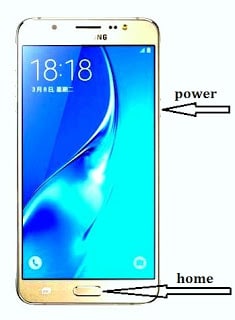
4. Press and hold the Home and Power buttons
5. The combination is approximately 1 second
6. A notification bar will appear when the screenshot is
successfully created
7. Check into the Gallery
8. The picture is ready to use
#4. How to do a screenshot on the Samsung Galaxy J7 Prime using a combination of buttons
This one method is very easy, simple, and does not require quite a long time, because only by using the Combination Button, the screen display that we want to capture can already be done and has been automatically saved in our Smartphone gallery, here it is how:
Steps 1:
Make sure your Smartphone screen is on the display you want to capture.
Press the Power + Home Buttonsimultaneously
Hold for a few seconds.
Make sure the screen has blinked or you have felt a vibration on the Smartphone, it indicates that the Screenshot process is complete
And automatically the Capture results will be saved in the gallery with the name “Screenshot”
#5. How to do a Samsung Galaxy J7 Prime Screenshot using the Application
Well, for those of you who think the above method is less comfortable and a bit complicated. You can try this one way by doing a screenshot using the application.
The advantage of using the application is that you only use one hand to do a screenshot.
But you must first download the application and it will consume the memory capacity of your smartphone. Here’s how to do a screenshot using the application:
Steps 2:
First, download the Screenshot Application on PlayStore.
Open the Application and start to determine the Display to be captured.
You can even edit it directly
And the Capture results will automatically be saved in your Smartphone Gallery
These is the various ways to do Screen Capture or Screenshots on the Samsung Galaxy J7 Prime if you want to use a Button Combination or use the Application depending on the User, some prefer to use the Key Combination, and some prefer to use the Application. Everything is Plus and Minus. Well, that’s how to easily do the Samsung Galaxy J7 Screenshot.
#6. How to Screenshot the Samsung Galaxy J2 Prime
It is not difficult to take screenshots on this Samsung Galaxy J2 Prime cellphone, because the method is not much different from other cellphone brands like Sony, Huawei, Lenovo, Oppo, Coolpad, LG, Xiaomi, and others brands.
No, I can’t wait to know how to take screenshots of your cellphone. let’s see this short tutorial.
Steps 1:
Select the screen you want to screenshot
Press the Power button (or Lock Screen Button) and the Home button simultaneously (together).
Do not release and hold the button for 3 seconds.
When the mobile screen will blink or you hear the camera sound, then you can release the button.
Now screenshots are saved in the Gallery folder; on Screenshot.
#7. How to Take Screenshots on the Mi A1 With Easily
How to Take Screenshot on the Mi A1 With Easily
Mi A1 is one smartphone made by Xiaomi that uses a pure Android operating system without MIUI.
In addition, the Mi A1 is an Android One project that works with Google so that it will get updates and upgrades to the same operating system as fast as other Google smartphones and Android One.
Although it’s interesting, some people still don’t know how to do a screenshot on M A1. For this reason, for Xiaomi Mi A1 users, you can see the tutorial as follows:
#8. How to Take Screenshots Xiaomi Mi A1
Steps 1:
First, the gadget can directly turn on the Mi A1 smartphone
Furthermore, to find an area that will be screenshots
Then, the gadget can immediately press the power button and volume down simultaneously in a few seconds
After you hear the shutter sound and the screen blinks, the screenshot results are automatically generated
taken smartphone
Will display notification image screenshots that can be directly selected
But you can also access images from screenshots in the default Photo application
Hopefully, the presence of this tutorial can facilitate Xiaomi Mi A1 users in capturing moments on the smartphone screen with screenshots.
For the record, the Mi A1 is not equipped with a screenshot feature with 3 finger gestures because it does not use MIUI.
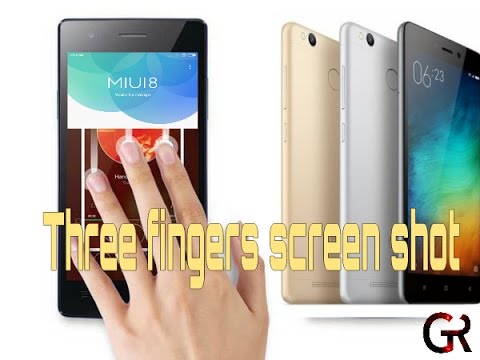
#10. How to Activate 3-Finger Screenshot on Xiaomi mi a1
How to Activate 3 Finger Screenshot on Xiaomi mi a1
I will explain 2 ways to activate screenshot 3 fingers here, please choose which one is easier. Here’s how to activate the first three-finger screenshot.
Steps 1:
Open Settings.
Scroll down and go to Additional Settings.
Next, select Screenshot and activate Swipe down with 3 fingers to take a screenshot.
Once active, please try rubbing the screen down using 3 fingers at a time.
The sophistication of this feature, if you swipe from the bottom up then the smartphone will not respond, as well as if you use 2 or 4 fingers. This feature only works with 3 fingers rubbed down.
Next to the second way, the most practical and easy way to do it. See how this works.
On any part of the screen wipe the screen down using 3 fingers.
There will be a 3-finger screenshot notification, then select Turn on in Settings.
Next, activate Swipe down with 3 fingers to take screenshots like in the first way.
Using a 3-finger screenshot certainly makes it easier for users. It can indeed take screenshots using a combination of power and volume down (-) buttons. You can also use the screenshot icon on the toggle menu. However, from the three methods using a 3-finger screenshot will be more practical.
So, friends, This was above 9 Ways to Take Screenshot Galaxy J7 / J7 Pro/ J2 / MI A1, If there is something you want to say, please write in the comments field below.
Top 20 Best Free Youtube Video Download Applications for Android – Want to download videos on the Youtube platform but are confused about what to do? Or do you want to have fast and automatic access to save videos from YouTube? then you are right place.
20 Best Free Youtube Video Download Application
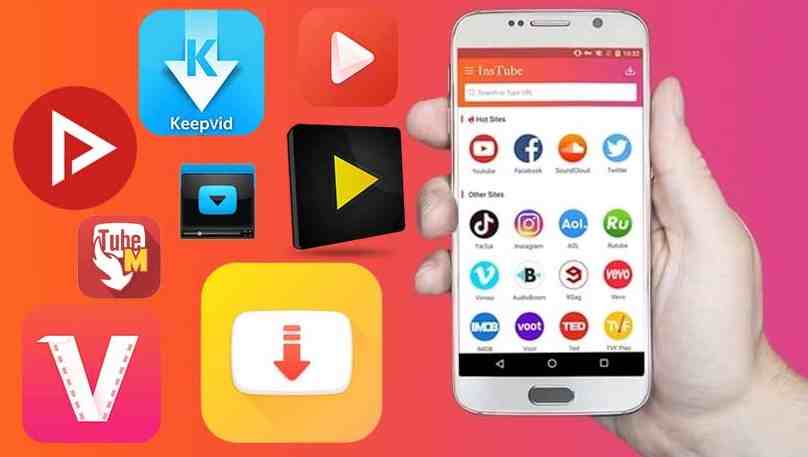
Here are The Top 20 Best Free Youtube Video Download Applications for Android Laptop PC
As a large video-sharing platform, YouTube offers millions of content for all its users to choose, view, and download.
Unfortunately, this platform does not automatically attach an automatic download feature to devices, both PC and Android.
So quite a lot of YouTube users experience technical problems when they want to download videos.
But don’t worry, there are a number of ways to download videos from YouTube easily and quickly. One of them is by using the YouTube video download application.
With this 3rd party application, you can immediately save your favorite videos on your cellphone or PC easily, cheaply, and practically.
After that, you can be satisfied watching videos that have been downloaded repeatedly without running out of quota. In fact, you can even watch offline.
Free Youtube Video Download Application for Android Windows 10 PC
What are the fastest YouTube video download applications that you can use? With pleasure, the Technowizah team will summarize the references. Here’s the list.
Airy is a paid application, but this application also offers a free version. It’s just that, the free version can only be used to download 2 videos.
Airy excels because it provides practical features in downloading YouTube videos with just one click. In full, here are some of the advantages and disadvantages of Airy.
Advantages
Download videos with just one click.
Can access videos both offline and offline.
You can download videos in various formats, from FLV, and MP4 to 3GP.
Compatible with HD and Ultra HD quality videos.
Can maintain video quality without destroying it.
Deficiency
The only drawback of this application is that the use of the free version is quite limited. Users can only test for 2 videos.
After that, to download more videos you have to pay.
So, how do you download videos in this application? Users just need to copy and paste the link into the address field. Then select the resolution and location of the video, and the video will be automatically saved on your device.
#2. Any Video Converter
Any Video Converter
Unlike Airy, this application is a platform for converting videos. Even so, you can also use it to download videos from YouTube.
Any Video Converter is one of the YouTube video download applications for PC which is also quite famous in the virtual universe. Apart from YouTube, this application can also be used on 100 other sites.
Advantages
It has a built-in editor that can be used to edit videos, trim videos, adjust colors, etc.
Offers an unlimited free version.
Deficiency
It is not possible to download a large number of videos at once.
Downloading videos is done one by one unless switching to a premium service.
#3. Arktube Youtube Downloader
This application formed by XDA Developer can be used to download video files either via laptop or cellphone.
How to download videos in the best Youtube video download application is very easy and practical. Not only that, but the Arktube Youtube Downloader is also superior with complete features.
Advantages
Complete features.
Can download audio and or video.
There is a share feature.
Able to download 480-pixel resolution videos.
Deficiency
Unfortunately, Arktube Downloader is not on the Google Play Store. So you can only get this application through 3rd party applications.
In addition, this application is considered less secure because there are many fake apk circulating and vulnerable to viruses.
To be more secure, you can download the official application by copying the following link.
Download link: https://bit.ly/3jLb7u2
#4. Ayatube Video Downloader
This application made by Ayamob Inc. offers a more fun and exciting video downloading experience.
However, users can freely choose the format and resolution they want. Apart from that, YouTube also offers download services on other social media platforms.
Advantages
Can choose the resolution and format for either video or audio.
Can download videos from Vimeo, Instagram, Facebook, YouTube, Twitter, and other social media.
The interface is simple and easy to use.
Navigation to download is more practical and easy.
Light application (4.5 MB) and very compatible with Android.
Deficiency
The weakness of this application is that it can only be used on Android above 4.1. So, for Android below the spec is not compatible with this apk.
Download link: https://bit.ly/3bAgOrR
#5. ClipGrab
ClipGrab
Furthermore, there is ClipGrab which is the safest and recommended free video downloader application. It’s just that you need to be careful, ClipGrab has adware like Opera.
So, you should avoid using the browser if you want to use ClipGrab.
Advantages
Has the ability to download a broad and comprehensive.
The download process is easy and simple, just copy the link from YouTube to the application.
There is a built-in browser available so you can search for videos with just keywords.
Proxy settings are available. To configure it is enough to input IP and port.
Able to extract audio from video files and save them as MP3 files.
Deficiency
The only downside to ClipGrab is the adware. So it is less flexible to use all browsers.
#6. Dentex Youtube Downloader
The next Android YouTube video download application is Dentex Youtube Downloader. Dentex is one of the best choices to download videos easily and for free.
What’s so interesting about this application? The main attraction of Dentex lies in the user interface which is simple and easy to understand.
Here are some of the advantages of Dentex that make you obliged to have this application.
Advantages
Able to download large videos, more than 2 GB.
Simple display with user-friendly interface design.
Users are free to choose and determine the quality, resolution, and video format they want.
There is a choice of FLV, MP4, and 3GP formats and resolutions from 144p to 1080p or full HD.
Deficiency
What is quite unfortunate is that this application is not available on the Play Store. So, you have to find a site that provides a download link for the Dentex application.
Take it easy, you can access this platform via the following link.
#7. Free Youtube Download
As the name implies, Free YouTube download is a free YouTube video downloader application. Even so, this application can also be used on other social media sites and platforms besides YouTube.
What’s interesting about Free Youtube Download is the auto-download feature to download videos automatically. Not only that, but this application also has other pluses as below.
Advantages
Automatic download feature (auto download).
Can download videos in large quantities at once.
There is a video converter feature built into the app.
Can be used to convert videos into other formats, including MKV, MP4, AVI, WMV, etc.
Can be accessed via Windows and Mac.
Deficiency
For the time being this application is only compatible on PC both on Windows and Mac and not Android.
Download videos through this application is quite easy, the method is as follows:
Download the application, you can use the link we provide below.
Download link: https://bit.ly/32ZKxGM
Open the application.
Copy and paste the video link / URL from YouTube to the application page.
Then click the blue download button.
The video will be automatically downloaded to your device.
#8. Freemake Video Downloader
For Windows users, this YouTube video download application is quite recommended for use. Freemake Video Downloader has dozens of cool features that are useful.
One of its main features is to download videos from internet platforms, including YouTube. This application is very user-friendly with the one-click feature.
As a Windows-only video downloader application, Freemake Video Downloader has several advantages and disadvantages. Namely as follows.
Advantages
A feature to limit the speed when downloading videos.
Can transfer videos to the Cloud platform after saving files on Dropbox or Google Drive.
Can access videos on various platforms other than Windows, for example on iOs, Mac, or Android.
Dropbox / Google Drive default storage feature that can protect files from being lost on the device.
The user is friendly with a one-click feature on the toggle that is already available in the application.
Deficiency
The free version is limited, it can only be used to download at a speed of 4 Mbps.
A watermark appears at the beginning and end of the video.
To overcome the shortcomings of this application you can download the premium version. Because in the premium version, you won’t find watermarks again. And you can download with unlimited speed.
#9. Gihosoft TubeGet
Gihosoft TubeGet
Next, we recommend a sophisticated and practical portable video downloader application, namely Gihosoft TubeGet.
The main attraction of this application is that it is complete, simple, and friendly. Gihosoft offers almost all video download services.
In addition, this application is also very easy to understand and use. Here are some of the advanced features this application has.
Advantages
Able to download videos from YouTube or from other streaming sites.
Offers HD and UHD video download services with resolutions of 720p, 1080p, 2K, 4K, and up to 8K.
Integrated with a number of other handy features on Windows and Mac.
1x click download mode.
Able to download the entire playlist at once.
Can save videos on Windows XP / 7/8/10 or Vista.
Has a system that adapts to the changing YouTube algorithm.
By having a system for reading the YouTube algorithm, Gihisoft is arguably very updated. This application automatically continues to fix bugs and offers the latest advanced features.
Deficiency
However, Gihosoft TubeGet can only be accessed by Windows and Mac users only. This application also has 2 versions, namely premium, and free versions. The free version is only limited to downloading 5 videos per day.
#10. Instube Youtube
If you like using social media platforms, YouTube Instube Youtube can be the right choice for sharing videos.
In addition to a beautiful and easy-to-use design, Instube offers other social media download features besides YouTube.
With this application, you can get videos from various platforms such as Instagram, Vimeo, Twitter, Facebook, etc.
Advantages
The download feature is fast and easy with just one click.
Can save videos from various social media sources.
Can be used on smartphone devices.
Download videos with full HD up to 4K quality. There are also 360p and 1080p resolutions.
There is a feature to convert videos and MP3 downloaders on YouTube for offline listening.
There are various choices of formats from images, and audio to videos, such as mp3, jpg, and mp4.
Can lock folders with the private video lock feature.
Download speed is 10x faster than other applications.
There is a feature to detect the link copy system.
Deficiency
The only drawback of this application is that it has ads or pop ads in it. This may make some users uncomfortable.
#11. Jihosoft Video Downloader
Not inferior to other advanced YouTube apk downloads, Jihosoft comes with download features up to 8K resolution.
In fact, this application provides features to save videos from more platforms. For example, Naver TV, TED, Reddit, Daily Motion, etc.
This makes Jihosoft one of the best video downloader platforms on the internet.
Advantages
Can save videos with various resolutions (720p, 1080p, 2k, 4k, 8k, etc.
Can be used to download all channels and playlists on YouTube without restrictions.
There is a feature to download original audio, subtitles, or cc, and cover videos.
Able to convert video to audio or mp3 format for free.
There are various video conversion formats available, ranging from AVI, MP4, and MKV to MOV, and several other formats.
There are features to cut videos and provide filters, watermarks, subtitles, audio, etc.
Deficiency
What is quite unfortunate is that this application can only be accessed via a computer or laptop device.
#12. KeepVid
Keepvid was originally just a video download site on YouTube. However, Keepvid already has a YouTube video download application that can be accessed easily and practically.
Even though it’s not very well known, this application is very light and offers a fast download service, you know. Here are some other reasons why you should try it.
Advantages
There is a choice of various video resolutions, such as full HD, 320p / 480p / 720p, and 1080p.
Able to download videos from platforms other than YouTube, for example, Vimeo, Dailymotion, Instagram, etc.
Can convert video formats to MP3 without additional devices or other third-party applications.
The display is cool and easy to understand.
Can be used on smartphones.
Deficiency
Some still complain about the appearance of advertisements in the application.
#13. Mass Tube
Some people want to be practical by downloading multiple files at once. If you are too, then Mass Tube is the most appropriate choice.
This YouTube downloader application offers a feature to process more files at one time. In fact, you can also use more platforms when downloading. Interesting right?
Here are some of Mass Tube’s excellent features that you shouldn’t miss.
Advantages
Free service with unlimited features.
The download process is fast and easy.
There is a large selection of video formats (FLV, MP4, MP3, 3GP, MPEG, OGG, MPG, SWF, etc.).
It has a user-friendly and intuitive interface.
Deficiency
This application with a beautiful design can only be used for a while on a computer or PC device.
#14. Mtube
Although not often heard, this YouTube downloader apk performance is quite good. Mtube has advanced features with an elegant user interface.
Advantages
Choice of format can be in 2 forms, namely video, and audio.
Able to convert from video to audio.
There is a feature to play pop-up videos easily.
Deficiency
Just like other applications, MTube also still has pop ads. This of course can reduce user comfort when downloading videos.
#15. Peggo
Peggo is an Android video downloader application that has the best quality. However, it seems that this application can also be accessed on devices other than Android.
Apart from having cool excellent features, Peggo is quite easy to find. Because this apk is available on the Play Store and can be easily downloaded here for free.
Advantages
Compatible with various devices (HP / PC).
Able to download videos on social media platforms (FB, IG, Youtube, etc.).
Has a very stable download speed.
There is a trimmer feature to select the part of the video you want to download.
Deficiency
Reportedly, this application only provides a storage format in MP3 only.
#16. Snaptube
Snaptube is a free video download alternative application for Android. The application available on the Play Store also offers easy access to computer devices.
Easy again, Snaptube can be used directly on Youtube. So you don’t have to bother copying and pasting the link when you want to download a video.
Advantages
HD video download service and high-quality audio.
Safe for devices.
Can be used on more than 100 sites, such as TikTok, anime, Vimeo, Soundcloud, Dailymotion, etc.
Has a cool user interface with full features.
Video quality ranges from 144p to 1080p.
There is a feature to save videos automatically to the device’s memory.
In addition to some of the advantages above, Snaptube is also getting superior with feature options for resolution. Well, if you are interested, you can immediately download the free application at the Play Store.
#17. Ummy Video Downloader
PC users may be familiar with the name of this site. Yups, Ummy Video Downloader is indeed one of the favorite YouTube PC video download applications for computer devices.
By saving from YouTube mp3 on Ummy Video Downloader, you can get videos with various formats, quality, and resolutions. You can also download mp3 files from this platform.
Advantages
The way to download is easy and instant (by copying the link to the site).
No need to download the application, just access the site.
Free download service.
Able to download on other platforms.
Deficiency
Because it is only a site, maybe some people have problems when they want to download it.
But don’t worry, there are instructions and buttons that guide users to get the video they want for free.
#18. VidMate
With this one application, you can get lots of interesting things with just one access.
Apart from being able to download videos, Vidmate also offers services for streaming videos for free.
Advantages
It has many features with various functions.
Able to download videos, stream movies, and TV shows, download music videos, etc.
There are many file formats to choose from.
Can convert video to MP3.
You can download videos from various platforms, for example, Facebook, SoundCloud, Instagram, etc.
Deficiency
You may find some pop-up ads appearing while running the download process. But this seems normal if you use a free service.
#19. Videoder
Unlike some of the names above, Videoder is a video download application specifically for Android.
Even so, there’s nothing wrong with you trying it on a Smartphone because the features that this ak has are quite up-to-date.
Advantages
Can download on more than 50 of the most popular video sites.
Video quality reaches 4k.
Can download more videos at once.
Download speed is up to 10x.
Complete features for editing videos, tagging, detecting links, changing theme colors, etc.
There is a feature for quick downloads.
There is a night mode in the application.
Can be used for free.
Deficiency
Unfortunately, you have to wait a little longer if you want to use it on a computer device. Because for the time being Videoder can only be accessed via Android.
#20. Winx Youtube Downloader
The PC video download application that we recommend next is Winx. Why Winx?
Besides being quite easy to understand, Winx also offers several services that are not inferior to the Android downloader application.
Advantages
Can be used to download videos on 500 well-known websites, such as YouTube, Vimeo, Dailymotion, Facebook, etc.
Service is available to select the desired video quality and format.
Download videos with the qualities provided by the uploader.
Features are available to convert video into an audio format or other formats.
Deficiency
On the Winx platform, you can only get quality videos as provided by the uploader. So, the video quality is determined by the video owner himself.
This is the explanation of some collections of the Top 20 best free YouTube video download Applications for Android, Above are some recommendations for YouTube video download applications that you can try. Besides being cheap and practical, these applications can also be obtained easily.
It’s just that, it’s a good idea to be vigilant and careful when accessing websites or using applications on your device.
If you don’t want to bother downloading the apk or accessing the site, you can also use the YouTube video download method without an application.
How To Download Canon MX497 Driver | Free Download – Canon MX497 is one type of multifunction printer that has 4 excellent features including Print, Copy, Scan, and FAX features. In addition to having attractive features that are attractive, this printer also has super-fast printing performance, saves ink, and of course easy to use.
How To Download Canon MX497 Driver I Free Download
How To Download Canon MX497 Driver
Another uniqueness offered by this Canon MX497 printer is that it already supports a network connection without a USB cable, so there will be a Wireless (WIFI) feature that functions to make it easier for users when they want to connect the printer with a PC or Laptop device.
So, for those of you who have just purchased a Canon MX497 Printer in a new or used condition, be sure to check all the purchase packages, such as manuals, USB data cables, CD-Driver print cables, and official warranty cards, but if there is one of the lost purchase packages such as CD / DVD Driver tapes are damaged, so you need to manually search for them and download them via the internet.
The function of the Canon MX497 Driver software is very important because if you want to use the printer on a PC device that has never been used, then the first thing that must be done is to install the default driver software so that the printer can be connected and connected to the PC or Laptop device used.
How To Download Canon MX497 Driver
The Canon Printer Driver that I will share below has also been on the latest variant and has an official version because I got it directly from the official website of Canon India.
Windows 7 32-bit and 64-bit versions
Program name
win-mx490-1_1-mcd
Current Version
1.1
Updated
December 26, 2019
OS support
Windows Vista / 7/8 / 8.1 / 10
File Size
49.11MB
Download Software
Windows 10 32-bit and 64-bit versions
Program name
win-mx490-1_1-mcd
Current Version
1.1
Updated
December 26, 2019
OS support
Windows Vista / 7/8 / 8.1 / 10
File Size
17.46MB
Download Software
How to Download and Install Canon Printer Drivers
To download the MX497 driver is very easy, you just need to select and click the button above, but make sure to choose according to the PC device used, be it Windows 7 or 10 32-bit and 64-bit versions.
But you need to know that the driver software that I shared above already has the full version and the offline installer feature, so the installation process will not require an internet connection to download additional data.
Download the driver software via the link above.
Then run the installer and follow the instructions,
Wait until the installation process is complete.
If you have already restarted your PC or Laptop device.
So, friends, This is the explanation of how To Download the Canon PIXMA MX497 Printer Driver for Windows 7 & 10 32-bit and 64-bit versions, I hope this article is helpful for you.
12 Best Free YouTube Alternative Sites To Watch Videos – There is no doubt that YouTube is the most dominant internet platform for free online video streaming.
Billions of videos are viewed and commented on every day. By continually increasing content every day, the broad user base continues to grow very actively.
12 Best Free YouTube Alternative Sites To Watch Videos
12 Best Free YouTube Alternative Sites To Watch Videos
However, with a platform that is always being revised without prior notice and with many other complaints, now most unsatisfied users are looking for YouTube Alternative websitesthat can offer content similar to YouTube.
Best YouTube Alternative Sites to Watch Videos Other Than YouTube
#1. DTube
The best part of DTube is ad-free. If you upload videos, DTube will reward you with a seven-day Steem crypto-currency reward.
In addition, users who leave comments on a video also have the opportunity to make money increase their savings account, and make sure to choose top national banks.
#2. Dailymotion
12 of the best free video sites to watch videos other than YouTube
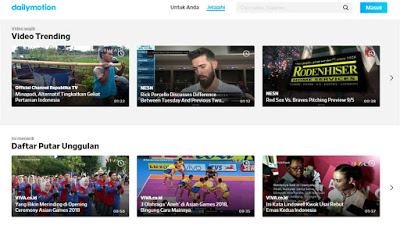
Dailymotion is a popular video-sharing site like YouTube and has a similar interface. Here, someone can find trending videos on the homepage or find out more through the categories and searches section at the top.
Video content creators can upload content up to 4GB in size and 60 minutes in length with 1080p resolution. With 112 million visitors per month, this platform serves as an incredible gateway for you to share content with people around the world.
Even though Dailymotion has a set of rules that you can and don’t do, the copyright policy is not as scary as YouTube. So there is more flexibility and tolerance for uploading content.
There is also an option to monetize content through advertising or a paywall. So, viewers can see ads on several other videos and videos for free.
Why use Dailymotion?
High-quality content
The appearance of a website is similar to YouTube which makes it easier to use
The rules are weak and there is less risk of deleting content
#3. Vimeo
Vimeo
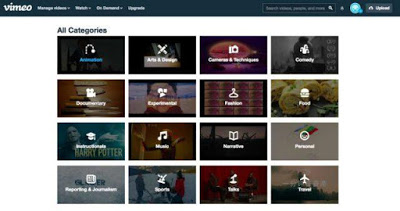
Vimeo is one of the best video hosting sites for classy artists and filmmakers. This platform encourages professionals in the fields of music, dance, cinematography, photography, or other creative works to showcase their work.
So if you want to see some random cat and dog videos, then you won’t find them here so you have to look at other sites. But if you are looking for classic short videos, experimental music clips, or interesting footage, Vimeo is the right place for you.
This platform has strict guidelines for uploading content because it contains high-quality content and you can also enjoy Ultra HD 4K visual content with HDR. The best about Vimeo is free advertising.
Many contradictions and the limit of Vimeo’s weekly upload of 500 MB disappointed content creators. Although there is an option to increase this limit to 5GB, it is considered too little because you have to pay for it.
Why use Vimeo?
A neat look with well-defined categories and an easy search
focus on videos and non-intrusive elements in the background makes watching better
#4. Metacafe
Metacafe
One of the oldest streaming video sites, Metacafe, appeared in 2003 before YouTube was even aired. This website is specifically for short-duration video content that focuses on video clips with 90 seconds duration, Metacafe offers short and light videos to its customers.
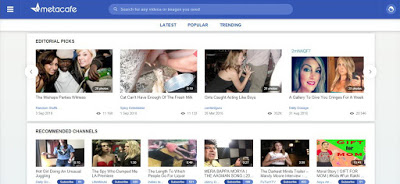
Minimal display Metacafe is neat for better browsing and has served around 40 million viewers. However, if you are looking for professionally made videos or complex topics, this platform is not for you.
Why use Metacafe?
This amazing site is specifically for enjoying short 90-second videos
Offer content quickly, directly, guide, and funny content
#5. DTube
DTube
Blockchain is the newest fashion in the city that is technologically, and based on this technology, a new video platform, DTube appears. This website is a good alternative to YouTube and also has a look for neat users.
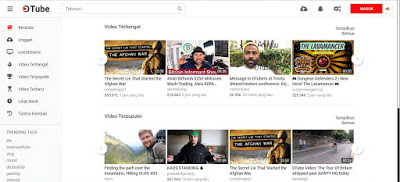
You can explore viral videos, trending, and can be watched through the homepage. There is also an option to save videos to watch later and see content that is viral through the trendy hashtag.
The best part of DTube is ad-free. If you upload videos, DTube will reward you with a seven-day Steem crypto-currency reward. In addition, users who leave comments on a video also have the opportunity to make money.
Why use DTube?
An ad-free website that will give you a viewing experience without interruption
#6. Veoh
Veoh
Veoh is a video-hosting website like YouTube that you can find.
If you want to watch a long video, Veoh is a good choice because it can upload and post videos with an unlimited length of duration. You can find many movies, TV series, and even anime on this site. YouTube alternative.
With a clean user interface and several social networking features, adding contacts, creating groups, and sending direct messages, Veoh is a great alternative to YouTube.
Why use Veoh?
Can be for videos and long films
#7. Internet Archive’s Video Section
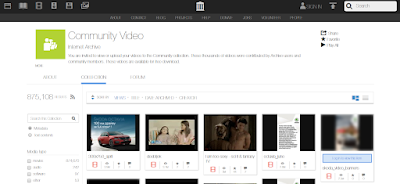
Internet Archive’s Video Section
This website is exactly the name – it has a lot of stored content. From documentaries, TV series, and films, you will find surprising variations in the Internet Archive’s Video Section
You can sort content by setting filters for years, languages, topics & subjects. By browsing, one can find certain videos that are hard to come by on other platforms. In addition, anyone can contribute by uploading content for free.
Why use the Internet Archive?
Many collections of old documentaries, TV series, and films
#8. IGTV
IGTV
YouTube has a new competitor named Instagram TV which was launched recently. This new video platform offers long, vertical videos that are specifically made for viewing on smartphones.
You can browse videos only through the application, however, to upload videos you can via the desktop. If you already have an Instagram account, you can automatically watch videos published by IGTV.
You can also be able to follow other channels to view content or just browse content based on your interests. As a creator, Instagram TV is one of the best platforms for displaying content to a larger audience. If you are a new user of Instagram, you can see the guide for IGTV and tips on how to use this platform.
Why use IGTV?
Easily watch videos on a smartphone
Many short videos with a maximum limit of up to 1 hour.
#9. 9Gag TV
9Gag TV
If you are hunting for videos that will give you pure entertainment, then 9GagTV is the right site. Facebook and Twitter users are familiar with this channel which presents unlimited entertainment in the form of GIFs, images, and memes.
It is also a collection of funny videos, movie footage, and interesting content like YouTube. You can browse through the ‘WOW’ and ‘WTF’ sections that have hosted entertaining content.
Why use 9GagTV?
Lots of endless supply of entertaining video content
#10. The Open Video Project
The Open Video Project
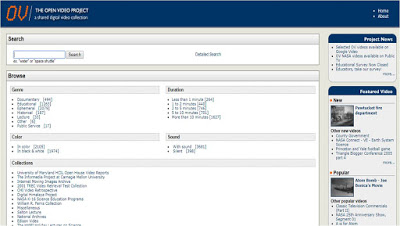
The Open Video Project, launched in 1998, is a digital library that has around 195 video segments. A digital video repository that has several documentaries, educational, and historical-related content.
You can choose the content available by setting filters for the duration of time, sound, and certain formats. Most videos on this platform are donated by US government agencies.
Why use The Open Video Project?
The best YouTube alternative is to find educational documentaries
#11. Vevo
Vevo
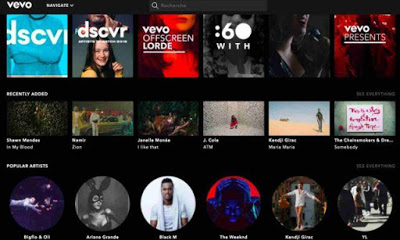
Vevo is one of the best websites for people who are looking for good-quality music videos. You can watch official music videos on this channel by major global artists such as Drake, J Cole, Chainsmokers, etc.
It offers an unlimited supply of visual content for music lovers which makes it the best YouTube alternative to watch music videos. The user interface is quite smooth and provides all the latest collections of songs from popular artists.
You can explore the latest releases through featured playlists or explore tracks by recognized artists. However, it does not offer other types of video content other than music, this is why I placed it at the bottom of this list.
Why use Vevo?
Watch the latest music videos and tracks from famous artists in just one place
#12. Facebook Search Options
Facebook Search Options
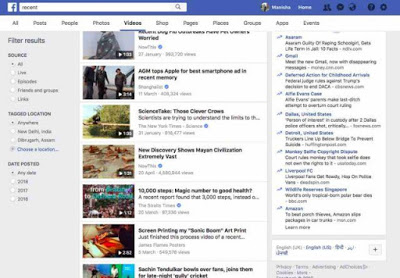
You usually use the search on Facebook to find friends, groups, or interesting pages. But this social platform offers more than that. You will be amazed by the results when you use the search option to find videos.
In my opinion, the choice of searching for videos on Facebook is largely ruled out because searching for videos through YouTube is the best. YouTube alternative. The collection of visual content offered by this social media network is very diverse like YouTube. Be it tutorials, reviews, music videos, funny clips, or anything; Facebook offers everything.
So just type whatever you want to search in the search box and then select the video tab on the search results page. You will find all the relevant videos for the keywords you are looking for.
The only missing feature is that you don’t get too many filters to narrow your search but you can sort videos by year and source. Another disadvantage is that to use this option you must have an FB account.
Why use Facebook Search?
A variety of videos in one place compared to several websites on this list.
Quickly display relevant content
#13. PeerTube
PeerTube
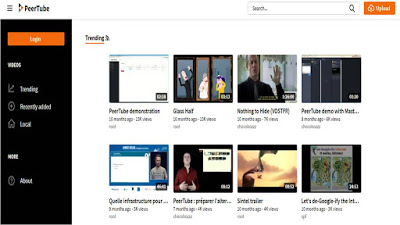
PeerTube is an alternative video-sharing platform besides good YouTube. It looks simple, and neat, and has no ads. It contains content that is currently Trending and New so that you can easily explore new videos.
The best part about PeerTube is overcoming YouTube’s limitations like being blocked or censored. Therefore, content creators easily showcase their content around the world very easily without the risk of getting banned. Because PeerTube is relatively new, it does not have a wide variety of video collections, however, it offers considerable service as a competitor.
Why use PeerTube?
Open-source and decentralized
No registration is required and loses terms & conditions
Although there is no single site that can be a complete replacement for YouTube, you and the creator can use the combination on the website according to your needs.
I hope this list of the best YouTube alternatives is useful for you. Feel free to choose one of the websites I recommend above and if you find some other great video sites, let me know in the comments section.
How to Make Tables in Excel Easy and Practical – Suitable for beginners who are just learning. You can create tables in just a few steps.
How to Make Tables in Excel Easy and Practical
How to Make Tables in Excel Easy and Practical
The table is a list that contains data from the summary data. Now, the presence of Excel software makes it easy for us to make it without having to draw.
Curious about how to create a table in Excel? Well, here, we will try to share the ways. How to create a table in Excel 2010, is the same as any other version.
Here, we will explain how to make a table practically. For those of you who want to be good at creating tables in Excel, see this article to the end.
Understanding Excel Tables
The tables that we create in Excel are the same as conventional tables that we make through paper media. We can also make it according to the desired shape. The contents can be text or numbers.
The Excel table itself is a set of columns and rows in a worksheet. It has provided a variety of powerful features and tools.
The function of this feature is to group related data on certain information. Then, the data is formed into a table.
There is also a way to create a table in Excel with formulas. Its function is to make it easier for us to count, add, and the like.
How to Make a Table in Excel
Now, it’s time for the discussion you’ve been waiting for. How to make a table in Excel 2019 that we share, it can also be for other versions. Because basically, it’s still the same. Here are the steps:
Steps to Create a Table in All Versions of Excel
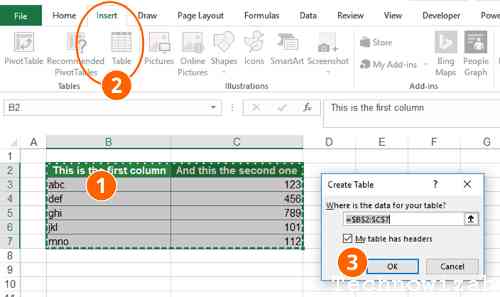
Step 1: Open Excel and Select the Insert Menu
Open the application and double-click the Excel document. Look for the Insert menu then select Table to create a Microsoft Excel document.
Step 2: Click OK in the New Window
If a new window appears, please click the OK button below it. Please check “My table has headers” in the new window if you have cells at the top, then click OK.
Step 3: Choose a Design
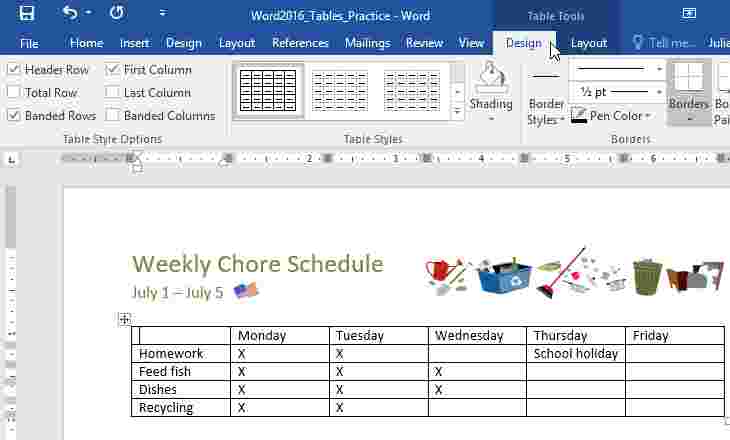
To change the table design, go to the Design tab at the top of the Excel window. Then please select one of the designs in the form of a colored box. It’s located in the “Table Styles” section of the toolbar.
Table Styles Options
You can also modify it via the toolbar called “Table Styles Options” with the following options:
First Column and Last Column: If selected, the contents of the first and last column and header will be in bold.
Banded Columns: Choose this design if you want alternating column colors. If you want to display a uniform column, please uncheck it.
Header Row: Please check this design option, so that the column names are placed in the top cell of the data group.
Banded Rows: This design is for alternating colors in rows. You can also uncheck this design to bring out the lines in a uniform color.
Total Row: Its function is to add a row at the bottom of the table that will show the number of rows of columns on the right.
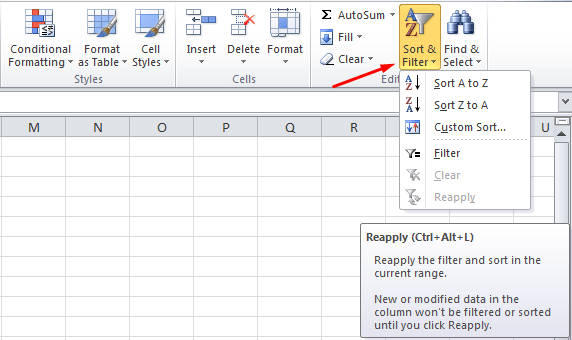
Filter Button: When selecting it, a drop-down box will be placed at the head of each column. That way, we will easily change the appearance of the data in the column that is created.
After that, please return to the Home tab, then you will return to the Home toolbar. All changes that have been made will not change.
Filtering Data on Table
Select or click the drop-down arrow to the right of the data column to filter. After that, a drop-down menu will appear.
Please select a filter on the drop-down menu. There are several menus that you can choose from as follows:
Sort Largest to Smallest: Its function is to sort from the largest to the smallest.
Sort Smallest to Largest: This filter function sorts data from smallest to largest.
Number Filters and Sort by Color: Functions as additional options. You can choose one of them depending on your data needs.
After selecting one, a new window will appear, then just click OK. The filter will then be applied to the table.
How to Create an Excel Table with Borders
How to create a table in Excel can be applied in version 2007 or another. The method is very easy, even beginners don’t take long to make it. Here we describe the steps:
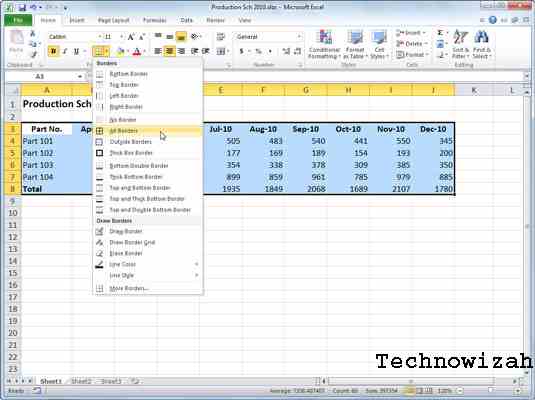
The block of data in the Excel column that you will turn into a table.
Please click the border button which has the Home menu table icon.
Please select the available border type. If you want to choose to create a full table, please select “All Borders”.
There are several other features that you can use to customize the table according to your needs.
Examples include font, fill, number, and others. Please select “More Borders” at the bottom to bring up the menu.
Click OK when the Border settings are complete, and the table is ready.
You can also edit or modify the border shape. Please enter the Home menu.
Many features can be used to modify, such as Themes Colors for Colors, Fonts, and others.
Advantages of Tables from Excel
Before going into the steps on how to create a table in Excel 2013, and other versions, we will share the following advantages information:
Tables can be made according to the design and style that we want.
There are many features to help us in creating a custom table.
It’s easy when we want to add rows of data without needing to change the table references that we have created.
Tables can be combined with formulas as needed.
Can add subtotals and filter buttons automatically.
To make it easy to remember, we can also add a name.
This is the information about how to create a table in Excel, How, easy right? Excel will make your job easier. Please form a table as needed through the steps above.