Author: Nazrul Islam

  • 36 Best Free Windows 10 Anime Theme Free Download 2024

    36 Best Free Windows 10 Anime Theme Free Download 2024

    36 Best Free Windows 10 Anime Theme Free Download – Do you want to change your old Windows 10 theme? If so, you’ve come to the right post. In this article, I will share with you the best 36 themes that are sure to bring a new atmosphere to your Windows 10.

    36 Best Free Windows 10 anime Theme Free Download
    36 Best Free Windows 10 anime Theme Free Download

    Here are The 36 Best Free Windows 10 Anime Theme Free Download 2024

    Sorted by category anime, games, tech & modern, action movies, minimalism, and sports. This is to make it easier for you to choose a theme based on the category you like.

    Read more:

    Oh yes, please pay attention that this post is a collection of various Windows 10 themes only. For that, you need to follow the theme maker’s instructions to install this theme properly on your Windows 10.

    #1. Naruto Shippuden
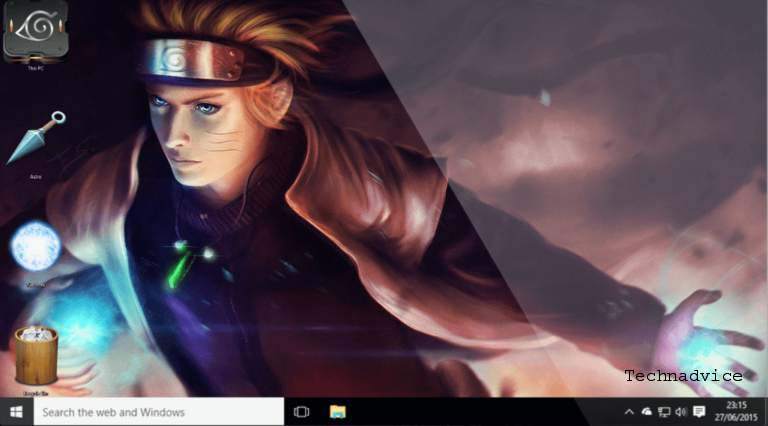
    Naruto Shippuden
    Naruto Shippuden

    Download Naruto Shippuden Themes

    #2. One Piece

    One Piece
    One Piece

    Download the One Piece Theme

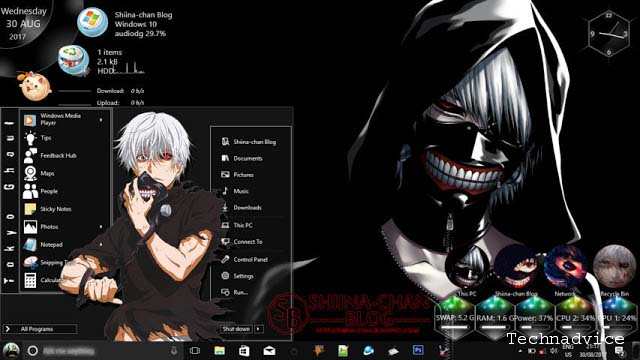
    #3. Tokyo Goul
    Tokyo Goul
    Tokyo Goul

    Download the Tokyo Goul Theme

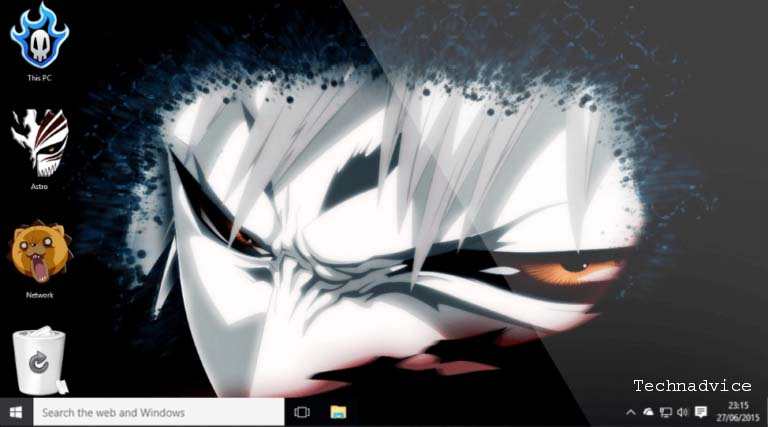
    #4. Bleach

    Bleach
    Bleach

    Download Bleach Themes

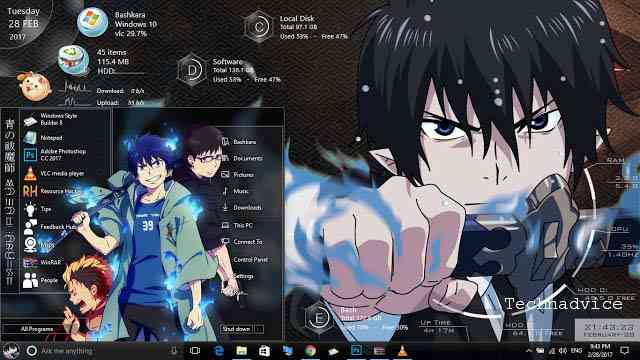
    #5. Ao No Exorcist
    Ao No Exorcist
    Ao No Exorcist

    Download the Ao No Exorcist Theme

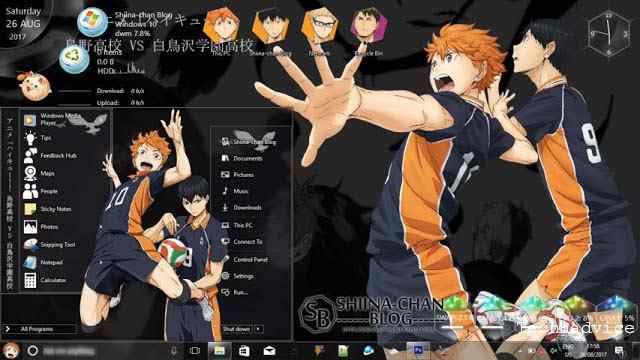
    #6. Haikyuu
    Haikyuu
    Haikyuu

    Download Haikyuu Themes

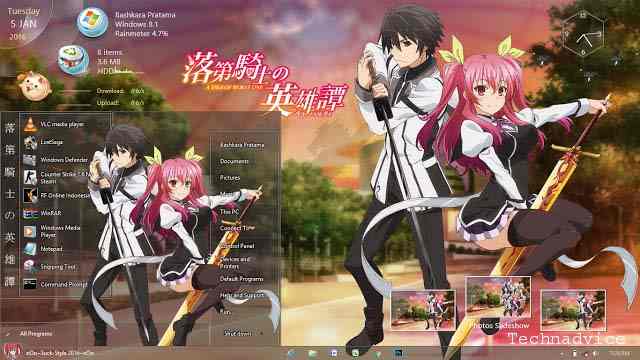
    #7. Rakudai Kishi no Cavalry

    Rakudai Kishi no Cavalry
    Rakudai Kishi no Cavalry

    Download the Rakudai Kishi no Cavalry Theme


    windows 10 games theme

    #1. Resident Evil

    Resident Evil
    Resident Evil

    Download the Resident Evil Theme

    #2. GTA V

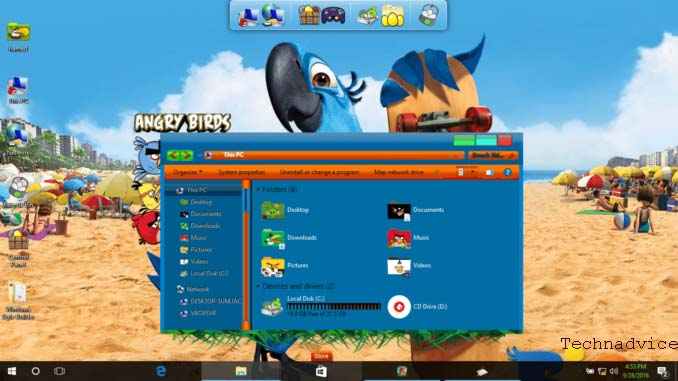
    #3. Angry Birds Rio
    Angry Birds Rio
    Angry Birds Rio

    ‘ Download the Angry Birds Rio Theme

    #4. Assassin’s Creed
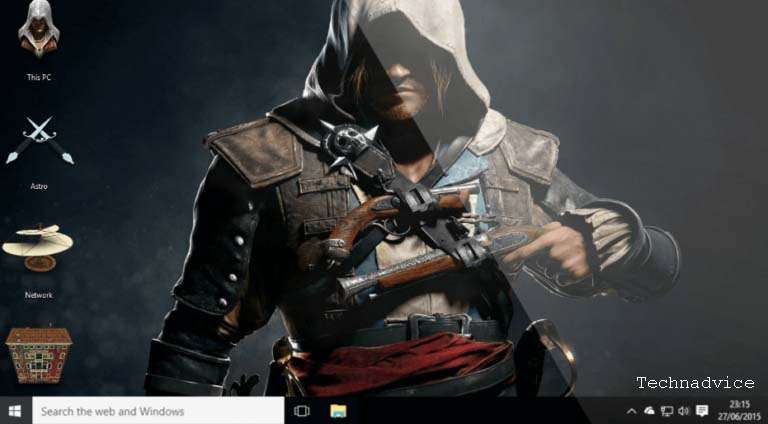
    Assassin's Creed
    Assassin’s Creed

    Download the Assassin’s Creed Theme

    #5. Battlefield 3

    Battlefield 3
    Battlefield 3

    Download the Battlefield 3 Theme

    #6. Final Fantasy XIII

    Final Fantasy XIII
    Final Fantasy XIII

    Download the Final Fantasy XIII Theme

    #7. Crysis 2

    Crysis 2
    Crysis 2

    Download the Crysis 2 Theme

    #8. Gears of War 4

    Gears of War 4
    Gears of War 4

    Download the Gears of War 4 Theme


    Windows 10 Tech & Modern Themes

    #1. Mac OS X El Capitan
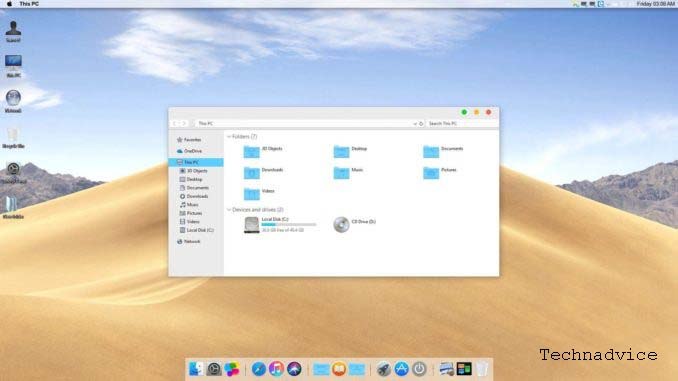
    Mac OS X El Capitan
    Mac OS X El Capitan

    Download the Mac OS X El Capitan Theme

    #2. Ubuntu Skinpack
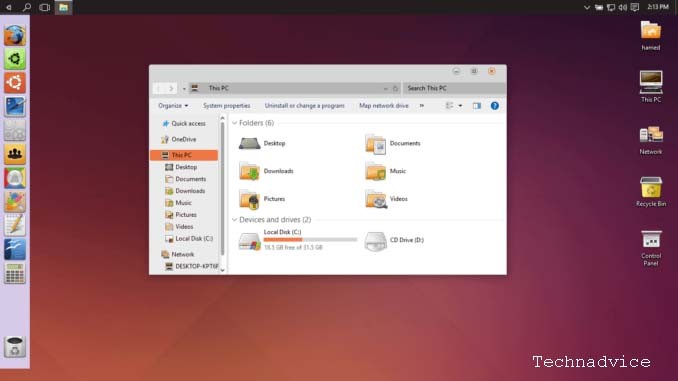
    Ubuntu Skinpack
    Ubuntu Skinpack

    Download the Ubuntu Skinpack Theme

    #3. FFox Theme

    #4. Penumbra 10
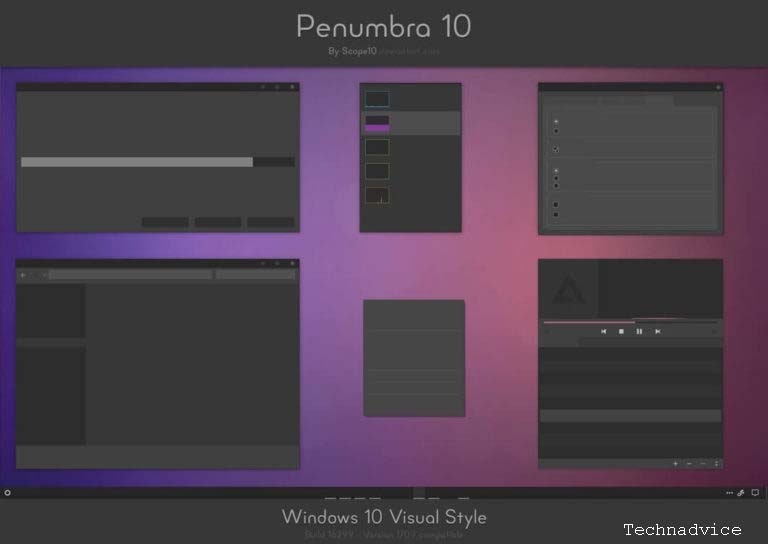
    Penumbra 10
    Penumbra 10

    Download the Penumbra 10 Theme

    #5. Ades Theme
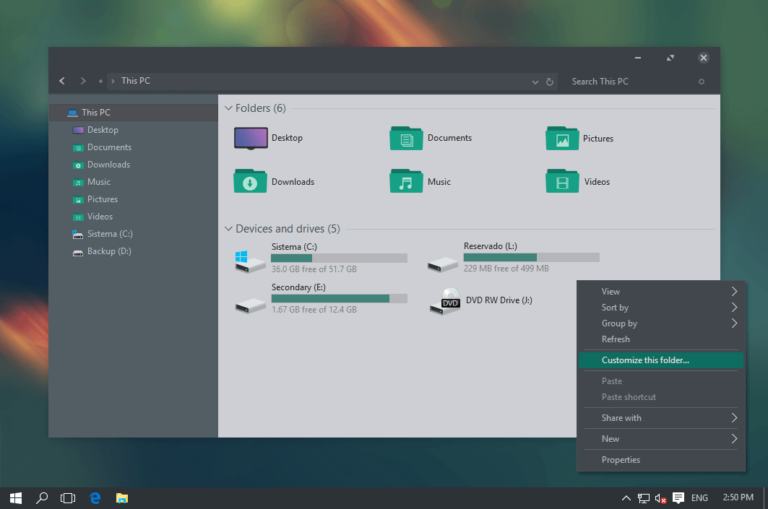
    Ades Theme
    Ades Theme

    Download the Ades Theme

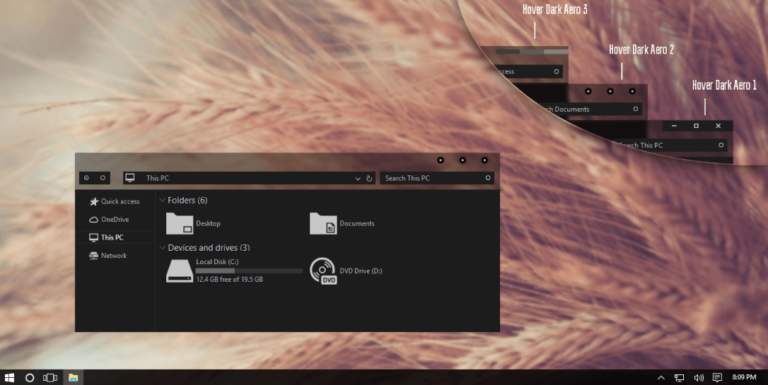
    #6. Dark Aero Theme

    Dark Aero Theme
    Dark Aero Theme

    Download the Dark Aero Theme

    #7. Arc
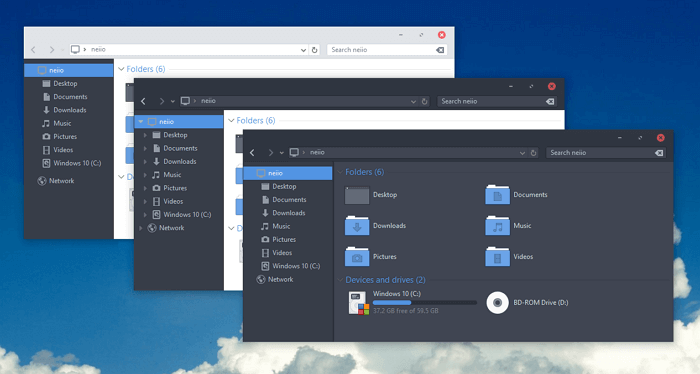
    Arc
    Arc

    Download the Arc Theme


    Windows 10 Action Movies Themes

    #1. Iron Man
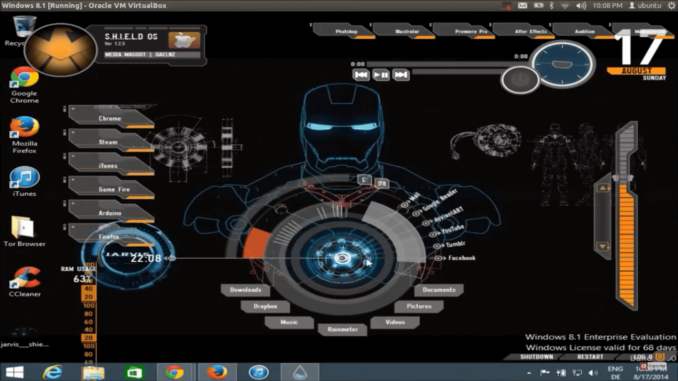
    Windows 10 Action Movies Themes
    Windows 10 Action Movies Themes

    Download the Iron Man Theme

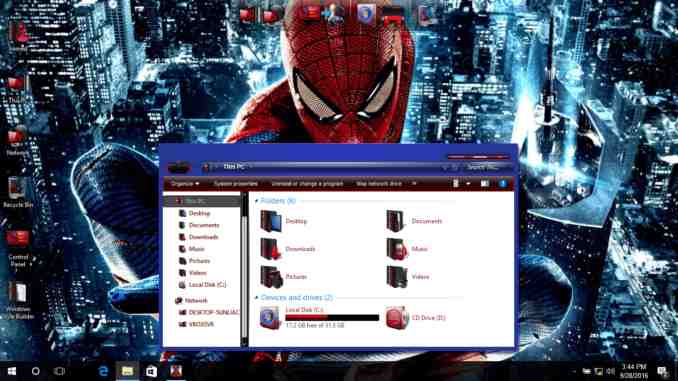
    #2. Spider-Man

    Spider Man
    Spider Man

    Download the Spider-Man Theme

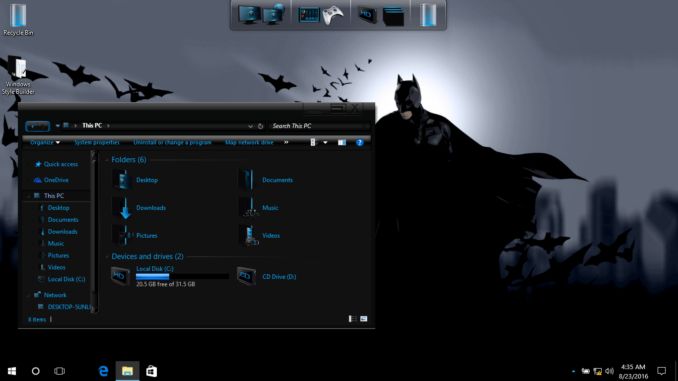
    #3. Batman

    Batman
    Batman

    Download the Batman Theme

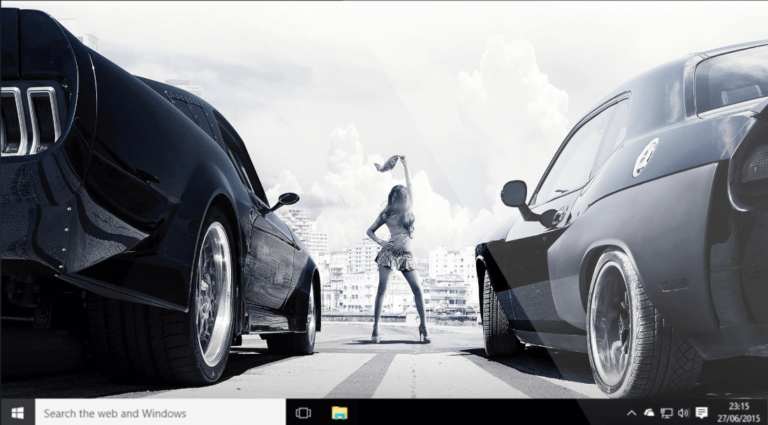
    #4. Furious 7

    Furious 7
    Furious 7

    Download the Furious 7 Theme

    #5. Superman
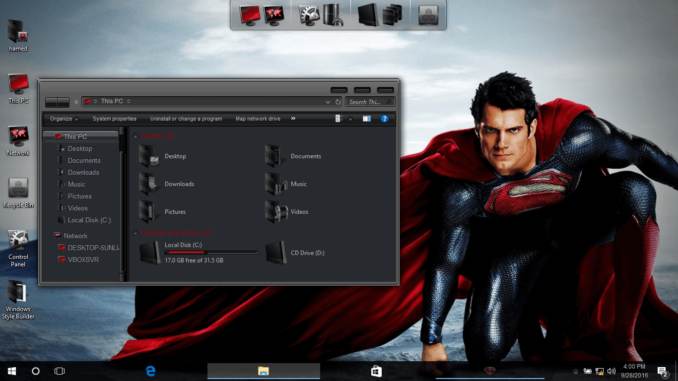
    Superman
    Superman

    Download Superman Theme

    Windows 10 Minimalist Themes

    #1. Simplify 10
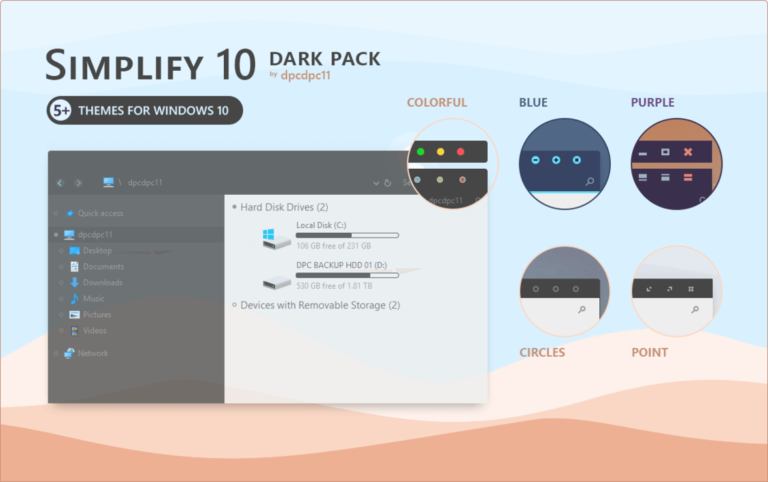
    Windows 10 Minimalist Themes
    Windows 10 Minimalist Themes

    Download the Simplify 10 Themes

    #2. Aero Glass
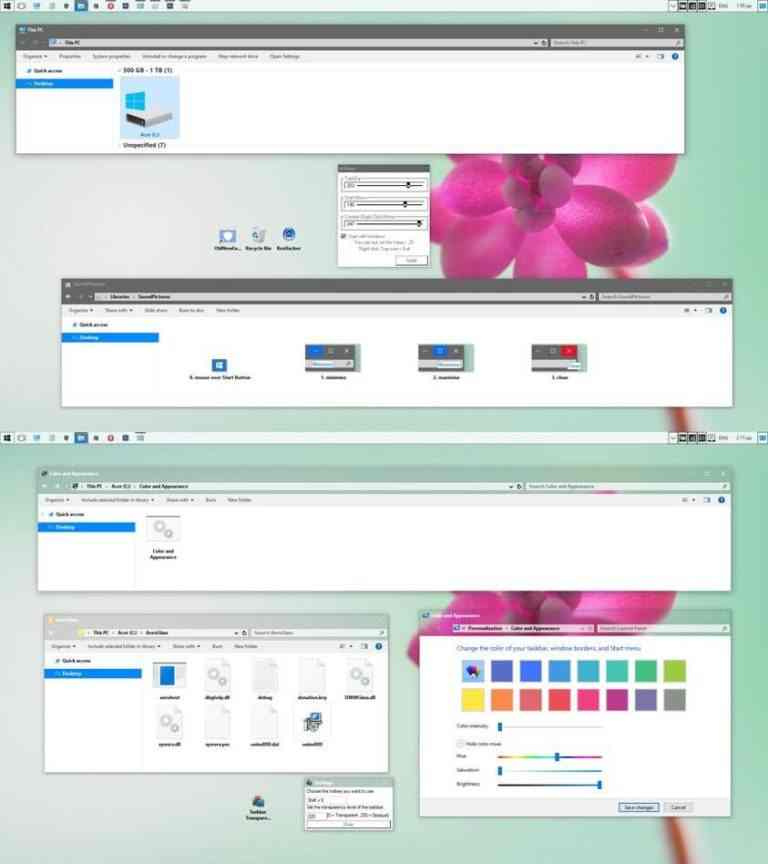
    Aero Glass
    Aero Glass

    Download the Aero Glass Theme

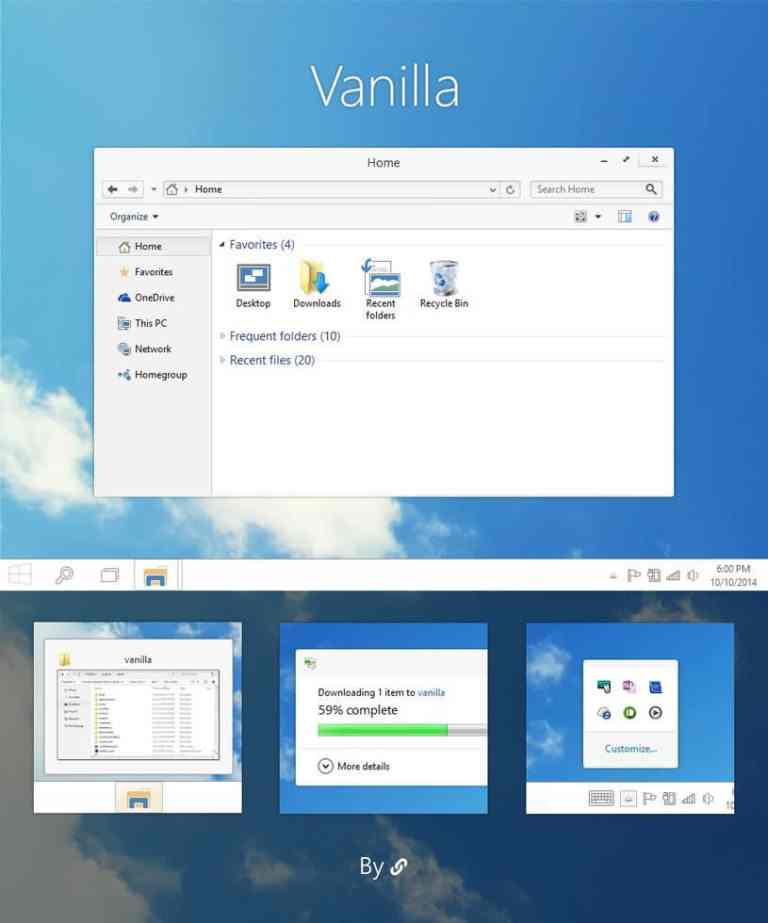
    #3. Vanilla

    Vanilla
    Vanilla

    Download the Vanilla Theme

    #4. Oxford Theme
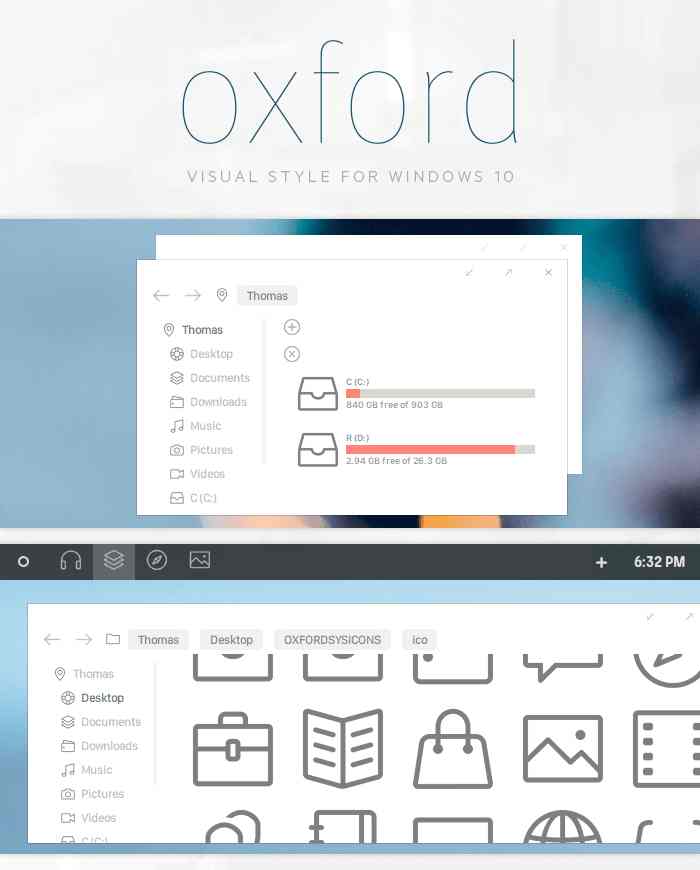
    Oxford Theme
    Oxford Theme

    Download the Oxford Themes

    Windows 10 Sports Themes

    #1. Juventus

    Windows 10 Sports Themes
    Windows 10 Sports Themes

    Download the Juventus Theme

    #2. Real Madrid

    Real Madrid
    Real Madrid

    Download the Real Madrid Theme

    #3. Manchester United

    Manchester United
    Manchester United

    Download the Manchester United Theme

    #4. Cristiano Ronaldo

    Cristiano Ronaldo
    Cristiano Ronaldo

    Download the Cristiano Ronaldo Theme

    #5. Los Angeles Lakers

    Los Angeles Lakers
    Los Angeles Lakers

    Download the Los Angeles Lakers Theme

    Read more:

    Conclusion:

    So, friends, This is an explanation of The 36 best free Windows 10 anime themes, that you download it for free and use. Are there any themes that the author missed? Please give your opinion in the comments column!

  • 6 Ways to Change Cell Phone Number on Facebook 2024

    6 Ways to Change Cell Phone Number on Facebook 2024

    6 Ways to Change Cell Phone Number on Facebook – Adding an active phone number is one way to increase account security. How to change the cellphone number on Facebook below will also help users delete old numbers that are no longer active and replace them with new numbers.

    4 Ways to Change Cell Phone Number on Facebook
    4 Ways to Change Cell Phone Number on Facebook

    How to Change Cell Phone Number on Facebook Android PC Website 2024

    Entering an active phone number will help users regain account access, for example when forgetting a password.

    Read more:

    Facebook will then send a message that guides the user to enter the Facebook account. Here is how to change the cellphone number either through a cellphone or PC.

    Please note that the way to be able to change or change the cell phone number (Facebook) can be done with several stages of the choice of very easy methods. We can use a smartphone or laptop / PC to practice the steps.

    How to Change Cell phone Number on Facebook Application with Apps

    The best method is how to change the cell phone number on Facebook by using the FB application that can be downloaded via Google Play or the App Store.

    For Android and iPhone smartphone users, you can refer to the method along with the easy steps to modify, change, change, or add a new mobile number on Facebook below.

    #1. Change Cell phone Number on Facebook (Apps)

    We can change or change the cellphone number on Facebook through the Android and iOS applications, see and follow the method below.

    • Unlock your Android or iPhone smartphone screen to start using it.
    • To start the process, you can immediately open and run the Facebook application.
    • Then, log in or log in using your Facebook account (the cellphone number will be changed).
    • After logging in, press the three vertical stripe icons  in the upper right menu.
    • Then press/push Settings & Privacy.
    • Next select and press Settings.
    • Then tap/tap Personal Information.
    • Look and press the Telephone Number section.
    • To change the number, you can tap Delete first. Then continue with the steps to add a new mobile number on Facebook below.

    #2. Add Cell phone Number on Facebook (Apps)

    To add a new cellphone number you can do the following steps.

    • Open & run the Facebook application on your Android or iPhone.
    • Login with your Facebook account.
    • After logging in, press the three vertical stripe icons  in the upper right menu.
    • Then press/push Settings & Privacy.
    • Next, select and press Settings.
    • Then tap/tap Personal Information.
    • Look and press the Telephone Number section.
    • To add numbers, you can directly press Add Phone Number.
    • Enter/enter your new mobile number, then press Continue.
    • Check the SMS for the verification code, then enter the verification code provided.
    • Confirmation.

    How to change cell phone Number on Facebook with Web

    In the next method, we can still change the cellphone number on Facebook using a laptop / PC / computer. The trick is to use a browser application and visit the website version of Facebook. For more details, immediately refer to the following easy guide.

    #1. Change Cell phone Number on Facebook (Website)

    First, we will try to change/change the mobile number on the website version of Facebook. The steps that must be done are:

    »New version of Facebook

    Add phone number on Facebook (Website)

    • Open and run the browser on your device, both laptop, and PC. It is recommended to use Google Chrome so that internet access is fast.
    • Then, visit Facebook.com
    • Login / Login with your Facebook account.
    • Click the triangle icon down   (located in the upper right corner).
    • Select Settings & Privacy » Settings.
    • Continue by clicking the Phone in the left sidebar.
    • Then click + Add Cellphone Number to add your first cellphone number or click + Add another cellphone number to add another number.
    • Enter the mobile number and select to receive the confirmation code via SMS or phone call, then click Continue. You might have to make sure you have activated SMS.
    • Enter your confirmation code and click Confirm.

    #2. Delete Cell phone Number on Facebook (Website)

    • Open and visit Facebook.com
    • Login / Login with your Facebook account.
    • Click the triangle icon down   (located in the upper right corner).
    • Select Settings & Privacy » Settings.
    • Click Phone in the left sidebar.
    • Next, select and click Delete under the number you want to delete.
    • Then click Delete Phone Number to confirm.

    »Classic version of Facebook

    #3. Add Cell phone Number on Facebook (Website)

    • Open and run the browser on your device, including your laptop and PC. It is recommended that you use Google Chrome for fast internet access.
    • Then, visit Facebook.com
    • Login / Login with your Facebook account.
    • Click the triangle icon down   (located in the upper right corner).
    • Click Settings, then select and click Mobile in the left sidebar.
    • Like before, click + Add Cellphone Number to add your first cellphone number or click + Add another cellphone number to add another number.
    • Enter the mobile number and select to receive the confirmation code via SMS or phone call, then click Continue. You may also need to make sure you have activated SMS.
    • Enter your confirmation code then click Confirm.

    #4. Delete Cell phone Number on Facebook (Website)

    • Open and visit Facebook.com
    • Login / Login with your Facebook account.
    • Click the triangle icon down   (located in the upper right corner).
    • Click in the Settings section, then click Phone in the left sidebar.
    • Next, click Delete under the number you want to delete.
    • Next, click Delete Cellphone Number to confirm.

    Read more:

    Conclusion:

    So, friends, that’s a tutorial on changing a cellphone number on Facebook through the Facebook application on a cellphone or a PC with an available browser.

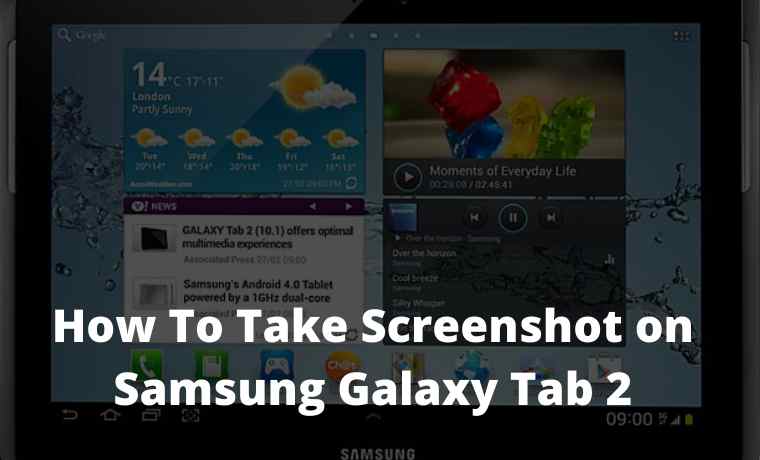
  • 5 Steps To Take Screenshot on Samsung Galaxy Tab 2

    5 Steps To Take Screenshot on Samsung Galaxy Tab 2

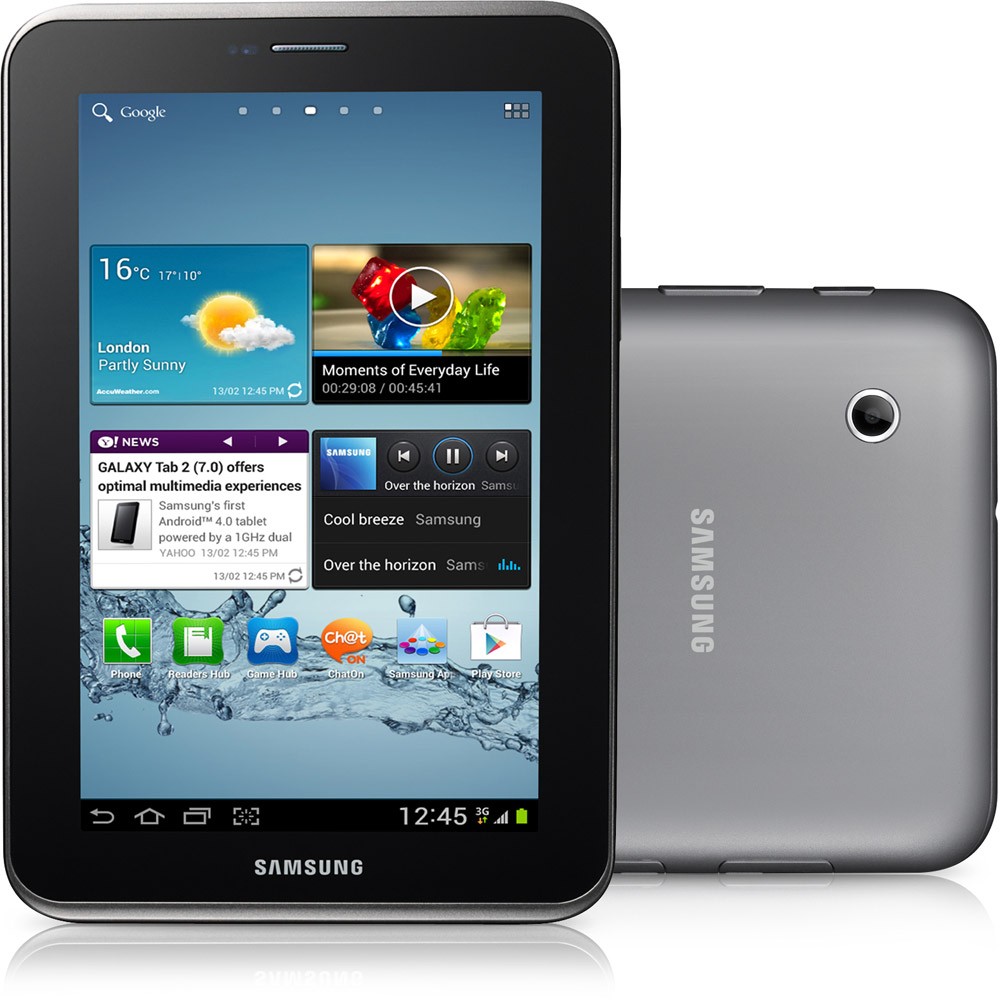
    5 Steps To Take Screenshot on Samsung Galaxy Tab 2 – For Tab enthusiasts, this Samsung Galaxy Tab 2 can be an Android-based Tab choice with high quality.

    How To Take Screenshot on Samsung Galaxy Tab 2
    How To Take Screenshot on Samsung Galaxy Tab 2

    How To  Take Screenshot On Samsung Galaxy Tab 2

    But at this time the type of Samsung Galaxy Tab 2 is not being sold in its new version or is no longer being produced.

    Read more:

    But for the second version, there are still many found on the market. The selling price of Samsung Galaxy Tab 2 second ranges from 1-2 million.

    Of course, the features of the Samsung Galaxy Tab 2 are different from the new generation, namely the Samsung Galaxy Tab 3, including the price, and the Samsung Galaxy Tab 3 is still widely sold on the market for the new version.

    The selling price of the new version of the Samsung Galaxy Tab 3 is around 3.5 million. Differences in specifications and Screenshot features are different between Samsung Galaxy Tab 2 and Samsung Galaxy Tab 3.

    And this time Infomint will discuss how to do screenshots on the Samsung Galaxy Tab2 easily.

    The screenshot itself is an activity taking the screen display. The role of the Screenshot is very important.

    The use of screenshots is usually to capture if there is something important on our Smartphone screen such as images from the internet, browsing Chat with certain people, etc., and are very flexible.

    No need for quota and signal. And we can do it according to our will. When and wherever we are.

    Screenshot with the Application

    There are many Screenshot applications for a particular Smartphone, we can look for them depending on the type of Smartphone itself.

    For those who run an Android-based Operating System, can search the Google Play Store, for those who run the iOS Operating System, can search the App Store.

    Using the Screenshot application may not be a difficult thing, because it’s quite easy to do it.

    Download and install the application first, and understand and learn the tutorial, by automatically doing screenshots using the application it will be easier without having to press certain combination buttons.

    Screenshot with a key combination
    Screenshot with a key combination

    Screenshot with a key combination

    By using a combination of the Power Button + Volume Down Button we can already do the Screenshot activity.

    The following is a way to do a Screenshot by using a key combination without having to use the Application:

    1. Of course, prepare the screen that you want to capture.
    2. Press the Power + Volume Down Button simultaneously and hold for a few seconds.
    3. Release after feeling the Smartphone vibrates
    4. The screenshot will appear in the Notification panel.
    5. And with automatic screenshots directly stored in the Gallery with the name Folder ” Screenshot “.

    Read more:

    Conclusion:

    So, friends, This is the explanation of how to take Screenshots on Samsung Galaxy Tab 2, either using the application or using the key combination.

  • 3 Ways To Make Degree Symbol in Windows MS Word 2024

    3 Ways To Make Degree Symbol in Windows MS Word 2024

    3 Ways To Make Degree Symbol in Windows MS Word – Making the degree Celsius symbol is probably very easy for us to do on a sheet of plain paper, but what if we want to insert the symbol or sign in a data processing program such as Microsoft Word?

    How to Make Degree Symbol in Windows Microsoft Word
    How to Make Degree Symbol in Windows Microsoft Word

    How to Make Degree Symbol in Windows MS Word 2024

    So, in this article, we will review how to write a degree symbol in Word very easily and quickly, of course.

    Read more:

    When we try to enter the degree symbol in Ms Word, we have a little trouble, this is because the computer or laptop keyboard is not available.

    Some of them are the Rupe symbol, th, 1st, phi, tick, or checklist, and other symbols that are still related to writing a physics or mathematical formula.

    No need to wait too long, let’s just discuss the easy technique guide for typing the degree symbol in Word.

    How to make a degree symbol in Microsoft Word Windows 10

    How to make a degree symbol in Microsoft Word Windows 10

    The tips for making this degree symbol apply to all versions of Microsoft Word starting from 2007, 2010, 2013, and 2016.

    Well, Windows Phone users can adjust it themselves. Because basically, it is not much different when using a computer or PC.

    #1. Superscript

    This first method is highly recommended to try, how to quickly create a degree symbol in Word is very easy and practical because it only uses a combination of keyboard keys.

    Steps to create a degree symbol in Word

    1. Open a Microsoft Word data processing program on your computer or laptop.

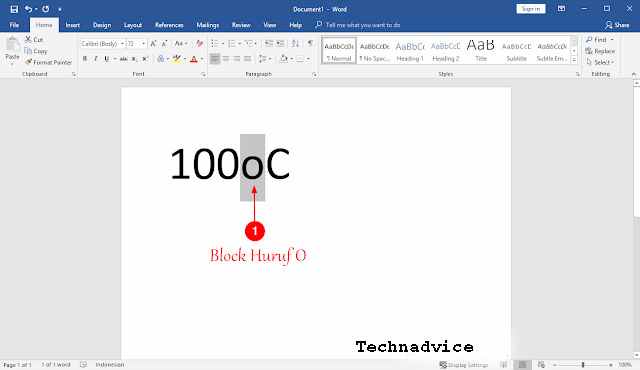
    2. After that you type freely, here I write the number 100 degrees Celsius as an example.

    How to make a degree symbol in Microsoft Word Windows 10

    3. Well, as for the writing use the following format.

    • 100oC
    • 100 is a number
    • o is the lowercase o
    • C is the capital C

    4. If you have selected or blocked the lowercase o by using the cursor or Shift + Right or left direction.
    How to make a degree symbol in Microsoft Word Windows 10

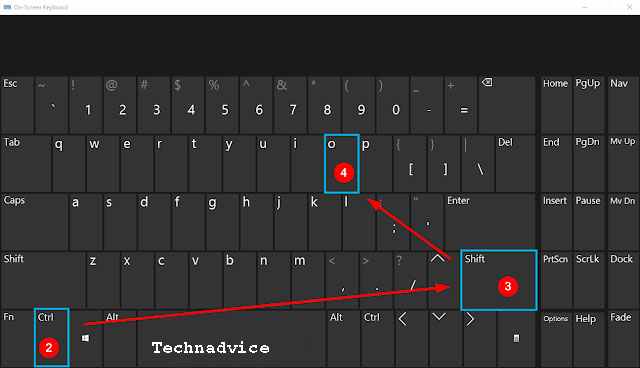
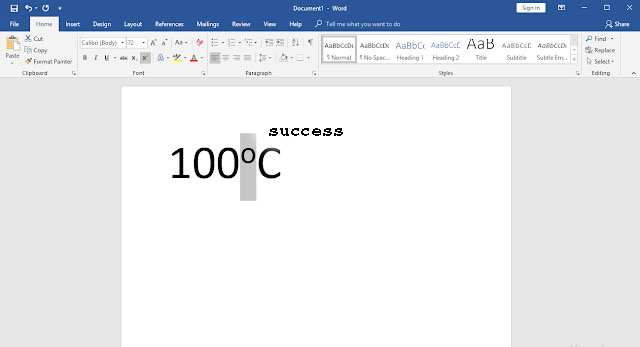
    5. Finally, you can press the key combination Ctrl + Shift + O. Then automatically the lowercase o will go upwards to become a degree symbol.

    How to make a degree symbol in Microsoft Word Windows 10

    You can also use this Superscript feature by going to the Home menu tab and then selecting the last font you click the X rank.

    #2. Symbol

    In this second alternative, we will take advantage of the menu facilities found in MS Word. Not only the degree symbol, but you can also make Arabic writing in Microsoft Word.

    Steps to writing degree symbol in MS Word

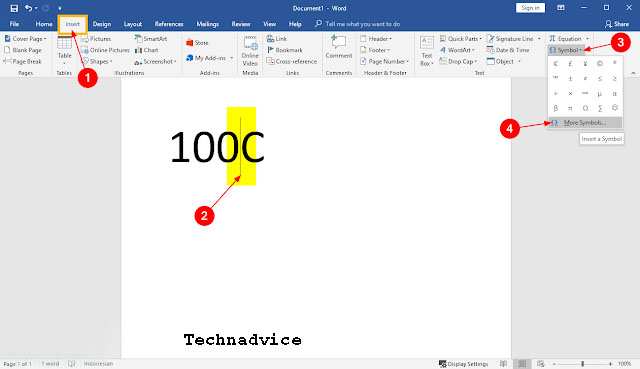
    1. Please open the Insert Menu tab as shown below.

    How to make a degree symbol in Microsoft Word Windows 10

    Then you type the number 100C, right before the letter C You place the cursor in front of it.

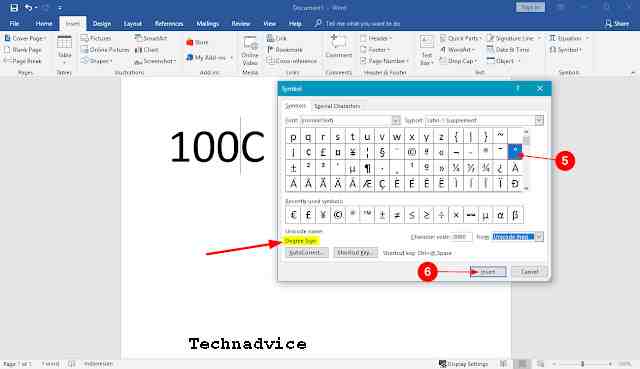
    2. Enter the Symbol function in the upper right corner, and press it to open the dropdown menu. Click on the very bottom itself, More Symbols, to get a choice of various symbols or other special characters.

    3. After that the usual Symbol pop-up menu will appear, you open it in the Symbols section, and you select the character.

    How to make a degree symbol in Microsoft Word Windows 10

    Well, to make sure that it’s a degree symbol or not. You can see it in the Unicode name: Make sure it is labeled Degree Sign.

    4. Finally, you can press the Insert button to enter it. If it is successful you can select the Close button to close it.

    #3. Equation

    Maybe for those of you who often enter mathematical formulas such as making orders or others, you must be familiar with the Equation feature.

    Well, it turns out that in this function we can make a degree symbol too. Here’s the guide.

    Steps to enter the degree symbol in Microsoft Word

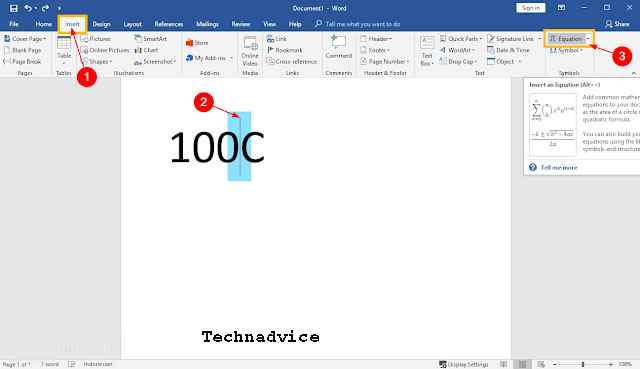
    1. Please open the Insert Menu tab on the MS Word sheet.

    How to make a degree symbol in Microsoft Word Windows 10

    2. Then you write something like this 100C. If you have now, place the cursor right in front of the letter C as shown.

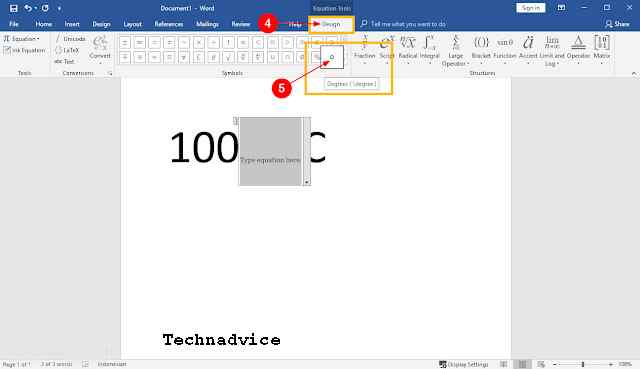
    3. You enter the Equation feature to select the symbol or formula to be used.

    4. Enter the Design menu tab and select the degree symbol usually labeled Degrees (\ degree). Then the degree symbol will automatically be inserted right before the letter C.

    How to make a degree symbol in Microsoft Word Windows 10

    By using the Equation feature you can also insert other symbols such as percent (%), multiplication, division, and so on.

    If you look at some of the methods that we have discussed above, you can not only insert the degree Celsius (ºC) symbol. It can also create a degree Fahrenheit (ºF) symbol. Until the exponent or square root can also be.

    Well, additional tips if you use them in large enough quantities. You can use the copy-and-paste function.

    Read more:

    Conclusion:

    So, friends, This is the explanation of how to make a degree symbol in windows MS word, use this symbol is often applied to data processing programs such as Microsoft Word, Excel, and PowerPoint.
    Hopefully, this tutorial on how to make a degree symbol in Microsoft Word will help you. Now it’s not easy to write Celsius or Fahrenheit symbols on your worksheets.

  • How to Update Windows 10 Computer PC Laptop 2024

    How to Update Windows 10 Computer PC Laptop 2024

    How to Update Windows 10 Computer PC Laptop – Windows 10 Update will install patches on your computer to help protect sensitive information from hackers (such as passwords and bank details). In addition, this update is useful for helping computers run smoother, getting new features, and changing the appearance of Windows.

    How to Update Windows 10 Computer PC Laptop
    How to Update Windows 10 Computer PC Laptop

    How to Update Windows 10 Computer PC Laptop 2024

    While Windows 10 can be updated automatically, there are times when you need to do it yourself. Here’s how to manually update your Windows 10 computer and how to fix any errors you may encounter.

    Read more:

    To update a Windows 10 computer manually, open the Windows Start Menu and click Settings. Then open Update & Security and select Install Now or  Check for Updates. Finally, wait for the update to finish installing and click Restart Now.

    Before you update your Windows 10 computer, you must remove all attached devices, such as external hard drives. Lastly, you also need a stable internet connection.

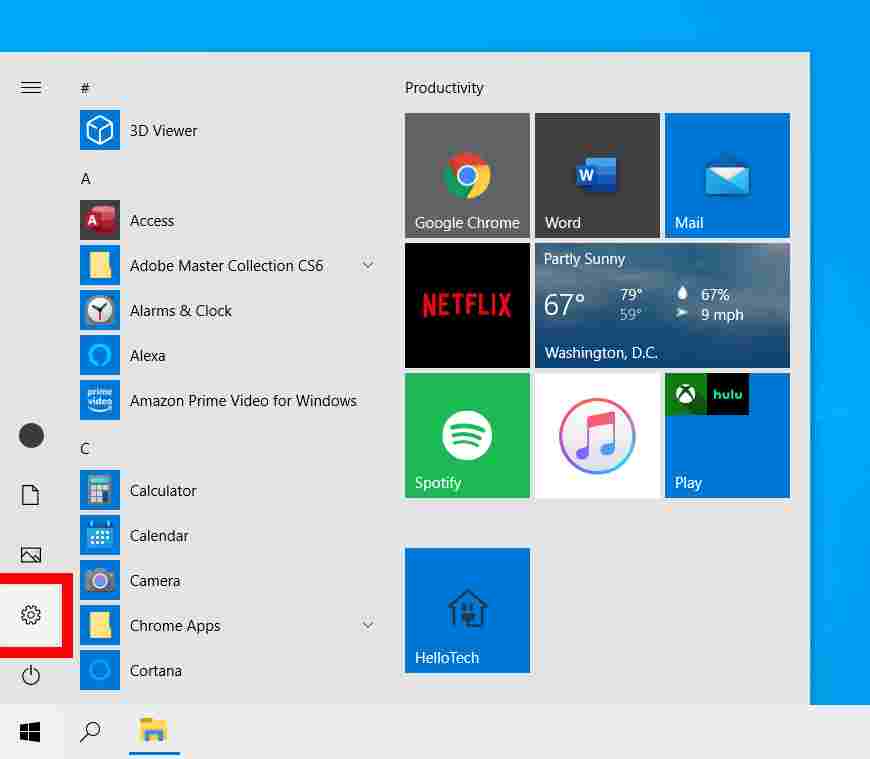
    1. Open the Windows Start MenuYou can do this by clicking the button with the Windows logo in the lower-left corner of your screen. You can also press a key with the Windows logo on your keyboard.

    2. Then click SettingsThis is the button with the gear symbol just above the power button. How to Update Windows 10 Computer PC Laptop

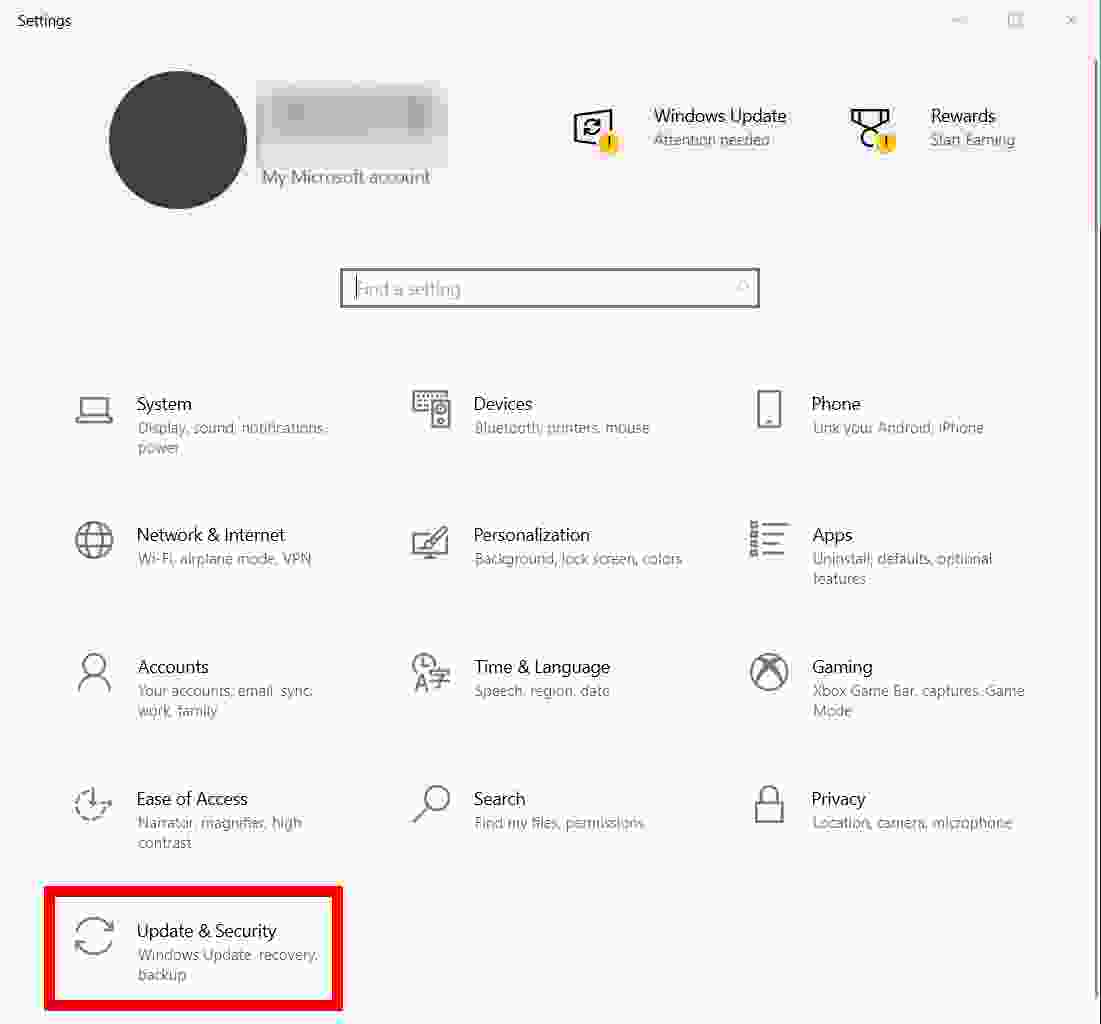
    3. Next, click Update & Security.

    How to Update Windows 10 Computer PC Laptop

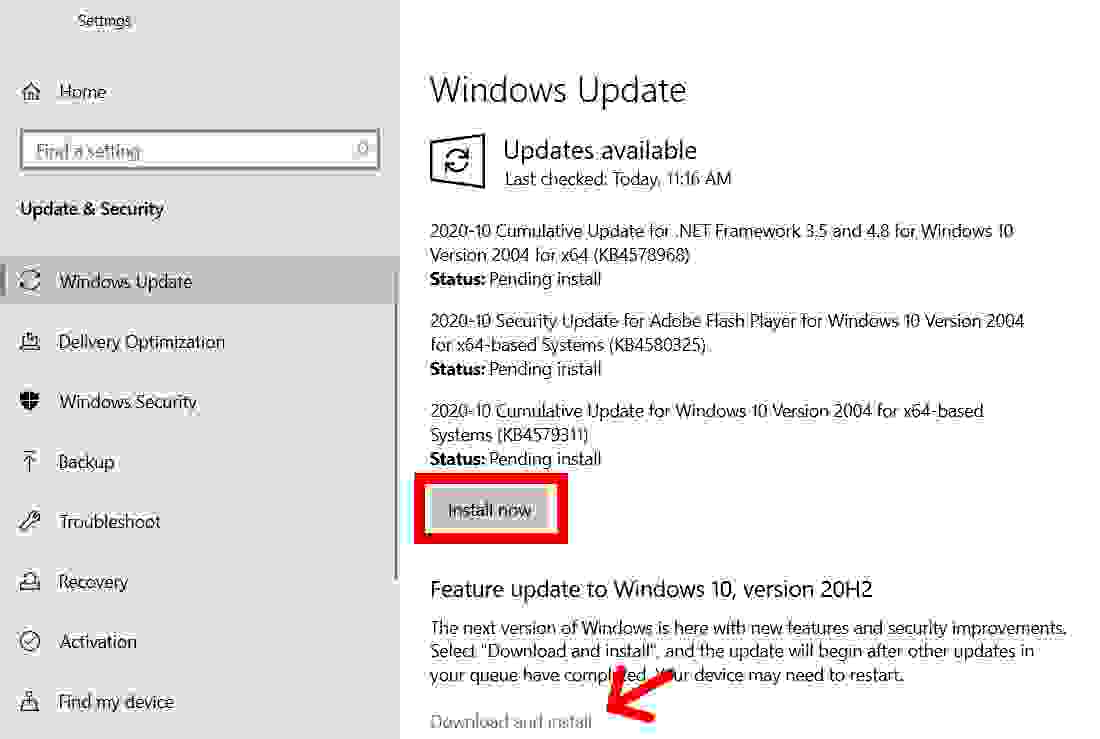
    4. Then select Install Now or Check for UpdatesIf you see the Install Now button, you need to update Windows.

    How to Update Windows 10 Computer PC Laptop

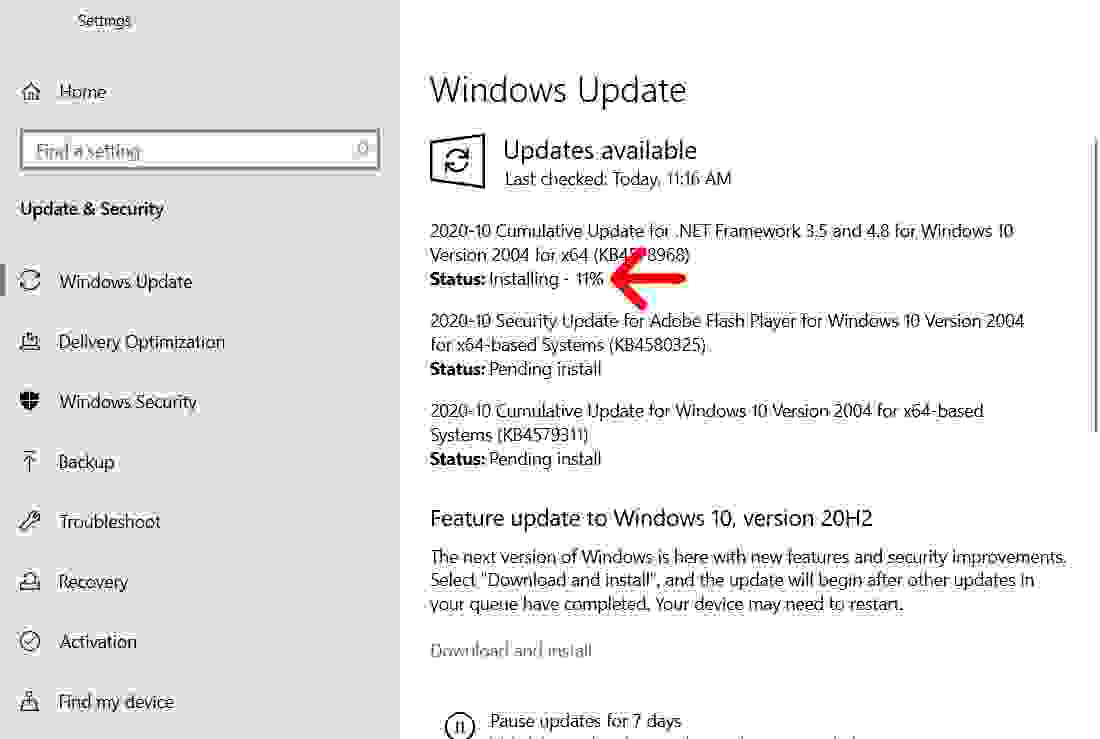
    5. Next, wait for the update to install. This may take some time, depending on how many updates you need to install and how large they are. You will see a percentage under each update section telling you how long it took the update to finish installing.

    How to Update Windows 10 Computer PC Laptop

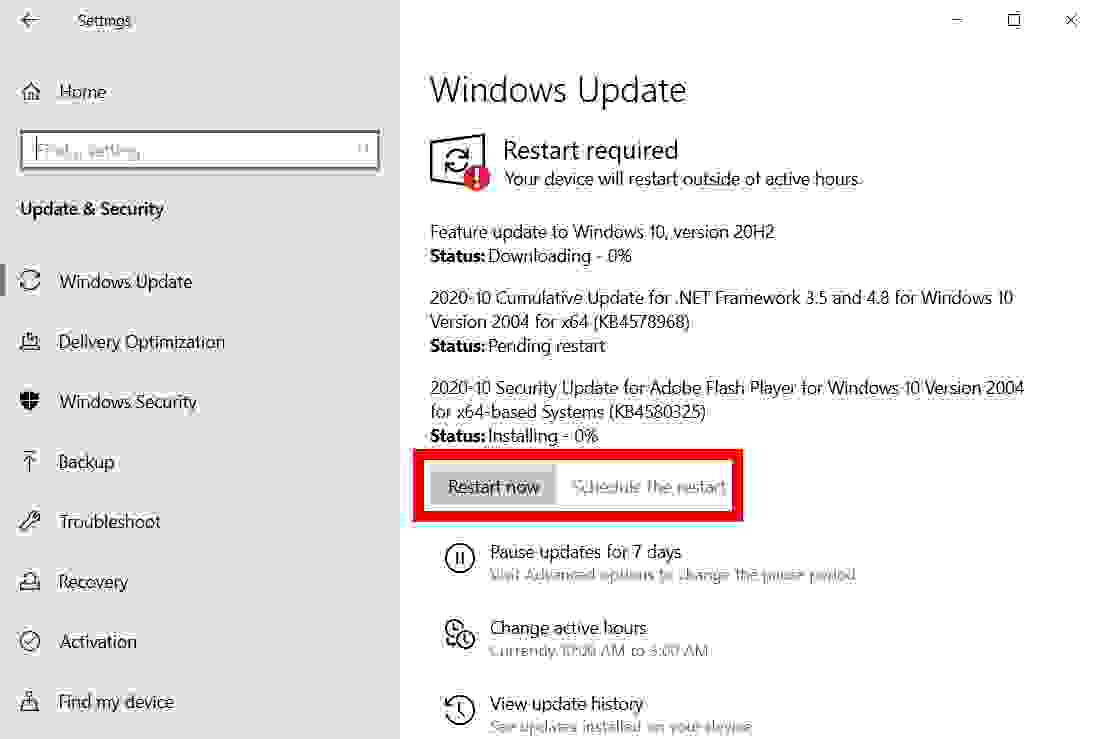
    6. Finally, click Restart now after the update is installed. Once the update has been downloaded and installed, you will see a button that says Restart now. Or, if you don’t want to restart immediately, you can also click Schedule the restart.

    How to Update Windows 10 Computer PC Laptop

    If this doesn’t work, here’s how to troubleshoot problems you might get when trying to update Windows 10:

    How to Troubleshoot Windows Update

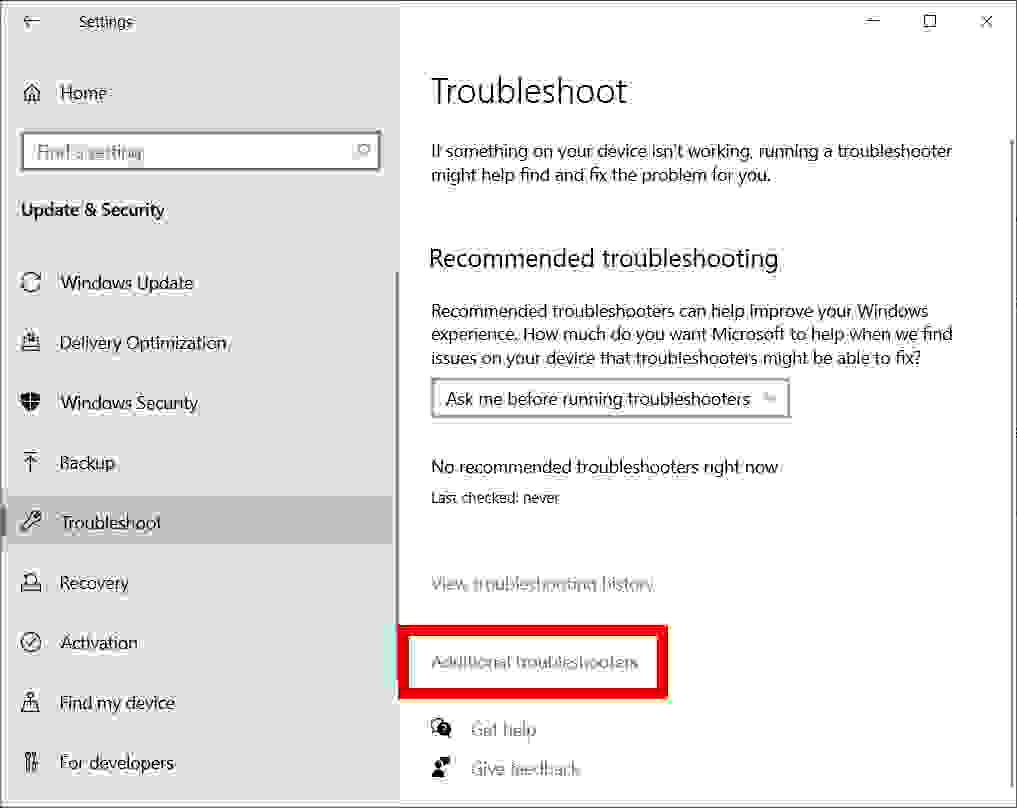
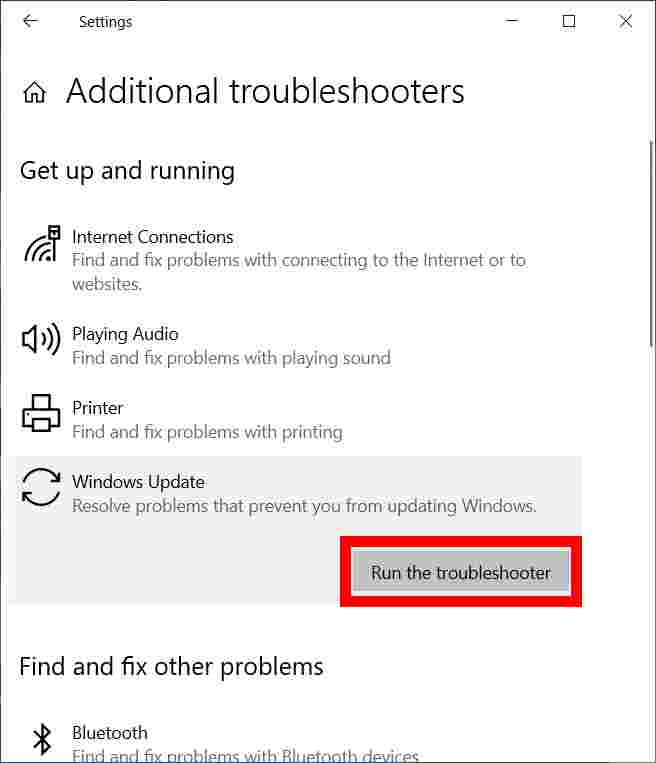
    To troubleshoot problems with Windows 10, go to Start> Settings> Update & Security. Then click on Troubleshoot in the left sidebar and select Additional troubleshooters. Next, select Windows Update> Run Troubleshooter and restart your computer.

    1. Open the Windows Start Menu.
    2. Then click  Settings.
    3. Next, select Update & Security.
    4. Then click  Troubleshoot. You will see this in the left sidebar of the Settings window. If you don’t see it, expand the Settings window or make it full-screen.
    5. Next, click on Additional troubleshooters. You will see this by scrolling down the right side of the window.
      How to Troubleshoot Windows Update
    6. Then click on Windows Update and then select Run the troubleshooter.
      How to Troubleshoot Windows Update
    7. Next, wait for the troubleshooters to finish.
    8. Then restart your computer. To do this, go to Start> Power> Restart. You should avoid restarting by turning off the power to the computer and restarting it.
    9. Finally, try updating your computer again. Follow the steps in the previous section and repeat until you don’t have the update.