3 Ways to Download Academia edu Files Without Login – Are you looking for ways to download files or documents in Academia for free and without having to log in first? Then, you are in the right place.
How to Download Academia edu Files Without Login 2024
Academia.edu is indeed a website that is quite popular for students and lecturers alike. The reason is, that there are so many documents ranging from papers to examples of theses that are distributed free of charge.
But unfortunately, to download files at Academia you have to log in first. This will certainly be very troublesome, especially if we are in a hurry.
However, you also don’t need to worry about that. There is an easy way to download files or documents at Academia without needing to log in and you can try this method for free on an Android cellphone or a computer or laptop.
How to Download Files at Academia for Free and Without Login
Here are 3 types of ways to retrieve files on the academia website. The first method is that you must first log in at Academia, while the second and third methods are without logging in (using the help of a free download generator).
#1. Easy way to download at Academia using login
The first way you can use to download files at Academia is by logging in first. This method is very easy because you can also log in via a Facebook account or a Google account.
Here’s how to download files at Academia Edu for free:
Visit the academia.edu website through your browser.
Login using a Google account or Facebook account.
Then find the document file you want to download.
If the document file has been opened, click the Download button.
Finally, wait until the download process is complete.
The time needed to download document files at academia depends on the size of the document file. If the document file is a large size, longer it takes.
2. How to Download Files at Academia Without Login
How to download files or documents at Academia for free and without logging in is very possible. The reason is, that there is a generator website that is capable of serving this job.
Follow the way to download Academia free without logging in below:
Visit the academia.edu website then find the file you want.
Then copy the link of the file or document at the academia.
Go to the docdownloader.com website.
Click on the Academia Downloader menu section.
Paste the academia link into the column provided.
Then click the Get Link button.
Check I’m not a robot and solve the captcha that appears.
Finally, click the Download PDF button.
After that, the document file from academia will start to download. Just wait until the document file download process is complete.
#3. Download documents at Academia for free using a generator
Almost the same as the second method, this method also uses the help of the Academia download generator. You only need the link from the academia document file and you don’t need to log in first to be able to retrieve the document file.
How to use Academia downloader:
Make sure you already have the link to the document file at Academia that you want to download.
Then visit the acdownloader.com website
Then paste the link into the column provided.
Click the Get Link button to process your request.
Then, an academia document file display will appear using the link you entered.
If it’s appropriate, just click the Download button.
Done, now wait for the download process to finish.
Next, you just have to wait for the download process to finish. You can download any document files in academia via the generator website for free without needing to log in.
Conclusion:
So, friends, those are some ways you can download document files from the academia website that you can try on Android phones, iPhones, or laptops. Now you can freely retrieve any document files at Academia for free without logging in.
How to Use Lucky Patcher Without Rooting Device – A rooted Android smartphone allows it to have more control over its functions, and also the applications that are already installed, and the main advantage can remove bloatware.
How to Use Lucky Patcher Without Rooting Device
How to Use Lucky Patcher Without Rooting Device 2024
Every Android user uses a lot of apps and games on his smartphone but has no control over the applications that are installed.
Orange: A system app that is not recommended to modify.
Also, it should state the boot list of apps that will be patched every time the phone reboots its operating system.
How to Remove a Verification License
Step 1: Tap on the app and select Remove license verification.
Step 2: Select automatic mode and wait for the process to start.
Step 3: If it doesn’t work, choose an auto-reverse mode or extreme auto mode.
Step 4: Restart before opening the application.
How to remove ads
Step 1: Tap on the app and select the option of removing Google ads.
Step 2: Restart
Ways to apply certain patches
Step 1: Tap the app to apply the specific patch.
Step 2: Restart the application before opening the application.
Note:
Certain apps like Spotify, Clash Royale or Clash of Clans can be patched. But with every new release, the developers fix bugs. In any case, should know that this action violates the terms of use of this service.
Name
Lucky Patcher
Current Version
9.6.5
Price
Free
Size
9.4 MB
Developer
ChelpuS
Official Website
www.luckypatchers.com
Category
Tools
Total Downloads
1 Billion +
Rating
4.8/5
Requirement
Android 4.0+
Released On
23 August 2021
To download the latest version for free, please click the button below:
You can’t download this application from Google Play, you have to find an alternative source like this web download the file to your smartphone, and check the Unknown Sources option from Settings.
To do this, you have to be the superuser, so you must first have an app like KingRoot or something similar to root your Android device.
Warning: Lucky Patcher is a tool for developers and should be used for testing or personal development purposes.
Rooting can void the smartphone warranty.
Using third-party applications and similar tools is prone to technical failures so we are not responsible for any damage.
Our Suggestion: Try it first on a PC that has an Android emulator installed or try to use a smartphone that is only for experimentation
DMCA:Technowizah.com complies with 17 U.S.C. * 512 and the Digital Millennium Copyright Act (DMCA). It is our policy to respond to any infringement notices and take appropriate action. If your copyrighted material has been posted on the site and you want this material removed, Contact us.
That’s the about on how to Use Lucky Patcher Without Rooting the Device and downloading the old version of the Lucky Patcher apk no root and the new version, hopefully, this is useful.
1000+ Best WhatsApp Dare Games Questions & Answers – One of the greatest chat programs available is WhatsApp. Everyone enjoys sending WhatsApp challenges to their friends and family. We all prefer to use WhatsApp to play WhatsApp Dare Games with our loved ones because it is a really quick messaging service.
1000+ Best WhatsApp Dare Games Questions & Answers 2024
I will be sharing some highly intriguing WhatsApp puzzles in this article that you can play with anyone. Send any of these WhatsApp quizzes to your friends and ask them to respond as soon as possible. Playing WhatsApp Dare Games with our loved ones, family, and friends is a lot of fun.
This article is especially for you if you’re looking for new WhatsApp challenges. Throughout this entire essay, I’ll be sharing WhatsApp Dare game questions and answers. This collection contains almost all available WhatsApp Dare games and Quizzes.
So why are you still waiting? Copy the WhatsApp dare games or messages that you want by scrolling down. We all enjoy playing dare-based WhatsApp games with our friends and family members.
The requirement that we choose a number or one of the numerous WhatsApp Smiley Dare games in which you must choose your preferred smiley is what makes them intriguing. Your friend will then send you the solution or assignment for the chosen number.
WhatsApp Dare Games and WhatsApp Dare Hand Movement are two of the most well-known activities. On social media, many people look for Dare Games for Friends to unwind with their buddies.
Where lovers like to search for WhatsApp games for couples to play with their girlfriend or boyfriend. Other websites on Google can give you WhatsApp love games with answers, but the majority of them aren’t all that intriguing.
#1. Game
Choose a number between 1 and 10, and I’ll send you a challenge that you must fulfill for me. And if you wish, I’ll put that in my status. Try it.
Answers:
Your connection to me
For 24 hours, put my name in your WhatsApp status.
Give me a buddy rating between 5 and 10.
What kind of connection do you have?
Name of your crush
Name your GF or BF.
Give me a song and a voice recording.
Create your DP by creating a collage with our photo.
We can talk for 30 minutes.
Recharge (Rs 50)
#2. Game
I’ll tell you who you are after you choose a triple number. You do not accept it? Do it then. You are going to believe it.
000: Hard Worker
111: True Lover
222: Cheater.”
333: Addict
444: Silent Killer
555: Lazy in Bed
666: “Handsome.”
777: Proud and Sweet 🤗
888: Lovely and Caring
999: Proud and Sweet
#3. Game
Dare: Choose a number between 1 and 20 and respond right away. Prepare for the challenge.
Answer:
1- Tell me something you always wanted to say but couldn’t.
2- Call and tell me you love me.
3- Do a favor for me
4- What would you want our relationship to be?
5- Be my slave for 2 days.
6- Call me and say my name in a loud voice!
7- Write my name on your status, saying You love me!”
8- Send me a photo of your crush.
9- What change would you want to see in me?
10- Write your and my names in your status for one day!
11- Send me a picture of what you’re doing now.
12 – Send me a pic of you wearing the least clothes on you
13 – What am I to you??
14 – What’s your deepest secret? <3
15 – Send me a voice note saying my name in a loud voice!
16 – Tell me something you always wanted to say but couldn’t
17 – How would you describe me?
18 – Be my slave for 2 days
19 – Send me a picture of what you’re doing now.
20 – Write your phone number in your status
#4. Game
This is a game which people play with their crushes and you should try it too. Choose any number between 1 to 21 and I will send you a Dare Questions List.
Answer:
1- The first thing you notice in a person when you meet them the first time.
2- Will you kill anyone if you get permission? If yes, who is that person?
3- What is your crazy dream?
4-The quality do you like the most in yourself?
5-The quality you’d like to change in yourself?
6-What do you like about me?
7-The thing you don’t like in me
8-On your interest, the person you like to marry.
9.-Your Best Friend.
10- What is your opinion of me?
11-The most important person in your life?
12-My contact’s name is on your phone.
13-The nickname you want to give me?
14-Things you like most in me?
15-Color that suits me?
16-Relation status you want to be with me? (No cheating)
17-The thing do you like most about my character?
18-The thing you hate in my attitude?
19-Which type of dress suits me most?
20-Dedicate a song to our relationship.
21-Rate my WhatsApp profile picture out of 100.
#5. Game
If God gives you another life, then which character do you play in my life?
Baby
Lover
Enemy
Brother
Sister
Father
Best Friend
Only Friend
Husband
Wife
Student
Sister-In-Law
Crush
Reply to me first. Can I put your answer to my story? Send them another person and find some interesting answers. You can send me also.
#6. Game
Choose a number from 1 to 10, then respond quickly.
Send a selfie from the bathroom
Record yourself singing your favorite song and submit it to me.
Give me a video of you kissing me.
For 24 hours, make my photo your desktop picture.
Email me your funniest photo.
Update your WhatsApp status with my name.
Take a picture of your legs, then send it to me.
Give me your favorite actor with the appropriate reason behind it.
Let me know what brand of underwear you wear.
Send me a video in which you describe me as sweet.
#7. Game
Answer the following questions:
Who was the first person you kissed?
With whom are you right now dating?
Do you accept “love at first sight” as true?
Have you ever argued with your instructor?
Have you ever kissed in the library or on campus?
How often have you lied to your parents to watch a nighttime movie?
If you used to smoke or drink, when did you stop?
harmed anyone?
Have you ever had a bad fight with someone?
Have you ever seen an adult film with no one in it?
Which star might you want to date?
nickname from childhood?
What is the oddest thing you do?
What is your ideal position?
Which do you prefer better, Apple or Android?
What was the most outlandish dish you’ve ever prepared?
What was your important supper last night?
Which nation would you most like to live in if you could?
Who in the family is the older man or woman most like?
any three things you think can make a difference in the world.
Describe your game partner in three words or less.
Are you prone to superstitions?
#8. Game
Dare: If you reply to me within ten seconds with the number of your desired heart, I will send you a dare for that heart. Keep in mind that you can’t back out of playing this WhatsApp game.
The dare to perform for your chosen heart number is provided here.
Request Me.?
If you want to marry me, use my name as your status, please.
Send Me Your Love, Please.
Sing or dedicate a song to me as a video clip by singing your favorite song.
Send me a video and talk about me for at least three minutes.
Please name the brand of your underwear.
Give me a hug when we meet.
‘Flair me!’
Create a DP-quality collage from our photos.
Tell Me About Your First Love Interest
Write 50 times. I love you; send it to me.
Please name the first girl or boy you kissed.
Make a video call with me and kiss me.
What do I mean to you?
Will You Be My One-Day BF/GF?
Send me a picture of your current activity.
Do, 6, 7, and the eleventh challenge.
Send me a video of you dancing to any song.
Please send me a picture of you in your last formal attire.
Describe two aspects of me that you detest the most.
Tell Me Your Most Intimate Secret
#9. Game
1 2 3 4 5 6 7 8 9 10
Answer:
For one day, using my photo as your WhatsApp narrative
motivate me
Describe your darkest secret.
Mention your crush’s name.
Use the phrase “getting married” in your WhatsApp status.
Email me your funniest photo, please.
When you first meet me, what do you observe about me?
Describe your boyfriend or girlfriend.
What was your most memorable day?
Recharge for 50 rupees on my number
#10. Game
Dare: Pick any number between 1 and 20, and I will send you your challenge.
Answer:
Write your crush’s name in your status.
If you get permission, will you kill anyone? If so, who is that individual?
Be my GF or boyfriend for a day.
Which quality about yourself do you admire most?
What quality would you like to improve?
What makes you like me?
What you don’t like about me 8. The person you’d like to marry is in your best interest.
There are practically all varieties of Truth and Dare games that we have uploaded; these are for fun, to strengthen your friendship or relationship, to learn more about one another through this dare, and to reveal some personal facts about anyone.
I have disclosed that the WhatsApp Dare Game, WhatsApp Quiz GameWhatsApp Puzzles Games, and WhatsApp Emoji Dares are all included in each category of WhatsApp Truths and Dares. If you still can’t find the WhatsApp challenge message you’re looking for, feel free to comment and we’ll add it as well.
4 Ways to Stop Automatically Running Programs When the Computer Turns On – When the computer/laptop is turned on, all hardware components will work to perform the boot process by loading all Windows operating system modules. Sometimes, it is not only the operating system that is run but can be added by default or third-party programs. Programs that are run concurrently (in boot ) are not a problem, it’s just that the boot process will take longer.
How to Stop Automatically Running Programs 2024
In addition, some programs usually also run/open by themselves after the Windows boot process. For example, the Firefox browser is set to run after the computer is turned on. As a result, Firefox opens without you clicking the Firefox icon.
Through this article, you can try several ways to stop programs that run automatically when the computer is turned on. You can stop the program by going to the Startup feature or going to the corresponding program’s Settings. To do this, consider the following methods.
#1. Stop the Startup program through the Settings menu
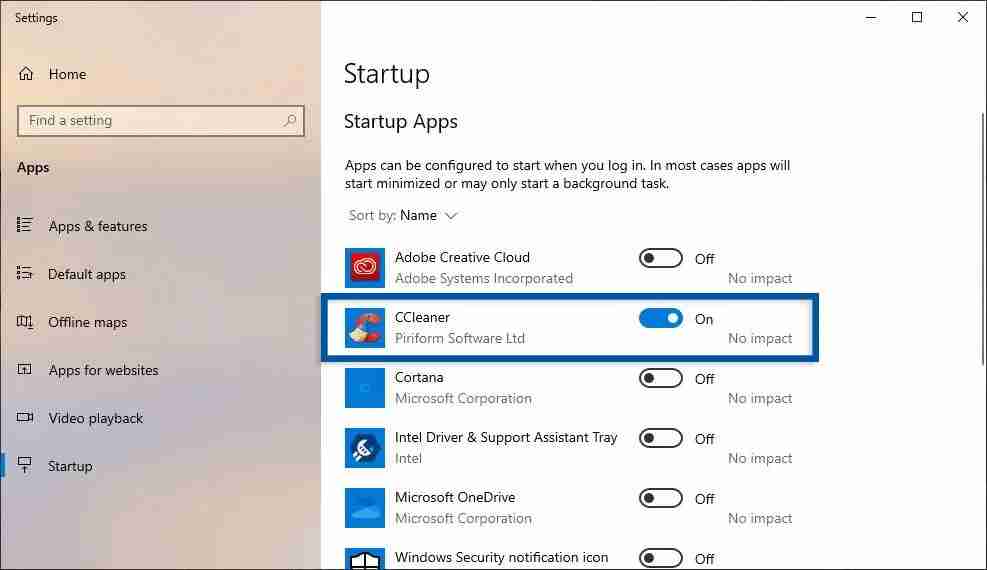
The first way, you can turn off running programs is by entering the Startup Apps feature through the Settings menu. The existence of these features makes it very easy for users to see what programs are running at startup ( booting Windows). You can do this method on Windows 10 Build 17017 and above (newer versions).
Go to Settings » Apps » Startup menu.
Then you will see a list of programs running at startup.
Select the program you want to turn off and slide the On switch to Off to turn it off.
Finished.
#2. Stop the Startup program via Task Manager
In the second method, you can turn off the program by going to the Task Manager menu in Windows 10 and 8. Many Windows users more often use this feature to turn off running programs, startup, error, not responding, and view memory, CPU, and other resource usage. storage.
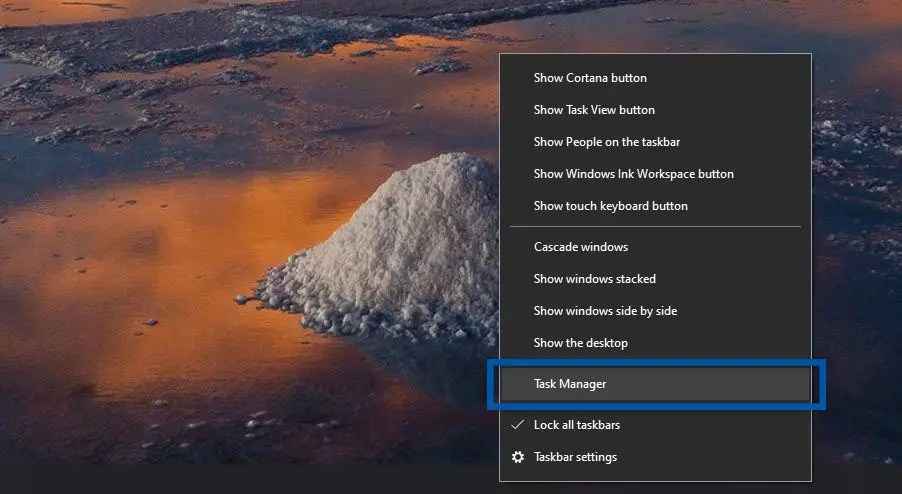
Step 1: First, right-click on the Windows Taskbar, then select Task Manager. Or it could be with the keyboard shortcut CTRL + SHIFT + ESCAPE.
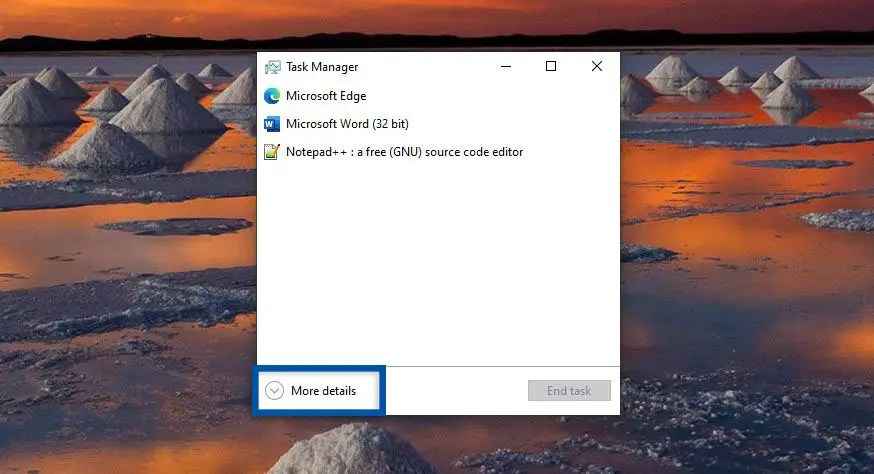
Step 2: Then click More Details to see Task Manager in a more detailed version.
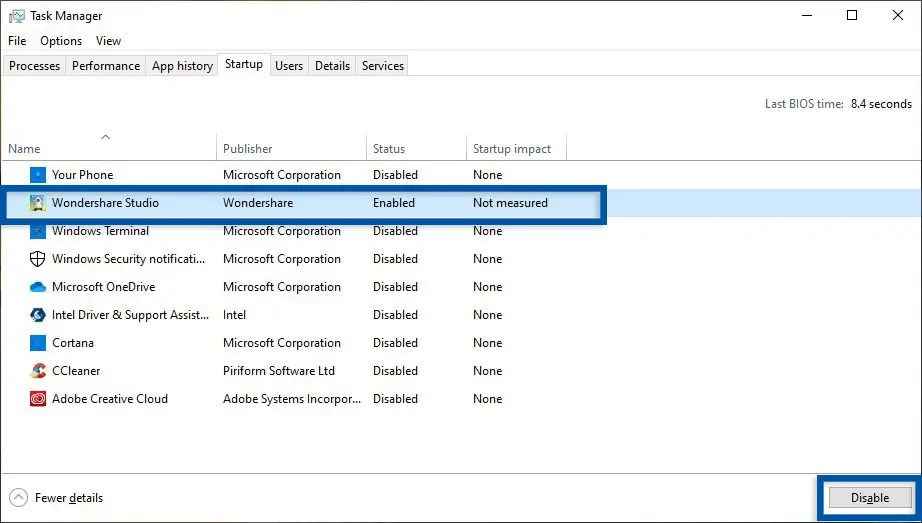
Step 3: Next, click on the Startup tab, and select the program you want to turn off. Click Disable ( disabled ) to turn off the program.
If sorted, here are the steps.
Right-click on the Taskbar » Task Manager » for more details.
Select the Startup tab » select the program you want to turn off.
Click Disable to disable the program.
Finished.
#3. Stop the Startup program from msconfig (System Configuration)
Next is to turn off the Startup program through the msconfig feature ( System Configuration ) in Windows 7. In Windows 8 and 10 itself, the Startup feature stands alone. While in Windows 7 it is still attached to the System Configuration. But you can still do this method on Windows 8 and 10 which will also be switched to the Startup feature.
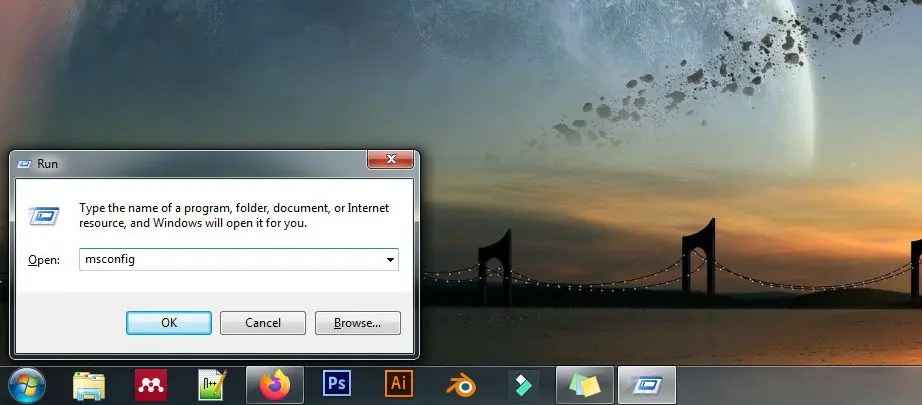
Step 1: Open the Run program with the keyboard shortcut Windows + R . Type msconfig then OK/ Enter. Later you will be directed to the System Configuration feature.
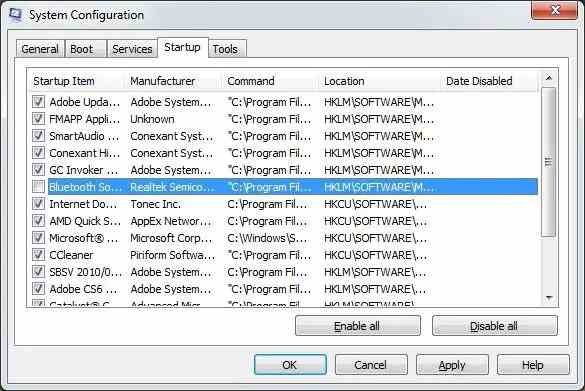
Step 2: In the System Configuration feature, select the Startup tab. Then uncheck the program you want to disable. After that click Apply and OK.
Step 3: When a dialog box appears, you can select Restart to see the changes immediately or click Exit without restart if you want to see the changes later.
If sorted, here are the steps.
Open the Run program with Windows + R, then click OK.
Select the Startup tab, and uncheck the programs you want.
Click Apply and OK.
Select the dialog you want.
Finished.
#4. Stopping Startup programs using Third-Party Software
Next is to stop the Startup program from using the software side when the ( third-party ). There are many Windows utility software that also provides a feature to disable Startup programs easily and for free. One of the software that you can use for free is CCleaner which was developed by Piriform.
Stopping programs that run automatically when the laptop/computer is turned on is very easy for you to do. In addition to making the boot process faster, turning off the Startup program also makes Windows lighter when used for activities. To get the most out of it, you also need to clean all Windows junk files.
If you feel confused about turning off the Startup program, please write your questions in the comments column. Share this article on your social media to make it more useful and useful.
How To Open Whatsapp on Laptop PC Desktop – Where is the Whatsapp QR code? Whatsapp has been used by more than 1 billion people from around the world. WhatsApp is an instant messaging solution without using credit.
4 Best Ways To Open WhatsApp on Laptop PC Desktop
How To Open WhatsApp on Laptop PC Desktop 2024
In addition to sending a text, this application also supports sending photos, videos, documents, making calls, video calls, making statuses, and more.
Even though WhatsApp has a variety of features, this application can’t just be opened on a laptop. This happens because to be able to login to the WhatsApp web, you need confirmation from the main WhatsApp installed on your smartphone.
In contrast to telegrams that can be easily opened on the web or mobile phone just by entering a phone number. For those of you who are curious about how to open WhatsApp on a laptop, here are the reviews.
Can I use WhatsApp on a laptop?
Whatsapp has been supported by the Whatsapp web feature, which was launched in 2015. You can use WhatsApp on a laptop through various browsers such as Google Chrome, Mozilla Firefox, Opera Mini, and others. How to open the Whatsapp web below will help you.
Where is the QR code on WhatsApp?
If you are going to enter the Whatsapp web, you need to scan the QR code as a login condition. Where is the code? Open web.whatsapp.com.
Before entering the Whatsapp web you will see a black and white QR code in the middle of the page. If using the Whatsapp desktop version, open the desktop program and the QR code will appear in the center of the screen.
How do I open the WhatsApp application on a laptop?
You need to know, that WhatsApp can only be opened on one laptop. This is to maintain user security. How to open Whatsapp on a laptop if you need to visit the Whatsapp website on web.whatsapp.com in the browser on your laptop.
Then a QR code will appear. Scan the QR code from your phone’s WhatsApp application by clicking on the dot three at the top of the screen next to the search icon, then select Whatsapp web. Whatsapp will automatically log in and you can chat using Whatsapp web.
While using WhatsApp web, you must always make sure your internet is active. If not, automatically WhatsApp web will log out.
Here’s to Opening WhatsApp on Laptop PC Desktop
Best Ways to Open Whatsapp on a Laptop
The way to be able to open WhatsApp on a Laptop can be done by going through several stages of a fairly easy method. Not only through the website but now the Whatsapp application has also been available on the desktop version. So, how to open and run the Whatsapp application on a laptop can be done with several methods below.
Open WhatsApp on the Laptop Web Browser version
Before doing the first method, you must first prepare an Android smartphone or iPhone with a fairly stable internet connection. It aims to connect the WA application on the smartphone to a web browser. As for how to do this, see the following steps:
Turn on your laptop to start using it. Also prepare a smartphone with the Whatsapp app beside you, so you don’t go back and forth to get a cellphone.
After the preparations are made and the laptop is turned on, start to open the browser on the laptop. It is recommended to use Google Chrome for faster internet access.
After the Google Chrome browser opens, just go directly to the WA Web address at https://web.whatsapp.com You can also search on Google with the keywords “WA Web” or “Whatsapp Web”.
Furthermore, the website address will display a barcode that must be scanned.
Well, until here you have to start preparing your cellphone. Unlock the smartphone screen that you are currently using.
Then, open the Whatsapp application on your mobile.
Press the dot icon in the top right corner, and select Whatsapp Web.
Then the Move QR code display appears. To start using it, press OK.
Aim the camera at the laptop screen, and make sure the QR code (barcode) on the laptop screen is in the box on the mobile screen. Start the Wa Web barcode scan.
After a few seconds, the WA Chat display on the smartphone will switch to the laptop screen (WA Web).
Done.
WA Web will stay connected for the next few days if you don’t clear your browser cache and history. However, sometimes the WA Web will log out automatically after a few days. So, you are required to scan the barcode (again) to use it again.
Open WhatsApp on the Laptop Software Application version
In the next method, we can open WhatsApp on a laptop using the desktop version of the application software. Whatsapp has released a software application specifically for Windows or Mac laptop users. The way to open WhatsApp on a Windows or Mac laptop can be noted in the steps below.
1.Windows
How to open WhatsApp on a Windows laptop is as follows:
Turn on the Windows laptop that you have to start using.
Next, open the browser on your laptop. It is recommended to use Google Chrome.
So, friends, that’s about various ways to open Whatsapp on a laptop with an easy choice method to do. If you think this article is very helpful, don’t forget to share it with your friends who need it.

 How to Download Academia edu Files Without Login 2024
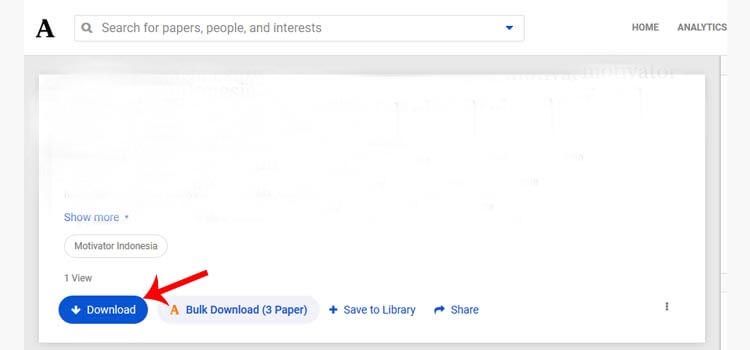 The first way you can use to download files at Academia is by logging in first. This method is very easy because you can also log in via a Facebook account or a Google account.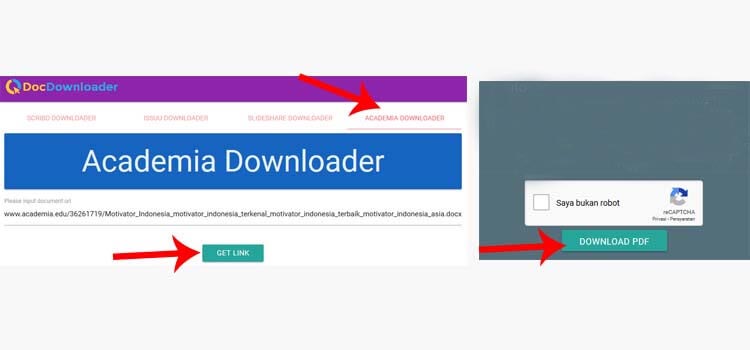
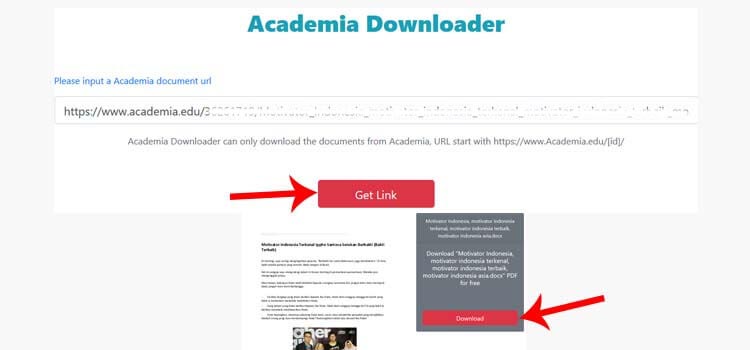 Almost the same as the second method, this method also uses the help of the Academia download generator. You only need the link from the academia document file and you don’t need to log in first to be able to retrieve the document file.
 This app is an excellent tool for Android that has the function of doing lots of crazy experiments with installed apps.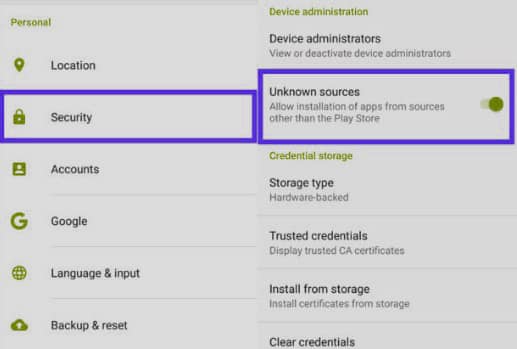

 So why are you still waiting? Copy the WhatsApp dare games or messages that you want by scrolling down. We all enjoy playing dare-based WhatsApp games with our friends and family members.
 Choose a number between 1 and 10, and I’ll send you a challenge that you must fulfill for me. And if you wish, I’ll put that in my status. Try it.
 I’ll tell you who you are after you choose a triple number. You do not accept it? Do it then. You are going to believe it.
 Dare: Choose a number between 1 and 20 and respond right away. Prepare for the challenge.
 This is a game which people play with their crushes and you should try it too. Choose any number between 1 to 21 and I will send you a Dare Questions List.
 If God gives you another life, then which character do you play in my life?
 Answer the following questions:
 Dare: If you reply to me within ten seconds with the number of your desired heart, I will send you a dare for that heart. Keep in mind that you can’t back out of playing this WhatsApp game.
 1 2 3 4 5 6 7 8 9 10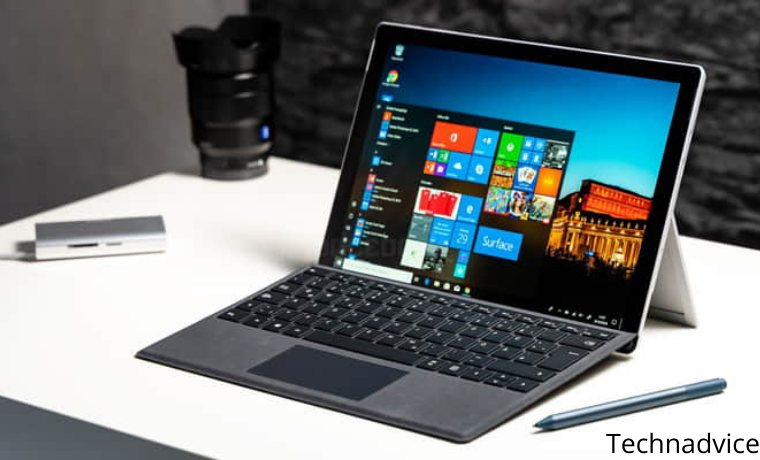
 The first way, you can turn off running programs is by entering the Startup Apps feature through the Settings menu. The existence of these features makes it very easy for users to see what programs are running at startup ( booting Windows). You can do this method on Windows 10 Build 17017 and above (newer versions).
 Step 2: Then click More Details to see Task Manager in a more detailed version.
 Step 3: Next, click on the Startup tab, and select the program you want to turn off. Click Disable ( disabled ) to turn off the program.
 If sorted, here are the steps.
 Step 2: In the System Configuration feature, select the Startup tab. Then uncheck the program you want to disable. After that click Apply and OK.
 Step 3: When a dialog box appears, you can select Restart to see the changes immediately or click Exit without restart if you want to see the changes later.
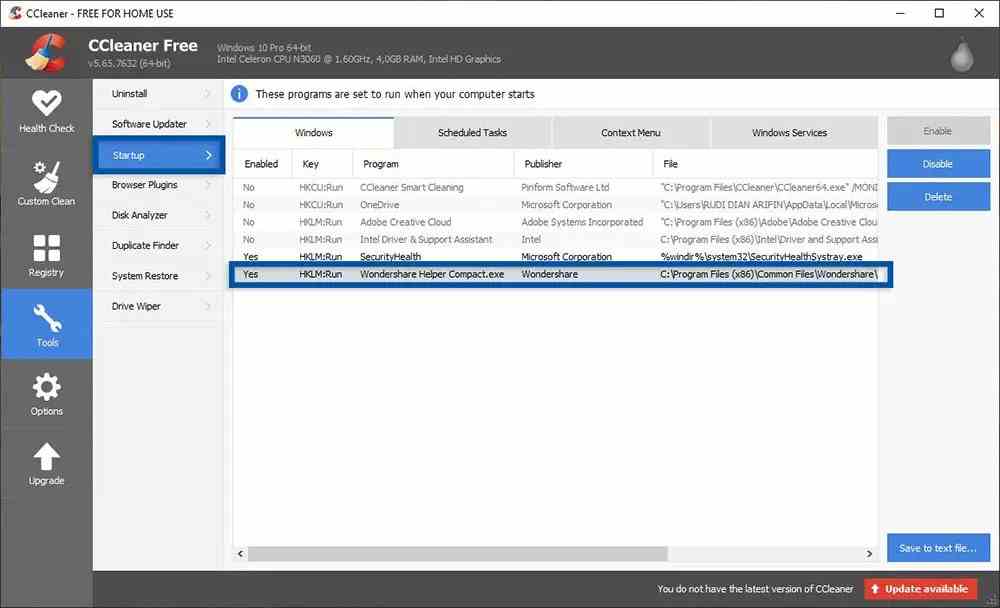 Next is to stop the Startup program from using the software side when the ( third-party ). There are many Windows utility software that also provides a feature to disable Startup programs easily and for free. One of the software that you can use for free is CCleaner which was developed by Piriform.