Author: Nazrul Islam

  • 150+ Complete Windows 10 Keyboard Shortcuts 2025

    150+ Complete Windows 10 Keyboard Shortcuts 2025

    150+ Complete Windows 10 Keyboard Shortcuts The Ultimate Guide – Windows is an operating system designed by Microsoft Corporation, as a system to run computers (PCs) and laptops. Windows allows users to complete all kinds of daily tasks on the computer.

    150+ Complete Windows 10 Keyboard Shortcuts150+ Complete Windows 10 Keyboard Shortcuts The Ultimate Guide

    For example, to surf the internet, send an email, play games, listen to music, edit photos or videos, create and edit documents, and much more. One of the new versions of the Windows OS is Windows 10. Windows 10 comes with a variety of new features and applications that are superior to the previous version.

    Read more:

    Windows 10 is becoming a new operating system that is very popular among computer users, this is because of its ease of use and the many features available. In addition to features, Windows 10 also provides many keyboard shortcuts that you can use easily and effectively.

    Well, this time we will discuss thoroughly the complete and latest Windows 10 shortcuts. To find out more about Windows keyboard shortcuts and their uses, please refer to the following explanation.

    Know Complete Windows 10 Keyboard Shortcuts

    What are keyboard shortcuts? Keyboard shortcuts are shortcuts in the form of key combinations that are used to perform various tasks without having to use the mouse to click on several menus.

    Choosing to use shortcuts, of course, is a practical way for you rather than doing it manually. Some of the uses of shortcuts include: speeding up the execution of tasks from existing features or menus, saving time, training computer operating skills, and of course more practical for various activities on the computer.

    There are lots of keyboard shortcuts in Windows 10, ranging from the common ones to the ones you don’t use. Shortcuts in Windows you can use such as to open files, copy or paste files, save documents, open settings, and much more.

    Even though memorizing keyboard shortcuts is not easy, you can just choose certain shortcuts that you usually use and start memorizing them. Here is a list of keyboard shortcuts in Windows 10 that you can read and learn about!

    #1. General Shortcuts

    Shortcuts Command
    Ctrl + X To cut the selected item.
    Ctrl + C (or Ctrl + Insert) To copy the selected item to the clipboard.
    Ctrl + V (or Shift + Insert) Pastes the selected item.
    Ctrl + Z Undo the last command or Undo.
    Alt + Tab Switch from one running application to another.
    Alt + F4 Close the active window, or exit the active application.
    Windows key + L Lock your PC.
    Windows key + D Show and hide the desktop.
    F2 Rename or rename the selected item.
    F3 Search for a file or folder in File Explorer.
    F4 Displays a list of address bars in File Explorer.
    F5 Refresh the active window in File Explorer.
    F6 Replace screen elements in a window or on the desktop.
    F10 Activate the Menu bar on the active application.
    Alt + F8 Displays your password on the sign-in screen.
    Alt + Esc Skips items in the window in which they were opened.
    Alt + underlined letter Run the command for that letter.
    Alt + Enter Displays the properties for the selected item.
    Alt + Spacebar Opens the shortcut menu for the active window.
    Alt + Left arrow (left arrow) Action back.
    Alt + Right arrow (right arrow) Forward action.
    Alt + Page Up Go up one screen.
    Alt + Page Down Drop down one screen.
    Ctrl + F4 Closes the active window.
    Ctrl + A Selects all items in the document or window.
    Ctrl + D (or Delete) Delete the selected item and move it to the Recycle Bin.
    Ctrl + R (or F5) Refreshes the active window.
    Ctrl + Y Repeats or returns an action.
    Ctrl + Right arrow (right arrow) Moves the cursor to the beginning of the next word.
    Ctrl + Left arrow (left arrow) Moves the cursor to the beginning of the previous word.
    Ctrl + Down arrow (down arrow) Moves the cursor to the beginning of the next paragraph.
    Ctrl + Up arrow (up arrow) Moves the cursor to the beginning of the previous paragraph.
    Ctrl + Alt + Tab Use arrow keys to toggle on all open applications.
    Alt + Shift + arrow keys When the application shortcut (tiles) is in focus on the Start menu, move it in the specified direction.
    Ctrl + Shift + arrow keys When the selected application shortcut group focuses on the Start menu, move it to another section group to create a folder.
    Ctrl + arrow keys Change the size of the Start menu when it opens.
    Ctrl + arrow key (to move to an item) + Spacebar Select multiple individual items in a window or on the desktop.
    Ctrl + Shift with an arrow key Selects a block of text.
    Ctrl + Esc Opens the Start Menu.
    Ctrl + Shift + Esc Open Task Manager.
    Ctrl + Shift Switch keyboard layouts when multiple keyboard layouts are available.
    Ctrl + Spacebar Enable or disable the Chinese input method editor (IME).
    Shift + F10 Displays the shortcut menu for the selected item.
    Shift with any arrow key Select more than one item in a window or on the desktop, or select text in a document.
    Shift + Delete Delete the selected item without moving it to the Recycle Bin first.
    Right arrow Go to the next menu on the right, or open a submenu.
    Left arrow Opens the next menu on the left, or closes a submenu.
    Esc Stop or leave the current task.
    PrtScn Screenshot or capture the entire computer screen and copy it to the clipboard.

    #2. Windows Key Shortcuts

    Shortcuts Command
    Windows key Open or close the Start Menu.
    Windows key + A Opens Action Center.
    Windows key + B Sets the focus in the notification area.
    Windows key + C Open Cortana in listening mode.
    Note This shortcut is turned off by default. To enable it, select Start > Settings > Cortana, and turn on the switch under Let Cortana listen to my commands when I press the Windows logo key + C. Cortana is only available in certain countries/regions, and some features of Cortana may not be available everywhere. If Cortana is unavailable or turned off, you can still use search.
    Windows key + D Show and hide the desktop.
    Windows key + Alt + D Show and hide the date and time on the desktop.
    Windows key + E It Opens File Explorer.
    Windows key + F Open the Feedback or Feedback Hub.
    Windows key + G Opens the Game bar when the game is open.
    Windows key + Alt + B Enable or disable HDR. Note: This applies to the Xbox Game Bar app version 5.721.7292.0 or later. To update your Xbox Game Bar, open the Microsoft Store app and check for updates.
    Windows key + H Start dictation.
    Windows key + I Open Settings.
    Windows key + J Set the focus to Windows Tips when available.

    When Windows tips appear, focus on Tips. Next press the keyboard shortcut again to bring focus to the element on the screen where the Windows edge is anchored.

    Windows key + K Open a quick action or connection.
    Windows key + L Lock your PC or switch accounts.
    Windows key + M Minimize all windows.
    Windows key + O Lock device orientation.
    Windows key + P Selects the presentation view mode.
    Windows key + Ctrl + Q Open Quick Help.
    Windows key + R Opens the Run dialog box.
    Windows key + S Open search.
    Windows key + Shift + S Take a screenshot of the part of the screen you selected.
    Windows key + T Browse apps on the taskbar.
    Windows key + U Open the Ease of Access Center (Open Ease of Access Center).
    Windows key + V Open the clipboard. Note To enable this shortcut, select Start > Settings > System > Clipboard, and turn on the switch under Clipboard history.
    Windows key + Shift + V Cycle through notifications.
    Windows key + X Opens the Quick Links menu.
    Windows key + Y Switch input between Windows Mixed Reality and your desktop.
    Windows key + Z Displays the commands available in the application in full-screen mode.
    Windows key + period (.) or semicolon (;) Opens the emoji panel.
    Windows key + comma (,) Take a peek at the desktop for a while.
    Windows key + Pause Displays the System Properties dialog box.
    Windows key + Ctrl + F Search for the PC (if you are on a network).
    Windows key + Shift + M Restore minimized windows on the desktop.
    Windows key + number Opens the desktop and starts the application pinned to the Taskbar at the position indicated by the number. If the application is already running, switch to it.
    Windows key + Shift + number Opens the desktop and starts a new application pinned to the Taskbar at the position indicated by the number.
    Windows key + Ctrl + number Opens the desktop and switches to the last active window of the application pinned to the Taskbar in the position indicated by the number.
    Windows key + Alt + number Open the desktop and open the Jump List for apps pinned to the Taskbar at the positions indicated by numbers.
    Windows key + Ctrl + Shift + number Open the desktop and open a new instance of the application located in the given position in the taskbar as administrator.
    Windows key + Tab Opens the Tasks view.
    Windows key + Up arrow Maximize windows.
    Windows key + Down arrow Removes the current application from the screen or minimizes the desktop window.
    Windows key + Left arrow Maximizes the application window or desktop to the left side of the screen.
    Windows key + Right arrow Maximizes an application or desktop window to the right side of the screen.
    Windows key + Home Minimizes all windows, except the active desktop window (restores all windows on the second stroke).
    Windows key + Shift + Up arrow Stretches the desktop window to the top and bottom of the screen.
    Windows key + Shift + Down arrow Restore/minimize the active desktop window vertically, to maintain its width.
    Windows key + Shift + Left arrow or Right arrow Move an application or window on the desktop from one monitor to another.
    Windows key + Spacebar Switch input language and keyboard layout.
    Windows key + Ctrl + Spacebar Changes to the previously selected input.
    Windows key + Ctrl + Enter Activate Narrator.
    Windows key + Plus (+) Opening the Magnifying Glass.
    Windows key + forward slash (/) Start IME conversion.
    Windows key + Ctrl + V Open the tap shoulder
    Windows key + Ctrl + Shift + B Wake the PC from a blank screen (blank screen) or black screen (black screen).

    #3. Command Prompt Shortcuts

    Shortcuts Command
    Ctrl + C (or Ctrl + Insert) Copy the selected text.
    Ctrl + V (or Shift + Insert) Pastes the selected text.
    Ctrl + M Enter Alert mode.
    Alt + selection key Starts the selection in block mode.
    Arrow keys Moves the cursor in the specified direction.
    Page up Moves the cursor one page up.
    Page down Moves the cursor one page down.
    Ctrl + Home (Mark mode) Moves the cursor to the beginning of the buffer.
    Ctrl + End (Mark mode) Moves the cursor to the end of the buffer.
    Ctrl + Up arrow Moves one line up in the output history.
    Ctrl + Down arrow Moves one line down in the output history.
    Ctrl + Home (History navigation) When the command line is empty, move the viewport to the top of the buffer. Otherwise, delete all characters to the left of the cursor in the command line.
    Ctrl + End (History navigation) When the command line is empty, move the viewport to the command line. Otherwise, delete all characters to the right of the cursor in the command line.

    #4. File Explorer Shortcuts

    Shortcuts Command
    Alt + D Select the address bar.
    Ctrl + E Select the search box.
    Ctrl + F Select the search box.
    Ctrl + N Opens a new window.
    Ctrl + W Closes the active window.
    Ctrl + mouse scroll wheel Change the size and appearance of file and folder icons.
    Ctrl + Shift + E Displays all folders above the selected folder.
    Ctrl + Shift + N Create a new folder.
    Num Lock + asterisk (*) Displays all subfolders under the selected folder.
    Num Lock + plus (+) Displays the contents of the selected folder.
    Num Lock + minus (-) Minimizes the selected folder.
    Alt + P Show preview pane.
    Alt + Enter Opens the Properties dialog box for the selected item.
    Alt + Right arrow Displays the next folder.
    Alt + Up arrow Displays the folder in which it is located.
    Alt + Left arrow Shows the previous folder.
    Backspace Shows the previous folder.
    Right arrow Displays the current selection (if collapsed), or selects the first subfolder.
    Left arrow Collapses the current selection (if expanded), or selects the folder in which it is located.
    End Displays the bottom of the active window.
    Home Displays the top of the active window.
    F11 Maximize or minimize the active window.

    #5. Virtual Desktop Shortcuts

    Shortcuts Command
    Windows key + Tab Opens the Tasks view.
    Windows key + Ctrl + D Added virtual desktops.
    Windows key + Ctrl + Right arrow Switch between the virtual desktops you have created on the right side.
    Windows key + Ctrl + Left arrow Switch between the virtual desktops you have created on the left.
    Windows key + Ctrl + F4 Close the virtual desktop that you are using.

    #6. Keyboard Settings Shortcuts

    Shortcuts Command
    Windows key + I Open settings.
    Backspace Retuthe rn to the settings page.
    Type on any page with the search box Search settings

    #7. Dialog Box Shortcuts

    Shortcuts Command
    F4 Displays the items in the active list.
    Ctrl + Tab Advance through tabs.
    Ctrl + Shift + Tab Back across tabs.
    Ctrl + number (numbers 1–9) Switch to the nth tab.
    Tab Move forward across options.
    Shift + Tab Back across options.
    Alt + underlined letter Executes the command (or selects an option) used with the letter.
    Spacebar Select or clear the check box if the active option is a check box.
    Backspace Opens a folder one level up if the folder is selected in the Save As or Open dialog box.
    Arrow keys Select a button if the active option is a group of option buttons.

    #8. Taskbar Shortcuts

    Shortcuts Command
    Shift + click a taskbar button Open an application or quickly open another application.
    Ctrl + Shift + click a taskbar button Open the application as administrator.
    Shift + right-click a taskbar button Displays the window menu for the application.
    Shift + right-click a grouped taskbar button Displays the window menu for the group.
    Ctrl + click a grouped taskbar button Plays through the group window.

    Conclusion:

    So, friends, These are the 150+ complete Windows 10 keyboard shortcuts, which include Windows General Shortcuts, Windows Key Shortcuts, Command Prompt Shortcuts, File Explorer Shortcuts, Virtual Desktop Shortcuts, Keyboard Settings Shortcuts, Dialog Box Shortcuts, and Windows Taskbar Shortcuts.

    Some of the shortcuts above consist of the shortcut keys that are used most often to those that you don’t use. By learning shortcuts in Windows, you will be more enthusiastic about doing any task.

    If you have any questions or opinions that you would like to share, please write them in the comments column below. Thank you and good luck!

    What are Windows shortcuts?

    Windows shortcuts are shortcuts that point to computer programs, and allow you to create links to any program, from the Start menu, Taskbar, desktop, and more.

    What is Windows?

    Windows is an operating system for computers (PCs) and laptops and is also a graphical operating system (GUI) developed by Microsoft.

    What is the use of the Windows system?

    Windows is used for computer access activities such as running software, saving files, playing games, watching videos and music, browsing the internet, and much more.

    How is Microsoft Office different from Windows?

    Microsoft Office is a program that is run to work with word processing programs, presentation processors, spreadsheets or number processors, and so on. Windows is the operating system or master program that controls the basic functions of the computer.

    What are the main features of Windows?

    Some of the key features of Windows include a start menu for access to various features and applications, integration with Cortana, Microsoft Edge web browser, Virtual Desktop, and Universal Apps connected to the OS including Photos, Videos, Music, Maps, Messages, Mail and Calendar. also connected via the Microsoft OneDrive cloud service.
  • 7 Ways to Fix Err_Connection_Reset Chrome on Windows 2025

    7 Ways to Fix Err_Connection_Reset Chrome on Windows 2025

    7 Ways to Fix Err_Connection_Reset Chrome on Windows – If you are using a Chrome web browser or keep showing the “Err connection reset” message, try solving the problem with this method.

    7 Ways to Fix Err_Connection_Reset Chrome on Windows PC
    7 Ways to Fix Err_Connection_Reset Chrome on Windows PC

    How to Fix Err_Connection_Reset Chrome on Windows 10 PC Laptop

    Does Chrome display an “Err Connection Reset” message when you try to open a website? If so, it’s because Chrome is having problems establishing a connection to the website you want to go to.

    Read more:

    Fortunately, there are several methods that you can follow to fix this problem in Chrome.

    #1. Reboot Router

    Since this issue is related to your network, you should try rebooting your router and see if that fixes the problem. You can do this by pressing the power button on the router.

    If that doesn’t help and Chrome continues to have this problem, reset your router to its default settings and see if that fixes the problem. Keep in mind that resetting the router will erase all of your custom settings and configurations on the router.

    #2. Make sure the Internet is working

    When the error message “Site can’t be reached because the connection was reset” appears, try to check if your internet connection is working. Maybe your router is working fine, but you may not be connected to the internet.

    You can check the status of your internet connection by PING using CMD or opening the site in a different browser on your computer. If the site loads, all is well with your connection.

    If there is no reply message in CMD or the site fails to load in another browser, you may be able to contact your Internet Service Provider (ISP) and ask for help.

    #3. Disable Proxy Server

    While proxy servers usually don’t cause any issues with your browser, it’s a good idea to disable the proxy server, if it’s on your computer and see if this fixes Chrome’s err_connection_reset. Follow these steps to turn off the proxy server in Windows 10:

    Disable Proxy Server
    Disable Proxy Server
    1. Open the  Start menu, search for “ Control Panel ”, and click on the first result.
    2. Select  Large icons from the View by menu in the Control Panel.
    3. Click  Internet Options.
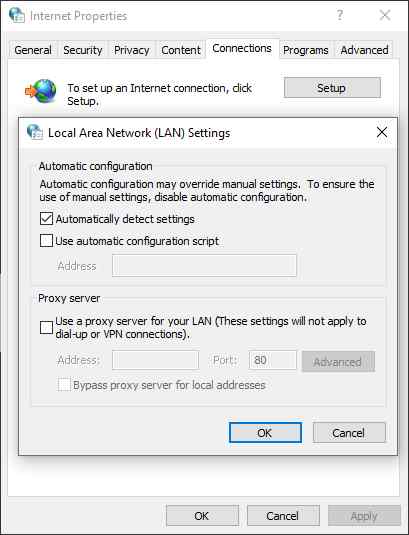
    4. Go to the Connections tab in the box that opens.
    5. Click the LAN settings button at the bottom.
    6. Uncheck the option that says  Use a proxy server for your LAN, and then click  OK.
    7. Click  Apply followed by  OK  to save your changes.

    #4. Reset Winsock Catalog

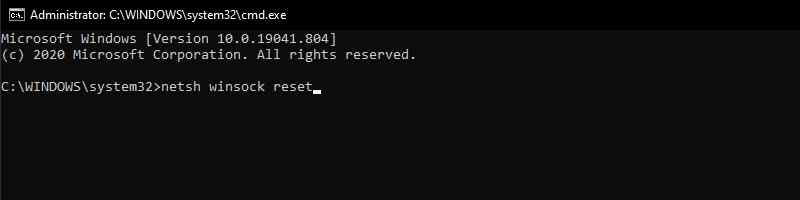
    The Winsock catalog stores entries for connections made on your computer. We recommend resetting this catalog to see if your issue is resolved. To reset the Winsock catalog, you only need to run a command from the Command Prompt. Here’s how to do it:

    Reset Winsock Catalog
    Reset Winsock Catalog
    1. Open the  Start menu, and search for ” Command Prompt “. Click  Run as administrator and then press  Yes at the prompt.
    2. Type the command netsh Winsock reset in Command Prompt and press  Enter. This will reset the Winsock catalog.
    3. Reset the TCP/IP stack by entering the command netsh int IP reset and pressing Enter.
    4. Release your current IP address using the command ipconfig /release
    5. Use the ipconfig /renew command to update your IP address.
    6. Finally, run the command ipconfig /flushdns to clear your DNS cache.
    7. Open Chrome and hope it goes well.

    #5. Clear Browser Cache

    The possible reason the Chrome err_connection_reset occurs is that you have some wrong cache files in Chrome. Cache files are supposed to speed up your browser session, but sometimes, these files are the reason your browser is running slow.

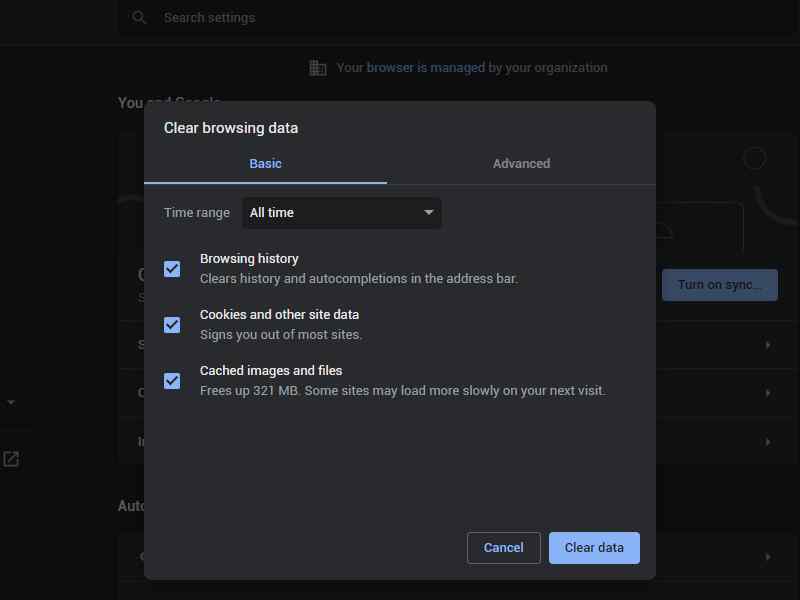
    Thankfully, Chrome allows you to easily clear cache files, potentially fixing your connection issues. Here’s how to clear Chrome cache:

    Clear Browser Cache
    Clear Browser Cache
    1. Open Google Chrome on your computer.
    2. Click the three dots icon in the top right corner, and select  More Tools > Clear Browsing Data.
    3. Click the Basic tab at the top.
    4. Check the Cached images and files option.
    5. Press  Clear data  at the bottom

    #6. Disable Antivirus Programs

    Antivirus programs should help you block malicious files on your computer. However, sometimes the antivirus indicates a harmless file as a malicious file. This can cause problems with Chrome and may result in an error connection request to the site.

    In this case, the best thing you can try is to temporarily turn off your antivirus and see if Chrome works. If so, you need to add Chrome to the exclusion list in your antivirus.

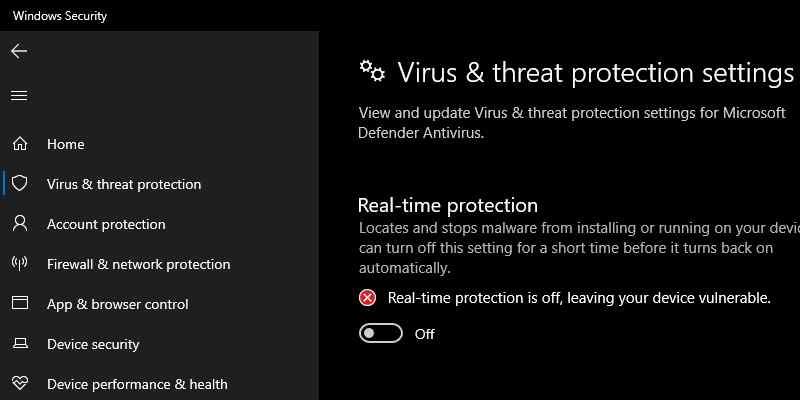
    You can turn off Microsoft Defender, the default antivirus in Windows 10, by following these steps:

    Disable Antivirus Programs
    Disable Antivirus Programs
    1. Open the Settings app on your PC.
    2. Then click  Update & Security.
    3. Select  Windows Security on the left.
    4. Click  Virus & Threat Protection in the right pane.
    5. Select  Manage Settings from the Virus & Threat Protection Settings section.
    6. Turn the dial for  Real-time protection to the Off position.

    #7. Disable Firewall

    The firewall may be blocking suspicious network connections on your computer. Maybe your Chrome connection is considered suspicious by the firewall, so Chrome is disabled from making any connection requests.

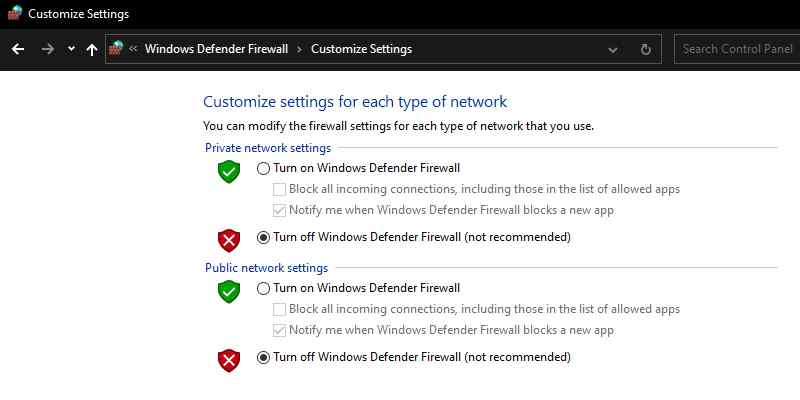
    This can cause Chrome to display an error message such as “Err connection reset.” You can check if the firewall is indeed doing this by temporarily disabling the firewall on your computer. To do this, follow the steps below:

    Disable Firewall
    Disable Firewall
    1. Open Control Panel.
    2. Select Large icons from the View by menu, and click the Windows Defender Firewall option.
    3. Click  Turn Windows Defender Firewall on or off on the left.
    4. Select  Turn off Windows Defender Firewall in both sections and click  OK  at the bottom.

    Read more:

    Conclusion:

    So those were some ways to solve Chrome’s err_connection_reset. Chrome resets your connection for various reasons. If you ever encounter a reset error in this browser, any of the methods above will help you fix the problem.

  • 1600+ Cool And Best PUBG Name 2025

    1600+ Cool And Best PUBG Name 2025

    1600+ Cool And Best PUBG Name – Are you looking for your cool 2024 PUBG Name? If you are looking for a unique and good PUBG name that hasn’t been used in 2024, don’t be afraid today, I will share more than 1500+ funny and contemporary PUBG names with you.

    1600+ Cool And Best PUBG Name
    1600+ Cool And Best PUBG Name

    Here’s 1600+ Cool And Best PUBG Name

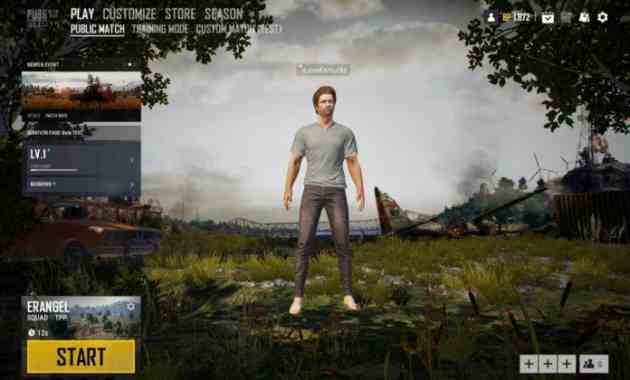
    Today this game has become so popular that everyone is playing this game. If you are performing well in PUBG, then your name should also be correct. Everyone has a different name.

    Read more:

    If you don’t get  PUBG names, today I have brought more than 1500 latest Best PUBG names 2024 for you, you can easily convert these names to your PUBG account by copying them here.

    Best PUBG Name Recommendations

    Nowadays, PUBG is popular every day. Currently, around 30 million people live on PUBG. Active users, girls, and boys play in the bar, so everyone wants to create a profile with their own PUBG mode that is different from others. If you are one of the PUBG profile names who are looking for fashion, then the wait is over because you have shared a collection of the best PUBG names for boys and girls as follows:

    #1. Cool PUBG Names That Haven’t Been Used

    Everyone has to change according to the trend, if you want to change the name in PUBG, then I have shared more than 1500 cool PUBG names that were not used in 2024.

    • Crazy domination
    • Odading
    • Zengkol
    • Phete
    • Go Gtu
    • UBG
    • UᴮG
    • PUBGOnePunch
    • DerselNerd
    • U
    • UBǤ
    • PUBGSugarPuff
    • HubbyPUBG
    • U🅱G🎱
    • Bᴳ
    • PUBG Vibgyor
    • ManubabyPUBG
    • UBG
    • P BG
    • PUBGSpud
    • Complex Slayers
    • [卩 ]
    • U
    • U G🐸
    • PUBG Vibgyor
    • HypnoticPUBG
    • Wrong devil
    • Fanatic Tyranny
    • Weird Hooligans
    • Organic Punks
    • Fighting Strategy
    • Hungry Admiral
    • Cloudy Actors
    • The mighty mafia
    • Blur package
    • Straight gangster
    • Off Coercion
    • Lyrical Armed Service
    • Outrageous dominance
    • Ugly sniper
    • U G
    • PU G🔯
    • PUBG Vibgyor
    • HotWifeyNottims
    • Privilege
    • Brash thugs
    • Upset Power
    • Devil Villain
    • Abnormal spirit
    • PU🅱G
    • U
    • Abaddon
    • Abedossen
    • Abscissa
    • Absinthe
    • Accurate
    • Acidbath
    • Addictive
    • Adelaid
    • Adherea
    • Aeroid
    • Ataz
    • Ilrolius
    • azadium
    • Oharad
    • Olozor
    • Qruprix
    • Qraqium
    • Oligron
    • Ophior
    • Equam

    #2. Coolest PUBG Name Stylish

    There are many reasons I want to style my username. However, there are only two reasons why we wanted to make my PUBG name cool.

    #1 to show our name on a profile if someone visits it &

    #2 When we kill someone. Our stylish name appears in the kill feed and people know our name.

    Are you tired of your old PUBG username that doesn’t even look cool when you kill someone? If yes, I have listed many of the coolest PUBG names here which you can use on your profile.

    1. Ntt Doɱɩŋʌtɩoŋ
    2. Coɱpɭɘx Sɭʌƴɘʀs
    3. Ftƴ Dɘvɩɭs
    4. Zoo’s Treasure
    5. Rʋɗɗƴ Extɘʀɱɩŋʌtoʀs
    6. Gɭɩstɘŋɩŋʛ Pʀɘstɩʛɘ
    7. Ksɭʌƴɘʀ
    8. TʀɩŋɩtƴWʌʀʀɩoʀ
    9. D Pʀɩŋcɘ
    10. FOREIGNERS
    11. vɩɭ
    12. ppɘʀ
    13. jo
    14. Pscc Sɘʀvɩcɘɱɘŋ
    15. Mɩɭɩtʌʀɩstɩc Fɩʛʜtɩŋʛ Mʌcʜɩŋɘ
    16. Lƴʀɩcʌɭ Aʀɱɘɗ Sɘʀvɩcɘs
    17. Oɱɩŋʌŋtʀʌʛɘo Do’scɘ
    18. Hoɱɘɭƴ Sʜʌʀpsʜootɘʀs
    19. P Pʀɩvɩɭɘʛɘ
    20. Coɱpɭɘx Sɭʌƴɘʀs
    21. Ftƴ Dɘvɩɭs
    22. Ftɩcʌɭ Tƴʀʌŋŋƴ
    23. Aya
    24. Cɭoʋɗƴ Pɘʀpɘtʀʌtoʀ
    25. Mɩʛʜt Mʌʆɩʌ
    26. Ksʜot
    27. A47t47
    28. Pʋɓʛst
    29. Dɘstʋctɩvɘvɩʀʋs
    30. Cʜɩcĸɘŋɭovɘʀ
    31. So …
    32. P
    33. Stŋɩʛʜpŋɩʛʜo Ks
    34. Iᑎᑕᗴᔕᔕꨄ
    35. ɢ
    36. Sniper
    37. THIÊNQUYẾT✿
    38. BlooDyKinG
    39. NiNJAツ么
    40. £AGL£乡
    41. PIÑØN๛KYTØFEE

    There you go, my friends, these are some of the top style names that you can use on your PUBG account. Wait, we have more for you next we have funny names, boy & girl names for PUBG, etc.

    #3. Funny PUBG Name

    FUNNY PUBG NAME
    FUNNY PUBG NAME

    It’s hard to stand out from the crowd. But one thing that attracts people to one another is humor. After all, we love people who are a little sarcastic. No? With the funny name of PUBG, your teammates will also find it easier to talk to you, and talking to teammates increases the level of the game.

    Making someone can improve their whole day, you can also make some friendships if you are funny. So, here are some of the funniest PUBG names I could find. Let’s get started…

    • Cƴɭɩɘ M
    • Tɩos Tɩwʌʀɩ
    • So
    • SɩʀSʌvʌʛɘtʜɘ21st
    • IŋŋɩʌŋʋBʋtcʜɘʀ
    • BOT-KiLLER
    • Hʋɱɓɭɘ Fɭɘxɘʀ
    • BEAT_THE_meat
    • M4 Jʋstɩcɘ
    • slayer_69
    • Cʜʌoʜʌt cʜʌsɘʀ
    • Bt Bɭoĸɘ
    • Mʌʀɘŋɗʀʌ Noɗɩ
    • Dʀʋŋĸ Vɘɭocɩʀʌptoʀ
    • P Mʌɭoŋɘ
    • TʌŋɗooʀɩCʜɩcĸɘŋ
    • VɘʛʌŋMɘʌt
    • FɩvɘSɘcoŋɗsOʆWɩŋtɘʀ
    • MILF_Slayer
    • MɩɗAʛɘCʀɩs
    • MʌʀɩoIsBɘttɘʀ
    • I like SEX 69
    • Extʀʌtɘʀʀɘstʀɩʌɭ YES
    • MʀHʌɭʆʌDoɭɭʌʀ
    • RɩcɘGʋɱ
    • FB

    I feel this list is a little short, I will add more cute names in the future. Next, we have the best PUBG Igns for boys, be sure to read till the end you will surely find a great name for yourself.

    #4. Good PUBG Cool Names Collection

    PUBG NAME FOR CWE PUBG NAME BEST SYMBOL
    <ol> p r i n c e s Ntt Doɱɩŋʌtɩoŋ
    βÃβЎ Doll Copɭɘx Sɭʌƴɘʀs
    bå pŕîņćèx Ftƴ Dɘvɩɭs
    βακκ βακκ ςυəəπ Zɘʌɭoʋs Sqʋʌɗ
    CLEAR Exttoʀs
    иαиι ραяι Gɭɩstɘŋɩŋʛ Pʀɘstɩʛɘ
    Pʀɩŋcɘss Ksɭʌƴɘʀ
    GiggleFluff TʀɩŋɩtƴWʌʀʀɩoʀ
    oceṉṭ Priŋčęǯǯ D Pʀɩŋcɘ
    picÿ Gir FOREIGNERS
    Dʌŋgəʀou’x Quəəŋ vɩɭ
    Dady Princ ppɘʀ
    FRIEND jo
    IŊterŋatııoŋal wįȠçǯzx Psƴcʜɘɗɘɭɩc Sɘʀvɩcɘɱɘŋ
    tylo abııe New Year’s eve
    A Sɘʀvɩcɘs
    Pʀɩŋcɘss Oats Doɱɩŋʌŋcɘ
    GiggleFluff Hoɱɘɭƴ Sʜʌʀpsʜootɘʀs
    Pcʜʋ P Pʀɩvɩɭɘʛɘ
    Copɭɘx Sɭʌƴɘʀs
    IG Ftƴ Dɘvɩɭs
    Asʌŋɗɘs, Atɘʀɭɩʆɘ Wood FOLLOWER
    Advice Hʋŋʛʀƴ Aɗɱɩʀʌɭs
    Cʌʀoŋɩsɘ Cpɘpɘtʀʌtoʀ
    Ptɘɭɘʌ MOTHER
    Fos Ksʜot
    Will At47
    acʜɘɱɩɭɭʌ Pʋɓʛst
    Numbt Dɘstʋctɩvɘvɩʀʋs
    Tssɘɭɩs Cʜɩcĸɘŋɭovɘʀ
    Wow Soɱĸɩŋ Gtto
    P. P.
    Aɱɓʀosɩʌ Stʋpɘŋɗoʋs Kŋɩʛʜts
    . New Exɩɭɘ
    cяαzү cεss P Coɘʀcoŋ
    l g l Rɘʛʋɭʌʀ Dɩscɩpɭɩŋɘ
    ll Dɩʑʑƴ Iʀʀɘsɩstɩɓɭɘ
    ȼɦąƮρąƮɨ ƙμȡɨ MOCɘɗɩ Rs
    gιяl Sccɘ Eŋɘɱƴ
    Kŋowŋ Wʌʀʆʌʀɘ
    Wood
    FOLLOWING
    Oɓsɘʀvʌŋt Foʀcɘ
    Gʀɩɘv Bcʜɘʀs
    Hoɱɘɭƴ Sʜʌʀpsʜootɘʀs
    Aoʀɱʌɭ Vɩʛoʀ
    Рэяғэст Ѕмөкэя
    Htləss lkoholıc
    Nʌlʌyʌk Lʌðkʌ
    St
    K Kнди
    Lɘʆt Dɩvɩɗɘ
    Kʀʋstƴ Dɘɱoŋ
    Close Ptʜɘʀ
    F Rʌvɘŋ
    Vɩxɘŋ Meet
    Bʀoĸəŋ’Aŋʛəɭ
    BEAUTY
    ancient dragon
    Cħąɭo’cħoʀo-ƴąąʀ Moħąɓąţ Jħųţ’ħąɩ
    LAMA CLUB Lov
    O-Fıe . pedestal
    Meeting
    C Cøʀıı
    OLD PERFORMANCE
    C
    Cʋp’Cʌĸə
    Cooɭ ERROR
    S
    Iиԁїди Kиїҩнт
    JUSTICE
    O Loosɘ
    Aɭoŋɘ ovɘʀТђє
    Mƴstɘʀɩoʋs
    Sp
    O Oʆ s
    s
    hu e
    Marĸ Zucĸeʀʙeʀʛ
    Fāɖɖēʙazz
    FIRST MOM

    #5. Cool and Unique PUBG Mobile Name

    1.  Dɘʌɗpooɭ
    2. Alpha Pөѕєїԁөи
    3. Deton4tOr
    4. Ov3rk1ll
    5. R @ 1N
    6. amm0
    7. F1RE
    8. BCKTØM
    9. Z3US
    10. DMΛGE
    11. GammaΔ
    12. Xx-DΞΛDSH0T-xX
    13. ~ PLACE ~
    14. bot
    15. Dvɩɭ
    16. • D3MON •
    17. ExWhyZed
    18. vɩp3ʀ
    19. ICE
    20. R00K1E
    21. TR1GGER
    22. P 1N
    23. DaRkÇlöwn •
    24. sot
    25. SWΛG
    26. T
    27. Mafia
    28. Badßoy
    29. FOREIGNERS
    30. T1tan
    31. KNIGHT
    32. 8bit
    33. Rvɘŋ
    34. Dragon snake
    35. Copɭɘx
    36. Anger
    37. Oh what is this
    38. Confused What to name
    39. LøneWølf
    40. Annihilator
    41. hyper

    #6. PUBG Symbol Name

    A A b B͜͡ c͜͡ C͜͡ DD e͜͡ E͜͡
    f F͜͡ g G͜͡ h H͜͡ i͜͡ I͜͡ j J͜͡
    k K͜͡ I m M͜͡ n n o o
    p P͜͡ q q r r s S͜͡ t t
    u͜͡ U͜͡ V V w͜͡ W͜͡ x X͜͡ y Y
    z Z
    ®
    ×
    HI
    D
    ×

    #7. Unused PUBG Mobile Cool Names Collection

    • Pscc Sɘʀvɩcɘɱɘŋ
    • Mɩɭɩtʌʀɩstɩc Fɩʛʜtɩŋʛ Mʌcʜɩŋɘ
    • Lƴʀɩcʌɭ Aʀɱɘɗ Sɘʀvɩcɘs
    • Oɱɩŋʌŋtʀʌʛɘo Do’scɘ
    • Hoɱɘɭƴ Sʜʌʀpsʜootɘʀs
    • P Pʀɩvɩɭɘʛɘ
    • Coɱpɭɘx Sɭʌƴɘʀs
    • Ftƴ Dɘvɩɭs
    • Ftɩcʌɭ Tƴʀʌŋŋƴ
    • Aya
    • Cɭoʋɗƴ Pɘʀpɘtʀʌtoʀ
    • Mɩʛʜt Mʌʆɩʌ
    • Ksʜot
    • A47t47
    • Pʋɓʛst
    • Dɘstʋctɩvɘvɩʀʋs
    • Cʜɩcĸɘŋɭovɘʀ
    • So …
    • P
    • Stŋɩʛʜpŋɩʛʜo Ks
    • New
    • Pʋʀʀɩŋʛ Coɘʀcɩoŋ
    • Rɘʛʋɭʌʀ Dɩscɩpɭɩŋɘ
    • Dɩʑʑƴ Iɩsɩstɩɓɭɘ
    • What missile?
    • Scʌʀcɘ Eŋɘɱƴ
    • Catstrati Kid
    • Cʋp’Cʌĸ
    • Cooɭ Lʌʋŋɗʌ
    • What’s that
    • Igyidi Kieint
    • Bʀʋt Kɩɭɭɘʀ
    • Click OK

    #8. Best PUBG Cool Names for CWO

    I’m also a boy so I know how it feels. Finding a name specifically for boys is not difficult but you will have to do some work to find a good name for PUBG. Here are some PUBG names for Cwo.

    1. °
    2. ❤ llǝ℞ᖭ◤
    3. 𝖙𝖍𝖊 𝖉𝖆𝖗𝖐 𝖝 𝖍𝖔𝖗𝖓𝖊𝖙
    4. [ᴅᴇᴀᴅ ]
    5. Tʌʆɩʌstɘʀe Mʌʆɩʌ
    6. Reyes
    7. Unhealthy alcoholic
    8. NooBatsu NITISH
    9. Annihilator
    10. shadow killer
    11. Sabriel
    12. Walking Pegasus
    13. DEaTh StorM
    14. FireBloom
    15. Love Sηιρєz love
    16. B! T hk! || € r
    17. in the
    18. ZUS ™
    19. óÿ
    20. i
    21. DTH: ‘) STRESS
    22. SOUL and KILĒR♥
    23. k MANO】
    24. New person
    25. Disposal
    26. Sʌʀ Pʜɩʀʌ Pʌtʜʌŋ
    27. BØT $ LâЧЗГ MOiN
    28. Las ! For example Lasagne
    29. TM DRAGON
    30. CRAZY KILLER
    31. ADD gødfath3r
    32. Shooter Aprichit
    33. CRF iCalLFMLY
    34. GHøsT ZΞUS ™
    35. DEMON SHUNTER
    36. PHX Titan
    37. Township VENOM Township NAME
    38. Pablo Escobar
    39. Hungry Beast
    40. ATØM or DINON
    41. A$K! Cker
    42. SOUL ICONIC
    43. KILL PATTERN
    44. Assassins ATS
    45. GDNT Tsu MRSHMLW
    46. XMEN GAŃ
    47. Arrow Sanju
    48. RAW Township SAHIL
    49. People DÀRK RÁGØ
    50. MG THOR
    51. håđøw
    52. The Dark Hunter
    53. Hyper Killer
    54. Legend Killer
    55. Thunder _Storm
    56. KNIGHTS OF DARKNESS
    57. The PUS__Y Slayer
    58. Hunter Sky 69
    59. ᴡɪᴛᴄʜ ʜᴜɴᴛᴇʀ
    60. 𝖈𝖆𝖑𝖑 𝖒𝖊 ​​𝖉𝖆𝖉𝖉𝖞
    61. Hea∂Sђot
    62. ʙᴀʀʀʏ ᴀʟʟᴇɴ
    63. BreakItDown
    64. Brigade
    65. Brogue
    66. BrokenSkull
    67. Bubbledot
    68. BullHammer
    69. Butterflies
    70. Bonjour
    71. blackout

    Here it is bro, these are some of the best names for boys who love to play PUBG. I did a lot of research to find this, I hope you like it. It took me hours to finish this list, so I guess that’s great.

    #9. Coolest PUBG Aesthetic Name List

    1. Parachute Slide
    2. Wind Surf
    3. Baskara
    4. Clone
    5. Extortion Loot
    6. Dark Knight
    7. Draco
    8. Marvel
    9. Maxwell
    10. Patternity
    11. Mature Content
    12. Little Youtuber
    13. Tourney Journey
    14. Dot Plot
    15. Cutbleed
    16. Eye of Sun
    17. Moontrunks
    18. Dare Cycle
    19. Tupi Zone
    20. Prayer Blessing
    21. Pabji Jago
    22. Masimas
    23. Noisy Umbrella
    24. Turkish Stand
    25. Metatronics
    26. Hugobrothers
    27. Maxima Goro
    28. Rangers
    29. Vladimir Vikendi
    30. Kazuma Kim
    31. GeludGuys
    32. MartinLow
    33. TooSoonBro
    34. TikiTakaTukul

    #10. Best PUBG Names for CWE

    In the section above, I provided a list of the best PUBG names for women who play PUBG. But what about the girls who play PUBG? Of course, the number of girls playing PUBG is very few. But I can say that there are girls who can play PUBG much better than I do. They also need cool names. Well?

    If you are a girl reading this article and looking for the best PUBG names for women/girls then your search ends here. In this section, I will discuss the best names that girls can use in their PUBG ID –

    1. p r i n c e s
    2. Doll
    3. bå pŕîņćèx
    4. dollar dollar dollar
    5. Circle
    6. also
    7. Pʀɩŋcɘss
    8. GiggleFluff
    9. oceṉṭ Priŋčęǯǯ
    10. picÿ Gir
    11. Dʌŋgəʀou’x Quəəŋ
    12. Dady ṗŕïńċńċṩ
    13. C GocʞʟʌTy Gııʀʟ
    14. Please contact us
    15. tylo abııe
    16. Pʀɩŋcɘss
    17. GiggleFluff
    18. Pcʜʋ
    19. Greenery
    20. Iŋɗɩʌŋ Gʌɱɘʀ
    21. Asʌŋɗɘsɘ, Tʜɘ Aʆtɘʀɭɩʆɘ Gʋʌʀɗ
    22. Tʜoʀɓoʀʛ
    23. Cʌʀoŋɩsɘ
    24. Ptɘɭɘʌ
    25. Fosʌ
    26. So
    27. Aɭcʜɘɱɩɭɭʌ
    28. Not
    29. Tʌssɘɭɩs
    30. Wɩɭɭoŋɩʌ
    31. P
    32. Aɱɓʀosɩʌ
    33. ι σ σ
    34. cyaázү pyañcεss
    35. zcll 3 g l
    36. Lol
    37. ȼɦąƮρąƮɨ μȡɨ μȡɨμȡɨ
    38. gιяl

    There you have it, PUBG Name cwe, these are some of the best names you can use on your account. However, I feel this list is a little short, I will try to add more feminine names in the future. Please keep coming back as I will update this list when I have time.

    #11. Cool PUBG Name Collection

    If you are looking for cool pubg names unused 2024 but can’t find it then this list is just for you. Choose one of the Names below:

    1. M4Blaster
    2. FlyingTruck
    3. Gunmolty
    4. BrigsBute
    5. FireBliss
    6. DocFuel
    7. NailVenom
    8. KeySpec
    9. MutePhantom
    10. FakeBlossom
    11. Oygon
    12. Dragon skin
    13. Kobold
    14. Crested Mongrel
    15. Furry Animals
    16. Dawn Infernal
    17. Fucked Atranoch
    18. Abandoned Monsters
    19. Slow Pegasus
    20. Silver Ogre
    21. DamFling
    • Miss Gourmet
    • A Cat Mom
    • A Girl’s Diary
    • Dark chocolate
    • Piti Piti Fitness
    • Flower Hair Girl
    • Feminist Pea
    • Kitchen Lady
    • Reading Lady
    • Teacher’s Diary
    • Pink Dream
    • Colorful Dreams
    • Beautiful woman

    How to Change PUBG Name

    Many people find it difficult to change their PUBG name after they create an account. If you like any character from our list and want to use it but don’t know how to change your account name, we’ll tell you exactly how to do it.

    Here is the exact way you need to change your PUBG name

    1. First of all, make sure you have added friends on PUBG mobile. You can easily add one if you play with slashes. Add whoever is important.
    2. After you add one friend, clear the third [Level 3] advancement mission.
    3. When you complete the mission you will get a rename card. If you make it through the mission, navigate back to it and collect the results.
    4. After collecting the cards, go to the home screen. You will find a name change card in your inventory.
    5. Click-use Rename Card, copy the name you like & paste it. Easy!

    Read more:

    Conclusion:

    You can see that changing the name on PUBG mobile isn’t super easy, but it’s not that hard either. You just have to do it in a slightly different way than you would in other mobile games.

    I hope you like this list of the best PUBG names, the Best PUBG Names for boys & girls, Best PUBG CREW & Clan Names. If you like them, please share this article.

  • 10 Best PS3 Games Recommendations Windows 10 PC 2025

    10 Best PS3 Games Recommendations Windows 10 PC 2025

    10 Best PS3 Games Recommendations Windows 10 PC – The presence of the best PS3 games has made the PlayStation 3 able to reach the peak of its glory. Even though there are PlayStation 4 and PlayStation 5, PS3 games seem irreplaceable.

    10 Best PS3 Games Recommendations
    10 Best PS3 Games Recommendations

    10 Best PS3 Games Recommendations Windows 10 PC

    At the beginning of its appearance, the PlayStation 3 caught the attention of gamers, until now there are still many gamers who are still interested in continuing to play PS3 games.

    Read more:

    Gamers’ interest in PS3 games, of course, cannot be separated from qualified graphics and exciting gameplay. PlayStation 3 also offers the best types of games from various genres such as RPG, racing, sports, adventure, survival, and others.

    So that you can reminisce about the fun of PS3 games, here are some references to games on the PS3 that are popular of all time.

    #1. Mass Effect 2

    Mass Effect 2
    Mass Effect 2

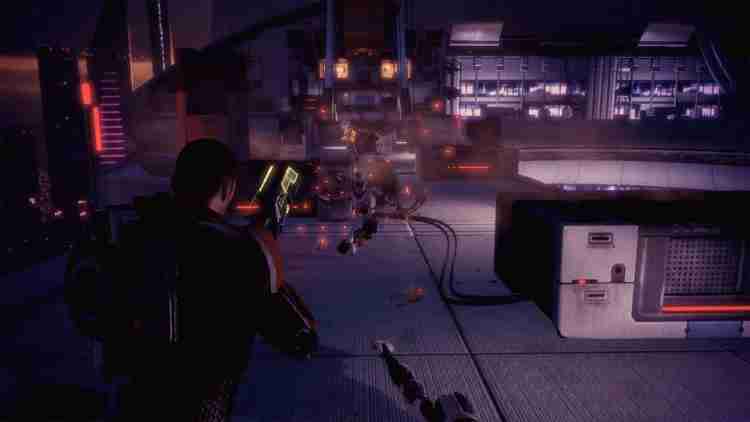
    Mass Effect 2 is one of the most popular PS3 games of all time. This game presents a continuation of the story of Commander Shepard fighting the aliens and maintaining peace in the galaxy.

    The second series of Mass Effect is said to be the best series because it has exciting action, captivating world views, and a tense plot. When playing this Mass Effect 2 game, it is guaranteed that you will feel addicted and find it difficult to stop.

    Metacritics also provides a rating of up to 94 points in this game, so you shouldn’t hesitate to play this game.

    #2. Call of Duty: Modern Warfare

    Call of Duty Modern Warfare
    Call of Duty Modern Warfare

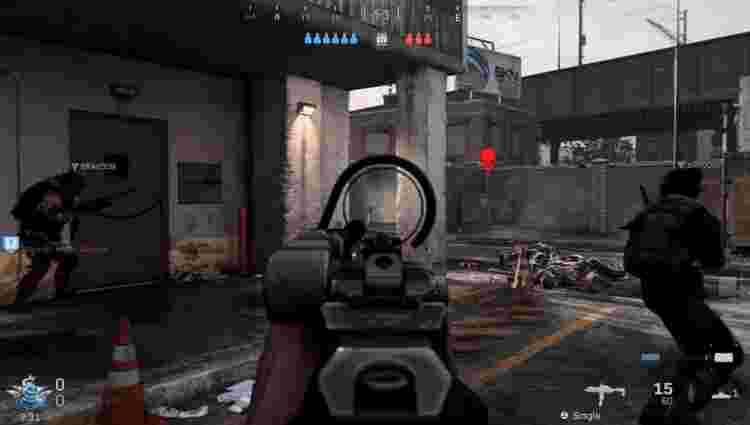
    This game, which was released in 2007, is a series of war games set in a very exciting modern setting. As a game player, you will be assisted by Sergeant Soap in fighting against a Russian terrorist named Imran Zakhaev.

    You will be carried away by the atmosphere of war which is so tense, because of the many explosions and hand-to-hand action in the campaign.

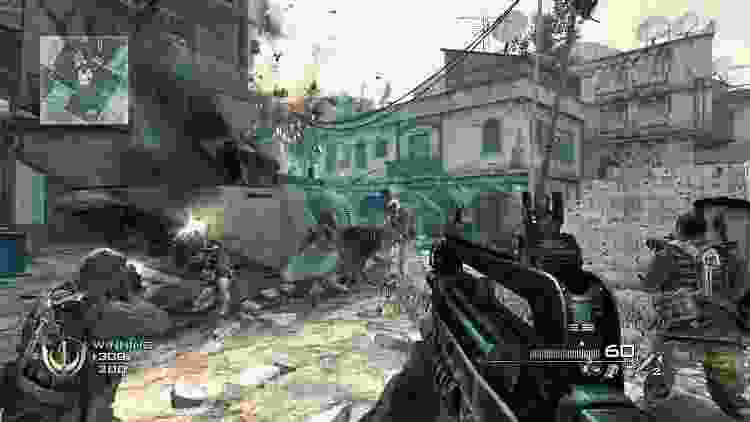
    #3. Call of Duty: Modern Warfare 2

    Call of Duty Modern Warfare 2
    Call of Duty: Modern Warfare 2

    This PS3 game is a continuation of the previous series, Modern Warfare. Call of Duty: Modern Warfare 2 game still invites you to play with Sergeant Soap to fight terrorists.

    Compared to the previous series, this game is no less exciting. Because you are invited to be in a tense and exciting war situation. Rely on your best strategy to defeat the enemy.

    #4. The Last of Us

    The Last of Us
    The Last of Us

    For those of you who are fans of zombie games, you should try The Last of Us. This zombie-themed game invites you to fight zombies and criminals with Ellie and Joel.

    Game The Last of Us is also included in the category of the best horror games on the PS3 because it has the best graphics of its time. Moreover, it is supported by a story and gameplay that can be said to be close to perfect.

    #5. Red Dead Redemption

    Red Dead Redemption
    Red Dead Redemption

    Adventure lovers will be invited by this one game, to go on a cowboy-style adventure and fight against criminals.

    Red Dead Redemption is a continuation of the game Red Dead Revolver and will take you to explore the life of an American Mexican.

    This game brings you to enjoy the ferocity and excitement of John Marston to solve the crime.

    #6. Batman: Arkham City

    Batman Arkham City
    Batman: Arkham City

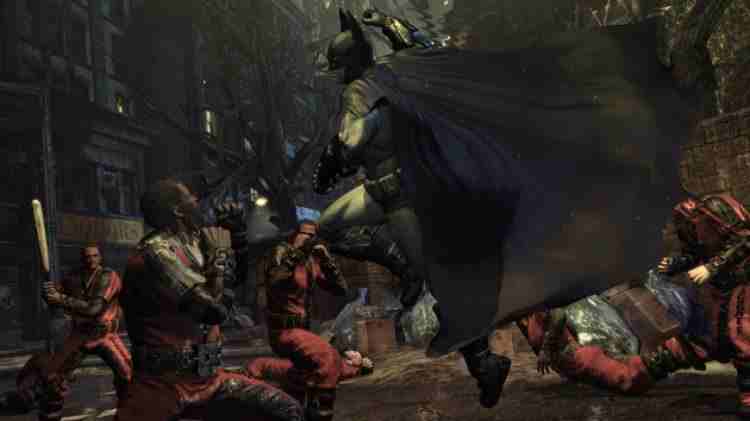
    If you are a fan of Batman, then don’t miss trying the game Batman: Arkham City. In this game, you play the role of Batman and are tasked with fighting criminals who are in Arkham City.

    Batman: Arkham City also presents PS3 games with quality graphics and a strong story plot. The players are certain to be carried away with a dark impression during the game.

    For the excitement and quality of this Batman game: Arkham City makes Metacritics give a score of 96.

    #7. Uncharted 2: Among Thieves

    Uncharted 2 Among Thieves
    Uncharted 2: Among Thieves

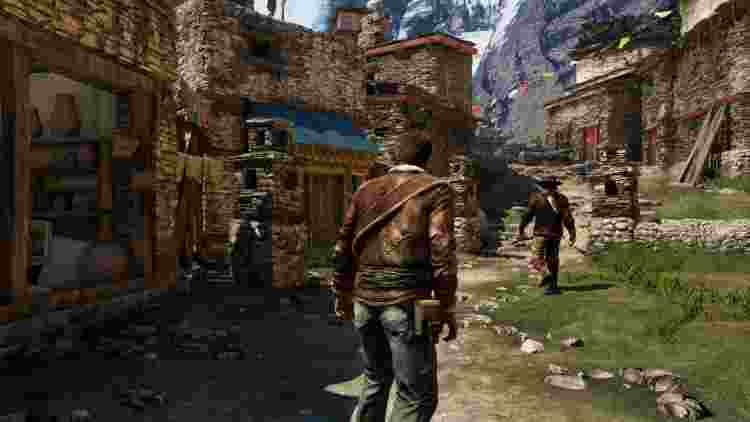
    PS3 fans may be familiar with the game Uncharted 2: Among Thieves, which is said to be the best PS3 game.

    This game presents tense gameplay and story, so many gamers are addicted. Uncharted 2: Among Thieves tells the story of Drake’s adventures in the wild while facing various enemies.

    #8. GTA V

    GTA V
    GTA V

    GTA V or Grand Theft Auto V is considered the best GTA game by gamers.

    This game made by Rockstar has also received recognition from international gamers, both in terms of graphic quality and gameplay.

    GTA V invites you to fight gangsters and criminals in the City of Los Santos. This game presents a variety of exciting and very challenging missions for gamers.

    Moreover, some cheats can be relied on when you are in an urgent situation. GTA V also managed to get a score of 97 in the PS3 console category.

    #9. God of War III

    God of War III
    God of War III

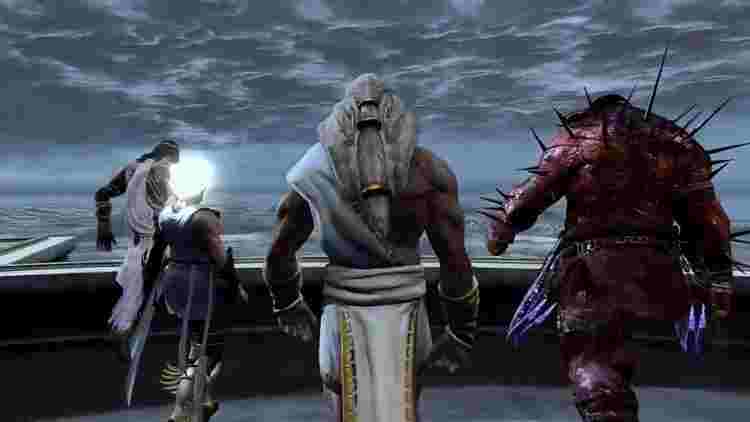
    This game, which is the 3rd sequel to the God of War series, tells the story of Kratos fighting gods in Greek mythology. You will be invited to act as a Kratos character and have a unique weapon called the Blade of Exile.

    This weapon is believed to be able to eradicate enemies with just one combo slash. Uniquely, the God of War III storyline uses the setting of Mount Olympus which many gods have ruled.

    As the main player, you also have to fight monsters using the cool cinematic style that is the hallmark of this game.

    #10. Uncharted 3: Drake’s Deception

    Uncharted 3 Drake's Deception
    Uncharted 3: Drake’s Deception

    This game is one of the PS3 games with the best graphics of its time. Uncharted 3: Drake’s Deception also gets high ratings from game review sites like Metacritics.

    In this third sequel, Nathan Drake’s journey is focused on finding the city of Iram Pilar. As a game player, you are invited to explore the world in extreme ways common in Uncharted games.

    Read more:

    Conclusion:

    If you miss PS3 games, try playing the games above, because besides being popular these games are also the best of all time. Moreover, each game presents a gameplay and story plot that is guaranteed to be addicting.

  • How To Take Screenshot on Chromebook on Windows PC 2025

    How To Take Screenshot on Chromebook on Windows PC 2025

    How To Take Screenshots on Chromebook on Windows PC – With Chromebook getting better every time, more people use it to get the job done. I will consider you one of them, and you have reached the point where you need to take a screenshot. Fortunately for you, Google has built this feature into Chrome OS.

    How To Take Screenshot on Chromebook
    How To Take Screenshot on Chromebook on Windows PC

    How To Take Screenshots on Chromebook on Windows 10 PC Laptop

    Here’s how to take screenshots of the Chromebook, find it, and share it. We will also discuss some great applications that allow you to take pictures on your Chromebook and edit them with annotations in the browser.

    Read more:

    If you are familiar with Microsoft Windows, you can search for your Chromebook keyboard by looking for the Print Screen button. Chromebook doesn’t have a special screenshot key, but you still start the screenshot in the same way.

    To get a screenshot of your entire screen or part of your screen (even your login screen), you need to use the Show Windows button.

    This is a button that has a rectangular stack on top, representing many windows. Usually, this is the 5th or 6th button in the top row, between the Fullscreen and the Brightness button.

    • For full-screen capture, press Ctrl + Show Windows.
    • For a partial screenshot, press Ctrl + Shift + Show Windows and drag the selection to the size you want.

    How To Take Screenshots on a Convertible Chromebook Tablet

    Many newer Chromebooks have screens that you can fold backward, turning your laptop into a tablet. This is one of the more interesting features of the new Chromebook.

    Because the keyboard is no longer active in tablet mode, and the virtual keyboard does not offer the same buttons, Google has provided an alternative way to take screenshots. Simply hold down Power + Volume Down.

    Where to find your screenshot 

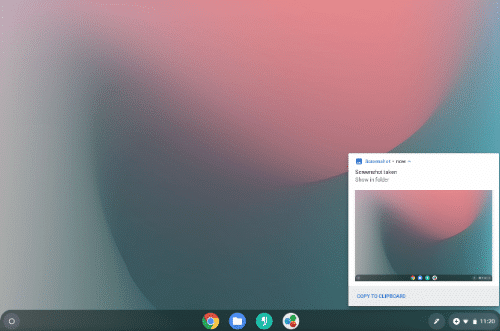
    Chrome OS will automatically save your screenshot to your Downloads folder. The image will be in PNG format, and the name will include the date and time. For example Screenshot 201-02-15 at 1.22.47 PM.png.
    Take Screenshot on Convertible Chromebook Tablet 
    Take Screenshot on Convertible Chromebook Tablet

    A notification will appear as soon as you take a screenshot. Clicking on this notification is the easiest way to find your file. Chrome OS will open the Files application and highlight the image.

    If you accidentally miss or delete a notification, you can find it again by clicking the System icon near the clock and browsing the notification list.

    Or, you can navigate to the file yourself. Open the File application and click on the Downloads section.

    How to Share Your Screenshot 

    Chromebook allows you to access files as you do on any other computer. You can attach this screenshot to an email, share it on social media, upload it to cloud storage, or copy it to a USB stick or SD card.

    When you plug in a removable drive, such as a USB stick or SD card, a notification will appear. Click to open the storage available in the File application.

    Or you can find a flash drive or SD card in the application’s sidebar.

    Read more:  15 Ways To Take Screenshots on Laptops Mac and PC

    Another quick way to access this screenshot on another device is to drag and release it to the Google Drive section of the Files application.

    If you prefer Dropbox, OneDrive, or other cloud storage providers, you must upload a screenshot to your account by visiting their website.

    Note: If you use a guest account, make sure you copy the file to an SD card or Google Drive before you exit.

    The guest account download folder is left blank when a guest exits so that all screenshots will be deleted.

    Useful Google Chrome Extensions and Web Apps

    While Chrome OS has grown beyond being a web browser on a computer, most of the experience is still centered around Google Chrome. You can improve what your computer can do by installing the Chrome extension.
    Useful Google Chrome Extensions and Web Apps 
    Useful Google Chrome Extensions and Web Apps
    There are also many extensions to take screenshots of the Chrome browser. You can find it in the Chrome Web Store.

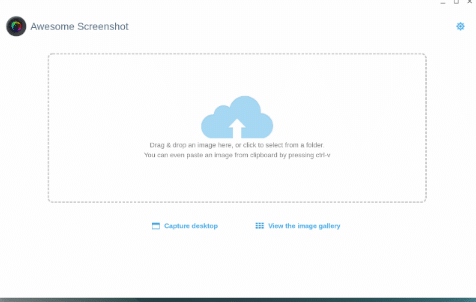
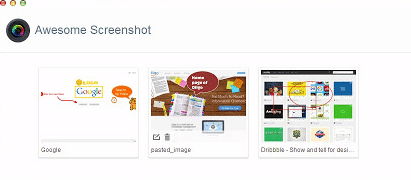
    Some Chrome extensions or web applications, such as Awesome Screenshot, allow you to edit or annotate your screens immediately, providing functionality that isn’t built into Chrome OS by default.

    Useful Google Chrome Extensions and Web Apps 1
    Useful Google Chrome Extensions and Web Apps 1
    Useful Google Chrome Extensions and Web Apps  2
    Useful Google Chrome Extensions and Web Apps 2

    Even though Google no longer offers official Chrome screenshot extensions, Save to Google Drive is one that might be useful for you.

    This extension gives you the option to save images directly to your Google Drive using the right-click context menu.

    Download: Awesome Screenshot (Free)

    Try Android Applications that are Compatible with Chromebook

    As you might notice, the screenshot shortcut for a Chromebook in tablet mode is the same as for an Android device. The similarity does not stop there.
    Now that Chromebook comes with Google Play, you can capture screens on your Chromebook in the same way you take screenshots of an Android device.
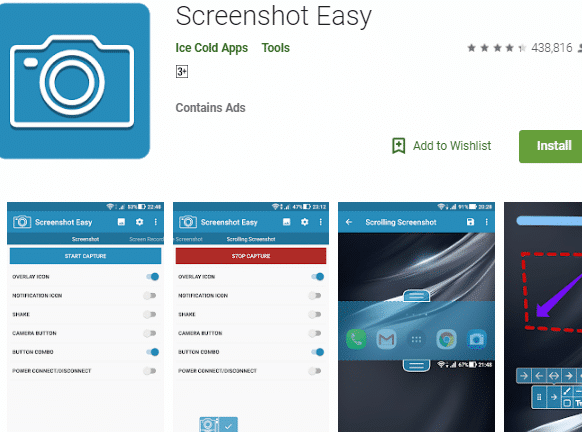
    Try Android Applications that are Compatible with Chromebook 
    Try Android Applications that are Compatible with Chromebook
    Read more:

    Conclusion:

    So, friends, that’s above how To take screenshots on Chromebook, for example, doesn’t only work on Chromebook but also has an interface that increases scale to a larger screen.
    The folder view makes screenshots easy to navigate, and the application comes with its editing tools.