Author: Nazrul Islam

  • 30+ Best Android Themes 2025 Best Themes For Android

    30+ Best Android Themes 2025 Best Themes For Android

    30+ Best Android Themes 2024 Best Themes For Android – Download the best and latest free Android themes APK with the coolest wallpaper images and custom icons to beautify the aesthetics of the cellphone screen.

    30+ Best Android Themes 2022 Best Themes For AndroidBest Android Themes 2025 Best Themes For Android

    One of the best things about Android is its ability to customize the user experience.

    You can do this by downloading one of the many apps on the Google Play Store. You can also use themes or themes on your Android device.

    Read more:

    We’re not talking about just changing the background of your Android device, but something real that is awesome theming that will make your device look completely different.

    Here are the best Android themes or themes and the best apps to help you apply themes to your device.

    Keep in mind that theming is very subjective and what is good for you may not be liked by others. Leave a comment about your favorite Android themes and home screen settings.

    #1. Best Android Themes Workshop
    Best Android Themes Workshop

    Download PlayStore

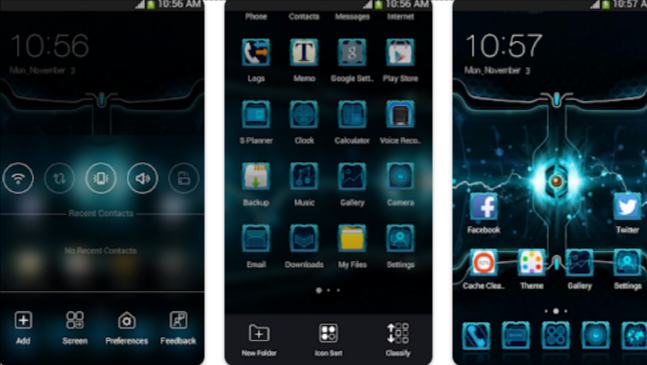
    Best Android Themes Workshop is a group of developers who create generic themes for C Launcher.

    There are various themes available that cover a wide range of colors and styles available.

    Some examples of themes include Night Street, Dragon Magic Game Totem, and Saturn Space.

    Most themes include icon packs, wallpapers, and some advanced theming elements to make it all match.

    All themes from this developer are free and it doesn’t take long to make your device look awesome.

    Note: You must use C Launcher to run themes from Best Android Themes Workshop

    #2. DLTO
    DLTO

    Download PlayStore

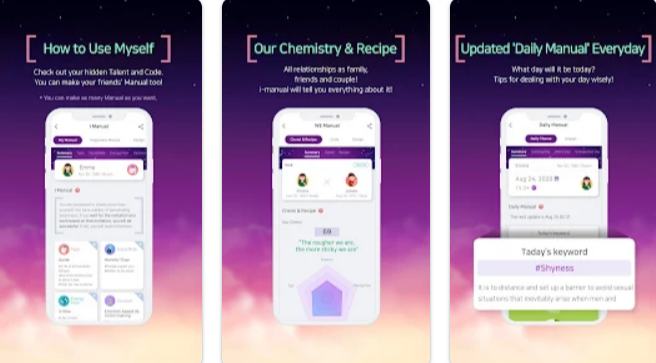
    DLTO is another development group responsible for Atom Launcher.

    Besides their famous launcher, they also have an excellent selection of some pretty amazing themes.

    They come in a variety of colors and styles so they are suitable for everyone with a variety of tastes.

    One of the themes from DLTO includes Metropolitan, Black Mechanic, and Horizon, all of which have their unique style.

    Each theme is free and there are dozens for you to choose from.

    Note: You must use Atom Launcher to use the themes from DLTO.

    #3. GinLemon
    GinLemon

    Download PlayStore

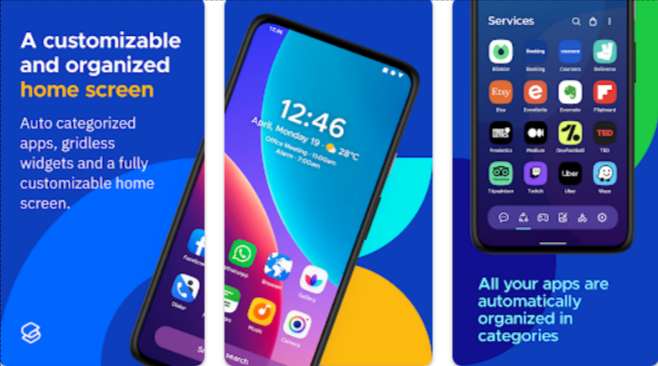
    GinLemon is the group of developers behind the highly successful Smart Launcher.

    Apart from having quite a unique launcher, the developers have also released some awesome themes for their launcher.

    Some good choices include SLT Metro, SLT Ubuntu, and SLT Futura.

    The available themes are not as comprehensive as other themes, but they do add extra features to the launcher to do something different.

    Note: To use Android themes from GinLemon you must download Smart Launcher 3

    #4. KLWP Live Wallpaper Maker and KWGT Kustom Widget Maker
    KLWP Live Wallpaper Maker and KWGT Kustom Widget Maker

    Download PlayStore KLWP Live Wallpaper Maker

    Download PlayStore KWGT Kustom Widget Maker

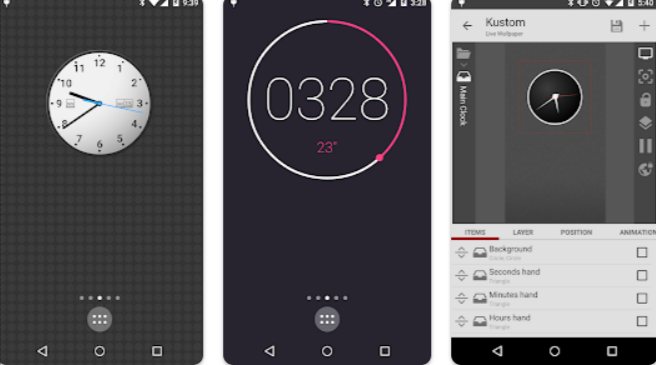
    KLWP Live Wallpaper Maker and KWGT Kustom Widget Maker are two applications created by Kustom Industries that allow you to create your live wallpapers and widgets.

    Both applications operate with WYSIWYG editors and come with thousands of templates, components, and various other tools to help you create exactly what you want.

    This app is great for people who want to have a customizable theme and want widgets and wallpapers to match their style.

    This app is also great for thinkers who want something unique and special.

    Both apps have a free version which has most of the features and a paid version where there are extras (including the ability to import skins from other users).

    #5. Nova Launcher
    Nova Launcher

    Download PlayStore

    In many cases, Android users try to get a stronger feel on their Android devices by running OEM skins like TouchWiz. And Nova Launcher is perfect for this.

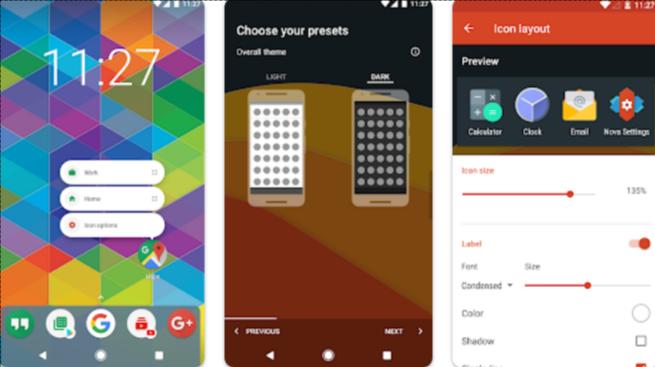
    Nova Launcher has thousands of Android styles which can then be further customized using the settings menu, icon pack options, and various other elements.

    Nova Launcher is a bit more of a DIY app (you play a big part in making the adjustments) compared to many of the apps on this list.

    But Nova Launcher can make your Android device look awesome.

    #6. UCCW
    UCCW

    Download PlayStore

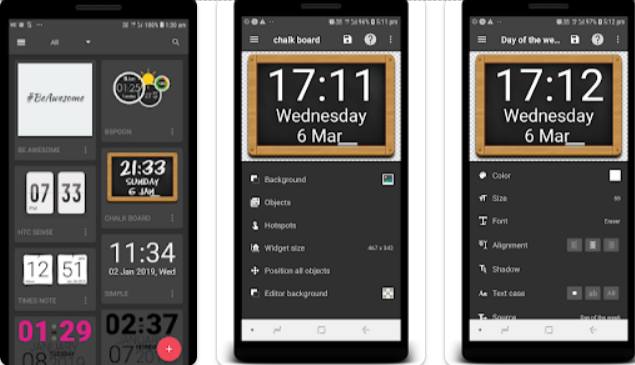
    UCCW is a customizable app that lets you do a lot of things.

    The entire app is based on an editor that lets you implement your creative ideas into a functional widget for your Android home screen.

    Due to its excellent ability to support customization, many users create various skins that you can use.

    #7. MT StyleMT Style

    Download PlayStore

    It comes with highly customizable features and has a nice color combination in the background. This Custom Live Wallpaper theme is sure to catch your eye.

    There are several bright color options offered by the MT style which includes 6 different color layers. The theme is simple and easy to use.

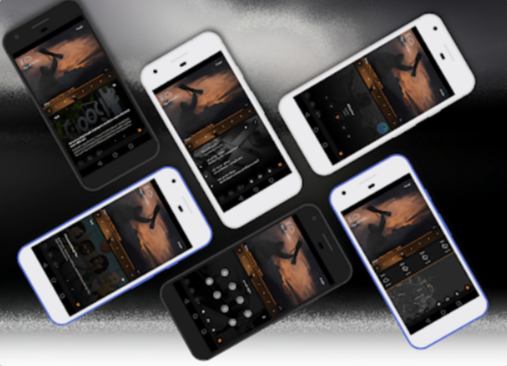
    Minimalist Experience

    Minimalist Experience is what the name suggests. This theme has a minimal style with additional features that make it outstanding. This Android theme will offer different background options which will be available in different languages.

    Apart from the basic theme features, Minimalist also keeps you up to date with your news needs and entertains you with its versatile music player. So, if you want some extra benefits apart from the theme, you can give Minimalist Experience a try.

    #8. ORIONORION

    Download PlayStore

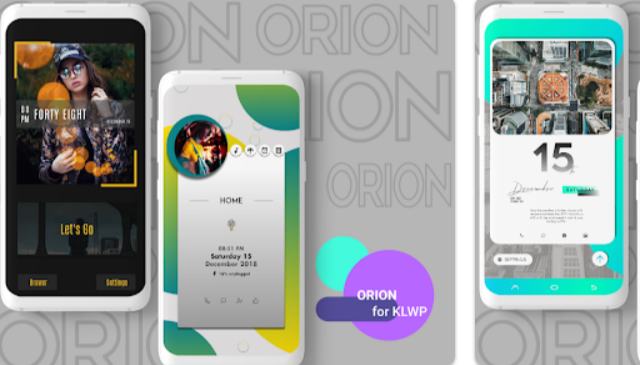
    Orion is one of the dynamic themes based on Kustom live wallpaper in our list of best Android themes, the reason being, that this app updates its presets frequently and offers a wide variety of options to use.

    ORION offers all the basics of a quality theme you could want on your Android device. Orion lets you easily modify the colors and background of your theme. This theme comes with a beautiful user interface and makes it more attractive to users.

    #9. Black MountBlack Mount

    Download PlayStore

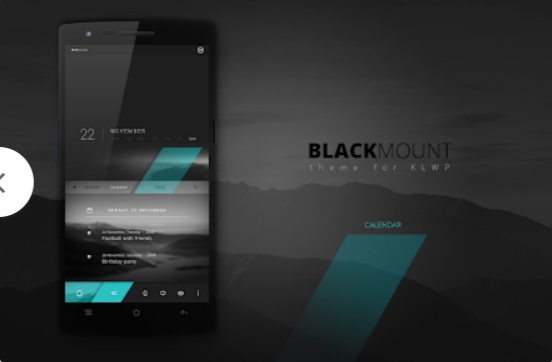
    Black Mount is next on our list of the best Android themes. This theme comes with a very attractive user interface where you will find a search bar at the bottom of the theme which is assisted with other basic tools like messages and email.

    You’ll find the date in the top bar of the screen followed by the weather and calendar widget. The calendar can be easily customized to suit your needs. The theme also has a cool color background that can be changed frequently.

    #10. Minimal HomeMinimal Home

    Download PlayStore

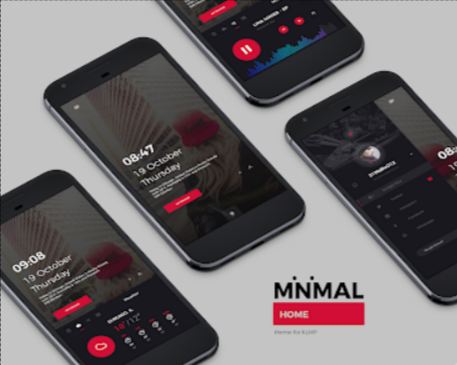
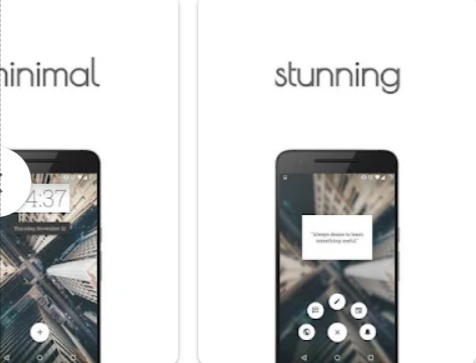
    Minimal Home is the best minimally designed Android theme which can be used if you have KWLP Pro on your device.

    This theme comes with an app icon located on the right side of your device. The smooth sliding interface helps you access your apps, tools, and widgets.

    By swiping to the right side of the theme, you will find messages, emails, contacts, etc. The left side will take you to all your social media handles which cover all the popular social media platforms.

    The minimal app comes with a fluid user interface which makes it more interactive and attractive to its users.

    #11. Sleek HomeSleek Home

    Download PlayStore

    Sleek Home lets you make all kinds of customizations which include modifying the colors, fonts, backgrounds, and other basic features that appear on your home screen.

    The most unique feature of Sleek Home that makes it one of the best Android themes is that it offers two theme options which include a white and black theme.

    Like most Android themes, Sleek Home has a search bar above the home screen and widgets next to all the tools. You can find calendars, messages, music, and other icons in separate windows that make it easy for you to manage.

    #12. UnixUnix

    Download PlayStore

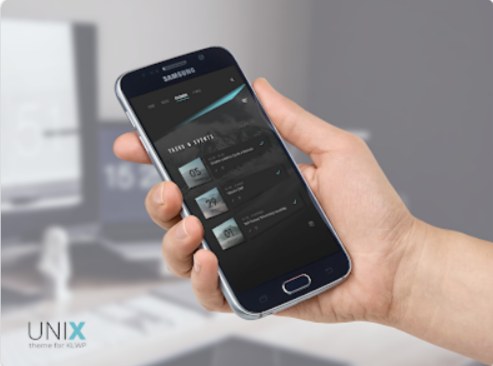
    At the top, you’ll find apps, for example, Home, Music, Calendar, and Email, as quick access alternatives to encourage client collaboration, by selecting one of the options that show the window displayed across the screen.

    Like the previous theme, this option offers access to the main application making it easier to use, as it does not require a lot of equipment to handle, and it is possible to customize the application as desired.

    #13. DropDrop

    Download PlayStore

    The drop comes with a unique three-screen configuration display that allows you to multitask with ease.

    The home screen has a plus icon which will show you mini versions of all the apps available on your device so you can see at a glance your apps.

    Drop is very effective in managing your daily activities with its productive features and interactive interface, which is why this app has our best Android themes.

    #14. DrylkDrylk

    Download PlayStore

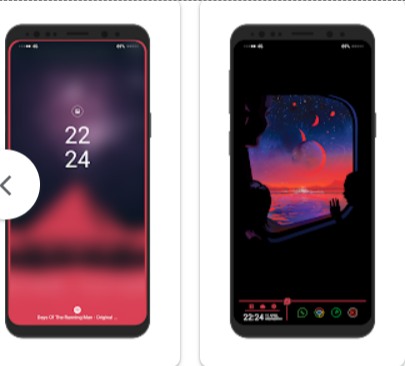
    If you want to give your device a PC look, then you should give Drylk a try. This best Android theme comes with a sleek and elegant look that gives it a modern touch.

    Drylk comes with red and dark color-based backgrounds and themes. This theme comes with all the necessities that will be needed to customize your Android device.

    This best Android theme is very good at multi-tasking which beautifies your home screen with minimal themes. You will find a search bar at the top of your screen with mini versions of all the apps you want to access.

    #15. Dark Fantasy IU KustomDark Fantasy IU Kustom

    Download PlayStore

    Dark Fantasy IU Kustom lays its theme on dark color combinations. This theme has a very well-organized look where the main screen is separated into three partitions centered by the middle screen.

    The “separated” section consists of apps while the other consists of wallpapers. In the center of the separation is the calendar. At the bottom of the screen, you will find all your frequently used apps.

    #16. White Flower Launcher ThemeWhite Flower Launcher Theme

    Download PlayStore

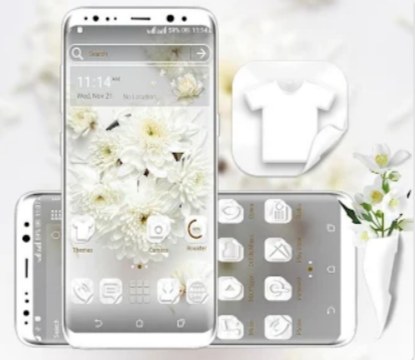
    White Flower Launcher Theme is a beautiful and soothing combination of white, gray, and black. Most of the designs are white, with gray in the background.

    This pure white flower theme is specially designed for guys who love pure white. Comes with a pure white flower lock screen on simple wallpaper.

    #17. 3D Theme For Android3D Theme For Android

    Download PlayStore

    3D Theme For Android is one of the most popular themes available today. you can customize it as you want.

    Enhance the beauty of your device with beautiful icons, stunning themes, and unique graphics. 3D Theme For Android is free to download and use. Change the look of your Android phone or tablet with this colorful theme.

    #18. Galaxy Space Launcher ThemeGalaxy Space Launcher Theme

    Download PlayStore

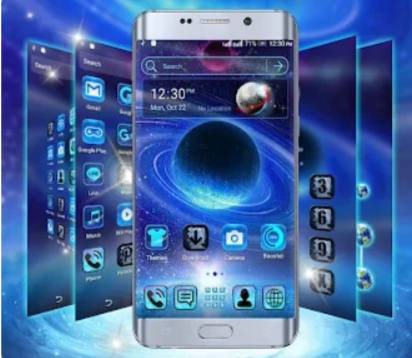
    Galaxy Space Launcher Theme offers unique space and galaxy graphics. If you like the universe and outer space, this is the most downloaded theme.

    This beautiful launcher theme has HD universe wallpaper and a customized icon pack. The holographic display with a blue effect makes it different from other apps.

    #19. Water Drops ThemeWater Drops Theme

    Download PlayStore

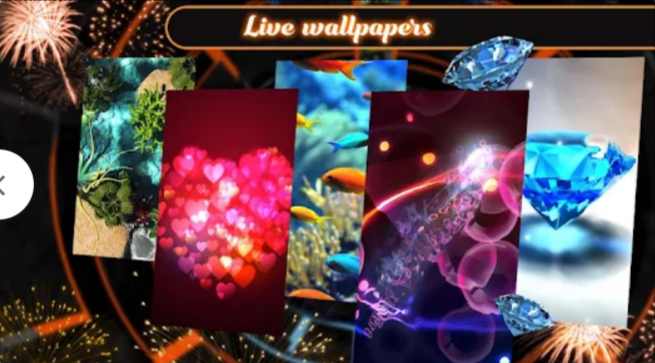
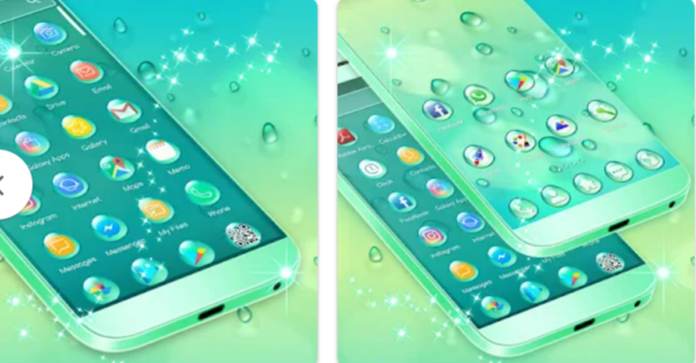
    Water Drops Theme is a relaxing water and raindrop theme that offers unique personalization for your Android device.

    The look of this theme is amazing and will completely change the look of your Android device.

    Water Drops Theme has wallpapers with amazing blue water drop effects and water drops icons to make your phone a fantastic device.

    #20. Theme For iPhone XTheme For iPhone X

    Download PlayStore

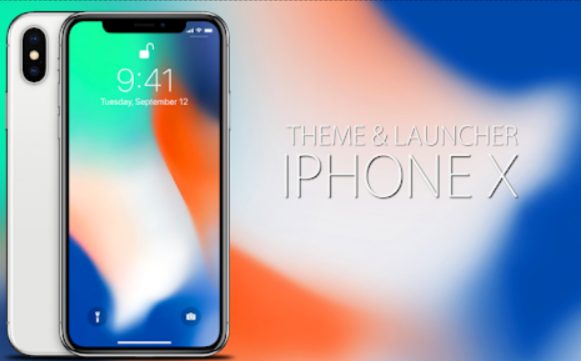
    Theme For iPhone X comes with tons of amazing wallpapers, HD graphics, and beautiful icons. If you are an iPhone lover and want to make your phone look like that, then download this app.

    There are different categories, such as photography, comics, sci-fi, etc.

    This theme will make your device look bright, and run smoothly.

    #21. Modern Theme For Computer LauncherModern Theme For Computer Launcher

    Download PlayStore

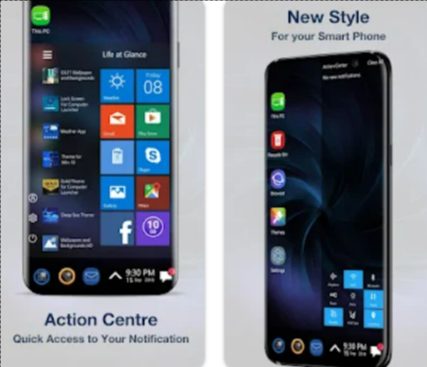
    Modern Theme For Computer Launcher gives your phone a mini-computer look. This theme makes your phone look modern and stylish.

    This is the best pack for Windows-style phones and computer launchers.

    The base of the theme is blue and comes with a nice icon pack and cool animations.

    #22. Themes AppThemes App

    Download PlayStore

    Themes App will beautify your Android device with 4K fantasy wallpapers and comes with icon changer packs. This theme can be downloaded for free.

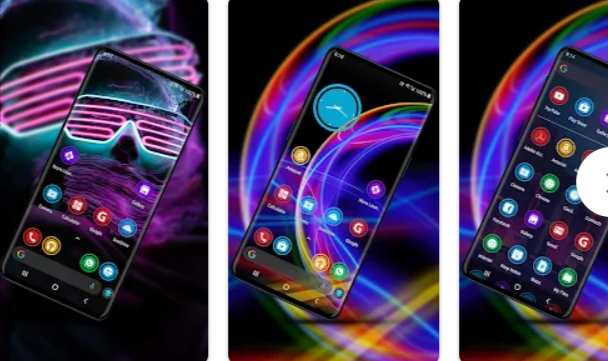
    Themes App supports Neox launcher and all devices with the latest Android update. Give it a contemporary and stylish look with unique neon-inspired icons and themes.

    #23. CMM LauncherCMM Launcher

    Download PlayStore

    CM Launcher 3D is the best Launcher for Android phones. It comes with lots of amazing features, like personalized theme settings and battery-saving features.

    Besides, CMM Launcher protects your privacy from third parties and provides you with tons of free themes and HD wallpapers every day.

    CMM Launcher is a quick and easy launcher that keeps your battery in good shape.

    #24. Butterfly Launcher ThemeButterfly Launcher Theme

    Download PlayStore

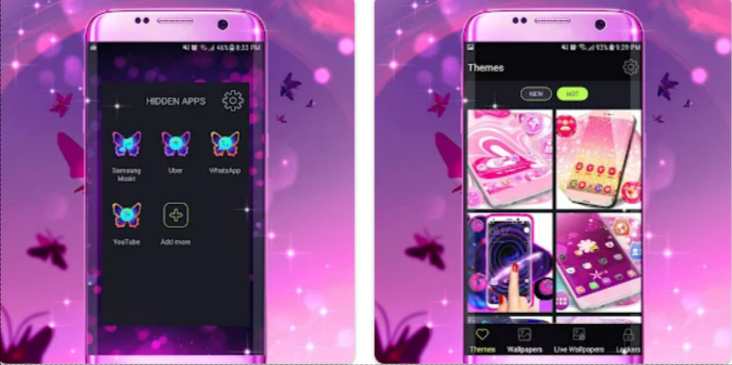
    If you like the colorful look of your Android phone, you can use Butterfly Launcher Theme. This app is considered one of the best themes for Android because of its attractive and cool features.

    If you like a butterfly, you can use it because you will see that all your icons will change to a butterfly shape as soon as you install it.

    #25. Love Theme LauncherLove Theme Launcher

    Download PlayStore

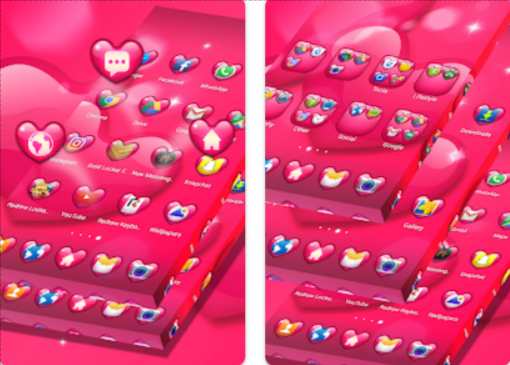
    Love Theme Launcher is another free and feature-packed theme launcher for Android devices.

    This app comes with lots of love sign wallpapers pink backgrounds, and other visual elements to make your phone more adorable.

    With this app, you can customize your wallpaper, icon design, and more. Butterfly Launcher Theme will be a good decision if you download it to experience love.

    #26. Black Silver Launcher ThemeBlack Silver Launcher Theme

    Download PlayStore

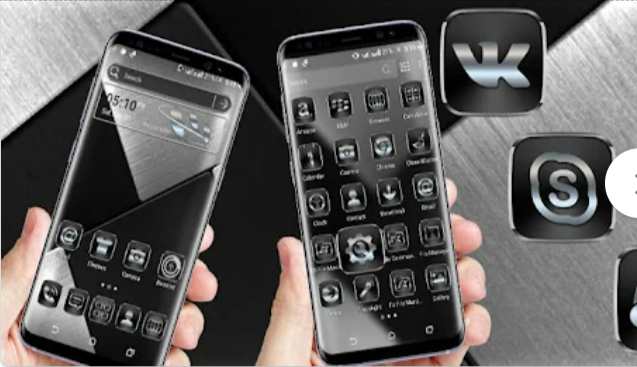
    If you are a lover of black skins, then there is nothing more interesting than this launcher.

    Once you download this app, you will fall in love with its natural black-silver look. No matter what brand of Android you are using, this theme works with any Android brand. With this app, you will get new cool, and fantastic themes every day.

    #27. Green Nature Cartoon ThemeGreen Nature Cartoon Theme

    Download PlayStore

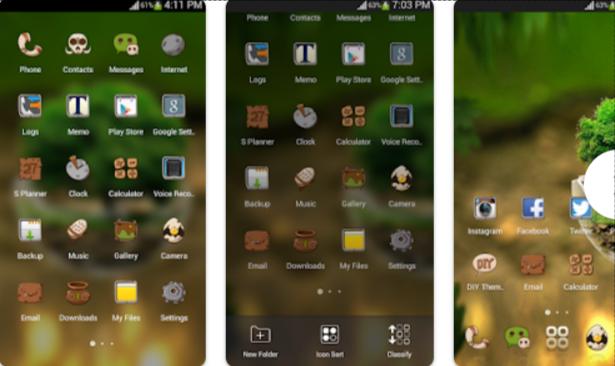
    If you like being around nature, then the Green Nature Cartoon Theme will be the best launcher for your Android phone.

    This theme provides HD wallpapers, customizable cool icons, a lovely look, and a transparent app drawer look.

    Furthermore, with this app, you can customize new themes using your DIY function.

    #28. Alpha Hybrid LauncherAlpha Hybrid Launcher

    Download PlayStore

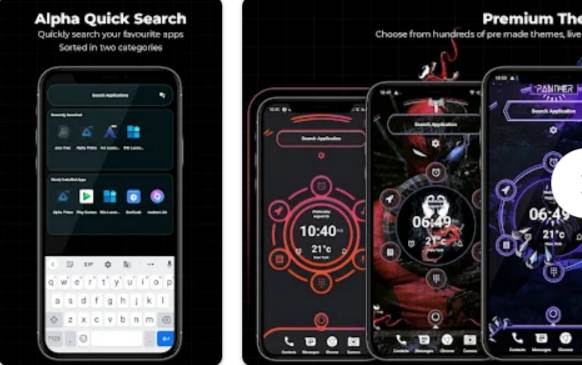
    Alpha Hybrid Launcher is the safest launcher on the Play Store. This launcher does not store your personal information and contacts, media, and location on its servers. It’s easy to use, and the app is easy to configure.

    It will bring your favorite items to the home screen in a circular shape and comes with a voice assistant for reading messages, settings, alarms and reminders, math calculations, and more.

    #29. Black And White Launcher ThemeBlack And White Launcher Theme

    Download PlayStore

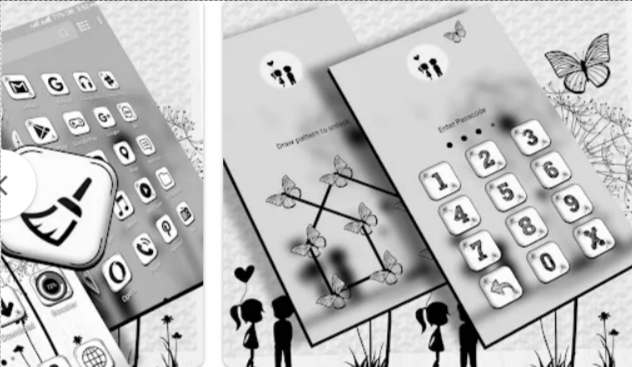
    Let us introduce you to this adorable black-and-white launcher theme. This is the best launcher if you like the black-and-white combination.

    This theme works with almost all major Android brands. You can download it for free.

    You will notice that new elegant themes and wallpapers are updated every day. So you don’t have to carry the same theme or wallpaper every day. It includes lots of customizable HD wallpapers and icons for your image library.

    #30. Launcher 8
    Launcher 8

    Download

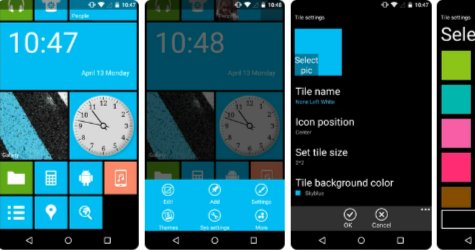
    Launcher 8 by Xinyi Network is a unique launcher that emulates the look, feel, and appearance of Windows Phone 8.

    This may seem like a step back for most Android users, but some enjoy the simplicity and layout of the Metro (tile) layout and Launcher 8 allows Android users to engage with it.

    Just like Windows Phone 8, you can create custom tiles, and change their size, and their contents.

    You can even place widgets onto tiles to create a kind of live tile. Launcher 8 is fun and something different. You can try Launcher 8 for free.

    #31. Themer

    Themer is an increasingly popular launcher app that has thousands of themes for you to use.

    Comes with 400 themes representing various styles and types of displays that meet almost every need.

    Moreover, each theme is 100% customizable so you can make things more unique.

    Themer is powered by Zooper Widget and comes with additional features such as icon pack support, gesture app icons, and more.

    #32. Zooper Widget

    Zooper Widget is a widget creation tool that allows you to create your widgets so users can do the things they want to do.

    Just like UCCW, the Zooper Widget editor lets you add a bunch of designs and functionality, including weather, battery info, progress bar, date and time, clock, and more.

    This application is so powerful that the developers built the Themer application (which was discussed earlier) from this application.

    #33. ZT.art

    Last on this list is ZT.art, a developer studio that has created thousands of themes for GO Launcher, GO SMS, and other GO apps.

    Themes range from something subtle and colorful to something aggressive and monotonous.

    Some excellent themes include Eternally, Obsidian, and Fairy, all of which are free.

    Note: You must use GO Launcher to use any of the Android themes from ZT.art

    Conclusion:

    So, friends, This is the Collection of 30+ best Android themes 2024 best themes for Android, If I missed any Android themes that you found excellent, tell us about them in the comments.
  • 5 Ways to Fix Problem Resetting Your PC on Windows 10 PC 2025

    5 Ways to Fix Problem Resetting Your PC on Windows 10 PC 2025

    5 Ways to Fix Problem Resetting Your PC on Windows 10 PC – Did the “There Was a Problem Reset Your PC” error message in Windows 10 stop you from using your PC? Fix the problem with this troubleshooting guide.

    5 Ways to Fix Problem Resetting Your PC on Windows 10 Laptop
    5 Ways to Fix Problem Resetting Your PC on Windows 10 Laptop

    How to Fix Problem Resetting Your PC on Windows 10 PC Laptop

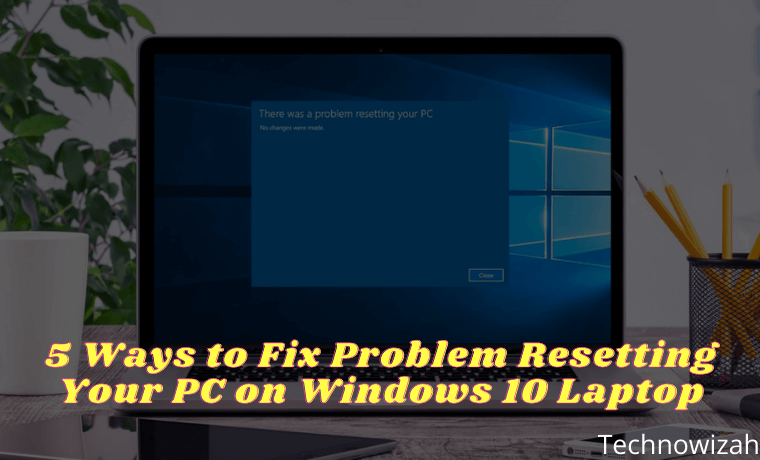
    Does your computer display the error message “There Was a Problem Resetting Your PC”? Don’t worry because there are several ways to work around this.

    Read more:

    But before we discuss how to solve There Was a Problem Resetting Your PC. Let’s see what causes this error message to appear on your Windows 10 system.

    What is the “There Was a Problem Resetting Your PC” Error?

    Windows 10 has major improvements over its predecessors in various aspects such as security, UI, speed, apps, and more. Even though Windows 10 has many feature improvements, this operating system is still not free from errors. In its defense, Microsoft released a new update to address this.

    One such problem is the general error message “There was a problem resetting your PC. No changes were made.”

    In other words, this error will not let you reset Windows 10. The main causes of “There was a problem resetting your PC” on Windows 10 systems are:

    • A corrupt file that prevents Windows 10 from resetting.
    • Deletion of important files due to sudden shutdown.
    • Compression is enabled by your PC manufacturer.
    • Windows 10 is pre-installed on your system.

    Regardless of the cause, by the end of this article, you will be able to reset your Windows 10 system.

    How to Fix There Was Problem Resetting Your PC

    Follow one of the following methods if you are unable to reset Windows 10. One of these error fixes will fix the PC reset problem once and for all.

    #1. Use System File Checker

    The System File Checker scanner is the first method you can use to try and fix the reset problem.

    System File Checker is a free tool created by Microsoft to help you find and recover corrupted files in Windows 10. It is the default Windows troubleshooting utility.

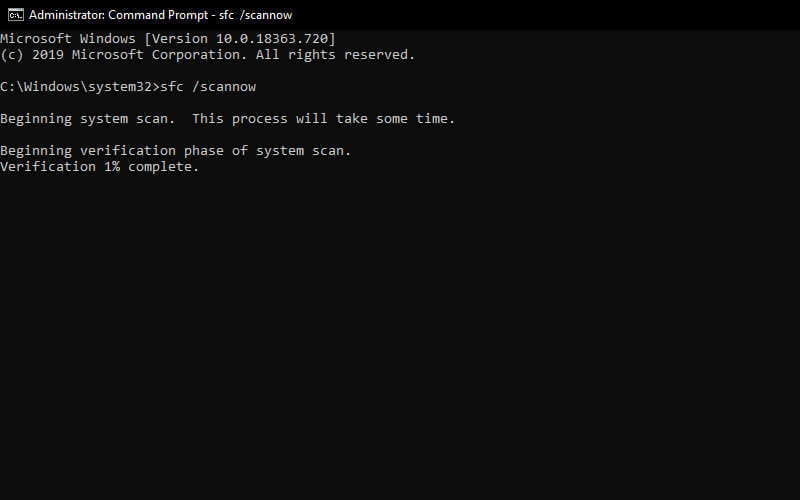
    You have to run the System File Checker via the Windows Command Prompt sfc /scan command. Follow the steps below to do so.

    Use System File Checker
    1. Type  Command Prompt in the Windows search bar, hover over the top result and click  Run as administrator.
    2. Type the command sfc /scannow in the Command Prompt and press  ENTER.
    3. Reboot your PC after the command is executed and try resetting Windows 10 again.

    #2. Return to a Stable System With a System Restore Point

    If you still get the message “There was a problem resetting your PC. No changes were made. error, then you can try to fix it with  System Restore.

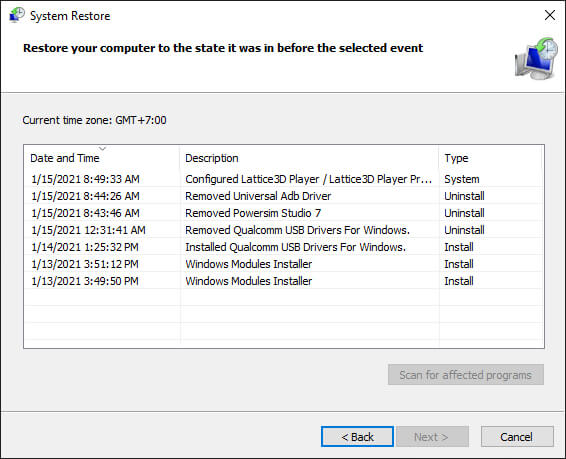
    System Restore is another Windows tool designed to repair corrupted software and files. This tool works by taking “snapshots” of your Windows files and system files. It can restore your system to a healthy state after the files are corrupted.

    In other words, System Restore takes your PC (and its files and settings) to an earlier point in time where everything worked as normal and fixes various types of errors in the process. Here’s how to do it:

    Return to a Stable System With a System Restore Point
    1. Type system restores e  in the Windows search bar on the taskbar and click Create a Restore Point.
    2. On the System Protection tab, click  System Restore.
    3. In the next dialog box, click  Next.
    4. Select the desired restore point and click  Next.

    Once you have done that, reboot your PC. The error message should have been resolved and you should be able to log into your desktop again normally.

    #3. Disable REAgentC.exe

    If you still can’t reset Windows 10, try this method. You have to use Command Prompt again to disable REAgentC.exe. This method is also very effective for fixing the “There was a problem resetting your PC” error on your Windows 10.

    REAgentC.exe is an executable file in Windows that can be used to configure the Windows Recovery Environment (WinRE) which is a collection of tools that can be used to solve common Windows problems. When your system fails during normal boot, it will try to switch to Windows Recovery Environment. Temporarily disabling can help your computer reset.

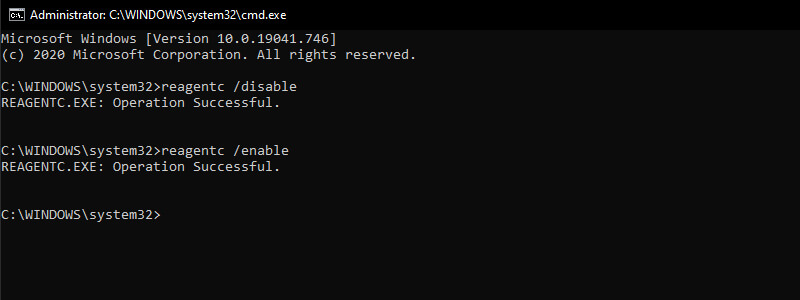
    To do so, reopen  Command Prompt as administrator, as shown in the first method. Now, run this command on the command line as shown in the image:

    Disable REAgentC.exe
    1. reagentc /disable
    2. reagentc /enable

    After running this command, reboot your system and then try to reset your PC once again.

    #4. Change System Name And Registry Software 

    To do this, run Command Prompt as administrator once again. In the Command Prompt type the following command:

    1. Type cd %windir%\system32\config  and press  ENTER.
    2. Then type ren system system.001  and press  ENTER.
    3. Finally, type ren software software.001  and press ENTER, again.
    4. Finally, type exit to close the command prompt. Now restart your PC and try the reset again. You should not see the error message now.

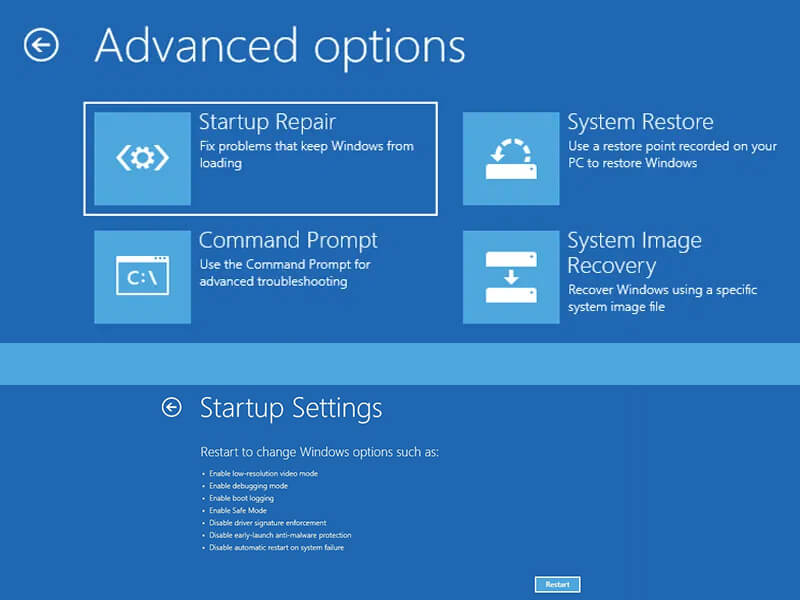
    #5. Run Startup Repair

    If none of these methods have worked so far, and you were unable to reset Windows 10 until now, then the last remaining solution is to use the Windows Startup Repair feature.

    To perform this fix, you will need to have a bootable DVD or USB drive with Windows 10 installer. If you are ready, follow the steps below:

    Run Startup Repair
    1. Insert the  USB  or  DVD into your PC and restart the system.
    2. When the computer boots from the USB or DVD, select  Troubleshoot.
    3. Now, click on Advanced Options.
    4. Next, click  Startup Repair.
    5. Choose your account.
    6. Type in your account password.
    7. Click  Continue to start the repair process.

    Windows Repair tool will immediately find, scan, and fix all problems with your Windows 10 software.

    After the scan and repair are complete, restart your computer and check again if you are still facing the “There was a problem resetting your PC” error.

    Read more:

    Conclusion:

    This is the explanation of 5 ways to fix the problem of resetting your PC on Windows 10 PC, This error message appears most often after a Windows update. So follow all the methods above. I hope the methods above can fix the problem that is happening on your computer.

  • 11 Ways To Turn on Bluetooth on Windows 10 PC 2025

    11 Ways To Turn on Bluetooth on Windows 10 PC 2025

    11 Ways To Turn on Bluetooth on Windows 10 PC – A Bluetooth connection is a private network between various devices nearby. Usually, Bluetooth is used for the process of transferring data from one device to another.

    How to Turn on Bluetooth on Windows 10 Laptop PC
    How to Turn on Bluetooth on Windows 10 Laptop PC

    How to Turn on Bluetooth on Windows 10 Laptop PC

    Apart from what we generally know, Bluetooth has already penetrated other devices, from laptops, computers, cellphones, smartphones, and other electronic accessories. Well, this time we will discuss how to activate it on a laptop.

    Read more:

    It is time for us to turn to an era where all wireless technology, with features and Bluetooth technology, will all come true. For now, we first discuss laptop technology that can activate Bluetooth. Here’s how we can follow to activate Bluetooth.

    #1. Using Fn Key + Bluetooth Icon

    Using Fn Key + Bluetooth Icon
    Using Fn Key + Bluetooth Icon

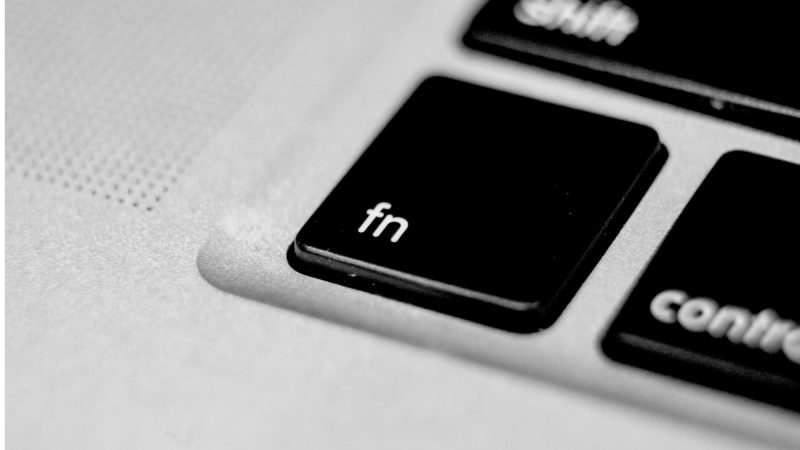
    Keyboard shortcuts that are on a laptop keyboard have many functions, namely the FN key, this key is used to run or turn off a function with the addition of other keys. From adjusting the volume, brightness, and screenshots, and even activating Bluetooth on our laptops.

    Each laptop brand usually has a built-in FN key, to use it we need a combination of several keys, namely by pressing the FN key plus F1 to F12. Some laptops are combined with directional keys.

    Then where is the way for the key combination to activate Bluetooth on our laptop? We need to pay attention to which keys F1 to F12 have a Bluetooth icon or symbol because each laptop brand is different.

    If we have found the key combination, then we only need to press it until the notification from Bluetooth on the laptop turns on. For example, Fn + F4, we press the button so that the system tray at the bottom right of the taskbar will appear.

    #2. Use the Bluetooth Icon in the System Tray

    The next way to activate Bluetooth on our laptop is by using the system tray menu. Then we just have to open the system tray menu which functions to send and receive files. We can also connect a laptop or computer with a variety of devices that support the Bluetooth connection that we have.

    So, here are the steps that must be taken to activate Bluetooth via the system tray menu:

    • On the ” taskbar ” at the bottom of the Windows window, we only need to go to the system tray which is at the bottom right. Click the up arrow icon to open a menu of more icons.
    • Then the Bluetooth icon will appear, we just need to right-click and select the menu we need to use.
    • Then click ” Add a Bluetooth Device ” to add a new device connection and for ” Show Bluetooth Device ” functions to show connected or previously connected devices.
    • If we want to send a file, click ” Send a File “, if to receive a file we click ” Receive a File “.

    #3. Activate in the Settings section

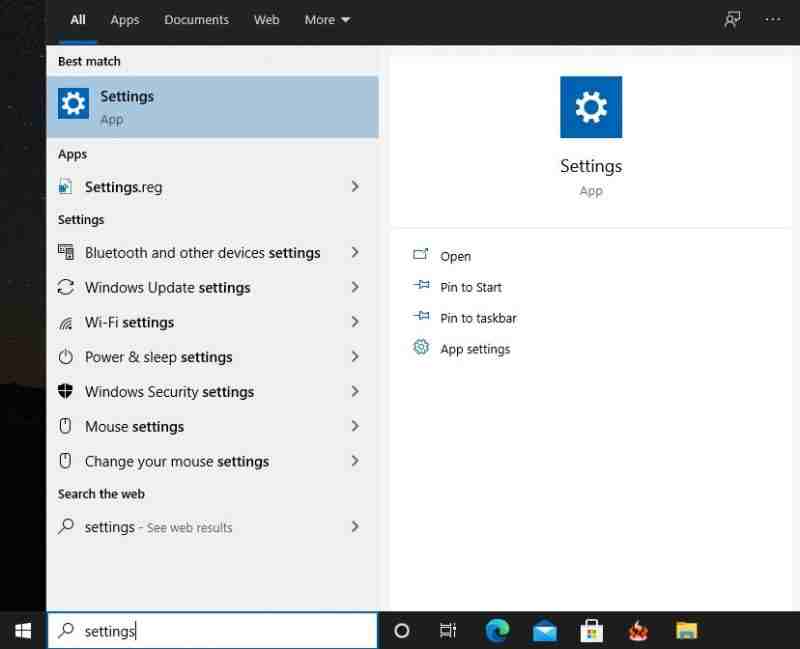
    Then we can activate Bluetooth with the help of the default menu in Settings. There we can adjust Bluetooth from its activation to other features that we need to use. Follow these steps.

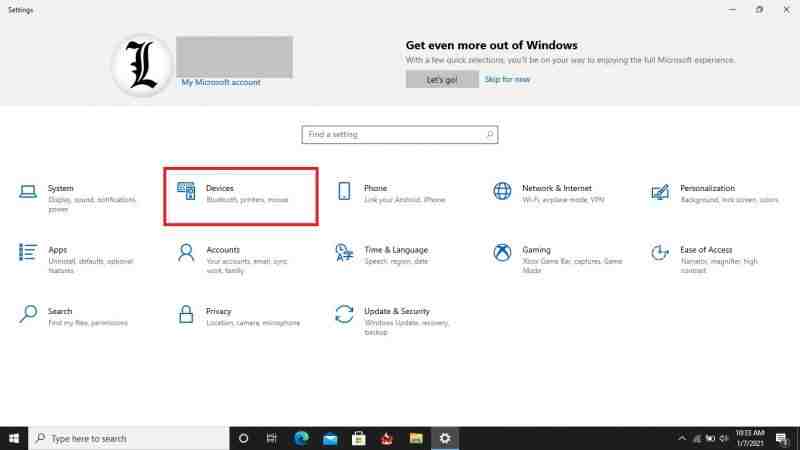
    • Click ” Start Menu ” or press the Windows key on the keyboard, then enter the search field and type ” Settings ” or immediately write ” Bluetooth ” to enter the Bluetooth menu.
    Activate in the Settings section
    Activate in the Settings section
    • We select the Devices option.

    Activate in the Settings section

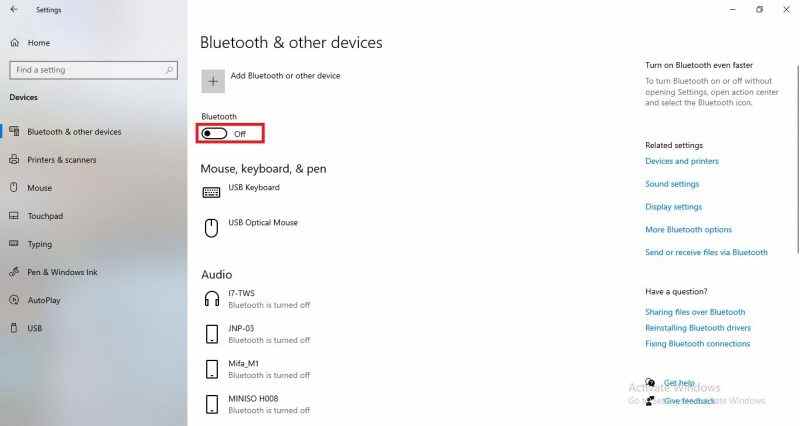
    • Then it will appear as shown below. Well, in the ” Bluetooth & other devices “, there is a button to turn Bluetooth off to on. We click the button to turn on Bluetooth on our laptop.

    Activate in the Settings section

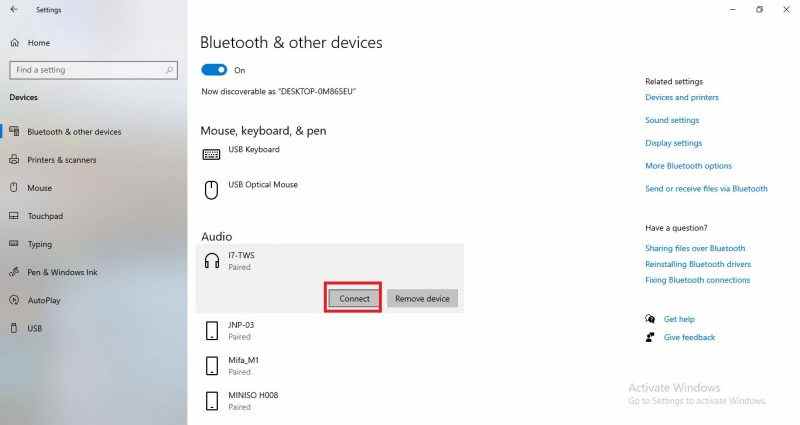
    • When the Bluetooth is on, then we connect the device that we will send data to, use another device or we usually know it as pairing until the status is ” paired “, if it is like that then the Bluetooth feature can be used.

    Activate in the Settings section

    • We can see an example in the image above. This is an example of when the I7-TWS device (Audio device) will be connected. We only need to click the ” Connect ” option until the I7-TWS device is connected (Paired) with our laptop.

    Note : We can also add bluetooth devices that can be connected to our laptop by selecting the top option, namely ” Add bluetooth or other device “.

    #4. Install Bluetooth Driver

    When we want to use the Bluetooth feature on a laptop or computer, via the FN key, USB dongle, or something else, we need the driver to be able to use it. On the Windows operating system, there is a separate Bluetooth driver.

    So, so that we can use Bluetooth, we need to install the driver first. We can install it with a CD / DVD driver, with the installation of a driver updater application. Or we can search the internet and make sure the driver matches the brand of our laptop or the same as our USB dongle.

    #5. Using Device Manager

    Using Device Manager

    If the Bluetooth driver is already installed on our laptop, why is it still unable, or is there any connectivity? No need to worry, we only need to activate Bluetooth, we want Asus, Acer, Dell, Lenovo, Toshiba, and other laptops that use Windows OS through the ” Device Manager ” menu.

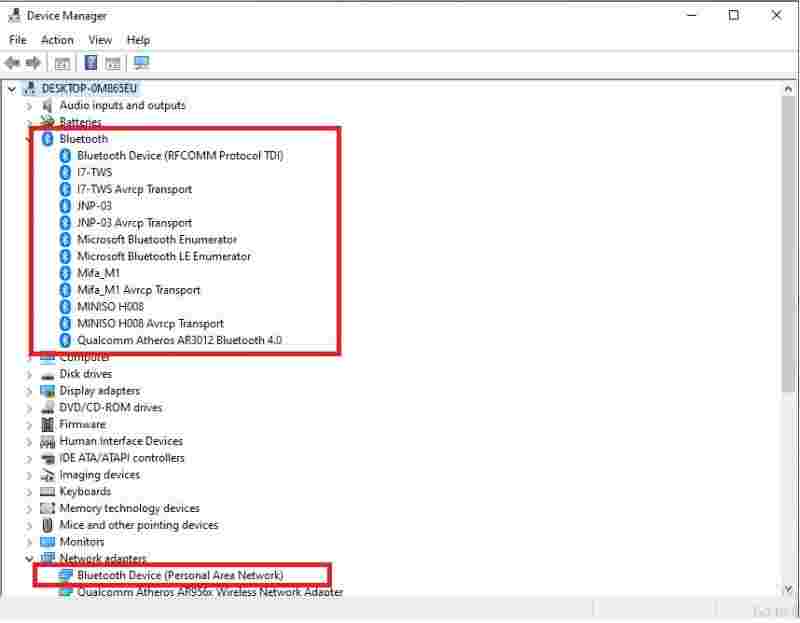
    How to activate Bluetooth on laptops and computers we only need to enter the ” Device Manager ” menu and follow the steps in the following:

    • The first time we do it when on the main menu or Home Screen we press the combination button, namely the Windows key + X, then select the ” Device Manager ” menu.
    • After the Device Manager window opens, then we click the Bluetooth menu. then a dropdown menu will appear on the Bluetooth menu earlier.
    • Then, we select the Bluetooth device or Bluetooth connection that we will use by right-clicking. To activate it we need to enable the device to turn it on.
    • The option to Disable this device is used to disable Bluetooth.

    Easy right?

    #6. Using a USB Bluetooth Dongle

    Using a USB Bluetooth Dongle

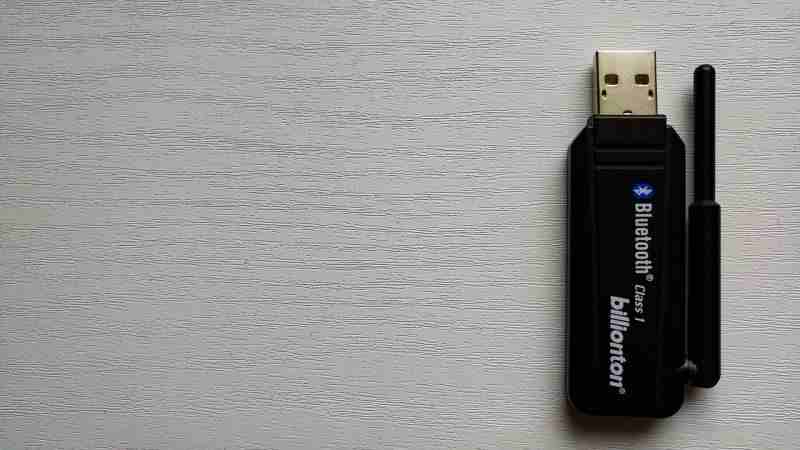
    In general, some laptop versions do not have built-in Bluetooth features, there are even some laptops that don’t show a symbol on one of the F1 to F12 keys though. If that is the condition of our laptop, then we need an additional laptop tool or accessory that has Bluetooth features, namely the USB Bluetooth Dongle.

    It is clear from the name, that the Bluetooth USB Dongle will be connected to the USB laptop that we have. The Bluetooth USB dongle is a laptop and computer auxiliary accessory to activate Bluetooth which looks like a flashdisk.

    Other Benefits of Bluetooth

    #1. Connect to the printer

    We know what a printer is, right? With the rapid advancement of technology, printers or printing machines are now with updates including wireless features or wireless printers. This wireless printer is perfect for making it easier for us to print on an office scale.

    For how to connect this wireless printer using the Bluetooth feature. As a small example, if we are going to print a file, document, or photo, we don’t need to transfer the data to a computer or laptop that connects to the printer directly. We only need to connect with a Bluetooth connection that is on the wireless printer. With a wireless printer, we can save cables and energy.

    #2. Using a wireless mouse and keyboard

    We can also use a Bluetooth connection to connect to a mouse and keyboard without cables or wireless. Wireless mice and keyboards generally use a Bluetooth USB Dongle to connect to laptops and computers. So, the USB Dongle is connected to the USB port on a laptop or computer, and automatically a wireless mouse and keyboard can be used.

    Using a wireless mouse and keyboard will be more practical than a wired one. We can use it freely even if it is long-distance from our laptop or computer (according to the strength of each Bluetooth). And there’s no more reason mouse and keyboard cables are damaged and can’t be used again.

    #3. Connect to the speaker or wireless headset

    Sometimes we feel irritated or dizzy because the wires on the headset or earphones are twisted. Especially in the headset version that is more than 2 meters long, if we are careless or carelessly install it, the owner can get stuck or attracted to it. If the cable is too short it will be difficult to vary or arrange the layout, including the speakers.

    With the help of the Bluetooth feature of the audio device. then the above problems can be resolved. Using Bluetooth headsets and earphones has solved the problem of twisted wires and the short length of the cable, now we are free to use them without thinking about it. As well as the Bluetooth speaker has answered the placement that we can set it up anywhere.

    Because of this, the Bluetooth feature is very popular at this time and supports the development of audio technology in the world.

    #4. Serves As a Hotspot

    Few of us don’t know about Bluetooth which has functions other than introducing data and connecting two devices (Device). Another function is as a modem or bridge to connect the device to an internet connection.

    We can find Bluetooth as a modem on smart devices, namely smartphones. You must be still confused about where it is. We open the settings menu or settings, then we open the “Tethering” menu, there we find 3 options, “USB tethering”, “Wifi Hotspot”, and Bluetooth “Tethering”. We turn it on or change it from OFF to ON to be able to use the hotspot via Bluetooth connection, then connect to the device that will be given an internet connection.

    #5. Connect with Projector

    Similar to the devices above, a projector that can display visual images and video also has wireless technology. There is no need to use cumbersome cables when preparing for a presentation or showing a film. We just need to turn on the projector’s Bluetooth function and connect it to our laptop or computer.

    Read more:

    Conclusion:

    So friends, these instructions on how to turn on Bluetooth on Windows 10 and computers will be of use to everyone and help provide understanding and assistance in sharing the latest information.

  • [100% Working] How to Create Free Edu Email 2025

    [100% Working] How to Create Free Edu Email 2025

    [100% Working] How to Create Free Edu Email – The email with the Edu domain is usually given to students at certain universities, the email is given with the aim that students have an email with the name of a university and to indicate that the person is a student studying at that university.

    [100% Working] How to Create Free Edu Email

    [100% Working] How to Create Free Edu Email

    However, one of the Edu email domains can also be owned by the public without the need to be in school, college or currently studying at a university or educational institution.

    The name of the email that will be obtained is  [email protected]. Here’s a tutorial on how to create a free Edu email forever.

    1. Go to the site apply.vccs.edu

    2. Tick CAPTCHA for verification.

    [100% Working] How to Create Free Edu Email

    3. Next, fill in the form data correctly, except for the red box after which save & continue.

    Description:
    Red Box: Do Not Fill.
    Black Box: Fill or Click.

    [100% Working] How to Create Free Edu Email

    4. Then click Apply.

    [100% Working] How to Create Free Edu Email

    5. Then click Apply Now.

    [100% Working] How to Create Free Edu Email

    6. Fill in the form data correctly, except for those marked in red (For the year of birth, you must be at least 18 and over).

    [100% Working] How to Create Free Edu Email

    7. Next, fill in the data as indicated by the arrow and click save & continue.

    [100% Working] How to Create Free Edu Email

    8. Enter all the following data (data information is taken from the fake name generator site except in the name section, fill in your own name) then click Save & continue.

    [100% Working] How to Create Free Edu Email

    9. Then you will get a notification, then select the continue button and save & continue.

    [100% Working] How to Create Free Edu Email

    10. Next, fill in the data again according to the arrow as shown below.

    [100% Working] How to Create Free Edu Email

    11. Next select the edit high school button.

    [100% Working] How to Create Free Edu Email

    12. Then fill in the arrow and the year as in the following picture, then save & continue.

    [100% Working] How to Create Free Edu Email

    13. Next, fill in the data information according to the following image and click save & continue.

    [100% Working] How to Create Free Edu Email

    14. Next, fill in the data information again as shown below and save & continue.

    [100% Working] How to Create Free Edu Email

    15. Then click  Apply.

    [100% Working] How to Create Free Edu Email

    16. Fill in the data according to the following image and save.

    [100% Working] How to Create Free Edu Email

    17. Then select Continue.

    [100% Working] How to Create Free Edu Email

    18. Lalu Submit Application.

    [100% Working] How to Create Free Edu Email

    Info: Don’t close the browser, it takes a few minutes to wait for the submission process to finish. You will immediately get your email account.

    19. Then your browser will be redirected, then select the continue button.

    [100% Working] How to Create Free Edu Email

    Save the  SIS ID code then continue.

    [100% Working] How to Create Free Edu Email

    Save the Username and  Password information then continue.

    [100% Working] How to Create Free Edu Email

    Done, please enter your account based on your username and password. For the first login, you will be asked to choose a login method, select the SIS ID method, and then enter the SIS ID code that you saved earlier.

  • 15 Ways to Fix Computer Turns on But No Display 2025

    15 Ways to Fix Computer Turns on But No Display 2025

    15 Ways To Fix Computer Turns on But No Display – The most common problem with computers is when the PC turns on but displays nothing on the monitor. You see the LEDs on the computer case come on and hear the fan spinning from inside the PC but nothing appears on your monitor screen.

    15 Solutions To Fix Computer Turns on But No Display
    15 Solutions To Fix Computer Turns on But No Display

    How to Fix Computer Turns on But No Display

    Since there are several reasons why your PC is not displaying anything on the monitor, you must read the troubleshooting below.

    Read more:

    Notes

    If you assembled the computer yourself, double-check your configuration! There is a high chance that this problem occurs due to a configuration error, not due to faulty hardware.

    #1: Testing the Monitor

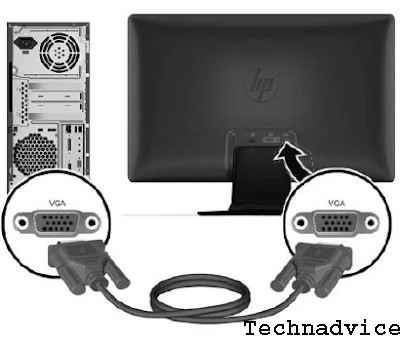
    Before you start troubleshooting complex and time-consuming problems, check all PC-to-monitor connection cables, making sure your monitor has no problems. Also check if your VGA/HDMI cable is loose, causing the monitor to not accept input from the computer.

    Testing the Monitor
    Testing the Monitor

    Very likely if your computer is fine, but the monitor is the problem. You can try another monitor that looks like it’s still working.

    Important

    If your computer has VGA and HDMI ports, try to test each one on the monitor. If that doesn’t work, try using another similar cable, which is known to work.

    #2: Restart Computer

    Sometimes just by restarting the computer, some problems can be solved. Try pressing the reset button, or make sure everything starts from scratch by turning on the computer.

    Restart Computer
    Restart Computer

    Often times the computer will appear as “not turning on” when in fact it is only having problems waking up from Standby/Sleep or Hibernate mode in Windows.

    Notes

    Especially for laptops/tablets/PCs without a reset button, you can turn off your computer when the computer is in Standby/Sleep mode by holding down the power button for 3 to 5 seconds. After the computer is completely turned off, restart it and check if it can turn on normally again.

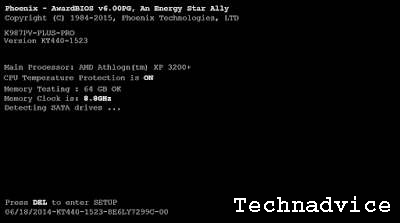
    #3: Check Beep Code ( if any )

    Assuming, you are lucky enough to hear a beep code from your computer, it will be easier to pinpoint the location of the computer problem. A beep code will tell you exactly what is causing your computer problem. Click here for a guide to the beep code if you hear a beep.

    Check Beep Code ( if any )
    Check Beep Code ( if any )

    Listen carefully for the beep code that sounds when the computer starts up. If missed, simply restart/restart your computer, and listen again. At least restarting or restarting the computer a few times won’t make the problem worse.

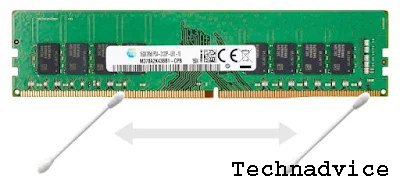
    #4: Clean the RAM Connector

    Clean the RAM Connector
    Clean the RAM Connector

    Remove the RAM from the motherboard, then clean the RAM connector using a cotton bud that has been dripped with a little rubbing alcohol (IPA / isopropyl alcohol). When it’s clean, wait for the RAM to dry, then plug it back into the motherboard, then restart the computer.

    Cleaning the legs or RAM connectors can also be done using a rubber eraser, but is not recommended by some professional technicians.

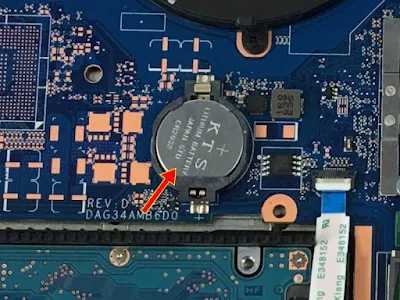
    #5: Reset CMOS Kembali

    Do a reset on the CMOS. Clearing the BIOS memory on your motherboard will restore its original BIOS settings. A misconfiguration in the BIOS could be the cause of your PC not turning on for a long time.

    Reset CMOS Kembali
    Reset CMOS Kembali

    For PCs, you can remove the round battery on the motherboard and then put it back in after a while.

    Also, if you’ve ever used jumpers to reset CMOS, then use those skills now.

    Important

    If resetting the CMOS solves your problem, make sure you test again every time you change a setting in the BIOS. So if the problem comes back, you will know which change caused your problem.

    #6: Check Switch Power Supply

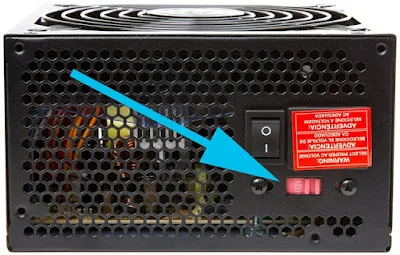
    If so, make sure that the power supply voltage switch is set correctly. If the input voltage for the power supply does not match the settings in your country, your computer may not turn on properly.

    Check Switch Power Supply
    Check Switch Power Supply

    Your computer shouldn’t turn on at all if this switch is faulty, but inappropriate voltages can also cause computer problems like this. This small switch is used to adjust the input voltage to the power supply either 110v/115v or 220v/230v. In India, it should be set to 220v/230v.

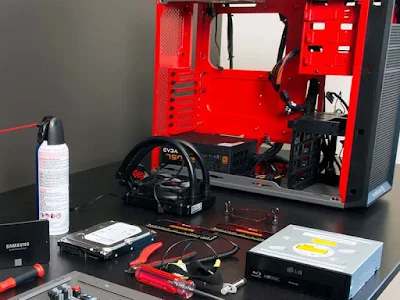
    #7: Reinstall All Computer Components

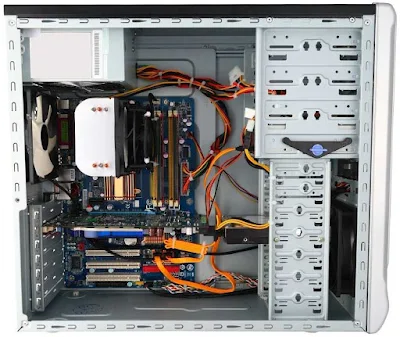
    Unplug all cables and hardware in your PC and then plug it back in. One or more cables or hardware may have been loose. Unplug and reinstall things like power cables, data cables, memory, expansion cards (VGA, sound cards, etc.), and so on.

    Reinstall All Computer Components
    Reinstall All Computer Components

    Important

    Make sure all cables are reconnected properly. If the additional VGA Card has been disabled, then using it will not display anything on the monitor even though the computer is turned on. For that, try to connect to the appropriate VGA port.

    Also, remove and reconnect the keyboard and mouse cables as well. This is unlikely to be the cause of the problem, but we should not ignore it when reinstalling all computer components.

    #8: Reinstall CPU

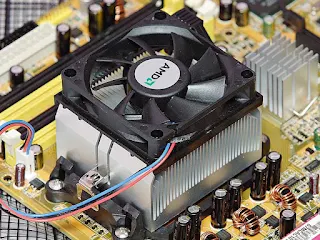
    If the above solutions still don’t work, remove and then reinstall the CPU if there is any suspicion that it may have been loose or may not have been installed properly.

    Reinstall CPU
    Reinstall CPU

    Notes

    The chances of installing the CPU incorrectly or loosely are very small and therefore installation is a sensitive task. This is not a big problem if you stay careful!

    #9: Check For Short Circuit

    Check if there is an electrical short inside your computer. This is very often the cause of common computer problems.

    Check For Short Circuit
    Check For Short Circuit

    Important

    It is very, very important that you take the time to inspect the inside of your computer for anything that could be causing a short circuit. If you don’t take the time to troubleshoot these issues, you may end up with expensive hardware replacements for no good reason.

    Electrical short circuits inside computers are often caused by screws, in which case there may be physical contact with metal on the motherboard or other internal components.

    Screws are used to secure almost every component inside the case including video cards, sound cards, hard drives, optical drives, etc. Shake your PC, if there is a rattling sound it may be a loose screw, use a small, long screwdriver to help remove it.

    Electrical short circuits inside computers are sometimes also caused by cables that have lost their protective coating and made physical contact with internal components.

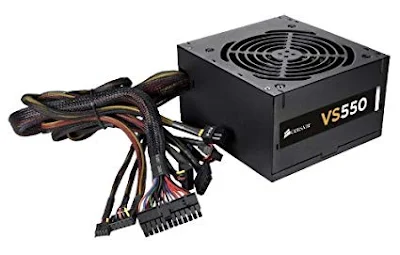
    #10: Test Power Supply


    Test Power Supply
    Test Power Supply

    Just because your computer is on does not mean that the power supply in your computer is working properly. Power supplies tend to cause more problems than any other hardware device and are very often the cause of computers not working properly. Try to check by replacing it using a power supply from another computer.

    Important

    Don’t skip this stage! Don’t think that your power supply isn’t a problem just because the computer can ” turn on “. Power supplies can work in a variety of conditions, and those that are not fully functional need to be replaced immediately.

    #11: Use Minimum Hardware

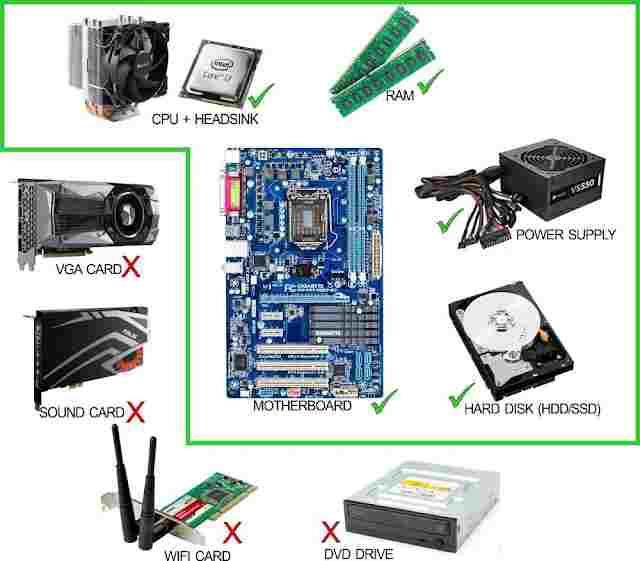
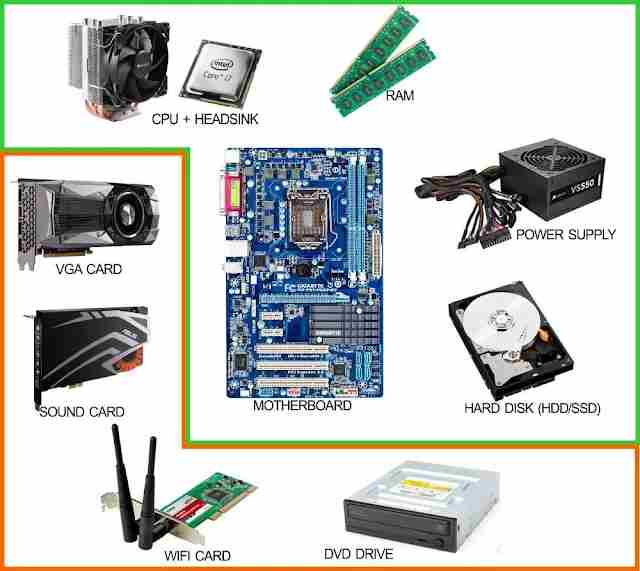
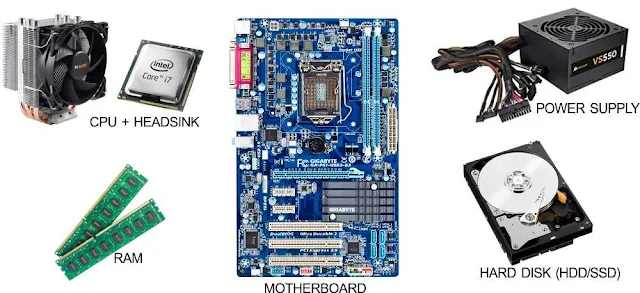
    Start your PC with only the most important hardware. The goal here is to temporarily remove as much hardware as possible while still keeping the computer running properly.

    • If your computer starts up and can continue to run, with only critical hardware, go to Step 12.
    • If the computer does not start up properly, continue to Step 13.
    Use Minimum Hardware
    Use Minimum Hardware


    Important

    This step is easy enough for anyone who requires no special tools and can provide a lot of very valuable information. This step should not be skipped if after trying all the previous steps, the computer still does not turn on properly.

    #12: Check Additional Hardware

    When the most important hardware is installed and there are no problems. Proceed with reinstalling any additional hardware. Re-test your computer (restart) in every installation of one piece of hardware, to check whether every piece of hardware installed is problematic or not.

    Check Additional Hardware
    Check Additional Hardware

    Since your PC is powered by only the most important hardware, the components work properly. This means that one of the additional hardware removed is causing the computer problem. By installing that hardware into your computer and testing after every single hardware install, you’ll find the hardware that’s causing your problem. Once you find it, replace the problematic hardware with a new one or one that is still working.

    #13: Use PC Analyzer / Power On Self-Test card

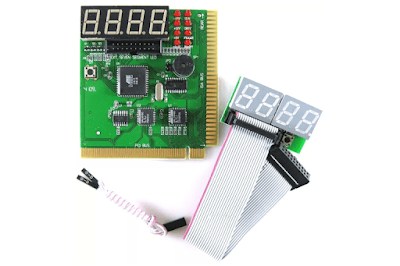
    Test PC using PC Analyzer / Power On Self Test card. If your computer is still not displaying anything on the monitor, even with only the essential hardware, a POST card will help identify which hardware is the problem.

    Use PC Analyzer Power On Self Test card
    Use PC Analyzer Power On Self Test card

    The price of a POST card is very affordable. However, if you don’t have one and don’t want to buy a POST card, go to Step 14.

    #14: Check the Minimum Hardware

    Replace each hardware in your computer one by one with the same or equivalent hardware which has been ” known to be in good condition “. Do a test every time you replace a component, to find out which hardware is the problem.

    Check the Minimum Hardware
    Check the Minimum Hardware

    Notes

    Most computer users do not have a collection of computer parts. My suggestion is to go back to Step 13. The PC Analyzer / POST card is inexpensive and is the most reasonable approach to buying all the computer spare parts.

    #15: Professional Help

    Finally, if all else fails, you may need to seek professional help at a computer service center or from an authorized service provider for your computer.

    Read more:

    Conclusion:

    This is the explanation of 15 ways to fix a computer that turns on but has no display, Unfortunately, without a postcard and also without replacement parts, you won’t know which hardware is the problem. In these cases, you have little choice but to rely on the individual or company that owns the resource.