Author: Nazrul Islam

  • [Solved] Windows Explorer Not Responding in Windows 10 [2025]

    [Solved] Windows Explorer Not Responding in Windows 10 [2025]

    14 Ways to Fix Windows Explorer Not Responding in Windows 10 – Windows Explorer is a file manager program on the Windows operating system, and all running applications rely heavily on this program. If Windows Explorer not responding or experiencing problems then other applications will also have problems.

    [Solved] Windows Explorer Not Responding in Windows 10

    How to Fix Windows Explorer Not Responding & Has Stopped Working

    One of the problems that often occurs is Windows Explorer not responding and stopping working, causing Windows to go blank, the mouse can’t be moved, the application often closes itself, or the screen stops altogether.

    Read more:

    Usually, an error message will also appear on the “Windows Explorer Not Responding” or “Windows Explorer Has Stopped Working” screen. If it is like this then your work will be hampered because this problem will not go away by itself. Usually, it will appear continuously as long as the source of the problem has not been fixed.

    In this post, I will try to provide some solutions that you can try. Please try one by one in sequence, I will start from the simplest way first.

    #1. Restart Windows Explorer

    Before trying anything else, the first thing you can try is to restart Windows Explorer. This method sometimes works if the problem occurs simply because the system requires a restart to reload the system.

    How to restart Windows Explorer can be done through the Task Manager:

    First, open the Task Manager by right-clicking on the Taskbar > then selecting Task Manager. For Windows 10 users, you can also type directly in Task Manager in the Search Bar and then select the application that appears there.

    Once the Task Manager opens, click on the Processes tab, then find a program called Windows Explorer, or explorer.exe for users of Windows 7 and earlier.

    After that right click on Windows Explorer > select Restart.
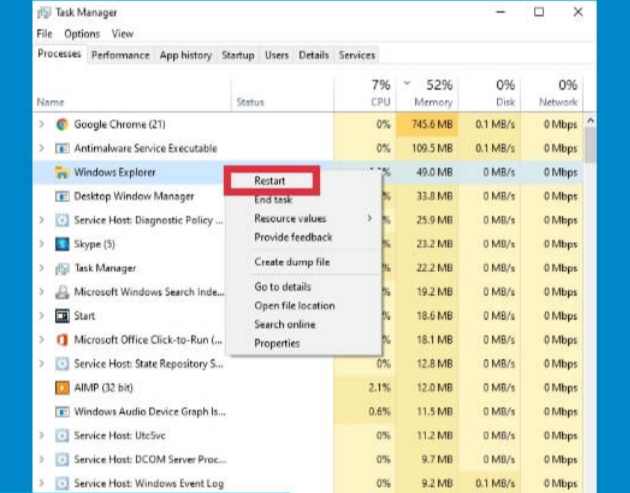
    Restart Windows Explorer

    The laptop screen will look blank for a while during the restart process, then it will return to normal.

    After restarting try again using the computer and see if the explorer not responding problem still appears or has disappeared.

    #2. Run System File Checker

    System File Checker (SFC) is a feature in Windows that we can use to repair damaged or corrupt system files automatically. This feature runs through the Command Prompt (CMD).

    Problems like Windows Explorer Not Responding can also be caused by corrupt system files, to fix this we can try using this SFC feature.

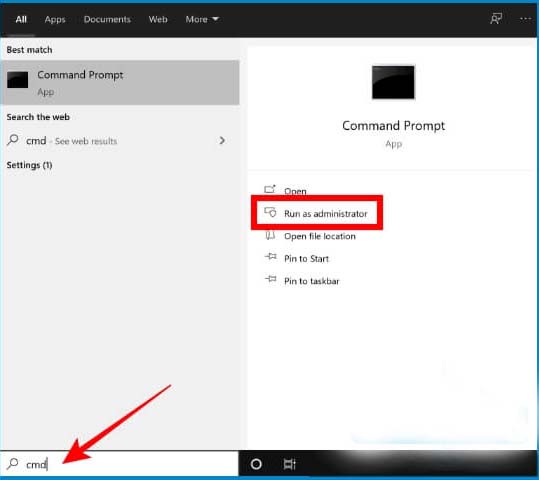
    First, open Command Prompt with administrator access permissions. For Windows 10 and Windows 8 users, click the Start button > type cmd > the Command Prompt application will appear > click Run as administrator on the right panel.

    For Windows 7 users, click on the Start button > select All programs > select Accessories > right-click on Command Prompt > select Run as administrator.

    After the Command Prompt program opens, type the following command:

    sfc /scannow

    Then press enter.
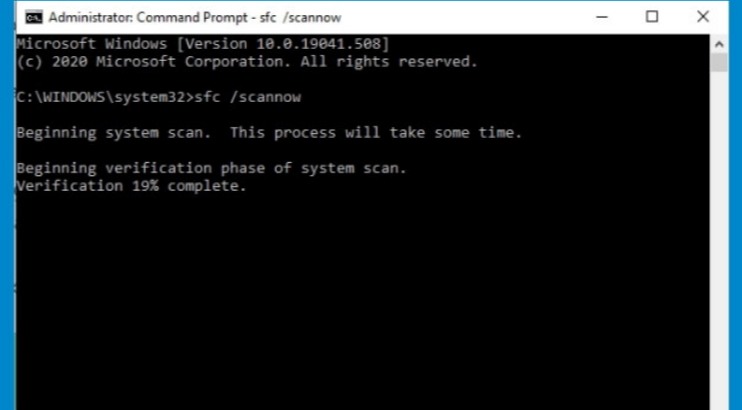
    Run System File Checker

    SFC will scan all system files in Windows and will repair any errors found automatically. Just wait until the process is complete, a description will appear that you can see in CMD.

    After making repairs with CMD, try to check again whether the Windows Explorer Not Responding or Windows Has Stopped Working error has disappeared.

    #3. Clear File Explorer History

    Just like other programs, Windows Explorer also stores history and cache which can be cleaned if an error occurs. You also need to try this because an existing bad cache can cause problems not responding to explorer.

    To clear history in Explorer, follow these steps.

    First, open the Control Panel then click on the File Explorer Options menu.

    On the General tab, pay attention to the menu at the bottom, there is a description of Clear File Explorer history, and on the right, there is a Clear button.

    Click the button to start the cleaning process, wait until the process is complete, then click the OK button.
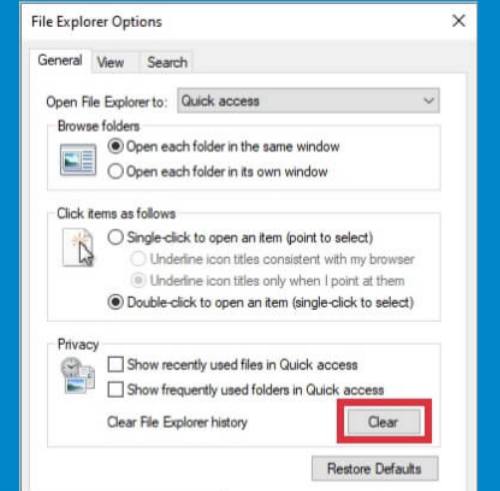
    Clear File Explorer History

    Done, we have successfully cleared the history in Windows Explorer, try to use the laptop again to work as usual and see if the problem is gone.

    #4. Change Display settings

    The way to fix Windows Explorer Not Responding and frequent crashes are to adjust the display settings on your computer. This may sound like nothing to do but it’s worth a try.

    Inappropriate display settings will cause the graphical display of icons, text, images, and others not to match the screen resolution. This can cause problems for explorers such as frequently closing themselves or stopping working.

    Follow these steps.

    For Windows 10 users, click on the Start button > then select Settings (gear icon)

    Then select the System menu.

    Once the System window opens, click on the Display tab present in the left pane.

    The Scale and layout options change to 100% (Recommended). In the Resolution option, adjust the screen resolution on your computer. In Orientation select Landscape.
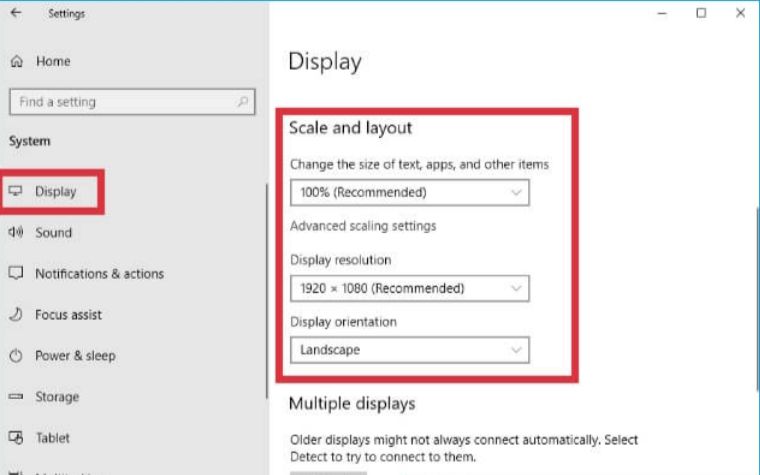
    Change Display settings

    For Windows 7 users, right-click on an empty area on the Desktop > select Resolution > change the resolution to suit your laptop or PC screen.

    After that exit, the settings menu and try running Windows Explorer again, and see if the problem has been resolved.

    #5. Turn off the Customer Experience Improvement feature

    Customer Experience Improvement is a feature on the Windows operating system that functions to send user data to Microsoft’s servers automatically. This feature aims to get feedback from users to make improvements to Windows.

    Actually, we don’t really need this feature and it’s safe to turn it off, moreover, there is an issue if this feature can be the cause of problems in Windows Explorer.

    Follow the steps below to do this.

    Open the Group Policy Editor program by pressing the Start + R key on the keyboard > then type gpedit.msc > click OK.

    After the Group Policy Editor program opens, in the right pane go to the following directory:

    Computer Configuration > Administrative Templates > System > Internet Communication Management > Internet Communication Settings

    Then right-click on Turn off Windows Customer Experience Improvement > right-click> select Edit > click Enable > click OK.
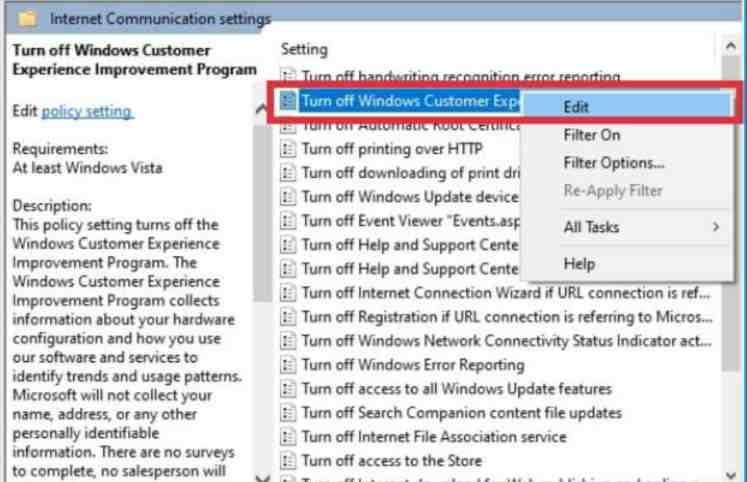
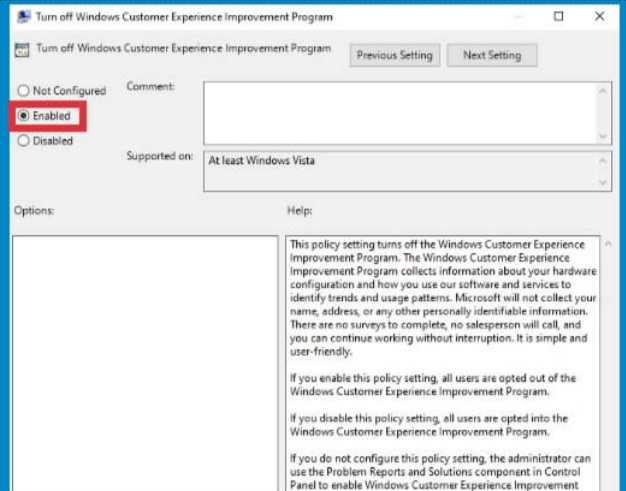
    Turn off the Customer Experience Improvement feature
    Turn off the Customer Experience Improvement feature

    Close the gpedit program and use the computer as usual.

    #6. Show files as icons instead of Thumbnails

    If Windows Explorer always crashes and stops working when opening a certain directory, it can be suspected that the cause is a corrupt thumbnail. This causes disturbances in the process of loading files in it, as a result, the explorer becomes not respond.

    To make sure we have to change the appearance of the files in the directory to icons, not thumbnails.

    You do this by changing the View option in the explorer to an icon.

    Follow these steps.

    Go to Control Panel > select File Explorer Options.

    Click on the View tab > check the option Always show icons, never thumbnails > click OK.
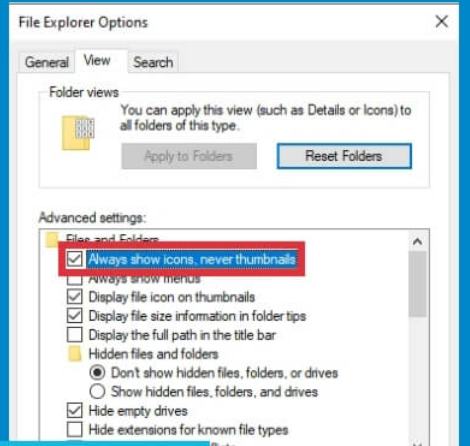
    Show files as icons instead of Thumbnails

    Close the Control Panel window and try to use the computer as usual again. Go to the directory that caused explorer to not respond and see if the problem is gone.

    #7. Turn off the Automatic Folder Type Discovery feature

    This feature is also related to how files in a directory are displayed, its function is to optimize the display of files based on the most file types in it.

    If in a directory there are most types of files in the form of photos, then all files will be displayed in the form of thumbnails with previews that can be viewed without having to open the file. The problem is, that explorer will try to load previews on other files that are not photos, as a result, the loading process will be slow.

    Turning off this feature is a powerful way to speed up explorer loading on Windows, and it is hoped that it can also solve the problem of explorer often not responding, there’s no harm in trying.

    Follow the steps below to do this.

    Open Windows Explorer > right-click on the directory or folder that is the source of the problem > select Properties > click on the Customize tab.

    Pay attention to the What kind of folder do you want? Optimize this folder for> change to General items > click Apply > click OK.
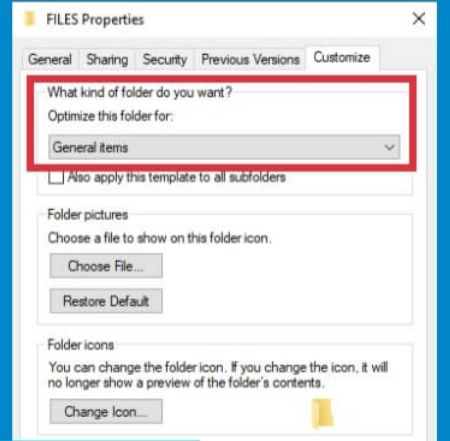
    Turn off the Automatic Folder Type Discovery feature

    After making the above changes, try opening the folder that was the cause of the slow and crashing explorer, now the loading process should be faster.

    This is because all existing files are treated as regular files, there is no preview loading process that explorer is trying to do so that loading becomes faster.

    #8. Replace explorer.exe with a new one

    The cause of Explorer Not Responding and Explorer Has Stopped Working on Windows could also be because the explorer.exe program is damaged. To overcome this we can replace the program with a new one.

    First, download the explorer.exe program here:

    Download

    After that copy-paste the new program file that has been downloaded to the C:\Windows directory > select Replace.

    Restart your computer then try to check if this method works.

    #9. Increase Drive C capacity if full

    The division of storage capacity in laptops usually only provides relatively small space for Drive C and larger for data partitions. This causes Drive C to fill up quickly as more applications are installed and the computer is used continuously.

    The full capacity of Drive C can cause computer performance to be slow, and it is also suspected that it can cause problems in the explorer work process.

    Try to check whether Drive C on your computer is almost full or not, if it is almost full then you can increase its capacity by taking it from another partition.

    #10. Increase Virtual Memory size

    In simple terms, Virtual Memory is an extension of RAM that serves as a temporary storage place for files from programs that are running.

    Increasing the size of the Virtual Memory is a pretty powerful way to speed up Windows 10 and older versions of Windows.

    #11. Scan the computer with an antivirus

    The next way to overcome Windows Explorer Not Responding is to try to clean the virus from the computer. Viruses and malware are the cause of many problems with the Windows operating system.

    When experiencing problems with explorer, you should suspect that the cause is viruses and malware, especially if the antivirus on your computer has not been updated for a long time.

    You can use one of these recommendations best antivirus for windows. Especially for Windows 10 users, you can use the Windows Security feature which is a pretty good antivirus, the important thing is that it is always up to date.

    Perform a thorough scan of the computer, see if any viruses or malware are detected, and then clean them. After that restart the computer and check if the problem in Windows Explorer is gone.

    #12. Update Windows

    Performing a Windows Update is a powerful way to prevent problems due to an out-of-date system. The update will provide patches to cover bugs in the Windows operating system and improve security.

    For Windows 8 and Windows 10 users, the way to update is to go to the Settings menu > Update & Security > click the Check for updates button > wait until the download and install process is complete > restart the computer.
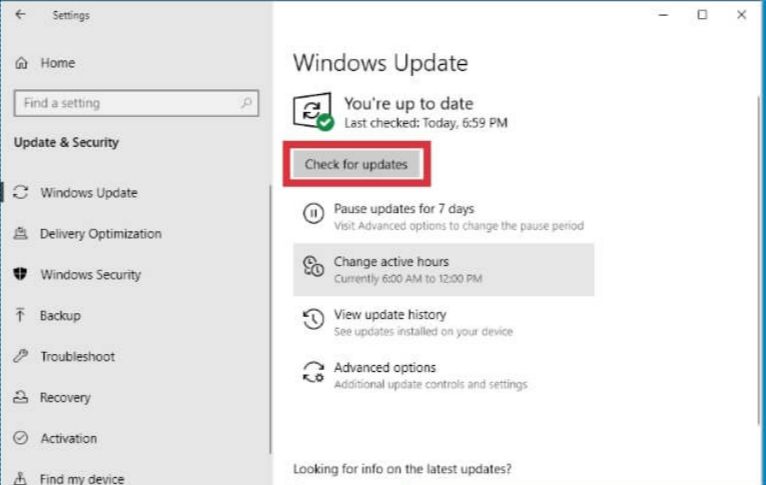
    Update Windows

    Unfortunately, for those who are still using Windows 7, there is currently no more recent update because support from Microsoft has officially been discontinued.

    #13. Run System Restore

    System Restore Point is a useful feature for making backups of the entire system which can be used at any time when the computer has an error and can’t find a way to fix it. When System Restore is run, Windows will be restored to its previous state when the Restore Point was created.

    To solve the problem of explorer that often crashes, does not respond, often exits by itself, or stops altogether in Windows, then you can take advantage of this feature. You just have to restore Windows when the explorer problem has not occurred using System Restore.

    To be able to run it, this feature must have been activated before, if it turns out that on your computer the System Restore is not active then this method cannot be used.

    #14. Reset PC

    The way to fix Windows Explorer Not Responding without reinstalling the last one is to reset the PC. This process will have a similar effect to reinstalling, the difference is that we can choose so that personal files in Drive C are not deleted.

    A PC reset will remove all third-party programs and restore Windows settings to their original state, similar to a factory reset on a smartphone.

    Doing a PC reset is an almost always successful way to deal with various errors that often occur, including errors in explorer.

    The error messages that often appear are as follows:

    • explorer.exe is not a valid Win32 application.
    • explorer.exe is not running.
    • Cannot find explorer.exe.
    • Error starting program: explorer.exe.
    • Faulting Application Path: explorer.exe.
    • The file explorer.exe is missing or corrupt.
    • Windows failed to start – explorer.exe.
    • The instruction at 0x00007FFF64B0CCC0 referenced memory at 0x000000000000000. The memory could not be read. Click OK to terminate the program.
    • explorer.exe Application Error.
    • explorer.exe could not be found.
    • explorer.exe could not be installed.
    • explorer.exe could not be launched. Class not registered.
    • explorer.exe could not be started.
    • explorer.exe failed to initialize properly.
    • explorer.exe has encountered a problem and needs to close. We are sorry for the inconvenience.

    After resetting your PC you may need to reinstall one with the necessary programs and readjust Windows settings. Although a little troublesome this method will most likely work.

    Conclusion:

    So, friends, This is the explanation of 14 ways to fix windows explorer not responding in Windows 10, here are some tips to solve the problem of windows explorer not responding and windows explorer having stopped working that you can try. I hope this article is helpful to you.
  • 8 Ways to Fix Mouse Scroll Not Working in Windows 10 PC 2025

    8 Ways to Fix Mouse Scroll Not Working in Windows 10 PC 2025

    8 Ways to Fix Mouse Scroll Not Working in Windows 10 PC – Have trouble with the mouse scrolling up and down or scrolling in the wrong direction? Follow these steps for how to fix the mouse scroll not working properly.

    8 Ways to Fix Mouse Scroll Not Working in Windows 10 PC
    8 Ways to Fix Mouse Scroll Not Working in Windows 10 PC

    How to Fix Mouse Scroll Not Working in Windows 10  PC Laptop

    The mouse is indeed very helpful for its users to use the computer effectively and efficiently. But when an error occurs, the device does not function properly.

    Read more:

    The scroll has been a feature of the mouse since the mid-1990s. This is an essential feature for interacting with the operating system, applications, and games. But when the mouse scroll is problematic and starts scrolling in the wrong direction, what can we do to fix it? This article will discuss how to fix a mouse scroll that doesn’t work.

    How to Fix Mouse Scroll Not Working on Your PC

    Before looking at the solution for how to solve a mouse scroll that doesn’t work, understand the following, you may not need a new mouse.

    If the scroll wheel is broken because the mouse was thrown on the floor, it might make sense to buy a new mouse. But if it wasn’t caused by physical damage, there might still be the hope of being able to fix it. Here’s how to fix the mouse scroll not working properly.

    #1. Clean the Mouse

    Clean the Mouse

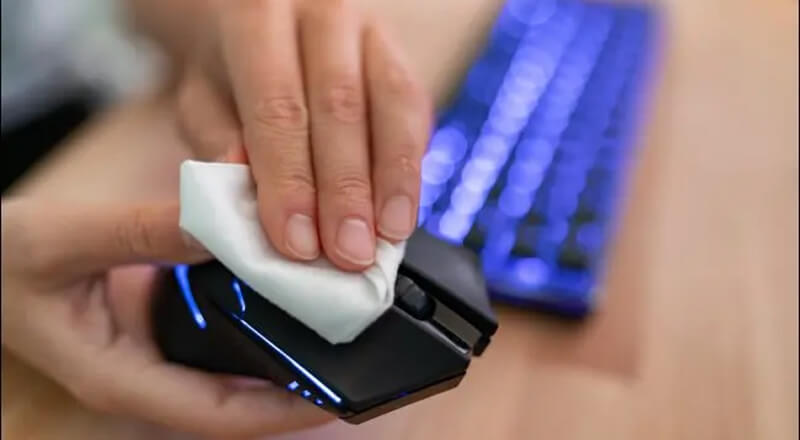
    Amazingly, most mouse scroll problems are caused by dust and dirt. It gathers in the area around the scroll wheel, interfering with the sensor and preventing accurate scrolling. But it can all be removed easily.

    You can try cleaning the mouse by exhaling sharply on the scroll wheel or using an air compressor. In most cases, this removes and removes some of the dust and debris, improving the smoother movement and functionality of the mouse scroll wheel.

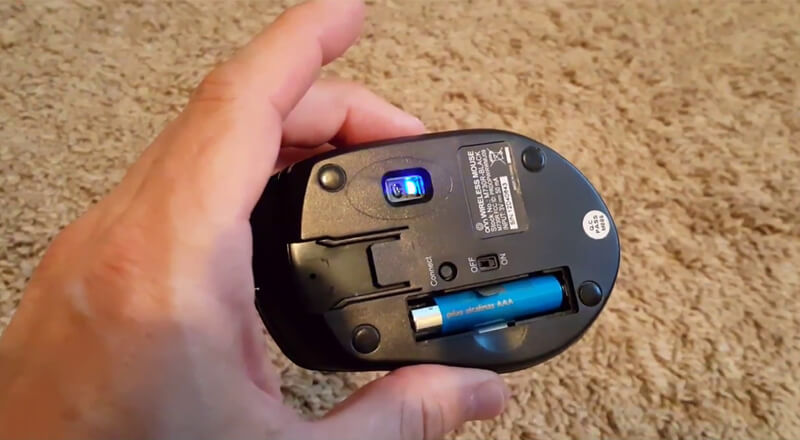
    #2. Replace Mouse Battery

    Replace Mouse Battery

    If that doesn’t work, the problem may be electricity, not dust. This is very likely to happen if you use a wireless mouse instead of a wired USB mouse.

    To make sure that the battery is charged, open the mouse, remove the battery, and try on another device. Or, check with a charger if you have one. Batteries with over 30% charge should be fine, though you should also consider replacing them as soon as possible.

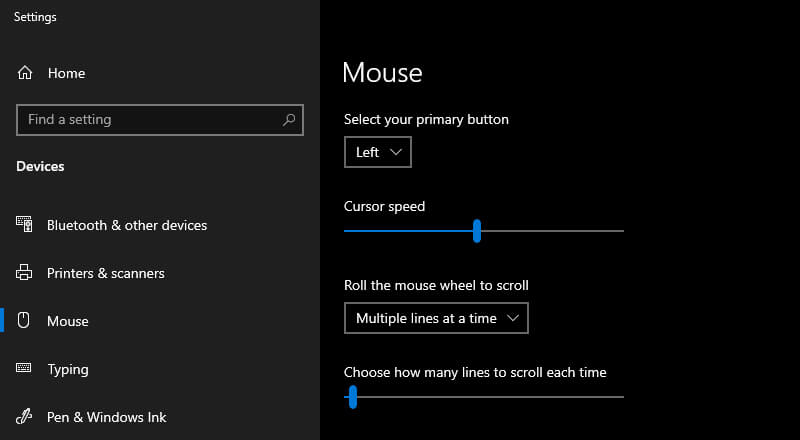
    #3. Change Scrolling Settings

    Your mouse has special settings for clicking, double-clicking, speed, and scrolling. Irregular and erratic scrolling can usually be fixed via mouse settings. To do this on Windows 10, follow the steps below:

    Change Scrolling Settings
    1. Press Win Key + I to open Settings
    2. Type mouse
    3. Select Change how far you scroll with the mouse wheel
    4. Adjust the slider on Choose how many lines to scroll each time (default is 3 )
    5. Mouse test via browser or anywhere else causing stuttering scroll

    Corrupted Windows system files Mouse wheel problems can also be caused by corrupted system files in Windows. To solve this problem, Windows repair is required to replace corrupted system files. We recommend that you back up your files before running Windows repair, to avoid losing any files.

    #4. Switch USB Port

    No matter what type of mouse you use, whether it’s a wireless or wired USB mouse, swapping USB ports on your PC or laptop can make a big difference in scrolling issues. Most computers have USB 2.0 and USB 3.0 ports. Switching from one port type to another can be very helpful here.

    #5. Corrupt Windows System Files

    Mouse scroll wheel problems can also be caused by corrupted system files in Windows. To solve this problem, Windows repair is required to replace corrupted system files. We recommend that you backup your files before running Windows repair, to avoid losing any files.

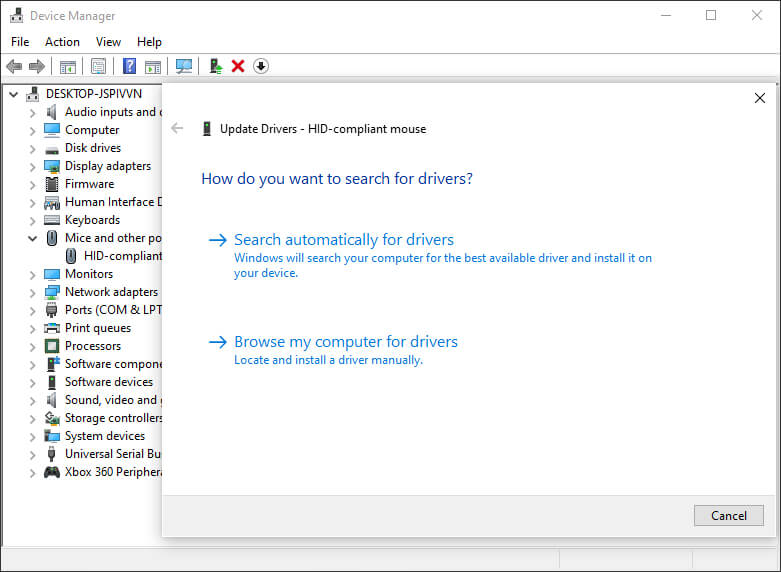
    #6. Update Mouse Drivers

    As we know the driver of a device can become corrupt or conflict with other drivers. This problem is usually solved by updating the driver. If you’re using Windows 10, it’s really easy:

    Update Mouse Drivers
    1. Click Win Key + X
    2. Select  Device Manager
    3. Find and expand  Mice and other pointing devices
    4. Right-click on the mouse device being used
    5. Select  Update Driver

    Wait for the drivers to update. If this is the cause of the error, your mouse scroll wheel should now function normally.

    #7. Is Scrolling Not Working In Certain Apps?

    Update the Application! Found that the mouse scroll wheel only works in certain apps? Maybe your browser, word processor, or graphics editor software like CorelDraw. It might even be in a video game. Whatever the case, if you’ve updated your mouse drivers and this doesn’t fix the problem, also consider updating the app in question.

    The applications you install on your computer have different ways of updating them. Often, you’ll find a link to the update page in the About menu, which will help you update the app if you don’t find a download link. For video games, use a digital distribution service (eg Steam) to update them.

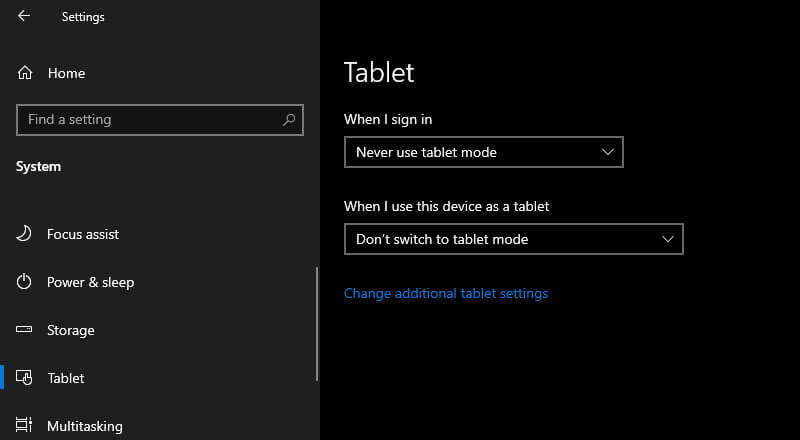
    #8. Disable Tablet Mode On Windows

    Windows 10 users may find that tablet mode interferes with mouse performance, which can affect scrolling speed. In many cases, you may not even notice tablet mode is running (this is not a feature on desktops or laptops). To disable tablet mode follow the steps below:

    Disable Tablet Mode In Windows
    1. On the taskbar, click the Action Center button
    2. Find  Fashion Tablet
    3. Click to deactivate
    4. If tablet mode is already disabled, click to activate and again to disable

    The smooth, seamless mouse scroll wheel should now work.

    Read more:

    Conclusion:

    This is the explanation of 8 ways to fix mouse scrolls Not Working on a Windows 10 PC, By now you should know about fixing mouse scrolls up and down, jerky, or unresponsive.

    You can fix the scroll wheel that doesn’t work using the methods that I have described above. If, after following the methods above, you are still having problems, the mouse is most likely faulty.

    Because repair costs are usually more expensive than buying a new mouse, so I suggest contacting the mouse manufacturer for a replacement, if it’s still under warranty, or buying a new mouse.

  • 7 Ways To Open Windows Task Manager on Windows10 PC 2025

    7 Ways To Open Windows Task Manager on Windows10 PC 2025

    7 Ways To Open Windows Task Manager on Windows 10 PC – Most Windows users will be familiar with this problem: Their computer is noticeably slowing down and the execution of a program or process freezes, however, they can’t see which app is causing the slowdown. In some cases, windows freeze and stop responding to your commands.

    7 Ways To Open Windows Task Manager
    7 Ways To Open Windows Task Manager

    How To Open Windows Task Manager on Windows 10 Laptop PC

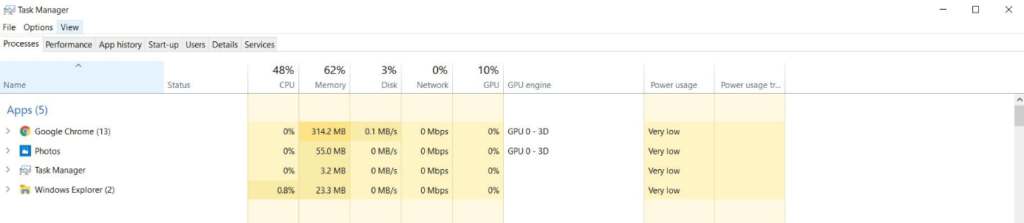
    If this sounds familiar, the Windows operating system suite (such as Windows 2000) provides a handy tool to help you, namely the Windows Task Manager. This handy program offers an overview of all running processes along with information on the power consumption of the computer.

    Read more:

    What is Windows Task Manager?

    When a user launches and uses one or more programs, these user-controlled processes join the entire host of default processes already running in the background. Typically, browsers with multiple tabs.

    Text editors with open documents, e-mail clients, graphics programs, and software for playing music in the background can run at the same time. Although this application is visible through its distinct symbol on the taskbar, its exact impact on PC performance cannot be seen at a glance.

    Windows Task Manager offers an overview of all applications running in the background. When you encounter unnecessary processes, you also have the option to end these directly from the Task Manager.

    Practical tools provide detailed information on processes per application. Below you can see a brief overview of the most important tasks in the Task Manager :

    • CPU and processing memory consumption (CPU stands for “Central Processing Unit” and denotes your computer’s main processor)
    • Network load is triggered by a process
    • Power consumption of a process
    • List of programs when autostart is enabled

    This information makes it possible to view running programs at a high capacity that you don’t even need or use. You can disable it directly from within the Task Manager or delete it from the computer.

    What is Windows Task Manager

    How to Open the Windows Task Manager

    #1. Press Ctrl + Alt + Delete

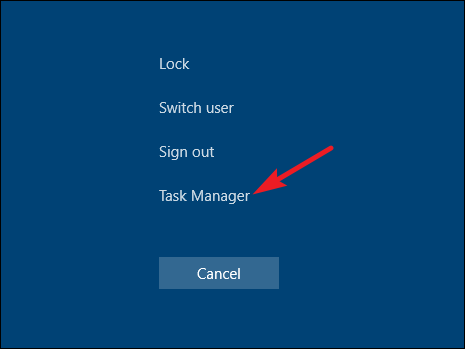
    You’re probably familiar with the three-finger greeting Ctrl + Alt + Delete. Since Windows Vista, pressing Ctrl + Alt + Delete opens the Windows Security screen, which provides options to lock the PC, Switch User, Sign out, and launch the Task Manager.

    How to Open the Windows Task Manager

    #2. Press Ctrl + Shift + Esc

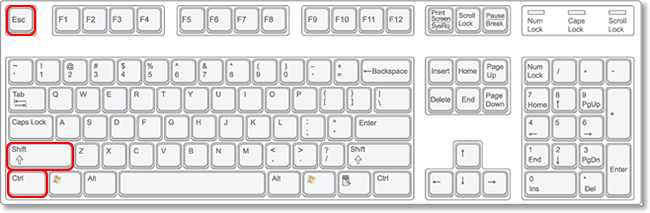
    The quickest way to open the Task Manager is to press Ctrl + Shift + Esc. As a bonus, Ctrl + Shift + Esc offers a quick way to open the Task Manager when using Remote Desktop or working inside a virtual machine (because Ctrl + Alt + Delete will signal your local machine).

    Press Ctrl + Shift + Esc

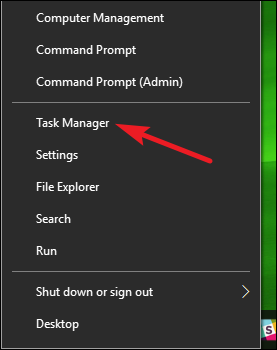
    #3. Press Windows + X to Access the Power User Menu

    Windows 8 and Windows 10 both feature a Power User menu which you can access by pressing Windows + X. This menu has quick access to all utilities, including the Task Manager.

    Press Windows + X to Access the Power User Menu

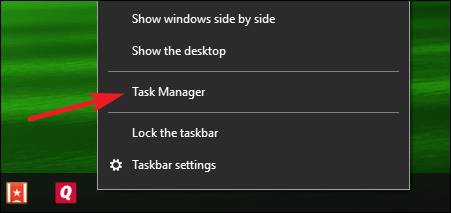
    #4. Right-click the Taskbar

    If you prefer a mouse to a keyboard, one of the fastest ways to launch the Task Manager is to right-click an open space on your taskbar and select “Task Manager”.

    Right-click the Taskbar

    #5. Run “taskmgr” from the Run Box or Start Menu

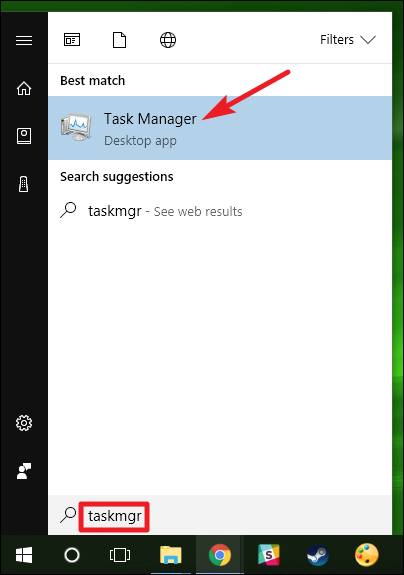
    The name of the executable file for Task Manager is ” taskmgr.exe “. You can launch the Task Manager by pressing Start, typing “taskmgr” in the Start menu search box, and pressing Enter.

    Run taskmgr from the Run Box or Start Menu

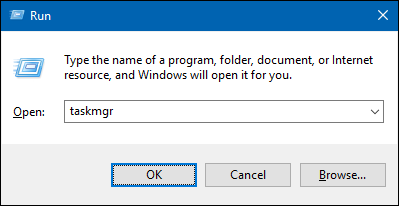
    You can also run it by pressing Windows + R to open the Run box, typing ” taskmgr “, then press Enter.

    Run taskmgr from the Run Box or Start Menu

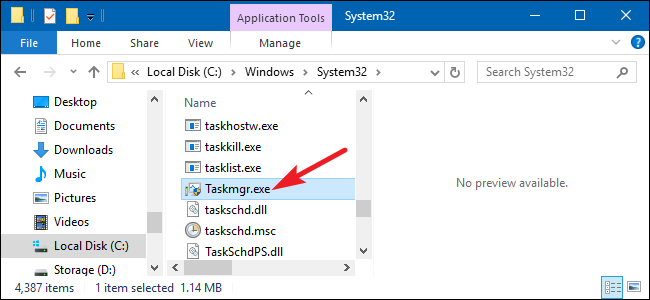
    #6. Browse to taskmgr.exe in File Explorer

    You can also launch the Task Manager by opening an executable directly. This is among the longest ways to open the Task Manager, but we include it for completeness. Open File Explorer and navigate to the following location:

    C: \ Windows \ System32

    Scroll down and look for taskmgr.exe , then double-click it.

    Browse to taskmgr.exe in File Explorer

    #7. Create a Task Manager Shortcut

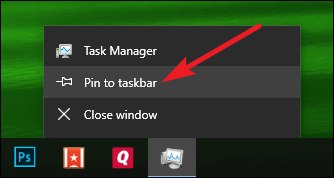
    The last way is to create a shortcut that can be accessed by the Task Manager. You can do this in several ways. To pin a shortcut to the taskbar, go ahead and launch the Task Manager using one of the methods we’ve discussed. While running, right-click the Task Manager icon on the taskbar and select ” Pin to Taskbar “. After that, you can click the shortcut to run Task Manager at any time.

    Create a Task Manager Shortcut

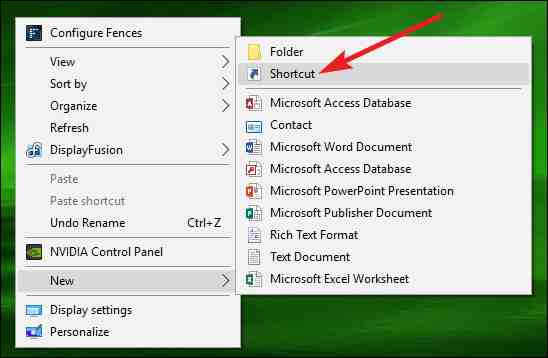
    If you want to create a shortcut on the desktop (or in a folder), right-click any empty space where you want to create a shortcut, then select New> Shortcut.

    Create a Task Manager Shortcut

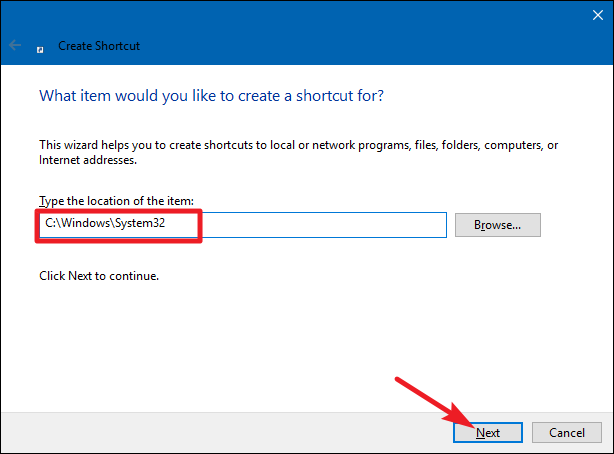
    In the Create Shortcut window, enter the following location into the box, then hit “Next”.

    C: \ Windows \ System32

    Create a Task Manager Shortcut

    Type in a name for the new shortcut, then click “Finish”.

    Create a Task Manager Shortcut

    Conclusion:

    This is the explanation of 7 ways to open Windows task manager on a Windows 10 PC, are some methods to open Windows Task Manager which is more efficient?

  • 7 Ways To Play Nintendo Game on PC 2025

    7 Ways To Play Nintendo Game on PC 2025

    7 Ways To Play Nintendo Games on PC – For those of you who were born in the ’80s to ’90s, you must have played Nintendo games.

    7 Ways To Play Nintendo Game on PCLaptop
    7 Ways To Play Nintendo Games on PCLaptop

    How To Play Nintendo Games on PC and Laptop

    Yup, Nintendo was one of the most popular consoles of its time. When it can be said Nintendo is one of the few consoles that are commonly encountered other than the Playstation.

    Read more:

    Nintendo itself is still being developed and many of the latest games are released following the times.

    However, many also know people who want to play old Nintendo games. For example to remember childhood, hehe.

    Well, here I want to discuss a little about how to play old Nintendo games on a PC or laptop.

    How to Play Nintendo on PC or Laptop With Emulator (NES)

    To play NES ( Nintendo Entertainment System ) games on a PC or laptop, you must first install an emulator. Commonly used in general is Nestopia.

    This emulator is light and the size is not too big. In addition, Nestopia supports netplay which allows you to play together with other people.

    Here’s how to play Nintendo using Nestopia on a PC or laptop:

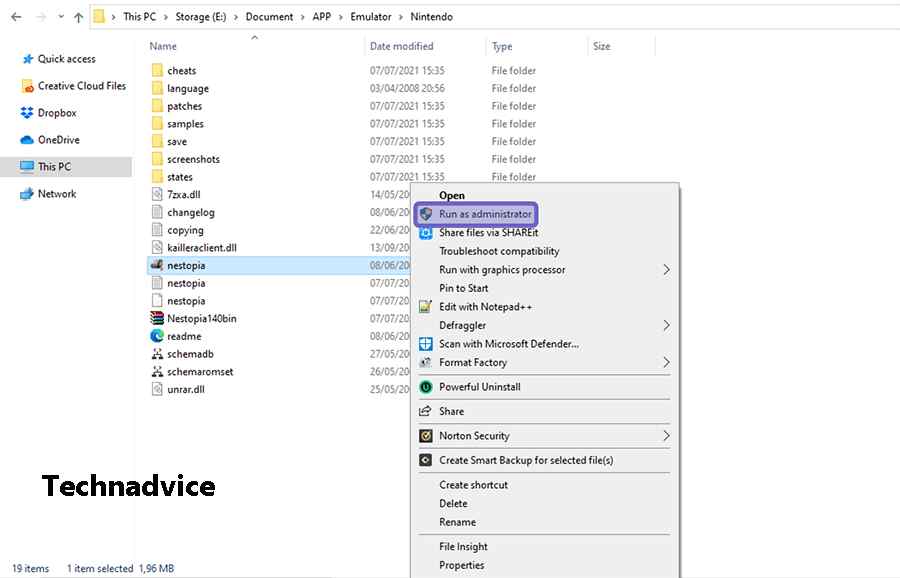
    #1. Run the Nestopia Emulator

    Run the Nestopia Emulator

    First, please download the Nestopia emulator first. If so, extract the file using Winrar or Winzip.

    Later, the files from Nestopia will appear. Next, right-click the Nestopia application, then select the Run as Administrator option.

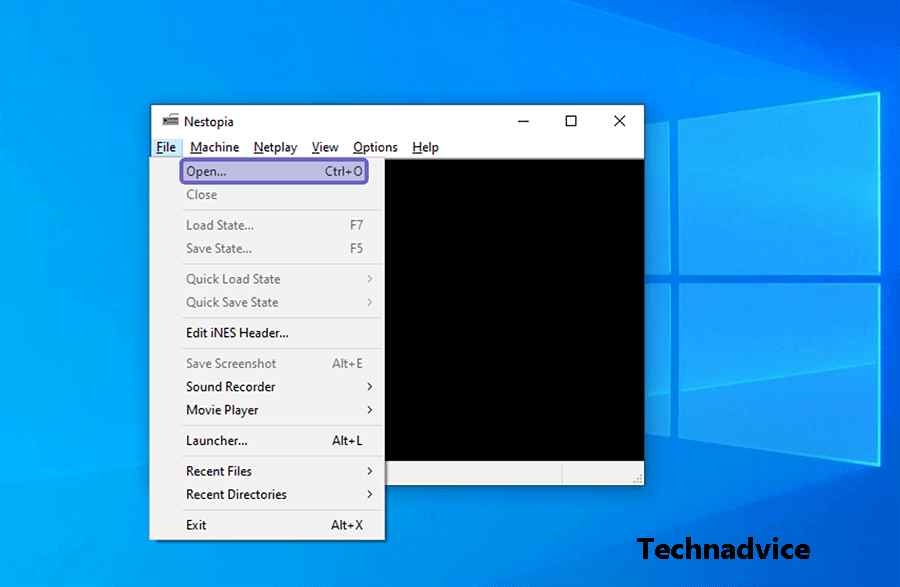
    #2. Open the Open Menu

    Open the Open Menu

    After the Nestopia emulator opens, please click the File tab. Then select the Open menu to open Explorer.

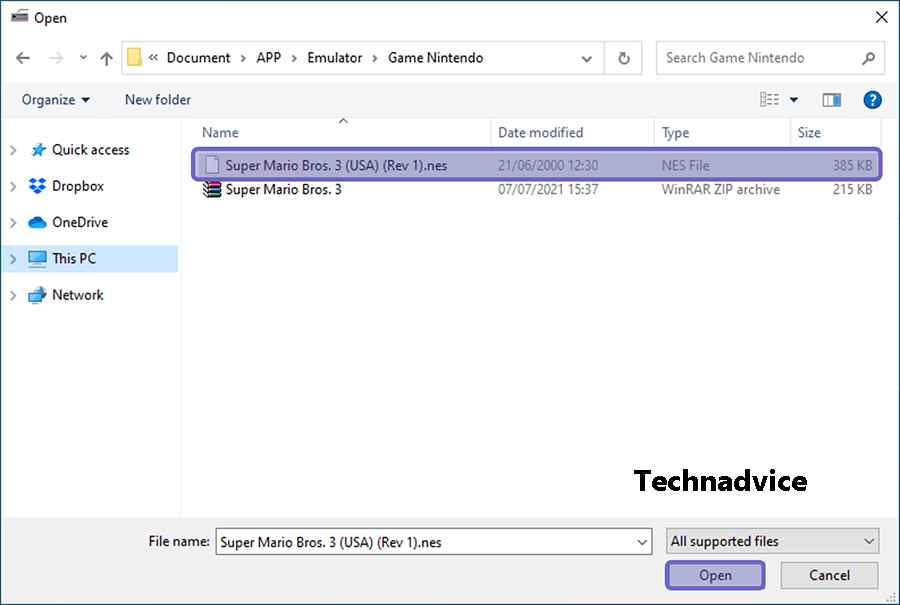
    #3. Search Nintendo Games

    Search Nintendo Games

    After File Explorer appears, please locate the Nintendo game file you prepared earlier. If you have clicked the Open button.

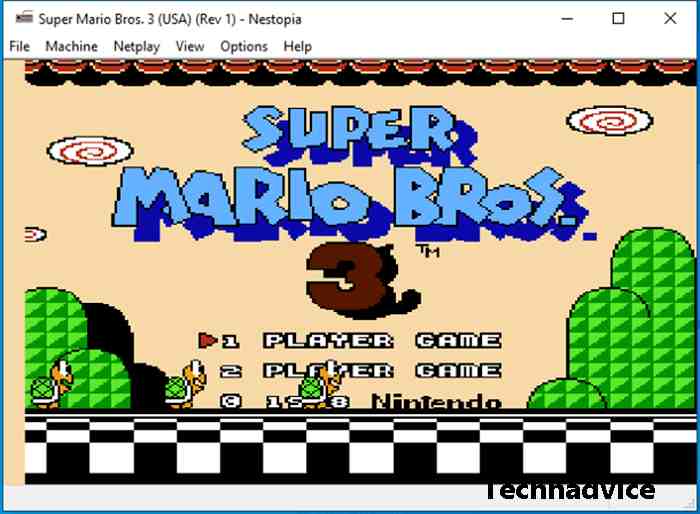
    #4. Play Game

    Play Game

    If successful, then the game you selected will appear in the emulator. Now you can play the game.

    Other Emulators That Can Be Used To Play Nintendo

    Apart from the NES, there are also several other types of Nintendo emulators. Like Nintendo Wii, Switch, and 3DS. The three emulators were developed by different developers. Here’s the full explanation:

    #1. Dolphin Emulator (Nintendo Wii)

    Dolphin Emulator (Nintendo Wii)

    To play Nintendo Wii games, most people usually use the Dolphin Emulator.

    This emulator has various audio and graphics settings. So that it can be adjusted to the specifications of a PC or laptop.

    In addition, this emulator can not only run Nintendo Wii games, but you can also play NGC (Nintendo GameCube).

    Another plus is Dolphin Emulator supports various operating systems. Starting from Windows, Linux, and macOS to Android.

    #2. Yuzu Emulator (Switch)

    Yuzu Emulator (Switch)

    Furthermore, if you are a Nintendo Switch fan, you can install the Yuzu Emulator.

    Yuzu Emulator is an emulator designed for Nintendo Switch games. This emulator is also quite light to run and its performance tends to be stable.

    Yuzu Emulator supports Windows and Linux operating systems. And to find out complete information, you can check through the official Yuzu Emulator website, at yuzu-emu.org.

    #3. Emu Image (3DS)

    Emu Image (3DS)

    Finally, for Nintendo 3DS, you can use Citra Emulator.

    The emulator, which was originally developed in 2013, is now one of the choices for gamers to play Nintendo 3DS games.

    There are many features in Citra Emu. One of them is the multiplayer feature that allows you to play with other people.

    This emulator supports multiple operating systems. These include Linux, Windows, macOS, and Android.

    Read more:

    Conclusion:

    It should be noted a little, to run the emulator, the PC or laptop used must be a little qualified in terms of specifications. Especially if the emulator used is Nintendo Wii and Nintendo 3DS.

    Usually, the memory resources (RAM), processor, and VGA used by the two emulators are quite high. So, the game will lag on a computer or laptop with low specifications.

    If you have questions about the Nintendo emulator, don’t hesitate to post them in the comments column.

  • 5 Ways to Fix High Disk Usage “Service Host Sysmain” PC 2025

    5 Ways to Fix High Disk Usage “Service Host Sysmain” PC 2025

    5 Ways to Fix High Disk Usage “Service Host Sysmain” PC – A computer that suddenly feels slow is usually caused by a process that is consuming a lot of resources (CPU, RAM, Disk). The signs can be seen in slow performance, lag, and fans spinning fast with a clear sound.

    5 Ways to Fix High Disk Usage Service Host Sysmain PC
    5 Ways to Fix High Disk Usage Service Host Sysmain PC

    How to Fix High Disk Usage “Service Host Sysmain” Windows 10 PC Laptop

    When you open the Task Manager you will see which process is the culprit. One of the reasons for high Disk usage, CPU, and RAM on Windows 10 is a process called Service Host Sysmain (formerly called superfetch).

    Read more:

    Here’s how to deal with high disk usage due to Service Host Sysmain.

    #1. Disable Sysmain service

    The first method which is quite effective is to turn off the Sysmain service. We can do this through the Service Manager program.

    Follow these steps to solve Sysmain which is consuming a lot of memory and disk usage:

    Step 1: Open the service manager program.

    Press Windows key + R on your keyboard, then type services.msc

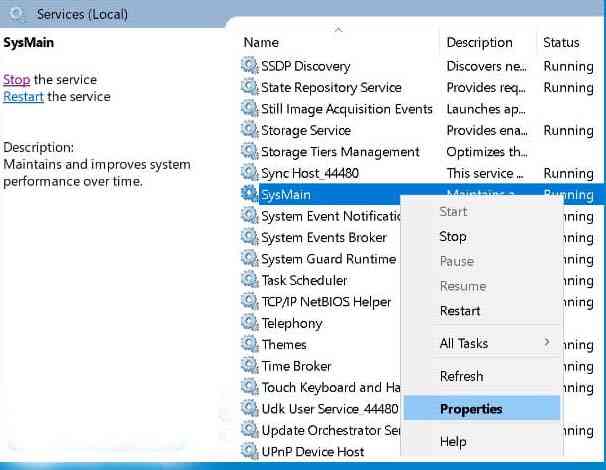
    Step 2: Find a service named Sysmain.

    Next, you will see a list of all the services running on Windows. Find a service called Sysmain.

    Disable Sysmain service

    Step 3: Right-click on Sysmain then select Properties.

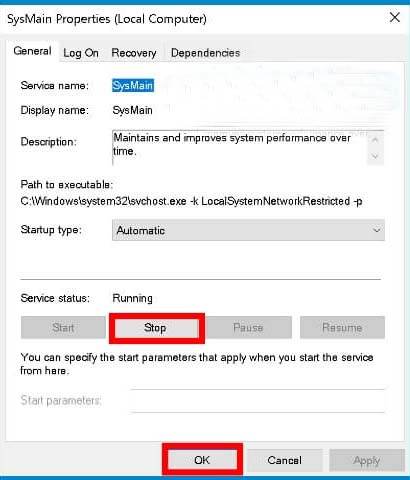
    Step 4: Click the Stop button.

    On the Properties menu, pay attention to the status section then click on the Stop button.

    Disable Sysmain service

    Step 5: Click OK then close the Service manager program

    Step 6: Restart the computer.

    After restarting the computer, you can open the task manager and monitor the disk usage that is no longer high.

    #2. Using Registry Editor

    The next way is to modify the registry entry.

    Follow these steps:

    First, open the Registry Editor by pressing the Windows key + R then type Regedit > click OK.

    After the Registry Editor program opens, enter the following directory:

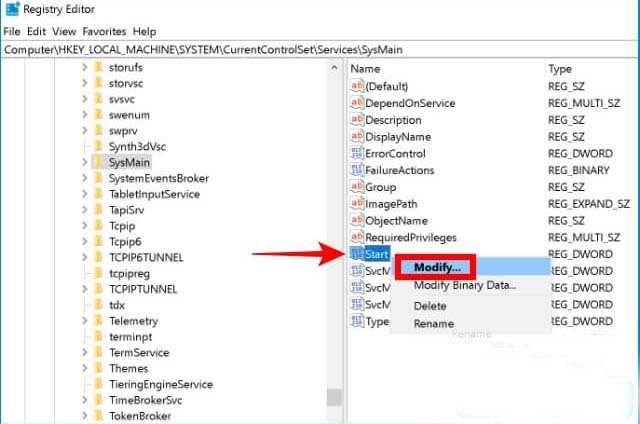
    HKEY_LOCAL_MACHINE \ SYSTEM \ CurrentControlSet \ Services \ SysMain

    Find the registry entry named Start, then right-click> select Modify.

    Using Registry Editor

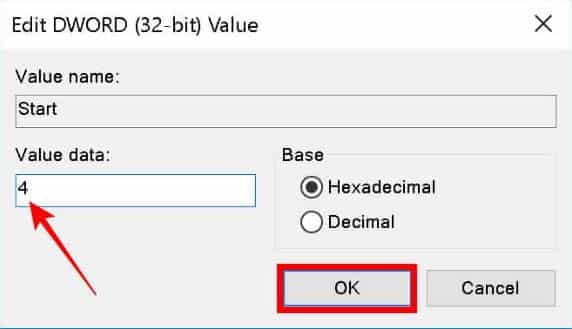
    In the Value data column enter the value 4> then click OK.

    Using Registry Editor

    Close the Registry Editor program then restart your computer.

    #3. Using CMD

    Turning off the Service Host Sysmain can also be done via the Command Prompt program.

    Follow these steps:

    Open the Command Prompt program with administrator access permissions, how press the Windows / Start button> type cmd > on the menu that appears click Run as administrator.

    Using CMD

    After the Command Prompt program opens, copy and paste the following command, ending by pressing the enter key:

    sc stop “SysMain” & sc config “SysMain” start = disabled

    You will see Change Service Config Success which indicates the process was successful.

    Then close the Command Prompt window then restart your computer.

    #4. Update Windows

    Doing update on windows 10 also needs to try to resolve this issue.

    Update not only serves to update features but also closes bugs and fixes system errors that existed in previous versions.

    Follow these steps:

    Click on the Windows button> click on the Settings button (gear icon).

    Then select the Update & Security menu.

    On the Windows, Update menu click on the Check for updates button.

    #5. Upgrade to SSD

    The last solution is to replace the mechanical hard disk with an SSD. It’s no secret that upgrading to an SSD can speed up Windows 10 as a whole.

    Not only does it make loading files faster, but opening programs and the startup process will be faster. SSDs also don’t heat up quickly, making the laptop more resistant to overheating.

    Read more:

    Conclusion:

    So, friends, This is the explanation of 5 ways to fix high disk usage “Service Host Sysmain” PC, which takes up a lot of memory and disk usage in Windows 10.