8 Ways to Create Login Password for Windows 10 PC—Creating a password is quite effective. If Windows 10 has been given a password, anyone who wants to enter the desktop must first log in with that password.
How to Create Login Password for Windows 10 Laptop PC
How to Create Login Password for Windows 10 Laptop PC
Several types of passwords can be used, namely regular passwords, PINs, patterns on photos, and security keys, biometrics (fingerprints, faces). You can use several types of passwords at once or just choose one.
Generally, the type of password that is often used is a PIN or regular password, because it is simpler and easier to remember. However, for higher security types, you can use a biometric or security key.
How To Create Login Password for Windows 10 PC
#1. Enter Settings
The first step is to click on the Start button > click on Settings
#2. Select the Accounts menu
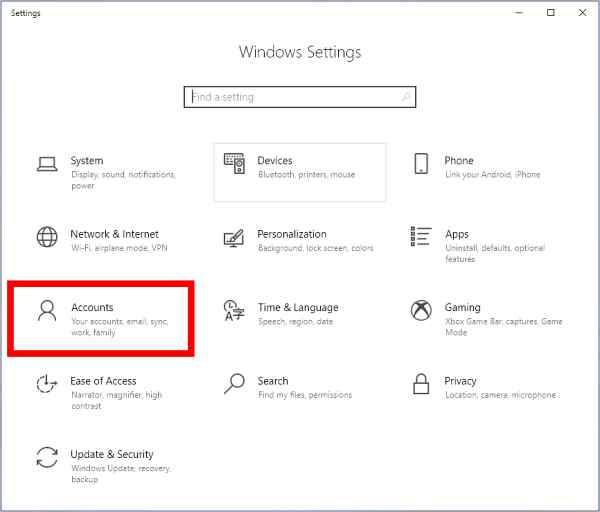
Next, in the Settings window, find and click the menu named Accounts
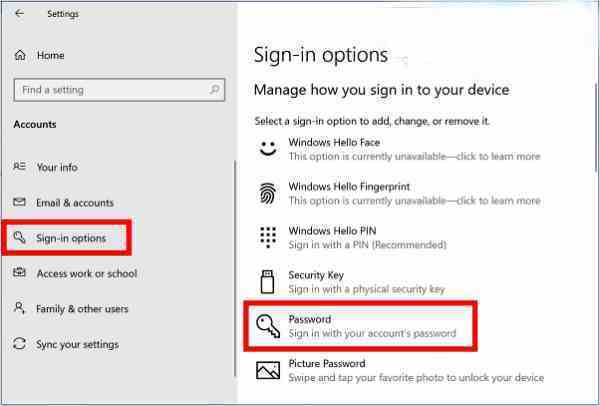
#3. Click the Sign-in options tab
On the left panel click on the Sign-in options tab.
#4. Select Password
Then click on the Password menu
#5. Enter the desired password
Then enter the desired password in the column provided. Try to use a password that is easy to remember so as not to be a hassle in the future.
How to change another user’s password on Windows 10 PC
You can also change the passwords of other users on the computer. For example, in Windows 10 you have several users who use the same computer, so the password for that user can be changed. The condition is you must log in using an administrator account.
Follow these steps:
Enter the Control Panel
Use View by Small Icons mode
Click on the User Accounts menu
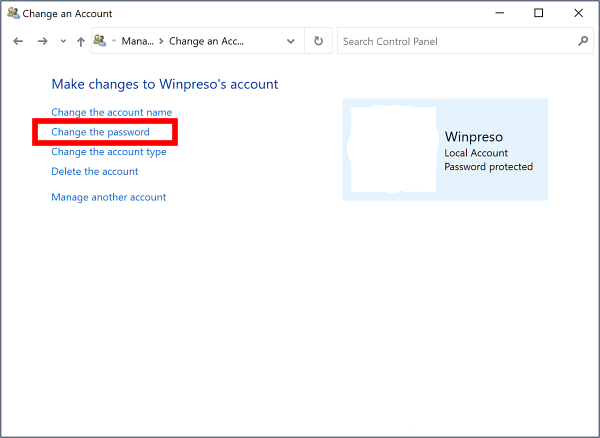
Select the Manage Another Account menu
Select the user you want to change the password for
Click Change the password
Enter the old password
Enter a new password
Click the Change Password button
Done
How to create a Windows 10 PIN
Apart from using a password, you can also log into Windows 10 using a PIN. Unlike a password that allows us to use letters, numbers, and symbols, a PIN only uses numbers.
You can use several login methods at once in one account, you can combine them using a PIN and password, and then when on the login page you just have to choose which login method you want to use.
Follow these steps:
Enter Settings
Select Accounts
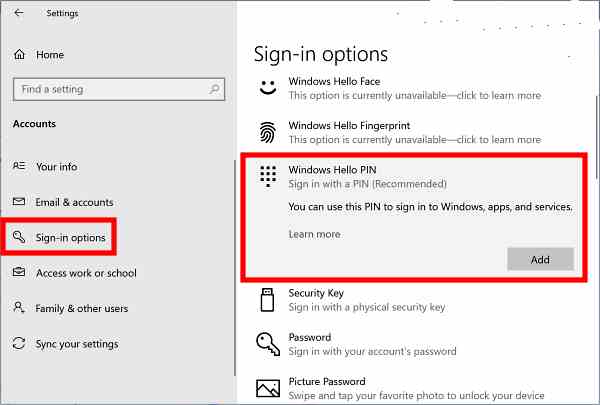
Click on the Sign-in options tab
Select PIN
Click Windows Hello PIN
Click Add
Enter the desired PIN
Click the OK button
How to make a password with a photo pattern
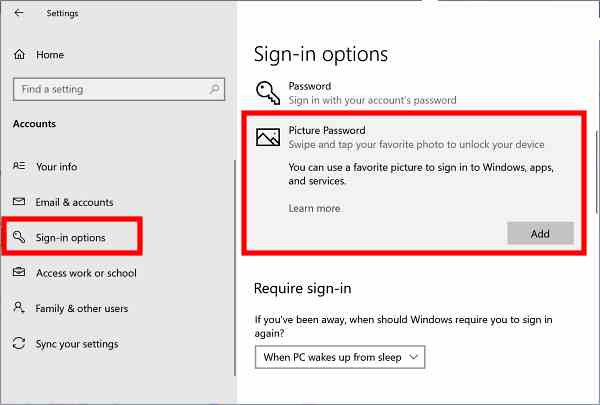
The third login method that you can use besides a password and PIN is a photo password. This method will use a pattern drawn on top of a photo; every time we want to log in, we have to repeat the pattern.
This is suitable for laptop users with touchscreen technology, but can also be used on ordinary laptops. Later when drawing patterns you can use the cursor.
That’s about how to create a password for users on Windows 10 using regular passwords, PINs, and photos and how to change passwords for other users. Hope you can help.
How to Record the Screen On Windows 11 – In this blog post, we are going to show you how to record the screen on Windows 11. There are a few different ways to do this, and we will go over each of them in detail. Whether you want to record a video tutorial or just capture some gameplay footage, recording the screen on Windows 11 is easy! Let’s get started.
How to Record the Screen On Windows 11
To record the screen on Windows 11, you will need to use the built-in Screen Recorder tool. To access this tool, go to the Start menu and type in “screen recorder” (without the quotes). You should see the Screen Recorder app appear in the search results. Click on it to launch the app.
The Screen Recorder tool is very simple to use. Just click on the “Record” button and then select the area of your screen that you want to record. Once you’ve done that, just click on the “Start Recording” button and your recording will begin!
When you’re finished recording, just click on the “Stop Recording” button and your video will be saved automatically. You can then view it by going to the “Videos” folder in your File Explorer.
#1. Alternative Ways To Record Your Screen On Windows 11
In addition to the built-in Screen Recorder tool, there are also a few other ways that you can record your screen on Windows 11. One popular option is to use the “Game Bar” feature. To access this, just press the “Windows Key + G” on your keyboard while in any game or app.
Once the Game Bar has been activated, you will see a bunch of different options appear on your screen. To start recording, just click on the “Record” button (it looks like a circle with a camera in it). Your recording will then begin!
Another popular way to record your screen is by using third-party software such as OBS Studio or Bandicam. These programs are more powerful than the built-in Screen Recorder tool, and they offer a lot of different features and options. However, they can also be a bit more complicated to use.
If you’re looking for something simple and easy to use, then the built-in Screen Recorder tool is probably your best bet. However, if you’re looking for more powerful recording capabilities, then you may want to consider using one of the third-party options.
No matter which method you choose, recording your screen on Windows 11 is easy! So go ahead and give it a try!
#2. Best Practices When Recording Your Screen On Windows 11
Now that you know how to record your screen on Windows 11, there are a few best practices that you should keep in mind. First of all, make sure that you have a good reason for recording your screen. For example, if you’re recording a video tutorial, make sure that it is clear and concise.
Secondly, try to avoid using copyrighted material when recording your screen. This includes things like music, movies, or TV shows. If you do use copyrighted material, make sure to get the permission of the copyright holder first.
Finally, make sure to save your recordings in a safe and secure location. This is because recordings can take up a lot of space on your hard drive. So make sure to save them in a place where you won’t accidentally delete them!
Recording your screen can be a great way to create tutorials or capture important moments. Just make sure to follow these best practices and you’ll be sure to have a great experience!
#3. The Importance of Using a VPN When Recording Your Screen
One last thing to keep in mind is the importance of using a VPN when recording your screen. This is because a VPN can help to secure your IP address and prevent others from seeing what you’re doing. Make sure you secure your IP using CyberGhost Windows VPN whenever you’re recording your screen.
There are a lot of different VPN providers out there, but the CyberGhost Windows VPN is the top choice. This is because it is one of the most secure and reliable VPN providers. Plus, it’s very easy to use!
Conclusion:
Recording your screen is a great way to create video tutorials, capture gameplay footage, or share what’s on your screen. By following these best practices, you can ensure that your recordings are high-quality and helpful! So go ahead and start recording!
8 Ways to Fix Windows 10 Start Menu Not Working – Is now your Windows 10 Start menu search bar can’t be opened or clicked? If so, take it easy, because this time the admin will provide several ways to overcome the Windows 10 Start Menu not working so that you can use it normally again.
8 Ways to Fix Windows 10 Start Menu Not Working PC
How to Fix Windows 10 Start Menu Not Working
If you want to do a quick search on your Windows 10 PC, you use the Start Menu. But when you try to click on the search bar, you find that the feature doesn’t work.
Make no mistake, even though Windows 10 is a phenomenal operating system, it is still prone to many errors, such as the Start menu search not working. In the following, you will learn how to fix Windows 10 Start Menu not working.
How to Fix Windows 10 Start Menu Not Working
While there’s still no definitive explanation as to what causes the Windows 10 Start menu search to stop working, we’ve rounded up some of the best methods to get rid of it, starting with removing the latest Windows Update.
#1. Uninstall Windows 10 Updates
Updates play an important role in the Windows 10 environment. Regular updates are necessary to fix all kinds of bugs that appear in any software, and more importantly, to fix security holes that make programs a target for malicious hackers.
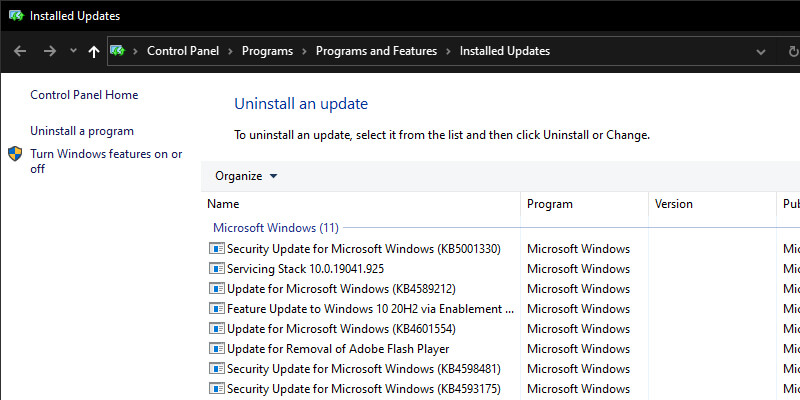
But often, updates can also be the cause of some system crashes in Windows 10. So, if your Windows 10 Start menu search doesn’t work after updating, you need to uninstall the update. To get started with rolling back updates, follow the steps below:
Uninstall Windows 10 Updates
Go to Windows Settings > Update & Security > Windows Update.
Once there, click View update history > Uninstall updates.
From the list of updates, right-click on the latest update and click uninstall to remove the update.
If the Start menu search starts working after uninstalling the update, then the update is the cause of the problem. But wait, does this mean you can’t update Windows 10 anymore? Not exactly. Microsoft is famous for releasing buggy updates.
Whenever a new update comes, usually it brings a lot of problems with it. But since updates are important for security, you can’t avoid installing them either. In such a situation, you can use the Windows search tool. free. As soon as Microsoft fixes the bug, you can start using the Windows search bar again.
#2. Run SFC System Scan
All systems are susceptible to accidental data loss, which will result in the breakdown of important functions. You can use an SFC (System File Checker) scan to fix your computer in such situations. This is a free tool from Microsoft designed to find and repair corrupted Windows 10 files.
Run SFC System Scan
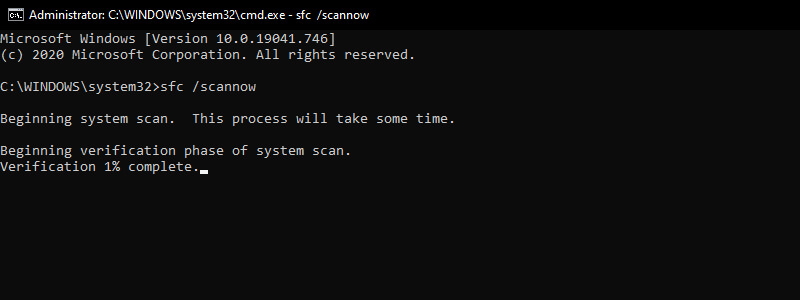
Press Windows key + R type cmd then press CTRL + SHIFT + Enter to open Command Prompt as administrator.
Once the Command Prompt opens, type the command sfc /scannow and press Enter.
SFC will check your entire computer for corrupted files and other problems.
If it finds anything, it will try to repair the corrupted files. Give it a few minutes for the scan and repair to complete, and if Windows 10’s Start menu search doesn’t work due to corrupted system files, the problem will be fixed for good. If not, don’t worry, you can move on to the next method.
#3. Reset File Explorer
File Explorer, formerly known as Windows Explorer, is a file manager application that provides a graphical user interface for managing Windows file systems. To make sure that File Explorer doesn’t affect the smooth running of the Start menu search, it’s not a bad idea to reboot it. Here’s how you do it:
Reset File Explorer
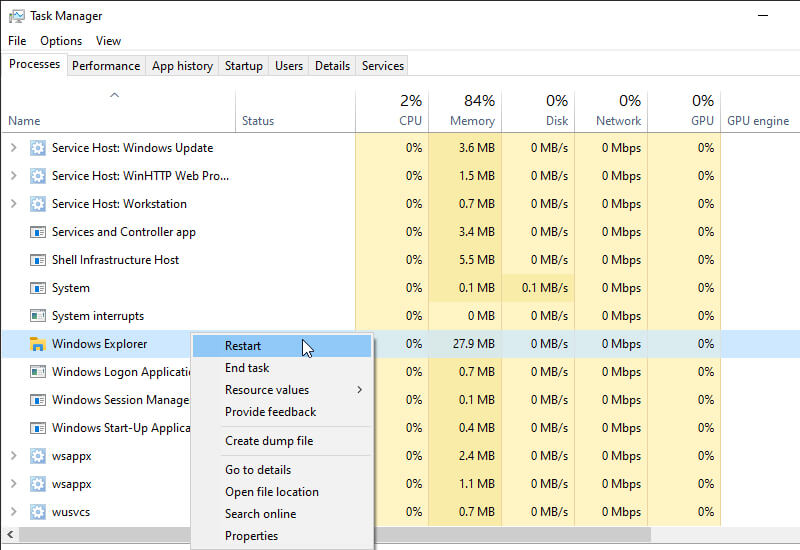
Press Ctrl + Alt + Delete to open Task Manager. Next, click on the Task Manager option.
Click More Details to see all programs and background processes running in the background.
Right-click on Windows Explorer and select Restart.
File Explorer along with the Start menu search box will reboot quickly. But if your Windows Start menu search is still not working, don’t give up just yet. Try one of the other fixes below.
#4. Turn off Cortana
Due to unknown issues, Windows programs are prone to crashing. If you are using Cortana for your search, maybe your Start menu search is not working due to some issues with Cortana. To make sure that’s not the case, a quick restart will probably fix the problem. To do this, follow the instructions below:
Turn off Cortana
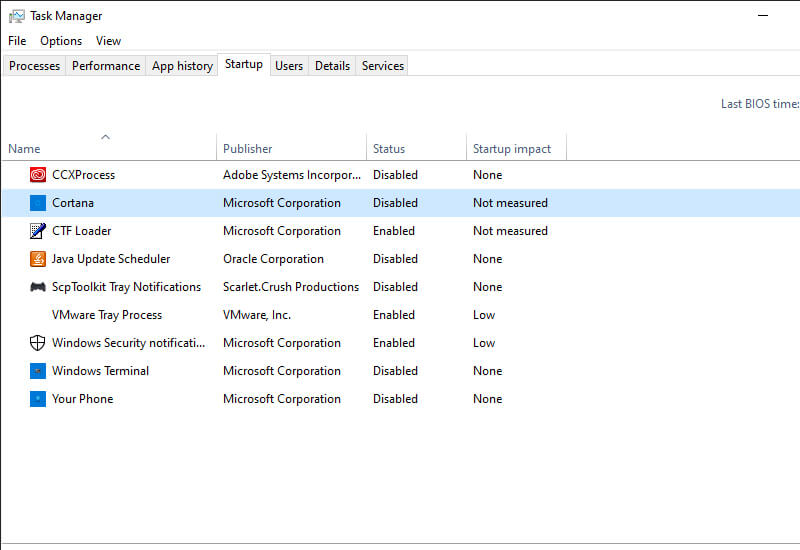
Press Ctrl + Alt + Delete and select Task Manager.
Right-click the Cortana process and select End Task.
Still in the Task Manager, go to the Startup section.
Right-click on Cortana then select Disable.
This will close or kill the Cortana app.
If Cortana is the cause of the problem, then you should not face any problems with the Start menu search after this.
#5. Reset the Entire Start Menu Search Bar
This guide contains many resets. If your Start menu search is still not working, then you can try a reset. Note that you have to reset all the pre-installed and later installed apps along with the Start menu. For that, you have to use Windows PowerShell (with administrative privileges) for this one.
Reset Entire Start Menu Search Bar
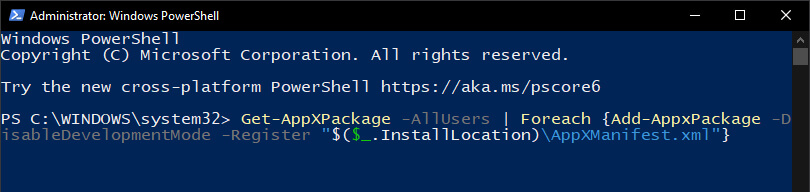
Press the Windows key + R to open the Run box. There, type PowerShell and press CTRL + SHIFT + Enter.
In the PowerShell terminal, type the following command: Get-AppXPackage -AllUsers | Foreach {Add-AppxPackage -DisableDevelopmentMode -Register “$($_.InstallLocation)\AppXManifest.xml”}
This command will install native Windows applications, including the Start menu search.
Wait for the command to be fully executed, and once it’s done, restart your computer for the changes to take effect. Windows 10’s start menu search should work now.
#6. Open Windows Search Service
Another possible reason your Start menu search is not working is that the Windows Platform Search service that indexes content on your Windows computer has stopped working. To make sure that’s not the case, open Windows services.msc. Here’s how you do it:
Open Windows Search Service
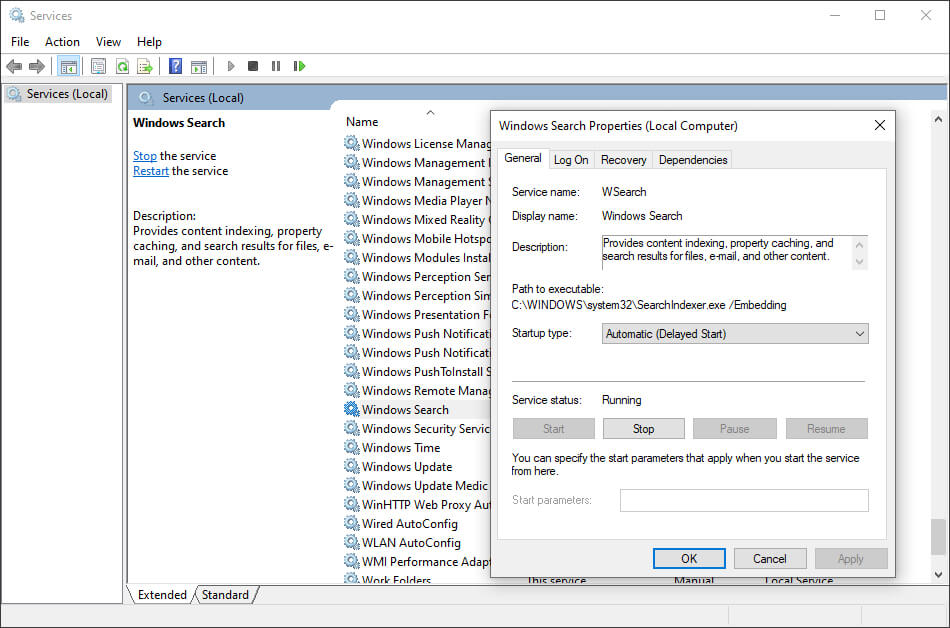
Press the Windows Key + R shortcut to open Run, type services.msc, and press Enter.
Find the Windows Search program in the list and check its status, it should be set to running. You have to start again otherwise.
Right-click on Windows search and select Properties. From there, click Start to start the service e. Also, set the Startup type to Automatic.
Finally, click OK to apply the changes.
#7. Run Windows Troubleshooter
Windows Troubleshooter is another free utility from Microsoft. This can be useful for dealing with minor bugs on your Windows device, such as update issues, app crashes, and more. Running the Troubleshooter will help you fix the Start menu search problem. Follow the steps below to do this:
Run Windows Troubleshooter
Press the Windows key + R to open the Run window.
Type control and press Enter to open the Control Panel.
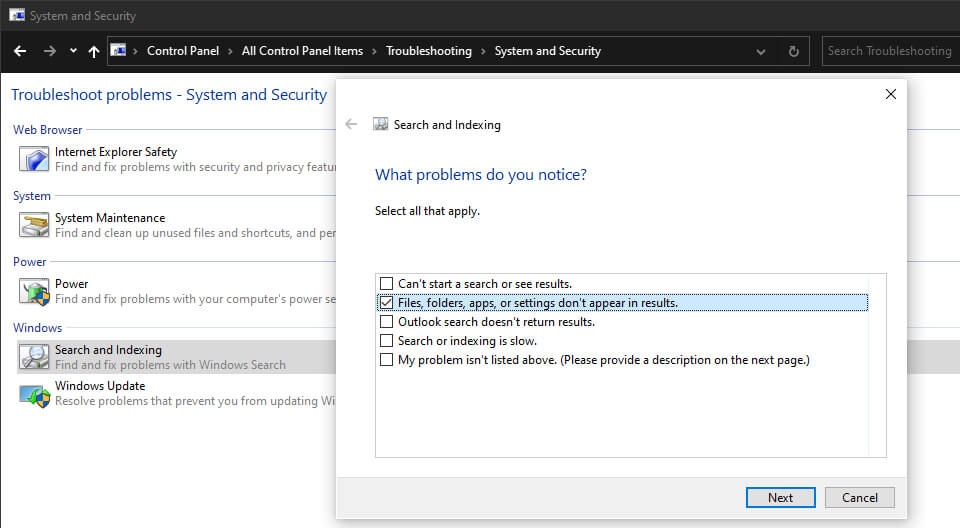
Click Troubleshooting > System and Security > Search and Indexing.
Now, click Next and check Files, folders, apps, or settings don’t appear in the search result.
Click Next to continue scanning.
This tool will automatically scan and fix any problems it finds, including fixing the Start menu not working properly.
#8. Do a Factory Reset
Alright, so this is the last method. And with good reason too. Remember, only continue with this solution after you have tried all the methods from above. Why? Because Factory Reset does exactly what it says in its description: it will wipe your Windows operating system and then install it again. This will make your Windows like new.
You can apply Factory Reset in two ways. First, you can do a full reset and delete the operating system and all files from your system, or the second method, you can keep your files and only the operating system will be deleted.
Do a Factory Reset
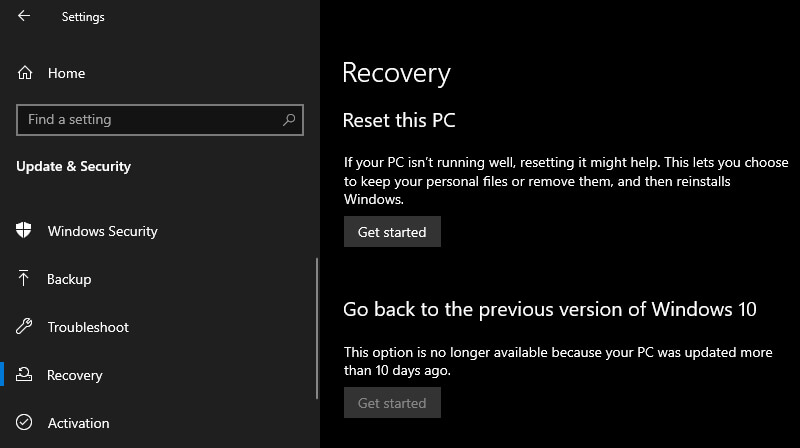
To get started, go to Settings > Update & Security > Recovery. Under the Reset, this PC heading, click Get Started.
Select Reset settings and follow the simple steps to complete Factory Reset.
Factory Reset will format your entire PC to make it almost new, without any additional files and applications
This is the explanation of 8 ways to fix the Windows 10 start menu not working, I Hope this short guide helped you fix your problem. Although the cause of the error is not known with certainty, now you know how to get rid of it.
Types of Linux Operating Systems and Their Strengths – The Linux operating system is a type of program created to manage hardware resources on a computer, and functions as a place to provide general services for software applications.
Types of Linux Operating Systems and Their Strengths
Types of Linux Operating Systems and Their Strengths
An operating system is a type of software in a computer system. Where without an operating system, users cannot run application programs on a computer, except for the boot application. The operating system also has systematic scheduling consisting of the use of memory, data processing, data storage, and other resources.
Where the operating system here acts as an intermediary between software and hardware, and vice versa. Although the execution is usually the application code is immediately executed by the hardware and will contact the operating system if the connection is lost.
Until now, there have been quite several different types of operating systems in circulation. Where each type of operating system has advantages and disadvantages so users can choose which operating system is best according to their needs.
What is Linux?
Linux is a UNIX-based operating system as an example of the results of the development of free software (Freeware) and open source (Open Source), the average Linux OS user is a Programmer to creates a program and also a developer to develops applications more easily.
Well in this article, Koneksia.com will discuss various types of Linux operating systems and their strengths and weaknesses, so you can more clearly know the Linux operating system, including:
The Advantages of the Linux Operating System
Linux can be obtained easily even free (freely) without the need to pay a license and users can be able to download Linux source code. Even if you want to see this OS, you can also because Linux is Free and Open Source Software, in other words, Linux can be developed by anyone.
In installing Linux, all hardware can be detected immediately and included with applications that support Linux OS.
So that after being installed, the application can be used immediately. Thus you no longer need to install other hardware drivers such as VGA, motherboard, chipset, and soundcard.
Linux is also available with a fairly comprehensive collection of software, where this software is usually needed for desktops, laptops/notebooks, and PC servers.
If during installation, the software turns out to be lacking, then the user can easily add the software through the provided repository.
But some software on Linux requires installing some Windows applications on Linux such as Crossover and Wine.
Linux is proven to be reliable and stable. This is the reason why many servers use Linux OS compared to other OS. Even after completing the system configuration, the user does not need to restart (warm boot)
Of the many types of OS (operating system), Linux is an OS that is safe against viruses, because besides the number of viruses on this OS is very minimal, the Linux OS performs very strict security management so that it will usually make the virus unable to operate/run on Linux OS this so that users can immediately delete the virus easily through the delete button.
Linux also can fix bugs or defects very quickly. This is because Linux was developed by a Linux community, where the Linux community can provide suggestions and make improvements to bugs or defects through documentation.
Many kinds of Linux have the characteristics and advantages of each. Make sure you choose the type of Linux that suits your needs.
Lack of Linux Operating System
Linux lacks support from hardware manufacturers in terms of controllers (drivers). So that requires the Linux developers to make this driver control system.
Linux also lacks support from some Game makers. So that when playing games on Linux the game display is not full-screen.
Linux still has some software that can only run on other operating systems and no substitute software is open-source on the Linux OS.
There are various types of Linux operating systems, including Debian Linux (OS for servers), Redhat Linux (easy installation for beginners), and SuSe Linux (Linux OS that supports Indonesian language program languages). For more details, refer to several types of Linux operating systems below:
Various Types of Linux Operating Systems
#1. Red Hat Linux
Various Types of Linux Operating Systems
If you are looking for various types of Linux operating systems, the installation process is very easy to do. Then your answer is Redhat Linux.
The RedHat Linux operating system is one of the relatively old GNU / Linux, offering convenience, a fully graphical display mode starting at installation, and friendly usage.
The latest version of Red Hat is the RedHat Linux 9.0 distribution, this is a stable version and fixes and improves system administration which is equipped with the latest desktop managers such as KDE 3.1 and GNOME 2.2, and the latest applications such as GIMP graphics 1.2.3, OpenOffice, KOffice, Diagrams, Multimedia applications Player, etc.
#2. Debian Linux
Debian Linux
Debian is one type of various Linux operating system that has been around for a long time since 1999 and continues to be developed regularly every year until now entering version 8.
If you are looking for an operating system that is suitable for server computers or for admin computers. The answer is the Debian Linux operating system because this operating system is indeed suitable if it is made as a server or admin computer.
This type of Linux operating system is not suitable for personal purposes because its function is more for use on server and admin computer systems.
#3. Ubuntu Linux
Ubuntu Linux
Ubuntu is a type of Linux operating system that is developed from Debian. The difference is that this Ubuntu operating system can be used not only on server computers and admin computers but also can and is suitable for use on personal or personal computers. The Ubuntu project itself is funded by Canonical Ltd (a company owned by Mark Shuttleworth).
Since then, Canonical has released a new version of Ubuntu every 6 months. Each release is supported for 18 months for system updates, security, and errors (bugs). Every 2 years (version xx.04 with x even numbers) will get Long Term Support (LTS), for 3 years for desktops and 5 years for server editions.
Even the latest version is also conditioned for use on smartphone devices. Therefore, this type of Linux operating system is the most widely used of the various types of Linux operating systems. On October 31, 2011, Mark Shuttleworth announced that Ubuntu 14.04 would support smartphones, tablets, and smart TVs.
#4. Linux Mint
Linux Mint
If Ubuntu was a development of Debian, Linux Mint is arguably the grandchild of Debian because it was developed based on Ubuntu. The Linux Mint operating system was developed for personal or personal use (PC) and is divided into 2 variants namely CINNAMON and MATE.
CINNAMON is a Linux Mint OS that is more modern than Linux MATE, but the drawback is less stable than Linux MATE, Linux CINNAMON also does not support graphics cards on some computers or laptops.
#5. Fedora Linux
Fedora Linux
Fedora (formerly called Fedora Core, sometimes also called Fedora Linux) is an RPM-based Linux distribution that is developed by the Fedora Project which is supported by the programming community and sponsored by Red Hat. The latest version is Fedora 24.
Fedora 24 is considered to have many advantages both in terms of platforms and applications, such as the ‘Glitch-Free’ version for PulseAudio, the Security system, Audit, and Intrusion-Detection Sectool, and PackageKit-Framework.
Even so, Fedora has shortcomings including updates that are not as regular as Ubuntu due to the type and development process.
#6. SuSE Linux
SuSE Linux
The SuSE Linux operating system is the most interesting and used in most European countries. Although widely used by some Europeans there.
The appearance of a fresher design and ease of management make it more valuable for this Linux operating system.
The SuSE Linux operating system can also use Indonesian as one of the language choices used in the computer operating system on this one. With the choice of Indonesian, of course, it makes it easy to operate your computer.
#7. CentOS Linux
CentOS Linux
CentOS is an enterprise operating system built with the Linux framework. The CentOS operating system was first released in 2004 and is one of the largest and most popular among Linux users. CentOS can be used and also developed for free, the CentOS operating system is not intended for beginners.
But CentOS is intended for server users who have more knowledge, can use Linux, and users who can do computer programming, and also know the systems and applications that are running at the moment.
#8. Slackware Linux
Slackware Linux
Slackware is the oldest compared to other Linux operating systems, created by Patrick Volkerding. Slackware was originally a personal project, and so as not to be serious, Patrick called this project the “slack” of the Church of SubGenius, which means a situation where someone uses as little energy as possible to live.
So, friends, This is the explanation of the types of Linux operating systems and their strengths, Which is your favorite type of Linux operating system? maybe interested in moving from a Windows OS to a Linux OS? or do you have a favorite distribution of your choice that hasn’t been mentioned yet? please leave in the comments!
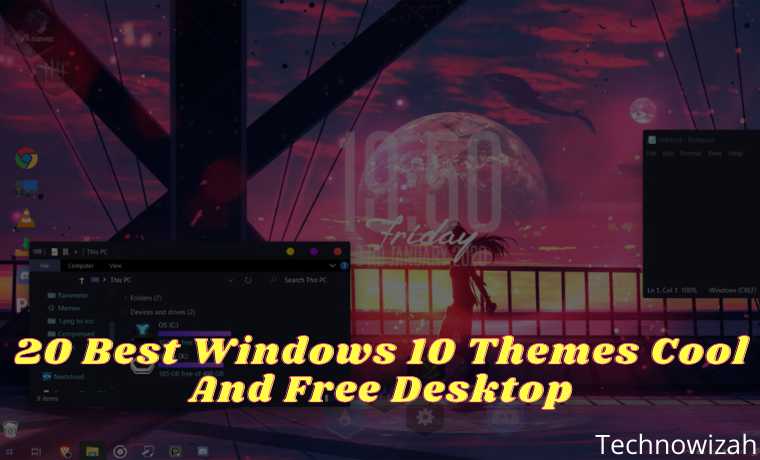
20 Best Windows 10 Themes Cool And Free Desktop – If we talk about the best desktop operating system, without a doubt, most people will choose Windows 10. Not because other desktop operating systems don’t exist, but Windows provides users with more features and customization options compared to each other.
20 Best Windows 10 Themes Cool And Free Desktop
How To Download Windows 10 Themes Cool And Free Desktop
On Windows, you can easily install packages and themes to customize the appearance of the operating system. So, in this article, we have decided to share a list of cool and free Windows 10 themes that will enhance the look of your Windows 10 OS.
All the themes listed in the article are available on the Internet and of course free. So, let’s have a look at the cool Windows 10 Themes to enhance the look of your computer in 2020.
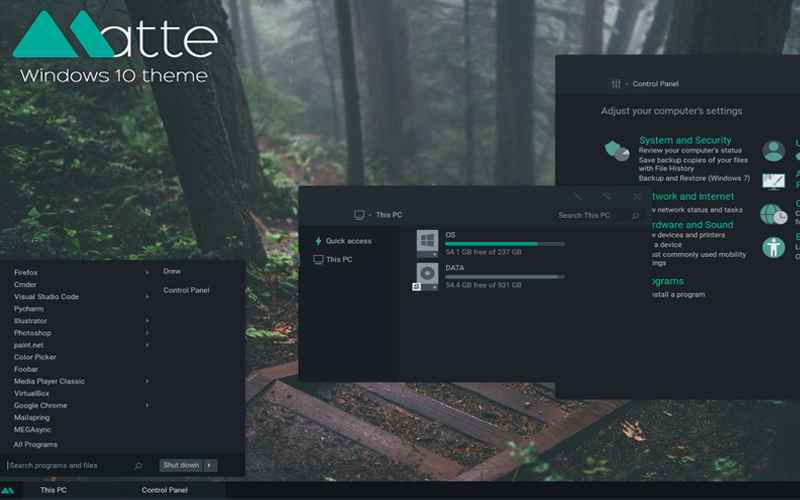
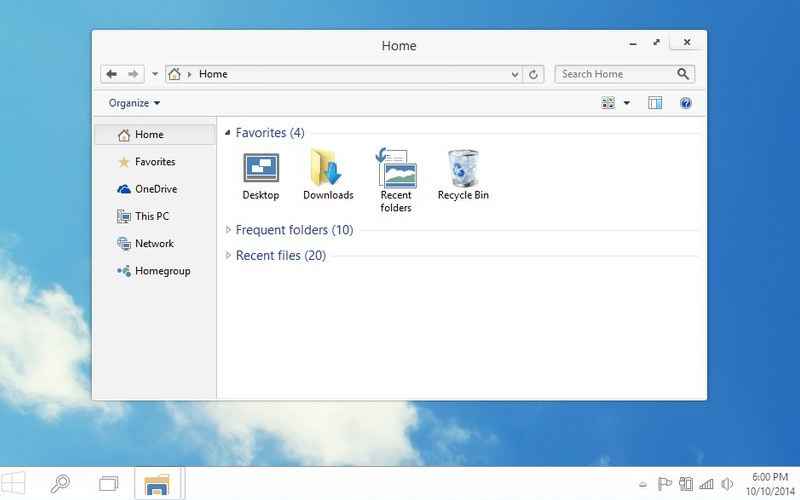
#1. Matte
Matte
According to the admin, this is the coolest Windows 10 theme, because it has an elegant feel to the theme. This Windows 10 theme is also inspired by Dragoon X and Harbor UI.
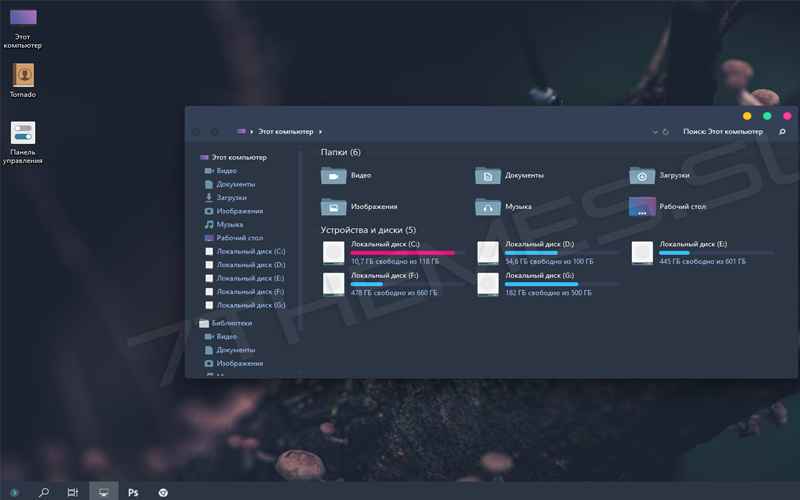
The next cool Windows 10 theme is Gruvy. This theme features round or square edges. Have Regular Style, Dark Mode, or Darkest. Also with or without an address bar and a thin or plain taskbar.
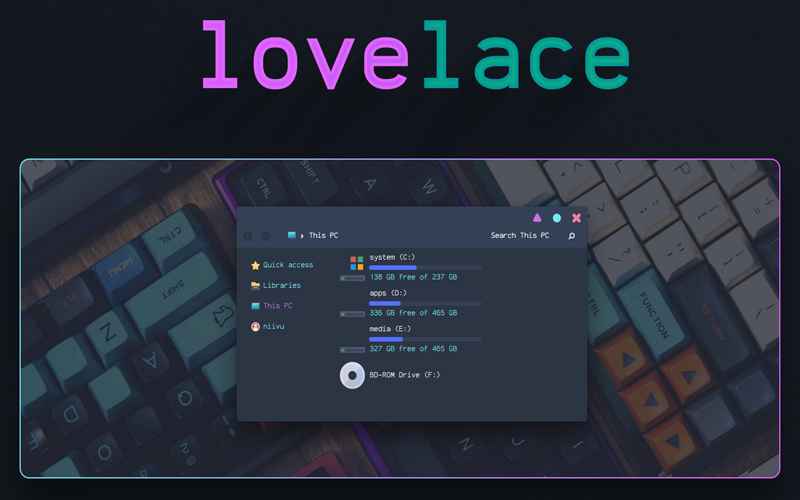
Lovelace is a beautiful and elegant theme that you can try on your Windows 10 operating system. In this theme already embedded packages such as 3 themes, namely normal, dark & darkest, there is a Dock skin and other interesting features.
Download
#4. Nord
Nord
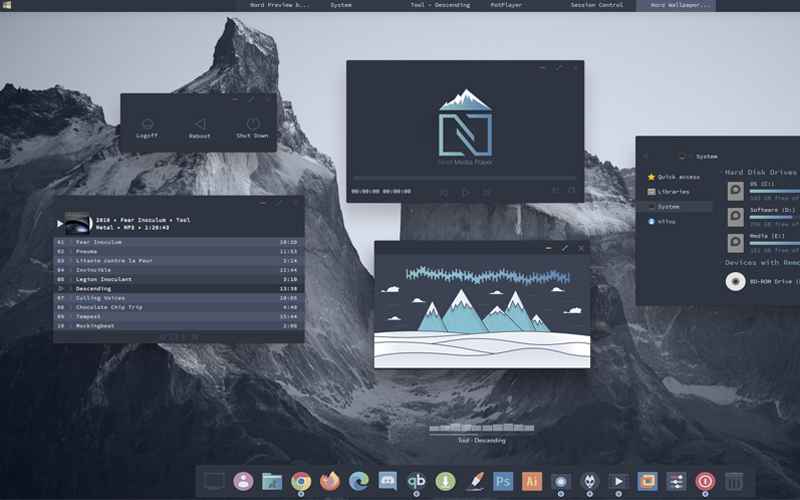
Nord is another cool Windows 10 theme that has all the necessary features and the user interface looks cool too. This is a brand-new theme but has a look and features that cannot be underestimated.
This is another cool Windows 10 theme which can make your Windows 10 operating system look good. Apart from having an elegant interface, this theme is also free to download and gives users lots of customization options.
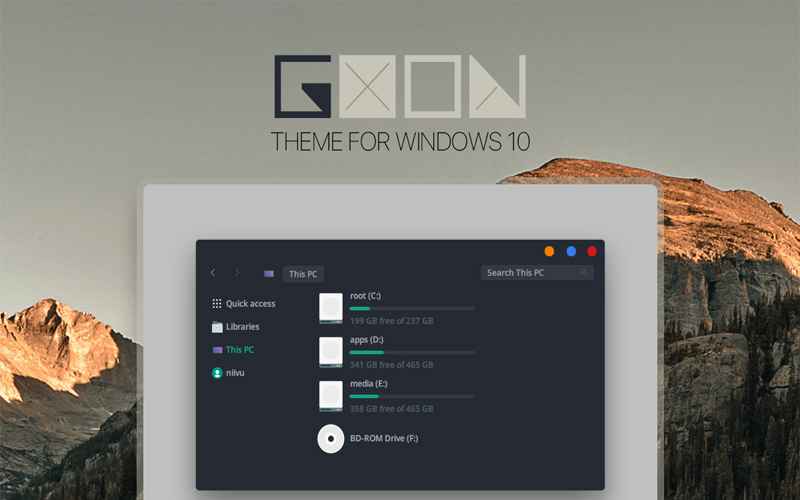
If you are looking for cool Windows 10 themes to enhance your Windows 10 experience, then Goon might be the ideal choice for you. This theme has a clean look. Clean and functional.
Download
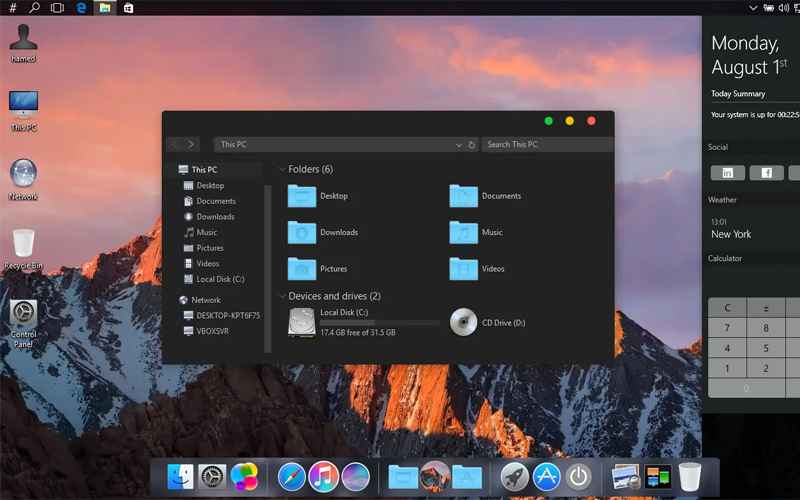
#7. Apple MacOS Sierra
Apple MacOS Sierra
If you want your PC screen to look the same as Apple’s Mac OS X then this will be the right choice for you. Using this awesome Windows 10 theme pack, you can easily change your old UI to the latest macOS X and it will look more shiny than the old one. And yes, it’s free to use.
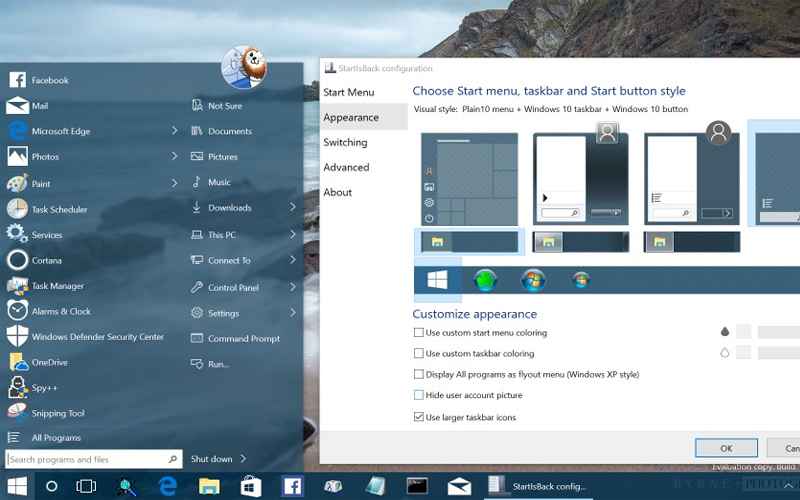
Missing the classic Windows 7 or Windows 10 computer start menu? If so, give this theme pack a try. This is a pack of themes meant to bring a Windows 7-type start menu on Windows 10 computers. So, this theme is for those who have been looking for a way to get a Windows 7 interface in Windows 10.
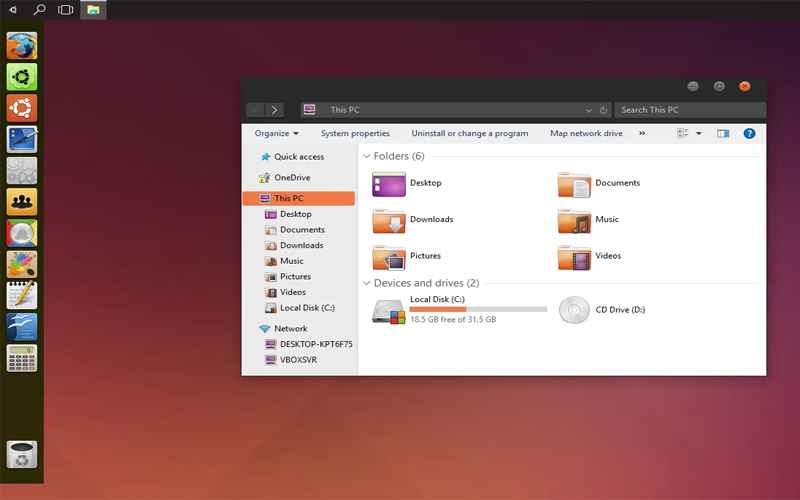
Many of you have used Ubuntu OS, and you can get the full Ubuntu interface on your Windows 10 with this cool theme that will turn your Windows 10 PC into Ubuntu. This is one of the best Windows 10 packs or themes that you can use to get an Ubuntu-type interface.
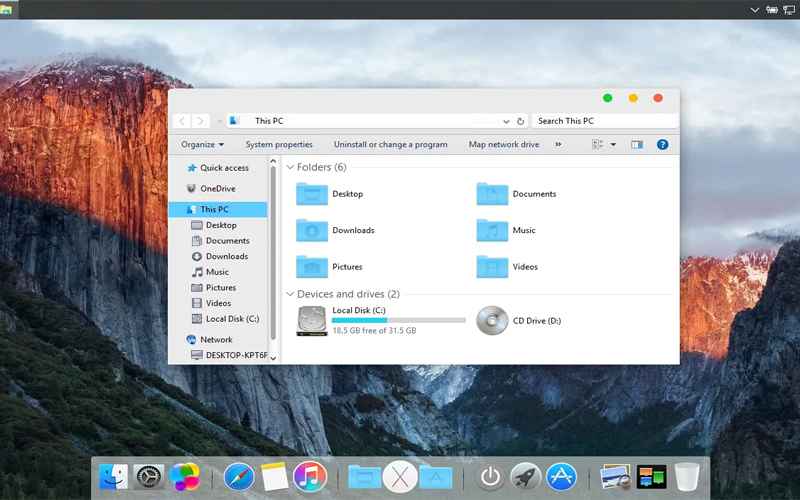
Fascinated by MacBooks? Like iOS? Well, this is a theme that is perfect for your Windows 10 Platform PC or Laptop. You will get almost 80% of features similar to Mac OS. The app drawer and more similar to Mac OS X. You can get the Mac OS X El Capitan theme for free.
This is another beautiful theme that is clean and elegant. The themes are unlimited and have the same look as any online cloud service. This will change and overall improve the appearance of your operating system. You just need to download the Vanilla theme and enjoy it.
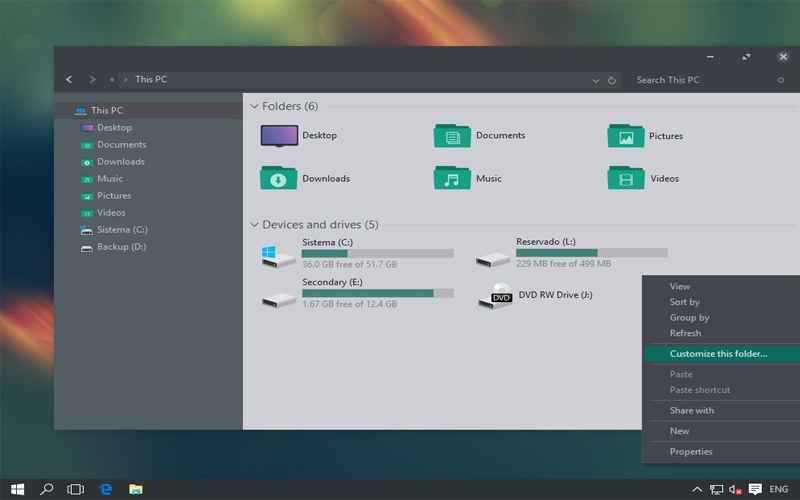
Ades is not a dark Windows 10 theme but contains a combination of dark gray, green, and a little blue. But for those who mostly work on computers and are constantly in front of the skin, Ades is quite soothing to the eyes. It gives a fresh look to your old-school white background in File Explorer and also customizes the icons.
To apply Ades, you need UxThemePatcher to patch the theme with the default Windows theme in the C:\Windows\Resources\Themes folder.
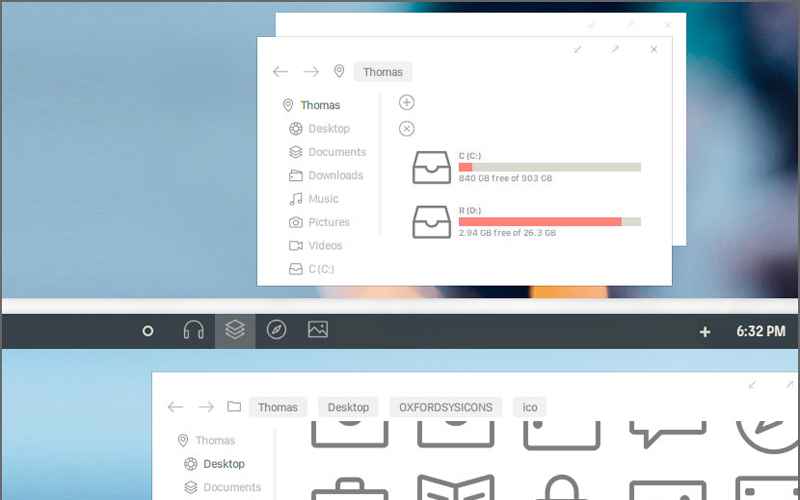
This theme was built with simplicity in mind. Compared to every other Windows 10 theme, the Oxford theme has less animation. It has unique-looking icons but is essentially minimalistic. This minimalist theme is the best theme that you can apply to your Windows 10 computer.
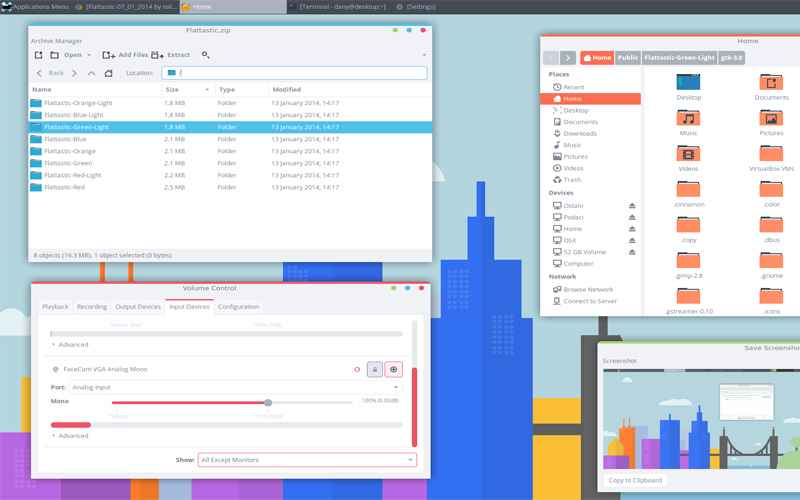
This is one of the best themes that you can use on your Windows 10 computer. This theme includes 8 versions of the Fantastic Light theme and 8 Versions of the Flattastic Dark theme. This theme has a minimalistic look but looks awesome.
Download
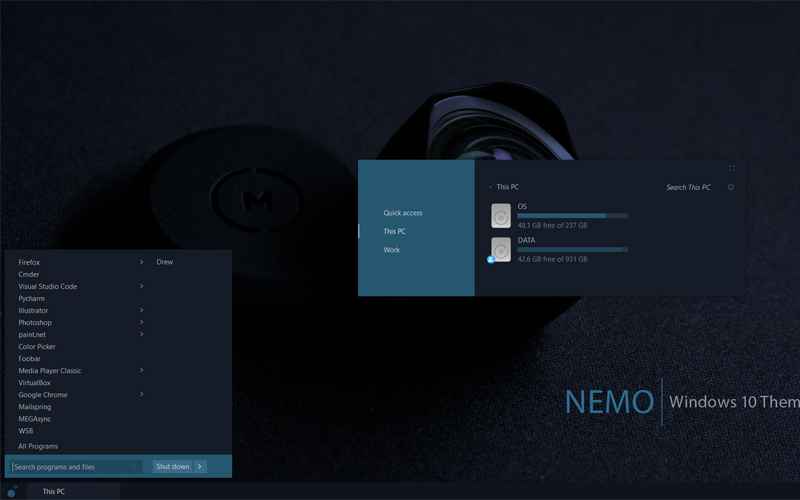
#15. Nemo
Nemo
This is another cool Windows 10 theme that can give your computer a great look that you might not expect. The theme looks simple and can even help increase your productivity and keep your desktop clean.
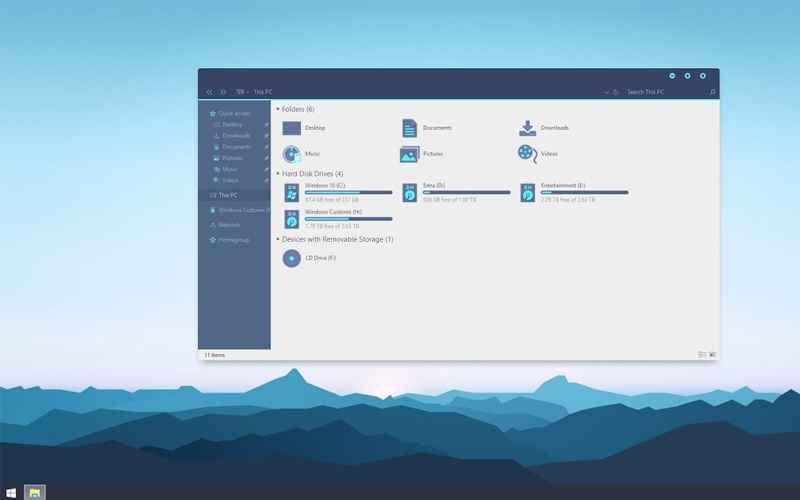
As the name suggests, simplify 10 is the simplest theme available on this list. They want to make things as simple as possible. The colors used in this theme are a perfect example of how developers take the simplest things seriously. It only has classy subdued colors that make this theme stand out from the rest of the themes on this list. No doubt, this theme is full of blue.
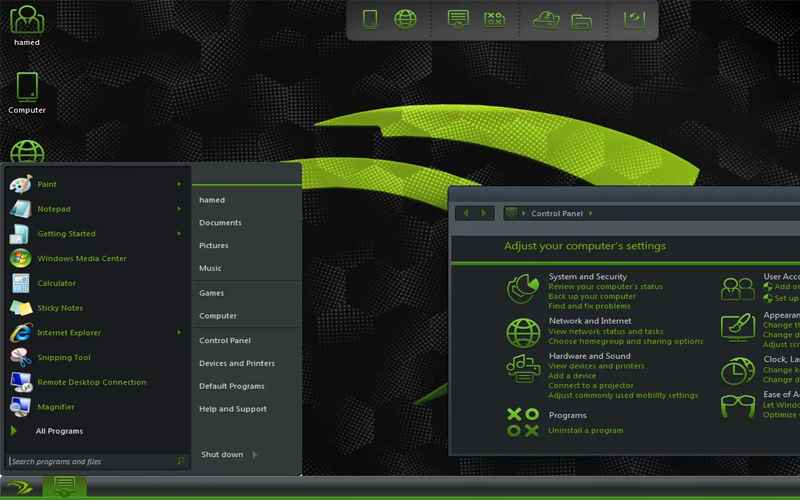
Do you like Nvidia’s color combinations? You can take advantage of the same black and green combination on your Windows 10 computer with Nvidia Skin. Nvidia Skin completely revamped Windows 10’s interface into something darker that not only looks amazing but also feels light on the eyes.
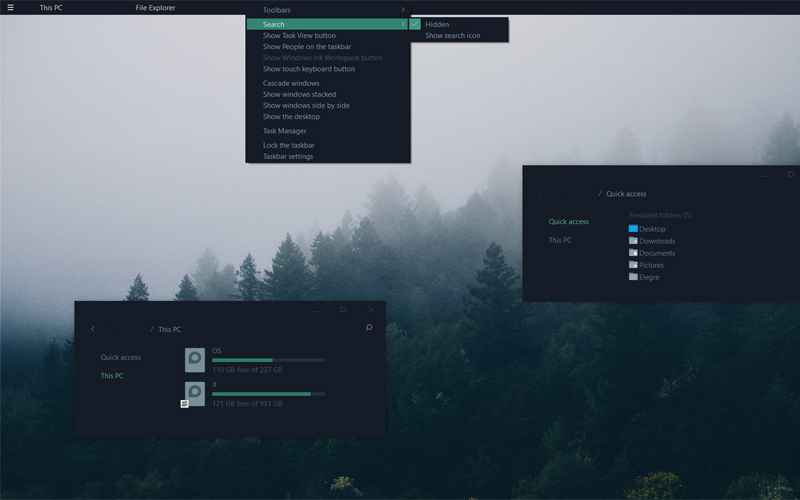
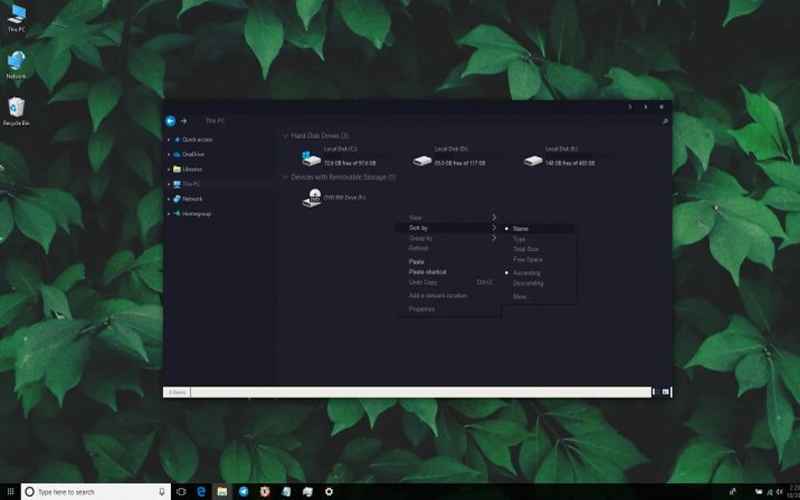
Nocturnal W10 is a dark theme designed for ultimate nocturnal. The theme comes with a clean and dark design, which gives a nice overhaul to the Windows 10 interface that makes things less overwhelming to the eyes, even at night.
Everything from the Control Panel to File Explorer has been given a wonderfully dark touch. So it can be a great choice for Windows users who like dark themes. Please note that Nocturnal W10 is only compatible with Windows 10.
Download
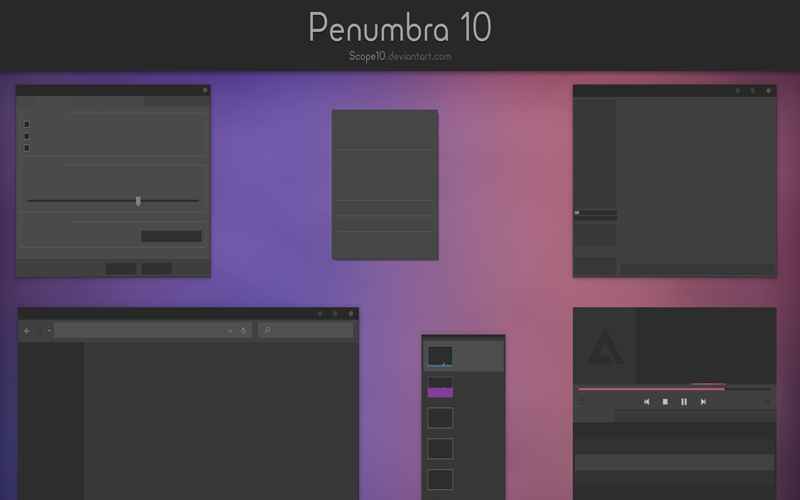
#19. Penumbra 10
Penumbra 10
If you’re tired of the bright conventional Windows interface, you can tone it down a bit by introducing a Penumbra 10 gray mix. With this visual style, you can customize your computer’s background, interface color, sound, and mouse cursor appearance, all to your liking. As long as you work with Windows 10 OS and have the UXtheme Patcher theme engine service, setting the theme on your laptop or desktop computer will run fine.
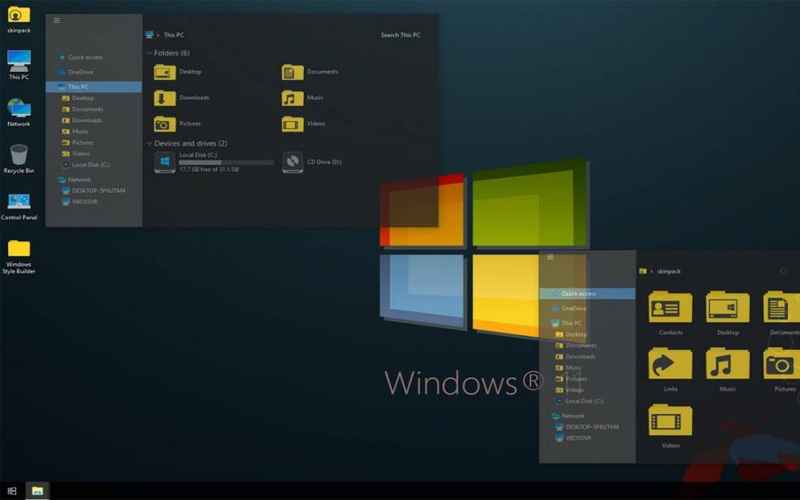
Well, that is another best Windows 10 themes on the list which is based on dark mode. The transparent black color with a yellow blend looks charming. Apart from that, the theme also changes icons and wallpapers periodically. So, Win11 Dark VS is another best Windows 10 theme that you can use right now.
So that’s the list of cool and free Windows 10 themes that you should try. Spread there are many themes available on the internet for Windows 10. Admin has collected and rated the themes from the top ratings and saw them from the appearance of the theme. Hundreds to Thousands of users are using this theme now.
 Read more:
![How to Record the Screen On Windows 11 [2025]](https://technadvice.com/wp-content/uploads/2022/06/How-to-Record-the-Screen-On-Windows-11.jpg "How to Record the Screen On Windows 11 [2025] 4")