Category: Windows

Windows – Here you can find Computer-related updates Windows 10, Windows 8, Windows 7, Linux, technology information, and more.

  • 8 Ways to Check VGA on Windows 10 PC Laptop 2025

    8 Ways to Check VGA on Windows 10 PC Laptop 2025

    8 Ways to Check VGA on Windows 10 PC Laptop – There are many ways to check the type of VGA on your computer. As we know a computer consists of various hardware components. If one of the components is missing, you will not get any image on the monitor screen.
    8 Ways to Check VGA on Windows 10 Laptop PC
    8 Ways to Check VGA on Windows 10 Laptop PC

    How to Check VGA on Windows 10 PC Laptop

    VGA also has an important role here, this component is responsible for processing the graphics displayed on your laptop or monitor screen.

    Read more:

    Every laptop and PC is supported by a graphics processing unit (GPU). Some machines have a GPU built into the motherboard or processor, while others have a dedicated graphics card. If you don’t know what graphics card you have, it’s easier to find out with a different method. Here’s how to check the Laptop/PC VGA on Windows 10.

    Checking the type of VGA card can be done in various ways, either by using additional applications or without using any application. Here are some ways to check laptop/PC VGA on Windows 10.

    #1. Check VGA Through Settings
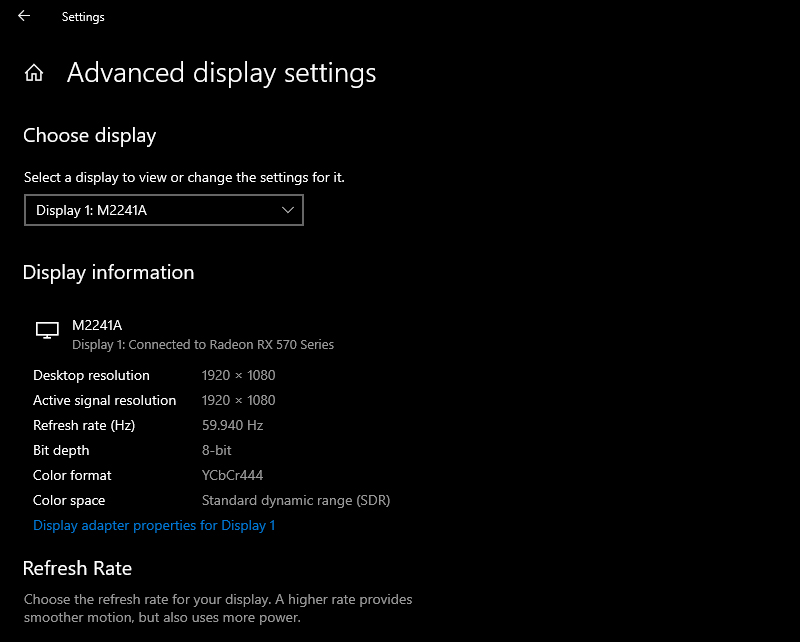
    Check VGA Through Settings
    1. Press Windows Key + I  to open Settings.
    2. Click  System. You will be in the Display section by default.
    3. Under Multiple displays, click  Advanced display settings.
    4. It is possible to have different VGA cards connected to different monitors. If necessary, use the dropdown menu to select your primary monitor.
    5. Under Display information, it will show which graphics card you have connected for that monitor.

    You can also use this section to check the resolution, refresh rate, bit depth, and more.

    #2. Check VGA Through Task Manager
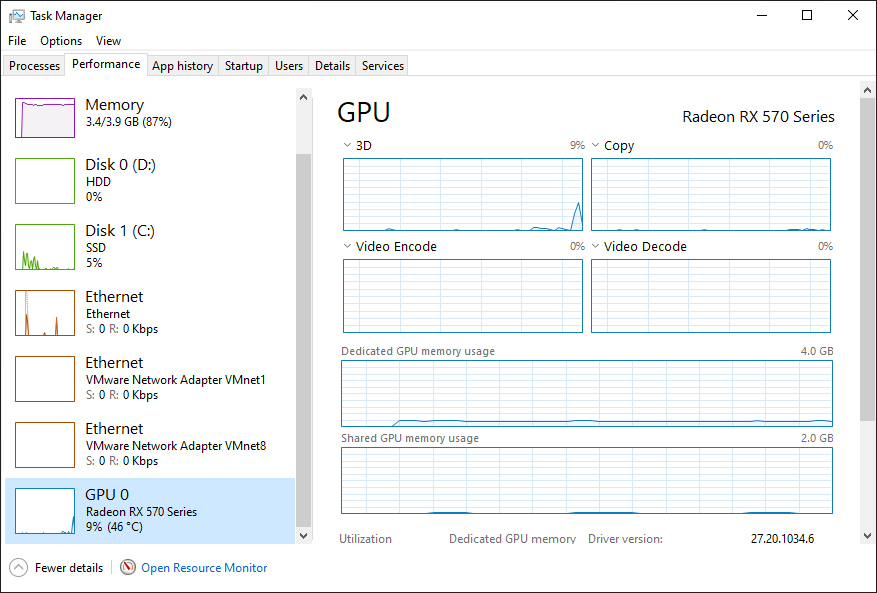
    Check VGA Via Task Manager
    1. Right-click on your taskbar.
    2. Click  Task Manager.
    3. If necessary, click  More Details.
    4. Switch to the Performance tab.
    5. On the left, click  GPU 0  (you’ll see GPU 1, GPU 2, and so on if you have multiple graphics cards).
    6. At the top right, the name of your VGA card will be displayed.

    You can also use this section to check your graphics card’s current load, temperature, driver version, and more.

    #3. Check VGA Via DirectX Diagnostic Tool
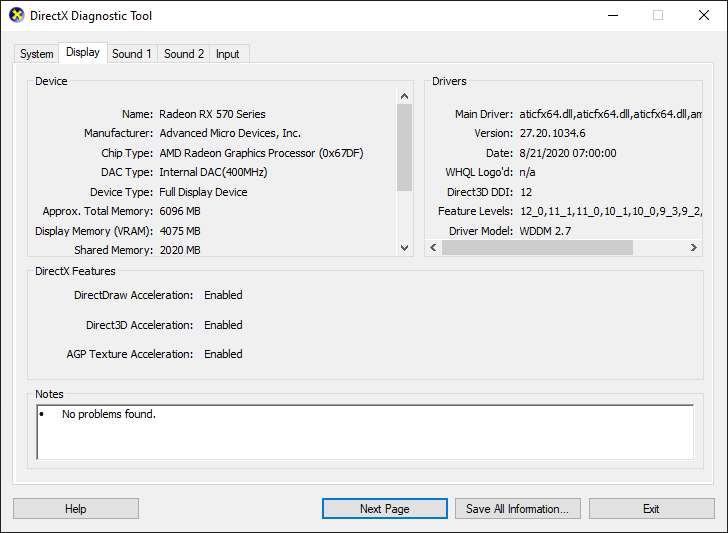
    Check VGA Via DirectX Diagnostic Tool
    1. Press the Windows key + R  to open the Run box.
    2. Enter dxdiag and click  OK. This opens the DirectX Diagnostic Tool.
    3. Switch to the Display tab.
    4. Under  Device, under Name, your VGA card will be displayed.

    You can also use this tool to view your graphics card memory, driver information, and monitor information.

    #4. Check VGA Via Device Manager
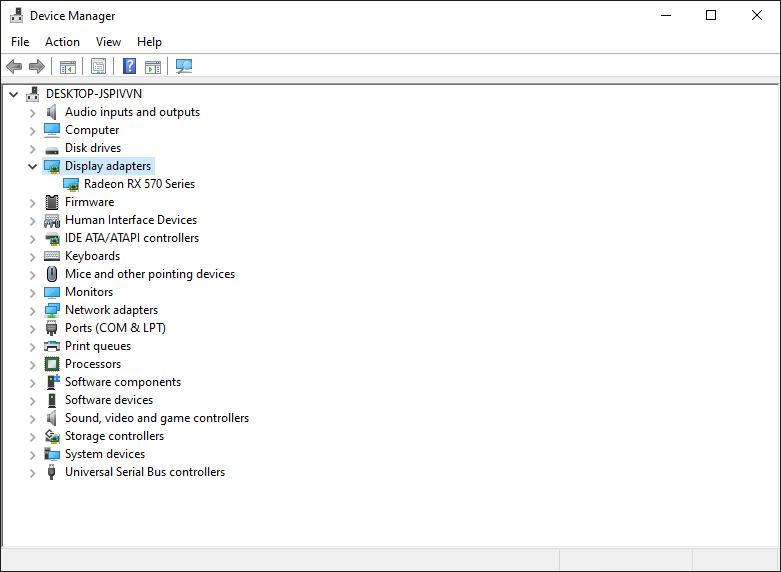
    Check VGA Via Device Manager
    1. Press  Windows Key + X.
    2. Click  Device Manager.
    3. Double-click on  Display adapters. This will list all your graphics cards.

    If necessary, double-click the graphics card to open its properties to view additional driver information or view the event log. For example, you can switch to the Driver tab and click  Update Driver to search for the latest drivers online.

    #5. Check VGA Through System Information
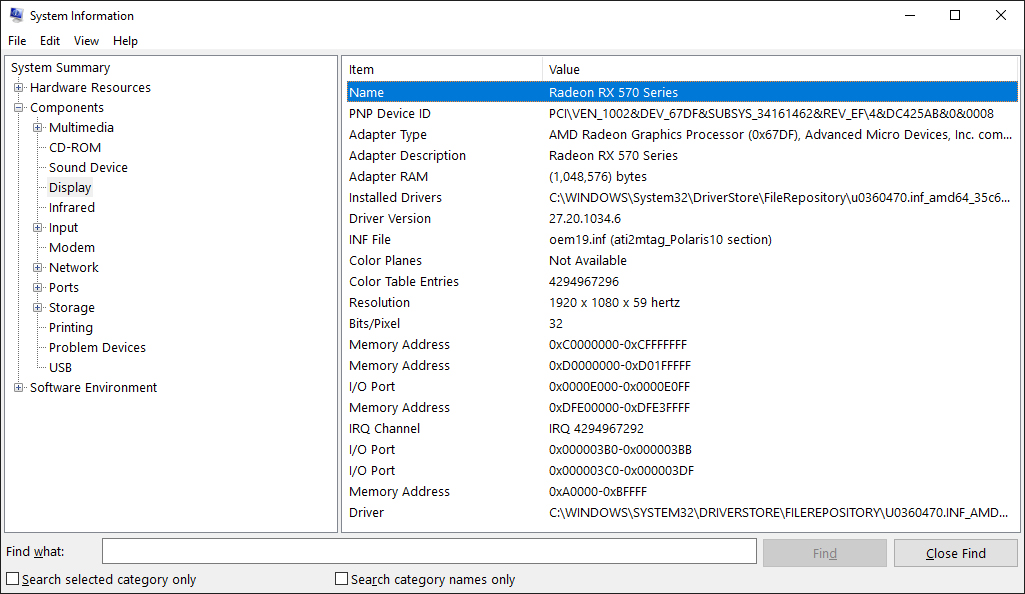
    Check VGA Through System Information
    1. Type  System Information in the Start Menu search bar, then select the best match.
    2. In the left pane, double-click on  Components.
    3. Click  Displays.
    4. In the right pane, under Name, your graphics card will be displayed.

    You can also use System Information to find out about your other components, like sound devices or storage drives, or check the Software Environment for things like running services or print jobs.

    #6. Check VGA Via Manufacturer Control Panel
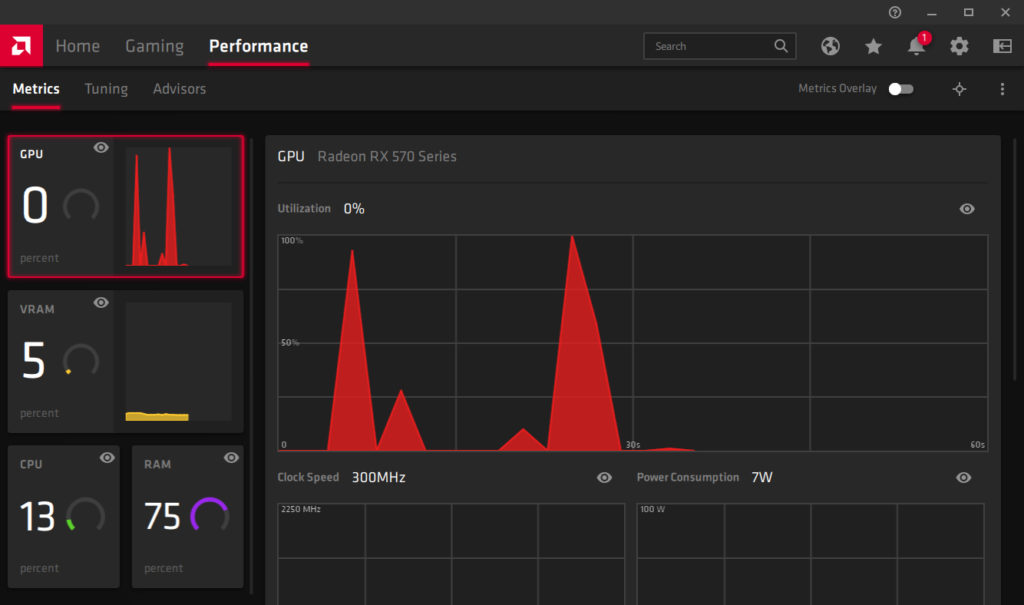
    Check VGA Via Manufacturer Control Panel

    If you have an integrated graphics card, chances are it was manufactured by Intel or AMD. If your graphics card is dedicated, it’s most likely from AMD or Nvidia.

    Therefore, you should do a system search for the brand name to see if you have the control panel program installed. For example, AMD has Radeon Software, and Nvidia has GeForce Experience.

    This program will give you detailed information about your graphics card, just go to the settings page. You’ll also find lots of customization options in the program, such as enabling features like FreeSync or G-Sync.

    #7. Check VGA Via GPU-Z
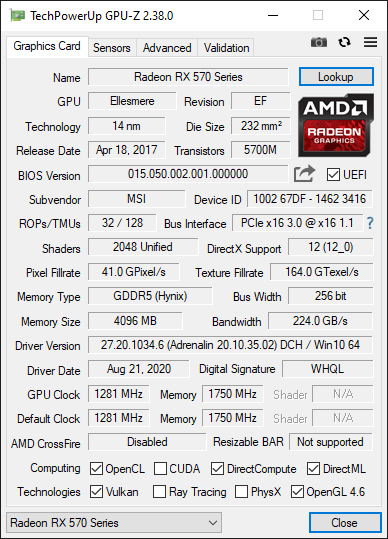
    Check VGA Via GPU-Z

    In addition to the method above, another way to check the laptop’s VGA is to use the GPU-Z application. This application was developed by TechPowerUp and you can download it for free on the official website. GPU-Z is claimed to be very reliable in checking VGA cards on laptops and PCs. Even the information it provides is very accurate. There you can check the GPU name, memory type, memory type, chipset size, graphics card name, and much more.

    You no longer need to doubt the ability of this one application. This application also supports various types of graphics cards, from Intel, NVIDIA, AMD, and also ATI.

    #8. Check VGA Via Speccy
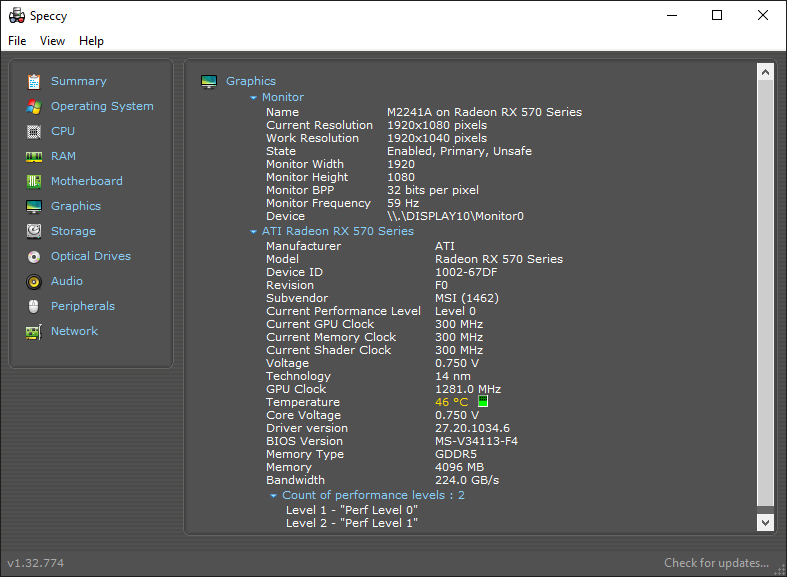
    Check VGA Via Speccy

    Another application to check VGA on a Laptop/PC is Speccy. Speccy is an application developed by Piriform to view computer specifications. The detailed hardware data displayed by Speccy can be said to be more complete than using the control panel or the Diagnostic Tool.

    This application provides detailed data on all hardware on the computer. Including CPU, Motherboard, RAM, Graphics Cards, Hard Disks, Optical Drives, and more. Speccy also adds temperature data on several components, this is very useful to know the condition of the hardware.

    Read more:

    Conclusion:

    Now that you know how to check your laptop or PC’s VGA on Windows 10, you might start thinking it’s time to upgrade, especially if your computer can’t handle intensive tasks like editing videos or playing games.

    That’s where the benefits of a dedicated graphics card are. They cost more but are much more powerful than the integrated ones because they have their chip, memory, and fan to keep them cool.

  • How to Quickly Open Command Prompt in Windows 10 [2025]

    How to Quickly Open Command Prompt in Windows 10 [2025]

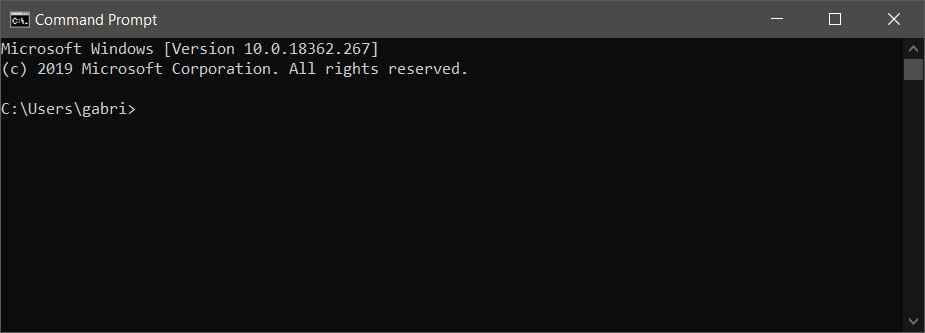
    How to Quickly Open Command Prompt in Windows 10 PC – If you want to know how to open a Command Prompt in Windows, there are several methods you can use. Please read the following article to learn what Command Prompt is and what it does.

    How to Quickly Open Command Prompt in Windows 10
    How to Quickly Open Command Prompt in Windows 10

    How to Quickly Open Command Prompt in Windows 10 PC

    What is the Command Prompt?

    Command Prompt is a program that you can use to execute commands on your Windows computer. This tool is useful for troubleshooting problems or for setting up automatic tasks in the Windows operating system.

    Read more:

    Command Prompt can help you find your IP address, perform system repairs, and other admin functions. If you’re familiar with macOS, Command Prompt is similar to Terminal App.

    Warning: Making changes in the Command Prompt can damage your computer. If you don’t know what to do, it’s best to contact a professional technician before doing anything at the Command Prompt.

    How to Quickly Open Command Prompt in Windows 10

    There are several ways to open a Command Prompt, depending on your operating system.

    How to Quickly Open Command Prompt on Windows 10 PC

    #1. Open Command Prompt With Run Window

    Every newer version of Windows comes with a Run Window, which can be used to open a Command Prompt.

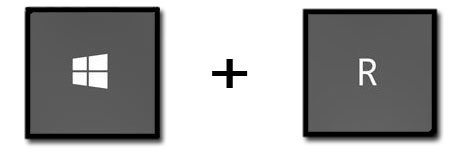
    1. Press Windows key + R on your keyboard.

    How to Quickly Open Command Prompt in Windows 10

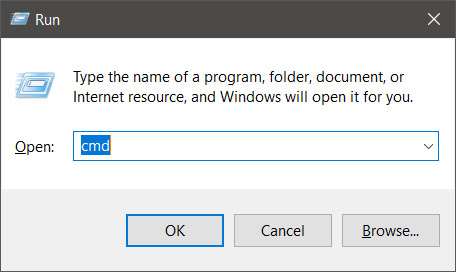
    2. Type “cmd” in the search box.

    3. Then click OK or press Enter.

    How to Quickly Open Command Prompt in Windows 10

    #2. Open Command Prompt in Application

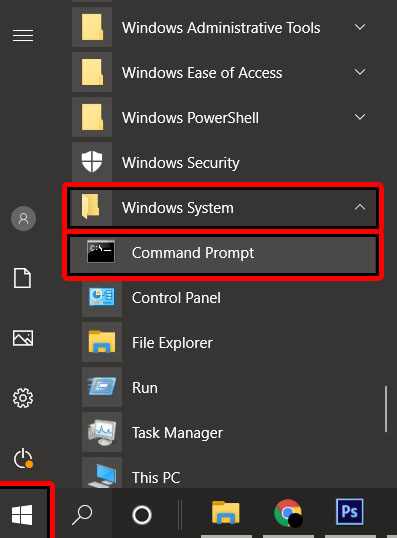
    Another way to open Command Prompt in Windows 10 is by going to the Start menu folder. Here are the steps:

    1. Click on the Start button. 
    2. Scroll down the application list until you see the “Windows System” folder.
    3. Click on Windows System.
    4. Then click Command Prompt.

    Open Command Prompt in Application

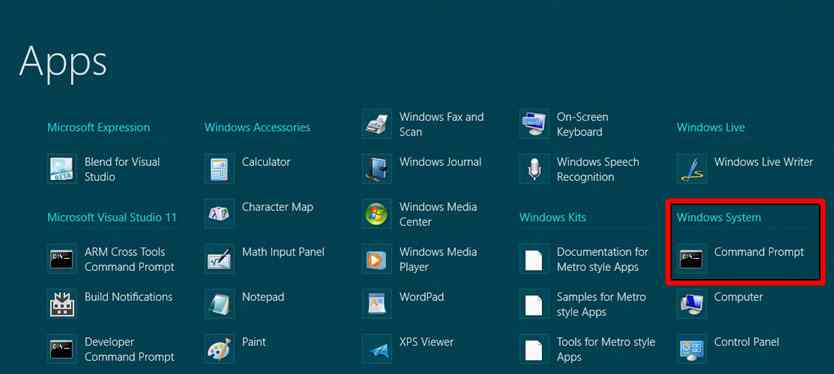
    #3. How to Open Command Prompt in Windows 8.1

    If you are running Windows 8.1, you can open a Command Prompt by following the steps below:

    1. Click the Start screen.
    2. Tap All Apps.
    3. Open the Windows System folder. 
    4. Click Command Prompt.

    How to Open Command Prompt in Windows 8.1

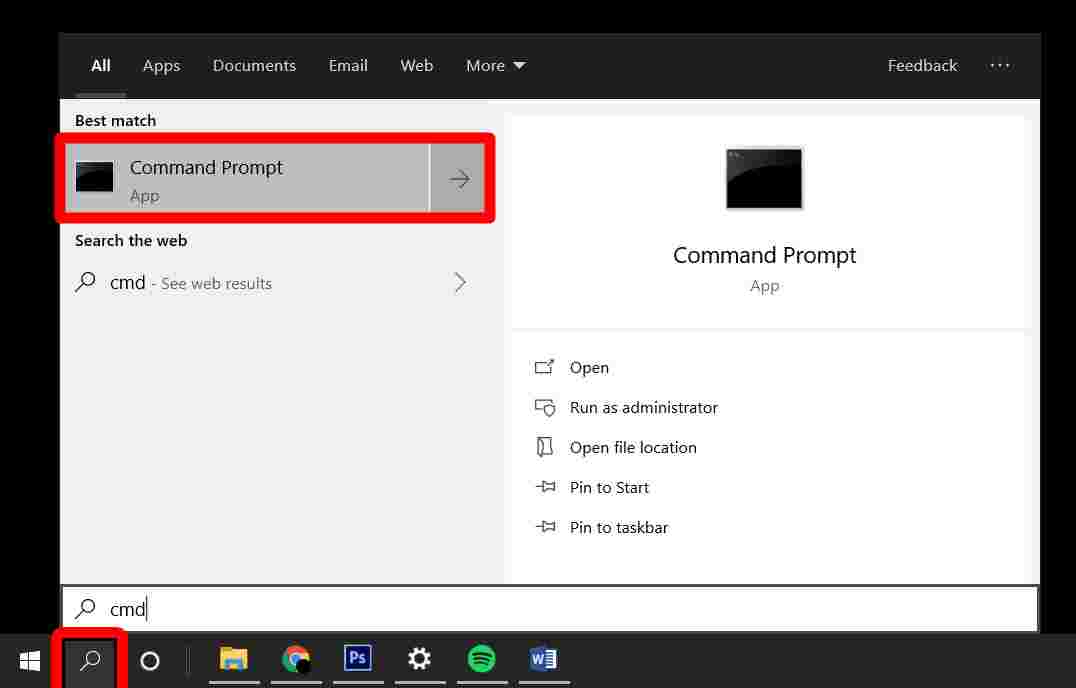
    #4. How to Open Command Prompt with Search Button

    1. Click on the Search button. This button is in the lower-left corner of the screen and resembles a magnifying glass.
    2. Type “cmd” or “command”.
    3. Select Command Prompt.

    How to Open Command Prompt with Search Button

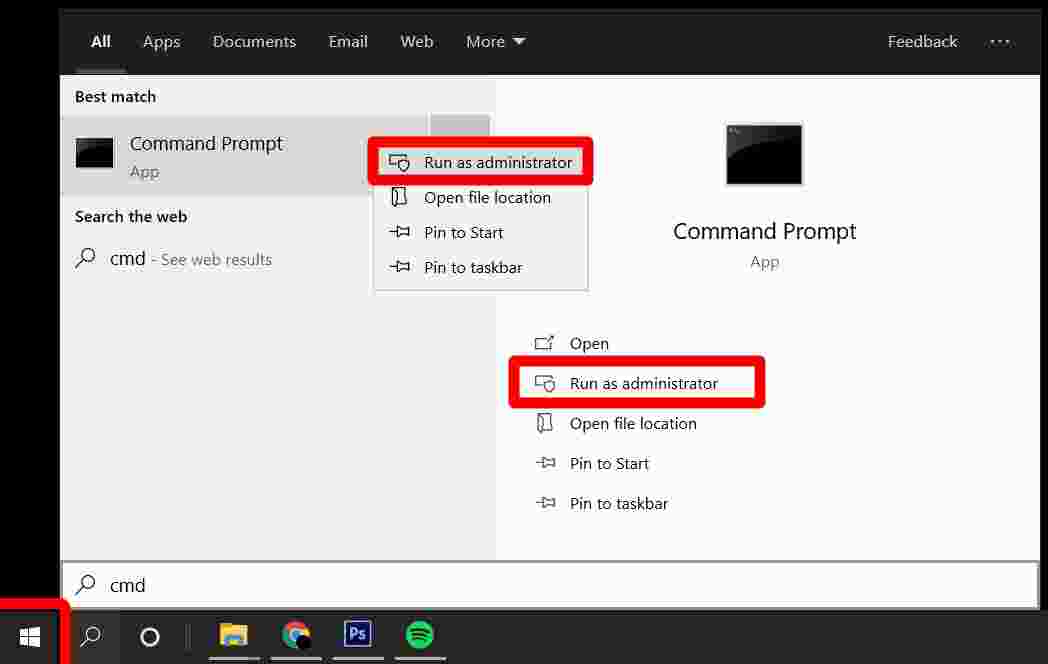
    #5. How to Open Command Prompt as Administrator

    Follow the steps below on how to run Command Prompt as administrator:

    1. Type “CMD” or “command” in the taskbar search field.
    2. Right-click on the Command Prompt search result.
    3. Click Run as administrator

    How to Open Command Prompt as AdministratorNow you know how to quickly open Command Prompt in Windows 10.

    Read more:

  • How to Start in Safe Mode in Windows 11 [2025]

    How to Start in Safe Mode in Windows 11 [2025]

    How to Start in Safe Mode in Windows 11 – How to start Safe mode in Windows 11, what it is and what it is for, and how to get out of it. If you’ve come this far, you may wonder how to boot into Safe Mode in Windows 11.

    How to Start in Safe Mode in Windows 11

    How to Start in Safe Mode in Windows 11

    Apart from explaining how to start Safe Mode in Windows 11, in the following sections, we will also tell you what exactly it is and what it is for. Finally, we explain how to exit Safe Mode after starting it.

    Read more:

    What is Safe Mode in Windows 11 and what is it for?

    A safe Mode is a diagnostic tool that runs Windows with basic software to make it work. This way, you disable all third-party applications and hardware drivers that are not strictly necessary.

    Therefore, the disposable components stop working and the others do it in a basic way, like a graphics card.

    The main function of safe mode is to help detect what went wrong during boot and operating system execution. It is also often used to remove malicious files or viruses from the computer.

    Since Windows is running on the lowest version, it is very easy to determine if the problem stems from third-party software or if there is something wrong with the system itself.

    Safe Mode has different variants. They are as follows:

    • Safe mode. This is the simplest mode you can use in Windows 11. It only gives you access to the basic interface and is ideal for checking if the error on your computer is coming from the network adapter, as it is not activated automatically. It’s also perfect for keeping your computer isolated from other devices on the network.
    • Safe Mode with Networking. In this case, the drivers, applications, and other tools that are loaded are exactly the same as in Safe Mode. The difference is that access to the local network and the Internet is allowed.
    • Safe Mode with command prompt. Be careful with this mode. It’s important to take a close look at what the main Command Prompt commands are, as the interface won’t exist. This means that neither the taskbar nor the desktop icons will be visible. Only one window is displayed for writing commands. If you enter this mode incorrectly, use the shutdown /s command to exit.

    How to start Safe Mode in Windows 11

    Safe Mode in Windows 11 can be started in various ways. Here we leave you both very simply.

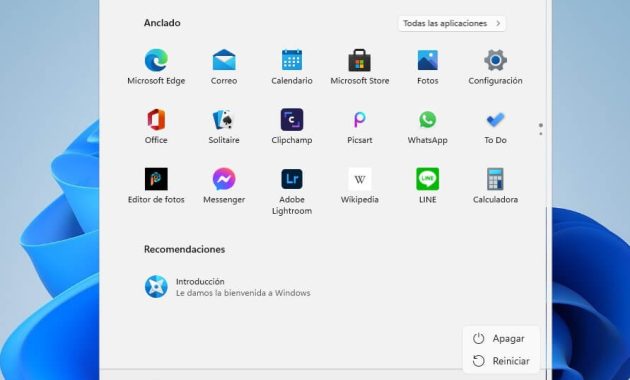
    #1. How to Start Safe Mode with the restart button

    The easiest way to enter safe mode is with the Restart button in the start menu. But hey! It’s not enough to click on it. You need to press them together by holding down the Shift key.

    How to Start Safe Mode with the restart buttonThe result of doing so is that the computer will display advanced startup options. Use your keyboard or mouse to select   Troubleshoot.

    Next, go to Advanced Options to see all the tools to repair your computer.

    Among them, you need to go to Startup Settings. Click to continue.

    Finally, click Restart. The computer will start again, although not in the usual way.

    During startup, Startup Settings will appear. Here you have to choose the option that best suits your needs. Safe mode is activated by pressing the F4, F5, or F6 keys.

    If you want to know more about each variant, see the explanation we gave at the beginning of this article. In most cases, selecting the Safe Mode with Networking option is more than sufficient.

    Then wait for the computer to boot with most of the system components disabled.

    #2. Start Safe Mode with system settings

    Another way to start safe mode is with Windows 11 setup. Do as follows:

    1. Open the Settings app.
    2. Access the System section to view Windows-related options.
    3. Log in to Recovery.
    4. In the Advanced Startup section, use the Restart Now button.

    These steps will achieve the same effect as   Shift + Restart. Follow the instructions we have given you in the previous section to enter Safe Mode in Windows 11.

    What is Safe Mode like in Windows 11?

    The appearance of safe mode in Windows 11 is very similar to that in previous versions. The wallpaper was completely removed and replaced with a plain black one.

    In addition, a sentence appears in the corners of the  Modo insurance screen. And if you look at the top, you’ll see the build number and Windows version listed.

    In general, the behavior of the computer is very similar to the ordinary one. However, if you use a system-started tool, such as Google Drive, OneDrive, or Discord,  it won’t launch when you turn on your computer.

    But, that does not mean this tool does not work. Instead, you have to run it manually. Some components built into Windows 11 are also not available. For example, during our tests, we were unable to use search to find files and apps.

    Lastly, you should know many other aspects of a functioning system. Window animation is enabled. You can also take a screenshot with the shortcut   Windows + Print Screen. It is even possible to use most keyboard combinations.

    How to exit Safe Modern in Windows 11

    We’re happy if you’ve managed to detect what’s wrong with your computer thanks to Safe Mode in Windows 11! One of the purposes of this article is exactly that.

    However, once it reaches its destination, Safe Mode is no longer needed. Do you want to know how to get out of it?

    To exit Safe Mode in Windows 11, all you have to do is restart your computer. You can use the method you like the most or the one you use the most.

    Whether you use the  Restart button in the start menu or select the   Alt + F4 option, the next time Windows starts, Safe Mode will be gone.

    Read more:

    Conclusion:

    So, friends, This is the explanation of how to start in safe mode in Windows 11, I hope this short guide is helpful for you. Have you ever been forced to use Safe Mode? If so, let us know why by leaving your comment.

  • 8 Ways to Fix Unreadable External Hard Drive 2025

    8 Ways to Fix Unreadable External Hard Drive 2025

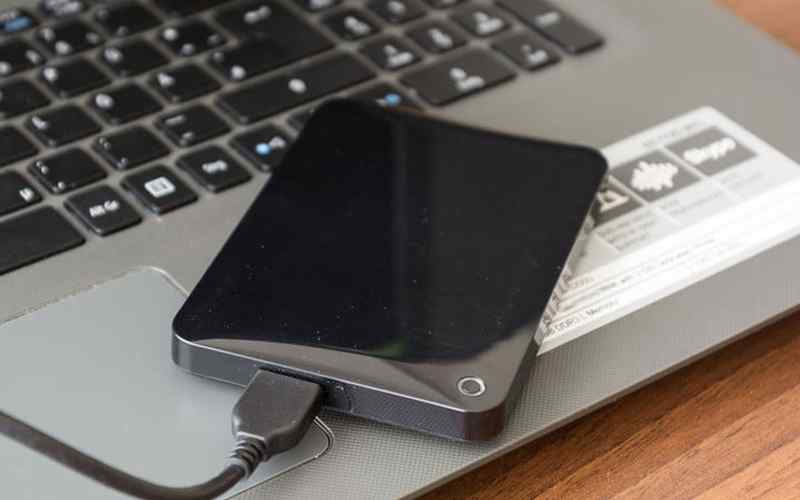
    8 Ways to Fix Unreadable External Hard Drive – External hard drives are popular because of their large capacity and flexibility or can be carried anywhere. However, have you ever experienced a situation where the external hard drive is not read in Windows when you connect it to a computer or laptop? It is a common problem that many users complain about.

    8 Ways to Fix Unreadable External Hard Drive
    8 Ways to Fix Unreadable External Hard Drive

    How to Fix Unreadable External Hard Drive on Laptop PC

    Why does this unreadable external hard drive case appear? In general, many causes can cause this problem to occur, such as file system errors, out-of-date drivers, lost partitions, corrupted USB ports, etc. In this post, we will give you some practical methods to fix an unreadable external hard drive.

    Read more:

    #1. Make sure the external hard drive gets enough power

    Make sure the external hard drive gets enough power
    Make sure the external hard drive gets enough power

    Although some external devices such as USB drives may be able to draw sufficient power from your computer’s USB port, other drives especially larger drives such as external hard drives may require quite higher power to power on.

    So when the external hard drive is not receiving proper power from the computer, it can cause the external hard drive to be unreadable on the computer. For that make sure your computer has enough power supply.

    #2. Try Another USB Port Or Another PC

    Try Another USB Port Or Another PC
    Try Another USB Port Or Another PC

    If the external hard drive still doesn’t work, unplug it and try another USB port. It’s possible that the port in question failed. If it’s plugged into a USB 3.0 port, try a USB 2.0 port. If it’s plugged into a USB hub, try connecting it directly to a PC instead. You can also try it on another computer.

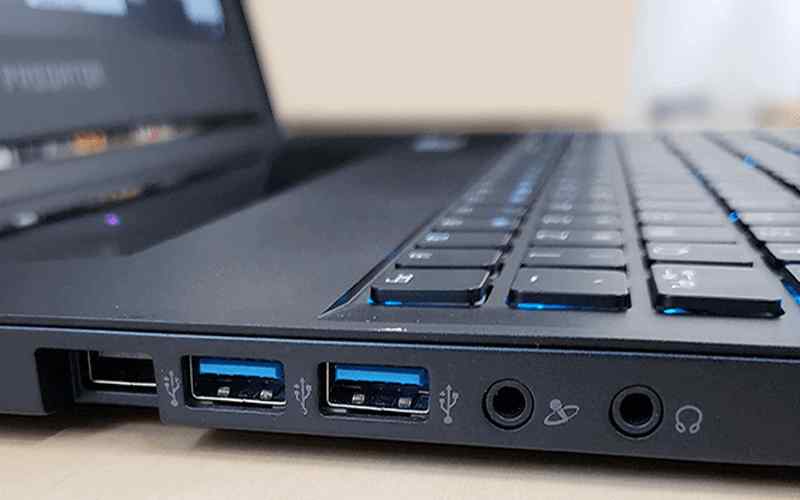
    Checking the hardware connection is very important because if something goes wrong with the USB port or USB cable, the external hard drive may not be read.

    #3. Check the External Hard Drive In Disk Management

    If you are still experiencing an external hard drive connected but not reading on your Windows computer, you can open Disk Management to check its status.

    Case 1: External Hard Drive Becomes Unallocated Space

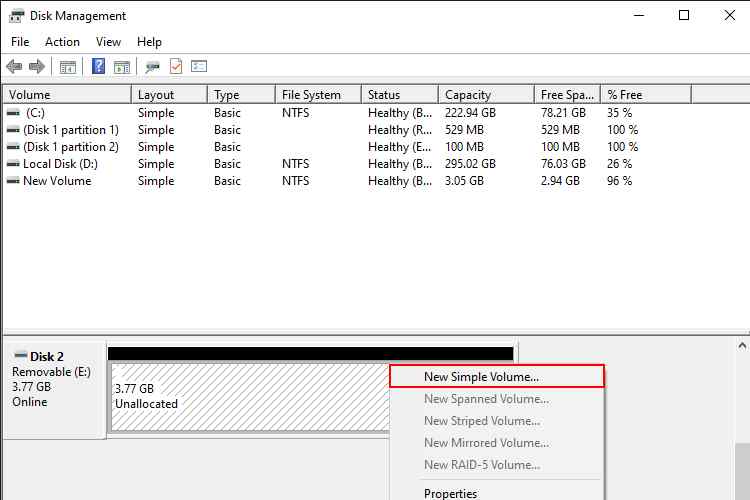
    If the external hard drive is displayed as Unallocated, certainly, the hard drive will not appear in File Explorer. To make it visible, you need to create a new volume with unallocated space.

    External Hard Drive Becomes Unallocated Space
    External Hard Drive Becomes Unallocated Space
    1. Right-click the unallocated space. Select  New Simple Volume and click  Next.
    2. Specify the volume size. Fill in the Drive Letter and Path sections. Click  Next to continue.
    3. Complete Format Partition. Click  Finish to confirm in the New Simple Volume Wizard.

    Case 2: External Hard Drive Doesn’t Have Drive Letter

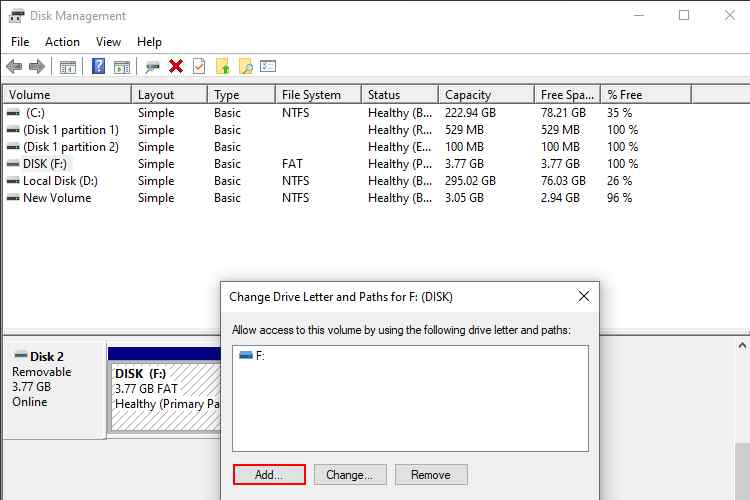
    The external hard drive will also not appear without the drive letter. So, assign a drive letter, if it’s not in Disk Management.

    External Hard Drive Doesn't Have Drive Letter
    External Hard Drive Doesn’t Have Drive Letter
    1. Right-click the external hard drive and select  Change Drive Letter and Paths from the menu.
    2. In the pop-up window, click  Add.
    3. Assign the drive letter and click  OK  to confirm the changes.

    Case 3: External Hard Drive Not Initialized

    You can complete the initialization this way:

    1. Right-click the external hard drive, which will show as  Unknown, Not initialized disk.
    2. Click Initialize Disk from the context menu.
    3. Then, select MBR or GPT for the partition type. Click  OK  to confirm.

    Alternatively, you can use  MiniTool Partition Wizard to initialize the disk to MBR or GPT disk easily.

    #4. Check And Update Device Drivers

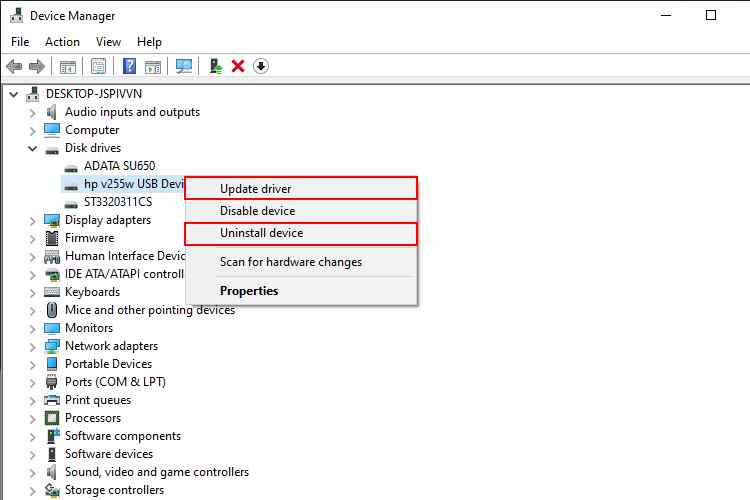
    Sometimes, Windows encounters a driver issue that makes the device unrecognizable. You can check device drivers in Device Manager to see if they need updating.

    Check And Update Device Drivers
    Check And Update Device Drivers
    1. Open  Device Manager in a way according to your Windows system.
    2. Find and expand  Disk drives.
    3. Right-click the target drive and select  Update driver or  Uninstall device. Follow the related instructions to complete the process.

    #5. Clean the Disk And Start From Scratch

    To regain the full capacity of your drive, you will need to run the Windows “clean” command, which will return the drive to a completely unformatted state. This will erase everything on it, so make sure there is no valuable data on your external hard drive.

    Clean Disk And Start From Scratch
    Clean Disk And Start From Scratch
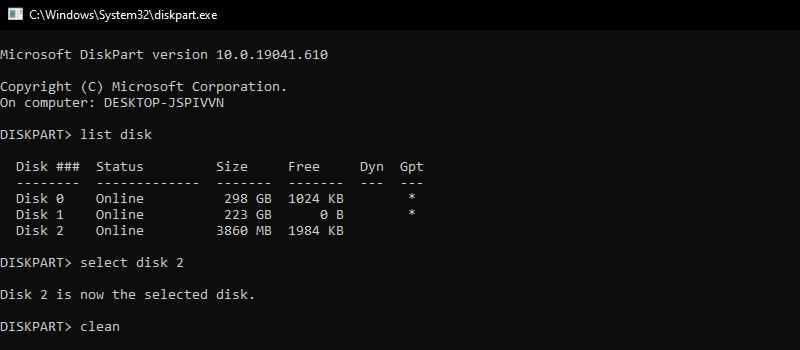
    1. Open the Start menu then type ” diskpart “, and press Enter.
    2. When the Command Prompt appears, type “list disk” and press Enter to see the disks plugged into your system.
    3. If you see the drive in question appear, pay close attention to its size, note its name (say, “Disk 2”), and run the “ select disk 2 ” command, using the disk you want to clean.
    4. Finally, type “ clean ” and press Enter. This will erase the disk.

    #6. Update Windows System To The Latest

    You can also try installing the latest Windows to fix an unreadable external hard drive, such as updating device drivers.

    Update Windows System To The Latest
    Update Windows System To The Latest
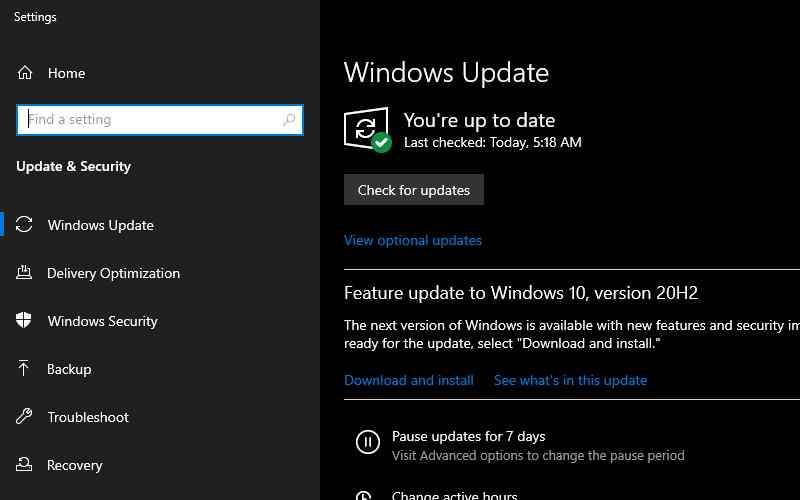
    1. Type  Windows Update in the Windows search box and press Enter.
    2. Click  Check for updates and wait a few moments.
    3. Follow the next process as requested.

    #7. Reinstall USB Controllers

    Try reinstalling the USB controllers in Device Manager with the following steps.

    Reinstall USB Controllers
    Reinstall USB Controllers
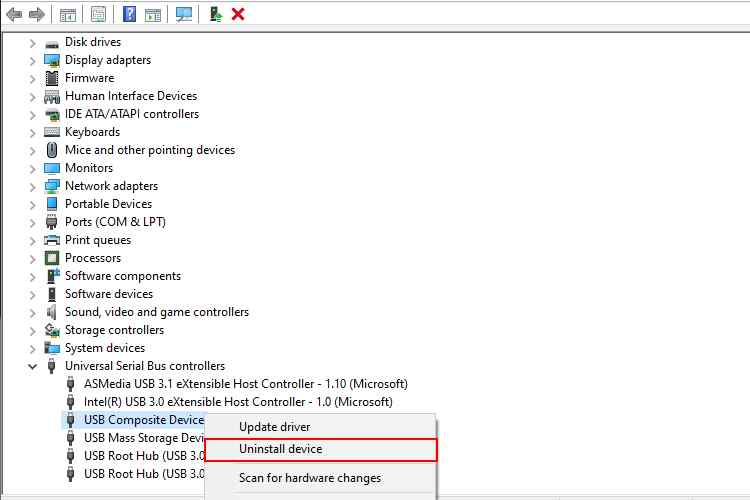
    1. Go to Device Manager.
    2. Find and expand  Universal Serial Bus controllers. 
    3. Right-click the device and select  Uninstall device. Click  Uninstall in the pop-up window.
    4. Repeat this method to remove all devices under Universal Serial Bus controllers.
    5. Reboot the computer. Windows will automatically install the USB controller.

    #8. Remove And Test the Bare Drive

    If none of the options above work, you’ll need to remove the drive from its external enclosure and test the drive yourself. The component that converts that SATA drive to USB can fail, which means the drive could be fine if you plugged it in some other way. If you have a desktop PC available, you can open it up and plug the drive directly into your motherboard.

    Otherwise, you can buy a new external SATA-to-USB adapter dock or cover, plug your empty drive into it, and then connect it to your PC via USB. If it works, then your old enclosure (or power supply) is probably dead. If your external hard drive is still unreadable, you may have a dead drive. Contact the manufacturer to see if you are still under warranty.

    Read more:

    Conclusion:

    So those are some ways to fix an unreadable external hard drive. Since external hard drives are unreadable occasionally, you need to know how to deal with them. Admin hopes that one of the methods above can solve your problem. But if your external hard drive remains unreadable, it might be time to buy a new one.

  • 7 Best Ways To Enable WiFi on Laptop Windows 10 PC 2025

    7 Best Ways To Enable WiFi on Laptop Windows 10 PC 2025

    7 Best Ways To Enable WiFi on Laptop Windows 10 PC – Before discussing how can I activate fast and easy wifi on a laptop, let’s discuss it first. New laptops are equipped with a built-in WiFi adapter. If not, who wants to buy it considering that currently, WiFi is a necessity for the majority of people?

    7 Best Ways To Enable WiFi on Laptop Windows 10 PC
    7 Best Ways To Enable WiFi on Laptop Windows 10 PC

    How to Turn on or Enable WiFi on Laptop PC Windows 7, 8, 8.1, & 10

    Our laptops are not always connected to WiFi. Usually, we have to turn it on manually to activate it. This is useful when we want to save the laptop battery. If you are still confused about how to activate WiFi, let’s follow these seven steps!

    Read more:

    #1. Using the WiFi button

    Using the WiFi button
    Using the WiFi button

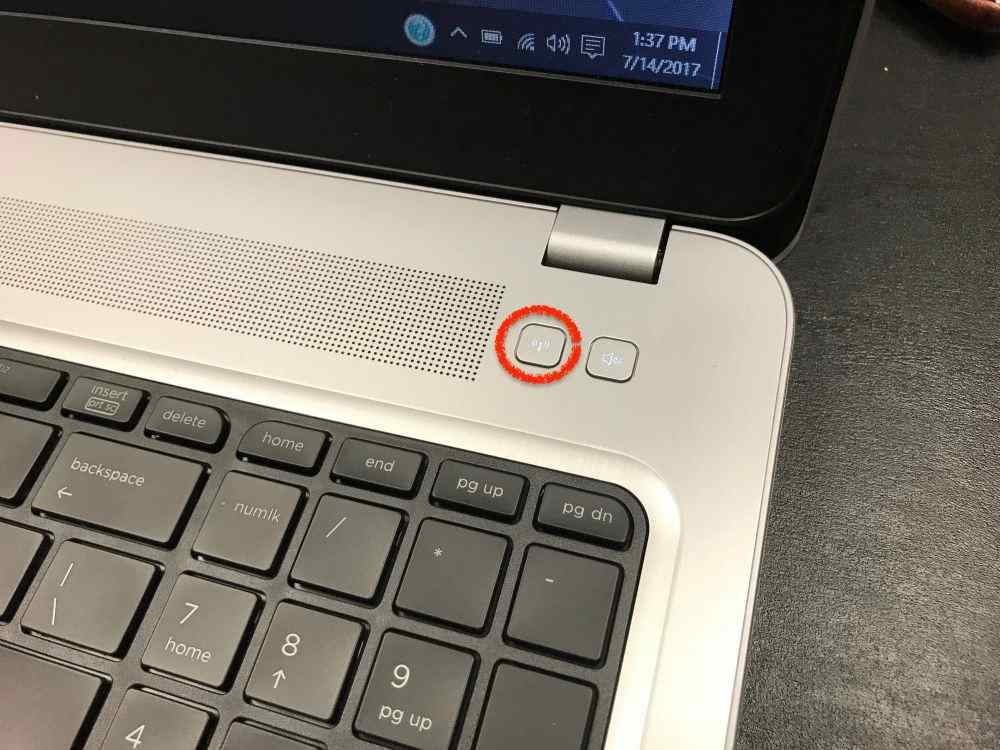
    The easiest way to activate Wi-Fi on your laptop is by pressing the WiFi button. Some laptops provide a dedicated WiFi button at the top of the keyboard. Just press the button with the signal icon, and your connection will immediately turn on.

    In addition, the button is usually equipped with an indicator light. So you know whether WiFi is active or not. If you don’t find it, then follow the next steps.

    #2. Using the Fn key and function key

    Using the Fn key and function key
    Using the Fn key and function key

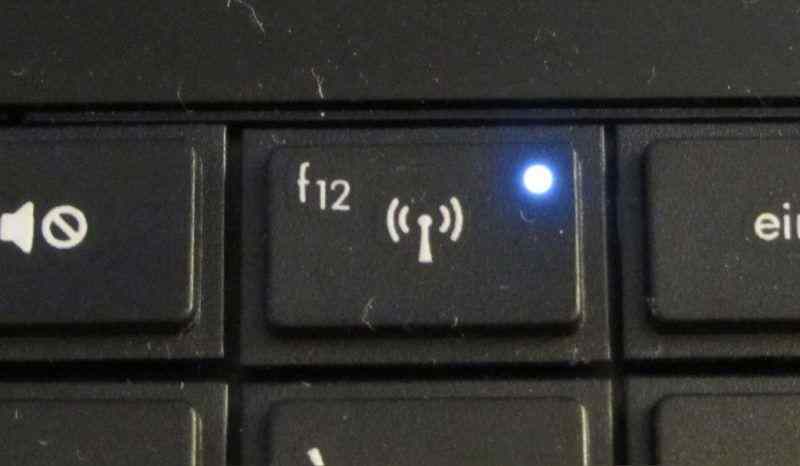
    Try observing the function keys (F1-F12) on your laptop keyboard. Is there an icon like the image above? It is a button to turn on WiFi. On some laptops, we can immediately press it to activate WiFi. For others, we have to press Fn followed by the function key.

    #3. Enable WiFi in Windows 8

    Enable WiFi in Windows 8
    Enable WiFi in Windows 8

    drivereasy.com

    If your laptop doesn’t have a WiFi button and function key, try turning it on through the settings. Here are the steps:

    1. Click Start, look for Settings ;
    2. Click the Change PC Settings option, click Network ;
    3. In the Wireless devices column, turn on WiFi until the On sign appears ;
    4. Don’t forget to turn off Airplane Mode if it’s still on.

    #4. Enable WiFi in Windows 10

    Enable WiFi in Windows 10
    Enable WiFi in Windows 10

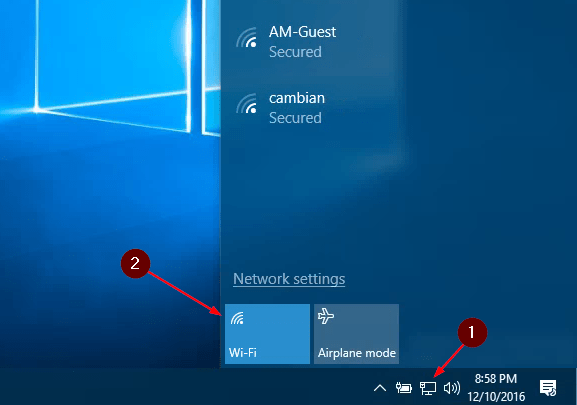
    For those of you who use Windows 10, WiFi settings are easier to access. Follow the steps below:

    1. On the taskbar, click the network icon ;
    2. Click WiFi until the box turns blue;
    3. Select the network you want to connect to, click Connect ;
    4. After that, you only need to enter the WiFi password.

    #5. Enable the WiFi adapter on the laptop

    Enable the WiFi adapter on the laptop
    Enable the WiFi adapter on the laptop

    isumsoft.com

    If the methods above have not turned on your WiFi connection, try checking whether your WiFi adapter is turned on or not. You can apply it in Windows 7, 8, and 10. Here’s how:

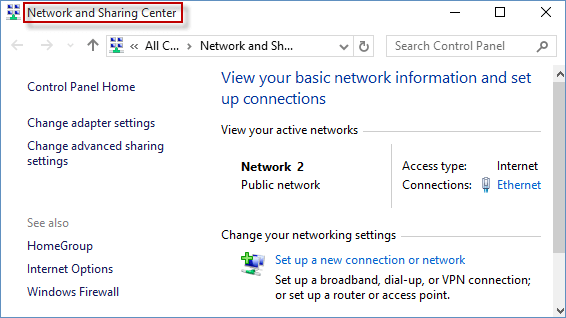
    1. Go to Control Panel ;
    2. Open Network and Internet, then click Network and Sharing Center ;
    3. Click Change adapter settings ;
    4. Right-click on the WiFi you are currently using, and click Enable.

    #6. Reinstall the WiFi driver on the laptop

    Reinstall the WiFi driver on the laptop
    Reinstall the WiFi driver on the laptop

    intel.com

    If you reach this stage, you cannot connect to WiFi, then try reinstalling the WiFi driver. To do this, you need an ethernet or LAN cable. Here are the steps:

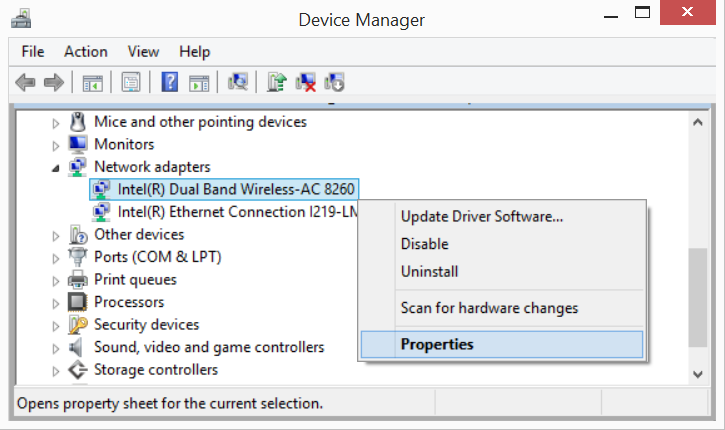
    1. Open Device Manager or press Windows + R then type devmgmt.msc;
    2. Open Network adapters, find which WiFi connection you want to connect to;
    3. Right-click on the WiFi name, click Properties ;
    4. Select the Driver tab, click Uninstall ;
    5. Then connect the laptop to an ethernet or LAN cable;
    6. Restart the laptop;
    7. When turned on, Windows will install the adapter automatically;
    8. Click Run when the command box appears;
    9. After the install process is complete, open WiFi via the taskbar ;
    10. At this stage, the laptop should be able to connect to WiFi.

    #7. Perform a system restore when the methods above are not successful

    Perform a system restore when the methods above are not successful
    Perform a system restore when the methods above are not successful

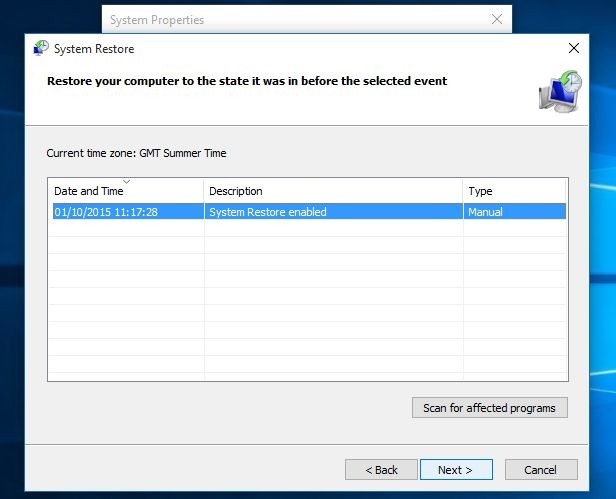
    Before doing a system restore, you need to know that this method should be done when the situation is urgent. System restores can restore the state of the laptop to the date you choose. All files, settings, and changes you made after that date will be deleted. Follow the steps below:

    1. Open the Start menu ;
    2. Locate and select System Restore (Windows 7 and Vista) or Recovery (Windows 8 and 10);
    3. Click Open System Restore, click Next ;
    4. Choose the restore date you want;
    5. You can check the changes that will be made by clicking Scan for affected programs ;
    6. If you are sure, click Next, then Finish ;
    7. After that, Windows will reboot ;
    8. Try testing your WiFi connection, in general, this method has high success.

    Read more:

    Conclusion:

    So, friends, This is an explanation of the 7 best ways To enable WiFi on a laptop Windows 10 PC, Know the steps above because you will need them from time to time.