Author: Nazrul Islam

  • 20 Best Free Antivirus For Android [Secure Apps] 2025

    20 Best Free Antivirus For Android [Secure Apps] 2025

    20 Best Free Antivirus For Android [Secure Apps] – Currently, there are lots of the best free antivirus for Android that you can use. Using additional antivirus applications to maintain security is quite important at this time.

    20 Best Free Antivirus For Android [Secure Apps]

    20 Best Free Antivirus For Android [Secure Apps]

    Because cyber crimes are very common to attack Android users. The current Android security system is quite sophisticated. However, if you want to be more secure using an additional antivirus application can be the right choice.

    Read more:

    It is very important to maintain the security of the data on your phone. In addition, using an antivirus can also minimize attacks of various kinds of malware that will damage the software or system on your Android device.

    As previously said, you can easily find various kinds of antivirus applications for Android phones. Here are some of the best antiviruses that we recommend for Android users.

    #1. Safe Security
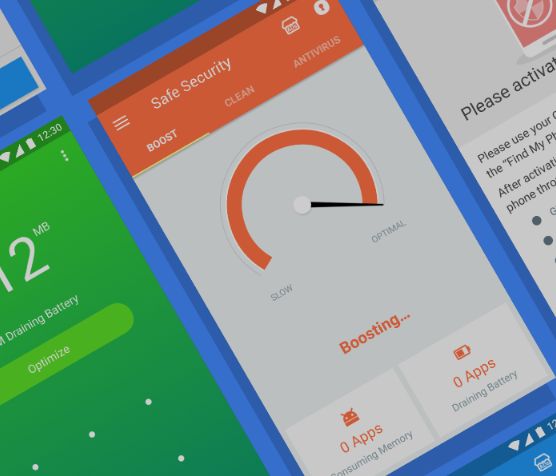
    Safe SecurityThe first best free antivirus for Android is Safe Security. This application has been downloaded more than 16 million times on the Play Store. There are various kinds of excellent features offered by this best antivirus.

    For example, the Speed ​​Booster and Cleaner-Lacking features are useful for deleting cache and junk files. Another very useful feature is the Smart Battery Saver to make your cellphone battery not run out quickly when using the Safe Security application.

    This application also guarantees the data security of its users. Therefore, you don’t have to worry about using this application.

    #2. AVG antivirus
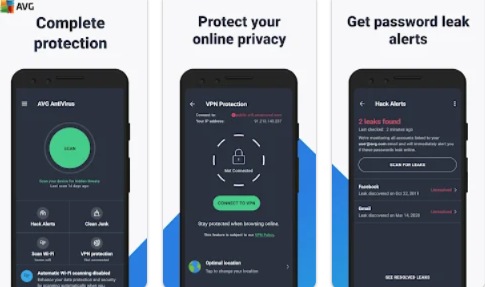
    AVG antivirusBesides being able to be used on computers, AVG Antivirus can also be used for Android users. You don’t have to pay a penny to use this app.

    The features built into AVG Antivirus make it possible to move all the files present on your Android phone. This will detect any existing viruses or viruses that will try to infect your phone.

    Besides being useful for scanning for viruses on your cellphone, this application can also guarantee security when you surf the Internet. Because this application has a feature to scan which websites have the potential to spread viruses or malware.

    #3. Avast Antivirus
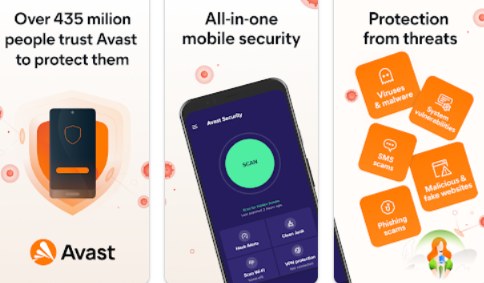
    Avast AntivirusThe next free antivirus for Android is Avast Antivirus. This is one of the best apps to protect your phone from various virus attacks.

    There are various kinds of advanced features embedded in this application. One very useful feature is Anti-Theft. This is a feature that will take pictures and also record the sound of the thief when your cellphone is replaced by a SIM card.

    #4. Avira Antivirus

    Avira AntivirusAvira Antivirus is one of the best applications that can be used to protect your Android phone. This is an application that will provide security for all the data on your phone.
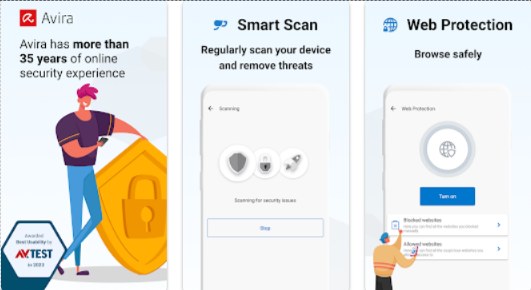
    Avira Antivirus will protect your phone from various kinds of attacks such as spyware and malware. When you have already lost data, Avira Antivirus can help you invite the existence of the data. Because sometimes, when a virus attacks your phone, its data gets scattered in other folders.

    This application will also provide or show notifications if there are applications that have the potential to spread viruses. You can enjoy this application for free and also paid. To get the full features of this application, you must use a paid service.

    #5. DFNDR Security

    DFNDR SecurityThe modes used by hackers are increasingly diverse today. Many hackers are experts in creating fake sites like the original site. This makes many people who are tricked into entering important and sensitive data.

    Therefore, you need this application to avoid or detect malware attacks as well as the attempts of hackers.

    DFNDR Security will notify you when there is an attempt to steal data or if someone else is trying to access your WhatsApp. This is one of the best free antiviruses for Android that can be used as an option.

    #6. Kaspersky
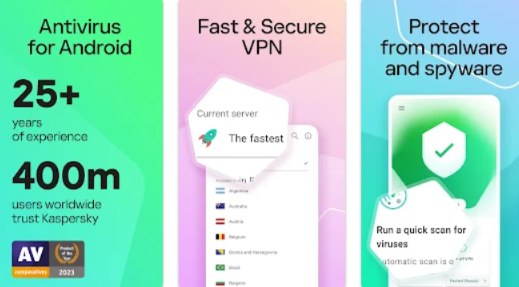
    KasperskyThe next best antivirus application is Kaspersky. This application will work by detecting the position of the virus by using a background check.

    Besides being able to be used to protect your cellphone from various kinds of virus attacks, it turns out that the Kaspersky application also provides a feature to track the whereabouts of your cellphone. This is an antivirus that has very complete features so it is suitable for you to use.

    #7. Lookout
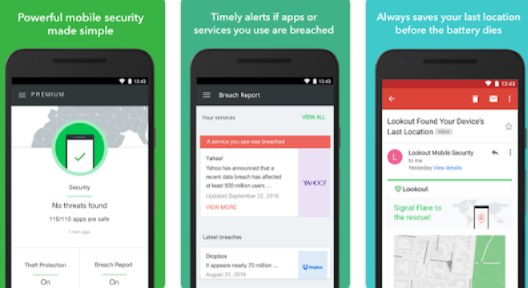
    LookoutThis application has a simple interface, so it is straightforward to use. This is perfect for Android users who want to protect important data on their phones.

    Lookout will perform constant baths to ensure that your phone is completely safe from virus attacks. In addition, this application also has a feature to track the whereabouts of a lost cellphone.

    Lookout is also equipped with the ability to back up existing data on your Android phone. This is certainly very useful to avoid data loss. This could be the best free antivirus for Android suitable for you to use.

    #8. Mobile Security

    Mobile SecurityMobile Security is an application that is equipped with a scanning feature to find viruses on your Android phone. For those of you PC or laptop users, you can also use the Mobile Security application.

    In addition to being able to scan files on your phone’s internal memory, this application can also automatically scan the websites you visit. Automatically, websites that are indicated to be spreading viruses will be blocked.

    #9. Norton Mobile Security

    Norton Mobile Security is an antivirus that can be used as the best choice for Android phones. Norton is an antivirus that is considered to have very good quality.

    However, its use may be more popular on laptops or PCs. Norton is known as one of the safest antivirus applications on a PC or laptop.

    With the presence of Norton Mobile Security, it is certainly good news for Android users. Because you can enjoy antivirus from developers who are very experienced in this field.

    This application works by detecting gaps in the operating system, and then providing strong protection from the security side for your phone. When you surf using wifi, Norton Mobile Security will warn you if middlemen are peeking at your activity.

    One of the things that are quite special is that it can detect rogue apps that are trying to access your contacts without your consent. It is the right choice to keep your Android phone safe and also protect your privacy.

    #10. ESET Mobile Security & Antivirus

    The next best quality free antivirus for Android is ESET Mobile Security & Antivirus. This is the right choice of antivirus to protect your cell phone from various virus attacks.

    This application can perform scanning and also find various kinds of viruses found on your cellphone. If you want to keep your phone safe, this application can be the right choice for you to use.

    #11. Nox Security

    There are various features offered by this best antivirus application for Android. Various kinds of features can be used such as, free virus cleaner, message security, block notifications, application lock, file encryption, and many others.

    Nox Security can be the right choice for you when you want to enjoy an antivirus with a variety of very useful supporting features.

    #12. Web Security Space

    Web Security Space is an application that will always scan various files on your phone. In addition to the files that are on your cellphone, the installed applications are also inseparable from the scanning process.

    It’s the best antivirus app that’s lightweight and doesn’t use up too much battery either. You can use this app for 14 days for free, then you have to pay $9.99 per year.

    #13. TotalAV Antivirus

    This is the best free antivirus for Android that combines antivirus with various Android phone optimization features. So in addition to protecting your phone from virus attacks, this application is also useful for improving performance by eliminating files that are not used.

    The TotalAV Antivirus application also allows you to lock applications using a PIN or pattern. This can be a very appropriate antivirus for you to use so that your cellphone is protected from virus attacks.

    #14. Bitdefender

    Bitdefender works by scanning your cellphone to find out which viruses are lodged in your cellphone.

    This application is claimed to be able to find and remove viruses up to 99%. You also don’t have to worry about the battery running out quickly when using this application. This application has been designed using advanced technology so that it does not require large resources when running.

    #15. Malwarebytes Security

    Malwarebytes Security is the best free antivirus for Android that should not be forgotten. Malwarebytes is probably better known as an antivirus on a PC or laptop.

    This is an antivirus that is known to have a very good ability to scan various kinds of viruses that are lodged in your cellphone. You can use this application for free, but to enjoy all the features in this application you must use a paid service.

    #16. V3 Mobile Security

    If you want to use a lightweight antivirus, this could be the perfect choice for you. V3 Mobile Security works without consuming too much CPU so it won’t slow down your phone.

    The interface of this application is also very simple, so you will not have any difficulties when using it. This application is also equipped with various features to optimize your phone.

    One thing that is quite special is that there is an anti-blue ray filter available to protect your eyes. This is one of the antivirus apps for Android that we highly recommend.

    #17. Sophos Intercept X for Mobile

    Sophos Intercept X for Mobile is an antivirus that provides all its features for free for you. Therefore, you do not need to spend a dime when you want to use all the features in this application.

    This is an anti-virus application that has very complete features. Besides being able to prevent your phone from being infiltrated by malware, this application will also notify you of which applications have access to private data.

    #18. Android Antivirus: Security Systems Lab

    Do you often get annoyed when you wait too long while doing a scan? If you are complaining about this, Android Antivirus: Security Systems Lab can be a very good choice because it can perform a scan in just a few seconds.

    You can not only monitor the entire contents of the cellphone but also scan the contents of the micro SD if you use it.

    #19. Webroot Mobile Security & Antivirus

    If you want the best free antivirus for Android that can work alone, Webroot Mobile Security & Antivirus can be the right choice.

    Webroot Mobile Security & Antivirus is an application that can work automatically to protect your phone from various malware attacks and spam sites. You will not be bothered to deal with various kinds of Malware by using this application.

    #20. SAFE Internet Security: F-Secure Corporation

    SAFE Internet Security: F-Secure Corporation is an anti-virus that has a simple interface but has very complete features to protect your phone from various viruses.

    This application allows identifying various applications that have access to private data. Another very useful feature of this application is security when surfing using a browser.

    Read more:

    Conclusion:

    Keeping Android devices safe from malware attacks is of course a very important thing to do. The best free antivirus for Android above can be the right choice for you to use.
  • 10 Ways to Take Screenshot on Laptop or Macbook 2025

    10 Ways to Take Screenshot on Laptop or Macbook 2025

    10 Ways to Take Screenshot on Laptop or Macbook – Taking a screenshot from a computer screen is one of the most common ways that owners of Windows-based computers/laptops, as well as Macbook computers and laptops, do so.

    7 Easy Ways to Take Screenshot on Laptop or Macbook
    7 Easy Ways to Take Screenshot on Laptop or Macbook

    How to Take Screenshot on Laptop or Macbook

    Taking screenshots in Windows requires a few steps, starting by pressing the “Print Screenshot” button on the keyboard, followed by opening Microsoft Paint, and then pressing Control + V.

    Read more:

    Then how do I screenshot on a Macbook laptop? For those of you who have just switched to using a Macbook from Windows (commonly called a switcher), here are 7 ways to take screenshots on a Macbook laptop that you can try.

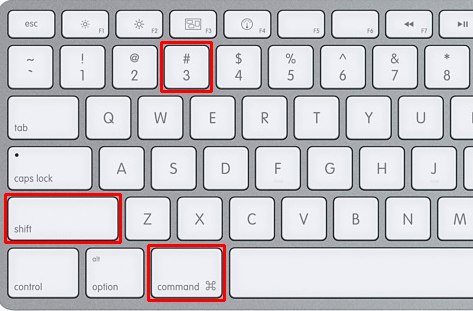
    #1. Screenshot With Cmd + Shift + 3

    Screenshot With Cmd + Shift + 3
    Screenshot With Cmd + Shift + 3

    In this way, you don’t have to bother thinking about which area to screenshot, because the result is a full screen on the laptop. This screenshot method is arguably the easiest, just press the Cmd + Shift + 3 shortcut.

    When the Macbook sound is activated, there will be a camera shutter sound that sounds a sign that the screenshot was successful. The resulting image will be saved on the desktop in .png format.

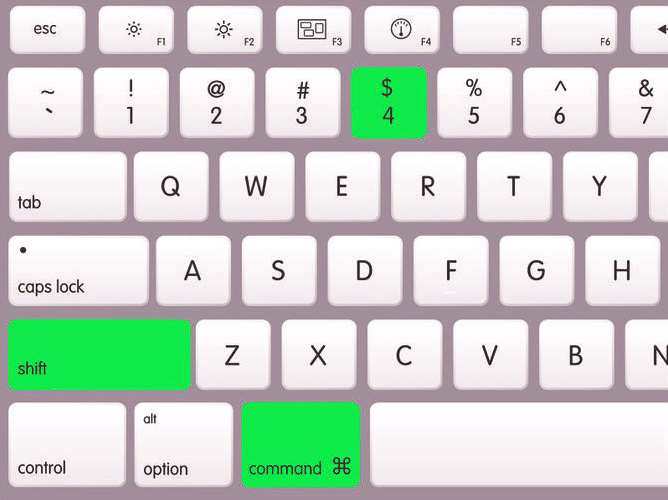
    #2. Screenshot With Command + Shift + 4

    Screenshot With Command + Shift + 4
    Screenshot With Command + Shift + 4

    This feature is specifically for those of you who only want to take partial screenshots on a laptop. You first have to mark which area you want to screenshot. To do this, press the shortcut Command + Shift + 4.

    You will see the cursor icon change to a crosshair or a box with a thin line. Click and hold the mouse, then drag it to the area you want to screenshot.

    You can press the Esc (Escape) key to restart without taking a picture. Release the mouse, if the sound on the computer turns on, it is a sign that the screenshot has been successful.

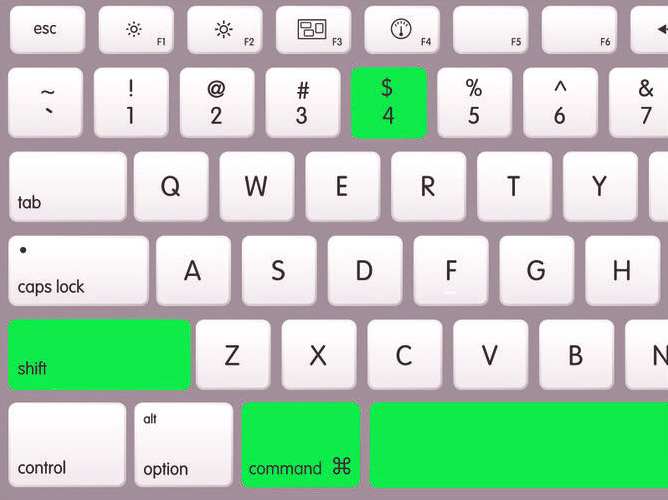
    #3. Screenshot With Cmd + Shift + 4 + Space

    Screenshot With Cmd + Shift + 4 + Space
    Screenshot With Cmd + Shift + 4 + Space

    This method is almost the same as the method discussed earlier, the only difference is that this way, you don’t have to bother doing it with tidier results because it uses the Macbook screenshot shortcut which is intended to take a full window screenshot.

    Not only that, this method even immediately gives a shadow effect from the results of the screenshot image on the Macbook laptop that you made. To do this, press the shortcut Cmd + Shift + 4 + Space. The pointer will change to a crosshair, then press the space key to change the cursor to a small camera icon that will tell you which window you want to screenshot. Finally, the left mouse clicks to take a screenshot and the results will appear on the desktop.

    #4. Screenshot to Clipboard

    Screenshot to Clipboard
    Screenshot to Clipboard

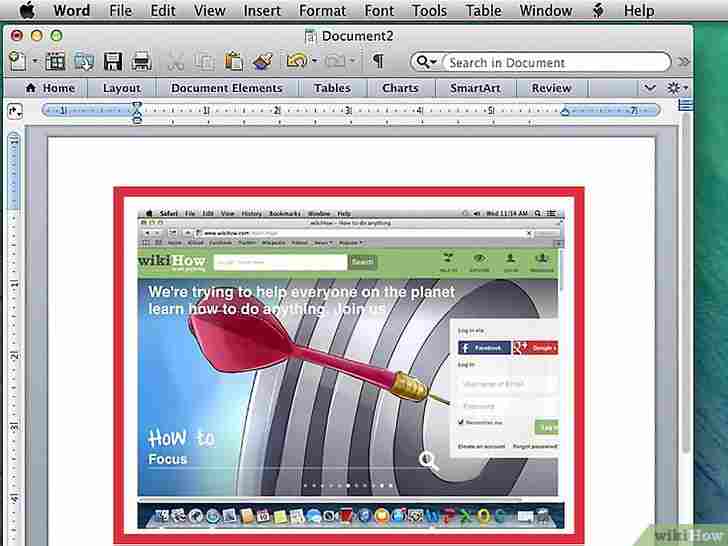
    If you want to copy and paste the screenshot into a program, you can save the screenshot to the Clipboard, not the desktop.

    How to screenshot on a Macbook laptop and save the results to the Clipboard is very easy, namely by pressing the keyboard shortcut as needed as described above and then directly pasting it into Word or Pages.

    #5. Screenshot Timer with Grab

    Screenshot Timer with Grab
    Screenshot Timer with Grab

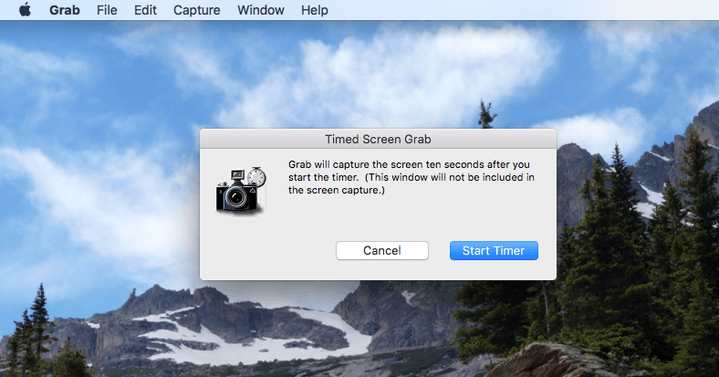
    Without additional applications, you can use the default OS X application, Grab, which can be found in the Utility folder. With the help of this application, you can take screenshots with a timer automatically.

    To run this application, first, open Application> Utilities> Grab. Then open the menu bar select Capture> Timed Screen or press Command + Shift + Z to start the screenshot-taking time countdown, and finally press the Start Timer button.

    #6. Screenshot With Shift + command + 6

    Screenshot With Shift + command + 6
    Screenshot With Shift + command + 6

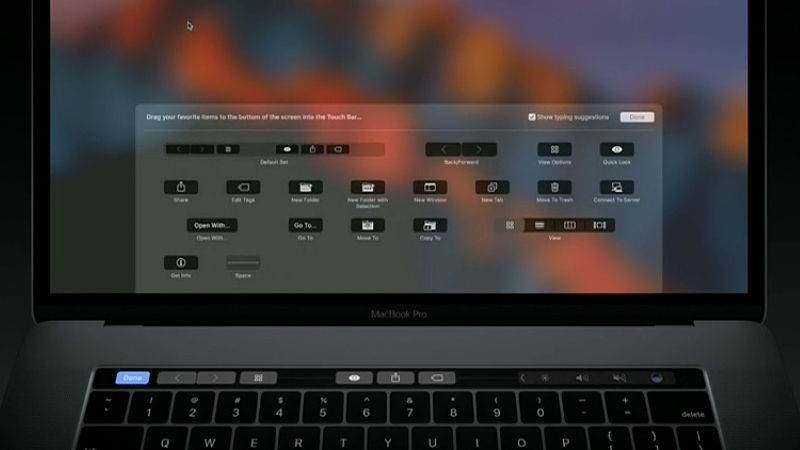
    For those of you MacBook Pro Touch Bar users with macOS Sierra 10.12.2 or a later version. You can still take a screenshot from the Touch Bar screen, just press Shift + command + 6 then look for the screenshot image from the Touch Bar display on the desktop with the .png format.

    In addition, you can also display the screenshot button by adjusting the touch bar control strip area. Finally, click the screenshot button to see the results and where they are saved.

    #7. Screenshot With Application Help

    Screenshot With Application Help
    Screenshot With Application Help

    If you are not satisfied with some of the methods above, you can try using third-party applications to take screenshots on a Macbook laptop, for example, such as:

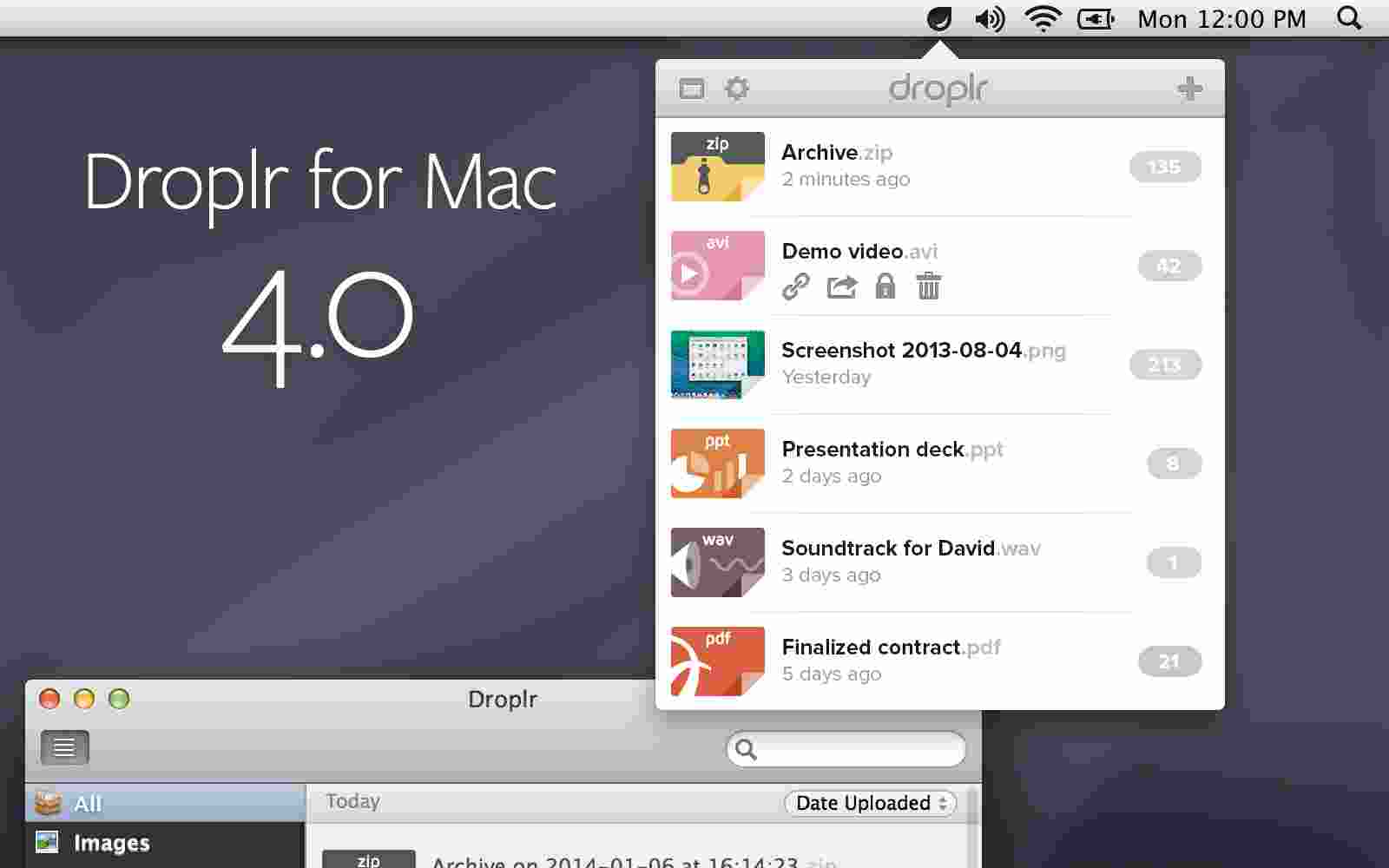
    #8. Droplr application

    With the Droplr application, not only have screenshots in the form of images, but you can also create screen recording videos that can be recorded in whole or in part.

    In addition, this application is also equipped with an automatic upload mode with a more complete and easily accessible shortcut and annotation mode.

    #9. PSD application

    With the help of this application, you can take a screenshot on a MacBook laptop into a PSD or Photoshop image. Not only that, but the PSD screenshot can also detect application windows that are running behind the main display.

    #10. Monosnap application

    With the Monosnap application, you can add some information to take a screenshot and upload it directly to the cloud. You can also save or reopen the file with another external editor.

    Read more:

    Conclusion:

    this is the explanation of 10 ways to take screenshots on a laptop or MacBook. That’s the method you can use for your laptop screenshot. I hope this article is helpful to you.

  • How to Turn off Windows Defender Windows 10 PC 2025

    How to Turn off Windows Defender Windows 10 PC 2025

    How to Turn off Windows Defender Windows 10 PC – It is very easy to do, there is no need for additional applications or convoluted methods. This guide is very important, especially for those of you who need to install PC software.

    How to Turn off Windows Defender Windows 10 (Effective)
    How to Turn off Windows Defender Windows 10 (Effective)

    How to Turn off Windows Defender Windows 10 permanently or temporarily

    Since Windows 10 was first released, Microsoft has made it mandatory for all Windows 10 users to use the PC Windows Defenders antivirus application.

    Read more:

    Although generally effective, these applications sometimes give false positives, where an innocent application is detected as a virus or malware.

    On this basis, it is important for users to understand how to turn off Windows Defender so that this application does not interfere with the performance of other applications, gangs.

    With hacker threats that never go out, especially those who usually use various Android hacker applications, it is important for you to use an antivirus application on your PC or laptop.

    Despite its status as the only free antivirus built-in from Windows 10, Windows Defender has received much praise for offering comprehensive, gang protection.

    Because it is so comprehensive, Windows Defender is often wrongly accused and it is important for users to know how to permanently or temporarily disable Windows Defender.

    For those of you who are already curious, first TechMint will provide a guide on how to turn off Windows Defender via the Security Center on Windows 10.

    How to Turn Off Windows Defender in the Security Center

    In the most updated version of Windows 10, Windows Defender Security Center has changed its name to Windows Security but still has the same function.

    In essence, this feature allows users to manage the security of their PC or laptop, including providing a way to turn off antivirus in Windows 10, whether it’s Smadav, Avast, Mcafee, or other types.

    For details on how to turn off Windows Defender in the Security Center on Windows 10, see the following step-by-step guide from ApkVenue, the gang!

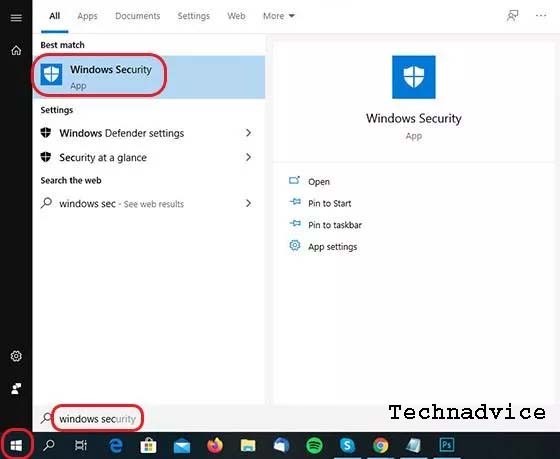
    1. Click the Windows icon to open the Start Menu and start typing ‘Windows Security’ until the application appears in the search list.
    How to Turn Off Windows Defender in Security Center
    How to Turn Off Windows Defender in Security Center
    1. Open the application and on the main Windows Security screen, click the Virus & Threat Protection option.
    How to Turn Off Windows Defender in Security Center 2
    1. Under the Virus & Threat Protection settings option, click the Manage settings button.
    How to Turn Off Windows Defender in Security Center 3
    1. Under the Real-time protection option, click the blue Toggle which should currently be On.
    How to Turn Off Windows Defender in Security Center 4
    1. Because Windows Defender is a sensitive application, a pop-up will appear asking for confirmation from the user. Click Yes to continue.
    How to Turn Off Windows Defender in Security Center 5
    1. Under the Real-time protection option, Toggle will be in the Off position which indicates Windows Defender has been turned off.
    How to Turn Off Windows Defender in Security Center 6

    If you don’t have another antivirus, following the method of disabling Windows Defender can make your PC or laptop vulnerable to malicious malware threats.

    Make sure you know the risks and reactivate Windows Defender when you have finished what you have to do, gang.

    How to Turn Off Windows Defender in Windows 10 Regedit

    The second method that ApkVenue will discuss here is to use the Registry Editor which can be accessed via the Regedit program which is a bit technical.

    But don’t worry, by following this guide on how to permanently turn off Windows Defender, those of you who don’t know enough technology will also have no problems, gang.

    Note:

    Technadvice is not responsible for damage to the user’s PC or laptop if there are errors in modifying the registry

    1. Click the Windows icon to open the Start Menu and start typing ‘Regedit’ until the Registry Editor application appears in the search list.
    How to Turn Off Windows Defender in Windows 10 Regedit
    1. Open the application and a pop-up will appear asking for user confirmation. Click Yes to continue.
    How to Turn Off Windows Defender in Windows 10 Regedit 2
    1. In the Address Bar located above, copy-paste the directory below and press Enter to open Windows Defender settings.

    HKEY_LOCAL_MACHINE\SOFTWARE\Policies\Microsoft\Windows Defender.

    How to Turn Off Windows Defender in Windows 10 Regedit 3
    1. You will arrive at the Windows Defender folder. Right-click on the folder name and select New -> DWORD (32-bit) Value.
    How to Turn Off Windows Defender in Windows 10 Regedit 3
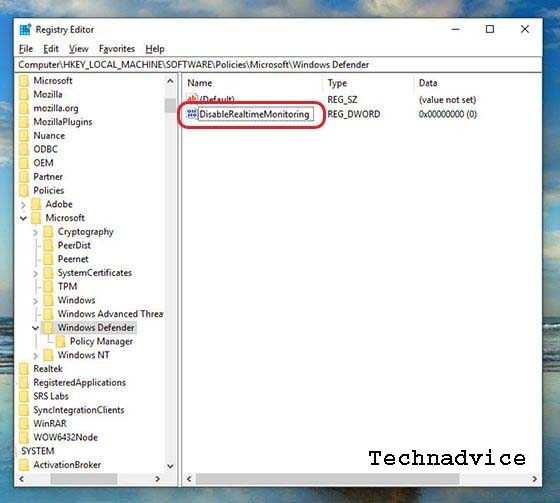
    1. Enter the name DisableRealtimeMonitoring and press Enter.

    How to Turn Off Windows Defender in Windows 10 Regedit 4

    6. Right-click on the registry that you have created and click the Modify option.

    How to Turn Off Windows Defender in Windows 10 Regedit 5
    1. In the Value Data column, enter the number 1 as a way to disable Windows Defender in Windows 10.
    How to Turn Off Windows Defender in Windows 10 Regedit 6
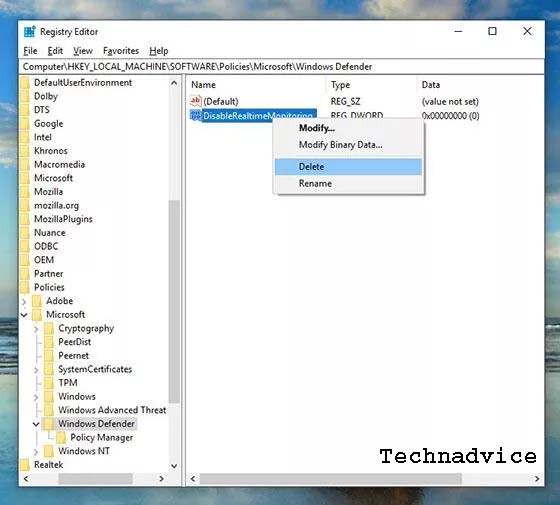
    1. To reactivate Windows Defender, simply change the Value Data to 0 again or right-click on the registry and click Delete.

    How to Turn Off Windows Defender in Windows 10 Regedit 7Technadvice warns you that because of its compassionate nature, errors in modifying the registry can cause problems on your PC or laptop.
    Read more:

    Conclusion:

    So, friends, that’s how to turn off Windows Defender in Windows 10, either temporarily or permanently.

  • How to Disable Sleep Mode on Windows 10 Laptop 2025

    How to Disable Sleep Mode on Windows 10 Laptop 2025

    How to Disable Sleep Mode on Windows 10 Laptop PC – Windows 10 is set to sleep after a certain amount of time to save power or your laptop battery. However, it can be annoying if your computer will sleep while you are using it. Here’s how to disable sleep mode in Windows 10 including disabling hibernation of your Windows 10 PC.

    How to Disable Sleep Mode on Windows 10 Laptop
    How to Disable Sleep Mode on Windows 10 Laptop

    How to Disable Sleep Mode on Windows 10 Laptop PC

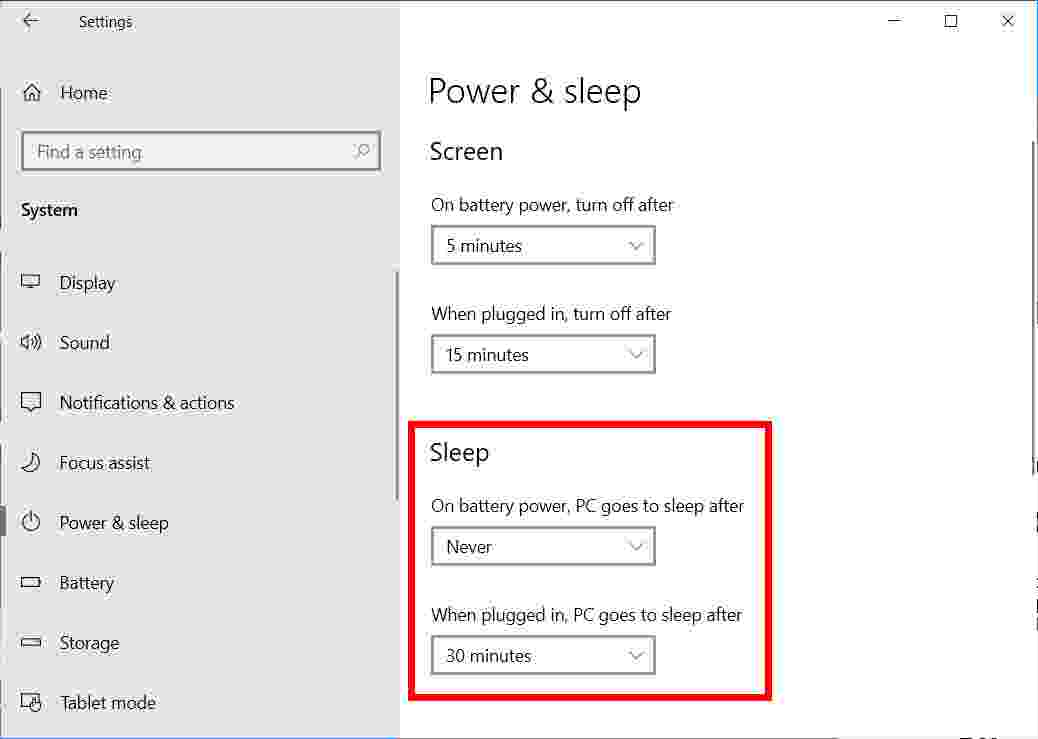
    To disable sleep mode on a Windows 10 PC, head to Settings  >  System  >  Power & sleep. Then select the drop-down menu under Sleep and select Never. If you are using a laptop, do this for battery mode too.

    Read more:

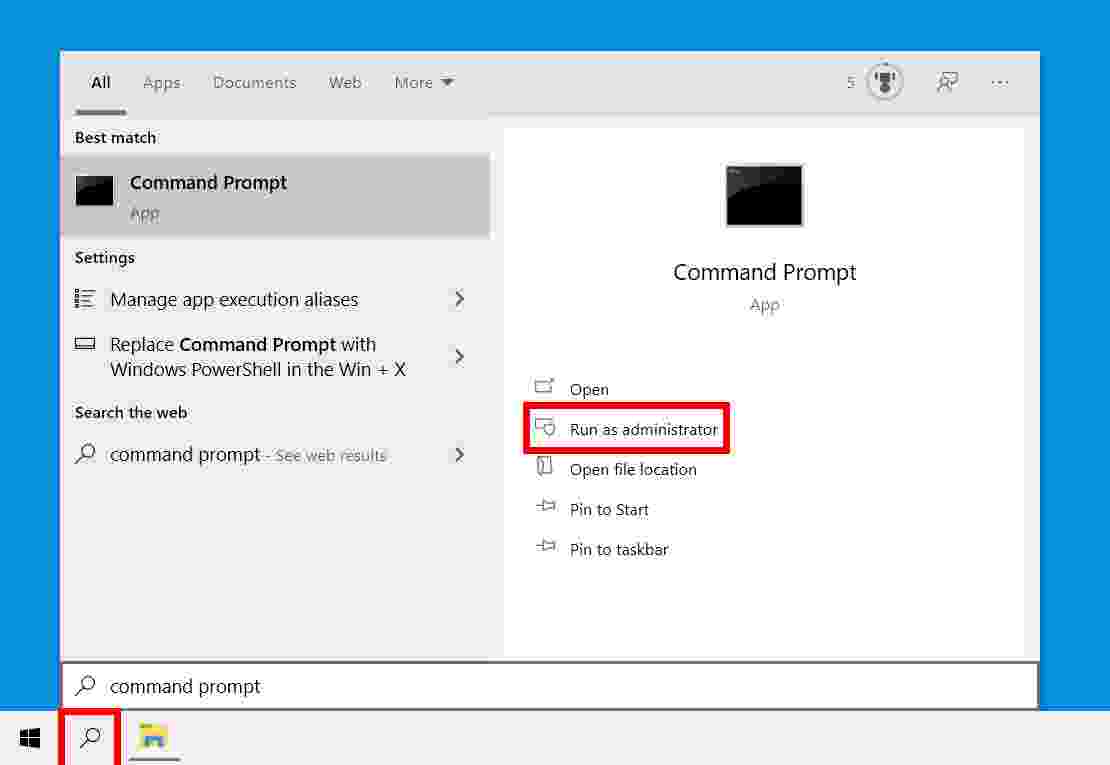
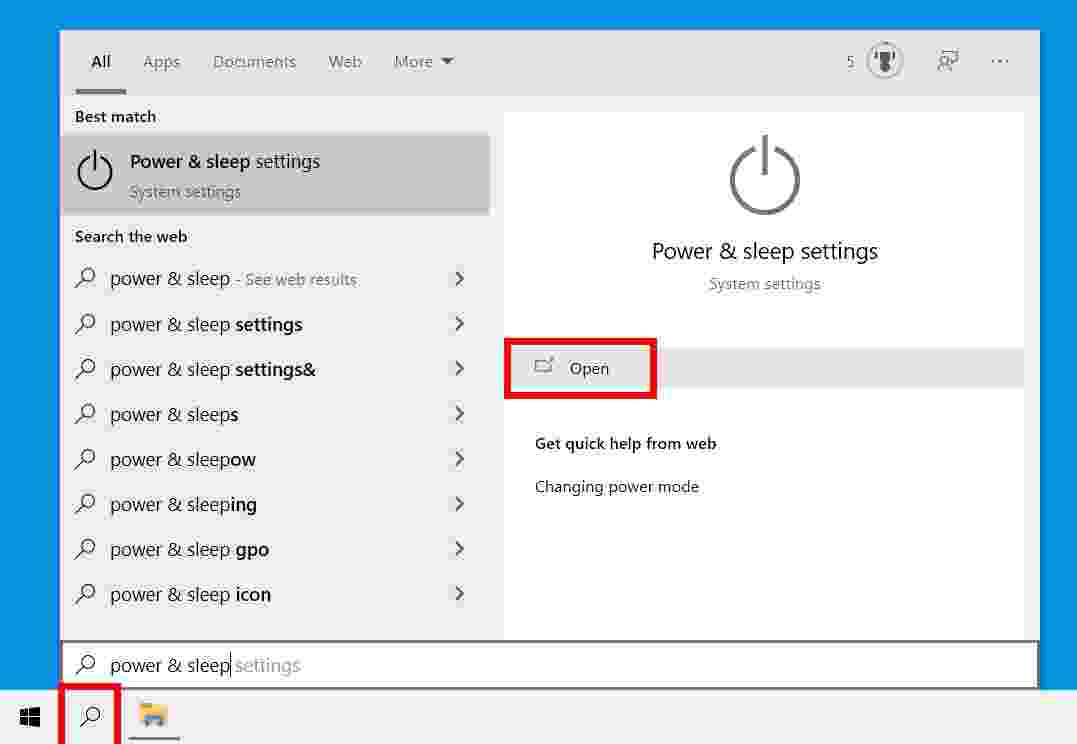
    1. Click the magnifying glass icon in the lower-left corner of your screen. It is next to the Windows 10 logo.
    2. Then type power & sleep into the search bar and click OpenYou can also press Enter on the keyboard.

    How to Disable Sleep Mode on Windows 10 Laptop

    3. Finally, click the drop-down box under Sleep and change it to  Never. 

    Now your computer or laptop will no longer enter sleep mode. You can also choose to adjust the number of minutes it takes for your computer to enter sleep mode after not using it.

    How to Disable Sleep Mode on Windows 10 Laptop

    Note: You’ll only see two drop-down menus under Sleep if you’re using a laptop.

    How to Disable Hibernation on Windows 10 Laptop  PC

    Even though most people are used to Windows 10 sleep mode, you may not know your computer also has a hibernation mode (Hibernation).

    Hibernation is a cross between sleep mode and turning off your computer. By enabling hibernation, you can shut down your computer and leave it right away. That means all of your applications will open as they were when you left them, and the computer won’t use any power.

    The downside of hibernation mode is that it takes up a portion of your computer’s storage space, which is the equivalent of 75 percent of your installed RAM capacity. Fortunately, hibernation mode is easy to disable.

    1. Click the magnifying glass icon in the lower-left corner of your screen. It is next to the Windows 10 logo.
    2. Then type  Command Prompt into the search bar.
    3. Next, click Run as administrator.
    How to Disable Hibernation on Windows 10 PC
    How to Disable Hibernation on Windows 10 PC

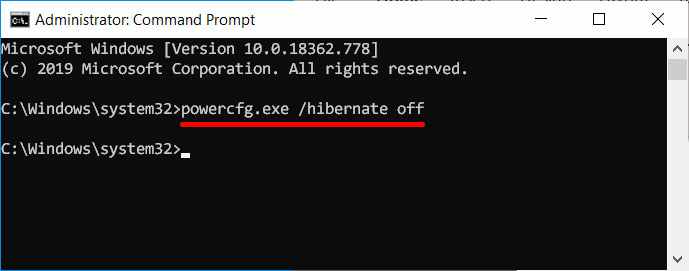
    4. Then type powercfg.exe / hibernate off into Command Prompt.

    5. Finally, press Enter on your keyboard. This will disable hibernation mode on your computer.

    How to Disable Hibernation on Windows 10 PC

    Note: You don’t need to disable hibernation on the laptop as it is needed to save your work when the battery runs out.

    Read more:

    Conclusion:

    This is the explanation of how to disable sleep mode on a Windows 10 laptop, Now that you know how to disable sleep mode on a Windows 10 laptop. I hope this article is helpful to you.

  • 10+ Best Photo Editing Application for Android Phone 2025

    10+ Best Photo Editing Application for Android Phone 2025

    10+ Best Photo Editing Applications for Android Phones – Want to find recommendations for photo editing applications on the best Android phone? Then you will find the answer in this article. With this photo editor application, you will get the best experience in editing photos.

    10+ Best Photo Editing Application for Android
    10+ Best Photo Editing Application for Android

    Here are the 10 Best Photo Editing Applications for Android

    The reason is the existence of social media, especially Instagram, makes many people have a hobby of being on social media. Post great photos and get lots of likes.

    Read more:

    Some even now get jobs, by posting photos on social media. To get good photos, you don’t just need a good camera. You also need a photo editing application on Android. So that the photos are sharper, cool, and Instagramable.

    Well, so for those of you who like to take photos via cellphone cameras or digital cameras, you also have to use a photo editing application on Android. By editing your photos first, the photo quality might be even better.

    Each photo editing application has different features. Some are used for beginners or professionals. So that you don’t get confused, here are some applications that you can use.

    #1. PicsArt Photo Studio

    PicsArt Photo Studio
    PicsArt Photo Studio

    PicsArt Photo Studio is a popular photo editing application. It has been downloaded by more than hundreds of millions of users on the PlayStore. Various editing features will make your photos even better. You can choose the filters and effects as you like.

    The feature is also very easy to use for beginners. You can also delete parts of the photo that are not important, without any marks. Of course, many other features will make your photos even more stunning.

    Download Now

    #2. Adobe Photoshop Express

    Adobe Photoshop Express
    Adobe Photoshop Express

    In the world of editing, Adobe Photoshop is the most widely used application. Previously, this application could only be used on a PC, but now it can be used on an Android smartphone. Many professional photo editors use this application because it has complete features.

    As for the Android version, it has an easy-to-use interface. However, this application is quite different from the PC version because it has fewer features. The good thing is there you can adjust the brightness, white balance, and other filters.

    Download Now

    #3. Pixlr

    Pixlr
    Pixlr

    If you are looking for a full-featured photo editing app, Pixlr is the answer. There are many features that you can use. Not only adjust the brightness, but you can choose various filters, and photo collages, manipulate backgrounds, and more.

    Pixlr is also capable of producing photos like DSLR camera shots. You can try all the features of this application for free.

    Download Now

    #4. Snapseed

    Snapseed
    Snapseed

    The next photo editing application on Android is Snapseed. This app is also popular with professionals. This application developed by Google is equipped with various professional features that will make your photos even cooler.

    The filter options in Snapseed are more and better than in other applications. People who are first using this application usually will have difficulty. But if you learn more, you will find a lot of cool features.

    Download Now

    #5. Adobe Photoshop Lightroom

    Adobe Photoshop Lightroom
    Adobe Photoshop Lightroom

    The Adobe Photoshop Lightroom application will also make your photos even better because there are various filter effects that you can use. In addition, you can adjust the brightness of dark photos to light.

    There are lots of cool effects that can make your photos even better. This application has been downloaded by more than 10 million users on the Playstore and this application is also on the PC version which has more complete features.

    Download Now

    #6. Instasize

    Instasize
    Instasize

    Instasize was first launched in 2012 as a popular photo cropping application for Instagram.

    But over time, Instasize provides more features that make it a multi-functional editing application for those who want to edit photos or videos.

    Download Now

    #7. Aviary

    Aviary
    Aviary

    Aviary is a simple photo editing application but has quite complete features. Suitable for beginners, who don’t want to be complicated editing photos. Because with just a few clicks, you can get great photos.

    There are various filter and effect options that you can use there. This application has been downloaded by more than 50 million users on Playstore. The size is also not too heavy, making smartphone performance maximal.

    Download Now

    #8. Photo Lab

    Photo Lab
    Photo Lab

    Photo Lab is an application for those of you who like to edit photos with frames or filters. Because there are lots of cool frames and filters to choose from. There are approximately 800 choices of frames and filters that will make your photos even more amazing.

    Photo lab has features to change the face of a photo, become the face of another person, or transform it into various other shapes such as animals, cartoons, and others.

    Download Now

    #9. PhotoDirector

    PhotoDIrector
    PhotoDIrector

    The Photo Director is a unique photo editing application on Android. There are several effects and filters that other apps don’t have. The number of filters is not that many because this application focuses on using editing tools.

    So you can be creative with your photos such as adjusting HDR, RGB color, darkness, brightness, exposure, and more. You can also delete unimportant objects in photos without leaving any marks.

    Download Now

    #10. VSCO

    VSCO
    VSCO

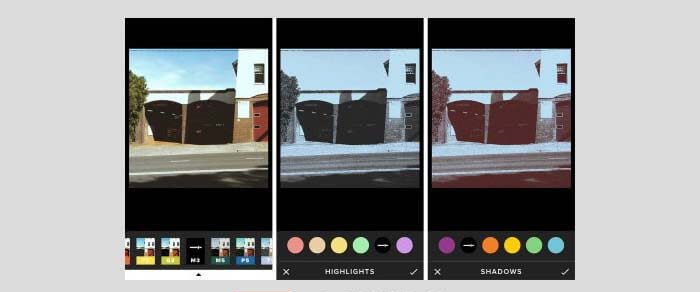
    VSCO is a contemporary photo-editing application. Many people use this application for editing photos on Instagram because the VSCO application has many cool filter options. If you want a better filter, you have to buy it.

    Download Now

    #11. Photo Grid

    Photo Grid
    Photo Grid

    For those of you who like to combine several photos and edit them into funny photos, you can use this one application. The photo grid has various photo ratio options. Besides that, there are also lots of frame choices and you can also add funny filters and emoticons to your photos.

    Download Now

    Read more:

    Conclusion:

    So, friends, Those are the 10 best photo editing applications on Android that you can try for your Android device. Each photo editing application above has its advantages and disadvantages. So, choose the application that suits you.