10 Ways to Fix Network Adapter Not Detected In Windows – Without a network adapter, you will not be able to connect to the internet. Learn how to fix an undetected or missing network adapter so you can get back online again.
10 Ways to Fix Network Adapter Not Detected In Windows
10 Ways to Fix Network Adapter Not Detected In Windows 10 PC
The network adapter is an important part of a computer because it sends and receives data to and from other devices on a wireless or wired network. Sometimes, the network adapter disappears from the Device Manager or the Windows operating system tells you that it is missing.
When this happens, you will no longer be able to connect to the internet. To help you fix it, we have put together a few solutions that you can try to fix an undetected or missing network adapter.
#1. Restart And Check the Connection
Try some quick fixes like restarting your PC or laptop and checking if you can now find the missing network adapter. If you have already connected the Ethernet cable, you will also need to unplug it and plug it back in.
#2. Show Hidden Drivers In Windows
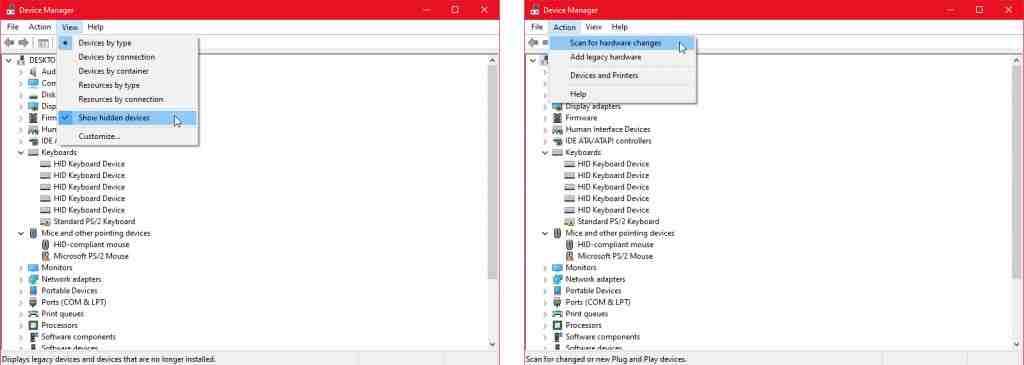
The network adapter may be missing simply because the Device Manager does not display it. Here’s how to make the network adapter visible:
Show Hidden Drivers In Windows
Right-click Start > Device Manager.
Open the View menu and click Show Hidden Devices.
Expand the list of Network adapters and check if the adapter is now visible.
If the adapter is still missing, click Action > Scan for hardware changes.
#3. Remove the Battery From the Laptop
If you’re on a PC, or your laptop doesn’t have a removable battery, skip this solution. While removing the battery you are forcing the motherboard to reset its settings which might be enough to fix this issue.
If your laptop comes with a removable battery, turn it off and remove the battery for a few seconds. Then, plug it back in and turn on the laptop again.
#4. Turn off Antivirus and VPN
If you are using a VPN on your device, try turning it off or even uninstalling it. Then, restart your laptop or PC and check if there is any difference. Do not forget, to also turn off the antivirus or check for available updates.
#5. Run Network Adapter Troubleshooter
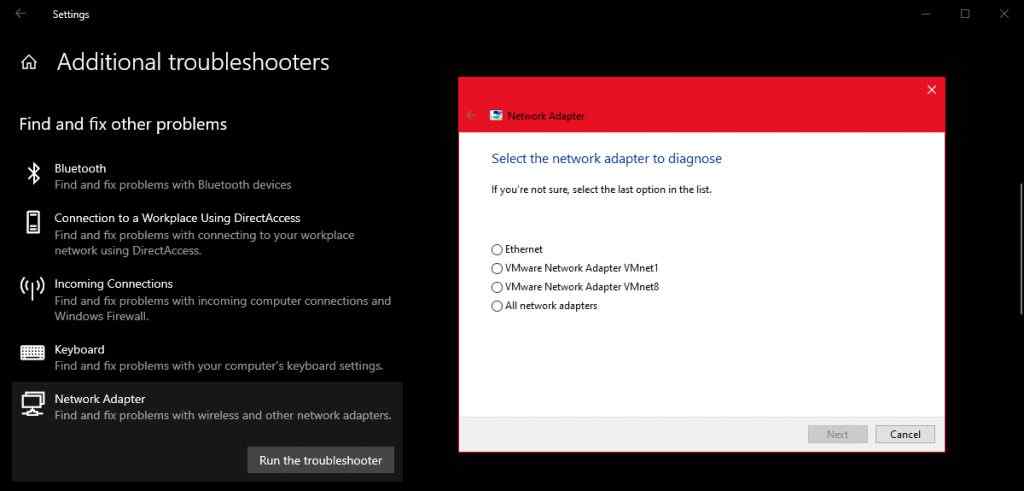
Windows 10 provides a useful list of troubleshooters so it’s no surprise that you can fix some network adapter problems using one of these tools. Follow these steps to run the Network Adapter troubleshooter:
Run Network Adapter Troubleshooter
Right-click Start and select Settings, or use the keyboard shortcut Win + I.
Go to Update & Security > Troubleshoot > Additional troubleshooters.
Under Find and fix other problems, select Network Adapter > Run the troubleshooter.
Follow the instructions shown.
#6. Use the Network Reset Tool
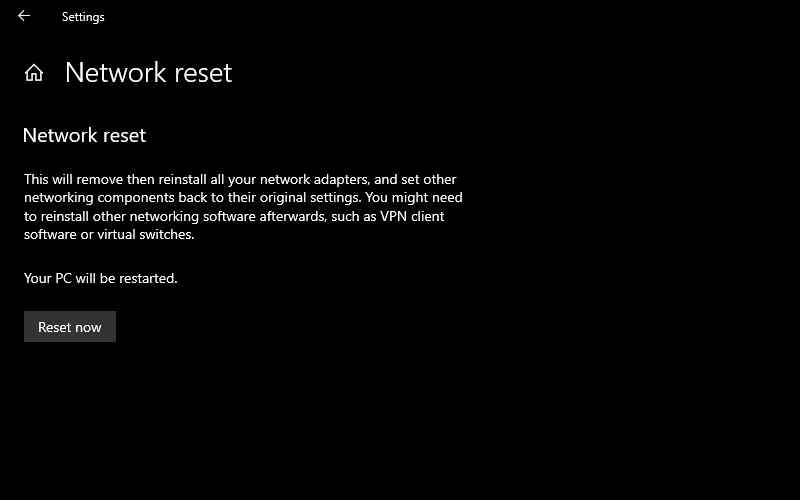
If the troubleshooter doesn’t solve the problem, you can try using the Network Reset Tool. This will make all network settings back to their default settings without disturbing your data. Follow these steps to reset your network:
Use Network Reset Tool
Go to Settings, then go to Network & Internet.
Select Status and scroll down to Network reset.
Select Reset now.
#7. Check Power Management Settings
If you are using a laptop, Windows 10 will turn off some of its features when the battery is low or when battery saver mode is activated. Follow these steps to check the Power Management settings :
Right-click Start > Device Manager.
Expand the list of Network adapters
Right-click your network adapter and select Properties.
Go to the Power Management tab.
Uncheck Allow the computer to turn off this device to save power.
Click Apply > OK to save changes.
#8. Reset Winsock Settings
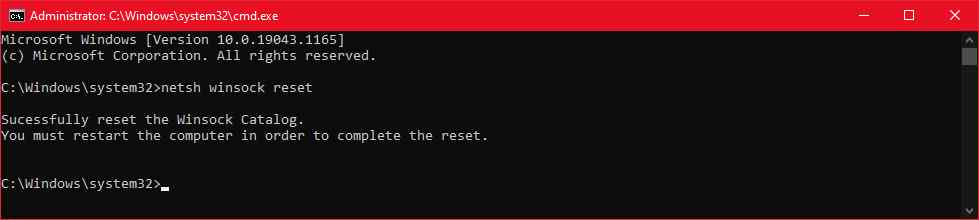
Winsock is the programming interface and supporting programs that define how Windows network software uses its network services. If something goes wrong with the Winsocks file, it can cause the network adapter to disappear from Windows 10. Here’s how to reset Winsock data:
Reset Winsock Settings
In the Start menu search bar, look for the command prompt and select Run as administrator.
Inside the Command Prompt window, type netsh winsock reset. Then, press Enter.
Restart your PC or laptop to save changes.
#9. Clean Network Devices
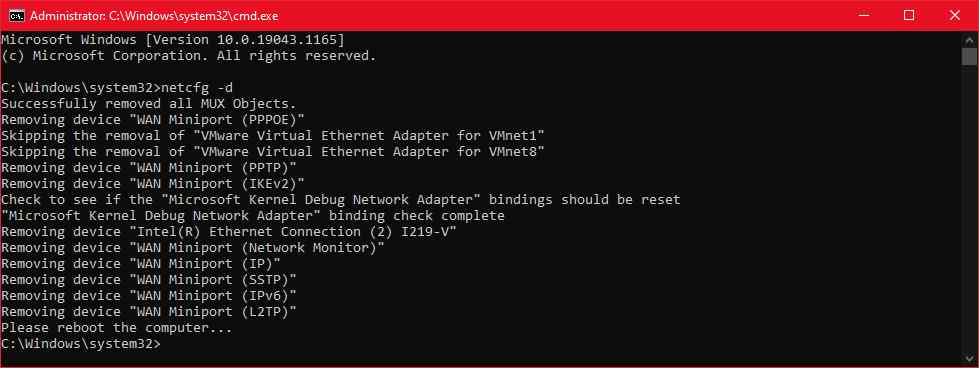
If the previous method didn’t work, you can follow these steps to clean network devices using the command prompt:
Clean Network Devices
Press Win + R to open the Run window.
Inside the Run window, type cmd and press Ctrl + Shift + Enter to run Command Prompt as administrator.
In the Command Prompt, type netcfg -d.
Restart the device and check if you can now find the network adapter.
#10. Check Windows Background Services
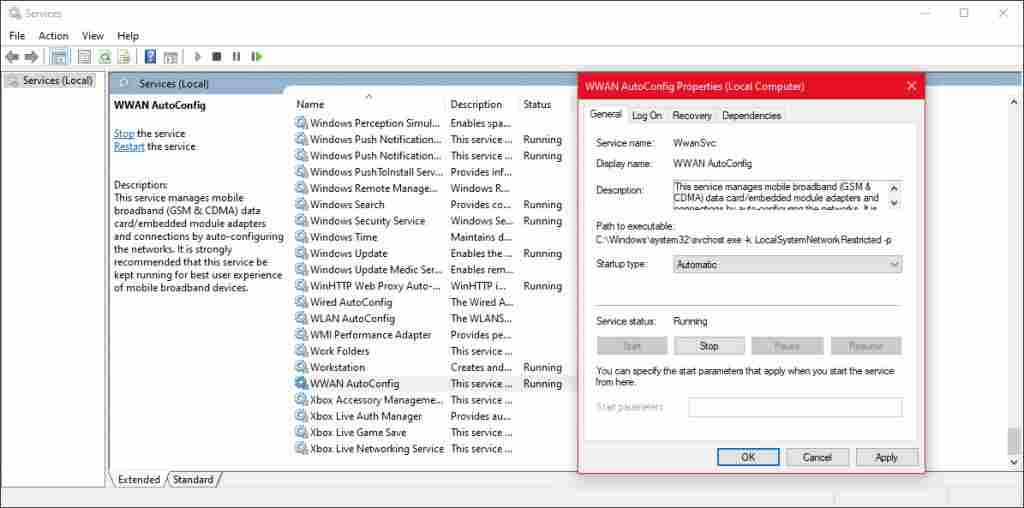
Your network driver may be missing because the background service stopped working properly. Follow these steps to manage it manually:
Check Windows Background Services
In the Start menu search bar, search for services and select the most suitable one.
In the Services menu, locate and open WWAN AutoConfig.
Check if the Service status is Running. If not, click Start to run it.
Set the Startup type to Automatic.
Click Apply > OK to save changes.
Restart your device and check if the missing driver is now available.
So that’s how to fix the network adapter that is not detected or missing. There are many solutions available. As we discussed, you can try turning off your VPN or antivirus and Windows 10 also has some troubleshooting tools you can use.
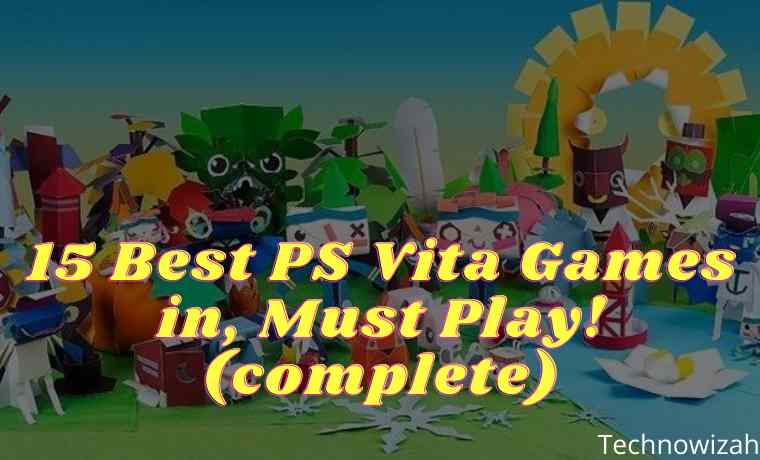
15 Best PS Vita Games in 2024, Must Play!– For those who are still fans of PS Vita, we have compiled a list below with the 15 best PS Vita games of all time until 2024.
15 Best PS Vita Games in 2021, Must Play! 2021 (complete)
The Best PS Vita Games of All Time
Although not the expected success, the Playstation Vita (PS Vita) was a highly respected device of its time. With great features, the device has all the controls a Playstation console has and, best of all: countless high-quality games.
With so many options to choose from, we thought it might help to make some recommendations for PS Vita owners and buyers. Here I recommend the best PS Vita games in 2024.
#1. Gravity Rush
Even a few years after its release, Gravity Rush remains one of the best PS Vita games of all time. Unique in its kind, this game stands out thanks to its very fun comic book style and impeccable gameplay on Vita. Sequels have appeared on portable consoles from Sony and PS4.
#2. Tearaway
With Iota and Atoi, the messengers, Tearaway is a game that is packed with charm, color, and humor and is endowed with impressive gameplay. Tearaway, another example of what Vita’s abilities can achieve.
#3. Persona 4: Golden
Persona 4: Golden has easily entered the ranking of the best PS Vita games in 2024. This upgraded version of the game originally released on the PS2 remains one of the best games of the genre available on all platforms.
This enhanced version goes even further to rework the original story by including new characters and new game arcs for those who have finished the game. This game is only mandatory for every PS Vita owner.
#4. Muramasa Rebirth
Muramasa Rebirth is a staunch standard-bearer of classic Vanillaware action RPGs. The game shines and dazzles on the PS Vita’s OLED screen. This is not only the most beautiful Vita game, but it is also a game that one enjoys playing.
Immersive, stylish, and action-packed, the Muramasa Rebirth campaign, hidden demon sword, massive exploration, and other options are enough to keep you busy for a long time. If you’ve never played Muramasa: The Demon Blade on the Wii, the Vita version is a great way to catch up.
#5. Uncharted Golden Abyss
This game is amazing and it is the best launch title for the PS Vita. Uncharted Golden Abyss is a beautiful and fun game with a huge collection, lots of laughs, and some cool surprises from the franchise that are very familiar to PlayStation fans.
The game promises an Uncharted experience on a handheld console, and that promise is kept. This fits into the list of the best PS Vita games of all time.
#6.WipEout 2048
I really enjoyed my time with Wipeout 2048. This is the best PS Vita game 2024 which is fun and very explosive. Plus, if this is your first Wipeout game, chances are you’ll have a lot of fun. Undoubtedly, this launch game fulfills all the needs of fans of the series.
Fast-paced, frenetic, beautiful, and addicting, this is truly a game you have to experience. With tons of different championships, long-lasting multiplayer, and additional DLC – which is both cross-buy and cross-play with the PS3 version – you can only be impressed with WipEout.
#7. Soul Sacrifice
This is not a typical Monster Hunter title, and it takes a much more mature approach than most – it is a game of soul sacrifice, which is all about tearing people’s souls and eating them. energy.
With puzzling gameplay and action, improved visuals from the original, and lots of new content – the definitive version of Soul Sacrifice offers a rich experience for those who want to take the time. Whether you play for a few minutes or for hours, it’s an addicting and rewarding experience.
#8. DanganRonpa: Happy Havoc Trigger
Danganronpa takes the mystery of murder to a whole new level. This game is a beautiful mix of genres between visual novels modeled on investigative and attempted murder such as Phoenix Wright. Its quirky humor – made even better with excellent writing and catchy characters – is constantly distracted by the seriousness of the plot, creating a unique adventure for Vita players to experience.
Danganronpa is a must-visit for those looking for a story-based adventure through the revolving world of crime-solving and chaos. A visual novel that easily made it onto our list of the best PS Vita games of all time.
#9. LittleBigPlanet
LittleBigPlanet PS Vita is truly the definitive LittleBigPlanet game. In other words, everything you love about past games in the past is organized into games that you can play anywhere, anytime. Plus, you can collect reward bubbles while watching TV, download user-created levels at home, then read them on the plane, and spend hours learning 10-minute cut creation mode in the laundry room.
Then there’s all the new stuff, like touch controls, games that don’t involve Sackboy and creative potential that gives you tons of free games. Yes, the build is cumbersome and the loading times are a little too long, but that doesn’t stop the LittleBigPlanet PS Vita from being a great experience.
#10. The Last Rewards of Virtue
This sequel is crooked, more brutal, and more memorable than the first volume, it solidifies Zero Escape as a series, and it’s an experience I recommend for all gamers – if you’re over 18.
Virtue’s Last Reward builds an unforgettable story about the choice dilemma: Will you cooperate, or will you betray? There is a choice to be made, however, whether you should buy it or not. Do it. Buy now. There shouldn’t be a timeline created where we didn’t play this game.
#11. Killzone Mercenary
This best PS Vita game 2024 has everything you could want from a PlayStation Vita game, soundtrack, and visuals to a home console equivalent, taking advantage of all the functionality of the buttons, combined with unique gameplay.
Killzone Mercenary is a must-have title in every Vita owner’s collection! Killzone: Mercenary finally delivers what Vita’s owners are asking for a first-person shooter that will not only keep them busy for a long time but help them justify their PS Vita purchase.
Mercenary is an excellent shooter game, designed for avid fans of shooting. There’s a lot to like here – even though the campaign is very short – the Contract mode promises some frenetic multiplayer gameplay. Killzone: Mercenary isn’t just a great FPS promise. A great FPS that takes its place among the best PS VITA games of all time.
#12. Danganronpa Trilogy: Goodbye Despair
Danganronpa is a MUST-PLAY for anyone who enjoyed the first episode. As simple as that. The series as a whole is also highly recommended for all fans of the visual novel genre.
This game pushed the bar even higher than the first. The sheer number of extras is the main reason for this, but fantasy storytelling and storytelling are the stars of this game (and the series).
#13. Dragon’s Crown
Dragon’s Crown is a great experience and while it’s easy to get distracted by mages and their attributes because of the character’s visual style, don’t deny yourself the chance to play one of the best beats ever. all the time.
Open to new players and experienced players, you need this game in your life. Without exaggerating, this game managed to achieve a tour de force and became essential in its field and at PS Vita.
#14. Assassin’s Creed III: Liberation
Assassin’s Creed III: Liberation is a simplified version of the Assassin’s Creed franchise. As complete as any console game, every aspect seems to have been meticulously crafted.
Game Liberation is part of the AC series, and he’s proud to stand alongside your other favorite Assassin’s Creed. If you’re looking for an excuse to get a PS Vita, this might be one.
#15. Toukiden: Kiwami
There’s nothing wrong with Toukiden, but nothing particularly special either. This is the best PS Vita game of all time with demonic action that is well designed, very entertaining, and not too ambitious without the depth and character of Monster Hunter and the surprising and terrifying oddities of Soul Sacrifice.
There is nothing better than what is available on the Vita. But for handheld online co-ops, this game will keep you going for hours with tons of levels and bosses.
3 Ways To Remote Android from PC Laptop Windows – Did you know that there is a way to remotely / control your Android cellphone only via a PC or laptop? In this way, you can control your Android phone from a PC remotely or from anywhere.
How To Remote Android from PC / Laptop
How To Remote Android from PC Laptop Windows 10
If you use a desktop device such as a PC or laptop computer more often, all your activities will be easier. The reason is to do activities on an Android phone, you can access it via a PC or laptop.
When your PC is connected to an Android cellphone, you can reply to chats like WhatsApp, Line, Telegram, Instagram, and the like just through your PC.
There are various types of ways to control your Android mobile via PC or laptop. The way it works is also very easy for beginners to understand.
So, you don’t need to worry about having trouble connecting your Android smartphone to your PC or laptop.
Here below are some ways to remotely control your Android cellphone from a PC and Laptop that you can use.
How to Remote Android via TeamViewer Windows 10 PC
How to Remote Android via TeamViewer PC
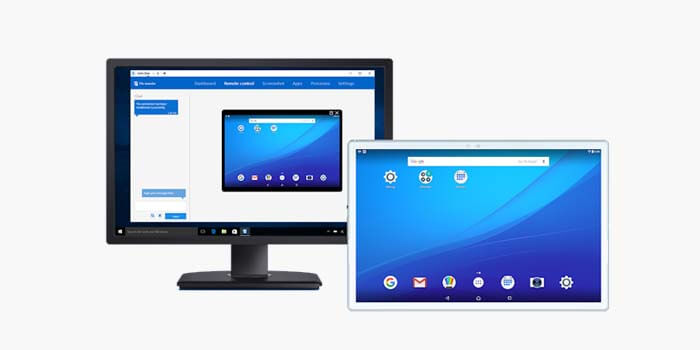
TeamViewer is an application or software that functions to control the device remotely. This application is usually used to arrange online meetings, web-based conferences, and file transfers between computers wirelessly.
Follow the steps on how to control an Android phone from a computer via TeamViewer below:
Install TeamViewer for Windows on your PC or laptop.
Then install the TeamViewer QuickSupport application on Android.
Open the TeamViewer QuickSupport application on Android.
Then your TeamViewer ID will appear.
Open the TeamViewer application on the PC then type the ID of the Android phone.
Then click the Connect to Partner button.
Give permission or allow notification of requests.
Click the Remote Control menu option in the TeamViewer application on the PC.
Click Allow and check the box then click Accept.
Now you can see the appearance of the Android phone from your PC or laptop. There you can also access or open any application on your Android phone as usual.
How to Control Android Mobile from PC via Mobizen
How to Control Android Mobile from PC via Mobizen
Mobizen is better known as an application that can record activities on Android mobile in the form of videos. However, did you know that this application can also be used to remotely Android phones from PCs and laptops?
Here’s how to remotely Android phone from a laptop / PC via Mobizen:
First, install the Mobizen Mirroring application on the Android phone.
Then install the Mobizen for PC application on the computer or laptop.
Open the Mobizen Mirroring application on Android then log in (register if you don’t have one).
When logged in, tap the Start Mobizen button.
Connect your Android phone and computer via a data cable.
If there is an Allow USB Debugging notification, select OK.
Open the Mobizen application on the PC then click the Android Remote Control button.
Login using your account and then click Connect.
If the start capturing notification appears … then click Start Now.
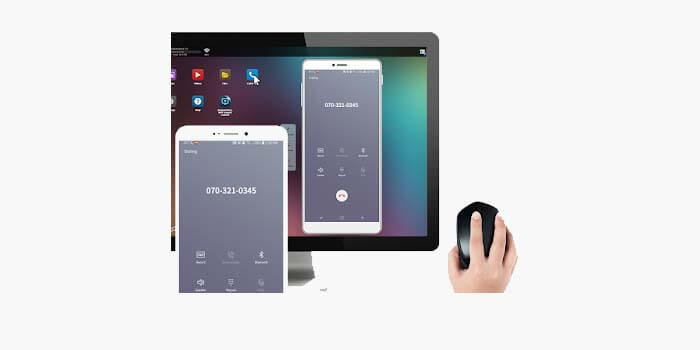
Now you can control your Android phone from a PC or laptop that is already connected. This application can be used to remotely Android phones from a PC for free.
How to Control Phone from a PC via AirDroid
How to Control HP from a PC via AirDroid
For the remote way of Android phones from PCs and laptops, the latter is using the AirDroid application. This application is perfect if you are a PC user who wants to focus in front of a monitor and doesn’t want to switch to the phone screen.
How to remotely from a PC or laptop using AirDroid:
Install the AirDroid application for phones via Playstore.
Then you have to connect your Android mobile and PC to the same wifi network.
Open the AirDroid application on your Android phone.
Enter the Connection Tab in the phone AirDroid application.
Check and copy the IP address listed.
Then open the browser on your PC.
Enter the IP address found on AirDroid then visit.
A request notification will appear in the AirDroid application.
Tap Accept to agree.
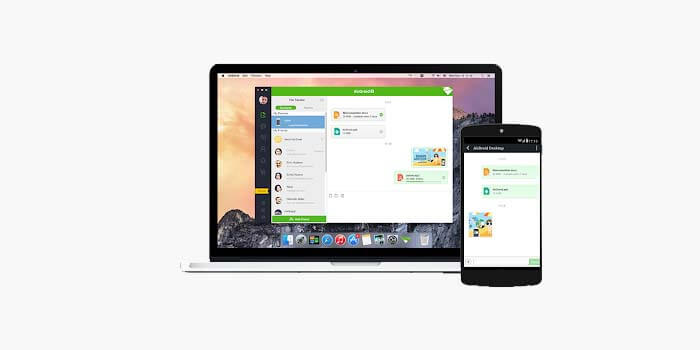
The display of your Android smartphone or tablet will appear on the PC browser you are using. This method is often used by some gamers to play Android mobile games on a PC or laptop screen.
Several ways of remote Android phones from a PC that have been described above can work in all types and brands of Android phones. You can also use a PC, computer, or laptop with Windows or macOS operating systems.
Best 17 Cool and Light Windows 10 Theme Coolest For PC – Are you looking for light Windows 10 themes? I will provide some recommendations for the best Windows 10 themes that are light, not heavy, and make the computer slow, but have a nice and cool appearance.
Best 17 Cool and Light Windows 10 Theme Coolest
How to Download Cool and Light Windows 10 Themes For PC Laptop Desktop
Windows 10 comes with a UI that is more modern than the previous version, users can use two main modes, namely light mode which gives a bright nuance with grayish-white dominance, or dark mode with black domination.
To get a different feel, we can customize the colors, but if you want something more unique then you can install other cool themes according to your taste.
The following are some of the best cool Windows 10 themes to choose from:
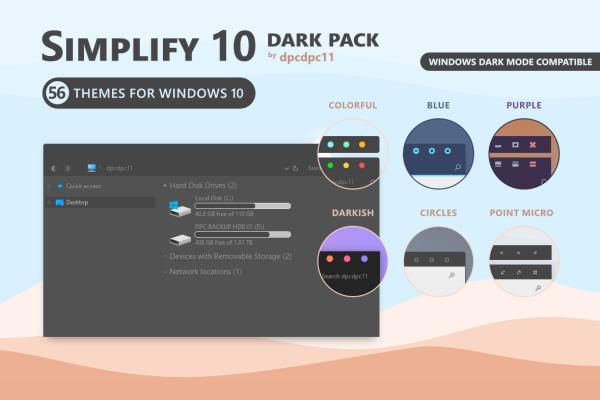
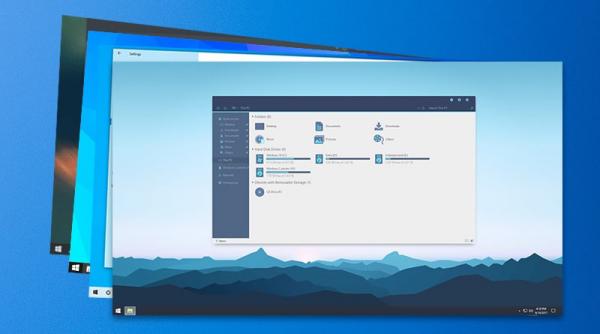
#1. Simplify 10 – A lightweight Windows 10 theme with an elegant look
Simplify 10 – A lightweight Windows 10 theme with an elegant look
Looking for a theme with a minimalist look but still looks cool and elegant? You must try this theme called Simplify 10. In terms of beautiful design and performance, this theme is one of the best themes for Windows 10.
Simplify 10 will minimize the elements in the theme, making it look neater while making Windows 10 lighter.
There are three main modes of this theme, namely light mode (light theme), dark mode (dark theme), and Maverick which is similar in design to one of the most popular Linux distributions, namely Ubuntu.
Interested in trying it? Please download the Simplify 10 theme from the link we have provided above.
#2. Win11 Dark VS – Cool Windows 10 Dark Mode Theme
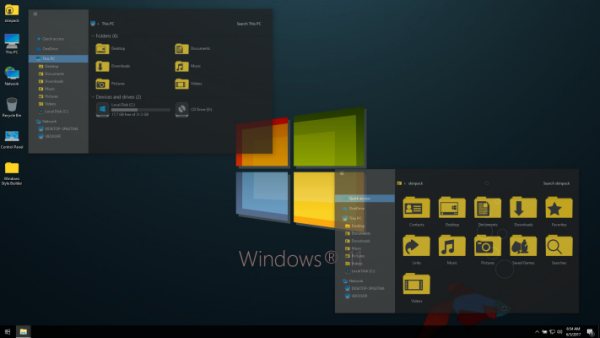
One of the things that are mandatory after installing Windows 10 is to make it look more attractive. Dark mode themes always look cool, in Windows 10 you can also have themes with dark mode.
In addition to the appearance that will look more elegant, the theme with dark mode also makes the eyes less sore when lingering on the screen. When using a laptop with a dark theme battery it can also save power consumption.
One of the best dark mode themes for Windows 10 that we recommend is Win11 Dark which you can use for free. This cool theme is suitable for those of you who like a black Windows look.
This theme will change all existing elements with a combination of dark gray and black, making Windows 10 look cool but still comfortable to look at. To make it more stable, don’t forget to use this mandatory Windows 10 application too.
If you like dark themes with black nuances then this one is a must-try. Indeed, there is not much difference between the dark mode theme and this black theme, maybe it is only different in terms of layout design.
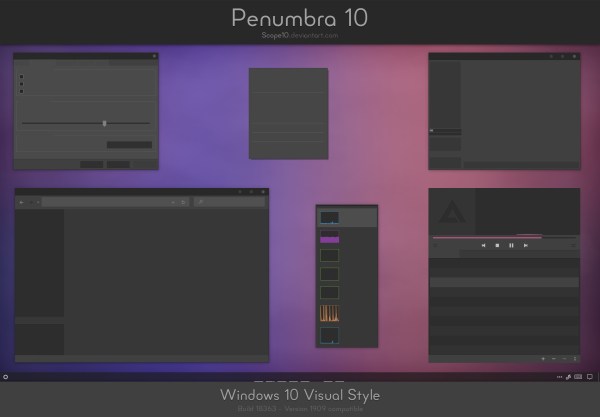
This Penumbra 10 theme also provides an appearance dominated by dark and gray colors. Folders and icons are flat in design with a black-gray color to make the display look more modern.
Just download and install this cool theme via the link we have provided.
Do you like 3-dimensional themes? Try this 3D Theme first. In this theme pack, 17 cool HD wallpapers will give you a 3D illusion as if the image is moving and alive.
You can also add other 3D wallpapers according to your taste. To monitor users with high resolution, you can use 4K wallpapers to get a clear view.
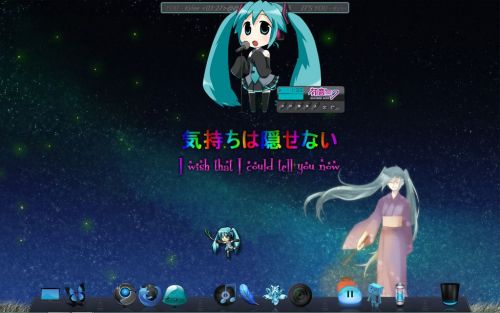
Love anime themes? In Windows 10 you can use it too. There are lots of popular anime themes such as One Piece, Naruto, Detective Conan, Haikyuu, Insekai Quartet, Gotoubun no Hanayome, Tensei shitara Slime Datta Ken, Toara Kagaru no Raigun T, Re: Zero, Kimetsu no Yaiba, Dr. Stone, The Promise Neverland, Darwin’s Game, and many more.
Please choose which anime theme is your favorite to install on your Windows 10 laptop. To make it look cooler, you can also find your favorite anime wallpaper and then make it a background to enhance the appearance of the theme.
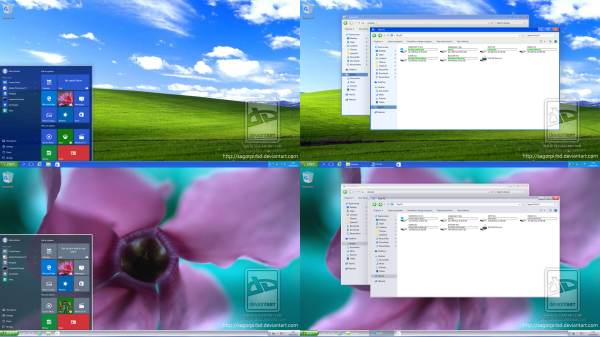
Does Miss the old school look like Windows XP? Now you can change the appearance of Windows 10 to look like Windows XP by installing this theme.
The appearance of Windows XP is indeed very simple, people who have been using the Windows OS for a long time must be very familiar with its appearance.
When using Windows 10 there may be a lot of changes, to change it to a simpler Windows XP look, we need a theme. When used, only the appearance changes, but all the features in Windows 10 will remain the same.
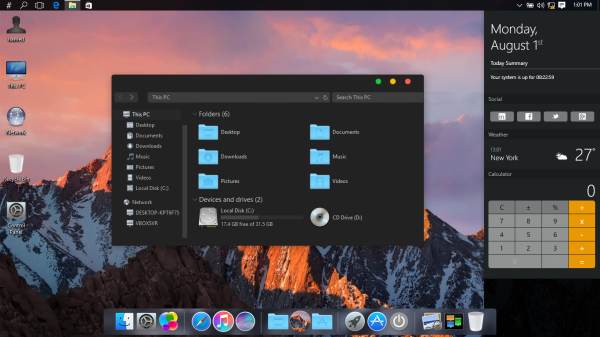
Haven’t got the MacBook yet because the price is too expensive? Take it easy, you can still feel the sensation of using a MacBook on a Windows 10 laptop. By using this MacOS theme you can get a look that is very similar to an Apple laptop.
This MacOS theme for Windows 10 will change the look of your laptop to the appearance of a Mac as a whole starting from the location of the icon at the bottom (dock), the file explorer window page view, the close button location, to the color nuances very similar to Apple.
This theme is also light enough that it can be installed on even low-spec PCs and laptops. Interested in trying this cool theme? Just download and install via the link we provide above.
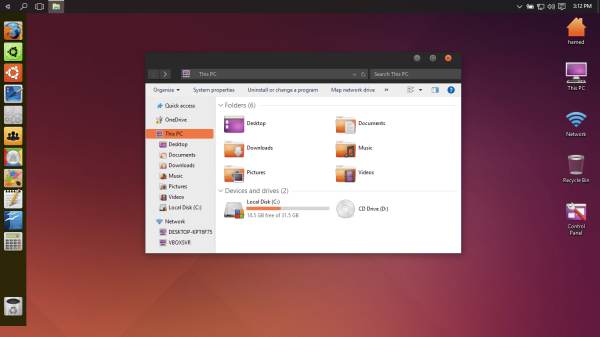
Ubuntu is the most popular Linux distro with the most users today. High compatibility and a very friendly appearance for beginners make users comfortable using this OS.
For those of you Windows 10 users who want to change the appearance of Windows 10 like Ubuntu Linux but don’t want to install it, you can use the Ubuntu SkinPack theme.
This theme will give you the sensation of using Linux on a laptop with the Windows 10 operating system without having to install it. You will get a typical Ubuntu look easily, there are also several cool skin choices that you can use.
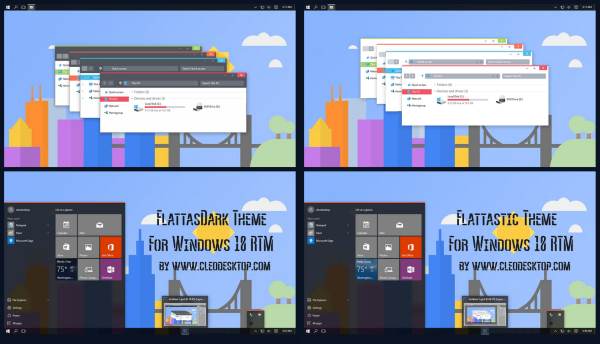
The next cool theme for Windows 10 is Flattastic, this theme will give you a simple yet modern look. Fantastic puts forward a minimalist and clean look, and the color combination is also cool on the eyes.
This theme is suitable for those of you who like a neat appearance, in terms of performance this theme is also quite light so it won’t make Windows slow.
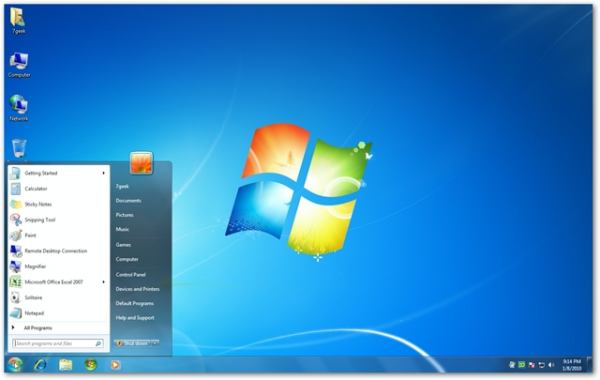
Want to change the appearance of Windows 10 to be like Windows 7? You can do it easily using this theme.
The Windows 7 theme will make your Windows 10 look very similar to Windows 7, even if you are used to it you will forget that you are currently using Windows 10.
This theme will change all elements in the UI starting from the Start menu, taskbar, tray icon, and explorer display exactly as in Windows 7. For those who are used to using Windows 7 but have to migrate due to work needs, this theme can be a powerful solution.
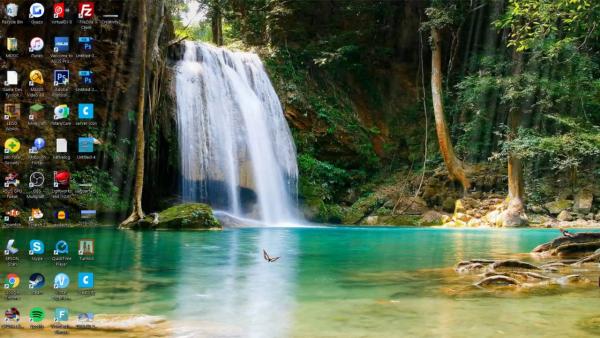
One of the most popular themes is dynamic or moving themes. You can also use this theme on Windows 10. There are tons of themes that support the moving image feature as Wallpaper, one of which we recommend you can find in the link below.
The Windows 10 moving theme lets you set dynamic backgrounds, making them look lively and real. Images of natural landscapes such as waterfalls will look more alive because the waterfall looks as if it continues to flow and gives a soothing atmosphere.
#12. Windows 10 Android theme
Windows 10 Android theme
Download
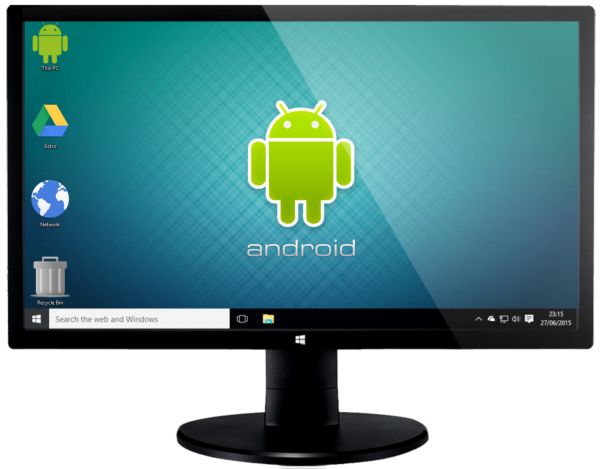
Want to change the appearance of Windows 10 to be like an Android smartphone or tablet? You can use this Android theme for Windows 10.
Android does have a cooler and more pleasing appearance compared to the default Windows 10 display which looks flat. The icons on Android also look nicer and more modern.
Unfortunately Windows and Android are different ecosystems, so we can’t use them as operating systems on PCs and laptops.
But by using this theme we can still get a look that is very similar to Android. Interested in trying it? Just download the theme via the link above.
#13. One Piece theme for Windows 10
One Piece theme for Windows 10
Download
One Piece is one of the most popular anime of all time. Even though it has entered the age of 20 years but until now the story is still going on, and the great thing is that One Piece fans are still loyal to following the storyline.
The release of One Piece, both anime and manga versions, is always eagerly awaited by fans around the world. If you are one of the anime fans who tell stories about pirates, then you must try this cool theme.
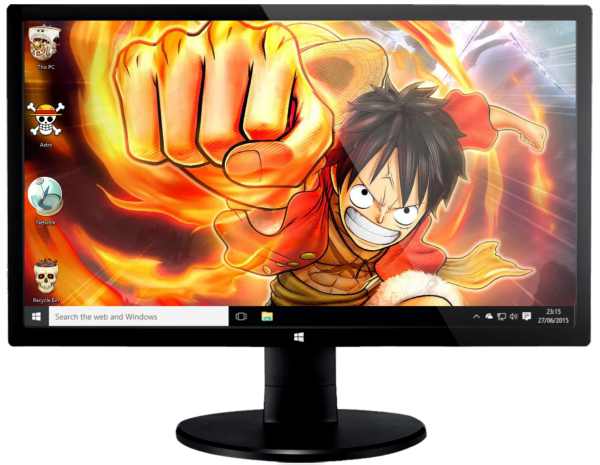
You can beautify the appearance of Windows 10 with the One Piece theme. The colors on Windows will change to the theme of One Piece, as well as the existing icons. You can also change the background to make it look cooler.
To speed up Windows 10, you must use a theme that is light and does not make the computer heavy.
There are tons of cool themes that you can download from the Microsoft Store. If you feel uncomfortable using a theme downloaded from an external site, then you can look for Windows 10 themes from the Microsoft Store.
The Microsoft Store is guaranteed security because every software there has passed the verification process. How to install applications from the Microsoft Store is also very easy, and you can use the themes there for free.
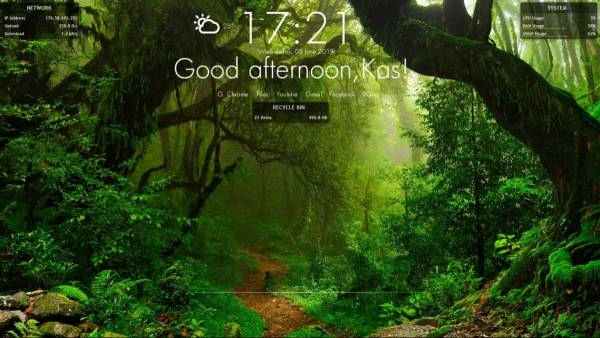
Themes with natural landscapes can provide a cool nuance when we are using the computer. Green scenery, beaches, mountains, and oceans can help relieve stress at work.
For those of you who like themes like this, here we provide recommendations for themes that you can use. This theme is equipped with HD-quality natural scenery wallpapers. Please try it for free!
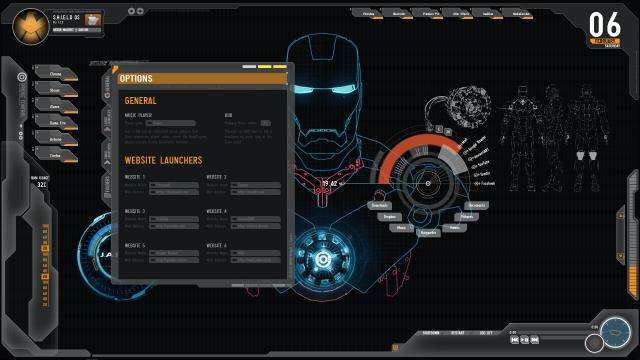
Like superhero characters? You can also install cool superhero themes on the desktop of Windows 10. There are many choices of popular characters such as Superman, Batman, Spiderman, Marvel Avengers such as Iron Man, Thor, Hulk, Ant-Man, and other superhero characters such as Wonder Woman, Aquaman, and Captain. America to Captain Marvel.
You can also install a wallpaper that matches the theme to make it look cooler. How? Want to install it now, just select the theme via the link we have provided.
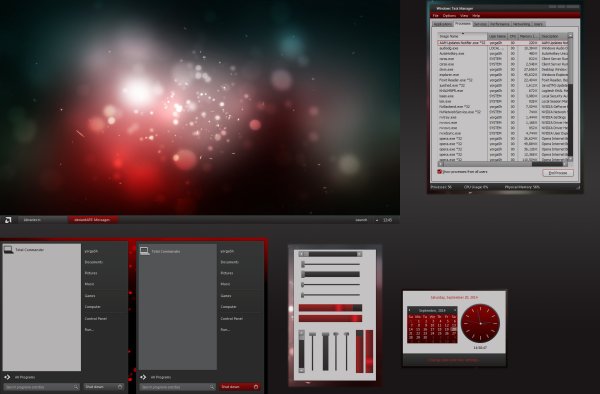
For gamers who want to make Windows 10 look cool with a gaming theme, here is a Windows 10 theme that you must try.
This theme will make PCs and gaming laptops look fierce and more professional by changing the UI, wallpaper, pointer, icon, and window appearance.
For those of you who use an Asus ROG (Republic of Gamers) laptop, there are many themes available. The theme we provide is a theme from AMD gaming, with shades of black and red that look fierce.
Immediately, try downloading the theme via the link we have provided above.
So, those are some recommendations for Windows 10 themes that can be installed on your computer to make it look cooler. Which one do you like? Please try it!
22+ Best Quality Websites to Download Free PC Games – Tired of daily activities at home or bored with PC games that you have played many times? then it’s time for you to download and play the following latest PC games!.
22+ Best Quality Websites to Download Free PC Games
Best Quality Websites to Download Free PC Games
The following is a list of 2024 free PC game download sites that you can visit to get the best current PC games that match the game genre you usually play.
The list of the best free PC game download sites that we share is official and legal PC game download sites so you don’t have to worry about licensing and copyright issues.
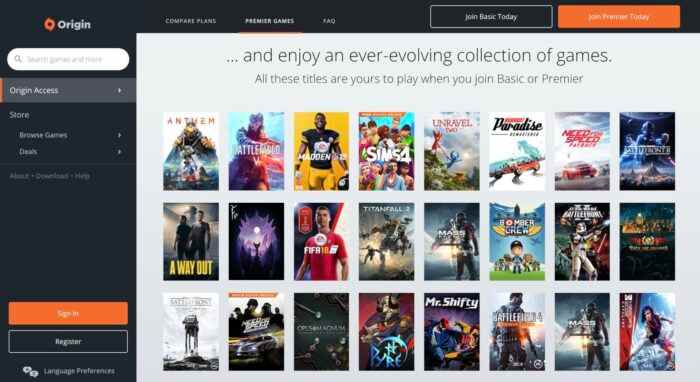
#1. Origin
Origin
Origin is already known as a popular PC game download site, such for soccer games FIFA, The Sims, Battlefield, and others. If the game we mentioned earlier is not free, friend. You have to buy it first to be able to play to your heart’s content.
However, the Originsite still provides a variety of free PC games of the best quality. For example, APEX Legends, Command & Conquer, and others. Interesting right?
#2. Steam
Steam is a service provider site that sells original game licenses online. In addition, Steam also provides a variety of games that can be downloaded for free such as Counter-Strike, Dota 2, World of Warship, and many more.
You can also get access to premium game keys from IGN which is a media site for video games and entertainment every month for free on Steam.
For those of you who can’t wait to download free PC games, you can go directly to the Steam website.
#3. Gemscool
Gemscool
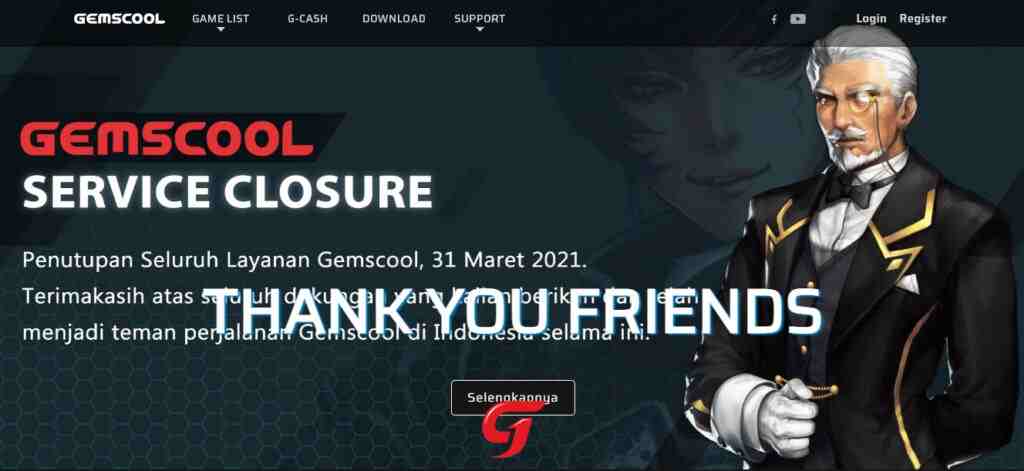
Gemscool is one of the online game publishers that plays a major role in bringing many online games to the Indonesian public. Gemscool also serves as the official distributor of the game, so in Indonesia, they also help with maintenance.
Not only that, but Gemscool also plays a role in the rotation of micro-transactions that occur in games under its banner. At least some of the game’s big names have joined under the big name Gemscool. Starting from Point Blank, Atlantica Online, Kritika, and so on.
You can get paid and free games from Gemscool through the download page, but as of March 31, 2021, the Gemscool service is officially closed. If you visit the official portal, there are no more games to download. There were only a few words of parting from the management team. Hopefully, in the future, the national game industry can continue to grow after Gemscool’s death.
#4. Garena
Garena
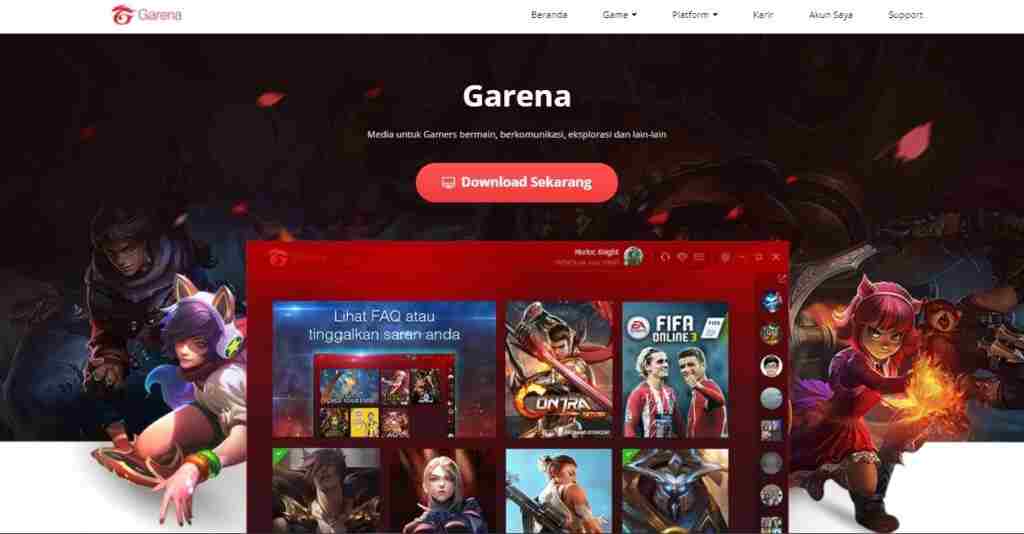
Garena is a leading game developer from Singapore and was founded in 2009.
Garena is active in organizing eSport tournaments for professionals and amateurs, besides Garena also provides various games for PC and mobile that you can download for free on the official Garena website such as Freefire, AoV, CoD, FIFA, and many more.
For those of you who are interested in downloading various PC games for free, you can directly access the Garena website.
#5. Megaxus – Indonesia’s #1 Online Game Portal
Megaxus is one of the best online game portals in Indonesia, you can get the latest game information and news to download PC and mobile games for free.
Most of the games on Megaxus smell like anime, like Ayodance, which was viral in the past. If you are interested in downloading games from a platform that has been around since 2007, you can visit the official Megaxus website.
#6. Lyto – Game Portal Indonesia
Lyto – Game Portal Indonesia
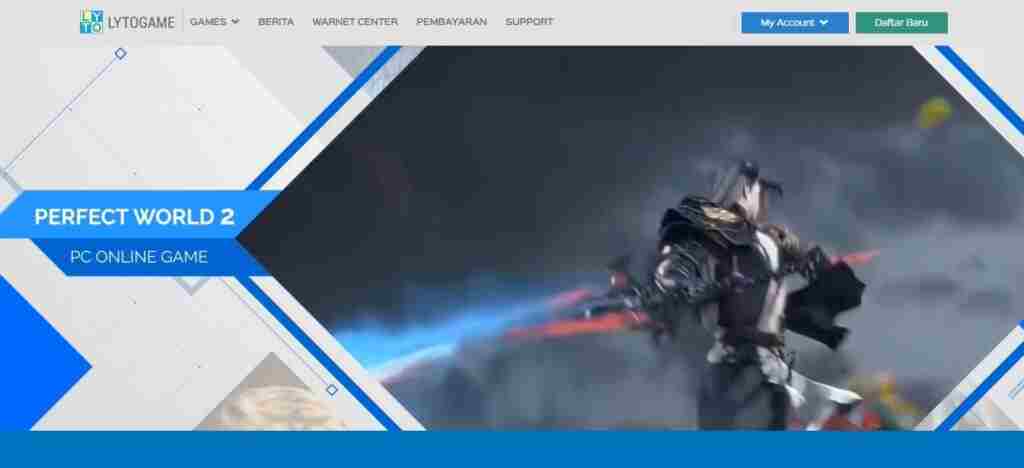
Furthermore, there is a game publisher from Indonesia which was founded in 2003, this platform is owned by PT. Lyto Datarindo Fortuna. Lyto Game has released a variety of MMO games, such as Ragnarok Online, Idol Street 2, Perfect World II, RF Online Classic, CrossFire, CrossFire, and Tera Awakening.
#7. Gog.com
Gog.com
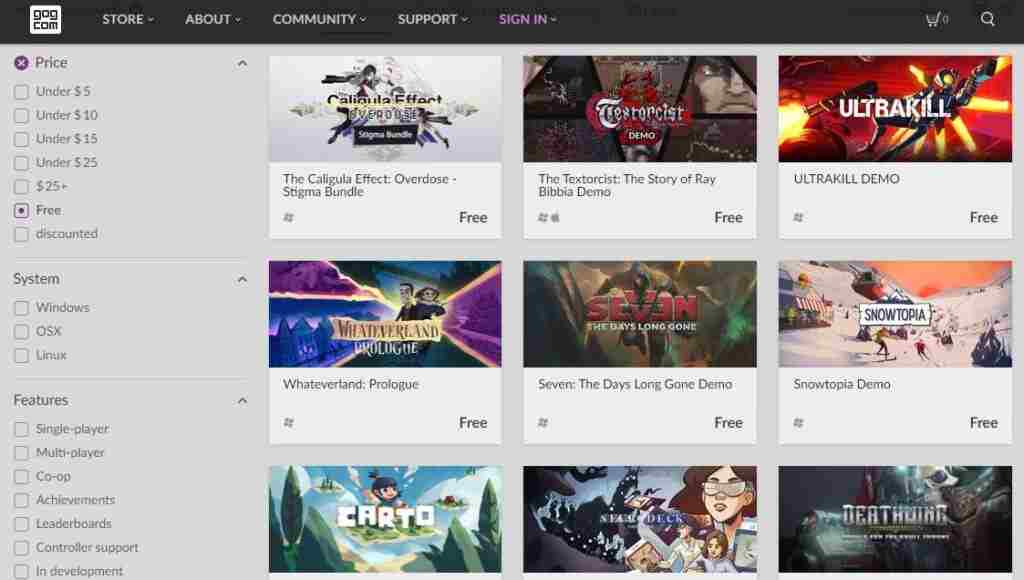
Gog is a PC game download site that provides free and paid games. This site works with more than 600 partners and game developers. The range of game collections they offer is also quite wide, ranging from well-known classic games to modern games.
GOG also guarantees that its entire collection is DRM-free so that 100% ownership of downloaded games belongs to the user just like buying a physical game. You can directly access all the free games provided by GOG through the official Gog website.
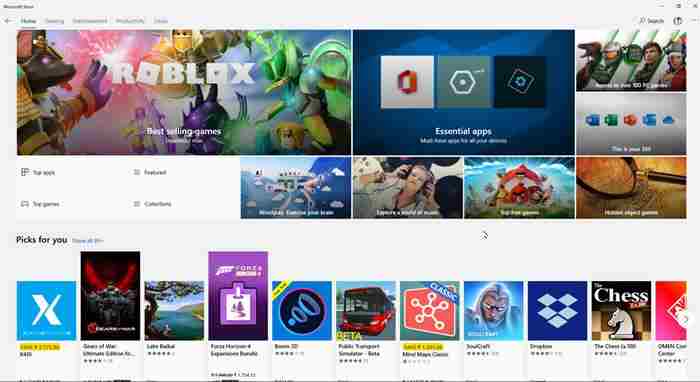
#8. Microsoft Store
As a company that is famous for its operating system that is used by various people in all parts of the world, Microsoft also pampers its users with an application store called the Microsoft Store which contains various applications and games.
The games offered in the Microsoft store are available in premium versions and free versions, the free version is not inferior in quality to the paid versions such as Asphalt 9: Legends, Roblox, World of Tank Blitz, Minecraft, and many others.
To visit the Microsoft store you can directly access it through the application in your Windows start menu.
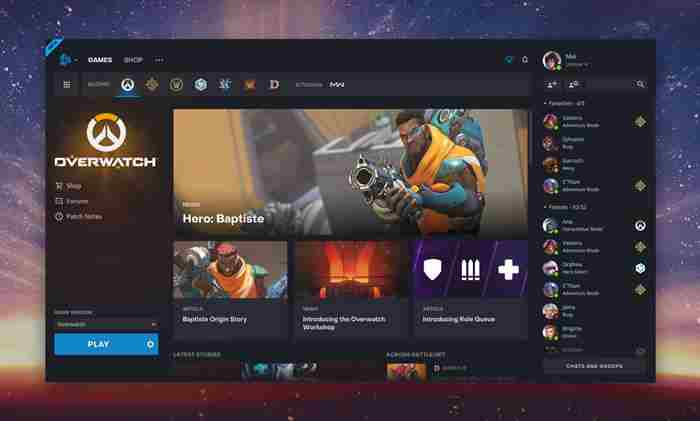
#9. Blizzard Battle
Blizzard Battle
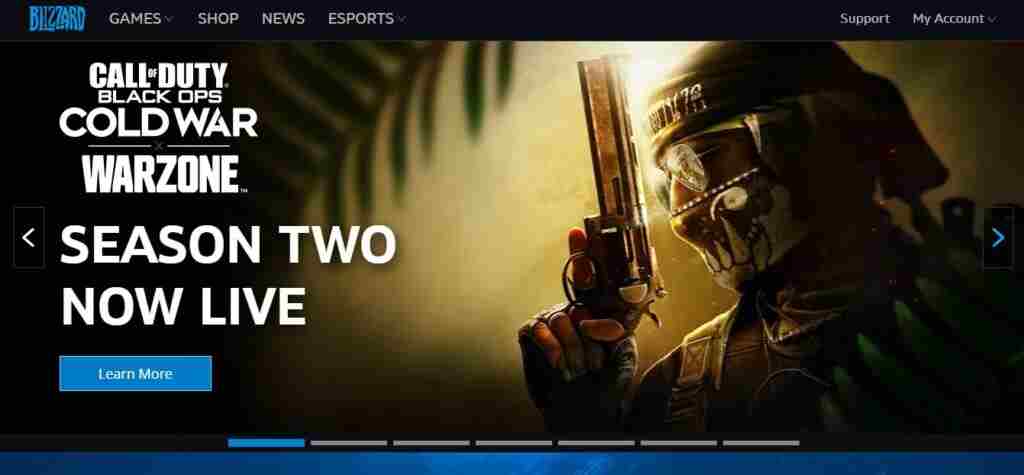
The next free PC game download site is BlizzardBattle.net, the games presented on this platform are games from Blizzard itself, such as Diablo, Hearthstone, Warcraft, Overwatch, Starcraft, and many other exciting games.
If you are interested in visiting this game site, you can access it on the official page at Blizzard.com
#10. Epic Game Store
The Epic Games Store is a video game platform for Microsoft Windows and macOS, operated by Epic Games.
Epic game is an indie publisher that was launched in December 2018, Epic Game provides various game genres that you can download, both premium and paid.
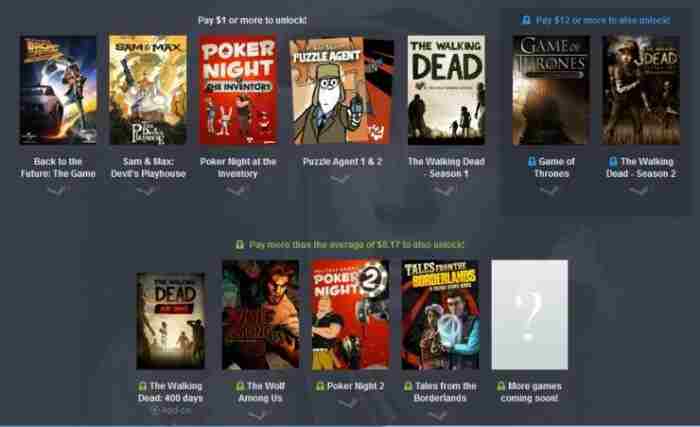
#11. Humble Store
For those of you who want to get the best quality games that you can download in bundles, you can visit the Humble Store. The Humble Store provides many highly recommended games.
Even for discount hunters, the Humble Store provides tempting offers because it often gives massive discounts on premium games sold on its website. As part of their market strategy, they sometimes give away premium games for free too!
For those of you who are interested in looking for games on the Humble Store, you can access the official website.
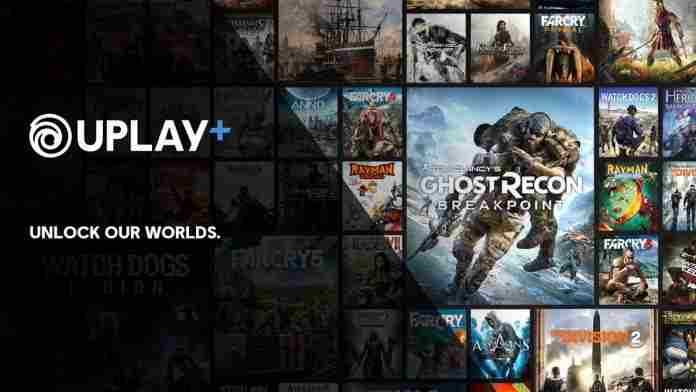
#12. Uplay
Uplay
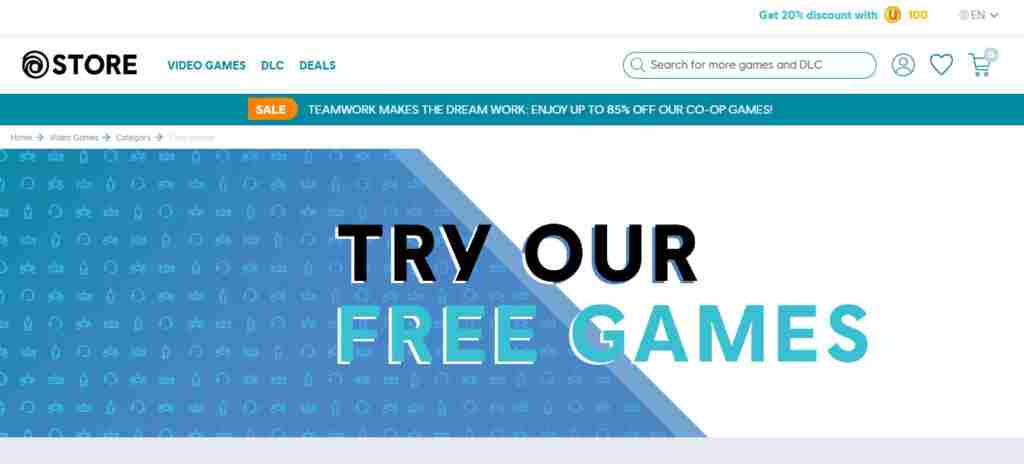
Uplay is a video game platform from Ubisoft, on this platform, you can find a variety of the best quality games, although most of the games offered are premium games, you can also get a demo or free games on Uplay.
You can access games from Ubisoft on the official Uplay website here.
#13. Acid Play
Acid Play is a free PC game download site that has been around since 2002. The collection of games on the Acid Play site contains more than 1000 games of various genres.
The game collection from Acid Play includes retro arcade games such as MapleStory, Super Mario to Sonic. Acid Play also offers other game genres such as role-playing games, simulations, adventures, and others. For those who are curious, you can immediately explore the collection of free games on the Acid Play website.
#14. Itch.io
Itch.io is a platform that allows indie game developers to publish their games so that they can be downloaded and enjoyed by other users. Apart from paid games, there are also lots of free games to share.
Sites that were released in March 2013 by the Corcoran Leaf have hundreds of thousands of games in them, interested to try, you can directly access the official website at Itch.io.
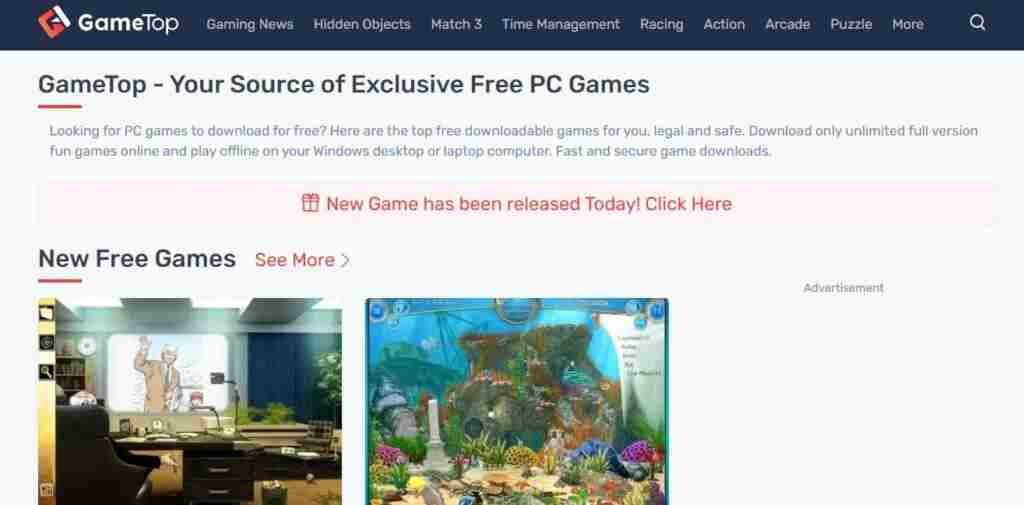
#15. Top Games – Your Source of Exclusive Free PC Games
Top Games – Your Source of Exclusive Free PC Games
The last free pc game download site is gametop, on this site, you can download various games from various genres legally and for free.
#16. Ubisoft Play
bisoft Play
Ubisoft is usually known as the game developer behind the success of Watch Dogs, Far Cry, Assassin’s Creed, and others. However, this developer also created his game site called Uplay or Ubisoft Play.
Not as much as Steam, there are only a few game titles that can be obtained for free on the official website. However, there are plenty of high-quality games that you can buy at “flash sale” prices here. Interested?
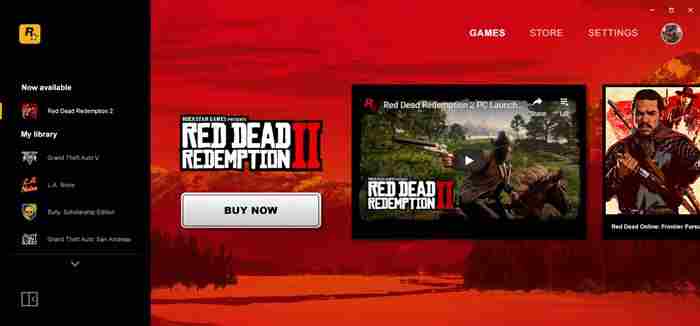
#17. Rockstar Games Launcher
Rockstar Games LauncherRockstar Games Launcher
Usually, games made by Rockstar are officially sold on platforms like Steam. However, now Rockstar also doesn’t want to miss making its game client called Rockstar Games launcher.
Lots of games made by Rockstar are present here. Several game titles are provided for free, such as GTA: San Andreas when this site was first released.
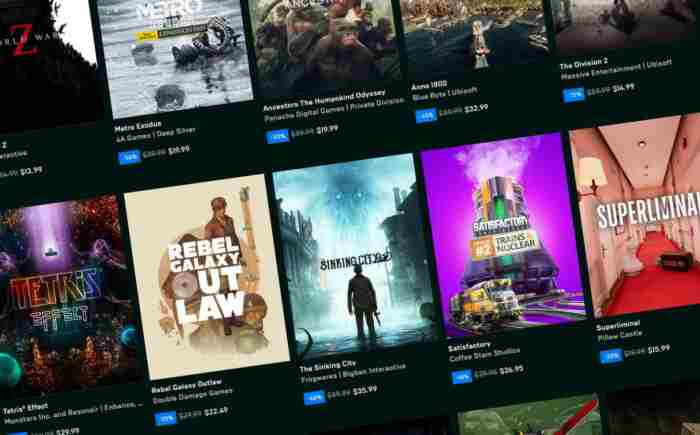
#18. Epic Games Store
Epic Games Store
Who doesn’t know Epic Games? Not only releasing cool games like Fortnite which is the best battle royale game, but this developer also has its legal game site called the Epic Games Store.
The Epic Games Store site often provides users with various free PC game titles. From light games to high-quality games, you can have them for free on this official Epic Games client, even though most of them are old games.
#19. Microsoft Store
Microsoft Store
If you are a Windows 10 OS user, surely on your laptop or PC there is an application called Microsoft Store. Apart from being a place to download applications, the Microsoft Store also allows you to download free games and friends.
There are many free and paid PC games on the Microsoft Store site. You just need to find the game you want and download and install it on your PC or laptop. Yes, it’s that easy.
#20. Blizzard Battle.net
Blizzard Battle.net
Who here has been an internet cafe kid? If you want nostalgia by playing the World of Warcraft game, the Blizzard Battle.net site can be your first choice.
There’s a huge selection of games here, from Starcraft, Overwatch, Diablo, and others. In addition, this site sometimes provides free offline and online lightweight PC game download services for users.
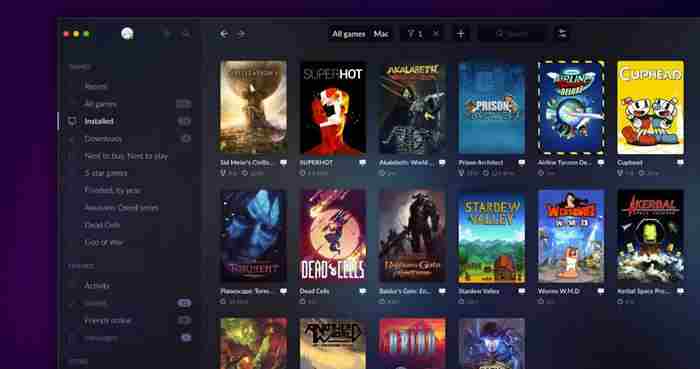
#21. GOG Galaxy
GOG Galaxy
Maybe many of you have just heard of the most complete free download site for PC games on this one. Yes, GOG Galaxy is the best PC game provider with a feature called DRM-Free.
What does it mean? DRM or Digital Rights Management can cause your game library to be lost or deleted if the game provider closes your account.
Unlike Steam, this site won’t do that. GOG Galaxyalso provides many games that are ready to be downloaded for free, although most of them are old-school games.
#22. Humble Store
Humble Store
The last legal PC game download site is the Humble Store. Not only selling free games, Humble Store also often sells the best quality offline and online games at affordable prices.
Like GOG Galaxy, the Humble Store usually distributes old-school games for free to users. Even though it’s free, the game is still fun to play.
DISCLAIMER:
The free pirated PC game download sites that we describe above are for informational purposes only. Technadvice team is not responsible for any risks arising from this article. We also recommend that you keep buying original games to support developers.
This is the collection of 22+ best-quality websites to download free PC games, those are some recommendations for the latest and most complete free PC game download sites that you can try. I hope this information is useful for those of you who want to find the latest offline and online games.
![3 Ways To Remote Android from PC Laptop Windows 10 [2025]](https://technadvice.com/wp-content/uploads/2020/07/How-to-Remote-Android-from-PC-3.jpg "3 Ways To Remote Android from PC Laptop Windows 10 [2025] 3")