Author: Nazrul Islam

  • 10 Ways to Fix This app Can’t Open in Windows 10 PC 2025

    10 Ways to Fix This app Can’t Open in Windows 10 PC 2025

    10 Ways to Fix This App Can’t Open in Windows 10 PC – Windows is the most popular operating system among computer users. This is not surprising, considering that Windows has provided a variety of interesting services in it.
    10 Ways to Fix This app can't open in Windows 10
    10 Ways to Fix This app can’t open in Windows 10

    How to Fix This App Can’t Open in Windows 10 PC

    So that users do not find it difficult at all when operating. For example, with the availability of default software that has been installed automatically when using the Windows operating system.

    Read more:

    Examples such as Windows Explorer, Microsoft Edge, Antivirus Applications, Photos, Mail, Movies & TV, and many more can be used to support daily activities. Although it has many benefits, Windows’ built-in software also has its drawbacks. One of them is having limited features. Even some users also often experience problems with errors when opening the application.

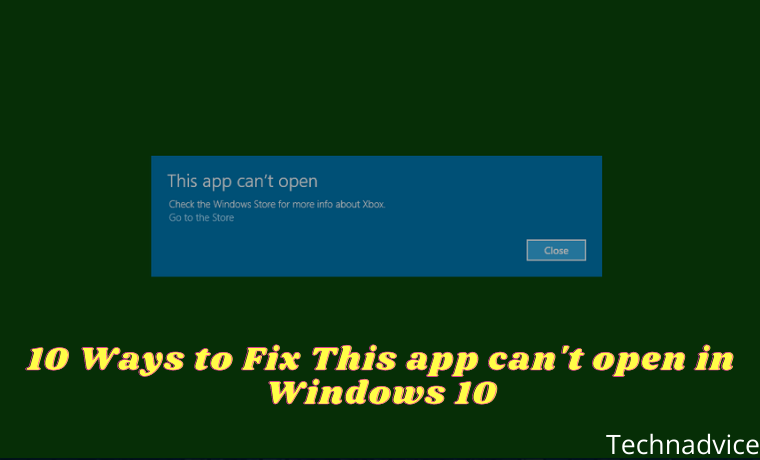
    This condition is usually indicated by the message “ This app can’t open ” appearing when you want to use it. Sometimes this problem is not only limited to Windows default software but there is third-party software that also experiences it. So what is the solution to overcome the application error that cannot be opened? Check out the reviews below.

    The Cause of the Appearing Description “This app can’t open Windows”

    There are many reasons why the error description appears when you want to open a Windows program, especially Windows default programs. Generally, this condition is caused by a malfunction in the application in question or it may also arise because of a problematic Microsoft Store. For more information, please refer to the following points.

    • System problem. One of the reasons why the message “ This app can’t open ” appears, may be due to a system problem. Given that if your system is having problems, some of the programs in it may be also affected. Moreover, the role of the system greatly affects the performance of the program or application.
    • There is an error or bug in the application. Another cause is that it could be caused by the application itself that has an error or bug. Therefore, try to always update the application to the latest version. The malfunction can also be caused by the developer.
    • Microsoft Store problem. When the error only occurs in Windows default applications, then there is a possibility that the Microsoft Store is having problems. Because of the default Windows application itself, you can download and install it through the Windows Store.
    • Having trouble doing Windows updates. Failure to perform Windows Update can also cause several problems afterward, including applications that cannot be opened. This condition may cause some services to become unstable.
    • Got a virus. Viruses or malware can also be the reason why some apps on the device won’t open or the message “ This app can’t open ” appears. The existence of the virus can modify to damage the core system files on your computer/laptop.
    • And so forth…

    Fix This app can’t open Windows 10 PC Laptop

    In overcoming the problem of the appearance of the error message ” This app can’t open ” on Windows, there are several solutions you can. For example, by making changes to UAC settings, performing an SFC scan, to using the Windows Troubleshooter. But I need to make sure again, that through this article I use Windows 10 as an intermediary to fix it. If you are using a lower Windows operating system, then feel free to make some adjustments. Check out some of the tips below.

    #1. Create a New Administrator Account

    The first method you need to do is to create a new administrator account. If you listen to the error message conveyed, there is a solution to fix it. One of them is logging in with a different account. For those of you who don’t know how to create a new administrator account, read more below.

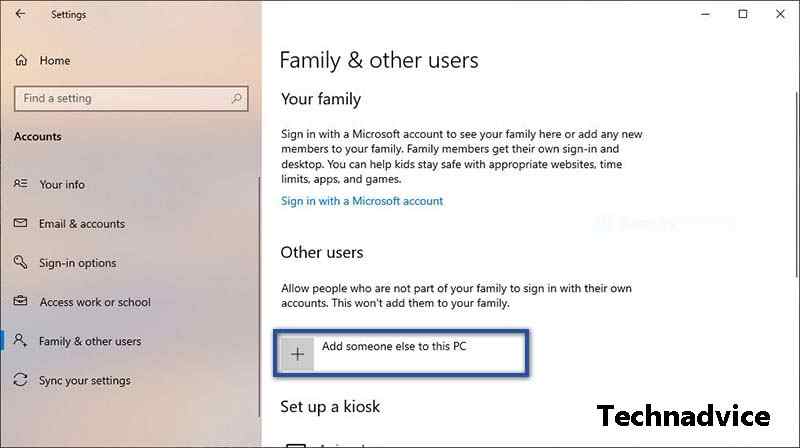
    STEP 1: In the first step, please open the Settings menu on your computer/laptop. Then click the Account menu » and select Family & other users. In the “ Other users ” section, click the Add someone else to this PC menu.
    Create a New Administrator Account
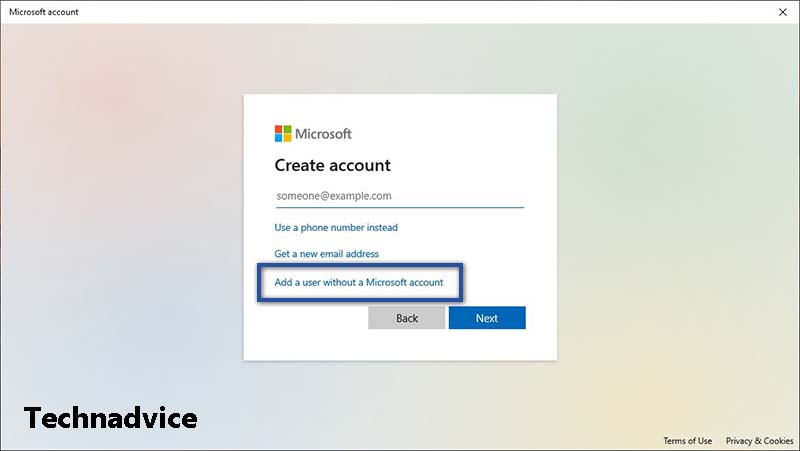
    STEP 2: After the Microsoft account window appears, click I don’t have this person’s sign-in information » and select Add a user without a Microsoft account.

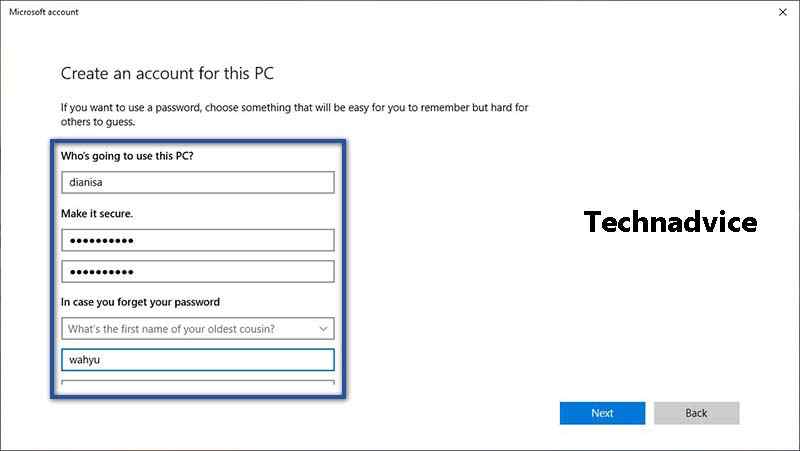
    Create a New Administrator AccountSTEP 3: Then enter the username and password for the account. If so, also add some security questions with answers, then click Next.
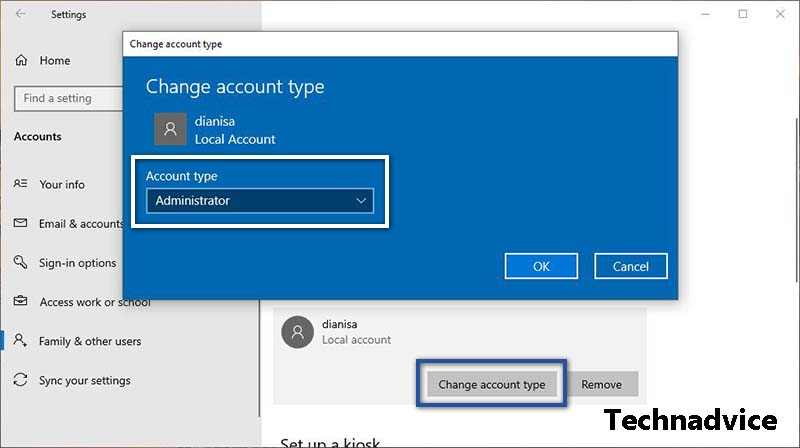
    Create a New Administrator AccountSTEP 4: If the account has been created, please change the account type by clicking Change account type. Then change to Administrator » and click OK. If so, please restart your computer/laptop. Then login with the new user you have created.
    Create a New Administrator AccountUnder certain circumstances, the error message “ This app can’t open ” may disappear when you create a new administrator account. However, if this method does not give any results, please continue to the next method.

    #2. Change the Security Policy Rules
    Change the Security Policy RulesNext is to set the Security Policy on Windows. This is done because, in certain conditions, there are settings that must be activated. So that the error message can disappear by itself. For the steps, you can see below.

    1. First, press Windows + R on the Keyboard.
    2. Then type secpol.msc » press Enter/OK.
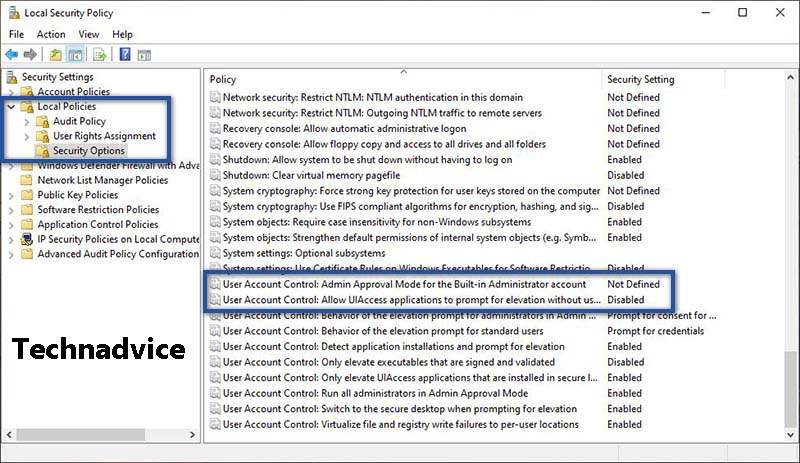
    3. Once the new window opens, click on Local Policies » and select Security Options.
    4. Then, scroll down until you find the User Account Control description.
    5. Right-click User Account Control: Admin Approval Mode for the Built-in …. » click Properties » select Enabled » Apply » OK.
    6. Then right-click User Account Control: Allow UIAccess applications to prompt…. » click Properties » select Enabled » Apply » OK.
    7. If both options have been changed, please restart the computer/laptop.
    8. Finished.

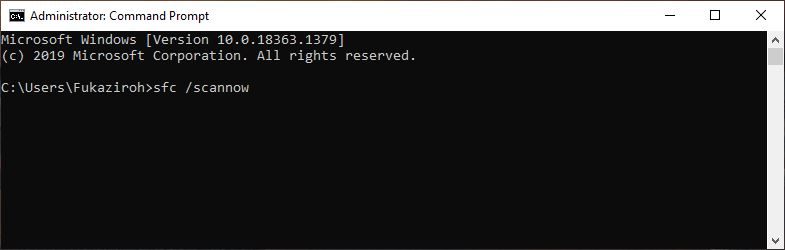
    #3. Running SFC Scan Via CMDRunning SFC Scan Via CMD

    sfc /scannow

    If with the previous method, there is still an error message when using the application. Then what you need to do next is perform a scan of the entire system file with the System File Checker command, to repair corrupted files. This needs to be done, considering that there is a possibility that this problem is caused by an error or a corrupt system file. For more details, you can do it in the following way.

    1. First, click the Windows icon on the Taskbar.
    2. Then type “ command prompt ” in Windows Search.
    3. If so, right-click Command Prompt » More » and Run as administrator.
    4. Next type the command: sfc /scannow » and press Enter.
    5. Wait for the process for a while.
    6. After that please restart your device to see the result.
    7. Finished.

    #4. Repairing Microsoft Windows Store

    As I described above, this error message that appears often occurs in Windows default applications. However, this does not mean the application is the problem. The cause of this problem may be caused by the Microsoft Store experiencing an error. To fix it, you can do the following solutions.

    Make sure the application has been updated to the latest versionMake sure the application has been updated to the latest version
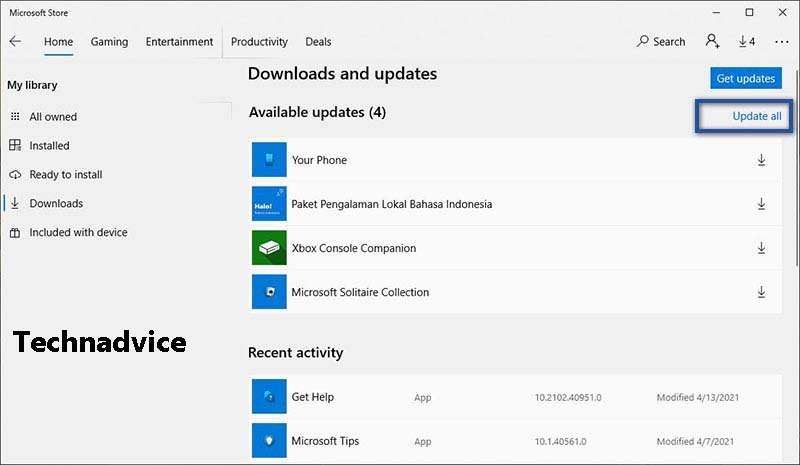
    1. First, open the Microsoft Store.
    2. Then click the three-dot icon in the upper right corner » and select Download and Updates.
    3. If there is an update to a new version, please click Update all.
    4. Wait a few minutes for the update process.
    5. If it is already installed, restart the computer/laptop » and try opening the application again.
    6. Finished.

    Run TroubleshootRun Troubleshoot

    1. First, click the Windows icon on the Taskbar » select Settings » and click the Update & Security menu.
    2. In the “ Update & Security ” section, select the Troubleshoot menu.
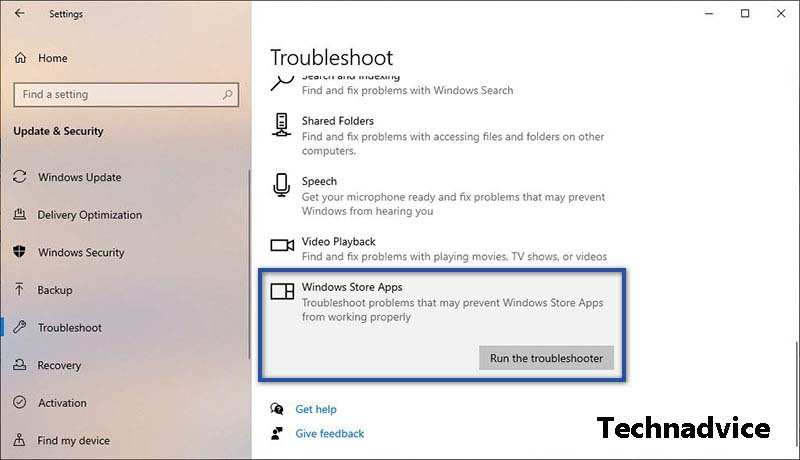
    3. Then find and select Windows Store Apps » and click Run the troubleshooter.
    4. If a notification appears, click Enable User Account Control (UAC).
    5. Wait a while for the scan for problems » Follow the instructions given.
    6. Finished.

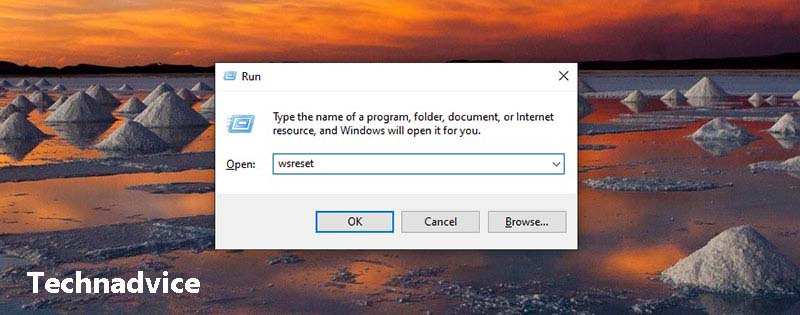
    Reset Window Store CacheReset Window Store Cache

    1. First, press Windows + R on the Keyboard.
    2. Then type was set in the search field » press Enter/OK.
    3. Wait for the process for a while » then restart the computer/laptop.
    4. Finished.

    Re-register Windows StoreRe-register Windows Store

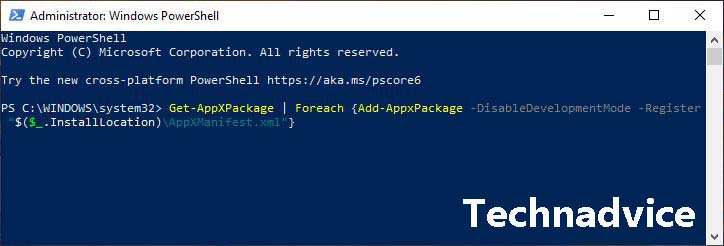
    Get-AppXPackage | Foreach {Add-AppxPackage -DisableDevelopmentMode -Register “$($_.InstallLocation)\AppXManifest.xml”}
    1. First, click the Windows icon on the Taskbar.
    2. Type “ PowerShell ” in the search field » if so, right-click Windows PowerShell from the search results » select Run as administrator » and click Yes to run.
    3. Next copy and paste the command above » press Enter.
    4. Wait a few moments » then restart your computer/laptop.
    5. Finished.

    #5. Perform Windows Update

    When you experience a failure while updating Windows, it is not surprising that you will later find several errors that are displayed. One of them includes the error message “ This app can’t open ”. To fix an error like this, you just need to do a re-update. So that the device can run smoothly, stable, and optimally.Perform Windows Update
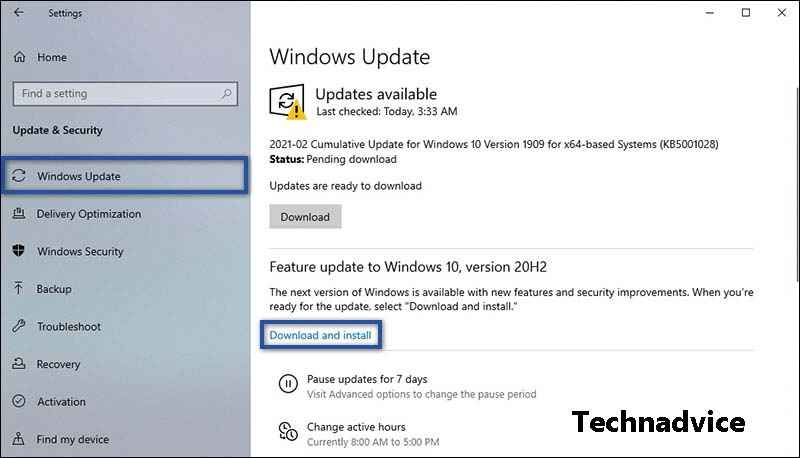
    1. First, click on the Windows Start menu.
    2. Then click Settings » and select Update & Security.
    3. Then click the Windows Update menu » and select Download and Install.
    4. Wait for the download process for a few moments.
    5. If so, please restart the device to install the update.
    6. Finished.

    To make sure your device always gets Windows updates, then change the setting in Service to automatic. To do this you can follow the steps below.Perform Windows Update
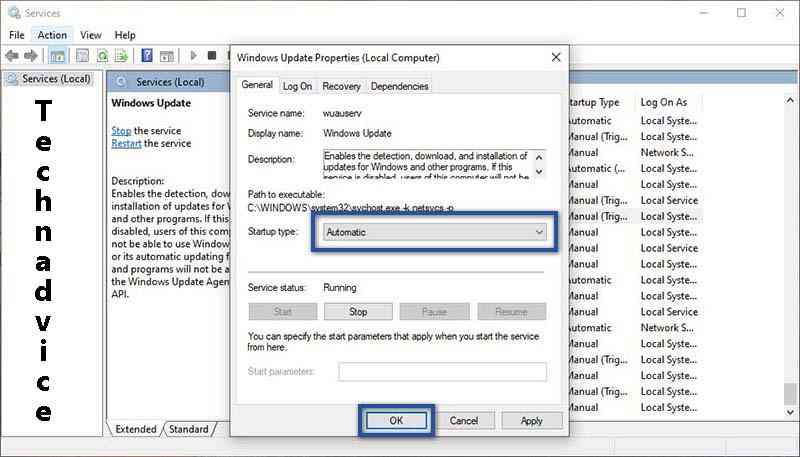
    1. First, press Windows + R on the Keyboard.
    2. Then type services.msc , in the Run » search field, press Enter/OK.
    3. If so, find the Windows Update service » right-click, and select Properties.
    4. After the new window opens, change the “Startup Type” section to Automatic » Click Apply » OK.
    5. Finished.

    #6. Scan Using an AntivirusScan Using Antivirus

    The last method you can do to solve the “ This app can’t open ” error message that appears on Windows is to do a scan with an Antivirus application. Of course, the purpose of this scan is because there is a possibility that the error description is caused by a virus or malware. And to make sure, do a full system scan.

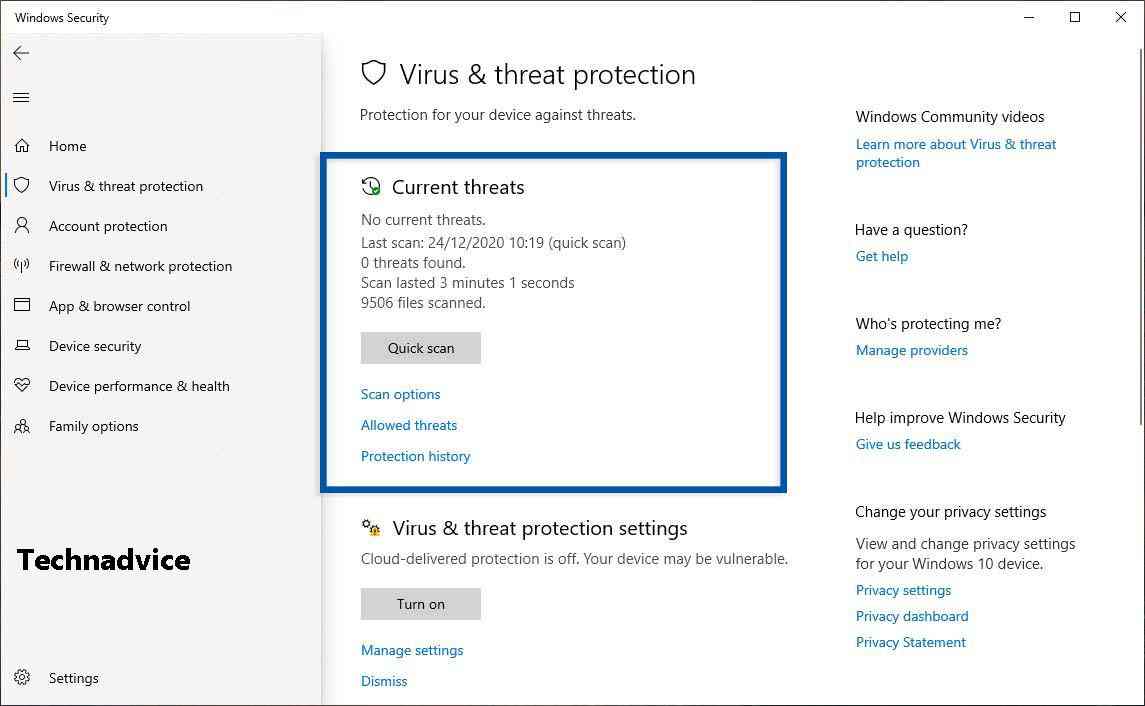
    1. First, go to Settings » Update & Security » Windows Security menu.
    2. Then click Open Windows Security » Virus & threat protection.
    3. Click Quick Scan to perform the scanning process.
    4. Wait until the scanning process is complete.
    5. Finished.

    We know that Windows default applications play a very important role in supporting daily activities. Starting from opening photos, taking notes of important things, to accessing the internet. But what happens when the application experiences several problems?

    Call it the appearance of the error message ” This app can’t open ” and so on. You can do this by using one of the methods above. Indeed, the solution I provide is only simple. But that doesn’t mean some of these solutions can’t fix it.

    What causes the application to not open?

    The cause can be due to system problems, corrupt applications, bugs, or viruses.

    Why does the message “This app can’t open” appear when I use it?

    This error message usually occurs in Windows default applications. The cause of this problem can be caused by several factors, one of which is the problematic Microsoft Store.

    Why when running the application often does not respond?

    Generally, this problem is caused by a crash between the program and the hardware on the computer/laptop, and a lack of system resources until there is a bug in the application that causes the program to stop responding.

    Read more:

    Conclusion:

    This is an explanation of 10 ways to fix this app can’t open in a Windows 10 PC, that you can solve This app can’t open in Windows, hopefully, this article will be helpful and useful. If you have any questions or opinions regarding the above article, please write them in the comments column below.

  • 8 Easy Steps To Root Android With KingRoot 2025

    8 Easy Steps To Root Android With KingRoot 2025

    8 Easy Steps To Root Android With KingRoot – KingRoot was developed by a group of developers who are members of KingRoot Studio. This group of developers has always been interested in the system underlying Android devices.

    How To Root Android With KingRoot Complete Guide
    How To Root Android With KingRoot Complete Guide

    How To Root Android With KingRoot Complete Guide

    They began to explore optimization techniques for the Android system. Among their findings and developments the most notable is, KingRoot, which is one of the best apps to root Android phones easily.

    Read more:

    The initial release of KingRoot APK supports root for Android 2.0 – 5. x. Then the tool is updated to root every new Android version.

    In this article, we will cover how to root Android with KingRoot, and we will do it both with and without a computer.

    What is Android root? and how to root android

    Rooting is the process of giving the user the privilege or superuser (superuser) who has almost unlimited rights and abilities to control the Android operating system on the HP and manage all kinds of software or software for personal needs.

    In the past, rooting Android was a very complicated process. But now with KingRoot APK, rooting is much easier than before.

    KingRoot is the simplest and easier rooting tool ever developed for Android phones and tablets.

    This is an application from the land of bamboo curtains and it is also available in English. You can download KingRoot APK for Android free from trusted sources or from the developer’s official website.

    What should you do before rooting?

    Backup or Back up your device data

    Actually, there is no rooting application that can work 100% successfully, for you should have an umbrella before it rains, so I suggest that you use an Android backup application to transfer your Android data to another safe location on your PC or cloud or another device, as a backup. , just in case.

    Fully charge the Android phone battery/charge

    Rooting takes energy so you have to charge your phone to at least 60% first.

    Choose a reliable root tool

    There are various Android root tools on the Internet, you should choose a trustworthy program to help you root your Android phone safely and easily.

    In this post, we recommend KingRoot. KingRoot is a free and easy-to-use software to root almost any device from Android version 2.x -> 5.0.

    Then how to root Android with KingRoot?

    KingRoot has two versions, a Windows PC version, and an Android APK version. Here we will show you a detailed step-by-step guide to root an Android phone with the KingRoot computer version and Android apk.

    Root the Android phone with KingRoot on the computer

    KingRoot has one drawback which is that the PC version only shows Chinese in the interface, so you should follow this guide carefully.

    #1. Install KingRoot on PC

    Download and install KingRoot for PC onto your computer. After successful installation, double-click to run this software.

    #2. USB debugging

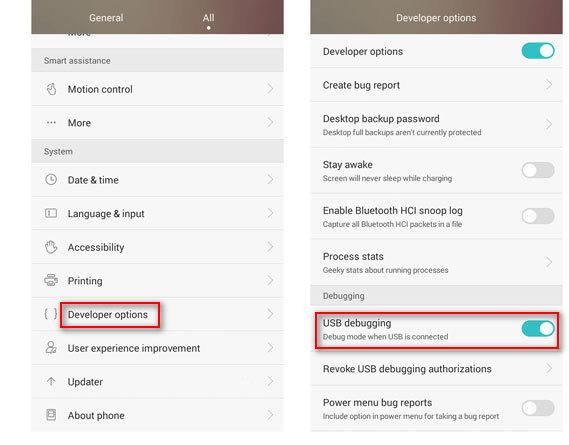
    On your Phone, debug USB mode by tapping “Settings”> “Developer Options”> sliding “USB debugging” to “ON”, which will allow you to manage your phone without being bothered by computer notifications.

    If your phone has enabled USB Debugging Mode, then you can skip this step, and go straight to step 3.

    How To Root Android With KingRoot
    How To Root Android With KingRoot

    #3. Connect the phone to the computer

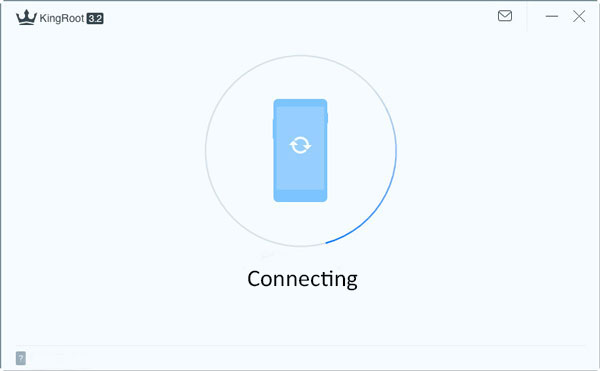
    Connect your phone to the computer with a USB cable, and the KingRoot software will detect your phone directly.

    How To Root Android With KingRoot

    #4. Root the phone with KingRoot on the computer

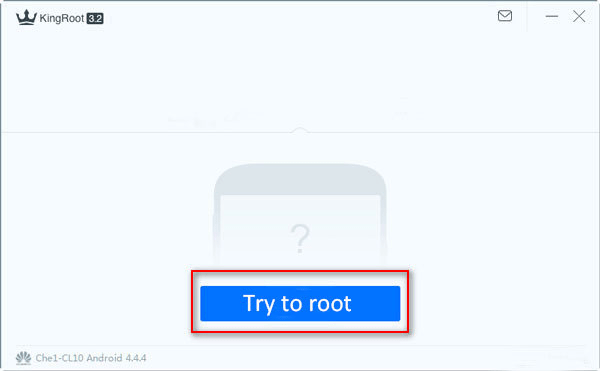
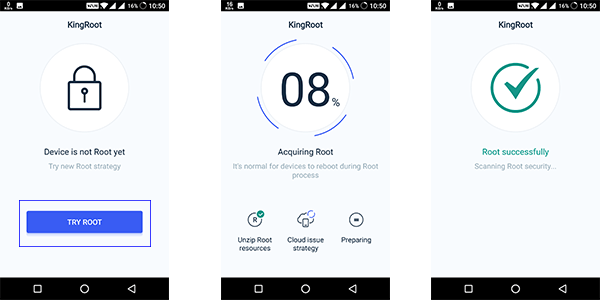
    After connecting your phone, click “Try To Root” to start rooting your phone. After rooting your phone, there is one reminder on the interface informing you that you have rooted your phone.

    After rooting, you can use another recovery tool to recover deleted files from SD card or Android internal storage.

    Try To Root

    Root the phone with KingRoot without a computer

    #1. Download KingRoot to PC

    You can search www.kingroot.net on your phone’s browser to download KingRoot. Or you can download it directly from my page here.

    Download KingRoot APK for Android

    KingRoot is available for free for Android devices. So, there are a few things that need to be considered before you download KingRoot APK from any source.

    1. Check for the latest version of KingRoot APK before downloading.
    2. Check which version is compatible for your Android handset.
    3. Once you have downloaded the KingRoot APK, install it by providing the necessary permissions.
    4. After successful installation, you can root the smartphone.
    5. You must remember that the download links provided on this webpage are genuine. We tested it live before posting it for others to access.

    #2. Install KingRoot APK

    After successfully downloading, you need to find the APK file on your Android phone, of course in the File Manager -> Download folder, and press to install it.

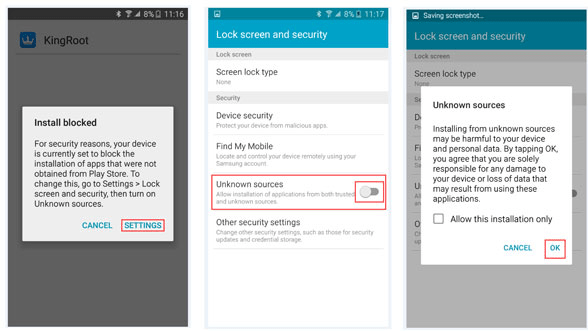
    If you get an “install blocked” notification, then your Android will display an option to enable “Unknown Sources” in “On”, then you will be able to install KingRoot.

    Step 2 Install KingRoot APK

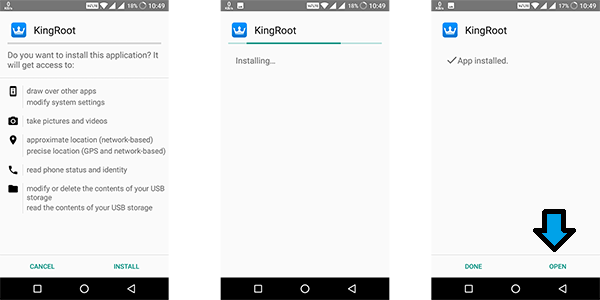
    #3. Open the Kingroot application

    After successful installation, press “OPEN” to open this application.

    Step 3 Open the Kingroot application

    #4. Start Root Android with KingRoot

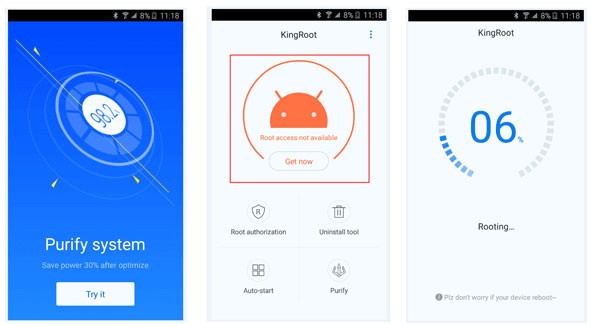
    Tap or tap “Try It”> “Get Now” to start rooting your Android phone. You will find the root process in the presentation to complete.

    Step 4 Start Root Android with KingRoot

    Or in other KingRoot versions, the button is Try Root.

    Try Root

    If you are not sure whether your phone has been successfully rooted or not. You can try to remove the preinstalled factory apps that you don’t need.

    Or you can also head to Google Play Store to download RootChecker to check if Root has been successful.

    How to uninstall Kingroot Apk

    If you already have KingRoot APK installed, you might have a question, can we uninstall the KingRoot application or unroot our phone?

    Yes, we can easily do this by following one of the methods mentioned below:

    Using SuperSU

    1. Install the SuperSU app from the Play Store.
    2. Launch it, and open the Settings panel.
    3. Select the Unroot option from the menu.
    4. The device returns to its previous state after rebooting. You can also confirm root access again by installing the Root Checker app from the Google play store.

    Using the KingUser APP

    1. Launch the KingUser application from the applications folder.
    2. Click Settings >> Root Authorization setting >> Remove root permissions >> select Clear.
    3. This app will display an In Progress message and revoke root/root access permissions. You can confirm root access again by installing the Root Checker app from the Google Play Store.

    FAQ about KingRoot

    Is the KingRoot application free?

    KingRoot is completely free to download and use on compatible Android devices.

    Is it safe to use the KingRoot application?

    Yes, this application is very safe and it is recommended that it be reliable, it is one of the one-click root applications available today.

    Can KingRoot “brick” our HP?

    No, KingRoot will not damage your Android device. That’s the reason why this app is preferred among the old-style rooting processes.

    What manufacturer’s Android and HP versions do KingRoot devices support?

    KingRoot supports various Android devices from various manufacturers such as Samsung, Oppo, Motorola, Lenovo, Sony, OnePlus, HTC, Xiaomi, LG, etc.

    Can we unroot using the KingRoot tool?

    Yes, you can unroot using the KingRoot tool. You can check the Unrooting section above in the article for the process.

    Can we uninstall KingRoot APK from the device?

    Yes, you can uninstall KingRoot APK from Android devices as easily as we usually do with other apps.

    Root Android with KingRoot is one of the easiest ways offered to us as end-users who do not have the technical skills to mod and code the Android system.

    And so far KingRoot has earned a good reputation as a root application that is diligently updated and developed, supports fairly new versions of Android, and includes quite a number of manufacturers of phones and tablets based on the Android operating system.

    Read more:

    Conclusion:

    This is the explanation of 8 easy steps to root Android with kingroot, Hopefully, this article is of use to you. If you have questions, don’t hesitate to raise them in the comments area and I will answer them as best as possible.

  • 6 Ways to See Your Own Facebook Password 2025

    6 Ways to See Your Own Facebook Password 2025

    6 Ways to See Your Own Facebook Password – Yes, Facebook is still the most popular social media platform because it has the most users. Therefore, if we ever forget the Facebook password it will be very frustrating, especially when we need it.

    How to See Your Own Facebook Password 6 Quick Ways
    How to See Your Own Facebook Password: 6 Quick Ways

    How to See Your Own Facebook Password Via Apps and Website

    Humans are always attached to the nickname “forgetful creatures”, this is what can cause someone to lose something even though it is very important. No exception when they suddenly forget their own Facebook account password.

    Read more:

    To find a way to see Facebook’s password is indeed very easy, but the most important thing is to make sure we don’t forget it or can save it on a mobile note or via email to make it easier for us not to forget the password of our own FB account.

    However, sometimes there are mistakes such as FB accounts being hacked or intercepted by irresponsible parties, which allows us to type the FB password many times. This can happen because there are indeed many Facebook users who experience the same thing.

    Then’ How to see your own Facebook password?

    We don’t need to worry if the things above happen to us. We will help to reset our FB password again and restore passwords that we have forgotten or that are being intercepted by hackers by using tricks on how to easily see your own Facebook password.

    To open a Facebook account password is very easy to do, we only need to enter an email address or other contacts such as mobile numbers to verify the FB account again. So later, a new password or password reset notification link will be sent to our contacts, either via mobile number or via email depending on needs. How, very easy right?

    But make sure you use an email account and mobile number that is still active and is often used. In addition, make sure the new password that will be regenerated is only easy to remember by yourself but difficult for hackers by others. Thus, the possibility of our FB account being hacked is very small.

    Therefore, follow a few steps on how to see your own Facebook password below first!

    The way to be able to see and know your Facebook password can be done with a few simple methods that are very easily understood and tried by you. The method along with the steps and stages are as follows.

    See Your Own Facebook Forgotten Password

    As a human being who is not spared by forgetfulness, a way to be able to see your own Facebook password that you forget is to try some of the methods below.

    #1. Via the Facebook Application

    • Open the Facebook application
    • Press Forgot Password? or Find Your Account.
    • Enter your cell phone number, email, or Facebook name.
    • Press CONTINUE.
    • Check your email or SMS (if you use a cellphone number).
    • Enter the Verification Code.
    • Next, you have to change your Facebook password. Enter a new password for your Facebook account.
    • Done.

    #2. Via the Facebook Website

    • Open the browser on the laptop / PC that you are currently using.
    • Open and visit the site www.facebook.com
    • Click Forgot account? in the upper right corner.
    • In the Find Your Account section, type your e-mail or phone number to find your FB account.
    • Click Search.
    • Choose one of the ways to Reset your Password. You can choose either Send the code via email or Send the code via SMS.
    • Click Continue.
    • Open a new browser tab then open your email. Or check SMS if you request a code via SMS.
    • Enter the verification code that was sent.
    • Fill in the new password for your Facebook account.
    • Confirmation and Completion.

    See your own Facebook password that is already logged in

    It could be said to be lucky if we want to remember the Facebook password that we have previously saved with the position of the Facebook account still in a Login / Login state. Now, we can know and see our e-mails again in the following ways.

    #3. See Your Own Facebook Password in the FB Application

    • Unlock your Android phone’s screen.
    • Enter the menu and open the Facebook application.
    • Press the three-strip icon  in the upper right corner.
    • Select Settings.
    • Next press Security and Login.
    • Then select Change password.
    • Enter the current password and new password. Or you can press Forgot Password?
    • Try Entering Your Password. Enter your FB password in the field provided.
    • Click the Login button.
    • Or, click Get Code.

    #4. See Your Own Facebook Password Using Google Chrome

    • Open the Google Chrome browser on your laptop / PC.
    • Click the dot icon in the right corner.
    • Select and click Settings. Or, you can simply type chrome: // settings / in the address bar.
    • Next, choose Passwords.
    • Search the Facebook.com website. In the Search password search field, you can type Facebook to quickly find the stored FB password.
    • Once found, you can directly click the eye image icon on the right side.
    • Your previously-stored Facebook password will be immediately viewable.
    • Done.

    #5. See Your Own Facebook Password Stored on Android

    • Unlock your Android smartphone and position it on standby to be ready for use.
    • Enter the Settings / Settings menu.
    • Select and press Google.
    • Next, select Manage your Google Account.
    • Scroll to the right of the menu tab and select Security.
    • Scroll down and find Login to another site, Next select Password Manager.
    • In the search field, search for the Facebook password previously saved. To speed things up, just type Facebook in the search field.
    • Enter the lock screen password, can use a pattern or fingerprint.
    • Tap/tap the eye symbol icon, then you will immediately see your current Facebook password.
    • Done.

    6. Method

    • Open the Google Chrome browser on your Android phone.
    • Press the dot icon in the upper right corner to enter the Settings menu.
    • Select Settings.
    • Next, select and press Password.
    • Select Facebook, then there will be several FB passwords that have been stored previously. Press one of them.
    • To view the currently active FB password, Tap/tap the eye image symbol icon.
    • Done.

    Note: This method will only work if you have previously saved a Facebook password to the browser.

    Read more:

    Conclusion:

    This is the explanation of how to see your own Facebook password with a few easy selection methods.

  • 9 Ways to Fix Windows 7 This Copy of Windows Is Not Genuine 2025

    9 Ways to Fix Windows 7 This Copy of Windows Is Not Genuine 2025

    9 Ways to Fix Windows 7 This Copy of Windows Is Not Genuine – Windows is one of the most popular OS for PCs and computers today. I’m sure you guys are also using this one operating system.

    Fix Windows 7 This Copy of Windows Is Not Genuine
    Fix Windows 7 This Copy of Windows Is Not Genuine

    How To Fix Windows 7 This Copy of Windows Is Not Genuine

    Besides having complete features, Windows is also a user-friendly type of OS. But have you ever suddenly experienced an error when using a Windows OS device?

    Read more:

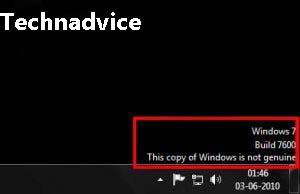
    The error referred to here is when the display screen turns black and blank without displaying any image. Usually, on the taskbar, there is also a notification that reads ‘This Copy of Windows Is Not Genuine.

    What happens to devices that experience this? Lots of users, especially newbies, are confused about it.

    Causes of Black Screen Laptop Computer PC

    So what causes the laptop screen to turn black? That’s because the operating system you are using is in the trial period. Or another possibility is that you have been detected using pirated Windows.

    Well, it’s common knowledge that there are lots of pirated Windows users out there. And maybe you are one of them too. There are many reasons why people choose pirated products.

    One of the most common is that it is cheaper than having to buy the original. Who would refuse if offered an alternative that has a cheaper price? But of course, such a product has a risk like Windows 7 which is not genuine.

    Then is there a solution or a way to get rid of Windows 7, not genuine notifications? Of course, there are, I always have tips that can provide the best solution for you.

    Surely many are worried if they have to do a reinstall. Don’t panic, in this tip, we won’t be re-installing.

    How to Remove This Copy of Windows Is Not Genuine from Windows 7

    There are still other tricks that can be used to make Windows 7 genuine again. So you don’t have to worry about important data because it will remain intact in its place.

    How to Remove This Copy of Windows Is Not Genuine from Windows 7
    How to Remove This Copy of Windows Is Not Genuine

    How to fix an error like this can be said to be difficult and easy. It’s hard if you don’t find out but easy if you pay close attention to the instructions.

    No need to linger anymore, here is a tutorial that can be a solution for pirated windows that can’t be used and ask to be reactivated.

    #1. Open CMD

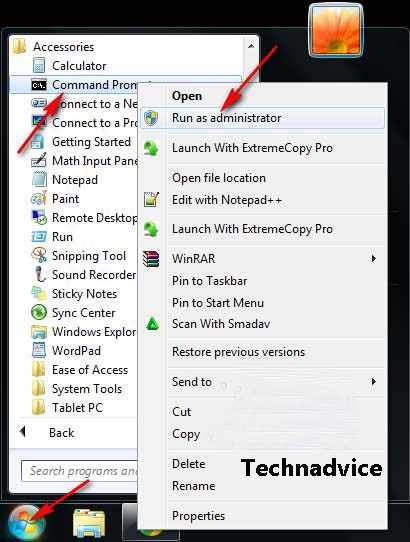
    First, click the start menu then select All Programs then Accessories, find Command Prompt then right-click and select Run as administrator.

    Open CMD
    Open CMD

    #2. Type slmgr.vps /upk

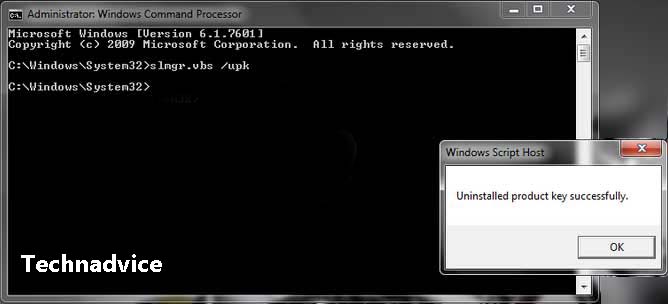
    After the CMD window exits please type slmgr.vbs /upk and press enter.

    Type slmgr.vps upk
    Type slmgr.vps upk

    #3. Type slmgr.vbs /rearn

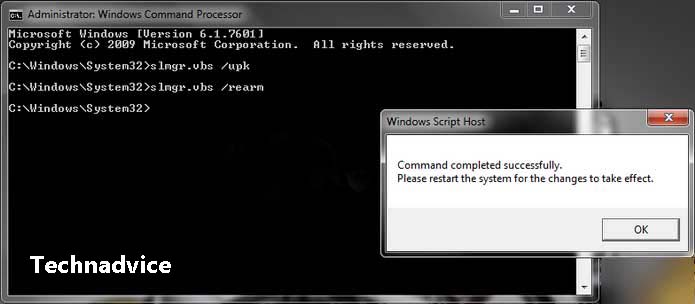
    Then type again slmgr.vbs /rearm and enter again.

    Type slmgr.vbs rearn
    Type slmgr.vbs rearn

    #4. Restart Laptop/PC

    Finally, restart your computer or laptop.

    #5. Download Windows Loader

    For further after your computer has finished booting and displaying windows, follow the next guide:

    Download the Windows Loader Activator application from the internet. Or more easily click the following link.

    Password: www.yasir252.com

    #6. Run Admin Windows Loader

    Run Admin Windows Loader
    Run Admin Windows Loader

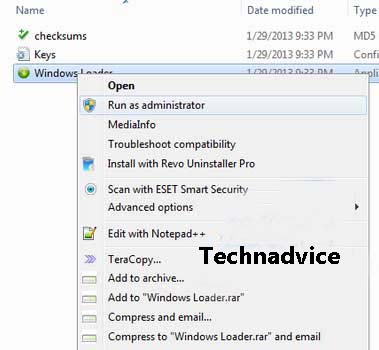
    Next, right-click on the Windows Loader Activator that was downloaded earlier and Run as administrator.

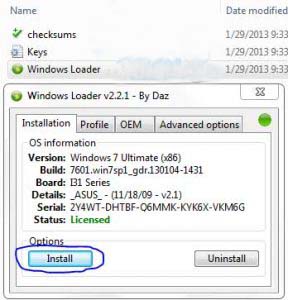
    ##7. Install Windows Loader

    A new window will appear, just click Install.

    Install Windows Loader
    Install Windows Loader

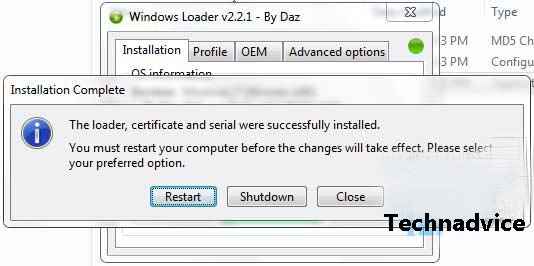
    #8. Click Restart

    Wait for the process to complete, then click Restart to boot once again.

    Click Restart
    Click Restart

    #9. Done

    Well congratulations, after that your windows will return to normal and not black blank again.

    The simple way to make This Copy of Windows Is Not Genuine writing disappear is to activate Windows that has not been activated previously. There are many ways that you can use it.

    How to activate Windows that I described above is to use Windows Loader. You can also use other ways to activate Windows.

    Read more:

    Conclusion:

    This is the explanation of on to fix Windows 7 this copy of Windows is not genuine, And, How to solve Windows that becomes a black blank screen on the laptop.

    The tips and tutorials above can be used to remove the notification ‘This copy of Windows is not genuine without having to reinstall.

  • 8 Ways To Update Drivers in Windows 10 Laptop PC 2025

    8 Ways To Update Drivers in Windows 10 Laptop PC 2025

    8 Ways To Update Drivers in Windows 10 Laptop PC – After reinstalling Windows 10, all we need to do is make sure all the drivers are up to date. Updating this driver can be done automatically and manually.

    How to Update Drivers in Windows 10 Laptop PC
    How to Update Drivers in Windows 10 Laptop PC

    How To Update Drivers in Windows 10 Laptop PC

    Every time we update Windows 10, driver updates will also be automatically downloaded. But sometimes some drivers are not directly supported by Microsoft, so we have to update them manually.

    Read more:

    In this post, I will show you how to easily update drivers on Windows 10. If you are having problems such as a certain device that has stopped working, then updating the driver can be one of the solutions that must be tried.

    What is a driver?

    A driver is a program that connects the operating system with the hardware on a computer. In other words, the driver serves to bridge communication between the operating system and existing devices, this allows users to control various devices such as keyboards, mice, touchpads, VGA, Wi-Fi, Bluetooth, and various other devices.

    Why do we need to update drivers?

    Updates function to adjust changes that occur in applications and to the Windows 10 operating system itself. When updating, we will get feature updates, patches, bug fixes, and guarantee that the drivers are still compatible.

    Outdated drivers (haven’t been updated for a long time) can cause problems. If a driver has a problem, the hardware that is driven will also have a problem and even make it stop working. Therefore, updating drivers is quite important.

    Updating drivers is also an effort to speed up Windows 10 so that it is used smoothly while working.

    How to Update Drivers in Windows 10 Laptop PC

    #1. Connect the computer to the internet

    First, you have to make sure if the computer is connected to the internet. It is recommended to use Wi-Fi or other stable connection, also make sure the internet quota is sufficient when using the internet from a USB modem or tethering from a smartphone.

    #2. Open the Device Manager

    The next step is to enter the Device Manager by right-clicking on the Start button> selecting Device Manager.

    #3. Find the driver you want to update

    After entering the Device Manager application you will see a whole list of drivers on the computer. Find which driver you want to update.

    You may need to expand the menu on the device to find the driver you want, for example, if you want to update the VGA driver then you have to expand the Display menu.

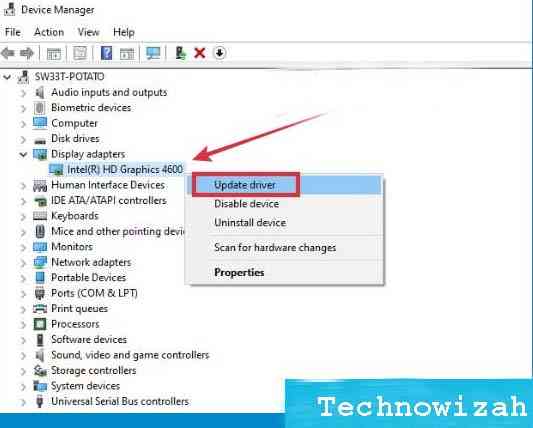
    #4. Right-click on the driver

    After finding the desired driver, right-click on it.

    #5. Select Update Driver

    How to Update Drivers in Windows 10

    Once a contextual right-click menu will appear, all you need to do is click on the Update Driver menu.

    #6. Select Automatic update

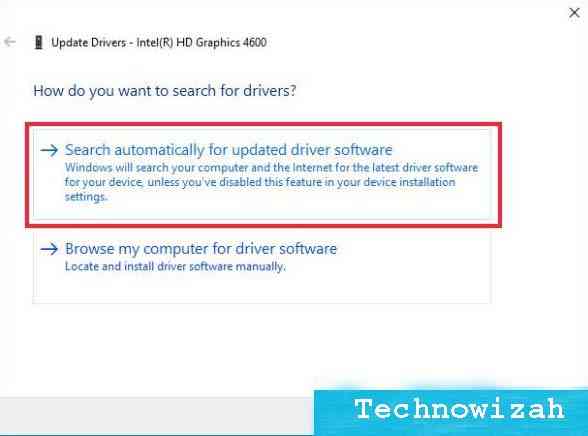
    Then the update wizard window will appear. To update automatically, select Search automatically for updated driver software.

    How to Update Drivers in Windows 10

    #7. Wait until the update process is complete

    Windows will automatically search for updates on their servers. You just have to wait for the process to finish.

    #8. Perform the same steps for the other drivers

    To update other drivers you can repeat the same steps as above.

    How to update all drivers automatically

    In the first method, we updated the specific driver that we chose. If you want to update all drivers automatically without having to select them one by one, you can do this by updating Windows.

    When we update Windows 10, all drivers will also get updates when available. This way we don’t have to bother doing it manually anymore.

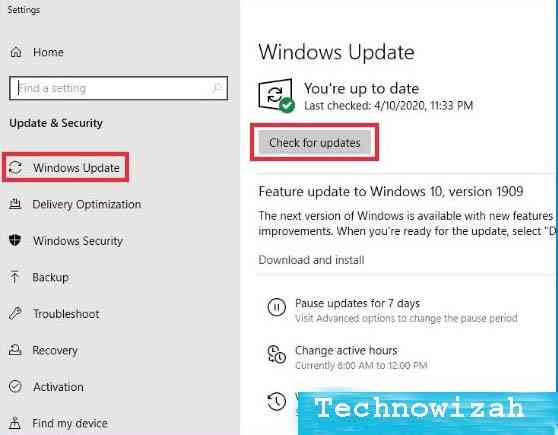
    To update Windows, the method is very easy, namely:

    1. Click the Start button
    2. Click the Settings button (gear icon)
    3. Select Update & Security
    4. Select Update
    5. Click on the Check for Updates buttonHow to update all drivers automatically
    6. Wait for it to finish
    7. Restart your computer

    You need to know if the automatic update process is not always 100% successful, sometimes some drivers cannot be found by Windows. If this happens, then another solution that you can try is to manually update.

    How to manually update drivers in Windows 10

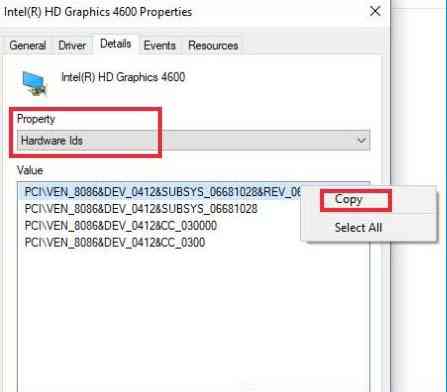
    1. Open the Device Manager
    2. Find the driver you want to update
    3. Right-click the driver
    4. Select Properties
    5. Click on the Details tab
    6. In the Property section select Hardware ids
    7. Right-click Hardware IDsCopyHow to manually update drivers in Windows 10
    8. Open the site https://drp.su/en/catalog
    9. Paste the hardware ID in the search field on the site
    10. Download the driver in zip format and install it on your computer

    Read more:

    Conclusion:

    This is the explanation of 8 ways to update drivers in Windows 10 laptop PCs, You can use the manual update method above for devices whose drivers are not supported by Microsoft. If you are using a device from a well-known brand such as NVIDIA or AMD VGA then you can find the driver on their official site.